RSS
 

Posts Tagged ‘Using’

A Step-by-Step Guide to Using Light in Flower Photography for Awesome Photos

23 Oct

The post A Step-by-Step Guide to Using Light in Flower Photography for Awesome Photos appeared first on Digital Photography School. It was authored by Simon Ringsmuth.

using-light-in-flower-photography

Flowers are brilliant subjects for photography. They are bright, colorful, and are stay perfectly still for you as long as the wind is calm. You don’t need any special equipment or lenses to take great photos of flowers either. You can get great photos with just a mobile phone or a basic DSLR with a kit lens. If you really want to elevate your flower photography to the next level, you need to pay very close attention to one thing – the sun – because the light in flower photography is everything.
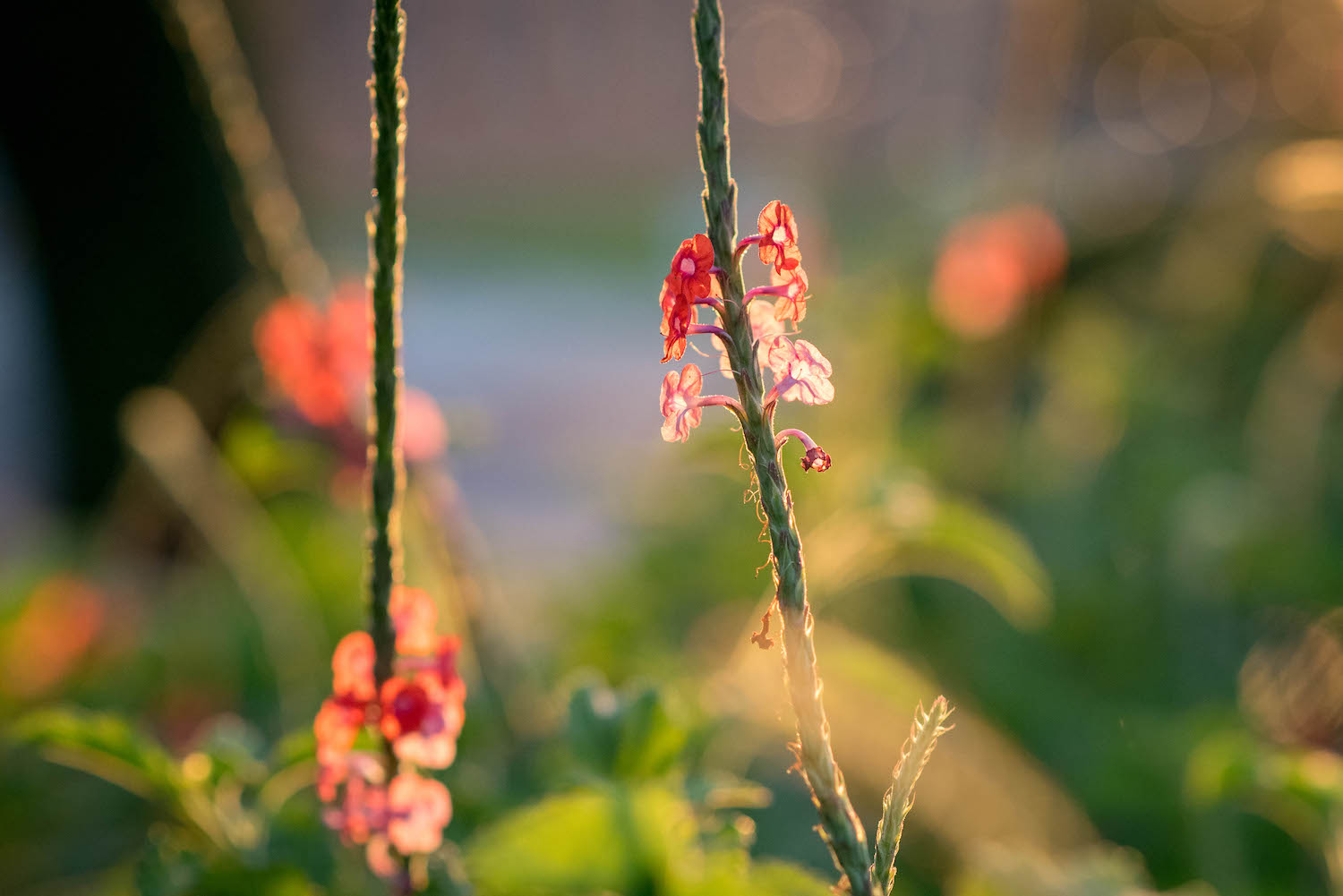
Image: 85mm, f/2.8, 1/3000 second, ISO 2200

85mm, f/2.8, 1/3000 second, ISO 2200

Of course, there are other sources of light besides the sun, but this is the most obvious and easily-accessible one when considering flower photography. Unfortunately, you can’t position the sun exactly where you want it, but you can position yourself to make the best use of it. You can also take note of the lighting conditions when you go out to shoot flower pictures. Understanding how the sunlight, and your angle of view, affect the finished product is key to getting great shots.

Don’t let anyone tell you that if you want to get good pictures of flowers you have to do it in certain conditions like a cloudy day or the evening. In truth, you can get great flower photos almost any time as long as you pay attention to the sun and the shot you are trying to get. Let’s take a look at some different scenarios and see how they affect flower photography.

Time of day

The time at which you shoot, such as early morning or mid-afternoon, can have a huge impact on your flower photos. In addition to altering the amount of light available, shooting in the morning or evening changes the type of light. It also changes the angle at which it hits your flowers and the surrounding area.

I shot the picture below just as the sun was coming up. The blurry triad in the background is a street lamp that had not yet turned off. It added a nice background touch to the picture. This would have looked entirely different had I taken the picture a few hours later.

Image: 50mm, f/1.8, 1/180 second, ISO 400.

50mm, f/1.8, 1/180 second, ISO 400.

If you want your flowers gently illuminated for a soft, almost hazy appearance, then early morning or late evening is going to work great. However, if you want your flowers bright, sharp, and punchy, then harsh overhead lighting is ideal.

It all depends on the type of picture you want to take and knowing how the lighting conditions affect the final image.

using-light-in-flower-photography

50mm, f/2.8, 1/1500 second, ISO 200

A monarch butterfly joined me as I was taking the above picture in the afternoon. The bright overhead sun made the reds, yellows, and greens bright and crisp, which doesn’t happen in the early morning or late in the day.

The sun was directly overhead when I took the picture below. This caused each of the colors in this picture to shine. It turned out I wasn’t the only one interested in this particular magnolia flower.

using-light-in-flower-photography

50mm, f/1.8, 1/6400 second, ISO 200

You can get great pictures of flowers at any time of the day. Just make sure you know where the sun is and how it will impact your pictures. Armed with that knowledge, you’ll be able to make better choices about the pictures you are going for.

Types of light in flower photography

Backlighting vs. front lighting

Backlight is when the main source of light comes from behind your subject. This can lead to some creative scenarios, especially when used to shoot subjects with rim lighting. Conversely, front light is when the main source of light comes from the front of your subject, usually behind the photographer.

Either one of these types of lighting works great for flower photography. However, you need to understand how backlighting and front lighting affect your flower pictures, so you know which one to use. I photographed the flower below with front lighting. The sun was behind me as I took the picture.

using-light-in-flower-photography

85mm, f/1.8, 1/3000 second, ISO 100

Front lighting makes the purples really stand out, especially against the background. There are also some prominent shadows along the left-hand side and at the base. These are neither good nor bad, just a result of using front lighting.

A similar flower, shot in the same location a few minutes later, reveals a much different image when employing backlighting.

Image: 85mm, f/2.8, 1/500 second, ISO 560

85mm, f/2.8, 1/500 second, ISO 560

Notice how the petals almost look like they are glowing as the sun shines through them. The shadows are more diffused, which is also due to the late hour of the day at which this was shot. Both pictures are good but in different ways. If you traditionally shoot flowers with front lighting, try doing some backlit shots and see if you like the results.

Image: Another backlit flower, where the shining sun made the yellow flower appear bright and radian...

Another backlit flower, where the shining sun made the yellow flower appear bright and radiant.

Sunny vs. overcast

There’s a common perception among photographers that cloudy, overcast skies make for some of the best lighting conditions. While I certainly enjoy shooting on days like that, the truth is, you can make any lighting condition work for flower photography. You just need to know how the light will affect your images.

One of my favorite flower photos I have ever taken was in the middle of the day just after a bit of rain. It’s a few coneflowers low to the ground. The overcast sky led to even lighting across the entire frame and rich, deep colors. There are no harsh shadows, no translucent petals, and no bright spots in the background. Instead, the frame is a mix of saturated greens, purples, and reds that I really like.

using-light-in-flower-photography

50mm, f/1.8, 1/640 second, ISO 200

Another example of this is the following picture, which I took in the morning after a night of thunderstorms. The clouds overhead dispersed the sunlight into all directions, which gave me an evenly-lit scene that worked great for this particular show.

Image: 85mm, f/1.8, 1/200 second, ISO 125

85mm, f/1.8, 1/200 second, ISO 125

However, these two pictures don’t mean you can’t take great flower pictures in bright sunlight. Far from it! Just know that flower images in bright sunlight will look much different than their cloudy-skied counterparts. The picture below is similar to the one above, but I took it on a bright sunny day.

using-light-in-flower-photography

50mm, f/1.8, 1/8000 second, ISO 360

This picture is neither better nor worse than the one above it, just different. Bright sunlight makes the red petals leap out of the frame. The rich blue sky and deep shadows of the grove of trees add a sense of space and depth that is missing in this picture’s counterpart.

Similarly, I photographed the purple magnolia flower below on a bright sunny day, but with just a bit of cloud cover. It’s kind of a cross between sunny and overcast and yields an interesting picture.

using-light-in-flower-photography

85mm, f/1.8, 1/200 second, ISO 140

The sun was off to the left, making the white inside of the flower petal shine out and compete with the purple in the foreground for the viewer’s attention.

I show all these examples as an illustration that you can get great shots of flowers in a variety of lighting conditions. The key is to use the sunlight (however it happens to be at the moment) to your advantage by knowing how it will affect your flower photos.

A comparison

If you can’t control the light in your flower photography, you can still control the angle from which you shoot your pictures. This has an amazing impact on how your flower photos turn out.

I shot the three photos below on a bright sunny day in about three minutes. The same flower is in each shot, and I used a 50mm lens with an f/2.8 aperture. The only difference is the angle from which I took each photo but that one simple thing changes each picture a great deal.

In this first picture, the flower is front-lit, meaning the sun was behind me and almost directly overhead as I took the photo. Notice the bright orange colors and stark shadows, which create a sense of depth and isolation. The background is shrouded in shadow because of the overhead light and the angle from which I took the picture. I see a lot of pictures similar to this online, especially on social media sites.

Image: 50mm, f/2.8, 1/2000 second, ISO 100

50mm, f/2.8, 1/2000 second, ISO 100

For this next photo, I stood in the exact opposite spot, looking up from below into the sun. Notice how the petals have become brilliantly translucent, and the greenery on the left is bursting with blurry bokeh.

It’s an entirely different version of the same flower and didn’t require anything on my part other than a simple perspective change.

Unlike the first picture, I don’t often see flower shots like this on social media. This is most likely because it’s just not something a lot of people think about doing.

Image: 50mm, f/2.8, 1/2000 second, ISO 100

50mm, f/2.8, 1/2000 second, ISO 100

I photographed this final image from the side, and what’s interesting here isn’t necessarily the flower but the background. From this angle, the background was entirely green, making the oranges and reds of the flower scream out by comparison. The lighting is similar to the first image, but this one is a lot more interesting to me because it’s a mix of colors instead of a flower against a mostly black background.

using-light-in-flower-photography

50mm, f/2.8, 1/2000 second, ISO 100

I really want to stress that none of the pictures in this tutorial are objectively better than any others. What I hope to have illustrated is that paying attention to the light in flower photography, as well as considering alternative viewpoints from which to shoot, can dramatically impact your flower photos.

Image: 23mm, f/5.6, 1/160 second, ISO 200. I had to hold my camera high above my head and fire off a...

23mm, f/5.6, 1/160 second, ISO 200. I had to hold my camera high above my head and fire off a series of shots hoping one of them would turn out. It did, and I’m so glad I didn’t just shoot a single sunflower from my normal eye level.

If you enjoy taking pictures of flowers, hopefully these images will give you some new ideas to consider. And if you haven’t spent much time out in nature capturing the beauty of blossoms like this, I hope you can find some time to go out, look at the lighting in flower photography and give it a try. You might be surprised at what you can get!

I’d love to see some of your shots – please share them with us in the comments below.

The post A Step-by-Step Guide to Using Light in Flower Photography for Awesome Photos appeared first on Digital Photography School. It was authored by Simon Ringsmuth.


Digital Photography School

 
Comments Off on A Step-by-Step Guide to Using Light in Flower Photography for Awesome Photos

Posted in Photography


Using Creative Zoo Photography for Awesome Animal Photos

13 Oct

The post Using Creative Zoo Photography for Awesome Animal Photos appeared first on Digital Photography School. It was authored by Rick Ohnsman.

creative-zoo-photography

Wildlife photographers are a dedicated bunch.  They spend money to travel to exotic places, brave miserable conditions, deal with whatever light conditions are present at the time and then sometimes don’t even see the animals they came to photograph.  Pandas in China, tigers in India, lions on the Serengeti, polar bears in the frozen Yukon or maybe gorillas in the Congo.  You could spend a lifetime photographing wild animals in their native lands.

creative-zoo-photography

Bengal Bath – Photographed in the wilds of India or in a zoo? You tell me.

Or, you could take a cue from Simon and Garfunkel –

“Someone told me it’s all happening at the Zoo”

                     – “At the Zoo” – Paul Simon and Art Garfunkel

I’ll grant you, photographing a lion in the zoo doesn’t have the same thrill as being on safari. If you have the time and the money to do such things, by all means, go for it.  For many of us though, the zoo offers a chance to photograph animals we’d never see otherwise and, using the tips we’re about to cover, you can still make some very nice images.  You don’t have to tell your friends where you took them, right?

creative-zoo-photography

It’s hard to make a zoo photo look like it was taken in the wild with a chainlink fence in the background. Go with a wide aperture to throw the background out of focus if you can.

Challenges

In the bush, the challenges of photographing wildlife are likely finding the animal you’re seeking and, depending on the species, perhaps trying not to get eaten.  At the zoo, there are cages, glass or at least barriers designed to separate you and the creatures.  Safer, yes, but also a little frustrating when you’re trying to make a nice photo.

Let’s look at some workarounds for zoo photography.

Image: Sometimes this is what you encounter when trying to do zoo photography. When the animal is ri...

Sometimes this is what you encounter when trying to do zoo photography. When the animal is right up against the wire, there’s not much you can do.

Image: Get a little separation between the animal and the cage, get close to the wire, use a large a...

Get a little separation between the animal and the cage, get close to the wire, use a large aperture, and you can do this. This could probably be cleaned up further with the cloning tool in post-production.

Cages

Zoos are getting better at designing structures so that the animals aren’t always behind bars or chainlink fences, but sometimes you will still have to deal with this.  If the animal is up close to the fence, you might have no choice but to include it in the shot.

But, if you can wait until the beast moves further away from the barrier, this trick can work.  Get close to the fence if you can, then use a wide aperture.  Zoom into and focus on the animal.  You may find that the limited depth of field pretty much renders the fence as a blur, barely showing up at all.  Often you can clean up what remains of the fence or bars when editing.

Image: Having to work through the glass, the top image is straight out of the camera. But, with some...

Having to work through the glass, the top image is straight out of the camera. But, with some editing, a pretty nice Panda Portrait results.

creative-zoo-photography

An aquarium is a zoo of sorts where all the animals will be behind glass. Note how I rescued the turtle image with editing and monochrome conversion.

Glass

Sometimes the barrier between you and the animal will be glass.  You’ll have to deal with grime, scratches, and reflections.  Carry a cloth in your bag when you go to the zoo and clean a spot on the glass where you’ll be shooting.  Get as close to the glass as you can, again with a wide aperture to help blur any scratches.  If reflections are a problem, consider throwing a jacket or cloth over your head or perhaps just the camera to help eliminate them.  Later in editing, the dehaze tool can be your friend with photos made through glass.

Using Creative Zoo Photography for Awesome Animal Photos

Distance

Many times I’m glad there’s some distance between the animal I’m photographing and I. (The Komodo dragon was a scary guy for sure!). The difficulty becomes making the animal in your photo more than just a speck in the shot.

You’ll have even more difficulty with this if you’re visiting a wild animal park where instead of the animals being in smaller cages or enclosures, they roam a wide area, and you drive through the park on a tour bus. There’s only one solution here – longer telephoto lenses.

More about lenses in a bit, just know that to get those nice portrait shots, you’re often going to need some bigger glass.

Image: Frame tightly as you would with a human portrait, be sure the eyes are in focus and you...

Frame tightly as you would with a human portrait, be sure the eyes are in focus and you’ll capture a more engaging image.

Backgrounds

Though you’ll be photographing animals at the zoo, you’d prefer to have your images look like they were taken in the wild.  Your story about photographing zebra on the Serengeti plains will fall apart if there’s an obvious chainlink fence in the background.  So, a couple of possible options here:

  • Fill the frame with the animal, including as little of the background as possible in the shot.
  • Zoom in and use a wide aperture so the background blurs.
  • Consider your vantage point when composing your shot.  Could you move a little to put natural vegetation, rocks, or something not manmade in the background to better simulate the animals’ natural habitat?
creative-zoo-photography

Watch, wait and be ready, and you can capture animals behaving as they do in the wild.

Capturing behavior

A photo of a lion just standing there might be okay, but a shot of a lion roaring…that’s the one you’d like.  Images that capture animal behavior are the prize winners.  The difference is waiting for the moment. Waiting, waiting, and perhaps waiting some more.

Perhaps you’re not up to being another Dian Fossey living with the mountain gorillas so you can get that unique photo.

Or there’s Guido Sterkendries, who spends weeks in the stifling heat of the Brazilian rainforest on a perch in the treetops to photograph poison dart frogs.

But, rather than just taking the minute or so the average zoo visitor views each exhibit, you might have to wait, watch, and be ready when the animal does something interesting.  Also, watch for animal interactions and make photos that tell a story.

creative-zoo-photography

Mamas and babies can make good photos. Look for animal interactions that tell a story.

Set up, be ready, and perhaps have continuous mode and servo-focus activated. Then, when it happens and the subject does that intriguing behavior, fire off a burst of shots to guarantee you’ve got that one really great shot.

After all, would you rather go home with a boring photo of every animal in the zoo or just one superb shot of one animal engaging in some really interesting behavior?

When to go

Sometimes you get to a particular animal exhibit at the zoo and the animal is nowhere to be seen. Or maybe he’s over in the corner, zonked out and sleeping – hardly a great photo subject.

Often the trick is to go early in the morning or late in the afternoon when it’s cooler, and the animals are apt to be more active.

Photographers are also quite familiar with the “golden hour.” Not only will the light be better during these times, but the animal’s up, about, and ready for their closeup. Feeding time can also provide some action.

If you can, talk with the zookeepers to find out the best time to come, especially if you have your sights set on shots of particular animals. They will be a great source of information.

Including people

Sometimes the action at the zoo can be on the other side of the cages, the antics of people reacting to or aping for the animals.  Keep an eye out for these kinds of behaviors too.  Sometimes people are the funniest animals.

Equipment

If you’re going to spend a day at the zoo, you may not want to bring your whole photo kit. Firstly, it’s not much fun schlepping it around. Secondly, while you’re intent on making a shot, an unscrupulous bandit could help themselves to some of your gear.  Thirdly, you really don’t need that much for zoo photography.

Here are some things you might want:

Camera

Something with the ability to go manual if necessary and, of course, shooting Raw is almost always better.

creative-zoo-photography

A Canon 100-400 zoom was a great lens to have to allow these bird portraits. Wildlife photographers use long lenses and at the zoo, they can help too.

Lenses

You might very well be able to get by with a good wide-range telephoto for zoo photography. Something like a 70-200mm, or if you have something longer like a 70-300 or 100-400, better still.

You’re not apt to need a wide-angle lens at all.

The only other possibility is for zoos that have a butterfly exhibit where a macro could be useful.  One or two lenses should have you covered.

Image: Sometimes zoos will have a butterfly exhibit. If where you’re going has one, take a mac...

Sometimes zoos will have a butterfly exhibit. If where you’re going has one, take a macro lens.

Tripod

You may find that some zoos prohibit tripods, so it would be a good idea to check before you go.  A monopod can be a good substitute.

Flash

Probably not.  Again, some zoos will prohibit them, they spook the animals, and you’re not apt to want a “flash look” anyway.

Polarizing filter

This can be a good idea.  The fur of many animals is shiny and a polarizer can help tame that, also giving you richer colors.

Cloth

Cloth is great for cleaning the glass on animal enclosures that use that.

Settings

You will encounter a variety of lighting situations at the zoo, from dark animals lying in the shade to light animals in the sun, to the dreaded speckled light situation.

Some animals may barely move while others may leap wildly about.

There’s no substitute for knowing your camera and how to deal with varied conditions.  Often going fully manual, both for exposure and focus will be your best option.

Fences or glass in the foreground can too easily fool the autofocus, so be careful there.

Image: Some zoos will have a walk-in aviary. If so, it’s a great opportunity for bird photogra...

Some zoos will have a walk-in aviary. If so, it’s a great opportunity for bird photography. Again, have a long lens and if you’ll be handholding the camera, keep the shutter speed high.

In general, a wide aperture to blur the background, coupled with a fast shutter speed to freeze any animal movement, is good.  You may also be dealing with a long focal length, and having to handhold is a recipe for camera shake/blur.

Try to keep the shutter speed as fast as possible.  Also, keep the ISO low to minimize noise.  In varied lighting conditions, you may also want to consider Auto ISO if you understand how it works with your particular camera.

Continuous mode can be a good option so that when an animal does something interesting, you can fire a burst of shots, helping guarantee you capture the moment.

Composition

If there’s any mistake I see beginners making, it’s not filling the frame with their subject. Of course, not every shot needs to be a tightly cropped “portrait,” but the problem comes in when the subject in the image is so small it’s barely identifiable. Alternatively, the shot is so cluttered with other things that one questions what the real subject is. This is where a long lens can help with zoo photography.

Real wildlife photographers must sneak up on their subjects in places where enclosures don’t restrict the animals. So, often they will use – really – long, (and really expensive), glass. You need not go to that extreme, but you do want to make the animal in your shot the star, so frame accordingly.

Image: The eyes have it. You can have parts of the animal out of focus if you must, but the eyes nee...

The eyes have it. You can have parts of the animal out of focus if you must, but the eyes need to be sharp.

As when making portraits of people, when photographing animals, keep the eyes in sharp focus. Having other parts of the animal out of focus or a very limited depth-of-field is forgivable, but if the eyes are not in focus, the shot is probably a candidate for the delete button.

Use manual focus or learn you use your focus points to force focus on the animal’s eyes. Simply using the default center-focus point will likely fail you almost every time. Be the master of your camera’s focus.

This is a tricky one because enclosures, cages, and places where the animal will be won’t always allow this, but where possible, try to get on the same level as the animal.  Looking down on the subject just won’t be as impressive.  Perhaps you’ll have to put your camera on the ground or use something like a Gorillapod, (appropriate for the zoo, yes?) but do what’s needed to improve your shot.

Image: This could have been even better if I could have got down at the same level as the beast. The...

This could have been even better if I could have got down at the same level as the beast. Then again…

Editing

As with any photo editing, you want to use the tools and tricks in your editing program to improve your shot. Always consider whether a crop may help eliminate distractions or better highlight the animal. Use the exposure, highlights, shadows, whites, and blacks sliders (if editing with Lightroom), to bring out the color and detail of the animal.

The Dehaze option may help, especially where you made a photo through a glass enclosure.

The new Texture slider can also work wonders, bringing out details in an animal’s fur.

Image: Monochrome can give a classy look and in the case of this cheetah, emphasize his spotted camo...

Monochrome can give a classy look and in the case of this cheetah, emphasize his spotted camouflage in his environment.

Don’t forget to take a look at going monochrome with some of your images.  Sometimes a black and white version of an animal image can be especially striking.

Go zoo it!

So grab your gear and get down to your nearest zoo.  You’ll have a great time, get some nice images, and if the song is right, “the animals will love it if you do.”

Do you have any other zoo photography tips? Share with us in the comments! Also, share with us your zoo photography photos.

The post Using Creative Zoo Photography for Awesome Animal Photos appeared first on Digital Photography School. It was authored by Rick Ohnsman.


Digital Photography School

 
Comments Off on Using Creative Zoo Photography for Awesome Animal Photos

Posted in Photography


A Step-by-Step Guide to Sky Replacement Using Photoshop

29 Sep

The post A Step-by-Step Guide to Sky Replacement Using Photoshop appeared first on Digital Photography School. It was authored by Simon Ringsmuth.

Picture this if you will: you’re out in nature with your hopes, dreams, and a camera to capture it all. You see the beauty of creation stretching out before you, so you carefully and patiently set up your gear to get the perfect shot. Finally, the sun moves to just the right spot, and you hold your breath while you press the shutter button. Then you realize the clouds are all wrong. You can wait for hours for the ideal opportunity to present itself, or you can do sky replacement using Photoshop to drop in another one. It’s not as difficult as it might seem and can lead to some exciting results.

sky-replacement-using-photoshop

The building is in Oklahoma, and I combined it with a long-exposure sky I shot in Kansas.

Before you get started with this operation, you will need two pictures: one with a boring sky and one with a breathtaking sky. If you’re just getting started, I recommend using two pictures shot at a similar time of day under similar conditions. If you replace a sunny sky with storm clouds, the lighting will be all different, and the results will look, well, Photoshopped.

Image: A scenic view in the middle of Kansas. The sky could use some clouds though.

A scenic view in the middle of Kansas. The sky could use some clouds though.

After finding a picture with a nice foreground, you need to get another picture with an interesting sky.

Image: I shot this in the Tallgrass Prairie Nature Preserve in another part of Kansas. These clouds...

I shot this in the Tallgrass Prairie Nature Preserve in another part of Kansas. These clouds would look great in the first image, and Photoshop can help.

The plethora of screenshots below might seem overwhelming, but this entire process is quite easy and a lot less complicated than it seems. Fire up Photoshop, follow along carefully, and you should have some good results in no time at all.

Step 1: Get rid of the boring sky

Open your picture with the sky you want to replace in Photoshop. If you’re not familiar with Photoshop, you’ll see that the Layers panel on the right side has your picture as the Background layer. It’s locked, meaning you need to unlock it or make a copy. Go with the latter route by right-clicking and selecting Duplicate Layer.

Image: Always work on a copy of the background layer so you can revert to it if you need to.

Always work on a copy of the background layer so you can revert to it if you need to.

Click the new layer in the Layers panel to make sure it’s actually selected. You will know it’s selected by the outline that you can see around each corner of the layer thumbnail.

Image: The currently selected layer has white borders around each corner of its thumbnail. Make sure...

The currently selected layer has white borders around each corner of its thumbnail. Make sure the original Background layer is hidden by clicking the eye icon to the left of its thumbnail.

Click the eye button next to the original Background layer to make it invisible. It’s still there if you need it for any reason, but if all goes well, you should be able to do the rest of this entire process using the duplicated layer.

The next thing you need to do is remove the sky, which you can do with a technique known as layer masks. Start by clicking the Selection tool and holding it down until the pop-up menu appears. Click “Quick Selection Tool.” While not perfect, this is a great starting point for people who are new to sky replacements. You can do some fine-tuning to get things just to your liking.

A Step-by-Step Guide to Sky Replacement Using Photoshop

Now click and drag in the sky and watch the selection grow until it covers your entire sky.

sky-replacement-using-photoshop

Use the Selection tool to create a selection around the sky in your original image.

This selection isn’t going to be perfect, but it’s a good place to start. You can refine things once you create your layer mask. As long as you have most of the sky selected, you’ll be good to go. You can also use the Magic Wand tool to select portions of the sky, and hold [shift] to keep adding new parts to the selection. This works well if you have clouds or other elements besides just the color blue in your sky.

With the sky selected, click the Add Layer Mask button at the bottom of the Layers panel.

Image: Click this button at the bottom of the Layers panel to create a Layer Mask. This lets you sho...

Click this button at the bottom of the Layers panel to create a Layer Mask. This lets you show and hide different parts of a layer.

The result might surprise you – everything in your picture is now gone except for the sky! (If you still see the original image, remember to click the eye to the left of the Background layer. This will make it invisible, but not remove it from Photoshop.)

sky-replacement-using-photoshop

The initial layer mask shows the sky, which is not exactly what you want for this operation. It’s a good starting point though.

Removing everything but the sky is the opposite of what you want to do! The fix for this is simple: invert your layer mask. Select your new layer mask by clicking on the black-and-white thumbnail in the duplicated background layer.

A Step-by-Step Guide to Sky Replacement Using Photoshop

Now invert the mask by pressing Control-I (Command-I on a Mac) or choosing Image -> Adjustments -> Invert from the menus at the top of your screen. Now we’re really making some progress since the sky is gone but the foreground remains intact.

sky-replacement-using-photoshop

Invert the layer mask to show only the foreground. With the sky out of the way you can now insert a new sky into the background.

If clouds, birds, or other elements of the original sky are still intact, you can remove them by using the Brush tool on your layer mask. (See Step 3 for details on how to do this.)

Step 2: Insert a better sky

There are a couple of ways to do this next step, and I’m sure you will probably develop your own workflow over time. Since this is just a tutorial to get you started though, it should work for most basic sky replacement.

Choose the File menu and then select Place Embedded. Navigate to the folder on your computer with the image you want and double-click on it. This loads the replacement sky picture into your current Photoshop document. You can then tweak the results to get just the right image you want. The image will load on top of the previous image, and you’ll see it at the top of your Layers panel.

Image: When you place a new image into your Photoshop document it will appear at the top of the list...

When you place a new image into your Photoshop document it will appear at the top of the list of layers, which means it’s the only thing you will see in the main image editing screen.

Photoshop layers work like a stack: whatever is on top is, literally, whatever you see on top of your picture. If you want something to appear underneath something else, just click and drag the layers to your liking. In fact, that’s what you have to do with your replacement sky. Click the layer you just inserted and drag it below the duplicated background layer.

Image: Click and drag the sky replacement layer so it’s beneath the copy of your background.

Click and drag the sky replacement layer so it’s beneath the copy of your background.

Now look at your sky picture! Just like magic, the original sky has gone and the new sky shows up in its place.

A Step-by-Step Guide to Sky Replacement Using Photoshop

Step 3: Clean things up

At this point, there are two common issues that generally need fixing. One is that the foreground has some errors that need correcting, like trees or other objects that are cut off or otherwise not showing up properly. The other is that the replacement sky doesn’t quite fit the empty space.

You can harness the power of Layer Masks to fix the first issue. Tap the Z key to switch to the Zoom tool, and click on your picture a few times to zoom in for a close-up view. Hold the space bar to switch to the Hand tool, and click-and-drag the picture to see the spots that need fixing.

Image: These trees don’t really need fixing, but I want to remove them for a cleaner horizon.

These trees don’t really need fixing, but I want to remove them for a cleaner horizon.

Make sure you select your Layer Mask and tap the B key to switch to the Brush tool. Right-click to adjust the size of your brush and other parameters like hardness and shape.

Image: Using the brush tool on the Layer Mask will show or hide specific parts of the layer.

Using the brush tool on the Layer Mask will show or hide specific parts of the layer.

Now click on the parts of the foreground you want to either remove from the picture or add to the picture. (Press the X key to switch between remove and add mode.) What you’re actually doing is painting white or black on the layer mask: everywhere you paint white is shown, and everywhere you paint black is hidden. You don’t actually see the white or black colors, just the results of painting them onto the image.

Image: A few clicks on the Adjustment Layer and the trees have gone!

A few clicks on the Adjustment Layer and the trees have gone!

If you find that your sky doesn’t quite fill the empty space, you can solve that by just adjusting the size of the sky layer. Click the top layer, the one with the foreground, and adjust the opacity to 30%. That way you can see the background layer, the one with the sky, along with the foreground layer.

Image: Set the opacity of the duplicate background layer to 30%.

Set the opacity of the duplicate background layer to 30%.

The result looks like some kind of weird double-exposure error, but it will look fine once you finish the operation.

Image: You can now see the replacement sky and the foreground. This will help you adjust the replace...

You can now see the replacement sky and the foreground. This will help you adjust the replacement sky size and position to your liking.

Select the layer with the replacement sky and choose Edit -> Free Transform, or press Control-T (Command-T on a Mac). Then use the handles at the corner of the sky layer to enlarge it until it fills the empty space.

sky-replacement-using-photoshop

After pressing Transform, click and drag on the squares in the corner of the layer to change its size. Click and drag in the middle of it to change its position.

After you have resized the sky layer, press the [return] key to lock in the transformation. Then go back to the foreground layer and increase its opacity to 100%. This same process is also a great way to adjust the sky in the background even if there isn’t necessarily anything wrong with it. One example of this is if you want to adjust the sky to emphasize a certain portion where the clouds happen to be more interesting.

sky-replacement-using-photoshop

The same image as before, but with the sky zoomed in (i.e. Transformed) to create a more interesting picture.

Once you get the hang of this process, it’s pretty simple. You can do a lot of custom work simply by editing the layer mask you create in the first step. You can also do this just for fun, like the picture below where I replaced the blue sky behind this building with a giant squirrel. If you have kids, or if you just want to have some fun experimenting on your own, this is a great way to explore some of the capabilities of Photoshop.

sky-replacement-using-photoshop

Attack of the Giant Mutant Killer Squirrels!

Once you try sky replacement using photoshop on your own, I’d love to see some examples of your work. Leave the results in the comments below!


sky-replacement-using-photoshop

The post A Step-by-Step Guide to Sky Replacement Using Photoshop appeared first on Digital Photography School. It was authored by Simon Ringsmuth.


Digital Photography School

 
Comments Off on A Step-by-Step Guide to Sky Replacement Using Photoshop

Posted in Photography


How Using Props in Portraits Can Make Your Photos More Interesting

26 Sep

The post How Using Props in Portraits Can Make Your Photos More Interesting appeared first on Digital Photography School. It was authored by Kevin Landwer-Johan.

There are many ways using props can make portraits more interesting. Often photographing a person can be challenging. This can be so for both the photographer and the person being photographed. Using props can not only add interest to the portrait, but it can also help your subject relax more.

What are props and how can you use them effectively?

Image: © Kevin Landwer-Johan

© Kevin Landwer-Johan

A prop is any element you add to a photograph which adds interest or meaning to your subject or the concept you’re creating. What you can use is up to your imagination. They can be anything from an ancient tree stump to a melting ice cream cone.

Image: © Kevin Landwer-Johan

© Kevin Landwer-Johan

Props can add humor to photographs. Using a prop well with a nervous subject can help them relax. You can use props effectively to help contextualize your subject. Without a prop, a portrait may not convey much or any concept. With the addition of a prop, a portrait can take on a whole new meaning.

A prop is often used to add visual information about the person;

  • their occupation
  • hobbies
  • character
  • or location

Using props to help illustrate a story

When you’re illustrating a story using a portrait, adding a prop can add depth and meaning. A prop incorporated into a photo will tell more of a person’s story than a caption, or even a whole paragraph.

Image: © Kevin Landwer-Johan

© Kevin Landwer-Johan

Making a series of travel portraits with a visiting friend I asked her to bring along her backpack. She was going to the station to purchase a ticket for a later date and would not have brought her luggage. Having it with her for the photographs helped to create more of a visual story.

Image: © Kevin Landwer-Johan

© Kevin Landwer-Johan

The location and the train tell part of the story. Having her backpack in the pictures lets you know she was traveling, not just there to meet a friend. The more relevant visual information you can include, the more interesting your portraits become. Well-used props help stimulate the viewer’s imagination.

Image: © Kevin Landwer-Johan

© Kevin Landwer-Johan

Isolated studio portraits using props

Isolating your subject on a plain background is a popular method of taking a portrait. A subject on their own can produce great character portraits. But for many people, it can be somewhat intimidating.

Image: © Kevin Landwer-Johan

© Kevin Landwer-Johan

Using a prop can help them relax and enjoy the experience more. Having something in their hands to concentrate on distracts them from your camera. Feeling less intimidated by it, they are more likely to give you vibrant expressions.

I took a series of photographs for a small drama school. Using props helped the students feel more at ease. They were confident performers, but many of them were not so comfortable in front of the camera. Including props allowed their tutor, who was assisting me, to encourage them into character.

Image: © Kevin Landwer-Johan

© Kevin Landwer-Johan

A single prop keeps a studio portrait simple and adds meaning that would not be evident without it. Creating concepts for stock photography in this manner it’s possible to facilitate a whole series of photos.

Including props will add depth and interest to a series of photos of the same person. It can be challenging to take more than one or two different portraits of a person on an isolated background. Using props will give you more diverse options for what you can achieve.

Image: © Kevin Landwer-Johan

© Kevin Landwer-Johan

Bring your own props or use what’s available

Often asking a person to bring along their own props can help create a meaningful portrait. Using items that they relate to and tell something about themselves will add genuine feeling to the portraits.

I asked this friend if I could photograph her and also what she’d like to use as a prop. Immediately she replied, “ice cream.” She loves ice cream so it was appropriate and meant she’d enjoy the photo session. The weather was so hot that even with the air conditioning blasting the ice cream melted quickly. We went with the flow and used the prop for additional makeup as well. It was a fun session.

Image: © Kevin Landwer-Johan

© Kevin Landwer-Johan

Any well-established portrait studio has a diverse selection of props. Your subject doesn’t have to own a prop. If they can choose from a selection you have, they might find something that lights up their imagination.

Even simple things that are common can work as props. Having someone read a book or make a phone call can help them focus on what they are doing and not on your camera.

Image: © Kevin Landwer-Johan

© Kevin Landwer-Johan

Finding props on location helps to incorporate your subject in the place. Having them pick up some produce at the market, or interact with some part of the environment can make for a more illustrative portrait.

Conclusion

Working with props definitely adds diversity to photographing people. Use the props to support your subject. Having the prop and subject in the same frame is not enough. Encourage them to interact with the props in different ways. The way your subject relates to the prop is important. This will influence the feel of the photo.

Image: © Kevin Landwer-Johan

© Kevin Landwer-Johan

Work to develop a healthy relationship between your subject and their props. This is part of your job as a photographer. Doing this, you’ll create more entertaining portraits.

Have you tried using props for a portrait session? Let me know in the comments below the props you have found helpful during the session. Also, what type of props help make the most interesting portraits?


using-props-in-portraits

The post How Using Props in Portraits Can Make Your Photos More Interesting appeared first on Digital Photography School. It was authored by Kevin Landwer-Johan.


Digital Photography School

 
Comments Off on How Using Props in Portraits Can Make Your Photos More Interesting

Posted in Photography


How to Make a Cool Double Exposure Effect Using Photoshop [video]

07 Sep

The post How to Make a Cool Double Exposure Effect Using Photoshop appeared first on Digital Photography School. It was authored by Caz Nowaczyk.

In this video from tutvid, you’ll learn to make a cool double exposure effect using photoshop.

?

Some of the things that you will learn while going through this double exposure effect in Photoshop tutorial include:

  • How to isolate an image from its background using the magic wand tool and the Select and Mask Tool.
  • Fine-tuning your selection in the Select and Mask Window using the paintbrush.
  • How to output your mask selection to a new Photoshop layer – so that you save your original image.
  • Making a new Layer and fill it with a solid color.
  • Using the pen tool to create a path you can then make a selection from.
  • Making your image Monochromatic.
  • Using the Channel Mixer, Curves and Levels to fine-tune your monochrome image.
  • Turning your image Monochrome using the Black and White Adjustment Layer.
  • Working with contrast.
  • Merging multiple Layers.
  • How to choose images that will work together.
  • Adding your second image to your original as a new layer.
  • Using Photoshop Blend Modes.
  • Saving and loading selections.
  • Dragging Layer Masks to new Layers to create your double exposure.
  • Fine-tuning your double exposure by painting out parts of your layer mask.
  • Using the High Pass Filter to add more detail to your image.
  • Using Camera Raw to fine-tune your image.
  • Working with Gradient Maps.

Try this out for yourself, and share your creations with us in the comments section below!

cool-double-exposure-effect-using-photoshop

The post How to Make a Cool Double Exposure Effect Using Photoshop appeared first on Digital Photography School. It was authored by Caz Nowaczyk.


Digital Photography School

 
Comments Off on How to Make a Cool Double Exposure Effect Using Photoshop [video]

Posted in Photography


You can now search for images in Google Photos using text found within the image

24 Aug

Google has confirmed Google Photos is adding the ability to search for images using the text featured in the content. This is different than searching for images based on their filename, instead using Optical Character Recognition (OCR) technology to identify words featured in photographs, such as from an image of a menu or sign.

The feature was first spied by Hunter Walk, who shared the above screenshots of the new capability. The official Google Photos account responded to the tweet, confirming it’s rolling out the new search capability.

Though apps that use OCR to copy text aren’t anything new, the ability to search through albums of uploaded photos for text located within the images will come in handy for many users, particularly those who use Google Photos for storing scanned copies of invoices and other business documents.

According to The Verge, the new OCR-based search option is available on some Android devices at this time. Google indicated in its tweet that the feature is rolling out over the course of this month, so it may take a number of days or weeks to arrive for everyone.

Articles: Digital Photography Review (dpreview.com)

 
Comments Off on You can now search for images in Google Photos using text found within the image

Posted in Uncategorized


How to Simulate Long Exposure using Stacked Image Averaging

18 Aug

The post How to Simulate Long Exposure using Stacked Image Averaging appeared first on Digital Photography School. It was authored by Rick Ohnsman.

Silky water effects, streaked clouds, motion-smoothed with an ethereal look; long exposure photography seems to be in vogue as photographers discover the looks that can be created. There are multiple ways to achieve this. The most basic is to buy a standard neutral-density photography filter which cuts the light, allowing you to use long shutter speeds without overexposing your shot. You can achieve exposures minutes long, especially when using 10-stop ND filters like the Lee Big Stopper or even the 15-stop Super Stopper.

I recently did an article on an alternative way to make long exposure photos, “Try this DIY Neutral Density Filter for Long Exposure Photos.” I encourage you to read the piece and learn how a piece of welding glass can be a budget substitute for more expensive photographic ND filters.

simulate-long-exposure-stacked-image-averaging

This is the same location I used for some of the other shots in this article but taken when the river was much higher and faster. The biggest difference is that I used DIY welding glass ND filter to achieve this shot. See my other article for this technique.

This article teaches you a third method of making long-exposure images with no filter at all. Unlike the welding glass trick which pretty much requires your final image to be monochrome so as not to have to fight the heavy color cast, this works great in full color, with no filter at all, and no color cast present. It’s a great method to simulate long exposure.

The technique uses a stack of multiple images of the same scene then processed with a Photoshop process called Image Averaging. It’s really quite simple and has some advantages over traditional methods with ND filters.

Advantages over the traditional ND filter method

When doing traditional long exposure photography with an ND filter you will be making long exposures.  (Duh!)  There are a few challenges with this:

  • If during the long exposure you bump the camera or things move in the shot you don’t want to be blurred, you will need to re-do the shot.
  • Long exposures can often be several minutes in length. Double the time if you also enable in-camera noise reduction. If it takes 2-minutes to expose and another 2-minutes for the noise reduction to work, you will only be making a shot every 4-minutes. This can really slow down your work, and if the light changes during that time, you could miss it.
  • With very dark ND filters, you won’t be able to see anything through the lens once the filter is in place. You will have to compose your shot, pre-focus, then mount the ND filter and make the image.
  • Determining exposure will take some calculation. You’ll check exposure without the filter then use a calculation tool to determine the new shutter speed the ND filter requires. Often this will need some tweaking after you see your shot and…yup, another re-do will be needed.
  • If back in editing you see the shots and wish you’d gone for longer or shorter shutter speeds to change the look, too bad. You’d have to go back and reshoot – if that is even possible.
Image: In fairly bright sunlight, even with the ISO at 50 and aperture at f/22, 1/5th of a second wa...

In fairly bright sunlight, even with the ISO at 50 and aperture at f/22, 1/5th of a second was as slow a shutter speed attainable while maintaining proper exposure. This was with no filter.

 The advantages of the Image Averaging method

The advantages of using the image stacking method are essentially the opposite of those things just stated above:

  • You’ll be making multiple images rather than one long one. If one of the images in the group has a problem, you may be able to eliminate it and use the rest to still successfully create the effect.
  • You can see what you’re doing! Not shooting with a dark filter means you’ll still be able to see, compose, use auto-focus, auto-exposure, and even image stabilization if you shoot handheld.
  • No calculation! Without the addition of a dark filter, you eliminate this step.
  • Adjust the length of your “simulated slow shutter” later in post-production. Want more or less blur? You can change your mind later.
  • Are conditions too bright for a standard long exposure shot? Maybe you only own a 6-stop ND filter, and daytime conditions are too bright to let you get the length of exposure you’d like. You can combine both methods to simulate a longer exposure than possible with the ND filter alone.
  • Are people in the shot you’d like to remove? Because they are likely to move during the multiple shots, when the averaging process takes place, they will vanish!
simulate-long-exposure-stacked-image-averaging

Make people disappear! Notice on the inset the people walking in the river, but on the completed shot, 15 images, each 1/5th of a second = 4 seconds simulated. They are gone.

Making the shots

Setting up and shooting the images you need for your image-averaged creation is much the same as any photography. Here are the factors and steps to keep in mind:

Composition still counts!

Because you introduce a long exposure blurred effect does not mean that you will have automatically created a good photo. Still consider how to carefully compose your image. Take into consideration that moving objects in the shot will blur and look simplified with less detail. Good long exposure shots often emphasize the contrast between static, non-moving objects (buildings, rocks, trees, etc.), and moving objects like clouds and water. Include both in your shot.

Shoot on a tripod

I mentioned you could do this handheld and, well…maybe you could. However, even with this technique, you will still want to shoot at the slowest shutter speed possible. That way, you won’t have to make too many shots for combining. Once you get much slower than 1/30th of a second (and faster than that if if you’ve just had coffee), handholding your camera is probably going to ruin your shots.

simulate-long-exposure-stacked-image-averaging

All Images ISO 50, f/22 . Top left – No filter – 20 images each 1/5 second = simulated total = 4 seconds. Top right – No filter – 35 images each 1/5 second = simulated total = 7 seconds. Bottom – 6-Stop ND filter – 15 images each 20 seconds = simulated total = 5 minutes.

How many shots?

This technique simulates long exposure by combining multiple shots.  The simple formula is:

(# Shots) x (Shutter Speed of each shot) = Total simulated shutter speed effect (in seconds)

Let’s plug some numbers into that and see the result.  Set your camera for the lowest ISO possible.  I can get my Canon 6D down to ISO 50.  Some cameras will have ISO 100 as the lowest.  Use whatever you can.  Set your aperture to the smallest aperture possible.  Meter with those settings and see how long you can make each individual shot and have it properly exposed.  Say we were able to do this in the shade: 1/4 second, f/22, ISO 50.  To get a simulated shutter speed of one minute (60 seconds), we’d need to make 240 shots.

240 shots x 1/4 second (.25) = 60 seconds

That’s a little unwieldy, and stacking 240 shots in Photoshop may cause your computer to choke. So what to do? Perhaps you don’t have an ND filter in your bag, but you do have a circular polarizer. It will help reduce the light. You mount it and now find you’ve lost 2-stops. So your exposure can be 1 second, f/22, ISO 50. Plug that into the formula, and you get:

60 shots  x 1 second = 60 seconds

If you’re shooting in lower light conditions, you may be able to get a slower shutter speed to start with. That will mean you can take fewer shots.

To make your job easier (and the computers as well), always try to get the slowest shutter speed you can for your shots. That will mean you can create the simulated long exposure with fewer shots.

Say you did have a 6-stop ND filter in your kit. You mount that, and now your settings are 16 seconds, f/22, ISO 50. Now, to get that simulated 1-minute exposure, you’d just need about four shots. Why not make 10 while you’re at it and you can simulate a 2.6 minute (160 seconds) exposure?

Had you done this traditionally, and had a 10-stop ND filter, you could take the unfiltered exposure down from 1/4 second, f/22, ISO 50 to 256 seconds (4.2 minutes), f/22, ISO 50. So, to get the same effect with a 6-stop ND filter as you could with a 10-stop by using image averaging, take 16 shots.

16 shots x 16 seconds each = 256 seconds (4.2 minutes)

simulate-long-exposure-stacked-image-averaging

35 images each 1/6 second combine to simulate a 6-second exposure. Shooting into the sun, it would probably be impossible to make a 6-second exposure without a filter.

Forget the math, make the shots!

If all that math made your head hurt (it did mine), here’s the simple way to get what you need so Photoshop can do its magic:

  • Use a tripod.  You don’t want to do all this and get shaky shots.  That will waste all your work.
  • Do what’s necessary to shoot with the slowest shutter speed you can get with the equipment you have.  In the camera, that will usually mean setting the lowest ISO and smallest aperture.
  • If you have a polarizer or ND filter, use those to get the shutter speed even slower if you can.
  • Make lots of shots for each stacked image you will create.  Depending on how slow you were able to get your shutter speed, a few dozen isn’t too many.  You don’t have to use them all when you get into editing, but having more will allow a longer simulated effect.

Putting it all together

This recipe assumes you will be using Adobe Lightroom and Photoshop in combination. You don’t have to use Lightroom. You can get your individual images into a stack in Photoshop another way if you need to (though using LR is much easier). Using Photoshop, however, is mandatory. Also, to use the Smart Objects function described, you will need a version of Photoshop that is Version 14.2 or higher. Older versions of Photoshop won’t have this.

There are ways to do this with older versions in a more manual process. If you have an older version, you will need to do a little online research to learn that technique. I used the latest version of Photoshop at this writing (Photoshop CC 20.0.4).

Let’s look at this step-by-step process visually…

simulate-long-exposure-stacked-image-averaging

1. From Lightroom, select the sequence of images you will use.  Edit the first one in the sequence to your liking.  Then select all of them and use the Sync function so all have the same settings as the first.

How to Simulate Long Exposure using Stacked Image Averaging

2. With all selected, send the images from Lightroom to Photoshop by going to Photo->Edit In->Open as Layers in Photoshop. (Photoshop will open, and the images will appear as layers in a stack). If you have a lot of images to be opened and stacked, this can take a while. Let it work.

How to Simulate Long Exposure using Stacked Image Averaging

3. With all the layers selected, in the menu select Layer->Smart Object->Convert to Smart Object. This can take a while to do its work. Be patient.

How to Simulate Long Exposure using Stacked Image Averaging

4. With the Smart Object layer selected, from the menu select Layer->Smart Objects->Stack Mode->Mean. This can also take a bit to work.

How to Simulate Long Exposure using Stacked Image Averaging

Wait for it…wait for it…and…

simulate-long-exposure-stacked-image-averaging

Presto!  You will have a simulated long-exposure image made from your stack of shorter exposures.  20 images each at 3.2 seconds, f/22, ISO 50.  No filter used.  Simulated long exposure of 64 seconds.

simulate-long-exposure-stacked-image-averaging

The water in this section of the river was pretty calm anyway, but look at the before and after areas pointed out by the arrow where the original shots were 3.2 seconds vs the combined 20 shots x 3.2 seconds = a simulated 64 seconds.

How to Simulate Long Exposure using Stacked Image Averaging

5. To finish up, go to Layer->Flatten Image.  Then File->Save As and save the finished image where you like.  If you want to give the completed image some additional tweaking, you can do that with Photoshop or Lightroom as you would with any other image.

Remember…

That’s the magic!  Here are a few things to remember for best results:

  • Consider your composition.  Look for a scene where you will have a combination of static objects that won’t move during the sequence and those that will.  An image with both will be more compelling.
  • Use a tripod.  You can do this handheld if you must, but know that any camera movement will be translated as a blur in the final result.
  • Do what you can to get as long a shutter speed with each image in the sequence as possible.  Drop your ISO to the lowest setting, use a small aperture, and use polarizing filters or whatever ND filters you have.  Longer exposures for each shot mean fewer images are needed to create a simulated long exposure.
  • Overshoot.  You don’t need to use all the images in a sequence if you decide you don’t want as much blur. However, if you don’t shoot enough, you might later wish you had them.
  • As you work through the steps, some things can take a long time.  Be patient and let your computer work.  If the process crashes, it could be you don’t have enough computer resources and will have to settle for a smaller stack.
simulate-long-exposure-stacked-image-averaging

5 images, each 6 seconds = a simulated exposure of 30 seconds. No filter used.

simulate-long-exposure-stacked-image-averaging

10 images, each 1/4 second combine to give a 2.5-second simulated exposure. This can be a great technique to use for getting silky water effects when you don’t have an ND filter and only need a longer exposure of a few seconds.

Final thoughts

Is this a better method than using an actual ND filter? Like so many photographic things, the answer is probably…it depends. Maybe you don’t have a filter or have one with you. Perhaps you don’t need a really long exposure, but just one a little longer than you can get with a low ISO/small aperture combination such as when seeking blur on a waterfall. Maybe you need to vanish people and don’t want to make a single multi-minute shot for various reasons. Alternatively, perhaps you have an ND filter but need an even longer exposure than it can give you.

There are lots of reasons to add this How to Simulate Long Exposure using Stacked Image Averaging Technique to your bag of tricks. Give it a try, and I’m sure you’ll have fun. Share your images with us in the comments!


simulate-long-exposure-stacked-image-averaging

The post How to Simulate Long Exposure using Stacked Image Averaging appeared first on Digital Photography School. It was authored by Rick Ohnsman.


Digital Photography School

 
Comments Off on How to Simulate Long Exposure using Stacked Image Averaging

Posted in Photography


How to Shoot Abstract Flower Photography using Close-Up Filters

08 Aug

The post How to Shoot Abstract Flower Photography using Close-Up Filters appeared first on Digital Photography School. It was authored by Charlie Moss.

Shooting flowers is a passion for many photographers. Time spent out in the garden with your camera can become almost a form of meditative practice as you compose images surrounded by nature. It’s no wonder that so many photographers long to shoot beautiful flower images. But shooting close-up images of flowers can be an expensive business. Many tutorials will tell you that you need specialist macro lenses, proprietary macro extension tubes, or converters to reverse a lens that you already own. However, using close-up filters are a great alternative.

using-close-up-filters-for-flower-photography

Close-up filters are an option for macro photography that rarely makes it into the tutorial list. Many will tell you that they degrade the final image too much; they cause distortion and focus issues. However, in this article, I’m going to make the case that these filters can enable you to think in a more abstract way as you embrace their unique and imperfect properties!

What are close-up filters?

Close-up filters can also be called close-up lenses or macro filters. They are essentially a magnifying glass that screws into the filter thread on the front of your lens.

using-close-up-filters-for-flower-photography

When you buy a set of close-up filters, you need to know what lens you’re going to use them on. This is because you buy them according to the filter size of that lens. I suggest picking either a standard zoom or a prime lens in the 50mm to 100mm range and purchasing your filters for the thread size of that particular lens.

Close-up filters differ to budget extension tubes in one key way – you don’t lose electronic control of your lens. That means the autofocus will (just about) still work, and the aperture control in your camera settings will still work. Because budget extension tubes do not carry an electronic signal between your camera and your lens, you have to use it manually. For that reason I prefer close up filters – it makes changing your settings on the fly much easier!

using-close-up-filters-for-flower-photography

The image on the left was shot with just the Fujifilm 35mm f1.4 lens. The image on the right had a +10 close-up filter screwed onto the front of the lens.

The last thing to know about close up filters is that they have different magnification strengths – just like buying a magnifying glass. The higher the number, the more you will magnify your subject and the closer you can get. All of the images in this article have been shot using a +10 close-up filter on a Fujifilm 35mm f1.4 lens (roughly equivalent to a 50mm lens on a full-frame camera).

Why shoot abstract photos?

Abstract photos can really help to free you up from the common “rules” of photography. You can start to think outside of the box without wondering if an image is sharp enough all over, or if the colors are perfectly rendered.

How to Shoot Abstract Flower Photography using Close-Up Filters

That’s not to say that abstract photography is a way to “save” a bad photograph. As much thought and consideration should go into an abstract as it would a more traditional image.

Once you’ve learned to let go of the rules you might find that expressing yourself through color, shape, and texture can be relaxing. Experimenting with abstract photography can bring a whole new dimension to your work. It can even make you think about other kinds of photography differently. You’ll be much more careful when placing colors and lines in images in the future if you spend some time creating abstract compositions.

Tips for photographing flowers

Once you’ve got your close-up filter screwed to the front of your lens, head outside for a play. You won’t need a tripod at first – bump up your ISO and try handholding some close-up shots on a day with bright but overcast light (or shoot in the shade, of course).

Get the shot in focus

I recommend turning your autofocus off. We’re going to be working with some really shallow depth of field and that means your camera will often lock the focus on to something you don’t want it to.

How to Shoot Abstract Flower Photography using Close-Up Filters

Instead, you can use your body to move the subject in and out of focus. Carefully lean a fraction closer or further away, and you’ll see different parts of the images go in and out of focus. It takes some practice to get the hang of, but after a while, it’ll feel really natural.

If you’re a little unsteady and struggle to get the right part of the image in focus, try shooting a burst of three or five images and select the best one later. You can also use a tripod if you want to (if it is a very still day with no wind). However, I find that a tripod can often hinder creativity when you’re trying to think fast and look for new and fascinating angles and compositions.

Select an aperture

The aperture setting that you choose can change the whole feeling of an image. When you’re working this close to a subject, the depth of field can be as thin as a few millimeters.

using-close-up-filters-for-flower-photography

By using a very shallow depth of field, you can draw attention to just one part of a scene and throw the background and foreground completely out of focus. However, when shooting close up, it does mean that the whole flower or object might not be all in focus. That doesn’t mean it’s a bad thing – just picking a small part of the flower to be in focus can be a stylistic choice.

What can be interesting though is the way that the close-up filters interact with a wide-open lens. You begin to get these hazy, dreamy images that are somewhat unpredictable. It’s almost like a Lensbaby Velvet in some respects – or possibly a bit like smearing vaseline on your lens!

Composition is key

Since abstract photography often takes a subject and then makes it unrecognizable, all you have left is the composition and colors. That means you need to start thinking about how to mix shape, lines, form, textures, and colors to express emotions or tell stories. You cannot rely on recognizable and familiar objects anymore.

There are many compositional rules out there to study and put into practice. I have always found it helpful to spend as much time as possible looking at other peoples art (both in galleries and online) and trying to understand what makes a composition pleasing. You don’t have to know all of the rules of composition by name. But having a sense of how the position of elements in the frame and the color wheel work together to create interesting compositions can be a huge help when shooting abstracts.

using-close-up-filters-for-flower-photography

If you are shooting digital, don’t be afraid to shoot multiple images of the same scene and resist subjects. Try placing the main focus on different parts of the image, (including blurry foreground elements), and seeing how different aperture settings look.

You can also think about editing your photographs afterward to change the colors in the image. A slight shift in color, some noise added, or a touch of contrast on the focal point can really change the mood of the shot.

So for a very small investment (certainly compared to the rest of your camera gear), you can open up a new world of artistic abstract photography by using close-up filters. Also, better than that, it can happen entirely in your front garden!

Let us know if you shoot any images inspired by this article – post the results in the comments below!


using-close-up-filters-for-flower-photography

The post How to Shoot Abstract Flower Photography using Close-Up Filters appeared first on Digital Photography School. It was authored by Charlie Moss.


Digital Photography School

 
Comments Off on How to Shoot Abstract Flower Photography using Close-Up Filters

Posted in Photography


Canon is using Indiegogo to crowdfund the IVY REC, a ‘Clippable, Go Anywhere Camera’

02 Jul

Earlier this year, at CP+ 2019, Canon showed off a collection of creative concept cameras it has been developing behind-the-scenes for quite some time. Now, Canon has taken the first steps to bring at least one of these cameras to market in the form of an Indiegogo crowdfunding campaign.

The first of the concept cameras Canon is hoping to make a reality is the IVY REC, a ‘clippable, go anywhere camera’ that appears to be an ultra-compact point-and-shoot camera that’s about the size of a USB flash drive and features a built-in carabiner.

Currently, the Indiegogo campaign page is nothing more than a landing page where you can sign up to receive more information on the camera and updates on when the campaign will go live. According to the campaign page, the IVY REC features a 13-megapixel 1/3-inch CMOS sensor capable of recording 1080 / 60p video.

Note what appears to be a standard 1/4-20 tripod thread beneath the lens of the IVY REC.

Canon says the IVY REC is lightweight, shockproof and waterproof1. The ultra-compact camera also features wireless connectivity via the CanonMini Cam App, which will turn your smartphone into a live view display and allow for wireless transfer of photos and video. Canon also says the square clip section of the camera can double as a primitive viewfinder.

A single dial appears to be the only menu interface on the camera itself, meaning any minute adjustments will need to be done using the accompanying smartphone app.

At first view, both the camera and the crowdfunding campaign appear extremely out of character for Canon, but in a previous interview with DPReview at CP+ 2019, Canon executives noted the company is determined ‘to capture as many customers as [it] can’ and expressed the belief that ‘there’s a new genre of capturing: a new casual capturing market,’ of sorts that has ‘potential for new developments.’ Sure, Canon has the resources to go out and built this concept for the mass market, but a crowdfunding campaign is a simple solution to gauging the public’s interest without investing any additional capital into the concepts.

There’s no pricing information or details on when the crowdfunding campaign will go live, but the landing page does note ‘early birds’ will receive upwards of 30% off the retail price. You can sign up to receive updates and see the information for yourself on the campaign’s landing page.


1Up to 30 minutes at a depth of 1m (3.3ft)

Update (July 1, 2019): A previous version of this article compared the IVY REC to Google’s Clips camera. It has been updated to remove the comparison, considering the IVY REC isn’t so much a lifelogging camera as it is a specialized point-and-shoot camera.

Articles: Digital Photography Review (dpreview.com)

 
Comments Off on Canon is using Indiegogo to crowdfund the IVY REC, a ‘Clippable, Go Anywhere Camera’

Posted in Uncategorized


Tips for Using Negative Space in Photography to Create Stunning Images

01 Jul

The post Tips for Using Negative Space in Photography to Create Stunning Images appeared first on Digital Photography School. It was authored by Sandra Roussy.

negative space in photography 1

“I’m filling in all the negative spaces with positively everything.”
– Edie Brickell

Negative space may tend to suggest something that is not good. But negative space in photography is also often referred to as white space or minimalism photography. There’s nothing bad about it. It’s truly a unique technique to try out in your photography practice.

We sometimes tend to fill our compositions with lots of objects and color. When we talk about negative space, it’s the opposite that rules. The final image is mostly composed of blank or neutral space, and a small portion of the composition has an actual object in it.

This type of composition emphasizes the subject in the photo and also adds a unique value to it. This type of composition is powerful and, when done correctly, can take your photography from ordinary to truly impressive.

It can be a little daunting at first when you begin to do negative space photography. Not all attempts will be successful. There are opportunities to create negative space photography practically everywhere around you. You have to know how to observe and apply a few techniques to achieve amazing negative space masterpieces.

Positive and negative space explained

Positive space

This is the area in the photo that attracts the viewer’s eye. It’s the main subject that commands attention in the composition. This is usually where the eye goes first.

negative space in photography 2

Negative space

This is the space in the composition that is typically the background. It usually doesn’t attract very much attention and is, in most cases, the intention of the photographer. It is used to define or contour the positive space.

In negative space photography, the photographer uses the space that is usually not the primary focus and uses it to fill in most of the composition. The negative space commands more attention than the positive space and creates a unique perspective. It also adds definition and can create strong emotions.

negative space in photography 3

Negative space and emotions

Negative space photography can evoke a sense of wonder, mysteriousness, and peacefulness. The viewer will have a greater connection to the object if the photo has no clutter, visual distractions, and a multitude of colors.

negative space in photography 4

You may be presented with opportunities to create negative space photography more times than you think. It’s all in how you visualize or train your eye to look at things.

For example, a few years ago, I stood at a popular lookout overlooking an iconic rock sitting in the Atlantic Ocean in Eastern Canada. It was early morning, and some fog had rolled in, covering most of the impressive structure. The woman standing next to me at the lookout observing the same landscape turned to me and said, “It’s so sad, we’re driving by today, and I wanted to get a photo of the Percé Rock, but it seems like it won’t be possible.”

She left disappointed that she didn’t get her shot.

I stood there for a long time afterward examining the fog and the way it draped the rock like a heavy blanket. I thought that this was one of the most amazing things to happen that day. I felt so lucky to be there at that exact moment to capture the wonder unfolding.

negative space in photography 5

Sometimes a small shift in perspective can make a huge difference.

Balancing the shot

Negative space is absolutely not blank space. If you think of it this way, you will have difficulty seeing the opportunities that you will be presented with. You want the negative space to be the main focus of your photograph, and it will hopefully evoke strong feelings.

We are trained to follow some basic composition rules, like the rule of thirds, for example. However, with negative space photography, these rules mostly don’t apply. Your imagination is what rules the composition in negative space photography.

negative space in photography 6

© José Velasco

However, there are a few things to remember and consider if you want to achieve this type of photography.

Less is more

Fill your composition with the negative space. Try to put minimal distracting objects in your composition. Texture or solid colors are great elements to use in negative space photography. Use the texture or color to fill in most of the composition.

negative space in photography 7

Position

The object should be secondary and placed somewhere that is usually not primarily capturing the eye of the viewer. Placing the subject somewhere in the corner of your frame will frequently provide you with a good result. Try to balance the negative space with the white space so that it flows.

negative space in photography 8

Twice the amount

A good rule of thumb is to put twice as much negative space than positive space in the composition.

negative space in photography 9

Aperture

Try to avoid shallow depth of field when doing negative space photography. This is so that neither the object nor the negative space in the photograph is blurry.

Go out and explore the possibilities

When you look at things differently and step outside of the traditional rules, you will find many great opportunities to create some unique shots. Look at a scene and try to create your own story.

© José Velasco

Negative space photography is an excellent way to expand your skills and your photographic eye. So remember, less is sometimes more.

Have any negative space photographs that you are proud of? Don’t hesitate to show us in the comments section below.

The post Tips for Using Negative Space in Photography to Create Stunning Images appeared first on Digital Photography School. It was authored by Sandra Roussy.


Digital Photography School

 
Comments Off on Tips for Using Negative Space in Photography to Create Stunning Images

Posted in Photography