RSS
 

Posts Tagged ‘Using’

How to change eye colour using Adobe Photoshop CS3/CS4/CS5/CS6

21 Oct

Today am showing you how to change your eye colour using software called photoshop CS3 or CS4 Well I am using photoshop CS3 because I haven’t got photoshop CS4 and also if you haven’t got the software download the free trail I know it’s only 30 days but it’s worth it here’s the link to the website were you can download it www.adobe.com theirs different programs you can also try out

– Photograph by me. – I used Adobe Photoshop CS3. – SORRY for the bad quality vv – music by a great band called Lydia (Songs: This is twice now, Such a beautiful dreamer) – Questions?? Ask me.

 
Comments Off on How to change eye colour using Adobe Photoshop CS3/CS4/CS5/CS6

Posted in Retouching in Photoshop


Making Eyes Pop Using Photoshop Elements

20 Oct

A quick and easy way to make eyes stand out in a photo.
Video Rating: 0 / 5

 
Comments Off on Making Eyes Pop Using Photoshop Elements

Posted in Retouching in Photoshop


YouTube for Photographers: 3 Ways to get Started Using YouTube to Show and Promote your Photography

18 Oct

A Guest Post by Marlene Hielema

Video is all the rage. With virtually all digital cameras now able to capture live video, if you’re not shooting video you’re going to start to feel left out.

But video has a very steep learning curve!

Yes it does, but that doesn’t mean it’s impossible to get going. In this post I’m going to tell you about three ways you can use video to promote your photography, and I’ll start on the shallow end of the learning curve.

Why YouTube and not Vimeo or private hosting?

In a word: Traffic.

The goal of these videos is lead generation and they are used for marketing.

  • Video helps people to know, like, and trust you
  • From the video you can send them to your website where they can learn more about you
  • Then, get them to buy your photos, or to book a photo shoot with you

I’ve talked to photographers who have been scared off of YouTube. I say, “Embrace it and use it for what it’s best at”. Use YouTube for traffic, visibility and lead generation. Use YouTube for your public side, and save Vimeo and private hosting for private client videos.

google-youtube-logo.jpg

Benefits of YouTube

  • YouTube is owned by Google and is the #2 search engine (Google is #1).
  • Like other social media, it’s possible to build community on YouTube by getting comments, likes and subscribers.
  • Unlike other social media, YouTube videos are easy to keyword, and as a result easy to search and find.
  • Random access and always available – YouTube videos don’t disappear down the stream like Facebook and Twitter posts.
  • YouTube videos get better with age. More time online, equals more views. 
  • Your YouTube videos will show up alongside other related videos so that people you don’t even know, will see them. 
  • With other social media – people have to follow you or like you to see your content. Not so with YouTube.
  • Google likes videos, so it’s highly likely your videos will rank higher in search results than your website content.
  • And people are turning to video, and especially YouTube, more than ever to learn things and find out about products and services.
  • You don’t need a full fledged video production setup to start taking advantage of YouTube’s benefits.
  • Read the official YouTube stats here

yt-for-photo.png

Three types of videos you can make for YouTube

1. Portfolio video: Slideshow of still images – simplest way to get a video online

  • Take a gallery of no more than 20 photos – make it very specific not everything you do – for example family portraits
  • Use Lightroom’s Slideshow feature and export to video – Simplest and fastest way to get your photos to video
  • If you don’t have Lightroom, use PowerPoint or Keynote to make a slideshow of your photos 
  • Upload to YouTube
  • Add keywords and phrases in the description and title of your video when you upload it – Example – Calgary family portrait photographer
  • Make several galleries of each type of photography you do
    • weddings – you can also break these topics down further
    • destination weddings
    • second time around weddings
    • maternity
    • babies
    • kids
  • Music: yes or no? It depends on your market, but current trends say “no”
  • 2. Profile: About you – builds trust and rapport

    • Involves you getting in front of the camera and that can be hard, but you’ll just need to get over it. 
    • It’s a great way for people to see if you’re a good fit for their photo shoot.
    • Your profile video can also be done with a voiceover and photos, but I think it’s best to get in front of the camera so you can speak directly to people.

    3. Behind the scenes: Show what happens on one of your photo shoots

    • Maybe you’re a nature photographer and you can show how you approach a landscape or a wildlife shoot. You can do this with still photos and a voiceover similar to your portfolio video.
    • Keep the production simple and use your iPhone.
    • This adds value to your photographs as people see the amount of work that goes into a shoot.
    • Stop motion videos are also fun and easy to make and you can do behind-the-scenes videos this way too.
    • Some family and wedding photographers are using stylized stop motion videos as a bonus to a shoot.

    Video editing options

    Shooting video is relatively simple, especially if you start by using your iPhone. The steep part of the learning curve is the editing and exporting for web use.

    • You can use simple video editing software or screen recording software to produce your videos
    • iMovie – Free for Mac users
    • Camtasia for Mac and PC
    • Adobe Premier Elements – for Mac or PC. An affordable choice for beginners.
  • You can edit a movie right within YouTube as well.
  • START NOW!

    If you’ve never done video before, start with the portfolio video.

    • Review the steps above and remember to:
    • Keep it short 1-2 minutes in length.
    • Add a watermark – your url is best.
    • Add a picture of yourself too – remember this is to build trust. 
  • Embed the video on your website or blog too.
  •  

  • Share it on Twitter, Facebook and G+.
  • Repeat the process with another group of images.
  • Remember it’s better to have more videos of shorter length than to have a large group of photos in a 20 minute video.
  • Before long you’ll have a collection of searchable, randomly accessible videos and you’ll be sending people to your website.
  • In future tutorials I’ll show you how to approach each method in greater detail, and some tools you can use to produce your videos.

    Do this next: Watch the video above to see an example of how I used it to drive traffic to this blog post. I’ve got an invitation and a benefit at the end of the video for you too.

    Are you using video to promote your photography yet? Let us know what technique you use in the comments.

    Marlene Hielema teaches photography and photo editing online, in the classroom, at corporate workshops and one-to-one. She’s also a camera raw evangelist and YouTube video blogger. Find out more about what she can help you with at www.imagemaven.com and look for her weekly video blog post on YouTube.

    YouTube: 

    Post originally from: Digital Photography Tips.

    Check out our more Photography Tips at Photography Tips for Beginners, Portrait Photography Tips and Wedding Photography Tips.

    YouTube for Photographers: 3 Ways to get Started Using YouTube to Show and Promote your Photography


    Digital Photography School

     
    Comments Off on YouTube for Photographers: 3 Ways to get Started Using YouTube to Show and Promote your Photography

    Posted in Photography


    Manual Exposure Mode Tutorial, EASY way! DSLR Photography using Nikon D7000 Beginner Lesson

    17 Oct

    razzi.me www.facebook.com www.PhotographersOnUTube.com https A Manual Mode Tutorial to balance the exposure.

     
    Comments Off on Manual Exposure Mode Tutorial, EASY way! DSLR Photography using Nikon D7000 Beginner Lesson

    Posted in Nikon Videos


    Hacking Flickr: How to Build Your Own Personal Version of Flickr’s Explore Using Advanced Search

    16 Oct

    One of the things that I dislike about Flickr’s Explore algorithm is that it shows me so many photos that I’m not interested in. It seems like every time I go there I end up with a hodgepodge of photos that I dislike — overwatermarked, overcooked, etc. I’ve always been interested in is a version of Explore that would filter out everyone on Flickr except for my contacts. Over the years I’ve managed both my contacts and friends/family list to my own personal taste as a consumer of photography.

    The most popular way to view your contacts’ photos of course is on the “Photos From Your Contacts” page. This page shows you the last 1 or 5 (you choose) photos by your contacts or friends/family (again you choose). So you basically have four different ways to view your contacts’ photos, but all four are by recency only.

    Sometimes you might want to look at photos by your contacts in ways other than recency. Over the years I’ve added a ton of people as contacts — so many in fact that there is just no way that I can keep up with every single photo every single contact posts every single day. So instead of the recency view I’ve been looking for other ways that I can look at my contacts’ photos.

    After playing around with Flickr’s advanced search page this weekend, I figured out how I can view my contacts’ photos by interestingness instead of only recency. This is helpful if you want to see what are the best (most popular) photos by your contacts over past period of times. Flickr’s interestingness algorithm gives every photo on flickr a hidden internal score. This score is based on lots of factors including how many favorites a photo gets, how many comments a photo gets, tags, where it’s posted on the web outside of Flickr, etc. The basic premise though is that the more activity a photo receives the more interesting a photo might be.

    Advanced search on Flickr lets you customize your search criteria and seems to even work with empty search queries (which seem to return all photos). You can customize the search page to only search using your contacts photos and you can customize it by past time periods. So if you want to run through all of your contacts’ photos by the last day, week, month, etc. and have them ranked by the most popular photos to see if you’ve missed any great photos you can do that using this page.

    The way Flickr returns photos in search is a little clunky and is not as elegant as the justified view for photos on your contacts most recent photo page, but I bet search results on Flickr end up with a justified view at some point in the future as well. A photo wall that you can favorite from is a much superior/engaging layout after all.

    Anyways, these links below should work for you as well and allow you to see the most popular photos by your contacts and friends/family over previous time periods. If you command/click (Mac) on a thumbnail it will open it in another window and then you can just tab through these windows to fave/comment/view larger any of the photos you have an interest in.

    Most Interesting Photos by Your Contacts September 2012
    Most Interesting Photos by Your Friends/Family September 2012
    Most Interesting Photos by Your Contacts August 2012
    Most Interesting Photos by Your Friends/Family August 2012
    Most Interesting Photos by Your Contacts July 2012
    Most Interesting Photos by Your Friends/Family July 2012

    Most Interesting Photos by Your Friends/Family YTD
    Most Interesting Photos by Your Contacts YTD

    For some reason, some searches using empty queries on flickr for earlier time spans (like all of 2011) produced no photos for me, so something must have changed with how Flickr handles empty queries after 2011.

    I’m not sure how long you’ve been able to search empty queries from the advanced search page. I tried to go use the wayback machine at the Internet archive to see what this page looked like in the past but apparently Flickr is blocking the internet archive from indexing this page (and other pages as well, including one specific group, which seemed odd).


    Thomas Hawk Digital Connection

     
    Comments Off on Hacking Flickr: How to Build Your Own Personal Version of Flickr’s Explore Using Advanced Search

    Posted in Photography


    Using Tight Framing to Create a Sense of Infinity

    16 Oct

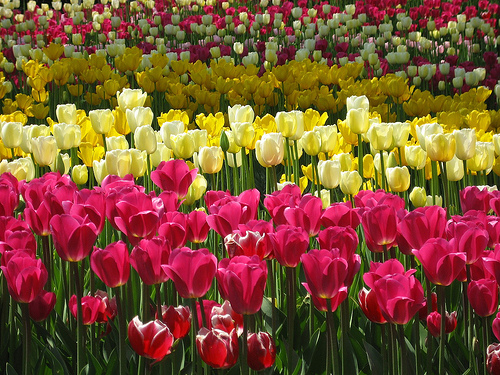
    CroppingThe way you frame and crop your shots has power to give a sense of size to a scene that may not actually be there.
    For example – the shot to the left of a field of tulips is framed in such a way that there is not beginning or end to the tulips anywhere inside the frame.

    While the field tulips may in fact end just beyond the edge of the frame in any direction – the feeling that this framing gives is that of a never ending sea of tulips.

    To get the effect the photographer has managed to get the angles right so that there’s no horizon and they’ve filled the frame with their subject.

    To see the same principles illustrated again – check out the two following images. The first shot actually contains a lot more flowers than the second one – but because there’s a break in the flowers with the horizon there’s a sense that the flowers are limited to a certain area. Whereas the second scene could actually have a lot less flowers in it – but they go on and on in the mind of those viewing the shot.

    Infinity

    The same principles can be applied to numerous other situations. For example the same thing is done in the following image of a sailing boat:

    Sailing

    The boat is seemingly in the middle of an ocean – as there’s no end to the water in the frame. However the inclusion of land in any direction or even a horizon would have interrupted the water and given the image a different feeling.

    Again it is a combination of the angle that the photographer is shooting from (from slightly above) and the framing of the subject.

    Post originally from: Digital Photography Tips.

    Check out our more Photography Tips at Photography Tips for Beginners, Portrait Photography Tips and Wedding Photography Tips.

    Using Tight Framing to Create a Sense of Infinity


    Digital Photography School

     
    Comments Off on Using Tight Framing to Create a Sense of Infinity

    Posted in Photography


    4 October, 2012 – Using Color Harmonies in Photography

    16 Oct

    Our regular columnist Alain Briot continues with his tutorial series on Using Color Harmonies in Photography with an essay on Complimentary Color Harmony.


     "Every time I go back to a module I had already seen, I learn additional things.  I have never seen tutorials that have the excellent mix of what the features are, 
    how to use them, enough of the under-the-hood information 
    and concepts so that I can utilize the features creatively and efficiently, 
    and just enough humor to keep the motivation
     level high.  Wow!"


    The Luminous Landscape – What’s New

     
    Comments Off on 4 October, 2012 – Using Color Harmonies in Photography

    Posted in News


    45 Photography Website Templates For Photographers Using WordPress

    16 Oct

    The WordPress community is filled with thousands of photography website templates.  Some must be paid for, however the majority are free.

    Photographers are looking for the same things: beautiful design, home or landing page, blogging, gallery control, and the ability to sell works.

    Features of photography website templates include:

    • Gallery management
    • NextGEN Gallery integration
    • Gallery styles
    • Social integration
    • Photography SEO features
    • Private galleries
    • Responsive capabilities
    • Fullscreen style
    • Contact forms
    • eCommerce integration
    • Widget areas

    Photography Website Templates

    So how about we get right to it, shall we?

    Photocrati

    photography themes

    Poise

    poise

    Noblesse

    Noblesse

    PhotoPics

    PhotoPics

    Gleam

    gleam

    Sideways

    Sideways

    Pacifico

    Pacifico

    Project 10

    Project10

    Amplify

    Amplify

    Leviathan

    Leviathan

    Shutter

    Shutter

    Limitless

    limitless

     Touchfolio

    touchfolio

     Grid

    gridthemeresponsive

    Panoramica

    panoramica

    Architekt

    architekttheme

    Pegasus

    wordpress-photo-gallery-theme

    The Wedding

    the-wedding-wordpress-theme

    Marriage

    marriage-wordpress-theme

    Announcement

    Announcement-wordpress-theme

    Wedding Album

    wedding-album-wordpress-theme

    Batik

    wedding-card-wordpress-theme

    Adam & Eve

    modern-wedding-wordpress-theme

    Mr. & Mrs.

    mr-mrs-wordpress-wedding-theme

    MJ

    wedding-website-template

    Retro

    retro-wordpress-wedding-theme

    Landscape

    Landscape Website

    Pixel Happy

    PixelHappy Web Template for Photographers

    Deep Focus

    Deep Focus Photographer Template

    Statua

    Website Templates for Photographers

    Photoland

    Website Templates for Photographers

    PhotoNexus

    Photography Website

    Invictus

    Photography Website

    Village

    Photo Gallery Template

    Anan

    Photo Gallery Template

    Core Minimalist

    Web Templates for Photographers

    Photorific

    Websites for Photographers

    MediaReel

    Websites for Photographers

    Chocolate

    Chocolate Template

    PhotoPurePress

    Photographer Website Template

    Kin

    Photographer Website Template

    Specere

    Photographer Website Template

    Zoom

    Photography Website Templates

    Galleria

    Photography Website Templates

    Viewfinder

    photography website templates

    As you see, there are endless possibilities of WordPress themes for photographers.  So the question is – which will you pick?


    dslrBlog

     
    Comments Off on 45 Photography Website Templates For Photographers Using WordPress

    Posted in Photography


    Martin Evening: Using Lightroom’s Import dialog for better image management

    25 Aug

    lead.jpg

    Adobe Photoshop Lightroom offers workflow benefits that can make it easier to organize your photo collection. Pro photographer and Lightroom expert Martin Evening gives an overview of ‘best practices’ for managing the import process itself. Click here to find out how to make the best use of metadata, file renaming and custom templates during the image upload process, in his four-page article. 

    News: Digital Photography Review (dpreview.com)

     
    Comments Off on Martin Evening: Using Lightroom’s Import dialog for better image management

    Posted in Uncategorized


    Using Phase One | Daniel Blom

    05 Aug

    Phase One camera system – www.phaseone.com Watch professional photographer Daniel Blom as he shoots a Quicksilver ad campaign in Kaprun and hear him explain why he chose to use medium format instead of a DSLR. Daniel shoots in snowy winter settings, and in such situations he often goes for medium format gear. When he shot this ad campaign, he used the Phase One 645DF camera, the P 40+ digital back and Schneider-Kreuznach leaf shutter lenses. The outstanding HDR cababilities of the P 40+ combined with the leaf shutter lenses enabled him to catch and freze the snowboarders in flight while getting details in both the highligted and shadowy areas. Daniel Blom www.danielblom.com
    Video Rating: 4 / 5

    Take a peek behind the scenes of a one light wonder lighting set-up in the studio with beauty photographer Joe Edelman. Joe describes many of these set-ups on his blog www.joeedelman.com This video takes you into the studio with him as he breaks it down and shows you how he applies it to a shot with a new model for her modeling portfolio.
    Video Rating: 4 / 5