RSS
 

Posts Tagged ‘Using’

How to Simulate Tilt-Shift Lens Effects Using Lightroom

24 Jun

We’ve all at one point been enamoured by the effects produced by tilt-shift or PC (perspective control) lenses.

Even in wide-angle shots, the extremely narrow field of focus transforms the scene into a surreal miniature world. It can be hard to decipher whether it’s actually a close-up of a tiny model scene, or the result of the visual trickery that a tilt-shift lens can produce.
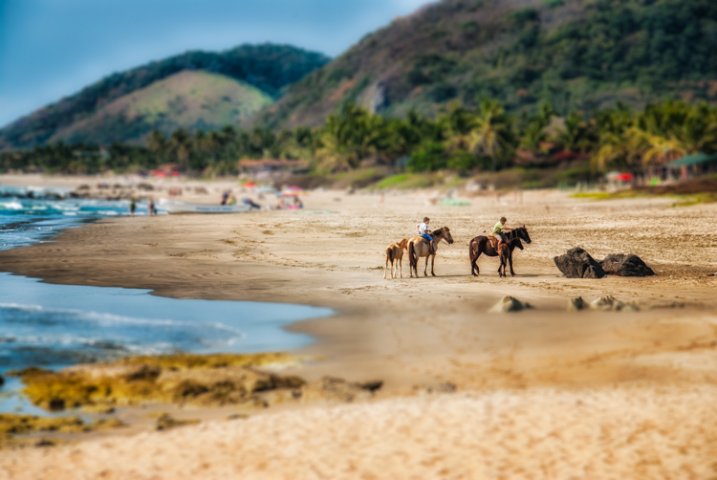
Tilt-shift effect applied to a beach scene.

The tilt-shift effect can be used on more than city street scenes. Use your imagination and be creative!

Besides the nifty miniaturization effect, these high-end specialty lenses are imperative for professional architectural photography. Tilt-shift lenses are basically split into two, parallel to the lens, elements and enable you to tilt the front of the lens barrel in relation to the rear portion, or slide it parallel.

Without actually changing the physical location of the camera, these adjustments allow you to alter the perceived perspective. The most practical application of this effect is to eliminate certain types of distortion, especially the keystone effect.

The keystone effect refers to the convergence of parallel lines which occurs when a camera’s sensor is not parallel to them. You have seen this distortion a million times when the camera was pointed upward at a tall building. It looks as if the building is about to fall over backwards, and it creates the illusion that it is wider at the bottom and continually narrows to the top. The same thing happens with horizontal lines but is often less noticeable, or detrimental to the image.

Although tilt-shift lenses have other practical uses, these are the two that can be replicated effectively in post-processing: creating a miniature effect, and fixing certain kinds of lens distortion.

Eliminating Converging Lines Distortion

Correcting lens distortion in Lightroom (LR) is fairly straightforward with a couple of considerations to keep in mind. I’ll use a night shot of the Petronas Tower in Kuala Lumpur, Malaysia as an example.

1. Straighten first.

If the image you are working with has a distinct horizontal or vertical line which you know to be level or plumb, use the Straighten tool located within the Crop tool (keyboard shortcut R) to align the image before making any lens corrections.
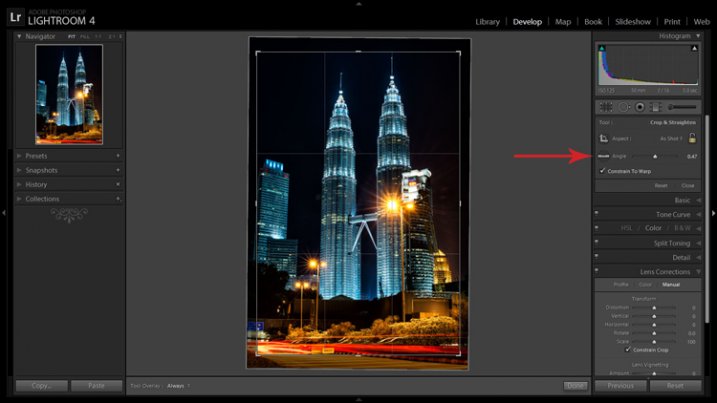
The Level tool can be found beside the Align slider or activated by holding CTRL key.

The Level tool can be found within the Crop panel beside the Align slider, or activated by holding CTRL key.

To align the image using a vertical line, it must be near the center of the image due to the distortion which you are about to fix. With the Crop tool active, you can either grab the Level tool located beside the Angle slider, or hold down the CTRL key and drag the cursor along the chosen line and LR will rotate the image to level or plumb.

Note: new in LR6 or LRCC is the Auto function of the crop tool which attempts to do this for you. Alternatively, the Rotate slider in Lens Corrections can be used with similar results.

2. Open the Lens Corrections panel and click on the Manual tab.
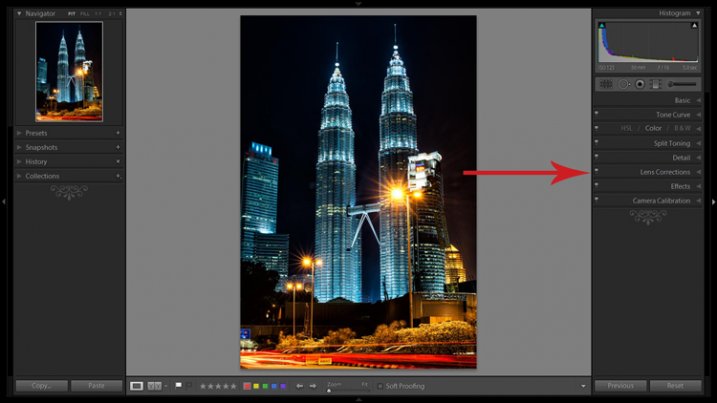
Distortion corrections are made in the Lens Corrections panel.

Distortion corrections are made in the Lens Corrections panel.

3. Check the Constrain Crop box.

Note: As is often the case in life, you don’t get something for nothing. When LR manipulates the image to fix these lines, it must also crop it. You can also crop it manually after you adjust the image, but it is easy to inadvertently leave a little gray strip somewhere along the edge of your image by not cropping it enough.

4. Adjust the sliders

There are several ways to adjust sliders: dragging the slider itself, clicking the name of the slider and using the +/- keys, clicking the value on the right of the slider and dragging the cursor left or right, clicking the value and entering the desire value or clicking the value and using the arrow keys to make micro adjustments. I recommend the latter for accuracy.

5. Show the grid

Hovering the mouse over any of the sliders will show a grid over the image to help guide your adjustment. For this image, a -18 compensation straightens the lines right up.
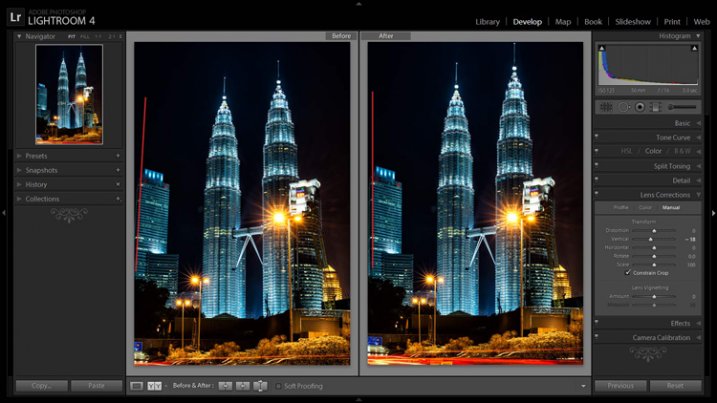
A before and after showing corrections for converging lines.

A before and after showing corrections for converging lines.

If you plan on shooting architecture and utilizing this feature instead of dropping $ 1,400 on a tilt-shift lens, it may benefit you to activate the crop tool (keyboard shortcut R) to get an idea of how much LR cropped your image. This will give you a point of reference while composing scenes in the future.

Creating a Miniaturization Effect

The tilt-shift effect of severely softening most of an image to isolate a small sharp strip can be simulated in post-processing very effectively. Although there are a couple of different ways to achieve this effect in Lightroom, I find the following to be the easiest and most effective.
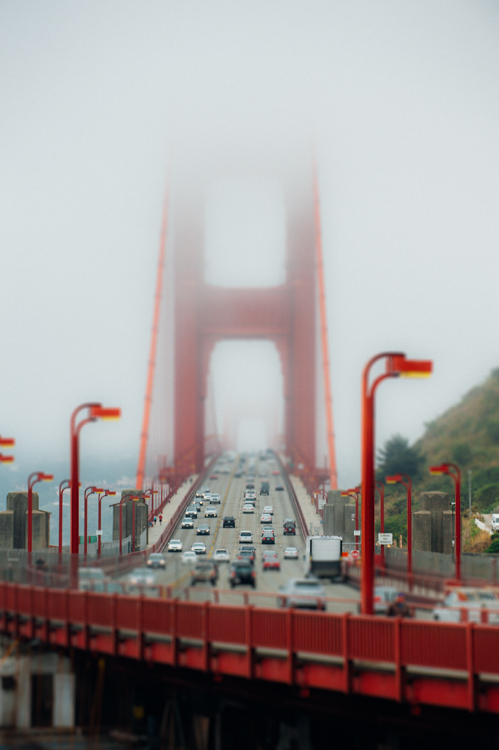
Golden Gate Bridge with the tilt-shift effect applied.

The tilt-shift effect can add another level of interest to certain photographs.

Keep in mind that not every photo is a good candidate for this effect. You can find good advice about image selection in the article An Introduction to Tilt-Shift Photography.

1. Process the image as you normally would.

Boosting sharpening, contrast and saturation can help exaggerate the effect.

2. Activate and setup the Adjustment Brush (keyboard shortcut K).

Drag the Sharpening slider all the way down to -100. I also like to reduce Clarity which adds a bit of glow and exacerbates the effect.

3. Show the Mask Overlay box (keyboard shortcut O)

This will allow you to clearly see where the effect is being applied (shift+O will rotate through different mask colors, you may find red is better one image whereas green may work on another).

5. Adjust the brush settings

Setup such things as brush size, flow, etc. Spend a few minutes experimenting with different combinations of these settings to find what works best for your image. CTRL+Z (CMD+Z on Mac) is your friend here.

6. Blur most of the image less a small strip

Holding down the shift key while you click and drag the brush horizontally across your image will apply the effect in a straight line. The goal is to blur the entire image except for a small strip. Make one line across the upper boundary and one line across the lower boundary of the strip you wish to isolate. You can then release the shift key and paint in the remainder of the areas. The in focus strip should account for 20 per cent or less of the image area. If the strip is too big, the effect will be weak.
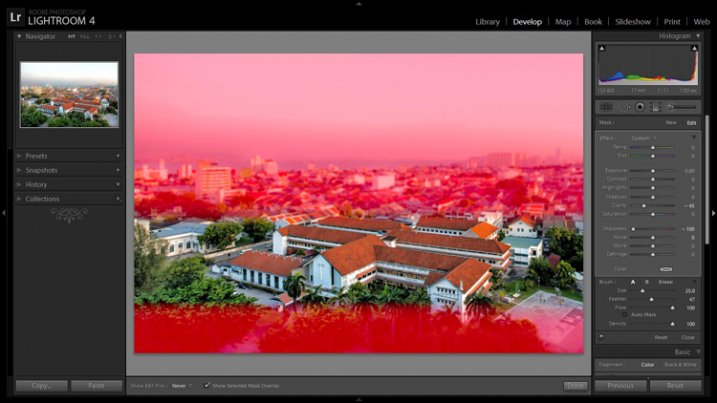
Holding down the shift key will keep the brush level to paint a straight line.

Holding down the shift key will keep the brush level to paint a straight line.

7. Repeat to increase the effect.

Repeating the previous step several times will compound the effect. To repeat the step, click on New at the top of the Adjustment Brush panel – this will remove the mask to reveal the most recently applied effects, and allow you to add a new pin (brush strokes) and repeat the process.
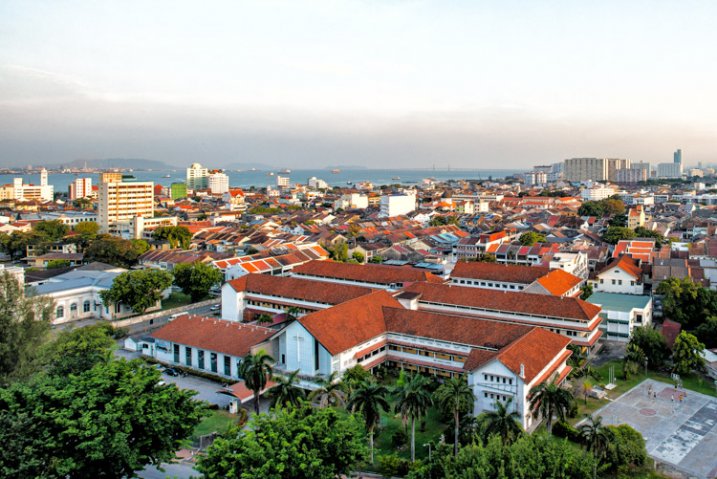
Before applying the effect to a photo of Penang, Malaysia.
Before applying the effect to a photo of Penang, Malaysia.

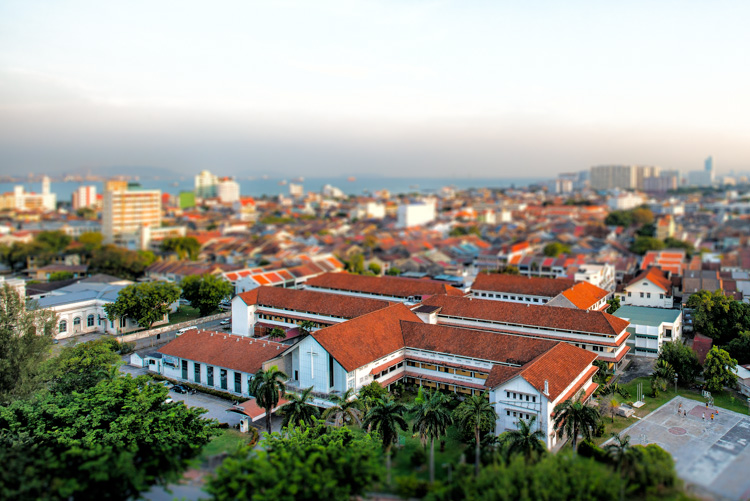
After application of the miniaturization effect.

After application of the miniaturization effect.

The effect can also be applied using the Graduated Filter tool but I find it ends up blurring the entire image to some extent and is less effective.

This is a starting point from which to experiment with the effect. Everybody’s tastes differ, so although the general process will remain constant, go crazy with the other variables and see what happens!

googletag.cmd.push(function() {
tablet_slots.push( googletag.defineSlot( “/1005424/_dPSv4_tab-all-article-bottom_(300×250)”, [300, 250], “pb-ad-78623” ).addService( googletag.pubads() ) ); } );

googletag.cmd.push(function() {
mobile_slots.push( googletag.defineSlot( “/1005424/_dPSv4_mob-all-article-bottom_(300×250)”, [300, 250], “pb-ad-78158” ).addService( googletag.pubads() ) ); } );

The post How to Simulate Tilt-Shift Lens Effects Using Lightroom by Jeremie Schatz appeared first on Digital Photography School.
Digital Photography School

 
Comments Off on How to Simulate Tilt-Shift Lens Effects Using Lightroom

Posted in Photography


6 Tips Using Visual Weight to Improve Your Composition

19 Jun

Andrew’s newest ebook Mastering Composition is now on special for a limited time only at Snapndeals.

Visual weight (also called visual mass) is the principle that some elements of the photo pull the eye more than others.

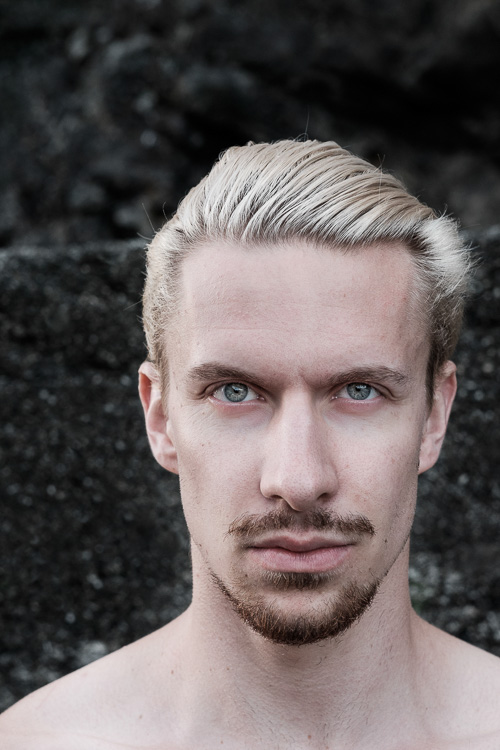
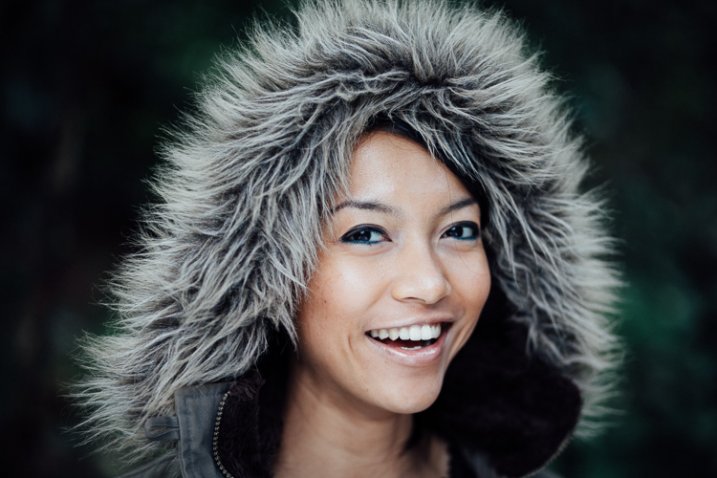
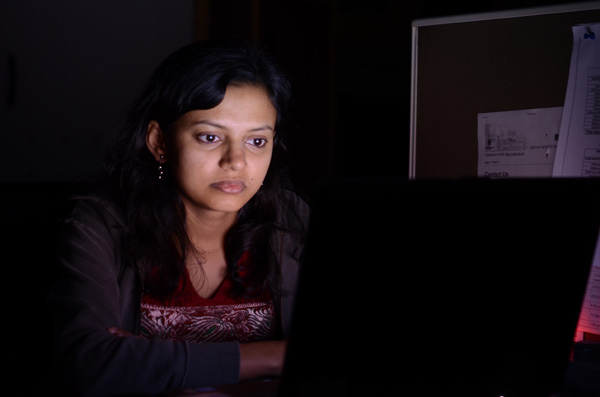
Take a look at the portrait below. Where does your eye go? It should go straight to the eyes, because they have the most visual weight. They are the element exerting the greatest pull.

Visual weight and composition

Notice that the model’s eyes are not positioned on the traditional intersection points created by the rule of thirds. That doesn’t stop them from pulling the eye, although it could be argued that their visual weight would be strengthened by placing them on a third.

Let’s look at the principles of visual weight (or visual mass) that you can use to improve the composition of your photos.

1. Light tones

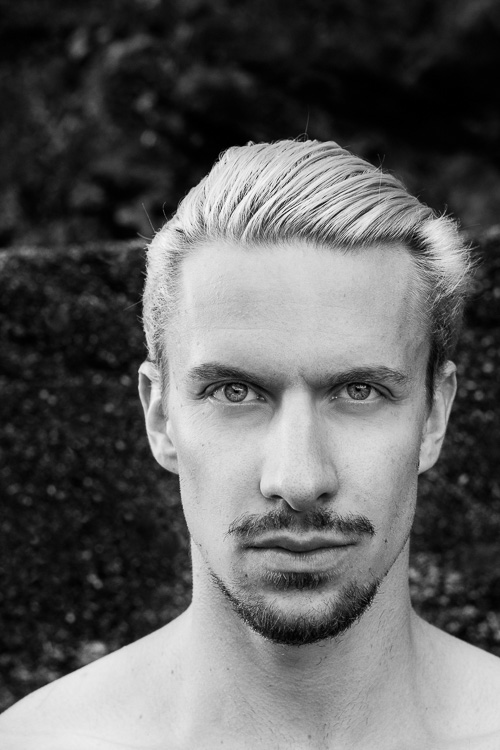
Light tones and highlights pull the eye more than dark ones (the basis of tonal contrast). There is a strong contrast in the portrait above between the model’s skin and hair, and the dark background. It is easier to see in a black and white version of the same photo.

Visual weight and composition

2. People

Curiosity about other people is part of the human condition. Our eye goes straight to any human figure that is present in a photo. Recognixable faces exert a stronger pull, while the eyes (the window to the soul) have the strongest visual weight of all.

This explains why you can use people, small in the frame, to give scale and context. It works because our eyes go straight to those figures, as long as they stand out from the background (gestalt theory in action).

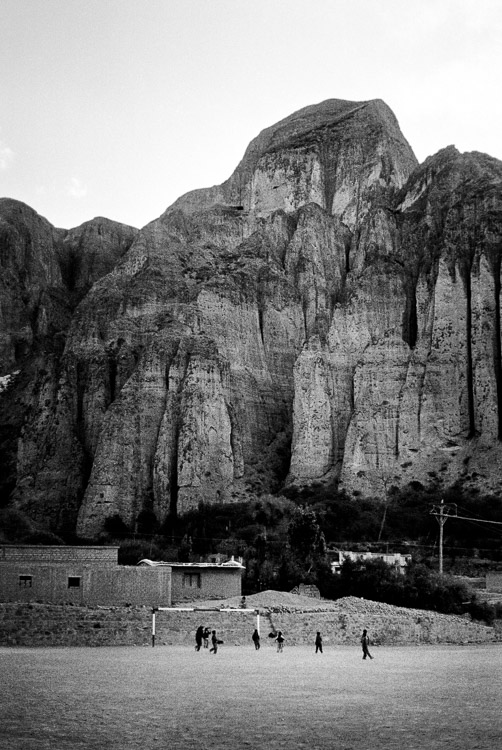
The people in the photo below are small, yet the eye goes straight to them. The inclusion of the human figures helps give the scene scale, and emphasizes the size of the mountain behind them.

Visual weight and composition

3. Visual weight and size

The larger the element of a photo, the more it pulls the viewer’s eye. This principle works in harmony with the others discussed in this section. A small human figure, for example, can have much more pull than a large, inanimate object. A small splash of red can also pull the eye very strongly. But for objects of similar texture and colour, the larger one has the stronger pull.

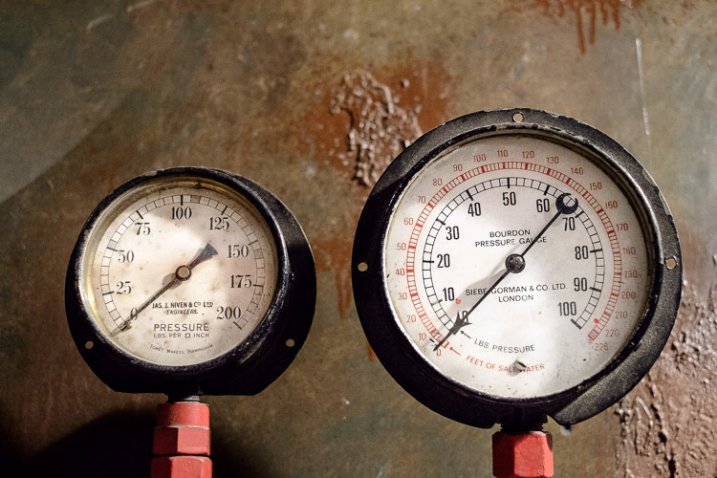
For example, the dials in this photo are virtually identical in terms of shape and design. The one on the right has the most visual weight because it is the largest of the two.

Visual weight and composition

4. Sharp or recognizable elements

Objects that are sharp or easy to recognize pull the eye more than ones that aren’t. According to gestalt theory, the mind looks for patterns and shapes that helps it make sense of chaotic scenes. Once something is identified, it gains significance in the frame compared to those that aren’t.

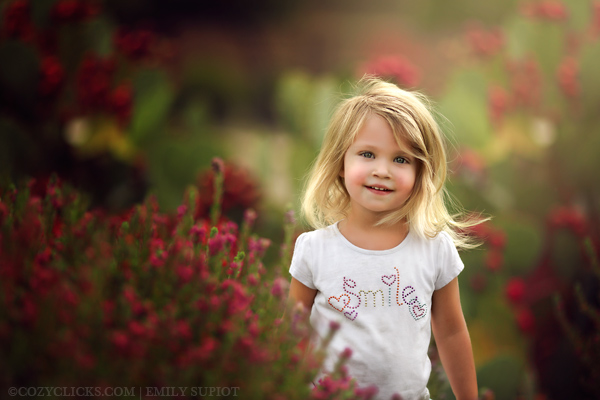
The most obvious example of this is a portrait taken against a strongly blurred background. The visual weight of the background is reduced because it is no longer sharp, and no longer recognizable. The use of negative space also comes into play.

Visual weight and composition

5. High contrast

High contrast subjects have more visual weight than low contrast ones. This is a good principle to apply in post-processing as well as the photo taking stage. Instead of increasing contrast universally across the image, try increasing it more in the areas where you want the viewer’s eye to travel. Lightroom’s Clarity slider is an excellent tool for this.

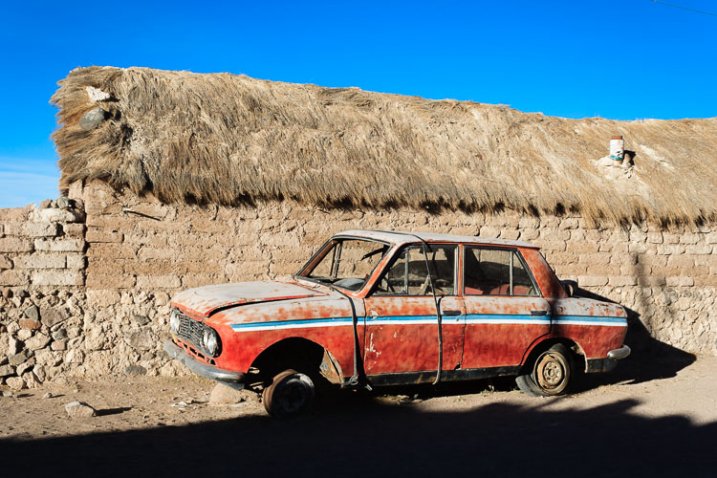
In this example I used the Clarity slider to emphasise the texture of the old car and help draw the eye to it.

Visual weight and composition

6. Visual weight and colour

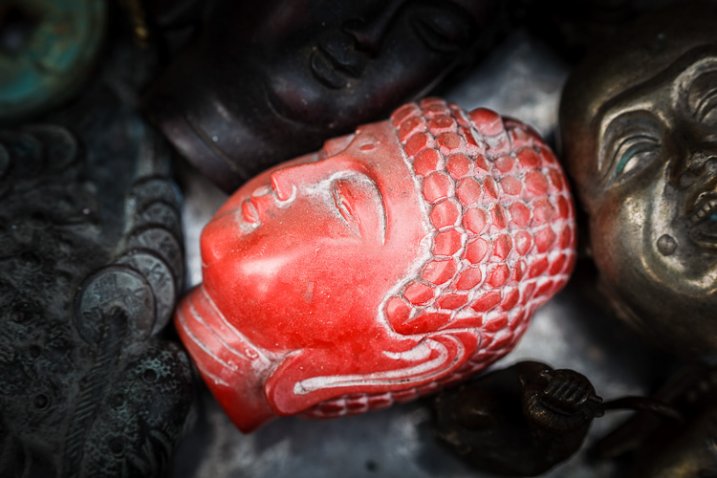
Bright, saturated colours draw the eye. But not all colours are equal. Warm hues have more visual weight than cool ones. Red is the strongest colour of all.

Simplifying the composition makes the relationship between the colours in the photo easier to see. A technique you can use, if your subject is brightly coloured, is to position it against a background comprised subdued, less powerful hues like grey, green and brown.

Simplifying works for all aspects of visual weight. Eliminate everything that isn’t necessary. Keep the background as simple as you can. Once you’ve done this, look at the remaining elements and think about how the eye will move around between them, according to the principles of visual weight. The relationships between them become clearer as the composition is simplified.

The red figurine in the centre of the photo below has the most visual weight. I emphasised this in post-processing by using the Clarity slider to increase its contrast and adding a vignette to darken the background.

Visual weight and composition


Mastering CompositionMastering Composition

My new ebook Mastering Composition will help you learn to see and compose photos better. It takes you on a journey beyond the rule of thirds, exploring the principles of composition you need to understand in order to make beautiful images. It’s on special for a limited time only at Snapndeals.

googletag.cmd.push(function() {
tablet_slots.push( googletag.defineSlot( “/1005424/_dPSv4_tab-all-article-bottom_(300×250)”, [300, 250], “pb-ad-78623” ).addService( googletag.pubads() ) ); } );

googletag.cmd.push(function() {
mobile_slots.push( googletag.defineSlot( “/1005424/_dPSv4_mob-all-article-bottom_(300×250)”, [300, 250], “pb-ad-78158” ).addService( googletag.pubads() ) ); } );

The post 6 Tips Using Visual Weight to Improve Your Composition by Andrew S. Gibson appeared first on Digital Photography School.

Digital Photography School

 
Comments Off on 6 Tips Using Visual Weight to Improve Your Composition

Posted in Photography


8 Tips For Baby Photography Using Natural Light

12 Jun

Babies. Do you find them a challenge to photograph?

They gurgle, spit, vomit, laugh, cry, smack their hands together… They do a whole lotta things that we don’t need to see forever in a photograph!

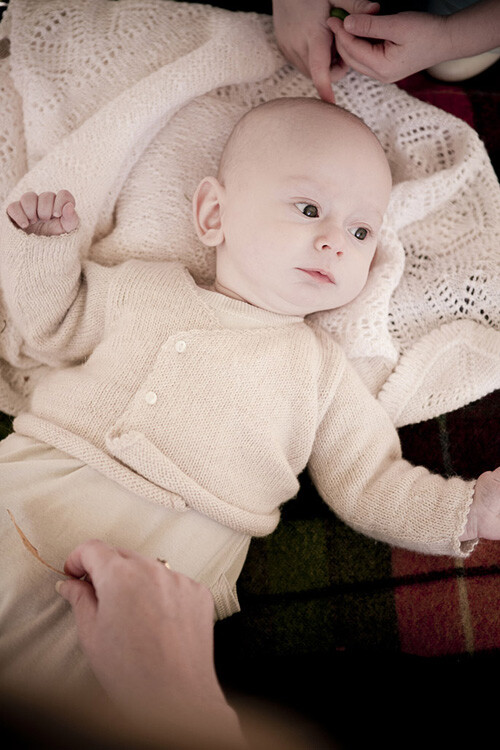
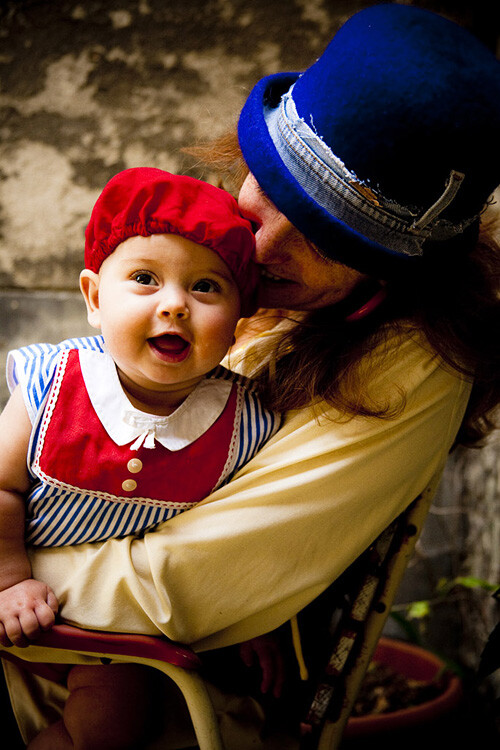
But in between all that uncontrollable baby-behaviour are those moments that parents see every day and would love to keep alive forever in beautiful photos – the big eyes, cute smiles, tiny fingers, soft skin, and round cheeks – all those wondrous little details that only come with brand new life. Those are the things that connect to a parent’s heart in the moment, they happen and what they long for once their children have grown up.

00 Copyright Beth Jennings Photography Digital Photography School Baby battle 5932

Ruby, 3 months – ISO 1600, f/2.8, 1/250th

It’s the reason why, in the whirl-wind madness of baby’s first year, that your friend or family member may call on you to ask you to photograph their beloved treasure.

Maybe on one hand you feel honoured to be asked, but also that dreadful, pit-of-the-stomach feeling – do you worry they expect you to swaddle their baby up Anne Geddes style, and photograph him or her with stunning studio lighting and an elaborate set? Do you feel the pressure to create something amazing in the small window of only a couple of hours that you’ll have with them?
How are you going to maximize on the time you’re given, while baby goes through his sleep-awake-feeding cycle?

How are you going to interrupt that cycle to create something amazing, when the last thing you want to do is disturb the baby, wake him up, move him too much and make him cry? How the heck are you going to do it at all?

01 Copyright Beth Jennings Photography Children Photography 2310

Cody, 2 months – ISO 200, f/2.8, 1/200th

Let’s assume you don’t have the studio lighting and equipment to set up in the parent’s home. All you have is you, and your camera, and you’ll work with natural, available lighting. It may sound like it’s not enough, but actually, it’s more than enough if you know how to make do with what you’ve got.

The formula to successfully capturing babies within a limited time frame, one camera and no additional equipment, comes in eight tips total:

02 Copyright Beth Jennings Photography Children Photography 2173

Eliette, 9 months – ISO 1000, f/5, 1/160th

Part 1 Planning

Plan well, and it sets you up for your best chances of success on the day. Follow these steps in the one to two weeks before your shoot:

Step #1 Timing

Babies set their own criteria that rotates around a 1-2 hour schedule of sleeping, eating, crying, playing and nap time. Find out from the parents what that current cycle is, and build your plan from there.

Step #2 Lighting

Will you be photographing at their home? If so, this can include where their baby sleeps in a dimly lit room, by a window in Mom’s arms, perhaps also out in the backyard through dappled light if your shoot will include play time. Stay out of direct sun and just work with soft, diffused lighting. Find out what time of day is best for available lighting in their home and backyard.

Step #3 Clothing

It’s special for the parents to have you there to photograph their baby because it’s something they can’t actually do themselves. Advise them on having their baby’s preferred outfit clean and ready in advance, and a back-up in case of accidents. In order to feel safe and warm, babies also do well with accompanying blankets, bottles, beanies and soft toys. Check that the items all marry well together in terms of colours. If you have some clashes on the day and can’t change it, then shoot anyway and consider black and white for post-production to help strip it back a notch.

Step #4 Schedule

03 Copyright Beth Jennings Photography Children Photography 2195

Anna, 8 months – ISO 400, f/2.8, 1/200th

As best you can, plan the order of mini-events that the parent would like captured. For example, at noon baby will wake up, so you’ll be there from 11:45 and be quietly ready. That will be followed by feeding in the kitchen, and then tummy time in the backyard. If it all comes undone on the day, that’s okay. Just go with the flow of what is presented to you in the natural order that it happens.

Part 2 On the Day

It’s likely you won’t have much time with your subject, so follow these steps to be as prepared as possible before you actually start shooting:

Step #1 Look for the light

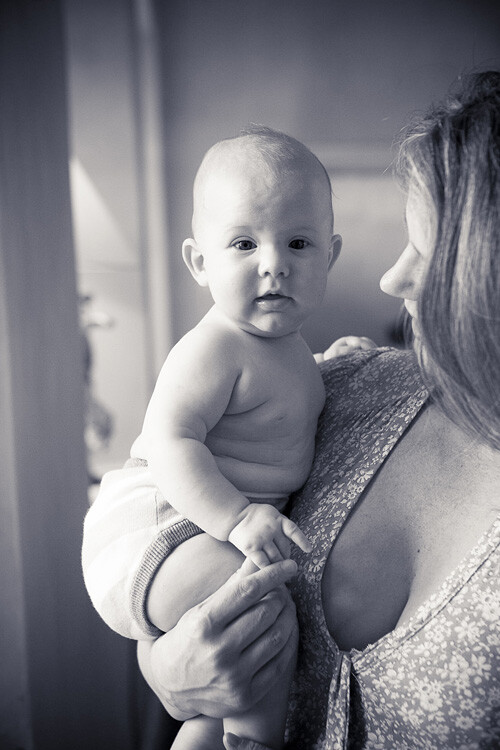
See where it is coming from, and where it is falling. For each of the baby pictures in today’s lesson, take note of the light source. Look at the shadows, as they indicate where the light source is positioned. Also observe the catch light (the little reflected glint) in the baby’s eyes which gives life and character. Notice that the pictures here are all created inside by window light, or outside in shaded areas.

Step #2 Compose for the background

Once you’ve established where the best light is coming from, then think about your composition, building up from the background first. See the picture of Cody above? What surrounds him? The rug and white blanket, with small elements of his sister and mother protectively surrounding him.

Step #3 Set up your shoot flow

While the parent is still preparing their baby to be photographed, get your technicals for ISO, shutter speed and aperture established with a test shot, and quick histogram check, to ensure you are achieving technically beautiful captures. Once in place, they are unlikely to change much because the light is constant, and baby won’t move much unassisted. (Shoot Flow is my seven step process for setting up your camera correctly in manual mode).

Step #4 Time to shoot

Once you’ve covered steps one to three, then position the baby (with the parent’s help) in the scene. Time is of the essence now, but it’s also the part you can’t control. All you need to do is be calm and observe what’s actually playing out in front of you in real time. Remember you can move, so keep yourself flexible and mobile. Compose your images, one by one, and keep your camera near your eye, finger at the shutter. When you see something worth capturing, be quick and go for it. One stunning capture is worth so much more than 10 average ones. Imagine your budget is $ 1 a shot and take your time.

04 Copyright Beth Jennings Photography Children Photography 6370

Olivier, one month – ISO 100, f/3.2, 1/160th

What to do with a sleeping baby?

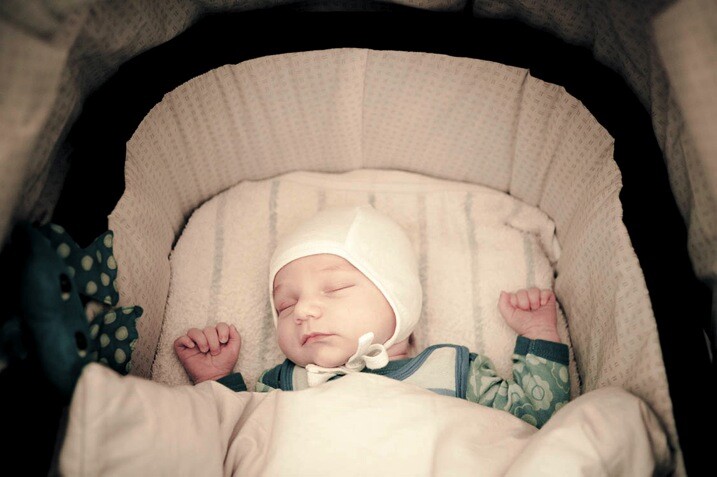
Sometimes you don’t have the luxury to control all the set-up elements. See baby Bent (it’s a German name) below? He was already placed in the stroller and sleeping beautifully, and it would have been cruel to wake him!

  • Where is the light coming from?
  • Is the light play pleasing? Yes it is. It’s soft and softly coats the baby’s face – so the moment is worth capturing.

Then compose the image for what you want to say – in this one, it’s all about those gorgeous cheeks and button chin, as well as the nestling, safe space of the bassinet. So come in close and make your composition for that.

05 Copyright Beth Jennings Photography Children Photography 8987

Bent, newborn – ISO 1600, f/2.8, 1/160th

Technical tips for successful baby photography

Have a look at the technical settings for all of the pictures in this article.

ISO – whatever the light gives you is what you’ll use for ISO. If you’re shooting indoors, place the child nearer to window light than away from it, watching all the time how the highlights are rendering (ie, keep the tones gentle and not too hot).

Aperture – isolating the beautiful child from the background is the perfect approach if you want to make your pictures about their gorgeous details.

Shutter speed – for easy mobility you will likely be hand held when photographing babies, so make sure you are at least using your safe shutter speed of 1/125. Remember that children move quickly, so a faster shutter speed like 1/200 is recommended if they’re up and actively moving around.

06 Copyright Beth Jennings Photography Children Photography 2478

Rupert, 1 year – ISO 1000, f/4, 1/160th

Three final notes for creative observations:

  • Look for the light: Where is it coming from and travelling to? How does it illuminate the subject and where are the shadows?.
  • Observe the composition: Close-up? Horizontal? Low camera angle? Why?
  • The decisive moment of capture: What was happening at the exact moment that the shutter actually fired?.

How do these three elements come together in each photograph?

Have you ever had a friend or family member ask you to photograph their baby? Were you pleased to be asked, or hesitant? How did you handle it? Let us know in the comments section below.

googletag.cmd.push(function() {
tablet_slots.push( googletag.defineSlot( “/1005424/_dPSv4_tab-all-article-bottom_(300×250)”, [300, 250], “pb-ad-78623” ).addService( googletag.pubads() ) ); } );

googletag.cmd.push(function() {
mobile_slots.push( googletag.defineSlot( “/1005424/_dPSv4_mob-all-article-bottom_(300×250)”, [300, 250], “pb-ad-78158” ).addService( googletag.pubads() ) ); } );

The post 8 Tips For Baby Photography Using Natural Light by Beth Jennings appeared first on Digital Photography School.

Digital Photography School

 
Comments Off on 8 Tips For Baby Photography Using Natural Light

Posted in Photography


Getting Organized: My Experience Using Google+ Photos

10 Jun

Some time ago, I wrote a post covering different options for organizing and storing your photos. I did this as a first step toward getting my own photographic catalog in order. I decided to pull the trigger, so to speak, and give it a go. I decided to start out with Google+ Photo. I’m already pretty invested in the Google Continue Reading

The post Getting Organized: My Experience Using Google+ Photos appeared first on Photodoto.


Photodoto

 
Comments Off on Getting Organized: My Experience Using Google+ Photos

Posted in Photography


Step by Step Using Merge to Panorama in Lightroom

09 Jun

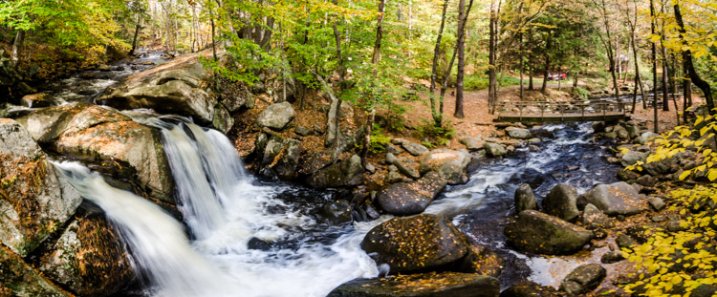
Do you ever find yourself struggling to include everything you want to capture in a single frame? Well then, panoramic photography might be exactly what you need to solve this problem. With the new release of Lightroom 6, Adobe has made it possible to take multiple single frames of a panorama and stitch them seamlessly together with a few clicks of the mouse.

trap-falls-pano-2

Before we dive into the post production aspect of making a panoramic photograph, let’s take a step back and make sure you have a basic understanding of what you’ll need to capture in order to create an panoramic photograph.

Panoramic Photography 101

A quick guide to capturing suitable images

You’ll need at least two different frames to stitch together to create your panorama, but three to five will give you more to work with, and allow for a much richer image. When capturing these frames make sure to overlap each frame by about 30% or so to allow enough information for the algorithms to match each image with its neighbor.

A few other quick pointers to make it as simple as possible for yourself when you get back to the computer include:

  • Use a tripod to line up each shot.
  • Manually set your white balance, ISO, aperture and shutter speed as consistency between each frame is extremely important.
  • Make sure your area of focus remains consistent throughout the series of shots. Use back button focus, or autofocus and then switch to manual to lock it.

Of course, that was only a quick taste of what it takes to capture images for a panorama. For more on the subject of capturing the images read these two great dPS guides:

  • How to shoot panoramas
  • Getting started in panoramic photography

Panoramic Photography with Lightroom 6

Once you’ve captured a set of images for a panoramic photograph, and imported them into your Lightroom library, Adobe makes creating the panoramic photograph about as easy as: select, click, done. Let’s walk through the process.

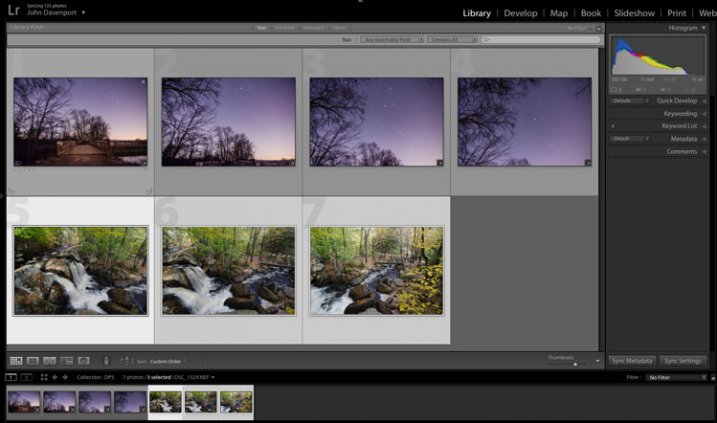
Step #1 – Select the images you want to merge

panoramic photography

Here I’ve selected the three separate frames that make up the panorama attached at the top of this article. It doesn’t matter if you’re in the Develop module or the Library as you’ll be able to create the panoramic image from either place.

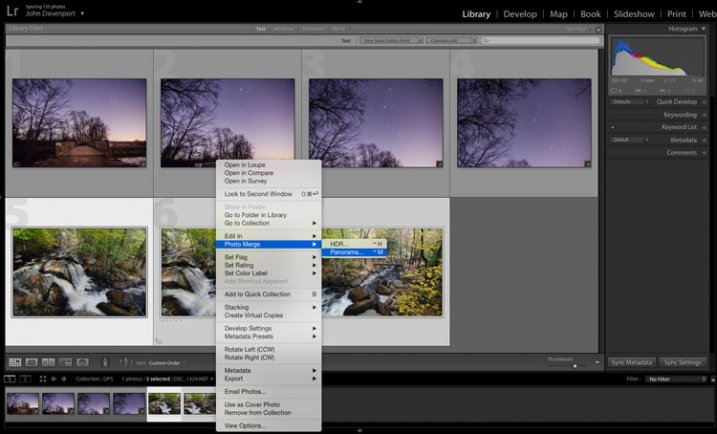
Step #2: Right click and select Photo Merge > Panorama

panoramic photography

Yep! It’s really that simple!

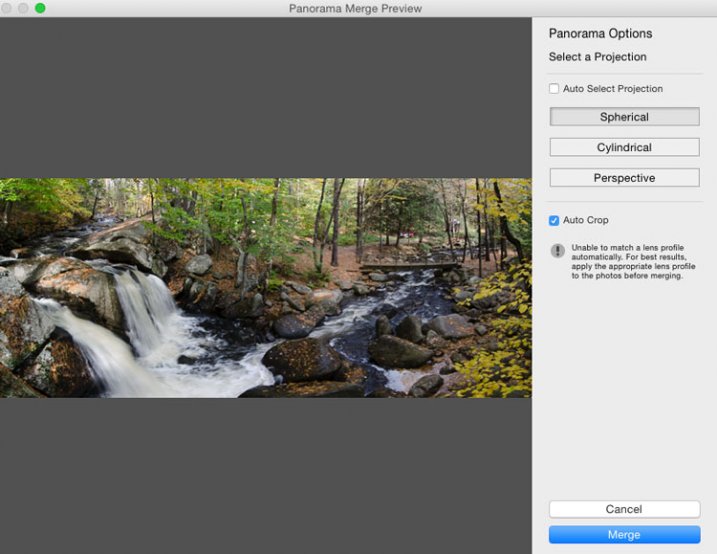
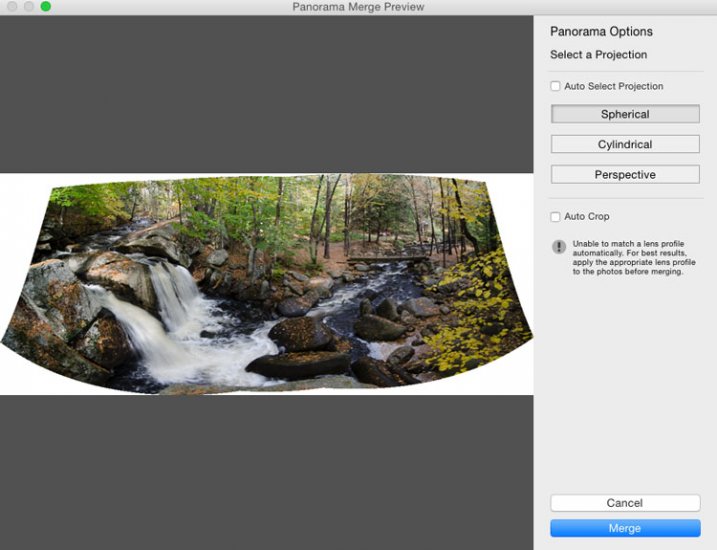
Once you’ve selected Panorama you’ll be brought into a new window called the Panorama Merge Preview. There you’ll be able to see what the resulting panoramic photograph will look like, and you’ll have a few options for customizing it.

panoramic photography

The settings here are not exactly self explanatory, and Lightroom doesn’t really provide any popup hints to help you out – so here’s the basic rundown of these options.

You have three options to choose from as to how you want your image to be projected as a panorama: Spherical, Cylindrical, and Perspective. This setting will determine how Lightroom merges the single frames together to control the distortion of the image.

Spherical – Great for wide panoramas and essentially transforms your selected images as if they were placed on the inside of a sphere.

Cylindrical – Similar to the spherical algorithm except that you’re images are now placed on the inside of a cylinder. In this case the vertical lines will remain straight.

Perspective – Great for architectural photography as it will try to keep all straight lines straight, however, wide panoramas may experience excessive distortion.

By selecting Auto Set Projection you can take the guess work out of this process by allowing Lightroom to pick the best option for you based on the images you’ve selected. In my experience Lightroom usually does a good job at choosing.

Finally, inside of the preview window you have the option to tell Lightroom to automatically crop the image. If left unchecked this is how the waterfall image above would have looked.

panoramic photography

However, even if you leave the Auto Crop box checked, using the crop tool once you’re back inside Lightroom will allow you to get back the uncropped image should you want to change anything at a later time.

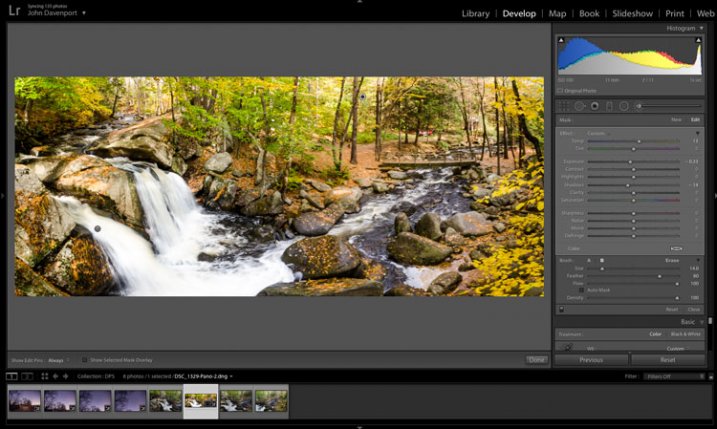
Step #3 – Final Touches

Once you’re done merging your image it will be brought back into Lightroom, ready for you to finalize as you desire. Here I’ve just made a few small tweaks to bring out the colors and brighten the image up a bit.

panoramic photography

Another example – if you prefer video

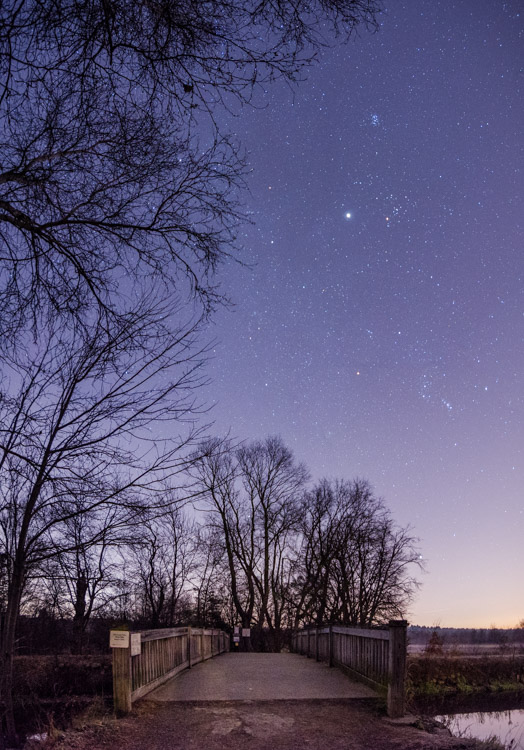
Don’t forget that you can also use Lightroom to create panoramic images of a vertical scene as I’ve done here with this photograph below.

panoramic photography

Because everyone learns differently I’ve also created a simple video walkthrough of the process explained above, using this photograph to demonstrate the process click for click. Watch it below.

See more of Lightroom 6’s new features here.

googletag.cmd.push(function() {
tablet_slots.push( googletag.defineSlot( “/1005424/_dPSv4_tab-all-article-bottom_(300×250)”, [300, 250], “pb-ad-78623” ).addService( googletag.pubads() ) ); } );

googletag.cmd.push(function() {
mobile_slots.push( googletag.defineSlot( “/1005424/_dPSv4_mob-all-article-bottom_(300×250)”, [300, 250], “pb-ad-78158” ).addService( googletag.pubads() ) ); } );

The post Step by Step Using Merge to Panorama in Lightroom by John Davenport appeared first on Digital Photography School.

Digital Photography School

 
Comments Off on Step by Step Using Merge to Panorama in Lightroom

Posted in Photography


7 Tips for Using the Gestalt Theory for Better Composition

08 Jun

Andrew’s newest ebook Mastering Composition is now on special for a limited time only at Snapndeals.

Gestalt theory and composition

Gestalt theory evolved in the 1920’s to explain some of the ways in which people perceive the world around them. The basic idea is that, when faced with a visually chaotic scene, the human mind simplifies it into more recognizable patterns and shapes.

Gestalt theory provides an insight into the pattern recognition process that occurs when people look at photographs. Once you understand the principles of gestalt theory, you can use them to improve the composition of your photos.

These are some of the useful aspects of the gestalt theory.

1. Proximity

A pair or group of objects that are close to each other are more likely to be perceived as belonging together than if they are far apart.

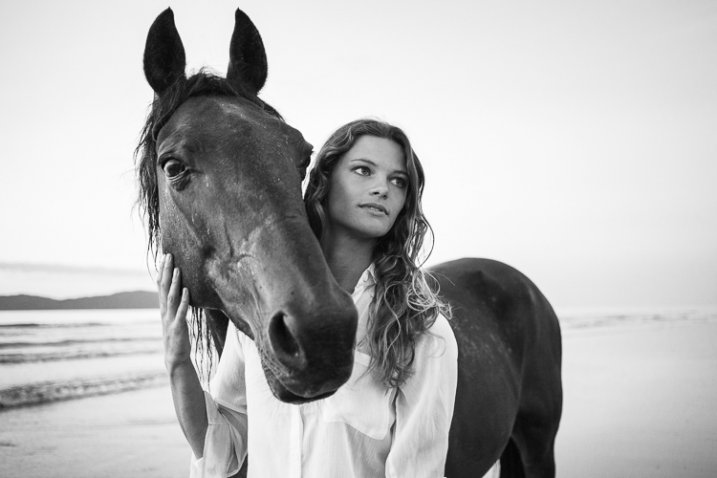
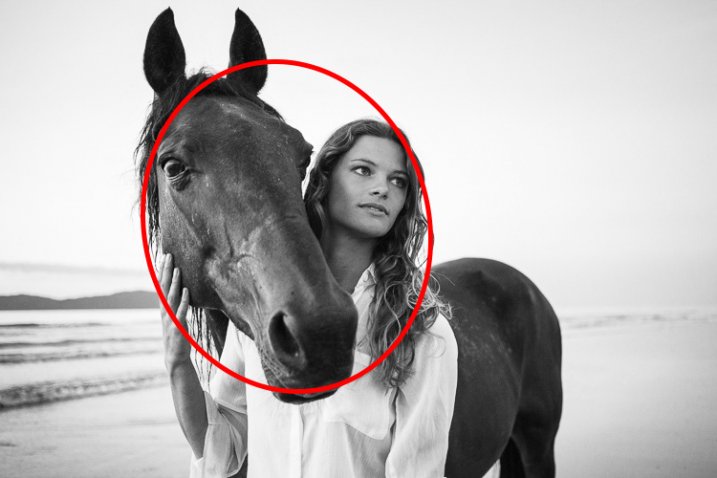
In this portrait, the proximity of the girl and horse suggest a close relationship between them. If closeness is what you want to show, it would be far less effective to position them with their heads further apart.

Gestalt theory and composition

Gestalt theory and composition

2. Similarity

Objects that are similar in shape, size or colour are seen as belonging together.

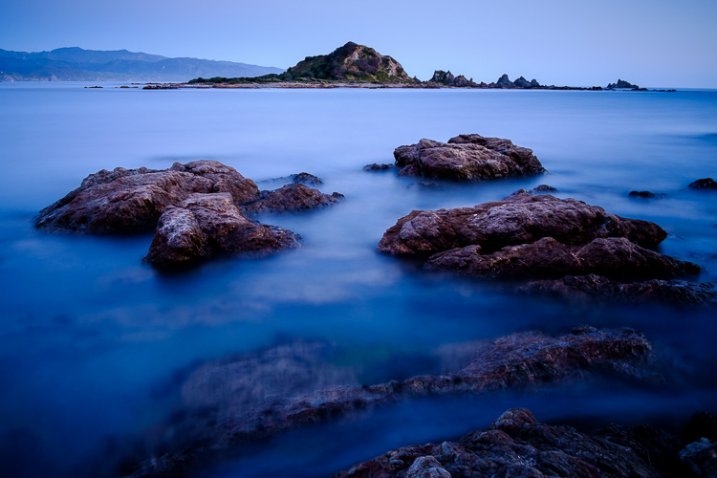
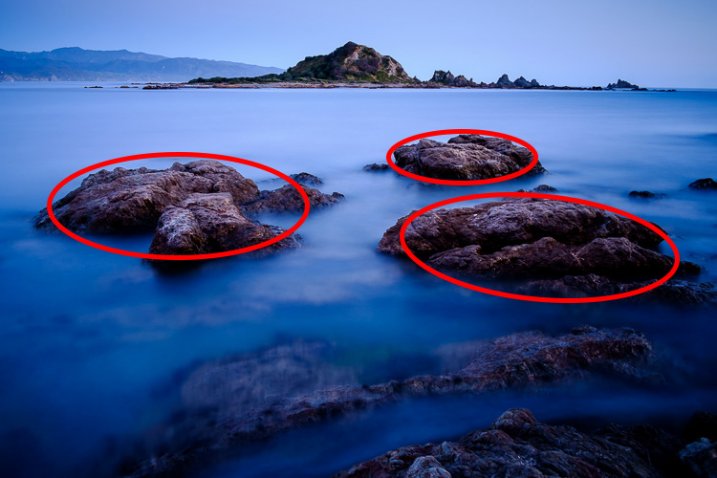
In this landscape photo, the three rocks in the middle distance are linked by proximity (the previous point) and by their similarity in texture, colour and shape.

Gestalt theory and composition

Gestalt theory and composition

3. Closure

The mind completes shapes that don’t exist. This is a principle used in some optical illusions but it also applies to photography. Part of the skill of composition is learning to recognize shapes, and building the design of the image around them. The principle of closure helps you see shapes in the subject.

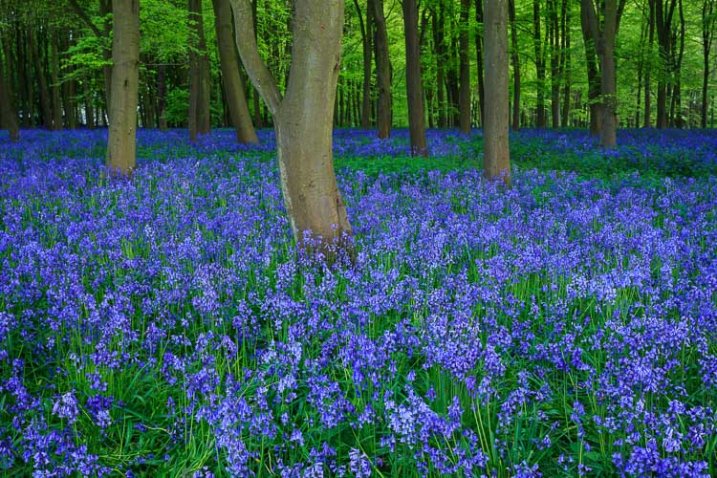
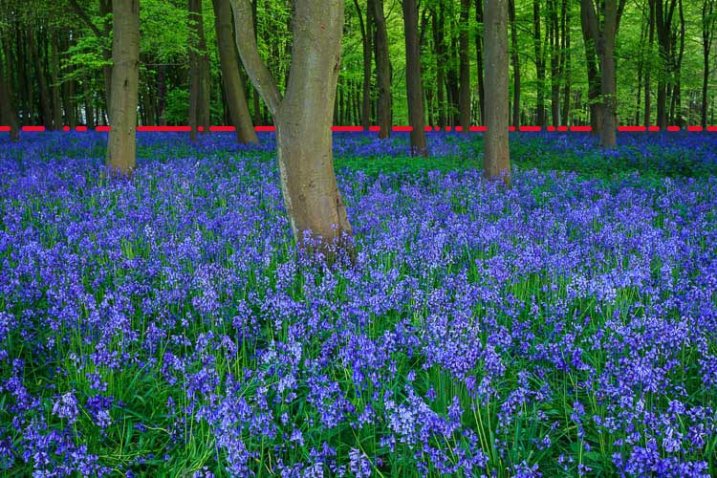
For example, take a look at the landscape below. The bluebells form a solid block of colour in the lower two-thirds of the photo, with a strong horizontal line along the top. The line is interrupted by the trees passing through it, yet we still perceive it is a continuous straight line. The mind automatically fills in the gaps.

Gestalt theory and composition

Gestalt theory and composition

4. Simplicity

The mind perceives parallel lines that are close together as a single line.

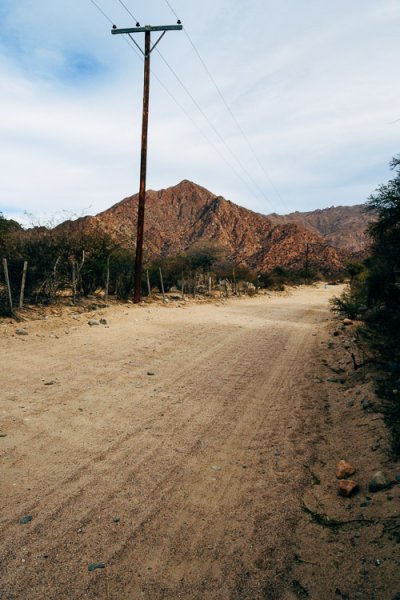
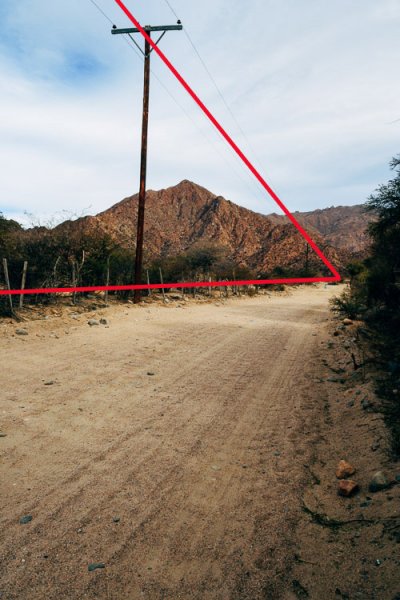
The landscape photo below contains several lines, all leading towards a vanishing point on the horizon. The lines that are close together, like the cables dangling from the telegraph pole, are simplified by the mind which sees them as a single line.

It’s the same with the fence. This set of short, vertical lines is simplified into a long, diagonal line that follows the side of the road.

Gestalt theory and composition

gestalt-theory-composition-5a

5. Continuation

The mind assumes that lines extend beyond the edges of the frame. In the landscape photo above this principle helps create a sense of depth (along with the use of a wide-angle lens) as the mind believes that the road continues beyond its vanishing point.

6. Segregation

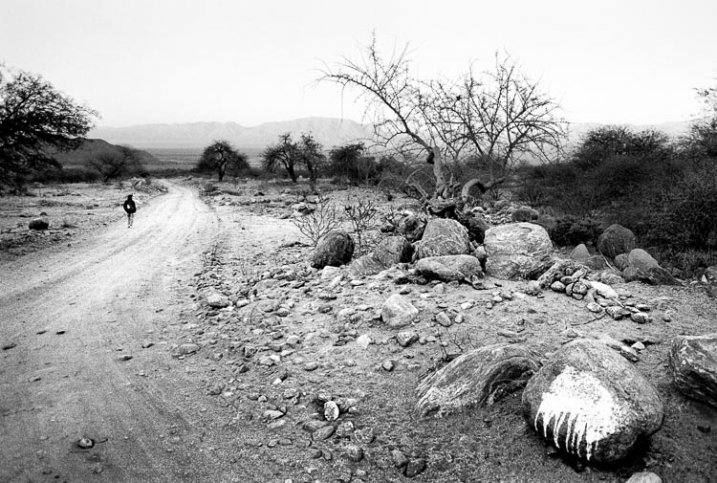
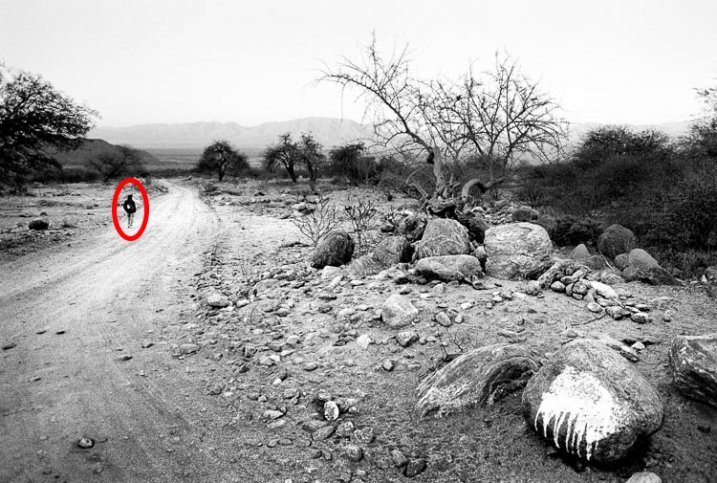
For human figures to be recognizable they must stand out from the background. That way we can identify them easily even if they’re small in the frame. This is a useful principle because you can include small human figures in the landscape to indicate scale. But it is important that they don’t merge into the background, otherwise they are difficult to see.

In this landscape, the man walking away from the camera is a dark figure against a light background (tonal contrast in action), and is easy to see and recognize.

Gestalt theory and composition

Gestalt theory and composition

7. Emergence

The viewer may not notice something in the photo when he first looks at it, but it becomes apparent after a period of study. This is an important concept because it is a way of making photos more interesting by presenting the viewer with something that is not evident at first, but reveals itself after reviewing the image. It’s a way of rewarding the viewer, and gives photos staying power.

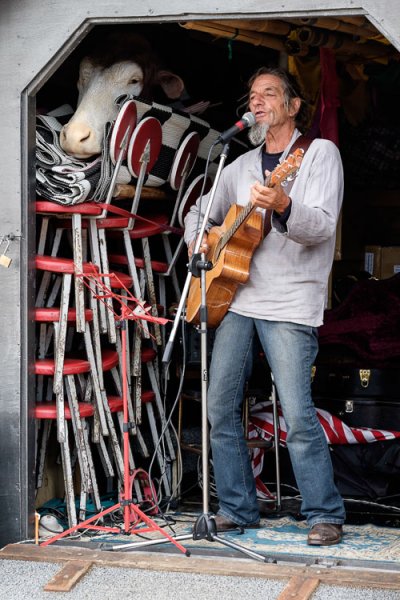
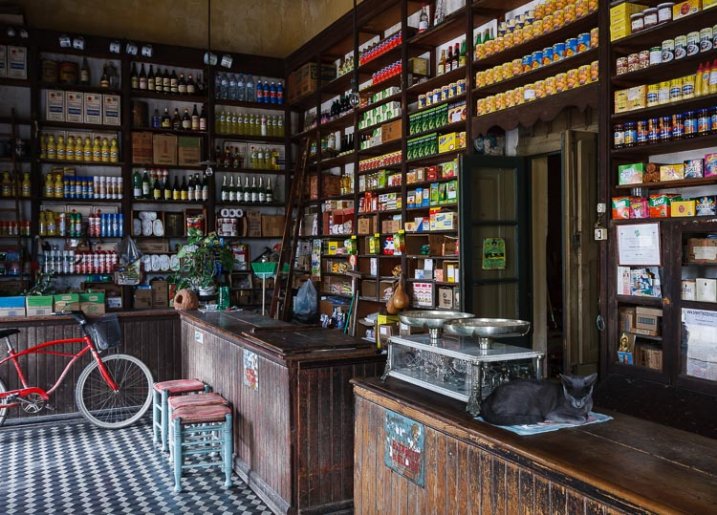
For example, how long did it take you to see the cat in the photo on this page? Or the cow’s head in the opening photo (top of the article) of the singer?

Gestalt theory and composition


Mastering Composition ebookMastering Composition

My new ebook Mastering Composition will help you learn to see and compose photos better. It takes you on a journey beyond the rule of thirds, exploring the principles of composition you need to understand in order to make beautiful images. It’s on special for a limited time only at Snapndeals.

googletag.cmd.push(function() {
tablet_slots.push( googletag.defineSlot( “/1005424/_dPSv4_tab-all-article-bottom_(300×250)”, [300, 250], “pb-ad-78623” ).addService( googletag.pubads() ) ); } );

googletag.cmd.push(function() {
mobile_slots.push( googletag.defineSlot( “/1005424/_dPSv4_mob-all-article-bottom_(300×250)”, [300, 250], “pb-ad-78158” ).addService( googletag.pubads() ) ); } );

The post 7 Tips for Using the Gestalt Theory for Better Composition by Andrew S. Gibson appeared first on Digital Photography School.

Digital Photography School

 
Comments Off on 7 Tips for Using the Gestalt Theory for Better Composition

Posted in Photography


How to Shoot in Low-Light Conditions Without Using Flash

07 May

Photography is all about capturing the subject beautifully in the available light. Sometimes as the photographer you have more than optimum light (e.g., bright sunlight, halogens, etc.) to work with while some other times you have to work in suboptimal or low-light conditions. If you are not a pro photographer then it is always a great challenge, and sometimes it’s a nightmare, to capture great shots in low-light conditions.

Aperture 1

Exposure info: f/1.8, 1/50th at ISO 3200

In order to face the challenges that low-light conditions come with, I will be sharing five techniques that you can use to capture your subjects, effectively. For better understanding, I have divided these techniques into two categories: technical and non-technical considerations.

Technical considerations

  • Use of high ISO
  • Use of large aperture
  • Use of slow shutter speed

Non-technical considerations

  • Capture image(s) in raw format
  • Use of remote shutter and a tripod

Use of high ISO

ISO is the sensitivity of your camera (sensor) towards available light. It is measured in numbers (for example 80, 100, 200, 400 etc.) The higher the number, the greater the sensitivity of your camera is towards light and thus, more light can be captured.

The amount of light captured is directly proportional to the selected ISO. In other words, at ISO 200 you can capture double the light than you can at ISO 100. Similarly, at ISO 800 you can capture 8 times more light than at ISO 100. Thus, in low-light conditions, you should use a higher ISO in order to capture your subject effectively.

Iso 2

Exposure info: f/3.2, 1/5th at ISO 1600

Limitations of using a high ISO

As it also impacts the image quality that your camera (sensor) produces, ISO comes with its own limitations. By image quality, I mean, the ability of your camera to produce noise (grain). At a higher ISO your camera will always produce more noise (grain) than at a lower ISO. So, you will have to test and check what the ideal ISO setting is (for your camera) at which you can capture your subject with optimum light, along with maintaining good image quality.

NOTE: ISO is a feature of the camera and not the lens that you are using.

Iso 1

Exposure info: f/5, 1/125th at ISO 2500

Use of large aperture

Aperture is the opening (eye or hole) in the lens, through which light enters into the camera. Aperture size is also represented in numbers (for e.g., f/1.4, f/1.8, f/2.2, f/2.8, etc). The smaller the number, the wider the opening is and thus, more light can be captured.

The amount of light captured is inversely proportional to the selected aperture. Say, for a lens with aperture values of f/1.4, f/1.8, f/2.2, f/2.8, f/3.3, f/4.0 etc., the amount of light captured at f/1.4 will be double the light than at aperture f/1.8. Similarly, at f/1.4 you can capture 8 times more light than at f/2.8. Thus, in low-light conditions, you should use a larger aperture (smaller value) in order to capture your subject effectively.

Aperture 2

Exposure info: f/1.8, 1/5th at ISO 400

Limitations of using a large aperture

As it also impacts the depth of field (sharpness or clear visibility) of the subject in your image, aperture comes with its own limitations. By depth of field, I mean, the ability of your lens to keep the subject in focus.

Generally, using a small aperture (higher f/number) you will be able to keep your entire subject in focus which is not possible using a large aperture (lower f/number). Again, you will have to test and check what the ideal aperture size is at which you can capture your subject with optimum light, keeping it in focus.

NOTE: Aperture is a feature of the lens and not the camera that you are using.

Use of slow shutter speed

Shutter speed, also known as camera exposure, is the length of time a camera shutter remains open in order to capture the light. Shutter speed is also represented in numbers (for e.g. 1/2, 1/4, 1/8, 1/16, 1/32, 1/64, 1/125, 1/250, etc.) The higher the number, the longer the camera shutter remains open and thus, more light can be captured.

The amount of light captured is directly proportional to the selected shutter speed. For a camera with shutter speed values of 1/4, 1/8, 1/16, 1/32, 1/64, 1/125 etc., the light captured at 1/2 second is double the amount of light than that at a speed of 1/4 second. Similarly, at a shutter speed of 1/2 you can capture 8 times more light than at a shutter speed of 1/16th. Thus, in low-light conditions, you should use a slower shutter speed in order to capture your subject effectively.

Shutter speed 2

Exposure info: f/3.2, 1 second at ISO 400

Limitations of using a slow shutter speed

As it also impacts the motion or movement of your subject, shutter speed comes with limitations. If you want to freeze the motion of your subject then you should use a higher shutter speed (e.g., 1/250, 1/500, 1/1000, etc.) While if you want to capture your subject with a motion blur then you should use a slower shutter speed (e.g., 1/8, 1/4, ½, etc.) Once again, you will have to test and check what the ideal shutter speed is at which you can capture your subject with optimum light, freezing or blurring its motion.

Shutter speed 1

Exposure info: f/10, for 8 seconds at ISO 200

NOTE: Shutter speed is a feature of the camera and not the lens that you are using.

Capture images in Raw format

A Raw image captures much more detail and information about the subject that you are shooting than a JPEG file. You get the luxury of improving the exposure, color, sharpness, etc., of the subject (using an editing software like Adobe Photoshop or Lightroom) while still preserving all the detail of the subject which is usually not possible while editing a JPEG file.

Raw 1 1

Exposure: f/3.2, 1/5th at ISO 400, before editing

Raw 2

Exposure: f/3.2, 1/5th at ISO 400, after editing

Note: the editing has been taken overly far just to show you the amount of detail in the Raw file.

Limitations of capturing images in raw format

  • Not all cameras can produce images in Raw format. Only selected higher-end cameras can. Most SLRs and Mirrorless camera can shoot Raw format as well as a few point and shoot models (check your manual if you are unsure, look for file formats)
  • Size of a Raw image is usually 4-5 times larger than the JPEG file that the camera produces. Thus, you will need more space for storing these images.
  • Only a handful of software can read and recognize Raw format files. Thus, you need specialized software (like Adobe Photoshop, Lightroom, etc.) to edit these images.
Raw 1

Exposure: f/2, 160th at ISO 2200

NOTE: I believe that capturing images in raw format comes with more advantages than disadvantages and that it is always better to shoot in Raw format.

Use of remote shutter release and a tripod

If you want to capture a stationary or slow moving subject in low-light conditions then it is always better to do so using a remote shutter release and a tripod. This will help you avoid possible camera shake and you will have a greater chance of capturing your subject, effectively.

NOTE: While most of the cameras can be mounted on a tripod, a smaller fraction of them can be used syncing with a remote shutter.

Conclusion

I have discussed in this article five techniques which you can use in order to take great photographs in low-light conditions. These techniques are: use of higher ISO, use of larger aperture, use of slower shutter speed, capturing images in Raw format and use of a remote shutter and a tripod. Almost all these techniques come with limitations, but they are also very effective, if tested properly for the camera and lens combination that you are using.

Which particular technique do you use for taking those challenging shots in low-light conditions? Did I miss any other technique which can be equally effective? I would love to have your thoughts regarding this issue.

googletag.cmd.push(function() {
tablet_slots.push( googletag.defineSlot( “/1005424/_dPSv4_tab-all-article-bottom_(300×250)”, [300, 250], “pb-ad-78623” ).addService( googletag.pubads() ) ); } );

googletag.cmd.push(function() {
mobile_slots.push( googletag.defineSlot( “/1005424/_dPSv4_mob-all-article-bottom_(300×250)”, [300, 250], “pb-ad-78158” ).addService( googletag.pubads() ) ); } );

The post How to Shoot in Low-Light Conditions Without Using Flash by Anshul Sukhwal appeared first on Digital Photography School.

Digital Photography School

 
Comments Off on How to Shoot in Low-Light Conditions Without Using Flash

Posted in Photography


Samsung Galaxy S6 units found to be using different image sensors

07 May

When the Galaxy S6 and S6 Edge were launched earlier this year there was no talk of the ISOCELL technology previously used by the Galaxy S5’s and Note 4’s in-house image sensors, so it was believed the 16MP 1/2.6 CMOS chip in the S6 was provided by Sony. However, rumors have emerged that in some units Samsung sensors are used instead of the Sony variant, and a company spokesperson has confirmed that different sensors are used. Read more

Articles: Digital Photography Review (dpreview.com)

 
Comments Off on Samsung Galaxy S6 units found to be using different image sensors

Posted in Uncategorized


3 Tips for Getting Great Skin Tones Using Adobe Camera Raw

10 Apr

Skin tones can be one of the more difficult aspects of a photograph to master. Getting pleasing skin tones will make your image appear more eye-catching and attractive. If you know the right steps to take, skin can be pretty simple to master. Using these three simple tricks, using only Adobe Camera Raw (ACR), your skin tones will appear more balanced and pleasing to the eye.

Before3 1

After3 1

Note: working in Lightroom you can do the this as well, because the sliders and options are the same!

White Balance

When trying to get great looking skin tones, the first thing you should pay attention to is the white balance. Correct white balance will set the stage for great skin tones. If the white balance is too cool, your skin will appear gray or bluish. On the other hand, if the white balance is too warm, the skin will look yellow or orange. Neither of these options are very pleasing to the eye, and make the skin more difficult to work with later on.

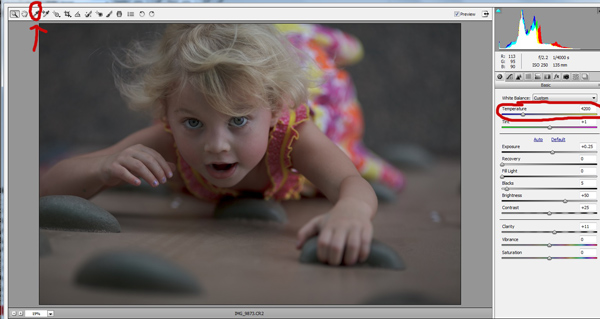
To see if your white balance is accurate, use the white balance targeted adjustment tool. It looks like an eye-dropper and is located at the top of the screen. It is the third tool over from the left. Click on the dropper, then click on an area of your photo that is white. The whites of the eyes are a good place to start. This should give you a good indication of where the white balance should be set. If your image still appears too warm or cool to your taste, use the temperature slider located to the right of your screen, it is the first one. Adjust this by sliding it to the right or left until your get a pleasing white balance. You may have to adjust Tint as well.

Whitebalance1

Exposure

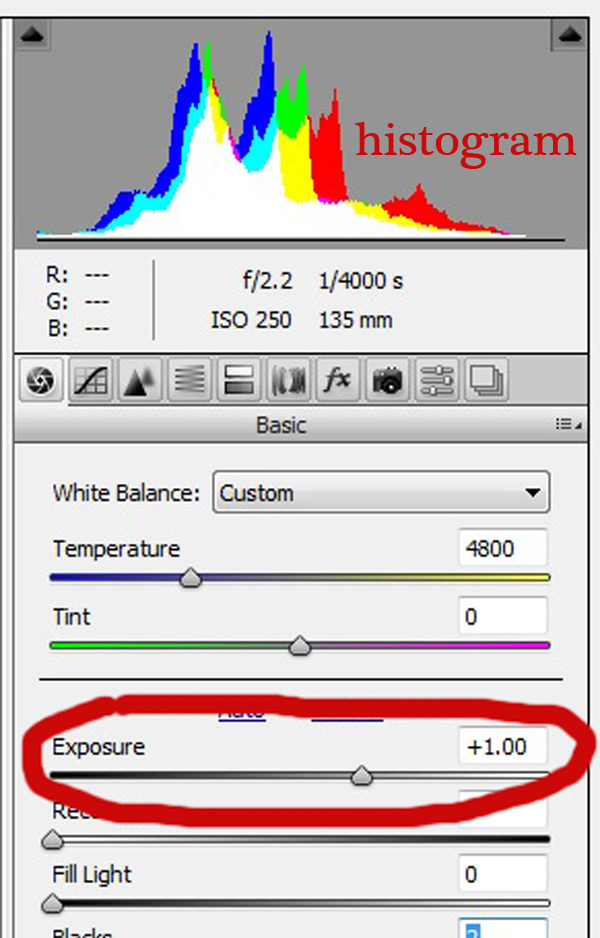
Next, make sure your exposure is correct. Take a look at the histogram located in the upper right hand corner of the screen. Ideally, you want it to look like a smooth bell curve, with the high point of the curve right in the middle. Check to make sure that the curve does not go too far to the left or the right. This may indicate that your photo is over or underexposed, causing your skin tones to either be gray and dark, or too bright and blown-out in some spots.

Exposure 2

If your curve does fall too far to one side, use the exposure slider to fix it. Located three sliders down on the right hand side of your screen, move it either left or right. Watch your histogram. When the majority of the curve is in the middle, you’ve got it! In some photos, there will be parts of your image that are very bright or dark, and cause your histogram to spike on parts of the curve. This happens often when you have a bright sky in the background. If this is the case, your curve will be off the chart on the right edge of the histogram. In an image like this, you would look at where the majority of your curve lies and ignore the parts of the curve that are out of range.

For more information see: How to Read and Use Histograms

Luminance

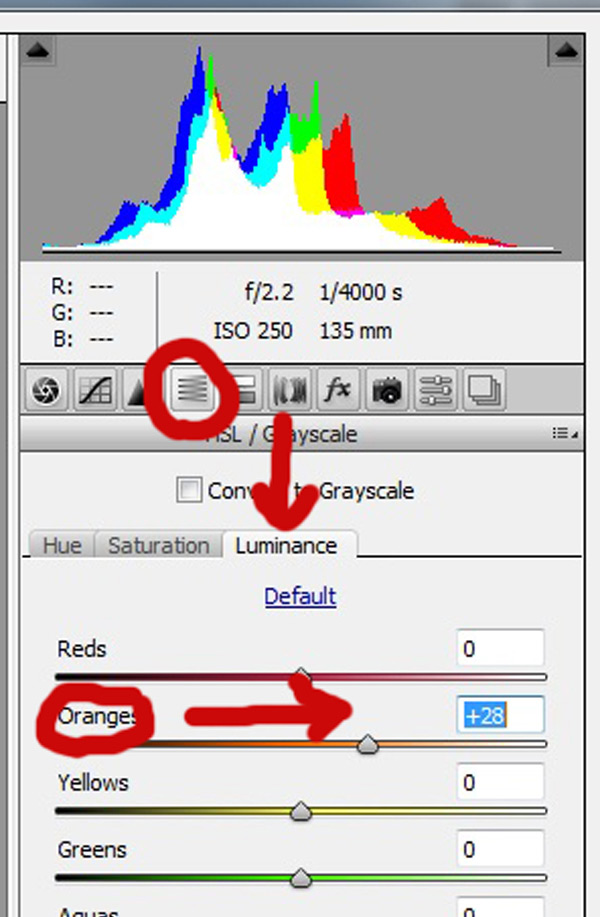
Finally, to give your skin tones just a little more brightness you will want to locate the luminance sliders (look for the HSL panel, the L stands for Luminance). You will see a horizontal strip of buttons directly under the histogram on the right panel. The fourth one to the left is HSL/Grayscale, click on that button. After selecting that option, three tabs will appear. Click on the Luminance tab. Choose the orange slider, which is two down, and move it to the right. You will notice that this affects mainly the skin in your photo and leaves the other areas of the image untouched. The more you move it to the right, the brighter the skin will appear. Keep moving the orange slider back and forth until the skin is the brightness you prefer.

Luminance 2

Before1 1

After1 1

Once you have adjusted your RAW image using these three steps, you can open it up in Photoshop to do any fine tuning or adjustments on the remainder of your photo. Your skin tones, however, should already look great and need little, if any additional work.

Before2 1

After2 1

Do you have any other tips for making great looking skin tones using ACR? Please share them in the comments below.

googletag.cmd.push(function() {
tablet_slots.push( googletag.defineSlot( “/1005424/_dPSv4_tab-all-article-bottom_(300×250)”, [300, 250], “pb-ad-78623” ).addService( googletag.pubads() ) ); } );

googletag.cmd.push(function() {
mobile_slots.push( googletag.defineSlot( “/1005424/_dPSv4_mob-all-article-bottom_(300×250)”, [300, 250], “pb-ad-78158” ).addService( googletag.pubads() ) ); } );

The post 3 Tips for Getting Great Skin Tones Using Adobe Camera Raw by Emily Supiot appeared first on Digital Photography School.


Digital Photography School

 
Comments Off on 3 Tips for Getting Great Skin Tones Using Adobe Camera Raw

Posted in Photography


Photographing Stars Using a Kit Lens

10 Apr

Pic 01 d5100 18mm f3 5 20sec iso1600

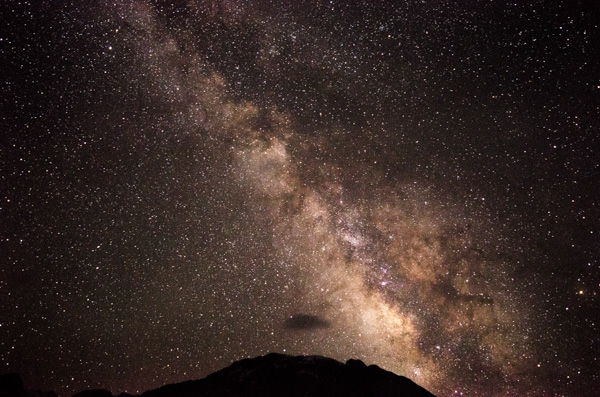
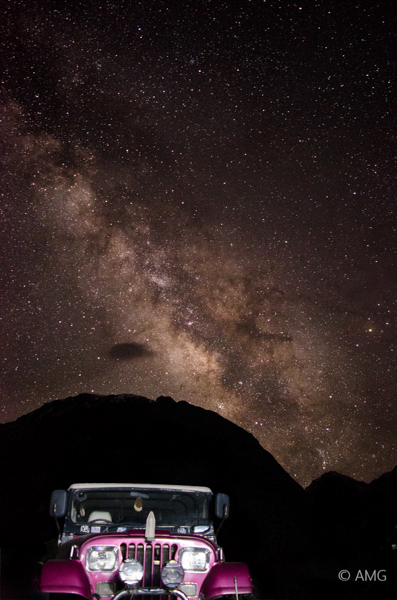
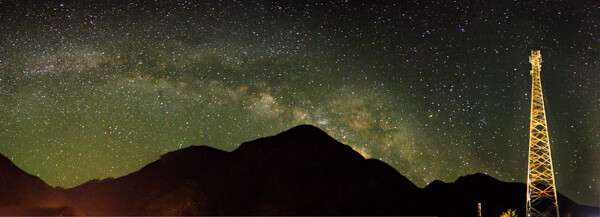
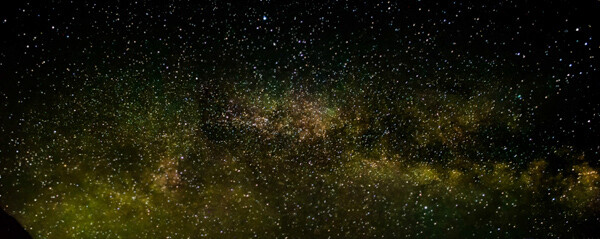
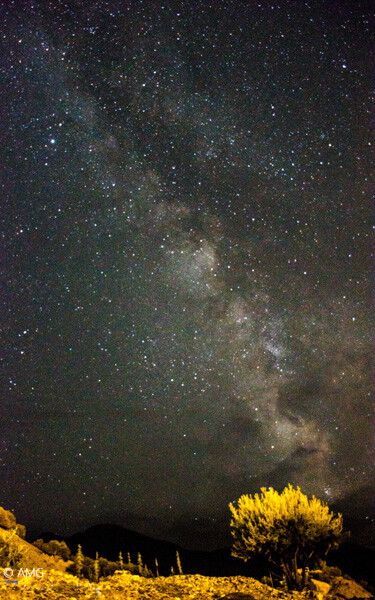
Looking at a starry sky while sitting in the open is always a soothing experience, but shooting those stars is a much better one. Have you seen those amazing starry skies and Milky Way photographs from professional photographers and wondered how to do this yourself but never tried it because you thought you did not have the proper equipment? Let me tell you, “You were wrong”.

If you own a normal DSLR camera and are interested in shooting stars (and the Milky Way), you can do this with your kit lens. I will explain the whole process step by step in the easiest possible way, so that even if you do not have much technical knowledge, you can understand and implement this method.

Basics of star photography

To get started, you need to have following points in mind:

  • A place away from the city lights. The less light pollution you have, the more chance of getting clear stars you will have.
  • A moonless night. Stars can also be shot on a full moon night, but the brighter the moon is, the more light pollution it creates, and the stars will not be as prominent.
  • A normal DSLR camera with a standard 18-55 mm kit lens.
  • A tripod

You can Google your surroundings for away from the city spots (Dark Sky) and moon phases at night. You should know beforehand in what direction, and at what time the moon is going to rise. That will help you a lot with composition of your images. A moonless night is always best to shoot stars.
Additionally, you can also use a compass app on your smartphone (for Android here) to locate the north star for star trails and you can also download an app called Star Chart (for iOS or for Android) or Google Sky just to give you an idea of which stars there are above you. Both of these apps also show you the direction of the Milky Way so you can directly shoot it and get amazing results.
These apps are pretty accurate, and with their help you can also see Mars, even with your naked eye (which I am sure you saw previously but were unable to differentiate it from stars). If you want to plan your shoot for future, or look for appropriate time sto shoot Milky Way in your location, you can download a desktop app Stellarium. Put in your coordinates and it will show you the direction of the Milky Way at a specific time, on a specific date of the year. Using this application, you can know exactly at what time of year, the brightest part of Milky Way will be above your location to shoot.
Pic 02 d5100 18mm f3 5 20sec iso1600

Camera settings

Now let’s get to the important part, camera settings. You will need to take control of your camera, keeping it in Manual mode. Change the mode to Manual and tune in the following settings.

Focal length: Set your focal length to the widest you have – e.g., 18 mm in the case of a kit lens. You can choose any focal length you want, but the more you zoom in (the longer the focal length is), the less stars you will be able to capture, and your optimum exposure time before star trails start to develop will also decrease (500 Rule).

Aperture: Setting your aperture to the widest option is key here – e.g., f/3.5 as in a kit lens. By using the widest the aperture, more light will enter through your lens giving you brighter stars and Milky Way.

Shutter speed: If you are only shooting stars and/or the Milky Way, set the shutter speed to 20 seconds or star trails will start to appear, giving the look of larger, unfocused stars. If you are wondering, why 20 seconds, here is the answer. Optimum exposure before you start getting star trails is calculated by dividing 500 by your focal length (also divide the answer by 1.5 if you are using cropped sensor.) So in the example of an 18mm lens on a cropped sensor – 500 divided by 18 = 27.78 divided by 1.5 = 18.52 (so roughly 20 seconds).

Pic 08 D5100 18mm f3 5 20sec ISO 1600 2

ISO: Start by keeping the ISO at 1600, and increase it later depending on your results. Keep in mind that greater the ISO, more noise there will be in your image. Although it does depend on signal to noise ratio of camera body you are using. High end or even new consumer camera bodies tend to produce less noise at higher ISOs, than do older ones, even three years old.

Shutter release: You need to have a shutter release (remote trigger) to avoid camera shake while shooting. If you don’t have a shutter release remote/cable, just use your camera;s 2-second or 10-second timer. That will minimize any blur in the picture due to camera shake.

It’s also best to switch OFF your “Vibration-Reduction” or “Image-Stabilization”, as the vibration of the motors can cause shake in the picture too.

Focusing the lens to infinity: Next, after putting up all these settings, the next most important thing left to do it focus your lens to infinity. As kit lens doesn’t have infinity marker on it, we will use hyper-focal distance values to focus the lens to infinity. Mount your camera and lens on a tripod, and focus it on any bright object far away at a distance of 20 feet or more. Point a flashlight towards camera from a distance of minimum 20 feet and focus on it if you are in the dark, and don’t have anything to focus. Once the lens is focused beyond 20 feet, its hyper-focal distance will project to infinity and your stars will be sharp. It will also help in getting anything in the foreground sharp too.

Don’t forget to switch your lens to M (Manual) after focusing, or else it will start to hunt for focus again when shutter is pressed.

If your lens is not focused to infinity, you will get the Milky Way but the stars will not be as sharp and will appear bigger. Same can happen if you go for a longer speed than required for not causing stars to produce trails. An example of these mistakes is here.

Pic 03 lens was not focused to infinity 2

Lens was not focused to infinity.

Pic 04 lens was not focused to infinity 2

Lens was not focused to infinity.

Pic 05 lens was not focused to infinity 2

Lens was not focused to infinity.

Recommendations:

It’s better to first sit in the dark for at least 15 minutes to let your eyes adjust with the surroundings. This will help you to see a lot of stars, and even the Milky Way with the naked eye and will also help you compose your images better. Enjoying your surroundings for a while is better than just starting to shoot as soon as you reach the site.

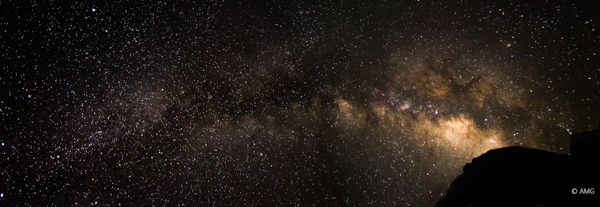
You are all set to shoot your own stars. With the help of kit lens you might not be able to get an award or feature your shot on 500px but yes, the shots will be very reasonable to make yourself happy, and impress your friends too. You could even try merging panoramas to get more of the Milky Way in your composition.

Pic 06 Panorama Stitch of 4shots 2

Post-processing:

The first part to better post-processing is RAW. Yes! always shoot in RAW as it will give you a lot of room for post-processing without affecting the quality. Secondly, some post-processing is always needed to get optimum results. You can find many tutorials on how to post process Milky Way images but the most elaborate one I found is from Hammad Iqbal Photography who also has a tutorial here on dPS on making star trails in Photoshop.

Star trails:

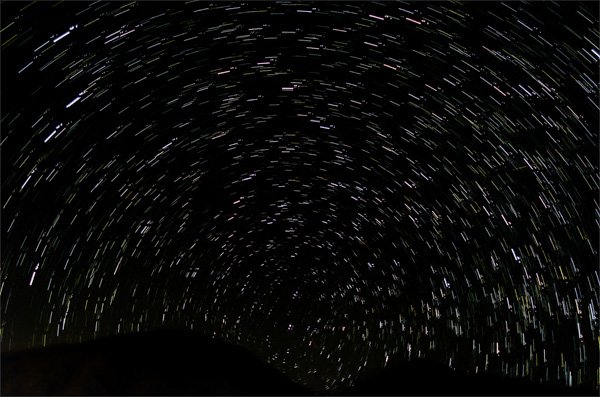
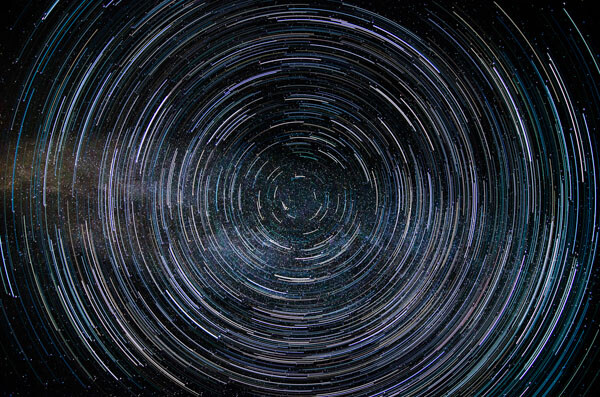
If you are satisfied with your shots, you can advance further to get star trails. Just locate the north star on the north pole using the Star Chart app and keep the north star (all stars rotate around this star) in your composition. For star trails, all camera settings will remain the same except that you can increase the shutter speed to 30 sec if you want.

You can go with faster shutter speeds (20 seconds or faster, if there are lights in the area and 30 seconds is overexposing). Keep the camera on continuous shooting mode and let it shoot as many exposures as it can shoot. The more pictures you will have, the more clear your star trails will be. Later, you can join all the exposures in Photoshop or use any star-trails software to create star trails. Alternately, you can take one stars shot and make star trails with it using HM Technique.

Pic 07 Star Trails A merge of 18 shots each at 30 sec

Pic 10 Star trail created in PS using HM Technique

Star trail created in PS using HM Technique

Pic 11 Fun in PS

Fun in Photoshop

Once you have nailed the Milky Way, try including foreground objects for better compositions.

Pic 09 D7000 18mm f3 5 20sec ISO 1600

Happy shooting, and keep me updated with your results. Let me know if you need any help.

googletag.cmd.push(function() {
tablet_slots.push( googletag.defineSlot( “/1005424/_dPSv4_tab-all-article-bottom_(300×250)”, [300, 250], “pb-ad-78623” ).addService( googletag.pubads() ) ); } );

googletag.cmd.push(function() {
mobile_slots.push( googletag.defineSlot( “/1005424/_dPSv4_mob-all-article-bottom_(300×250)”, [300, 250], “pb-ad-78158” ).addService( googletag.pubads() ) ); } );

The post Photographing Stars Using a Kit Lens by Adeel Gondal appeared first on Digital Photography School.


Digital Photography School

 
Comments Off on Photographing Stars Using a Kit Lens

Posted in Photography