RSS
 

Posts Tagged ‘Using’

How to Improve the Impact of Your Urban Images Using Lines

27 May

If you are struggling with getting your photos of cities and architecture to pop out, chances are that you are underestimating the power of lines in your images. Lines help you structure your images in ways that lead your viewers to look at different parts of the picture, and create interest in both your main objects and the surroundings.
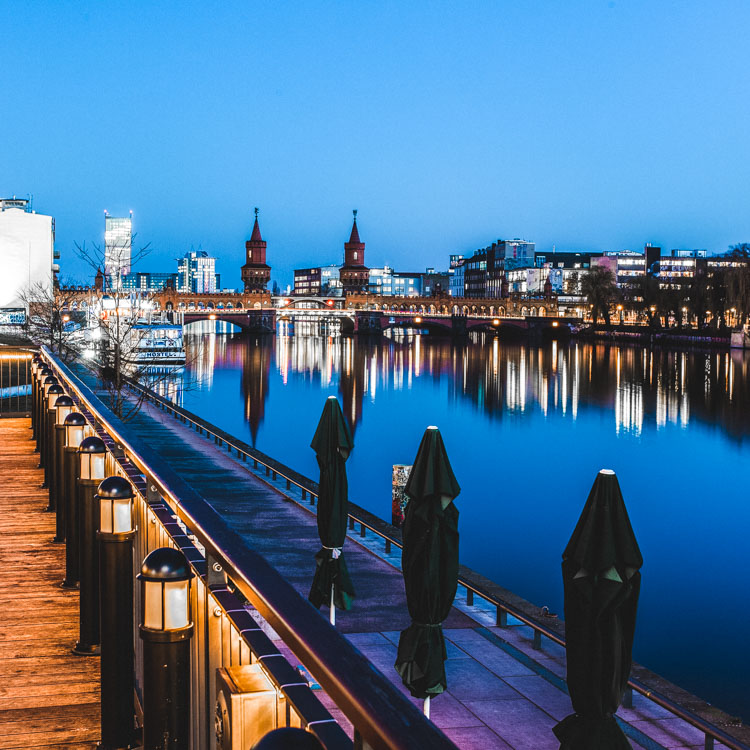
using lines for more impact in your images

The image above shows an example of how you can use lines to create a visual guidance within your city and architecture images, that will help your viewers find multiple points of interest and take a closer look.
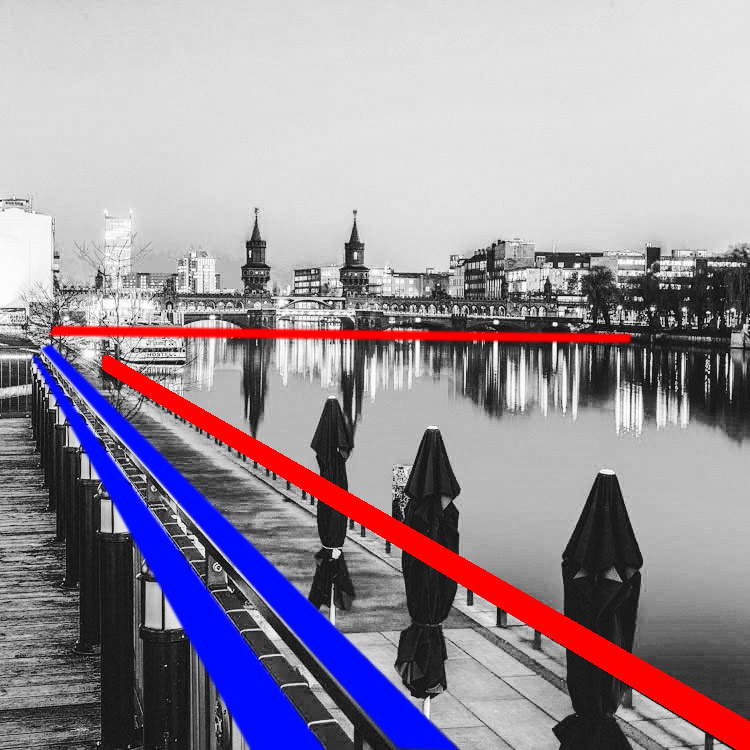
using lines for more impact in your images

To help you understand how the lines work in a rather complex image like this, reducing the image to a black and white version with high contrast, can help visualize the structures of the image without getting distracted by the color elements.

Why lines are important especially for urban images

While in many areas of photography, using depth of field and blurred backgrounds is a good way to lead the viewers’ eyes to the most important element, and add a sense of perspective, as city photographers we rarely have this choice. In architecture images, you want most elements to be in focus.

When taking pictures of city scenes, you need to structure your images in different ways to provide perspective and a feel of scale. The conscious use of lines in your images can divide a photo into smaller pieces, separate elements from each other, provide a sense of perspective and lead your viewers’ eyes to where you want them to focus.
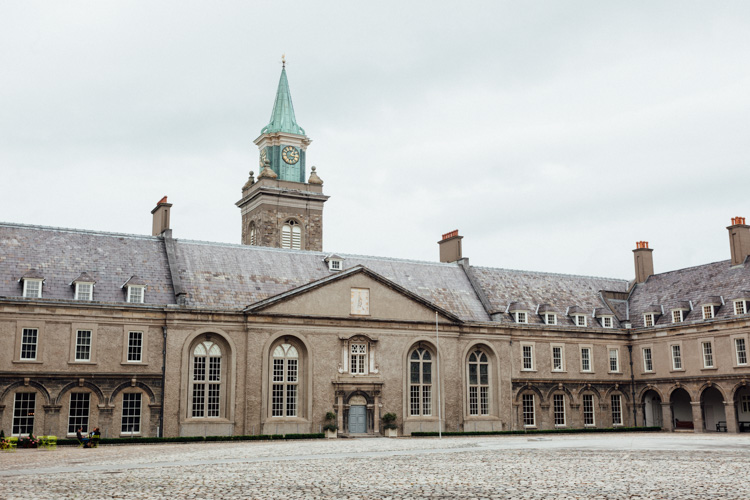
using lines for more impact in your images

The image above shows an example of a random shot without considerations for the use of lines. With its grey stones, the National Museum of Ireland in Dublin on a cloudy day, doesn’t offer much to work with when trying to create an interesting image. This is merely a documentation of the place, but probably wouldn’t make it as a header image.
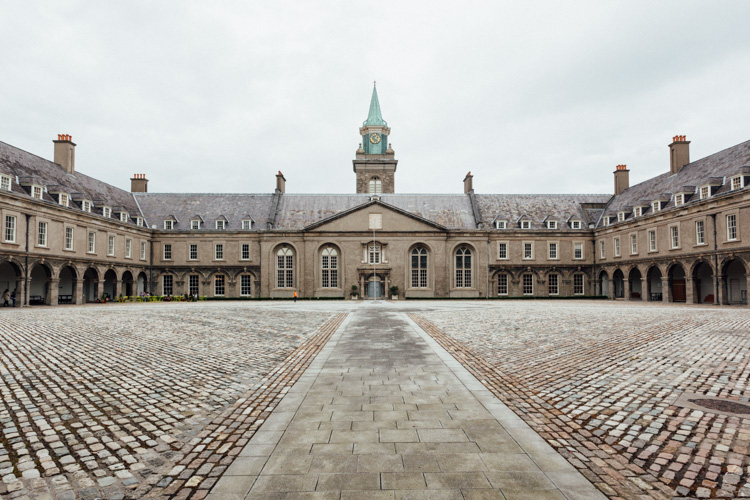
using lines for more impact in your images

However, beyond the documentary aspect, the use of lines to create perspective, orientation and symmetry can increase the impact, even of an otherwise dull looking image.

Which lines can you use to increase impact?

You can separate the lines in three categories which I call:

  • Dividing lines
  • Leading lines
  • Symmetrical lines

A dividing line structures your images into separate areas of interest. It can be horizontal, vertical, or diagonal. You can use it to make a clear difference between bottom and top of an image, but also make sure to use dividing lines to show near and far. In many outdoor images, the horizon line is a natural dividing line.

using lines for more impact in your images

In this image, I am using a major dividing line to clearly separate the floor and the wall. Less noticeable, the additional line in the wall serves as another separation in the photo. Without the addition of this line, the right half of the image would be rather boring. By adding a simple line into the frame, it helps dividing the image into a left and right.

Make sure that your dividing lines are in the right place. With very few exceptions, make sure to place your lines outside of the center of the image (both horizontally or vertically) but also not too close to the borders. The well known Rule of Thirds is good guidance, in many cases dividing images into a two-thirds and a one-third part works best.

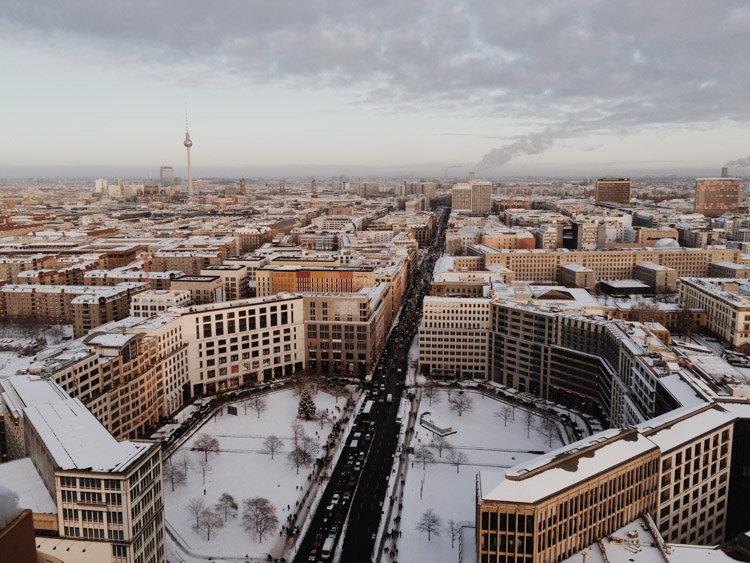
Leading lines are an important way to provide your viewers with an idea of perspective. They will lead the eyes into, and around the image. Leading lines often come in pairs, slowly merging into the distant part of the picture. But in fact, you can use multiple leading lines, even one can help the viewer find orientation. Leading lines don’t even have to be straight, you can use curves and angles just as well.
using lines for more impact in your images

The main street in this image serves as a single leading line, it helps the eye find orientation from the interesting space in the foreground, and puts it into the context of the big city.

The third way of using lines to increase impact, is the use of symmetries. When looking for interesting images to capture in a city, try to find symmetrical lines in the architecture around you. Thankfully, architects also know the visual impacts of symmetries, and use them to create the buildings around us.
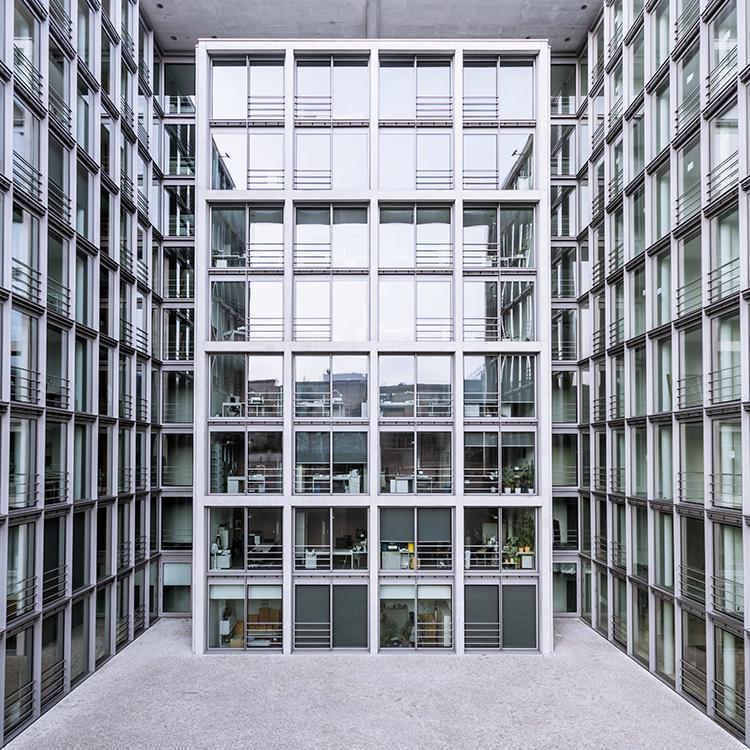
 

Bürogebäude des Deutschen Bundestages in Berlin,, Deutschland.

Buildings like this lend themselves to be taken in symmetries. While the content is not perfectly symmetrical due to the individual office decorations on the inside, the structure of the building makes an interesting frame for these individual elements. The symmetry helps to create interest, as you subconsciously start looking for the differences between the halves.

Learn to focus on lines

If you are shooting with a camera capable of RAW images, there is an easy way to train yourself to look out for lines: Use your camera settings, and change your camera to shoot in black and white!

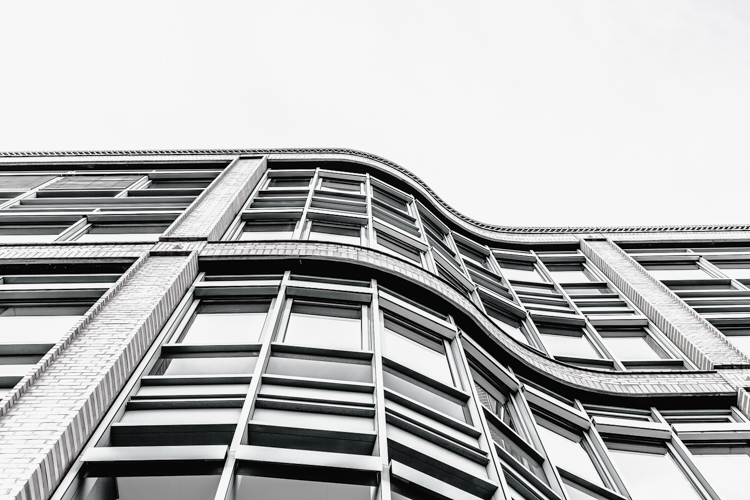
When shooting RAW, the camera will still capture and store all the data from the sensor, including the color information. So when you are back at your computer to edit images, you will find all the options to create color images as well. But while shooting, you can look at your images at the screen in black and white, which will eliminate distractions from the forms in your image.
using lines for more impact in your images

Going a step further, in most cameras you can set up your own image processing profile in camera: Increase the contrast and sharpness of the image as far as possible, and you will end up with a preview image on the camera screen that is mostly reduced to the lines.

Additional ways to use lines
using lines for more impact in your images

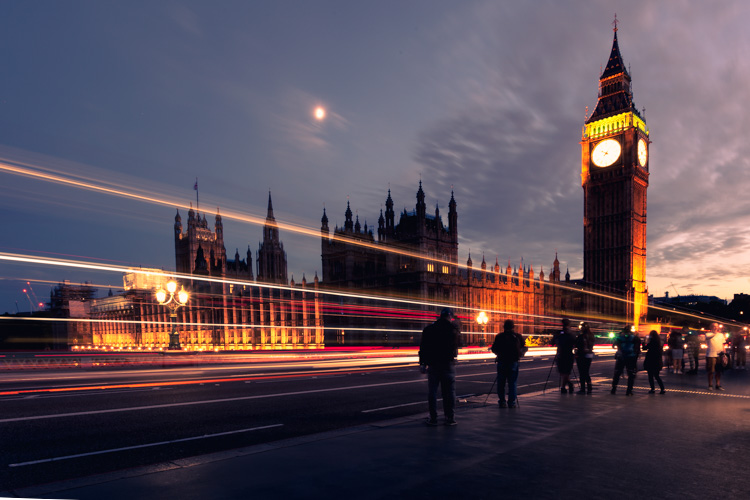
Probably one of the most photographed objects in the world, the houses of parliament and the tower with Big Ben in London, UK, it is hard to come up with a unique version. In this image above, I added the light trails created by the passing traffic to add an interesting element. The light trails serve both a dividing lines between the other photographers in the foreground and the architecture in the background, as well as leading lines providing perspective from the left to the right part of the picture.
using lines for more impact in your images

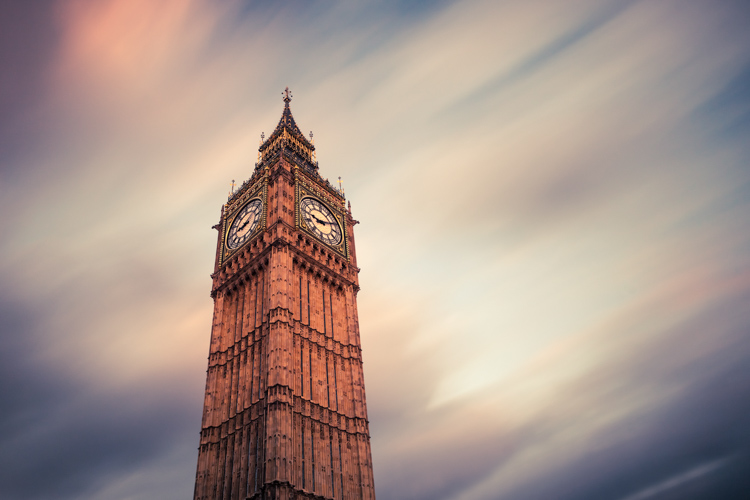
When taking images of tall buildings, like in this case the tower of Westminster, the borders of the building will typically provide leading lines from the bottom (near) to the top (far). To generate an additional element of interest, I used a long exposure image to create another set of lines, through the moving clouds in the sky above the building. This helps add a dynamic element and interest, to an otherwise static and often boring background.
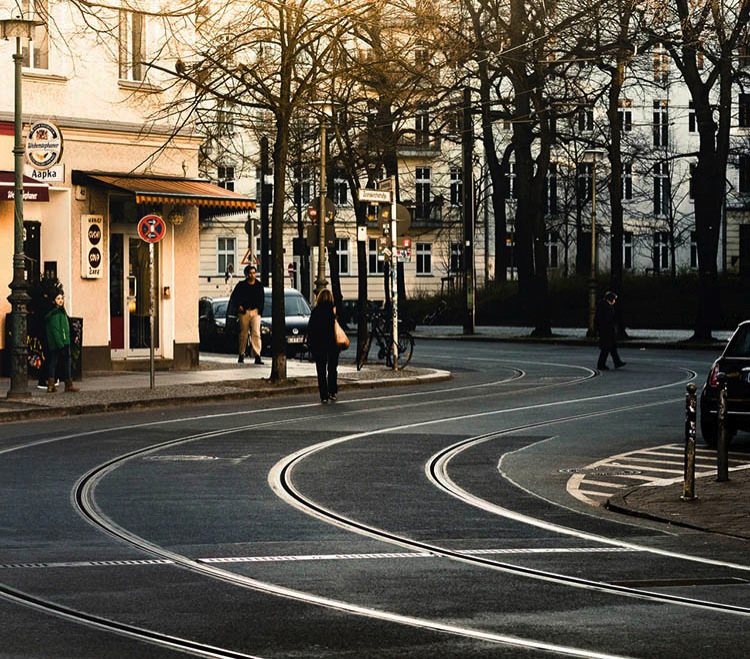
curved leading lines

Do not limit yourself to using only straight lines. While a horizon should always be straight and strictly horizontal, others, especially leading lines, can also be curved. In this image above, the cable car tracks take two turns that lead the viewer’s eyes from the bottom (near) to the center (far) part of the image.

Even complex scenes win from the use of lines

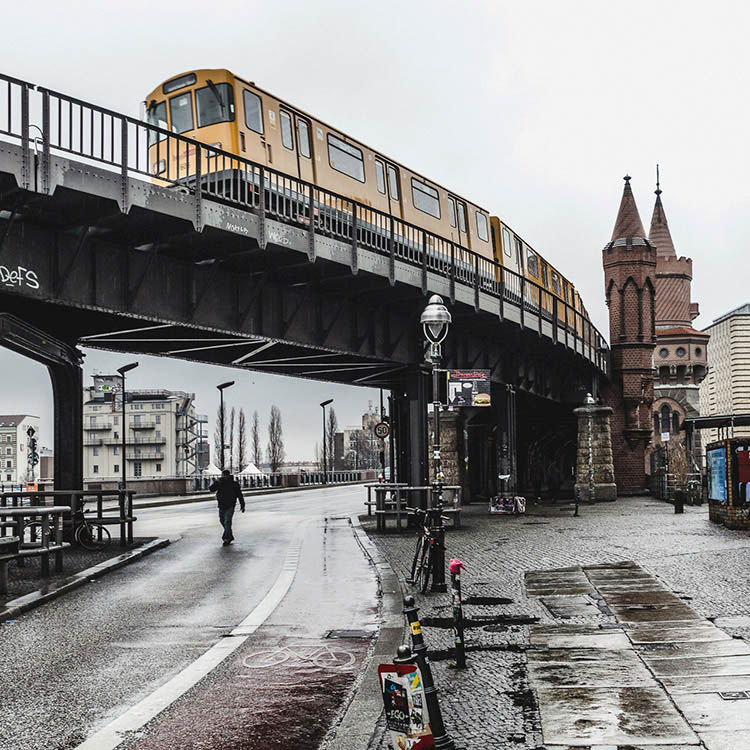
Once you become aware of the lines in your images, you can use them to structure even more complex scenes.
using lines for more impact in your images

While the above example might show the lines all that obvious, you will most likely see the curb of the street easily as a (curved) leading line into the image.
using lines for more impact in your images

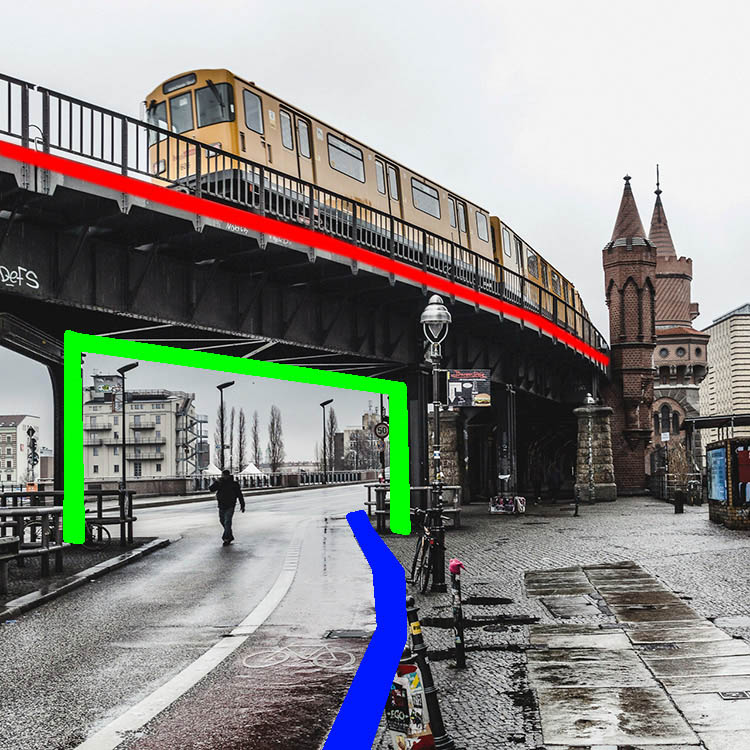
However, upon a closer look, you can also note the use of a dividing line separating the photo into a top and bottom part to provide additional perspective and scale. Finally, a use of lines as a frame puts more emphasis on the silhouetted person crossing the scene, adding further scale to the size of the elements contained.

These lines help the viewers structure the image into separate parts and make it easier for the brain to digest all the elements contained.

How do you use lines in your compositions? Please share in the comments below.

googletag.cmd.push(function() {
tablet_slots.push( googletag.defineSlot( “/1005424/_dPSv4_tab-all-article-bottom_(300×250)”, [300, 250], “pb-ad-78623” ).addService( googletag.pubads() ) ); } );

googletag.cmd.push(function() {
mobile_slots.push( googletag.defineSlot( “/1005424/_dPSv4_mob-all-article-bottom_(300×250)”, [300, 250], “pb-ad-78158” ).addService( googletag.pubads() ) ); } );

The post How to Improve the Impact of Your Urban Images Using Lines by Michael Zwahlen appeared first on Digital Photography School.
Digital Photography School

 
Comments Off on How to Improve the Impact of Your Urban Images Using Lines

Posted in Photography


Using a Wide-angle Lens with Wildlife for a New Perspective

18 May

With more and more budget telephoto lenses hitting the market, wildlife photography is becoming increasingly accessible. Consequently, you don’t have to look very far to see beautiful wildlife portraits, shot with a clean bokeh using a long lens. Close-ups like this definitely have their place, but this traditional form of wildlife photography is perhaps harder to achieve stand-out photos within nowadays.

But who said you had to use a telephoto lens for captivating wildlife photos? In nature photography, wide-angle lenses are traditionally associated with landscape photography. But by using a wide-angle lens with wildlife, you can incorporate the environment, and habitat of a species, into your photo. This is will add an entirely new perspective to your images, and it’s a really enjoyable technique to play with.

How Do You Do

Equipment you’ll need

While you can do wide-angle shots of wildlife using a camera trap system, I’m going to be looking at firing the shutter manually. So here are some pieces of equipment you’ll want to get hold of.

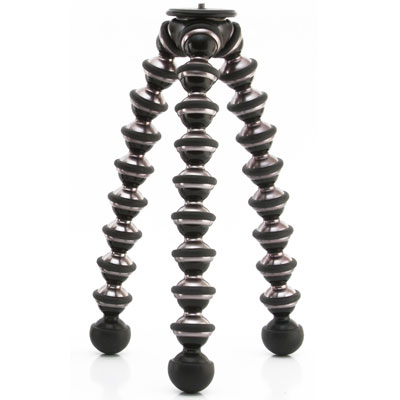
Joby Gorillapod

These three bendy tripods are extremely versatile, and allow you to position your camera in all sorts of places, whether that be wrapped around a tree, or precariously positioned on a rocky beach. This will help you to position your camera low to the ground, in the ideal position. Tripods rarely let you go to ground level, as they often have a neck or centre column. Plus, they’re very large when spread out to the ground. But make sure you buy the more heavy-duty of Joby’s offerings, as the cheaper versions will not cope with the weight of a DSLR.

Joby

Wireless release

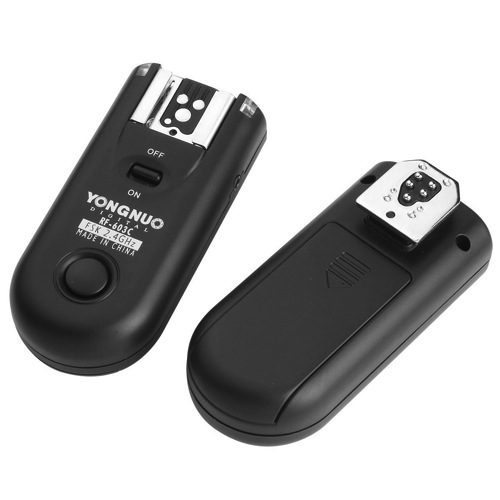
You’ll definitely need some form of wireless trigger for your camera. You can’t press the shutter directly, as no animal will come near your camera if you’re sitting right behind it. Instead, get hold of some wireless releases from YongNuo. They are about $ 40 and work perfectly well. They are a radio based system, which do not require line of sight, and have they a range of up to 100 meters (supposedly).

Yongnuo

Setting up for the shot

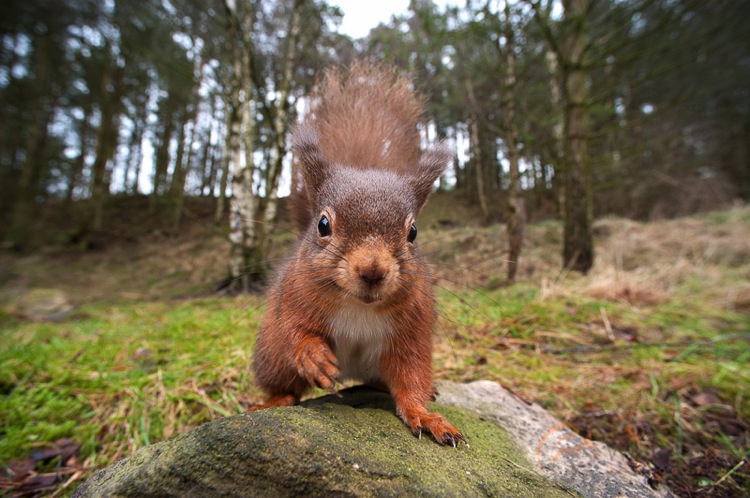
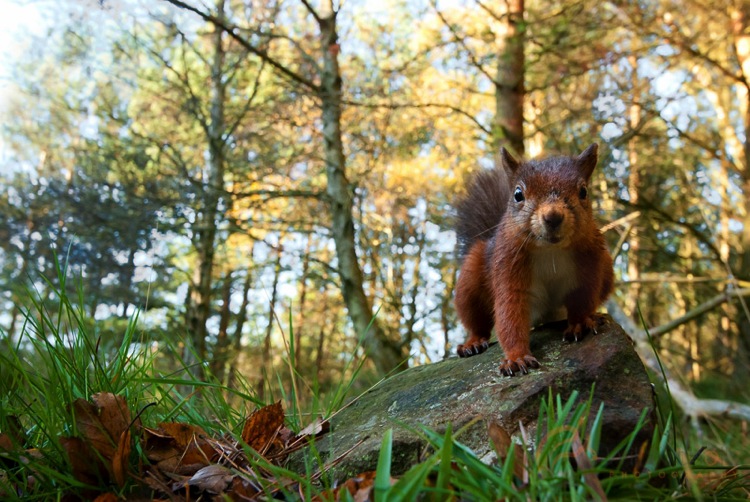
You need to think about what you’re trying to convey in your photo. The best part about a wide-angle lens is the ability to include the habitat of your subject, so think about what are its key features. For me, red squirrels are a great subject for wide-angle photography. They live in British woodlands, so the obvious backdrop is a collection of trees.

Remotesquirrel2

Position the camera as low to the ground as possible; you want to make sure you are at or below eye-level of the animal. This really shifts the perspective of the shot. Remember that because you’re shooting wide (perhaps even as wide as 14mm), you’ll need to ensure your subject comes close enough to the lens, or it will appear too small.

To do this, you can use some form of bait. I will stress right away that live baiting is seen as extremely unethical in wildlife photography, and I strongly suggest you do not take this approach in any form of wildlife photography. If your subject is a carnivore, then you can collect road kill or other already dead animals to use as bait. But for me, squirrels are omnivores and they are very happy with a few hazelnuts to bring them close to the camera.

Remote High

Put your camera into aperture priority mode. Make sure you have your exposure compensation set to expose the scene properly, and any changes in light should be adjusted for by the camera automatically. Set your focus manually, predicting where the animal will turn up, and make sure to switch the camera’s autofocus off (otherwise it will attempt to refocus when you fire the shutter).

Now you can sit back and wait. Make sure you’re in range, but stay hidden. You can use a pop-up photography blind for this, and just be patient. Once an animal begins to approach, fire a test shot while it is still at a distance. This will help the animal get used to the sound of the shutter. For some animals a test shot won’t be appropriate, such as with birds that may fly away. If you’re lucky, your subject will realize that the camera means no harm, and happily sit and pose for your shot.

Things to be aware of

You should never put your photograph before the welfare of an animal. Period. There are no exceptions here, and to do otherwise is strongly condemned in the wildlife photography field. It therefore goes without saying that you should not perform this type of photography at the breeding site of an animal. If you shove a camera outside a bird’s nest, it will likely abandon it, and any chick in the nest will die. Disturbance like this never ends well.

Wide-angle photography handheld

There are some situations where you can hand-hold your camera and take wide-angle shots of wildlife. This is often the case for seabirds which nest on islands and cliff tops. These usually reside in wildlife reserves, and it is the case in the UK that you can walk around these reserves. Consequently, the animals are used to people and are completely unafraid. It’s therefore possible to get close enough. As long as your subject doesn’t show any signs of stress, then you are probably okay to approach.

Juvenile Shags

In conclusion

Wide-angle photography is great fun with wildlife. It feels just like Christmas, not knowing what you’re going to get until you go back and check the camera. Sometimes you’ll be bitterly disappointed at an out-of-focus image that had potential, but eventually you’ll come away with something you can be proud of.

googletag.cmd.push(function() {
tablet_slots.push( googletag.defineSlot( “/1005424/_dPSv4_tab-all-article-bottom_(300×250)”, [300, 250], “pb-ad-78623” ).addService( googletag.pubads() ) ); } );

googletag.cmd.push(function() {
mobile_slots.push( googletag.defineSlot( “/1005424/_dPSv4_mob-all-article-bottom_(300×250)”, [300, 250], “pb-ad-78158” ).addService( googletag.pubads() ) ); } );

The post Using a Wide-angle Lens with Wildlife for a New Perspective by Will Nicholls appeared first on Digital Photography School.

Digital Photography School

 
Comments Off on Using a Wide-angle Lens with Wildlife for a New Perspective

Posted in Photography


5 Advantages of Using a Fully Manual Lens

17 May

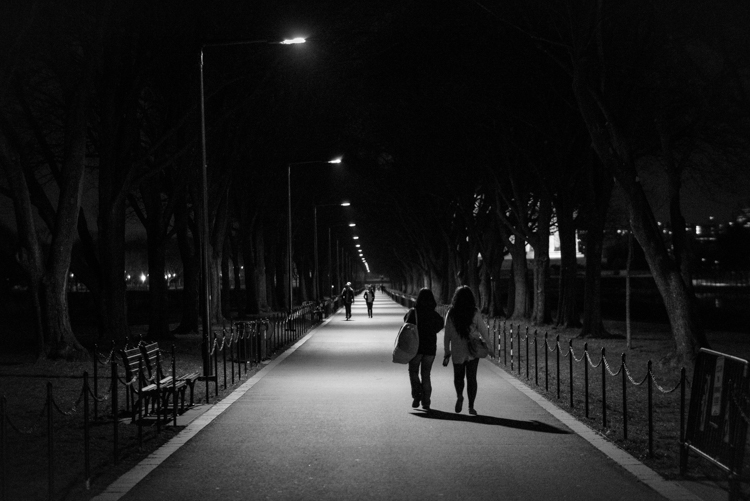
A Stroll in the Night DPS

Shooting with a manual lens centers your attention on the precise image you want to produce. Once you get the hang of shooting manual (here are two prior dPS tutorials: Tips for Using Legacy Lenses and Shooting in Full Manual and Why Every Photographer Should Use a Manual Focus Lens), you learn how to produce some pretty cool images that are easier to manage, than if you leave autofocus on, and that can make for some fun photography.

With all of the computing that’s in a modern autofocus lens, the camera and the lens often take the photo for you. Further, autofocus and shake reduction can actually work against your art. If you shoot frequently on autofocus, then you know the camera can easily focus on the wrong subject. This is particularly true in situations where the light varies greatly.

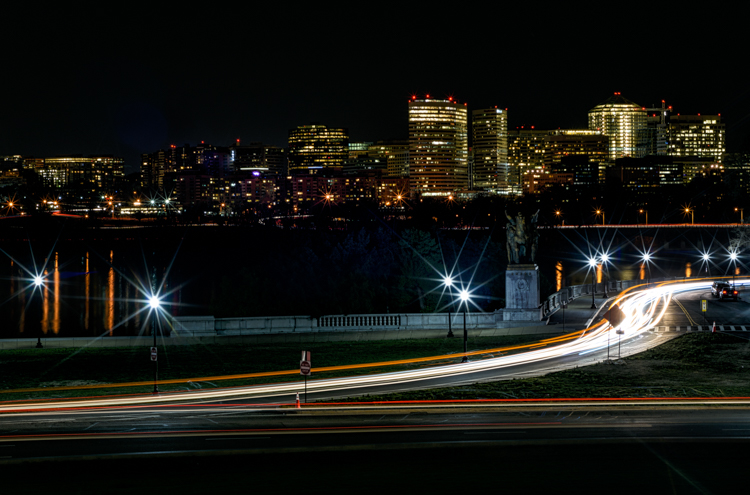
Potomac at Night DPS

Even when you turn off autofocus and go manual, the modern computer-driven lens can be cumbersome. It’s like turning off an automatic mode in a car and using paddles to shift gears. The experience is just not the same, things don’t work right. You want to step on the clutch, and shift through gears, feeling the engine with your right hand as you accelerate.

That’s how I feel about shooting manual. Your eye and hand drive the photo, rather the camera telling you how to drive.

Here are some of the cooler shots I’ve taken while photographing with manual lenses. They are listed from easiest to hardest. I hope you’ll enjoy some of these, too .

1) Nature shots that feature lots of bokeh

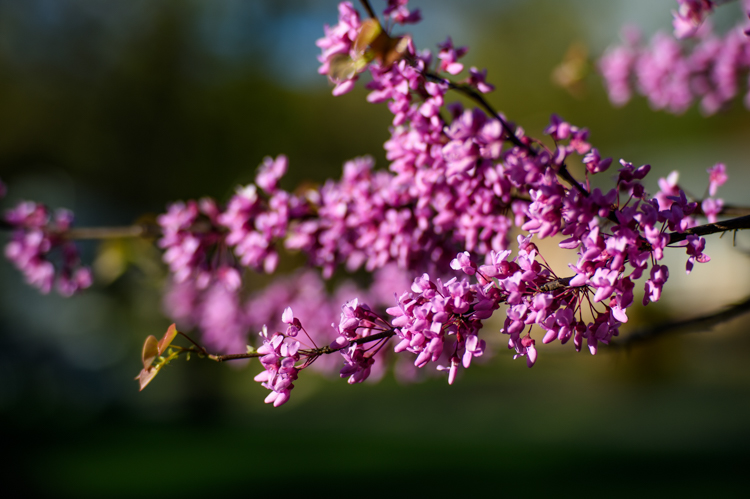
Purple Blossoms DPS

It’s spring and that means the world is filled with lots of colorful flowers, and blossoms to admire. Who doesn’t love photographing these beautiful subjects?

Because I live in a populous city, I shoot flowers with a wide-open aperture to create maximum bokeh. It allows me to blur many unwelcome background objects like cars, bikes, telephone polls, people, and even some buildings.

Manual is ideal for this kind of shot, as it is simplistic. I focus as closely as the lens permits, and set the aperture as wide as possible. I calibrate shutter speed to accommodate light and shadow differentials. The rest is easy as could be. I move myself and the camera to a position that frames the relatively still flower (wind not included) and capture the frame. The above crabtree blossoms shot is a classic example of this technique.

2) Spot focus street shots

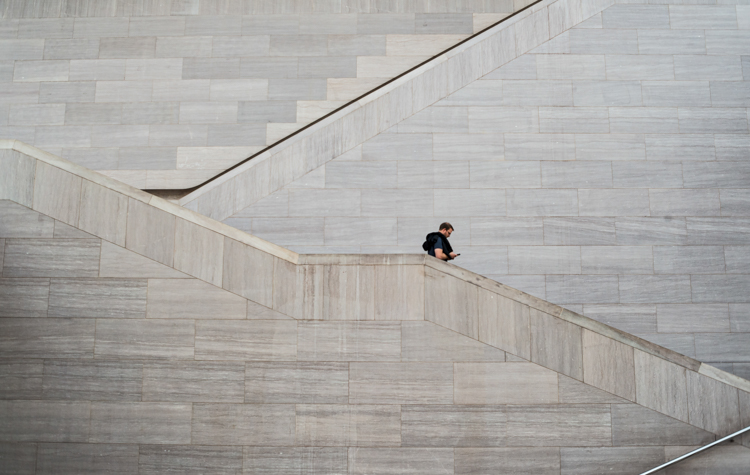
Don t Fall Down DPS

Street photographers like to capture candid moments of human nature. Capturing cool street shots is hard. Personally, when I do shoot street photography, I tend to find a setting that I like, frame the shot, set my camera, then wait for the right person to come along. So perhaps I cheat a bit if you are a pure zen street photographer.

However, to get that shot, I love manual focus. I can set the focus based on the distance between the camera, and where I anticipate the subject will be. Autofocus often latches on to an object, and frankly sometimes the object is a little off from the spot I want to shoot. So I prefer to use manual focus, on the spot where I anticipate the subject will be.

This shot taken at the National Gallery of Art took about 10 minutes. I focused on the middle stair well and waited for the right person to come through. Unfortunately for me, a bus load of secondary school kids were there at first, but once they cleared out, things happened quickly.

3) Bright night shots

Ferris Wheel DPS

Some objects are brighter at night than others. The moon is a great example. So are ferris wheels, because they shed an enormous amount of light, often rendering all other light sources as dull or non-existent.

For some reason, in darker situations like this, the light meter in my Nikon D810 and the autofocus on some of my lenses, don’t synch well. At times autofocus doesn’t catch the subject at all, or worse, it focuses on the wrong object, like a street light in the background. So I almost always calibrate both focus and aperture manually, to get the sharpness and light just right.

Back to the ferris wheel in the image above. The image was shot with a Figmentum 35mm lens. Focus was easy, as the distance from the subject let me simply set the lens on infinity. But, the aperture required some manipulation, as I started off too bright, and had to close the aperture slightly. I actually shot this at ISO 100for 30 seconds at f5.6, which turned the water reflection into a crazy bokeh as it came closer to me.

4) Panning

Good Catch Panning DPS

Panning is one of the most difficult forms of photography, literally catching an object in motion, at a slower shutter speed. This creates fantastic blur behind the subject, while at the same time keeps the object in focus.

You pretty much need to shoot manual to pan well. Sure, you can lock in your moving target with autofocus and then pan, but really there’s so much that most cameras get wrong with autofocus. When I pan, I like to spot focus with manual. I understand where my subject will be from a distance perspective. I focus, then keep my hands on the focus dial to sharpen as necessary.

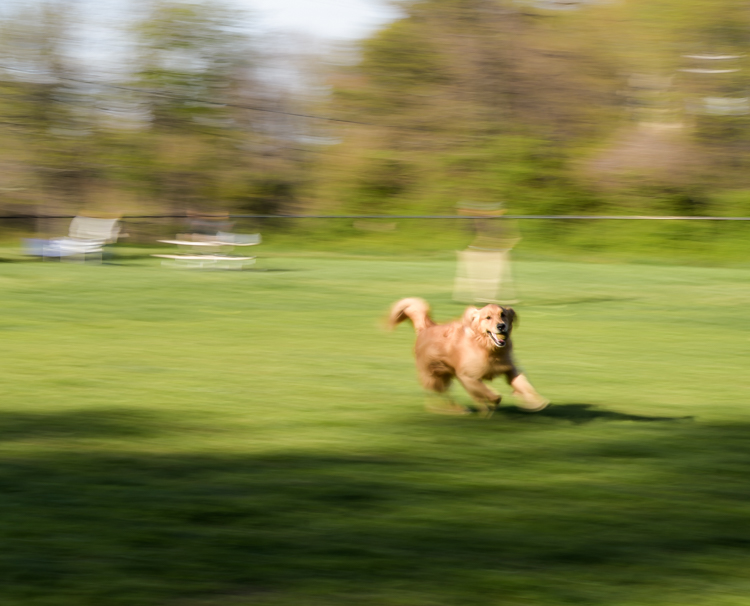
In the case of this photo with my dog, I shot it with an 85mm lens, so I set the focus on infinity and planted myself in the middle of a dog park. This fine pup was playing catch with her Dad and was quite happy about it. I caught this shot on her sixth catch.

5) Shutter drag

Shutter Drag DPS

Instagram Rock Star DPS

If you think manual panning produces some cool shots, try dragging the shutter. This is for low light situations where you basically have the same technique as panning, but now use a flash to freeze your subject in motion.

Generally speaking if you are in a low light situation, autofocus may be suspect anyway. That’s why I prefer shooting manually. I’ll confess. If there is an autofocus lens on my body, then I’ll use it to get the camera focused on or close to the subject, then go manual to finish the job.

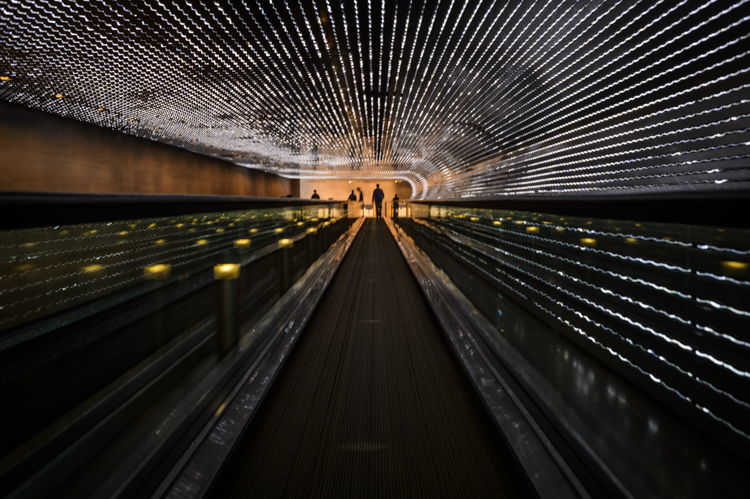
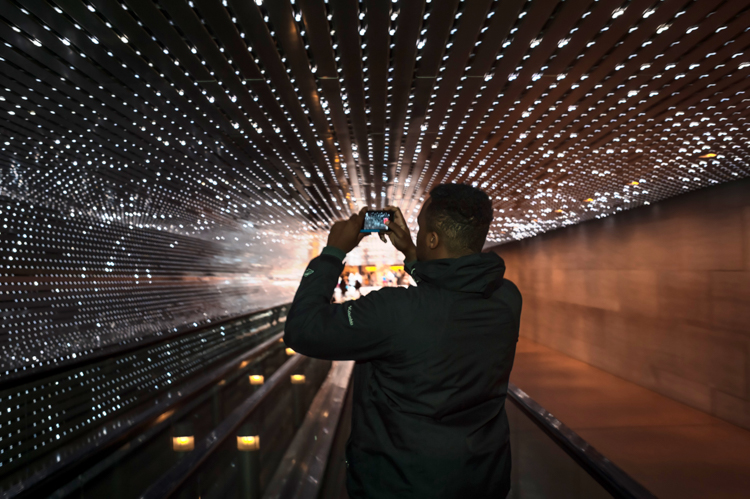
This shot was also taken at the National Gallery of Art, and features the LED light tunnel between the East and West wings. If you are on Flickr or 500 Pixels, you see a great photo of this every week or two. I decided to play double jeopardy with this shot and rode the conveyer belt while I shot the pic, so not only were the lights and the subject moving, but I was also moving at the same speed as the belt. The exposure was 1/4 of a second, with on-camera flash.

What are your favorite manual shots?

googletag.cmd.push(function() {
tablet_slots.push( googletag.defineSlot( “/1005424/_dPSv4_tab-all-article-bottom_(300×250)”, [300, 250], “pb-ad-78623” ).addService( googletag.pubads() ) ); } );

googletag.cmd.push(function() {
mobile_slots.push( googletag.defineSlot( “/1005424/_dPSv4_mob-all-article-bottom_(300×250)”, [300, 250], “pb-ad-78158” ).addService( googletag.pubads() ) ); } );

The post 5 Advantages of Using a Fully Manual Lens by Geoff Livingston appeared first on Digital Photography School.

Digital Photography School

 
Comments Off on 5 Advantages of Using a Fully Manual Lens

Posted in Photography


How Using Your Smartphone Camera Can Help Improve Your Photography

12 May

One of the triumphs of digital photography is that it has become accessible to more people, across more and more devices. Cameras are no longer standalone devices; as the technology allows the camera to be smaller and smaller, it can be built in to other devices that you may have on you more often than a dedicated camera, such as a smartphone. Cameras in smartphones, and other devices like tablets for example, are producing images of an increasingly higher standard. Their low-light performance is improving, and manufacturers are constantly improving upon the dynamic range, autofocus, and lens quality.

Photographer Chase Jarvis said that, “The best camera is the one that’s with you” – so why not use your smartphone or tablet camera more often? There are restrictions on smartphone cameras over their DSLR or mirrorless camera brethren – their low light and AF performance still have quite a lot of catching up to do, the lenses cannot be changed, and you also have far less control over what settings (ISO, shutter speed, aperture) are used. But it is also these very restrictions that can help you improve your photography when you are using your DSLR, mirrorless, and even compact cameras.

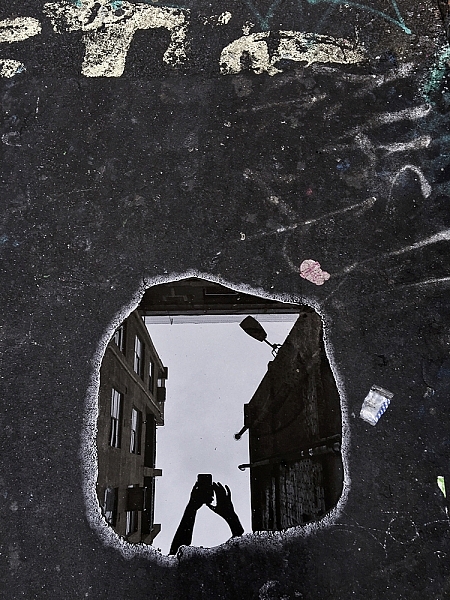
Puddles, and other reflections, can make for interesting subjects.

Puddles, and other reflections, can make for interesting subjects.

So how can these restrictions help your photography? Simple, you have less to think about! You no longer have to worry if you have the correct settings dialled into get the exposure you want – you’re phone will work that out. You do have some say in the overall exposure; you can control how bright/dark the image turns out, but that’s it! Worried you don’t have the right lens for the photo you want? Too bad. With your phone you can’t change it, even if you wanted to. There’s another thing you don’t have to worry about.

You can’t control the camera settings. You can’t change your lens, and you generally have poor Autofocus (at least, poor continuous AF). So how can you take great photos with a smartphone? You need to think less about what you cannot control and more about what you can control. For example, no matter what camera you have, you can always control the composition. You can decide from which angle you take a photograph – will you take it down low, looking up or up high, looking down – and which direction you stand in relation to the light. Photographing toward the light can create stunning silhouettes, so looking for striking shapes will help here. You have full control over how close, or how far, from the subject you stand. You dictate what you include in the frame, and what you omit. All of these elements work to make images more interesting, and by removing the control over some of the more technical features as mentioned earlier, you now have more time to consider the compositional elements.

Controlling Focus and Exposure

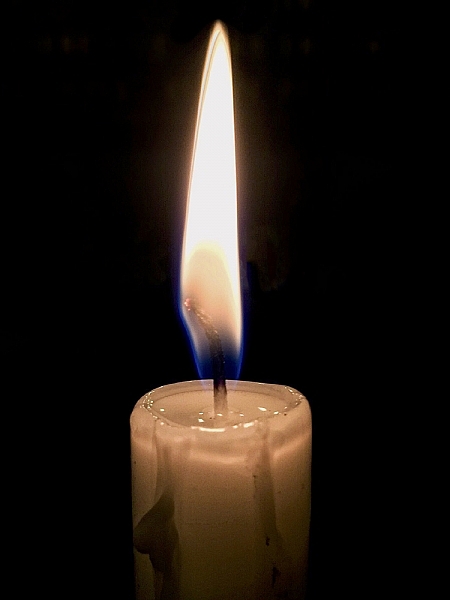
Focussing and exposing on the candle has made the background go very dark. This works well to isolate the subject more.

Focussing and exposing on the candle has made the background go very dark. This works well to isolate the subject more.

Across most smartphones, touching the screen on the area you want in focus, will make the phone focus on that area. In addition, this is also where the phone will take its exposure reading. There are some camera apps available that will allow you to focus on one area and have the phone take its exposure reading elsewhere. You may also be able to increase or decrease the exposure of the image. How to do this will depend on the phone you are using, but for iPhone users, after tapping the screen to focus, sliding your finger up/down will alter the exposure compensation.

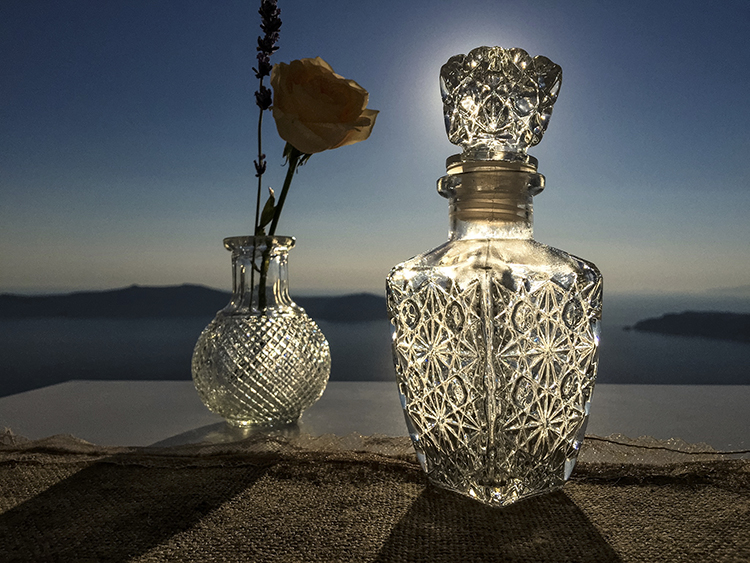
Another image taken with the sun behind. This time, the light makes the bottle glow.

Another image taken with the sun behind the subject. This time, the light makes the bottle glow.

Creating Shallow Depth of Field

Despite many newer smartphones having fast apertures (the iPhone 6 and 6s use an f/2.2 lens), their tiny sensor sizes make getting that nice creamy background bokeh a little more challenging, than with other cameras. If you’re unaware, generally the larger the sensor, the easier it is to create stunning bokeh. However, if you have a little understanding of depth of field, then you can create images from your smartphone with a blurry background. You can achieve this by reducing the distance between your subject and the phone, and increasing the distance from your subject to the background.

Make Your Images Pop

Post-processing is another tool that we have in our arsenal as photographers to make an image more striking. Introduce that to your phone photos. There is a plethora of apps available that give you varying levels of control with the post-processing phase.

Some apps, like VSCO, have a vast range of filters that you can apply to images, and allow you to tweak areas, such as highlights and shadows, to get a different look. Other apps like Adobe’s Lightroom works much like the desktop variant, allowing to develop your images with a more natural touch. Photoshop and Photoshop fix (Note: it is called Photoshop Mix for Android) are both from Adobe and offer varied editing options that are fantastic at polishing up images in the final stages. Personally, I use Lightroom and Photoshop fix on my content now. However, in the past I used SnapSeed and found that to be great fun to use, too. It’s up to you which editing app you decide to employ, and how involved with it you become.

Smartphone-17

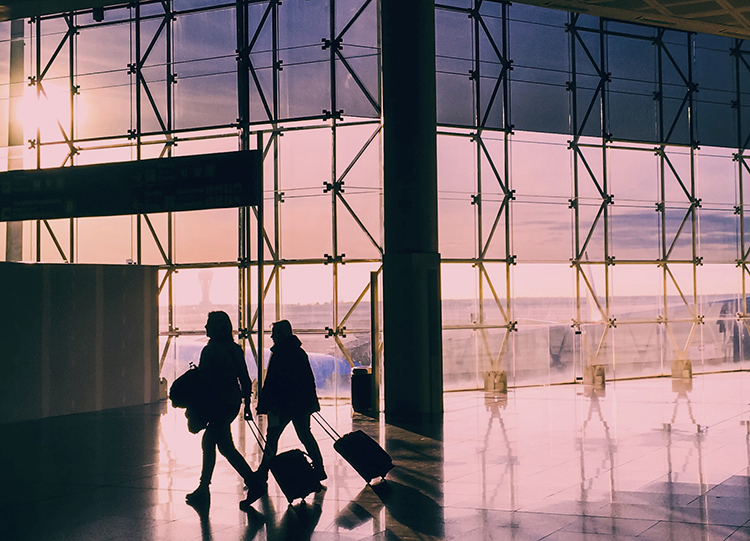
Again, looking for clean shapes to create a striking silhouette in an airport.

Looking for clean shapes to create a striking silhouette in an airport.

Other Tips to Consider

  • Take a lot of photos: Sometimes things happen fast. Don’t be afraid of taking a lot of photos. The perfect shot isn’t going to come with every single click. The trick is to take more photos than what you really need, then pick the best one from the bunch. If you do this, then you will have more to choose from, and a higher chance of getting one that stands out.
  • Learn how to see light and how it interacts with its environment: Light is the most important object in a photograph. It doesn’t matter what camera you’re using, how well you know how to use it, or how amazing your subject is; it all counts for nothing without light. You’ll often hear photographers talking about the Golden Hour, which is early in the morning and again in the evening when sun is lower, softer and the light is more directional.
  • If you’re photographing with the sun behind you, know how that will make your subject look. Do you want to light up their entire face, for example? Or do you want to shoot from the side? If you move so the sun is behind the subject, then consider photographing them silhouetted. If the light source is behind the subject, the foreground will always be darker than the background. The way you position your subject – or wait until the light is right for your subject – is how you make an image more creative and stand out.
  • Watch your background: Something that is often overlooked in an image is the background. A bad background can bring a great subject down. You need to think about your photo and what makes it interesting. If the subject you’re photographing is to be the only thing in the photo, then you should use a nice clean background, that isn’t going to draw away people’s attention from the main subject. However, backgrounds can also add to an image, and are great for environmental portraits.
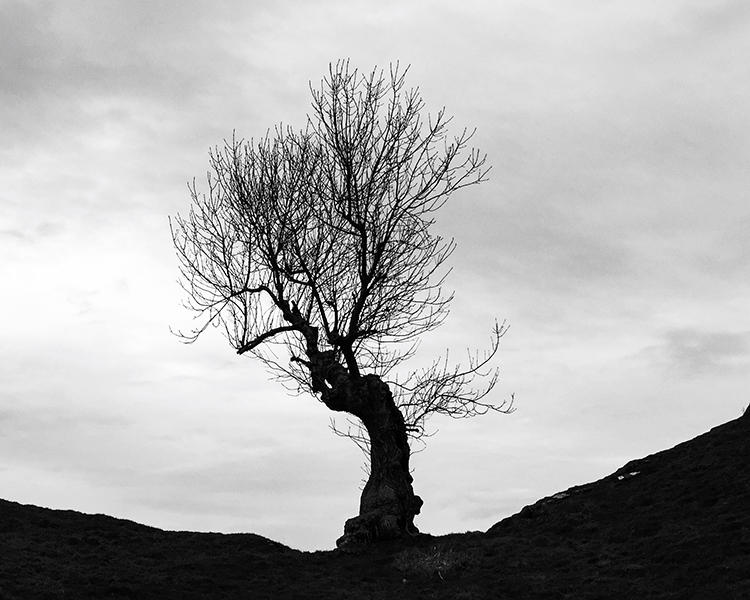
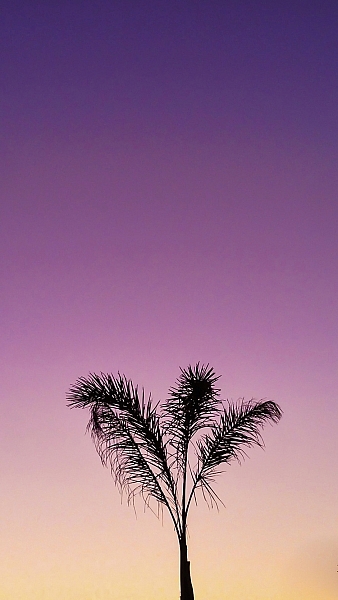
I loved the peacefulness of the light here and the silhouette of the palm tree.

I loved the peacefulness of the light here and the silhouette of the palm tree.

Here, I photographed toward the light and decided to include the flag on the right to add a little more interest.

Here, I photographed toward the light and decided to include the flag on the right to add a little more interest.

Conclusion

Whilst there are many limitations to using the camera in your smartphone, or indeed a tablet, it can help teach you how to work around limitations, and still create striking images. Their quality is clearly not going to be as high as a dedicated camera’s quality will be, however, it’s still a lot of fun to be able to capture a great image on a device with such limitations.

Below are some more images that I have taken with my iPhone. Feel free to share some images you’ve taken on your smartphone or tablet in the comments below, as well as your favorite camera and processing apps.

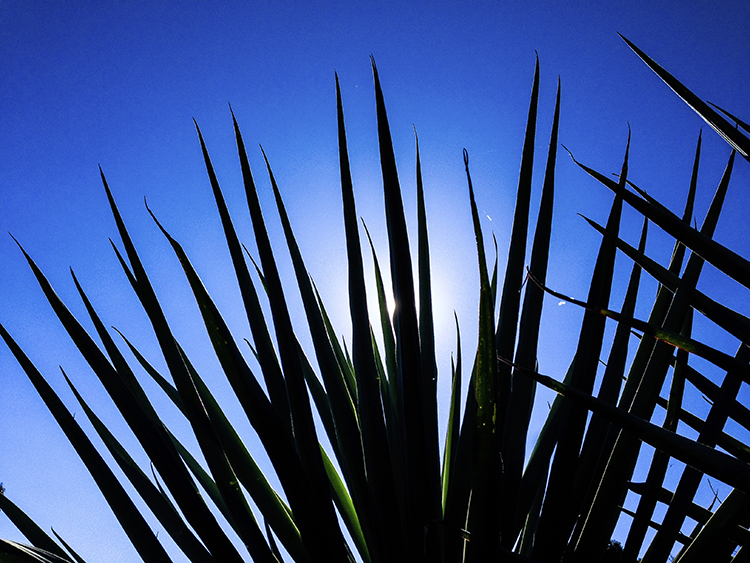
Smartphone-2

I found the leaves of this plant to be quite striking. By photographing from a very low perspective, I was able to make my subject pop out more against a plain blue sky. The position of the sun also creates interest as the light kicks off edges.

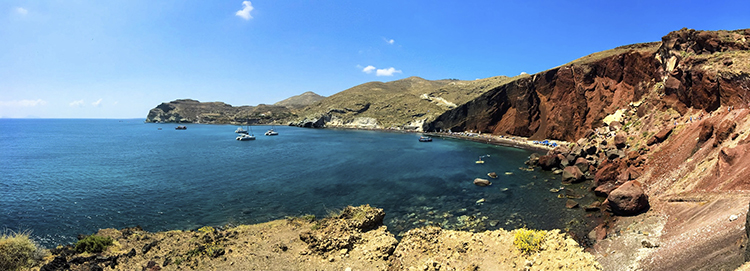
Smartphone-5

The in-built panorama feature of my phone worked well to create this image.

Smartphone-8

Another image where the panorama mode worked quite well.

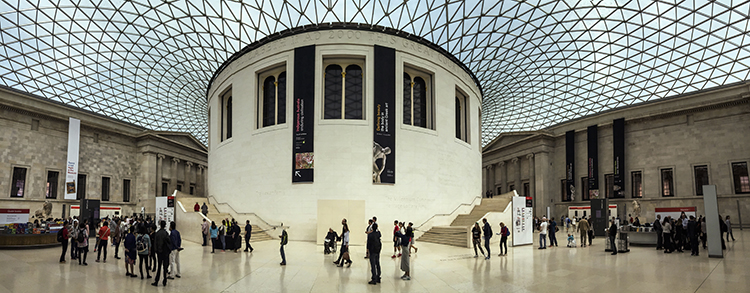
Smartphone-9

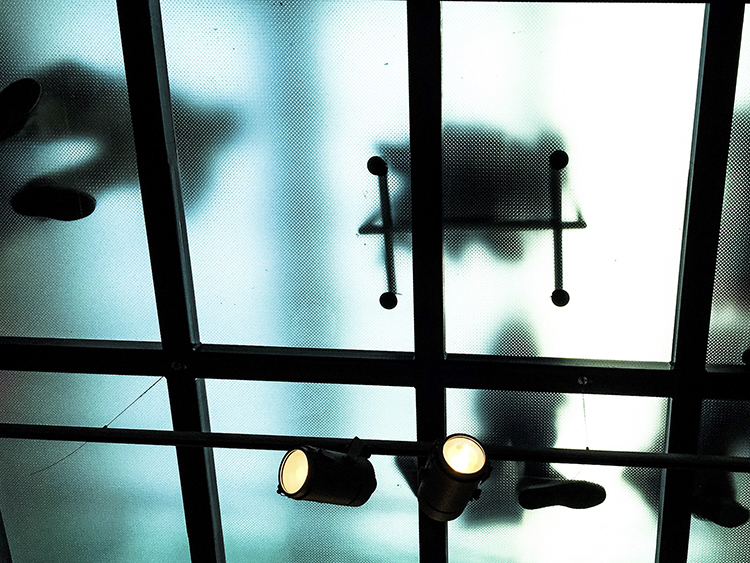
Don’t be afraid to look up! In this image, the floor above me was frosted glass and made for some interesting shapes.

Smartphone-10

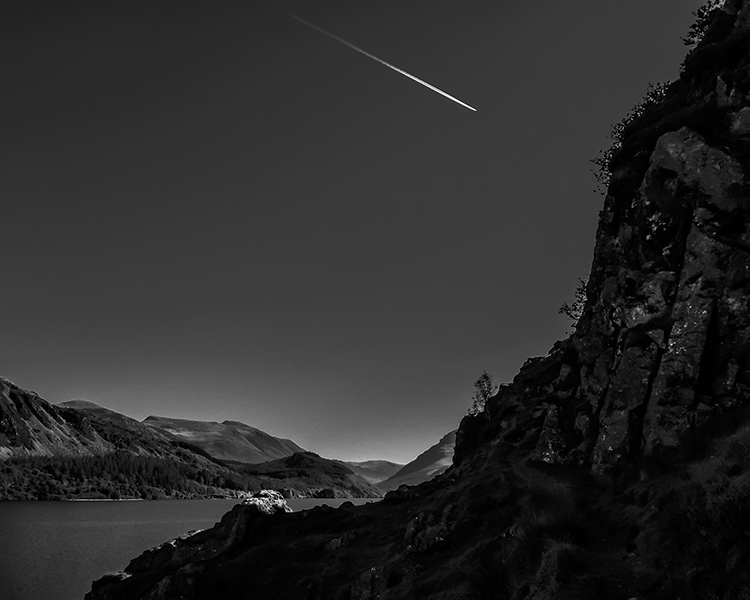
Converting this image to black and white has given it an almost unearthly feel to it.

Smartphone-12

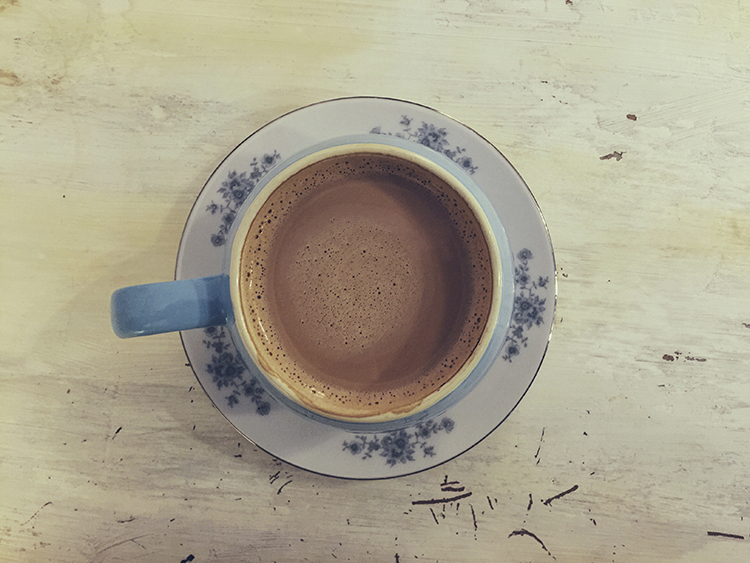
Photographed looking straight down. Simple images often work best not just with smartphones, but in photography in general.

Smartphone-13

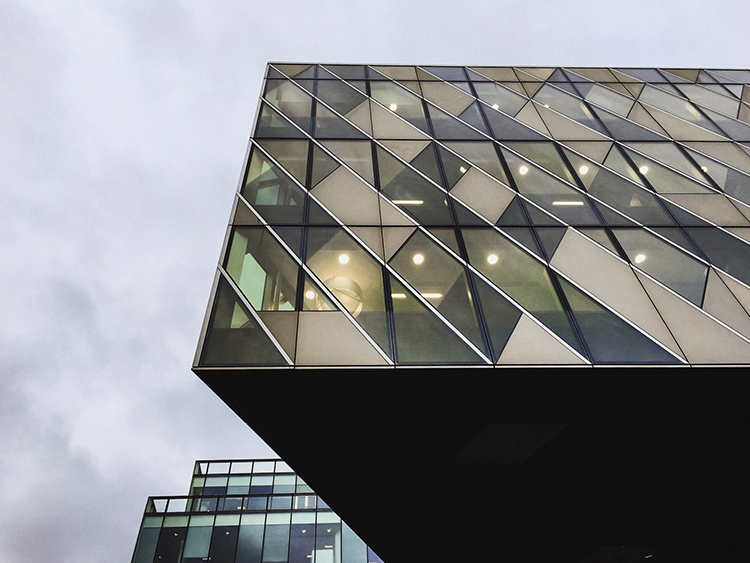
The clean lines of these buildings create some interest.

Smartphone-14

Again, photographing down low I was able to show an every day scene from a different perspective.

Smartphone-19

The same principles used in this image will work very well on any camera. The road in this image creates a sense of depth.

Smartphone-20

The quality and direction of light help make this image. These are qualities you should always look for; no matter what camera you are using.

Smartphone-18

googletag.cmd.push(function() {
tablet_slots.push( googletag.defineSlot( “/1005424/_dPSv4_tab-all-article-bottom_(300×250)”, [300, 250], “pb-ad-78623” ).addService( googletag.pubads() ) ); } );

googletag.cmd.push(function() {
mobile_slots.push( googletag.defineSlot( “/1005424/_dPSv4_mob-all-article-bottom_(300×250)”, [300, 250], “pb-ad-78158” ).addService( googletag.pubads() ) ); } );

The post How Using Your Smartphone Camera Can Help Improve Your Photography by Daniel Smith appeared first on Digital Photography School.


Digital Photography School

 
Comments Off on How Using Your Smartphone Camera Can Help Improve Your Photography

Posted in Photography


How to Create Compelling Wide-Angle Portraits Using One Off-Camera Flash

11 May

What are your most memorable moments as a photographer? As a travel photographer, my short list of stand-out moments include wandering alone in Namibia’s dead tree forest, photographing sunbeams from the top of a cliff in China, and capturing the Aurora Borealis on the coast of Iceland.

1 Colombian Girl

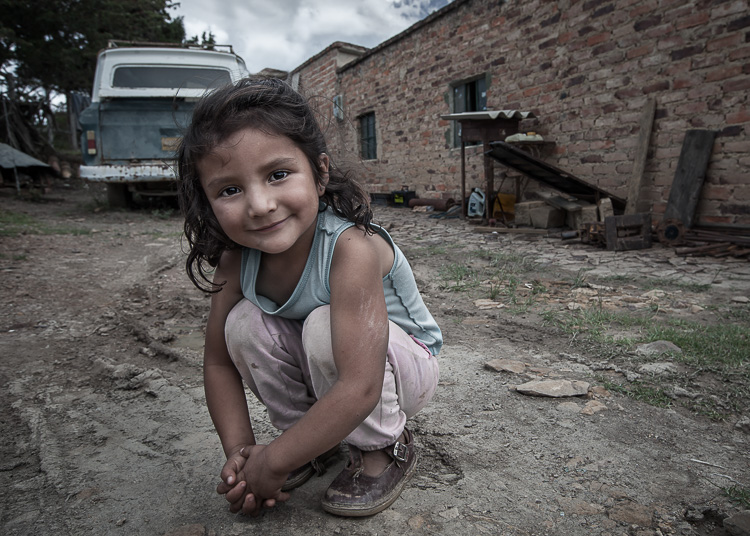
However, a year ago all of those amazing locations and moments were trumped by spending 30 minutes photographing a little girl outside her home near Villa de Leyva, Colombia (pictured above). This was the first time the girl had her portrait taken, let alone by a foreigner. With all the confidence of an experienced model, she literally stole the show that day. I believe the session is an important memory for her and instantly became my top moment photographing to date.

Ironically, two years ago I would not have even bothered taking this picture. I was focused on landscape and outdoor travel scenes. Also, if I’m honest with myself, I was somewhat intimidated by using artificial lighting and working with people as subjects. In April of 2014, I gave environmental portraiture a shot and have never looked back. It is now an important focus of my work.

This article will provide some guidance on how you can create images like the ones you see here, using a wide-angle lens and just one off-camera flash. But first, let me let you in on a little secret – it’s not that difficult.

Getting things right in camera is the important first step, which is the focus of this article. Processing your images is equally important, but I’ll cover that in a future article. So, let me start by providing you with the core techniques, then get into equipment and settings.

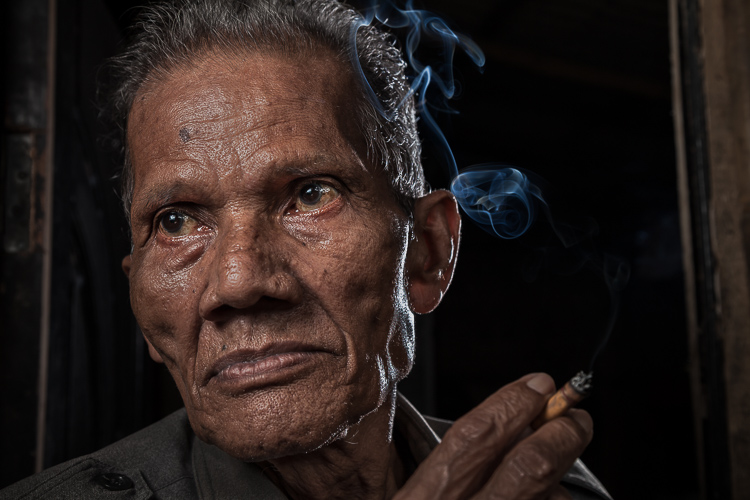
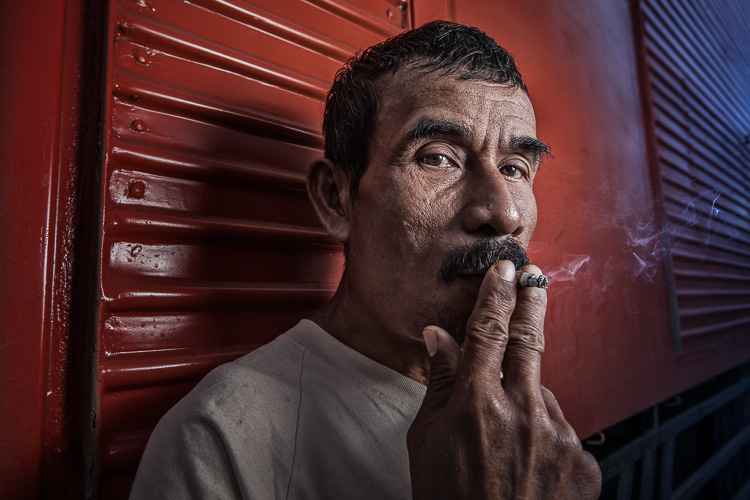
2 Smoking Guy

Use a (Relatively) Wide-Angle Lens

Lens choice is critically important in portraiture. Most portrait photographers reach for their 85mm or 105mm lens when heading out on a shoot. These focal lengths give a nice, realistic look to the subjects. However, I find myself drawn to portraits that have a surreal look to them, and include extra context that helps tell a story. Also, wide-angle lenses require you to shoot close to your subject, which also brings your viewer into the scene.

So, the first step is to leave your 85mm or 105mm in the bag, and grab a wide-angle lens. Most of the portraits you see here were created at 24mm using a full frame camera (use a 16mm for the same view if your camera has a cropped sensor). For me, this focal length is the perfect blend of reality and distortion. If you shoot much wider, elements closer to the lens, such as arms and hands, look too big or elongated. Also, wider focal lengths mean a much bigger background, which is usually not desirable.

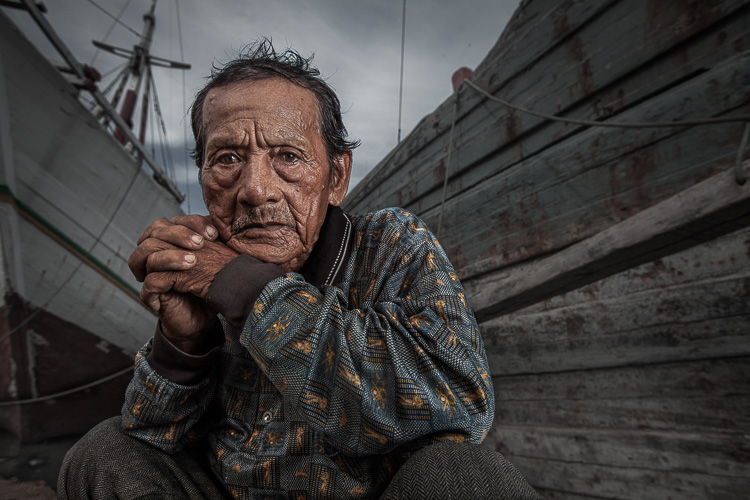
3 Dockworker Ships

Choose a Compelling Subject

Your subject is paramount. The Indonesian dockworker above is amazing. I spent 20 minutes photographing this guy and really had a difficult time choosing the best image. On the other hand, you could spend all day photographing me on the same dock, in front of the same ships, and have nothing but tossers at the end of the day.

I look for people that have experienced life. The ideal subject has a particular interesting quality about him or her, that makes them stand out from the rest. However, my subjects also have an everyday person quality about them. Finding subjects can be challenging, especially if you live in the suburbs of Chicago, like I do. I am a travel photographer and usually find my subjects in rural areas overseas. However, there are great subjects everywhere.

Clothing is critically important. If your 90-year old rural villager is wearing a hat that says, “I Love New York”, then you will want to politely ask him to take it off, or at least turn it around for the picture. The point is, don’t let out-of-context clothing ruin or weaken your shot.
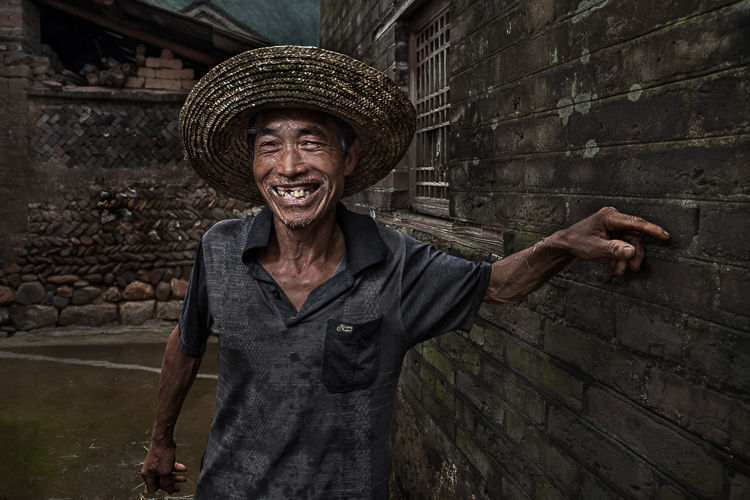
4 Smiley Guy

Choose a Complementary Background

Your image is only as strong as the weakest part of it, which is often the background. This is because, as photographer Jim Zuckerman puts it, “The world is a compositional mess”. There are two important qualities you want out of your background:

First, at the very least, your background must be non-distracting. Although you can easily isolate your subject with a longer focal length, the background becomes a major consideration with wide-angle portraits. Beginner, and even intermediate photographers, can overlook even some obvious distractions in the background. You have probably seen them before: trees that look like they are growing out of the subject’s head, patchy spots of bright light in the scene, colorful objects, straight lines and geometric shapes. You essentially don’t want anything that competes with your subject for attention.

The image of the Indonesian dockworker below is non-distracting, but not much more. He is essentially standing in front of a shipping container, so this image won’t win any awards for its background. Nevertheless, it is still a good picture because of the strength of the subject.

5 Dockworker Container

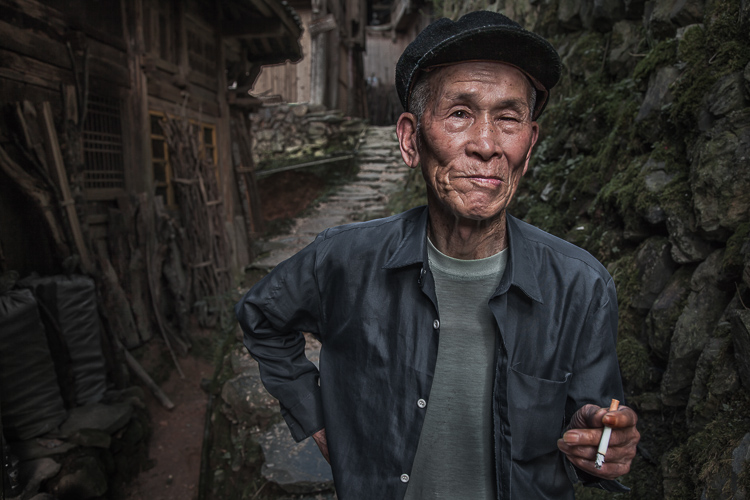
Second, whenever possible, include a background that complements your subject by providing a context. I’ve shot many images with simple non-distracting backgrounds. But, my favorite pictures are those with a background that tells a story about the subject. This is why I love shooting in places like rural China and Indonesia. These countries have many ancient villages that provide opportunities for amazing backgrounds, such as in the image below.

6 Chinese Guy Hat

I like to keep all evidence of modernity out of the background. I don’t like plastic stuff in my pictures. I don’t include modern looking buildings or cars. Instead, I prefer rural areas with weather-beaten buildings. Of course, this all depends on what you are after. The important thing is that the background complements the subject and does not distract from it.

Shoot in the Right Lighting Conditions

Because the majority of the background is not lit by the flash, many of the same outdoor photography lighting principles hold true, even if a flash is being used. Try shooting either early or late in the day (when the sun is low in the sky) or in overcast conditions. I actually prefer overcast conditions, but still shoot relatively early or late in the day.

Put Your Subjects at Ease

I don’t hire models, so some subjects work well and others not as well. What you want to avoid is a picture of your subject standing flat-footed, straight up and down, and holding a fake smile.

To help avoid this, it is a good idea to start your session by gaining their interest and confidence. If you have some images you’ve shot and processed, show them to give him or her an idea of what you are looking for, and hopefully peak their interest. This should communicate immediately that you are not looking for them to just stand there and smile. It should also show that the posing expectations will be basic.

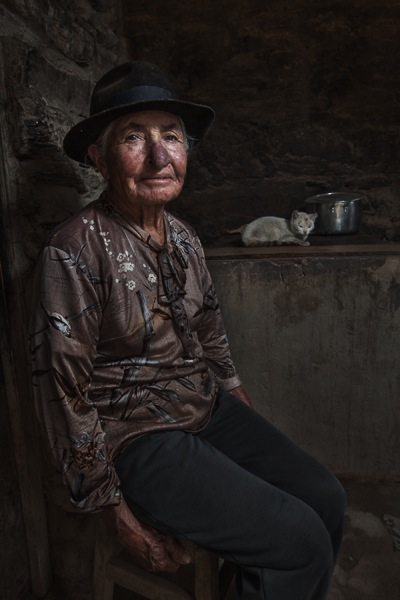
7 Colombian Lady Cat

Posing and Composition

Because I am shooting wide, I get quite close to my subjects and warn them ahead of time about this. For me, the eyes are a critically important part of the picture and must be very sharp. I focus on the closest eye, and re-focus frequently as I move around the subject slightly.

I generally ask him or her to look directly at the camera and not to smile, although not always. I then start moving slightly left or right, asking them to keep their head still and just follow the camera with their eyes. I usually shoot from slightly below eye level. I have them stand or sit at an angle to the camera. If the subject is standing, I have them put their weight on the back foot.

I like to include the subject’s hands in the composition. With a wide-angle lens, their hands in the foreground will look large, so try to strike a balance with the hands being prominent, but not too large. You can do this by simply positioning the hands closer to or farther away from the lens relative to their body.

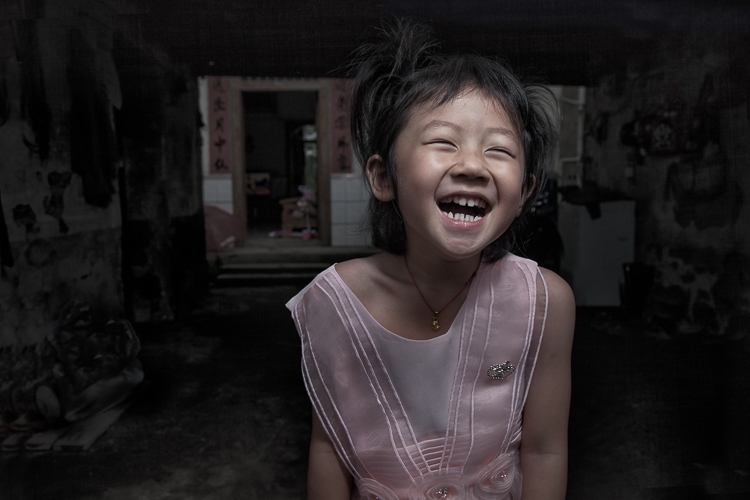
8 Chinese Girl Laughing

Equipment and Settings

The Camera

Your camera should be equipped with an internal or external flash trigger to control your off-camera flash. Here is how I set things up:

  • Start by leaving your flash or trigger initially turned off.
  • Set your camera to manual mode.
  • If the session is outdoors, I try for settings of ISO 100, f/7.1 and a shutter speed of around 1/160. You can adjust your f-stop and shutter speed to your preference, but keep in mind that you cannot go faster than your camera’s maximum flash sync speed.
  • Make the necessary adjustments to slightly underexpose the background by 1/3 to 2/3 stop. I usually start by adjusting shutter speed, but go no slower than 1/60 and no faster than 1/160. If necessary, I will then adjust my f-stop to f/5.6 at the widest. Then, and only then, will I start bumping up the ISO.
  • If you are indoors, you need to start with a higher ISO as a first step, and then make your adjustments to shutter speed and f-stop in the same manner.

9 Chinese Woman

Lighting

For 90% of my portraits, I use a single off-camera flash, diffused with an umbrella or softbox. The most important rule with flash is “don’t ruin your shot,” which is usually done by putting too much flash on your subject. Instead, you want to get a decent balance of natural and artificial light, so that the flash is undetectable to the untrained eye, but lights your subject brighter than the underexposed background.

Now, turn your flash and trigger on:

  • Set your off-camera flash to manual mode.
  • I typically position the flash at a 45-degree angle to the subject, about 2-3 feet (slightly less than a meter) away, higher than their head, angled downward.
  • I usually start with 1/16 flash power when outdoors, and adjust from there until the subject stands out from the background, but does not look like they have been blasted with flash.

Post-Processing

You need to get things right in camera first. But, you will need to use a variety of post-processing techniques to get the effect you see in these images. I’ll coverthe techniques I use to process environmental portraits in a future article.

Thank you for reading, please share your wide-angle portraits and questions in the comments below.

googletag.cmd.push(function() {
tablet_slots.push( googletag.defineSlot( “/1005424/_dPSv4_tab-all-article-bottom_(300×250)”, [300, 250], “pb-ad-78623” ).addService( googletag.pubads() ) ); } );

googletag.cmd.push(function() {
mobile_slots.push( googletag.defineSlot( “/1005424/_dPSv4_mob-all-article-bottom_(300×250)”, [300, 250], “pb-ad-78158” ).addService( googletag.pubads() ) ); } );

The post How to Create Compelling Wide-Angle Portraits Using One Off-Camera Flash by Ken Koskela appeared first on Digital Photography School.

Digital Photography School

 
Comments Off on How to Create Compelling Wide-Angle Portraits Using One Off-Camera Flash

Posted in Photography


How to Make Your Photos Shine Using Clarity, Sharpening, and Dehaze in Lightroom

01 May

The goal of any photographer is to make each and every photo stand out from the crowd. Making an image that pops is something that we all strive to achieve, but it’s not always easy to do. Luckily, there are tools at our disposal in Adobe Lightroom that can go a long way to help us achieve an image that we can be proud of, and that catches the attention of the viewer. What are these tools? They are many and varied, but there are three central processing techniques that can make your images transcend the average, and reach the potential you intended. They are Clarity, Sharpness, and Dehaze.

These three tools are deceptively simple and subtle. When used properly, the enhancements they will make to your photos will be nearly imperceivable. They can take your image from good to great, with just a few simple clicks of the mouse. In this tutorial, I will show you how each one of these processing tools affect your photos, and how they can be put to best use, so that your photographs really stand out from the rest. Let’s get started!

After CSD

Clarity

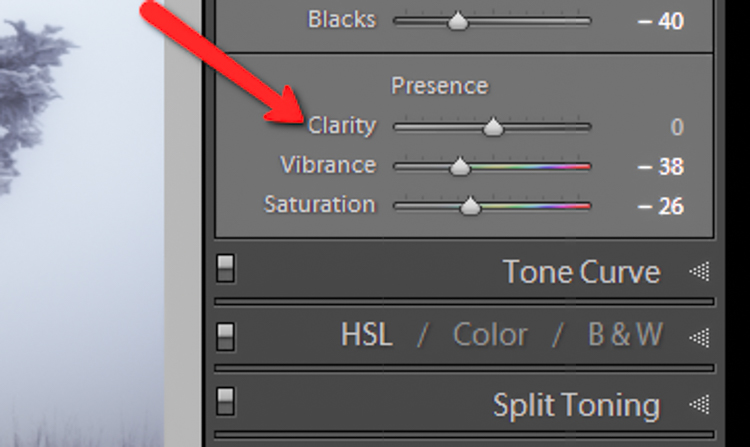
The clarity slider has been around virtually since the inception of Lightroom. You can find it in the Basic panel of the Develop module. It functions to add definition and well, clarity, to your images. It accomplishes this by darkening the lines surrounding the perimeter of objects within your photo. Think of it as contrast on steroids. The clarity slider can really add a lot of punch to your photos, and add drama.

Clarity

Tips for Using the Clarity Slider

  • Don’t add too much. If you push the clarity slider too far to the right, you can begin to see unattractive halos around objects within the frame, resulting in a fake or unnatural looking photograph. If using it globally (applies to the entire image), do so judiciously. Be careful when applying the clarity slider to an entire image, most areas of your photo probably won’t need to be clarified.
  • It’s best to apply clarity after everything else. Since the clarity tool will add a good amount of contrast to your photo, it’s best to apply it towards the end of your workflow. While this is not always true, it is a good guideline to follow in order to avoid the need to backtrack.
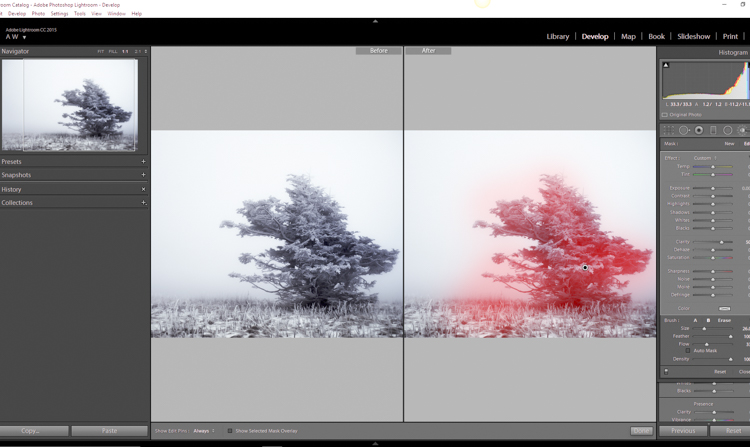
  • Use the Adjustment Brush or Graduated Filter tools to apply it to select areas of your image that need clarity. This will enable you to apply clarity only to foregrounds or backgrounds and to specific points you want to emphasize in the image.

Clarity Adjustment

Clarity applied, viewing at 1:1

Clarity applied at +30, viewing at 1:1

Clarity slider taken too far, viewed at 1:1 (100%)

Clarity slider taken too far, viewed at 1:1 (100%)

Sharpness

The art of sharpening an image can often make or break the composition. Sharpening is one of those awesome features of Lightroom which has been around from the beginning, and it only seems to be getting better with time.

Sharpening

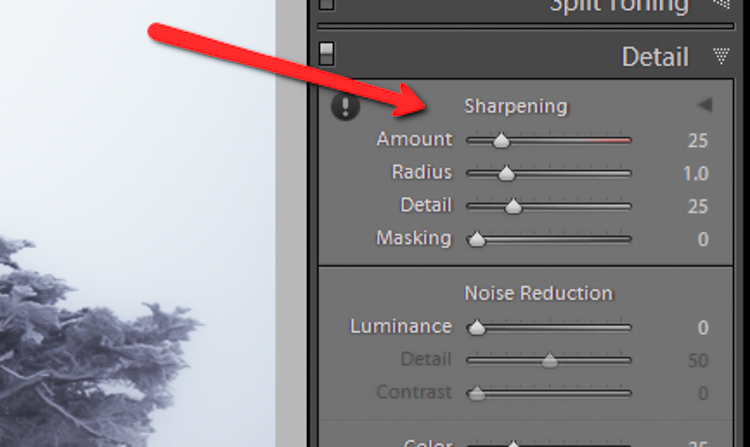
The sharpening tool is located under the Details panel in the Develop module. Basically, sharpening is accomplished by adding contrast between pixels so that the area being sharpened appears to have more definition, compared to its surroundings. There are a few key tweaks that you can perform in order to get the most from the sharpening panel.

Make use of the radius slider. The radius controls how many pixels around the perimeter of objects are affected by the sharpening. Think of this as the halo of sharpness. The greater the radius, the more apparent the sharpening will become. Don’t over do the details. You might think the more details you preserve in your sharpening, the better quality your image will be. This is not true. Usually, the farther you move the detail slider to the right, the more grainy and gaudy the image will be. Find a happy medium here and you will be happy in turn.

Global sharpen at +50

Global sharpen at +50

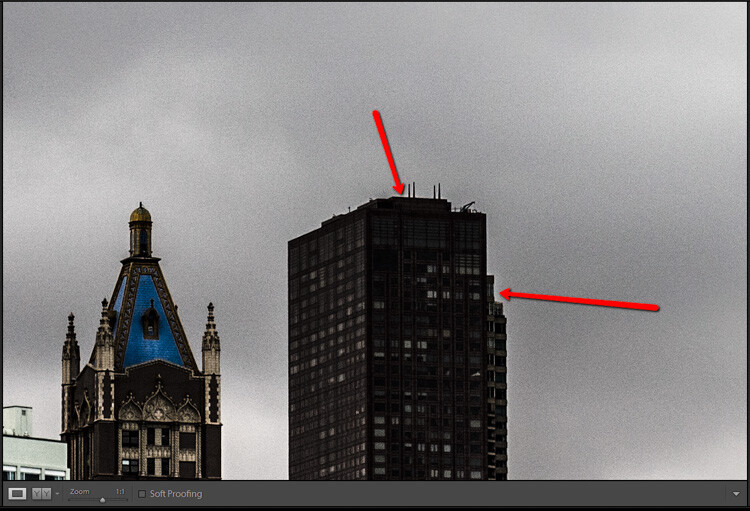
Over sharpened

Over sharpened – this is what too much sharpening looks like at 1:1

Apply sharpening only to the areas you need to sharpen. It’s easy to simply sharpen an entire image instead of taking the time to selectively apply the edit. Rest assured though, if you apply your sharpening using the Adjustment Brush tool you will have a much more aesthetically pleasing result. Much like clarity, you usually do not need to sharpen the whole photograph.

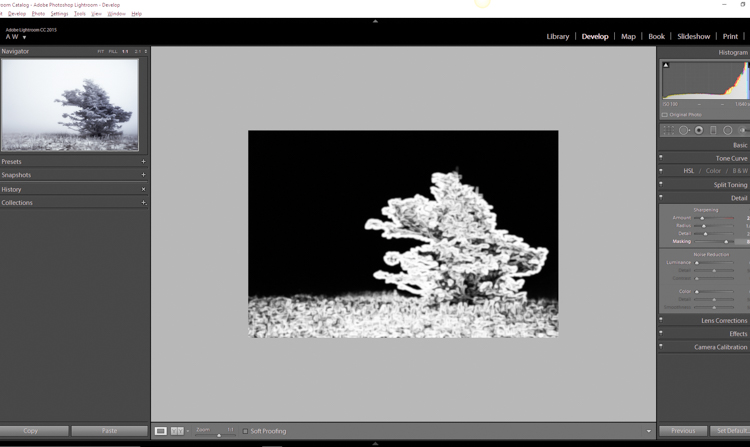
Use the masking slider with the Alt key (Option key on Mac). The masking slider can be considered the most underrated asset in the sharpening panel. It dictates what areas will be sharpened. However, by itself the masking slider is rather lacklustre. This is where the Alt key comes into play. Hold down the Alt key while you adjust the masking slider.

Sharpening Mask

You will see that the image is transformed into a black and white relief image. The areas in white are where the sharpening will be applied; the areas in black will not be sharpened. This is a great way to fine tune your sharpening when adjusting globally. (Note: to keep people’s skin from becoming overly sharp and showing every pore and bump, move the masking slider until the skin areas are black and therefore unaffected by the sharpening adjustment)

Dehaze

This is a feature that was introduced very recently in Lightroom CC. It is a magical little function that people seem to either hate or love.

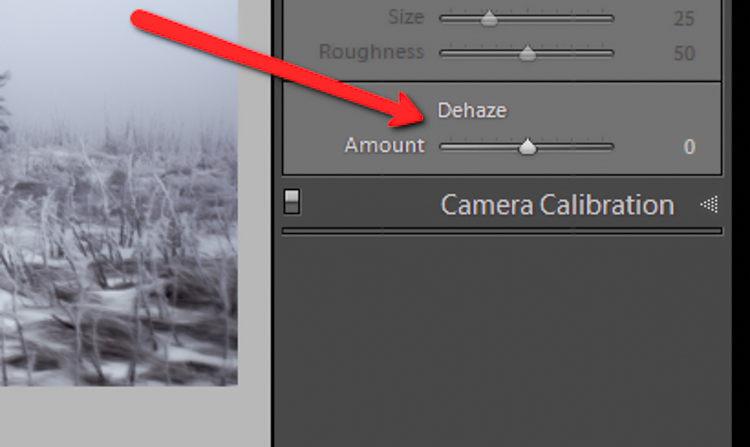
Dehaze Slider

I for one love this little guy. It’s located under the Effects panel. The explanation of how exactly it works is somewhat cryptic. Here is an answer pulled directly from Adobe Blog:

The Dehaze technology is based on a physical model of how light is transmitted, and it tries to estimate light that is lost due to absorption and scattering through the atmosphere.

Simply put, the dehaze slider can reduce haze within your images. It can also add a mystical fogginess as well if you choose (just slide it the other way).

Dehaze

Basically, it will make an otherwise hazy photo more clear. This comes in handy for photographs of the night sky when your want to make the stars more pronounced, or when you have to deal with physically dense atmospheric conditions.

Tips for Using the Dehaze Slider

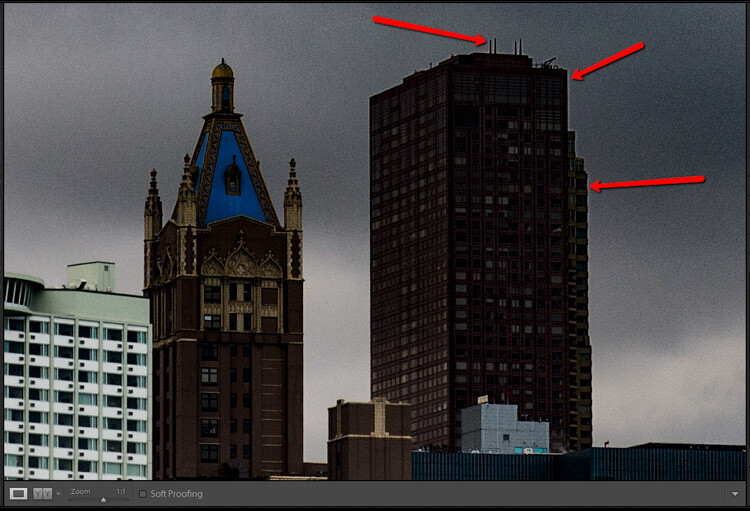
  • Keep an eye on your black points within the image. The dehaze slider can cause loss of shadow detail if you push it too far. Use the J key to show highlight and shadow clipping in order to preserve details.
  • Perform your white balance adjustments BEFORE you apply dehaze. The dehaze tool can do some incredible things for your photo, but it can also cause some funky color distortions if you adjust white balance after the fact. As always, strive to obtain optimal white balance before you ever begin to post-process an image.
  • Sometimes an image will benefit from added haze instead of dehazing. Experiment with adding a small amount of haze by moving the dehaze slider to the left. This can add an ethereal glow to some landscapes and even portraits.
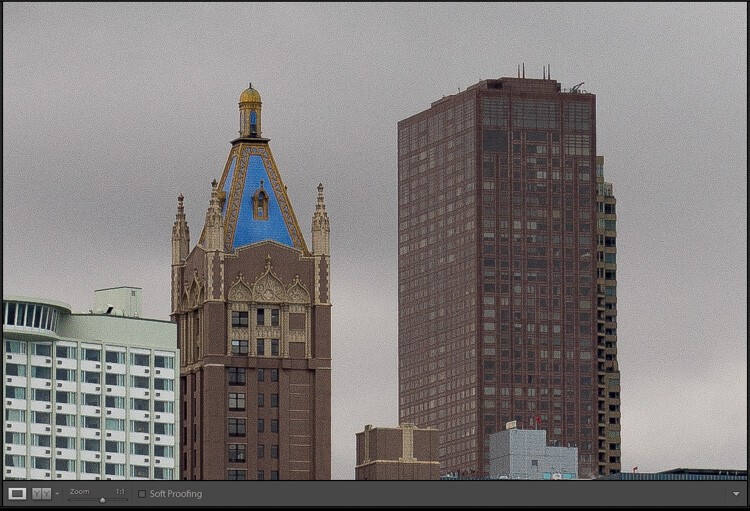
Dehaze +20 at 1:10 view

Dehaze +20 at 1:10 view

Dehaze pulled too far

Dehaze pulled too far

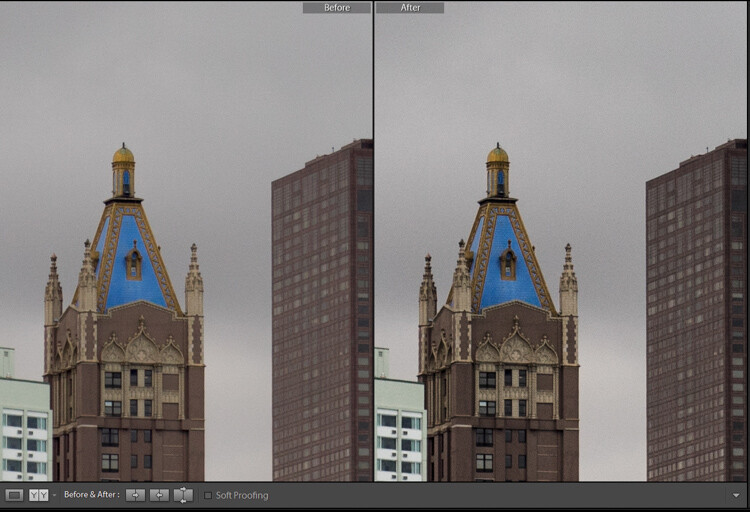
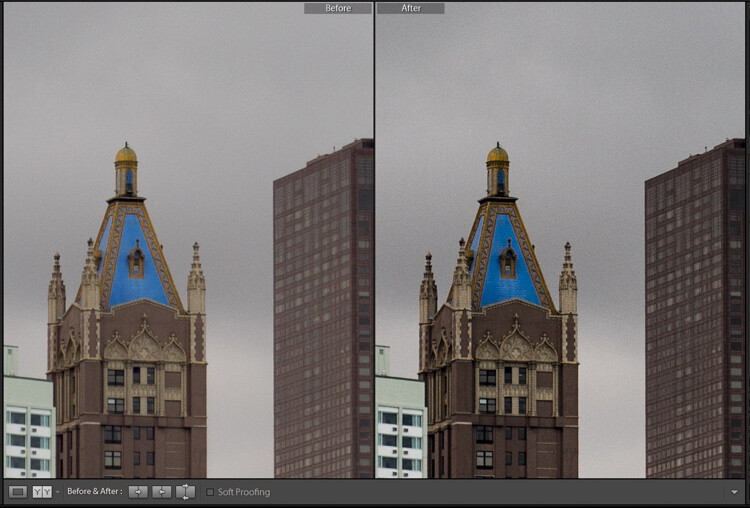
As with all post-processing, the less you have to adjust after the image has been made, the better off you will be. The tools in Lightroom are a fantastic way to bring out the true power of your photographs, if you use them deliberately, and with good judgment.

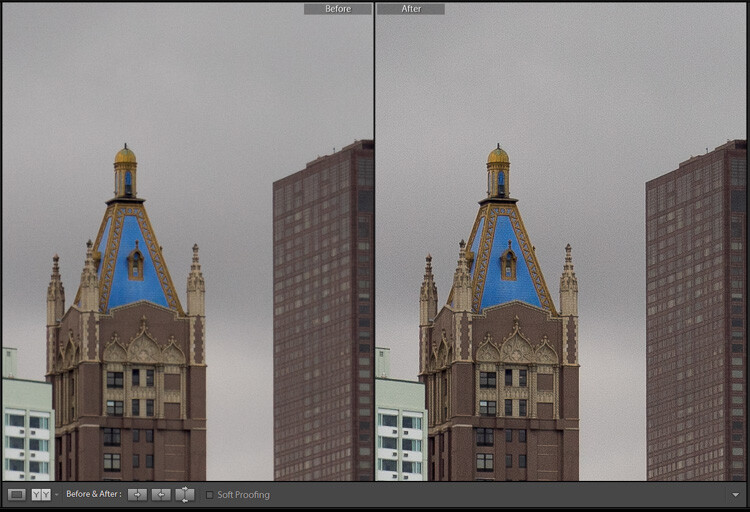
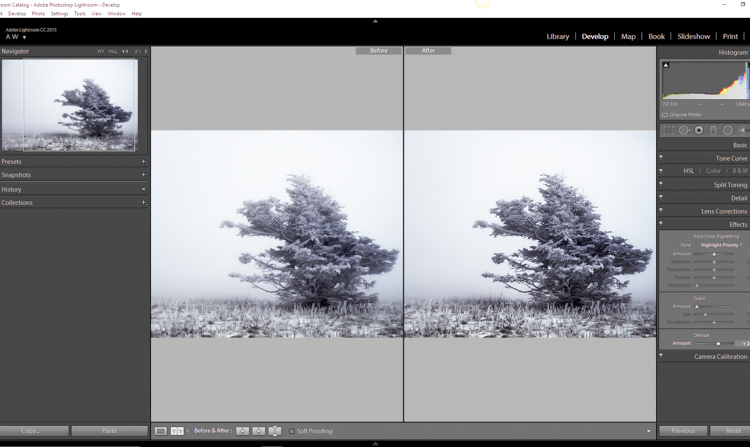
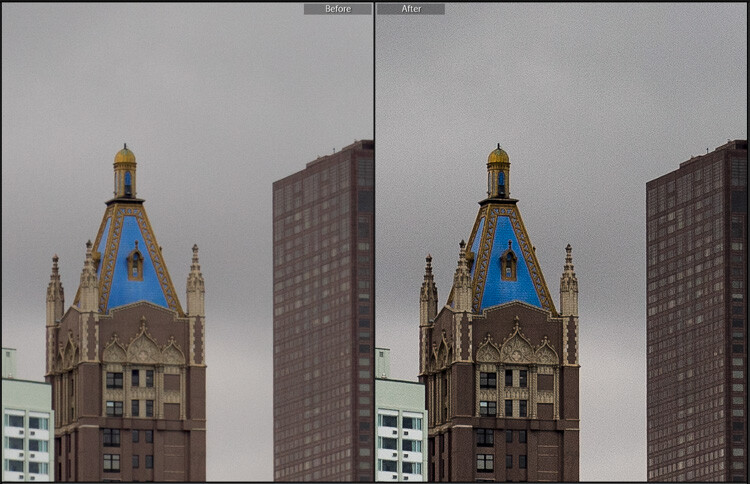
Before clarity, sharpening and dehaze

Before clarity, sharpening and dehaze

After

After

After clarity, sharpening and dehaze were applied

After clarity, sharpening and dehaze were applied

Any adjustments you make to the clarity and sharpness of your photo should never make them appear unrealistic (with exceptions) or detract from your original vision. Even the dehaze tool should be used sparingly and only when required. Just as the saying goes that one brush stroke can ruin a painting, so too can one more click of the slider. The goal of post-processing is to enhance a photograph to the point of meeting your pre-visualzation. No more and no less. Experiment with the tips you’ve learned here and witness the hidden potential within your own photographs!

googletag.cmd.push(function() {
tablet_slots.push( googletag.defineSlot( “/1005424/_dPSv4_tab-all-article-bottom_(300×250)”, [300, 250], “pb-ad-78623” ).addService( googletag.pubads() ) ); } );

googletag.cmd.push(function() {
mobile_slots.push( googletag.defineSlot( “/1005424/_dPSv4_mob-all-article-bottom_(300×250)”, [300, 250], “pb-ad-78158” ).addService( googletag.pubads() ) ); } );

The post How to Make Your Photos Shine Using Clarity, Sharpening, and Dehaze in Lightroom by Adam Welch appeared first on Digital Photography School.

Digital Photography School

 
Comments Off on How to Make Your Photos Shine Using Clarity, Sharpening, and Dehaze in Lightroom

Posted in Photography


How to Blend in Adjustments Using Layer Masking in Photoshop

26 Apr

In a recent article called: Getting Started with Layer Masks in Photoshop – a Beginners Tutorial, I showed you the basics of layer masks and why they are such powerful tools. Layer masks are essentially what gives Photoshop layers much of their power. They allow you to tell Photoshop exactly where you want your changes applied, and to what degree.

In that article, I also showed you how to use layer masks in pictures where you had a defined edge to the areas you wanted to change. Photoshop has a lot of great tools that allow you to make selections, which you can then use to define the mask.

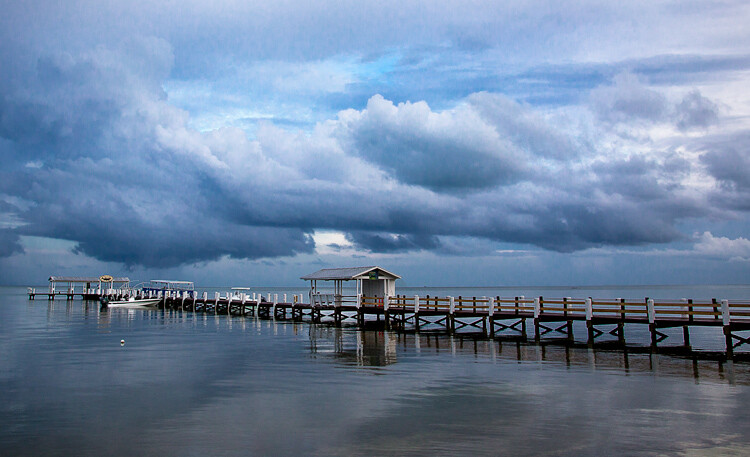
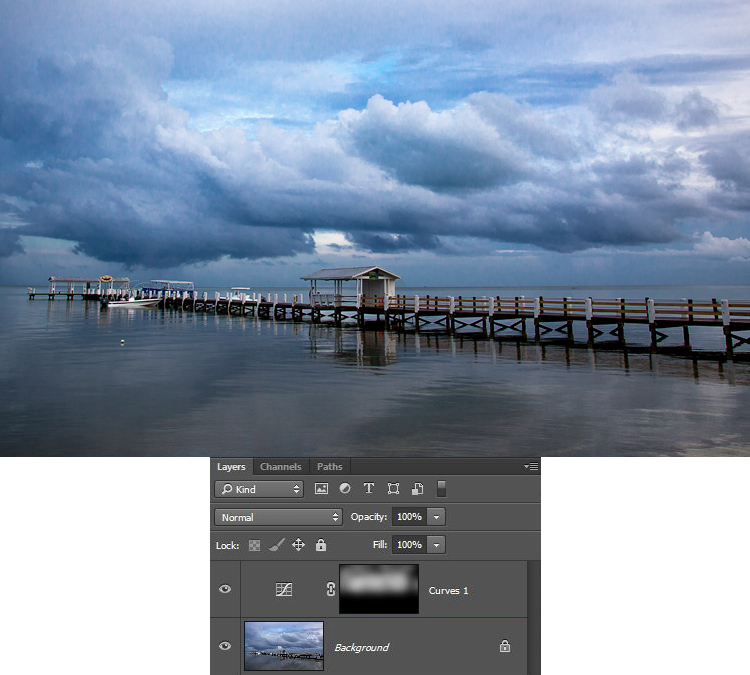
Here is a picture I took in Florida where I used layer masks and to accentuate parts of the image without changing other parts.

Here is a picture I took in Florida where I used layer masks and blending, to accentuate parts of the image without changing other parts.

But what about pictures where you have a soft edge? Or where you want to blend in the effect gradually? That’s what I will cover in this article. It will pick up where the prior article left off, so if you haven’t seen that one yet, check it out. Once you have reviewed the basics of layer masks in that article, come back here and we will get started.

Step 1: Create an Adjustment Layer

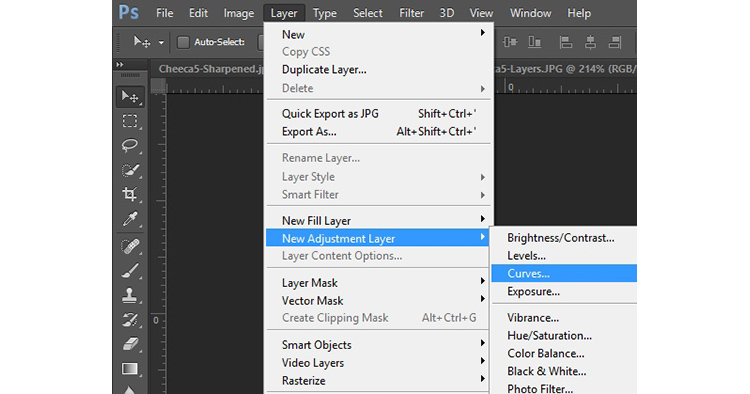
The first thing to do is make the changes you want to the image, which will then be blended into the selected areas later. To make those changes, I am going to create a Curves adjustment layer. As mentioned in the prior article, Curves adjustment layers are one of the most powerful tools in Photoshop. They allow you to selectively effect brightness, contrast, and/or color. To create one, just select Layer > New Adjustment Layer > Curves. You can also click on the Curves icon in the adjustment layer panel. Don’t worry though – we are not going to do anything complicated with the Curves Adjustment layer.

Graphic9-NewAdjustmentLayer

Of course, you don’t have to use a Curves adjustment layer to make adjustments to your picture, you can use any of the adjustment layers offered by Photoshop. If you are more comfortable with Levels, use that. If you want to change the brightness levels, there are Exposure and Brightness/Contrast adjustment layers. If you want to make changes to color, you can use the Hue/Saturation or Vibrance adjustment layers. I consider Curves to be one of the most powerful tools in Photoshop, so that is what I use, but you can use whichever one you want, or you are most comfortable using.

Step 2: Add in the Effect

Once your Curves adjustment layer is created, just add the effect that you want. Remember that a white mask is automatically applied to all adjustment layers – so it reveals everything – but we will change that in a second.

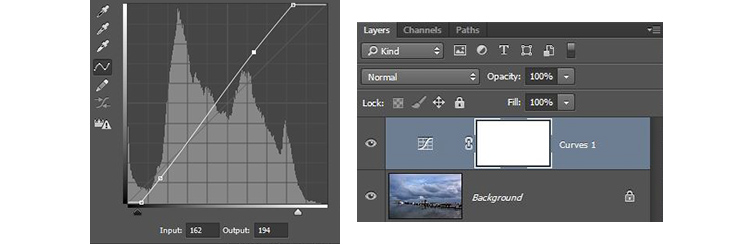
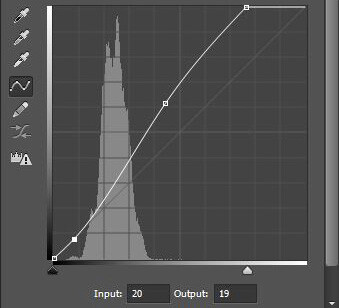
I want to add contrast, therefore I will just scoot in the endpoints of my curves adjustment layer. You can also drag the line up or down in places. The idea is to steepen the curve where you have a lot of pixels. Doing so adds contrast, which is what we want.

You don’t need to do anything fancy here. Go ahead and add the effect to a greater extent than you will want it in your picture. In other words, overdo it. Don’t worry if the picture doesn’t look quite right.

Graphic1-Curves

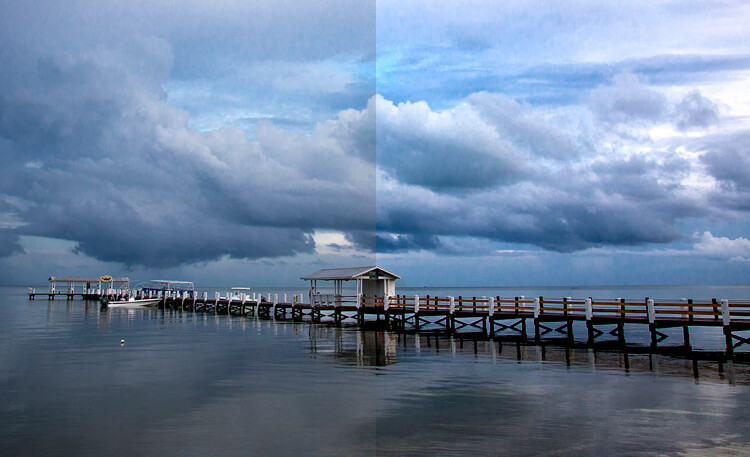
In addition, don’t worry that the effect is occurring across the entire picture at this point. We will make the changes apply selectively in just a second. For now, just look at the area of the picture where you want the effect to be applied and add it in accordingly. For example, in this picture below, my change is added to the entire picture, even though it results in effects I don’t want (like blowing out the sky on the right). We will fix that in the next step.

Graphic2-InitialChanges

The left side of this image shows the original image, the right side shows it after the application of the curves adjustment layer. Notice the far right portion of the sky is blown out, but we’ll remedy that by limiting where the effect applies in the next step.

Step 3: Brush it in

Now comes the part when you limit the areas where your changes apply to the image.

Start by masking off the entire image, just press CTRL/CMD+I to do so. You will notice that two things happen. First, the effect you just added to your picture is hidden, it’s as if you never made any changes (don’t worry, the changes are still there, they’re just hidden). Second, the box next to the adjustment layer you created turned black. The box represents the layer mask. As we discussed in the last article, a white layer mask means the changes show through to the image (which is why you saw the effect of the changes when the layer mask was white). A black layer mask means the effect does not show up on the picture. Since our layer mask is now black, the effect does not apply anywhere in the picture.

Graphic3-BlackLayerMask

Now we can begin the process of adding the effect in gradually. To do so, we will use the Brush tool. You can select it from the list of tools on the left side of your screen (tool panel), or you can just press B to call it up. While you are at it, go ahead and press the D key on your keyboard. This will ensure that the brush is set to its default foreground color, which is white, which is what you want since you will be adding the effect to the picture.

If you just left the brush as is, when you used it to paint in your picture, it would add the effect 100%. That is not what you want here. You want to add the effect in gradually, so it blends in. Therefore, go to the top of your screen and find Opacity. Pull the Opacity to the left until it is in the range of 5% to 15%. In my case I will use 10% (you can also just type 15 on your keyboard and it will apply to the opacity of the brush while that tool is selected). The lower the opacity, the less the effect gets added with each brush stroke – and the more gradual the change. If you have the patience to keep the Opacity very low (some people go as low as 2-3%), you will be rewarded with very gradual changes.

Graphic4-BrushTool

Now you will just paint in the effect. Before you do so, also make sure that the hardness of your brush is set to 0%. You want as soft a transition as possible. In addition, use as large a brush as your picture allows. The larger the brush, the softer the transition. The easiest way to change the size of your brush is with the square bracket keys. The left bracket [ makes the brush smaller while the right bracket ] makes it larger.

Now just click in the areas where you want the effect applied. You will have to do this multiple times because you have the opacity set very low. That is okay though, be patient. By doing it this way you are ensuring that it’s blended in gradually. You can also add the effect more in some places and less in others. Just click a few more times where you want the effect to be the most visible.

Graphic5-BrushingIn

Step 4: Check Your Work and Adjust

You can check your work by clicking the eyeball next to the layer. When you turn off the layer, Photoshop will show your image without your effect added. Click the eyeball again to see your progress and turn the layer back on.

Here is the histogram after using the brush tool to paint in white. It shows only the pixels that were selected via the brush.

Here is the histogram after using the brush tool to paint in white. It shows only the pixels that were selected via the brush.

If you found you overdid the effect, you can always back it off. You do so by turning the color of your brush from white to black. Remember that white reveals the adjustments, black hides them. You could undo the effect by stepping backward (Edit > Step Backward), but the easiest way to do so is just press the X key (that switches the foreground and background colors so you now have black on top). Now when you use your brush it will be removing the adjustment you created. Remember that your opacity percentage applies whether your brush is painting with white or black. When you are done removing the adjustment, press the X key to go back to a white brush and continue adding the effect where you want it.

You can also go back and adjust your Curve after you have brushed it in. In fact, you should get in the habit of checking the curve your originally set. Once you have used your brush tool, the histogram will show only those pixels within the selected area (where you painted white). In general, you will want to make sure that the steepest part of the curve corresponds with the part of the histogram where you have the most pixels. Make a tweak to your curve to make sure it looks how you want.

Step 5: Repeat

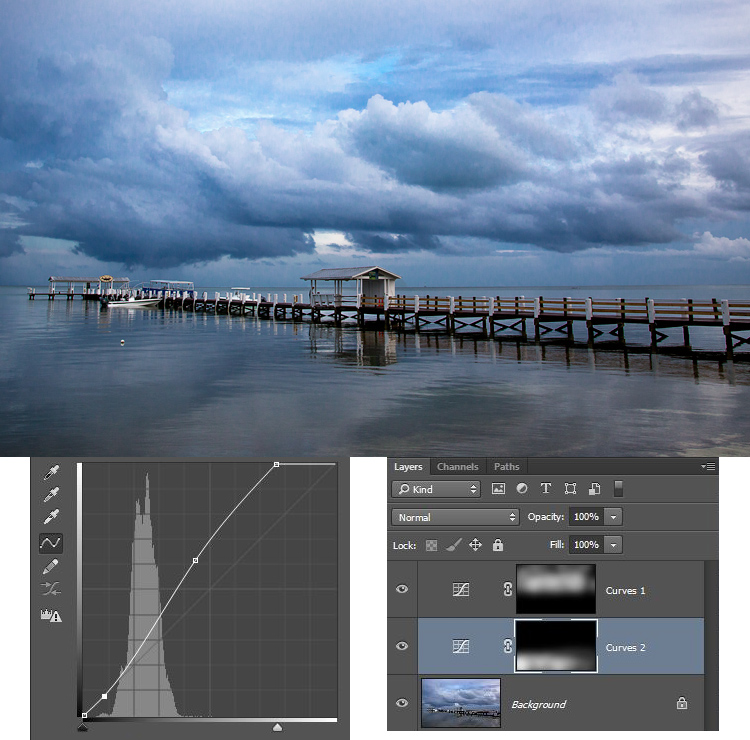
Another great thing about this technique is that you can do it over and over again. It’s not uncommon to see photographers with a long list of layers, where they have made adjustments to specific parts of the image. You can use this technique to change the brightness values of the picture, making parts lighter or darker. You can also change the contrast, as we did above. You can even change the colors by going into the individual color channels of the Curves adjustment layer. Of course you could also use the brushing techniques above on a Hue/Saturation adjustment layer.

Here I used the same process that was set forth above to brighten the water. I created another Curves adjustment layer, turned the layer mask black, and then brushed in the effect with brush set to white at low opacity.

Graphic7-WaterAdjustmentToo

Other Changes to Your Image

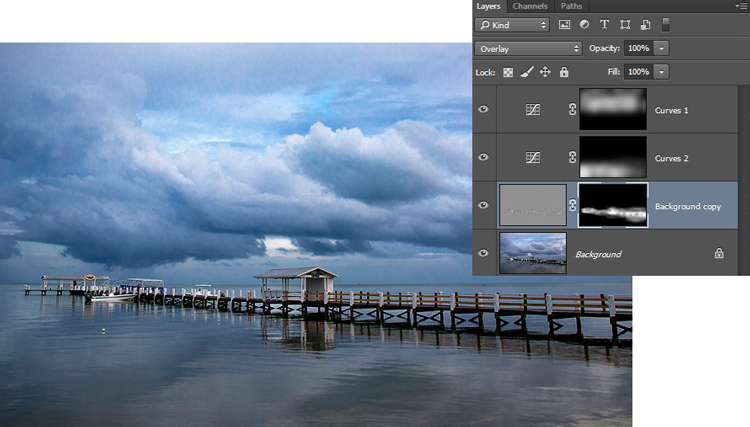
In this particular image, I also wanted to sharpen the pier without sharpening the rest of the image. To do this, I will use the High Pass Filter (which is a remarkably powerful sharpening tool) and apply a layer mask to limit the effect to the pier. This will demonstrate the use of this layer masking technique outside the context of adjustment layers, which we have been using so far.

First, let’s quickly walk through the use of the High Pass filter. To sharpen with the High Pass filter, first duplicate the layer (CTRL + J). Then change the blending mode to Overlay (don’t worry about how this makes your image look). After that, call up the High Pass filter (Filter > Other > High Pass). This will result in a small dialog box where you set the amount. Here I will go with an amount of about 4, which I find is pretty typical. Press ok and the effect will be applied to the entire image. This is a pretty handy sharpening technique, but we’ll make it better by applying it only to a specific area (the pier).

To do this, we’ll add a layer mask and use the same brushing technique. Since we are not starting with an adjustment layer, we will need to add a layer mask. Just click on Layer > Layer Mask > Hide All, which will create a black layer mask. After that, select your brush (press B), set the color to white (press D for default), and set your opacity. Whereas you had been using a very low opacity earlier, in this case you can use a much higher Opacity. Brush in the effect just on the pier and watch it become sharper.

Graphic8-Sharpening

Conclusion

Although this technique is fairly simple, it is a pro move. I know photographers that edit their photos with nothing but a series of Curves adjustment layers where they blend in the effect in this manner. Give it a shot on some of your photos and I believe you will like the results.

googletag.cmd.push(function() {
tablet_slots.push( googletag.defineSlot( “/1005424/_dPSv4_tab-all-article-bottom_(300×250)”, [300, 250], “pb-ad-78623” ).addService( googletag.pubads() ) ); } );

googletag.cmd.push(function() {
mobile_slots.push( googletag.defineSlot( “/1005424/_dPSv4_mob-all-article-bottom_(300×250)”, [300, 250], “pb-ad-78158” ).addService( googletag.pubads() ) ); } );

The post How to Blend in Adjustments Using Layer Masking in Photoshop by Jim Hamel appeared first on Digital Photography School.

Digital Photography School

 
Comments Off on How to Blend in Adjustments Using Layer Masking in Photoshop

Posted in Photography


Phottix launches Cerberus adapter for using hotshoe flashes in Bowens and Elinchrom studio head modifiers

19 Apr

Flash manufacturer Phottix has launched a new adapter that is designed to allow hotshoe flash units to be used with standard studio accessories, such as softboxes, umbrellas and snoots. The Cerberus consists of a universal grip that holds the flash directly in the middle of an adapter ring that can be used to attach existing studio flash accessories in the Bowens S, Elinchrom and the Phottix Transfolder softbox range. The idea is that if users already have studio light modifiers they can use them with their hotshoe guns instead of having to buy accessories dedicated to smaller units.

The clamp used is the Phottix Griffin, which has a pair of spring-loaded jaws that close around the head of the flash unit, leaving the hotshoe free for remote triggers. The clamp is attached to a mounting bracket that can be fitted with the adapter ring to suit the mount of the modifiers you want to use. The unit is called Cerberus after the three-headed hound of Hades from Greek mythology because its interchangeable mount can accept modifiers in three different fittings.

The kit comes with a Phottix Varos Pro BG jointed Umbrella Adapter that is used to mount the whole kit on to a lighting stand or tripod. The Phottix Cerberus multi-mount kit, which includes the Bowens and Elinchrom rings, costs $ 92.50. For more information visit the Phottix website.


Manufacturer’s dramatic product video:

Press release:

Meet the Phottix Cerberus Flash Mount

There’s a new mounting system in town – the Phottix Cerberus Multi Mount.

The Phottix Cerberus Multi Mount is your all-in-one mounting solution for hot shoe flashes. Use your hot shoe flashes with Bowens-compatible accessories, Elinchrom-compatible accessories, and the Phottix Transfolder Softbox range.

The Cerberus system comes with:

  • Phottix Griffin with Phottix Easy-Folder-Compatible Mount and Phottix Varos Pro BG *
  • Cerberus Elinchrom-Compatible Mount
  • Cerberus Bowens-Compatible Mount
  • Cerberus Phottix Transfolder-Compatible Mount

Like the mythical Cerberus, the Phottix Cerberus Multi Mount has three heads. The standard round mount works with the range of Phottix Transfolder Softboxes. Add the Bowen-compatible mount – and traditional S-Mount compatible accessories can be used with your hot shoe flash. Swap that out for the Elinchrom-compatible mount and use Elinchrom’s vast array of accessories with your hot shoe flash.

The durable and patented Phottix Griffin Universal Flash Mount holds many popular hot shoe flash models secure in a synthetic-lined spring-loaded clamp. The system was designed to be both durable and easy to use. A Phottix Varos Pro BG Umbrella Adapter is included to mount the Phottix Cerberus Multi Mount to a light stand or boom. The Phottiax Griffin is available on its own as well as being included with the Cerberus Multi Mount set.

Several configurations of the Phottix Cerberus are avaialble. Talk to you local Phottix dealer or buy from the Phottix Online Store.

* Note: The Phottix Griffin Mount with this set is affixed to the Phottix Cerberus Softbox Mount and cannot be removed. Varos Pro BG does not come with metal Coldshoe and male 3/8” and ¼ “ screw.

Articles: Digital Photography Review (dpreview.com)

 
Comments Off on Phottix launches Cerberus adapter for using hotshoe flashes in Bowens and Elinchrom studio head modifiers

Posted in Uncategorized


How to Create a Silky Water Effect in Post-Processing without Using Filters or a Tripod

17 Apr
Affiniy-photo-mean-stack-mode

Smooth water effect edited in Affinity Photo using the Live Stacks feature.

Even if you don’t shoot landscape photography, photos of waterfalls with the smooth water and glassy appearance are awesome. The gist to achieving this, and I do stand corrected if I have this wrong, is as follows:

  • Slow shutter speeds – the need for a tripod
  • A remote shutter release or your camera’s timer
  • Wide angle lens and the camera settings using a small aperture of f/22, ISO 100
  • Neutral Density and/or polarizer filters, as you’ll be shooting long exposures during the day
  • Of course the scene and by all accounts patience too

However, I personally don’t own ND or polarizer filters. These type of filters are required for long exposures during the day, so that your shutter speeds are slow enough, possibly one minute or more to get that misty look. On top of which, you have to get the exposure right, which requires a bit of math and experimentation. ND filters block out the light in terms of stops.

So taking long exposures during the day is an involved process, especially if you want to create that smooth, silky water effect in-camera. But, is there a way to simulate this effect in Photoshop or other post-processing software? Yes there is! It does require that you take multiple shots. I’m not advocating that this technique in post editing is a replacement to going out and achieving long exposures out in the field, far from it. But, I hope this technique may serve as a stepping stone or inspiration to go out and capture silky waters, clouds etc., in-camera.

This article will demonstrate how you can achieve a similar result by taking a bunch of photos in continuous mode without using any filters or a tripod. Although, I would recommend you use a tripod.

First, I’ll demonstrate this effect using a manual method in Photoshop CS6 (standard version). There is an automated way to do this with the Stack Mode feature, which I believe is in Photoshop CC. If you have previous versions of Photoshop, the Stack Mode feature is only available in extended versions, not standard, unfortunately. However, Gimp has this Stack Mode feature and it’s free. Then, I will compare the manual method in Photoshop with Affinity Photo, using Live Stacks. I was really impressed with this feature.

Photoshop manual method

Let’s begin. On the day I took these images, I was pressed for time. So I took a series of shots in continuous mode, and handheld the camera while I focused on this part of a small river. I would recommend that you use a tripod and give yourself some time. It will be easier to align the images later.

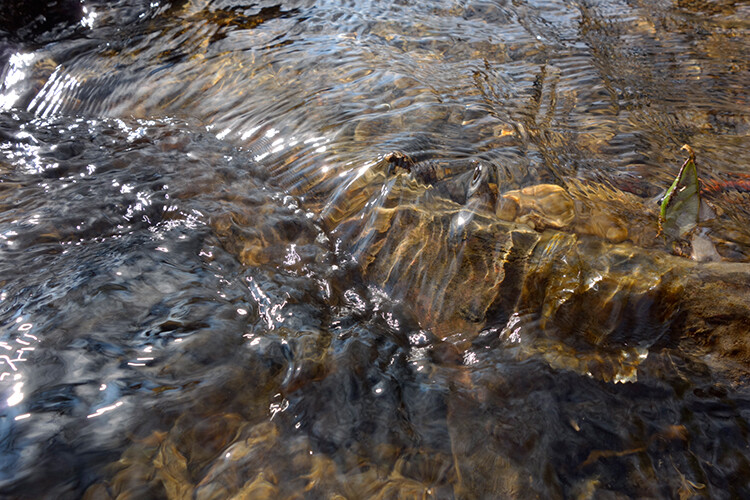
small-river-handheld

I took a bunch of images in continuous mode of this small river, close-up deliberately for this article.

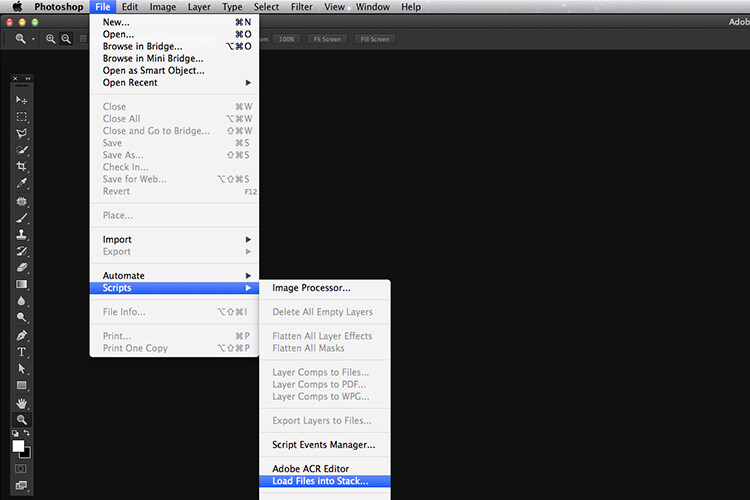
You will need to load your images as layers into one document in Photoshop, as follows:

file-scripts-load-files-into-stack

Loading multiple images into one document in Photoshop. File>Scripts>Load Files into Stack

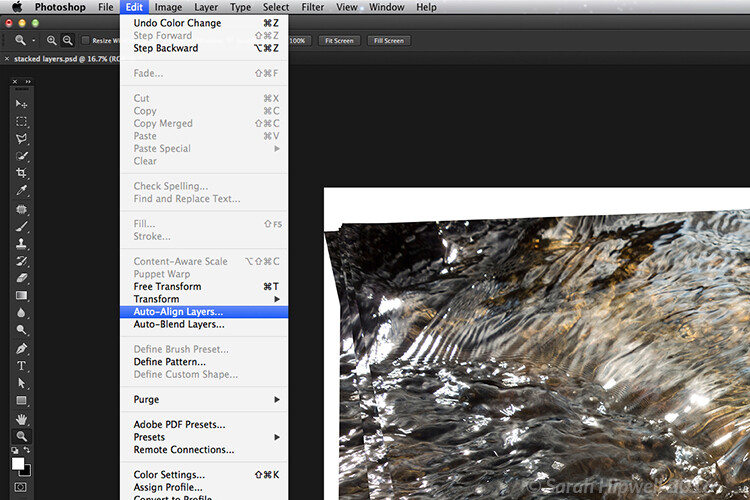
Go up to the Menu Bar > File > Scripts > Load Files into Stack. As I didn’t use a tripod, I selected all the layers to align them. Go to Auto-Align under Edit. As you can see, Photoshop had its work cut out trying to align the images.

images-after-auto-align-photoshop

I handheld my camera when I took a bunch of shots in continuous mode. As you can see from this screenshot, I needed to use Auto-Align Layers in Photoshop. If you use a tripod the alignment will be much easier.

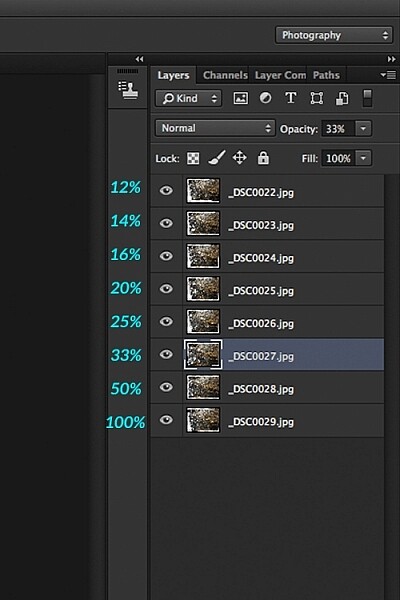
Now that the layers are stacked on top of each other. Start at the bottom and leave this layer at 100%, go to second layer above and reduce the opacity by 50%(100÷2=50). Continue with the next layer and reduce the opacity by 33%(100÷3=33).

percentages-opacity-reduced

Reducing the opacity of each layer by dividing the number of the layer into 100%. The bottom layer remains at 100%. The second layer is 50% and so on.

Therefore, depending on the amount of layers you have, and where they come in the stack, divide this number into 100. So if you had 30 images, the opacity for the top layer in the stack will be 3% (100÷30=3). Remember the bottom layer is always 1=100%. What this is doing is averaging out the layers. This may sound complicated, but in practice, it’s more straightforward. Although it is a bit more tedious than the automated way.

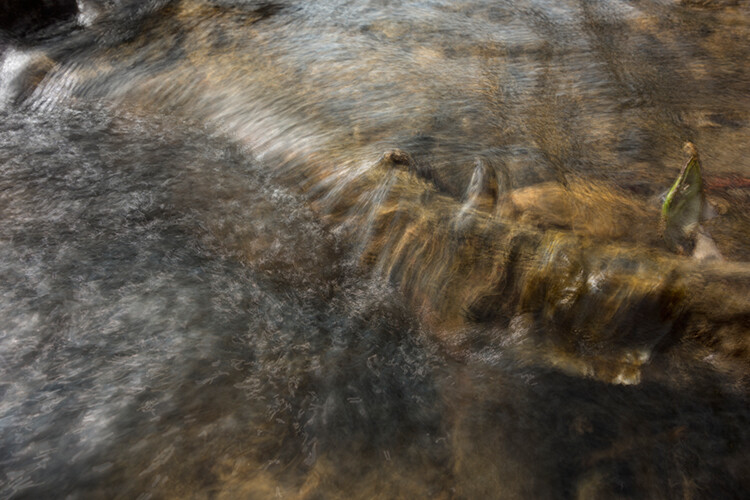
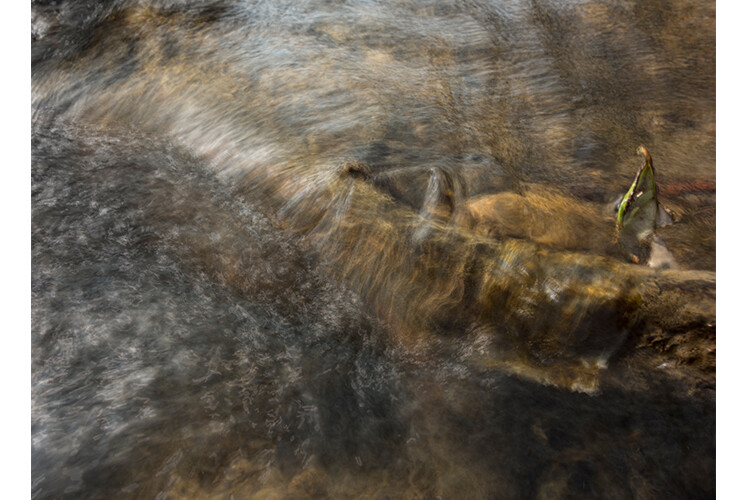
This is the effect of averaging out the layers in Photoshop - reducing the stacked layer's opacity by X amount. I also had to crop this image, whereas the same image when edited in Affinity Photo kept more of the image. See below.

This is the effect of averaging out the layers in Photoshop – reducing the stacked layer’s opacity by X amount. I also had to crop this image, whereas the same image when edited in Affinity Photo kept more of the image. See below.

I have been keeping a close eye on Serif’s Affinity Photo. So I took the plunge and purchased it for (€39) $ 44 USD. That was a discounted offer. At such an affordable price, I was curious to see how this software performs and what it can do.

In Affinity Photo, there is a Live Stacks feature which is similar to Stack Mode in Photoshop. It was easy and simple to use, and the process was fast.

Affiniy-photo-mean-stack-mode

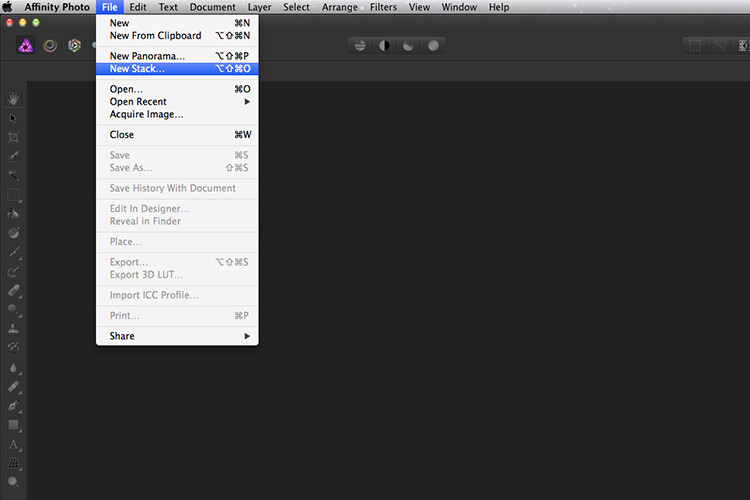
Affinity-photo-new-stack

The equivalent Stack Mode feature in Photoshop is called Live Stacks in Affinity Photo.

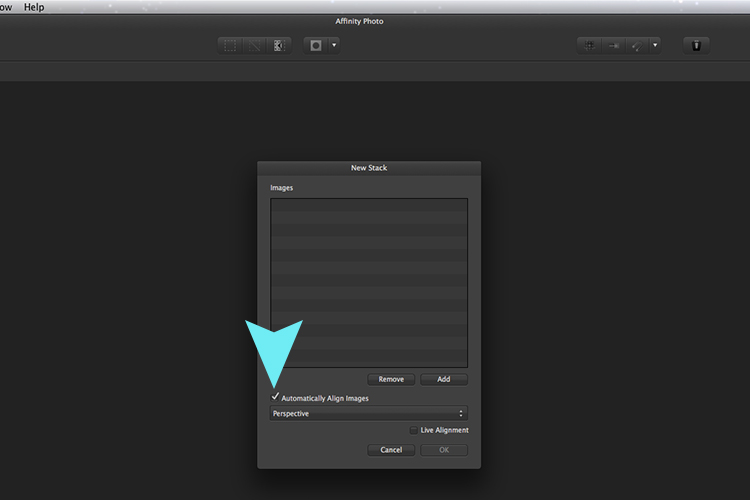
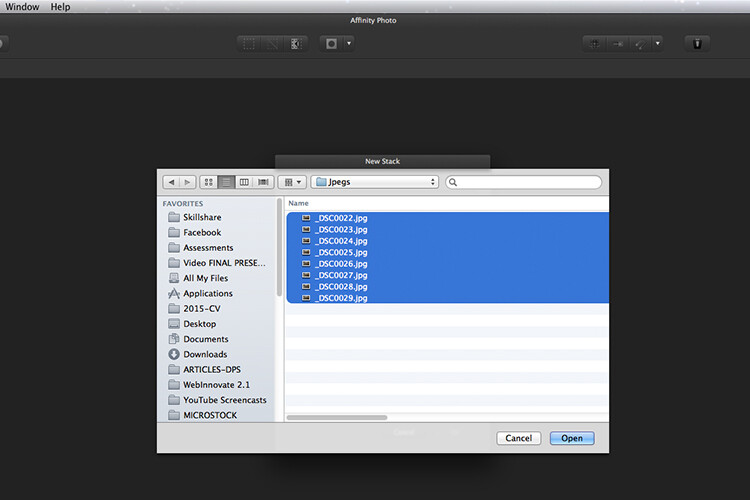
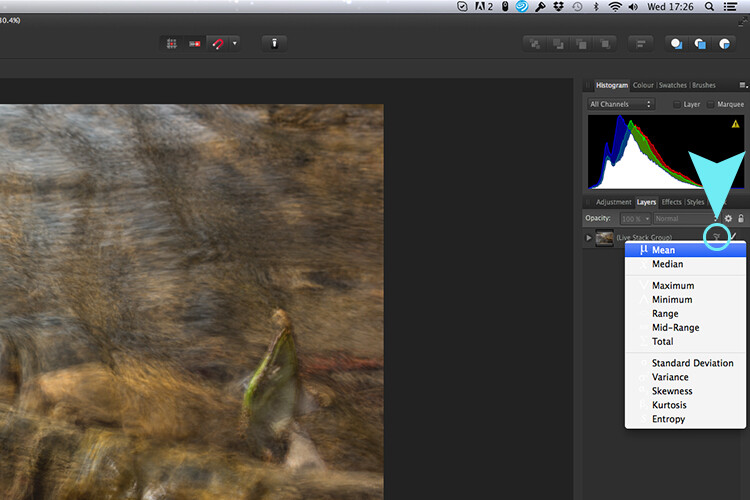
Go to File > New Stack. The pop up dialog box appears where you select your images. Make sure Automatically Align Images box is ticked. Click Ok. This takes a couple of seconds. It defaults to Median in the Live Stack Group, but scroll up to the next one and this is Mean. That’s the one you want.

Affinity-photo-auto-align-images

images-selected-after-new-stack

When you create a New Stack, the pop up dialog box appears. Select your images on your computer and click Open.

Affinity-photo-live-stacks-mean

The stacked images are grouped into a folder called Live Stack Group. The different stack options are located by clicking on the small icon, circled in blue. It defaults to Median but I changed it to Mean.

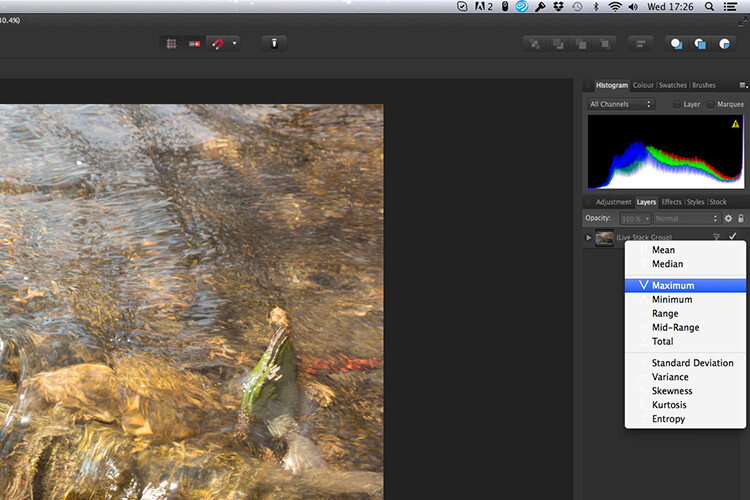
The cool thing about this feature is when you scroll through each of the different stack modes, it shows the different results live.

Affinity-photo-live-stacks-maximum

Different stack options can be scrolled through one by one, and the results can be seen live, which is impressive.

When I compared the two results from Photoshop and Affinity Photo, I could see no obvious difference, with the exception that I had to crop the image of the river more in Photoshop, whereas the auto alignment in Affinity Photo meant I didn’t lose much of the image at all.

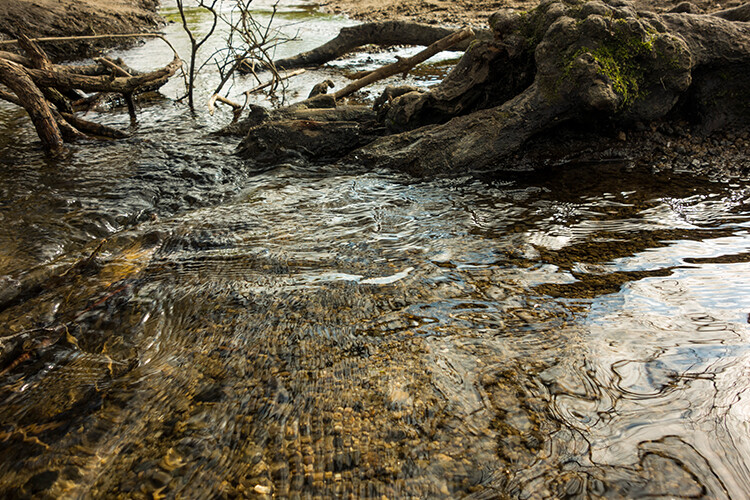
second-river-original

Here is another example of moving water.

The same image as above edited in Affinity Photo using Mean in Live Stacks. I got the same result using the manual method in Photoshop.

The same image as above edited in Affinity Photo using Mean in Live Stacks. I got the same result using the manual method in Photoshop.

Take away tip:

In my examples, I didn’t use a tripod. I would recommend using one. I also took only a series of 8-10 shots. I would recommend taking at least 15 or more.

I found this technique interesting and fun, and I am now inspired to go out and take images of waterfalls. The good thing about this technique is if you don’t have ND or polarizing filters, it doesn’t prevent you from going out and taking shots of waterfalls. Then when you get back to your computer, you can create your own silky, smooth effect.

Let’s see some of your examples below.

googletag.cmd.push(function() {
tablet_slots.push( googletag.defineSlot( “/1005424/_dPSv4_tab-all-article-bottom_(300×250)”, [300, 250], “pb-ad-78623” ).addService( googletag.pubads() ) ); } );

googletag.cmd.push(function() {
mobile_slots.push( googletag.defineSlot( “/1005424/_dPSv4_mob-all-article-bottom_(300×250)”, [300, 250], “pb-ad-78158” ).addService( googletag.pubads() ) ); } );

The post How to Create a Silky Water Effect in Post-Processing without Using Filters or a Tripod by Sarah Hipwell appeared first on Digital Photography School.

Digital Photography School

 
Comments Off on How to Create a Silky Water Effect in Post-Processing without Using Filters or a Tripod

Posted in Photography


How to Improve Your Photos Using Micro-Composition

12 Apr

One of the most fundamental elements of photography is that of composition, or how your subject, foreground, background, light, and other elements work together to produce a complete picture. While understanding how this works is fundamental to mastering the art of photography, the underlying principles behind composition go much deeper than just getting all the big things right so they look good in the frame. Masters of the medium are able to balance many different techniques of composition at the same time ,and put them together to launch their work into the upper echelon, and one rung on that ladder is a concept known as micro-composition.

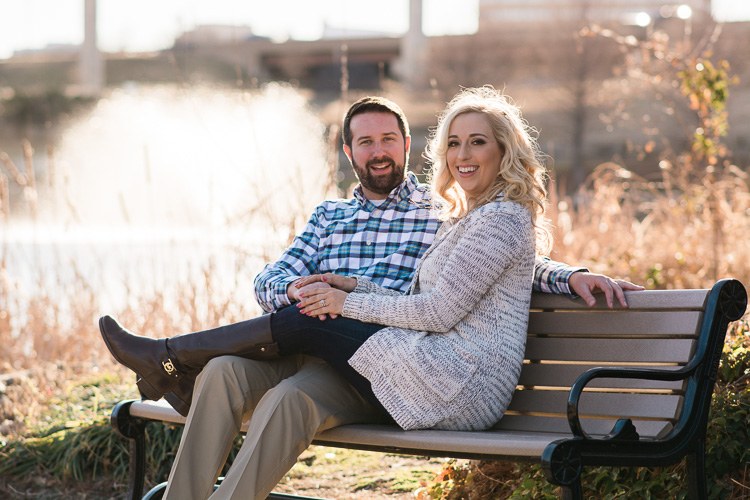
microcomposition-engagement

This involves not just getting the big things in your picture set up and aligned properly, but making sure to capture your image in such a way that the smaller elements work together as part of the cohesive whole. It’s a technique that can be tricky to learn and take years to master, but through practice can elevate your photography to a whole new level.

To understand how micro-composition works it’s good to start with one of best examples of this technique which can be seen in National Geographic photographer Sam Abell’s image Cowboys Branding Cattle, Montana.

Photograph by Sam Abell, National Geographic

At first glance it seems like an ordinary picture of some ranchers in the western United States, but the reason it looks so perfect is because everything in it is masterfully composed. All the elements come together to form a complete picture that works at the foreground, subject, and background levels. It invites the viewer to linger, not just on the calf being branded, but on the cowboys wrangling cattle behind them, and the rider on his horse in the background. Even the red bucket helps add a sense of action and mystery to the picture, but what makes this image work so well is how each of the elements is composed, not just on a macro level but on a micro level as well. The heads and shoulders of every person are above the horizon line, the horse in the background is perfectly framed between the two ranch hands, and the red bucket occupies its own space and does not overlap the man’s hat or even break through the horizon line. This was not a lucky one-in-a-million shot, but one that was carefully composed by Abell as he positioned himself in the midst of the action, kept the various elements composed in his camera’s viewfinder, and waited until just the right moment when the red bucket was just past the cowboy’s hat to take the shot. It’s the result of a master micro-composer at work.

Micro-composition is all about focusing not on just the major elements of a picture, but the minor ones as well, and putting each element in its own space, while keeping it as a clear part of the whole. While I am certainly no Sam Abell, and probably couldn’t take photos like his if I practiced for a hundred years, there are many ways the techniques of micro-composition used by him and others, can be applied to even the most mundane photos. As a bit of a case study, the following image of a tulip is not composed well on a macro- or micro-level, but it can serve as a starting point for illustrating how these concepts work together.

microcomposition-tulip-1

What you see here is a good start but ultimately not a very pleasing image. The red tulip is in the center of the image, when it should be off to the side, and it has a green stalk protruding vertically which creates a jarring distraction. To fix some of these issues I re-framed the tulip with a better overall macro composition and the results, while not perfect, are certainly much better (see below).

microcomposition-tulip-2

From a macro sense the picture has improved, but look at the small details and you will notice several things that don’t work. The tulip itself no longer has a strange green growth on top but the flower now protrudes through the horizon line and into the steel bench in the background. The stalks on the left side don’t go quite to the corner which leaves a strange empty space between them and the edge of the picture. Finally, the yellow bulb on the right side is cut off. As you can see, even though the image seems fine at first glance, looking at these micro-level compositional elements reveals a host of problems that could easily be fixed, and would result in a much better picture.

microcomposition-tulip-3

Finally, a photo that works! Even though it’s not perfect (as I mentioned earlier, I’m no Sam Abell) we can see how micro-composing the photo has dramatically improved it over the original. The red tulip now occupies its own space, and does not break through the horizon line into the bench. The tips of the green stalks go almost to the corner, and the bulb on the right side is fully intact without being cut off at all. All this was completely intentional, not the result of some random photographic accident. I spent several minutes poring over the composition, and looking at the scene from different angles, in order to get as many elements as possible right where they should be. The result of this extra time is a picture that is much better than just a simple snapshot.

microcomposition-construction-site

It took a bit of work and patience to get this shot, but I wanted to make sure each worker was in his own space. The final shot is not ideal, but much better than others I took, in terms of micro-composition.

Learning the principles behind micro-composition takes time, observation, and lots and lots of practice. It also involves quite a bit of patience, so if you are used to snapping photos with your phone, throwing on a filter and some text, and tossing them up to a few social networks, you may find the idea of micro-compositing a bit frustrating. For another example take this photo of a sundial (below) which seems okay at first glance, but when I shot it I did not want to settle for something decent. There is nothing especially wrong with the overall composition, but on a micro-level there are several elements in need of fixing.

microcomposition-sundial-improper

I liked the idea of framing the sundial with a path and some greenery in the background, but studying the smaller elements and taking a new picture led to much better results. This required not only repositioning myself just a few inches over to the side, but also waiting about 15 minutes for the sun to move across the sky so I could get better shadows in the background. I could have just left this garden with the initial picture, but the next one, which is properly micro-composed, is far better.

microcomposition-sundial-proper


While this second image is not perfect it works far better for a few reasons:

  • The tip of the arrow stays within the path and does not intrude on other background elements like the stone borders on the side of the path.
  • The near side of the sundial arc does not overlap the far side.
  • The fletchings on the rear end of the arrow sit within the the shadow on the path, which leads to a nice sense of contrast.
  • The rear side of the sundial does not overlap the shadow of the stone ledge…except for the very tip of one arc. (Sometimes no matter how hard you try you just can’t quite get everything how you want it.)

Masters of the art like Sam Abell will sometimes sit for hours waiting for the ideal conditions to line up, such that the resulting shot is composed beautifully from virtually all possible angles. While I have years to go before I can even hope to come close to that level, this most certainly is a technique that has helped me improve my own photography.

microcomposition-guitar-pond-dog

Each element of this picture exists within its own space: the musician’s head is positioned between the branches, the bench is contained within the pond, and even the dog’s head does not overlap the bench.

If I had to distill my advice regarding micro-composition down to just one simple phrase, I would reiterate one thing I mentioned earlier – have patience. Take your time when preparing a shot. Consider all the elements in the frame, not just your subject and the light. Ask yourself if there is another angle, another position, or even another focal length you can use to get the various elements of the photo, from the major to the minor, to all work together. You don’t need a fancy camera or expensive equipment to learn micro-composition, but once you start to get the hang of it, you will see a dramatic increase in the quality of your images.

Have you found the concept of micro-composition to be useful in your own photography? What other tips and tricks do you have up your sleeve when it comes to composing pleasing images? Share your thoughts in the comments below, and if you have any examples that we can learn from feel free to share your photos too!

googletag.cmd.push(function() {
tablet_slots.push( googletag.defineSlot( “/1005424/_dPSv4_tab-all-article-bottom_(300×250)”, [300, 250], “pb-ad-78623” ).addService( googletag.pubads() ) ); } );

googletag.cmd.push(function() {
mobile_slots.push( googletag.defineSlot( “/1005424/_dPSv4_mob-all-article-bottom_(300×250)”, [300, 250], “pb-ad-78158” ).addService( googletag.pubads() ) ); } );

The post How to Improve Your Photos Using Micro-Composition by Simon Ringsmuth appeared first on Digital Photography School.
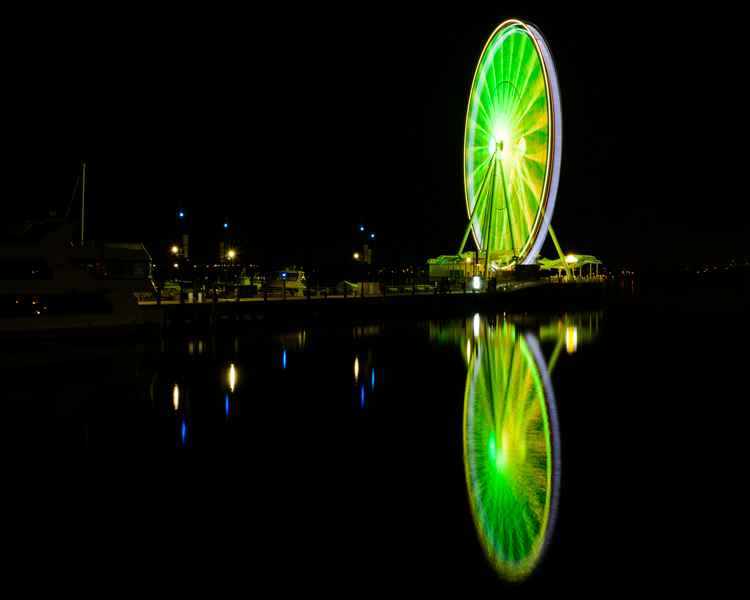

Digital Photography School

 
Comments Off on How to Improve Your Photos Using Micro-Composition

Posted in Photography