RSS
 

Posts Tagged ‘Using’

A Guide to Using Natural Light for Macro Photography

21 Sep

Working with natural light can seem daunting. Yet as a macro photographer, I love natural light. I’ve spent years studying it, playing with it, observing it, and watching it fall.

I use it in all of my photographs. In fact, the last time I picked up a flash was over five years ago.

natural light macro rose abstract

But how do you take advantage of natural light? Are there some simple principles that can be learned and quickly applied, so that you can take stunning macro photographs in no time?

Actually, yes!

In this short tutorial, you’ll learn all about natural light for macro photography. I’ll explain the types of natural light that I like, the types that I avoid, and how you can best use natural light in your own photographs.

When you’re finished reading, you’ll have the know how to use natural light like a pro!

natural light macro birch leaf in clover

Five Types of Natural Light in Macro Photography

There are five types of natural light that all macro photographers should know:

  • Sunny light
  • Cloudy light
  • Evening frontlight
  • Evening backlight
  • And evening shade

Let’s discuss each in turn.

natural light macro poppy

Sunny Light

By sunny light, I am referring to the light that you find at noon on a clear day.

It’s very bright, very strong, and really contrasty. So, let me just get this out of the way and state it simply.

Do NOT use sunny light for macro photography!

natural light macro clematis

I couldn’t bring myself to take a photograph in direct sunlight. I just dislike it too much! So I photographed this clematis in the evening.

I know that it’s very tempting. After all, bright sunlight is very powerful, and everyone loves to get out on sunny days.

The problem, however, is that direct sunlight is extremely tough for cameras to deal with, resulting in blown out (that is, totally white) highlights and underexposed (very dark) lowlights. It also creates shadows that are unpleasant to look at.

Now, there are some genres of photography that make use of a sunny type of light. Street photography, for instance, relies heavily on the gritty, contrast-heavy look that sunny light provides.

natural light macro aster

Macro photography, however, requires softer light such as the next type of light.

Cloudy Light

Cloudy light is pretty self-explanatory. This is the kind of light when there are clouds, at any time of the day.

natural light macro fall leaves

What does this mean for your photography?

Clouds diffuse the light, causing it to become pleasant and soft. This is an ideal type of light for bringing out colors in your subject. I work a lot with flowers, and I go crazy over cloudy light.

There’s nothing better than a nice cloudy day for flower photography.

natural light macro tulip

I photographed this flower under cloudy skies.

Therefore, if you enjoy doing flower-focused macro photography, cloudy light is for you. Shooting in cloudy light will ensure evenly illuminated subjects, lovely colors, and really pleasing images.

Yet sometimes you might want to create images which are slightly less soft. You might want to work with more striking light, which brings us to . . .

Evening Frontlight

Evening frontlight is found during the golden hours of photography. The golden hours are the first two hours after sunrise, and the final two hours before sunset.

During this time, the sun casts a beautiful golden glow over the world. If you venture outside, and you make sure that the sun is behind you (point your shadow at your subjects), you’ll find that you’re looking at a beautiful landscape.

natural light macro red flower

Is this type of light good for macro photography?

In a word, yes. Such natural light tends to look lovely and soft when rendered by a camera.

I must admit, however, that I am not the biggest fan of evening frontlight. I find that it’s a bit too bright. I also prefer more dramatic lighting. Which brings me to my favorite type of light.

Evening Backlight

Evening backlight is extremely similar to evening frontlight. Except, rather than having the sun behind you, you have it directly in front of you.

I love evening backlight for macro photography. I’m drawn to its dramatic presence and warmth. I suggest that you try it, yourself.

natural light macro aster backlight

I photographed this aster in evening backlight.

To use evening backlight, you simply point your camera into the light. I recommend placing the subject between yourself and the setting sun so that the sun is obscured by the subject. Or put the actual sun slightly outside the image, so that it can be felt rather than seen.

Of course, these images aren’t for everyone. But I personally find them to be stunning!

natural light macro backlight

Yet if you’re looking for something a little less punchy, I do have one final recommendation.

Evening Shade

Evening shade is pretty self-explanatory, as well. Your subject is shaded by some object (a tree, a building, the photographer) in the evening.

What makes evening shade natural light so special? I like the evening shade for one specific reason.

If you can shade your subject while using an unshaded background, your images will really pop. The background will be rendered as liquid gold, while your subject is lit fairly evenly.

natural light macro daisy abstract

I photographed this daisy in some evening shade. The background was lit by the setting sun.

Don’t believe me? Try it!

Conclusion

Natural light may seem difficult to work with, but I hope that after reading these tips, you are feeling far more confident in your abilities.

natural light macro dahlia

Simply remember to avoid sunny light, and you’re halfway there. Use cloudy light if you want soft, evenly illuminated subjects and beautiful colors. Use evening light if you want a bit more drama.

Which type of natural light do you prefer? Share your opinions and images in the comments below.

natural light macro leaves

The post A Guide to Using Natural Light for Macro Photography appeared first on Digital Photography School.


Digital Photography School

 
Comments Off on A Guide to Using Natural Light for Macro Photography

Posted in Photography


Tips for Using Neutral Density Filters for Cityscape Photography at Blue Hour

19 Sep

Neutral density filters (ND filters) are essential tools when it comes to shooting cityscapes at blue hour. Even without an ND filter, you could shoot for a few seconds of exposure (using a small aperture like f/13) when the light falls towards the end of dusk.

But those opaque filters let you take even longer exposure photos (minutes, not just seconds), and create beautiful effects such as light trails, silky smooth water, rushing clouds, etc., by slowing down the shutter speed by a certain number of f-stops.

Singapore - Using Neutral Density Filters for Cityscape Photography at Blue Hour

This Marina Bay (Singapore) photo was shot with a 2-second exposure (at f/13) without using any ND filter. The sky looks good, but the water isn’t smoothed out at all, as that exposure is way too short to create silky smooth water effect that is seen in the photos to follow.

How ND Filters Make Your Exposure Longer

ND filters come in different strengths, some popular ones are 3-stop, 6-stop and 10-stop. The bigger the number, the darker the filter (i.e. the less light that is let through) and the longer the exposure will be.

For example, a base shutter speed of one second (i.e. when no filter is attached) can be extended to as long as 1024 seconds (over 17 minutes) with 10-stop ND filter attached, as each “stop” doubles the exposure time:


1 second > 2 seconds [1 stop] > 4 seconds [2 stops] > 8 seconds [3 stops] > 15 seconds [4 stops] > 30 seconds [5 stops] > 64 seconds [6 stops] > 128 seconds [7 stops] > 256 seconds [8 stops] > 512 seconds [9 stops] > 1024 seconds [10 stops]


It’s easy to calculate when a base shutter speed is a simple number like one second, but what about starting with, say, 1/15th of a second? This is where the Long Exposure Calculator app (for iOS) comes in handy and makes your life easier, as it automatically calculates a required shutter speed for you (look for an Android equivalent here).

ND filter and app - Using Neutral Density Filters for Cityscape Photography at Blue Hour

Neutral density (ND) filter (left) and Long Exposure Calculator app (right).

Using Different Strengths of ND Filters for Your Desired Effect

In this article, we’ll take a little deeper look at when to use which ND filter for your desired effect at blue hour.

3-Stop ND Filter

I don’t use 3-stop ND filter when taking cityscapes at a waterfront, as the strength is too mild to create a silky smooth water effect. Hence, my use of 3-stop ND filter is limited for scenes that have no water to be smoothed out, such as the photo below with light trails of moving cars, which doesn’t require a very long shutter speed.

Shanghai skyline - Using Neutral Density Filters for Cityscape Photography at Blue Hour

Shanghai skyline (China) shot with a 25-second exposure (f/8) using a B+W 3-Stop ND Filter (77mm). The base shutter speed was 3 seconds, ISO 100.

Singapore - Using Neutral Density Filters for Cityscape Photography at Blue Hour

Singapore skyline shot with a 10-second exposure (f/13) using the same 3 -stop ND filter. The base shutter speed was 1.3 seconds, ISO 100.

This mild strength 3-stop ND filter (i.e. not so long exposure) isn’t all bad, though. It allows you to take a number of photos during blue hour, unlike more dense filters like a 6-stop ND filter where you can take no more than a few photos due to a longer exposure time required per photo.

6-Stop ND Filter

I almost exclusively use a 6-stop ND filter when shooting cityscapes at a waterfront. To create silky smooth water effects, slowing down 3 stops isn’t quite enough, but a 10-stop one is way too strong. For example, a base shutter speed of 2 seconds (i.e. with no filter attached) gets extended to 15 seconds (with 3-stop ND filter), 128 seconds (with a 6-stop ND filter) and whopping 34 minutes and 8 seconds (with a 10-stop ND filter) respectively.

Shanghai - Using Neutral Density Filters for Cityscape Photography at Blue Hour

Shanghai skyline (China) shot with a 164-second exposure (f/11) using a B+W 6-Stop ND Filter (77mm) in order to achieve my desired effect of silky smooth water. Had I used a 3-stop ND filter, the water wouldn’t have been smoothed out this much (base shutter speed: 2.5 seconds, ISO 100).

Singapore - Using Neutral Density Filters for Cityscape Photography at Blue Hour

Marina Bay (Singapore) shot with a 163-second exposure (f/13) using the same 6-stop ND filter (base shutter speed: 2.5 seconds, ISO 100).

I typically aim to shoot with a base shutter speed of 2-3 seconds when using a 6-stop ND filter, which extends the exposure to 128 -192 seconds respectively. In order to create a silky smooth water effect, 2-3 minutes of exposure seems just right.

By the way, if you’re planning to buy only one filter for cityscape photography at blue hour, I’d recommend nothing but a 6-stop ND filter. I’ve probably photographed 90% of my cityscapes at blue hour using a 6-stop ND filter. It’s really a game changer if you are interested in doing this kind of photography.

10-Stop ND Filter

A 10-stop ND filter is a kind of special filter that lets you expose extremely long (longer than necessary in most cases!). Personally, I don’t really find 10-stop ND filter useful for shooting cityscapes at blue hour, as the exposure goes too long (even starting at a base shutter speed of 1/2 second gets extended to 8 and a half minutes), and digital noise caused by long exposure becomes too unbearable (even with in-camera long exposure noise reduction turned on).

So, this extreme filter’s use is rather limited to pre-dusk or even earlier in the day, not towards the end of dusk. In fact, one big advantage of a 10-stop ND filter is letting you take long exposure photos while the sky is still bright, which is something 3 and 6-stop ND filters aren’t up to the task of doing.

With a 10-stop ND filter, I usually aim to shoot with a base shutter speed of 1/4 or 1/3 second which is extended to 256 and 341 seconds respectively. I tend to avoid an exposure that exceeds 6-7 minutes, as long exposure noise starts to creep in.

Such a base shutter speed (1/4 or 1/3 second) can normally be achieved around sunset time or before, therefore you don’t really see deep bluish hue that’s typically seen at the prime time of the blue hour. Instead, your photo will have a surreal look that is very unique and distinctive to 10-stop ND filter.

Singapore - Using Neutral Density Filters for Cityscape Photography at Blue Hour

Singapore skyline shot with a 258-second exposure (f/8) using B+W 10 Stop ND Filter (77mm) with a base shutter speed of 1/4 second, ISO 100.

Singapore Using Neutral Density Filters for Cityscape Photography at Blue Hour

Singapore skyline shot with a 259-second exposure (f/7.1) using the same 10-stop ND filter (base shutter speed: 1/4 second, ISO 100).

Conclusion

I hope this post helps you get started with shooting cityscape photos at blue hour using neutral density filters. I’m sure that you’ll be hooked in no time and can no longer shoot cityscapes at blue hour without one!

If you have any questions or tips to share, feel free to do so in the comments below.

The post Tips for Using Neutral Density Filters for Cityscape Photography at Blue Hour appeared first on Digital Photography School.


Digital Photography School

 
Comments Off on Tips for Using Neutral Density Filters for Cityscape Photography at Blue Hour

Posted in Photography


How to Create Memorable Family Albums Using the Lightroom Book Module

16 Sep

There is little quite as delightful as going through family albums, reliving memories and watching how things have changed over the years. Having digital copies is great but nothing really beats the excitement of having them in print, holding all those memories in your hands and going through them at your leisure.

It’s a sentiment I’ve especially grown to appreciate since the birth of my daughter. The rare times my hard drive starts giving me trouble and I begin to fear the loss of my digital files, I’m assured if anything, my favorite photographs with my loved ones are safe in their spot on my shelf. So, how do you go about creating such family albums?

The Lightroom Book Module

If you use Lightroom in your post-processing workflow (who doesn’t?), you’ll be delighted to know it helps you make beautiful albums even if your sense of design isn’t the best.

It keeps you from looking for other software – where you’ll probably be re-uploading your photos, struggling with their size, cropping, and even brain storming for creative and appealing layouts.

The Lightroom Book Module even goes a step further and gives you the option to send your photo book to Blurb for printing from within Lightroom!

In case you don’t know, Blurb is a publishing company which prints quality books on-demand for people like you and me. They’re reasonably priced and could rival professional photo books. To sweeten the deal, they deliver your order right to your doorstep!

How to Create Memorable Family Albums Using the Lightroom Book Module

Of course, you still have the option to convert your photo book into a PDF or JPEG images. That way you can have them printed yourself or just save those layouts as collages. So, without further ado, let’s look into how you can make beautiful family albums!

Step 1 – Make a Collection

Before you start creating your book, you should make a Lightroom Collection of the photos you want in the book.

Since I take a lot of photos of my daughter and they’re all in different folders, I’ve set up a Smart Collection which saves any picture I keyword with her name. This way, Lightroom automatically saves them to that Collection. Whenever I need to look at all her photos together, I just navigate to that folder and they’re all there.

For this example, I’m making a photo book of my daughter’s first year. Once you’ve made your personal Collection, select it and head over to the Lightroom Book Module.

Step 2 – Save your photo book

In the Book module, you’ll immediately see all the photos of your Collection laid out in the form of open book pages. (Note this only happens automatically if you set that up in your Lightroom preferences).

How to Create Memorable Family Albums Using the Lightroom Book Module

Before you start anything, it’s a good idea to save the book so you don’t lose any changes you make. To do so, look for this button in the top-right: Create Saved Book.

How to Create Memorable Family Albums Using the Lightroom Book Module

After clicking that, you’ll be asked to name your book and choose where you want to keep it in Lightroom.

How to Create Memorable Family Albums Using the Lightroom Book Module

It’s preferable to keep it under the collection you’re working from so it’s always easily accessible. To do so, select the Inside checkbox, and in the drop-down menu select the collection you’re using. I’m using a collection with my daughter’s name. (Keep the other options ticked as they are by default).

On the Collections panel, the photo book will appear under your collection.

How to Create Memorable Family Albums Using the Lightroom Book Module

Viewing your photo book

You can choose how to view your photo book from the different “Views” options on the toolbar at the bottom.

The default one is the Multi-Page View which shows your entire photo book. You can enlarge or shrink the size of the pages by using the Thumbnails slider on the bottom-right, the same way you do in the Library module.

How to Create Memorable Family Albums Using the Lightroom Book Module

Then there’s the Spread View, which shows how side-by-side pages will appear in the book. This is useful when you’re having a closer look at your photo book. You can shift through the pages using the arrow keys on the toolbar below.

How to Create Memorable Family Albums Using the Lightroom Book Module

Finally, there’s the Single Page View to get really up close and personal, for when you’re adding finer details.

v

Step 3 – Select Book Settings

The first panel on the right-hand side is the Book Settings panel. Here, you can choose the format of the book between Blurb, PDF, and JPEG.

Publishing with Blurb

First, let’s look at the options you have if you choose to publish through Blurb.

How to Create Memorable Family Albums Using the Lightroom Book Module

Depending on your requirements, you can change the size of the book.

How to Create Memorable Family Albums Using the Lightroom Book Module

You also have the options to change the paper type and the book cover. An interesting thing to note is that at the bottom of the panel you’ll see a rough estimate of how much your book will cost. However, the price is only visible if you’re using the Blurb option (as seen above).

As you change your options the price will also change. This helps you manage your photo book within your budget.

Publish as a PDF or JPEG

If you choose PDF or JPEG in the Book drop-down, the options will also change (shown below).

How to Create Memorable Family Albums Using the Lightroom Book Module

You still have the liberty of changing the book size and choosing the book cover, however, now you also have to look over other things like your image quality, resolution, etc.

Step 4 – Layout

Now that basics are out of the way it’s time to get to the good stuff!

Right now, your photo book may have a lot of empty pages and it clearly doesn’t look like what you want. The appearance, or rather, the layout of the book can be changed in the Auto Layout panel.

Notice that the Preset selected by default is Left Blank, Right One Photo, and that’s likely how you’re seeing your book right now: the left page is blank and the photo is on the right side of the spread.

How to Create Memorable Family Albums Using the Lightroom Book Module

If you want you can choose any of the other presets available to you, though you’ll find there’s little available.

How to Create Memorable Family Albums Using the Lightroom Book Module

To change everything to your liking, you’ll first need to hit the Clear Layout button in the Auto Layout panel.

How to Create Memorable Family Albums Using the Lightroom Book Module

This clears away everything and gives you a completely new canvas to work on.

How to Create Memorable Family Albums Using the Lightroom Book Module

Making your own Layout

In the Preset drop-down, select Edit Auto Layout Preset.

How to Create Memorable Family Albums Using the Lightroom Book Module

This opens a dialog box where you can select how you want your pages to look.

How to Create Memorable Family Albums Using the Lightroom Book Module

You can see that the dialog box is divided in half to accommodate the design for the right and left pages. By default, the left page is blank. On the Left Pages drop-down, select Fixed Layout.

How to Create Memorable Family Albums Using the Lightroom Book Module

This will open a variety of layouts for you to choose from. You can scroll through them to see if anything catches your fancy.

How to Create Memorable Family Albums Using the Lightroom Book Module

The grey area in the template shows how much space the photo will take on the page. In the image above, the first sample (on the left-hand page) portrays an image having some space from the edges of the page, thus we can see the white border. The second template (on the right-hand page) shows an image being fit onto the entire page with no blank space at all.

As you scroll down, you’ll see a number of different layouts, some of them with text as well.

Your page might not be the same proportion as your photograph, so it’s a safe option to choose “Fill” from the Zoom Photos drop-down menu.

How to Create Memorable Family Albums Using the Lightroom Book Module

This makes sure that the final look is exactly as you see in the template, or you might be seeing more blank space than you were supposed to.

You might have noticed that so far we’ve been working with “1 Photo: from the secondary drop-down that appeared after selecting Fixed Layout.

How to Create Memorable Family Albums Using the Lightroom Book Module

If you choose any of the other options from the dropdown, the templates will change accordingly.

How to Create Memorable Family Albums Using the Lightroom Book Module

Similarly, you can choose any template on the right-side pages. Don’t forget to choose “Fill: in the Zoom drop-down before you hit Save!

One tip I offer is that you should choose templates where images have some space (white lines) between them. It gives a more elegant, classy look. In the end, though, it all depends on your personal preference.

When you hit Save, the New Preset dialog will ask for a name. For convenience, name the Preset according to how you’ve selected the layout to look (see example below).

How to Create Memorable Family Albums Using the Lightroom Book Module

When you click Create, the Auto Layout panel will have the new preset selected. To apply it to your photo book, you just have to click the Auto Layout button.

How to Create Memorable Family Albums Using the Lightroom Book Module

If you don’t, you’ll find your book to still be in the default setup of “Left Blank, Right One Photo”. This is what my view looks like after clicking Auto Layout.

How to Create Memorable Family Albums Using the Lightroom Book Module

As you can see, Lightroom applied the selected layout (that we created) to the entire photo book.

Step 5 – Changing Layout for Individual Pages

For now, your entire photo book follows a single layout. But you can also change the layouts for individual pages too! Let’s check out the Page panel for that.

Select the page where you want to change the layout by clicking on the little arrow on the Page panel.

How to Create Memorable Family Albums Using the Lightroom Book Module

You can also access these options directly by clicking on the little arrow below any page you select.

How to Create Memorable Family Albums Using the Lightroom Book Module

This allows you to choose from all the layouts available.

Step 6 – Working on Individual Panels

There’s still more tweaking you can do as well. If you think an image would look a bit better after a little bit of zooming in or out, you can select the image and a zoom slider will appear. Simply drag the marker as you see fit.

How to Create Memorable Family Albums Using the Lightroom Book Module

This sort of work is better done in Spread view since it shows you a larger view and is also easier on the eyes.

You can also change the position of a photo by dragging it. It will move within the confines of its template. In the image below, you can see the photo has been dragged a little bit from left to right.

How to Create Memorable Family Albums Using the Lightroom Book Module

You should go through your entire photo book in the Spread View at least once to make sure everything looks good and no image is getting cut off in an unpleasant way.

You can get really creative and make interesting sets of photos by using zoom and dragging the image to adjust its position.

Step 7 – Changing Photos inside Panels

Lightroom arranges all the photos automatically. So obviously there may be images which you want to see on another panel, or another page, or a certain set of images you wanted to keep together.

You can change the photos inside panels pretty easily by dragging and dropping. Select the photo you want to move and drag it towards the panel you want it in. Once you drop it, the two photos will swap places.

How to Create Memorable Family Albums Using the Lightroom Book Module

You can also drag photos into the panels from the Filmstrip below.

Removing a Page

If you want to remove any page, right-click on the page and select Remove Page.

How to Create Memorable Family Albums Using the Lightroom Book Module

Step 8 – Adding Text to your photo book

When you select any page or photo, a small button “Add Page Text” or “Add Photo Text” will appear near the bottom line.

How to Create Memorable Family Albums Using the Lightroom Book Module

Simply click this button if you want to add text and write whatever you want.

Lightroom’s default font might not be very pleasing to the eye, so if you want to edit your text, select the text and look over at the Type panel.

How to Create Memorable Family Albums Using the Lightroom Book Module

The Type panel is pretty straightforward. Here you can change the font type, font color, font size, opacity, alignment, etc. By default, the font is set tightly against the photo.

You can adjust this through the Text panel too.

How to Create Memorable Family Albums Using the Lightroom Book Module

The Offset slider on the Text panel helps you adjust how near or far you want to place the text from the photo.

You can also adjust the text to sit Above, Over or Below the photo. If you want to remove the text, uncheck the Photo Text option in the Type panel.

Step 9 – Adding Backgrounds to your photo book

Our last stop is the Background panel. If you want to add images or some sort of design in the background, this is where you need to be.

How to Create Memorable Family Albums Using the Lightroom Book Module

Adding a Photo in the Background

If you want to add an image as the background, simply drag it from the Filmstrip and drop it on “Drop Photo Here” in the Background Panel. It’ll appear as a faded background.

How to Create Memorable Family Albums Using the Lightroom Book Module

You can control its density with the Opacity slider near the bottom of the panel. It’s best to keep it at a low opacity like 20-30% so it doesn’t distract from the main image.

Adding Background Color

If you want to add a color to the background, you need to check the Background Color option. Then you can click on the color selector and pick a color, or add a HEX code to get your desired color.

How to Create Memorable Family Albums Using the Lightroom Book Module

Adding Graphics to Background

Adding graphics is just as simple. Click on the arrow icon in the Background panel and it will open a side menu.

How to Create Memorable Family Albums Using the Lightroom Book Module

By default, “Photos” is selected. Change it to “Travel” or “Wedding: and you’ll see graphic images similar to the ones in the image above. Select the one you like and you’re good to go.

How to Create Memorable Family Albums Using the Lightroom Book Module

You can experiment with the Opacity slider using graphics too.

Note: Any background effect that you apply will apply to only the selected page. If you want to apply it to the entire photo book, you’ll need to check the Apply Background Globally option.

45

Step 10 – Ready for Printing!

Once you’ve worked out the finer details and are all set to see your photo book in print, select the Send to Blurb button at the bottom of the panels. In case you’re working with the PDF or the JPEG option, you’ll have Export Book to PDF/JPEG as the last step.

How to Create Memorable Family Albums Using the Lightroom Book Module

When you click Send Book to Blurb, you’ll get a Sign In window detailing the final look and price of your photo book.

How to Create Memorable Family Albums Using the Lightroom Book Module

If you want to get good quality prints at a good price and a professional looking photo book ready at your doorstep, I’d suggest making an account at Blurb and taking full advantage of it.

Afterward, the only thing left to do is to wait for the memories to be given a form.

I know for a fact that I’d love to look through this album of my daughter’s first year in the world, from time to time, even ten or twenty years later. At that point, who knows where my digital files will be.

The post How to Create Memorable Family Albums Using the Lightroom Book Module appeared first on Digital Photography School.


Digital Photography School

 
Comments Off on How to Create Memorable Family Albums Using the Lightroom Book Module

Posted in Photography


How to Find Your Best Photos Using Compare View In Lightroom Classic CC

01 Sep

To compare your images in Lightroom, you can either use Survey View or Compare View. In this article, I will focus on Compare View in Lightroom Classic CC.

Comparing images allows you to choose the very best image or images to edit in the Develop Module. Compare View is used to compare two similar images, whereas Survey View is useful for comparing a series of similar photos to narrow down your favorite choices.

I personally use Compare View often because as a still life photographer, I am often filtering through many images that are very similar to each other. Compare View allows you to do this efficiently. Grid View in the Library Module is where you can find and utilize Compare View.

Using Compare View

With the images of the Brussels sprouts below, my goal was to select the best composition. Although the pictures look really similar, some of them are better than others in terms of the placement of the knife and the Brussels sprouts, and how they lead the eye through the frame. I wanted the cut Brussels sprout to fall in one of the focal points according to the Phi Grid, and the other small pieces to look random and well balanced.

This is how some of the unedited images look in Grid View.

Grid View-Best Photos Compare View In Lightroom Classic

To compare your images, start in Grid View. The keyboard shortcut to get to Grid View is G.

Then enter  C to go to Compare View. You can also hit the X/Y icon on the left-hand side of the toolbar.Using Compare View-Lightroom-DPS

Choose the first image you would like to compare. This will appear in the left-hand window and is labeled Select in the upper right-hand corner. The next image in the Lightroom filmstrip appearing on the right is the Candidate.

Select Candidate Compare View In Lightroom Classic

Info Overlay

If you hit the letter I on the keyboard, you will be able to see the date and time you shot the image in the left-hand corner of the image, as well as the pixel size. If you hit the “I” key again, it will display your camera settings and lens information. Hit it for the third time and the info overlay will disappear.

Compare View In Lightroom Classic

File date and size.

Compare View In Lightroom Classic

Camera metadata and shooting information.

If you select only one photo and then switch to Compare View, Lightroom Classic CC uses that photo and either the last, previously selected photo, or an adjacent photo in the filmstrip.

Compare View-Lightroom-DPS

When you look at your filmstrip, the white diamond in the upper right-hand corner of the image is the Selected one, whereas the black diamond is the Candidate. The Selected image is brighter as seen here (thumbnail on the left).

The difference between the Selected image and Candidate is that the Selected image will remain where it is on the left, while you can choose different photos in the Candidate window. You do this by clicking on the right or left arrow in the toolbar, or using the arrows on your keyboard.

Compare View Icons

Here is the toolbar in Lightroom’s Compare View.

LR Toolbar - Compare View In Lightroom Classic

Zoom

The cool thing about Compare View is that you can zoom in on your image, which you cannot do in Survey View. You can access the zoom at the bottom left of the tool panel, as shown in the photo below.

You can also use Cmd/Ctrl+ to zoom in, and Cmd/Ctrl- to zoom out. While you are zoomed in you can click on the image and drag it around to inspect it closer, to see if it’s in focus, or if there was dust on your sensor, etc.

Link Focus

The link focus icon looks like a lock. When you’re scrolling through a zoomed-in image, both of the images will move. If you click on the lock icon to “unlock” it, it will allow you to scroll around only on one of the photos.

This is good if you’re comparing images with a slightly different composition. It’s a great tool when you want to check that all of the people in a group photo have their eyes open, for example.

Compare View Compare View In Lightroom Classic

Sync

If you click to unlock the Link Focus tool, once you want to go back to viewing the same parts of your image at the same time, you simply need to click on the Sync button next to the zoom. This button controls the zoom sync ratio.

sync-compare view-lightroom

Swap

Use Swap to change the image that shows up in the Select window. It swaps it out with the image that is currently in the Candidate window.

Take care that when you are choosing photos in the filmstrip that you actually click on the photo itself, and not the frame. If you click on the grey part, not only are you choosing the photo as a Select but also you are choosing the photo next to it as the Candidate photo.

You can also swap photos by clicking on the images individually in the filmstrip.

Compare View In Lightroom Classic

Make Select 

When you click on this icon, it will move to the Select Window and use the next photo in the filmstrip as the Candidate. Swap simply reverses them.

Compare View-Lightroom-DPS

Select Previous/Next Photo

Then you can click on the arrows to toggle through the images in the Candidate window.

Compare View-LR-DPS

Rating Images

Photographers all have their preferred way of rating their photographs, whether that be by flagging them, adding a color label, or star rating. You can do this in Compare View.

I personally find flagging is the easiest way. After I have finished going through my photos and am in the Develop Module, I will use star ratings to signify where I am in the editing process. For example, four stars need further editing, while five stars indicate that I have finished editing and exported them to the appropriate file.

I use color labels to separate my personal photos from client work and stock images. Currently, this is what is working for me. You may have a very different system.

Flag the photographs you are potentially interested in editing by hitting P, which marks it as a “pick”. To mark one as a reject (for later deletion), hit the X on your keyboard. If you keep your CAPS lock on, you can simply hit the arrow keys. You can later delete all of those rejected images in bulk.

To Sum Up

  • Go to Grid View
  • Choose your Select Image
  • Choose C for Compare View
  • Use the arrows to cycle through the images. Inspect them as necessary, using the Zoom and Link Focus tools as necessary. 
  • Pick the images you want to keep by hitting P to flag them. Hit X for any images you want to get rid of. Rate them now if desired.

Compare View is a bit more difficult to use than Survey View. However, you can also cycle through your images very quickly, once you get the hang of it.

Take advantage of Lightroom’s powerful features to quickly filter through tons of your photos. You can immediately get rid of images that don’t work and you’ll never use, or images that are very similar but miss the mark. This will free up space and make your life a lot easier when it comes to searching for photos and going through Lightroom’s filmstrip.

The post How to Find Your Best Photos Using Compare View In Lightroom Classic CC appeared first on Digital Photography School.


Digital Photography School

 
Comments Off on How to Find Your Best Photos Using Compare View In Lightroom Classic CC

Posted in Photography


Real World Test: Using the Sony A7R III with Canon Lenses

31 Aug

Here’s a review from Julia Trotti who has been testing the Sony A7R III mirrorless camera alongside Canon lenses. With mirrorless technology coming to the forefront, but the number of native Sony lenses available being limited, using third-party lenses like this is not far from a necessity.

Trotti has spent her entire 10-year photography career shooting with Canon, but recently got the Sony A7R III and wanted to integrate that camera into her workflow with the Canon glass she already owns. This is a similar boat to that which many photographers moving from DSLR to mirrorless may find themselves in. By using an adaptor (and making sure you keep the firmware for it up to date) you are able to use your DSLR glass on mirrorless bodies.

?

While adaptors are great, Trotti does point out their shortcomings. She found some issues with focusing while testing the combination, meaning that her workflow was slowed down by having to wait for the lens to catch up with her (thanks to the adaptor).

Trotti loves the Sony A7R III, as well as her Canon glass, but advises that you should be aware of the limitations of the adaptation when it comes to shooting situations where you might only have one chance to get it right, such as weddings.

Check out the full video above to see all of her thoughts and some example photos from the shoot.

The post Real World Test: Using the Sony A7R III with Canon Lenses appeared first on Digital Photography School.


Digital Photography School

 
Comments Off on Real World Test: Using the Sony A7R III with Canon Lenses

Posted in Photography


Using the Nikon Z 7 vs. Nikon’s DSLRs

24 Aug

Nikon tells us it put a lot of thought into creating a consistent user experience between its new mirrorless cameras and its DSLRs, as well as how to maintain compatibility with existing lenses. In this short video, we take a look at a few examples of where Nikon has done exactly this – and at least one place where the experience is quite different.

Articles: Digital Photography Review (dpreview.com)

 
Comments Off on Using the Nikon Z 7 vs. Nikon’s DSLRs

Posted in Uncategorized


Using HDR Photography to Your Advantage

10 Aug

sunset on the water - Using HDR Photography to Your Advantage

Over the years, HDR Photography has become synonymous with over-saturated, over-processed, and unrealistic images. Some hear the term HDR and never give it a second thought because of their perception of what it is. Add to that, all the camera dynamic range improvements and many say that HDR has lost its place for good.

So how exactly can HDR photography still be beneficial to you? How can you use it to your advantage?

Using HDR Photography to Your Advantage

The oversaturated look that has become synonymous with HDR photography. 

What exactly is HDR Photography?

HDR or high dynamic range refers to the difference between extremes – the brightest and darkest areas of your image. In reality, your eyes can adjust for shadows and highlights in the same scene, but a camera cannot (again this has come a long way over the years).

Using HDR Photography to Your Advantage

A more realistic looking HDR image.

Have you ever witnessed a scene that took your breath away, but were unable to capture it as is because you had to choose what your camera captured?

Exposing for the highlights left some of your image too dark or exposing for the shadows left your highlights too light. Or maybe you tried for somewhere in between and ended up with both dark shadows and light highlights?

Well when you want to capture the dynamic range of an area, you sometimes need to take more than one photo. To do that, you need to use bracketing, which is taking multiple images of the same scene at different exposures.

Most cameras now come with auto bracketing modes (AEB) , but you always have the choice to manually adjust your exposures between shots.

house in the trees - Using HDR Photography to Your Advantage

HDR Photography usually involves several bracketed images with a minimum of three images to capture the dynamic range. One image is exposed for the darker areas in your scene, another for the mid-tones and the third for the highlights. When you merge these images, you create an HDR image which reveals more detail than a single shot.

Fun Fact: Did you know that HDR photography has existed since the days of film?

How does this work to your advantage?

If you are not interested in creating mind-bending images with HDR, what’s the point? Well, the main benefit is capturing/revealing any lost details and doing so in a realistic way.

Think of it as extending the tonal range of what your camera reproduces to mimic what your eyes see, as opposed to the graphic style that HDR has become synonymous with.

building ruins - Using HDR Photography to Your Advantage

Subtle HDR also helps reveal textures in an image.

Steps for a Realistic HDR Photo

Truthfully the steps for making a realistic HDR are not drastically different from one that looks overly processed. The key is to know when to stop processing.

1. Selecting a scene

So what kind of shots are right for HDR photography?

Typically these include scenes that have a lot of contrast, for example, landscape and architectural photography. HDR is not recommended for scenes with a moving subject, or for shooting portraits (as it has a reputation for aging faces).

It is fun to experiment with bending the rules though and seeing the results.

old saloon hotel - Using HDR Photography to Your Advantage

2. Capturing your images

To eliminate or minimize movement between your shots, a tripod is an essential tool. This also ensures that each image in your sequence has the same composition.

An HDR image is usually composed of between three to seven bracketed images. Three exposures are sufficient for a more photo-realistic HDR, at two stops (EV) apart. If done manually, this means that your first shot will be metered for the mid-tones of the image (0EV), followed by dialing down your exposure to -2 for your second shot, and lastly where your meter is at +2 for your third shot.

dark image -2 Using HDR Photography to Your Advantage

Bracketed image underexposed (exposure -2).

Using HDR Photography to Your Advantage

Overexposed (exposure +2).

Bracketed image mid-tones (exposure metered at 0).

Use the HDR or Auto Bracketing (AEB) feature of your camera to accomplish this automatically.

Note: If you are shooting into the sun, you may need to do five exposures at one or two stops apart.

3. Processing your images

Processing HDR photography is essentially combining your images and adjusting your tonal mapping for detail. When it comes to processing, you have a choice of software: Photoshop, Photomatix, Lightroom and Aurora HDR to name a few.

Processed bracketed images – reveals more details (warmth boosted).

Again, processing is the place where you can push your HDR too far or end up with a nice photorealistic image.

Usually, HDR software comes with presets that give you a range of looks. If you want your image to be more on the realistic side, you need to take control of the settings. Some of the settings you want to control include; reducing noise, fixing chromatic aberrations and dialing back your tonal adjustments.

Conclusion

The main benefit of HDR photography is recovering detail in your images. Landscape and architectural photographers often use HDR realistically to portray high contrast scenes.

HDR photography is often associated with overcooked images, but when it’s not overdone it can balance out a scene and makes it more appealing to your viewer. Your objective is to post-process just enough to maintain a natural look.

The post Using HDR Photography to Your Advantage appeared first on Digital Photography School.


Digital Photography School

 
Comments Off on Using HDR Photography to Your Advantage

Posted in Photography


Tips for Using Flash for Beach Portraits

09 Aug

The beach is a beautiful location for any type of portrait session, however, you might find yourself competing with the sun if it sets behind the ocean. For this, you’ll need the use of reflectors and perhaps even a flash unit. Don’t be intimidated by using flash, it can instantly create beautifully lit portraits where you are able to see the sunset and its incredible colors.

Using Flash for Beach Portraits - family portrait on the beach

Use flash to fill in light during beach sessions.

Manual Mode

While TTL flash mode is okay for most scenes, during your beach portraits, you’ll want to have full control over your flash.

In TTL, the flash meters the light and gives enough power to light the scene, resulting in different flash outputs each time you take a photo. In manual mode (on the flash), however, you are able to set the power of the flash and maintain consistent output while you are photographing your client.

portrait of an elderly couple - Using Flash for Beach Portraits

Manual Mode on your flash can help you get the exact amount of light for different times of the day.

This means that in manual flash mode, you have full control over your flash and its output power. During your session, you can switch from different outputs to get the right mix of fill flash and ambient light so that both your client and background are evenly lit.

Using Flash for Beach Portraits - portrait of a couple

TTL Mode

TTL uses the internal meter on the flash to determine how much power it will fire when you take a photo. This also means that the power output can vary from photo to photo, which makes it less consistent than manual mode.

portrait of young family by the water - Using Flash for Beach Portraits

Use TTL to let your flash meter how much light your scene needs.

However, TTL is a great place to start because you can control the flash compensation but don’t necessarily have to worry about setting the exact power output.

For example, you can have your flash in TTL mode and put it at +1/3 to get an extra boost of light out of your flash. Or you can put it at -1 to tone down the power output (and underexpose the flash as compared to the ambient light).

wedding couple on the beach - Using Flash for Beach Portraits

The photo on the right doesn’t have flash fill. The photo on the left does. Use flash to fill in shadows especially during sunset.

It’s also great to use when you need to photograph quickly or don’t have a lot of time to set up your flash. TTL is especially useful during weddings or portraits with children.

Check the manual for your flash to see how to switch quickly from TTL to manual and back. This can be really useful when you have a mix of moving subjects, like children, and posed portraits, like a couple.

When to use your flash at beach sessions

It all depends on how much ambient light you have and if you are going to be competing with the sun, or lighting your subjects during a sunset. Perhaps you’ll need the flash to act as a fill light.

maternity photo on the beach - Using Flash for Beach Portraits

Competing with the sun is where the flash units are most useful. Midday sun can be harsh on a beach and can cause the backgrounds to wash out. First, get your exposure of the background. Then attach your flash onto your camera, or wireless trigger, and set the power to 1/4 power. Take a few test shots and adjust the flash so that you get the right amount of light that you need.

couple's portrait on the beach - Using Flash for Beach Portraits

Use your flash to fill in shadows and compete with the harsh light of the sun.

Using high-speed sync will allow you to operate the flash at a higher shutter speed. This means that you are able to photograph your clients at 1/300th of a second or faster and still have the flash fire and affect the image.

This option is mainly so that the flash acts as a fill light to the already existing light. Perfect for really bright days or if your clients are in a shady area and the beach is brightly lit.

wedding portrait on the beach - Using Flash for Beach Portraits
In the event that it is overcast, the flash acts as a fill light and can get rid of the high contrast that overcast days create. This helps to avoid washout of the background while still lighting your subjects. Overcast days also create shadows on the face (dark eyes) and a little pop of light can really create a difference.

family photo on the dock - Using Flash for Beach Portraits

Flash can be useful for overcast and cloudy days at the beach.

During sunsets, set your camera around 1/250th to 1/400th (set your flash to high-speed sync if you go over the sync-speed of your camera) shutter speed so that you are able to capture the colors of the sunset. Once you have the right settings for the sunset, set your flash to around 1/16th power and adjust your aperture accordingly as you photograph your clients to let in more light or less light until you have the look you are going for.

family in white on the beach - Using Flash for Beach Portraits
NOTE: It’s important to note that if you are using flash while you’re in the water at the beach, watch out for any reflections that the water might make from the light of the flash. This can create weird reflections on your client’s legs or other parts of their bodies.

Differences between flash positions

On-Camera

At beach sessions, especially during sunset and brightly lit scenes, you will have to position your flash straight at your clients so that it lights the whole scene evenly. Angling the flash will not allow enough light to fall onto the body of your clients and can create a division of light in your photograph.

bridal party photo of the ladies - Using Flash for Beach Portraits

Use the flash on the camera to spread light evenly onto all your subjects.

However, this doesn’t mean that you can experiment with the flash at different positions. Trying different angles will also give you a better look at what will work best for the type of session you’re having.

Use a bounce modifier to diffuse the light and light your clients evenly. You might need to increase the power of your flash so that you can get enough light.

couple at sunset - Using Flash for Beach Portraits

On-camera flash can work well when the sun is setting in the background.

Off-camera

Using your flash off-camera at beach sessions can give you more versatility and can create different types of lighting effects.

For example, a couple walking along the shore is lit with the flash perpendicular to the camera can give you perfect lighting on the couple with shadows that fall off into the background.

wedding couple on the beach - Using Flash for Beach Portraits

Off-camera flash at a 45-degree angle from the camera can give you shadows and more drama to the photo.

This creates more drama within the photo. Also allows you to be further away from the clients during the session while keeping the light the same. For this, you’ll need wireless triggers to remotely trigger the flash and a tripod or assistant to help with moving the light where you want.

wedding portraits by the ocean - Using Flash for Beach Portraits

Experiment with different angles and reflections of the water. Use a modifier to change the light and give you more range.

Using your phone flash or flashlight

Flash units and wireless triggers can be a little costly when you’re first starting out so your phone flash or a flashlight can give you that pop of fill light that you need to get a great photo.

couple in white - Using Flash for Beach Portraits
When you use either, the closer you are to your client, the sharper the light will hit them and be less spread throughout. The farther you are, the more dispersed the light is but it’s also less intense. You could use more than one phone flash or flashlight so you get more light.

Practice makes perfect

Practicing using your flash at the beach during different lighting situations can help you to get an idea of where to start when you do have a client session.

Taking the time to practice will help to get familiar with the power output of your flash and what look you like best. Then when you are at a paid session you aren’t taking too much time trying to get it right.


When you’re out practicing, take notes of what power output you used on which photos. Unfortunately, the metadata for flash only lets you know if the flash triggered, not the power output or if you used flash compensation.

With a little time and a lot of practice, you’ll be able to set your flash just by looking at the light.

Large groups like this, the flash is very subtle, however still useful in filling light across the entire frame.

Conclusion

wedding couple

Use flash to fill in on really bright days so the background doesn’t wash out.

Using a flash, whether on the camera or off, can be extremely useful during beach portrait sessions because the light is so harsh and you’ll need some fill light at some point.

At your next session, practice and experiment with different flash power outputs and angles for drama. Use your flash at midday to get rid of shadows or during sunset to be able to capture that beautiful setting sun in the background.

The post Tips for Using Flash for Beach Portraits appeared first on Digital Photography School.


Digital Photography School

 
Comments Off on Tips for Using Flash for Beach Portraits

Posted in Photography


Creative Macro Photography – Using Fairy Lights

31 Jul

Are you interested in doing some creative macro photography? Oftentimes, we macro photographers find ourselves photographing the same subjects over and over, searching for new compositions that seem like they’ll never appear.

fairy light creative macro photography flower

In this article, I’ll discuss a macro photography technique that will get you out of that creative rut: using fairy lights. I’ll explain where to purchase them, how to set them up, and how to use them. Ultimately, you’ll learn how to enhance your macro photography with a cheap accessory. You’ll even have lots of fun in the process!

What are fairy lights?

Fairy lights are tiny LED lights. They come in a number of different colors and can be picked up for cheap ($ 10 or thereabouts) on Amazon.com. I prefer to use warm white colored fairy lights, but feel free to experiment. Different colors will give your photographs different tones.


fairy light creative macro photography flower daisy

What makes fairy lights interesting?

There is one reason why I love fairy lights, and it is this:

Bokeh, bokeh, bokeh!

When placed properly in a photograph, fairy lights can create wonderful out of focus highlights that add a magical feel to your images.

fairy light creative macro photography flower

This can be used in any genre of photography. For instance, it is fairly popular in some portrait photography circles. But I most enjoy using fairy lights in creative macro photography, which is what I’ll be focusing on in this article.

How to use fairy lights?

Work in the twilight hour

Fairy lights are not very bright relative to ambient light. Therefore, it’s necessary to shoot late in the day.

fairy light creative macro photography flower daisy

I photographed this daisy a few minutes after sunset.

If your subject is shaded, or if the day is cloudy, you can start shooting a few minutes before the sun has gone down. As the level of ambient light decreases, the overall look offered by the fairy lights will change.

The fairy lights will become more noticeable, and will really pop off the background (which can be good or bad, depending on the look you desire).

fairy light creative macro photography flower bokeh

I generally shoot until I can no longer handhold my camera. This is usually in the area of 30 minutes after sunset. However, If you like to use a tripod, feel free to stay out later.

Shoot wide open and feel free to underexpose

What should you use for camera and lens settings?

The lens aperture is the easiest setting to choose, widen it as much as possible. Not only does this let in the most light (to compensate for the lack of ambient lighting), but it also blurs the fairy lights in a more pleasing way.

Therefore, when working with fairy lights, I generally stick to my lens’s widest aperture, usually f/2.8.

fairy light creative macro photography flower bokeh

This image was taken with a shallow aperture to ensure better bokeh. The large blobs (lower right) were created by putting some of the lights closer to the camera than the flower.

As for shutter speed, I meter off the main subject (for me, this is usually a flower), and then deliberately underexpose the image. Why? I like that blue twilight aesthetic and I want it to be clear that the image was taken after sundown. This also really causes the fairy lights to stand out.

Regarding lenses, I usually shoot with a macro lens. However, you might also work with another fast lens, such as a 50mm f/1.8. These have the added benefit of being smaller and are therefore easier to handhold.

fairy light macro photography flower bokeh

In macro photography, being able to focus manually is often essential. This is even truer when it comes to fairy light photography. When working in such dark conditions, your autofocus will hunt and hunt until the light is completely gone and you’re forced to pack up.

Instead, switch your lens to manual focus. You can also switch on Live View, which can be very helpful in such difficult conditions.

Place the fairy lights directly behind or in front of the subject

There are two general approaches that I recommend for fairy light photography.

#1 – Put the lights a few inches behind the subject

This distance can decrease if you’re working at high magnifications or a very wide aperture. But it should increase if you are farther from your subject or working with a narrow aperture. If I’m photographing flowers, I often just drape the lights over other flowers or branches behind the main subject.

fairy light creative macro photography flower bokeh aster

I positioned some fairy lights behind this flower by placing them in a nearby bush.

The key is to ensure that the lights themselves are out of focus. You don’t want viewers to look at your images and actually see the fairy lights as fairy lights. They should appear as beautiful background highlights. This means that you should work with a bit of distance between the subject and the fairy lights in the background.

Holding the lights in behind the daisy.

Final image.

#2 – Put the lights in front of the subject

The second approach is harder to pull off but is well worth the difficulty. This involves placing the fairy lights in front of the subject, close enough to the lens that they remain out of focus.

fairy light creative macro photography flower daisy

I held the fairy lights between the lens and the subject in order to ensure the fairy lights remained out of focus and generated strong bokeh for this image.

I generally hold the lights in front of the lens with my left hand while manual focusing the lens with the other. This ensures that the fairy lights remain nothing more than out of focus highlights.

fairy light creative macro photography flower bokeh

Final Techniques to Consider

Now you know the basics of fairy light macro photography. But how do you create compelling images?

creative macro photography fairy lights

I find that there’s a particularly useful guideline for fairy light photography which is to incorporate the fairy lights into the composition.

creative macro photography fairy lights flower daisy bokeh

That is, don’t just let the fairy lights spray randomly throughout the background. Yes, this will result in an interesting image, but it will probably seem chaotic as well. In any type of photography, you want every bit of your photograph to be deliberate. Fairy light macro photography is no exception.

Instead, compose so that the fairy lights complement the main subject. Place them so that they appear above the subject (in the background). Make them appear beside the subject. Put them so that they seem to ring the main subject.

creative macro photography fairy lights flower cosmos bokeh

I held the fairy lights in the bottom of the frame, so as not to obscure the flower.

If you are using the second technique that I mentioned above, in which you put the fairy lights in front of the lens, make sure that they don’t block out important parts of the subject.

You don’t want to obscure your main subject with lights. It needs to be recognizable in order to offer a point for the viewer to focus on.

creative macro photography fairy lights flower aster

Conclusion

Fairy lights can add creative flair to your macro photography. They can also help you get out of a creative rut.

If all goes well, you might find yourself inspired to experiment with different colored fairy lights, or even take them with you when engaging in other genres of photography like portrait or pet photography.

creative macro photography fairy lights flower bokeh

By following the guidelines set out above, you’ll be able to take some fantastic eye-catching images!

Got any creative macro photography techniques of your own? Please share them in the comments section below.

fairy light macro photography flower

fairy light macro photography flower abstract

fairy light macro photography flower daisy abstract

fairy light macro photography mushroom

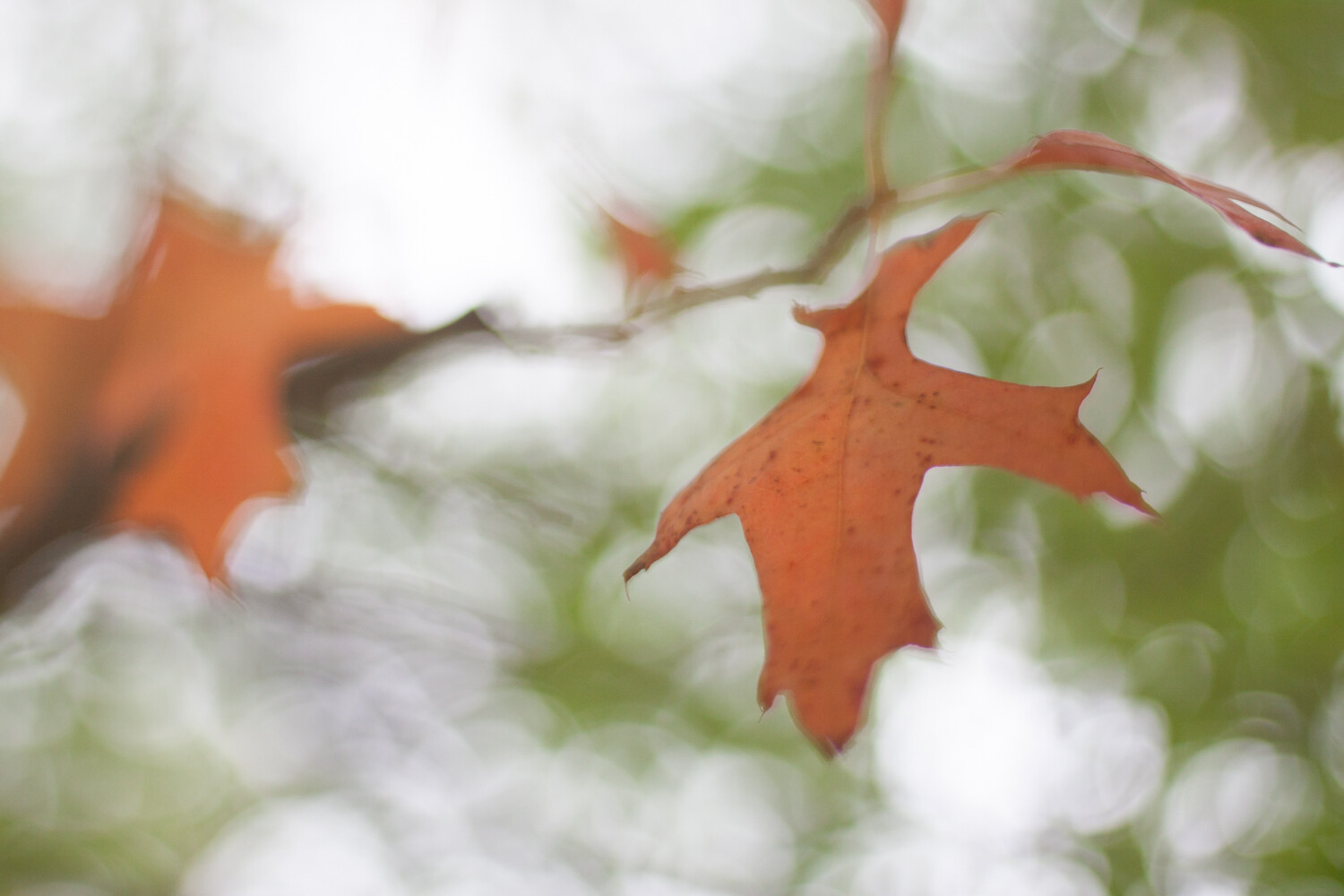
fairy lights photography leaves autumn

The post Creative Macro Photography – Using Fairy Lights appeared first on Digital Photography School.


Digital Photography School
 
Comments Off on Creative Macro Photography – Using Fairy Lights

Posted in Photography


Tips for Using a Reflector the Right Way Outdoors

20 Jul

A reflector is easy to use, right? Just open it and put it under your model’s chin. WRONG!

Using a reflector may seem really simple but most new photographers make one big mistake with them. They put them in the wrong place to make flattering light on their subject.

Tips for Using a Reflector the Right Way Outdoors

In this video from Joe Edelman, see how NOT to do it, and get some tips on how to use a reflector the right way.

Items mentioned in the video:

  • California Sunbounce Mini-Reflector – $ 149
  • 32″ Soft white/silver reflector by Rogue – $ 29.95

Find other dPS articles about reflectors here:

  • 6 Ways of Using Reflector to Take Better Portraits
  • 10 Ways to Use a 5-in-1 Reflector
  • Tips for Using Reflectors to Create Beautiful Portraits
  • DIY How to Build and Use a Reflector to Take Better Portraits
  • Choosing the Right Color Reflector for Your Photography

The post Tips for Using a Reflector the Right Way Outdoors appeared first on Digital Photography School.


Digital Photography School

 
Comments Off on Tips for Using a Reflector the Right Way Outdoors

Posted in Photography