RSS
 

Posts Tagged ‘Uses’

3 Creative Uses of the Drop Shadow in Photoshop

15 Nov
Default-Drop-Shadow

Default Drop Shadow applied to Text

Layer styles are a great way to add effects to your images in Photoshop. In this article, you will learn about the Drop Shadow. A typical example of the drop shadow effect in Photoshop is to add a 3D look to your text. Another example is when working with multiple images in the same document, the cutout elements should appear seamless in the background. A drop shadow effect can also be used in a creative way to make your image stand out.

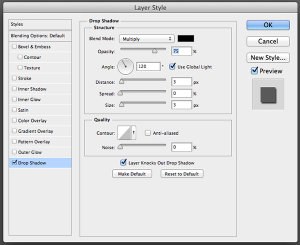
You get into the layer styles in Photoshop, by clicking on the fx icon at the bottom of the layers palette. Then, click on Drop Shadow, this brings up the Drop Shadow Dialog Box.
Drop-Shadow-Dialog-Box

Drop Shadow Dialog Box

Let’s take a minute to look at some of the default settings:

  • The Blend Mode has been changed to Multiply.
  • Opacity has been reduced to 75%.
  • The distance of the shadow from the object is set to three pixels.
  • The Size is what blurs the shadow, it is set to three pixels as well.

All of these settings can be modified within this Dialog Box. For example, you may want to change the angle to 90 degrees so that the drop shadow is directly underneath. If you are new to adding effects in Photoshop.

Getting to grips with layer styles is a good start. These effects are applied non-destructively. I prefer to work with layers so that I have more control over any adjustments that need to be made. I use Gaussian Blur quite a lot which can be found under Filter on the Menu bar. Next, I’m going to show you how to put the drop shadow layer style on its own separate layer.

Beginning with the Drop Shadow Dialog Box already open, click Ok, then go back up to the Menu Bar>Layer>Layer Style>Create Layer. A dialog box appears with ‘Some aspects of the Effects cannot be reproduced with Layers!’ Just click Ok again.

Custom-Drop-Shadow

Custom Drop Shadow

What this does is put the drop shadow on its own separate layer. You can now make modifications non-destructively to the drop shadow using adjustments layers. By moving this layer around, you are creating the distance and the angle of the drop shadow in one movement. Changing this layer to a Smart Object will mean you can add Gaussian Blur or any other filter and this effect will also be applied non-destructively. In the layers Panel, go up to Opacity to reduce the intensity of the drop shadow.

Create a custom creative shadow

You can also create a drop shadow without using the layer styles. When I am working with two or more images, (i.e. compositing) I import an image that has a clipping path or layer mask so that the subject or object has been already isolated or cutout from the background. For example, this image:

Women-at-work

Women at work

The concept behind this image was a play on the men at work theme. Follow along the following steps:

  • Take a photo of your model.
  • The light isn’t important as will be turning your subject into a silhouette.
  • Create a clipping path with the pen tool, then open the destination (in this case the blank street sign) image and copy the path of the model into that image.
  • Next make a selection from the path and fill it with black.
  • Duplicate that layer and name it drop shadow.
  • Now you have two layers with the same black silhouette of your model.
  • Put the layer named drop shadow underneath the silhouette layer.
  • Next using the keyboard shortcut Cmd+T on a Mac(Ctrl+T on a PC), activate the Free Transform tool.
  • By holding down the Cmd key on the keyboard, hover your cursor over the top mid-point until the arrow turns white.
  • Click and drag the shadow out to the left and down.
  • Reduce the opacity to about 32%, convert this layer to a Smart Object, and apply a Gaussian Blur (I used four pixels).

This is a creative drop shadow rather than a realistic one. See the resulting image below.
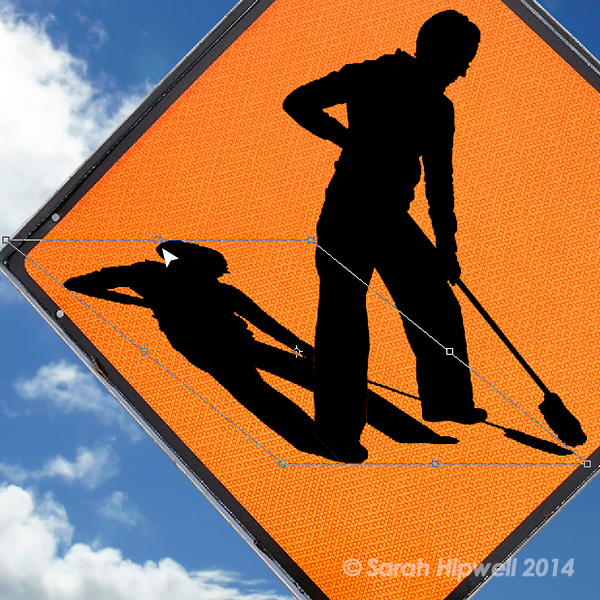
Women-at-work-free-transform

Women at work with free transform handles

Shadows

Shadows will play an important role when working on multiple images, especially if you want the cutout element to look as seamless as possible against the background. Let’s look at creating a more realistic shadow.

In this image of a deserted road, I imported a cutout of the Lego figure. I used a combination of the method used above then created another drop shadow under his feet using layer styles. Follow along to create something similar using your images:

  • Duplicate the Lego figure (or your version of him) and fill it with black to give the long shadow cast by the sun.
  • Reduce the Opacity to about 22%.
  • Click on the fx icon at the bottom of the Layers panel to add the drop shadow layer style. In this image I wanted this drop shadow to be underneath the figure at its feet.
  • Put this shadow on its own layer (see description above) and convert it to a Smart Object.
  • Paint away the shadow on the body using a layer mask and then apply some Gaussian Blur, but not too much.
  • Reduce Opacity to 70%.
  • Shadows around the feet area will be darker and not as large as other shadows. The Lego figure now looks anchored to the image as opposed to floating in it.
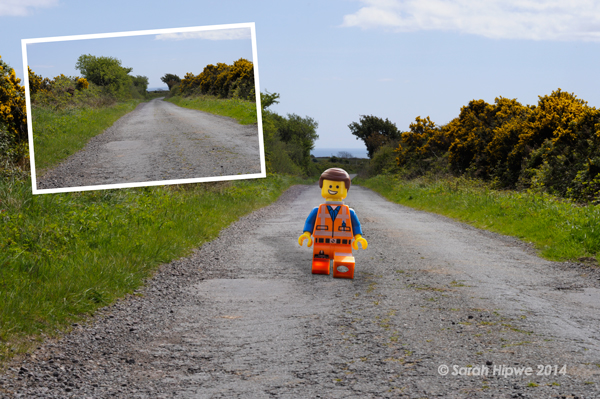
Lego-figure

Lego figure

In summing up, the drop shadow is a very useful effect and can greatly enhance your imagery. For realistic shadows take note of the direction and the type of light. Is the sun shining overhead or is it over to the right? Morning and evening light will have longer shadows than in the middle of the day. Gaussian Blur and Opacity will be your allies here.

Do you have any other drop shadow tips or creative uses of them?

The post 3 Creative Uses of the Drop Shadow in Photoshop by Sarah Hipwell appeared first on Digital Photography School.
Digital Photography School

 
Comments Off on 3 Creative Uses of the Drop Shadow in Photoshop

Posted in Photography


Three Uses for High ISO you Might Not Know

25 Jun

You may already know that the ISO setting is used to control your camera’s sensitivity to light. When you use a high ISO setting essentially you are telling your camera to become more receptive to the available light. This is most often used when you are photographing in low light situations in order to maintain a proper exposure. However, there are at least three other reasons you might consider using a high ISO setting when you’re either in a good light situation or on a tripod.

Freezing fast motion

when to us high ISO

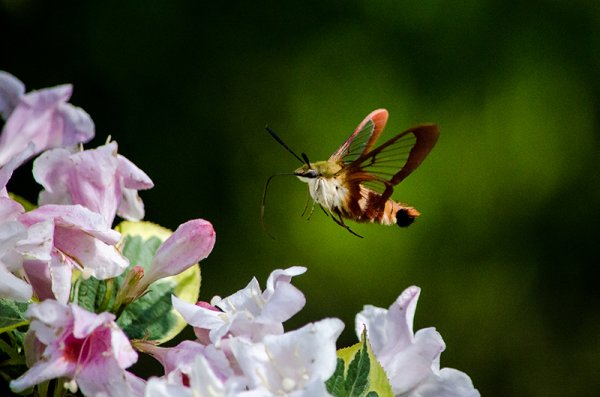
Use a high ISO setting to freeze fast motion – 1/8000th ISO 1,000

The only way to freeze fast motion, like the wings of a hummingbird moth, is to shoot with an extremely fast shutter speed. The above photograph was shot with a shutter speed of 1/8000th of a second in order to freeze the insect’s wings. However, even in the bright mid-afternoon sun, a shutter speed that fast required bumping the ISO setting on the camera to 1,000 to maintain an even exposure.

Below, is an example of why shooting at 1/8000th of a second was necessary. Even at 1/800th of a second the insect’s wings were barely visible. In order to ensure that the motion was frozen it meant that more light was needed in a shorter amount of time and the only way to get this (without a faster lens) is to bump up the ISO on the camera.

when to us high ISO-4

ISO 500 1/800th – even at that speed the wings are blurry.

Night sky photography

when to use high ISO 4

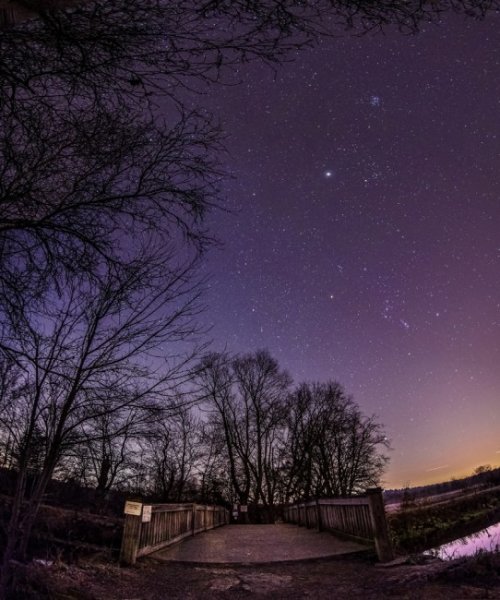
Use high ISO to capture the stars

Many different techniques come into play when you want to photographing the stars, but one of the more important things to remember is to increase that ISO setting. The reason you want to photograph the stars with a higher ISO, even though you’re using a tripod, is that as the earth rotates, the stars move across the sky and you don’t want to capture that movement in your photograph (unless you are doing star trails)

By using an ISO in the 800 to 1,000 rang,e with a fast wide-angle lens, you will be able to capture enough stars to fill the sky.  For more on photographing the stars check out: How to Photograph the Stars.

Hand-holding a long lens

when to us high ISO-3

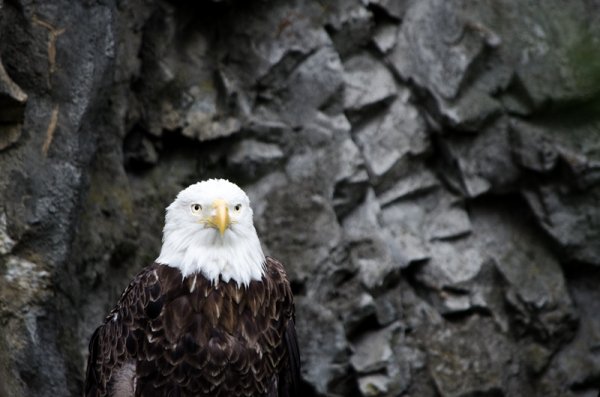
Use high ISO when shooting handheld with a long lens

If you’re shooting handheld with a long lens, you have to remember the shutter speed rule: 1/focal length (35mm equivalent).  This rule basically means that if you’re using a 300mm lens on a 1.5x crop factor DSLR then the minimum or slowest shutter speed that you can use is 1/450 (1/300 on full frame).

The bald eagle above was shot at a 450mm equivalent focal length using a shutter speed of 1/500th of second and an ISO of 1,000. Any slower on the shutter speed and you begin to run the risk of introducing camera shake.

What other uses can you think of for high ISO?

Do you ever shoot with an ISO of 800 or higher? What’s the highest you’ve ever shot? Share with us some examples and of course, if you have any other uses for high ISO that you think I’ve forgotten please share those below as well!

The post Three Uses for High ISO you Might Not Know by John Davenport appeared first on Digital Photography School.

Digital Photography School

 
Comments Off on Three Uses for High ISO you Might Not Know

Posted in Photography


Urban Jungle Street View: 3D Hack Uses Hidden Depth Data

26 Mar

[ By WebUrbanist in Gaming & Computing & Technology. ]

urban jungle street view

An explicitly illicit use of dimensional data buried in Google Street View, the Urban Jungle project adds eerie layers of post-apocalyptic green overgrowth to major cities around the world.

animated-new-york-city

urban jungle side street

As in Google Maps, a user can simply drag and drop their tiny avatar in a location of their choosing, then explore a plant-infested, tree-filled, vine-covered alternate version of reality. Click here to start exploring.

urban jungle street maps

From its creator: “This experiment using an undocumented part of Street View, the depth data. With that a depth map and a normal map is generated, which can be used in the shaders and to plot geometry and sprites in (almost) the correct position in 3d space.”

animated-street-jungle-view

street trees vines plants

Despite a glitch here or there, most locations and settings are shockingly convincing, looking like something that was lovingly crafted in incredible detail for a game (or an artist’s rendition of life after the apocalypse).

animated-time-square-signs

street view urban jungle

This otherworldly effect could just be the beginning – you too can grab the depth data at GitHub and create your own surreal landscapes or otherwise-hacked environments (samples via GMM, PSFK & PK).

Share on Facebook


[ By WebUrbanist in Gaming & Computing & Technology. ]

[ WebUrbanist | Archives | Galleries | Privacy | TOS ]


WebUrbanist

 
Comments Off on Urban Jungle Street View: 3D Hack Uses Hidden Depth Data

Posted in Creativity


3 Uses for the Radial Filter Tool in Lightroom 5

02 Feb

One of the most powerful new tools in Lightroom 5 is the Radial Filter tool. Here are a few examples of how you can use this tool creatively inside your workflow to help draw attention to your subjects. If you don’t have Lightroom5, you can use multiple graduated filters to draw attention, but it’s not as easy, and the results can be hit or miss.

#1 – Off-center vignetting (beginner tip)

Let’s face it, Lightroom’s post-crop vignette leaves a lot to be desired, especially if you want your vignetting effect to be applied a bit off-center, allowing you to draw focus towards your subject.

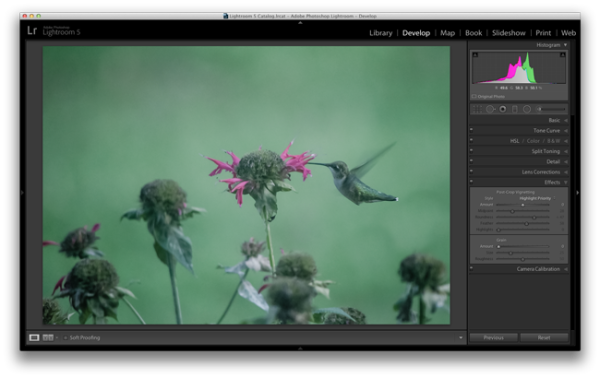
Let’s look at an example and see how the radial filter tool compares to the post crop vignetting effect of old.

Hummingbird-before

Original photo with no effect

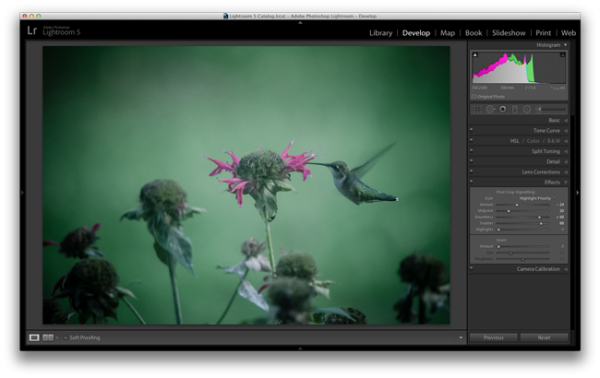
PostCropVignette

Post-crop vignette applied

With the post-crop vignetting tool what you’ll immediately notice is that the effect occurs out from the midpoint of the frame ,and there is no way to off-set this midpoint so that you would be able to have a more customized effect.

Enter the Radial Filter Tool…

Radial-Filter-Vignetting

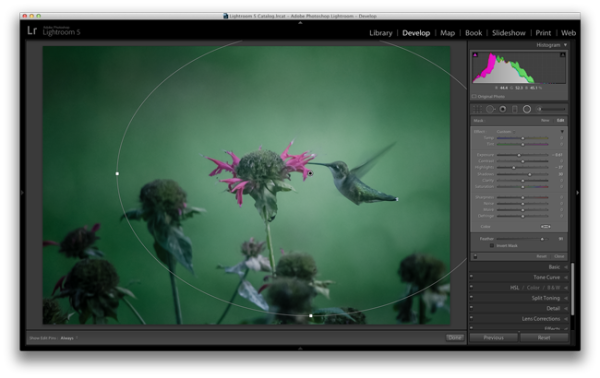
To apply a Radial Filter press Shift+M on your keyboard or select the circular icon below the histogram. This will open up a drop down filled with a handful of sliders. If you’re familiar with Lightroom’s other filters this won’t seem all that foreign to you. To add a filter to your image click and drag it into your image. You don’t have to worry about sizing it properly right away as you can always resize, move, and rotate it later within the image.

Applying the vignetting effect is going to depend a lot on your own style and the image you are processing, but the three sliders that you will want to typically play around with are: exposure, highlights and shadows. In the photograph above, a strong vignette was applied by dropping both the exposure and highlight sliders down, but the shadows slider was raised slightly to compensate for the drop in the other two just a bit. With that said, this is something that you’ll want to play around with on your own images and find out what works for them and your own personal taste.

#2 – Adding highlights and brightness to draw attention (mid-level tip)

While adding your standard vignette is all fun and great, there’s more power to this tool than that, so let’s step it up a notch and take a look at another way you can draw attention to your subject with a Radial Filter.

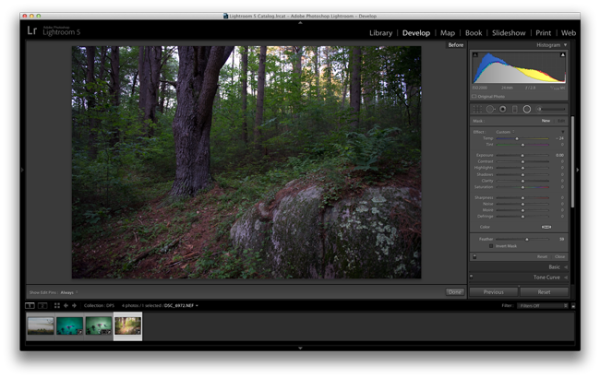
Take this rather boring photograph that I snapped while on a hike through the forest for example.

Invert-Radial-Filter-Before

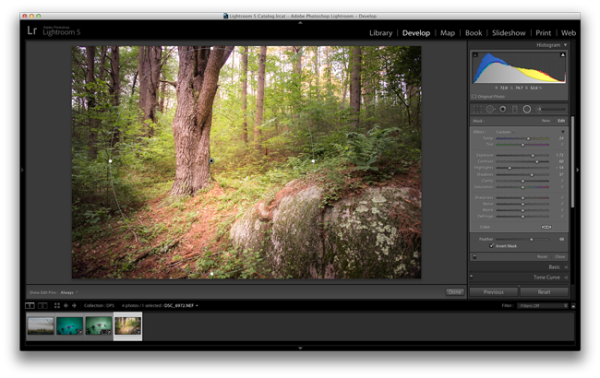
By applying a Radial Filter and some other Basic Tab modifications I was able to liven the shot up quite a bit and draw attention to the large tree that had caught my eye while on the hike.

invert-radial-filter

To achieve this result you’ll want to once again add a Radial Filter to your image, but this time make sure you check the “Invert Mask” checkbox. This checkbox allows the effect of the filter to be applied from the middle of the filter instead of from the edges of the image.

Again, this is another area where artistic choice is left wide open, but you can see how the tool is more powerful than simply a vignette effect creator. You have the power to control more than just the brightness of the edges of your frame, as seen above, where there are contrast and temperature adjustments happening inside this filter allowing for a more dramatic look.

#3 – Stacking multiple radial filters for more dynamic results (advanced tip)

Finally, once you’ve mastered one radial filter, you might try stacking more than one filter to create even more dynamic results. To add a second filter to an image simply click “New” and then click and drag within your image as you’ve done before. Each filter can be controlled and selected individually by clicking on its respective dot (gray for unselected, black for selected). By having individual control over each radial filter you can really start to draw your viewer’s eye where you want it to go.

As an example, let’s look at where I left off on the hummingbird photograph from earlier.

Radial-Filter-Vignetting

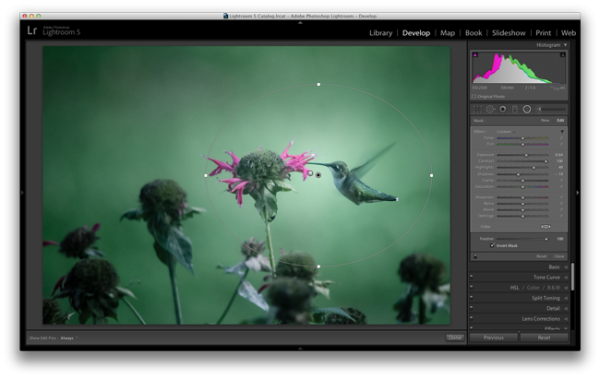
The original radial filter does a nice job of darkening the sides of the photograph and applying a fairly generic vignetting effect to the photo, but what else can be done?

radial-filter-tool-stacking

By applying a second radial filter to the image and using the invert feature that I talked about above, I’m able to add a small bright point right at the meeting of the bird’s beak and the flower.

What creative ways have you used the Radial Filter Tool?

Have you had time to play around with the new Radial Filter tool yet? What other creative ways can you think of using it? Share below in the comments section.

The post 3 Uses for the Radial Filter Tool in Lightroom 5 by John Davenport appeared first on Digital Photography School.


Digital Photography School

 
Comments Off on 3 Uses for the Radial Filter Tool in Lightroom 5

Posted in Photography


Dubble app uses crowdsourcing to create double exposures

25 Oct

dubble.png

Dubble, a new community-based photography app takes the concept of double exposures — either a trick or a mistake in which photographers expose a roll of film twice, thereby layering two images in a single frame — and applies it to your smartphone, with a crowdsourcing twist. We take a closer look at Dubble on connect.dpreview.com.

News: Digital Photography Review (dpreview.com)

 
Comments Off on Dubble app uses crowdsourcing to create double exposures

Posted in Uncategorized


Do the robot: ‘Locomotion lab’ uses Zeiss lenses to capture motion

06 Aug

Makro_Planar_Lauflabor_Bild01-622x417.jpg

Photographic pioneer Edward Muybridge was fascinated by motion, and today, scientists at the Locomotion Lab of the Friedrich Schiller University of Jena continue to use cameras to research how we walk. As well as looking at human and animal movements, they’ve also created ‘walking robots’, and are capturing their movement using high-speed cameras. According to Zeiss’s blog, the researchers are using the ZEISS Makro-Planar T* 2/50 ZF.2 lens attached to Vosskühler HCC-1000 cameras, which are capable of 923 fps, at 1024 x 512 pixel resolution. Click through for more details. 

News: Digital Photography Review (dpreview.com)

 
Comments Off on Do the robot: ‘Locomotion lab’ uses Zeiss lenses to capture motion

Posted in Uncategorized


‘Liking Isn’t Helping’ – ad campaign uses jarring press photos to spur action

03 Jul

flood_1.jpg

It’s all very well ‘liking’ a charitable cause on Facebook, but what difference does it make? Crisis Relief Singapore is running an ad campaign called ‘Liking Isn’t Helping’ which uses photos showing victims of war and natural disasters to encourage volunteerism – with an ironic twist. The images are composites of real press photos and Facebook-style thumbs ups, accompanied by the message that ‘Liking isn’t helping’. Click through for more details.

News: Digital Photography Review (dpreview.com)

 
Comments Off on ‘Liking Isn’t Helping’ – ad campaign uses jarring press photos to spur action

Posted in Uncategorized


Sun-Times photographer uses iPhone to document life after layoffs

05 Jun

hug.jpg

Rob Hart was amongst the 28 members of the Chicago Sun-Times photography staff laid off last week. He’s been pointedly documenting his experience via Tumblr ever since, deliberately opting to use his iPhone over his Nikon D3 because, as he says of himself in his blog, he was “replaced with a reporter with an iPhone, so he is documenting his new life with an iPhone, but with the eye of a photojournalist trained in storytelling.” We spoke to him about it for connect.dpreview.com.

News: Digital Photography Review (dpreview.com)

 
Comments Off on Sun-Times photographer uses iPhone to document life after layoffs

Posted in Uncategorized


Spectral Studio: 20 Sq M Space Uses Light & Dark as Decor

20 May

[ By WebUrbanist in Design & Fixtures & Interiors. ]

illuminated apartment

In an Paris apartment with just over 200 square feet, it is almost impossible to imagine anything but the more bare essentials resulting a boring space. But that is where illumination enters the equation, flooding in to add depth and complexity to this abode. This, then, is a short story of light.

illumination study axon existing

The architects, Betillon | Dorval?Bory, examined the limited space available architecturally, but also scientifically, testing the type and quality of the natural light to be found (and then suggesting what should be carefully introduced) across the existing interior zones.

illuminate room two tone

A single wall was introduced, dividing the main bedroom area from daytime activity spaces like the kitchen, but not just (nor even primarily) as a visual barrier – it was intentionally and most-importantly designed to be a backdrop for two types of light.

illuminated night sleeping area

On the ‘night’ side: a diffused orange streetlamp glow of the after-hours city that we associate with evening, which washes the walls in a more monochromatic direction (suited for sleeping and showering). On the ‘day’ side, a pure all-purpose white of the kind found in active spaces like offices – one which allows us to see things in black and color as well (suited for cooking and gathering).

illuminated flat natural daylight

Notably, the ‘night’ side lights can also be turned off (or overpowered by daylight), allowing the entire place to ‘open’ into a single space. If there is a lesson to be learned here, it is that physical objects are not the only things that form (or inform) the nature of space. Spatial variety can come via intangible elements like illumination, which in turn can serve equally powerful functions in fleshing out a space – particularly a small place with little room for solid decor.

Share on Facebook


[ By WebUrbanist in Design & Fixtures & Interiors. ]

[ WebUrbanist | Archives | Galleries | Privacy | TOS ]


WebUrbanist

 
Comments Off on Spectral Studio: 20 Sq M Space Uses Light & Dark as Decor

Posted in Creativity


Photographer uses Google Drive to share full resolution images on Google+

22 Mar

GooglePlus.png

Frustrated by size limitations when uploading images to Google+, photographer Trey Ratcliff discovered a way to get around the limitations, and upload original full-resolution photos. In a blog post, he has put together a step-by-step guide on how to do it, which involves using Google Drive – Google’s cloud storage service – and sharing images directly from there to Google+. Click through to read about how – and why – he did it. (via Reddit)

News: Digital Photography Review (dpreview.com)

 
Comments Off on Photographer uses Google Drive to share full resolution images on Google+

Posted in Uncategorized