RSS
 

Posts Tagged ‘used’

An Introduction to Buying Used Lenses

23 Jun

A Guest Post by Jeff Guyer.
DSC 0726

Let’s face it– photography is an expensive hobby and an even more expensive profession. Camera bodies, speedlights, reflectors, memory cards, lighting equipment, backdrops, batteries, stands, hard drives, tripods, back-ups, gear bags, hard cases, the latest gizmo or gadget-that-you-seriously-cannot-possibly-live-without…and don’t forget the glass. Next to the camera itself, quality lenses make up the most expensive part of just about any gear closet.

In an ideal world money would be no object and pesky things like gear budgets would be non-existent, paving the way for me to purchase all of the shiny, brand-new lenses I could possibly want (“Hi, Nikon? I’ll take one of everything!”). The reality, though, is that I have to balance my lust for gear against how many meals my rapidly growing 12-year-old son gets to eat each week. The truth is, the buying and selling of used lenses has almost become an industry unto itself. There are a lot of high-quality second-hand lenses out there, which means you can satisfy your “need” and still save a good bit of money if you’re smart.

Where to begin? Well, there’s nothing for you to buy if you don’t hook up with…
DSC 0710

The Right Kind of Seller

Even though it should go without saying, I’m going to say it. Do your homework! It’s not enough to know everything about WHAT you want. You may have read all about the sweet spot on the Nikkor 24-70 f/2.8, or the minimum focus distance of the Canon 70-200 f/2.8 L-Series, but when you’re getting ready to drop a significant chunk of your hard-earned money on a lens, you need to find out everything you can about the person selling it.

If you’re contemplating a face-to-face transaction, ask around. Get references or referrals if you can. In this day and age of Facebook, Twitter, and Google+, chances are good that buyer and seller each know someone in common. If you’re buying on ebay, carefully check the seller’s feedback and ratings, particularly the comments. Also take a few minutes to compare the price against other auction sites and even that of a new lens.

Although I have purchased lenses on ebay with excellent results, it is generally not my first choice. After all, the first time you are going to have the lens in your hands is after you’ve already paid for it. Unless the seller has blatantly lied about the condition, you’re stuck with it (and sometimes even if they have). It’s entirely possible that what has been advertised as “minor wear” is actually a much larger scratch than you’re willing to overlook. I tend to be kind of nitpicky in that department, which just one of the reasons why I recommend buying used lenses in person whenever possible.

Try buying locally if you can. First, if you and your seller travel in the same circles, you exponentially increase your odds of an honest, above-board transaction. Nobody is going to risk their reputation over a used lens. Another important benefit to purchasing locally is the fact that you can have an actual visual and physical examination of the lens before you buy it. Being able to check it out and– more importantly– put it on a camera and test it are going to be the two most important factors in your decision to actually buy the lens. Never, ever underestimate these advantages.

DSC 0713

The Physical Exam — What to Look For

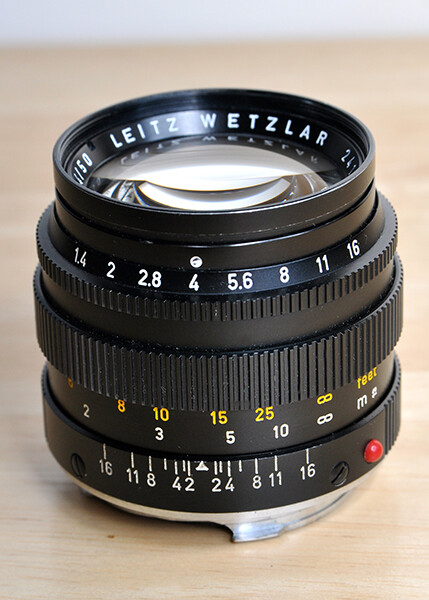
For starters, a quality lens is just going to feel good in your hands. Take a minute or two to look for anything obvious– dings, scratches, or any places where the finish may have rubbed off from excessive or careless use. Are the rubber grips on the zoom and focus rings snug and intact? Do the rings turn smoothly? How are the filter threads? Are switches intact and functioning properly? Only you can decide for yourself how much is too much, but remember that what you see on the outside is usually indicative of the care with which the original owner treated the lens. Also keep in mind that the finish on a quality lens should not rub off, regardless of age and proper use.

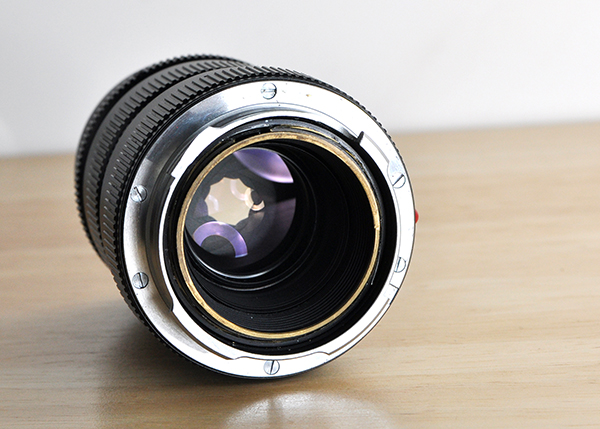
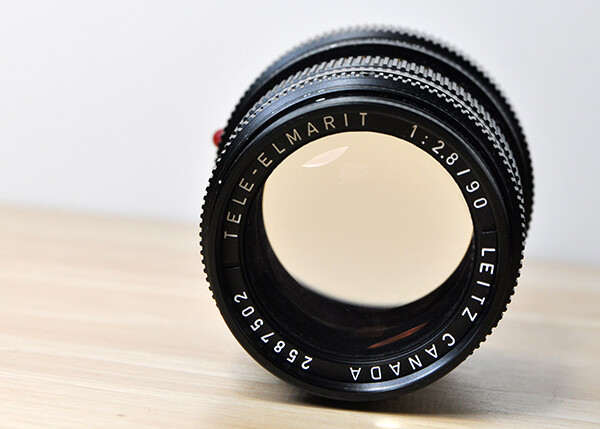
Next check the front element, preferably in bright light. Hold the lens against the light at different angles, checking the glass and coating for any scratches or other imperfections. Some of these imperfections MIGHT not necessarily affect image quality, but they should absolutely be a factor in negotiating the price. If the lens has an aperture ring, open it all the way and try looking straight through it like a telescope. Do you see any dust, mold, or anything else that shouldn’t be inside your potential investment?

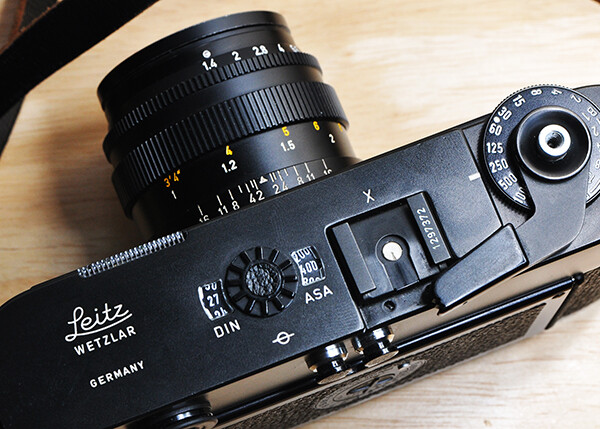
Now turn it around and check the mount. Is it clean? Are there any scratches? Is it bent or seemingly out of alignment in any way? Are the contacts clean and in good condition? Remember that this point of connection is the only thing that lets the camera communicate with the lens. This is where it can all go wrong if you’re not careful. Any of the imperfections discussed so far might not necessarily be deal-breakers, but any problems whatsoever with the mount should be. Just walk away.

The Fungus Among Us

If you’ve read enough ebay auctions or classified ads for used lenses, you’ve been assured that the object of your lust and desire is free of not only dust and other particles, but fungus and mold as well. That’s great, but how would you know? The fungus/mold issue comes up most often in the case of older lenses in particularly humid climates. Early stages will resemble those dried water spots on your bathroom mirror, while more advanced stages can look like spider webs. If you see this, do not even think about attaching this lens to your camera. Fungus and mold are living organisms and can spread, both to your camera and other lenses that are subsequently mounted to it.
DSC 0689

Test It!

If you’ve purchased used lenses before, chances are you either didn’t test it at all, or if you did test it, you probably took a few random shots in the parking lot where you met the seller to make sure the auto-focus was working and that something actually showed up on your camera’s LCD. Don’t sell this part of the process short. Take a methodical approach.

You’ve changed lenses enough times to know how it should feel. Does the lens turn smoothly or does it feel like you’re forcing it? Is it too tight? Too loose?

Now shoot. I’m not talking about two or three shots. I’m talking about 100 shots. To really put this potential purchase through its paces you need to take close, mid-range and far focus images at multiple apertures, and in small increments along the entire zoom range of the lens. Was that spot there at f/16 or only at f/2.8? A problem that shows up at 200mm might not manifest itself at 70mm. Try manual focus. Listen for strange noises. Shoot something dark. Shoot something light. Does the auto-focus sound right? Do you hear anything rattling around inside the lens?

Check The Images

Even people who are careful about testing used lenses before they buy them hardly ever think to bring a laptop with them so they can get a good look at the test shots. We all know that the LCD is an unreliable indicator of image quality when we are photographing for our clients, so why should you automatically trust it when you’re about to hand over your cash to a stranger? If the seller really is on the up-and-up they won’t mind sticking around for a few extra minutes while you check the image quality against the only standard that really matters– your own two eyes.

A Special Note to Vintage/Film Camera Collectors

When lenses sit unused for an extended period of time, the special oil used to ensure that aperture blades move smoothly can leave shiny spots on the blades and cause them to stick. It will usually be visible on the blades as you adjust the ring, but if the lens has a depth-of-field preview switch, adjust to the smallest aperture and press the DOF preview button. Properly functioning aperture blades will snap smoothly into place without sticking.
DSC 0732

The Bottom Line

I know we all love the excitement of opening new boxes from B&H and Adorama. It would be a mistake, however, to avoid well-cared-for lenses just because they’re previously owned. Nikon, Canon, Tamron, Sigma and the others spend a great deal of time and money researching and producing lenses which are made to last. If you take a smart, methodical approach there is no reason why one of these previously used lenses can’t find a valuable, productive spot in your camera bag.

Jeff Guyer is a photographer based in Atlanta, GA. In addition to shooting portraits, architecture, sports, weddings, and just about anything else that pauses in front of his lens, he also teaches a Digital Photo Challenges class for kids. Follow him on Facebook at http://www.facebook.com/guyerphotography or on Twitter @guyerphoto

Post originally from: Digital Photography Tips.

Check out our more Photography Tips at Photography Tips for Beginners, Portrait Photography Tips and Wedding Photography Tips.

An Introduction to Buying Used Lenses


Digital Photography School

 
Comments Off on An Introduction to Buying Used Lenses
Posted in Photography


10 Shortcuts of the Commonly Used Features in the Library Module of Lightroom 4

02 May

Introduction

This tutorial has been transcribed from the SLR Lounge Lightroom 4 Workshop on DVD, a 14 hour Lightroom 4 A – Z guide with over 130 tutorials for mastering Lightroom from start to finish. The Digital download can be purchased from SLR Lounge while the physical copy is available through Amazon Prime.

Overview

This quick article will go over 10 shortcuts of the commonly used features in the Library Module of Lightroom 4. Knowing these simple shortcuts can greatly speed up your workflow!

(Note:  Apple users, just pretend that “CTRL” is “CMD”.  😉

1. Lightroom 4 Module Shortcuts

There are a total of 7 Modules in Lightroom 4 and each corresponds with numbers 1-7. To switch to a Module, hit “Ctrl + Alt + 1-7.”

“1” is the Library Module, “2” is the Develop Module, “3” is the Map Module, and so forth. For example, if you want to go to the Develop Module, hit “Ctrl + Alt + 2.”

01_lightroom-module-shortcuts

Another quick way to get to the Develop Module is by simply hitting “D.” You can also get to the Library Module through the different Library View Modes, which brings us to our next shortcut.

2. Library View Modes

There are 4 Library View Modes in Lightroom 4: Grid View Mode, Loupe View Mode, Compare View Mode, and Survey View Mode. To access the Grid View, hit “G.” To get to the Loupe View, hit “E.” Hit “C” for Compare View and “N” for Survey View. If you are in a module other than the Library Module, hitting any 4 of these Library View Mode shortcuts will bring you back to the Library Module.

3. Import/Export Shortcuts

To import images into Lightroom, hit “Ctrl + Shift + I.” This will bring up the Import Dialogue Box. Hit “Ctrl + Shift + E” to bring up the Export Dialogue Box to export your images out of Lightroom.

4. Photoshop Shortcut

Sometimes we need to finish editing our images in Photoshop. We can take our images from Lightroom into Photoshop by selecting the image and then hitting “Ctrl + E.” Once you are done with your image in Photoshop, hit “Ctrl + W.” This will bring you back into Lightroom, where you will see both your Photoshop copy and Lightroom copy of your image in your Lightroom catalog.

5. Left/Right Panels Shortcuts

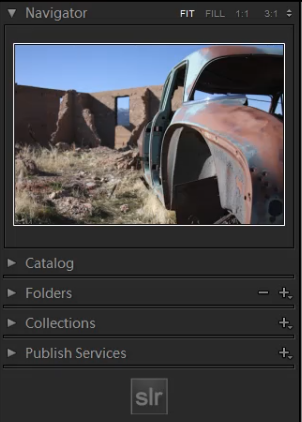
The boxes on the right and left sides of Lightroom 4 are referred to as Panels. Like the Modules, the Panels also correspond to a number. The Left Panels correspond with the numbers “0-4” and include the Navigator Panel, the Catalog Panel, the Folders Panel, the Collections Panel, and the Publish Services Panel.

To expand or collapse a Left Panel, hit “Ctrl + Shift + 0-4.” The Navigator Panel is “0,” the Catalog Panel is “1,” the Folders Panel is “2,” and so on. Below, you can see that only the Navigator Panel is expanded and the remaining Panels are collapsed.

02_lightroom-left-side-panels-shortcuts

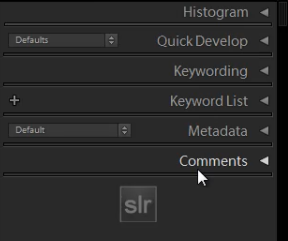
The Right Panels correspond with the numbers “0-5.” To expand or collapse a Right Panel, hit “Ctrl + 0-5.” The Right Panel includes the Histogram Panel, the Quick Develop Panel, the Keywording Panel, the Keyword List Panel, the Metadata Panel, and the Comments Panel. The Histogram Panel is “0,” the Quick Develop Panel is “1,” the Keywording Panel is “2,” and so forth. As you can see below, none of the Panels have been expanded.

03_lightroom-right-side-panels-shortcuts

6. Target Collection Shortcuts

Since we just discussed the Panels shortcuts, we will go over a Target Collection, which can be found in the Collections Panel (“Ctrl + Shift + 3”) in the Left Panel. A Target Collection is a useful tool because it helps us organize our photos quickly by using a hotkey. You can set a previous collection as the Target Collection, or you can create a new collection and set it  as the Target Collection.

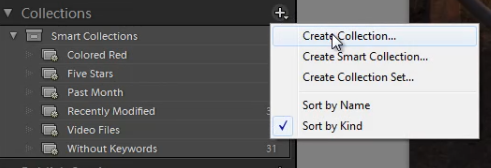
To create a new collection, click on the “+” sign next to Collections in the Left Panel. Select “Create Collection.”

04_create-new-collection

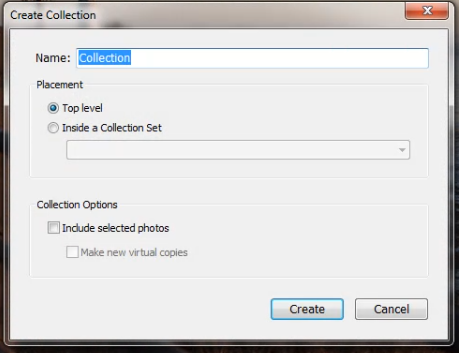
Once you have hit “Create Collection,” the Create Collection Dialogue Box will appear. Once you have named your collection, hit “Create.”

05_create-collection-dialogue-box

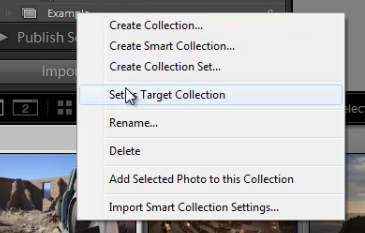
Right-click on a collection and hit “Set as Target Collection” to set the collection as your Target Collection.

06_set-as-target-collection

Once you have selected a collection to be your Target Collection, a “+” sign will appear next to the collection you have selected to remind you which collection is your “target” for the Collection hotkey. Now, simply hit “B” to add any image to your Target Collection!

For example, you might have created a collection for your portfolio images. Set that collection as your Target Collection, and then whenever you are looking through your latest photo shoot and you see one that is portfolio worthy, just hit “B” to add it to your portfolio!

7. Rotate Left/Right Shortcuts

To rotate multiple images at once, go to the Grid View (“G”). Once you are in the Grid View, select your images by holding down “Ctrl” while clicking on your images. To rotate your images to the left, hit “Ctrl + [.” To rotate your images to the right, hit “Ctrl + ].” You can also rotate individual images by using the same shortcuts.

8. Flag Shortcuts

Some people use flags as their culling system. For example, selecting an image as a pick means that we will deliver the image. Rejecting an image means that we will not deliver the image. Simply hit “P” to flag an image as a “pick.” If you want to remove the flag, hit “U.” To reject an image, hit “X.”

Or, to simply increase or decrease the flag status of an image, just hit Ctrl and either the up or down arrow.  This is by far the fastest way to go go from image to image and flag keepers (with just one hand!) by using the left and right arrows to navigate and the Ctrl-up/down key combination to pick or reject your images…

9. Star Rating Shortcuts

The following are the shortcuts for the Star Rating in Lightroom 4.

  • “1” = 1 star
  • “2” = 2 stars
  • “3” = 3 stars
  • “4” = 4 stars
  • “5” = 5 stars

Simply select an image and hit “1-5” to give the image a star rating. To reset Star Ratings on your images, hit “0.”

10. Color Label Shortcuts

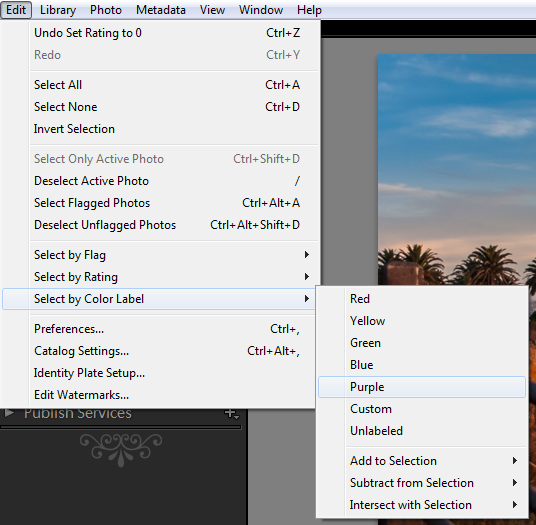
The Color Labels in Lightroom 4 correspond with the numbers six thru nine. Red is “6,” Yellow is “7,” Green is “8” and Blue is “9.” There is also a Purple Color Label but to label an image Purple, you need to go into the Edit Menu, as shown below.

07_lightroom-purple-color-label

If you want to remove a Color Label, hit the corresponding number again. So for example, if your image is already color labeled Green, hit “8” again to remove this Green Color Label.

Learn More with the Lightroom 4 Workshop Collection!

This was a sample tutorial from the Lightroom 4 A to Z DVD which is one of the DVDs in the Lightroom 4 Workshop Collection. A collection of nearly 30 hours of video education teaching everything from Lightroom basics to advanced raw processing techniques.

The LR4 Workshop Collection also includes the critically acclaimed Lightroom 4 Preset System which is designed to enable users to achieve virtually any look and effect within 3-5 simple clicks. From basic color correction, vintage fades, black & white effects, tilt-shift effects, faux HDR, retouching, detail enhancing, and so much more. Click the links above to learn more.

Post originally from: Digital Photography Tips.

Check out our more Photography Tips at Photography Tips for Beginners, Portrait Photography Tips and Wedding Photography Tips.

10 Shortcuts of the Commonly Used Features in the Library Module of Lightroom 4


Digital Photography School

 
Comments Off on 10 Shortcuts of the Commonly Used Features in the Library Module of Lightroom 4

Posted in Photography


Abandoned Tunnel Used for Secret Race Car Testing

19 Apr

[ By Steph in Abandoned Places & Architecture. ]

Secret Racing Tunnel 1

Locals in the area of Donegal, Pennsylvania would often scratch their heads at the reverberating sounds of roaring car engines and squealing tires seeming to come from beneath a nearby mountain in 2003. Hidden just under a layer of earth and trees was the Laurel Hill Tunnel, a former part of the state turnpike system, but it had lain abandoned since 1964. Then, people started seeing NASCAR haulers, equipment and supplies coming through the area. Was there a connection?

Secret Racing Tunnel 2

(images via: wikimapia, Laurel Hill Tunnel Facebook)

Sure enough, there are cars tearing through that tunnel at top speeds, but it isn’t some kind of secret underground theme park for race car drivers. It’s a test site for the study of aerodynamics. Hikers investigating the site found that the tunnel has a new, tubular steel entrance with dual garage openings, and discovered discarded barrels of motor racing fuel of the sort used by NASCAR. But for years, the suspected users of the site wouldn’t acknowledge its existence.

Only in recent months has the Chip Ganassi Racing team been willing to confirm the rumors that have been swirling since 2004, and explained a little more about the purpose of the tunnel. Team leader Ben Bowlby told Racecar Engineering Magazine that the tunnel happens to be an ideal place for IRL (Indy Racing League) testing in a straight line in a wind tunnel, with total control over wind resistance and other environmental factors, using a full-sized racing car. The car zooms through the tunnel at a set speed and the wind forces are measured.

Secret Racing Tunnel 3

The tunnel in 1942 and 2012. (images via: wikimedia commons, Laurel Hill Tunnel Facebook)

This straight-line testing has been considered a key to success in the Indy Racing League since track testing was banned in 2004. The facility includes a 460 meter (1509-foot) acceleration zone, with a total length of 1384 meters (4,541 feet.) While the tunnel has provided a virtually ideal environment for testing, it hasn’t been without its snags: there have been several crashes. Learn more about the logistics and see drawings of the inside of the tunnel at Racecar Engineering Magazine.

Share on Facebook


[ By Steph in Abandoned Places & Architecture. ]

[ WebUrbanist | Archives | Galleries | Privacy | TOS ]


WebUrbanist

 
Comments Off on Abandoned Tunnel Used for Secret Race Car Testing

Posted in Creativity


DxO launches DxOMark Mobile – device IQ analysis as used on Connect

16 Oct

DxOLogo.png

DxO Labs has announced ‘DxOMark Mobile’ – its assessment of mobile phone image quality that will support mobile device reviews on connect.dpreview.com. In its first group of tests, DxO has found that the best contemporary mobile devices (in this case the Nokia 808 PureView, with its large sensor) will out-perform a 5-year-old high-end compact camera. And when it comes to video, the Samsung Galaxy SIII will trump last year’s Canon PowerShot S100. DxOMark Mobile will analyze 14 aspects of mobile imaging and produce a final score that will be comparable to existing DxOMark figures. We’ll be reporting DxOMark Mobile figures alongside our overall scores in connect reviews.

News: Digital Photography Review (dpreview.com)

 
Comments Off on DxO launches DxOMark Mobile – device IQ analysis as used on Connect

Posted in Uncategorized


HDR used properly is appropriate for photojournalism, says Unified Color’s Omvik

06 Feb

WP.jpg

Are High Dynamic Range photos appropriate for illustrating news? That’s the debate that’s been started by the Washington Post’s use of an HDR image on its front page in January. Sean Elliot, president of the National Press Photographers Association came down firmly against it, saying, ‘HDR is not appropriate for documentary photojournalism.’ John Omvik, Marketing VP with HDR software maker Unified Color understandably disagrees. He’s written us a response arguing that what we see is closer to HDR than, say, a mono photo shot with Tri-X film.

News: Digital Photography Review (dpreview.com)

 
Comments Off on HDR used properly is appropriate for photojournalism, says Unified Color’s Omvik

Posted in Uncategorized


Kris Verdonck – EXHIBITION #1 – Warehouse of machinery, used in performances / installations (1995 – present)

22 Dec

Check out these visual art images:

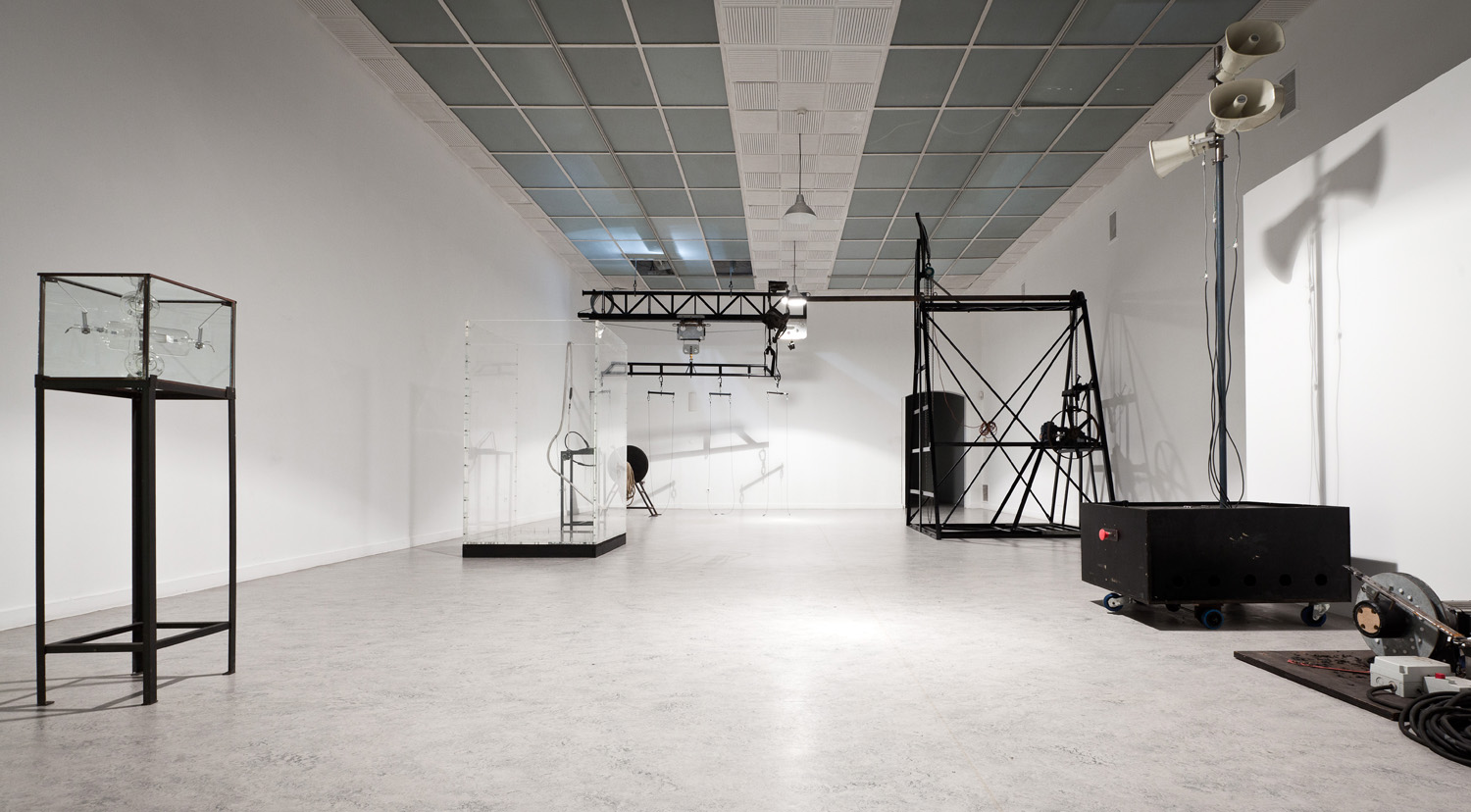
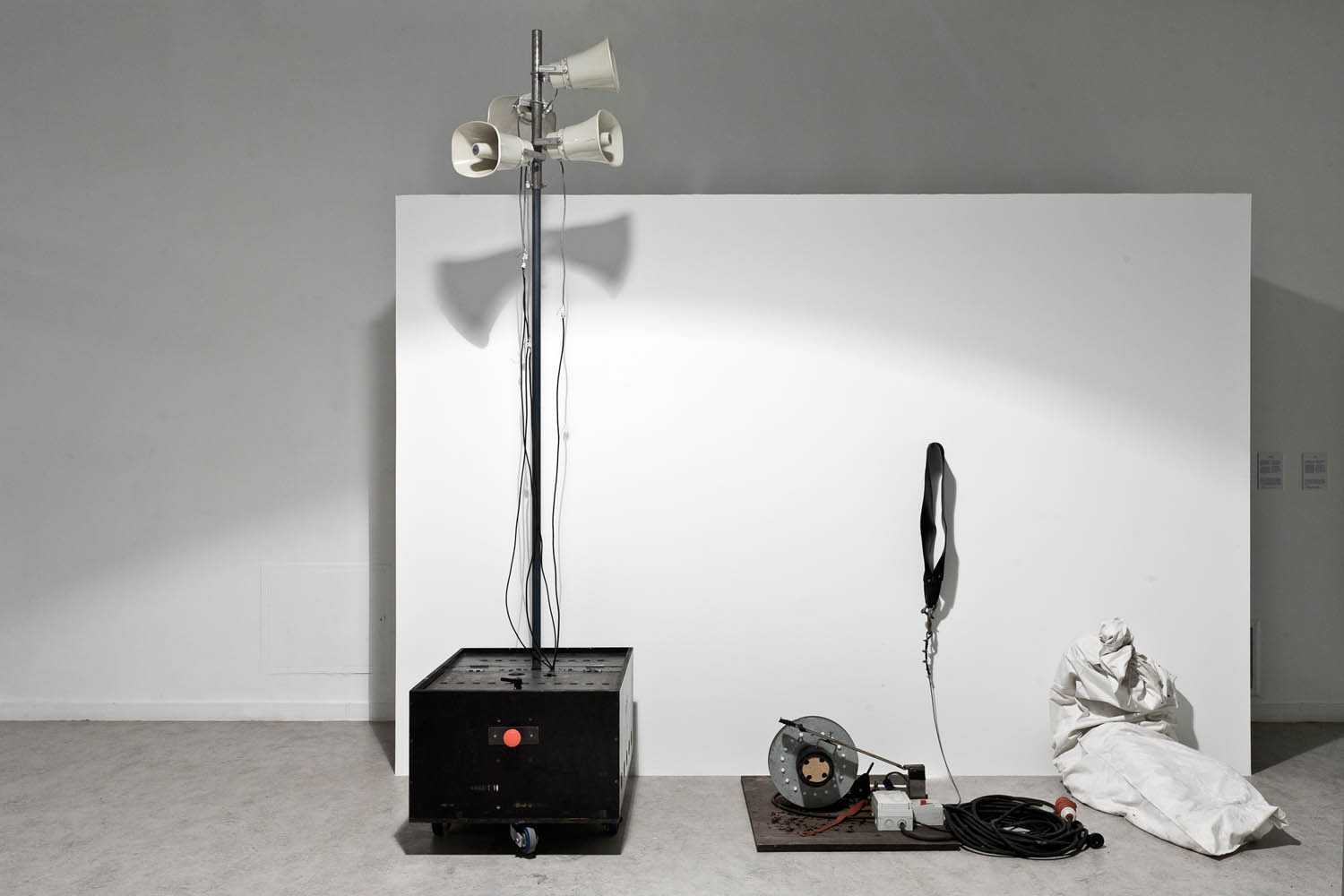
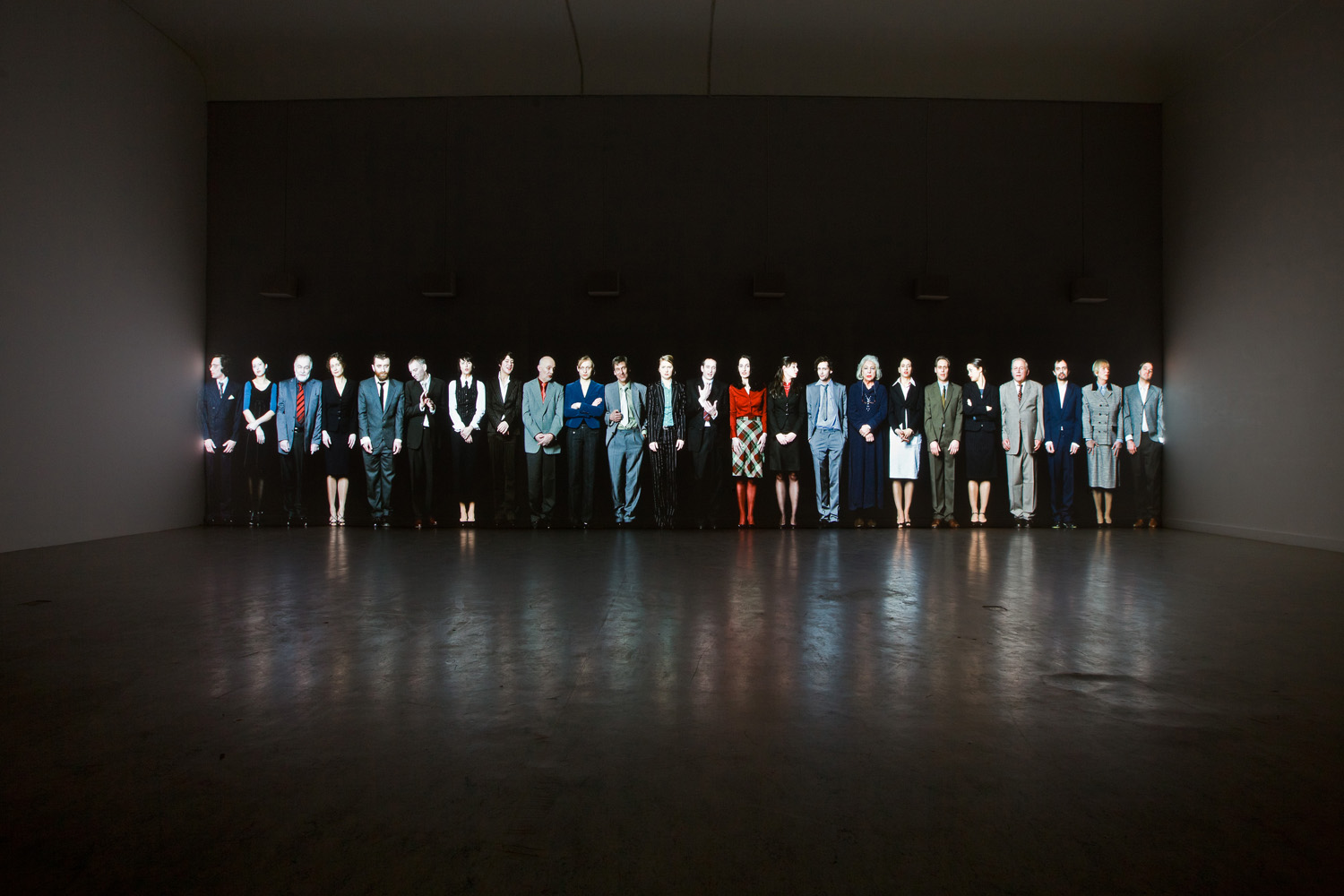
Kris Verdonck – EXHIBITION #1 – Warehouse of machinery, used in performances / installations (1995 – present)
visual art
Image by Z33 art centre, Hasselt
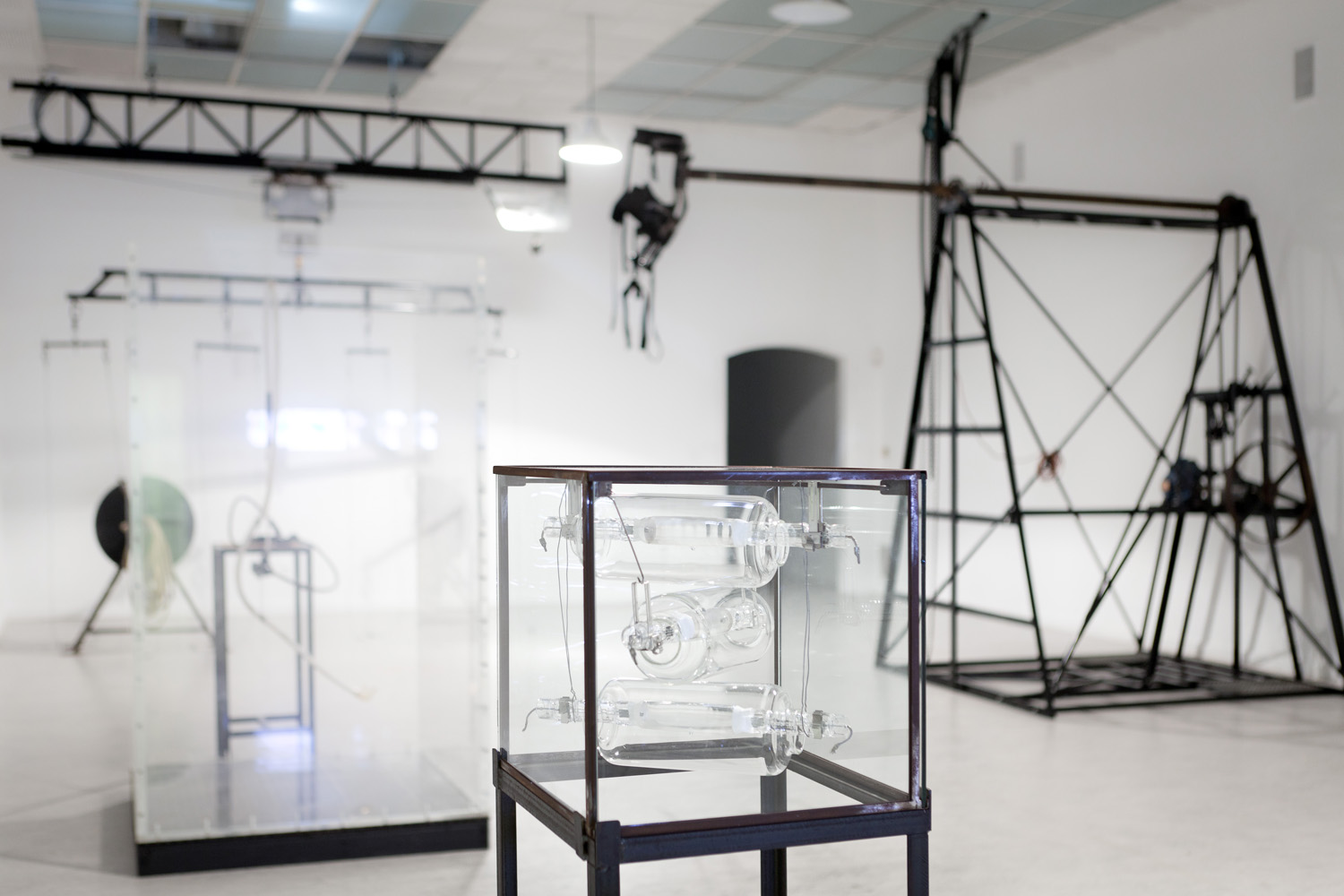
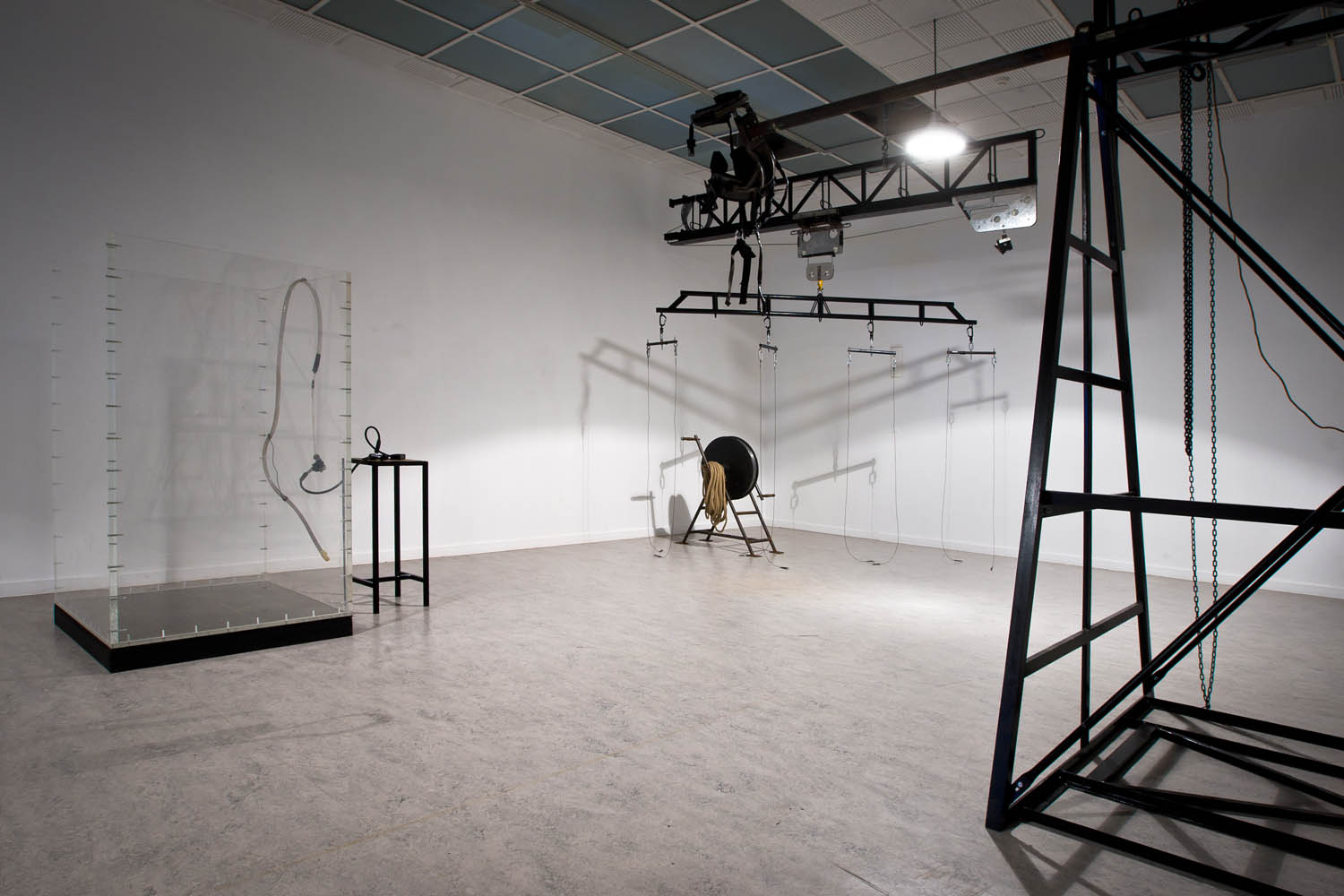
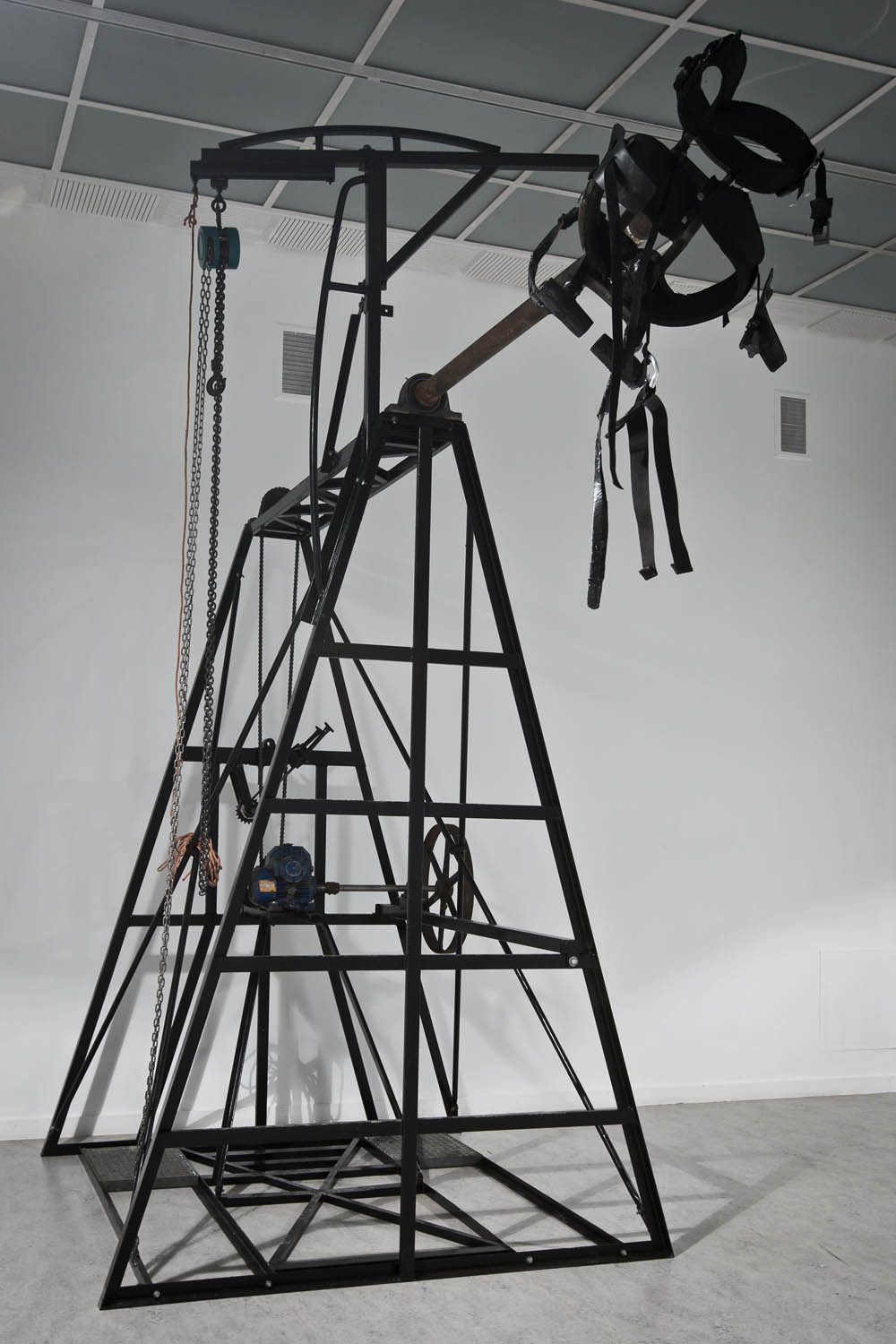
These appliances and objects are normally situated behind the scenes of a performance or show. The machines often look like medieval instruments (of torture). At the same time, they are often high-technological objects, that fulfil complex functions. They form a large contrast with the extreme esthetical images that they produce.

The overview of machines by Kris Verdonck addresses the field of tension between man and machine in today’s society. What relationship can/must/do people want to enter into with technology? How difficult is the balancing act between human control and submission to machines?

credits:
Kris Verdonck – EXHIBITION #1 – Warehouse of machinery, used in performances / installations (1995 – present)
photo: Kristof Vrancken / Z33

Kris Verdonck – EXHIBITION #1 – Warehouse of machinery, used in performances / installations (1995 – present)
visual art
Image by Z33 art centre, Hasselt
These appliances and objects are normally situated behind the scenes of a performance or show. The machines often look like medieval instruments (of torture). At the same time, they are often high-technological objects, that fulfil complex functions. They form a large contrast with the extreme esthetical images that they produce.

The overview of machines by Kris Verdonck addresses the field of tension between man and machine in today’s society. What relationship can/must/do people want to enter into with technology? How difficult is the balancing act between human control and submission to machines?

credits:
Kris Verdonck – EXHIBITION #1 – Warehouse of machinery, used in performances / installations (1995 – present)
photo: Kristof Vrancken / Z33

Kris Verdonck – EXHIBITION #1 – Warehouse of machinery, used in performances / installations (1995 – present)
visual art
Image by Z33 art centre, Hasselt
These appliances and objects are normally situated behind the scenes of a performance or show. The machines often look like medieval instruments (of torture). At the same time, they are often high-technological objects, that fulfil complex functions. They form a large contrast with the extreme esthetical images that they produce.

The overview of machines by Kris Verdonck addresses the field of tension between man and machine in today’s society. What relationship can/must/do people want to enter into with technology? How difficult is the balancing act between human control and submission to machines?

credits:
Kris Verdonck – EXHIBITION #1 – Warehouse of machinery, used in performances / installations (1995 – present)
photo: Kristof Vrancken / Z33

 
Comments Off on Kris Verdonck – EXHIBITION #1 – Warehouse of machinery, used in performances / installations (1995 – present)

Posted in Photographs


Kris Verdonck – EXHIBITION #1 – Warehouse of machinery, used in performances / installations (1995 – present)

11 Nov

Check out these visual art images:

Kris Verdonck – EXHIBITION #1 – Warehouse of machinery, used in performances / installations (1995 – present)
visual art
Image by Z33 art centre, Hasselt
These appliances and objects are normally situated behind the scenes of a performance or show. The machines often look like medieval instruments (of torture). At the same time, they are often high-technological objects, that fulfil complex functions. They form a large contrast with the extreme esthetical images that they produce.

The overview of machines by Kris Verdonck addresses the field of tension between man and machine in today’s society. What relationship can/must/do people want to enter into with technology? How difficult is the balancing act between human control and submission to machines?

credits:
Kris Verdonck – EXHIBITION #1 – Warehouse of machinery, used in performances / installations (1995 – present)
photo: Kristof Vrancken / Z33

Kris Verdonck – EXHIBITION #1 – Warehouse of machinery, used in performances / installations (1995 – present)
visual art
Image by Z33 art centre, Hasselt
These appliances and objects are normally situated behind the scenes of a performance or show. The machines often look like medieval instruments (of torture). At the same time, they are often high-technological objects, that fulfil complex functions. They form a large contrast with the extreme esthetical images that they produce.

The overview of machines by Kris Verdonck addresses the field of tension between man and machine in today’s society. What relationship can/must/do people want to enter into with technology? How difficult is the balancing act between human control and submission to machines?

credits:
Kris Verdonck – EXHIBITION #1 – Warehouse of machinery, used in performances / installations (1995 – present)
photo: Kristof Vrancken / Z33

Kris Verdonck – EXHIBITION #1 – GOSSIP
visual art
Image by Z33 art centre, Hasselt
The garden installation EXOTE shapes a spatial environment for the characters of Kris Verdonck’s Kafka-esque world. This end-of-the-world landscape houses a selection of the most invasive alien species (plants and animals) in Belgium, which constitute a genuine threat to biodiversity, the economy and public health. Due to man’s interference, the species have been brought out of their natural environment and now form a threat for other, native species. EXOTE stands as a metaphor for a world in which man is increasingly forced to protect himself from an environment that he himself has created.

As certain non-native species in the installation present a potential threat to biodiversity in Hasselt and the surrounding areas, visitors need to be aware that even the smallest seed or animal cannot be allowed to escape. The evolution of the garden, the protective clothing and the safety provisions involved in the installation form an essential and necessary part of the artwork.

Opening night 30.04.2011

credits:
EXOTE (2011), by Kris Verdonck
Produced for the exhibition Kris Verdonck – EXHIBITION at #1
photo: Kristof Vrancken / Z33

 
Comments Off on Kris Verdonck – EXHIBITION #1 – Warehouse of machinery, used in performances / installations (1995 – present)

Posted in Photographs


Lytro plenoptic camera used for fashion shoot

08 Aug

Following the extensive press coverage of Lytro’s ‘light field’ camera, the company’s Director of Photography, Eric Cheng, was invited to photograph a fashion shoot. The results, visible on Canadian model Coco Rocha’s website, show a similar level of control over the focus point as exhibited in the sample we posted previously (and, perhaps tellingly, are the same 494 x 494 pixel resolution). They are accompanied by a behind-the-scenes video of the shoot that shows Cheng using the (blurred-out) camera. Despite the blurring, it suggests the camera is around the size of a conventional compact.
News: Digital Photography Review (dpreview.com)

 
Comments Off on Lytro plenoptic camera used for fashion shoot

Posted in Uncategorized