If you are just getting started in photography, you’ll be pleasantly surprised to find these six often overlooked features in the menu of your DSLR. While each one can be used to create professional quality results, extensive experience is not required to leverage their usefulness. Best of all, there’s no need to upgrade to a high end model. These settings are now found on even the most entry-level camera bodies. With the ability to take full control of your camera, you’re more likely to get the shot right at the time of the exposure.

1) Flash Exposure Compensation
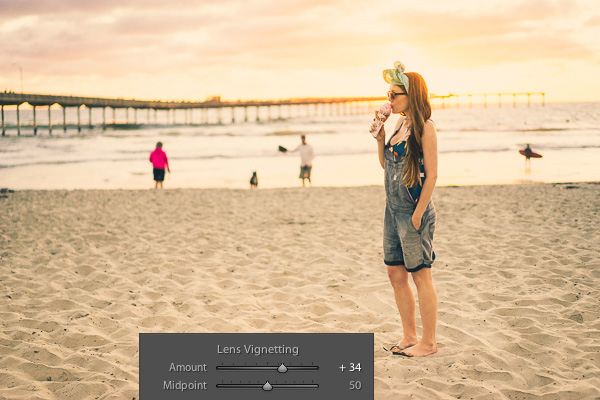
The pop-up flash gets a bad rap, and this is unfortunate as it’s actually a very useful tool when set properly. Out of the box, it simply provides too much light, resulting in a bright, washed-out appearance. The trick is to adjust the flash exposure compensation to a reduced output. As a starting point, bring it down to negative two (-2). This creates a soft quality of fill flash that’s immediately more pleasing. Should you need even less light, you can further reduce the flash to negative three. While it’s rarely necessary, you could even add intensity to the flash by raising it towards the positive. Just remember, effective use of flash is meant to soften, not eliminate shadows.

2) Two Second Timer
This rarely used setting can open up a whole new world of creative possibility for you. It’s typically found in the “drive” menu, along with single shot, multi-shot burst mode, etc. If you’re in a place that doesn’t allow tripods, it’s still possible to take sharp photos, even with long exposure times.
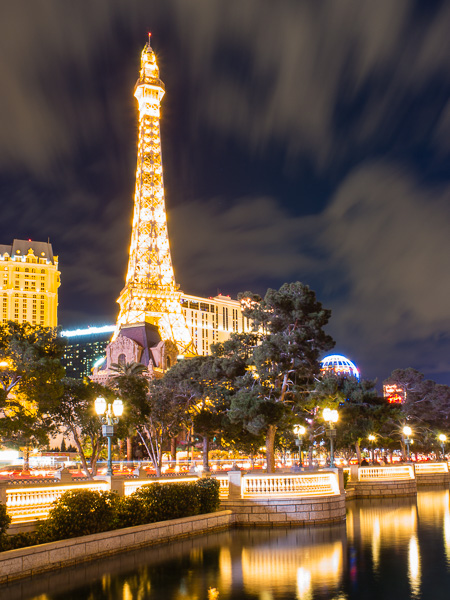
Select the two second timer and rest the camera on a chair, or the ground. You can use the folded camera strap to angle the camera upwards if necessary. When you press the shutter, the camera will move initially. Don’t worry, you have two seconds for it to settle down before the camera actually fires. This is also helpful for tripods that are not as stable as they should be. If you don’t have a cable release, the timer is a terrific wireless alternative.
3) Histogram
Think of the histogram as a visual cheat-sheet for photographing bright tones. To render a subject as true white, you want the data on the right hand side to be as close to the edge of the graph (histogram) as possible. This will indicate a crisp exposure rather than a muddy, grey appearance. As you change the exposure to let in more light, the histogram will inch towards the right. Keep adjusting your settings until it’s literally just a hair from the outer wall. You are now maximizing all of the wonderful dynamic range of which your camera is capable.
Once the data actually collides with the right hand wall of the histogram, you’ve technically overexposed part of your scene. This means there is no detail in the highlights, but rather a hotspot that is impossible to recover, even with sophisticated software. While this data is valuable, it doesn’t tell you exactly where the trouble spot is in your scene. This is where the “highlight alert” becomes a helpful aid.

4) Highlight Alert
By default, many camera models have the highlight alert turned off so you’ll need to enable it in the menu. Commonly referred to as “the blinkies”, this feature alerts you to the precise location that’s overexposed. With this knowledge, you can make a quick adjustment to the exposure, or even change your composition to eliminate the unwanted area. That translates to more consistent exposures with no washed-out areas. You’ll also be rewarded with less time in the digital darkroom, trying to fix problems that could have been prevented in the field.
5) Live View
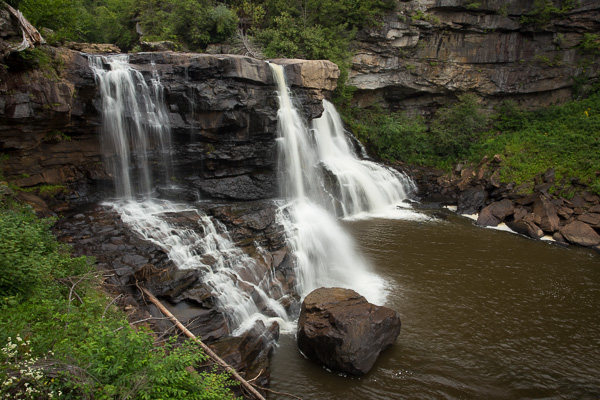
If you’ve ever struggled to achieve autofocus at night, or desire more accuracy for macro work, Live View will be your new favorite mode. With it, you can zoom in on a tiny portion of a subject at 5x and 10x magnification. This extreme close-up gives you the ability to carefully micro-focus on whatever is most important in your scene. Just note, the enlarged view on your LCD is not representative of your lens’ effective focal length. Upon pressing the shutter, the entire scene will still be captured in sharp detail. You’ll be amazed at the level of precision possible. For the ultimate in control, use this with manual focus and a sturdy tripod.
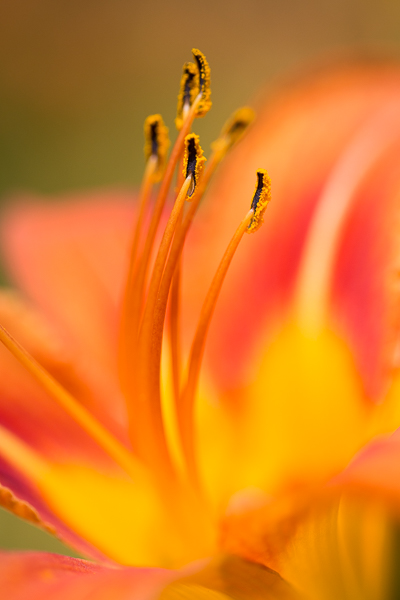
Live View is not only useful for focus, but composition as well. For example, if your DSLR lacks a tilt or swivel screen, shooting from ground level can be a real challenge. With a live image on the LCD however, there’s no need to crane your neck for viewfinder access. The same idea can be applied to those crowded situations when you must raise the camera over your head. Instead of shooting blind, you can use Live View to better compose the shot.
6) Single AF Point

Allowing the camera to automatically choose your focus point is one of the biggest causes of blurry photos. Don’t get me wrong, you can still use autofocus, but it works most consistently when you manually set the autofocus point. Otherwise, the camera will choose incorrectly, leaving the fence post sharp and your subject out of focus. While some cameras offer clusters of focus points, a simpler approach will often work to your advantage. By placing a single active AF point on what you want sharpest, you eliminate the guess work, and your percentage of keepers will soar.
Do you have any other hidden gems on your camera you’d like to share? What have you discovered in the menu of your camera?
googletag.cmd.push(function() {
tablet_slots.push( googletag.defineSlot( “/1005424/_dPSv4_tab-all-article-bottom_(300×250)”, [300, 250], “pb-ad-78623” ).addService( googletag.pubads() ) ); } );
googletag.cmd.push(function() {
mobile_slots.push( googletag.defineSlot( “/1005424/_dPSv4_mob-all-article-bottom_(300×250)”, [300, 250], “pb-ad-78158” ).addService( googletag.pubads() ) ); } );
The post 6 of the Most Essential but Underused Camera Features by Chris Corradino appeared first on Digital Photography School.