RSS
 

Posts Tagged ‘Ultimate’

Treat yourself 2017: the ultimate holiday gift guide for that special person (you)

20 Nov

2017 Treat Yourself Buying Guide

The holidays are all about giving, so why not give back to the most important photographer in your life? That’s right, I’m talking about you.

At this time of year there are plenty of gift guides out there geared toward buying for others, but at the end of the day, your own photographic spirit needs nurturing. Also, camera gear can be pretty pricey and no matter how much they love you, your significant other/siblings/parents/friends might not be able to spring for that $ 1600 item on your wish list.

In this guide, we’ve rounded up a list of gear designed to pamper you and your creative spirit. From the ultimate pocket compacts, to nicer ways of carrying your camera, to the perfect rugged, portable hard drive – we’ve got you covered.

Peak Design Everyday backpack, 20L black

Peak Design Everyday backpack, 20L | $ 260 | PeakDesign.com

Treat yourself to one of the most technical and well-thought-out camera backpacks on the market: the Peak Design Everyday backpack. It comes in both a 20L and 30L capacity.

Weather-proof with plenty of ways to expand its carrying capacity including luggage straps, this bag is also real slick-looking. We’re big fans of the origami-style Flex-Fold dividers used to organize the bag’s interior, and we also appreciate the many interior pockets.

DJI Mavic Pro Fly More Combo

DJI Mavic Pro more combo | $ 1300| DJI.com

There are smaller, cheaper drones than the DJI Mavic Pro out there, (like the DJI Spark) but we recommend treating yourself to the Pro because it offers a great balance of portability, features and image/video quality. The Mavic Pro can shoot 12MP Raw files and 4K video and offers 27 minutes of flight time, 3-axis gimbal stabilization and can fly at up to 40 mph. It’s also pretty easy to pick up and start using, especially in beginner mode, though there is a slight learning curve.

In a sense, it’s the perfect drone for the first-time-flyer, long-time-photographer who wants to shoot more than HD video or JPEGs with their drone. We recommend you spend the extra cash on the controller – using your cellphone alone provides a very limit flight range and mediocre flight experience. But there are few things better for changing up your photographic perspective than owning a flying camera.

Affinity Photo for desktop

Affinity Photo for desktop | $ 50 | Affinity.Serif.com

Affinity Photo for desktop is a nifty piece of editing software that rivals Photoshop, all for a one time payment of $ 50.

In our review of Affinity Photo, we found the software more than capable at handling the majority of our re-touching tasks. Editing is mostly non-destructive and there are tools for batch processing, Raw processing, tone mapping, creating panoramas and focus stacking. Plus, if you’re coming from Photoshop, the learning curve is pretty shallow.

Affinity Photo for desktop is available for both Mac and PC.

Polaroid OneStep 2

Polaroid OneStep2 + i-Type film pack | $ 146 | PolaroidOriginals.com

The ultimate treat yourself: Take a step back from the technical nitty-gritty of this modern digital world and try shooting just for composition – it can do wonders for your creative spirit. To get into this mindset may we suggest one of the coolest instant cameras on the market, the Polaroid OneStep2?

The OneStep2 is a modern rebirth of the classic Polaroid OneStep. The controls on this camera are purposely limited: there’s a shutter button, a flash on button and a self-timer. It shoots Polaroid i-Type film which is similar to the original Polaroid 600 film and substantially larger than the Instax film offered by Fujifilm.

The camera itself is pretty affordable ($ 100), but it’s the film cost that’ll get you – at ~$ 2 a shot it’ll definitely have you shooting decisively. Nothing wrong with that!

Sandisk Extreme 500 portable SSD 500 GB

Sandisk Extreme 500 portable SSD 500 GB | $ 170 | ShopSandisk.com

This tiny portable SSD drive is both drop-proof and weather-proof and it weighs less than 80g. For the traveling photographer with limited space, it’s an invaluable piece of gear – one that won’t fail if dropped or knocked around. It also offers super fast transfer speeds and runs cool and quiet.

So treat yourself and your data to peace of mind and pick up what we consider to be the most sensible rugged hard drive currently on the market.

Ricoh Theta V

Ricoh Theta V | $ 430 | us.Rioch-Imaging.com

360-degree photos and videos are pretty darn cool and the technology required to make decent looking 360/VR content is finally coming down in price. Why not get in on the fun and treat yourself to one of the nicest stand-alone 360-cameras on the market in the form of the Ricoh Theta V?

We’ve found found the Theta V to be both easy-to-use and capable of impressive quality stills and video. It offers 4K video capture and shoots 14MP stills. Connectivity and audio capture have both been improved over the previous model, and the camera itself has a slick, Apple-like design.

Olympus Tough TG-5

Olympus Tough TG-5 | $ 450 | Get.Olympus.com

The budget compact may be dead but the rugged compact is still very much alive. And the Olympus Tough TG-5 is a DPReview favorite. We already recommended it as a great gift option for others, but if you’re into outdoor activities it’ll make a great compact option alongside your main camera. In fact, DPR’s Carey Rose deemed it the ‘best rugged compact you can buy right now,’ based on his shooting experience.

The camera offers a 25-100mm equiv zoom lens and the body is completely sealed, making it waterproof down to 50ft, drop proof from 7ft, crush proof up to 220lb and freezeproof to 14F. It also shoots Raw and is capable of surprisingly good image quality. Other features include 4K video capture and 20 fps burst shooting.

There’s something to be said for a go-everywhere-camera that you don’t have to worry about dropping, breaking or soaking. And there’s none we’d recommend over the Olympus Tough TG-5. Treat yourself!

Sony RX100 V

Sony Cyber-shot RX100 V | $ 950 | Sony.com

Speaking of compacts, the Sony Cyber-shot RX100 V is arguably the most advanced high-end pocket camera to ever exist, jam packed with a dizzying array of technology and features. The creme de la creme of small cameras, for many it is a want-to-have, not a need-to-have. To that we say… treat yourself!

It’s got a useful and sharp 24-70mm equiv. F1.8-2.8 zoom lens and can shoot at up to 24 fps with AF and auto exposure. Plus, it uses an impressive 315-point phase detect AF system. But that’s not all: it’s capable of outstanding 4K video and class-leading stills. The RX100 V also offers built-in Wi-Fi, a pop-up electronic viewfinder and a pop-up flash (read our full review).

The RX100 V has come down a tiny bit in price since launch, but if it’s still too expensive, you should consider some of the other also excellent, but more affordable RX100-series cameras.

Fujifilm X100F

Fujfilm X100F | $ 1300 | Fujifilm.com

We’ve enjoyed using every camera in the Fujifilm X100-series, and the X100F is the latest and greatest iteration. A beautifully-designed, retro-looking camera, the X100F offers a fixed 35mm F2 equiv. lens and tons of direct controls.

The X100F gains a higher-resolution 24MP sensor, an AF joystick and improved AF performance. We especially like the hybrid optical/electronic viewfinder. And unsurprisingly, we gave the X100F a gold award in our review.

In short, we think it’s among the nicest-designed compact cameras around and a great companion for travel, or documenting friends and family. So treat yourself to retro-elegance in this fixed-lens beauty.

Canon 85mm F1.4L IS USM

Canon 85mm F1.4L IS USM | Canon.USA.com | $ 1600

If you’re going to buy a portrait lens, you might as well buy one of the nicest primes released this year. We’re talking of course about Canon’s new 85mm F1.4L IS (see our sample gallery shot with it). Sharp, fast and stabilized, this lens is capably of seriously excellent image quality. It’s also dust and weather-sealed and features a 9-blade aperture.

At $ 1600, it’s priced pretty competitively, but Sigma’s stabilized 85mm F1.4 is also excellent, and somewhat cheaper at $ 1200.

Nikon D850

Nikon D850 | $ 3300 | NikonUSA.com

Perhaps you already shoot Nikon, but maybe you are invested in another DSLR system, or you shoot mirrorless. Regardless of the camera your are currently shooting with, we’d urge you to take a look at the best DSLR currently on the market: the Nikon D850. As we stated in its gold award winning review…

‘Offering an impressive 45.7MP of resolution, 7fps burst shooting, full-width 4K video and a focusing system derived from the flagship D5, it looks as though Nikon’s thrown just about everything they’ve got into the D850, and priced it well to boot. Competitors with similarly specced megapixel counts such as the Sony a7R II and Canon EOS 5Ds R may be cheaper at this point in their lifetimes, but they also fall short of the D850 in a number of ways that may make a difference in the way you shoot.’

If that doesn’t have you convinced the Nikon D850 is the ultimate treat yourself purchase, maybe our sample gallery will.


That’s all the self-gifting advice we have for you this year. We certainly don’t expect you to pick up everything on our list, but hopefully there is something here that’ll make you, or a special someone smile.

Articles: Digital Photography Review (dpreview.com)

 
Comments Off on Treat yourself 2017: the ultimate holiday gift guide for that special person (you)

Posted in Uncategorized


ACDSee Photo Studio Ultimate: Efficient RAW Workflow for Professionals

16 Nov

A good workflow is such a powerful, time-saving and inspiring thing. There is even a certain romance to it – a routine of steps melting into the background that lead to a finished photograph. This creates a result to be proud of, one to inspire you to go out and photograph more, be it a product shot, an image from a recent trip to Iceland (everyone seems to be going to Iceland), or an artistic portrait.

It can also be an inexhaustible source of frustration or an excuse for procrastination. I know it’s certainly been all of these things for me, and the latter much more often in the past. The people behind ACDSee Photo Studio Ultimate must have had a similar experience, too, but they created tools that set up a solid workflow foundation for any photographer.

ACDSee Photo Studio Ultimate: Efficient RAW Workflow for Professionals

Somehow, my desktop really is this clean. I don’t know how.

Mind you, ACD Systems faces an obvious, towering obstacle by the name of Lightroom, a piece of software that has been the industry standard for nearly a decade now. I’ve used it extensively and exclusively for just about every project in the past seven or eight years. And let’s be honest, for all of its faults, Lightroom has been the most popular choice with good reason. It does many things right.

In light of Adobe’s recent (or was it really recent?) change of policy regarding payment (among other things), however, I have felt the need to take a look around and see if perhaps there are alternatives. ACDSee Photo Studio Ultimate is certainly one.

In this article, I will go through a workflow that I’ve been using with Photo Studio Ultimate as I got myself properly acquainted with it. While I realize it’s an entirely subjective approach to managing and editing photographs, I hope that it will at least give you a good starting point from which to individualize.

An important disclaimer: The license to this copy of ACDSee Photo Studio Ultimate 2018 has been provided by the company; I did not purchase it. Having said that, it’s my subjective opinion and findings that you are reading here. ACD Systems (rather happily, I must add) had next to no say in it. My words are always my own.

What is ACDSee Photo Studio Ultimate?

Quick Overview

Many have heard – or even used – some version of ACDSee. No surprise there as it’s around two decades old now and actually precedes Lightroom. But there are few areas where Adobe does not have a monopoly, and while many remember ACD Systems, it’s not nearly as popular as Lightroom. Perhaps undeservedly so, because pretty much everything Lightroom does, ACDSee does too.

First and foremost, Photo Studio Ultimate 2018 is an image management software. It started off as a lightweight viewer and organizer and has not lost the idea over the years. But powerful metadata and organizing capabilities are now complemented by some very useful post-processing tools for both RAW and graphic image files. More so in this high-end version than any other (and there are plenty, which explains the mouthful of a name).

Photo Studio Ultimate 2018 has been specifically designed to cater to pretty much every need you may have while editing – from culling to doing extensive graphics manipulations with layers and masks. In essence, it should be the only software you need. In that sense, Photo Studio’s ambition stretches beyond that of overthrowing Lightroom. It actually has Photoshop in its sights, too. But let’s not get ahead of ourselves. Going against Lightroom is hard enough already – the newly updated software throws a large shadow. We’ll see if Photo Studio can shine through.

Learning the Environment

As I have mentioned before, ACDSee Photo Studio Ultimate was created to address all the needs of a working professional photographer or artist. As such, it incorporates powerful image management tools as well as those meant for post-processing images and specifically, RAW files.

Naturally, having such vast capability meant a lot of thought has to go into the interface and user-friendliness. After all, having all the tools crammed into a single screen would leave little to no room for an actual image. Let’s briefly overview the ACDSee Photo Studio interface before we get started.

ACDSee Photo Studio Ultimate: Efficient RAW Workflow for Professionals

Even this Ultimate version is immediately friendly upon launch, but there is a whole lot going on here. Thankfully, not much is beyond customizing. By going to the Mode Configuration in the General section of the Options dialog, you can get rid of modes you find less useful. I’ve immediately unchecked every mode except Manage, Photos, View, Develop, and Edit. After a second thought, I got rid of Photos, too, as I did not seem to use it at all.

Much like with Lightroom Modules, ACDSee has several different environments for different tasks you may want to accomplish. All of these environments (or modes) are accessible at the top-right of the screen at pretty much any time.

ACDSee Photo Studio Ultimate: Efficient RAW Workflow for Professionals

If you look through the screenshots carefully, you’ll notice how the mode buttons in the top-right corner of the interface keep changing. ACDSee offers plenty of options to declutter the interface, and hiding access to modes that you don’t find yourself using is very convenient. In the end, I even disabled the View button since View mode is very easy to access by double-clicking on any image thumbnail. I’ve found the button to be redundant.

Manage Mode

The first mode – that opens by default each time you launch Photo Studio – is Manage. This mode is meant for navigating your hard drive, importing images (which by itself is never necessary, but rather handy all the same), applying keywords and filters, and so on. You will likely spend a lot of time here and start your work in this mode more often than not.

ACDSee Photo Studio Ultimate: Efficient RAW Workflow for Professionals

Manage mode screen.

You will be spending a lot of time in Manage mode and thus a view similar to this (after some tinkering) should be immediately familiar. The interface is dominated by the Image Grid, as it should be. But that’s not to the detriment of other information, such as metadata and even the Histogram. Navigation is easy and there are some useful quick-access tools at the bottom of the screen for image rotation and comparison.

Photos Mode

Photos mode is similar to Manage in that it can be used to find and view images. However, rather than letting you navigate to a specific folder on your hard drive, it shows every image that you have on your computer in chronological order, similar to how Gallery works on your smartphone.

You can choose a specific year to be shown using the Timeline panel (positioned on the left by default), and further narrow it down from there if you need to. Hovering over any given image will show an enlarged preview with some basic information next to it (where the image is stored, its dimensions, and more).

View Mode

The View mode is at the core of ACDSee and as the name suggests, is meant specifically for viewing images one by one, full screen. In addition to the View mode, which is launched whenever you double-click on an image within ACDSee, there is also Quick View. This is an even lighter image viewer that, by default, launches when you double-click an image anywhere on your hard drive.

It’s part of ACDSee, but also isn’t. For the purposes of speed, Quick View does not launch the full ACDSee software. As is, View mode is already very speedy and gets on with displaying images very well once the software is up and running. A simple task, but one Microsoft has not managed to do well for decades and ACDSee always seems to get right.

Develop Mode

An important mode that you are likely to end up using as much as Manage is Develop. This, as the name suggests, is designed for post-processing images. Specifically – it’s the RAW converter environment (similar to Adobe Camera RAW). It offers tools to fine-tune exposure, white balance, noise reduction, and sharpening, along with some immensely powerful tools, such as Tone Curves. I will be paying a lot of attention to this mode as Develop, along with Manage, is what ACDSee simply must get right.

ACDSee Photo Studio Ultimate: Efficient RAW Workflow for Professionals

Develop mode holds few surprises to anyone who’s used any RAW converter before, as the fundamentals are usually the same. The screen is dominated by a large image preview and there is a useful Filmstrip underneath for quick navigation within the selected folder. Notice the conveniently presented exposure and camera information right next to it (bottom right corner of the image above).

The left side of the screen is where the main tools are placed by default, but the whole panel can be relocated. See those blue circles? They show which settings have been altered from their default values. Clicking on the blue circle will temporarily disable those adjustments, but not completely discard them.

Edit Mode

Complementing the Develop mode is Edit. This is where ACDSee starts to target Photoshop in addition to Lightroom. For some users, it will more or less replace Adobe’s best-known software. It offers layers, masks, and sophisticated retouching tools – suffice to say, too much to cover in this article.

ACDSee Photo Studio Ultimate: Efficient RAW Workflow for Professionals

Edit mode is a whole new piece of software, it’s so capable and complex. While some elements are similar to those you will find in Develop mode, a lot is different. There is a Layers panel on the right side, while the left and top portions of the interface are absolutely packed full of tools.

We will cover all of the modes in more detail in upcoming articles. For the purposes of this one, however, we will mostly focus on Manage and Develop, as these two modes are crucial for RAW file management and post-processing.

Image Management and Post-Processing Workflow with ACDSee Photo Studio Ultimate 2018

Importing Files from a Memory Card

Import is convenient even if it is ultimately not a must-use feature. It’s still very much an option to just move files from the card to your hard drive the drag-and-drop way if you so wish. But the ACDSee Import tool offers to apply metadata, rename, and backup files and is simply very useful. You can even save import presets to speed up the process further if you regularly do photo sessions of specific types, and it’s easy to classify them. This I like very much as it saves plenty of time once you set them up.

But there is a caveat – the Import tool is really only meant for images that are not yet on your hard drive, but stored somewhere on an external device, be it a USB drive or a memory card. And while you can “import” image files that are already on your hard drive (select Disk from the Import drop-down menu using the top-most toolbar), there is little point to do so as ACDSee does not use a catalog system and you can already see all the images on your computer.

So, after popping a memory card in hit Alt+G (or select Import from the toolbar at the top-left corner of the screen). At this point, you will be asked to select the source device (an external one, such as a USB drive or a memory card) and, once that is done, you’ll be greeted by the Import dialog box.

ACDSee Photo Studio Ultimate: Efficient RAW Workflow for Professionals

Once inside the Import dialog, there’s not really much control over the source directory. No way to select all images from a specific sub-folder, either. You can choose to show only images taken on a specific day or those that are new (not yet on your computer), but, other than that, you’ll have to select images manually.

ACDSee Photo Studio Ultimate: Efficient RAW Workflow for Professionals

The Import dialog gives access to metadata presets, along with everything else. This is a powerful feature that can potentially save you a lot of time. In some cases, it may take your mind off keywords for good. Very handy, but beware of the seemingly infinite text fields in there. Importing itself is refreshingly simple on the eyes.

Using the main Import dialog is rather straightforward. Select the destination via the Location section of the dialog, where you can also specify a backup location for a second copy of the files to be saved. There is an option to rename files and it’s infinitely customizable. So is the metadata changes that you can apply upon import. I try to take care of this particular part of my workflow during import as it means I won’t have to assign all the necessary metadata information to so many files later on.

Organizing Images by Applying Filters

The import process itself is swift. More so than with Lightroom, as ACDSee does not need to add the RAW files to an internal catalog, and can instead display them immediately. Once the images have been copied to your hard drive (or, alternatively, you’ve navigated to a set of images already on it) with basic metadata hopefully already applied, it’s time to do the tedious task of culling.

Culling your images

I prefer to leave out as many images as I can before I move on to post-processing (during which I tend to drop a few more images), and ACDSee has plenty of filters to make the task easy.

ACDSee Photo Studio Ultimate: Efficient RAW Workflow for Professionals

Part of the reason why import is as swift as moving images manually from memory card onto your hard drive is that it is pretty much all that’s happening. ACDSee does not add files to a catalog like Lightroom does. Another important aspect is the image preview – rather than render its own previews immediately, ACDSee uses embedded JPEGs before any edits are applied. Basically, at first, you see the exact same image as you would on the back of your camera. This can be changed in the options, as shown in the screenshot, but I’m not sure why you would. Proper previews are rendered once you start developing the files, but for the initial sorting? Embedded is probably the best way to go about it and saves so much time.

It’s always been a real struggle for me to sort through the initial batch of image files – it’s never easy to judge your work fairly, is it? So breaking the process into several steps has helped me a lot. First things first – ratings. Photo Studio permits a numeric rating ranging from 1 to 5 to be assigned to any file. It’s as straightforward as you think – the lower the rating, the less you like the image.

My routine involves going through images and only assigning a 5 (Ctrl + 5) to the files I find good enough, and 1 (Ctrl + 1) to images that are safe to delete with certainty. Once I’ve done both and the lowest rating images are off my hard drive, I select a rating 5 filter to only see photographs that passed the initial sorting. You can do that by selecting the Filter drop-down menu above the image grid.

ACDSee Photo Studio Ultimate: Efficient RAW Workflow for Professionals

73 product shots of a printed catalog. And as much as I enjoyed taking the photographs and then doing the layout… I am not sure I am ready to edit 73 images of it. Let’s get to culling.

See that? Ratings applied, filter turned on, and we are left with 20 images. Much better, but not quite enough. The second sorting resulted in just 8 out of the total 73. I obviously still need to dial down the trigger-happy (can’t really show how I sort through images if I pick 9 out of 10, right?), but at least I don’t struggle with choice quite so much.

Now, I said rating 5 goes to images that are good enough for a reason – by removing a large number of similar images during initial sorting, I make it that much easier for myself to see the photo shoot as a whole and judge which photographs don’t fit. At the same time, I don’t pressure myself to only keep the very best images after the initial sorting, as that may take too much time. So I sort through the 5 rated photographs one more time. This time around, I assign a rating of 4 to images that are not quite what I was trying to achieve. These files get dropped, but should I change my mind, I know they are marked with 4 and are always easily accessible. I may end up deleting unrated files at some point, but I always keep the 4 rated ones just in case.

Hopefully, the second sorting has left me with a small number of photographs that I really like. Now that there are much fewer files remaining, I can give each one a lot more attention. At this point, I tend to go through the files one by one in full screen view (double-click on any thumbnail or select a file and hit View mode) and pre-visualize the final result that I want to achieve as I did while photographing. What sort of editing will I need to do to each one? Will it require conversion to black and white? Is extensive retouching or complex local adjustment of tones and colors going to be necessary?

ACDSee Photo Studio Ultimate: Efficient RAW Workflow for Professionals

ACDSee has a lot of filtering, sorting, and grouping options. And I do mean a lot. They can all be used to narrow down which image files you want to be shown. It’s not just the Filter menu, but the ones next to it, too.

More often than not (the photographs I used for this article are a strange exception, which is why I won’t bore you with additional screenshots), around half the images will end up being monochrome as I tend to photograph in such a manner, and they need to be separated from the color images for easier batch processing. For that, I tend to use a color label.

Assigning a label to any given file is just as simple as rating images, only this time you need to use Alt instead of Control in combination with a numeric key. So, for example, Alt + 1 will result in red label (hitting Alt + 0 will reset label to none). I tend to assign the first color label (red) to images that will require conversion to monochrome and the second one (yellow) to those that are part of a panorama and will need merging. The rest of the labels still get used. If there are images of several separate panorama shots located next to one another, I use the remaining colors to separate them for easier visual discerning later on.

Finally, there is one final sort that needs to be done. Using the Tag filter (the \ key), I mark images that will require more complex, graphic retouching than simple RAW converters are rarely designed for. Usually, that would mean moving on to Photoshop at some point. With ACDSee, the built-in alternative in the form of Edit mode is all many people will need. Either way, tagged image files would end up undergoing considerably more complex editing.

Post-Processing with the Develop Mode

To anyone who has used Lightroom (or Camera RAW, or any other RAW image processor for that matter), the Develop mode will be instantly familiar. Perhaps not in the fits-like-a-glove sort of way, at least not at first, but there are definitely no big surprises to be had.

ACDSee Photo Studio Ultimate: Efficient RAW Workflow for Professionals

Ignore the identical color scheme. Develop mode is an entirely different environment to the Manage mode that we’ve already got to know a little bit. See how many of the toolbars at the top are now gone? The menu is different, too. Importantly, there are a bunch of sections and tools designed for local adjustments hiding just above the histogram. These are easy to miss. Don’t, because they are also very useful and sometimes absolutely necessary.

The filters I apply to sorted images – color labels and tags – are extremely helpful for batch post-processing. As selecting a certain filter hides image files that are to be developed in a different manner, I am not only able to apply similar adjustments to several images at a time but I can only see color or black and white images in the Filmstrip too. How is that relevant? Simple – it helps with achieving consistent luminance, contrast, and color of the photographs, as I am able to compare them and notice differences that need compensating for as I work.

While photographing, I tend to leave white balance in Auto as I know my camera will get it more or less right. As for exposure, I tend to work in manual mode, especially in high-contrast lighting where prominent highlights and shadows are plentiful (as was the case with these product shots). Manual mode means my composition does not affect the exposure when dealing with the same basic scene, so while there is always the chance I may end up under or overexposing, (having gotten used to setting up my own exposure, it does not happen often), there is also more consistency shot-to-shot.

And that makes adjusting exposure in post-production much simpler, as I can apply the same corrections to a few images at a time. That’s made easier by the Filmstrip in Develop mode – just select a few images and apply the adjustments as needed. Alternatively, you can process a single image and then copy/paste the settings onto a different image. Both actions are accomplished by right-clicking on the thumbnail in the Filmstrip to first copy, and then paste settings to a corresponding file.

ACDSee Photo Studio Ultimate: Efficient RAW Workflow for Professionals

Adjusting exposure and white balance to taste gives me a good starting point from which to dive a little deeper. But since I’m using the General adjustments anyway, I might tweak a few more sliders while I’m at it.

After adjusting the white balance and exposure sliders (which, strangely and inconveniently enough, only allows 4-stops of adjustment, 2-stops each way), I had a solid starting point from which to move on to more specific tone and color adjustments.

ACDSee has plenty of tools for that, perhaps even too many. In the General section of Develop tools, there’s Highlight Enhancement and Fill Light sliders. Both of these can only be set in one direction, meaning a positive adjustment or nothing. What’s more, Fill Light encompasses a very broad range of tones, from dark ones all the way to highlights. So if you’re used to Lightroom adjustments of highlights and shadows, you’ll find it a little sensitive. On the other hand, Fill Light might just save you if you’ve underexposed your RAW file by more than the 2-stops the exposure slider allows you to compensate (with modern image sensors, you may find yourself doing that on purpose, too).

ACDSee Photo Studio Ultimate: Efficient RAW Workflow for Professionals

I expected the Fill Light slider to only really “fill” the shadows, but it did a bit more than that. I find this a little too close to how fill flash works while photographing. That said, it’s not without uses and ACDSee does have alternative tools, should you require finer tweaking.

Either way, it’s a good thing there’s an alternative tool in the shape of Light EQ, which is much more akin to the blacks/shadows and whites/highlights adjustments Adobe’s software incorporates. Using it is also very easy – simply select the tool and click on any area of the image. Light EQ will adjust the tones automatically – brighten them up if you click on a shadowy area, and bring the tones down should you click on a bright, highlight-intensive bit of the image.

Want more control? Choose Standard (which I prefer), or Advanced mode (a touch confusing), which will allow you to click-and-drag on the photograph itself, in addition to using the sliders. Clicking on any tone will adjust it across the whole image – drag up to increase brightness, down to deepen the shadows or restore highlights.


In case Light EQ is also not to your liking, there’s the trusty Tone Curves tool. These tools tend to work pretty much the same everywhere. In simplicity lies its strength, as the Tone Curves tool is immensely versatile.

Before Curves.

After a Tone Curve was applied.

I can’t stress enough how powerful (and sometimes complex) the seemingly boring Tone Curves tool is. As you can see from this before/after comparison above, not only does it affect tonal contrast, but also color. Pull down the shadows and you’ll notice saturation increase. You may find yourself needing to compensate for the increase in saturation via the Saturation slider or the Color EQ tool. Either way, Develop mode offers plenty of control over all the tones in your image.

If I had to single out a favorite tool of mine in Develop mode, it would be Color EQ. Much like HSL panel in Lightroom, it allows very precise control of color. I was able to bring down the orange hues of the table while keeping the beautiful reds and greens just so (for my taste). It helped me achieve decent consistency across the whole selection of images with minimal effort.

This particular product shot only really needed so color adjustment, which was achieved using the Color EQ tool more than anything else. I’ve also pushed the mid-tones a bit using Tone Curves, but not enough to burn out the highlights.

For the images I tasked myself with editing, I mostly used a combination of Light EQ, Tone Curves, and Color EQ, setting up each one to taste. The latter is, again, extremely versatile and works much like HSL panel does in Lightroom. It allows you to adjust the saturation, brightness, and hue of each individual color channel (see screenshot above). As you may notice in the screenshots, I went for a very desaturated look (mostly the red, orange, and yellow channels). Whatever you choose to do, Color EQ offers plenty of control and is perhaps by far my favorite tool in the Photo Studio Ultimate Develop mode.

Lastly, I added a little warmth to shadows using the Split Tone tool (Shadows Hue set at 44, Saturation at 4, and Balance at 24), and adjusted Sharpening in the Detail tab of the Develop Tools panel.

The Geometry panel is accessed via a tab at the top of Develop Tools. Here, you can crop and adjust an image for distortion. It’s great that ACDSee has lens profiles to take care of distortion for you, though any vignetting you may want to fix, is up to your own judgment for now.

Before image.

After processing.

There’s a Whole Lot More

Scratch the surface, I told myself when I started writing this article. At least scratch the surface. I am still unsure if I managed to do that.

There is more luck than planning involved in my choice of images for this article. Should I have gone for something more demanding – an artistic portrait, perhaps – it would have been at least twice as long. ACDSee Photo Studio Ultimate 2018 (to use its full set of names) is immensely packed with tools and settings. So much so that I used only a small fraction of what Develop mode offers for my product shots.

Black and white conversion was left untouched, so were the local Develop Brush and Gradient tools. These edits required next to no Geometric correction or attentive use of noise reduction, not to mention Edit mode. Even so, it has proved to be an exceptionally versatile bit of software. My hope is this article has provided you with an insight into how ACDSee works and how it can be used as part of an efficient, stress-free workflow for your business and artistic needs.

Disclosure: ACDSee is a paid partner of dPS.

The post ACDSee Photo Studio Ultimate: Efficient RAW Workflow for Professionals by Romanas Naryškin appeared first on Digital Photography School.


Digital Photography School

 
Comments Off on ACDSee Photo Studio Ultimate: Efficient RAW Workflow for Professionals

Posted in Photography


dPS Ultimate Guide to Nature and Outdoor Photography

08 Nov

Introduction

High on a ridge in the Brooks Range of Northern Alaska, I had an epiphany. It had to do with photography, sort of. Really, it had to do with the world in which we live. You see, I was climbing this steep slope on a little-forgotten drainage in the western portion Gates of the Arctic National Park. There was no sign that anyone had been this way before, and really, there was no reason that anyone would have.

When I eventually topped out on the ridge, late on an August evening, the sun still shining from the northern sky, I found a pillar of stone.
Ultimate guide outdoor nature photography 01

The rock stood 15 or 20 feet high, a narrow obelisk that looked as though it had been planted, or perhaps grown from the earth itself. It hadn’t of course. The stone had been pushed into its delicate position by the constant slow shift of the thawing and freezing ground below.

It struck me, in that moment next to the standing stone, that I was about to be the first person to photograph these rocks. Ever.

In one fell swoop; I realized exactly what it is about photography that I love. It’s seeing things in a way that others have not. Seeing things for the first time. Not just stones on a wild mountaintop, but viewing frequently photographed scenes in a new way. The most photographed landscapes still hold potential for novelty. And creating that novelty in images is one of the great pleasures of the art of outdoor photography.

Ultimate guide outdoor nature photography 02

And here is the rub; good outdoor photography is about creating new images, not just copying what has already been done. If there is one message in this article to remember, that’s it.

A Note on Ethics

Below, you’ll find many of the tips I’ve learned over the years as an outdoor pro; landscape techniques, macro tips, and an introduction to wildlife photography. From exposure to composition, I’ll cover a lot. But one thing I want to note first, and it’s probably the most important thing I’ll mention is this:

Do No Harm!

Ultimate guide outdoor nature photography 03

Outdoor photography is extremely popular. We landscape and wildlife photographers travel across the planet to make images, and our presence is having an impact on the places we visit. It’s our job to ensure that our actions do not damage the resources we photograph.

Here are some guidelines:

Respect other users: What we are doing is no more important than the activities of others. Be respectful of other photographers and non-photographers alike. In some parts of the world, photographers are becoming disliked because of our actions. We cannot allow this to happen. Be kind to others. Your long lens does not give you the right to be a jerk.

Don’t harass wildlife: I once watched a pair of photographers, quite literally, chase a herd of caribou around the edge of a lake in the Alaska Range. The best images of wildlife are natural images, not shots of caribou fleeing across the landscape. If your presence or actions are impacting the behavior of the animals, it’s time to back off.

Note: it may also be dangerous! Animals like elk and moose may look harmless but can do a lot of damage. Likewise, too many tourists have gotten too close to bears (with no barrier) and then if the bear attacks a human it could be put down. Don’t endanger yourself or the animals – keep a safe distance.

Ultimate guide outdoor nature photography 04

Follow the rules: Most of the refuges, parks, and other lands we photograph have rules in place for a reason. As photographers break those for the sake of an image, it hurts the reputation and possible future access for all of us. Know the regulations and follow them.

Leave no trace: The next visitor to your location should have no idea you were they before them.
Landscape Photography

Above, I related the story of finding the bizarre standing stone in Alaska’s Brooks Range. Those kinds of photography opportunities are by far my favorite. I love shooting someplace where few if any others have been or photographed.

But mostly, I like the way a piece of dramatic topography under beautiful light looks. I like how it appears to my eye, and I like how it looks through the viewfinder of a camera. When I manage to make an image that brings back all those feelings of the experience, and when I can relive those moments of outdoor beauty over and over again, then I feel very successful indeed.

Ultimate guide outdoor nature photography 05

Equipment

Landscape photography does not need to be equipment heavy. On many excursions, I may carry only a single camera equipped with a wide-angle zoom lens. But when I really want to work a scene, or my sole mission is to make images, then I’ll carry a few more things. Here is my camera equipment list, and some notes on each item:

  • Full frame DSLR: Though not vital, the full frame sensor is useful for taking advantage of wide-angle opportunities.
  • Wide-Angle Zoom: The 17-40mm f/4 and 16-35mm f/2.8 are probably my most-used lenses for landscape photography.
  • Mid-Range Telephoto Zoom: Like the 70-200mm f/2.8. I like the way this lens and those of similar focal length can isolate parts of the landscape.
  • A Compact or Mirrorless Camera: In my case, this is a Panasonic Lumix GX85. This is a great second camera and when I’m traveling light, it’s my only camera.
  • Wide-Angle, and Mid-Range Zoom Lenses for the Mirrorless Camera: To cover similar focal lengths as my full-frame DSLR (minus the extremely wide, sadly).
  • Tripod: Rarely do I leave this behind.
  • Polarizing Filter: Great for removing glare and reflections.
  • Variable Neutral Density Filter: For long exposure work, a neutral density filter is great. The variable filters allow you to adjust the amount of light coming through into the camera.

Throw in a bag or backpack to carry it all, and this kit will cover about every landscape opportunity you might encounter. While I’m sure each landscape photographer has their own suggestions, additions, or subtractions, these are my necessities.

See an article I wrote recently for another approach to taking less: How to Find More Creativity Through Using Less Gear. Also read: How to Decide What Gear to Pack for a Wilderness Trip.

Composition and Exposure

I always have a difficult time writing about composition and exposure because this is where art becomes a part of the photographic process. Sure, there is a “proper” exposure, in which the highlights aren’t blown out and the shadows retain detail, but a world in which every image was “properly” exposed would be a very boring place.

Ultimate guide outdoor nature photography 06

Instead of what is right, it’s better to understand how your settings will impact your image. Then you can decide for yourself what is best for your situation.

Shutter Speed

The speed of your shutter indicates how long your sensor is exposed to the light coming from your scene. A fast shutter speed will halt motion, while a long one will blur moving objects.

In landscape photography, you may want to freeze the motion of a splashing river or leaves blowing in the wind. Or you may prefer them to blur, providing a sense of that motion. The important thing is to understand how your shutter speed choice will either blur or freeze the subject, so you don’t end up in that dreaded (but all too frequent) in-between.

Ultimate guide outdoor nature photography 07

Aperture

Your aperture plays two roles. It controls how much light is allowed into the camera, and it controls the depth of field.

At a wide aperture, say f/2.8, your lens will allow a lot of light to enter the camera, meaning you can use a faster shutter speed (see above), but it also means you have less depth of field (DOF). Which is to say, that only a narrow portion of your image, from front to back, will be in focus.

A small aperture like f/16 will mean that a longer shutter speed is required to attain the exposure you want, but more of your image will be in focus.

Ultimate guide outdoor nature photography 08

If you want to isolate your subject from your background or foreground then a wide aperture will help you achieve that. However, if you want your image sharp from the foreground to the background, then you need to select a narrow aperture.

Ultimate guide outdoor nature photography 09

Most lenses are sharpest a stop or two down from wide open, so for maximum overall sharpness, consider an aperture around f/8 to f/11.

ISO

The ISO controls the apparent sensitivity of your sensor to light (I say “apparent” because for a bunch of technical reasons that I really don’t care about, raising the ISO doesn’t actually increase the actual sensitivity, just how the camera’s algorithms report the light in the final image – blah, blah, blah). So, in practice, increasing your ISO will allow you to use shorter shutter speeds at higher apertures. Got that?

Ultimate guide outdoor nature photography 10

The drawback is that using a high ISO also tends to create digital noise. However, cameras are getting exceedingly good at controlling noise. With my current equipment, I regularly shoot at ISO 3200, 6400, and occasionally higher without a second thought.

Coming Together – The Exposure Triangle

Those three factors (shutter speed, aperture, and ISO) control the brightness, depth of field, and sharpness of your image. They interact with one another, and you can’t change one without adjusting at least one of the others. If you aren’t familiar with how each of these settings impacts the final shot, then go out and spend a few hours experimenting so you understand the exposure triangle.

Exercise:

Spend an hour shooting in Manual Mode. Adjust the ISO, aperture, and shutter speed. Assess how each change impacts the final image. Did it get brighter? Darker? Sharper? Did moving subjects blur or freeze?

Composition

Ultimate guide outdoor nature photography 14

The Classic

The classic landscape shot entails an interesting foreground object that leads your eye back to a dramatic background. It’s classic because it works. But it’s also a formula that is very easy to get wrong.

Ultimate guide outdoor nature photography 12

In a simplistic form, a landscape image is composed of a combination of lines, layers, and planes. A line can be a visual element, like the trunk of a tree or a winding stream, or it can be implied, in a way that two interrelated elements cause your eye to move back and forth. Either way, lines are the viewer’s path through the frame.

Ultimate guide outdoor nature photography 13

Layers are elements that occur through the depth of the image. These can be any element in the image, grass stems, trees, rocks, rivers, mountains, etc. But they stand alone in successive layers, each a bit further back in the image.

Ultimate guide outdoor nature photography 15

Finally, planes are elements that provide a clear sense of depth. Say, a road disappearing into the horizon, or a river winding away up a mountain valley.

Ultimate guide outdoor nature photography 16

The ways these things interact are what cause an image to be pleasing to the eye, or to fail. In a classic composition, the foreground element and the dramatic background are tied together through these elements and interact in some way. Perhaps this is color, form, juxtaposition, or some other aspect of interest to the viewer.

All these aspects of an image become a pleasurable maze for photographers. With practice, you will begin to understand how to make them relate to one another in a pleasing way.

Landscape Details

Any natural view will have a number of interesting elements held within such as; a flower, a stone, a shadow, splashing water, or distant peaks. A long lens will allow you isolate those details from the surrounding clutter.

I use this technique often with mid-range telephoto lenses. Think of this technique as simplifying an image down to its most fascinating component.

Ultimate guide outdoor nature photography 17

Ultimate guide outdoor nature photography 18

A Note on Focal Length

The focal length of your lens will impact the depth of field of your image. The longer your lens, the shallower your depth of field will be. This makes it very difficult, if not impossible to keep an image sharp from foreground through the background when using a long lens.

That’s why isolating distant details is a great use of a telephoto lens. Compositions with no foreground generally won’t suffer from the compressed depth of field.

Ultimate guide outdoor nature photography 19

With the use of a wide-angle lens, on the other hand, it is much easier to attain a deep depth of field. An aperture that is a stop or two lower will often bring an entire image from foreground to background into focus.

Ultimate guide outdoor nature photography 20

Exercise:

Starting with a mid-range telephoto like a 70-200mm or similar lens, focus on the details of a landscape. Make some photos of these details, moving around to see how the light changes with your angle. Experiment with each.

Once you are comfortable with the details before you, change to a wide-angle and see if you can find pleasing compositions that incorporate the details you just photographed, but also include the surroundings. As you back up to a wide-angle view, think about the lines, planes, and layers within the image and how they interact. Is the result pleasing or chaotic? What can you do to improve it?

Macro Photography: The World Up Close

Through the 100mm f/2.8 macro lens this bright green beetle looked monstrous and surprisingly beautiful. The iridescent carapace practically glittered in the soft light of the overcast day, while the purple highlights of the antennae and around the eyes stood out from the leaf background.

Ultimate guide outdoor nature photography 21

It was a rainy day in the rainforest of southeast Mexico, and my fieldwork had been called off due to the weather. I spent my rare morning off gathering some of the many insects that had congregated overnight on the porch, and a menagerie of beetles, spiders, and katydids now sat beneath upturned jars on the windowsill next to me. One by one, I placed them on a clean green background of a Heliconia leaf and made images.

Ultimate guide outdoor nature photography 22

Ultimate guide outdoor nature photography 23

Equipment

Close-up and macro photography is a specialized discipline, requiring a suite of its own equipment including lenses, flashes, tripod heads, and more. For photographers that specialize in this type of photography, it is a serious investment.
Fortunately, there are a few shortcuts, which can save you from investing hundreds or thousands in macro-specific equipment.

Lenses

Macro lenses allow for a very close focusing distance and are usually equipped with some moderate magnification. 50mm, 100mm, 150mm, and even 200mm are common focal lengths of macro lenses. They tend to be fast, usually around f/2.8 and are pricey pieces of glass.

If you have the budget for it, by all means, invest in a high-end macro lens, but for those of us with more limited funds here are two alternatives:

Extension Tubes

These are exactly what they sound like, simple tubes that go between your camera and the lens. Extension tubes increase the distance between the lens and your sensor allowing a closer minimum focus (but preventing the lens from focusing on distant objects). When applied to a good quality lens, some amazing images are possible.

Lens Reversal

Have you ever turned a pair of binoculars around backward and used them as a magnifying glass? If so, this is the exact same principle.

You take an old, manual lens (focus and aperture), standard or wide-angle lens (never a telephoto), buy a cheap adapter that allows you to attach the front of the lens to your camera, and you get an instant macro. For fifty bucks at a used camera store you can often find a suitable lens, and for another $ 10 or $ 15, you can buy an adapter from Amazon that fits the filter threads on the front of the lens and allows you to click it into your camera. Bingo! Reverse-lens macro created!

Ultimate guide outdoor nature photography 24

Lights

Embrace natural light if you are just starting out in macro photography. Find a place with bright, diffused light, and start there. Once you have a strong grasp on working up close, you may choose to add artificial light.

From ring lights to external flashes, many macro photographers will use artificial light to cleanly illuminate their tiny subjects with studio-like lighting. If you have a flash, and either a remote cable or wireless triggers, you probably have what you need to get started.

Start off by attaching your flash near, or directly onto your lens, so the light falls just a few inches in front of the glass. Shadows are emphasized up close, so you want to minimize the distance between the flash and your lens.

Tripod Heads

A very useful accessory is the macro tripod head. These allow you to move your camera forward and backward very smoothly and precisely without having to adjust the tripod. With a simple twist of a knob, you can slide your camera forward or backward a couple of inches (or millimeters).

In the narrow depth of field world of macro photography, this allows you to focus by changing the camera position rather than the focus on the lens. If you get serious about this kind of photography, it is probably a worthwhile investment.

Read Equipment for Macro Photography – Video Tips.

Beginning Macro Field Techniques

Ultimate guide outdoor nature photography 25

The easiest place to begin with macro photography is a subject that doesn’t move around much, like flowers. Starting with fast-moving insects will be a very frustrating way to learn the process.

Start out in soft, natural daylight, and forget the flashes for now. Choose a cloudy day, or pick a subject you can easily move into a shady spot. Direct sunlight, just as in human portraiture, is often too harsh and contrasty, resulting in burnt-out highlights or blacked out shadows. Once you’ve figured out the process under steady, natural light, you can integrate flash.

Composition

Macro lenses, reversed lenses, and extension tubes all share one common feature: an extremely narrow depth of field. Even with the aperture stopped down, the amount of the image in focus will be measured in millimeters. Because of this limitation, you need to choose your focal point very carefully, it will, after all, be the only thing in focus on your image.

Ultimate guide outdoor nature photography 26

Many times I’ve made images of small subjects only to find out later find later that my focal point was off. By all means, compose creatively, but make sure the important part of your image is in focus. For insects or other small creatures, that almost always means the eye. For flowers, you’ll likely want to focus on the stamens and pistils. Be aware, and focus carefully.

Note on Post-Processing Macro Images

While a full post-processing tutorial of macro photography is outside the scope of this article, be aware there are focus-stacking techniques. Think of this like HDR for depth of field.

In essence, you create a series of images in which you steadily move the focus point through the scene so you end up with a series of photos, each with a different slice in focus. Focus stacking then brings those all together into a single image providing otherwise unattainable depth of field. There are more resources available online about this technique if you’d like to learn more.

Read A Beginner’s Guide to Focus Stacking.

Wildlife Photography

More than any other discipline of outdoor photography, wildlife is the place where we as photographers need to be responsible, cautious, and respectful. Earlier, I related the story of watching a group of photographers chase a herd of caribou.

I dearly wish that had been the only occasion I’ve had to see wildlife photographers acting stupidly, but sadly, my list goes on: a photographer purposely flushing flocks of Sandhill cranes at a wildlife refuge to get flight shots, the abuse of call-back recordings of song-birds which results in nest failures, dangerously close approaches to bears and moose, and on and on.

Ultimate guide outdoor nature photography 27

I just can’t write about wildlife photography without saying this: Good wildlife photography is a game of patience. You cannot make shortcuts by chasing, flushing, baiting, or otherwise harassing your subject and expect to get decent images. So please, please, three times, please! Take the time required to make the image, it will be easier on the wildlife, and I promise your results will be far, far superior.

Equipment

Though lovely images of animals can, and have been, made with every focal length (some of my favorite images are wide-angles), most wildlife photography involves long lenses. My most frequently used lenses for wildlife photography are Canon’s 500mm f4L (often with a 1.4x teleconverter), 100-400mm zoom, and the 70-200mm f/2.8. None of those are cheap, though.

Fortunately, there are a growing number of alternatives on the market. Brands like Tamron and Sigma have introduced big telephotos that, although still pricey, come in way under the prices offered by Canon and Nikon. A year or two ago, out of curiosity, I rented Sigma’s 150-600mm Sport lens and was extremely impressed.

Ultimate guide outdoor nature photography 28

Come to think of it, I strongly recommend you try lenses out before you buy them. Renting is a great, and reasonably priced, option to try out a variety of lenses. Or, if you don’t shoot wildlife often, you can rent a high-end piece of glass for a single trip, without having to dole out thousands on your own lens.

Anyway, back to equipment, here is my wildlife kit:

  • DSLR (or 2)
  • 500mm f/4 lens
  • 100-400mm lens
  • 70-200mm lens
  • 1.4x teleconverter
  • A sturdy carbon-fiber tripod with a gimbal head

Ultimate guide outdoor nature photography 29

Techniques

There is a saying in photography: “If your image isn’t good enough, you aren’t close enough.” This is nonsense. However, getting close to animals, either physically, or by using a long lens, is often the easiest way to create a compelling image. There are many exceptions (see composition below), but proximity does help.

Ultimate guide outdoor nature photography 30

Getting close requires patience. If you approach an animal on foot, your subject will almost always feel threatened and move away. Humans, after all, are predators, and for most species, nothing good happens from getting close to a predator. That leaves a few options.

Go where the animals are accustomed to people

At many wildlife refuges, back gardens, national parks, etc., the animals are used to seeing people or vehicles and will allow you to get much closer (you still need to be cautious particularly around large, or dangerous animals). In such areas, cars can make a great mobile photography blind.

Animals are also often familiar with people around popular trail systems and will pay little attention to passing walkers. You can use these areas to your advantage.

Ultimate guide outdoor nature photography 31

Ultimate guide outdoor nature photography 32

Use a blind

Many wildlife refuges are equipped with photography blinds where you are hidden from view of the wildlife. These are great, pre-established places to shoot. You may even consider building your own backyard blind for photographing your local birds and other wildlife.

Camouflage

I have a sheet of camo fabric that I’ve cut holes into for my camera lens. I sit on the ground, or a low stool, and throw this over my head and tripod. This portable blind serves well, as long as I have the patience to stay still for extended periods of time. It keeps my form obscured, and animals more willing to approach.

Patience

Most of the above techniques also require patience, but simply waiting for the right opportunity is the most straightforward approach to wildlife photography. Find a promising location with good light, and simply wait to see what happens. I bet most of my best images of wild animals have been made this way.

Ultimate guide outdoor nature photography 33

Exposure

I strive for the “proper” exposure in the field. Which, means (if I’m honest) that I leave it up to the camera. Capturing the action, the expression, posture, and the setting are the most important parts of wildlife photography.

I can fiddle with brightness later in the post-processing, but not if I didn’t capture the image from the start. So I recommend, particularly as a beginner, that you do what I do and let your camera do most of the work.

Ultimate guide outdoor nature photography 34

My settings under most conditions with a long lens are something like this: Shutter priority (see below for more on this), ISO 800 (or so), and auto everything else. If for some reason the images aren’t coming out how I want them, I’ll adjust things around, but this is my standard starting point.

Shutter Speed

As with any moving subject, you may opt to strive for sharpness, freezing the motion of the animal, or you may be aiming for a more creative motion blur. I often mix it up, shifting from sharp to blur in just a few seconds. This is why I shoot wildlife primarily in Shutter Priority mode, so I can make that change easily on the fly.

During a recent shoot of a migrating caribou herd, my workshop participants and I had a couple of thousand animals pass by in a single file line. I was constantly changing the shutter speed to get different effects as the caribou trotted past 25 yards away.

I ended up with a huge variety of shots, from crazy blurs to tack-sharp detail. Variety is important.

Ultimate guide outdoor nature photography 35

Ultimate guide outdoor nature photography 36

Composition

Get low! Next time you see a wildlife image that you like, take a look at the position from which it was made. I’ll bet you that the perspective is low, probably at eye level of the subject or below. When I’m photographing birds or small mammals, I’ll often lay flat out on my stomach.

Ultimate guide outdoor nature photography 37

Humans see the world most often from a standing position; it’s how we are accustomed to viewing things. Photos from that perspective, looking down on our subject, aren’t any different than how we normally see the world. In other words, boring.

When you drop down, however, you are now seeing the world in an atypical, and therefore far more interesting way. So get low!

Ultimate guide outdoor nature photography 38

Portraits

The simplest of images is the portrait, with a clean background and a sharp subject. Often these will be under flattering front-light. Many wildlife photographers strive for this type of image, and this type of image alone.

The secret to success in wildlife portraiture is getting close to your subject, and having a setting where the animal can be cleanly separated from its background. A large aperture, like f/4, will help blur the background cleanly. Overcast, soft light or front light is ideal.

Ultimate guide outdoor nature photography 39

Action and Motion

No doubt, a good, clean portrait of a wild animal is a lovely thing and a pleasure to make, but after a time, I find the formulaic view of wildlife rather boring. I like to see behavior, action, and motion in images. These tell a better story, and to me at least, are far more compelling. These kinds of images also require a lot more time in the field.

Let’s face it; wild animals spend a lot of time just chilling out. Birds perch for extended periods bears sleep or graze, and big cats climb trees and lounge. Action is uncommon, which means you have to spend a lot of time waiting for it.

Ultimate guide outdoor nature photography 40

I was photographing at a famous bear-watching spot in Alaska a number of years ago. It was early in the season and the salmon had not yet arrived, but there were bears about, waiting for the fish. I was standing on a viewing platform, watching a single, young Brown Bear standing below a waterfall. There were no fish, and I got the impression he was as bored as I was.

Tourists and other photographers arrived around me, watched for a few moments, took a photo, and then ambled off after a few minutes with nothing happening. I waited.

After more than an hour, another bear appeared down the river and waded up toward the falls. It was of similar age, and size, they might have even been siblings that had been separated for a time. But when the second bear appeared, the bored demeanor of the first changed completely. He grew alert, staring at the intruding bear. Then, almost without warning, the first bear charged the second, throwing sprays of river water into the air as it splashed. The second stood its ground and for a few brief seconds, the two fought. They swatted each other with powerful blows and snapped jaws down on shoulders. It was over in 20 seconds, but I was breathless. No damage had been done to either bear and afterward, the two actually stood side by side, rather companionably, for a long while as they waited for salmon to arrive.

Ultimate guide outdoor nature photography 41

In those 20 seconds, I captured a series of images missed by dozens of photographers who had come and gone, unwilling to be patient.

Wide Angles

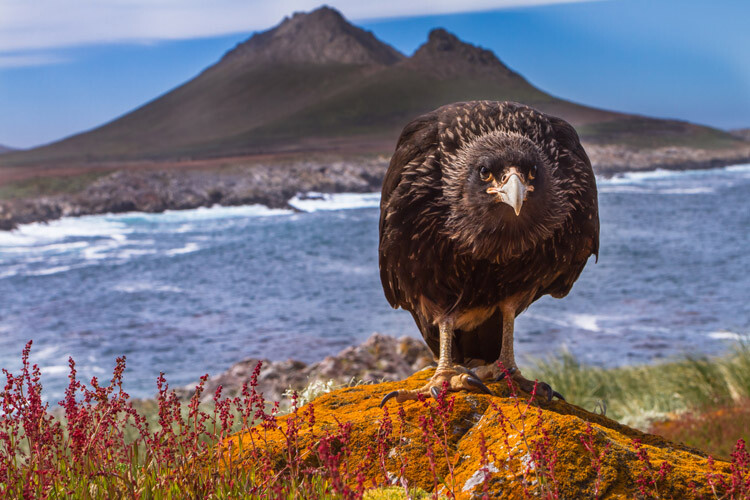
When you have a cooperative or curious subject, few techniques will yield a more compelling result than getting close, and low, with a wide-angle lens. A few years ago, when I was guiding on an expedition cruise through the Southern Ocean and Antarctica, I had several such opportunities.

In the Falkland Islands, a curious Striated Caracara hopped up to have a look at me, while on South Georgia I had a great encounter with a South Polar Skua. The images I made of these two birds are some of my favorites of that journey and perhaps some of my favorite wildlife images.

Ultimate guide outdoor nature photography 42

Wide angles show off not only your subject but also the surroundings and can be extremely effective story-telling images.

The drawback, of course, is that such opportunities are rare indeed. You’ve got to have your subject very close, and that takes time and effort while being prepared when the right opportunity arrives.
Ultimate guide outdoor nature photography 43

To maximize your chances, keep a second camera with a wide-angle lens (heck, even your phone will work) available while out shooting. That way, when a critter draws close and the opportunity for these unique images arrives, you won’t have to fumble with swapping lenses.

Conclusion

As I wrote this lengthy piece on outdoor photography, I felt I could have gone on and on about every single aspect of this discipline. There is just so much to know, and to learn; so many subjects to study, understand, and practice.

Ultimate guide outdoor nature photography 44

It is daunting, but outdoor photography is as much about the journey as anything else. I love making images that work, don’t get me wrong, but I love even more the process of being outside. I love the way a camera makes me more aware of the play of light, and the movement of animals across a landscape.

Photography can be a tool toward a better understanding of the world, but we have to use our cameras with respect and caution. Be mindful of your actions, be careful of our impact, and make beautiful photos. Along the way, you may find your experiences, rather than the final images, to be the most rewarding part. Now go explore.

The post dPS Ultimate Guide to Nature and Outdoor Photography by David Shaw appeared first on Digital Photography School.


Digital Photography School

 
Comments Off on dPS Ultimate Guide to Nature and Outdoor Photography

Posted in Photography


Enter to Win Corel PaintShop Pro 2018 Ultimate

19 Sep

Win a $ 500 gift card and a Corel software package – PaintShop Pro 2018 Ultimate, AfterShot Pro 3, VideoStudio Ultimate X10 and ParticleShop. Boom!

Enter the Corel “Colors of Fall” photography contest today!

Over the last few years here at dPS, we’ve run very some very popular competitions with our partners to give away some of their great photographic products to lucky dPS readers.

We are lucky enough to be able to do it again now.

Three Prizes

For this competition, Corel is giving away, as the grand prize, a $ 500 gift card and a Corel Software Package. The second place winner will receive a full Corel software package and the third place winner will win a copy of PaintShop Pro 2018 Ultimate.

The software package includes PaintShop Pro 2018 Ultimate, AfterShot Pro 3, VideoStudio Ultimate X10 and ParticleShop.

These prizes are designed to help every level of photographer create BETTER pictures. Since 1989, with the introduction of CorelDRAW, Corel boasts a range of award-winning products that includes graphics, painting, photo, video and office software with a community of over 100 million strong. Each prize will be won by a different dPS reader.

Enter to Win Corel PaintShop Pro 2018 Ultimate

All three prize winners will receive the full version of Corel’s leading photo editing and graphic design software – A $ 99.99 value!

* Special Offer – All dPS readers will receive 10% discount on PaintShop Pro 2018 Ultimate

Get Photoshop-like results for less with PaintShop® Pro 2018 Ultimate including a faster, easier PaintShop Pro and an exclusive bonus collection of premium software you won’t find in Photoshop. Turn photos into works of art with Painter® Essentials™ 5, automatically correct images with Perfectly Clear 3 SE, and edit RAW photos quickly with Corel® AfterShot™ 3.

  • Edit photos like a professional
  • Create unique graphic design projects
  • Turn your photos into works of art
  • Enhance your photos instantly
  • Work with RAW images
  • Simplified user interface

Enter to Win Corel PaintShop Pro 2018 Ultimate

Enter to Win Corel PaintShop Pro 2018 Ultimate

Learn a little more about PaintShop Pro 2018 Ultimate here.

How to Win

To win this competition you’ll need to:

  1. Download a free trial of PaintShop Pro 2018
  2. Edit your favorite “Colors of Fall” photo, using PaintShop Pro 2018
  3. Post your “Colors of Fall” photo, along with a few words on how you feel PaintShop Pro 2018 Ultimate would help your photography and, of course, a few words about your “Colors of Fall” photo. It’s as easy as that!

Do this in the next 21 days and on October 9, 2017, the team at Corel will choose the three best photos and comments, and we will announce the winners in the following days.

The deadline to enter is October 8, 2017, Midnight PDT. Photos and comments left after the deadline will not be considered.

Note: By entering the “Colors of Fall” photo competition, the Entrant is providing permission to Corel to publish their photo, if it is chosen as a winner, to be utilized within media post/s by Corel announcing the winners and promoting. Entrants will be provided a full photo credit if a photo is used, and will retain their copyright.

Please click HERE for full contest rules, terms and conditions.

By best – we’re looking for people who understand photography post-processing, and how PaintShop Pro 2018 Ultimate may best suit your needs. So you’ll need to check out the product page to put yourself in the best position to win. Don’t forget that to grab a free trial download.

There’s no need to write essay length comments to win – but we’re looking to hear what you like about the software and how it would help your development as a photographer. Don’t forget to include your “Colors of Fall” photo that you edited with PaintShop Pro 2018. We encourage you to have fun and be creative!

This competition is open to everyone, no matter where you live – but there is only one entry per person. To enter – simply leave your photo and comment below.

Note: By entering the “Colors of Fall” photo competition, the Entrant is providing permission to Corel to publish their photo, if it is chosen as a winner, to be utilized within media post/s by Corel announcing the winners and promoting. Entrants will be provided a full photo credit if a photo is used, and will retain their copyright.

Enter to Win Corel PaintShop Pro 2018 Ultimate

Disclaimer: Corel is a paid partner of dPS.

The post Enter to Win Corel PaintShop Pro 2018 Ultimate by Darlene Hildebrandt appeared first on Digital Photography School.


Digital Photography School

 
Comments Off on Enter to Win Corel PaintShop Pro 2018 Ultimate

Posted in Photography


Enter to Win Corel PaintShop Pro 2018 Ultimate

18 Sep

Win a $ 500 gift card and a Corel software package – PaintShop Pro 2018 Ultimate, AfterShot Pro 3, VideoStudio Ultimate X10 and ParticleShop. Boom!

Enter the Corel “Colors of Fall” photography contest today!

Over the last few years here at dPS, we’ve run very some very popular competitions with our partners to give away some of their great photographic products to lucky dPS readers.

We are lucky enough to be able to do it again now.

Three Prizes

For this competition, Corel is giving away, as the grand prize, a $ 500 gift card and a Corel Software Package. The second place winner will receive a full Corel software package and the third place winner will win a copy of PaintShop Pro 2018 Ultimate.

The software package includes PaintShop Pro 2018 Ultimate, AfterShot Pro 3, VideoStudio Ultimate X10 and ParticleShop.

These prizes are designed to help every level of photographer create BETTER pictures. Since 1989, with the introduction of CorelDRAW, Corel boasts a range of award-winning products that includes graphics, painting, photo, video and office software with a community of over 100 million strong. Each prize will be won by a different dPS reader.

Enter to Win Corel PaintShop Pro 2018 Ultimate

All three prize winners will receive the full version of Corel’s leading photo editing and graphic design software – A $ 99.99 value!

* Special Offer – All dPS readers will receive 10% discount on PaintShop Pro 2018 Ultimate

Get Photoshop-like results for less with PaintShop® Pro 2018 Ultimate including a faster, easier PaintShop Pro and an exclusive bonus collection of premium software you won’t find in Photoshop. Turn photos into works of art with Painter® Essentials™ 5, automatically correct images with Perfectly Clear 3 SE, and edit RAW photos quickly with Corel® AfterShot™ 3.

  • Edit photos like a professional
  • Create unique graphic design projects
  • Turn your photos into works of art
  • Enhance your photos instantly
  • Work with RAW images
  • Simplified user interface

Enter to Win Corel PaintShop Pro 2018 Ultimate

Enter to Win Corel PaintShop Pro 2018 Ultimate

Learn a little more about PaintShop Pro 2018 Ultimate here.

How to Win

To win this competition you’ll need to:

  1. Download a free trial of PaintShop Pro 2018
  2. Edit your favorite “Colors of Fall” photo, using PaintShop Pro 2018
  3. Post your “Colors of Fall” photo, along with a few words on how you feel PaintShop Pro 2018 Ultimate would help your photography and, of course, a few words about your “Colors of Fall” photo. It’s as easy as that!

Do this in the next 21 days and on October 9, 2017, the team at Corel will choose the three best photos and comments, and we will announce the winners in the following days.

The deadline to enter is October 8, 2017, Midnight PDT. Photos and comments left after the deadline will not be considered.

Note: By entering the “Colors of Fall” photo competition, the Entrant is providing permission to Corel to publish their photo, if it is chosen as a winner, to be utilized within media post/s by Corel announcing the winners and promoting. Entrants will be provided a full photo credit if a photo is used, and will retain their copyright.

Please click HERE for full contest rules, terms and conditions.

By best – we’re looking for people who understand photography post-processing, and how PaintShop Pro 2018 Ultimate may best suit your needs. So you’ll need to check out the product page to put yourself in the best position to win. Don’t forget that to grab a free trial download.

There’s no need to write essay length comments to win – but we’re looking to hear what you like about the software and how it would help your development as a photographer. Don’t forget to include your “Colors of Fall” photo that you edited with PaintShop Pro 2018. We encourage you to have fun and be creative!

This competition is open to everyone, no matter where you live – but there is only one entry per person. To enter – simply leave your photo and comment below.

Note: By entering the “Colors of Fall” photo competition, the Entrant is providing permission to Corel to publish their photo, if it is chosen as a winner, to be utilized within media post/s by Corel announcing the winners and promoting. Entrants will be provided a full photo credit if a photo is used, and will retain their copyright.

Enter to Win Corel PaintShop Pro 2018 Ultimate

Disclaimer: Corel is a paid partner of dPS.

The post Enter to Win Corel PaintShop Pro 2018 Ultimate by Darlene Hildebrandt appeared first on Digital Photography School.


Digital Photography School

 
Comments Off on Enter to Win Corel PaintShop Pro 2018 Ultimate

Posted in Photography


Swiss Army Bed: The Ultimate Modular & Multifunctional Furniture Design

16 Sep

[ By WebUrbanist in Design & Furniture & Decor. ]

It’s hard to imagine a more flexible and functional piece of furniture to spend a third of your life in than this one from Singapore, featuring an array of creature comforts and high-tech customizations.

USB ports and plugs tie into charging and speaker systems for lounging around with tunes and devices, while an optional massage chair can help relax the restless before sleep.

An array of benches and loungers lets users lay down or sit up in any number of positions, while a fold-out desk attachment allow for laptop use as well. Storage options include a linen-and-pillow trunk beneath the bottom-of-bed bench and a built-in safe for valuables, plus a bunch of shelves and cabinets.

Perhaps the best part: all of these features can be swapped out because the modules around the bed itself are not permanently fixed. Buyers can choose which ones they want to prioritize then surround themselves with choice luxuries accordingly.

At $ 500 to $ 1000 depending on options, materials and finishes, they are pretty reasonably priced, too, though be sure to check the measurements: they are designed for the Asian market and shorter individuals, so tall people may want to consider them inspiration rather than potential purchases.

Share on Facebook


[ By WebUrbanist in Design & Furniture & Decor. ]

[ WebUrbanist | Archives | Galleries | Privacy | TOS ]


WebUrbanist

 
Comments Off on Swiss Army Bed: The Ultimate Modular & Multifunctional Furniture Design

Posted in Creativity


ShareGrid publishes the ‘Ultimate Anamorphic Lens Test’

06 Sep

ShareGrid, a peer-to-peer gear rental service, has published the results of its Ultimate Anamorphic Lens Test, which evaluated 42 ‘vintage’ anamorphic lenses representing lens families from 13 companies. Using ShareGrid’s ‘quad player’ interface, it’s possible to compare video test results from up to four lenses simultaneously, and the results can be very interesting.

Brent Barbano, a cinematographer and ShareGrid co-founder, emphasizes that these aren’t just casual tests, but result from a full-blown three-day production shoot that took months of planning and involved producers, directors, DPs, and production managers, including many technical experts and cinematographers from the filmmaking industry.

The test is a follow-up to the company’s 2016 Ultimate Vintage Lens Test, which evaluated 40 classic circular lenses. By using an identical setup for both tests, right down to the same model in front of the camera, it’s even possible to compare results from anamorphic lenses with circular lenses. Want to compare a 50mm ARRI / Zeiss Master Anamorphic with a 50mm ARRI / Zeiss Master Prime Spherical? No problem!

Think anamorphic lenses are just for motion picture work? Not so fast. As the test’s Director Mark LaFleur points out, “Any photographer who wants to make a big splash within the photography world should start shooting anamorphic, because your work will immediately stand out from the pack.”

The producers used an identical setup, including the same model, for both anamorphic and circular lens tests, making it possible to compare results between both types of lenses.

Courtesy of ShareGrid

According to Barbano, one of most important factors contributing to the success of the project was enthusiastic support from the filmmaking community, including dozens of volunteers. “The overwhelming amount of people who wanted to be involved in some way was the coolest part about the whole thing,” he says. “We had people donating their time. We had people donating their lenses. We ended up absorbing crew members out of nowhere, which was really, really cool.”

If you want to learn more about anamorphic lenses, ShareGrid has also published a great explainer page, and Director Mark LaFleur has written a detailed overview of the testing process.

We had a chance to spend a few minutes with Barbano and LaFleur to learn more about how the tests were performed and what they discovered along the way.

What inspired you to test all these lenses?

Mark LaFleur: I’m a cinematographer. And I’m kind of obsessed with lenses. I wanted to get tests out there because I was using my equipment for my own jobs, but was also renting my equipment to other people. I knew that with a really good test video, I wouldn’t have to convince someone about the look of a lens or try to describe it to them. We live in a time when a lot of people are able upload decent video, but sometimes when you find a test, you don’t know if the data is accurate.

But when you compare lenses on a level playing field, you really see differences between them. ShareGrid’s idea for a quad player to play lenses simultaneously, combined with the way I wanted to conduct and present the tests, really created one of the better lens tests that exists.

Director of Photography Kyle Stryker and 1st Assistant Camera Seda Kisacik set up a shot with their model, Kori.

Photo by Joseph Adams

Why test vintage anamorphic lenses?

Brent Barbano: We were obsessed with vintage lenses from our last test. Mark owned a set of Lomo anamorphics at the time, so we included them in the spherical vintage test. When those went up and everyone was looking at the screen, everyone was just like, “Wow!” It just renders everything completely different.

Anamorphics are incredibly popular. It’s what everyone is yearning for. So we’re giving our audience exactly the types of tests they need. We wanted to put something out there to set the bar, the standard for real, accurate, good information. There are no winners in this test. Every brand fits its purpose. Whether it’s price, availability, or size. They’re all beautiful in their own unique way.

“There are no winners in this test. Every brand fits its purpose. Whether it’s price, availability, or size. They’re all beautiful in their own unique way.”

How did you select the lenses you tested?

Brent: There were some categories we wanted to hit. We wanted to get benchmark lenses, the best of the best, like the ARRI / Zeiss Master Anamorphics and the Cooke Anamorphics. But we also wanted to get really cheap, very affordable options, like the Iscorama Pre-36 Adapter. That’s a very popular option in the indie budget film community. We wanted to cover really old lenses, which we got with the old Panavision Auto-Panatars, which should be in a museum. We also have the Atlas Orion 65mm prototype lens, which was announced this year at NAB. It’s not even out in production yet. So we have the newest anamorphic you can get vs. one of the oldest.

Mark: Also, any set that’s included in this test is something you can either buy or rent. Even something that’s rare like the Todd AOs or the Cineovisions. You can get them from a rental house even if you’re in a smaller city in the middle of the country. They can ship them to you.

What was involved in testing each lens?

Mark: We had a few tests including a real-world test, which is with a model in a room that gives us a lot of depth so we can see what out-of-focus elements look like, with bright highlights and straight lines. In that one setup, you really get a good sense of the character of a lens. We also did a couple lens flare tests and a distortion test. We also put every lens on a lens projector. In the cinematography community, every lens tech has a projection room. And that’s how they can basically diagnose a lens, by just shining pure light through it from the rear element out the front and onto a wall.

Each lens was subjected to several tests, including ‘real-world’ and technical evaluations.

Courtesy of ShareGrid

How can someone use these tests during production planning?

Mark: You can go out and take any lens in this test, bring it home, and shoot beautiful images. You can even go to a rental house and they’ll take every lens off the shelf for you and you can sit there in that rental house and test them all out. But you’re in a rental house, under fluorescent lighting with white walls and focus charts. It’s not the environment you’re going to be shooting in. We wanted to create a test that made the characteristics of a lens pop. Its bokeh, its sharpness, its breathing, its color, its vignetting, its distortion. The only way to do that is to have a side-by-side, A-B comparison. Or, with the quad player that ShareGrid’s doing, an A-B-C-D comparison.

What about people who may be using a DSLR or mirrorless camera instead of an ARRI or RED? Will the results of these tests be useful to them?

Brent: Absolutely. I think the problem is that anamorphic is intimidating. I think optics and visual cinematography can seem intimidating. And we believe that this resource will hopefully demystify everything and open the doors. And yeah, if you can’t afford some of these lenses, you can afford an Iscorama if you’re doing an indie production. But like Mark said, Cineovisions, Lomos, these lenses are up on ShareGrid. They’re pretty affordable, and they get rented all the time by music videos, commercials, indie productions, and young filmmakers.

“…at this point, the indie filmmaker with a DSLR is shooting more anamorphic right now than anybody else.”

Mark: I would say at this point, the indie filmmaker with a DSLR is shooting more anamorphic right now than anybody else. There are a lot of people getting these anamorphic adapters and doing DIY anamorphic lens building and using a Panasonic GH4 which has a four by three sensor. Anamorphic is getting to a point where it’s completely acceptable for, I would argue, almost any budget. Even the smallest budgets. If you’re a DSLR owner, you can rent anamorphic lenses for a very small amount of money and go out and shoot.

Lens tests were run as a full production shoot, including experts representing every step of the production process.

Courtesy of ShareGrid

Can you provide some guidance for people who aren’t experienced with anamorphic lenses? What should they look for in the test results?

Mark: If you’re a photographer, I mean, an image is an image, and I think any photographer could jump in and make pretty well-informed judgment calls on things that they like or don’t like. Any photographer who wants to make a big splash within the photography world should start shooting anamorphic, because your work will immediately stand out from the pack.

We conducted our test procedure exactly the same as our spherical test, so we have the same location, the same model, the lights… the same everything. Someone who doesn’t know anything about anamorphic lenses can use the quad player to pick lenses from the spherical test, so it’s possible to view a real side-by-side comparison of what a 50mm spherical vs. 50mm anamorphic looks like.

What did you learn from testing all these anamorphic lenses?

Brent: Lenses are beautiful. No matter if old or new, they’re all amazing in their own unique way. Lenses are not perfect, they’re never going to be perfect. And that’s okay. Because when you look at how they manipulate the world that we see with our eyes every day, they make it look just so beautiful. That was the really cool takeaway for me.

Mark: I couldn’t put that any better. People will tell you, “This is the best lens,” or, “Use this one,” or, “This one’s good,” or, “This one’s bad.” And what I really liked about the test was that there really was no winner. Every single lens, regardless of how expensive it is or how much clout its name brand gives it, if you took a blind test, if you took these 13 lens sets, and you asked 13 people to pick their favorite, you’d get 13 different answers. Including the cheapest lens.

A crew shot along with some of the lenses included in the test. According to cinematographer Brent Barbano, community support was one of the most important aspects of the production.

Courtesy of ShareGrid

Articles: Digital Photography Review (dpreview.com)

 
Comments Off on ShareGrid publishes the ‘Ultimate Anamorphic Lens Test’

Posted in Uncategorized


Overview of Photo Studio Ultimate 2018 for Windows by ACDSee

01 Sep

ACDSee has released Photo Studio Ultimate 2018 for Windows and is the new update for their photo editing software. They have given it a new name, introduced new features, and made improvements to others. With so many people looking for other software packages that you don’t have to pay a monthly subscription for, this makes it a very attractive program for people to use.

Overview of Photo Studio Ultimate 2018 for Windows by ACDSee

What part of Photo Studio Ultimate 2018 looks like when you open it up.

I recently wrote an article, Photo Editing Alternative – An Overview of ACDSee Ultimate 10, that will guide you through the different modes and what they do. If you are new to this software, it would be best if you read that first. This review goes into more detail about Edit mode and what is possible. It will also look at some of the features that are now available in this new release.

First Impressions

It would be easy to expect it to look like Photoshop when you first open it up. However, there are many similarities that can help make it more familiar to use. You can work in layers for your images, which enables you to go back and make adjustments to particular ones or delete them if you no longer want them. Many of the adjustments and tools have similar names which make it easier for you to learn. You can use the History function to go back to see what you have done. You can work nondestructively so your original images are always protected.

Overview of Photo Studio Ultimate 2018 for Windows by ACDSee

Edit Mode, working on an image.

There are also many differences. Some of the tools may have the same name, but to get the same results you have to use them in a different way. When you click on one of the tools and adjustments in the Edit mode menu, located on the left side of the workspace, you are taken to a different screen to make the changes. When you are done, you click either Done or Cancel, and you are taken back to the main Edit mode window.

New and Improved

As you start using Photo Studio Ultimate, you will find many new tools and adjustments to help you work on your images. The latest release features many new tools that work really well and will be mentioned soon. It also includes older tools, which have been developed over decades, yet still, stand up to today’s demand. The software is becoming very sophisticated and should suit the needs of most.

Overview of Photo Studio Ultimate 2018 for Windows by ACDSee

Working on an image in Edit Mode.

There are so many improvements, it would be hard to do them all in one article. So, this overview is focused on the ones that ACDSee is the most excited about and those that I really like.

Pixel Targeting

There is a new feature in the software that gives you more opportunities to be creative with your work. You can select a specific color to apply adjustments to, for example, you may want to make the reds brighter, or tone them down. You may want to sharpen only the greens. Or you can decide to change all the yellow tones to purple. With Pixel Targeting, you can do so as you please. You can also apply masks to specific colors or brightness ranges.

Overview of Photo Studio Ultimate 2018 for Windows by ACDSee

Using Pixel Targeting to give the yellows and oranges more saturation.

One application that a lot of people may use this feature for is to convert an image to black and white and have just one color coming through. By selecting your image and then going to Select to choose Pixel Targeting, you can decide which color you want to select. Once you click OK, you will see your selection and when you add the Black and White adjustment layer, the selection is turned into the mask. You will have your image in monochrome, except for the one chosen color.

Overview of Photo Studio Ultimate 2018 for Windows by ACDSee

Using the tool to select which color you will target with Pixel Targeting.

It is easy to use, although, you may have to play around with it a little. Remember that all colors are made of other colors. You may also need to do more work on the mask to get the look you really want. Overall, it does a decent job of the task, and there will be many people who will like this function.

Overview of Photo Studio Ultimate 2018 for Windows by ACDSee

Once you have done the selection and created the mask, then inverted it, you are left with color only for the tulips.

Smart Erase Tool

Along the top of the toolbar in Edit mode you will find the Smart Erase tool. This tool allows you to remove objects in your image that you don’t like, or don’t want. You often find unwanted subjects in your images, and being able to remove them is important. This has always been one of the best things about digital photography.

The tool is easy to use; you simply click on the image and start painting over what you want to be removed. You can set it to show up as a red overlay so that you can see what you’re doing.

Overview of Photo Studio Ultimate 2018 for Windows by ACDSee

When you find an unwanted person in an image you can use the Smart Erase to remove them. The Red shows where it is being applied and then the final result.

The Smart Erase tool seems to work best on small areas and on images with a plain background. Think about what you want to remove and look at the size of it, and the background. If you don’t get the results you’re looking for, you can always run the Smart Erase command again and again until you get a natural look. Play around and see what you can achieve.

Overview of Photo Studio Ultimate 2018 for Windows by ACDSee

The Smart Erase did a good job of removing the woman from just inside the door.

Liquify

The Liquify tool is what they use in the fashion industry to make models thinner. It is easy to use, however, should always be done with caution and used subtly. This tool allows you to move the pixels around to where you want them.

Overview of Photo Studio Ultimate 2018 for Windows by ACDSee

You can use Liquify to move pixels around and to make someone look slimmer.

You can turn objects in your images into funny shapes with the Liquify tool. However, common sense and what works best for the image always must be the first consideration.

Inside the tool, there is a Restore setting, which allows you to brush or push the moved pixels back into place without losing image quality. Even after you press Done in the Liquify tool, you can still undo while still in Edit mode. That said, since the Liquify tool is not a non-destructive adjustment layer, you cannot exit out of Edit mode and then later undo what you did.

Why would you use it? It is usually used to change parts of people, to remove a double chin, or a bit of overhanging skin. You can make people thinner, as previously noted. You can pull the waist in, or make legs that look a little less chunky, or make clothes fit better. Every time you use it, remember you are moving all the pixels in the area, and that includes the background.

The Liquify tool is great to play around with to familiarize yourself with what it does. Try out the different settings within the tool to see which one will suits your needs.

Overview of Photo Studio Ultimate 2018 for Windows by ACDSee

You can just play with it to see what else you can do. This flower now looks crazy, but great effect.

Frequency Separation

This is a technique used by many portrait photographers. It allows you to soften the skin, but keep detail around the eyes, nose, and mouth. When doing close-ups of people, you often find the skin looks dry, or you may see the pores. By using Frequency Separation, you can add some blur to the skin, but leave the detail at the same time.

Overview of Photo Studio Ultimate 2018 for Windows by ACDSee

What a normal face looks like just after you have taken the photo.

In other programs, you need to do the layers yourself and work it all out. But with Photo Studio Ultimate, you just click the Frequency Separation button and it works like an action, separating the high-frequency and low-frequency layers for you. It will provide the low-frequency layer for blurring and then the high-frequency layer that holds the detail. You are all set to go.

Overview of Photo Studio Ultimate 2018 for Windows by ACDSee

You can use Frequency Separation to give their skin a much softer appearance.

This is a great tool and anyone doing portraits will find it useful. It doesn’t require a lot of research to figure out how to use it and anyone could start playing with it. You could try and use it with other types of photography as well. I’ve tried it on images of macro flowers and have found it really good. There are possibly other ways of using it as well.

Overview of Photo Studio Ultimate 2018 for Windows by ACDSee

Frequency Separation was used on the flower to soften parts and give more detail to the edges.

Lens Correction and Perspective Correction

It’s always good to use lens correction wherever possible. It helps fix up any distortions that your particular lens will give an image.

You can also use the Perspective Correction, which will allow you to change the perspective. If you have an image that looks strange because all the buildings are pointing in towards the center, you can correct them. You can click on the corners and move them so you get what you remember seeing, buildings with straight lines.

Overview of Photo Studio Ultimate 2018 for Windows by ACDSee

Using the Lens Correction and Perspective Correction together to make buildings straighter.

In some ways, the Perspective Correction is far more useful than Lens Correction. It is not something that Photoshop seems to offer. You can do it, but have to do it in a completely different way. This works really well and I use it a lot.

Chromatic Aberration

These are colored lines that appear around objects in your images. They seem to appear around buildings a lot but can happen anywhere. Chromatic aberration is caused by your lens, and there is nothing you can do to stop it, but you can work on this in post-production.

Photo Studio Ultimate has a special adjustment for correcting chromatic aberration. You will find it under the Repair section in the column on the left. Click it and you will get a new window where you find five sliders. Zoom into 100% on the image so you can see the edges and the aberrations. Move the sliders around and see what happens. Each image is going to be different, so you might have to try different adjustments.

Overview of Photo Studio Ultimate 2018 for Windows by ACDSee

Using the Chromatic Aberration adjustment to remove the color fringes around objects caused by your lens.

Once you are happy, press Done and it will take you back to the normal workspace.

Split Tone

A new split tone adjustment layer has been added so that you can nondestructively tint highlights and shadows in Edit Mode. As an adjustment layer, you have the advantage of being able to apply split toning any time in your processing, and on several layers. You can also easily delete the layer if you decide you don’t like it.

Overview of Photo Studio Ultimate 2018 for Windows by ACDSee

A before and after with the Split Toning.

Clone Tool Pressure Slider

If you go to the Edit mode menu and look under Repair, you will see the Repair Tool. When you click on it, you are taken to the work area for the tool and from there, you can see the options, Heal or Clone. If you click Clone, a new slider will appear called Pressure under the Nib Width and Feathering sliders. This allows you to control the strength of the cloning.

At the default setting, it will do a straight copy. However, as you reduce it, the strength is also decreased. This is especially useful when you want to want to clone something out, but you don’t want to lose all the detail. A perfect example is when you want to reduce the darkness under someone’s eyes. You want to reduce the dark color, but you may want to keep the lines that are there as well but soften them at the same time.

Overview of Photo Studio Ultimate 2018 for Windows by ACDSee

Adjusting the Pressure slide for the Clone tool you can use to it remove the bags under the eyes, without taking away too much of the detail.

A Couple More Options to Mention

A Grain tool has been added to Edit Mode. You can add grain to your images to give it texture and create a vintage effect.

A new tool has been added to the toolkit; the Polygon Selection Tool. This selection tool and allows you to select an object in your image by pressing on the outside of it and doing like a dot to dot to get the selection you want.

Working in a Different Way

If you are used to using a program, like Photoshop, you will find that some functions don’t work the same. That is to be expected, it is different software. However, it doesn’t take you long to get your head around how you can do certain processes. In many ways, you do have to think outside the box, and so far I’ve managed to find many ways to do what I would do in Photoshop by using different tools.

Overview of Photo Studio Ultimate 2018 for Windows by ACDSee

I do a lot of processing in Photoshop and I wanted to see if I could achieve a similar look on one of my images, this is the final result. It’s good.

Overall

It is good to see other software that makes it possible to do just about anything you want to your image. While Photo Studio Ultimate may not be as big as Photoshop, there is no doubt that it will enable you to do just about everything you want to your images. The new release will offer users more tools and adjustments to help them get the look they want. It is a great program and one of the best alternatives I’ve seen. You can download and have a free trial for 30 days. Just remember that you will have to work differently, but it is worth it.

The post Overview of Photo Studio Ultimate 2018 for Windows by ACDSee by Leanne Cole appeared first on Digital Photography School.


Digital Photography School

 
Comments Off on Overview of Photo Studio Ultimate 2018 for Windows by ACDSee

Posted in Photography


Nokia is teaming up with Zeiss to deliver the “ultimate imaging experience”

10 Jul

Nokia’s 808 and Lumia 1020 are still regarded by some as the best camera smartphones ever made. The devices’ outstanding image quality was the result of a collaboration between the Finnish handset-maker and lens manufacturer Carl Zeiss. But things have changed a lot since the 808 was launched in 2012, and HMD Global now has the exclusive rights to Nokia’s brand name.

Fortunately, it seems we are going to see Nokia smartphones with a Zeiss badge once again in the near future.

HMD Global and Zeiss have announced a partnership to deliver the “ultimate imaging experience possible on a smartphone” and set “new imaging standards within the smartphone industry.”

“Collaborating with ZEISS is an important part of our commitment to always deliver the very best experience for our customers,” says Arto Nummela, CEO of HMD Global. “Our fans want more than a great smartphone camera, they want a complete imaging experience that doesn’t just set the standard but redefines it. Our fans expect it and, together with ZEISS, we’re delivering it—co-developed imaging excellence for all.”

This year HMD Global has already launched the Nokia 3, Nokia 5, and Nokia 6 smartphones, which are aimed at the entry-level and mid-range segments of the market—we have not seen a high-end model yet.

It appears the Zeiss lenses and imaging technologies will be reserved for the upcoming Nokia 9 flagship. If the rumors are true, we should see a 13MP dual-camera in the 9.

Articles: Digital Photography Review (dpreview.com)

 
Comments Off on Nokia is teaming up with Zeiss to deliver the “ultimate imaging experience”

Posted in Uncategorized


Photo Editing Alternative – An Overview of ACDSee Ultimate 10

07 Jul

As more and more people take up digital photography and want to get started editing, many are asking the question, are Adobe’s Lightroom and Photoshop my only options? ­­­At ACD Systems, they have their own editing software called ACDSee Ultimate 10, which allows you to do many of the same functions as the former.

Adobe’s subscription model—membership and monthly payments—is a big turn off to many, particularly because if the price becomes too high, it will become unattainable, and then they will be left with nothing. We have already seen some price hikes recently. ACDSee Ultimate 10 could be perfect for those looking for an alternative to what Adobe offers.

ACDSee Ultimate 10

Starting Up ACDSee Ultimate 10

Without a doubt, you will scratch your head as you try to work out how to do things in ACDSee Ultimate 10, but this can be said for any new software you try. If you have used Lightroom, then much of it should be easy to work out, and there are a lot of similarities. If you have not used it or any other photo editing programs, then you will find a wide range of videos on their website to take you through how to use ACDSee Ultimate 10 and understand it.

One of the biggest problems with Lightroom is how you must import your photos into it. With Ultimate 10, there is no need to import your photos as they are read directly off of your hard drive and displayed in the exact same folder structure you see in Windows Explorer (or Mac Finder). This saves you one step altogether, however, there is also an import function available, which you can use to apply some batch functions, such as renaming while extracting the photos off of your device.

ACDSee Ultimate 10

What Manage Mode first looks like when you open ACDSee Ultimate 10.

Parametric Processing

As you work your way through the videos, you will hear a lot about parametric processing. If you are like me, you have never heard the term before. It is another way of saying non-destructive, or in easy terms, you can save all your layers so you can go back to it and work on it some more, later.

Using ACDSee Ultimate 10

There are obvious differences between ACDSee Ultimate 10 and Lightroom, but you are also going to find a lot that is similar—perhaps even better. When you open it up, you can see in the top right corner the different modes that are available: Manage, Photos, View, Develop, and Edit. We will take a look at each mode and see how they compare with Lightroom and a little of Photoshop.

It is fair to say that Photoshop does offer a lot more than this program. However, as many people prefer using Lightroom, this could be a really good alternative for them. You can certainly do all the same edits that you can do with Lightroom. However, it’s when you start getting into the more advanced image manipulating where you would normally use Photoshop that you may find limitations withACDSee Ultimate 10.

See a feature comparison between Lightroom and ACDSee Ultimate here.

Manage Mode

The Manage Mode is very similar to the first window you find when you open Lightroom, the Library Module. On the left, you see a column with all of the folders on your computer. It displays the folder structure you have on your hard drive, so there is no searching through unfamiliar territory. The way Lightroom does this can be confusing and it can be hard to find directories.

ACDSee Ultimate 10 - manage mode

Taking a look around to see what is in Manage Mode.

Underneath the above, you will find details about the selected image, such as the camera model, the size of the image, and what your settings were. Then under that, you will find a histogram of the image.

The middle section is where you see the contents of the selected folder and any subdirectories that may be in it. Each thumbnail indicates what type of file it is, RAW, PSD, etc. It is still possible to put ratings and labels and such on your images. There are categories and keywords that Lightroom users will be familiar with, which can be used the same way in Ultimate 10. This section works like a proofing sheet, which allows you to see all of the images in the folder.

In Lightroom, you can get a preview of the image by pressing the spacebar, however, in Ultimate 10 you use View mode to get a larger view of your images. To get there you can double click or press enter with the desired image selected. In the right-hand column, all the EXIF data that is available in the image is found there. There is the same additional information that you find available in Lightroom.

Photos Mode

In this mode, you will get a small preview of every image that you have on your computer. It is almost like a list, in order. The images will be sorted by the date they were taken, and you can do rearrange to sort by day, month, or year. It is a great way to help you find photos when you can’t remember where you put them, especially if you’re like me and don’t use categories or keywords.

04-leannecole-acdsee-software-review

How Photo Mode appears.

In Lightroom, you could only do this with the photos that you have imported. In Ultimate 10, it doesn’t matter; it will show every image that is on your computer.

View Mode

In View Mode, you will get a larger view of the selected image. Underneath the image, there is a filmstrip with all the photos in the selected folder so that you can navigate between them. There are also some basic functions you can apply to the image if you want to make some changes. However, this mode is more for viewing your photos and figuring out which ones you might want to work on.

ACDSee Ultimate 10

Opening View Mode.

In this mode, you can add ratings, labels, and set your categories. To rate an image, click Ctrl/Cmd plus the number you want to assign to it, or to label an image press Alt/Option then the number according to the color you want to apply. You can do many other things to the image as well. There is a small menu on the left just above the filmstrip, or you can right-click on the image to get options as well.

06-leannecole-acdsee-software-review

Some of the functions you can do in View Mode.

Develop Mode

This is the mode that seems to most resemble Lightroom and is your workspace. It is laid out differently and you will find all the adjustments in the left-hand column. Many of them are the same, though to get to each of the sections you will find these modes; Tune, Detail, Geometry, and Repair near the top that you click for various adjustments. Each one of those modes have different tools you can use to make the various changes to your images.

ACDSee Ultimate 10

Opening an image in Develop Mode.

A lot of the processes are set out differently, but they often have the same names. There are titles for each one which, like Lightroom, are menus and when you click on them new adjustments can be accessed. The plus sign means it is closed and when it’s opened, it turns into to a minus sign.

ACDSee Ultimate 10

Looking around Develop Mode and the Tune Mode.

ACDSee Ultimate 10

What is available in Detail Mode.

ACDSee Ultimate 10

What you can do in Geometry Mode.

ACDSee Ultimate 10

A quick look at Repair Mode.

Develop Presets

In ACDSee Ultimate 10, you can save your develop settings as presets, either globally by mode (Tune, Detail, Geometry, Repair) or by tool group.  You can then apply saved presets to a single image, or a batch of images in Manage Mode.

Develop Brush, Linear Gradient, and Radial Gradient

These three tools similar to Lightroom’s Adjustment Brush, Graduated Filter, and Radial Filter. They can seem a little strange at first if you are used to Lightroom. The Develop Brush doesn’t have an erase button, so how do you remove the parts you did by mistake? By right clicking and going over the part you no longer want. This is actually much better, and makes your workflow much faster.

In Lightroom, when you want to use the Graduated and Radial filters, you click on them and then draw a line on your image. With Ultimate 10, once you click the Gradient button, the Gradient will appear on your image, and then you move it, enlarge or shrink it, or rotate it to where you want. There are specific places on the gradient to do that. The cross in the middle is used to move it, the hook from the cross rotates it, and the squares on the dotted lines are used to resize it. It is different but doesn’t take long to get used to. If you want more than one gradient, you will find a section with the icon and a blank square above it. To apply another brush, just enable the next checkbox.

ACDSee Ultimate 10

How the Graduated Filter works.

ACDSee Ultimate 10

How the Radial Filter works.

To make them disappear once you are done, click on the icon for the tool and the program will unselect it.

Edit Mode

Edit Mode is very similar to Photoshop, however, again, it is set out a bit differently. In this mode, you can do a lot of fine-tuning. You can use layers and make adjustments.

The tools are along the top under the menu bar, and the edits that are available are down the left side. On the right, you will find your layers panel, and the layered adjustments are down the bottom of that panel. Underneath those, you will find where you can add new layers, masks, or duplicate layers.

ACDSee Ultimate 10

Opening up into Edit Mode.

When you have different layers, you will also find the rubbish (trash) button will appear there. Highlight the layer you want to delete, and press the button. Though you could simply press delete on your keyboard as well.

The feathering option is different and you don’t set how much you want to feather until you have added the mask. You press the mask button and the settings for it will appear at the bottom of the layers panel.

ACDSee Ultimate 10

Adding layers in Edit Mode.

Edit Presets/Actions

While you can also save presets in Edit mode, perhaps even more useful is the tool they developed to address the general limitations of batch editing. ACDSee Actions allow you to “record” any and all adjustments you make in Edit mode, and then to apply them to other images, (individually or to a batch), by “playing” them back (like Actions in Photoshop). It’s as simple as pressing a Record button before you start editing, pressing Stop when you’re done, and then choosing a name to save the action under.

If you forgot to begin recording before you started editing, you can simply use the Undo button, press Record, and then press the Redo button. You can even preview the effect that an action is going to have on an image before applying it. This really speeds things up and ensures that you can apply anything in a batch.

ACDSee Ultimate 10

Using Actions.

Overall Impressions of ACDSee Ultimate 10

Without a doubt, ACDSee Ultimate 10 is a good alternative to Lightroom. It has a lot of similar functions, and many of the things that you do in the first, you can do in the second. How you use it is always going to be different and finding your way around the settings and functions will take time, but that is the same with any software.

If you are someone that doesn’t use Photoshop but you would like to start working with layers, then Ultimate 10 could be a good way to start.

ACDSee Ultimate 10

The final image.

Owning or Renting

With the latest release of Lightroom, everyone was told that it would be the final one that you would be able to buy outright. All future releases will come under the Creative Cloud subscription plans. This has made a lot of people nervous. Meanwhile, many are frustrated that while they have purchased it, there are still functions that are only available if you subscribe to Adobe.

At ACD Systems, they understand this frustration, and you can buy all their products so you own them. Or, if you want the benefit of getting updates and having the latest version, you can also subscribe. The choice is yours.

If you are unsure of what to do, their Live Chat is available, along with email and phone numbers for you to call as well. To take a look at the Ultimate 10 follow this link, ACDSee Ultimate 10.

ACDSee Ultimate 10

A quick look at the website where you can find videos.

Finally

ACDSee Ultimate 10 is a great program for anyone who wants to get into photo editing. While there is a learning curve, that is true for any other editing software that is available. For most photographers, Ultimate 10 will have everything they need to do the image adjustments they would like. Give it a try and tell us what you think.

Disclaimer: ACD Systems is a paid partner of dPS

The post Photo Editing Alternative – An Overview of ACDSee Ultimate 10 by Leanne Cole appeared first on Digital Photography School.


Digital Photography School

 
Comments Off on Photo Editing Alternative – An Overview of ACDSee Ultimate 10

Posted in Photography