RSS
 

Posts Tagged ‘Traveling’

Step by Step Plan for Backing Up Your Images While Traveling

11 Nov

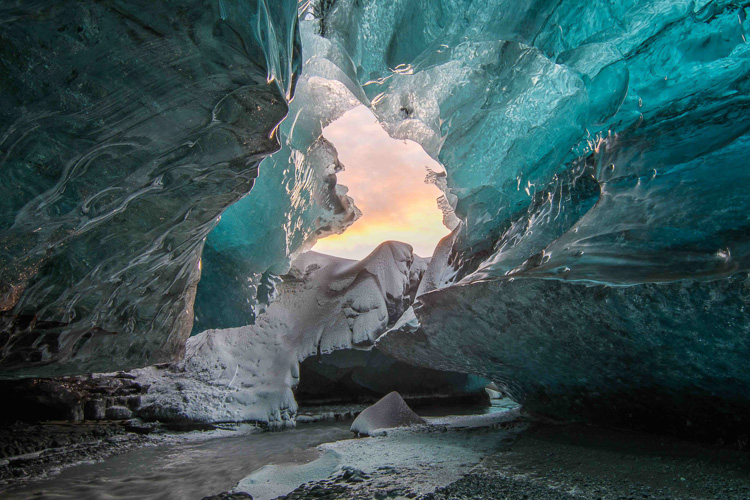
Planning how to back up your images while you travel isn’t nearly as exciting as planning your itinerary or buying gear for your upcoming trip. But it’s an important step in the travel planning process. Especially if you’re going someplace rugged and amazing like Iceland in the dead of winter, having a plan for uploading and backing up your images while you travel will help you ensure that all of your images are securely stored in multiple locations. After all, if you finally get a chance to photograph ice caves and the aurora borealis, you don’t want to worry about getting those hard-won images safely home with you.
Backing up images traveling 01

Following is a step-by-step plan for backing up your images starting with preparing to travel, guidelines for backing up during your trip, and how to complete the process once you return home.

Part I. Before you leave on your trip

Step #1 – Examine, reformat and test all of your memory cards

Before you leave on your trip, make sure that you have plenty of memory cards. I budget approximately two 32gb cards per day. You may need more or fewer, depending on your style of shooting.

First, examine all of your memory cards for damage. If any are visibly bent, warped or deeply scratched, it might be time to retire them.

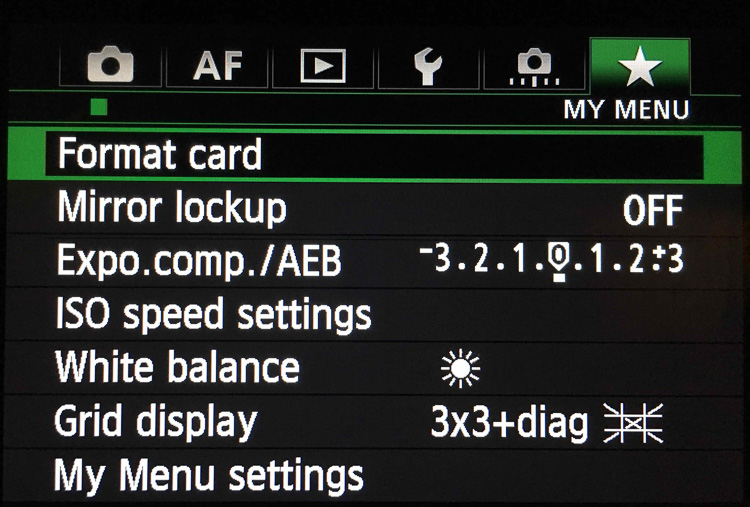
Next, reformat all your memory cards in your camera. Take and save several images on each memory card and then upload the images, one card at a time. This test verifies that each memory card is still in good working order. If a memory card does not pass the upload test, retire it.
Backing up images traveling 02

Step #2 – Buy smaller memory cards to reduce risk

If you need to buy additional memory cards, evaluate using smaller cards like 32gb and 64gb. You have to change memory cards more often while you’re shooting but if one memory card goes bad, you’ll have endangered far fewer images than if a huge 256gb or 512gb memory card corrupts.

Use stickers to indicate if memory cards are full or empty.

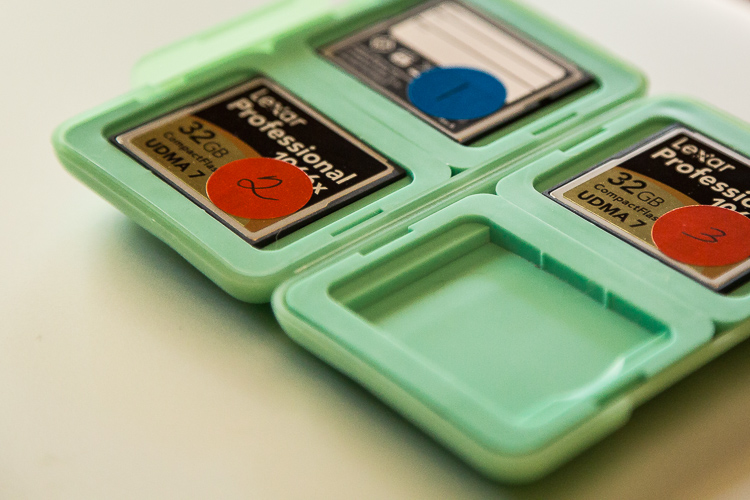
Create a system to keep full memory cards separate from empty memory cards. An easy method is to buy a memory card case or folder with clear pockets. Put blue sticker dots on one side of your memory cards. Put red sticker dots on the other side of your memory cards.

Blue sticker dots mean used or full cards. You can remember this mnemonically since blue, used and full all contain the letter U in them. Red sticker dots mean empty cards. You can this remember this mnemonically since red and empty all contain the letter E in them.
Memory cards case stickers Image C

Step #3 – Number your memory cards sequentially

Before placing the stickers on the cards, I also like to number the sticker dots one through however many cards I have. I file the memory cards numerically in the case. On day number one of my trip, I’m using cards numbered one and two. On day number two of my trip, I’m using cards three and four. By numbering the cards, I ensure I rotate them which further reduces the chance of corruption since no one card is used excessively. Then if I do lose a card, it’s also easier to keep track of which card from which day has gone missing if the memory cards are numbered sequentially.

Lastly, if a card does corrupt, it’s easy to keep track of which one because it’s numbered. I usually pull it out of my case and stow it separately in a secure pocket elsewhere in my bag. If memory card number four goes bad on a trip, I want to ensure I don’t accidentally reformat it or save more images to it before I’ve tried to recover the images.

After you test, number, and sticker all of your memory cards, place them in the case with the red sticker dot facing up. While you’re traveling, place full (used) memory cards back into the case sequentially with the blue dots facing up. If you’ve budgeted the amount of cards you need for your trip correctly, on the last day of your trip, all of the memory cards in your case should have blue dots facing up.

SD or CF cards or both?

If your camera has two memory card slots, evaluate carefully whether or not you want your main memory card to back up to the second card while you’re shooting. My Canon 5D Mark III has two memory card slots. One is a CF card slot and the other is for an SD card. I typically only use the CF card slot because they write faster than SD cards. Since I photograph horses and wildlife and set my camera to high-speed burst mode, I want my images to write to my memory card as fast as possible. Since my camera defaults to the write speed of the slowest card, I leave the SD card slot empty.

While this method works for me, your camera might function differently than mine. You may also have different priorities than I do when you shoot. Landscape photographers, for example, don’t use high-speed burst mode very often. Neither do macro photographers. If you specialize in landscape or macro photography, automatically creating a backup in camera by writing your RAW images to two memory cards simultaneously might be a good failsafe for you.

Step #4 – Buy two identical portable hard drives for travel
Travel Hard Drives Image D

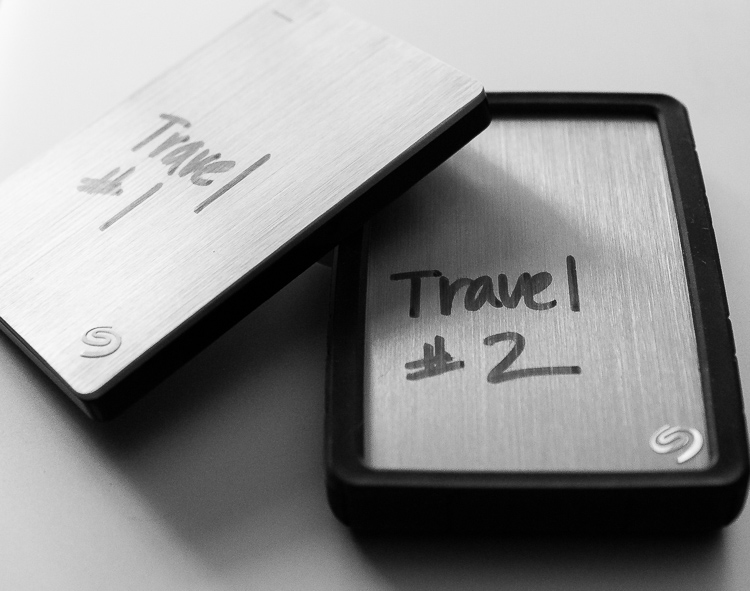
I recommend uploading your travel images to two identical, high-quality, portable hard drives. I use 1TB drives. One terabyte is typically enough for my style of shooting since I rarely travel for more than 10 days at a time. Digital storage is inexpensive these days. So evaluate the best size portable hard drive for you by reviewing your image files from past trips. Buying more storage than you think you need is more effective in the long run. So if you think you need 500gb drives, buy 1TB. If you think you need 1TB, buy 2TB.

Step #5 – Protect your new hard drives

Now that you have two new hard drives to keep your images safe, you need to physically protect them. Use rubber bumpers or cases to protect the drives in case they fall out of your bag or are dropped. If you’re shopping online, you can usually find the correct size bumper or case listed on the same web page as your hard drive.

Step #6 – Label your portable hard drives

When you are setting up your new portable hard drives, label each one clearly. I literally use a thick permanent marker to do this. Keep the names consistent since you’ll be referencing these drives frequently. Mine are simply called Travel #1 and Travel #2.

Step #7 – Format and set up your portable hard drives

Format your new portable storage drives according to your operating system – usually OSX or Windows. When you’re formatting the hard drives, you’ll probably also be prompted to register them with the manufacturer. Registering your new drives might seem like a silly step but it often activates your warranty or image rescue software so don’t skip it.

Step #8 – Create a backup recipe

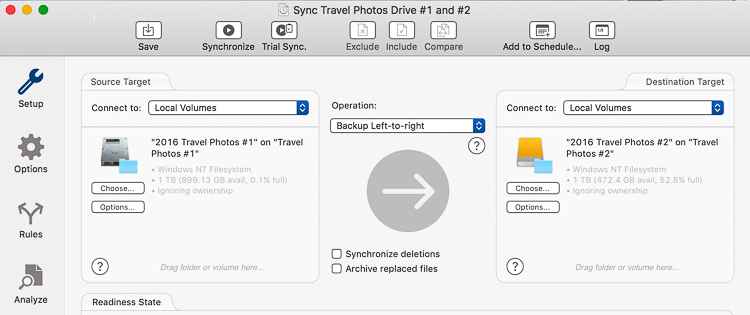
Once my new portable hard drives are set up and working, I create a folder on each drive called Travel Photos #1 (on drive Travel #1) and Travel Photos #2 (on drive #2). I use a software program called Chronosync (for Mac) to create a recipe that when it is run, backs up drive Travel #1 to drive Travel #2. There are many options for backup software and I would encourage you to do a little research to find the software that’s best for you.
Backing up images traveling 05

Step #9 – Back up and update your laptop

Right before you go, back up the entire contents of your laptop. I use a MacBook Pro so I run Time Machine. After the backup finishes, I have an up-to-date copy of everything on my laptop on a small hard drive that I leave at home. That copy will come in handy if my laptop is stolen or damaged while I’m traveling. Also, I also check for software updates – especially any related to security – and install those as well.

I skip beta versions or major operating system upgrades since sometimes those are glitchy. I want my laptop software as safe and secure as possible while I travel but I don’t want to have to deal with any new OSX headaches.

Now that you’ve done all that prep work, it’s time to pack, hit the road and make some memorable images.

Part II. While you’re traveling

I know that after a long day of travel, the last thing you want to do is unpack your laptop, upload, and duplicate your image files. But get in the habit of doing it anyway. After a while, it will become routine, like brushing your teeth or washing your face, and you won’t dream of skipping it.

When your friends tell you their horror stories about losing images while they travel, you’ll have to work hard to wipe the smug look off your face because you’ll know you’ve minimized your chances of that happening to you.

Step #1 – Upload images with Lightroom

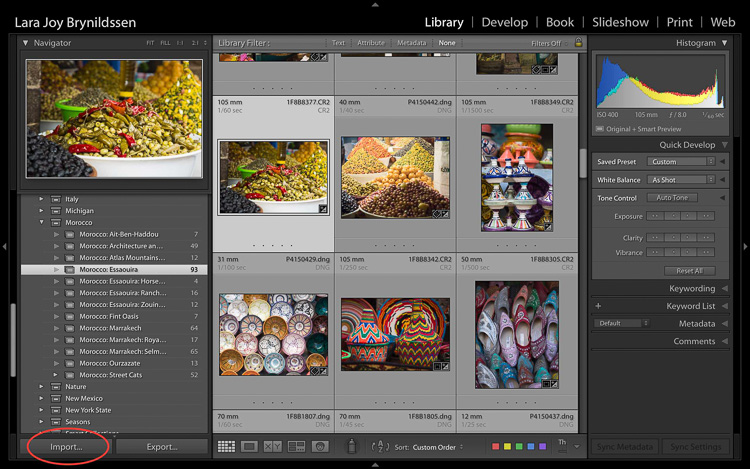
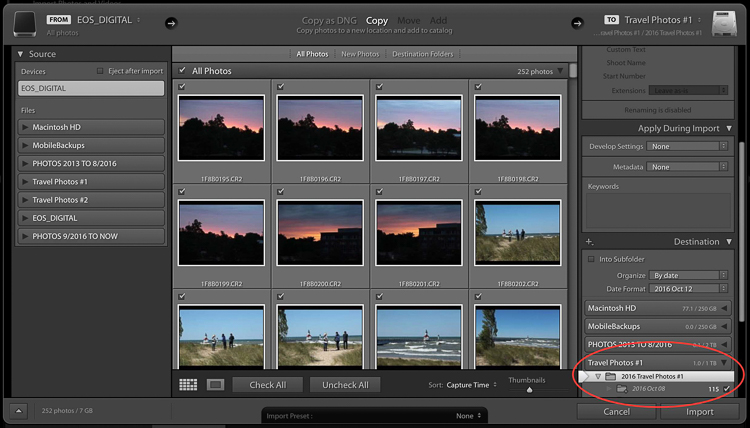
My first step when I upload images is to plug in my hard drive called Travel #1, then I plug in my CF card reader, insert the memory card and open up Lightroom CC. I always use Lightroom to catalog all of my images. When uploading, I tell Lightroom to import the day’s images to the folder called Travel Photos #1 on the portable hard drive called Travel #1.
Backing up images traveling 06

Step #2 Option A – Duplicate images on import

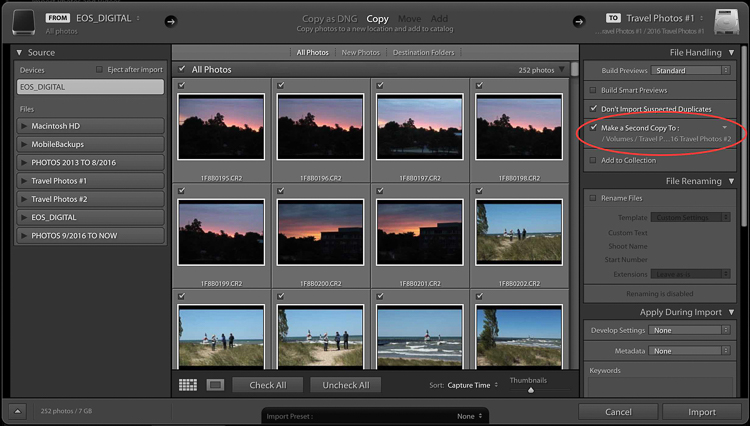
In the Import Dialog, you can check a box to tell LR to “Make a 2nd copy to” and duplicate your images by importing them to two locations at once. If you check that box, you also want to click the tiny arrow to the right, click Choose Folder and select the location you want the duplicate images to be stored.

In my case, I would choose the folder called Travel #2 on the portable hard drive called Travel #2. I normally do not duplicate on import because I only have two USB ports on my MacBook Pro. During the import process, both are in use: one for the hard drive Travel #1 and one for my CF card reader. If you have space in your camera bag, you can carry a USB port hub that enables you to attach more drives to your laptop at the same time.
Backing up images traveling 07

Backing up images traveling 08

Step #2 Option B – Use software to create a backup

Since I don’t carry a USB port hub, instead of checking the “Make a 2nd copy to” box in the LR import dialog, I use Chronosync to sync one drive to another. This is the backup recipe we set up above. After the images are loaded to my first drive, I run my Chronosync recipe to duplicate them to the second drive. Once I’m done, I have three copies of each image; one on the original memory card and one on each portable of my portable hard drives, Travel #1, and Travel #2.

Don’t erase your memory cards

If possible, don’t erase the images on your memory cards while you’re on the trip. Instead, save them in the memory card holder you prepared in Part I.

Step #3 – Upload after every shoot

When you travel, I encourage you to upload and back up images after every shoot. If you have one shoot per day at sunset, upload and back up before you head out to dinner.

Tip: This is a good time to plug in and charge your batteries too.

Before you head to bed, verify that the image files are mirrored on each drive. Swap the batteries in your charger before bed too to make sure you’ll be all set to shoot again in the morning.

If you have two photo shoots per day, follow these same steps, except do them twice a day. In addition to uploading before dinner, I upload before lunchtime. I usually sneak in a quick nap then too.
Aurora borealis Image A

Step #4 – Sync images to the cloud

If you have an excellent Wi-Fi connection you might also consider syncing to your cloud service. I normally don’t have very strong Wi-Fi service when I travel so I don’t waste time with this step.

Step #5 – Store your hard drives in different locations

Now that you’ve done all this work setting up this system to back up your travel images, you have one more step to ensure their safety while you travel. You want to keep each of your two drives in different locations. For example, keep one drive in your camera bag and keep one in your luggage.

Always make sure to keep one drive in the bag on (or very near) your person. Keep your luggage with your second drive in your hotel room (or locked in the trunk of the car if you are traveling between locations). In the case of theft, accident, or fire, one copy of your images will be safely stored on the drive in the alternate location.

Part III. When you return home

Once you return home, you need to move your images from Travel Drive #1 to your main photography hard drive. The easiest way to do this is to do it inside Lightroom.

Step by step

Here’s a step-by-step guide for moving your images from your travel drive to your main photography storage drive:

  1. Attach Travel Drive #1 to your laptop.
  2. Attach your main photography hard drive to your laptop. In this example, my main drive is called PHOTOS 9/2016 TO NOW.
  3. Open Lightroom CC in the Library module.
  4. One by one, drag and drop each folder of your images from Travel Drive #1 to your main storage drive.
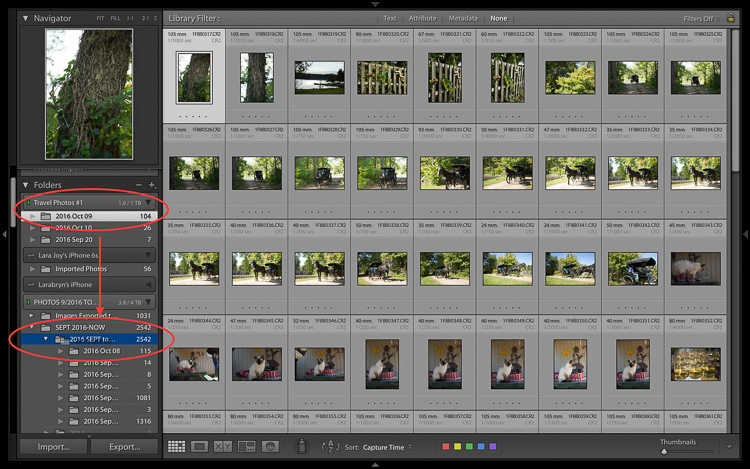
Backing up images traveling 09

  1. Note that at this stage, since I keep all my images organized chronologically I drop my travel images into the folder on the drive labeled 2016 SEPT to DEC. Next year I’ll drop images into the folder labeled 2017.
  2. Be patient while your computer works. It takes a few minutes for Lightroom to show you that this task is complete and your images have been successfully moved to your main storage drive. Tip: This is a good time to clean your gear.
  3. Now that your images are on your main drive, run another backup.
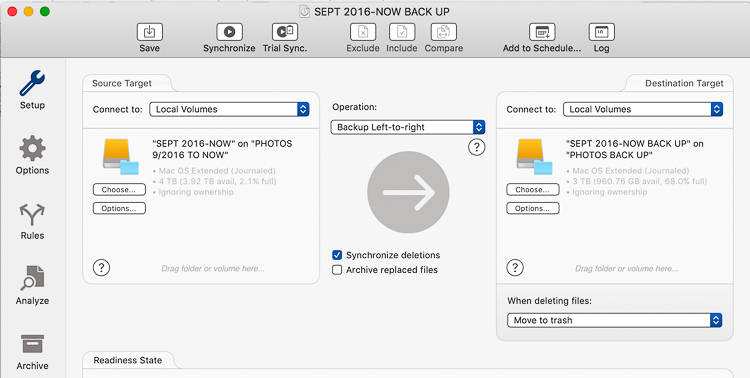
Backing up images traveling 10

  1. I use a Chronosync recipe to back up my drive called PHOTOS 9/2016 TO NOW to my drive called PHOTOS BACK UP.
  2. After completing this step, verify that the images have been moved. I do this by opening a Finder window on my MacBook Pro and checking that the image file names match on both my main storage drive and my backup drive.
  3. After you verify that you have two copies again, you can wipe your travel hard drives and memory cards to prepare them for your next trip.
  4. At this point, it’s good idea to back up to your cloud service so that you once again have three copies of your images.

Final notes

Since I travel often, I find it easiest to keep my entire Lightroom catalog on my MacBook Pro. If I need to work on a bigger screen, I connect to an external display.

If you keep your main Lightroom catalog on a different computer than the one you travel with, rather than dragging and dropping as I’ve instructed above, attach your travel hard drive and your main photography storage drive to your home computer, open Lightroom and go through the complete import process to your main storage drive. After you’ve imported your travel images to your main Lightroom catalog on your home computer, in addition to formatting your memory cards and wiping your travel hard drive, I’d recommend completely removing the images from the Lightroom catalog on your laptop.

Now you can go unpack and do laundry. Or, if you’re like me, you can start to cull, edit, and create collections with your travel images.
Backing up images traveling 12

googletag.cmd.push(function() {
tablet_slots.push( googletag.defineSlot( “/1005424/_dPSv4_tab-all-article-bottom_(300×250)”, [300, 250], “pb-ad-78623” ).addService( googletag.pubads() ) ); } );

googletag.cmd.push(function() {
mobile_slots.push( googletag.defineSlot( “/1005424/_dPSv4_mob-all-article-bottom_(300×250)”, [300, 250], “pb-ad-78158” ).addService( googletag.pubads() ) ); } );

The post Step by Step Plan for Backing Up Your Images While Traveling by Lara Joy Brynildssen appeared first on Digital Photography School.


Digital Photography School

 
Comments Off on Step by Step Plan for Backing Up Your Images While Traveling

Posted in Photography


Traveling light: M.Zuiko 12?100mm F4 Real-world Samples

26 Sep

$ (document).ready(function() { SampleGalleryV2({“containerId”:”embeddedSampleGallery_6403402487″,”galleryId”:”6403402487″,”isEmbeddedWidget”:true,”standalone”:false,”selectedImageIndex”:0,”startInCommentsView”:false,”isMobile”:false}) });

The new M.Zuiko Digital Ed 12?100mm F4 IS PRO is a 24-200mm equivalent zoom for the Micro Four Thirds system. On paper, it’s the ideal travel lens, and we were lucky enough to bring one back from Photokina last week to try out. 

So how does it stack up? That’s what we wanted to know, so we spent a jet-lagged morning back in Seattle trying it out with the OM-D E-M1. And we have the pictures to prove it.

Articles: Digital Photography Review (dpreview.com)

 
Comments Off on Traveling light: M.Zuiko 12?100mm F4 Real-world Samples

Posted in Uncategorized


Hydro Hammock: Traveling Hot Tub Can Be Hung Up or Buried Below

17 Jul

[ By WebUrbanist in Design & Products & Packaging. ]

hydro hammock outdoors

Flexible and portable, this hanging hot tub hammock can be suspended from trees or other supports or tucked into scooped-out depressions along sandy beaches or on snowy mountainsides, compact enough to be checked on a plane with its associated portable heating unit.

hydro hammock beach water

hydro hammock kid

The highly-mobile Hydro Hammock requires only 20 gallons (less than half of a typical bathtub and supports use by two adults to be used as a hot tub and can be used to line existing voids or suspended in midair. An accompanying device pumps water from wherever it is available and heats it electrically along the way – an eventual goal for future models is to use solar heat so no batteries or other external power source will be required. The extra-durable, high-tensile-strength material supports up to 700 pounds and its canvass-like surfaces give it traction for users.

hydro hammock cabin

hydro hammock design

Aside from its core function as a hot tub, the heavy-duty fabric and associated pump can be reconfigured to turn the system into an outdoor shower or left empty and simply used as a traditional hammock. Its primary target audience, however, is people who wish to have a retreat from extreme environments, taking a hot (and optionally: bubble-filled) vessel with them for breaks from cold ocean waters in the summer or freezing outdoor temperatures in the winter.

More from its makers: “Durable and portable hammocks ready for soothing hot or cool refreshing water. Relax, rejuvenate and fully stretch out in comfort beyond the constraints of an iron or fiberglass bathtub. Equipped with a portable water heater system, LPG or electric. Hydro Hammocks require less water than bathtubs and have a slip resistant texture. The shapes are adjustable and are easy to set up either fully or partially suspended.”

Share on Facebook


[ By WebUrbanist in Design & Products & Packaging. ]

[ WebUrbanist | Archives | Galleries | Privacy | TOS ]


WebUrbanist

 
Comments Off on Hydro Hammock: Traveling Hot Tub Can Be Hung Up or Buried Below

Posted in Creativity


Lowepro launches weather-proof Fastpack backpacks for traveling photographers

17 Mar

Bag manufacturer Lowepro has introduced a pair of new backpacks to its Fastpack range, with added weather-proofing and a compartment for a laptop or tablet. The Fastpack BP 150 AW ll and BP 250 AW ll are basically the same bag in two sizes, and each is divided into three sections that allow storage of camera equipment as well as other everyday items for photographers on the move. Read more

Articles: Digital Photography Review (dpreview.com)

 
Comments Off on Lowepro launches weather-proof Fastpack backpacks for traveling photographers

Posted in Uncategorized


Mobile Pop-Up Libraries: 12 Temporary & Traveling Book Lenders

10 Mar

[ By Steph in Architecture & Cities & Urbanism. ]

traveling library tank

Peruse the waterproofed selections at Minnesota’s Floating Library, renew your library card at a bus stop in Bogota, or select a volume from the shelves mounted to a tank-shaped ‘Weapon of Mass Instruction.’ These 12 traveling libraries and pop-up book stands bring the love of reading to the city streets, and even to the most remote corners of Mongolia via camel.

Weapons of Mass Instruction Tank Library

traveling library tank 2

Artist Raul Lemesoff was commissioned by 7UP to create ‘Weapons of Mass Instruction,’ a 1979 Ford Falcon transformed into a tank-shaped library, for World Book Day 2015. The vehicle features a rotating upper chamber, a faux cannon and room to store nearly 900 books in various compartments along the exterior. The library travels throughout Argentina, both urban and rural, to bring free books to anyone who wants them.

Mobile Beach Library in France

traveling libraries beach 1

traveling library beach 2

French architecture firm Matali Crasset brought more than 300 titles to becah goers in the seaside town of D’Istres via a pop-up library made of steel and tarps. The tent-like structure includes three shaded reading alcoves.

Bus Station Library

traveling libraries bus station

This urban book stand in Bogota, Colombia is part of the Paradero Para Libros Para Parques (PPP) program, created to promote literacy across the country. There are currently 47 of these bus stop libraries across Bogota, with many more located in other cities. A volunteer staffs each one for about 12 hours per week.

Pedal-Powered Mobile Library

traveling libraries denver pedal

The Denver Public Library literally brought its services to the streets in the form of DPL Connect, a pedal-powered mobile library and wi-fi hotspot that can travel to parks, concerts, farmer’s markets, coffee shops and anywhere else people gather. It’s stocked with a rotating collection of books tailored to the bike’s location, and the librarian pedaling the cart can provide traditional library services like help with digital downloads and reading suggestions.

Next Page – Click Below to Read More:
Pop Up Books 12 Mobile Libraries

Share on Facebook


[ By Steph in Architecture & Cities & Urbanism. ]

[ WebUrbanist | Archives | Galleries | Privacy | TOS ]


WebUrbanist

 
Comments Off on Mobile Pop-Up Libraries: 12 Temporary & Traveling Book Lenders

Posted in Creativity


Traveling Photographer_NYC has Posted

28 Feb

For those of you following along with The Traveling Photographer series, Lynda has just posted the New York City episode.

This is a city I have visited many times, so we tried to distill this visit down to a small collection of very cool photo experiences. I hope you like it.

Lastly, NYC completes the series—for now, anyway. Whether or not it continues will be determined solely by how many views it gets. So thanks in advance for your support.

-DH


Strobist

 
Comments Off on Traveling Photographer_NYC has Posted

Posted in Photography


15 Tips for Protecting Your Images While Traveling

07 Jan

You have saved and saved and spent a large investment to go on a trip, on your photography gear, to photograph what matters to you, and to create lasting memories and images. Losing your images is not an option. Have you thought about the precautions to help make sure your images are safe after the shutter is pressed?

Many people cringe at the thought of losing their images while traveling or any other time for that matter, and rarely do they think it will happen to them. Yet, unfortunately the reality is that people lose their precious images.

Clearly mark all memory laptops gear 600px

Has your memory card ever suddenly decided to give you the dreaded “error” notice? Maybe your new back-up hard drive failed or maybe you simply lost your camera bag by leaving it in the over-head bin of the airplane? Sound familiar? Maybe one of these situations has happened to you, or one of the many other possibilities that can occur to ruin all of your dream trip photography has taken place.

No you say? It hasn’t happened to you yet? GREAT! This means up until this point you have been fortunate or hopefully properly prepared. The saying “Those that back-up and those that will” comes to mind. Having lead photographic tours all around the world, the amount of times images I have seen lost by photographers, is truly staggering. Don’t let it happen to you! After all, some would argue that the most important part of their trip is their images. So why do people not take more time to properly protect the fruit of all their investment and labor, their images?

Here are some helpful tips and hints to keep your most precious commodity of your travels, your images, safe.

#1 Get into a system

Create an organized system and do not waiver from it! Follow the hints below, set up a system, and be consistent.

Consistent system 600px

#2 Keep non-downloaded cards unique

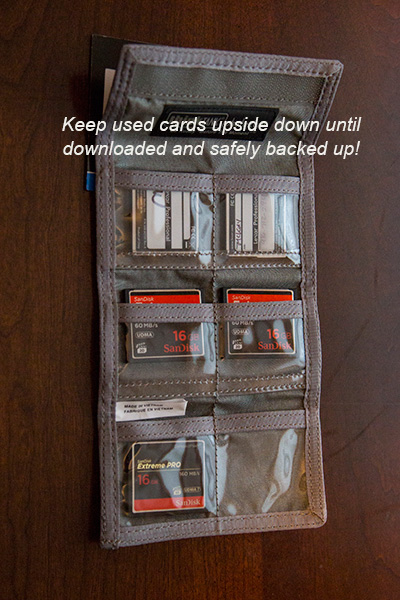
In your card carrier case, keep all non-downloaded memory cards upside down. In this way, you know the card is not ready for use. When you have downloaded AND backed up, at that time place the card right side up again. It is now ready to use.

Keep used cards upside down 600px

#3 Format your memory cards

Before each use, format and make sure your card is clean before using. This makes sure the card is completely ready to go. Of course, only do this if all of your current images on the card are downloaded AND backed up!

#4 Don’t put all your eggs(images) in one basket

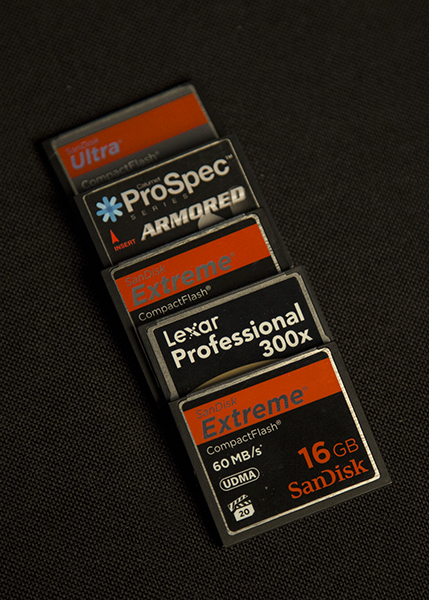
Simply put, do not buy the largest memory card money can buy and shoot your entire trip on one card. Buy smaller ones, then if you lose a card or one goes bad, you at least have a portion of your trip images still.

#5 Bring PLENTY of high quality memory cards

Memory cards have come down in price drastically. In order to have all your images on many different cards, invest in plenty of memory. It makes no sense to spend thousands of dollars on a trip, gear, and more only to skimp a few dollars on what holds the memories!

Diversify your shootng on several cards

#6 Download and backup every day

Once you return to the hotel room, you may be tired, but your images are worth the little extra effort to download immediately and then backup to a secondary device.

#7 Always carry an external hard drive

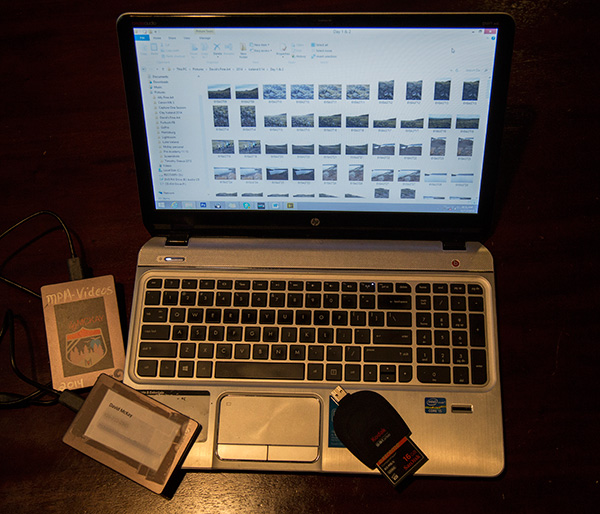
As soon as you download to your laptop, be sure to immediately backup to an external hard drive as well. The price of memory is so inexpensive; there is absolutely no reason to not be carrying a lightweight external hard drive.

External light weight hard drives are inexpensive and easy to carry 600px

#8 Carry your used memory cards on you physically

This reduces this risk of loss due to theft of your gear, leaving your gear accidentally, or in case you must check your gear for any reason either on a flight or gate check.

#9 Don’t erase your images

Unless you are out of cards to use and it is absolutely needed, do not erase the images. If you are downloading and backing up, now you have them in three locations. If you follow the hint about having plenty of memory, this should not be a problem.

#10 Use the dual card slot on your camera

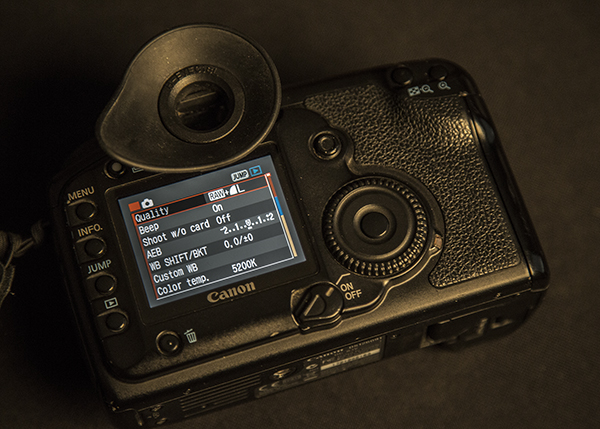
Some cameras have dual card slots. The Canon 5d Mk3 as an example allows you to use a CF card in one and an SD in the other. When you shoot, the system can be set to automatically write to both cards. This is great, yet it does take longer to save as it requires longer write time. This is no excuse for NOT following the other hints.

#11 Shoot RAW and large Jpeg files

Recovery software available cannot recover RAW data as easily as a Jpeg. For this reason, if you shoot with both RAW and Jpeg, you have a higher likelihood of being able to recover images if a card goes bad. You may not have the best image if you lost your RAW data, but at the very least you will have a high quality Jpeg which as we all know, is still great quality. This of course requires more usage of memory, so once again, see #5 above and carry plenty of cards!

Shoot RAW PLUS Large Jpeg

#12 Partner up

If traveling with another person or group, buddy up with a partner to carry your external hard drive of backup images and you carry theirs. In this way, your images are on you physically on your memory cards and laptop, and then in case something happens, another set is with another person.

#13 Contact info

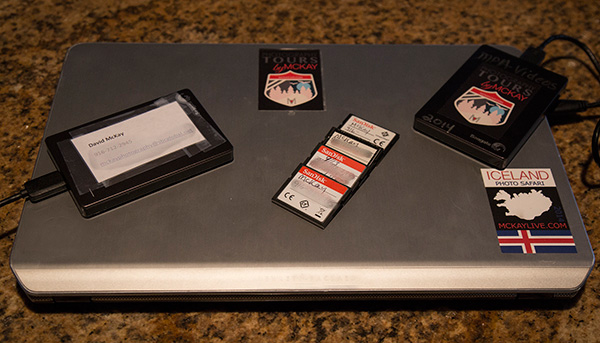
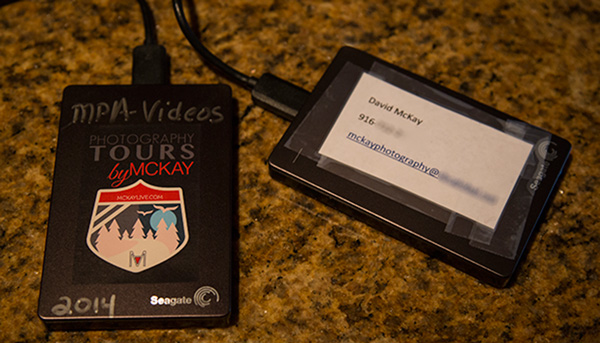
Be sure to write your phone number and email address on all your memory cards, hard drives, laptop, card carrying case, and camera bag.

Clearly mark all memory laptops gear 600px

#14 Store a backup of your images from home

Answer this question: If you were away and your home had a fire, would you possibly lose your images? If the answer is yes, you have some work to do. Carry a back-up of your home computer hard drive with you or have one at another location. Also, keep hard drives in fire-proof safes.

#15 Use online storage

Many companies such as Dropbox, Carbonite, Amazon, and more offer excellent, inexpensive online storage solutions. The issue is that while traveling, you may not have good internet connections and it can take forever to load your RAW images or large files.

Do you have any other methods or tips for keeping your images safe when you travel? Please share in the comments below.

googletag.cmd.push(function() {
tablet_slots.push( googletag.defineSlot( “/1005424/_dPSv4_tab-all-article-bottom_(300×250)”, [300, 250], “pb-ad-78623” ).addService( googletag.pubads() ) ); } );

googletag.cmd.push(function() {
mobile_slots.push( googletag.defineSlot( “/1005424/_dPSv4_mob-all-article-bottom_(300×250)”, [300, 250], “pb-ad-78158” ).addService( googletag.pubads() ) ); } );

The post 15 Tips for Protecting Your Images While Traveling by David McKay appeared first on Digital Photography School.


Digital Photography School

 
Comments Off on 15 Tips for Protecting Your Images While Traveling

Posted in Photography


Now Live on Lynda.com: The Traveling Photographer_LONDON

15 Dec

For much of 2014, I have been on the road for Lynda.com, producing the series, The Traveling Photographer. The latest episode, on London, has just posted.

Hard to believe it, but we have now logged over 50,000 miles. In addition to Hong Kong, Dubai, Paris and London, we have just finished filming the New York City segment, which will be published soon.

For more information about the entire series, see this earlier post.


Strobist

 
Comments Off on Now Live on Lynda.com: The Traveling Photographer_LONDON

Posted in Photography


The Traveling Photographer_PARIS is Now Available

17 Nov

Paris, the latest installment in The Traveling Photographer series, has just posted to Lynda.com. Photographed this past May, the hour-long episode includes lots of practical, real-world advice for anyone who may be considering traveling to Paris with their camera.

In addition to all of the city-specific travel advice, much of the episode explains how to make the most of your time there as a photographer. There are segments on where to go to get the best cityscapes, street shooting and even a section on shooting in Paris through a specially adapted toy camera lens.

If a trip to Paris is in your future (or you are just open to being talked into the idea) you’ll find this episode of The Traveling Photographer to be time well spent.

Like the rest of the Traveling Photographer series, the Paris episode is available on Lynda.com. You can find out more about the series itself in this earlier post.


Strobist

 
Comments Off on The Traveling Photographer_PARIS is Now Available

Posted in Photography


Traveling Photographer_DUBAI has Ben Posted

12 Sep

For those following The Traveling Photographer project (more info on the whole project here) the Dubai episode has just been posted.

-30-


Strobist

 
Comments Off on Traveling Photographer_DUBAI has Ben Posted

Posted in Photography