RSS
 

Posts Tagged ‘tone’

A Set of Brown Tone Images

01 Nov

The time of year is upon us when things turn brown up here in northern part of the world. Leaves turn yellow and then brown. Grass changes from green to beige as nature prepares for winter. You may consider brown a boring color and one that isn’t very photogenic or interesting. But there is a lot of nuance and varying tones in browns. Let’s see what’s possible.

Set of brown tone images:

Photograph On the top of the world by aranka delina janné on 500px

On the top of the world by aranka delina janné on 500px

Photograph Boxing Bear by Olav  Thokle on 500px

Boxing Bear by Olav Thokle on 500px

Photograph House of Furballs by Alex Greenshpun on 500px

House of Furballs by Alex Greenshpun on 500px

Photograph Talk to the Paw by Holly Kuchera on 500px

Talk to the Paw by Holly Kuchera on 500px

Photograph Alpine Autumn Dusk by Stefan Hefele on 500px

Alpine Autumn Dusk by Stefan Hefele on 500px

Photograph Bourbon by Darcy Evans on 500px

Bourbon by Darcy Evans on 500px

Photograph Daisy by Darcy Evans on 500px

Daisy by Darcy Evans on 500px

Photograph [ ... snæfellsnes autumn ] by D-P  Photography on 500px

[ … snæfellsnes autumn ] by D-P Photography on 500px

Photograph Shadows of the su by Christian Wig on 500px

Shadows of the su by Christian Wig on 500px

Photograph Deadvlei by Thierry Hennet on 500px

Deadvlei by Thierry Hennet on 500px

Photograph Desert by Reza Eqbali on 500px

Desert by Reza Eqbali on 500px

Photograph The Sewing Room by Cindi Ressler on 500px

The Sewing Room by Cindi Ressler on 500px

Photograph Baby Wallaby by Joana Senn on 500px

Baby Wallaby by Joana Senn on 500px

Photograph In The Spotlight by Joni Niemelä on 500px

In The Spotlight by Joni Niemelä on 500px

Photograph Eye Candy by Aaron Yeoman on 500px

Eye Candy by Aaron Yeoman on 500px

Photograph Single Bed by Jose  Vazquez on 500px

Single Bed by Jose Vazquez on 500px

Photograph Rotting Jalopies by Todd Klassy on 500px

Rotting Jalopies by Todd Klassy on 500px

Photograph A glimpse into the past by K.C. Jones on 500px

A glimpse into the past by K.C. Jones on 500px

Photograph Buddha's head in tree's roots (Bodhi tree) at Wat Mahathat, Ayut by SimplySiri  on 500px

Buddha's head in tree's roots (Bodhi tree) at Wat Mahathat, Ayut by SimplySiri on 500px

Photograph S A H A R A  by Boyer Jean marie on 500px

S A H A R A by Boyer Jean marie on 500px

Photograph sepia crayon by kak tuss on 500px

sepia crayon by kak tuss on 500px

Photograph Brownie by Fionac on 500px

Brownie by Fionac on 500px

Photograph The Photographer by Maria Gvedashvili on 500px

The Photographer by Maria Gvedashvili on 500px

Photograph Brownie Cupcake... by Hooman Mesri on 500px

Brownie Cupcake… by Hooman Mesri on 500px

Photograph Chocoholic by Anide Photography on 500px

Chocoholic by Anide Photography on 500px

Photograph { Brownies } by cynthia cliche on 500px

{ Brownies } by cynthia cliche on 500px

Photograph Burgundy Goliath Birdeater  by Milan Zygmunt on 500px

Burgundy Goliath Birdeater by Milan Zygmunt on 500px

Photograph Hornbeam leaf by Maciej Figiel on 500px

Hornbeam leaf by Maciej Figiel on 500px

Photograph Common Buckeye on Verbena by Karen Hernandez on 500px

Common Buckeye on Verbena by Karen Hernandez on 500px

Photograph Parasol mushroom (Macrolepiota procera) in the forest by Jancsi Farkas on 500px

Parasol mushroom (Macrolepiota procera) in the forest by Jancsi Farkas on 500px

Photograph Goat's beard 4 by Margo B. on 500px

Goat's beard 4 by Margo B. on 500px

Photograph Hidden in the leaves by Dan LeFebvre on 500px

Hidden in the leaves by Dan LeFebvre on 500px

Photograph Gentleness by Tomasz Wieczorek on 500px

Gentleness by Tomasz Wieczorek on 500px

Photograph old suitcase by Naeema on 500px

old suitcase by Naeema on 500px

Photograph Freshly baked bread by Natalia Klenova on 500px

Freshly baked bread by Natalia Klenova on 500px

Photograph ?????? by Natalia Lisovskaya on 500px

?????? by Natalia Lisovskaya on 500px

Photograph Steaming coffee by Károly Nagy on 500px

Steaming coffee by Károly Nagy on 500px

Photograph House by Justine Carlyle on 500px

House by Justine Carlyle on 500px

The post A Set of Brown Tone Images by Darlene Hildebrandt appeared first on Digital Photography School.


Digital Photography School

 
Comments Off on A Set of Brown Tone Images

Posted in Photography


Nikon D4S dynamic range and tone curve measurements

07 May

D4s_58_1.4_front.png

We’ve updated our first impressions review of the Nikon D4S with our JPEG Tone Curve and Dynamic Range measurements. Included are real-world examples of Nikon’s Active D-Lighting modes, which can significantly help in dealing with scenes containing challenging ranges of (dark to bright) tones. Have a look and, as always, you can compare the D4S to any other camera in our database. Learn more

News: Digital Photography Review (dpreview.com)

 
Comments Off on Nikon D4S dynamic range and tone curve measurements

Posted in Uncategorized


Lightroom’s Tone Curve Explained

12 Sep

It’s no secret that there are many ways to enhance our photographs with Lightroom. By using just a handful of sliders we can get some great results in a matter of minutes and by learning how to use tools like the gradient filter tool we can create some more specialized effects with just a little extra effort.

So with all these great tools is there still a need for the Tone Curve tool in Lightroom 4 and beyond? Or is it just another way of creating the same effects?

What is Lightroom’s Tone Curve Tool?

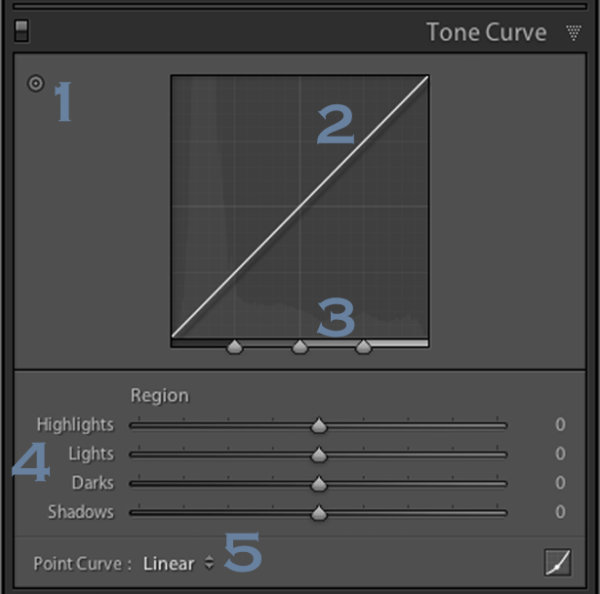
tonecurve

Well the answer to that question really lies in the details of what you are trying to accomplish with your post production. The Tone Curve tool is designed to allow you to modify the various light levels found within an image in a way that will give you greater control over the tonal range and contrast of your photograph.

As we capture our images we are capturing an array of light from the scene. From the darkest of the shadows to the whitest of the highlights the Tone Curve gives us a way of visually modifying how these levels of lights appear in the final image.

With the changes made to the basic tab back in Lightroom 4 the Tone Curve tool certainly doesn’t boast the power that it once did in comparison, but that doesn’t mean it’s useless. Today I’m going to show you how you can use the tool to modify your images and squeeze every little bit you can out of the tonal range that you’ve captured. As I’ve numbered above there are five ways that we can modify our images using the tool – let’s break them down now.

Number 1 – Make Tone Curve Adjustments by Dragging In Your Photo

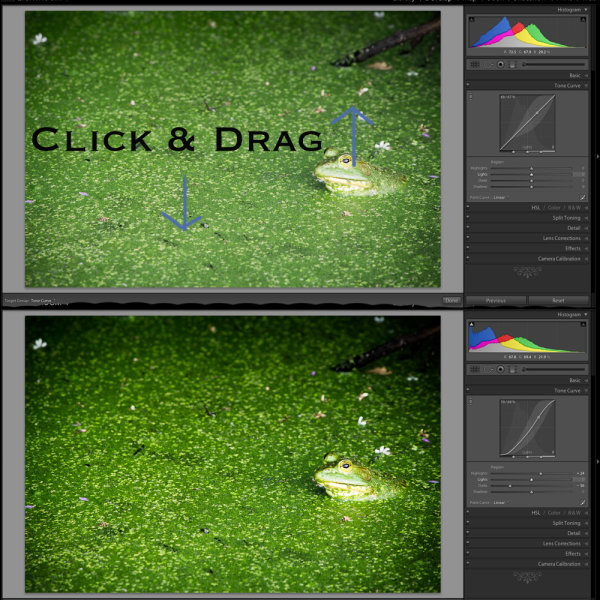
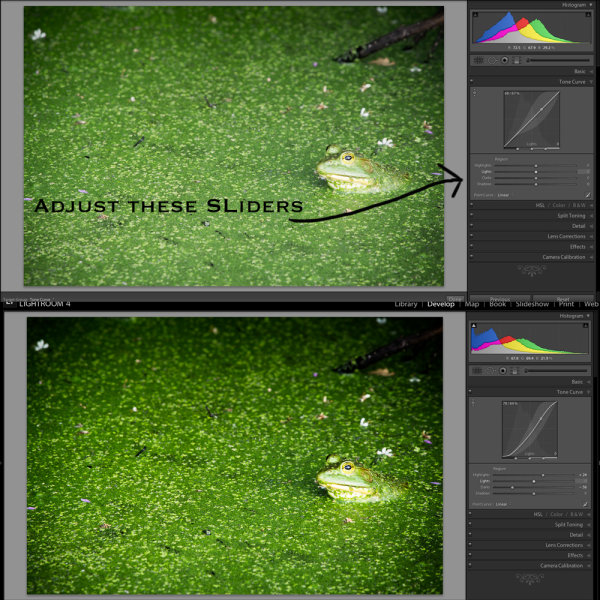
I honestly didn’t even notice this button until I started doing research for this article, but it does add a cool little function to the Tone Curve. By clicking on this button your mouse cursor will change allowing you to click and drag within your photo to make adjustments.

As you hover over your image you will notice that a point appears on the Tone Curve in the box to the right. As you move your mouse this point will move according to the light level of the area you are hovering over which makes it easy for you to determine what levels of light need adjustment in your image.

To use this tool simply click and drag up for more or down for less effect of the selected light level. It is important to note that this is a global change so it doesn’t just effect the area where you’re hovering, but all like pixels within the image.

You’ll notice in the image below I dragged down on an area in the green algae and up on a highlight on the frog’s face. The result is more contrast in the final image. Please keep in mind that the examples in this article are extremes done to demonstrate the tool and not necessarily how you would use it in practice.

image1

Number 2 – Adjust Tone Curve by adjusting the curve itself

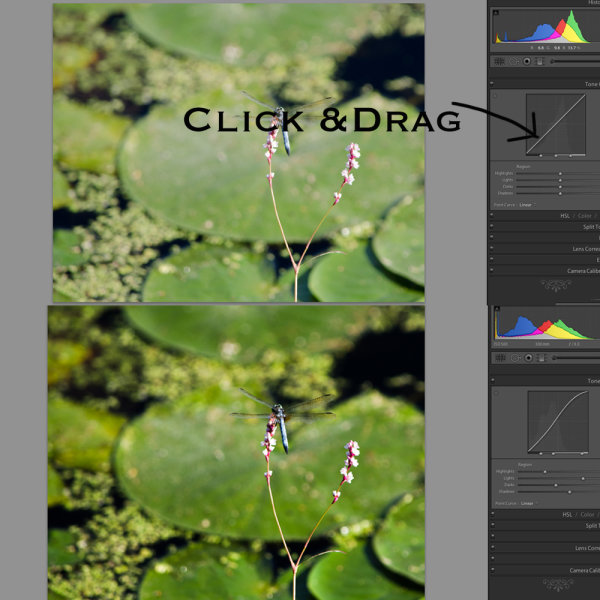
The Tone Curve itself is something that you can modify simply by clicking and dragging on the areas you wish to change. As you hover over the curve you’ll notice different pieces of the curve will be highlighted to show you what levels of light you are going to effect with your changes and how much room you have to make these changes.

In this photo I added a little more contrast by dropping a point towards the shadows end of the curve and raising a point towards the highlights end of the curve. This can be done in a similar manner with the sliders below the curve (see number 4 for that example).

image2

Number 3 – Adjust the strength of each light level’s region

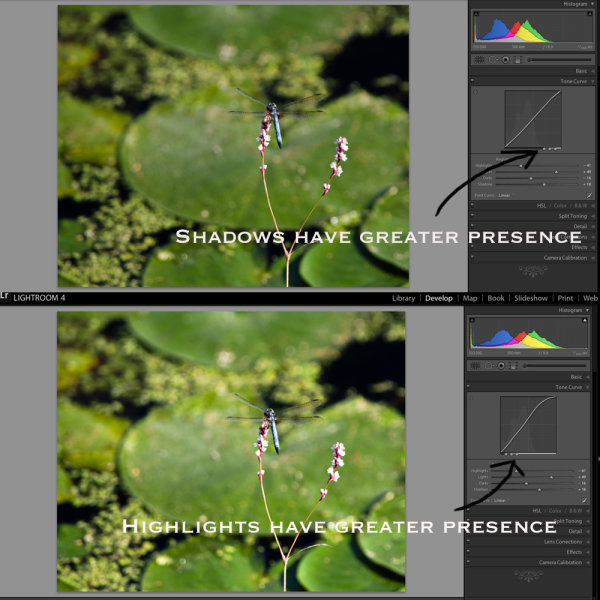
With this area of the tool we’re controlling the amount that each ‘region’ of light (highlights, lights, darks and shadows) effects the image.

The default settings (which are set in the modified image of #2 on this list) are set at 25, 50, 75 for the three sliders. In the first image below I’ve slid all three sliders to the right (an extreme example I know) which gives the shadow tones a greater impact over the overall photo. In contrast to this, the second image I’ve slid the sliders to the left which as you might expect gives the highlights within the image  more impact. In most cases I never touch the default settings, but they are good to be made aware of and might be useful one day when processing a specific image.

image3

Number 4 – Adjust using the familiar slider set up

Much like the sliders from the basic panel the sliders in the Tone Curve work in a similar manner. Slide left to lower a setting, slide right to raise a setting, double click to reset to zero.

It’s very straight forward and is important to note that it doesn’t do anything different than the other two methods I mentioned above. In fact you’ll notice that when you make any adjustments whether using #1, #2 or #4 the sliders and the tone curve will move to their respective positions regardless of which method you use to make your adjustments.

image4

Number 5 – The Point Curve Presets

Today we are going to only be talking about the three presets of the point curve and save the button in the lower right corner for another day – the presets are as follows – Linear, Medium Contrast and Strong Contrast and as you might expect the names pretty much say it all.

Linear contrast is a default and fairly flat setting and when using this setting you’ll notice that the curve is a straight line from the lower left corner to the top right corner. Medium and Strong contrast presets effect the ends of the curve in either a subtle way or a less subtle way changing the amount of contrast that is applied to the image simply by expanding the ranges of light at the ends of the curve.

In the example below I’ve simply switched from a Linear Curve to a Strong Contrast Curve to show the differences.

image5

When Would You Use the Tone Curve?

So now that we know how to use the tool, the question remains, when would you use it? I find that in my typical workflow I rarely touch the Tone Curve except for a small tweak here or a slight adjustment there. In my eyes the tool is designed to be a final adjustment to your images. Need a little extra shadow detail? Pull them down just a hair. Need some stronger highlights? Pull up on the highlights slider just a bit.

Of course you can get really creative with the Tone Curve to create some very unique and interesting effects and you can even click on the button that I didn’t cover above in the lower right hand corner and have access to the RGB scale and not only modify the overall tonal range, but the range specific to each color level in your photograph – but that’s an entirely different article.

Do You Use The Tone Curve?

With all the power that Lightroom offers in the other areas of it’s program it’s very easy to overlook the tone curve, I know I did for years, and even today I don’t go much further than applying one of the preset point curves to a photo, but I’d love to hear if you use it in your regular workflow and if so which one of the region adjustments do you use most often?

Post originally from: Digital Photography Tips.

Check out our more Photography Tips at Photography Tips for Beginners, Portrait Photography Tips and Wedding Photography Tips.

Lightroom’s Tone Curve Explained


Digital Photography School

 
Comments Off on Lightroom’s Tone Curve Explained

Posted in Photography


Creative Color Processing (Part 3/3 – Tone Curve)

10 Jan

This is Part 3 of a 3-part series on creative color effects in Lightroom. In this article I will explain how to use the Tone Curve tool for creative color effects.
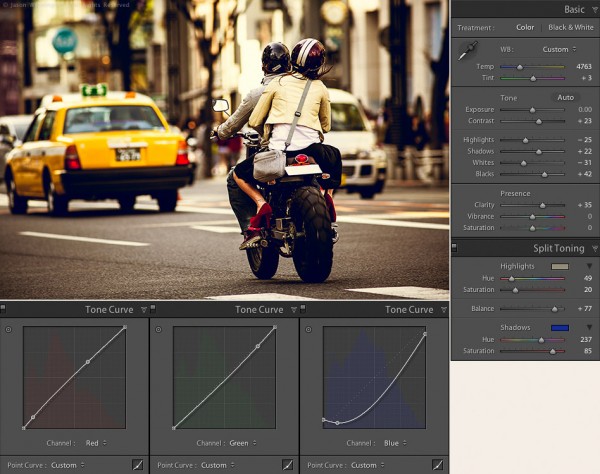
Tokyo street scene color settings

Tokyo Street Scene Color Settings

In Part 1 of this series I covered white balance. I discussed split toning in Part 2, as well as how to use split toning and white balance together. If you missed parts 1 or 2, check them out here:

Creative Color Processing (Part 1/3 – White Balance)
Creative Color Processing (Part 2/3 – Split Toning)

Tone curve is perhaps the most powerful tool in our creative color tool box. Tone curve is usually used for precise contrast control, but with Lr 4, we now have access to the individual RGB channels via the tone curve adjustment. Prior to Lr 4, this type of edit required Photoshop.

Note: this technique only works in Lightroom 4 and requires the 2012 process. Check out these articles to learn about Lightroom process versions if you’re not sure what this means:

Understanding Lightroom Process Versions
5 Tips for a Faster Lightroom Workflow

Editing Individual Color Channels with Tone Curve

To access the separate RGB channels in the Tone Curve you need to switch to the point curve adjustment:

1. Click the point curve box in the bottom right of the Tone Curve control:
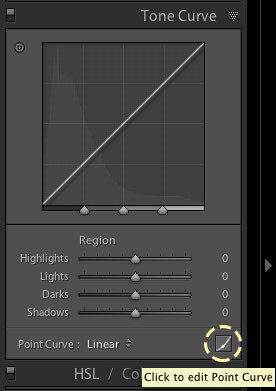
Editing the point curve in Lightroom

Editing the point curve in Lightroom

2. Choose the color channel you want to work with.
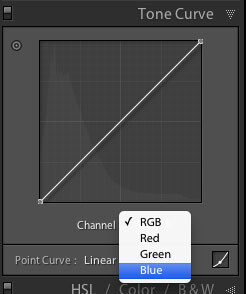
Selecting a color channel in the point curve

Selecting a color channel in the point curve

Each tone curve actually controls a pair of colors, and the shades between them. To illustrate this, let’s take a look at this image of joss sticks, that I shot at a temple in Singapore. First, here’s the image without any color adjustments:
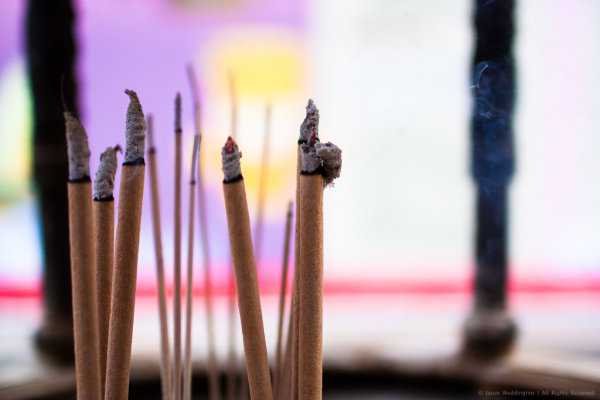
Joss sticks without color adjustments

Joss sticks without color adjustments

Red Channel

The red channel controls the color range from red to cyan, think of it as the Red / Cyan curve:
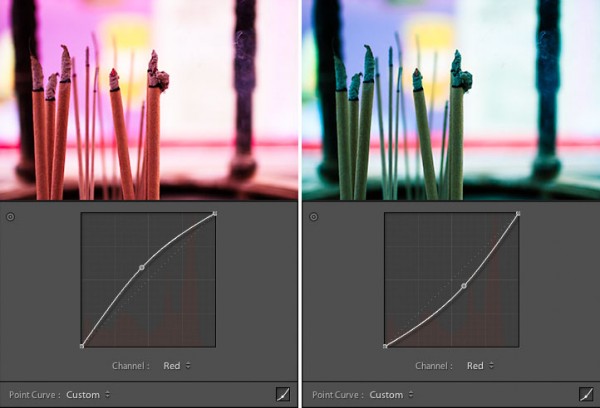
The red channel controls the red / cyan balance

The red channel controls the red / cyan balance

Green Channel

The green controls the color range from green to magenta, think of it as the Green / Magenta curve:
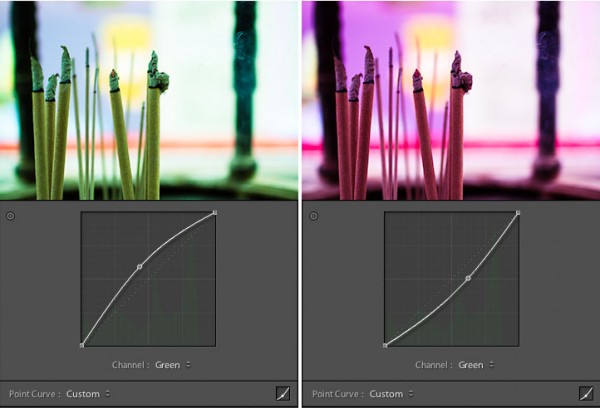
The green channel controls the green / magenta balance

The green channel controls the green / magenta balance

Blue Channel

The blue channel controls the color range from blue to yellow, think of it as the Blue / Yellow curve:
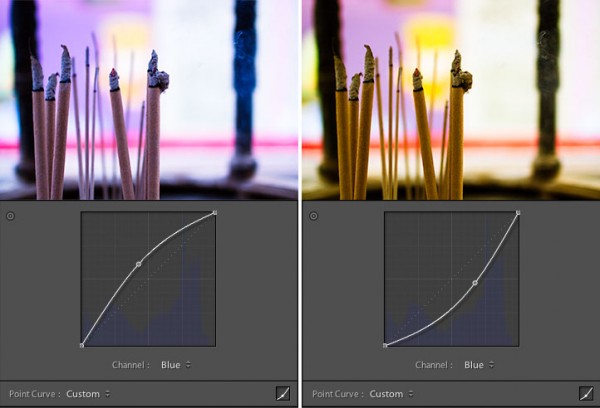
The blue channel controls the blue / yellow balance

The blue channel controls the blue / yellow balance

The possibilities are endless here, but I’ve found that the blue channel is often the most useful for creative color effects. Simply select the channel you want to work with and click the tone curve to begin adding points. To get rid of a point on the curve, grab it with your mouse and pull it to the side, out of the graph area.

Tips for Editing Color with Tone Curve

1. Play around with the shadow tones, a slight color tint in the just shadow areas of your photo is sometimes just enough to make people stop and stare.

2. Treat the shadows differently than the highlights, this is like taking split toning to the next level. Or the next, next level.

3. Keep at it. It takes time to develop your eye for color, and it takes time to develop your own aesthetic. Over time you will gravitate toward a particular “look” for your images. Just as a musician finds his or her sound, you will find a signature look for your photography. The key is to just keep tinkering, until you find it.

Putting It All Together
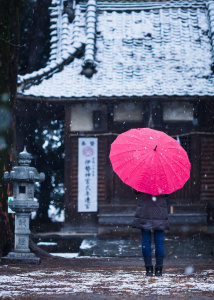
Japanese Temple in the Snow - Natural ColorTo conclude this 3-part series on creative color processing in Lightroom 4, here’s an image that combines all three of the techniques that I discussed in the series: white balance, split toning, and tone curve.

This is a photo of my wife standing in front of a temple in Takasaki, Japan. A sudden snow storm created an interesting photo opportunity that was too good to miss. The photo at right shows the colors as produced by the camera. The camera was set to auto white balance, which resulted in a white balance value of 4350 for this shot.

I wanted to bring out the mood of the snowy day, and also give the photo a bit of a timeless feel. To do this I combined a cool white balance with a yellow / blue split tone, as well as tone curve adjustments in the green and blue channels. The white balance adjustment gives the image a cold feel. The split toning emphasizes the cold feel by adding blue to the shadows, while also adding yellow to the highlights to keep the snow from looking blue. Finally tone curve adjustments in the green and blue channels give an interesting color cast, mostly to the shadow areas.

Here’s the final result:
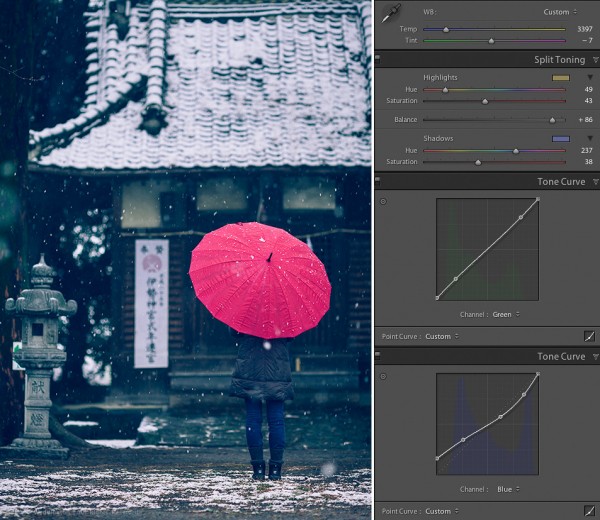
Japanese Temple in the Snow - Creative Color

Japanese Temple in the Snow – Creative Color

This concludes the 3-part series on creative color effects in Lightroom 4. I hope I’ve inspired you to think creatively about color and given you some new ideas and techniques for getting creative with your photographs. I appreciate feedback, please comment below or feel free to connect with me through Facebook or Google+. I’ll do my best to answer questions and reply to comments.

Post originally from: Digital Photography Tips.

Check out our more Photography Tips at Photography Tips for Beginners, Portrait Photography Tips and Wedding Photography Tips.

Creative Color Processing (Part 3/3 – Tone Curve)


Digital Photography School

 
Comments Off on Creative Color Processing (Part 3/3 – Tone Curve)

Posted in Photography


Photoshop tutorial: Making tone corrections | lynda.com

23 Oct

This Photoshop tutorial discusses how to use Curves adjustments and masking to correct brightness and shadow flaws in a photograph. Watch more at www.lynda.com This specific tutorial is just a single movie from chapter five of the Photoshop for Photographers: Portrait Retouching course presented by lynda.com author Chris Orwig. The complete Photoshop for Photographers: Portrait Retouching course has a total duration of 6 hours and 4 minutes, and explores techniques for reducing wrinkles, enhancing eyes and other facial features, improving hair, retouching makeup, and reshaping portions of a portrait using transformations, the Warp tool, and the Liquify filter. Photoshop for Photographers: Portrait Retouching table of contents: Introduction 1. Getting Started 2. Removing Distractions in the Frame 3. Making Creative Image Adjustments 4. Improving Skin 5. Improving the Shadows and Highlights 6. Reducing Wrinkles 7. Enhancing Eyes 8. Cleaning Up Eyelashes and Eyebrows 9. Retouching Lips 10. Whitening Teeth 11. Improving Hair 12. Adding and Changing Makeup in Photoshop 13. Advanced Skin Smoothing 14. Enhancing Shape and Structure in Images Conclusion

 
Comments Off on Photoshop tutorial: Making tone corrections | lynda.com

Posted in Retouching in Photoshop


Photoshop Tutorail {Change Skin Tone}

22 Oct

www.helpvid.net In this tutorial we will be using the layers palette to apply a skin tone to House actress Jeniffer Morrison; other tools used in this tutorial include the erase tool.
Video Rating: 4 / 5

 
Comments Off on Photoshop Tutorail {Change Skin Tone}

Posted in Retouching in Photoshop


Change Skin Tone in Photoshop

07 May

Happy with our training? Donate! tinyurl.com For more tutorials, head to www.tutcast.com – Changing skin tone in Photoshop! Music: Kevin MacLeod
Video Rating: 4 / 5


Smooth Tone Technique in Photoshop

10 Apr

markgaler.com Learn how to create smoother soft-focus images in Photoshop. Action from markgaler.com
Video Rating: 5 / 5

 
Comments Off on Smooth Tone Technique in Photoshop

Posted in Retouching in Photoshop


Soften Skin Tone With Photoshop – PixelPerfect Tutorial

16 Oct

Learn about skin softening techniques and the controlling of color and tones, to make beautiful women even more beautiful – and to make everyone look better. This Adobe Photoshop lesson will have you retouching photos in no time!
Video Rating: 4 / 5


Photoshop Mama’s Setting Skin Tone

01 Sep

Photoshop beauty retouching tutorial. See more at www.photoshopmama.net. Some tips for tweaking the tone and color of skin