RSS
 

Posts Tagged ‘Time’

How To Sync Multiple Camera Time Stamps In Lightroom 4

05 Apr

Syncing the time stamp on multiple cameras is best done ahead of time. Every six months or so I take all of my digital SLR camera bodies and sync the clocks in them. This is important because if you use multiple cameras on a photo shoot like a wedding, you want to be able to sort the photos by the time they were taken so you can give the client a set of photos that are organized from start to finish. If your cameras time stamps are off, this can become very annoying in post because you’ll notice images being out of order. This becomes amplified the more your cameras are out of sync.

Well, none of us are perfect and I certainly don’t claim to be! I recently shot a wedding with my good buddy Cliff Baise and I totally forgot to sync our cameras ahead of time. When I got his images on my computer to start editing everything together I was getting frustrated because I wasn’t seeing ANY of my images in Lightroom. Everything was sorted by time like it always is and I double checked everything. Well, it turns out our cameras were a full hour out of sync with my camera being an hour ahead of Cliff’s. So my images weren’t showing up in the timeline until much later in the wedding. This was pretty nerve racking because I hadn’t run into this problem before. I’ve always synced my own cameras (my wife usually shoots with me and uses my other main camera) so I’ve never had to deal with this before. I thought I was out of luck. So I started rummaging through the menu options in Lightroom and eventually figured out a way to sync the two cameras very quickly and very easily. Here’s how to do it:

Find Images You Know Were Taken At The Same Time
Screen Shot 2013-03-29 at 9.05.11 AM

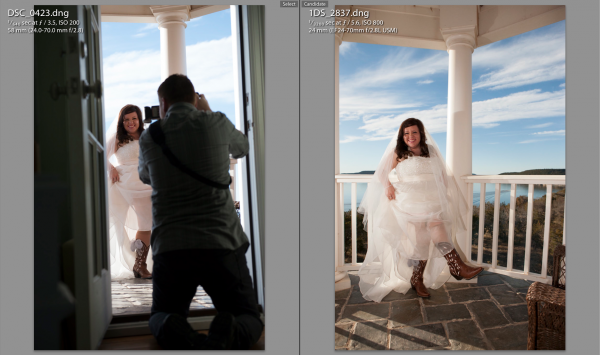
At some point during the day of a wedding or any shoot, it’s likely that the two shooters took a photo at the same exact time (or dang close to it). This doesn’t have to be an exact, down to the mili-second thing…they just need to be close. For this wedding I found a shot that Cliff took of me taking a picture of the bride showing off her boots. Perfect. All I needed to do was find the picture that I took at that moment.

Screen Shot 2013-03-29 at 9.05.24 AMThe first thing you need to do is select the first photo you find by clicking on it in Library Mode. Then, scroll down to the other image from the second camera, hold down command on a Mac (control on PC) and click that one as well. This will select both images at the same time. Now hit the ‘C’ key on your keyboard which will bring up the two images in Compare mode side by side. Once in compare mode you can click back and forth between the two images to see all the EXIF information on the right hand side. Again, this all has to be done in Library Mode, not Develop Mode.

On the right hand side in the EXIF data, you will see the Capture Time. This is how you tell if the images are off at all. Just click back and forth between the two images and watch how the time changes. If they are off by more than a few seconds, it’s time for the next step.

Syncing The Times

This part was a little tricky the first time. Go ahead and write down the exact times of each photo on a piece of paper or type it onto your computer somewhere. Note which time correlates with each image.

Now you need to decide which set of images you want to sync. In all honesty, it doesn’t really matter which one you choose. Nobody cares what time the picture was taken, they just need to be in order of when they were taken. So I just chose to make Cliff’s images match the time of my images. I could have gone the other way around and gotten the same result.

Screen Shot 2013-03-29 at 12.14.44 PMTo sync the time stamps, select all the images from the camera you want to correct. If you have them in separate folders this will be easy. If they are all mixed in to the same folder, you can sort by File Name in Library Mode and then the images will be separated. If all the images from the one camera are in their own folder, just hit Command A on a Mac (Control A on PC). This will select all the photos. If the images are mixed with another camera in the same folder, separate them by file name, then select the first image from the camera you want to correct by clicking on it, then scroll down to the last image from that camera, hold down Shift and click the last image.

Now that you have all the images selected that you want to fix, go up to Metadata in the top menu and scroll down to Edit Capture Time. When the window pops up all you need to to is update the time under the ‘New Time’ section. The original time will be on the top so just plug in the time that you wrote down from the correct camera in the ‘Corrected Time’ section.

Screen Shot 2013-03-29 at 12.16.11 PM

Once this is done, it’s important to just double check everything and make sure you have everything correct. It says at the bottom of the window that the operation cannot be undone so don’t make any mistakes! Once you are sure you have everything right just click Change and you’ll be done! You should now be able to select the images from both cameras in library mode, sort by time and see all of the images in chronological order.

Conclusion

Like I said in the beginning, it’s way easier to do this right the first time by synching the cameras before the shoot. But if you ever forget this like I did, being able to do it in Lightroom is a life saver!


Post originally from: Digital Photography Tips.

Check out our more Photography Tips at Photography Tips for Beginners, Portrait Photography Tips and Wedding Photography Tips.

How To Sync Multiple Camera Time Stamps In Lightroom 4


Digital Photography School

 
Comments Off on How To Sync Multiple Camera Time Stamps In Lightroom 4

Posted in Photography


Filmmaker shoots with fifteen GoPro’s for a Matrix-like bullet time effect

19 Mar

gopro_15cams.png

Amateur filmmaker Marc Donahue of Permagrin Films recently shot a video with an array of fifteen GoPro action cameras to achieve Matrix-like bullet time special effects. The arc-shaped rig allowed him to shoot simultaneously from all cameras. In post, Donahue added the freeze frame and slow motion effects. Click through to watch the video. (via Mashable)

News: Digital Photography Review (dpreview.com)

 
Comments Off on Filmmaker shoots with fifteen GoPro’s for a Matrix-like bullet time effect

Posted in Uncategorized


Take your Time and Work the Scene

22 Feb

I recently shared this photo on Facebook, Google+, and Flickr, with a quick tip on how to create a starburst effect. In this article, I’d like to share the thought process behind the image, and a few of the less successful images that led up to this final shot.

Final photo of the tree with a small starburst for creative effect

Canon EOS 5D Mark III with EF 40mm f/2.8 STM, 1/320, f/14, ISO 100

Here’s the first shot of the tree:

First Image

I shot this photo as soon as I saw the tree. It’s a fascinating tree, but not a very interesting photo. There’s just too much happening here. So I moved behind and tried a silhouette against the sky:

First silhouette

Sometimes your first few shots will not be the best, take your time to work the scene. Think about how you can best use the elements in the scene to create an interesting photo. There are 4 elements in this image:

1. The sun
2. The tree
3. The deep blue sky
4. The rocks

I liked the tree, and I wanted to shoot it as a silhouette against the blue sky. I also thought that I could use the sun to create a starburst and add a sense of drama. But after my first silhouette attempt, I realized the sun was just to big and bright to use as a separate visual element. It was upstaging my tree. Not cool. I also didn’t like all the rocks and fuzzy vegetation at the bottom of the frame. Too many distracting elements competing for the viewer’s attention.

So I moved closer, tilted the camera 45 degrees counterclockwise to eliminate some of the foreground, and put the sun behind the tree:

Intermediate image

Then came the decisive moment. I realized that if I allowed just a bit of sun to shine through the ‘V’ formed by two branches, I could bring back a little of that starburst, while preventing it from overpowering the image.

All in all, I shot 12 photos in two minutes to arrive at the photo that I felt was the strongest, the image at the top of this post. The key is work the scene and make small changes until you arrive at the shot you want.

I hope this behinds the scenes look at been helpful. Many of the amazing photos you see have several less interesting shots leading up to them. Next time something catches your eye as interesting, but your first few shots don’t capture that feeling, slow down and work the scene.

I appreciate feedback, please comment below or feel free to connect with me through Facebook or Google+. I’ll do my best to answer questions and reply to comments.

Post originally from: Digital Photography Tips.

Check out our more Photography Tips at Photography Tips for Beginners, Portrait Photography Tips and Wedding Photography Tips.

Take your Time and Work the Scene


Digital Photography School

 
Comments Off on Take your Time and Work the Scene

Posted in Photography


canary wharf time lapse

16 Feb

Canary wharf, London – Time Lapse by ankanisphotography – – Like my work at www.facebook.com Shot using Nikon D3X, nikkor 70-300 lens Edited using Sony Vegas pro 11 Music : Alexi Murdoch
Video Rating: 0 / 5

buy it here: www.amazon.com Although ergonomically, the D7000 is a very close match for the D90, its overall ‘feel’ is considerably more serious, thanks to a magnesium alloy body shell and slightly thicker rubber coating on the hand grip and rear of the camera. At 16.2MP the D7000 offers the second highest resolution of any Nikon DSLR, behind only the 24Mp D3X. All of these pixels are packed onto a newly developed CMOS sensor, which offers a ‘standard’ ISO span of 100-6400, expandable up to the equivalent of ISO 25600. The new camera boasts a 39-point AF array with 9 cross-type AF points and works in collaboration with a new 2016-pixel RGB metering sensor to allow 3D AF tracking. Other changes include the same combined live view/movie switch control as the 3100, and a significantly upgraded movie specification, up to ‘full HD’ – 1920×1080 resolution at 24fps. The Nikon D7000 produces high quality output in almost any shooting situation. Default JPEGs are clean of artifacts and with natural colors and tonality. At a pixel level low ISO images are very slightly soft but still show very good detail which can be further increased by shooting in RAW. There is one negative though: in bright, high-contrast conditions the camera has a tendency to overexpose – unfortunately by quite a large degree.

 
Comments Off on canary wharf time lapse

Posted in Nikon Videos


Photojojo’s New Thing! Phoneography 101 – $5 for a Limited Time

13 Feb

We started as a newsletter, then we opened a store, then we wrote a book…

Now we’re a school!

Welcome to Phoneography 101, photography fundamentals for people who love taking photos with their phone.

No homework, no class, just a basket of kittens and a series of bite-sized lessons delivered to your inbox. Learn the basic principles of photography in the funnest four weeks ever.

For a limited time it’s just FIVE BUX. (BONUS: Get a FREE $ 5 Photojojo Gift Card when you finish the class!)

Learn More & Enroll for $ 5

 Tweet it!      Share

Related posts:

  1. Limited Edition Polaroid SX-70 Cameras We knew deep down that it still had to be…
  2. Unsharp Mask: How Do You Actually Use That Thing? Keyboard Shortcut Skins Become a whiz at Photoshop, Aperture, FCP,…
  3. How Shooting Just One Thing Can Improve Your Photography Chops ~Have a cool photo product or site? Reach 270,000 photo…


Photojojo

 
Comments Off on Photojojo’s New Thing! Phoneography 101 – $5 for a Limited Time

Posted in Equipment


Gloriosa superba flower time lapse

13 Feb

Gloriosa superba flower time lapse Filmed by Neil Bromhall for www.rightplants4me.co.uk my free to browse website plant finder, plant identification, pest and pruning advice online resource. This tropical flower was filmed over a period of seen days. The stamens ripen in an interesting way. Filmed on Nikon D300. 55mm macro nikkor lens studio flash. Music ‘Circles of uncertainty’ by Oliver Ledbury


Time is up featuring Joshua Delagarza (video)

13 Feb

Filmed this in a single afternoon in a moving location, the van. It’s a blast filming this way, spontaneously, almost waiting for life to show you what it wants to …
Jake Garn Photography

 
Comments Off on Time is up featuring Joshua Delagarza (video)

Posted in Uncategorized


Nikon D7000 Time lapse in harmony

08 Feb

This is the first timelapse movie I have done on the nikon D7000. Lenses i have used; Sigma 17-70 2.8-4 and Nikkor 50mm 1.8. Directed in finalcut x. The next movie will be even better, this is really just a test 🙂
Video Rating: 4 / 5


Nikon D800 Time Lapse Photography

05 Feb

Nikon D800 sample time lapse photography in Dallas, Texas.

Video Rating: 0 / 5

 
Comments Off on Nikon D800 Time Lapse Photography

Posted in Nikon Videos


Aphid live birth and predation time lapse

03 Feb

Aphid live birth and hoverfly larva are a natural pest control Filmed by Neil Bromhall for www.rightplants4me.co.uk my free to browse website plant finder, plant identification, pest and pruning advice online resource. Filmed on Nikon D300. 55mm macro nikkor lens with o rings and studio flash. Musin ‘Pendulum’ by Oliver Ledbury
Video Rating: 4 / 5