RSS
 

Posts Tagged ‘Them’

Why Using Smart Previews in Lightroom CC is a Good Idea (and How to Set Them Up)

25 Nov

The post Why Using Smart Previews in Lightroom CC is a Good Idea (and How to Set Them Up) appeared first on Digital Photography School. It was authored by Kevin Landwer-Johan.

smart-previews-in-lightroom-cc

Smart Previews in Lightroom CC will help enhance your workflow. They are a smaller file you can work with rather than working on full-sized RAW files.

One of the biggest advantages of using Smart Previews in Lightroom CC is when you work remotely. You can store your RAW files on your main hard drive and keep the smart previews on your portable drive. So if you have your RAW files imported to your main computer hard disk, you can make smart previews for your laptop or external drive. You can even store them on a flash memory device like a thumb drive, SD card, or the cloud.

Smart Previews Lightroom CC

How to use Smart Previews in Lightroom CC

Creating Smart Previews in Lightroom CC is easy and can be done when you import your files or at a later time. Lightroom makes a smaller DNG file (an Adobe Digital Negative RAW image file.) These are compressed and take up a fraction of the space RAW files do. The DNG files are located in a separate folder than the RAW files of the same images.

To configure Lightroom CC to create Smart Previews when you import photos, go to the File Handling panel. This is on the right of your screen after you have clicked on the Import button. Make sure that the Build Smart Previews box is checked.

Smart Previews Lightroom CC

You can create Smart Previews in Lightroom CC when you’ve already imported your photos.

Select the files you want to make Smart Previews of in the Grid mode. Go to Library in the top menu and choose Previews->Build Smart Previews. When an image has a Smart Preview, there is an icon indicating this in the Histogram window.

Why Using Smart Previews in Lightroom CC is a Good Idea (and How to Set Them Up)

Working on a smart preview in the Lightroom Develop Module, you will be working on the compressed DNG file. This means your computer will run faster. To ensure you have this enabled, go to Edit->Preferences. Check the box ‘Use Smart Previews instead of Originals for image editing.’

Why Using Smart Previews in Lightroom CC is a Good Idea (and How to Set Them Up)

What are the main advantages of Smart Previews

The three main advantages of using Smart Previews in Lightroom CC are:

  1. Speed up your workflow
  2. Save hard drive space
  3. Easier remote editing

Once you have created the Smart Previews, your computer manages the image files using fewer hardware resources. The file sizes are smaller, so they draw less of the computer’s CPU, GPU and RAM.

Working with Lightroom CC on a laptop or with an external drive is better with Smart Previews. You do not need to have all your RAW files on a remote hard drive to be able to keep editing. Your edits will be auto-synced (keep reading to learn how to do this).

Remote editing from a laptop or classroom computer is much easier. This is because catalogs with smart previews are so much smaller. By only exporting the DNG files with your catalogs, you are saving a huge amount of space.

Smart Previews Lightroom CC

How to export and re-sync using Smart Previews in Lightroom CC

Once you have imported your photos and created Smart Previews in a Lightroom CC catalog, you can export the catalog or part of it. Simply go to File->Export as catalog and make sure to check these boxes:

  • Export selected photos only
  • Build/Include Smart Previews
  • Include Available Previews

You don’t have to check the ‘Include Available Previews’. But if you have already made adjustments to some images, it’s a good idea to.

Uncheck the ‘Export Negative Files’ box.

NOTE: If you leave this one checked, you’ll be including all the RAW files. This is what you are wanting to avoid.

Why Using Smart Previews in Lightroom CC is a Good Idea (and How to Set Them Up)

Save the file where you can locate it again easily. Now you can copy it to another storage device or the cloud.

When opening Lightroom on your laptop or another computer, select the catalog from your storage device. You can work from your device or copy the catalog to the drive of the computer you are working on.

If you open the catalog from where it’s stored, all the changes you make in Lightroom will be saved there. Copying the catalog file to the hard drive of the computer you are now working on requires you to export it again when you’re finished.

To bring the files you have worked on back to your main computer, simply connect the portable storage. Copy the Lightroom catalog with the images you’ve been working on back onto your main computer’s hard drive.

To do this, go to File->Import from Another Catalog. Now locate the catalog from your portable storage. From the drop-down box, select ‘Replace: metadata and develop settings only.’ Click OK. Your Smart Previews will appear in your catalog, including the changes you made.

Smart Previews Lightroom CC

Conclusion

Using Smart Previews in Lightroom CC is a game-changer if you often work on your photos from more than one computer. Being able to make use of your laptop because the file sizes are smaller and more portable is a great advantage. It may seem like a little more work to set up to use Smart Previews, but once you have done it a few times, it will seamlessly become part of your post-processing workflow.

Do you use Smart Previews? What are your thoughts? Share with us in the comments.


The post Why Using Smart Previews in Lightroom CC is a Good Idea (and How to Set Them Up) appeared first on Digital Photography School. It was authored by Kevin Landwer-Johan.


Digital Photography School

 
Comments Off on Why Using Smart Previews in Lightroom CC is a Good Idea (and How to Set Them Up)

Posted in Photography


Photoshop Layers for Beginners – What, When and How to Use them Best

03 Nov

The post Photoshop Layers for Beginners – What, When and How to Use them Best appeared first on Digital Photography School. It was authored by Nisha Ramroop.

photoshop-layers-for-beginners

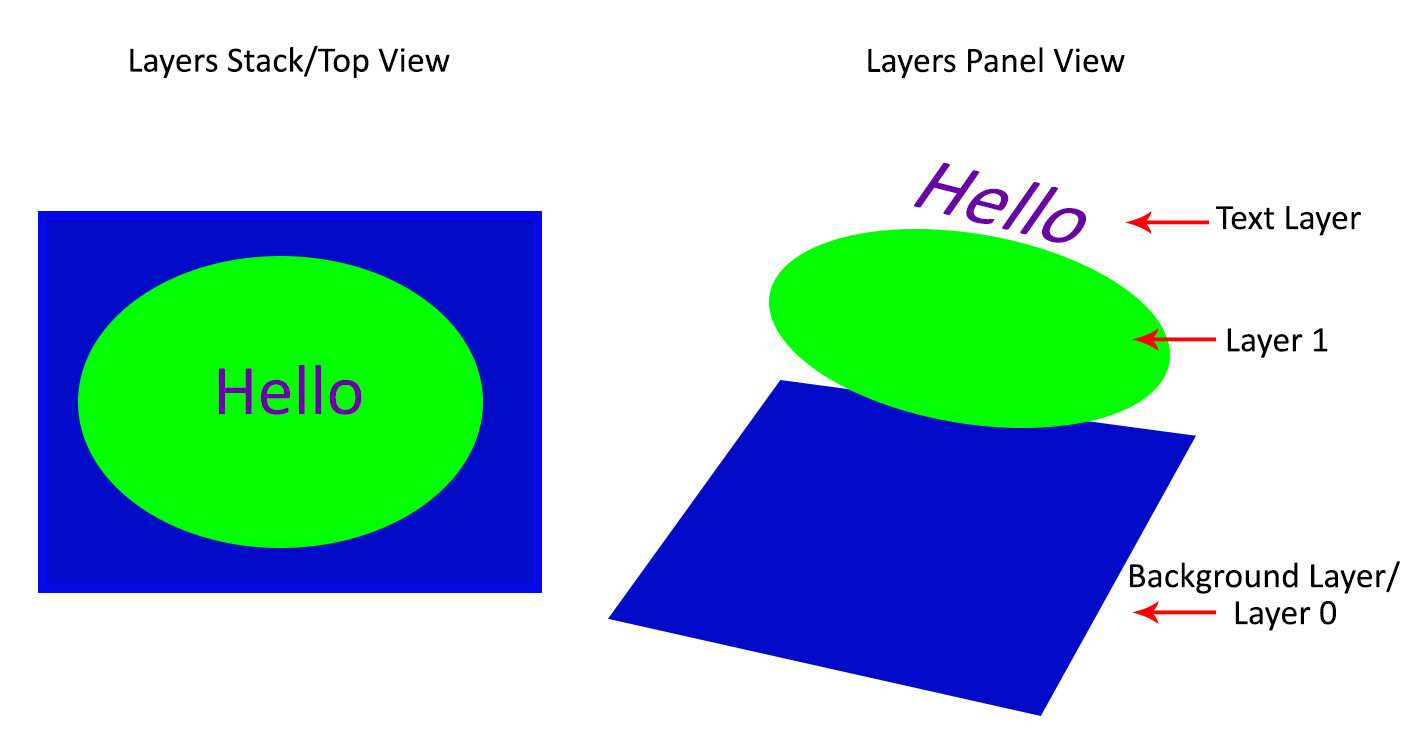
This introduction to Photoshop Layers for beginners will help you learn a great editing habit. So, what exactly is a Photoshop layer? Quite simply put, if you imagine a stack of transparent paper, each sheet is equivalent to a Photoshop layer. When you add/change/remove any of the layers, what you see at the top of the stack forms your entire image.

The first time you open Photoshop, by default, the layers panel is on the right side of your screen and your image opens as a layer named “Background”. Keep this in mind as you read on.

Photoshop Layers for Beginners – What, When and How to Use them Best

Why use Photoshop Layers?

Now that you have an idea of what a layer is, here is why you should use them:

1. It is a way to work non-destructively

Destructive editing occurs when you move and change the pixels directly in your original image. This happens if you edit your original image/background layer when working in Photoshop. While you can undo your changes, if you exceed the number of “undos” you can apply, those changes commit. Also, you may like some changes, but not others, and there is no way to go back to just that change without undoing other changes you have made too.

Alternatively, when you edit your image on separate layers, both the edited image and the original save (they are saved to a .psd file and this maintains all your layers). This allows you to go back to your original image at any time, simply by hiding layers, or deleting them entirely.  This is a form of non-destructive editing.

One thing to remember, however, is that if you resize your entire document (via menu->image->image resize) at any point, that is a form of destructive editing, and you will lose image quality if you try to resize it back to the original size later.

As your editing style evolves, you will appreciate the option of going back to original images at a later date.

Image: Easily add text without affecting your original image

Easily add text without affecting your original image

2. It allows organized and flexible editing

Photoshop is usually a great option when you want more control over your editing process. While you start off with a certain end result in mind, you may change your mind, during (or even at the completion of) your process. Surely there are better ways than undoing multiple changes or starting over from scratch right?

Enter, layers.

Image: Since your original image is unaffected, you can change the text at a later date

Since your original image is unaffected, you can change the text at a later date

Layers allow you to work with your vision without affecting/destroying the original. Since you can work on each layer separately, you have major flexibility. With layers, you can also combine several images into one (composite), These include (but is not limited to), swapping out elements from your image, changing color, tones, and lighting, adding text and resizing, replacing or rotating an object independent of everything else in your image.

Image: You can use layers to replace a plain sky

You can use layers to replace a plain sky

This non-destructive editing style allows you to undo a change at any point in time, and you have control over each individual layer. This means you can work with different objects and elements of your image without affecting anything else.

How to use Photoshop Layers

If you do not see the Layers Panel on the right-hand of your screen, you need to turn it on. To do so, go to Menu->Window->Layers.

As mentioned before, when you open an image in Photoshop, it opens as a background layer. You will notice that there is a small lock icon on the right side of the background layer. This lock is intended to prevent inadvertent changes.

The first step is usually to duplicate this layer. That way, the background layer remains untouched (original).

Photoshop Layers for Beginners – What, When and How to Use them Best

To start, duplicate your background layer:

  1. Open an image in Photoshop
  2. Right-click on the thumbnail image in your layers panel named “Background,” and choose the duplicate layer option
  3. Click OK. A new layer will appear above your original layer with the default name “Background Copy” – you can rename it to anything you want. I suggest renaming it to something that relates to the changes you are making. This makes it easier to find later if you have many layers.

photoshop-layers-for-beginners

As you become comfortable working with layers, you will find yourself making new layers for each change you want to make e.g. if you are retouching an image or replacing a sky. This comes with the knowledge that, later on, you can adjust the intensity of any of those changes independently.

Image: I used Layers for Sky Replacement, with a Layer Mask to recover the top branches

I used Layers for Sky Replacement, with a Layer Mask to recover the top branches

Adjustment Layers

Photoshop also has another layer type called Adjustment Layers. These layers are not a duplicate of other layers; instead, they adjust the information of the layer directly beneath it. Thus you can simply use an Adjustment Layer to effect change on the image without changing the original layer image. For example, you can increase/decrease the contrast or brightness of your layer.

photoshop-layers-for-beginners

Notice how adjustment layers look different from other layer types. These adjust the layer below them.

Adjustment layers do not actually contain any pixels but instead are a series of instructions for Photoshop on what changes you ask it to make. You can access the Adjustments Layer menu at the bottom of the Layers panel or choose Windows and check the Adjustments option.

Layer Masks

A Layer mask is another non-destructive editing technique in Photoshop, used to control the transparency of the layer you apply it to. An even simpler definition is that a layer mask can make a layer visible or invisible. This is done by painting either white (to make it visible) or black (to make it invisible).

photoshop-layers-for-beginners

Blending Modes

At the upper left corner of the Layers panel is the blend modes drop-down menu. These “modes” are set to Normal by default and control how pixels on the different layers interact with each other. An easy way to understand what the different blending modes do is to duplicate your image (as described above) and cycle through them.

photoshop-layers-for-beginners

An example of how different blend modes change the look and feel of your image: 1. Normal 2. Multiply 3. Soft Light 4. Vivid Light 5. Hue 6. Luminosity

Important layering notes for beginners

When there are several layers, your changes only affect the layer that is active or selected. This is why it is a good practice to name your layer (Step 3 above) based on what you are using the layer for.

You can save the edits as a Photoshop (PSD) file, close it and open it at a later date to find all your layers (and changes) as you left it. Of note, saving it this way increases the size of your file. If you are finished with your edits and don’t need a large PSD file, you can merge all the layers (or flatten the file) and save it to a smaller, more compressed file type, such as a jpeg. Of course, in doing so, you will no longer have the ability to access those individual layers later.

Layers work in order. This means that the layer on top “covers” everything below it. You can, however, reorder your layers by moving them up or down by simply dragging them. Keep in mind that the layer on the top will be most visible.

photoshop-layers-for-beginners

Conclusion

The key thing to remember as a beginner is that Photoshop layers are a recommended non-destructive way to work. It is flexible, which allows you to organize your work, effect change in selected areas, and undo changes easily.

When you do not merge your layers, you can open your Photoshop file years later and make changes, all without affecting your original image.

I hope you can utilize these Photoshop Layers for Beginners tips, and if you have any tips on this topic, please share in the comments below.

The post Photoshop Layers for Beginners – What, When and How to Use them Best appeared first on Digital Photography School. It was authored by Nisha Ramroop.


Digital Photography School

 
Comments Off on Photoshop Layers for Beginners – What, When and How to Use them Best

Posted in Photography


Lens Hoods: What Are They Really For, and Do You Need Them?

31 Oct

The post Lens Hoods: What Are They Really For, and Do You Need Them? appeared first on Digital Photography School. It was authored by Simon Ringsmuth.

lens-hoods-what-are-they-for

Most camera lenses come with something called a Lens Hood, which looks like a short circular tube that attaches to the front. These diminutive devices seem a little strange, but they can serve several very useful purposes. While some people might be tempted to toss them on the shelf and never give them a second thought, knowing what lens hoods are and how to use them can have a significant impact on your photography.

Lens Hoods: What Are They Really For, and Do You Need Them?

Why use Lens Hoods?

Imagine this: it’s a bright, sunny day and you are outside for a stroll. The sun is beating down hard and you’re having a bit of trouble seeing clearly, so you hold your hand up to your forehead in an effort to block the light. Congratulations, you’ve just made your very own lens hood for your face! I know this is a bit of an oversimplification, but the lens hood on a camera is about the same as using your hand or a ball cap to block a bit of light when it’s bright out.

Image: It’s kind of like putting a ball cap on your camera, but a lot more effective.

It’s kind of like putting a ball cap on your camera, but a lot more effective.

Why would this be beneficial for photography? Since you need light to make photographs, wouldn’t blocking the sunlight be counterproductive? It might seem so, but in reality, you aren’t making the scene any darker just as putting a cap on your head doesn’t make the sun any less potent.

Indeed, the primary reason to embrace your lens hood as an essential photographic companion is that it makes your pictures look better. Its purpose is to prevent your photos from developing a washed-out appearance that tends to happen under certain lighting conditions. They also offer other benefits mostly related to the protection of your camera gear.

Image: The lack of a lens hood gave this picture a washed-out appearance.

The lack of a lens hood gave this picture a washed-out appearance.

These types of pictures happen because harsh, intense light enters the camera lens and gets scattered across a portion of the image as a result. Lens hoods can mitigate much of this problem by acting as a shade over the front glass element.

Image: Attaching a lens hood gave the shot much more contrast and vibrance. Shadows can be brought u...

Attaching a lens hood gave the shot much more contrast and vibrance. Shadows can be brought up in post-production, but if a picture is too washed-out, it can be much more difficult to fix.

When I first got into digital photography many years ago, I didn’t understand the point of lens hoods. I kept them on a shelf at home because they mostly just got in the way and made my camera take up a lot more space in my bag than it needed to.

Or so I thought.

The nice thing about lens hoods is that they are a low-tech solution to what can often be a fairly major problem. Once you start to see the benefits of having a hood on your lens, you won’t see them as a useless waste of space, but essential components of your camera kit.

Image: I always use my lens hoods for portraits. I never know when I will be shooting a backlit scen...

I always use my lens hoods for portraits. I never know when I will be shooting a backlit scene, and if it happens, it’s good to have the hood to shade the lens.

One thing I have realized over the years is that you need to be prepared to meet the demands of whatever situation you are photographing. Few things are more frustrating than realizing you messed up a picture because of something you could have easily solved with a little pre-planning.

Lens hoods can indeed be a little awkward. However, it’s better to have one on your lens than realize afterward that many shots appear hazy and poorly-lit because you didn’t shade your lens properly.

Image: Lens hoods are particularly useful when shooting into the sun.

Lens hoods are particularly useful when shooting into the sun.

Additional benefits

Aside from protecting your pictures from harsh light, lens hoods can physically protect your camera gear too. This is one of the reasons I leave mine on at all times since I often bump and bang my camera. Having a hood protruding from your lens means it will absorb the brunt of most impacts.

If it does get broken, it’s far cheaper to replace than your lens.

Image: After years of use, my lens hoods are full of scratches and scuffs. I’d rather have the...

After years of use, my lens hoods are full of scratches and scuffs. I’d rather have these easily-replaceable plastic parts bear the brunt of any impacts instead of my actual camera lenses!

I try to be careful with my camera gear and I don’t intentionally abuse it, and I think the same is true of most photographers. But despite my best efforts, accidents certainly can happen. In the normal course of a photoshoot, my camera gets picked up, set down, bounced around, tossed into a bag, put in the trunk of my car, used, and maybe even abused just a little.

A protruding plastic ring isn’t going to save my camera if it gets run over by a dump truck, but it has helped avoid countless bumps and bruises over the years. Is it inconvenient to have the hood always sticking out of my lens? A little, but it’s a lot less inconvenient than having to buy new gear!

Image: I had to follow this cat for a little while and practically lay flat on the ground, to get th...

I had to follow this cat for a little while and practically lay flat on the ground, to get this shot. Having a hood on my zoom lens was a little extra peace of mind knowing that it wasn’t going to get scratched or dinged in the process.

If you do feel like your lens hood is a little too much to deal with, most of them have a simple solution. Reverse the hood and screw it on your lens backward. This might cover some of the knobs and switches on your lens, but it will keep the hood handy while simultaneously storing it in a convenient and easy-to-access location.

Image: You can attach most lens hoods backward for easy storage. This helps protect the barrel of yo...

You can attach most lens hoods backward for easy storage. This helps protect the barrel of your lens but can leave some controls covered up.

Drawbacks

There are a couple things to note about lens hoods that could be a factor in helping you decide whether to use them. The first and most important issue involves vignetting. Some lenses, particularly wide-angle lenses, can result in photos with darker corners with the lens hood attached. This isn’t a huge issue and can often be fixed on your computer, especially if you shoot in RAW, but it is something to keep in mind.

Additionally, there’s no getting around the fact that the added length of a lens with a hood attached can be inconvenient. This is especially noticeable on telephoto lenses and it can be annoying if you’re not used to it.

My solution has been to treat the hood as a normal part of any lens in my kit. If it means I need to find a larger camera bag or be a little uncomfortable shooting in tight spaces, so be it. For me, the tradeoff is worth it, but your opinion might be different. Regardless, it is something to keep in mind.

Image: Hoods on telephoto lenses can stick out quite far, but I have just come to accept this as a n...

Hoods on telephoto lenses can stick out quite far, but I have just come to accept this as a normal part of my kit. I don’t see it as an inconvenience in the same way that I don’t treat a seat belt in my car as an inconvenience.

Conclusion

Despite a few downsides, lens hoods can be an important part of your camera collection. I recommend using one at all times, even if you’re not entirely sure you will need it. I have found myself in more than a few frustrating situations where I know I would have gotten the shot if only I had a lens hood. As such, I rarely take them off my lenses now.

What about you? Do you use lens hoods, or have you learned to live without them? What other advantages or disadvantages do they have that I might have missed? Leave your thoughts in the comments below!

The post Lens Hoods: What Are They Really For, and Do You Need Them? appeared first on Digital Photography School. It was authored by Simon Ringsmuth.


Digital Photography School

 
Comments Off on Lens Hoods: What Are They Really For, and Do You Need Them?

Posted in Photography


Nikon shares D6 development teasers on social media before taking them down

04 Sep
A screenshot from Nikon Rumors showing the Facebook post and accompanying video.

Earlier today, Nikon Europe published a number of posts to social media teasing the development of its D6 camera, the not-yet-official next generation flagship DSLR from Nikon.

The posts, which were shared on Nikon Europe’s official Twitter and a Facebook account called ‘NikonLifeEU’, all teased the arrival of the D6 in text and included an attached video as well. As seen in the screenshots, shared with permission from Nikon Rumors, the two Twitter posts read:

The newly announced #D6 development will reinforce Nikon DSLR’s advantage in #sports#photojournalism.

The Facebook post also shared a video, but read:

The newly announced #D6 development will reinforce Nikon’s DSLR’s advantage in sports photo journalism. Top Pro and #D5 user Joel Maryland talks about how Nikon’s cutting edge technology has helped him stay ahead of the game. Stay tuned for more from #Nikon!

As noted by Nikon Rumors reader br0xibear, the video posted alongside the text wasn’t new footage, but a video of Nikon Europe ambassador Joel Marklund talking about shooting with the Nikon D5 at the Olympics. So, while there was no explicit mention of the D6 in the video, the text is very clear a Nikon D6 DSLR is on the way.

We have contacted Nikon to confirm whether or not the ‘NikonLifeEU’ Facebook page is its official account, but considering it too removed the development teasers and the rest of its post history mirrors the official Nikon Europe Twitter account, it seems likely to be the case.

Articles: Digital Photography Review (dpreview.com)

 
Comments Off on Nikon shares D6 development teasers on social media before taking them down

Posted in Uncategorized


Three Mistakes That Kill Image Quality (and How to Avoid Them)

16 Aug

The post Three Mistakes That Kill Image Quality (and How to Avoid Them) appeared first on Digital Photography School. It was authored by Adam Welch.

We all want to make the highest quality photographs we possibly can, right? Hopefully, you just gave a very slow yet very serious head nod in agreement to that statement.

There are a host of factors that play into the final quality of your digital images. Even the phrase “image quality” seems to be the best way to sum up all the pieces that have to come together for us to consider our photographs to be of high quality. Sharpness, composition, color balance and contrast are a few variables that jump to mind along with a multitude of others that we can and cannot control.

image-quality-mistakes

In this article, we’re going to look at three mistakes that you could very well be making with your photography right now which could be sabotaging your image quality before they ever leave your camera. Luckily, all of these mistakes are easily remedied once you realize they exist. Let’s get started.

Shooting “wide open” all the time

Make no mistake, from a lens standpoint, we live in an extraordinary time. Lens manufacturers have evolved to the point where we currently see extremely well-constructed optics with beautiful sharpness capable of shooting with relatively enormous apertures.

Not even a decade ago, you virtually could not find a “fast zoom” lens with a maximum aperture wider than F/4 for less than a $ 1,000US – at I least I never did.

Now, it has become blissfully common to acquire an outstanding F/2.8 or wider lens without taking out a second mortgage on your home.

image-quality-mistakes

This new age of lens evolution comes with a few caveats, though. Just because your lens is a low-light beast capable of shooting at F/1.4, doesn’t mean that is an ideal aperture for every situation. You see, lenses have certain “optimum apertures” which provide the sharpest results for that particular lens.

In most cases, the widest aperture of your lens, while providing the best light gathering and arguably the best bokeh, is usually the worst optical setting for your lens. The widest aperture setting of your lens often makes nasty little image problems more apparent. Chromatic aberrations, edge softening, and vignetting all become more pronounced when you shoot wide open.

The solution:

Stop down your lens, even if it’s only by a stop or two. You’ll lose some light, but you will also likely see a markedly visible increase in image sharpness and overall quality. While it’s true that not all lenses are created equal (some show shockingly fantastic performance even at their widest apertures), the outcome will probably only become better if you stop down.

Three Mistakes That Kill Image Quality (and How to Avoid Them)

A good F/1.4 lens will be great at F/2.8 and likely outstanding at F/4. If you’re worried about losing that “creamy” bokeh, you may be surprised to see how little background blur you lose with a couple of stops on the wide end of your aperture. It depends on the relative distance of objects in the scene as much as it does on the aperture.

So if you’re suffering from a lack of sharpness and heavy vignetting try stopping down that lens and observe your results.

Poor body mechanics

No matter your gear, conditions or subject matter, if your camera is moving unintentionally, then your images will likely never be as technically qualitative as they could be. Camera shake robs sharpness and can make an otherwise strong image unusable.

Some of us can naturally hold our cameras more steady than others. In-camera or in-lens image stabilization can help, and of course, a trusty tripod is always a good shooting companion.

All of those things aside, simply being conscious of your body mechanics can go a long way to improve the quality of your photographs. At the same time, a bad grip on the camera and poor bodily positioning can cost you a photo.

The solution:

Whenever you’re shooting handheld, be mindful of how your hands grip the camera and the position of your arms and legs. Keep a flat-footed stance with your legs about shoulder-width apart. If you’re using a DSLR or other interchangeable lens camera, grip the camera body firmly with your right hand with your left supporting the lens. Also apply slight opposing pressure (push with the right, pull with the left). Tuck your arms in close to your body for maximum stability.

This will work to help steady your shot. Along those same lines, gently press the shutter button instead of sharply pushing down, which can lead to the camera jerking.

image-quality-mistakes

Elbows tucked, solid grip and lens support.

Bonus tip:

Be mindful of a handy little formula called the “Reciprocal Rule.” This rule will help you approximate the slowest shutter speed based on your focal length to avoid moderate camera shake. The Reciprocal Rule is incredibly simple:

Three Mistakes That Kill Image Quality (and How to Avoid Them)

So, if you’re shooting with a 50mm lens, the slowest shutter speed you should use would be 1/50th of a second. Shooting at 100mm? Your slowest shutter speed should be 1/100th of a second and so on and so forth. This is not an ironclad rule but it is a highly practical one.

For more ways to obtain sharper images be sure to check out my other article 4 Simple Ways to Get Sharper Photos

Neglecting your settings

As simple as it sounds, not being cognizant of your camera’s settings is one of the most frustratingly preventable image quality killers that you will ever encounter. Consistently out of focus images? Check that your viewfinder diopter is adjusted to your eyesight – especially if you wear corrective lenses. Are your photos suddenly pixelated at high magnification? Make sure you haven’t accidentally changed your camera’s resolution (happens more than you might think) to a lesser megapixel count.

Three Mistakes That Kill Image Quality (and How to Avoid Them)

These are just a couple of points to consider, but there are many more. The bottom line is that if you aren’t continuously aware of what your gear is doing, not only are being a sloppy photographer, but you are also limiting yourself and your work for virtually no reason at all.

The solution:

Brace yourself for a huge surprise! Just kidding.

The easiest way to fix a neglectful mindset towards your shooting is to force yourself to remain vigilant. This means constant checks of your deep camera settings such as image and video resolution/format, camera firmware, and micro AF lens adjustments. Sure, keeping track of all these things isn’t an immersively fun experience, but neither are bad photographs.

Do yourself and your photos a favor and never fall into the trap of complacency when it comes to your camera’s settings.

Summing up…

We all could be better at doing the things we love. Each one of us, no matter how experienced or accomplished, will always make mistakes with our photography. The only way we can prevent those image quality mistakes from constantly occurring, and improve the quality of our photos is to make sure we are aware that anything is wrong in the first place. If you do not see the quality of images you would like, the first step towards finding out the problem is realizing that there is one. From there it’s just a matter of working the problem until you resolve it or significantly mediate it.

Put the tips we’ve listed here to work, and you’ll see your image quality improving immediately.

Oh and remember, we’re all in this together! Feel free to share any other tips for image sharpness, or if you have a sticky little issue with your picture quality, feel free to let us know in the comment section, and hopefully, the community can help!

image-quality-mistakes

The post Three Mistakes That Kill Image Quality (and How to Avoid Them) appeared first on Digital Photography School. It was authored by Adam Welch.


Digital Photography School

 
Comments Off on Three Mistakes That Kill Image Quality (and How to Avoid Them)

Posted in Photography


How to Backup Your Photos While Shooting Tethered so You Never Lose Them

01 Aug

The post How to Backup Your Photos While Shooting Tethered so You Never Lose Them appeared first on Digital Photography School. It was authored by Darina Kopcok.

Whether you’re working with clients or shoot as a lone ranger, you need to back up your work. As the saying goes, when it comes to hard drives, it’s not a matter of if they will fail, but when they will fail.

Working with image files requires a lot of power and is very taxing for your computer. This increases the chance of hard drive failure. You need to have a system of backing up your images that works for you. This is also important to backup your photos while shooting tethered.

how-to-backup-your-photos-while-shooting-tethered-3

Backup your photos while shooting tethered

There are various programs that allow you to connect your camera to a laptop or desktop computer via a USB cable. This allows you to view a larger and more accurate version of your image on the computer screen. Tethering is crucial in genres like food and still life photography, but also very useful in other niches, like studio portrait photography.

When shooting tethered while on location, an efficient workflow around the backup process will make your life a lot easier and ensure that you have several copies of your image files should an unforeseen incident occur.

If you’re like me and shoot tethered to a laptop but edit on a desktop, you already have the bonus of an extra copy of your images, since you’re using two computers.

If you transfer the images from the laptop to desktop via a detachable external hard drive, there is your third copy. However, if you use a card reader or transfer your images from your camera via a USB cable, you should have at least one more hard copy of your images. Also, what if something happens to your laptop while you’re on a shoot? Remember, it’s a question of when.

Do you use Lightroom as your tethering program of choice? You then have the option of saving your images to your SD cards as you take them. However, Capture One Pro doesn’t offer this option. This makes image capture instant, but it doesn’t give you an extra sense of security by providing additional copies of the images you’ve shot.

You cannot just set up Lightroom or COP to save to two places. You need file synchronization software to make sure that your work is being backed up while you’re shooting tethered. 

Types of backups

There are two types of backup: specific project backup and overall data backup. You need to concern yourself with both.

While you’re shooting, you need to back up every single file. You also need to do a backup of your whole computer. You should create backups on external hard drives and also in a cloud-based system. Don’t simply rely on cloud solutions for your backups.

Storing photos in the cloud basically outsources the storage of your photos. The data in the cloud is not necessarily safe or under your control. Risks with cloud storage are having your data hacked and deleted, being locked out of your account, or having it be closed if you make late payments. Also, these types of online services can suddenly shut down or otherwise cease to exist. 

A word about digital data

The problem with digital data is that storage formats change over time. You might keep your photos “safe,” but they’ll be useless to you if you can’t read or open them. 

Operating systems, software and file formats keep changing, so just because you can see a file on your computer doesn’t mean you can actually load it.

One example is the attempts to replace the standard .jpg file format with JPEG 2000, PNG (Portable Network Graphics) and several others. JPG is fine for now, but you can never say never because this sort of thing actually happens all the time as technology changes.

A word about disk drives

Hard drives are great for storing images because they are relatively inexpensive, they provide fast access to data, and it’s very easy to copy one hard drive to another. 

However, backup drives are not an all-in-one perfect solution. Your data is at risk of being stolen or destroyed by fire, flood or some other disaster.

Also, the data is vulnerable to malicious software and human error.

You can accidentally delete a folder, or make mistakes when copying files. If your PC is infected by malware, it will usually encrypt files on external hard drives as well.

I personally have had several hard drives fail. One time I had a hard drive and a laptop fail at the same time! Some hard drives fail after several years of use, while others fail after only a few months. There is no way of knowing when the case may be.

Therefore, you can’t store your photos on a single drive. A minimum of two is recommended. I have backups on a couple of 1TB external, portable hard drives, as well as on two 4TB hard drives that are plugged into my desktop computer. 

You should keep one of your backups off-site, like at a relative’s home or even in a bank safety deposit box. 

how-to-backup-your-photos-while-shooting-tethered-2

How to back up while shooting tethered

Chronosync is one backup software that I recommend you use while shooting tethered if you use a Mac. If you’re a PC user, check out Bvckup.

Goodsync can be used with either system.

This type of software allows you to look at a given folder and copy everything to another folder on a separate hard drive. For example, you might want to shoot images on your laptop and have them sync to an external portable hard drive. Or you may want to use two separate portable hard drives. Basically what you’re doing is telling it what folder to look at and make an exact duplicate of it to another drive.

You can set it on a schedule or have it running in the background. Setting it on a schedule is great if you always have a hard drive plugged into your laptop.

Here is an example of how to do it with Chronosync.

1. Open up the application and choose, Create a New Synchronizer Document

How to Backup Your Photos While Shooting Tethered so You Never Lose Them

2. Decide what drives you want to synchronize by selecting >Choose from the Source Target and Destination Target menus accordingly. It will give you several choices of how you might want to back up from the dropdown menu under >Operation.
My recommendation is that you choose >Backup Synchronize Bidirectional. This will ensure that everything that is on one drive will also appear on the other.

How to Backup Your Photos While Shooting Tethered so You Never Lose Them

3. Click on >Synchronize in the top left-hand corner. It may take a few minutes for the synchronization to take place. Once it’s complete you’ll see the message below.

How to Backup Your Photos While Shooting Tethered so You Never Lose Them

It’s as simple as that. With synchronization software like Chronosync, you’ll ensure that all your files and folders are backed up for a very low price.

Other backup software

Many large companies offer photo storage services including Amazon, Google, Microsoft (OneDrive), and Apple (iCloud). However, this can be expensive if you need a lot of storage. With some, downloading large files is cumbersome and data such as file names and EXIF Data may not be preserved. Some services don’t preserve your photos as you uploaded them, and others just don’t work very well (Time Machine, I’m looking at you).

Here are some other paid-for options that are worth a look:

FoldersSynchronizer – a popular program for Mac OS which synchronizes backup files, folders, and disks.

Super Duper – great for disk backups on a Mac. It allows you to create a bootable clone of your disk which you can easily copy from one hard disk to another. This makes moving from one computer to another during an upgrade virtually painless.

Smug Mug – an all-in-one solution that allows photographers to display and sell their images, with unlimited uploads.

Backblaze – a cloud-based backup system that will continually back up your data while your computer is on. Use to restore data after a drive failure.

How to Backup Your Photos While Shooting Tethered so You Never Lose Them

To sum up

To ensure that you have all your bases covered when backing up your files, you should backup specific shoots as well as regularly do backups of your whole computer(s).

Have a couple of backups on hard drives, as well as a cloud-based backup.

When shooting tethered, I recommend backing up your images manually as you’re shooting, one at a time, to ensure that each image exists in at least two places at that time. Once you’re finished shooting, back up your portable hard drive to another one, preferably a larger, more robust hard drive where you store a copy of all your image folders.


how-to-backup-your-photos-while-shooting-tethered

The post How to Backup Your Photos While Shooting Tethered so You Never Lose Them appeared first on Digital Photography School. It was authored by Darina Kopcok.


Digital Photography School

 
Comments Off on How to Backup Your Photos While Shooting Tethered so You Never Lose Them

Posted in Photography


Trump lifts ban on US companies that prevented them selling to Huawei

02 Jul

President Trump has said U.S. companies that sell components to Chinese tech firm Huawei will be allowed to continue to do so.

In remarks at a press conference during the G20 summit in Japan, Trump said that he had told the Chinese leader Xi Jinping that Huawei would be allowed to buy U.S. goods once again. ‘We send and we sell to Huawei and tremendous amount of product that goes into the things that they make, and I said that we would keep selling that product’ the president said in answer to a question from the press.

Further remarks suggested the change had been in part due to pressure from U.S. suppliers who were banned from selling their goods to Huawei rather than any material difference in Trump’s position regarding national security concerns around the tech giant’s relationship with the Chinese government. Trump said that the U.S. companies were ‘not exactly happy that they couldn’t sell.’

It isn’t clear at this stage what this means or whether all those previously trading with Huawei will be able to begin doing so again. Trump implied that it was ‘Silicon Valley’ firms that he was referring to, and said of the products ‘it’s very complex, by the way, highly scientific.’ This doesn’t really allow us to determine whether the ban is lifted on all the products sold from the U.S. to Huawei or whether he is referring to physical components or software—such as the Android operating system.

The Huawei affair comes against a background of growing trade tensions between the U.S. and China, as President Trump imposed import duties on a range of Chinese products in a move he claimed was to protect U.S. industry and to counter the country’s ‘unfair’ trade deal with the Chinese. In May Trump also banned all U.S. businesses from dealing with Huawei as the company was deemed too close to the Chinese government and a security threat. It isn’t clear what has changed to reduce the threat level of the company’s activities, or whether the change of mood is more to do with internal pressure on the U.S. government from domestic firms losing business because of the ban. More will be revealed.

Articles: Digital Photography Review (dpreview.com)

 
Comments Off on Trump lifts ban on US companies that prevented them selling to Huawei

Posted in Uncategorized


Full Moon and Eclipse Photography: Your Guide to Where They Are in 2019 and How to Capture Them Effectively

26 Feb

The post Full Moon and Eclipse Photography: Your Guide to Where They Are in 2019 and How to Capture Them Effectively appeared first on Digital Photography School. It was authored by Caz Nowaczyk.

Jongsun Lee

Full moons and eclipses are a unique time to capture some interesting photographs.

Full Moons

Full moons usually happen once a month, with the occasional second full moon falling in the same month. This second full moon is called a Blue Moon.

Solar and Lunar Eclipses

A solar eclipse happens when the new moon passes between the earth and the sun, casting a shadow over the sun.

A lunar eclipse occurs when the earth passes between the full moon and the sun, causing the moon to fall into earth’s shadow. Lunar Eclipses occur only at the full moon.

To give you the opportunity to shoot the moon, below is a calendar of Full Moons and Eclipses for 2019, followed by some articles that will help you to capture the moon or eclipse effectively.

Full Moon and Eclipse Calendar

Full Moons

New York, N.Y (US/Eastern)

Date Time
Jan 21 00:17
Feb 19 10:53
Mar 20 21:43
Apr 19 07:12
May 18 17:11
Jun 17 04:31
July 16 17:39
Aug 15 08:31
Sep 14 00:35
Oct 13 17:10
Nov 12 08:37
Dec 12 00:14

Eclipses

Date Type
July 2 Total Solar Eclipse
July 16 Partial Lunar Eclipse
Nov 11 Mercury Transit
Dec 26 Annular Solar Eclipse


Full Moons

Sydney, Australia (AEST)

Date Time
Jan 21 00:17
Feb 20 02:53
Mar 21 12:42
Apr 19 21:12
May 19 07:11
Jun 17 07:38
July 17 17:38
Aug 15 22:29
Sep 14 14:32
Oct 14 08:07
Nov 13 00:34
Dec 12 16:12

Eclipses

Date Type
July 17 Partial Lunar Eclipse


Full Moons

London, England, UK

Date Time
Jan 21 05:16
Feb 19 15:53
Mar 21 01:42
Apr 19 12:12
May 18 22:11
Jun 17 09:30
July 16 22:38
Aug 15 13:29
Sep 14 05:32
Oct 13 22:07
Nov 12 13:34
Dec 12 05:12

Eclipses

Date Type
July 16-17 Partial Lunar Eclipse
Nov 11 Mercury Transit


How to Achieve Better Full Moon and Eclipse Photography

20 Dos and Don’ts for Shooting the Moon

Beyond Full Moon Photography

Moon Photography: 6 Tips for Better Moon Photos

How to Photograph a Solar Eclipse

Tips for Photographing a Lunar Eclipse

How to Photograph a Lunar Eclipse


The post Full Moon and Eclipse Photography: Your Guide to Where They Are in 2019 and How to Capture Them Effectively appeared first on Digital Photography School. It was authored by Caz Nowaczyk.


Digital Photography School

 
Comments Off on Full Moon and Eclipse Photography: Your Guide to Where They Are in 2019 and How to Capture Them Effectively

Posted in Photography


Advantages DSLRs Have Over Smartphones, and Why They’ll Always Have Them

22 Nov

I love watching the annual press events of Apple, Google, Samsung and others where they show off their latest high-tech gadgets, including mobile phones. With each new iPhone, Pixel, and Galaxy they seem to repeat a common refrain: “And the camera is the best one ever in a smartphone”.

Are DSLRs fading away with modern advances in smartphone camera technology? Or are they primed and ready for an entirely new life?

Mobile phone cameras are mind-blowing marvels of modern technology. With some of the tech showcased in the recent Pixel 3 announcement, you might be wondering if traditional DSLRs and mirrorless cameras are even relevant anymore.

The answer is more complicated than you might think.

Before you get too deep into this post, I want to make one thing abundantly clear. No-one can tell you which camera is best for you. If you have a 3-megapixel point-and-shoot that does what you want, then, by all means, keep using it and don’t let anyone stop you. Also, if your smartphone takes selfies and Instagram-worthy photos of your morning coffee, then keep snapping away.

In this article, I’ll be looking at some advantages traditional cameras have over smartphones. However, I won’t be telling you which one to buy, and I certainly won’t be telling you to stop using the camera you already have. Too often, the point is missed entirely when people get caught up in silly arguments on internet forums and message boards about whether such-and-such camera is better.

It’s important to know the advantages and disadvantages of different cameras, so you have enough information to choose one that best suits you and your needs. However, please don’t think I’m trying to tell you what you should or shouldn’t buy.

In almost every way I can think of, modern smartphones can take incredible images compared to those from just a few years ago. These days they have real-time HDR, depth mapping, background separation, multiple lenses, machine learning, portrait mode, selective bokeh adjustment, and even computer-assisted sub-pixel digital zooming. It’s enough to make even the most staunch DSLR owner feel a tad envious.

Still, don’t toss out your Canon or Pentax just yet. DSLRs and other traditional cameras have a treasure trove of advantages no current smartphone can match, and some features they may never be able to achieve.

Lens Selection

What’s the essential advantage of DSLRs over smartphones? I couldn’t tell you, but lens selection would undoubtedly be near the top of the list. Despite all the advances in smartphone photography in recent years, some laws of physics and photons are only overcome when switching lenses like a traditional camera. Most mobile phones have lenses roughly equivalent to a 28mm lens on a full-frame DSLR, although some dual-camera models roughly mimic a 50mm field of view to try and recreate professional-style portraits. Even though you can get adapters (such as the Olloclip) that let you do some creative experimentation, they rarely hold up to dedicated lenses mounted on interchangeable-lens cameras.

By comparison, DLSRs can use hundreds of different lenses, each designed for specific photography needs and situations. No matter what you need from a DSLR, there’s a lens that does it – from wide-angle primes and telephoto zooms to basic kit lenses, tilt-shift, and specialized macro lenses.

A photo like this, which requires a telephoto lens with a wide aperture, isn’t currently possible on any smartphone (and may never be).

The AI-powered tricks and computational somersaults modern cell phones are capable of can work wonders for different photographic situations. But when it comes to choosing the perfect lens for the job, smartphones simply can’t compete. If you want to shoot close-up images, far-away wildlife, fast-moving sports or pleasing group portraits, your mobile phone will probably come up short. Sure, you can’t install apps on most DSLRs. But you can change out lenses which, when it comes to photography, is infinitely more useful.

The portrait mode on mobile phones is amazing. But it doesn’t come close to what you can achieve with a portrait lens on a DSLR or mirrorless camera.

Customizable Settings

While phones can produce amazing photographs in lots of different conditions, you’re fairly limited in terms of settings. You usually can’t change the aperture or focal length (and no, digital cropping is not the same as changing focal lengths). All you can really control are the ISO and shutter speed, and the native camera apps rarely even let you do that much.

When you press the button to take a picture on your phone, you’re letting the computer do most of the thinking it terms of white balance, shutter speed, ISO, and even which part of the image should be properly exposed.

One of the biggest selling points of DSLRs and other dedicated cameras is that (while they have auto modes that do much of the heavy lifting) they have manual modes that let you choose everything – aperture, shutter speed, ISO, and even the focal length if you’re using a zoom lens. Admittedly, not everyone wants that much control, and you can choose to shoot in auto or semi-auto if you want. But having such fine-grain control is a huge advantage over smartphones.

I could choose a slow shutter speed to get this shot on my Fuji X100F, whereas most mobile phones would have used a much faster shutter speed resulting in a vastly different image.

Smartphones and the software that powers them are so advanced and sophisticated that people are perfectly happy letting them make the decisions and do most of the heavy lifting. But if you want more control you won’t get it on a mobile phone. Even the dedicated camera apps run up against physical limitations such as focal lengths that can’t be changed.

There are times when the photo you want to take isn’t the photo your camera wants to take. In those situations, a dedicated camera will let you change aperture, shutter speed, and ISO to get the exact photo you want.

I shot this image at 200mm, f/2.8, ISO 100, and 1/4000 second, which is impossible for any mobile phone.

Low-Light Shooting

DSLRs will always have the advantage over mobile phones in low light due to the way camera sensors collect light. Larger sensors mean larger photosensitive sites, which means they can capture more information about incoming light when there isn’t a lot of it.

At Google’s recent Pixel 3 announcement they demonstrated a feature that vastly improves its low-light shooting. But it only works with still subjects. It also runs into the same limitations all mobile phones have such as fixed focal length and limited options for changing settings.

I took this deep under the earth in Mammoth Cave National Park, 23mm, f/2.0, 1/20 second, ISO 6400. While some phones could have taken a shot similar to this they would have needed much longer shutter speeds, which would make the people a blurry mess.

Try it for yourself to see what I mean. Even with the best night-mode options on the newest mobile phone, you’ll still struggle to get clear shots of moving subjects. It’s great if you only require pictures of static compositions such as buildings or parked cars. But if you want to capture shots of kids, animals or anything that moves around, your mobile phone will probably leave you wanting more.

As the technology advances, low-light photography on mobile phones will improve. But there will always be physical limitations inherent in the platform that DSLRs and mirrorless cameras simply don’t have to deal with. Much of it stems from their larger image sensors, which collect much more light data per pixel. But the fact cameras let you specify the ISO value you need to get the image you want is also a big advantage.

Model train in a dim basement, shot at 50mm, f/2.8, 1/60 second, ISO 3200.

Not Quite There… Yet

I’m a big believer in the promise of computational photography in mobile phones. If the best camera is the one you have with you, then for hundreds of millions of people around the world their mobile phone is the ideal choice. But even with all the rapid advances in technology, there are still plenty of reasons to own a traditional camera.

If you have one that’s been relegated to a dark closet or dusty shelf and replaced by a high-tech mobile phone, get it out and see what it can do. The results may surprise you and have you wanting to use it more and explore the possibilities it offers.

What about you? What are the advantages of using traditional cameras that keep you coming back to them time after time? I’d also like to hear your thoughts about mobile phones and the technology they offer photographers.

One thing is clear. No matter where you stand on this issue, we certainly live in exciting times for photography.

The post Advantages DSLRs Have Over Smartphones, and Why They’ll Always Have Them appeared first on Digital Photography School.


Digital Photography School

 
Comments Off on Advantages DSLRs Have Over Smartphones, and Why They’ll Always Have Them

Posted in Photography


DJI drones temporarily banned in UK after reports of them falling from the sky

01 Nov

The UK’s Civil Aviation Authority has banned a number of DJI drones from flights over human beings as investigations are carried out into the cause of some models falling out of the sky. Matrice 200 series models and the Inspire 2 have had temporary flying restrictions applied to them as they use the DJI TB50 and TB55 battery packs that are suspected of failing mid-flight.

The authority states that “a small number of incidents have been recently reported where the aircraft has suffered a complete loss of power during flight, despite indications that there was sufficient battery time still remaining.” While the drones in these incidents themselves have suffered damage from the incidents no third-party persons or property has been affected as a result.

The cause of the fault remains unclear at the moment, and not all of these models of drone seem to suffer from it, but investigators believe the common link is the batteries in use. DJI itself is advising customers to ‘fly with caution’ when using drones that use these batteries as it says they can show incorrect power levels. The company suggests users follow the guidance of the CAA ‘out of an abundance of caution’, and say they are working on firmware to fix the problem.

In addition to the temporary ban on flights over people the CAA has also suspended permissions to fly these models:

  • over or within 150 metres of any congested area;
  • within 50 metres of any persons;
  • within 50 metres of any, vessel, vehicle or structure which is not under the control of the SUA Operator or remote pilot of the SUA;
  • over or within 150 metres of an open air assembly of more than 1,000 persons; or
  • using EVLOS

DJI seems to have suspended sales on its website of the Matrice 200 series models. For more information see the DJI newsroom, and the CAA website.

CAA Safety Notice:

Civil Aviation Authority
SAFETY NOTICE
Number: SN–2018/009

Small Unmanned Aircraft

Issued: 31 October 2018

DJI Battery TB50 and TB55 In-Flight Power Failures

This Safety Notice contains recommendations regarding operational safety.
Recipients must ensure that this Notice is copied to all members of their staff who need to take appropriate action or who may have an interest in the information (including any ‘in-house’ or contracted maintenance organisations and relevant outside contractors).

2 Introduction
2.1 This Safety Notice supersedes and revokes Safety Notice SN–2018/008.

2.2 This Safety Notice applies to operators of multi-rotor small unmanned aircraft utilising DJI battery model TB50 or TB55, including all DJI Matrice 200 series (which includes the 200, 210 and 210 RTK platforms) and the DJI Inspire 2 (the “Affected SUA”).

2.3 A small number of incidents have been recently reported where the aircraft has suffered a complete loss of power during flight, despite indications that there was sufficient battery time still remaining. In each case, this resulted in the aircraft falling directly to the ground due to the immediate loss of lift with the remote pilot unable to control its subsequent flight path. The small unmanned aircraft were damaged upon impact, but the CAA has not received any reports of injuries to people or other property.

2.4 Investigation by the manufacturer has confirmed that this issue is not confined to any specific firmware version and is thought to be related to the batteries TB50 and TB55. The full details of the occurrences are still being investigated.

2.5 The purpose of this Safety Notice is to highlight the requirement for the SUA operator and/or remote pilot to be reasonably satisfied that the flight can be safely made (Air Navigation Order 2016 (ANO) article 94(2)), restrict overflight of persons at any height and to temporarily limit the scope of any operational authorisations issued to operators of the Affected SUA.

Civil Aviation Authority Safety Notice SN–2018/009

3 Compliance/Action to be Taken
3.1 This Safety Notice requires the following actions to be taken:

a) Provisional Suspension of Operations

i) In accordance with Air Navigation Order article 257 and 257(2)(c) operators of Affected SUA are hereby directed not to permit any flight that involves overflight of any persons at any height until further notice.

ii) In accordance with Air Navigation Order article 253, any element of a permission based on an Operational Safety Case (OSC), issued by the CAA to an SUA operator which permits the operation of an Affected SUA to be operated:

* over or within 150 metres of any congested area;
* within 50 metres of any persons;
* within 50 metres of any, vessel, vehicle or structure which is not under the control of the SUA Operator or remote pilot of the SUA;
* over or within 150 metres of an open air assembly of more than 1,000 persons; or
* using EVLOS

is provisionally suspended until further notice.

iii) These limitations will be subject to regular review. As soon as further updates have been obtained from the manufacturer, and the CAA is satisfied that this has been addressed in a satisfactory manner, the CAA will then issue a further update via the SkyWise alerts portal on the CAA website.

b) Emergency Services Operations

i) Due to the unique nature of emergency services operations, the privileges contained within General Exemption E 4506 (ORS4 No. 1233) may continue to be exercised whilst using the Affected SUA, provided that the potential risks highlighted in this Safety Notice have been considered within the decision to proceed and the overflight of uninvolved persons is minimised.

4 Queries
4.1 Any queries or requests for further guidance as a result of this communication should be addressed to the following e-mail address: uavenquiries@caa.co.uk, with the subject line ‘Safety Notice – DJI Battery TB50 and TB55 In-Flight Power Failures’.

5 Cancellation
5.1 This Safety Notice will remain in force until further notice

Articles: Digital Photography Review (dpreview.com)

 
Comments Off on DJI drones temporarily banned in UK after reports of them falling from the sky

Posted in Uncategorized