RSS
 

Posts Tagged ‘Swirly’

Video: This rare projector lens has been deemed the ‘Swirly Bokeh Emperor’

22 Aug

Photographer Mathieu Stern of the Weird Lenses Museum has published another video showcasing an old projector lens used with a 3D-printed adapter to shoot a video featuring beautiful, crazy — and in this case, swirly — bokeh.

As with the projector lens video Stern published earlier this year, the latest project involves an old projector lens designed for cinema projectors. Stern explains on YouTube that he paid €2 for the lens at a flea market, later determining that it is an ‘extremely rare’ Cinestar 75mm F1.9 model.

View this post on Instagram

New video is on YouTube ! Reviewing an insane swirly bokeh lens ( DIY) Check the link in my bio to see my YouTube channel #vintagelens #bokeh #bokehphotography #bokeh_kings #swirlybokeh #bokehphotofan #igersparis #bokehlicious #swirly #portraitmode #green

A post shared by Mathieu Stern (@mathieustern) on

Stern used a 3D-printed adapter to insert the lens into a helicoid ring, enabling him to focus the lens. The ring was then used with an M42 to E-mount adapter for use with a Sony A7III camera. The result, Stern says, ‘Is the most amazing swirly bokeh I [have ever] seen.’

Stern showcases a number of unusual lenses on his website, including one that he made using ice from an iceberg.

Articles: Digital Photography Review (dpreview.com)

 
Comments Off on Video: This rare projector lens has been deemed the ‘Swirly Bokeh Emperor’

Posted in Uncategorized


How to Simulate a Swirly Bokeh in Photoshop

25 Sep

Hailing from Russia, I give you…the Helios and its swirly bokeh.

How to Simulate a Swirly Bokeh in Photoshop - Helios lens

Image by Markus Spiske

I know, it’s kind of an ugly duckling right? At the very least, Helios lenses are certainly not the shining example of classical grace and beauty that the company’s bestowed name might conjure forth. Instead, the true charm and appeal of these vintage lenses comes from what’s on the inside.

Due to their optical nature, Helios lenses can produce wonderfully swirly bokeh and backgrounds when shot at wide apertures.

How to Simulate a Swirly Bokeh in Photoshop - image shot with Helios lens

Image by Mike Newton made with a Helios lens.

If you don’t happen to have a Helios lying around (they’re actually quite cheap) then I hope you will consider learning how easy you can simulate that swirly bokeh of this nifty little lens. You can do it right inside of Photoshop – here’s how.

What Kind of Images Work Best?

The charm of the Helios lens comes from separating the subject from the background with style. This means that just like any other time you want to blur out a background, the further you can place your subject from the objects behind it the more blurred the background will become.

The same is true for images you choose to simulate the “Helios effect” in Photoshop. Look for images with isolated subjects that can be easily separated from the background. This is the example we’ll be using for the demonstration.

How to Simulate a Swirly Bokeh in Photoshop - example image for tutorial

Not only do swirly backgrounds complement images like these more so than others, but having easily identifiable borders between your subject and the background will make things much easier on you during the processing.

How to Create the Helios Effect

The key player in this edit will be a hidden little tool, or rather a filter, buried inside of the Blur Gallery portion of the Filter menu bar at the top of the window. You will use the Spin Blur Filter to give you that dreamy understated swirly bokeh background for which Helios lenses are so favored.

After you’ve got your image opened in Photoshop it’s time to begin the effect.

Duplicate the Layer

Make a duplicate copy of the background layer by using the keyboard shortcut Cmd/Ctrl+J. Feel free to rename the duplicate layer as I’ve done here to help you keep track in case you’re working with more layers.

spin blur layer - How to Simulate a Swirly Bokeh in Photoshop

Next, go up to menu bar you looked at earlier and go to Filter > Blur Gallery > Spin Blur… This will open up the blur gallery and it is here where you’ll do the actual blurring.

spin blur in the menu - How to Simulate a Swirly Bokeh in Photoshop

You’ll notice quite a few options here in the spin blur gallery; the most important of which is the Blur Angle slider.

blur angle slider - How to Simulate a Swirly Bokeh in Photoshop

This is how you will control the amount of simulated blur in your image. Think of the blur angle as the control for the degree of swirl in the background. Before you decide on how much blur you want to introduce to your image you first need to decide where you want the blur effect to be applied. Do this by adjusting the size and shape of the blur filter itself.

Adjust the Size and Feather Amount of the Filter

You can click and drag the outside of the filter to control its size and shape. How close the blur comes to the edges of the filter is controlled by the four larger dots shown here:

spin blur adjustment dots - How to Simulate a Swirly Bokeh in Photoshop

Think of these dots as the way you dictate the feathering of the spin blur effect as it approaches the edges of the filter. Drag the filter out to just past each corner of the frame and then adjust the feathering accordingly.

Feel free to experiment with placing the center point of the filter at different locations within your image.

spin blur filter in action - How to Simulate a Swirly Bokeh in Photoshop

Select the Blur Amount

As I’ve said, the largest variable you can control when applying your swirly bokeh background is the angle of the blur, which essentially dictates the amount of perceived spin blur. In most cases, a very small amount of blur angle works best, say maybe 2-4%.

Keep in mind that the true swirly bokeh from the Helios lens is generally subtle so keep the background blur in your simulated images somewhat subdued. Here’s our image with 4% blur angle applied.

4% blur applied - How to Simulate a Swirly Bokeh in Photoshop

Keep in mind that the final determination of the amount of blur will be decided just a little later in the process by using the layer opacity. So it’s a better idea to add in a little too much blur than not enough at this point in your processing.

Also, keep in mind that you can also increase or decrease the amount of blur angle using the control wheel located at the very center of the filter. Once your blur is applied, click “OK” at the top of the screen.

NOTE: If you convert the layer into a Smart Object before applying the Spin Blur filter, the settings can be adjusted at any time as it will be a non-destructive edit.

Final Blur Adjustments Using Layer Masks and Opacity

Now that you’re back to the main editing window in Photoshop you can finish up your Helios-style blur effect by using layer masks and opacity to customize the blur.

Adjust the opacity of the spin blur layer by using the layer opacity slider until the effect reaches the desired amount you like for your particular image. In this case, I’ve set the opacity to a modest 70%.

layer at 70% opacity - How to Simulate a Swirly Bokeh in Photoshop

Next, we’ll want to make sure the subject of the photo is free from the blur effect. To do this, add a layer mask to the spin blur layer.

add a layer mask - How to Simulate a Swirly Bokeh in Photoshop

Then use the Brush tool to remove the blurring effect from the areas where it’s not needed. And viola! Your freshly minted Helios swirly bokeh simulation is complete!

final image butterfly and flowers - How to Simulate a Swirly Bokeh in Photoshop

Final Thoughts on Simulating Helios Bokeh

Acquiring an actual Helios lens is a surprisingly easy and budget-friendly method for adding a little uniqueness to your photography. Still, if you choose not to get a lens of your own, you can simulate the look of that classic Helios swirl by using the methods shown in this article.

Here are a few points to remember if you want to give the Photoshop Helios method a try:

  • Choose a photo with a subject that is relatively isolated on its focal plane.
  • Images with busy backgrounds work best.
  • A blur angle of 2-4% is adequate for most photos.
  • Center the blur around the main subject but don’t be afraid to move it elsewhere!
  • Control the final blur amount using the layer opacity slider and layer masks.

Simulating the swirly blurred backgrounds of the Helios is easy and quick in Photoshop using the spin blur filter.

Here are a few more examples of images which have been given the Helios effect using the techniques shown here.

The post How to Simulate a Swirly Bokeh in Photoshop appeared first on Digital Photography School.


Digital Photography School

 
Comments Off on How to Simulate a Swirly Bokeh in Photoshop

Posted in Photography


Swirly bokeh: Lensbaby announces Twist 60 lens

12 Apr

Lensbaby has announced the Twist 60, a new lens for creative photography. From what we can see, the Twist 60 is all about bokeh. The 12 aperture blades and a maximum aperture of F2.5 should give a soft, well-rounded bokeh with good separation of the subject from the background, but the real ‘twist’ is just that – the twist. Specifically the twisty, swirly bokeh. Lensbaby claims the lens is modeled after Joseph Petzval’s Classic 19th-century design, giving photographers the ability to introduce and control that distinctive circular bokeh that is unique to Petzval-type lenses.  

We are interested to see how this lens performs, as it is almost half the price of similar lenses recently announced and it is available (via the Lensbaby Optic Swap System) in a wide variety of mounts.

$ (document).ready(function() { SampleGalleryV2({“containerId”:”embeddedSampleGallery_1483721425″,”galleryId”:”1483721425″,”isEmbeddedWidget”:true,”standalone”:false,”selectedImageIndex”:0,”startInCommentsView”:false,”isMobile”:false}) });

The Twist 60 is available for pre-order starting April 12, 2016 and is currently offered in Canon, Nikon, and Sony E mounts. It is priced at $ 279.95/£196 for the full lens or $ 179.95/£126 for the Twist 60 Optic (for use with other Lensbaby Optic Swap System lenses).


Press release:

Lensbaby’s New Twist 60 Lens Exudes Pure Magic of Vintage Photography

Company’s love of old lenses inspires new creativity with classic image elements optimized for full frame photographers
 
Portland, OR – April 12th, 2016 – Lensbaby, makers of award-winning creative effects lenses, optics and accessories, today announced the availability of the Twist 60 lens. Twist 60 helps creative photographers find their visual voice by seeing the world differently.
 
This metal-bodied 60mm f/2.5 lens with gold anodized accents creates powerful portraits, spotlighting subjects by freeing them from their background and surrounding them with swirly blur and enhanced vignette. The brighter the aperture, the greater the swirl and the greater the vignette.
 
“Twist 60 embodies our love of old lenses and their unique ways of helping photographers discover creative possibilities,” said Craig Strong, Lensbaby Co-Founder & Chief Creative Officer. “True to an 1840 design by Joseph Petzval, this lens reveals striking separation between subjects and their background, a quality that modern lens designs lack.”
 
Twist 60 Lens specs:
? 12 blade f/2.5-22 aperture
? 60mm focal length
? Twisty, swirly blur
? Recommended for use on full frame cameras
? Available in Canon EF, Nikon F, and Sony E mounts
? 4 elements in 3 groups
? Filter threads: 46mm
? Black anodized body with gold anodized aperture ring
? Minimum focus distance – 18”
 
Availability
Twist 60 lens retails for $ 279.95 and is available via pre-order beginning April 12, 2016 (shipping May 5th, 2016). Twist 60 Optic will also be sold separately for use with other Lensbaby Optic Swap System-compatible lenses. It retails for $ 179.95. For best results, when using it in a tilting Lensbaby such as the Composer Pro, photographers should shoot with Twist 60 pointed straight ahead. Lensbaby products are available at lensbaby.com, B&H, Adorama, and from select specialty photo stores worldwide.
 
About Lensbaby
For over a decade, photographers have relied on Portland, Oregon based Lensbaby to help them break free of routine, tinker, and open themselves up to unexpected results – dancing, playing and delighting in what’s possible with a creative lens and their imagination.

Lensbaby makes award-winning creative effects lenses, optics and accessories that follow this philosophy, including the Velvet 56, a versatile portrait and macro lens; their unique Optic Swap System, which lets photographers swap their optic and tilt their lens for limitless effects; and mobile lenses that transform everyday smartphone photography. Lensbaby products are sold and distributed worldwide. For more information, visit www.lensbaby.com

Lensbaby Twist 60 specifications

Articles: Digital Photography Review (dpreview.com)

 
Comments Off on Swirly bokeh: Lensbaby announces Twist 60 lens

Posted in Uncategorized


Creating Swirly Bokeh with the Helios 44-2 lens

13 Aug

Hacking_Photography_Helios_44-2_Lens-0086

I recently bought a Sony A7 to compliment my Canon 6D DSLR. A friend convinced me that having small-form, full frame camera would be an entire different way of shooting. I value his opinion, so I picked one up. You can see how I used it in my last article:  when to trick your camera for the perfect exposure.

A New Love of Prime Lenses

I started off with a Sony 55mm f/1.8 and a 24-70mm f/2.8 lens that requires a Sony adapter. The 55mm shoots like a dream and is insanely light-weight.

The 24-70mm and adapter are super heavy and ridiculously front-heavy. It’s a great lens but after taking it out a few times, I concluded it wasn’t for me. I really enjoy having big apertures available for low light so I started looking for another prime lens.

A Lens Defect Leads to Awesome Bokeh

I was looking through photos on Flickr and noticed a few images in which the bokeh appeared to be swirling in a circular pattern. It was awesome and unlike anything I had ever seen!

I did some quick digging and found out this was called “swirly bokeh” and certain vintage lenses created this effect through a manufacturing defect. Well, this “defect” looked really cool to me and I wanted to incorporate it into my lens collection.

Meet the Helios 44-2 58mm f/2 Lens
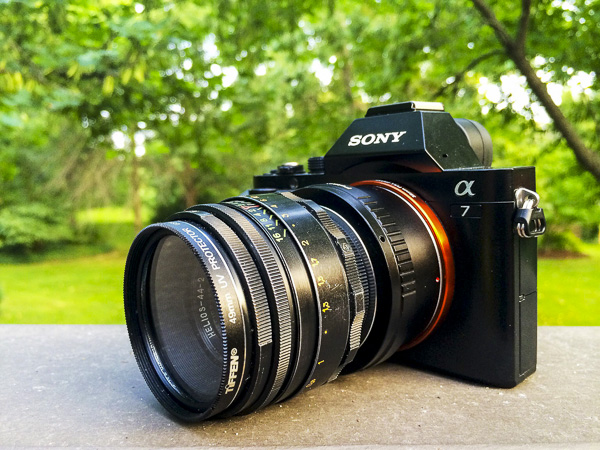
sony a7, helios lens,

Sony A7 with Helios 44-2 58mm f/2.0 lens

I quickly found out that there is a cult following for a lens called a Helios 58mm f/2. This was a Russian-made lens that essentially tried to emulate a famous Zeiss one.

Several companies made these lenses over several decades, in the millions of units, so they aren’t exactly rare. This means they are really inexpensive because they are so common.

Where to Find the Helios 44-2 Lens

Out of the several models of these lenses, the Helios 44-2 model lens reportedly creates the “swirly bokeh” I was looking for. I did a quick search on Ebay and quickly found a ton of these for sale out of Russia and the Ukraine.

After looking at several of them I found one in excellent condition and ordered it for less than $ 50 including shipping. What a deal! I’ve seen plenty of people get even better deals on Ebay than I did.

Mounting it on the Sony A7 Camera
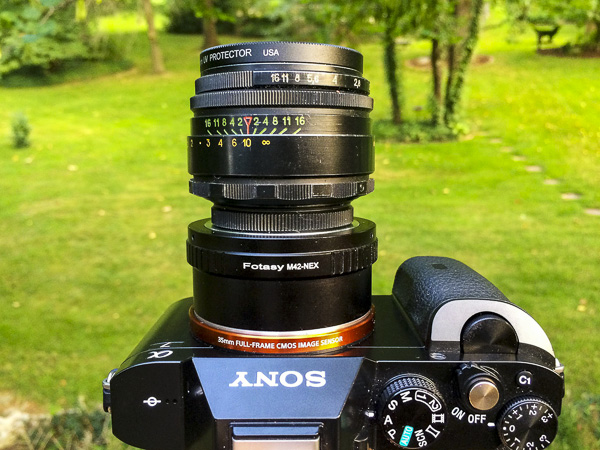
sony a7, helios lens, helios 44-2,

Mounting the Helios 44-2 to the Sony A7

These lenses were created for the Leica M-mount so I needed to get an M mount adapter for the Sony A7. I picked up a $ 10 Fotasy M42-NEX adapter which works perfectly.

It looks like a Franken-camera. I really dig how crazy this thing looks. Other photographers have stopped to ask what the heck this lens setup is.

Using Manual Focus and Manual Aperture Lenses
english setter, helios 44-2 lens,

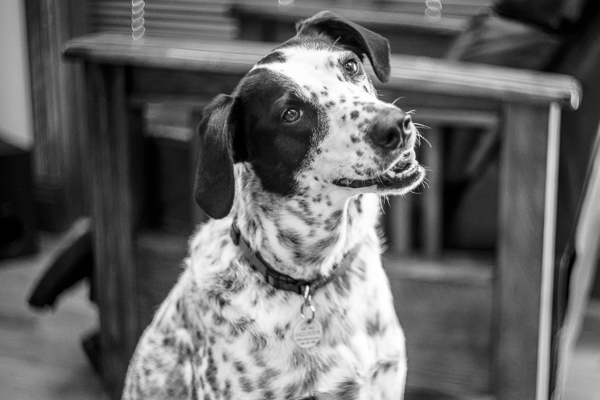
The Sony A7 focus assist feature makes it easy to nail perfect focus each time.

I’ve never had a lens that was manual focus only, much less manual aperture. Instead of using a front or rear dial on the camera to choose your aperture, you grab a ring on the front of the lens to change it by twisting it to the left or right.

Some of you reading this are used to these type of lenses, but this was new to me.

Using the Manual Aperture Lens

While the aperture ring took some getting used to it really slowed my photo-taking process down. The aperture ring on the front of the lens reads 16 on the left, then 11, 8, 5.6, 4, 2.8, and 2 as you turn to the right. Simply twist the dial to change the aperture.

Manual Focus Rocks with the A7 and the Helios 44-2

Hacking_Photography_Helios_44-2_Lens-0431

Light pole in a Missouri truck stop parking lot surrounded by corn.

The standard challenge with manual focus is trying to eyeball the focus correctly. You might think your subject is in focus but you might be just an inch or two out of focus.

The A7 has focus assist (also called focus peaking) that lights up in-focus sharp details in red so you know what part of the image is in focus. This makes it so simple.

Taking a portrait? Twist the focus ring until a person’s eyes are rimmed in red and guarantee the eyes are sharp in focus. It’s so easy its almost like cheating!

Finally – the Swirly Bokeh
Hacking_Photography_Helios_44-2_Lens-0100

This unfocused image shows the popular swirly bokeh effect

I bought the lens right before a two-week trip to St. Louis, Missouri to visit family. It arrived the day before we left so it was ready to go right away. After a quick test shoot I decided I was going to shoot this Helios 58mm 44-2 exclusively for the entire trip.

Finding the swirly sweet spot

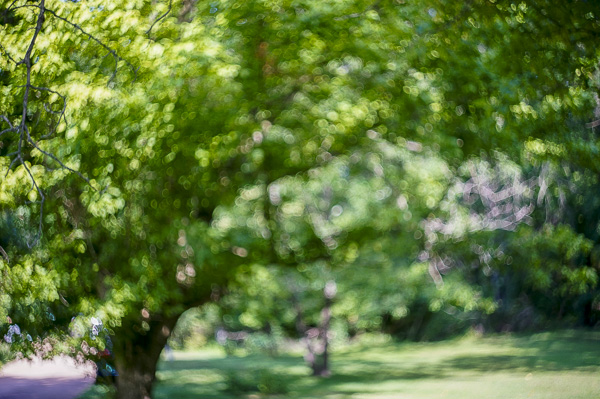
I took the lens into my in-laws yard to find out how best to find the swirly spot. When you shoot wide open at f/,2 close up to the subject, the background is a beautiful, buttery, soft bokeh.
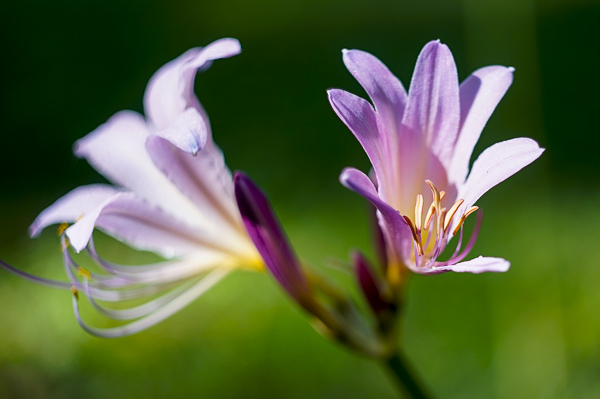
flowers

This image was shot up close which caused the background to blur too much for the swirl I was looking for. I aimed up at a leaf that was a little further away, still shooting wide open at f/2.

It isn’t swirly bokeh yet, but it definitely has more shape to it. I’m getting closer.

branch bokeh

I took another shot with a subject at mid range, perhaps 4-5 feet away while still shooting wide open at f/2.
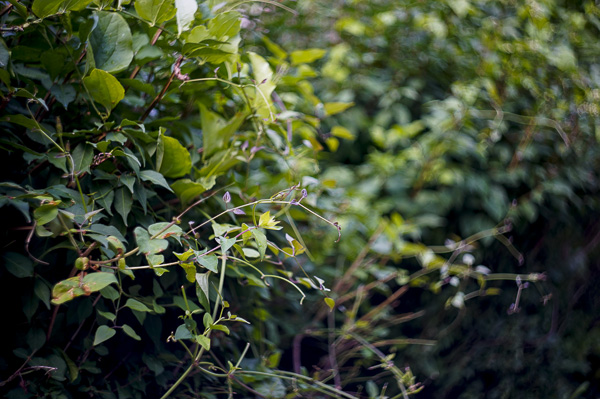
swirly bokeh, helios lens, helios 44-2

Can you start to see the swirl shape in the background? This photo showed me I’m getting closer. It seems that you need some decent distance from your subject, and you need some background that can fall into swirly bokeh in the distance.

I aimed up at a birdhouse about 8 feet away, which conveniently had a cute little toad in the lower peep hole and took the shot.
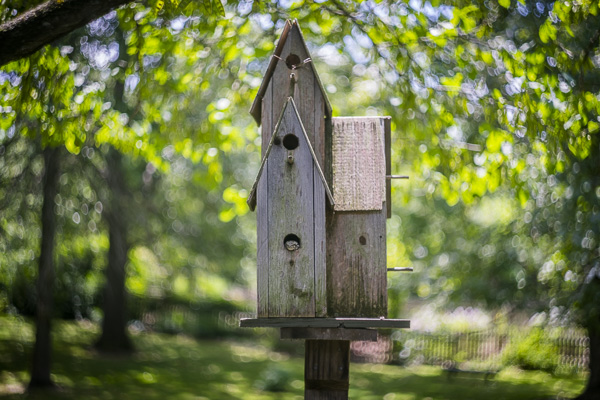
swirly bokeh, helios lens, helios 44-2

Success! Apparently you need a pretty good distance in the background so the little light spots and details can register into that swirl shape. I’m really in love with this Helios 44-2 lens.

The Helios 44-2 lens is fast with the f/2 aperture, weighs next to nothing, and was incredibly inexpensive at less than $ 50 including shipping. Even at very small apertures, it tops out at f/16, the lens puts out beautiful images.

Mississippi river,

The first of many manual focus prime lenses

I’ve had such a great time with this lens that I’m going to purchase more manual focus primes. The glass creates very unique images and I can’t wait to pick up my next one.

Have you ever mounted older lenses with your DLSR camera?

If so let me know what lens(es) you have in the comments below as I’m looking to try out even more. Share your images too please.

The post Creating Swirly Bokeh with the Helios 44-2 lens by Mike Newton appeared first on Digital Photography School.


Digital Photography School

 
Comments Off on Creating Swirly Bokeh with the Helios 44-2 lens

Posted in Photography