RSS
 

Posts Tagged ‘Stitching’

Panono angers remaining customers by deciding to start charging for its stitching service

12 Aug

When we first saw the first prototype of the Panono 360-degree camera after its launch on Indiegogo in 2013, it looked like an impressive hardware and software product that had the potential to revolutionize some areas of photography.

However, it took almost three years for us to hold a production version in our hands, and although we found a lot to like in our test, by 2016 the number of competitors in the 360-degree camera market had grown exponentially, making it a lot more difficult for Panono to compete in the relatively new market for 360-degree cameras.

It’s probably fair to say that since then the path of Panono has been rocky. In May 2017 the original founders filed for bankruptcy. In July of the same year the company was sold to Swiss-based private equity investor Bryanston Group AG after only managing to deliver around 400 cameras to its backers.

Anyone who took up the offer back then could be forgiven for feeling tempted to smash their Panono camera against a wall, as the company has decided to start charging for its cloud-based stitching service.

In December 2017 the new owners contacted about 2,000 Indiegogo backers who received neither refund or camera during the original crowdfunding campaign, offering them to buy the camera at production cost. In addition they would get unrestricted access to Panono’s cloud features.

Anyone who took up the offer back then could be forgiven for feeling tempted to smash their Panono camera against a wall, as the company has decided to start charging for its cloud-based stitching service. In an email to users the company announced that from September 1st, 2019 the previously free service will cost Panono users €0.79 per image.

This is especially frustrating to users like photographer Nico Goodden, who voiced his discontent on Twitter, as there is no offline alternative to the Panono cloud stitching and the files recorded by the camera are not compatible with any third-party services, leaving users without any alternatives.

If it’s the Panono’s 108MP resolution you are after, there aren’t currently many affordable alternatives, but still it’s hard to recommend the camera to anyone at this point. It looks like charging for a service that is an essential element of the product and was always understood to be free to buyers of the camera, could be the final nail in the coffin of a once promising project.

Articles: Digital Photography Review (dpreview.com)

 
Comments Off on Panono angers remaining customers by deciding to start charging for its stitching service

Posted in Uncategorized


Walk Through and Review of Autopano Giga – Image Stitching Software

14 Mar
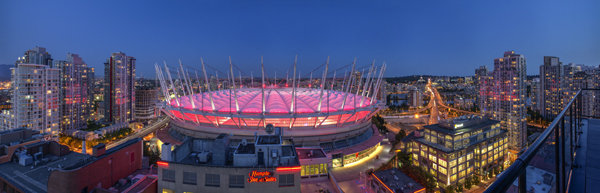
A six image photostitch of BC Place in Vancouver

A six image photostitch of BC Place in Vancouver

My first image editing software was Photoshop Elements 6 and the photostitching function was really erratic to say the least. I was doing real estate and architectural photography and needed a reliable and accurate tool that could quickly and properly stitch images together. I tried a few, but was not happy with all the results. The software was difficult to use and the results were irregular.

Then I heard about Autopano. I downloaded a trial and was pretty amazed at how quickly, and more importantly, accurately the software stitched scenes together that other pieces of software had not been able to. The stitching was seamless and effortless. I was impressed with the ease of use and the speed at which the software worked. I had found my tool of choice, Autopano Giga. Autopano Giga is a tool that is made by a company called Kolor. They develop image stitching software, pano tour software and 360 degree software, they are a specialist photography software company.

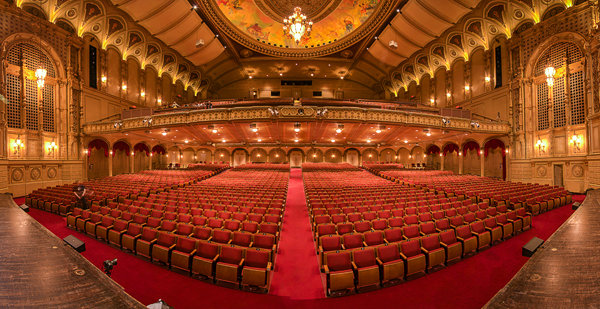
5 shot photo stitched image of the Orpheum Theatre, Vancouver BC

Five shot photo stitched image of the Orpheum Theatre, Vancouver BC

The first step in making effective panoramic images is knowing how to photograph them. That is beyond the scope of this article so for the purpose of this review we’ll assume you have some panoramic images already shot and want to stitch them.

Time to stitch

For the image stitching part of this process, I am going to be referring to the interface in Autopano Giga. This product works extremely well. It has been rated as one of the best stitching packages available. I have used it to stitch some pretty crazy panos together and it has been able to process almost anything I have thrown at it. I have done normal photostitches and I have done some multi-row stitches too. Autopano Giga has handled these with ease, and in some cases I have been pretty surprised how well it worked.

Let’s look at how this process works in Autopano Giga:
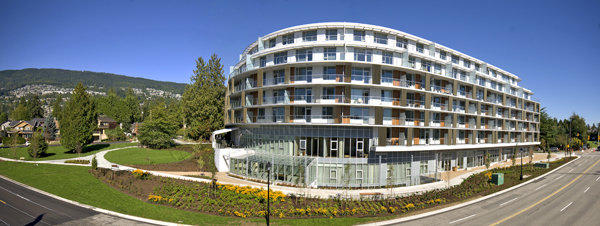
Panoramic images work well for architectural photography

Panoramic images work well for architectural photography

  1. Open Autopano Giga and on the first screen that you see, click on the second icon from the left to select your images to be stitched.
  2. Navigate to the images that you have processed and select them.
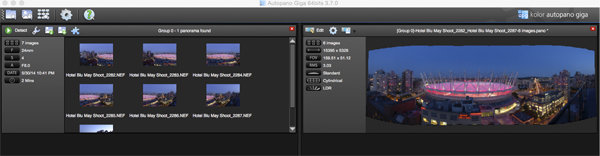
  3. Click on Detect on the top left hand side of the screen.
  4. Autopano Giga will now scan your images and do a preliminary stitch. This preview stitched image will be displayed on the right hand side of the screen that is open. This process may take a few minutes.
  5. Once the preview image is displaying, click on the Edit button (right-hand side of the screen) this will open the image in the Autopano edit screen. This is where you want to check the image to see that it has stitched together properly, and verify that there are no errors on the image.
  6. There are a number of options here, below is a high level overview of the most important functions
Detection and preview screen in Autopano Giga

Detection and preview screen in Autopano Giga

Autopano functions on the edit screen:

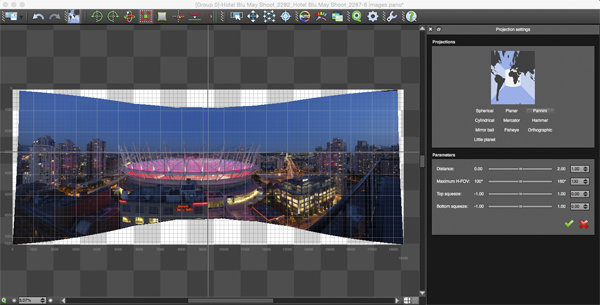
Autopano has a number of options you can use to render your panoramic image. These projections help with distortion and skewing. Below is an explanation of the most commonly used projections.

  • Spherical – The spherical function allows any panorama to be assembled. It is a commonly used option for building panoramic images.
  • Planar or rectilinear projection – This is a good choice if the angle is low. It’s recommended for architectural shots because it is the only mode that does not curve lines that are deemed to be straight lines. Sometimes if the angles are too extreme there may be a loss of sharpness, so just be aware of that.
  • Cylindrical projection – This projection can be used up to 360° (horizontally).
  • Mercator projection – The mercator projection can also be used up to 360° (horizontally). The effect of stretching up and down, the image may seem to become distorted.
  • Pannini projection – Keeps vertical lines vertical and straight radial lines. This can give a strong sense of perspective on views whose horizontal field of view is wide, and has a single and central vanishing point. It can however makes horizon lines seem curved. This can be corrected in the sliders that pop-up when you are editing in this projection.
  • Little planet projection – The Stereographic projection (also called fisheye projection) can be used to create a little planet. A right way up panorama achieves a planet effect and a backward panorama (180° rotation) makes a tunnel effect. Allows you to create an original view of a panorama, mainly using equirectangular panoramas (360°x180°). Using this projection with panoramas, whose horizontal field of view is less than 330°, is neither aesthetic nor usable.
  • Hammer projection – This projection is similar to a flattened world map, mainly used in astronomy applications. I use this for cityscapes too as it can correct some perspective distortion.
  • Orthographic projection – This is the view point of a sphere, whose panorama is viewed from afar, mapped to the outside and not inside like most other projections.
  • Mirror ball projection – This projection is the result of a visualization of the whole panorama on a spherical mirror, like looking into a crystal ball.
Projection function in Autopano Giga

Projection function in Autopano Giga

 Some of these projections are more useful than others. You may find that you will end up using only two or three. A good idea is click on each of them to see how they affect your image. The key factor in choosing a projection is in how the it affects your image visually. Does it work for the subject matter? Does the image look correct? Is the perspective distortion correct? Ask yourself these questions as you experiment with the projections.

Once you are happy with your projection and the way the image looks, you can now save the image to a folder on your computer.

Rendering

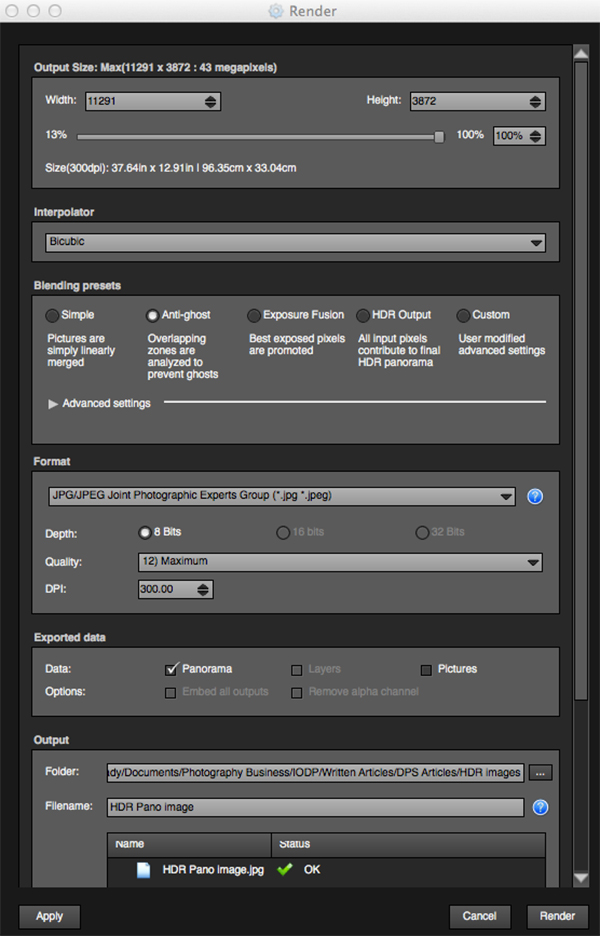
This is the process of saving your panorama.It is called rendering because the software needs to perform the final stitching and edits to your image. On the rendering screen, you will need to take note of the following:

Render and Save screen on Autopano Giga

Render and Save screen on Autopano Giga

Interpolator – The interpolator is the method used to assemble the pixels of your panoramic image, and will determine the quality and sharpness of your image. There are a few different options here, but the most commonly used option is Bicubic. The others are useful for advanced stitching.

Blending settings – The purpose of the blending settings is to allow combining of the overlapped sections of your panoramic to look smooth and seamless. You will notice the following presets:

  • Simple – This is fast, but it is possible that defects may be seen where the areas overlap.
  • Anti-ghost – Conserve the image’s strong characteristics (stops, lines, curves) when mixing while automatically removing objects that have moved
  • Exposure fusion – To be used if the panorama was created with a set of bracketed shoots. Keeps the best of different exposures.
  • HDR output – To be used by users who wish to create a “.hdr” format file in order to create post-production or special effects. Don’t use this on these images if they have already been processed as HDR images.
  • Custom – This is enabled when you manually change the parameters and they no longer correspond to a profile.

On the advanced settings, I generally leave that on the default.

Some of the features that I appreciate in Autopano Giga are as follows:

Exposure and colour blending – The software works hard at sorting out colour and exposure in the blended images. In the past, one of the worst problems with photo stitching was that sometimes the colour or exposure drifted and there was banding in the scene where the light or colour changed. This is a non-issue in Autopano Giga.

Panoramic detection – Sometimes I have shot more than a few panoramic images. When I get back to my computer, I can’t always see or remember which images were which. No problem, you can simply point Autopano Giga to a folder and it will detect all panoramics in that folder.

You can shoot freehand – The software has some really good functionality built-in that can work out multiple viewpoints. So, if you shoot a panoramic without using a tripod or a pano head, the software will be able to detect the scene and make adjustments for it, within reason. Nice to have though, I have shot many handheld panoramic and then dropped them into Autopano and they stitched quite easily.

Format

This section allows you to determine the format in which you want your image to be saved. The two formats I use most are TIFF and JPEG. TIFF is an uncompressed file (which means all the information is still in the file, this is great if you are planning to print the image large) The downside to TIFF is that the files are big. JPEG is a compressed format, that means that some image information has been discarded, the quality will still look the same to the naked eye, but if you print a JPEG image up really big, you may notice some image degradation. Depending on your final output and your space constraints you can choose the format that works best for you. Take the quality up to 12 and set the DPI to 300. This will ensure that you have the best quality image saved.

Output

On this screen, the software needs to know where to save your panoramic and what you want to call it. Choose your destination folder and name the file. Once this is done (it sounds more complicated than it is) click on the render button and the software will begin rendering your image. Depending on the size of the files being stitched, this rendering process can take a few minutes. Once complete, a screen will pop-up to let you know that the image is now rendered.

Edit the final image in Lightroom or Photoshop

Your image is now stitched together, but the final step in the process is to edit the image in your choice of editor. You may want to correct any perspective distortion in Photoshop using the transform tools. If your panoramic image is of a cityscape you will want to make sure that your horizon line is straight and that the buildings are vertical in relation to the horizon. From there you can follow your normal image editing workflow. Once you are done, you will have a fantastic, high resolution, panoramic image.

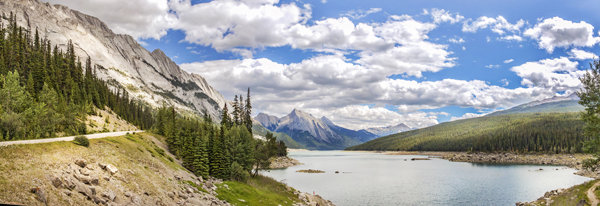
Final edited panoramic image of Medicine Lake in the Canadian Rockies

Final edited panoramic image of Medicine Lake in the Canadian Rockies

My comments on Autopano Giga

Autopano giga has made my editing and processing time much quicker and easier. I do a fair amount of panoramic photography, and the time saving when using this software is significant. I have used it to photograph landscape scenes, hotel rooms, building exteriors and architectural photography. It works exceptionally well in all of those areas. If you make sure that you overlap the images enough, it will stitch your images with ease.

The editing process in Autopano Giga is also very easy to use. Simply click on the projections to see how your image looks, make a choice, and you are done. You can make some technical adjustments within the editing area, but I recommend only doing that if it is absolutely essential.

The perspective control of Autopano Giga is fantastic. For the most part, the final stitched images look correct and I almost never pick up an error on the stitch. It is always a good idea to zoom in to the image to make sure that there are no issues like duplicated areas or bad stitches. This is not normally a problem if your overlap is good.

Autopano Giga is a great tool and if you enjoy shooting panoramic images, download a trial and see how it works for you. Panoramic photography is a lot of fun, I am always excited when I see the final stitched image, very often it is not what I was expecting and thats part of the excitement of these types of images. Having a tool that takes the frustration out of the process is a great advantage. So, go out there and experiment.

googletag.cmd.push(function() {
tablet_slots.push( googletag.defineSlot( “/1005424/_dPSv4_tab-all-article-bottom_(300×250)”, [300, 250], “pb-ad-78623” ).addService( googletag.pubads() ) ); googletag.pubads().enableSingleRequest();
googletag.pubads().disableInitialLoad();
googletag.pubads().collapseEmptyDivs( true );
googletag.enableServices();
} );

googletag.cmd.push( function() { googletag.display( ‘pb-ad-78623’ ); } );

googletag.cmd.push(function() {
mobile_slots.push( googletag.defineSlot( “/1005424/_dPSv4_mob-all-article-bottom_(300×250)”, [300, 250], “pb-ad-78158” ).addService( googletag.pubads() ) ); googletag.pubads().enableSingleRequest();
googletag.pubads().disableInitialLoad();
googletag.pubads().collapseEmptyDivs( true );
googletag.enableServices();
} );

googletag.cmd.push( function() { googletag.display( ‘pb-ad-78158’ ); } );

The post Walk Through and Review of Autopano Giga – Image Stitching Software by Barry J Brady appeared first on Digital Photography School.


Digital Photography School

 
Comments Off on Walk Through and Review of Autopano Giga – Image Stitching Software

Posted in Photography


Stitching – An Advanced Approach

25 Sep

Well it’s back to business as usual.  Photokina is behind us and we look forward to seeing some real products that we can try out soon.  Many of our reader who frequent the forum will recognize Bernard Languillier who’s article we share today.  Bernard has done a follow up on a previous article on LuLa Having Fun With Panoramas by Kevin Raber.  Bernard takes image stitching to a new level using different software other than Photoshop. His article Stitching – An advanced Approach will allow you to take your Panos and stitched images to a new level.


The Luminous Landscape – What’s New

 
Comments Off on Stitching – An Advanced Approach

Posted in News


Stitching Images For Larger Prints

22 Sep
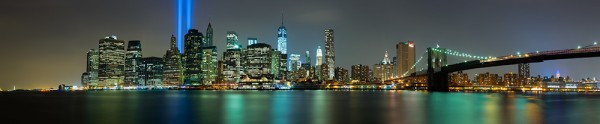
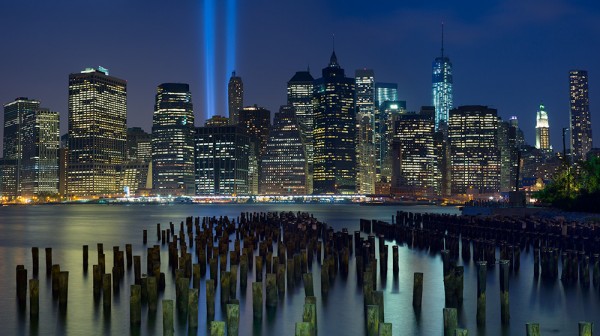
For this image I decided I wanted to cover all of Lower Manhattan from the Statue of Liberty (far left) to the Empire State Building (far right, under the Brooklyn Bride, colored red, white and blue. I was using a Canon EOS 5D Mark III. My EF 24-70 f/2.8L II at 70mm covered the skyline and water with some sky vertically, so I positioned the camera vertically and proceeded to take 9 shots, moving the camera by turning the tripod head on it's rotating base. I overlapped portions of each frame so Photoshop would have a point of reference when stitching. Each of the nine exposures was taken at ISO 200, 90 seconds, at f/16.

For this image I decided I wanted to cover all of Lower Manhattan from the Statue of Liberty (far left) to the Empire State Building (far right, under the Brooklyn Bride, colored red, white and blue. I was using a Canon EOS 5D Mark III. My EF 24-70 f/2.8L II at 70mm covered the skyline and water with some sky vertically, so I positioned the camera vertically and proceeded to take 9 shots, moving the camera by turning the tripod head on it’s rotating base. I overlapped portions of each frame so Photoshop would have a point of reference when stitching. Each of the nine exposures was taken at ISO 200, 90 seconds, at f/16.  If printed at it’s native resolution at 300 dpi, it would measure 18.39 inches by 88.25 inches.  My photo lab maxes out at 108″, which it says it can print this image to.

Several months ago I was asked by a potential client if I had any images that were capable of being printed very large- up to 20 feet across! It pained me to explain that, no, based on my camera’s resolution, I did not have any images capable of being printed that large.  I had never gotten into doing many stitched panoramas or other prints, and couldn’t afford a Gigapan or other panorama photography tool.  For the most part, I’d had no call for it in my daily business. Generally, when shooting landscapes, I think in terms of one frame, and fill it with my composition. This has worked well for the most part, as long as I didn’t want to print much larger than around 48″ inches across.  Suddenly, however, I had a desire to go much larger.

This past week in the United States, we commemorated the 12th anniversary of the September 11th terrorist attacks. Every year New York City remembers the victims with a tribute in light- two columns of light representing the fallen towers of the World Trade Center.  It seemed a perfect opportunity to start playing with panoramics, especially since one of the images the aforementioned client wanted was a skyline shot of New York City.

The general rule of thumb for printing on standard inkjet printers is to print at 300 dpi.  To find out how large you can print an image, simply take the pixel dimensions and divide by 300. From a camera such as the EOS 5D Mark III, that means an image of 5760 x 3840 pixels can be printed at about 12.8 inches by 19.2 inches.  It is true, using various resizing techniques you can print larger.  I have on many occasions. But to get to the extreme sizes beyond approximately 48″, you’ll need to start combining images by stitching them together.

There are currently a few automated panoramic photo options on the market, including Gigapan’s and Panogear’s. Both can be somewhat pricey.  But just because you don’t have these nice accessories does not mean you can’t make stunning panoramic images.  A tripod is helpful, but not completely necessary if you can handhold the shutter speed your camera is set to.  A tripod is helpful for locking your camera in place from shot to shot. The reason a tripod is helpful is that if your tripod head has markings for panoramics on the base, you can use these for reference when repositioning the camera for each shot. More on that in a bit.  Another helpful tool is an L bracket. This will help you position your camera vertically if desired to shoot verticals to stitch the final piece.  L brackets can be purchased from several manufacturers and are usually camera-specific.  Acratech makes a universal L bracket with a quick release that any camera can attach to using an Arca-Swiss style plate.

You’ll want to start by defining your image in your mind. Where does it start, where does it end? Then, how far up does the image go, and how far down?  can you cover the up and down with one vertical?  Or would you be better off shooting two rows of images. Or more? Keep in mind when planning that you’ll want to shoot with some extra area around the image to leave room for cropping if needed.  You’ll also want to make sure you leave some overlap in each shot so the stitching software can find a point of reference to see where the next shot goes. I used Photoshop for these, but there are other programs out there. Feel free to suggest your favorite in the comments below.

For the first image in this article, I wanted to shoot the Lower Manhattan skyline, from the Statue of Liberty to the Empire State Building.  I had a 24-70mm lens, and at 70mm I covered exactly what I wanted, from top to bottom, with a vertical shot.  I took 9 shots in that orientation, while rotating the tripod head incrementally until I got my last shot.

For the second shot in this article, there was a more prominent foreground element, the pilings from the old pier.  I decided to do this one in a horizontal orientation, using two rows of three shots.  This was again taken using the 24-70mm lens, at 70mm.  I shot this one starting at the far right, shooting in columns- upper right, lower right, lower center, upper center, upper left, lower left.  I used the playback feature on the camera to check my reference points. Again I stitched it using Photoshop’s Photomerge feature.

This shot was six horizontal shots stitched together. Because of the overlap, the 3 shots across and 2 up and down will not add up to the full resolution of the individual images simply put together. This image came together at  10,531 pixels by 5904 pixels. At 300 DPI the file can be printed at 19.68 inches by 35.1 inches. My lab, however, tells me they can print this image up to 8 feet wide.

This shot was six horizontal shots stitched together. Because of the overlap, the 3 shots across and 2 up and down will not add up to the full resolution of the individual images simply put together. This image came together at 10,531 pixels by 5904 pixels. At 300 DPI the file can be printed at 19.68 inches by 35.1 inches. My lab, however, tells me they can print this image up to 8 feet wide. They are not using inkjet printers and thus are not subject to the same parameters.  The same still holds true however.  The larger the file, the larger it can be printed.

I have not yet heard anyone say that any photo stitching program is perfect.  There will be errors in stitching.  A misplaced post, a skewed building. To correct these, I simply opened the source file and added it to the stitched file on a new layer.  Then I created a layer mask to show only the area I wanted shown, which would correct the issue.

For your exposure, you’ll need to be in manual mode. You need the exposure to be uniform across the image.  If you leave your camera in any auto mode where the camera helps set the exposure, you run the risk of your exposures varying.  For the first image in this article, my exposure was 90 seconds at f/16, ISO 200 for each image.  This is important, particularly when photographing the area around the statue of liberty which had huge dark areas.  In auto mode, the camera will try to brighten these areas, which will cause problems when the stitching if the skies or water don’t match from shot to shot. In the interest of full disclosure, I made this mistake myself with the second image, the six-shot stitch.  I shot in aperture priority and there was a variation of plus or minus 2/3 of a stop from shot to shot.  This caused all kinds of headaches in my first attempt at stitching.  I was able to correct this by reproccessing the RAW files with an exposure adjustment to match the exposures.  In addition, if your camera has a feature for vignette correction, such as Canon’s Peripheral Illumination Correction, turn it on.  This will even out the exposure so there are no dark areas in the corners, which can be difficult to correct later on.

I’ve toyed with stitching panoramics before, but never seriously.  This is one of my first attempts at a serious pano.  It’s well worth exploring more in the future.  I might even start saving for a new piece of equipment just for that purpose!


Post originally from: Digital Photography Tips.

Check out our more Photography Tips at Photography Tips for Beginners, Portrait Photography Tips and Wedding Photography Tips.

Stitching Images For Larger Prints


Digital Photography School

 
Comments Off on Stitching Images For Larger Prints

Posted in Photography


How to Match Exposures when Stitching Panoramas in Photoshop

03 Feb

Since the introduction of Photoshop CS2, Adobe’s image editing software has shipped with the ability to easily merge a series of photographs into a panorama.  Often, it is incredibly simple: once you have the images you want to stitch together, it only takes a few clicks to produce the blended panorama.  However, whilst Photoshop may be able to seamlessly merge your images 90% of the time, on occasion it may struggle to perfectly match the exposures across the input images resulting in a final panorama with obvious joins between the individual photographs.

To see what I mean, have a look at the image below.  This is a 7 shot panorama, straight out of Photomerge, and you can see obvious banding in the water of the lake, as the exposure/colour tone subtly change between images.
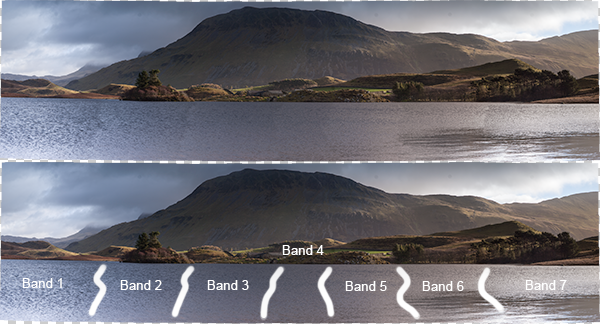
panorama_exposure_match_image-3

Top: The panorama fresh out of Photomerge. Bottom: I've highlighted the joins between the individual input images where the blending of exposures was not sufficient

This article walks through a series of fairly simple steps to edit the above panorama to remove the obvious joins and give a perfectly blended panoramic image  (note: I am only going to discuss processing the panorama once it has been stitched by Photomerge.  For tips on how to take the images, prepare them for stitching and on use of Photoshop to stitch them, see this recent article by Jason Weddington).

It is worth mentioning that the images I started with were a challenge to shoot for a panorama as the exposure differed greatly between the far left of the image, where I was shooting away from the sun, and to the far right, where I was shooting towards the sun.  Therefore, before blending the images into the panorama, the individual images were processed in Adobe Lightroom to try and match the exposures as closely as possible first.  Once complete, the selected images were exported to Photoshop to ‘merge as a panorama’, using the ‘auto’ setting.

On to the steps…

1.  Once the images have been merged, the output image will consist of several layers (one for each input image, in this case 7) with a mask applied to each layer.  In many cases, these layers can be flattened at this point to give the final panorama, however, we’re going to make a few edits first.
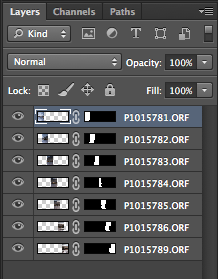
panorama_exposure_match_image-2

2.  Create a new layer, on top of all other layers.  Fill the layer (Edit > Fill) with 50% grey:
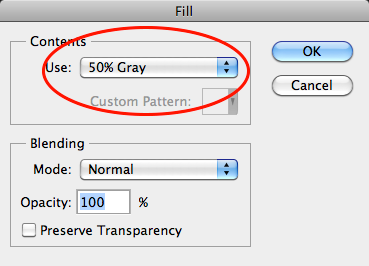
panorama_exposure_match_image-4

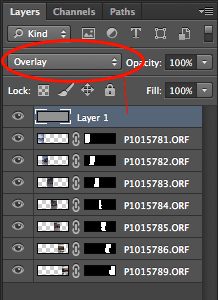
3.  Set the blending mode of the ‘grey layer’ to ‘overlay’.  When set to overlay, a 50% grey layer will appear transparent, so initially this layer will make no difference:
panorama_exposure_match_image-5

4.  Find one of the joins where the exposure needs to be tweaked, for example, below, there is an obvious join between the two images.  The left hand image needs to be a little lighter and the right hand image needs to be a little darker.  Let’s address the left hand image first.
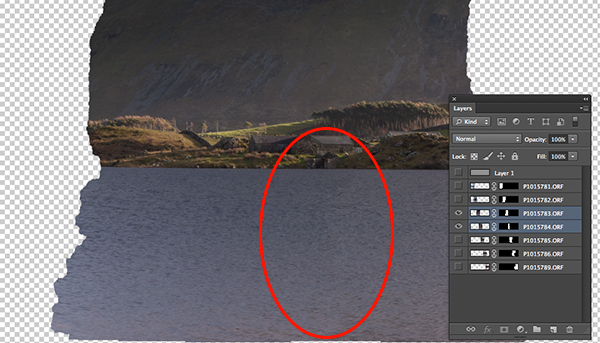
panorama_exposure_match_image-6

Only the two layers of interest are selected here. The left hand image needs to be lightened, whilst the right hand image needs to be darkened

5.  If we ctrl+click/cmd+click the mask of the appropriate layer (i.e. click on the black/white rectangle in the layer bar), we will bring the portion of the image to be edited into an active selection (we only want to edit inside of that selection for the time being).

6.  Ensure the ‘grey layer’ is highlighted

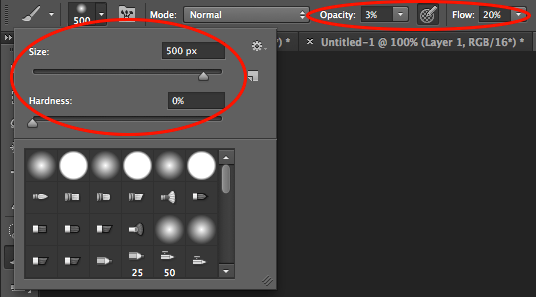
7.  Select the brush tool.  You will want a large, soft brush so set the size to be a few hundred pixels (I used 500 px in this instance, but the size is relative to the size of your panorama) and set the hardness to 0%.  Set the opacity to 3% and the flow to 20%:
panorama_exposure_match_image-7

8.  To lighten the layer we want to select the colour white (if we wanted to darken the layer, we would select black).

9.  Using the brush, liberally brush over the join and back towards the centre of the image.  This will paint white onto the grey layer, but only within the current selection.  As the brush is very soft the edits should be subtle, but as you brush you should be able to see the area under where you have painted white gradually begin to get lighter.
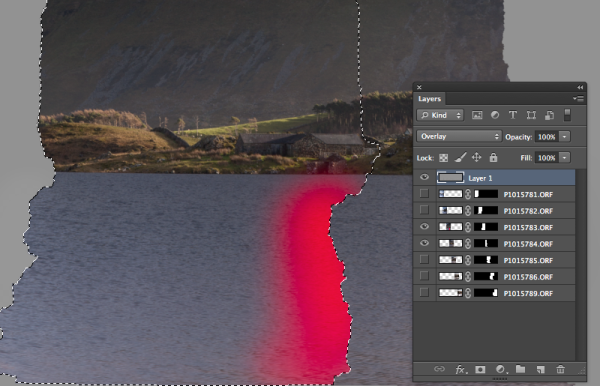
panorama_exposure_match_image-8

An active selection of the mask of the left hand image is required so that any edits are only applied within that selection. The idea is to paint white onto the 'grey layer' in the region highlighted by red in the above image.

10.  In order to get seamless joins, I find that is is a compromise between lightening one image and darkening the other in order to maintain a smooth transition of tone/exposure across each image.  Therefore to edit the right hand image, you repeat steps 5 to 9, but ensure that the right hand image is within your active selection, and that the colour black has been selected for your brush.

Initially it is a slow process that involves carefully modifying each image at the join in order to match the exposure, however once you get a feeling for the brush it can become quite quick.

If we change the blend mode of our ‘grey layer’ back to ‘normal’ you will be left with something similar to the middle image below, where you can see the result of the white/black brush strokes on the grey layer and the difference it makes to the actual join.
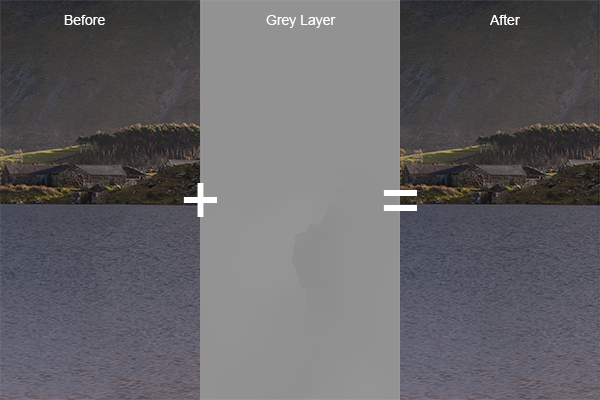
panorama_exposure_blending_9

A composite showing the starting image, the modified 'grey layer' and the final image, when the 'grey layer' is set to 'overlay'.

If you repeat that for each join across the panorama, you will end up with grey layer that looks like the image below (with the blend mode set to ‘normal’).

panorama_exposure_match_image-10

The 'grey layer' for the entire panorama showing the white/black brush strokes around each join

Once you set the blending mode back to ‘overlay’, all of the joins should disappear, and you should be left with a perfectly blended panorama with no tell tale signs of the joins:
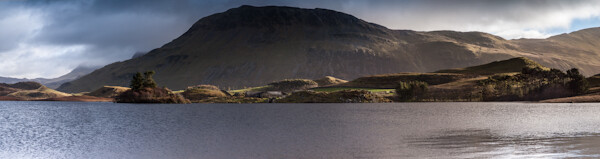
panorama_exposure_match_image-11

The entire panorama when the 'grey layer' is set to 'overlay'. The joins between the images are no longer visible in the water of the lake

As the edits have been made to the ‘grey layer’ no permanent edits have yet been made to the actual images, so any mistakes are easily rectified or any further modifications can easily be made.  Once you are happy with the blending of the individual images, you can flatten the layers to produce your final panorama and make any further finishing touches:
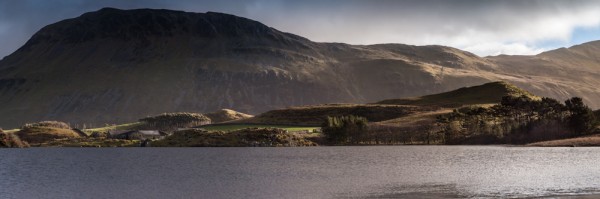
panorama_exposure_match_image-12

The final panorama: Llyn Cregennen, North Wales, UK

I hope those steps were easy enough to follow.  Ultimately, this is just one application of a the use of a 50% grey layer, set to ‘overlay’, in order to modify the exposure of an image in a non-destructive manner (until the layers are flattened, that is).  So if you try to blend a panorama in Photoshop but didn’t quite get the results you were after, you dont have to jump for the clone brush straight away or send the image to the trash.  Give these steps a try and see if you can manually match your exposures where Photoshop can’t.

Please let me know if you have any feedback, I welcome any comments and, as always, I’ll try to respond when I can.


Post originally from: Digital Photography Tips.

Check out our more Photography Tips at Photography Tips for Beginners, Portrait Photography Tips and Wedding Photography Tips.

How to Match Exposures when Stitching Panoramas in Photoshop


Digital Photography School

 
Comments Off on How to Match Exposures when Stitching Panoramas in Photoshop

Posted in Photography