Syncing the time stamp on multiple cameras is best done ahead of time. Every six months or so I take all of my digital SLR camera bodies and sync the clocks in them. This is important because if you use multiple cameras on a photo shoot like a wedding, you want to be able to sort the photos by the time they were taken so you can give the client a set of photos that are organized from start to finish. If your cameras time stamps are off, this can become very annoying in post because you’ll notice images being out of order. This becomes amplified the more your cameras are out of sync.
Well, none of us are perfect and I certainly don’t claim to be! I recently shot a wedding with my good buddy Cliff Baise and I totally forgot to sync our cameras ahead of time. When I got his images on my computer to start editing everything together I was getting frustrated because I wasn’t seeing ANY of my images in Lightroom. Everything was sorted by time like it always is and I double checked everything. Well, it turns out our cameras were a full hour out of sync with my camera being an hour ahead of Cliff’s. So my images weren’t showing up in the timeline until much later in the wedding. This was pretty nerve racking because I hadn’t run into this problem before. I’ve always synced my own cameras (my wife usually shoots with me and uses my other main camera) so I’ve never had to deal with this before. I thought I was out of luck. So I started rummaging through the menu options in Lightroom and eventually figured out a way to sync the two cameras very quickly and very easily. Here’s how to do it:
Find Images You Know Were Taken At The Same Time
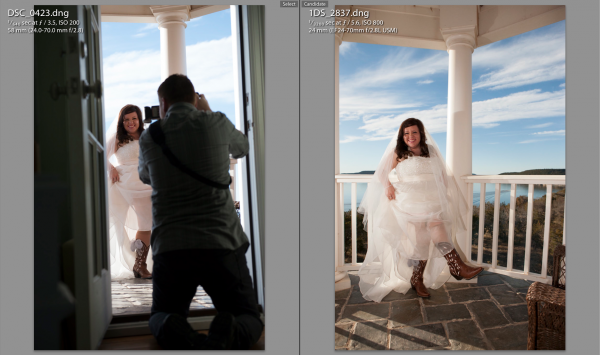
At some point during the day of a wedding or any shoot, it’s likely that the two shooters took a photo at the same exact time (or dang close to it). This doesn’t have to be an exact, down to the mili-second thing…they just need to be close. For this wedding I found a shot that Cliff took of me taking a picture of the bride showing off her boots. Perfect. All I needed to do was find the picture that I took at that moment.
 The first thing you need to do is select the first photo you find by clicking on it in Library Mode. Then, scroll down to the other image from the second camera, hold down command on a Mac (control on PC) and click that one as well. This will select both images at the same time. Now hit the ‘C’ key on your keyboard which will bring up the two images in Compare mode side by side. Once in compare mode you can click back and forth between the two images to see all the EXIF information on the right hand side. Again, this all has to be done in Library Mode, not Develop Mode.
On the right hand side in the EXIF data, you will see the Capture Time. This is how you tell if the images are off at all. Just click back and forth between the two images and watch how the time changes. If they are off by more than a few seconds, it’s time for the next step.
Syncing The Times
This part was a little tricky the first time. Go ahead and write down the exact times of each photo on a piece of paper or type it onto your computer somewhere. Note which time correlates with each image.
Now you need to decide which set of images you want to sync. In all honesty, it doesn’t really matter which one you choose. Nobody cares what time the picture was taken, they just need to be in order of when they were taken. So I just chose to make Cliff’s images match the time of my images. I could have gone the other way around and gotten the same result.
 To sync the time stamps, select all the images from the camera you want to correct. If you have them in separate folders this will be easy. If they are all mixed in to the same folder, you can sort by File Name in Library Mode and then the images will be separated. If all the images from the one camera are in their own folder, just hit Command A on a Mac (Control A on PC). This will select all the photos. If the images are mixed with another camera in the same folder, separate them by file name, then select the first image from the camera you want to correct by clicking on it, then scroll down to the last image from that camera, hold down Shift and click the last image.
Now that you have all the images selected that you want to fix, go up to Metadata in the top menu and scroll down to Edit Capture Time. When the window pops up all you need to to is update the time under the ‘New Time’ section. The original time will be on the top so just plug in the time that you wrote down from the correct camera in the ‘Corrected Time’ section.

Once this is done, it’s important to just double check everything and make sure you have everything correct. It says at the bottom of the window that the operation cannot be undone so don’t make any mistakes! Once you are sure you have everything right just click Change and you’ll be done! You should now be able to select the images from both cameras in library mode, sort by time and see all of the images in chronological order.
Conclusion
Like I said in the beginning, it’s way easier to do this right the first time by synching the cameras before the shoot. But if you ever forget this like I did, being able to do it in Lightroom is a life saver!
Post originally from: Digital Photography Tips.
Check out our more Photography Tips at Photography Tips for Beginners, Portrait Photography Tips and Wedding Photography Tips.
How To Sync Multiple Camera Time Stamps In Lightroom 4


 When choosing a photo for your stamp aim for an image with high contrast and a plain background. The best designs will have strong lines and simple geometries.
 Import your image into photoshop and turn up the contrast as needed. The more defined the lines of your photo the easier it will be to carve.
  Use your eraser tool to get rid of any distracting background elements from your photo leaving a clean white backdrop.
  To get that Banksy stencil effect go to Image>>Adjustments>>Threshold and adjust the toggle until you’ve got the prefered balance of black and white.
  Pixels? Where we’re going, we don’t need pixels.
  Now it’s time to break out a bucket of elbow grease for our transfer step. Place your tracing paper graphite side down onto a corner of your eraser and use the back of your cutting tool to rub over your design.
  Use your exacto knife or box cutter to trim down your stamp block to just the area surrounding your image. Be careful: These things are sharp!
 Ink up your carved creation with your ink pad and press it firmly into a piece of scratch paper. This will show you any stray dots or dashes that may need to be removed.
  A little super glue and a wooden block will work wonders to class up that already ravishing stamp of yours.