RSS
 

Posts Tagged ‘Spot’

New Ayesha Curry, Michael Mina San Francisco Hot Spot International Smoke, A Contemporary Take on Barbecue

20 Nov

International Smoke
International Smoke, San Francisco’s newest restaurant in the lobby of the Millennium Tower
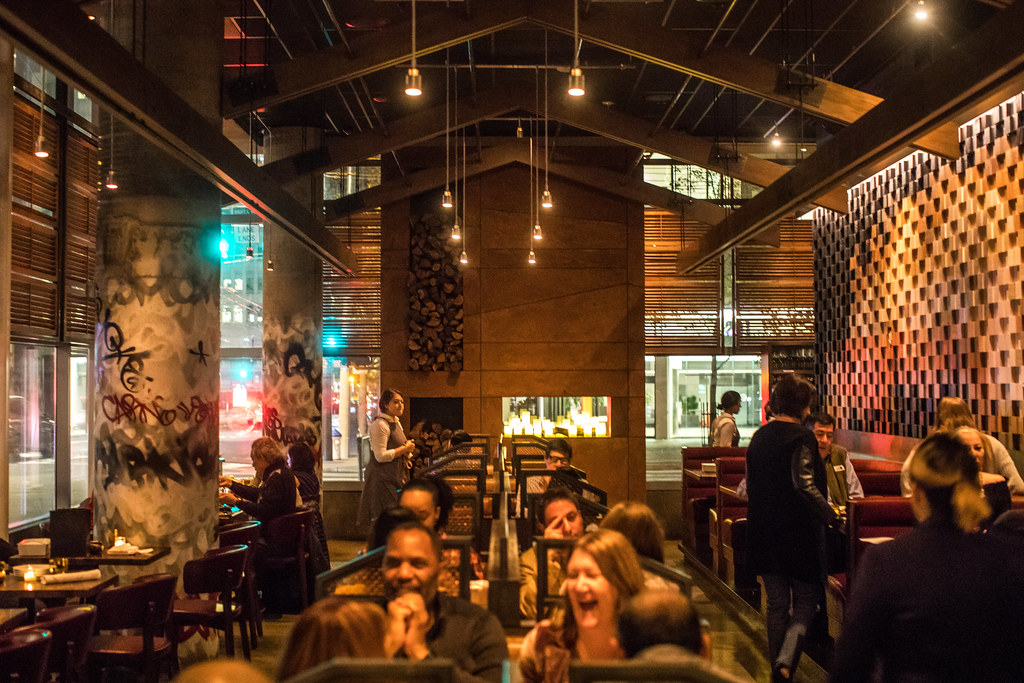
International Smoke

Last night mrsth, the four kids and I had the opportunity to dine at San Francisco’s newest restaurant hot spot from celebrity chefs Ayesha Curry and Michael Mina, International Smoke. The restaurant is the latest lobby tenant in the great leaning tower of Millennium at 301 Mission Street in San Francisco’s SoMA district.

Only a week old, International Smoke is already solidly booked for months. The good news though is that they take walk ins at the bar and have several tables that can seat up to six in the bar. Before getting into my thoughts on the food, I will say that with a big family (six of us) one of my frequent disappointments is when too many diners are crammed into a small table at a bar. In the case of International Smoke this is not the case for their 6 tops. They are large, roomy and comfortably accommodated our large group. There are also several 4 tops in the bar and of course you can also dine seating at the bar itself. We luckily got the last table in the bar last night just before dinner service started at 5:30 pm.

The bar also has several televisions which can be viewed from almost every seat and which were appropriately tuned in last night to the Warriors 124-116 win over the Philadelphia 76ers during dinner.

Although barbecue features prominently on the International Smoke menu, it would be misleading to call it a “barbecue” restaurant. While definitely a place for carnivores, the barbecue has a more modern and international presentation and the menu also includes many non-barbecue offerings.

Many of the offerings are also fairly theatrical in nature, not quite what you’d find at say Edith’s down in Cabo San Lucas, but they incorporate smoke prominently to give you your fun little dinner show to go along with the food. In addition to serving two of our dishes (the smoked burrata and instant bacon) in glass encased smoke filled canisters, they prepare the Wagyu Shaking beef in a hot skillet tableside and use a cooking torch to caramelize the sugar while serving the ribs. It’s always nice to get a little extra pizzaz at the table when taking the kids out.

So let’s get into the cocktails and food.

I started off the evening with the Curry Up Now cocktail, because, well Steph Curry right? Plus I like bourbon. The drink is made with Wild Turkey 101 Bourbon, Madras Curry, Amontillado Sherry, and Corazon Bitters. It was served in a beautiful Waterford crystal style tumbler over one of those giant ice cubes you get at fancy bars these days. Although I’m not sure that Steph drinks one of these things every day at cocktail hour, it was a well balanced, slightly sweet bourbon based cocktail and it worked just fine for me.

We also tried the Rhinestone Cowboy, made with Hangar One Kaffir Lime Vodka, Espolòn Blanco Tequila, and Coconut Calamansi, refreshing served over that nice soft crushed ice that you also find at fancy bars these days.
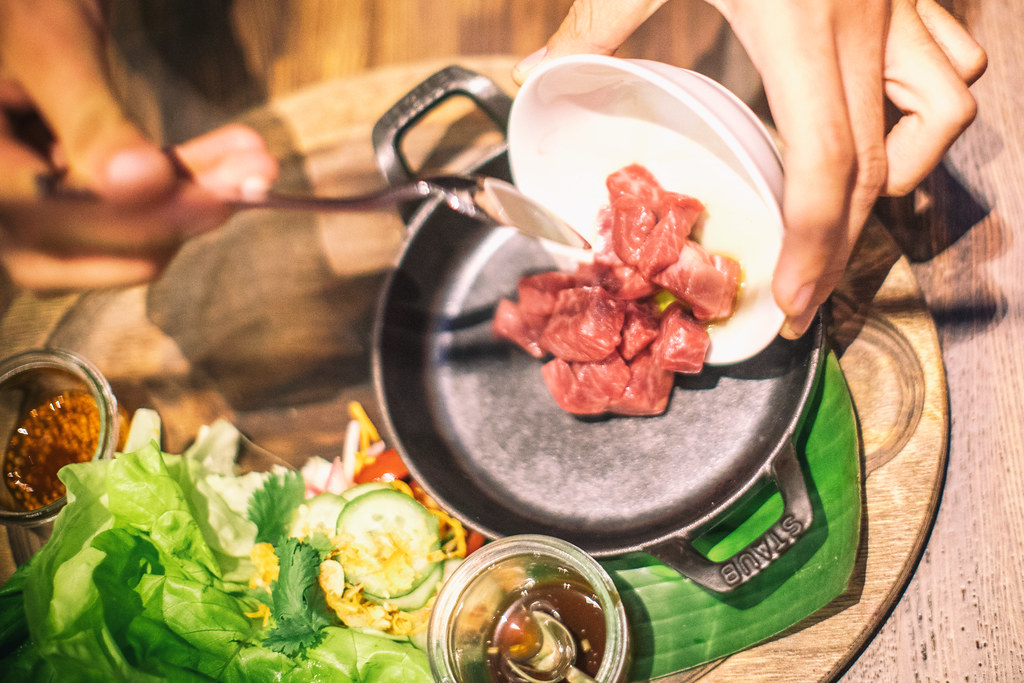
WAGYU SHAKING BEEF, International Smoke
International Smoke’s Wagyu Shaking Beef

International Smoke
International Smoke’s Wagyu Shaking Beef

Our first dish was the aforementioned Wagyu Shaking Beef, cooked in that black hot skillet tableside. It comes with lettuce and you make little lettuce wrap taco like things. This was a favorite. The beef was delicious, cooked slightly rare and very juicy. They added a marinade to the beef as it was cooking. It’s Wagyu so it’s bound to be tasty, but as expected for things labeled Wagyu, it’s also expensive and you wish you got a lot more of it. I would probably order this again, and probably again, and again.


Classic American Wedge, nternational Smoke

Smoked, Burrata, International Smoke

Next up was International Smoke’s take on an all time classic, the wedge salad. It’s prepared cut in half with everything served up on top. Again, a little small, but delicious and a beautifully balanced mixture of dressing, bacon, onions and tomatoes.

The burrata was served at the same time as the wedge and came in the previously described smoke filled canister. The aha moment comes as the canister lid is lifted and the smoke disappears into the air, leaving you with a very creamy piece of smoke flavored cheese. The brussel sprouts went well with the cheese and it was a nice bit of salad before getting into the meats.

We also ordered a mixed pickle jar which is a myriad of pickled vegetables. At $ 6 it felt like a bargain on the menu and if you like pickled veggies I’d recommend it. I liked the pickled onions the best.

Kalua Style, Instant Bacon, International Smoke
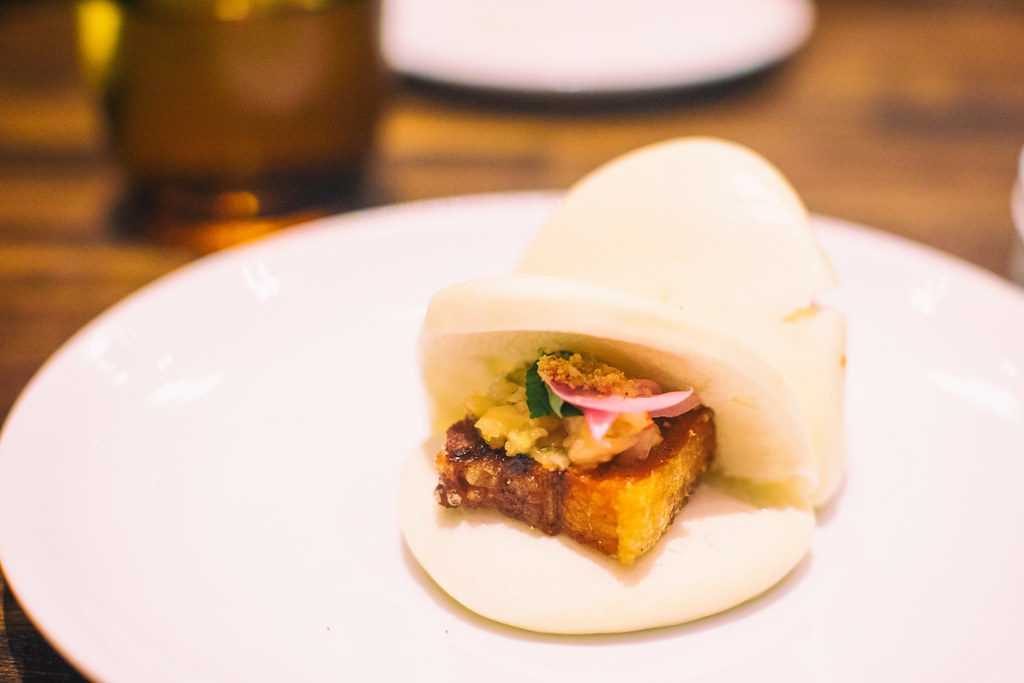
The big reveal, Kalua Style, Instant Bacon, International Smoke

Kalua Style, Instant Bacon, International Smoke

The Kalua “Instant Bacon” is more like a pork bun than anything, served in another one of those smokey canisters with the big reveal — a very rich piece of pork served in a bun — again very tasty, but two to a plate a bit on the small side.
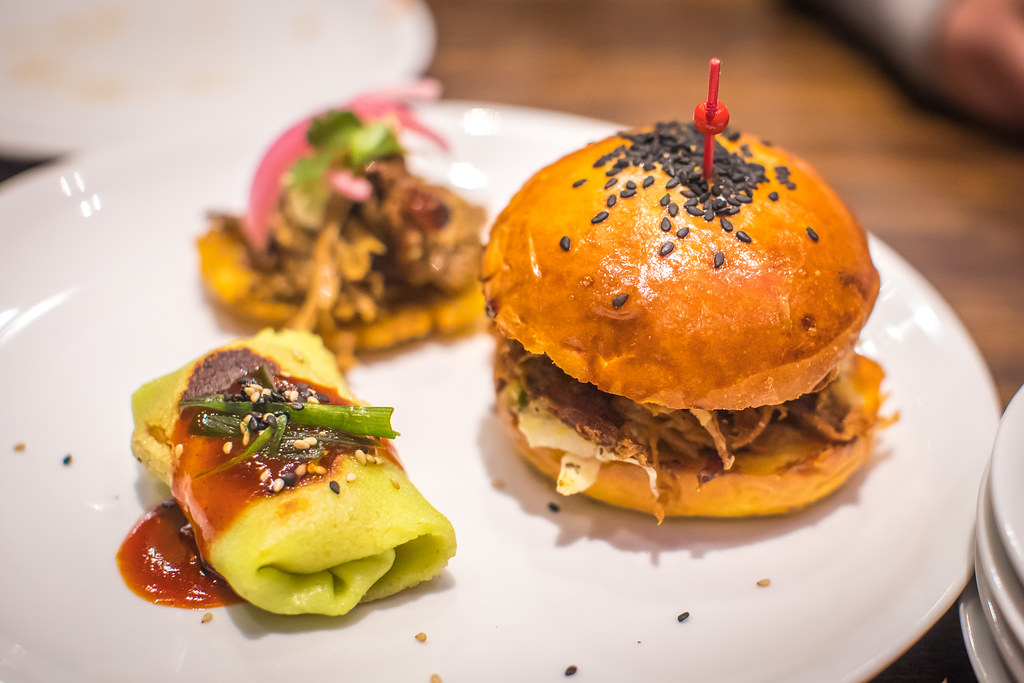
Smoked Pork Shoulder, International Smoke

We tried two orders of the Trio Sampler smoked pork shoulder. This consisted of an American pulled pork slider, Cuban Mojo Tostones and Korean Scallion Crepes. The American pulled pork slider was the favorite (especially with the kids) but I liked the Cuban Mojo Tostones the best myself. I did not care for the Korean Scallion Crepes.

Double Duck Wings, International Smoke

The double duck wings were up next. These were ok but my least favorite dish of the evening. They were pretty basic and a bit bland. The sauce they came in was tasty and interesting, but I would not order this again. We didn’t eat most of this dish and took it home with us in a box. I tried it again for breakfast this morning and it tasted a little better cold, but still not a favorite.
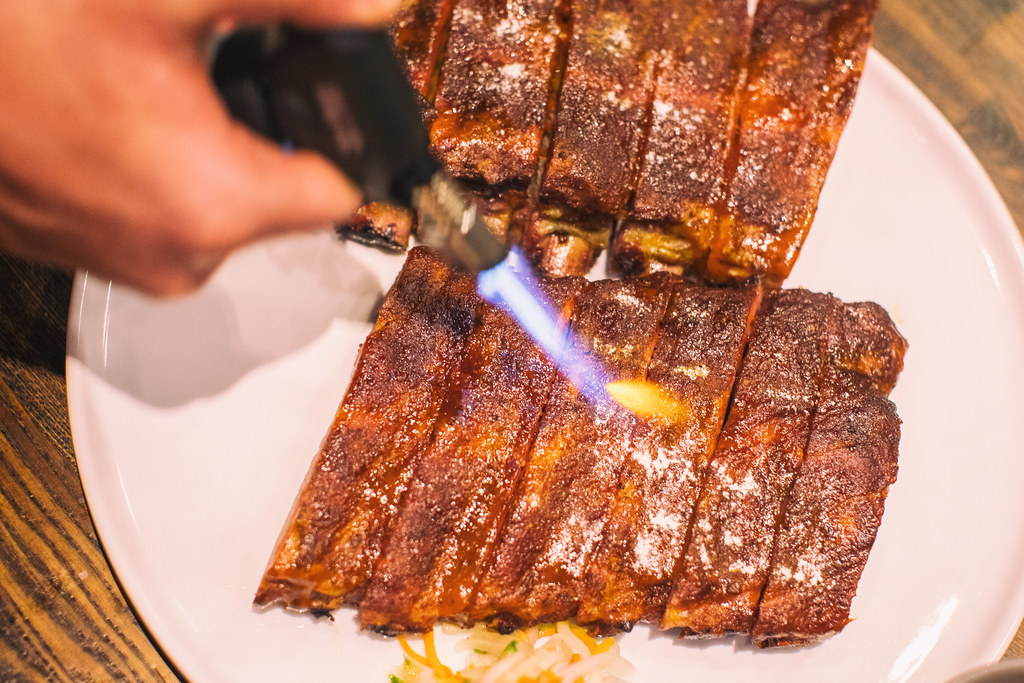
Smoked Pork Ribs, St. Louis Cut, International Smoke

Up next was the main event, a full slab of the smoked pork ribs. As previously mentioned, they bring these out with a cooking torch and torch the sugar on the ribs right there tableside. As far as ribs go these were perfectly adequate but nothing spectacular. The ribs probably had too high a bar to live up to in my mind though. When I read “St. Louis Cut” on the menu the only thing I could think about from then on was how much I love the ribs at Pappy’s in St. Louis. Those juicy, beautiful bone dripping ribs at Pappys, or if not Pappy’s at least all of the great sauces at St. Louis’ latest downtown barbecue spot Sugarfire with one of the best neon signs ever.

International Smoke’s ribs were just fine, but they were not as good as what you’d get at the best spots in St. Louis, or Kansas City, or Texas or Alabama. Again, I’m spoiled having experienced some spectacular barbecue over the years though. I probably should have known San Francisco celebrity chefs would be no match for hardcore pitmasters who’ve been doing their thing for 30 years.

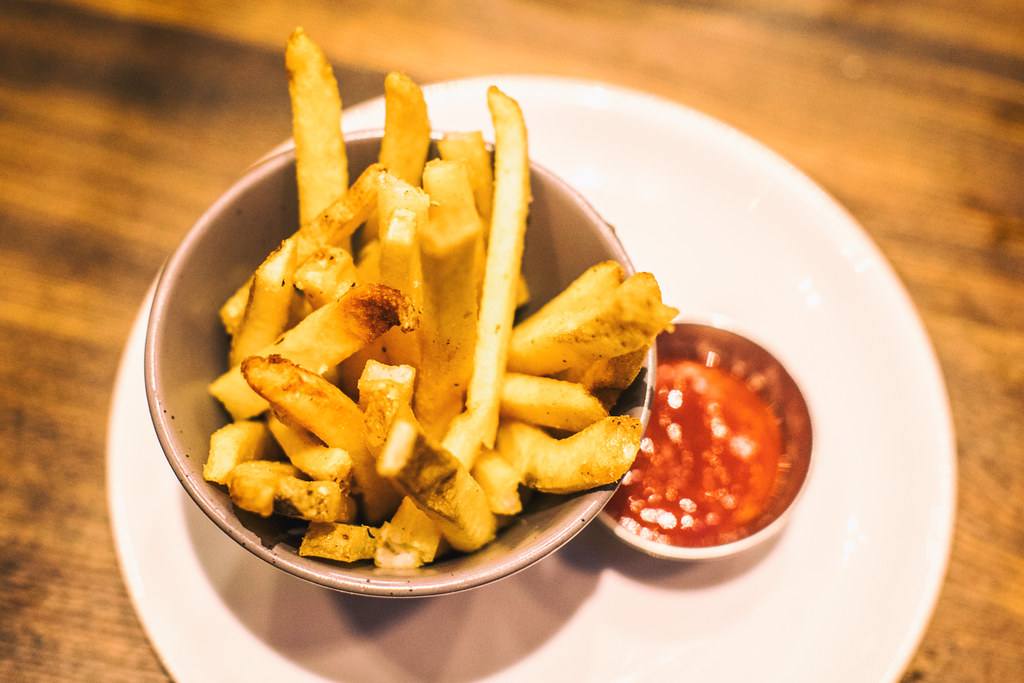
Along with the ribs we ordered the french fries, which were pretty much the same basic fries you’d get anywhere and three sides of the mac and cheese.

Smoked Rib Tip Mac and Cheese, International Smoke

The mac and cheese was interesting — actually it was my favorite dish of the evening, but I’m a big mac and cheese fan. It’s served with rib tips and cornbread crumble on top. It was very good. I was very happy with this dish… but… would I rather have International Smoke’s mac and cheese or the buffalo chicken mac from Homeroom? See, again, it’s a high bar in my opinion, so while I was perfectly happy with this dish it was probably doomed from the start in my mind.

Anyways, there you have it. We ordered too much food for dinner so didn’t have room for dessert. Apparently my youngest daughter Kate was promised ice cream earlier in the day, however, so we stopped by Fenton’s on the way back home to pick up a half gallon of toasted almond. I’m sure International Smoke’s ice cream is probably just fine, but I doubt they hold a candle to Fentons. ?

More on International Smoke from Business Insider, SF Eater and the San Francisco Chronicle.

International Smoke
Bar at International Smoke

Curry Up Now, International Smoke
Curry Up Now cocktail

International Smoke
Front desk at International Smoke

Rhinestone Cowboy, International Smoke
Like a Rhinestone Cowboy
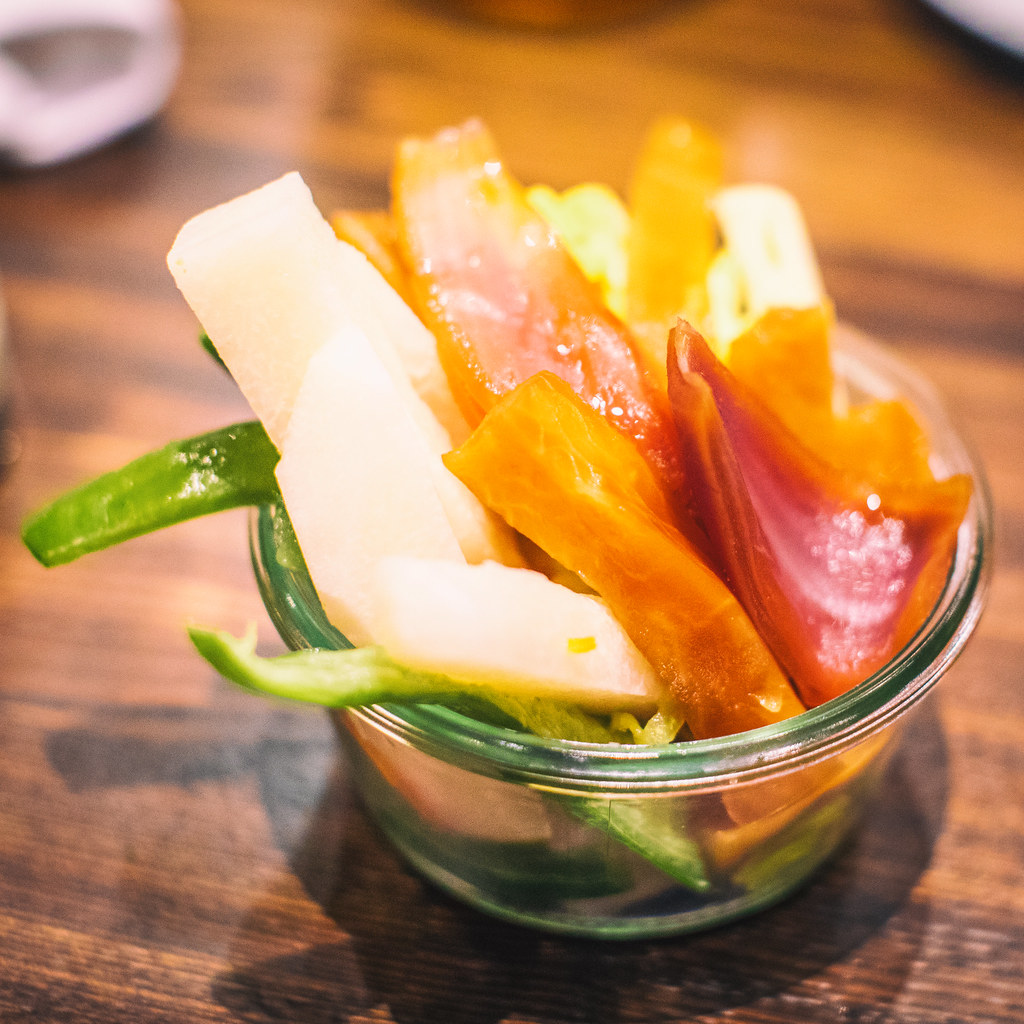
Mixed Pickle Jar, International Smoke
Pickles at International Smoke

French Fries, International Smoke


Thomas Hawk Digital Connection

 
Comments Off on New Ayesha Curry, Michael Mina San Francisco Hot Spot International Smoke, A Contemporary Take on Barbecue

Posted in Photography


How to Super-Charge the Spot Healing Brush Tool in Photoshop

28 Oct

The Spot Healing Brush Tool is often used in portrait photography to remove blemishes, wrinkles, and other distracting elements. By default, this tool works great, but sometimes you will need to add an extra level of control to get the results that you want.

In this tutorial, you will learn how to use the Spot Healing Brush Tool with Content-Aware to quickly remove blemishes and other imperfections from your photos.

Getting Started

First, create a new layer to work non-destructively (Shift + Ctrl/Command + N).

Then select the Spot Healing Brush from the Toolbar. Make sure that “Content-Aware” is the selected Type and that “Sample All Layers” is checked in the Options Bar.

How to Super-Charge the Spot Healing Brush Tool in Photoshop

Spot Healing Brush Tool – Normal Mode

With the Spot Healing Brush Tool active, just paint over any distraction to remove it. In most cases, the Spot Healing Brush Tool will do an excellent job in eliminating the problem.

02 spot healing comparison

However, there are times where the Spot Healing Brush Tool will destroy the original detail and texture found in the photo, giving you very unrealistic results.

In the example below, the Spot Healing Brush Tool removed the wrinkles under the eye by adding a skin texture that made the image and problem worse.

03 spot healing normal

Left before using the Spot Healing Brush. Right – after using it in Normal mode.

Using Modes to Enhance the Spot Healing Brush

For a more realistic result, you need to keep as much of the original detail as possible and only remove the distracting element.

To do so, first consider the blemish, wrinkle, or distraction you are trying to remove. Is it darker than the skin tone? Or is it brighter than the skin tone?

If the distraction is lighter, select Darken from the Mode in the Options bar. If the distraction is darker, select Lighten. In this case, the wrinkle is darker than the skin tone. That means that we want to lighten the wrinkles. So in the Options Bar, under Mode, select Lighten.

04 lighten

With the brush mode set to Lighten, Photoshop will only replace pixels that are darker than the good portion of the skin. Since the wrinkles and other skin distractions in this photo are darker than normal skin tone, only the distracting elements are removed, leaving more of the original texture surrounding it intact.

Notice that as you paint over a wrinkle, you don’t lose the original highlights and you keep a lot of detail. The example below shows the results between using Normal and Lighten to apply the same correction.

05 spot healing normal

Comparing results from different brush modes. Left: Spot Healing Brush in Normal Mode. Right: Spot Healing Brush in Lighten mode.

Additional Notes

To work faster, keep in mind that you can switch between Modes by holding the Shift key and pressing the + or – keys.

This technique also helps you remove blemishes in areas that contain detail that you would like to keep.

In the example, below you can see how by using the Lighten mode we were able to remove the skin blemishes while leaving the white hair strands intact.

06 spot healing forehead

This technique works in this case because the hair strands are lighter than the skin tone, and the blemishes are darker than the skin tone. The Lighten Mode makes the Spot Healing Brush target only darker pixels, so the fine white strands of hair are left intact.

This tutorial is part of my Content-Aware series on YouTube. There are more videos there if you would like to learn more about how content-aware works in Photoshop.

The post How to Super-Charge the Spot Healing Brush Tool in Photoshop by Jesus Ramirez appeared first on Digital Photography School.


Digital Photography School

 
Comments Off on How to Super-Charge the Spot Healing Brush Tool in Photoshop

Posted in Photography


Study finds most people can’t spot manipulated photos, can you?

21 Jul

A new photography study from researchers at the University of Warwick has found that many people aren’t very good at determining whether an image has been digitally manipulated.

The study, which has an online test component that anyone can take, asks volunteers to look at 10 different images and guess whether each is altered or unaltered. Volunteers are also tasked with choosing the part of the image they think was altered, and rating their certainty about the alteration(s) or lack thereof.

After compiling the results, the researchers found that only 65% of altered images were correctly identified by volunteers; even less unaltered images were identified, at just 58%. Given that chance performance is 50%, the results show that the volunteers did little better than they would have with simple guessing. Furthermore, the team found that age and gender did not affect the results, with the difficulty being notable across all volunteers.

“In the digital age, where photo editing is easy and accessible to everyone, this research raises questions about how vigilant we must be before we can trust a picture’s authenticity,” said the university in a release. “It is crucial that images used as evidence in courts—and those used in journalism—are better monitored, to ensure they are accurate and truthful, as faked images in these contexts could lead to dire consequences and miscarriages of justice.”

The question is, can a bunch of photography nerds wreck the curve? Take the online component and let us know how you did in the comments.

Articles: Digital Photography Review (dpreview.com)

 
Comments Off on Study finds most people can’t spot manipulated photos, can you?

Posted in Uncategorized


Quick and Dirty Method of Using the Photoshop Spot Healing Brush Tool

21 Jul

Let’s say you use Lightroom and you’ve tried and tried to get rid of those distracting spots using Lightroom’s Spot Removal Tool but no matter how you set it – using Clone or Heal or changing the Opacity or increasing the Feather – you have a giant, obvious repair on your image. Not good!

Photoshop Spot Healing Brush Tool - wild horses

This is my final, processed image but I had to dive into Photoshop to get there.

You’re a good photographer

For kicks, let’s agree that in addition to knowing your way around Lightroom, you’re a skilled photographer. You also subscribe to Adobe CC, but honestly, you don’t use Photoshop much. Perhaps you’re even a little bit afraid of it. You loaded the software and update it whenever Adobe tells you to but other than the PS icon looking cool and professional in your dock, you don’t actually use it.

You just don’t use Photoshop

I mean, Layers, Masks, Blending? Ugh. I know. I do 90% of my work in Lightroom. No one has ever called me out on that so I keep on keepin’ on with Lightroom. I love Lightroom but – and it’s a great big but – LR’s Spot Removal Tool is no match for Photoshop’s Spot Healing Brush Tool.

Because I know this issue affects so many of us, I’m going to teach you the quick and dirty method for how to Spot Heal in Photoshop. No layers. No tricky stuff. Just easy, quick simple repairs for the problem areas in your images.

Practice as you read this

Grab an image that has a problem area that you can’t seem to fix in Lightroom and follow along with me. Practice is the best way to learn so repeat these steps a few times today. After you Spot Heal a few images in PS, it will naturally become part of your image processing tool kit.

Step #1 – Process the image in Lightroom

In Lightroom, process your image as normal. Here’s my RAW  image before I’ve made any adjustments.

Photoshop Spot Healing Brush Tool - raw image

Canon 7D Mark II, 70-200 plus 1.4x @ 280mm, f/6/3, 1/1600, ISO 400.

Below is a screenshot of all the adjustments I’ve made on my image. I started with a pretty aggressive crop. You can see the White Balance and Basic adjustments but I also dropped in several Radial Filters to add clarity and brightness to key elements like the horses’ eyes. However, I struggled to get rid of the flecks of mud around the black horse’s eye.

Photoshop Spot Healing Brush Tool - Lightroom adjustments

Step #2 – Edit in > Photoshop

Right-click on your image. Select Edit in Adobe Photoshop CC.

Photoshop Spot Healing Brush Tool - Edit in Photoshop

It is very important that you don’t skip this step. Do not open your image directly in Photoshop. For the down and dirty method to be most effective, you must start this process in Lightroom.

NOTE: If you haven’t updated to PS CC 2017 or if you use an older version of PS, you might need to modify these steps. Instead of Edit in Adobe Photoshop CC 2017, you might see Edit a Copy in PS.

Step #3 – Select the Spot Healing Brush

It takes a minute, but eventually, your image will appear in the Photoshop window. Here’s the image I’m working on. Check and make sure your screen looks pretty similar to mine.

Photoshop Spot Healing Brush Tool - PS interface

Click on the Spot Healing Brush Tool. It looks like a band-aid except that it has a little semi-circle handle over it.

Photoshop Spot Healing Brush Tool - band-aid icon

If you can’t find this tool, count seven icons down on the tools pallet and right-click on that. Once you right-click, you should see the rest of the tools. Hover your cursor over the band-aid icon that says Spot Healing Brush Tool. Click to select it. It will now show as the active tool.

Step #4 – Setup the Spot Healing Brush

Review the settings for the tool bar that runs across the top of your Photoshop window.

Photoshop Spot Healing Brush Tool - mode and type

If your Spot Healing Brush Tool doesn’t default to these settings, change them to:

  • Mode = Normal
  • Type = Content Aware

Step #5 – Zoom in

Zoom in and increase the size of your image so you can see the problem area more clearly. Click the Command/Alt key and the + (plus) key simultaneously. Click again to zoom in more. If you’ve zoomed in too far, click the Command/Alt Key and the – (minus) key simultaneously to zoom back out. Grab the drag bars on the bottom and right side of the image to reposition the problem area so that it’s in the middle of the screen and easy to see and repair.

Photoshop Spot Healing Brush Tool - zoom in

Zoomed into 200%, I can see the problem area clearly.

Step #6 – Size the Brush Tool

Hover the Spot Healing Brush Tool over the problem area. You may need to change the size of the brush. The easiest way to do that is to use the square bracket keys on your keyboard.

  • Click the Left Bracket Key [ to decrease the size of the brush.
  • Click the Right Bracket Key ] to increase the size.

Notice that as you click on the bracket keys, the Size number in the bar that runs across the top of your image increases or decreases. (If you click on that number, you’ll get more tool options. Don’t worry about those for now.)

Photoshop Spot Healing Brush Tool - 20px brush

Using the Left Bracket Key, I adjusted my Spot Healing Brush Tool to 20 pixels and started making small repairs around the eye.

Step #7 – Brush over the bad area

After you’ve adjusted the size of your brush, start clicking on the area of your image that you want to repair. You can also drag the brush to make short strokes.

Photoshop is smart and should fill in the area with an appropriate selection but if it doesn’t, click Edit > Undo Spot Healing Brush in the top menu (or Cmd/Ctrl+Z will also undo). That will undo the last thing that you did.

If you want to undo multiple things, go to Edit and click Step Backward repeatedly till you’re at the last point that you liked. Step Backward does have limitations so work slowly and check your repair work often. Note: you can aslo open the History panel and go back to any previous step.

Photoshop Spot Healing Brush Tool - undo

Step #8 – Save

Evaluate your work. Do you like the repairs? If Yes, go to File > Save in the top menu. Photoshop defaults to saving images as a TIFF file. If it doesn’t, select the TIFF option if/when the menu pops up. This will also import the newly edited image into Lightroom.

Photoshop Spot Healing Brush Tool - save

If you don’t like the repairs you made, quit Photoshop without doing anything. Photoshop will ask if you want to save your work. Just say No. Go sip some coffee and try again another day when you’re fresh.

Step #9 – Head back to Lightroom

Almost done!

Go back to Lightroom. You’ll still be in the Develop Module with the original RAW image that you were working on still open. Press G for Grid which will take you to the Library Module. Check to make sure that next to your original RAW file is a new TIFF file. Select the two images and view them in Survey Mode so that you can look at them side by side (N on your keyboard).

If the two files don’t show up right next to each other in Lightroom resort your images by Capture Time (or file name), or drag and drop so that they do.

Photoshop Spot Healing Brush Tool - compare

Side by side of RAW file adjusted in LR (on the left) and TIFF with the addition of spot healing (on the right).

Wait, don’t you have to use layers in Photoshop?

That’s the down and dirty part. When you’re doing simple fixes like this, you don’t need to worry about layers. Why? Well, layers are excellent if you’re doing quite a few things to your image and you want to be able to turn different effects on and off. They’re also important so that you preserve your original image in a background layer (non-destructive editing).

But with this method, you still have your original RAW file. That’s why you want to start in Lightroom and then open your image from there into Photoshop. Lightroom sends a copy of your image to Photoshop. When you save your work in Photoshop in step #8, Photoshop generates a totally separate image file. That new TIFF file shows up in your Lightroom catalog next to your original RAW file.

NOTE: If you haven’t updated to PS CC 2017 or if you use an older version of PS, you might need to modify these steps. You might need to select “Edit a copy” and not “Edit Original.”

Photoshop Spot Healing Brush Tool - final image

This is a wild horse so I didn’t go too crazy fixing every little thing, but the distracting mud around the eye and on the neck is cleaned away nicely, don’t you think?

What if the down and dirty method doesn’t work?

This might not work for your image. Some repairs are finicky and this is definitely a hack method that won’t work for everything. My advice is to experiment. Remember the other tools that were grouped with the Spot Healing Brush Tool? Try one of those. Or, keep using the Spot Healing Brush Tool but change the Mode from Normal to Replace or even Multiply.

Remember when we clicked the Size number? Click that again and adjust the Hardness of the brush or the Roundness. Make only one change at a time and make notes on what each change does. If something works, click File, then Save and remember what you did. If nothing works, exit out of Photoshop without saving (and go have more coffee).

You can always experiment again another day because you still have your RAW image. It’s cataloged in Lightroom right next to the TIFF file. As long as you always start in Lightroom, you’ll be able to try again later.

Photoshop Spot Healing Brush Tool - Essaouira cafe

In this image of an outdoor seafood market in Essaouira, I experimented with a variety of tools to zip out the distracting bit of tree on the left, the construction equipment and the light posts. The RAW image, with Lightroom only adjustments, is on the left. The spot-healed TIFF is on the right.

Share with the dPS community: What hack or down and dirty methods do you use when you process your images?

The post Quick and Dirty Method of Using the Photoshop Spot Healing Brush Tool by Lara Joy Brynildssen appeared first on Digital Photography School.


Digital Photography School

 
Comments Off on Quick and Dirty Method of Using the Photoshop Spot Healing Brush Tool

Posted in Photography


NASA releases incredible close-ups of Jupiter’s ‘Great Red Spot’

15 Jul
A close-up of Jupiter’s ‘Great Red Spot,’ a storm that has been raging on the planet for 350 years. Photo: NASA / SwRI / MSSS / Gerald Eichstädt / Marty McGuire © PUBLIC DOMAIN

It’s one of Jupiter’s most distinct and immediately recognizable features: the so-called Great Red Spot. This massive storm, wider than the diameter of our Earth, has been raging for at least 350 years and is itself a mystery to scientists. Fortunately for those scientists (and the rest of us space nerds) NASA’s Juno spacecraft just captured the closest ever photos of the storm.

On Monday of this week, Juno passed just 5,600 miles above the 10,000-mile wide spot, taking pictures as it went.

The photos were received and released by NASA yesterday on the JunoCam website, where astronomy fans, space nerds and astrophotography junkies alike pulled the originals into photo editing programs and started pull out colors, sharpening, and otherwise improving the photos.

So while the original Raw images looked like this:

$ (document).ready(function() { SampleGalleryV2({“containerId”:”embeddedSampleGallery_9884504280″,”galleryId”:”9884504280″,”isEmbeddedWidget”:true,”standalone”:false,”selectedImageIndex”:0,”startInCommentsView”:false,”isMobile”:false}) });

Ambitious NASA fans have tuned the unprocessed shots to reveal more details, structure, color and even overlaid the continental US on one of the photos for scale.

$ (document).ready(function() { SampleGalleryV2({“containerId”:”embeddedSampleGallery_2012403751″,”galleryId”:”2012403751″,”isEmbeddedWidget”:true,”standalone”:false,”selectedImageIndex”:0,”startInCommentsView”:false,”isMobile”:false}) });

NASA is no doubt taking a close look at the Raw files, processing the shots themselves and hoping to learn something new about the spot from these close-ups. For our part, we’re just enjoying the pretty pictures and trying to fathom how they were captured.

To see the full resolution Raw files and all of the different processed versions by various users, head over to the JunoCam website by clicking here.

Articles: Digital Photography Review (dpreview.com)

 
Comments Off on NASA releases incredible close-ups of Jupiter’s ‘Great Red Spot’

Posted in Uncategorized


OnePlus 5 performs well in DxOMark Mobile test, misses top spot by three points

07 Jul

The engineers at DxO Labs have put the brand new OnePlus 5 through the DxOMark Mobile testing process, and the phone did not disappoint.

With an overall score of 87 points, the Chinese manufacturer’s flagship device has delivered a respectable performance on par with well-liked phones like Huawei’s Leica-branded P10 and Sony’s Xperia XZ. This also puts it only three points behind the top-ranked HTC U11, and one point better than Apple’s ever-popular iPhone 7.

DxOMark only tested the OnePlus 5 16MP main camera with F1.7 aperture, not the 20MP/F2.6 secondary 2x tele-module. The camera achieves a photo sub-score of 87 points, delivering good results in both bright and low-light situations. The testers were particularly impressed with the vivid color rendition, accurate white balance, good detail and the fast and smooth autofocus system.

Moving on to video, In the default 1080p/30fps video mode, the OnePlus offers accurate exposure and white balance in all conditions. The testers also liked the quick transition in changing light conditions, the accurate autofocus and the effective stabilization system. This earned the OnePlus a video sub-score of 86 points.

We are currently working on our own review of the OnePlus 5. Until then, you can read DxOMark’s full test report here.

Articles: Digital Photography Review (dpreview.com)

 
Comments Off on OnePlus 5 performs well in DxOMark Mobile test, misses top spot by three points

Posted in Uncategorized


HTC U11 takes top spot in DxOMark Mobile ranking

17 May

With an overall score of 90, the newly announced HTC U11 is the highest-rated smartphone camera ever tested by DxO and has taken the top-spot in the DxOMark Mobile ranking from the Google Pixel. 

The U11 scores impressively well across all categories and in particular offers very low noise levels and a fast autofocus. The testers also found the U11 images to have a pleasing look, with good color rendering. Outdoor scenes show vibrant colors and tones, good detail and very low noise. Flash exposures are very even across the frame and feature good detail preservation and color rendering.

The DxOMark team were also impressed by the HTC’s efficient optical image stabilization system, although it can occasionally leave some residual evidence of motion. You can read the full report on DxOMark.com. 

Articles: Digital Photography Review (dpreview.com)

 
Comments Off on HTC U11 takes top spot in DxOMark Mobile ranking

Posted in Uncategorized


Sweet Spot: Panasonic Lumix DMC-GX85 Real World Samples

01 Jun

The Panasonic Lumix DMC-GX85 has the makings of one sweet camera. It uses a well-regarded 16MP Four Thirds sensor (with no AA filter), is 4K capable and features Panasonic’s depth from defocus AF system.

Packed inside a sleek, customizable body, the GX85 features a new shutter mechanism that appears to solve the thorny issue of shutter shock, a problem that plagued its big brother, the GX8. The GX85 also features a 3-axis stabilized sensor, that when combined with a Panasonic stabilized lens, offers 5-axis of stabilization, making it the most steady Panasonic Four Thirds camera to date.

DPReview writer Dan Bracaglia has been using the GX85 for a while, and as well as various locations around Seattle he also took it on a recent trip to New Jersey.

Articles: Digital Photography Review (dpreview.com)

 
Comments Off on Sweet Spot: Panasonic Lumix DMC-GX85 Real World Samples

Posted in Uncategorized


Samsung Galaxy S7 edge takes top spot in DxO Mobile rankings

19 Mar

DxOMark has put the Samsung Galaxy S7 edge through its testing, and with a score of 88 the device moves into the top spot in DxO’s mobile rankings. The S7 edge and slightly smaller S7 use a 12MP sensor with on-chip phase detection and an F1.7 lens with optical image stabilization. By taking the top position in the mobile rankings, the S7 edge relegates its Galaxy S6 edge plus and the Sony Xperia Z5 to a joint number two spot.

Articles: Digital Photography Review (dpreview.com)

 
Comments Off on Samsung Galaxy S7 edge takes top spot in DxO Mobile rankings

Posted in Uncategorized


How To Find Your Lens’ Sweet Spot: A Beginner’s Guide to Sharper Images

03 Feb

Are you tired of blurry images?

It’s time to learn how to capture sharper images by finding your lens’ sweet spot. This will give you more confidence, save time, and help you take better photos.

In this article you’ll learn:

  • How to find your lens’ sweet spot (for sharper images)
  • Why you should shoot in Aperture Priority mode (and how to use it)
  • How to perform a test to get your sharpest image every time
  • How important is your lens’ sweet spot? Notice the difference

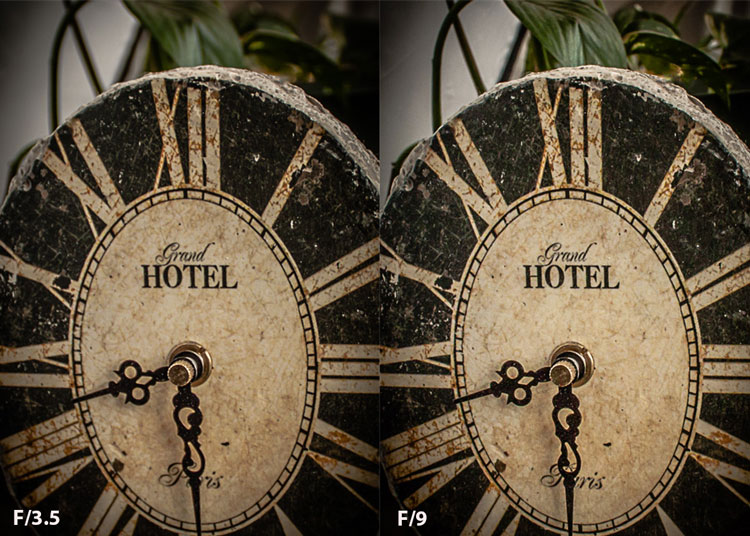
Mid range aperture sharper than wide open

In the above images of the clock, the one on the right is sharper. Look closely at the words and at the leaves behind the clock. The f/9 image is sharper throughout because it was shot in my lens’ sweet spot. The f/3.5 one was not.

First, take a look at your lens

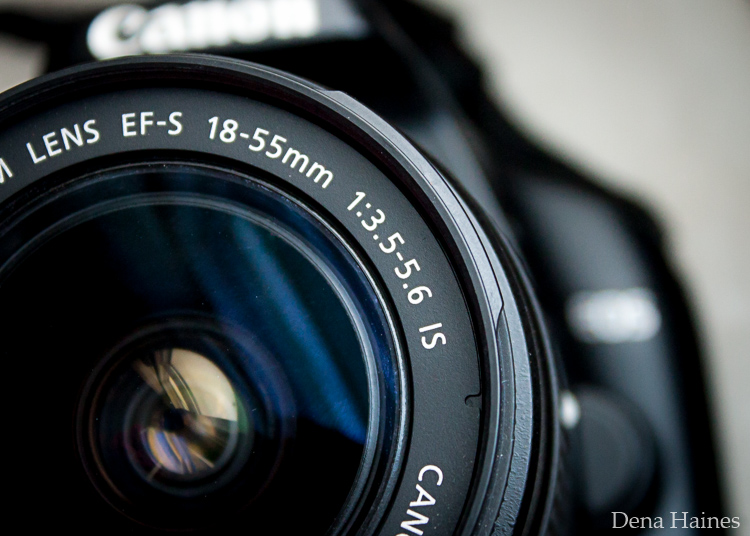
In this beginner’s guide, we’ll use an entry level zoom lens as our example. Most kit lenses (the basic lens that comes with a DSLR) generally shoot their sharpest at the mid-range aperture settings. To determine the mid-range of your lens, you’ll need to know its widest (or maximum) aperture setting. It is located on the side, or end, of the lens and will look something like this 1:3.5-5.6.

For example, here it is on my Canon 18-55mm zoom lens.

Lens aperture range

This means that when my lens is zoomed all the way out, its widest aperture is f/3.5. When zoomed all the way in, its widest aperture is f/5.6.

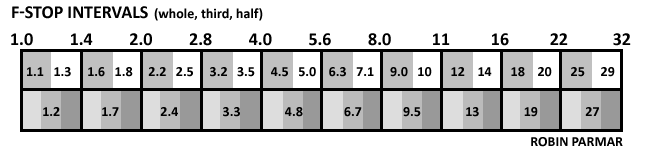
The rule to finding that mid-range sweet spot, is to count up two full f-stops (aperture settings are called f-stops) from the widest aperture. On my lens, the widest aperture is f/3.5. Two full stops from there would bring me to a sweet spot of around f/7.

Use this chart to count your f-stops

Robin Parmar

By Robin Parmar

There is some wiggle room in the mid-range, so anything from f/7 to f/10 will capture a sharp image. Once you know the mid-range of your lens, you can do an easy test to get your sharpest image. To perform the test you’ll need to shoot in Aperture Priority mode.

Take control with Aperture Priority Mode

Shooting in Aperture Priority allows you to choose the aperture setting you want, which gives you more creative control than Automatic mode. By controlling the aperture setting, it’s much easier to get a sharp image, and because your camera still chooses the ISO (if you are set to Auto ISO) and shutter speed automatically, it’s very easy to use.

You’ve probably heard that apertures like f/16 and f/22 are best for keeping everything in focus. While that can be true, focus does not always equal overall sharpness. Choosing a mid-range aperture will give you sharper images throughout. You can improve them even further by reducing camera shake with a tripod and a remote shutter release (or your camera’s self-timer).

Here’s an example of how shooting in your lens’ sweet spot will give you sharper images.

Sharp images shot in lens sweet spot

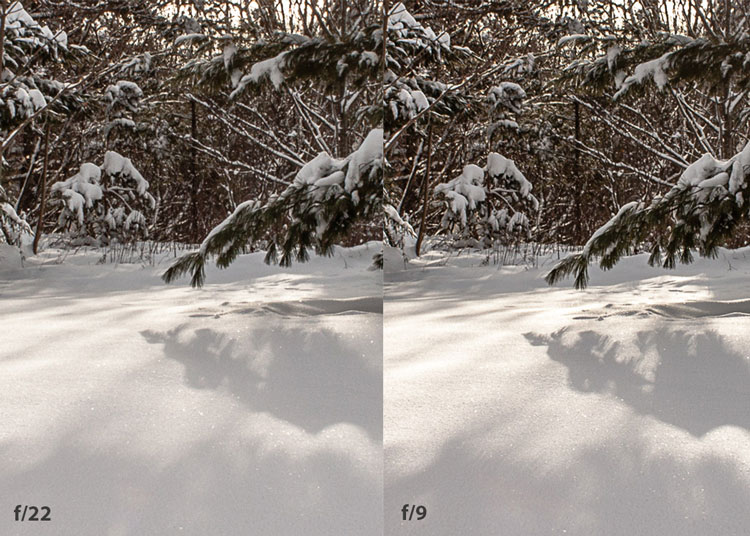
Mid range f stop sharper than small f stop

In the above split-image, the f/9 image is sharper than the f/22 one. The needles and shadows are not as soft or blurry as in the f/22 shot (look at the crispness and sparkles in the snow too).

Switching from Automatic to Aperture Priority Mode

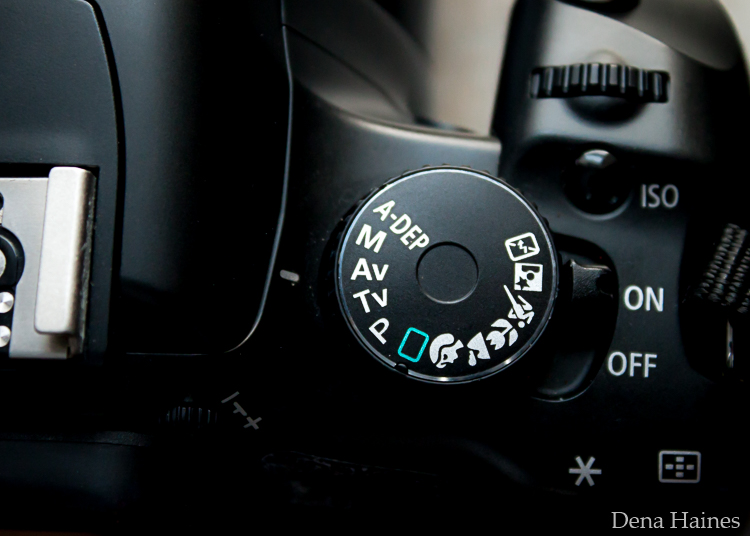
To take your camera out of Automatic and put it in Aperture Priority, just turn the large Mode Dial to Aperture Priority. This is what that looks like on my Canon (on Nikon and other brans look for the A).

Aperture priority on canon mode dial

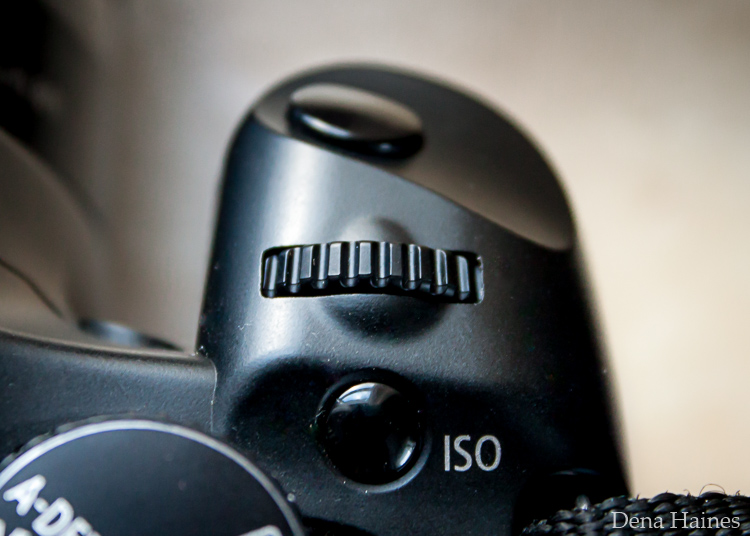
Automatic mode is the green rectangle; Aperture Priority mode is the Av (or A on a Nikon). Once your camera is in Aperture Priority mode, turn the smaller Main Dial (shown here on the top of my Canon) to choose your f-stop.

Main dial canon

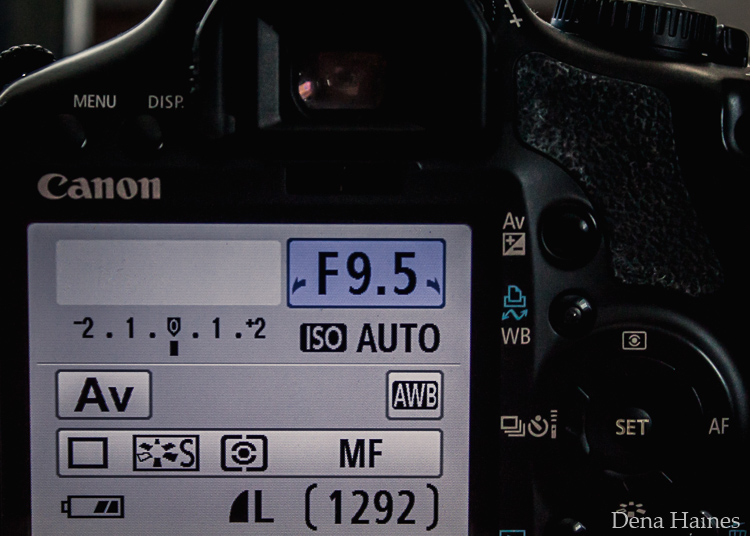
As you turn that dial, you’ll see the f-number changing on your screen. In the next picture, it’s set to f/9.5.

Aperture setting on canon LCD screen

Perform a Lens Sweet Spot Test

Once you have your camera set up on a tripod, performing a sweet spot test only takes a couple of minutes. To begin, put your camera in Aperture Priority mode, then compose your shot and take a photo at varying apertures. Start out with the widest, then click that main dial a couple of times (to the right) and take another. Keep doing that until you’ve taken seven or eight photos.

Upload your photos to your computer and zoom in on them. You’ll quickly see which aperture settings gave you the sharpest overall image.

This next photo of my daughter was shot using natural light. Shooting in my lens’ sweet spot gave me a pretty sharp image, even in this low light setting.

Mid range aperture sharp image low light

Find your lens sweet spot for sharper images

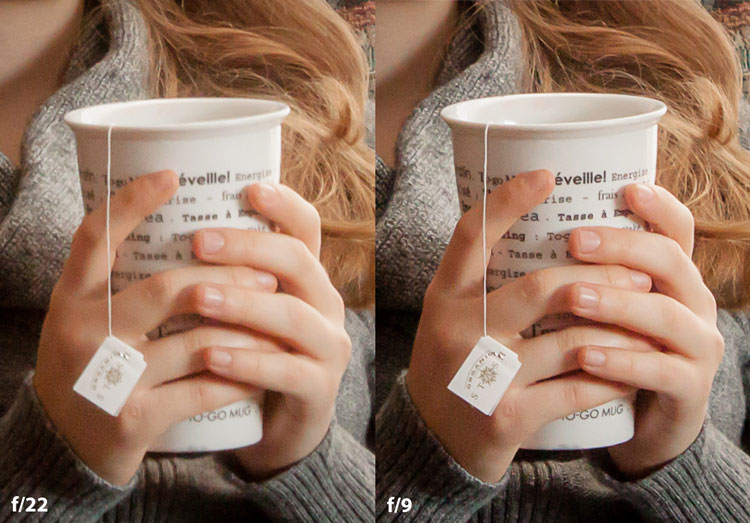
The close up of the mugs shows the advantage of shooting in the lens’ sweet spot. Whenever you want to make sure you get the sharpest capture possible, take a shot at each mid-range setting f/7, f/8, f/9, and f/10.

Getting Your Sharpest Images

Now that you know your lens’ sweet spot, it’s time to practice. I hope you’re as pleased with the results as I’ve been!

Mid range aperture for sharper images

I love shooting in natural light, and learning how to capture sharper images in low light has made me so much happier with my photos.

Tips for capturing your sharpest images:

  • Shoot in Aperture Priority mode
  • Choose a mid-range aperture (usually f/7 to f/10)
  • Use a tripod and a remote shutter release (or your camera’s self-timer) to reduce camera shake
  • Take a series of shots at f/7 through f/10 when a sharp capture is especially important

But don’t stop here. Keep playing with settings in Aperture priority mode. It’s awesome to get images that are sharp throughout, but there’s a lot more to aperture than that.

Learn more about aperture and depth of field here.

Do you have any lens sweet spot tips to share? Please do so by commenting below.

googletag.cmd.push(function() {
tablet_slots.push( googletag.defineSlot( “/1005424/_dPSv4_tab-all-article-bottom_(300×250)”, [300, 250], “pb-ad-78623” ).addService( googletag.pubads() ) ); } );

googletag.cmd.push(function() {
mobile_slots.push( googletag.defineSlot( “/1005424/_dPSv4_mob-all-article-bottom_(300×250)”, [300, 250], “pb-ad-78158” ).addService( googletag.pubads() ) ); } );

The post How To Find Your Lens’ Sweet Spot: A Beginner’s Guide to Sharper Images by Dena Haines appeared first on Digital Photography School.


Digital Photography School

 
Comments Off on How To Find Your Lens’ Sweet Spot: A Beginner’s Guide to Sharper Images

Posted in Photography