RSS
 

Posts Tagged ‘Smartphone’

Review: Google Pixel 2 is the best smartphone for stills photographers

12 Feb

DPReview smartphone reviews are written with the needs of photographers in mind. We focus on camera features, performance, and image quality.

The Pixel 2 and its larger sibling, the Pixel 2 XL represent Google’s latest flagship phones. Both offer a single 12.2MP F1.8 main camera and an 8MP F2.4 ‘selfie’ camera. From a photographer’s perspective that might not sound like anything special – after all, the iPhone X offers dual rear cameras – yet thanks to behind-the-scenes processing, the Pixel 2 is capable of some of the most detailed photos we’ve ever seen from a smartphone.

It also features a background blurring effect (portrait mode), DNG Raw capture (with use of a third party app), 4K/30p video and optical image stabilization. Plus, all Pixel 2 owners get free Google Photo storage for photos and videos shot on the device through the end of 2020. After that point users will still get free storage but files saved will be high-quality compressed versions (full-res storage will still be available for a price).

Priced at $ 650, the Pixel 2 is not cheap, but it is 2/3rds the price of the iPhone X.

The Pixel 2 offers excellent image quality thanks to a combination of hardware and software processing .
ISO 82 | 1/23000 sec| F1.8

As smartphone cameras progress, we’re seeing a cultural split from traditional camera companies, who rely mostly on hardware and optics to achieve good image quality, just as they did with their film cameras. Instead, smartphone manufacturers are relying more on computational photography and artificial intelligence to produce a photo that is detailed and well-toned, right ‘out of camera’. With just one button press – no need to set the exposure or dynamic range compensation or AF mode yourself.

Google’s secret sauce is in what the company calls ‘HDR+’, which judges exposure intelligently and uses multi-imaging techniques for every shot. So has computational photography, à la Pixel 2 come far enough to replace the pocket cam? How about the mirrorless camera or DSLR?

Aside from the excellent camera, the Pixel 2 is a fairly ordinary smartphone.

Key photographic / Video specs

  • 12.2MP rear camera (1/2.55″ | 1.40 ?m pixels)
  • F1.8 max aperture
  • 4K/30p video
  • 1080/120p, 720/240p slow motion video
  • Optical image stablization
  • Dual Pixel AF with phase detect
  • DNG Raw capture and manual control with 3rd party apps
  • 8MP front camera (F2.4 max ap.)

Other specs

  • Android 8.0 operating system (Oreo)
  • 5 in 1920×1080 AMOLED (441ppi) display (95% DCI-P3)
  • Qualcomm Snapdragon 835 processor
  • 4GB Ram
  • 64 or 128GB internal storage
  • Unlimited cloud photo/video storage with Google Photos
  • 2750 mAh battery
  • $ 650

Articles: Digital Photography Review (dpreview.com)

 
Comments Off on Review: Google Pixel 2 is the best smartphone for stills photographers

Posted in Uncategorized


How to Geotag Your Photos Using Lightroom and a Smartphone App

10 Feb

As a landscape and travel photographer, it is important to be able to track where you traveled and note exactly where a specific picture was taken. Sound complicated and expensive? It’s not if you have a smartphone and a geotag app that will track your GPS location. In this article, I’ll show you how to use Lightroom and the Geotag Photos Pro app to mark your photos locations.

Geotag Your Photos Easily in Adobe’s Lightroom with the help of Geotag Photos Pro App

How to Use Lightroom’s Map Module and the Geotag Photos Pro App

Geotagging is the process of pinpointing the location you took your picture with the aid of a GPS unit. There are a few ways to collect GPS information from a camera. A GPS unit can be built-in to your camera, an accessory to your camera, or a smartphone app like Geotag Photos Pro.

All of these GPS accessories will add EXIF data to your photo files. This data usually consists of the file name, folder location, city, GPS coordinates, as well as the date and time the image was captured. This feature can be very useful if you are a travel or landscape photographer who would like a record of your travels and photo shoot locations.

How does it work?

Your camera records the picture information each time you take a shot, including the time each photo was captured. All the while, you will have the Geotag Photos Pro app running on your phone to record your exact position at the time the photo is taken. It’s all tracked based on the time the image was shot. The fun comes later when you merge all of the data in Lightroom.

Geotag Photos Pro app

Using GPS attachments on an SLR can be expensive and cumbersome. The Geotag Photos Pro app might be a good solution for you. It will work with whatever capture device you prefer to use, a DSLR, a mirrorless camera, a compact point and shoot, or a mobile phone.

Available in both IOS and Android versions, the app records your position while you are taking photos. It then creates a “.gpx” file that you export to Geotag Photos Pro desktop app or other apps and services like Lightroom, Flickr, and Apple Photos.

It’s all tracked by synchronizing the clock on the app with the clock on your camera. It will create a track log with custom interval settings that you set up. The best part is you can bring it into the Lightroom mapping module and it will create a map of your shoot with thumbnail images along the route.

Setting up the app

Before you start your photo walk, make sure that your camera and your cell phone are synced at the same time. There is no need to have internet access to use the app, it works through a GPS signal which is available anywhere for free. First, start the Geotag Photo Pro App.

How to Use Lightroom’s Map Module and the Geotag Photos Pro App
In the settings, set the desired time for Geotag Photos Pro for your logging interval – 2 minutes is the optimal time interval. That way you can create a balance between the battery life of your cell phone and the accuracy of the app without using up all of your power. If you’d like it to track at faster intervals, you can set it up that way or manually set a point on your track.

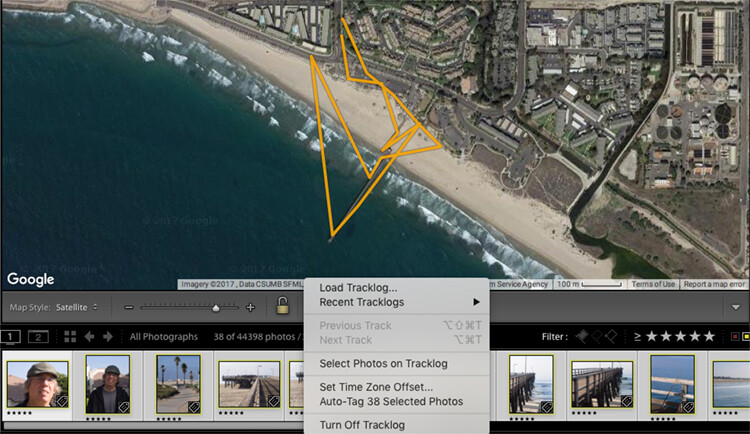
You don’t need to hold on to the phone or watch the app once you have initiated your photo walk and you are happy with the interval settings. It will create a map similar to the one below when you are done. Your map may create an odd route as if you were walking in the ocean like this one, but there is actually a pier which doesn’t show up on this map.

How to Use Lightroom’s Map Module and the Geotag Photos Pro App

After your walk

When you have finished your walk, Complete the track on the app and share the track log to your Dropbox, iCloud, or Google Drive account and download the track to your computer.

Once you have downloaded the .gpx file track log, import your images into Lightroom and select the images in the filmstrip that you would like to geotag. Then open the map module of Lightroom.

How to Use Lightroom’s Map Module and the Geotag Photos Pro App

Just below the map window but above the filmstrip, there is a squiggly line that is the track log menu (circled in red above). Hover over it, navigate to your saved .gpx file and load into Lightroom. Once you open the file, you will see the track start to load on your map.

How to Use Lightroom’s Map Module and the Geotag Photos Pro App

Once you see a map similar to this (below), it is time to geotag your images.

How to Use Lightroom’s Map Module and the Geotag Photos Pro App

Geotagging your images

Look at your filmstrip and navigate to the images you would like to include in the track log. Click on the first image and shift-click the last image in the sequence to select them all. Then click on “load track logs” and select “Auto Tag the select photos”.

Now the photos and location will load to the track. If the track doesn’t look 100% correct, you can move the location of the track to put the images in the right place.

How to Use Lightroom’s Map Module and the Geotag Photos Pro App

Now you will have a track log of the images you took located on the map. Hover over the picture icons, and your images will pop up in the location where they were photographed. How cool is that?!

How to Use Lightroom’s Map Module and the Geotag Photos Pro App

In conclusion

What a great tool for you as a landscape and travel photographer! As GPS gets more advanced, it will be included in more cameras and make this process a little easier. But for now, an app like this is fun and easy to use and adds another handy element to your photo toolbox.

Give it a try on your next trip!

The post How to Geotag Your Photos Using Lightroom and a Smartphone App by Holly Higbee-Jansen appeared first on Digital Photography School.


Digital Photography School

 
Comments Off on How to Geotag Your Photos Using Lightroom and a Smartphone App

Posted in Photography


DxOMark report reveals just how far smartphone cameras have come in the last 5 years

08 Feb
DxOMark chart shows that overall scores for smartphone cameras have steadily improved over the last 5 years.

If you’re looking for the most drastic and impressive improvements in the world of imaging, the (sad?) fact is, you’ll want to look at smartphone manufacturers. And this is what DxOMark highlights in a fascinating retrospective titled “Disruptive technologies in mobile imaging” that looks back on 5 years of testing smartphone cameras.

Not that the Sonys and Nikons and Canons of the world haven’t made improvements—and who knows when the next generational leap in image sensor technology will take place—but as the saying goes: necessity is the mother of invention. Given the size limitations of our ever-thinner and lighter smartphones, its phone manufacturers who have had to be most creative when it comes to improving image quality.

That, in a nutshell, is what DxOMark breaks down in its retrospective, taking a close look at everything from how smartphones have improved their ability to eliminate noise without losing texture, to exposure improvements, autofocus, video stabilization, zoom, and the recent advancements in bokeh simulation.

Exposure is one of the areas that has seen drastic improvements. These images were captured at just 1 Lux, showing how the 808 PureView falls far short of the iPhone 5s, which in turn falls significantly short of the Galaxy S7 “thanks to better tuning and noise reduction.”

The area where smartphone cameras seem to have improved most is in their ability to toe the line between decreasing noise and maintaining texture. Without simply increasing the size of the image sensor, this is a difficult balance to strike if you’re using just image processing, so newer phones take care of this in three ways:

  1. Optical image stabilization to allow for longer hand-held exposures
  2. Temporal noise reduction (TNR) that combines image data from multiple frames
  3. Multiple camera modules (currently dual, maybe soon triple)

These techniques have helped manufacturers make huge leaps forward in the past 5 years:

This side-by-side comparison shows just how much better the iPhone X is at avoiding and cleaning up noise than the iPhone 5s. But even the iPhone6, which used the same camera module as the 5s, benefitted greatly from improved software.
But the iPhone X isn’t even the best at this trick. Here it is compared to the Samsung Galaxy Note 8, Google Pixel 2, and Huawei Mate 10 Pro.

DxOMark’s conclusion after sharing all of this data is unsurprising, and one of the reasons why we’re keeping such a close eye on the newest smartphone camera tech:

We can see that camera hardware and image processing have been evolving alongside each during the past 5 years, and at a much faster pace than in the “traditional” camera sector.

DSLRs and mirrorless system cameras are still clearly ahead in some areas, but in terms of image processing, Canon, Nikon, Pentax, and the other players in the DSC market are behind what Apple, Samsung, Google, and Huawei can do. Thanks to their hardware advantages, the larger cameras don’t actually need the same level of pixel processing as smartphones to produce great images, but there is no denying that the performance gap between smartphones and DSLRs is narrowing.

That’s a good summary, but if you want to dive into all of the comparisons—between phones of the past and today, and between the best phones on the market right now—head over to DxOMark and read their full retrospective.

Articles: Digital Photography Review (dpreview.com)

 
Comments Off on DxOMark report reveals just how far smartphone cameras have come in the last 5 years

Posted in Uncategorized


Huawei may be the first to launch a triple-camera smartphone

06 Feb
Image: Forbes / Weibo

With dual-cameras pretty much a standard-feature on high-end smartphones these days, it was only a matter of time before the first manufacturer would announce a mobile device with three (or even more) camera modules per side. If rumors are true, it looks as if this manufacturer will be China’s Huawei.

Unlike in previous years, the Chinese device-maker won’t launch their new premium model at the Mobile World Congress in Barcelona at the end of this month. Instead, the P20 (as the new model is likely to be called) will be announced at a stand-alone event in Paris on the 27th of March.

According to a report by Forbes, the P20 will be the first smartphone to come with a triple-camera, offering a total resolution of 40MP and a 5x optical/digital hybrid zoom. Additionally, the front camera will feature 24MP resolution.

As, with previous models, the cameras have reportedly been co-developed with German optics manufacturer Leica.

The Huawei Mate 10 Pro features a dual cam co-engineered with Leica.

There are no further details regarding how the triple-camera technology exactly works, but we would assume the typical image output size will be considerably smaller than 40MP, and the high pixel count is mostly used for hybrid zoom and computational imaging purposes, such as de-noising and HDR.

The Mate 10 Pro is already one of the best smartphone cameras we have tested in a while, so it’ll be interesting to see what performance Huawei can squeeze out of a device with an additional camera module. We’ll know more in a few weeks time.

Articles: Digital Photography Review (dpreview.com)

 
Comments Off on Huawei may be the first to launch a triple-camera smartphone

Posted in Uncategorized


Tips for Better Smartphone Photography

03 Feb

Everyone has a camera nowadays. If you have a smartphone, you have a camera. Many of them take great photos, full of color and clarity. But what can you do to take your smartphone photography to the next level? Here are 3 videos with some tips to help you out.

7 Smartphone Photography Tips & Tricks

In this video from Serge Ramelli, you get some practical and easy to apply tips to help you elevate your smartphone photography.

??

The 101 of Smartphone Photography from COOPH

Here are a few more ideas from the crew over at COOPH who consisting have great video tips.

?

9 Smartphone photography tips from B&H Photo Video

Finally, here are 9 more tips from Larry Becker and B&H Photo Video.

?

If you still haven’t gotten enough tips for better smartphone photography here are some dPS articles to help:

  • 9 of the Best Apps to Help You Do Awesome Mobile Phone Photography
  • 9 More Great Apps You Need for Your Smartphone
  • How to Get Stunning Macro Photos with Your Mobile Phone
  • Lightroom Mobile – The Secret to Shooting and Editing on Your Smartphone
  • Review: Struman Lenses for Mobile Phones

The post Tips for Better Smartphone Photography by Darlene Hildebrandt appeared first on Digital Photography School.


Digital Photography School

 
Comments Off on Tips for Better Smartphone Photography

Posted in Photography


Weekly Photography Challenge – Your Best Smartphone Shot

03 Feb

Likely you have a smartphone as well as your main camera – whether that be a DSLR, mirrorless or other. This week your challenge is to come up with the best shot you can using just your smartphone. So you can’t rely on fancy lenses or advanced settings – you’ll need to use light and composition and creativity to your advantage here!

If you need some help check out: Tips for Better Smartphone Photography

Weekly Photography Challenge - Your Best Smartphone Shot

Weekly Photography Challenge – Smartphone Shots

Simply upload your shot into the comment field (look for the little camera icon in the Disqus comments section) and they’ll get embedded for us all to see or if you’d prefer, upload them to your favorite photo-sharing site and leave the link to them. Show me your best images in this week’s challenge. Sometimes it takes a while for an image to appear so be patient and try not to post the same image twice.

So get creative, let’s see what you can do?

Share in the dPS Facebook Group

You can also share your images in the dPS Facebook group as the challenge is posted there each week as well.

The post Weekly Photography Challenge – Your Best Smartphone Shot by Darlene Hildebrandt appeared first on Digital Photography School.


Digital Photography School

 
Comments Off on Weekly Photography Challenge – Your Best Smartphone Shot

Posted in Photography


Samsung’s new smartphone sensors can shoot 480fps in Full HD

22 Jan

Samsung has just announced a new mobile image sensor that may just reveal what’s in store for the rumored Galaxy S9 smartphone—specifically in the slow-motion capture department.

Announced earlier today, Samsung’s new ISOCELL Fast imager chips feature a 3-stack Fast Readout design that Samsung claims will shoot Full HD 1080p video at a whopping 480fps. That’s not quite as fast as the eye-watering 960fps in Sony’s high-end Xperia models, but the Sony mode can only capture for a fracture of a second—Samsung’s super-slow-motion could potentially offer longer capture times.

According to Samsung’s product page, the ISOCELL fast sensors also come with advanced autofocus technologies—such as Dual-Pixel or Super-PD—built into the chip, allowing for very fast focusing in all light conditions. ISOCELL Fast sensors with the aforementioned technologies are currently available with 12 and 16MP resolutions and sizes ranging from 1/2.8″ to 1/2.56″.

As usual, there is no way of knowing for certain if either of these sensor variants will make it into the Galaxy S9, but it’s safe to assume we’ll see the new 480fps Full HD mode in a Samsung mobile device in the near future.

Articles: Digital Photography Review (dpreview.com)

 
Comments Off on Samsung’s new smartphone sensors can shoot 480fps in Full HD

Posted in Uncategorized


Smartphone front cameras might soon be placed underneath the display

21 Jan
Photo by Julián Gentilezza

With smartphone displays getting larger and moving to an 18:9 (or 2:1 if you prefer) aspect ratio and display bezels shrinking at the same time, there is hardly any space left at the front of new devices for physical controls or other components.

Physical home buttons and fingerprint readers have already largely disappeared from the front and moved to the rear or edges of devices; however, moving the front camera to the rear isn’t really an option (for obvious reasons) which is why devices like the iPhone X or the Essential Phone have ended up with unsightly notches at the top of their displays.

A new patent by Samsung could offer a solution: moving the front camera and other components, such as the earpiece and proximity and ambient light sensors, underneath the screen. A camera that can see through the display would also offer an additional advantage, allowing manufacturers to place it towards the center of the screen so that the camera and the face of the person you’re talking to would be roughly in the same spot.

While Samsung’s idea definitely looks like an elegant answer to the space limitations at the front of modern smartphones, nobody has built a suitable camera yet. That said, an earlier patent that has been referenced by Samsung, Apple and LG among others, suggests using an OLED display with a very high refresh rate. The system could then activate and deactivate the screen at a very fast rate and allow for camera recording during the inactive periods.

As usual with patents, there is no way of knowing if and when the technology will make it into a production device, but the idea of a totally seam- and bezel-less display is certainly an appealing one.

Articles: Digital Photography Review (dpreview.com)

 
Comments Off on Smartphone front cameras might soon be placed underneath the display

Posted in Uncategorized


9 More Great Apps You Need for Your Smartphone

17 Jan

What are the next great apps you need for your Android and your iPhone?

There are many apps out there that are fun to use. In part two we bring you 10 more great apps for your smartphone (read part one here). Some of the ones listed below are for shooting, some are for creativity, and others are great tools for the landscape photographer. Most are available for both Android and iOS, some just available for iOS.

Shooting apps

#1 – ProCamera 10 – iOS – $ 4.99 9 More Great Apps You Need for Your Smartphone

ProCamera gives you a lot of control over your settings while shooting with your iPhone. It is easy to use and offers advanced features such as RAW capture, a live histogram, and an anti-shake feature. In the new iPhones with multiple camera lenses, it has the ability to access either lens.

The images come out sharp with accurate exposures. The reason is that
you can separate the focus and exposure points to really create a sharp balanced composition.

You can also shoot in either Manual, Semi-Automatic or Automatic mode with on-screen display modes of standard, medium or light to hide non-critical display elements. It also has a low light mode called Low Light Plus which captures up to 64 photos and combines them into one photo with reduced noise.

9 More Great Apps You Need for Your Smartphone - ProCamera

ProCamera 10 screenshots.

9 More Great Apps You Need for Your Smartphone - VSCO#2 – VSCO Cam – for iOS and Android – Free with in-app purchases

VSCO Cam is one of my favorite apps. This free app has a powerful built-in camera with very clear image resolution and the ability to separate exposure and focus points which is vital in creating optimal imagery with a smartphone. This app also has built-in presets as well as ones you can purchase. It has a very active community that shares photo “recipes” to gain inspiration and create similar photographic styles in post-processing.

When taking photos in VSCO, you can have manual control of focus, exposure, white balance, and even ISO and shutter speed. Depending on the model of your phone, you can even shoot in RAW mode.

A big part of this app is the VSCO community and the navigation can be a bit confusing, but the results are consistently great.

Light Effects Apps

10 More Great Apps You Need for Your Smartphone - Lens Distortions#3 – Lens Distortions – iOS only – Free

Lens Distortions is a unique app that will change the way you see iPhone photo filters. The app’s editing platform allows you to combine subtle blur effects, light leaks, textures, sun flares, and sunbursts to help you enhance your images with light.

Lens Distortions is a great app for any iPhone photographer who is looking for unique filter effects that are easy to control and can be used to highlight a specific subject rather than apply it to the entire image. When used properly, the effect can look like it was taken on a much more advanced camera. Since smartphones don’t have an aperture which allows you to create a sunburst or sun flare effect like you can on a DSLR, this app will let you apply a sunburst, and give a realistic effect of the sun’s rays.

9 More Great Apps You Need for Your Smartphone

 10 More Great Apps You Need for Your Smartphone - Rays#4 – Rays App – iOS only – $ 0.99

The Rays app is great for creating realistic light ray effects quickly and easily. The rays are only added to the bright highlight areas and have the effect of passing through objects while adding a three-dimensional quality to your image. You can add shafts of light streaming through trees, rays filtering through clouds, beams of light coming through the fog, or even rays coming out of some text. You can customize the color of the rays using a color picker and specify where the rays will be visible.

9 More Great Apps You Need for Your Smartphone - Rays

Blend Mode Apps

Creating Your Own Textures

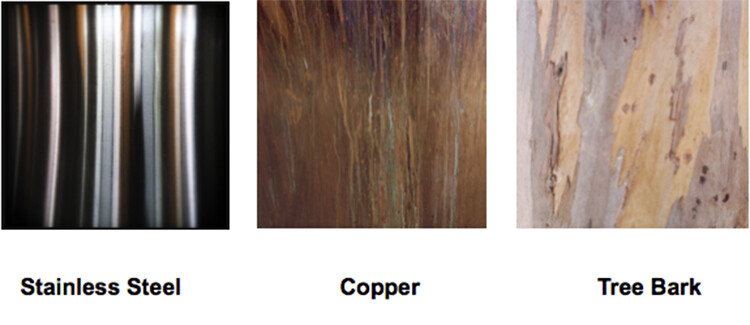
Before introducing some blending mode apps, I want to introduce you to creating your own textures. You can create your own palettes by taking pictures of interesting tree bark, floors, walls, or anything that catches your eye and combine it in a blending program.

Here are a few textures that I’ve used to create an interesting appearance in the background of an image.
9 More Great Apps You Need for Your Smartphone

There are several apps available that give you stock textures to add to your compositions, but why not create your own? It’s just another way to see creatively and use your smartphone to make something unusual.

9 More Great Apps You Need for Your Smartphone - superimpose#6 – Superimpose – iOS / Android

($ 1.99 for IOS, $ 0.99 for Android)

If you want a powerful app to combine images and textures, look at Superimpose. You can create professional level layered images on your Smartphone and easily blend one photo on top of another with this app.

You can also use this tool to blend textures, overlay borders, or create double exposures while adjusting transparency with 18 different blend modes.

To use this app, first load a background image. Then load a foreground image, masking out any unwanted elements in the foreground image. You can then move, scale, resize or flip the foreground and adjust colors and exposure. Then you can save the blended image to the photo library at full resolution.

Use the textures you created in the exercise above to give your images a unique and creative twist.

9 More Great Apps You Need for Your Smartphone - superimpose

The rich brown hues of the copper background layer and the blend modes give a warmth to this image that it didn’t have before. You can move your background layer around to work with the foreground. Notice you don’t see the copper texture in the sky in this sample image. That was because it was rotated to work in that space with minimum texture.

9 More Great Apps You Need for Your Smartphone - mextures app#7 – Mextures – iOS / $ 1.99

Mextures app lets you create grunge patterns, textures, and light leaks quickly and easily. With Mextures, you bring in an image from your camera roll and decide what texture from their menu you would like to use as a background layer. Once you apply that texture to the first layer, you can add another layer of texture, pattern, or light.

Layers are used in more advanced photography programs like Photoshop and are useful for making color and texture adjustments that won’t affect the whole picture. In this app, you can add texture in layer one, and then add gradient color in layer two. If you decide that you don’t like the gradient color, you can just delete that layer and redo it without affecting the texture layer.

Layers in both Photoshop and apps like this work the same way. Imagine having a stack of tissue paper, and each tissue has an element that you can add to your image. One tissue layer could have color, one could have texture, and one could have light leaks. It’s easy to take them in and out or change them without affecting the layers above or below.

This app gives you formulas that are saved presets which may be a combination of textures, colors, and gradients. You can even scroll through “Guest” formulas, and use them for your own images.

9 More Great Apps You Need for Your Smartphone - mextures app

Plumeria Flower created with Mextures App

For Landscape Photographers

9 More Great Apps You Need for Your Smartphone - Aurora app#7 – My Aurora Forecast and Alerts – For Android / iOS – Free

Many photographers have shooting the Northern lights on their bucket list. This app will help you track the sometimes elusive Aurora Borealis and give you a forecast based on the Aurora activity. You can track the Aurora from your present location or at another location in the world. It will also give you alerts as to when the Aurora is active and in what location.

An interesting way to use this app is to follow Aurora cams around the world and then set your alerts as to when these areas are active. Then you can tune in and watch the show!

Get the app for Android here – and iOS here.

9 More Great Apps You Need for Your Smartphone#8 – Geotag Photos Pro – For Android / iOS – Free

Geotagging is the process of adding geographical identification metadata to your photographs or videos. This data usually consists of filename, folder location, city, GPS coordinates, date, and time captured.

The Geotag Photos Pro app is meant to be used while you are shooting with your DSLR. It will record your position while you are taking photos and create a GPX file that you can export to your desktop app or to other apps and services like Lightroom, Flickr, and Apple Photos.

This is a particularly good tool for landscape photographers or anyone who wants to know exactly their route or the specific location they shot a group of images. The images below show how you can set your interval time for the track log as well as watch the track log as it is being created.

9 More Great Apps You Need for Your Smartphone

Don’t worry, we weren’t walking in the ocean! The app did not recognize the pier in the route.

It is a quick, easy, and cheap way to keep track of your locations and log a shoot. There is no need for any expensive bulky additions to the hot shoe of your camera. It’s all tracked by synchronizing the clock on the app with the clock on your camera. It will create a track log with custom interval settings that you set up.

The best part is you can bring it into the Lightroom mapping module or connect with the Geotag Photo Pros online site and it will create a map of your shoot with thumbnail images along the route.

9 More Great Apps You Need for Your Smartphone

Mapped route after it was imported into Lightroom.

9 More Great Apps You Need for Your Smartphone - sun seeker#9 – Sun Seeker – iOS / Android

$ 9.99 for IOS – $ 7.49 for Android

Sun Seeker is a great app for landscape photographers as it shows the angle of the sun and where it will be setting and rising in several different views. It provides a flat compass view as well as a real time image with an overlay of the sun’s projected solar path. You can choose any date and location in the world to plan for optimal light conditions. It helps you to find the right time and location to set up for your landscape photography.

9 More Great Apps You Need for Your Smartphone

Views showing the projected trajectory of the sun in the Sun Seeker App.

Conclusion

Whether or not you are using your smartphone as your primary camera, or you’re using it as a tool to help you get the shot with your DSLR, these apps can add fun and functionality to any shoot. Give them a try and let me know what you think!

If there are others that we’ve missed (check part one also) please give us the info in the comments below. What apps are your favorite?

The post 9 More Great Apps You Need for Your Smartphone by Holly Higbee-Jansen appeared first on Digital Photography School.


Digital Photography School

 
Comments Off on 9 More Great Apps You Need for Your Smartphone

Posted in Photography


HTC U11 Eyes smartphone features a dual selfie camera with live bokeh

17 Jan

HTC has launched a new variant of its U11 smartphone called the HTC U11 Eyes, and it’s built specifically for selfie takers (cue eye roll). The name “Eyes” refers to the handset’s chief feature: dual front-facing cameras, which resemble a pair of eyes and bring features like live bokeh and post-focusing to selfies.

HTC packs some other premium features into the model, including an 18:9 ratio Full HD+ 6″ Super LCD 3 screen and a “flagship camera” on the rear, but other than the front-facing camera, the handset is more-or-less the same as the regular HTC U11.

The front-facing camera is comprised of dual 5MP BSI sensors behind F2.2 aperture lenses, which support Full HD 1080p video capture in addition to stills. The selfie cameras produce “studio-quality portraits,” claims HTC, with Bokeh Mode being the most notable feature. In that mode, selfie backgrounds are blurred in real time, though users also have the option of adjusting it manually after the fact.

The model’s front camera also supports Screen Flash, HDR Boost, Voice Selfie, Auto “Beautification,” Auto Selfie, and Selfie Panorama. The rear camera, meanwhile, features a 12MP HTC UltraPixel 3 with 1.4?m pixel, BSI sensor, OIS, F1.7 aperture, an LED flash, and UltraSpeed Autofocus. HTC has included a “Pro Mode” with manual control for its rear camera, including 32-second long exposures, Raw support, and manual control.

Cameras aside, the HTC U11 Eyes has a high-capacity 3930mAh battery that supports up to 28.8 hours of talk time (depending on the network) as well as Qualcomm Snapdragon 652 processor, IP67 water- and dust-resistance, Edge Sense squeezing support, HTC USonic audio tech, active noise cancellation, and Face Unlock.

Availability outside of China and pricing isn’t clear. Engadget reports that its “local sources” put the price potentially at HK$ 3,200, which is equivalent to about $ 410 USD and 334 EUR.

Articles: Digital Photography Review (dpreview.com)

 
Comments Off on HTC U11 Eyes smartphone features a dual selfie camera with live bokeh

Posted in Uncategorized