RSS
 

Posts Tagged ‘Smart’

How to Create and Use Smart Collections in Lightroom

11 Jan

Collections are one of Lightroom’s most powerful features, giving you a way to bring images from many folders together. Generally speaking, they’re just like boxes you sort your physical stuff into. Nothing goes in unless you put it there, and nothing comes out unless you take it out. What if I told you there was another far more powerful type of collection that can sift through all your photo information and build a collection automatically based on a subset of that information? Well, there is, it’s called a Smart Collection.

Using Smart Collections

You’ll find the easiest way to get to grips with Smart Collections is to begin with a few simple ones and then expand to more complex ones. Let’s start with a couple simple ones.

Creating a Smart Collection

You can create a Smart Collection in a number of ways. First, you can click on the little ‘+’ in the Collections panel header, situated in the Left Panel of the Library Module.
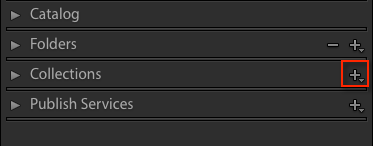
Creating and using smart collections in lightroom

From the flyout menu, choose Create Smart Collection.
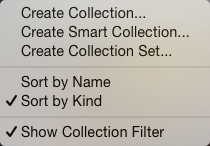
Creating and using smart collections in lightroom png 2

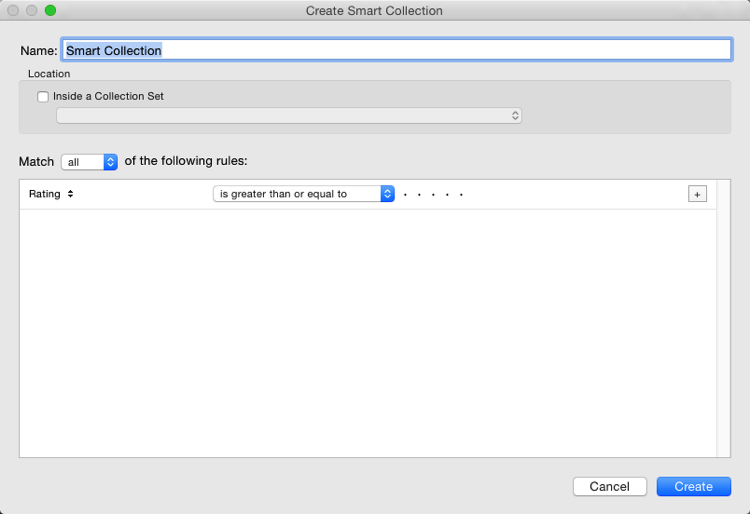
This brings up the default Smart Collection panel (below).
Creating and using smart collections in lightroom 3

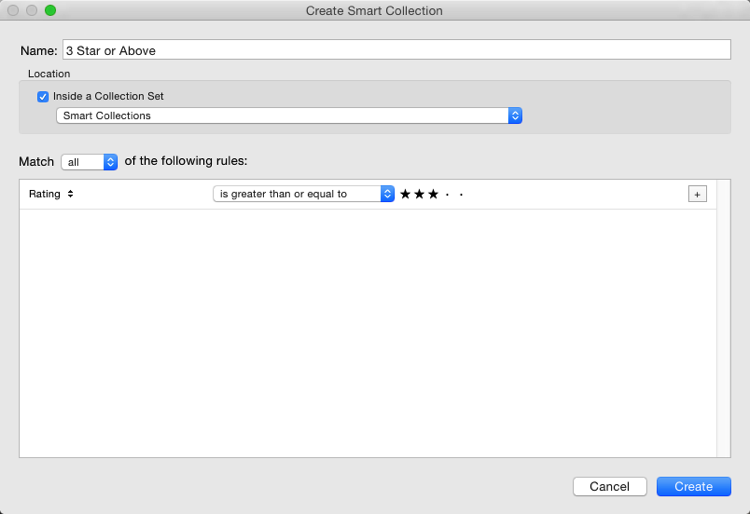
Begin by giving the Smart Collection a name. If you don’t, you’ll end up with a list with Smart Collection, Smart Collection 1, Smart Collection 2, and so forth. Use a name that describes what the collection will contain. For example, you could call this one “3 Stars or Above”. Below this you can choose to add the Smart Collection to a Collection Set (which needs to be created in advance). You could add it to the Smart Collections set, which is a default set created by Lightroom.

Adding the rules

The next part is the key to creating the Smart Collection. It’s the rules section that defines what will be in the collection. In the Match flyout, you’ve three options:

  1. All: Every rule must match for a photo to be included.
  2. Any: As long as a photo matches one of the rules, it’s included in the collection.
  3. None: As long as a photo doesn’t match a rule, it’s included.

If you’re trying to narrow down to a limited set of photos, you’ll most likely be using the All option. As your first Smart Collection is a simple one, set the Rating to 3 stars, with “is greater than or equal to” applied in the pull-down menu. There are other options in the list including; is, is not, is greater than, is less than, is less than or equal to, is in the range. These all allow you to refine what appears in the collection. Click Create to make the collection.
Creating and using smart collections in lightroom 4

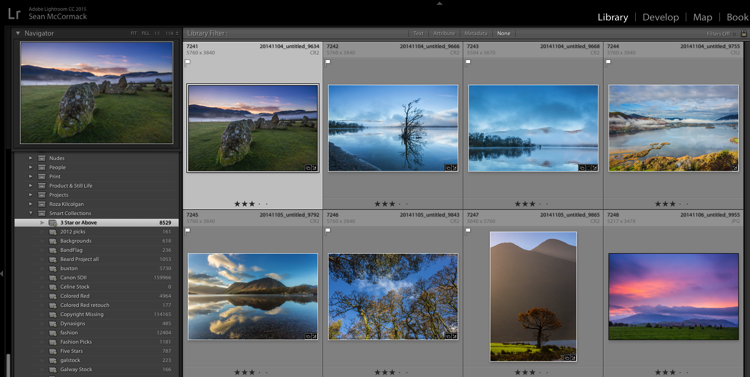
The newly created collection will appear in the Smart Collections set, already selected, and the Grid View will show all matching photos. If you change the rating of one of the images visible to be a 2-star photo, it would automatically drop out of the collection. Why? Because it no longer matches the collection rules (3 or more stars).
Creating and using smart collections in lightroom 5

Adding more criteria

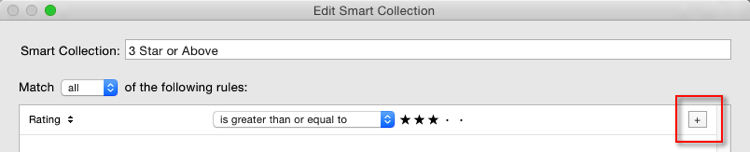
Let’s start to narrow down the images you’re seeing. You can either double click on the collection to edit it or create a new one. I’ve double clicked for this example to edit. At the end of the Rating line is a + icon (outlined in red below) which you can click to add another rule. As soon as you do, a minus (-) icon appears, allowing you to remove this rule at any stage. There must always be at least one rule, though.
Creating and using smart collections in lightroom 6

Let’s narrow down the collection to show only more recent 3-star images.

The new rule has Rating selected by default. You can change this by clicking Rating and choosing from the possible rule options in the pull-down menu. To get recent images, you need to choose Capture Date from the Date menu.

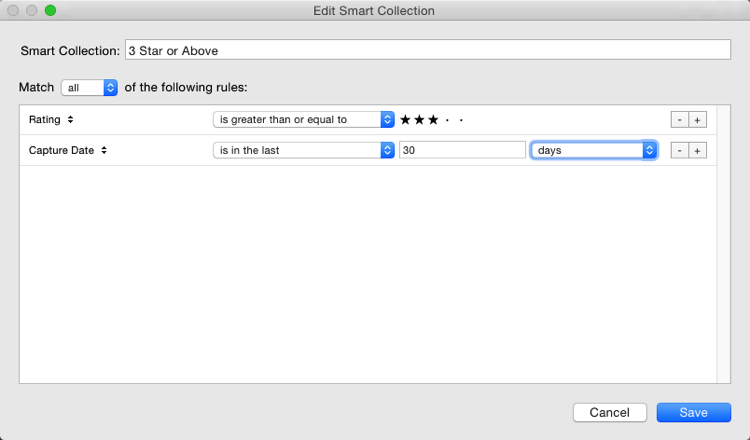
You’ll notice there’s a different set of options for dates in the figure below. As you want recent dates, choose “in the last” from the list. Next, you enter a number, then choose from days, weeks, months and years. For speed, enter 30 with the default “days” option. See below:
Creating and using smart collections in lightroom 7

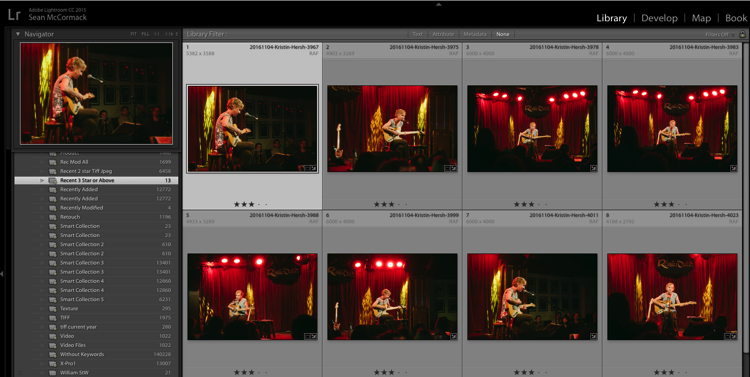
Next, change the name to reflect the new options and click Save. The collection will now display only the most recent photos (taken in the last 30 days) with 3 stars.
Creating and using smart collections in lightroom 8

Smart Collection uses

Right now, what you’ve just created could be done using the Filter Bar, so what use is a Smart Collection? Well, they’re great for helping you complete workflow tasks such as:

  • Add Copyright:  Create a Smart Collection with the rule “Copyright Status”, the option “is” and the choice ‘”unknown”. If you use Metadata Presets, generally you’ll have one that sets the copyright information and sets the Copyright Status to “copyrighted”. Add this preset to the files in the Smart Collection to add that information.
  • Add Keywords:  To sort images not keyworded. From the Other Metadata menu, choose Keywords, then set the option to “are empty”. Use this to add keywords to an image. Just remember that as soon as you hit enter in the keywords panel, the image will drop out of the Smart Collection.
  • Event work:  For event work, you’re generally delivering most of the image, except blinks or out of focus shots. Usually, this work is edited quickly. Create a Smart Collection with the rules; Capture Date, is in the last, 1 days, and Pick Flag, is, unflagged. Now run through and reject the duds using the shortcut key X. Export the rest for your client.
  • Labels for workflow stages:  Labels can be used to imply a status with your photos. For example, you could use red to mean “selected, but needs editing”, yellow to mean “processing” and green for “final image”. By creating smart collections for each stage, you can see what needs to be done with each image. Combined with setting a date, you can keep on top on what needs doing!
  • Adding Captions:  Coupled with a recent date range, you can create a Smart Collection with “Other Metadata>Caption” and “is empty”. This shows recent images in need of a caption. Couple with ratings, etc., to narrow down which images need to be worked on.

Advanced Rules

The Any, All and None route does allow a great selection of options, but it’s missing a trick. What if you need 4-5 rules for sure (All), but also need one or two rules that are more like an Any set? That can’t be done using the method you’ve seen so far.

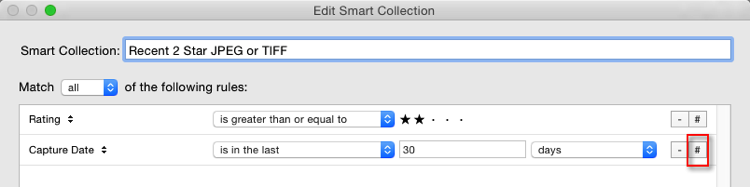
Rejoice . . . There is a way! It’s a little bit hidden, but if you hold down the Alt/Option key, the + icon turns into a number (#) sign. You can click the # to create a subset of new rules. These allow; Any of the Following, All of the Following and None of the Following – so you can mix in options as well.
Creating and using smart collections in lightroom 9

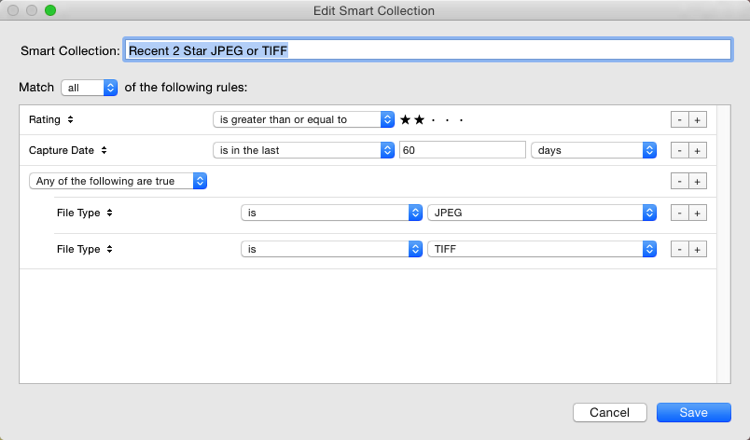
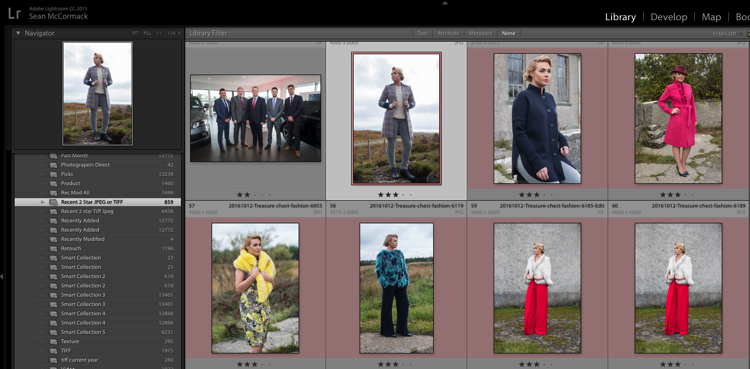
For example, you could specify an “Any of the following” are true and have two options for File Type, one for JPEG, and one for TIFF. This means all the other rules must apply, but either JPEG or TIFF will also apply. (note I’ve changed to 60 days here for a better set of photos to match for the example).
Creating and using smart collections in lightroom 10

The Smart Collection now shows both TIFF and JPEG images with 2-star or higher ratings, taken in the last 60 days.
Creating and using smart collections in lightroom 11

Other options you could use are red or yellow labels, or even non-continuous date ranges. Alternatively you could use the option to exclude information. For instance, you could have a date range of “in the last 1 year” and using “None of the following” could have “in the last 1 month” to exclude the most recent month. Combined with ratings/flags or stars, this could help locate older material still in need of editing.

Finally

As you can see, Smart Collections are a great tool in your file management arsenal, helping you drill down to specific sets of photos easily.

googletag.cmd.push(function() {
tablet_slots.push( googletag.defineSlot( “/1005424/_dPSv4_tab-all-article-bottom_(300×250)”, [300, 250], “pb-ad-78623” ).addService( googletag.pubads() ) ); } );

googletag.cmd.push(function() {
mobile_slots.push( googletag.defineSlot( “/1005424/_dPSv4_mob-all-article-bottom_(300×250)”, [300, 250], “pb-ad-78158” ).addService( googletag.pubads() ) ); } );

The post How to Create and Use Smart Collections in Lightroom by Sean McCormack appeared first on Digital Photography School.


Digital Photography School

 
Comments Off on How to Create and Use Smart Collections in Lightroom

Posted in Photography


Dell Canvas 27 launched as world’s first ‘horizontal smart workspace’

08 Jan

At CES 2017, Dell introduced what it claims is the world’s first ‘horizontal smart workspace,’ the 27-inch touch-sensitive Dell Canvas display. Canvas is designed for creatives, including photographers, artists, and graphic designers, and can be used in two orientations: lying flat on a desk or propped up at an angle via a kickstand. The display likewise offers support for a stylus, totems (Dell’s large control dials), and touch input.

Dell Canvas isn’t necessarily an alternative to Surface Studio; rather, it is a large display that can be connected to nearly any Windows 10 device, says Dell. The monitor has a 2560 x 1440 QHD resolution. The model will be available from Dell.com in the U.S. on March 30 starting at $ 1799.

Via: Dell

Articles: Digital Photography Review (dpreview.com)

 
Comments Off on Dell Canvas 27 launched as world’s first ‘horizontal smart workspace’

Posted in Uncategorized


Ricoh Keenai photo management system launches with smart tagging

07 Dec

Ricoh has announced the launch of a new photo storage and management service called Keenai. With Keenai, photographers can upload and store original resolution photos and videos, sync the content across multiple devices and share the content with others. According to Ricoh, Keenai features smart technologies that facilitate rapid image searches via smart tagging and image recognition, as well.

Once uploaded, photos and videos can be shared with others, including 360-degree panoramas. In addition to syncing across devices, Ricoh says Keenai stores content for offline access at ‘device-friendly resolutions.’ Each account allows an unlimited number of photos, including raw images, to be stored at original resolution, but only up to 300 15-minute videos can be uploaded per month.

Ricoh Keenai is available for iOS, Android, Windows Phone, macOS, and Windows, and supports direct photo and video transfers from Toshiba FlashAir and Eyefi Mobi WiFi SD cards and WiFi-enabled cameras. The service is available for $ 4.99-per-month or $ 49-per-year. The service’s mobile and desktop applications are available here.

Ricoh Innovations Corp. Debuts Keenai, One-Stop Smart Photo Management for All the Latest Smartphones and Digital Cameras

Keenai automates the most tedious part of being a photographer: centralizing and managing your photos and videos; Keenai’s intelligent solution eliminates the frustration of managing photos and videos from different devices, and makes enjoying and sharing digital memories a simple and pleasant experience

CUPERTINO, CA–(Marketwired – Dec 6, 2016) – Ricoh Innovations Corp. (RIC), a Silicon Valley-headquartered subsidiary of Ricoh Company, Ltd., has launched Keenai, a smart photo-management service that keeps digital memories safe and organized. Available immediately in eight languages on all popular platforms (macOS™, Windows®, Android®, iOS™ and Windows Phone®), Keenai is the only photo service that connects all your devices and cameras, and unifies all your photos and videos for viewing and sharing on any device.

“Consumers are struggling to keep track of all the photos and videos they capture using the different devices they own. Keenai provides a smart solution to this problem, and is designed so that non-technical people can gain control of all their photos, share them with friends and family, and feel confident that their memories are safe,” said Toshinori Arita, senior vice president of Ricoh Innovations Corp.

Finally, an app that handles everything: all devices and platforms — photos and videos

Keenai is perfect for non-technical people with lots of photos (often, on different devices) who prefer to not be locked into any one vendor’s cloud services. Keenai delivers a beautiful, unified, cable-free photo sharing experience on every device. Plus, it is the only application that can transfer photos and videos directly from Wi-Fi® cameras, Eyefi Mobi, or Toshiba FlashAir™ Wi-Fi SD cards to all the latest smartphones and tablets (Android, iOS and Windows Phone).

Some of Keenai’s standout features include:

  1. Automatic cloud backup of unlimited, original-resolution photos and videos. Users can store an unlimited number of original photos (including RAW) and up to 300 15-minute videos per month in the Keenai service.
  2. Syncs collections of photos and videos so they can be enjoyed on all your devices. Keenai lets you bring your entire photo collection with you, wherever you go — online or offline. Keenai’s smart syncing keeps the originals safe in the cloud, and stores only device-friendly resolutions on your local device.
  3. Bring your adventures to life as mixed-media experiences for family and friends. Keenai provides sharing of stories as gorgeous albums that combine photos, videos and even 360° images. Albums can be privately shared with friends and family via email or shared links, and accessed via any web browser.
  4. Automatic image recognition and smart tagging for fast photo search. Keenai’s intelligent suite of applications does all the tedious tagging work for you, and makes enjoying and sharing your memories a simple and pleasant experience, every step of the way.

How to get started with Keenai

All members start with a free trial of 30 days. Thereafter, membership costs only $ 4.99/month or $ 49.99/year. There are three easy on-ramps to Keenai: web, mobile app or desktop:

  1. Keenai Web Application: Create your account at www.keenai.com. No download required. After creating your account, simply visit app.keenai.com in your favorite browser for easy access to all your original-resolution photos and videos. You can upload and download photos and videos via the web application, and use intelligent tools like Smart Views and Discover dashboards.
  2. Keenai Mobile Applications: Use Keenai mobile applications to transfer images directly from your camera to your device, or upload photos directly to the cloud from your smart phone. Your entire collection is instantly synced with the cloud and can be browsed on all your devices — even later when you’re offline. Download here.
  3. Keenai Desktop Applications: Use the Keenai desktop utilities to upload photos and videos from your desktop collection to Keenai. You can also set up a folder to automatically sync your original resolution photos from the Keenai service to your desktop or networked drive. Download here.

Articles: Digital Photography Review (dpreview.com)

 
Comments Off on Ricoh Keenai photo management system launches with smart tagging

Posted in Uncategorized


7 Smart Lighting Setups for Portraits Taken at Home

30 Nov

Let’s get one thing clear – you’re not going to learn how to shoot perfect portraits overnight. There are many things you need to learn first. When it comes to portrait-shooting, no factor is more important than lighting. Even if you’re planning a home portrait session, you can still make the most from various lighting setups to achieve great results. Continue Reading

The post 7 Smart Lighting Setups for Portraits Taken at Home appeared first on Photodoto.


Photodoto

 
Comments Off on 7 Smart Lighting Setups for Portraits Taken at Home

Posted in Photography


Smart Body Art: MIT Temporary Tattoos Turn Your Arm into a Touchpad

27 Sep

[ By WebUrbanist in Gadgets & Geekery & Technology. ]

temporarytattoo

Simple but powerful, these conductive tattoos communicate data and actions to paired electronic devices, translating touch actions into digital activations. As biohacking and other transhumanist interventions go, this technology represents a relatively light-touch approach with potential appeal to a broader audience beyond your typical body hacker.

A collaboration between the MIT Media Lab and Microsoft Research, DuoSkin combines high-tech geekery with everyday fashion, putting circuits right on your skin for easy access. There are four essential configurations at work: a basic button for single-click actions, a slider to scroll, another slighter for continuous scrolls and a complex lattice that acts as a track pad.

tatooo-series

They look like gold and silver flash tattoos but perform a variety of technological feats, thanks to a microcontroller and wireless communication unit. Connected to smartphones, computers or other gadgets, DuoSkin can be used like a touchpad controller, or can change color based on temperature, or can pull and transmit biological data (and combinations thereof).

swipe-tattoo-mit

Imagine: answering the phone, skipping a track in your podcast queue, turning on a TV or turning down the music with a quick swipe to your forearm. The fact that this system is easily removable is one of the key selling points, a harbinger of future mass-market tech that can be applied, taken back off and discarded, just like any other temporary tattoo.

tattoo-with-lights

From the design team: “DuoSkin is a fabrication process that enables anyone to create customized functional devices that can be attached directly on their skin. Using gold metal leaf, a material that is cheap, skin-friendly, and robust for everyday wear, we demonstrate three types of on-skin interfaces: sensing touch input, displaying output, and wireless communication.”

tattoo-complex

“DuoSkin draws from the aesthetics found in metallic jewelry-like temporary tattoos to create on-skin devices which resemble jewelry. DuoSkin devices enable users to control their mobile devices, display information, and store information on their skin while serving as a statement of personal style. We believe that in the future, on-skin electronics will no longer be black-boxed and mystified; instead, they will converge towards the user friendliness, extensibility, and aesthetics of body decorations, forming a DuoSkin integrated to the extent that it has seemingly disappeared.”

Share on Facebook


[ By WebUrbanist in Gadgets & Geekery & Technology. ]

[ WebUrbanist | Archives | Galleries | Privacy | TOS ]


WebUrbanist

 
Comments Off on Smart Body Art: MIT Temporary Tattoos Turn Your Arm into a Touchpad

Posted in Creativity


MIOPS displays its MIOPS Mobile smart camera remote

25 Sep

The makers of the MIOPS smart trigger have returned to Kickstarter looking to fund their latest project, the MIOPS Mobile and are showing a prototype at their Photokina booth. The Mobile connects your DSLR and smartphone via a Bluetooth LE connection and uses your mobile device’s built-in sensors to offer a range of creative capture modes. The camera can be triggered by vibration, sound, motion, a predefined travel distance or a combination of all those events. Advanced timelapse modes are included as well and all parameters and modes are controlled via an iOS or Android smartphone app. 

Remote shutter control is on board as well – functions include Cable Release, Press&Hold, Press&Lock, Timed Release, Self Timer and Timed Release with Self Timer. The system is compatible with 350 camera models from most major manufacturers and the battery provides power for approximately 24 hours of use with one charge. Firmware is updated automatically over the air. More information including a video can be found on the MIOPS Mobile Kickstarter page. The funding goal has already been reached but you can still secure a unit with a $ 79 pledge. Shipping is planned for April 2017.

Articles: Digital Photography Review (dpreview.com)

 
Comments Off on MIOPS displays its MIOPS Mobile smart camera remote

Posted in Uncategorized


How to Use Smart Objects in Photoshop

17 Aug

We have all felt the frustration of editing an image either in Lightroom or Adobe Camera Raw (ACR), only to remember that we forgot to adjust the white balance, or tweak the sharpening after we’ve spent hours of editing the image in Photoshop. If this has happened to you, let me introduce to you to something called a Smart Object.

Smart Objects give you greater flexibility in your editing workflow inside Photoshop. You can create a Smart Object when opening your image from Lightroom or ACR into Photoshop, and you can also create Smart Objects later on in your editing process, which can be very helpful – especially when you are applying a sharpening (or other) filter.

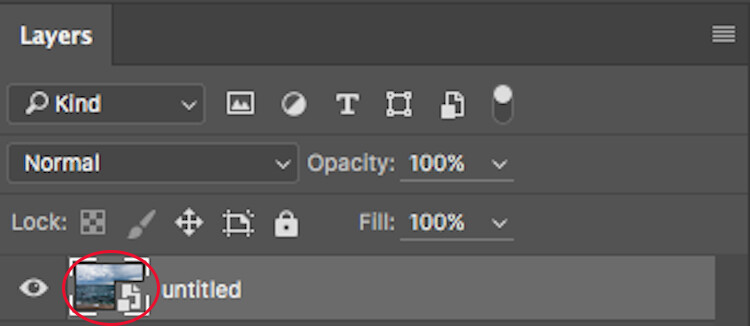
Smart Object

The icon over the preview of the layer indicates that this is a Smart Object.

So, what does a Smart Object do?

Smart Objects preserve an image’s source content with all its original characteristics, enabling you to perform nondestructive editing to the layer. When opening an image in Photoshop as a Smart Object, you have the ability to double-click the background layer (the base layer) which will open the image in ACR with all the adjustments you previously made, and enable you to make any alterations to the image. These alterations will then be pushed through to the image open in Photoshop.

So for example, say you adjusted an image in ACR and then opened it in Photoshop. After editing the image, you decide that the colour temperature is a little off. If you opened the image in Photoshop without it being a Smart Object, you would have to re-edit the image in Lightroom or ACR, then re-open the image in Photoshop, and finally, move any of the adjustments layers across to the new image. But if it were opened as a Smart Object, all you would need to do is double-click the background layer, make any of the desired adjustments in ACR and you’re done. The Smart Object will update in Photoshop and you can carry on.

Another way Smart Objects can help you is when applying a filter, such as Unsharp Masks or High Pass filters. By creating a Smart Object to apply these filters you will be able to double-click and adjust whichever filter has been applied.

How to Create a Smart Object

In Lightroom:

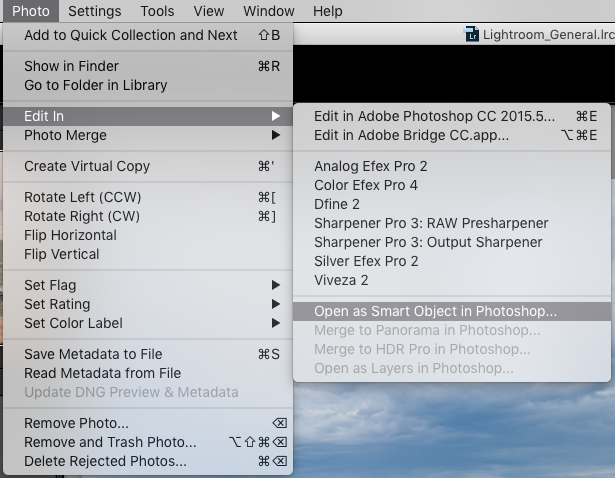
Inside Lightroom (with your image selected) go to the top menu and click: Photo > Edit In > Open as Smart Object in Photoshop… (see below)

Lightroom-Create 1

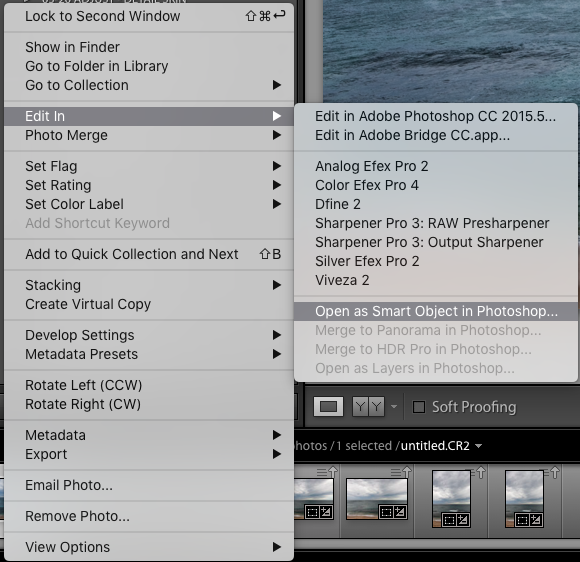
OR Right click on the image you want to open in Photoshop. Then select Edit In > Open as Smart Object in Photoshop…

Lightroom-Create 2

Through Adobe Camera Raw:

At the bottom of the ACR window you will see something like this:

ACR Create-1

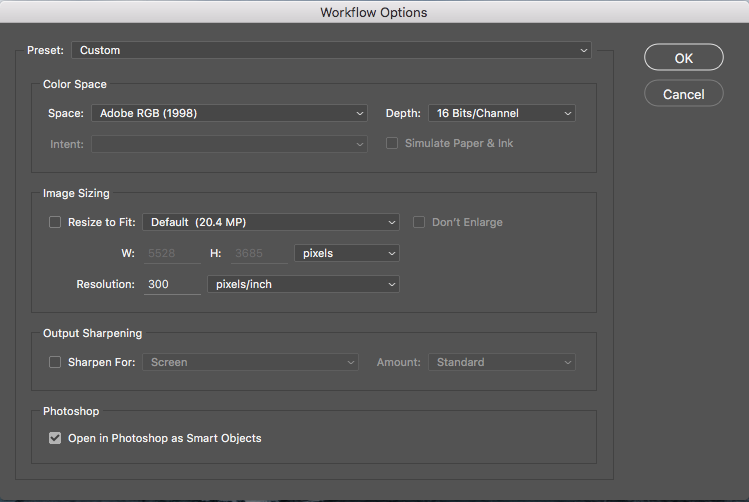
Clicking on this will open this dialog box. Make sure you have the Open in Photoshop as Smart Objects box checked. If you do not wish to do this (it is set as a default), you can also hold down the Shift key and the Open Image button will change to Open Object at the bottom right of the screen.

ACR Create

These are the two methods for creating a Smart Object before being opened in Photoshop. But what if you want to create one after you have already made adjustments? To do this, follow these steps:

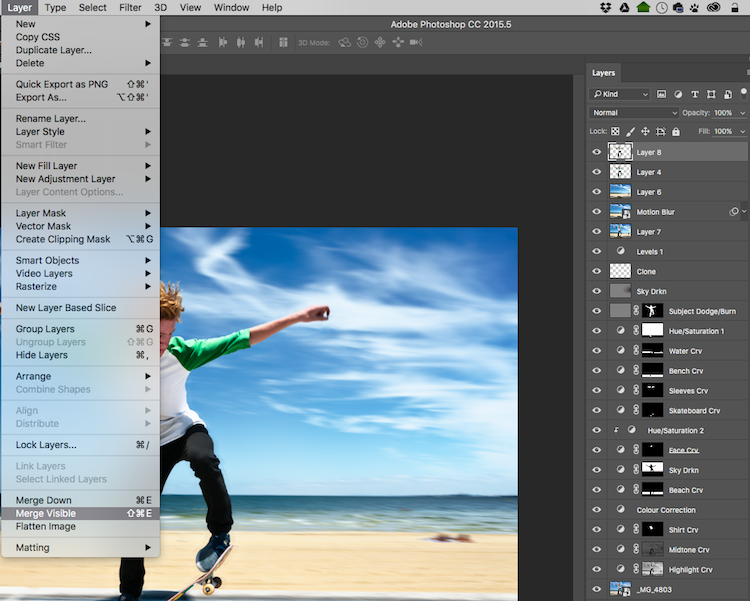
Step 1: You need to create a new layer with all the adjustment layers combined (stamped) into that one layer – but you don’t want to flatten the image. To do this, select the top visible layer (visible layers are denoted by the eye icon directly next to them), hold down the Option/Alt key, and select Layer > Merge Visible. Or you can use the keyboard shortcut: Then do one of the following: Press Shift+Ctrl+Alt+E (Windows) or Shift+Command+Option+E (Mac).

Photoshop will create a new layer containing the merged layers. So you will now have a layer at the top of your Layers panel which has all the visible adjustments made below, stamped into it (the rest will remain untouched).

With the top visible layer selected, go Layer > Merge Visible.

With the top visible layer selected, hold the Alt/Option key down, and select Layer > Merge Visible.

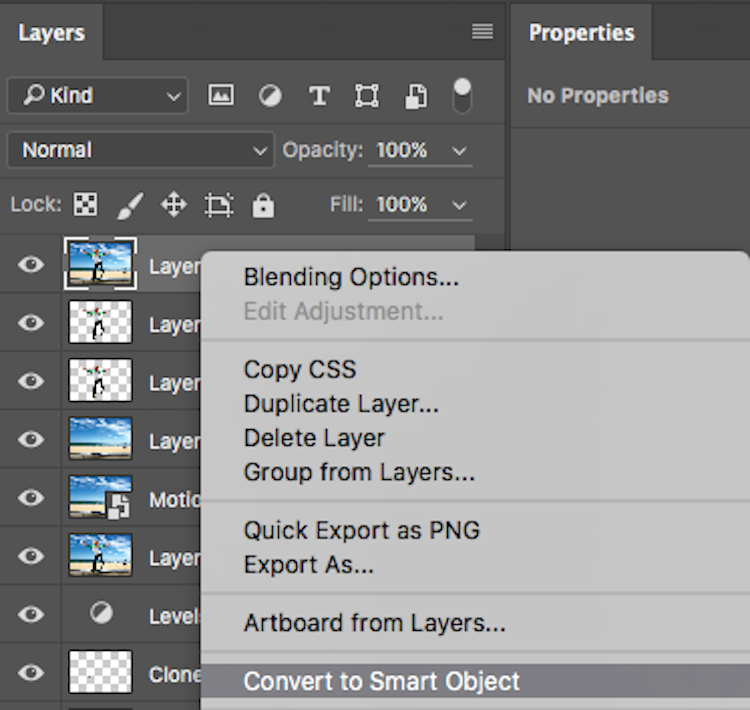
Step 2: With this new top layer selected, right-click and choose Convert to Smart Object. Now any adjustments you apply to this layer such as; motion blur, gaussian blur, any sharpening, etc., you will be able to alter again later by double-clicking on the Smart Object.

Convert to Smart Object

Creating Smart Objects is that simple, and the flexibility they give you is tremendous!

A couple of things to know about Smart Objects:

If you do not open the image in Photoshop as a Smart Object, creating a Smart Object in Photoshop will not give you the same editing abilities. If you want these editing abilities on your background layer, you must open it as a Smart Object.

Next, if you have made adjustment layers with masks applied to them, I would highly suggest that you do not crop the image through the Smart Object. This will crop the background image (your base image) and any masks that you have will not adjust to the new crop so you will have to go do your masking again. I would recommend doing any cropping before opening in Photoshop, or after you are finished in Photoshop.

Don’t be scared of Smart Objects. They are dead easy to make, and offer a massive amount of flexibility. Do you use Smart Objects? Have they helped you in your editing workflow? Let us know in the comments below.

googletag.cmd.push(function() {
tablet_slots.push( googletag.defineSlot( “/1005424/_dPSv4_tab-all-article-bottom_(300×250)”, [300, 250], “pb-ad-78623” ).addService( googletag.pubads() ) ); } );

googletag.cmd.push(function() {
mobile_slots.push( googletag.defineSlot( “/1005424/_dPSv4_mob-all-article-bottom_(300×250)”, [300, 250], “pb-ad-78158” ).addService( googletag.pubads() ) ); } );

The post How to Use Smart Objects in Photoshop by Daniel Smith appeared first on Digital Photography School.


Digital Photography School

 
Comments Off on How to Use Smart Objects in Photoshop

Posted in Photography


CASE Remote Air is the world’s smallest smart camera controller

20 Jul

CheeringTech, the maker of the CASE smartphone remote for DSLRs, has launched a crowdfunding campaign on Indiegogo for a lighter and smaller next-generation version, the CASE Remote Air.

CheerinTech says at 2.4″ x 1.6″ x 0.2″ the CASE Remote Air is the world’s smallest smart camera controller. At only 50 grams it is also very lightweight. Like similar devices, it connects to the USB-port of your DSLR and creates a Wi-Fi hotspot that allows for a wireless connection to your smartphone or PC. Using a dedicated app you can then see the camera’s live view image on the display of your smartphone, alter camera parameters, control video shooting or use one of the special modes, such as focus-stacking or time-lapse. In addition, you can download images from the camera to your device, including Raw files.

CASE Remote Air works with many Canon and Nikon DSLRs and can be controlled from Android and iOS mobile devices or PC and Apple computers. You can currently reserve a CASE Remote Air for $ 79 plus shipping. Delivery is expected for October. More information, including a full list of compatible cameras, can be found on the Indiegogo crowdfunding site. 

Articles: Digital Photography Review (dpreview.com)

 
Comments Off on CASE Remote Air is the world’s smallest smart camera controller

Posted in Uncategorized


Review of The MIOPS Smart Trigger

10 Jul

The MIOPS Smart Trigger is many things you’d want in a photography accessory; small, rugged, and multipurpose. It may not be the perfect answer to any solution, but its range of modes and really cool connectivity options, make it a very useful and intriguing tool nonetheless.

At the time of this writing, the MIOPS Smart Trigger is available for $ 199.99 at Amazon (for the standard versions), which makes it a bit pricey for its size, but a great value when you consider the depth of its functionality. The trigger features seven different modes of operation, all available with various sensitivity settings, they include:

  1. Lightning mode
  2. Sound trigger mode
  3. Time lapse mode
  4. Laser mode
  5. HDR mode
  6. DIY mode (experts only)
  7. Scenario or custom mode

MIOPS Camera Trigger

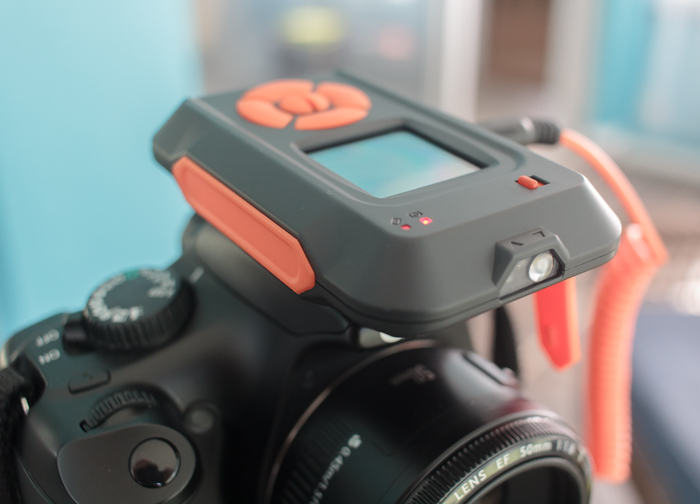
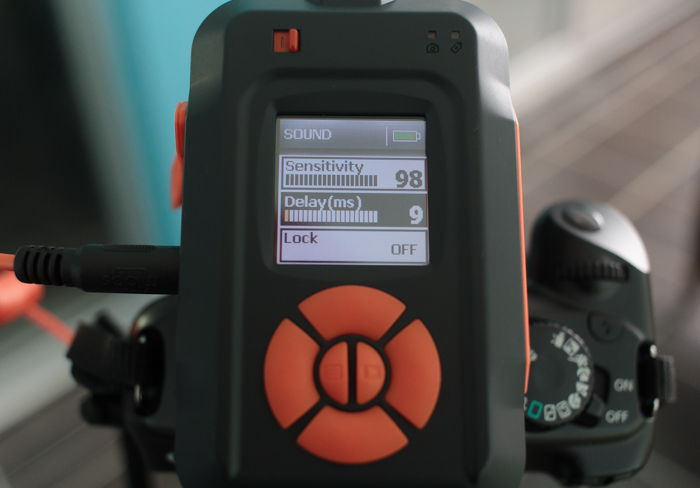
The exterior of the unit is very rugged and appears it would be extremely durable. You definitely get a feeling of solidness when holding it. A 128×128 pixel, full color display, is mounted just above the large buttons, used for operation and selecting menu options on the front of the trigger.

The device is powered by a 3.7 volt/1020 mAh lithium ion battery, which is rechargeable via the provided USB cable. It is also possible to provide power through the USB connection, with no battery in place.

This new trigger kit from MIOPS is an evolution (and apparent replacement) to the Nero Trigger previously available from the company. The newer version was reworked, inside and out, to be a more rugged and competent accessory. Versions of the kit are available for Canon, Nikon, and Sony camera systems, as well as other brands including Olympus, and certain smartphones.

MIOPS7

The various camera connection cables mean that one unit can operate with many different camera makes and models, and extends the usefulness of the accessory.

The trigger unit itself is connected in one of two ways, either to an external flash unit, or to the camera itself. Cables for each are included with each unit. This allows the trigger to sync and fire, either the flash system, or the camera shutter itself. Flash units are connected via the PC sync jack, and cameras are connected through the remote shutter release jack, meaning any camera or flash unit with these common connectors can be potentially be paired with the MIOPS trigger.

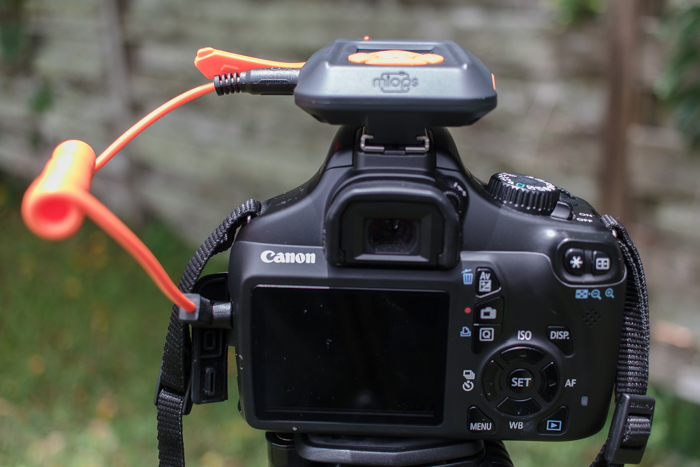
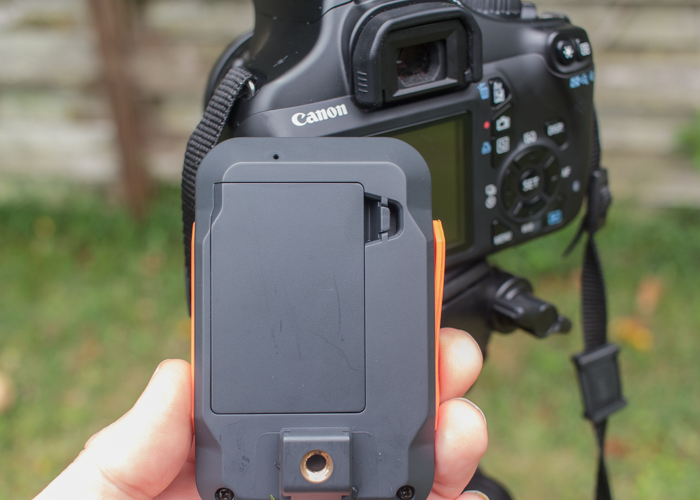
The MIOPS trigger can either mount on your DSLR’s hotshoe connector, or on your tripod via a standard screw-in connection.

The MIOPS trigger can either mount on your DSLR’s hotshoe connector, or on your tripod or light stand, via a standard screw-in connection.

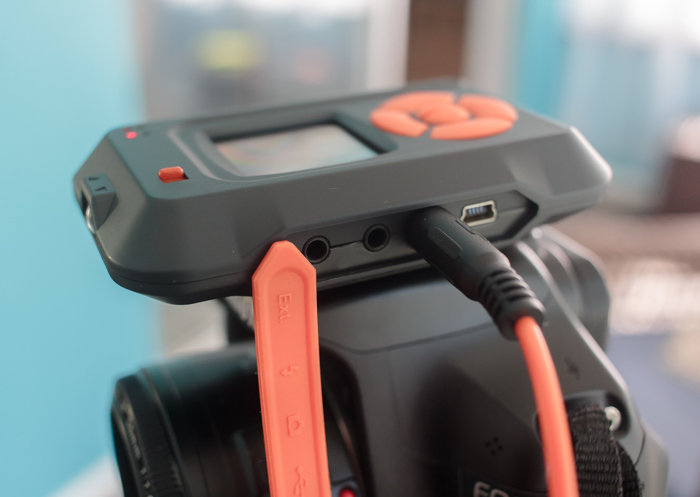
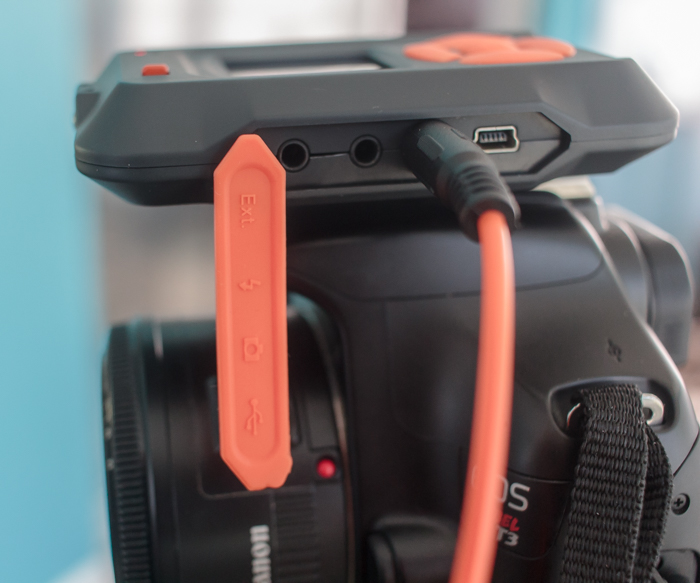
The unit can be connected for charging via a micro-USB cable, which basically means most smartphone charging cables, which are readily available. The trigger housing is rugged plastic, with raised, easy to press controls and features a large color screen for displaying information, a microphone, and a light sensor that is used for the Lightning and Laser modes. Lastly, an additional port is available for connecting various external sensors in DIY Mode.

The trigger slides on a standard camera hot shoe, but also has a screw mount for placement on a separate tripod or light stand.

The trigger will accept a standard screw-in type connection for mounting on a tripod.

The trigger will accept a standard screw-in type connection for mounting on a tripod.

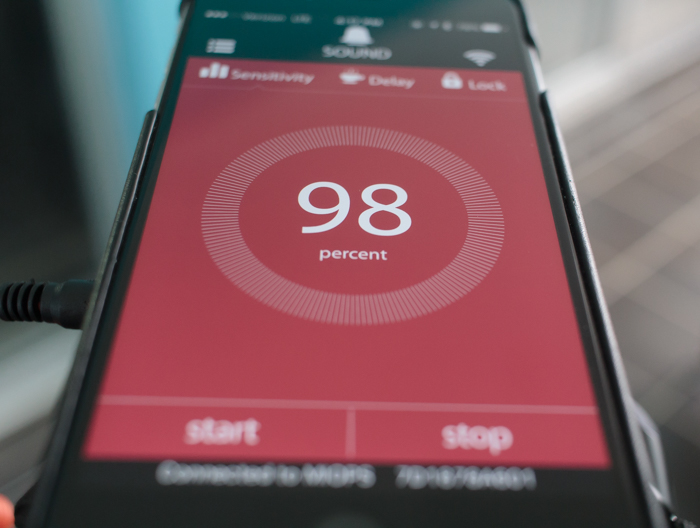
To me, one of the best features of the unit is its available remote connectivity via the MIOPS smartphone app. The app is free (available for Apple and Android phones), and allows you to access and control all modes offered by the trigger. After downloading the app, I found it connected to the unit without issue, and I was able to access all modes and modify the settings quickly, without having to even look at the unit mounted on top of my camera.

The accompanying MIOPS smartphone app is a highlight of the system, and allows you to control everything remotely.

The accompanying MIOPS smartphone app is a highlight of the system, and allows you to control everything remotely.

1 – Lightning Mode

Lightning mode is intended to allow you to capture flashes of lightning with your camera, without having to run series of long exposures or using bulb mode. You can set the sensitivity from 1 to 99, and start the sensor to capture the event. This mode is also sensitive to other types of light, such as fireworks, sparks, as well as artificial light, widening the gamut of possibilities. I didn’t get an opportunity to test the unit in a lightning storm, but I did attempt to trigger the MIOPS with a burst from a flashlight, and found that it picked up the light immediately and accurately.

As with several modes on the product, you’ll need to have your camera’s lens in manual focus in order for it to work.

2 – Sound Mode

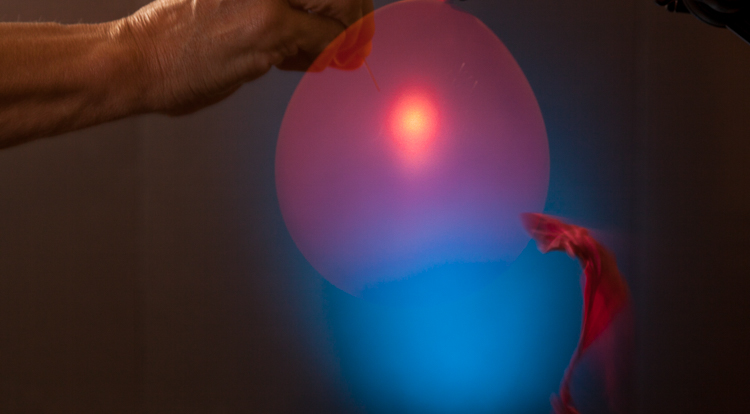
Although this is the mode you’d expect to be the most useful, (and the biggest draw to the device) I found this one less intriguing due to the way it works. Without using the device, I’d expect it to allow me to trigger the shutter (cables are included to hook the MIOPS unit up to either your camera shutter, or an external flash unit), and capture the image, such as a balloon being popped, for example. This isn’t possible however, due to a slight lag, and the ridiculous shutter speeds necessary.

Each mode features several customizable parameters, each adjustable on the unit itself as well as the smartphone app.

Each mode features several customizable parameters, each adjustable on the unit itself as well as the smartphone app.

Instead, you have to perform any captures of this type in total darkness, a pretty big drawback in my book. The idea is to leave your camera shutter open (which is why darkness is needed), and use the MIOPS unit to trigger a separate flash and capture the action.

As a natural light landscape photographer, I don’t have external speedlites available to me. The one I was finally able to get ahold of ended up not being a TTL enabled flash, and didn’t have the connection port I needed to use it.

In the end, I became frustrated and gave up. But of course, this isn’t the trigger’s only feature, and there were plenty of other modes to keep me busy and satisfied.

Editor’s note: I actually had a chance to try out the Miops trigger as well and was playing with sound mode. My friend and I had the same issues – we realized we had to fire the flash with it, in total darkness and somehow pop the balloon. We tried it on a balloon and smashing a light bulb. This is all we managed to get:

miops-sound-750px-01

Not exactly frozen or what we were hoping for. We learned later that by turning down the power on the flash the duration is shorter and more freezing occurs. Would have been good for more helpful instructions to come with the unit. We struggled to make this work.

miops-sound-750px-02

The best bulb smash we got after many attempts. Be careful if you try this at home! – Darlene

3 – Time Lapse Mode

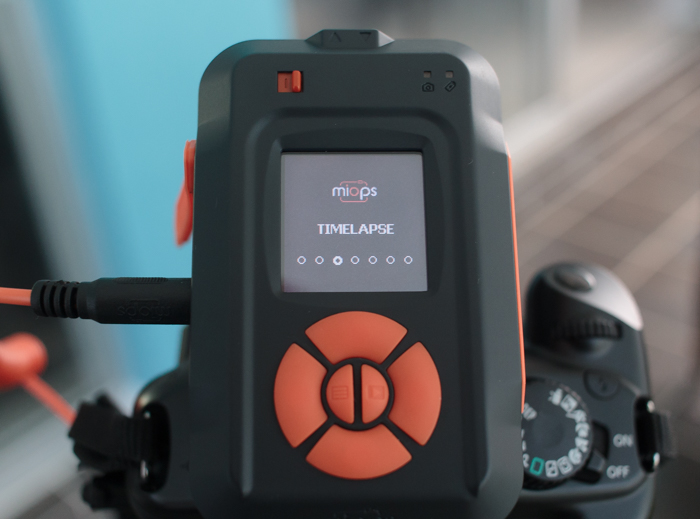
Another extremely useful mode is the time lapse feature. With this mode you’re able to set a few parameters, to produce a set of images showing changes to a scene over a period of time. With this feature, you must set your camera to bulb mode so that the trigger can override your camera’s settings.

MIOPS5

After switching to time lapse mode on the unit, you can set the interval (how often the camera takes a shot), the exposure (this is why your camera must be in bulb mode), as well as the total number of images that will be shot before the process completes.

In my testing, I found it very easy to set these parameters, and after a couple of trials, was pleased to find all of the functionality of this mode worked perfectly, without any issues.

4 – Laser Mode

This is another mode that I was unable to try out, but based on the accuracy of the sensor, I believe it would perform well. This mode requires a constant laser beam to be fed into the front sensor, and will trigger the camera when this beam is broken.

The laser doesn’t have to be a particular type or color, meaning a $ 10 pen laser pointer from an electronics store will do just fine. The hardest part of the operation will probably be mounting the laser on a stable surface and preventing the beam from being broken prematurely. After you’ve setup the laser, you can adjust the delay on the unit up to 999 milliseconds. A final setting allows you to designate a set number of frames to capture in this mode before the trigger stops.

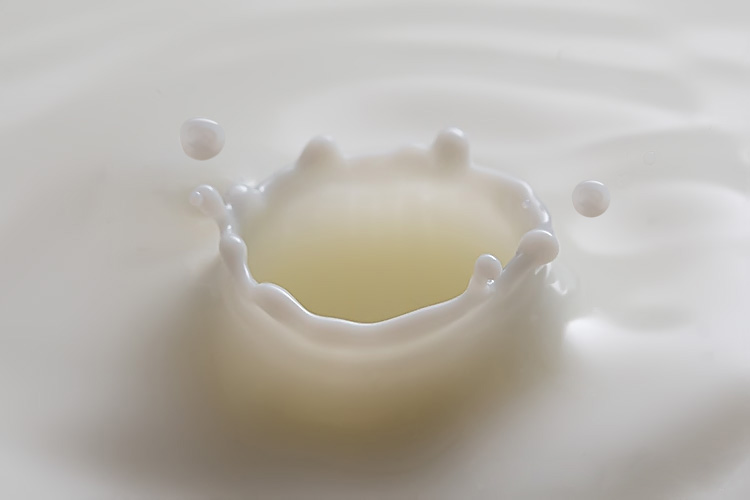
This mode could be used to capture animals moving into the frame (could be tricky to setup) or something falling or moving like pouring shots or freezing water droplets.

10

Image by dPS author Ivo Guimaraes

5 – HDR Mode

HDR is a familiar term for most photographers; it is a technique where two or more images of varying levels of exposure are combined in post-production to capture a higher dynamic range, more equivalent to what the human eye sees. The MIOPS trigger allows you to set these parameters on the unit itself, including the center value (the middle value in the range of exposure levels to be captured), the difference in exposure value from one frame to the next (such as 1 stop between, or 1 1/2 stops between), and the total number of frames to expose, up to 7.

A 3 shot HDR composite from the MIOPS trigger.

A 3 shot HDR composite from the MIOPS trigger.

While this feature definitely extends the functionality and usefulness of the device, it must be said that it doesn’t really offer anything that most DSLR’s can’t do already, and I would almost always prefer to just set this up in-camera.

6 – DIY Mode

DIY mode is one of the modes that really makes the MIOPS unit shine, as it adds functionality not standard on most cameras. The trigger has a 3.5mm stereo jack on the side of the housing, and this allows you to connect a multitude of external sensors, adjust the threshold (percentage of change from the sensor), the delay of the trigger event in milliseconds, and mode, which lets you set what type of event detected from the external (add-on) sensor will trigger the unit, such as change, increase, or decrease.

This mode is advanced, and requires multiple connections in most cases, but the possibilities are almost endless. Sensors that measure changes in temperature, pressure, humidity, or motion can all be used to trigger the camera’s shutter.

7 – Scenario Mode

Scenario mode basically allows the user to program the unit by stringing together a series of functions, and having them execute based on a unique situation. Up to 5 steps can be saved for each custom scenario, and a total of 3 scenarios can be stored on the trigger. This entire function can then be executed via the Miops unit itself, or remotely via the smartphone app.

For example, let’s say a thunderstorm is approaching and you want to capture different types of shots during the event. You could program Lightning Mode as the first step, capturing a set number of stills of the lightning, and then immediately activating Time Lapse Mode in the second step, capturing photos at 5 second intervals to assemble later.

For each step, all of the usual parameters for each mode are available.

I didn’t get the chance to try this scenario out during an actual thunderstorm, but I did attempt to string together a couple of functions and execute them, and the results were excellent. Once the first step was completed (a 5 shot HDR photo), the trigger immediately went into Sound Mode, and stopped after it detected a loud sound (the clap of my hands from a few feet away).

I’d definitely chalk this mode up as one of the most useful features of this unit.

Remote Release

To me, this is one of the most useful features of the MIOPS trigger. I can connect the unit via bluetooth, fire up the accompanying app, and control my shutter from several feet away, wirelessly.

I tried this in a normal scenario I often find myself in, which is my tripod lowered to a short height, legs planted into the surf of a local beach, taking low angle, long exposure shots.

MIOPS_LowAngleBeach

I was able to snap off many perfectly-timed images, without ever having to worry about holding on to my usual corded cable release, keep the camera as still as possible, while avoiding the high winds blowing the cord around and smacking my camera.

I will use this, all the time!

Conclusion

The MIOPS Camera Trigger is a sturdy, rugged little unit that was easy to set up and use (note: this device is more aimed at intermediate to advanced photographers and could easily be confusing for beginners). It has a couple of features that almost make it worth the price of admission in my book, but a few issues linger that keep it from being the perfect tool, including a highly-touted Sound Mode. It promises high-speed photography but requires total darkness and a flash setup to accomplish, as well as a couple of modes that feel a bit tacked on, and not anything you couldn’t do already with existing camera settings (HDR and time lapse).

MIOPS6

Still, the MIOPS is a fun tool to use, the Remote Release mode, DIY mode, and smartphone connectivity are extremely useful, and if you’ve got $ 200 bucks burning a hole in your pocket for a new gadget, this might be one to pick up.

Have you had any experience with the MIOPS Camera Trigger, or triggers in general? Sound off below and let us know what you think, and show us some of the work you’ve accomplished!

googletag.cmd.push(function() {
tablet_slots.push( googletag.defineSlot( “/1005424/_dPSv4_tab-all-article-bottom_(300×250)”, [300, 250], “pb-ad-78623” ).addService( googletag.pubads() ) ); } );

googletag.cmd.push(function() {
mobile_slots.push( googletag.defineSlot( “/1005424/_dPSv4_mob-all-article-bottom_(300×250)”, [300, 250], “pb-ad-78158” ).addService( googletag.pubads() ) ); } );

The post Review of The MIOPS Smart Trigger by Tim Gilbreath appeared first on Digital Photography School.


Digital Photography School

 
Comments Off on Review of The MIOPS Smart Trigger

Posted in Photography


Street Smart: Theft-Proof Bike Comes With Recovery Service Guarantee

01 Jun

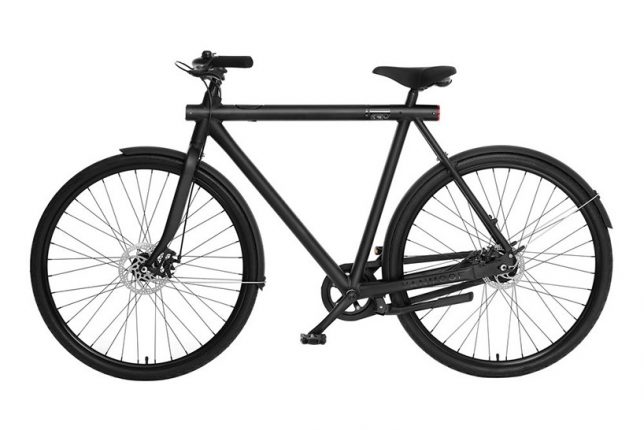
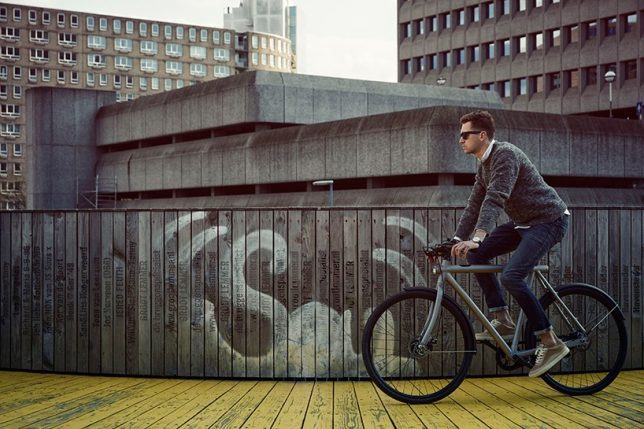
theft proof smart bike 8

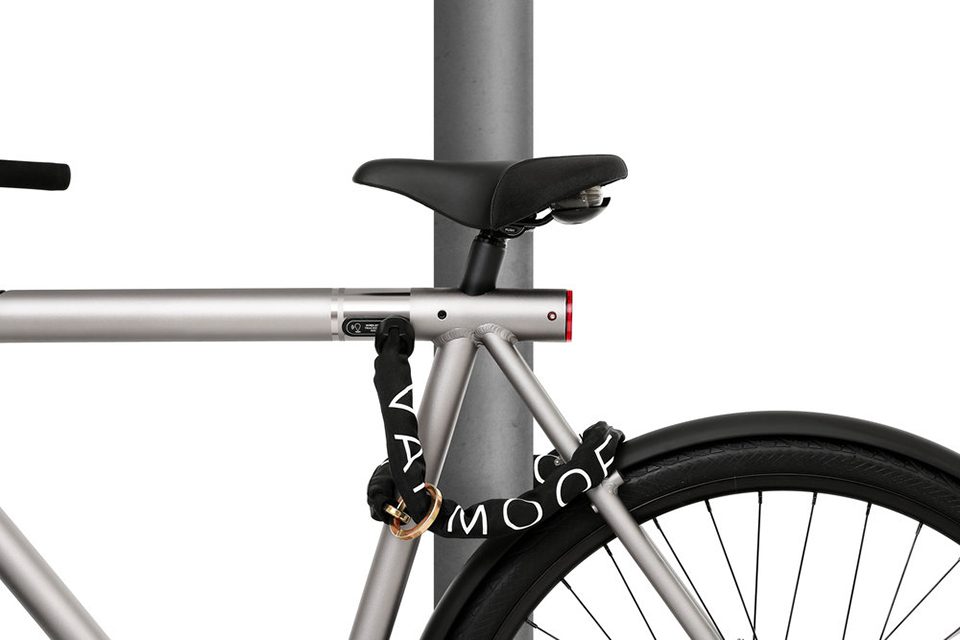
Even the strongest bike locks aren’t totally foolproof, but when locks fail or risky storage options don’t pay off, the makers of this smart bike will send a recovery team after your ride. The ‘SmartBike’ by Amsterdam-based bike specialists VanMoof comes with a lot of cool features, but this anti-theft guarantee is definitely the most valuable of them all, and they’ll even buy you a new one if they can’t find it once it’s stolen.
theft proof smart bike 3

theft proof smart bike 2

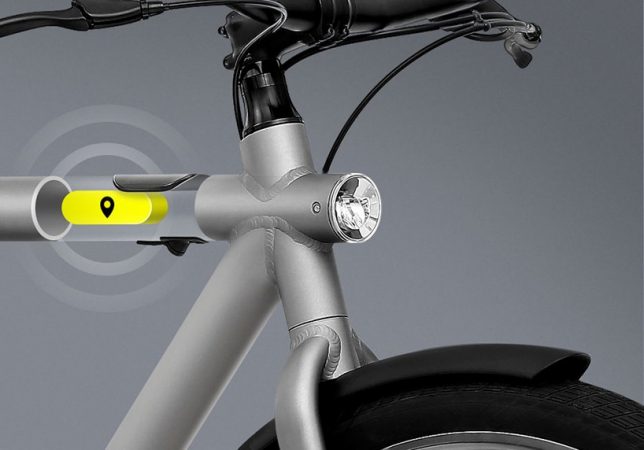
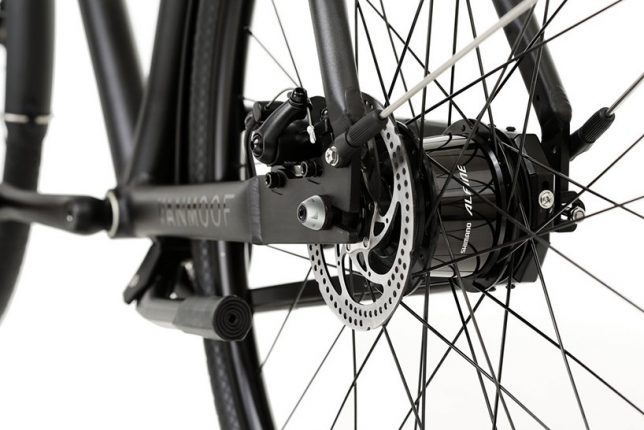
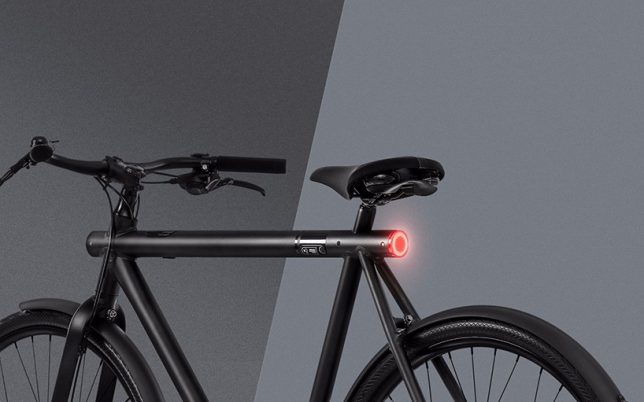
Available in 3 speed in grey or 8 speed in black, the VanMoof SmartBike features GSM anti-theft tracking with ‘Peace of Mind Service’ free of charge for the first two years of ownership. If a thief manages to make it past all the built-in anti-theft parts, like tamper-proof nuts and screws, the GSM cellular info will activate, allowing the recovery team to find it even if it’s inside a building. They promise to get it back within two weeks, with the last mile of tracking powered by a “top-secret” locating technology.

theft proof smart bike 6

theft proof smart bike 7

theft proof smart bike 5

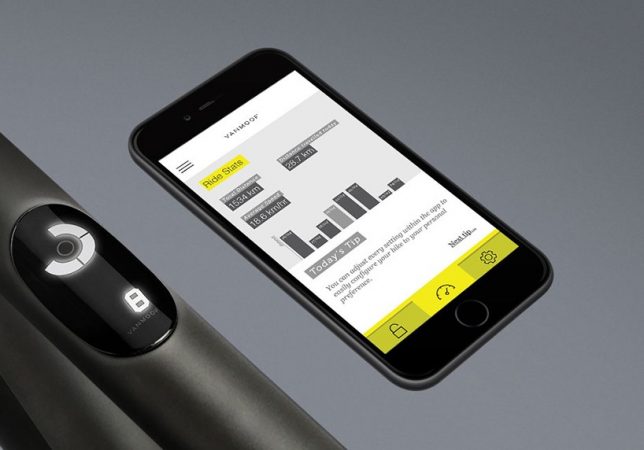
But theft isn’t the only special feature on this bike. Designed to be the ultimate city ride, this one comes with a smartphone app, and can be unlocked with a tap of your finger on your phone or the bike’s dashboard. The software will automatically check via your smartphone’s Bluetooth that it’s really you before it unlocks your bike, so freeing it takes seconds. The app also offers personalized direction and weather for your commute and ride stats, and the bike has head and tail lights that automatically turn on and off. All electric components are pedal-powered, so there’s no charging required.

theft proof smartbike 1

theft proof smart bike 4

The bike is now available for pre-order starting at $ 1098.00, with free shipping.


WebUrbanist

 
Comments Off on Street Smart: Theft-Proof Bike Comes With Recovery Service Guarantee

Posted in Creativity