The post Texture and Clarity Sliders in Lightroom Classic CC: What’s the difference? appeared first on Digital Photography School. It was authored by Adam Welch.
Throughout the last couple of years, Adobe has released an absolute tsunami of updates for their photo editing platforms. Adobe Lightroom Classic went through a plethora of upgrades and changes, with new (and sometimes major) add-on’s seemingly incorporated with each new build. One of these sizable fresh additions to the Lightroom Classic toolkit came in May of 2019 with the release of v8.3. It’s called the Texture slider.

Yep, that little guy right there.
You’ll find the texture slider nestled comfortably in the Presence section of the basic panel alongside the now veteran Clarity and Dehaze adjustments. These Presence sliders are extremely interesting in their effects and how they each accomplish their separate actions. Clarity, Dehaze, and now Texture, all perform similar adjustments. They each tweak contrast within our photos to varying degrees with wholly different results.
Texture and Clarity are particularly interesting. Both perform quite similarly, while at the same, remaining their own animals…if that makes any sense? In this article, we’re going to have a closer look at the Clarity and Texture sliders.
I’ll explain how they work and show the different effects each of these powerful sliders can have on your photos.
Texture vs Clarity
All right, so what’s the difference between Clarity and Texture?
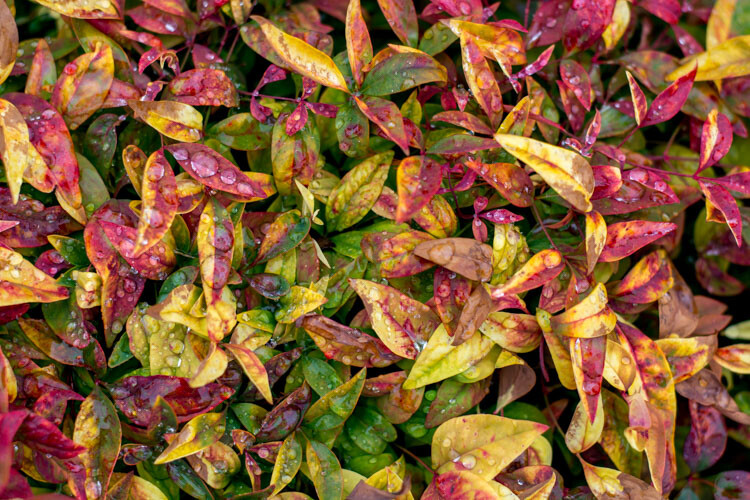
We’ve already surmised they are similar in that they function to bring out detail within a photo. However, you’ll notice some very obvious differences as soon as you view the effects of each slider side by side. Have a look at this. Here’s the original photo:

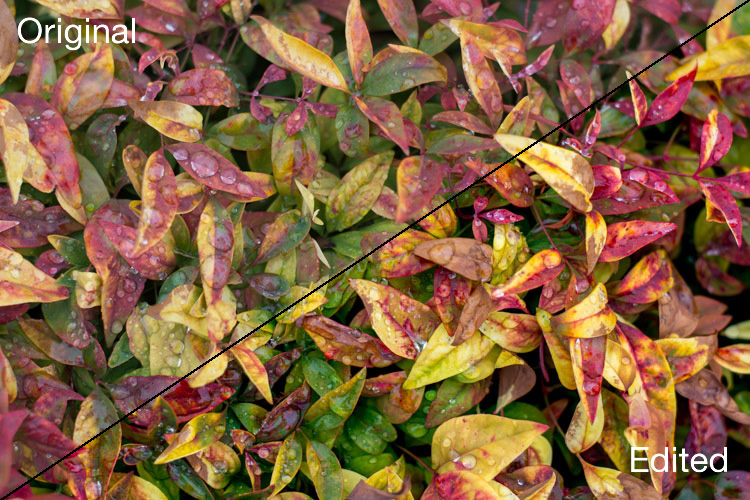
And now a side-by-side comparison of some Clarity and Texture Slider adjustments.

In the photo on the left, I’ve increased the Clarity slider to +100. I’ve applied +100 Texture to the photo on the right. The difference is apparent, but what exactly is happening here? First, let me remind you what our beloved Clarity slider actually does.
A refresher on Clarity
In short, Clarity interacts with our photos by increasing or decreasing the contrast between midtone luminance values. This essentially gives the illusion of our image becoming clearer. However, in reality, all that is happening is the application of more or less contrast to the light and dark areas which fall as midtones (between highlights and shadow).
You’ll also notice that the photo is perceptively brighter and that the color saturation diminishes slightly when increasing Clarity. On the other end of the spectrum, decreasing clarity adds in a soft-focus effect. This can sometimes work extremely well, depending on your subject. For a little more of a breakdown on Clarity check out my other article, How to Make Your Photos Shine Using Clarity, Sharpening, and Dehaze in Lightroom. You’ll also learn some great tips on using Clarity along with the Sharpening and Dehaze sliders.
What is Texture?
Now let’s talk about the new kid on the block, the Texture slider.
Ironically enough, the idea for the Texture slider was born not from the goal of increasing the textures (positive) within an image but rather decreasing them (negative) thereby essentially smoothing out a photo. The Texture slider was initially named the “Smoothing slider” in the early stages of its development.
The team at Adobe were aiming to migrate into Lightroom (at least to some extent) the skin retouching capabilities of Photoshop. Their goal was to offer a feature that packed a less drastic punch than the Clarity slider. All while still being able to increase (or decrease) the apparent contrasts in the photo to give the illusion of enhanced textures within the images.*

+69 texture added globally
The Texture slider lands somewhere between Clarity and Sharpening in Lightroom. A good way to think about Texture is that it is much less harsh than Clarity and offers more subtle results without affecting absolute brightness or color saturation.
Texture focuses it’s smoothing or clearing effects on areas of a photo which possess “mid-frequency” features. You can think of these as medium detail areas. For reference, a cloudless sky would be considered a low-frequency feature while a cluster of trees would be considered a high-frequency feature.
It is also worth mentioning that like many of the tools found in Lightroom Classic, you can apply the texture effect both globally (the entire photo) and locally to specific areas. Local negative texture adjustments work wonders for smoothing out skin wrinkles and blemishes in your portraits.

Before localized skin smoothing

After some retouching using a negative texture with Lightroom’s adjustment brush. Now I only look nominally haggard…
*Note: This is an extremely basic explanation of the Texture slider. If you’re feeling truly adventurous and want to learn more about the technical makeup of the Texture slider, I highly recommend this post over on the Adobe Blog.
Should I use Clarity or Texture Slider?
The looming question is, “When should I use Texture, and when should I use Clarity?” Unlike most commentary I offer on the absolutes of post-processing, which often borders on a Zen-like existentialist approach of “it all depends on the image,” there are some relatively straightforward things to look for when deciding which adjustment will work best for your particular photo.
Try the Clarity slider if:
- Your image consists of high-frequency features
- The effect is needed on a more global scale
- Your image is a landscape
- The image is black and white
Try the Texture slider if:
- Your image has large areas of mid to low-frequency features
- A more subtle enhancement is needed
- The image is a portrait
- Your image has extreme color contrasts/saturation
Of course, these are just guidelines, and I hope you experiment with both the Clarity and Texture sliders.
Also, nothing is stopping you from using a combination of the two – especially when you are applying them using local adjustment tools.
Closing thoughts on Texture and Clarity Sliders
You’ve heard me say time and time again that less is generally more when it comes to applying adjustments in post-processing. Just because a tool is available doesn’t always mean you have to use it to its full strength.
Perhaps this is no truer than when it comes to using the tools found in the Presence section of Lightroom, in this case, the Texture and Clarity sliders. These nifty little adjustments can yield amazing results for your photos.
In fact, I use both local and global Clarity and Texture slider adjustments in virtually all of my photos to one extent or another.
With that said, it’s a good practice not to over-process your images. Some judicious use of negative Texture can shave years off your clients face. However, go too far, and they might end up looking like a wax doll.
Adding positive Texture can bring out the subtle beauty of tree bark, however, use too much, and you’ll end up with…well, you get the idea.
What are your thoughts on the new Texture slider in Lightroom Classic CC? Is it a feature you will use regularly? Sound off in the comments below!

The post Texture and Clarity Sliders in Lightroom Classic CC: What’s the difference? appeared first on Digital Photography School. It was authored by Adam Welch.


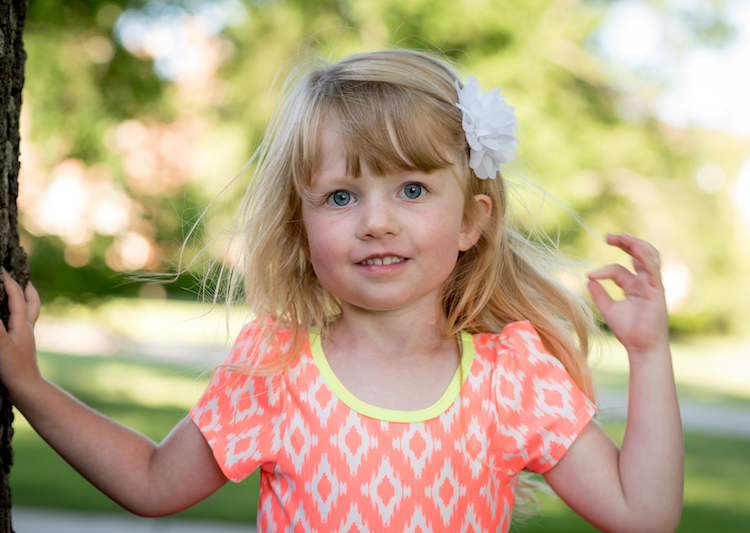
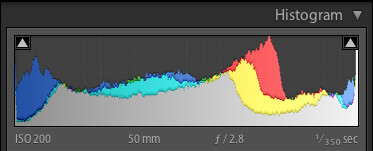
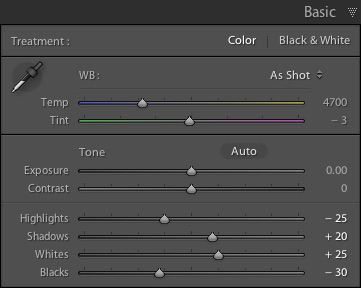
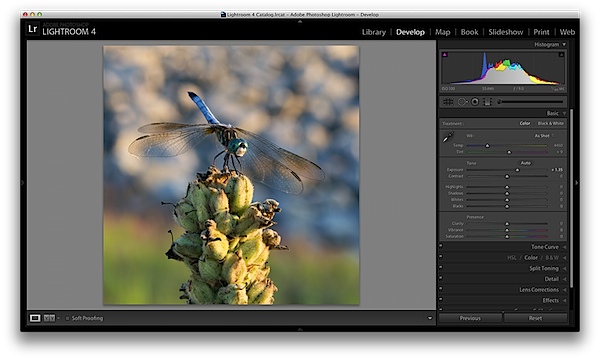
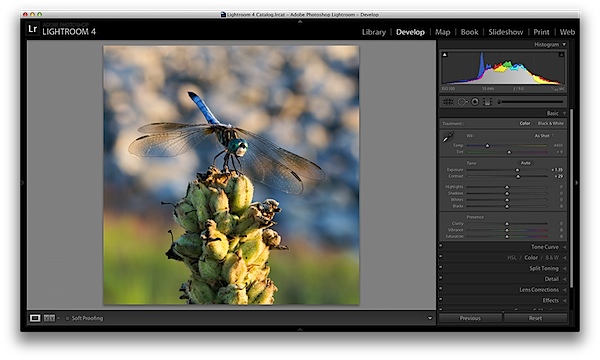
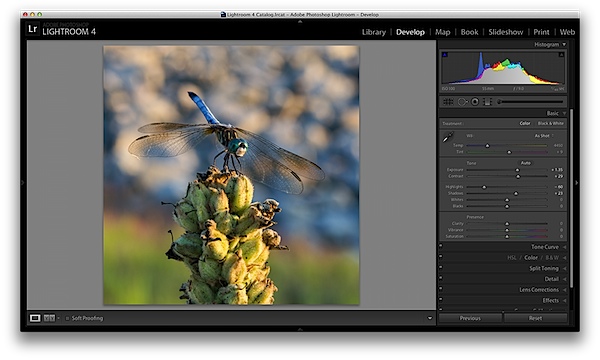
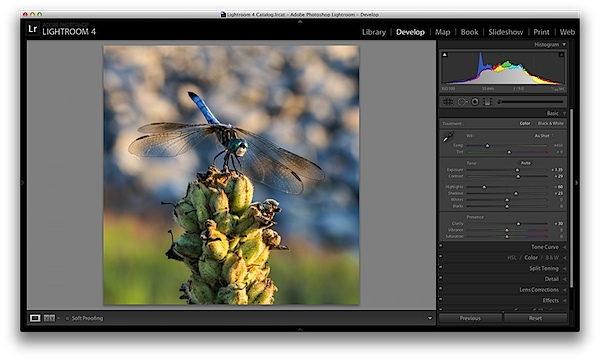
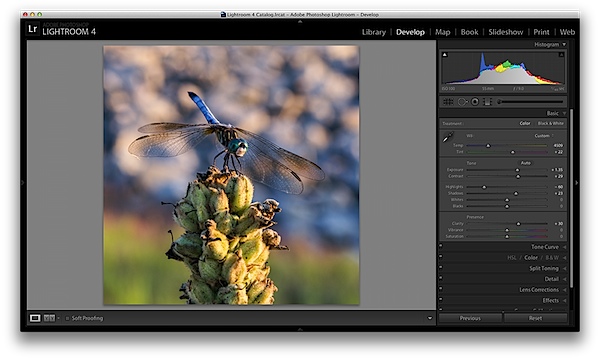
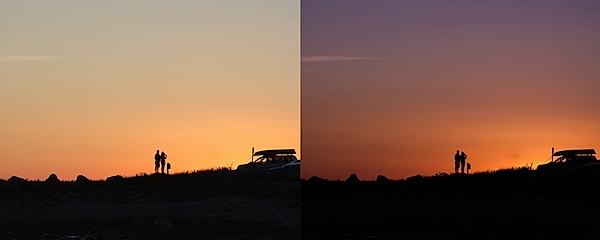
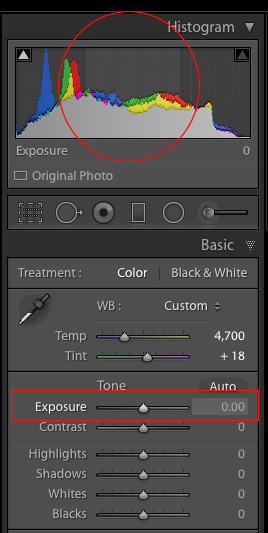 To demonstrate the effect of each slider I’m going to show you a picture in various states of editing, as I adjust values for each option one by one. If you are used to using the Exposure (note in the screenshot on the right what areas of your image are affected by moving the Exposure slider) and Contrast sliders to adjust your images, you may want to put those aside for now and focus on these other four instead, as they can give you significantly better results.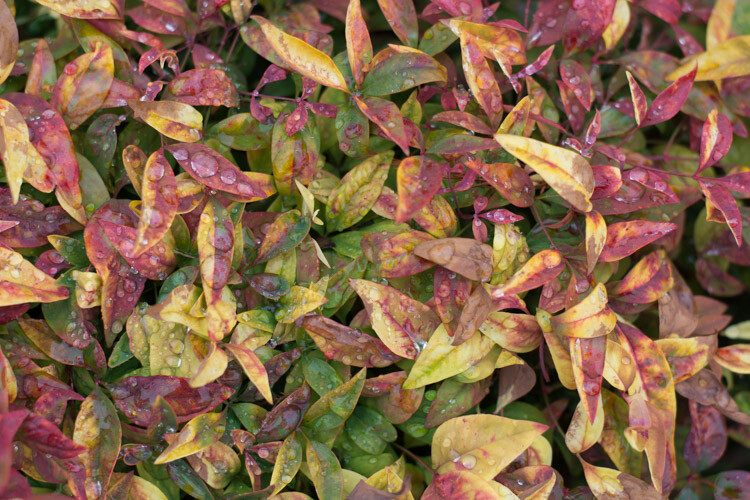
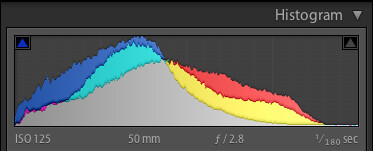
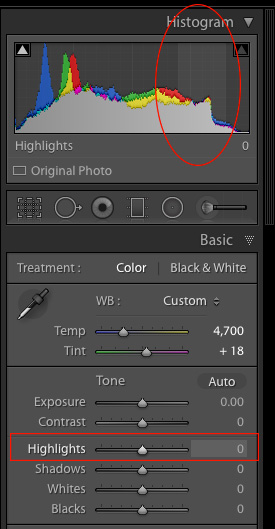 I mentioned the Exposure slider in the previous paragraph, which is a tool that adjusts the overall brightness or darkness of an entire image (based on the midtones). The Highlights slider allows you to perform a similar type of adjustment, but only with the brightest parts of an image (tones not quite pure white). Moving it to the left will make the brightest parts darker, and moving it to the right will make the same parts brighter. Hover over the Highlights slider with your mouse to see on the histogram which parts of the image will be affected (see screenshot at the right).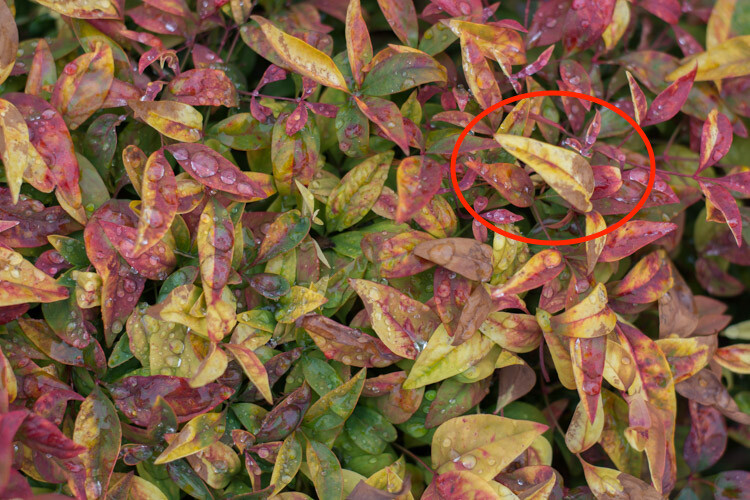
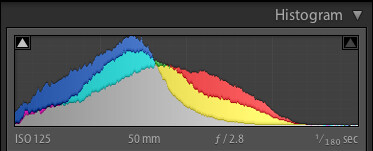
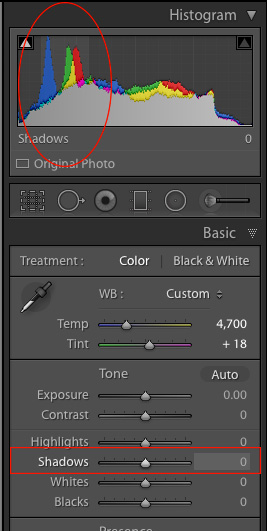 In a similar vein as the Highlights slider, the Shadows option makes the dark parts of your image a little brighter (see image right for which areas are affected). It’s kind of like using the Exposure slider to make your image brighter, but restricting it only to the sections of an image that are very dark, while ignoring the rest. This works wonders on pictures that are underexposed, as modern cameras have image sensors that capture an amazing amount of detail in the shadows, particularly at lower ISO values. It’s rare that you will need to (or even want to) boost the shadow level clear up to 100, but it’s nice knowing Lightroom at least gives you the option of doing so.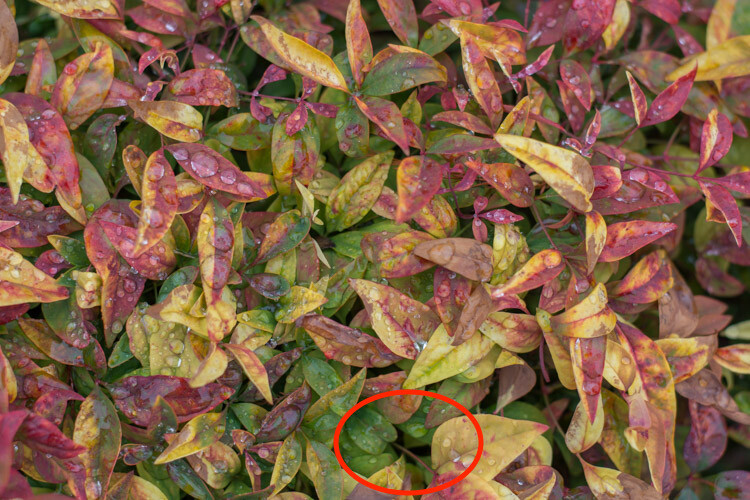
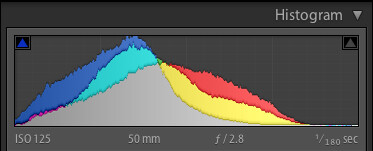
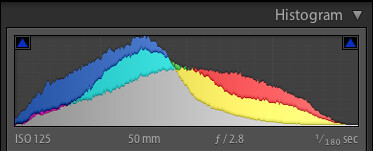
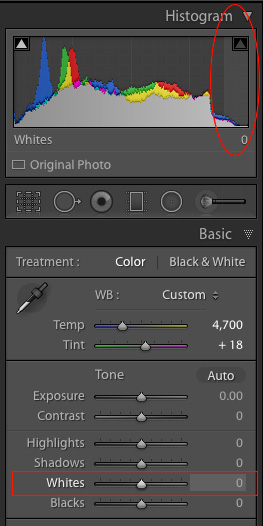 This is related to the highlights, but has a slightly different impact on your image, that is subtle but quite impactful. Adjusting this to the right essentially makes the white tones in your image, more pure white. It affects all the white tones in the photo (see image on the right) as opposed to the highlights slider which only deals with a narrow range of very bright colors.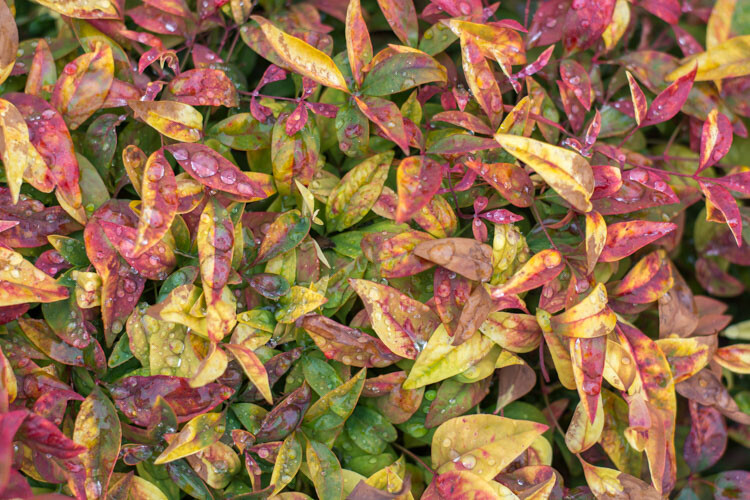
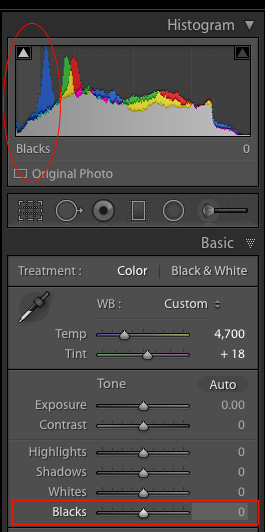 Similar to the Whites slider, this one adjusts the black point of your image, or how dark the darkest portions really render. I almost always slide this to the left to give my photos a little more punch. It helps pictures have a little more contrast, while bringing out a lot more color in any image as a whole.