
RSS
 

Posts Tagged ‘Showing’

Windows 8 – Make it Easier to Differentiate Explorer Windows by Showing Full Paths

24 Apr

Add the full paths to Explorer folders in Windows 8.1 to make it easier for you to navigate your system.

Let’s say you are copying files between different folders on your Windows 8.1 system or networked drives, or perhaps you are performing basic file maintenance. The need comes to work with two different folders that end with the same name in the path. Another task distracts you, and now you need to get back to work on a particular folder. If you hover your mouse pointer over “File Explorer” in the Taskbar, only the ending parts of the paths are readable. You’ll have to manually click on each window to find out what path each thumbnail represents.

What if you could make the folder windows contain the full paths, such as “C:\Windows.old\Windows\Cursors”, instead of just “Cursors”? This is an easy tweak….

Read more at MalekTips.
New Computer and Technology Help and Tips – MalekTips.Com

 
Comments Off on Windows 8 – Make it Easier to Differentiate Explorer Windows by Showing Full Paths

Posted in Technology


Pictures emerge showing widely-leaked Fujfilm ‘X-T1’

25 Jan

xt1leak_1.jpg

Last week, Fujifilm teased a new, apparently high-end X-series camera. Inevitably this has lead to a flurry of new rumors, much speculation about the camera’s specification, and now a slew of product photographs courtesy of Japanese site digicame-info.com, apparently showing an ‘X-T1’. At this point, we’re not sure whether Fujifilm will have anything new to announce when the camera finally gets officially launched. Click through for a taste of what’s (probably) coming up. 

News: Digital Photography Review (dpreview.com)

 
Comments Off on Pictures emerge showing widely-leaked Fujfilm ‘X-T1’

Posted in Uncategorized


Showing Speed: Using Panning When Shooting Action

23 Jan

Panning is a great way to capture children at play. Exposure is 1/15, f/13, ISO 100. Canon EOS 5D Mark II with EF 24-105 f/4L IS at 84mm.

For the most part, photography is all about freezing a moment in time, stopping the action in front of you. But there are times when freezing the action fails to show the full story.  People move.  Often, at high speeds. Sometimes freezing the action fails to pay homage to the speed on display on the field, or the track.  Showing speed or motion is less important when shooting individual people in action, because a person in motion flexes muscles, contorts their expressions, creating a compelling image.  However, when photographing vehicles, such as in auto racing, the ability to show that speed is paramount.  If you use a fast shutter speed to stop the action, a car will simply appear as if it’s parked on the track.

Panning is a simple technique for showing speed, but it requires some practice, and a willingness to experiement a little.  First of all, you’ll want to slow your shutter speed way down.  Easy enough in poor light, but on a bright sunny day, it becomes a problem.  There are a few ways to handle this.  First off, lower the ISO on your camera to ISO 100.  For panning, I like to set the camera to Shutter Priority mode.  This allows me to choose the shutter speed I want, and the camera will then set the proper aperture.If stopping down the aperture and lowering the ISO still don’t give you a slow enough shutter speed,  try using a polarizing filter on the lens. A polarizer will lower your exposure by two stops.  Another option would be a neutral density filter, which can be found in greater than 2-stop densities when necessary.

A wide angle lens requires a slower shutter speed to create a dramatic panning effect, but with cars moving as fast as those at a NASCAR race, it doesn't have to be THAT slow! Exposure: 1/40, f/22, ISO 100. EOS 5D Mark II, EF 16-35L II at 35mm.

Your shutter speed will vary dependent on the subject and the speed at which it moves. For an athlete running, it could be as low as 1/15 or 1/20.  When shooting auto racing, your shutter speed could be as fast as 1/125.  The slower the shutter speed, the greater the illusion of speed will be.  You’ll have to match the speed of your subject with your speed of panning the camera as the subject passes.  This can take some practice. The best way to practice that I’ve found is to stand on the sidewalk of a busy street and photograph passing cars at various speeds.  Set your drive to Continuous shooting and hold the shutter button down to take several exposures of your subject as it passes.

It takes some practice, but try to pay attention to composition when positioning the subject in the frame.  When panning, it becomes very easy to focus solely on keeping pace with the subject, to the point that you end up simply placing it in the center of the frame.  Use the compositional aids in your camera to help you.  If your camera has a grid focusing screen, use that. If not, use the AF points that are etched in the viewfinder.

Lens choice also impacts the way the pan looks.  A telephoto lens that compresses perspective will create more dramatic effect than a wide angle will, which means the wide angle lens will require a longer shutter speed to create the same effect as a telephoto. Experiment a bit with both to create different effects.

Add panning to your action repertoire for a different take on motion in your photos!
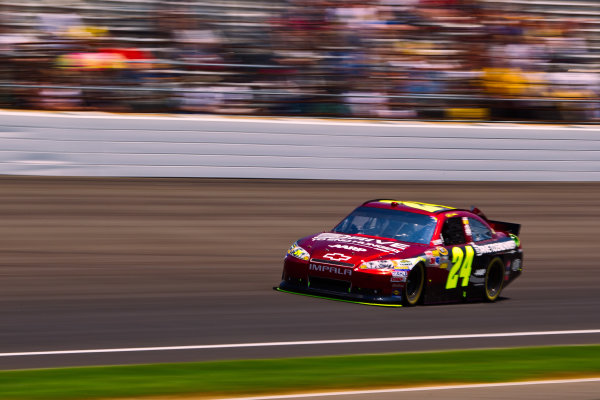
Exposure: 1/60, f/16, ISO 100. EOS-1D Mark IV, EF 100-400mm f/4-5.6L IS at 210mm.

Post originally from: Digital Photography Tips.

Check out our more Photography Tips at Photography Tips for Beginners, Portrait Photography Tips and Wedding Photography Tips.

Showing Speed: Using Panning When Shooting Action


Digital Photography School

 
Comments Off on Showing Speed: Using Panning When Shooting Action

Posted in Photography


RC4WD Gelande walkaround showing lights

07 Dec

Very quick video showing the front and rear lights I installed for my Gelande project truck.
Video Rating: 4 / 5

 
Comments Off on RC4WD Gelande walkaround showing lights

Posted in Nikon Videos


Photographer creates time-lapse showing D600 ‘dust’ accumulation

22 Nov

Screen_Shot_2012-11-21_at_12.02.24_PM.png

Canadian photographer Kyle Clemens has created a timelapse video which shows the slow accumulation of debris on the sensor of his brand new Nikon D600. When we reviewed the D600 we expressed concern about the propensity of its sensor to gather specks of debris, and Clements raises the troubling possibility that whatever it is that’s ending up on the D600’s sensor could be coming from inside the camera. Click through for the full video and a link to Kyle Clements’ blog where he investigates the issue. 

News: Digital Photography Review (dpreview.com)

 
Comments Off on Photographer creates time-lapse showing D600 ‘dust’ accumulation

Posted in Uncategorized


Microsoft Excel 2010 – Stop Accidentally Showing the Ribbon Shortcut Keys

16 Oct

While navigating through worksheets in Excel 2010, pressing slash on the keyboard shows the ribbon shortcut keys. Learn how to prevent this from happening.

While navigating through cells in a Microsoft Excel 2010 worksheet, have you ever seen letters and numbers appear next to options in the Ribbon like the below screenshot?

If so, you may have accidentally pressed the slash (/) key. Doing so activates the menu to satisfy compatibility with Lotus 1-2-3 users, who would normally press this key to access menu options. However, many younger accountants and computer users barely remember this program, if at all, and do not need this ‘feature’ occurring when their fingers slip pressing arrow keys. To disable this:…

Read more at MalekTips.
New Computer and Technology Help and Tips – MalekTips.Com

 
Comments Off on Microsoft Excel 2010 – Stop Accidentally Showing the Ribbon Shortcut Keys

Posted in Technology


Sigma 105mm macro lens showing

10 Oct

Taken with the d300s in low quality

 
Comments Off on Sigma 105mm macro lens showing

Posted in Nikon Videos


Windows Internet Explorer 9 – Stop Showing the New Tab Page!

02 Sep

When creating a new tab inside Internet Explorer 9, show a blank page instead of the default New Tab page that lists your most popular sites.

When you open a new tab inside Windows Internet Explorer 9 such as by pressing CTRL + T or clicking the “New Tab” icon that appears when you hover to the right of your pre-existing tabs, you are shown a page displaying your most visited web sites. This “New Tab” page also lets you re-open closed tabs or reopen the last session (if applicable), initiate InPrivate Browsing, and access a Suggested Sites feature.

While clicking the “Hide sites” link near the bottom of this page hides your list of popular sites, what if you want to do away with this page altogether and just see a blank space appear whenever you create a new tab?…

Read more at MalekTips.
New Computer and Technology Help and Tips – MalekTips.Com

 
Comments Off on Windows Internet Explorer 9 – Stop Showing the New Tab Page!

Posted in Technology


Windows Live Photo Gallery 2011 – Stop Showing Photo or Video Previews When Hovering

04 Apr

Instead, hover over a photo or video in Windows Live Photo Gallery 2011 to display the filename and date / time.

When you hover over a photo or video in Windows Live Photo Gallery 2011, a pop-up appears displaying a larger preview of the file.

If you have a slower computer / graphics card, you may wish to disable this eye candy. Or, instead of showing this preview you may wish to show the filename and time / date as a popup instead. To make this change, do the following:…

Read more at MalekTips.
New Computer and Technology Help and Tips – MalekTips.Com

 
Comments Off on Windows Live Photo Gallery 2011 – Stop Showing Photo or Video Previews When Hovering

Posted in Technology