RSS
 

Posts Tagged ‘shape’

Small Space Shape Shifters: 13 Transforming Furniture Designs

26 May

Bed-Up Space-Saving Furniture


Almost no space is too small to live in when you’ve got furniture that lowers from the ceiling, pulls out of the walls, transforms for multiple functions or even folds up flat to hang in the closet like clothing. These smart space-saving furniture designs cram maximum use into the most compact packages, often with beautiful, modern results. You’ll never look at a metal storage trunk the same way again.

Bunk Bed Sofa

space saving bunk bed sofa 1

space saving bunk bed sofa 3

space saving bunk bed sofa 2


This is more than just a sofa bed – there are actually two beds hiding within its sleek contours thanks to a brilliant folding design. The Doc is a sofa by day, bunk bed by night, creating sleeping space for two guests in seconds.

Furniture Functions Hidden in Metal Crates

transforming furniture metal crates

transforming furniture metal crates 2

transforming furniture metal crates 3

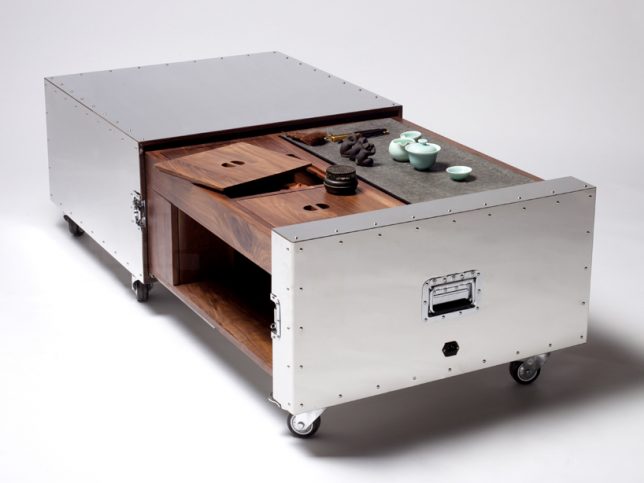
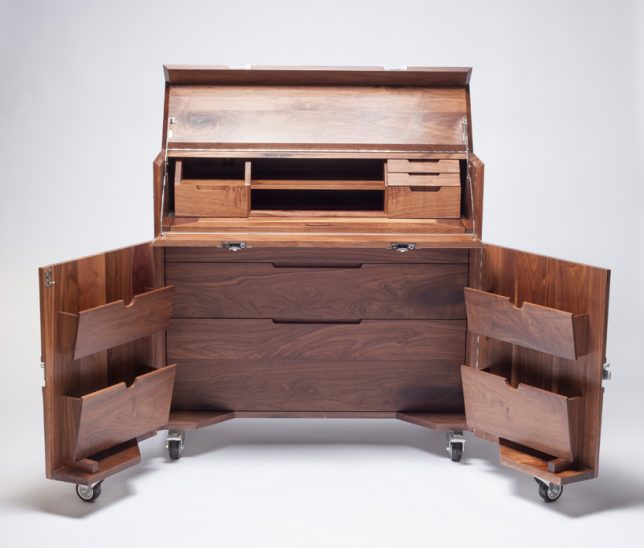
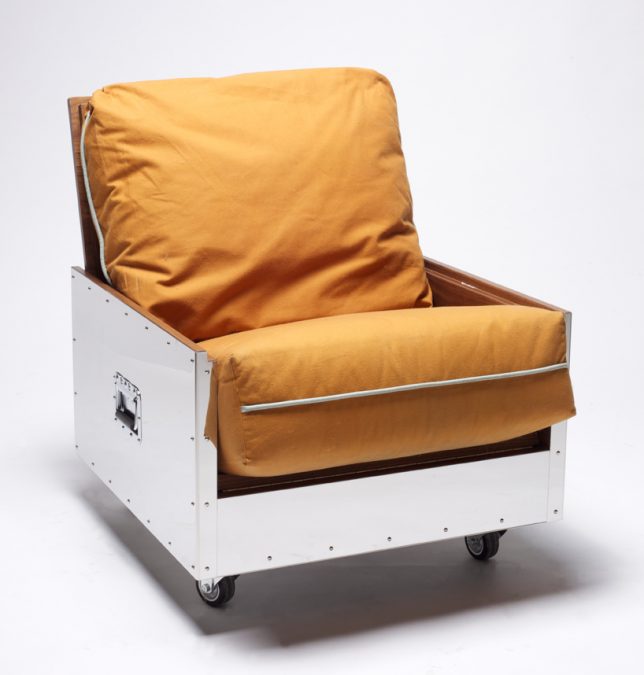
Traveling artists and other restless types can tote an entire studio apartment full of furniture with them quickly and easily with these mobile objects that transform into rugged metal crates on wheels. Designer Naihan Lee, an artist who has had to move often while living in Beijing, created the ‘Crates’ series to ensure that she would have beautiful, high quality furniture no matter where she ends up. The portable units include a bookshelf, single sofa, tea table, mobile bar, entertainment center, kitchen unit and writing desk.

Shape-Shifting Chair

space saving exocet chair

space saving exocet chair 2

space saving exocet chair 3

space saving exocet chair 4

Better at conforming to the human body in any single position than the traditionally-shaped chairs humans have been using for thousands of years, the Exocet features two wooden ‘wings’ on a rotating steel axis that interlace to create virtually limitless sitting and lounging possibilities. Use it as a stool, a lounge chair, a high-back chair, a floor mat, a recliner, a seat for two or whatever else you can come up with.

Bed Hidden in a Desk

space saving bed in a desk

space saving bed in a desk 2

Even once you learned that this desk isn’t what it appears, you might imagine that it would be a pain to remove everything from its surfaces before transforming it into a bed. But the Hiddenbed system unfolds in a way that rests the desk surface on the floor beneath the mattress, leaving everything intact, including power cords. When you decide you want to lay down, it takes just a few seconds to pull out a couple pins and unfold it. Pillows even stay in place when you put the bed back up.

Transforming Tiny Apartment

space saving tiny apartment 1

space saving tiny apartment 2

space saving tiny apartment 3

space saving tiny apartment 4

space saving tiny apartment 5

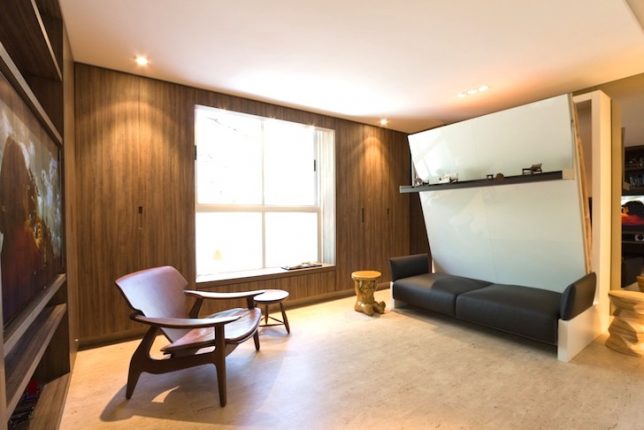
All sorts of tricks hide behind the surfaces of this 290-square-foot apartment in Brazil, custom-made by architect Fabio Cherman for his own use. Features include a compact sofa bed that uses a wall shelf as support (again, leaving your displayed objects intact), and on the other side of the room, there’s a wall panel that folds down to become a tabletop or a guest bed.


WebUrbanist

 
Comments Off on Small Space Shape Shifters: 13 Transforming Furniture Designs

Posted in Creativity


How to Clean Your Photography Gear and Keep it in Good Shape

23 May

A long time ago when I started my first steps into the photography world, a good friend of mine that worked many years as a photojournalist, told me:

“Treat your camera like a soldier treats his gun, keep it clean and ready to fire!”

I never forgot that advice from him, and I kept a Pentax K1000, my very first camera, in pristine condition to this day. Nowadays things are a bit different, and electronic digital equipment is not really built to last like in the good old days of mechanical equipment.

Modern cameras and lenses are built with a lot of sensitive electronic components, and are much more difficult to maintain. Most of the equipment I use is exposed to the elements, and to a lot of abuse during my shooting sessions, and to me it is fundamental to sometimes take a little bit of time off and make sure everything is clean, working properly, and ready to fire.
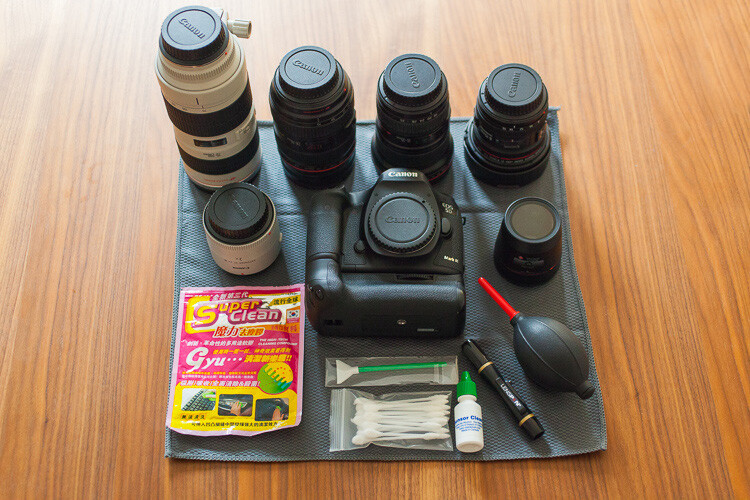
01

In this article I will guide you through the steps I usually take cleaning my photo equipment.

Like everything in life, everyone has their own method of doing things. The way I do this process might not be perfect, but it is the best method I have used so far, with all the tips and tricks I have been collecting along the years.

To start, I always try to be in a dust free environment, and have an anti-static microfiber cloth under the equipment I am cleaning. This is really important because your equipment is going to grab all the dust that is in the air like a magnet every time you try to clean it.

The way I do it is always to go from the outside to the inside, meaning I always clean the outer part of the lenses before I clean the glass, and I always clean the outside of the camera body before I clean the sensor. This way I gradually eliminate the dust that is stuck to the equipment.

Starting with the lenses, I used to just clean the outside of the lens with a microfiber cloth, and use a blower to keep the dust away. But a few years ago I was introduced to a new product from Japan that was the answer to all the germophobes that were really concerned with all the germs computer keyboards collect.

02

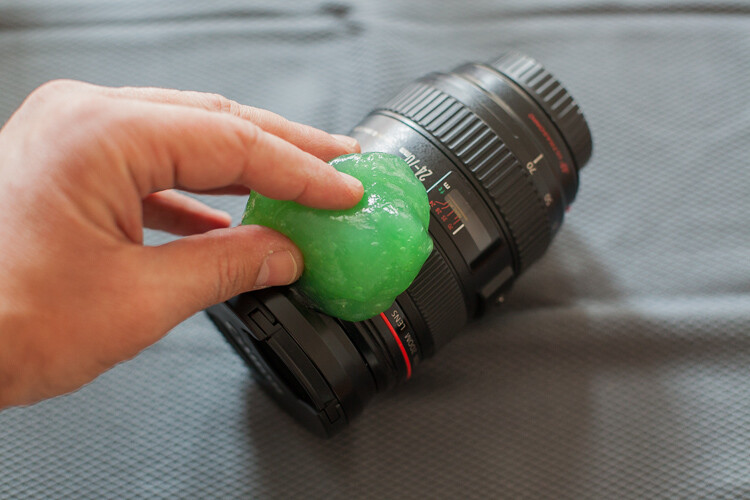
This cleaning compound is like a sticky jelly, with anti-bacterial properties that can be used on everything you want to keep clean and germ free.

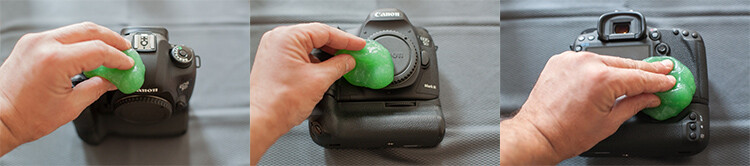
I use it on the outside of my lenses and camera body, always with the caps on, because it is not supposed to be used on glass.
03

This product was expensive, and really hard to find when I first bought it, but nowadays it seems to be much cheaper and available in most stores online.

I find it really useful to clean the camera body in the buttons areas, where it collects a lot of dust that is difficult to clean.
04

Next it’s time to concentrate on the glass

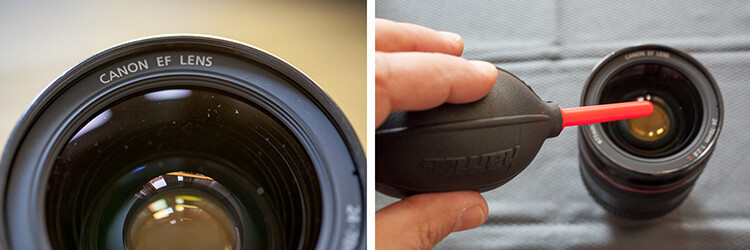
Dust specs are really difficult to keep away from your lenses, and you should never try to wipe the glass off with a cloth like most people do. Wiping off dust might result in scratching your lens. The correct process should always be to blow it off first. You can use a blower or a compressed air can, and this way you remove the dust but don’t touch the glass.
05

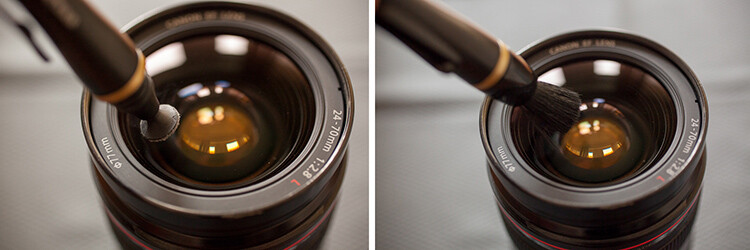
Now the dust is gone it is time to clean eventual smudges or fingerprints you might have on the glass. My favorite tool for this process is the Lens Pen. It has a tip with a soft compound that is made to safely wipe the glass, without damaging it.

After cleaning with the soft tip, you may use the anti-static brush on the other side of the pen to get rid of any dust that is still around.

I usually don’t use any lens cleaning fluid unless it’s really needed. Those kinds of chemicals are never good for your lens coating, but if your lens has grease smudges, then cleaning fluid and a soft cloth might be the only solution.
06

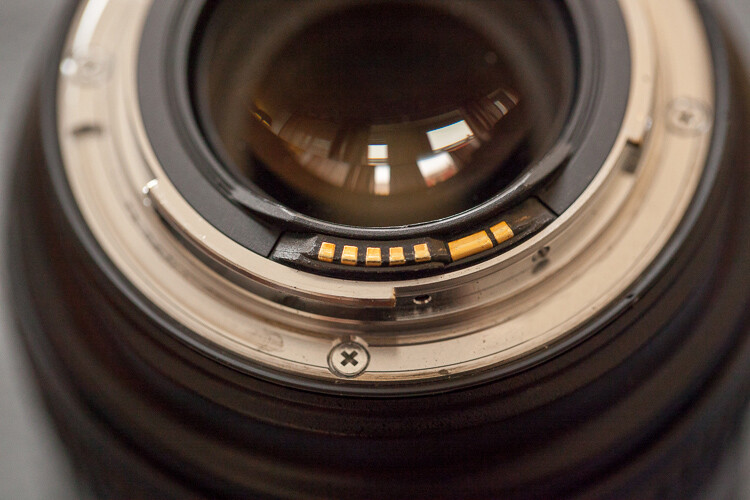
Repeat that process on the glass on the other side of your lens, and while you’re at it it’s also a good idea to check the electrical contacts of your lens (metal parts on the back). Dirty or oxidized contacts are most often responsible for camera malfunctions or errors, so I always clean them off with a soft cloth.

In extreme situations I have heard of people cleaning these contacts with a rubber or really fine sand paper, but I’ve never had to do anything like that.
07

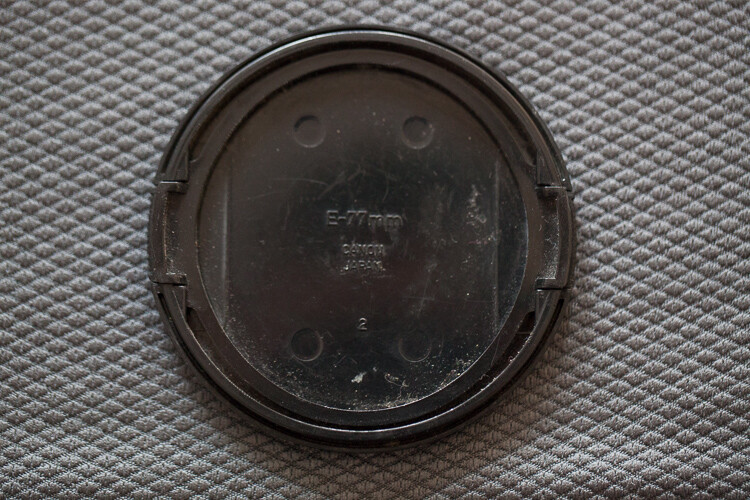
Dirty lens caps are also something to keep in mind to clean, as they always end up in your pocket or at the bottom of your camera bag while you’re photographing, so they collect a lot of dust. It doesn’t make sense to have your lens all cleaned up, then cover it with a dirty cap, the same applies to the body caps.

Replacing your caps with new ones from time to time might be a good idea, as they are not that expensive and give your equipment a newer look.
08

Now it is time to clean the camera body

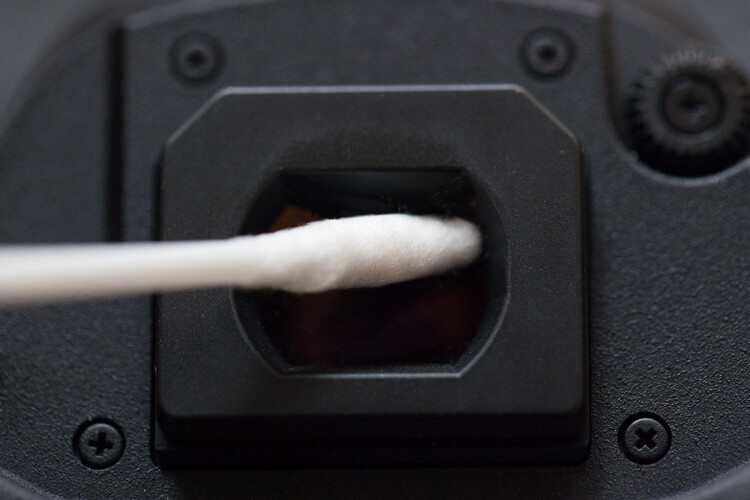
After cleaning the outside with the anti-bacterial jelly compound, I usually clean the viewfinder. That is a difficult operation as it is a small, deep, and difficult to reach area. My trick for it is Q-Tips, but not the regular ones. I use some special ones made for babies that have a smaller pointy tip, and are made from a softer cotton, which allows a deeper and more efficient cleaning.
09

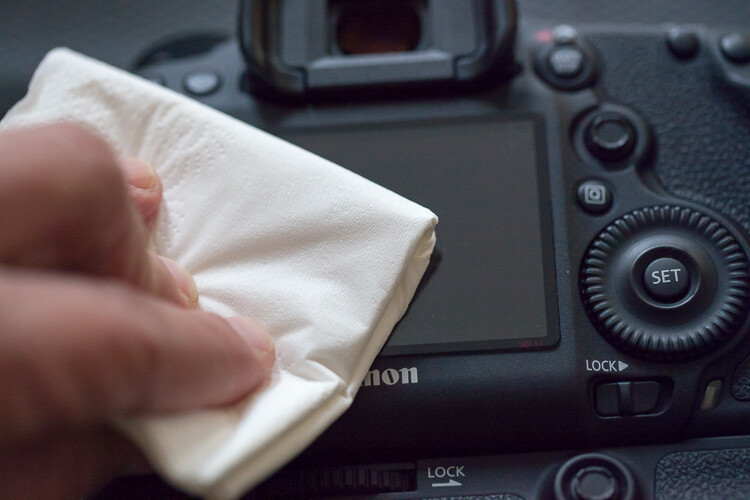
Next I clean the LCD screen glass with a little drop of glass cleaner and a paper tissue. This removes all the grease that the LCD screen gets from being stuck to my face all the time.
10

Cleaning the inside of the camera

As tempting as it might be I never try to clean the mirror of the camera. It usually seems to do more harm than good, and it usually sends more dust to the inside of the camera chamber, making it land on the sensor sooner or later.

We finish with the most complicated part of the whole process that is the sensor cleaning.

Camera makers always advise that this process should only be done in the brand’s technical assistance, by a trained technician, so if you are not comfortable with doing this yourself, please don’t try it.

I remember I was a bit scared the first time I tried to clean the sensor myself. But, the fact is that I have done it lots of times, with different cameras over the years, and it always worked out fine. You just have to be careful and do things slowly and steadily.

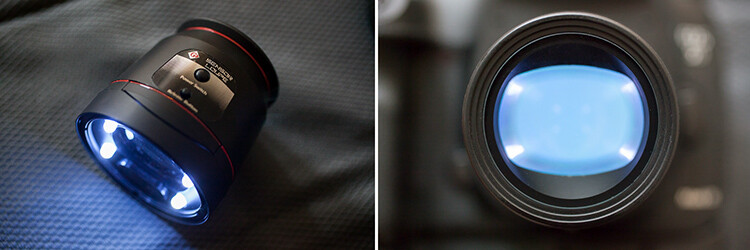
This is a totally optional step, but I usually use a sensor loupe to check the sensor before I clean it. It is a really nice device that illuminates and magnifies the inside of your camera, making it possible to see with good precision any dust that is on your sensor.
11

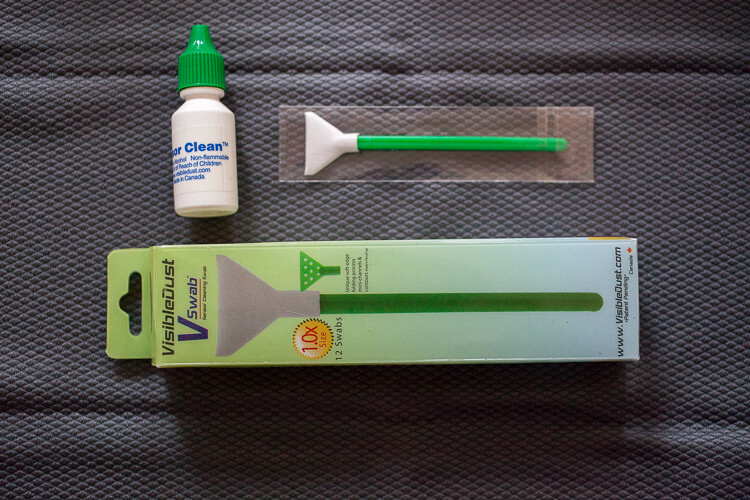
Now for the cleaning part itself, there are many different systems and brands out there for sensor cleaning. I have tried a few and my favorite is the Vswab by Visible Dust which consists of one time use soft-edge swabs, and a sensor cleaning fluid that you use to clean the sensor from any smudges or dust specs. There are specific swabs for different size sensors, so be sure to buy the correct one for your camera.
12

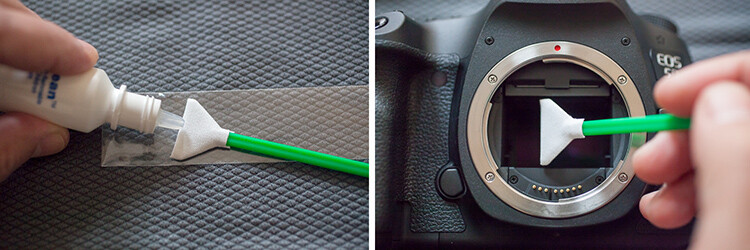
Just get the swab a little wet with the cleaning fluid (a drop or two is all you need) then activate the mirror lockup on your camera (or use the sensor clean setting – check your camera’s user manual if you aren’t sure how to lock it up for cleaning). Wipe your sensor from left to right, just one time, touching it but trying not to apply too much pressure.
Most of the times it works at first, but I always check it again with the sensor loupe after cleaning, and if needed I swab a second time.

Note: Keep it mind that these swabs can only be used one time, so if you go for a second clean use a new swab.

This allows the sensor to be clean all the time, avoiding spots on your images, caused by dust specs the get inside your camera every time you change your lenses.
13

These simple maintenance steps gives me confidence that my equipment is in top shape, and that I can be sure that it is going to work fine next time I pick it up.

Remember, keep it clean and ready to fire!

googletag.cmd.push(function() {
tablet_slots.push( googletag.defineSlot( “/1005424/_dPSv4_tab-all-article-bottom_(300×250)”, [300, 250], “pb-ad-78623” ).addService( googletag.pubads() ) ); } );

googletag.cmd.push(function() {
mobile_slots.push( googletag.defineSlot( “/1005424/_dPSv4_mob-all-article-bottom_(300×250)”, [300, 250], “pb-ad-78158” ).addService( googletag.pubads() ) ); } );

The post How to Clean Your Photography Gear and Keep it in Good Shape by Ivo Guimaraes appeared first on Digital Photography School.


Digital Photography School

 
Comments Off on How to Clean Your Photography Gear and Keep it in Good Shape

Posted in Photography


Potential Greenery: Topsoil & Time Shape ‘Empty Lot’ Artwork

04 Apr

[ By WebUrbanist in Art & Installation & Sound. ]

emptylotdec2015

A recently-completed, six-month art installation in the Tate Modern imported soil from parks all around London, arraying them in the museum’s Turbine hall to show what weeds, grasses and ferns would grow from seeds and spores already present in the dirt.

Abraham Cruzvillegas_ Empty Lot.-25004509915 (1)

Empty Lot by artist Abraham Cruzvillegas involved equalizing conditions for the various samples of topsoil, which were evenly lit by lamps and consistently watered for half a year.

Empty Lot-24111522275

The installation was set up as a large geometric sculpture placed on scaffolding, supporting an array of triangular planters.  The samples were brought together from six parks, and kept separate between beds, growing in parallel.

Hyundai Commission 2015_ Abraham Cruzvillegas_ Empty Lot-24171950432

The outcome was unknown in advance, just like growth in nature or the evolution of a city, with elements of chance revealing the hidden potential in different park spaces (images by Sara~, Jennifer Morrow and Alexander Baxevanis)

Share on Facebook


[ By WebUrbanist in Art & Installation & Sound. ]

[ WebUrbanist | Archives | Galleries | Privacy | TOS ]


WebUrbanist

 
Comments Off on Potential Greenery: Topsoil & Time Shape ‘Empty Lot’ Artwork

Posted in Creativity


Modular Skyline: Pixelated Skyscraper Takes Shape in Bangkok

02 Mar

[ By WebUrbanist in Architecture & Offices & Commercial. ]

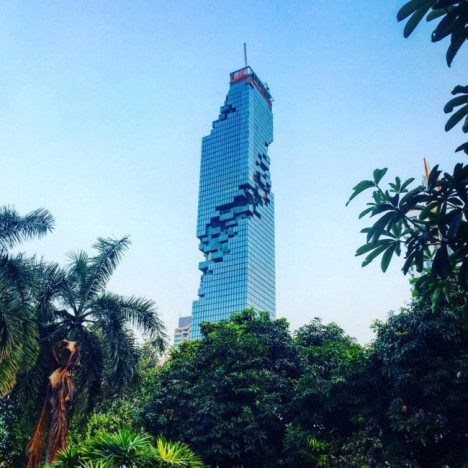
pixelated tower

A joint project of Büro Ole Scheeren and the Office for Metropolitan Architecture, this skyscraper nearing completion in Bangkok, Thailand, features shifted box elements that break up its surface to create balconies and terraces.

deconstructivist skyscraper bangkok

Located downtown, the 77-story building features hundreds of apartments, a hotel and other mixed-use functions, including, plazas, shops, bars and restaurants. It is also the tallest building in the city. Originally scheduled for completion in 2010, the structure will now be finished this year (recent photographs above and below by Simon Rawlings, benstinyplanet and tsa.p).

modern glass tower deconstructed copy

Renderings below illustrate the street-level entrances, an aerial perspective and close-up views of the pixelation effects, as well as showing how the design evolved from concept to reality (as compared to photographs of its current state above).

pixelated tower renderings

pixelated tower detail

From the architects: “The design moves beyond the traditional formula of a seamless, inert, glossy totem, and instead actively engages the city: MahaNakhon’s pixilated and carved presence embraces and connects to the surrounding urban fabric rather than overpowering it.”

pixelated tower from above

“Its glittering stacked surfaces, terraces and protrusions will simultaneously create the impression of digital pixilation and echo the irregularity of ancient mountain topography.”

Share on Facebook


[ By WebUrbanist in Architecture & Offices & Commercial. ]

[ WebUrbanist | Archives | Galleries | Privacy | TOS ]


WebUrbanist

 
Comments Off on Modular Skyline: Pixelated Skyscraper Takes Shape in Bangkok

Posted in Creativity


Create Your Own Watermark using a Custom Shape in Photoshop

04 Dec
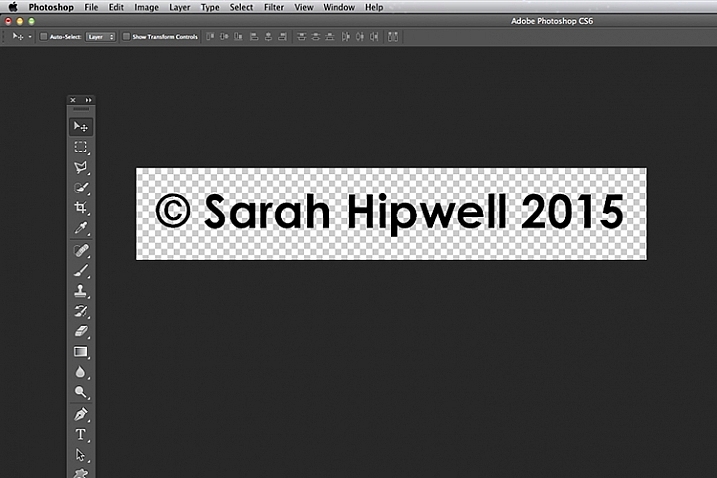
Transparent-watermark

Big transparent type copyright watermark that you would use send to clients for proofing.

I know there are many ways of creating a watermark. Using the Watermark Editor in Lightroom for example allows you to add your own text or graphic to your images. In general there is a lot of debate whether or not to add a watermark to images.

This article isn’t going to discuss the pros and cons of watermarking your images. Instead, I will demonstrate a step-by-step tutorial using the Custom Tool in Photoshop.

Whether you upload your images to the various social media platforms, or you want to send a client a high resolution image for proofing. This easy tutorial will show you how to create your own watermark using the custom tool in Photoshop.

For a while, my method was opening an image file where I had my own custom copyright information on a text layer. So that I could easily drag and drop this text layer onto a new image. This made more sense and took less time to add a watermark image rather than creating it every time. That is until one day, I couldn’t find the file!

Here are my four easy to follow steps to creating your own custom watermark using the Custom Tool in Photoshop. I prefer to use a custom shape over a custom brush. Shapes are vectors which means they scale up or down without losing quality.

Step 1 – Create a new document

Open Photoshop and create a new document. Make it 1000 pixels wide, by 300 pixels high.

Step 2 – Add text

Press the letter D on your keyboard, to make sure your foreground color is black. Choose whatever font you like, then press T to select the type tool. Hold down ALT key on a Mac and press G (Alt+0169 on a PC). This brings up the copyright symbol, add a space and type your name and year.

Alt+G-type-your-name-and-year

Holding down the ALT key on a Mac and press G brings up the copyright symbol (Alt+0169 on a PC).

Step 3 – Convert the layer to a shape

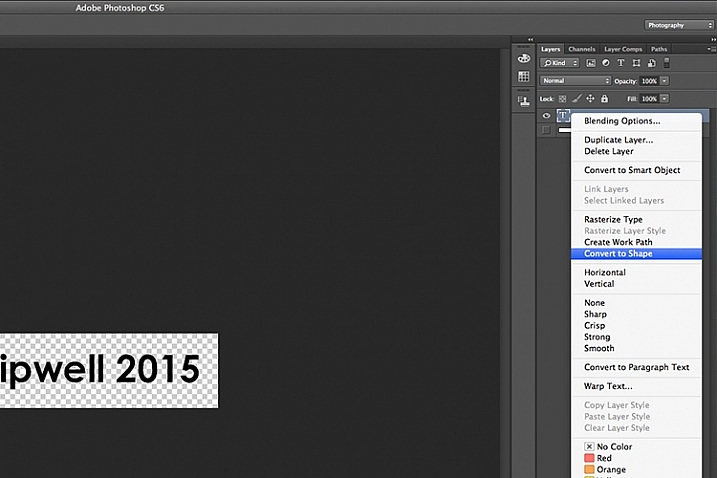
Go over to the layers panel. Right click on the text layer and go down to Convert to Shape.

Convert-text-layer-to-shape

When you have typed your watermark. Right click on the layer and select Convert to Shape.

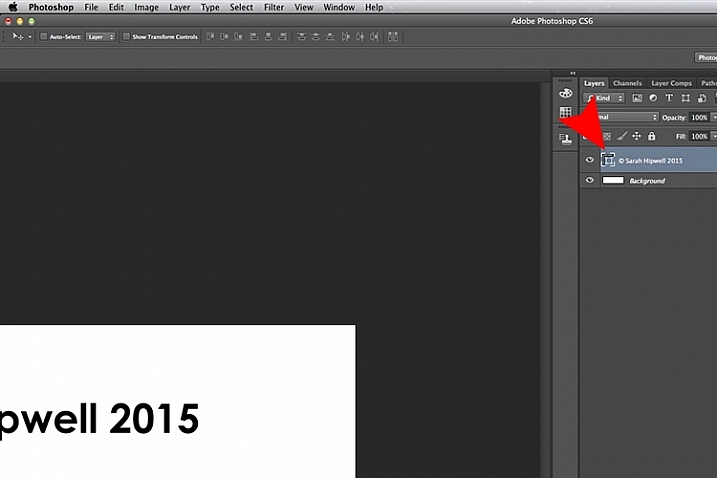
This icon appears in the thumbnail to show that the layer is now a shape layer.

This-icon-shows-the-layer-is-a-shape

This icon in the thumbnail layer tells you that this is now a shape(vector) layer.

Step 4 – Save as a custom shape

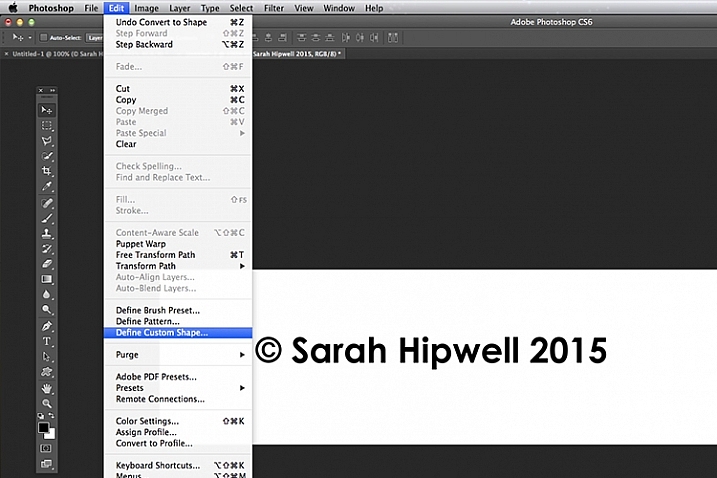
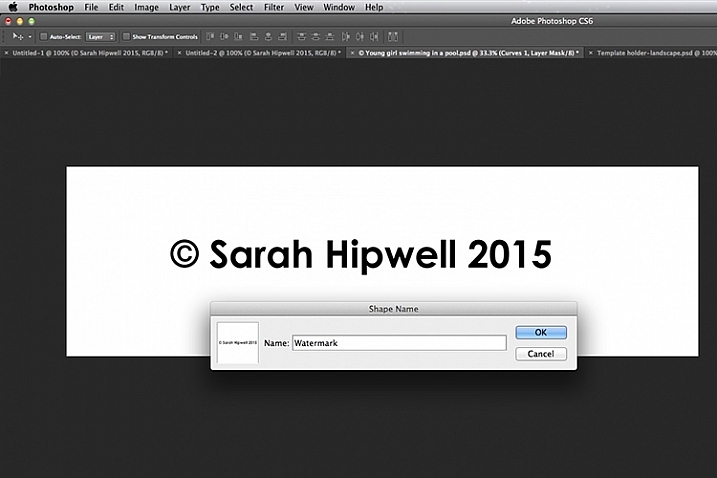
Go up to Edit menu and select Define Custom Shape. A Shape Name dialog box appears – type in Watermark and click OK. This now adds your type as a custom option in your Shape Presets Library.

Define-custom-shape-under-edit

This is how you save your watermark custom shape in the presets library to use again and again.

Shape-name-dialog-box

Give your watermark a name so that you can find it easily. Plus you may decide to have a few.

That’s it. It took just four steps to create your own custom copyright watermark. Let me show now how to access, and add it to your images.

Apply your watermark to images for online viewing

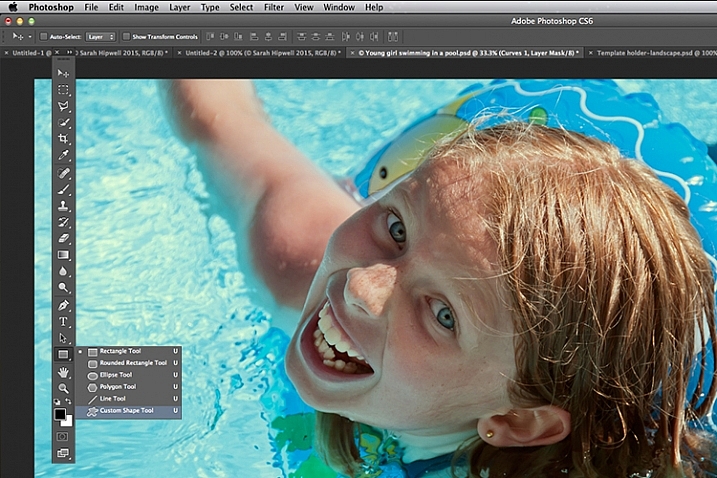
Open an image that you want to share on Facebook, Flickr, etc. Create a new layer in the Layers Panel. Choose the Custom Shape tool in the toolbar (press Shift+U)

Custom-shape-tool-highlighted-in-toolbar

This is where you find the Custom Shape Tool in the Toolbar.

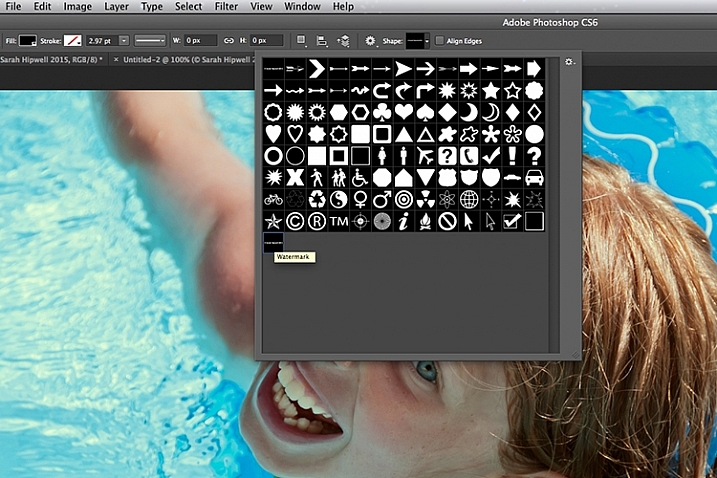
Go up to the Options Bar and click on the thumbnail next to the word Shape. This brings up the Shape Presets Library dialog box. At the very bottom, you will find the shape called Watermark.

Watermark-shape-at-the-bottom-in-presets-library

Custom shapes will always appear at the bottom in the presets library.

Now press and hold the Shift key, click and drag the watermark shape across your image. The Shift key ensures the shape remains in proportion. Don’t worry about the size just yet. Place it in position – in this case, I placed the watermark bottom right.

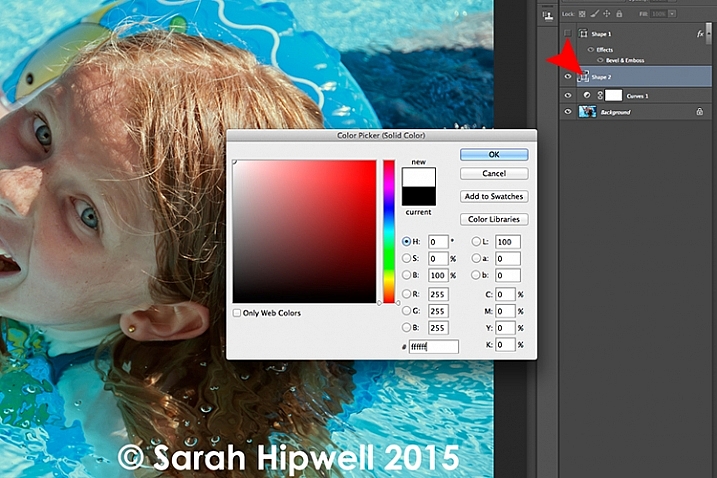
Now as the foreground color was set to black, I want to change the color to white. Go up to the Layers Panel and click on the Layer thumbnail and the color picker dialog box appears. You can choose whatever color you want here.

Changing-color-of-watermark-to-white

You can customise your watermark shape with any colour or style effect.

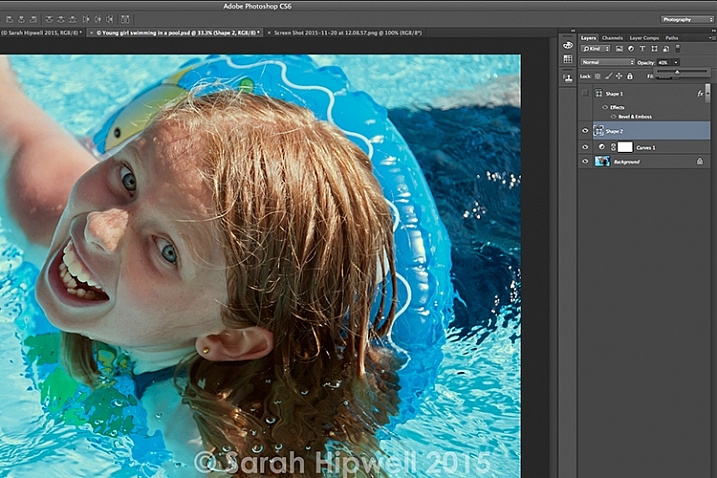
Go back up to the Layers Panel and reduce the opacity to your desired setting. I chose 40%.

Opacity-reduced-to-40-per-cent

Reducing the opacity allows for your watermark to be more discreet.

I now want to reduce the size of the watermark. Go up to the Edit menu and choose Free Transform Path (Cmd+T on a Mac). Holding down the Shift and Alt keys, drag any of the corners of the transform handles in towards the centre. This reduces the size while keeping the aspect in proportion. Press Enter or the Commit Transform button up in the Options Bar. Go up to File and Save for the Web.

Apply to high res images for proofing

Okay, so let’s say you want to send a higher resolution image to a client. Open up the image. Click on the Custom Shape Tool (Shift+U). The watermark shape is already selected, so hold the Shift key and click and drag right across the image. Leave the color as it is.

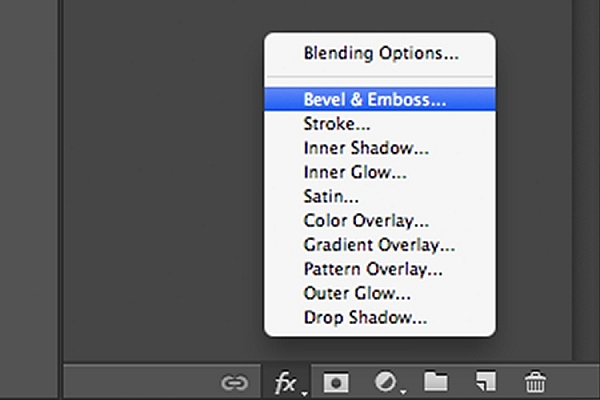
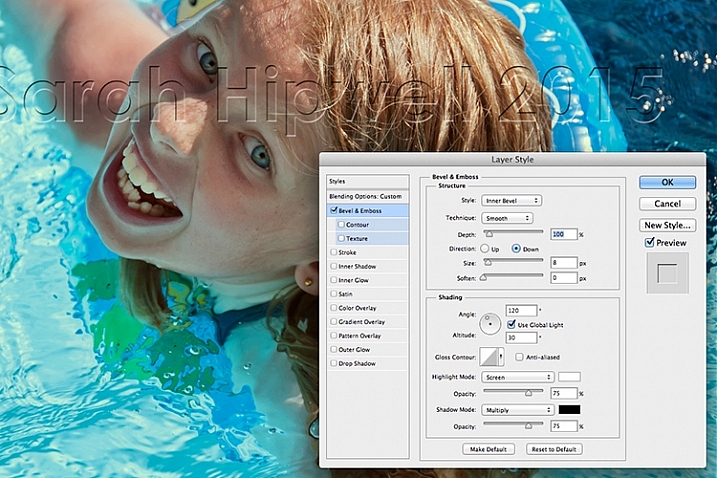
This watermark is going to be transparent. Click on the Add a Layer Style icon at the bottom of the Layers Panel and select Bevel and Emboss. The Layer Style dialog box appears. Increase the size to 8 pixels and change the direction to down.

Bevel-and-Emboss-layer-style

Layer styles can be found by clicking on this icon at the bottom of the layers Panel. Alternatively, go up to Layer menu and choose Layer Style.

Bevel-and-Emboss

The Bevel and Emboss is a good effect to add to your watermark if you want to make more transparent, while still protecting your image.

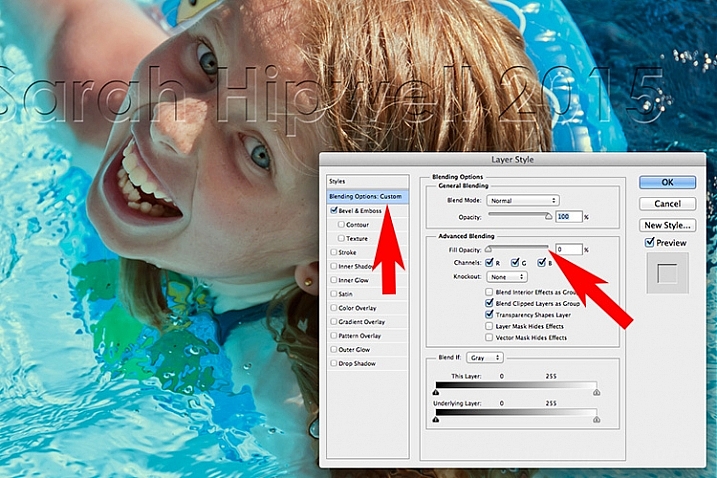
Next go over to the left and click on the Blending Options: Custom, which is directly above the Bevel and Emboss. Under Advance Blending bring the Fill Opacity slider down to zero and click OK. Go back up to Opacity in the Layers Panel and reduce to 68%.

Blending-Options-Custom-2

Reducing the Fill Opacity hides the colour and just leaves the effect.

Tip:

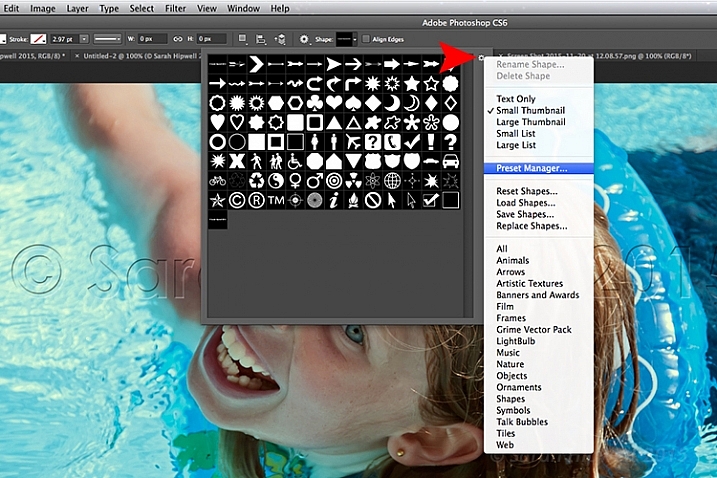
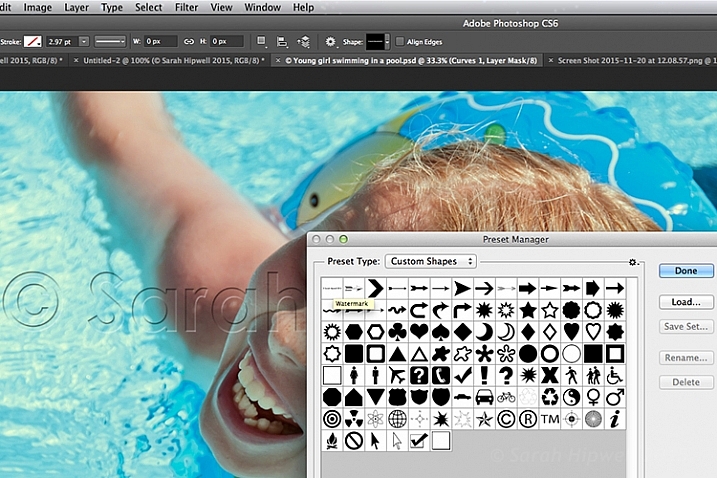
To place your Custom Watermark Shape at the top in the Presets Library, click on the thumbnail right of the word Shape in the Options Bar. The Shape Presets Library dialog box appears. Click on the gear icon and select Preset Manager, the Preset Manager dialog box appears with all the shapes. The Watermark shape is the very last one, click and drag it up to the top and click the Done button.

Location-of-Presets-Manager

By clicking on the gear icon, the pop-out menu where the Preset Manger is located appears.

Moving-watermark-shape-to-top-Presets-Manager

Here in the Preset Manager, you can rearrange the shapes inside of the dialog box. Just click on any shape and drag it where you want it. I moved the watermark shape to the top for easy access.

Do you use watermarks on your images? Why or why not?

What techniques do you use? Please share in the comments below.

googletag.cmd.push(function() {
tablet_slots.push( googletag.defineSlot( “/1005424/_dPSv4_tab-all-article-bottom_(300×250)”, [300, 250], “pb-ad-78623” ).addService( googletag.pubads() ) ); } );

googletag.cmd.push(function() {
mobile_slots.push( googletag.defineSlot( “/1005424/_dPSv4_mob-all-article-bottom_(300×250)”, [300, 250], “pb-ad-78158” ).addService( googletag.pubads() ) ); } );

The post Create Your Own Watermark using a Custom Shape in Photoshop by Sarah Hipwell appeared first on Digital Photography School.


Digital Photography School

 
Comments Off on Create Your Own Watermark using a Custom Shape in Photoshop

Posted in Photography


Think Tank Shape Shifter Backpack Review

12 Aug

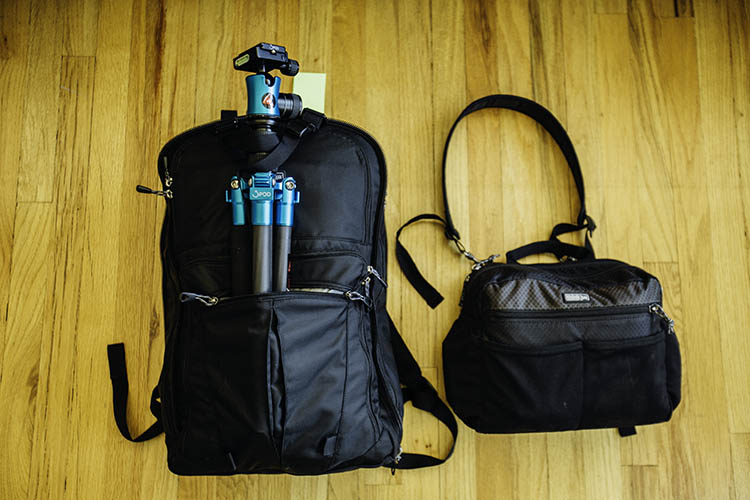
Finding the perfect camera bag is a challenge in today’s world where every bag style is possible. From messenger bags to belt packs to purses, there are many different camera bags out there to tickle your fancy. While the trend recently may be minimalist and compact, I’d like you to consider for a moment the exact opposite – a large, yet highly versatile, camera backpack known as the Think Tank Shape Shifter.

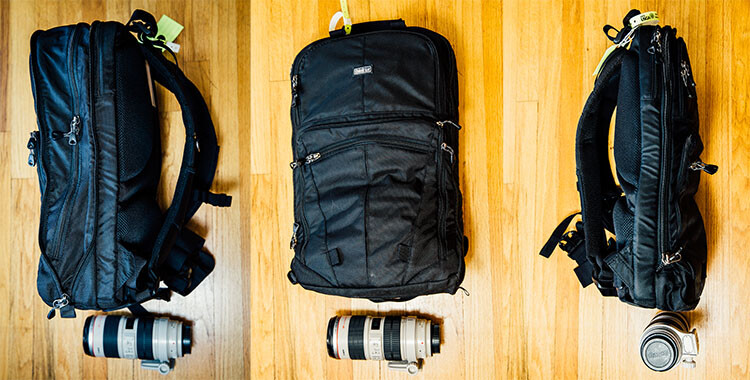
In general, many bags suffer from giving off the feeling and appearance of too much bulk, while at the same time not having nearly enough space for all of one’s camera gear. The Think Tank Shape Shifter is ingenious in that it is designed specifically to go from thin and skinny, to large and expansive, whenever you need it to. Top that flexibility off with fantastic padding and back support, as well as lots of pockets to hold all sorts of gear, and you have what I deem to be the perfect camera bag.

Think Tank Shapeshifter Backpack 2

Flexible sizing

The Shape Shifter’s key feature is its flexibility in sizing, thanks to its rather simple zipper system. Similar to how luggage works, you simply unzip a section of the bag when you need it to expand, or zip it up to minimize the size. At its most compressed, the Shape Shifter measures 3 inches in diameter, and 7 inches at its maximum expansion.

Think Tank Shapeshifter Backpack

Sturdy build

As you can expect from all Think Tank bags, the Shape Shifter is built tough, despite having a minimalist profile. Featuring a black water-resistant exterior fabric, it also comes with a seam-sealed removable rain cover, just in case of a sudden downpour. The straps and back padding are made of 3D air mesh with a breathable air flow system, making the bag extremely comfortable to wear for long periods of time. There are also strong waist and chest straps to help equally distribute the bag’s weight across your upper body. The ergonomic value here is especially high, since backpacks already do a better job of equalizing the weight of heavy gear, as opposed to a one-sided messenger bag.

Think Tank Shapeshifter Backpack 4

Pockets galore

There are several main pockets in the Shape Shifter including a compartment for a laptop, up to 17″, and a huge compartment full of stretchable neoprene pouches for holding lenses and camera bodies. Alternatively, you could also stuff about four size small t-shirts in the pouches if you wanted to use the bag as a makeshift suitcase. There are also smaller zippered pockets on the bag’s exterior, where smaller items such as batteries and memory cards can be stored. Larger items such as tripods and lighting stands can also be strapped to the backpack if needed, using two sturdy straps that come with the bag.

Think Tank Shapeshifter Backpack 6

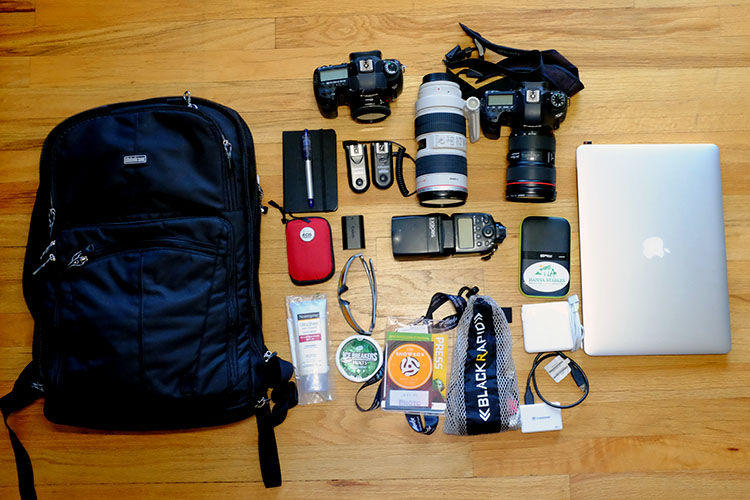
I took the Shape Shifter on a trial run while photographing the USGA U.S. Open at Chambers Bay recently. Needing to take along a majority of my photography equipment, I managed to fit all of the following into the backpack:

  • (2) Camera bodies (Canon 6D and 5D Mark III)
  • (3) Lenses (Canon 40mm f/2.8, 70-200mm f/2.8, 24-70mm f/2.8)
  • (1) Flash (Canon 580 EXII)
  • (2) Flash Triggers (Yongnuo)
  • (1) Laptop (Apple 15″ MacBook Pro Retina Display)
  • Camera accessories (memory card wallet, spare batteries)
  • Laptop accessories (card reader, external hard drive, charger)
  • Other goodies (sunscreen, sunglasses, mints, credentials holder, notebook)

The resulting bag was admittedly pretty heavy, but the comfortable back padding and straps made the bag much easier to carry despite the added weight.

Think Tank Shapeshifter Backpack 5

Versatile, despite shortcomings

One of the biggest challenges that the Shape Shifter has is in its ability to carry your whole photo studio. You can indeed do just that, but the bag gets extremely heavy, and some gear is difficult to reach without stopping to unzip and lay out the entire bag. Additionally, the structure of the bag makes it hard to carry preassembled cameras (lens attached) in it, meaning it is meant to have the lens and bodies in separate pouches rather than attached as one unit. The best way around this is to simply wear your cameras while shooting, and keep items you don’t need regular access to in the Shape Shifter.

Alternatively, you could also convert the Shape Shifter into a more functional daypack or suitcase, since its pockets and design don’t restrict it from being used as solely a camera bag. Say you’re travelling by air and trying to meet the two bag carry-on limit. You could put the majority of your camera gear that you need to be readily accessible in a smaller bag such as the Think Tank ChangeUp, and use the Shape Shifter to carry your overnight travel items and excess gear. Again, the big benefit of the Shape Shifter is its ability to shrink or enlarge depending on your needs.

Have you tried out the Think Tank Shape Shifter? Did it meet your expectations? Let me know in the comments below!

googletag.cmd.push(function() {
tablet_slots.push( googletag.defineSlot( “/1005424/_dPSv4_tab-all-article-bottom_(300×250)”, [300, 250], “pb-ad-78623” ).addService( googletag.pubads() ) ); } );

googletag.cmd.push(function() {
mobile_slots.push( googletag.defineSlot( “/1005424/_dPSv4_mob-all-article-bottom_(300×250)”, [300, 250], “pb-ad-78158” ).addService( googletag.pubads() ) ); } );

The post Think Tank Shape Shifter Backpack Review by Suzi Pratt appeared first on Digital Photography School.


Digital Photography School

 
Comments Off on Think Tank Shape Shifter Backpack Review

Posted in Photography


Book of Shadows: 2D Shape Cutouts Cast Silhouettes on Pages

24 Jul

[ By WebUrbanist in Design & Products & Packaging. ]

motion train animated example

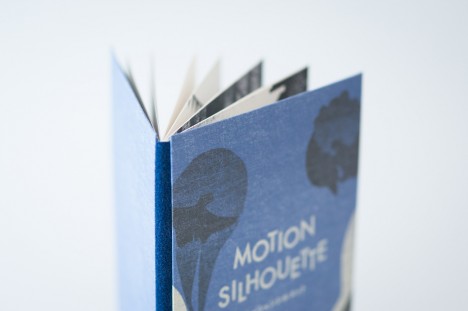
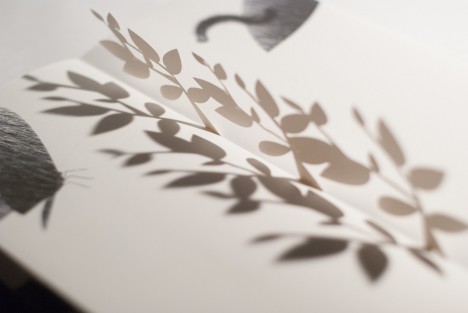
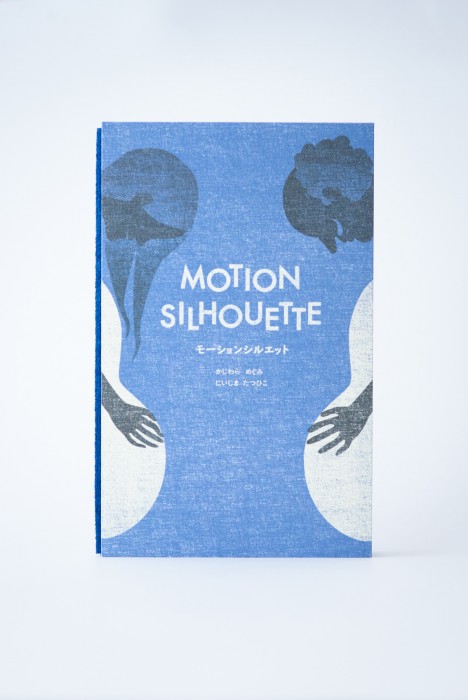
A children’s book with an interactive twist, Motion Silhouette engages readers through pop-up pieces that require lighting to animate shadow pictures on each page.

motion train moving page

motion train other page

motion womans face page

motion butterfly shape page

The idea is to add elements of manual animation that are necessarily subjective – each person will hold, turn and highlight the cutouts in different ways.

motion animated book shadow

motion silhouete tree city

motion silhouette

Secondary readers or viewers (young kids watching over parents’ shoulders) will also have their own unique experience each time.

silhoutte book one

silhouette spider web

silhouette plant shapes

silhouette cross page

silhouette bird page

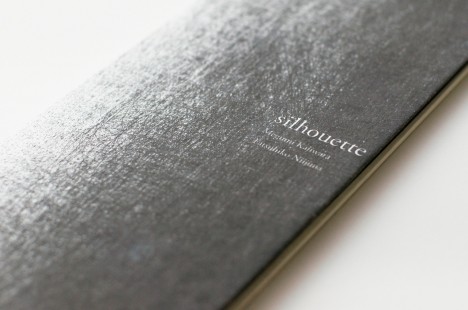
Motion Silhouette is actually a sequel to another book, simply titled Silhouette (excerpts shown above), a work which similarly uses slightly less-developed pop-up pages to create a more basic multi-dimensional experience.

motion silhouette book

From its Japanese creators, Megumi Kajiwara and Tathuhiko Nijima: “I will begin to talk about the story and illustrations shadow falls on top of the page overlap. In this work, you can enjoy the animation of shadow phantasmagoric by you move the light. Trees and become bigger and bigger, which aims to train a distant star. Story that changes depending on the page falling shadows, shadows move around the top of the page.”

Share on Facebook


[ By WebUrbanist in Design & Products & Packaging. ]

[ WebUrbanist | Archives | Galleries | Privacy | TOS ]


WebUrbanist

 
Comments Off on Book of Shadows: 2D Shape Cutouts Cast Silhouettes on Pages

Posted in Creativity


Figure & Ground: Surreal Animated Walking City Shifts Shape

17 Feb

[ By WebUrbanist in Art & Photography & Video. ]

transforming-city-design-an

Mesmerizing as it morphs forms like some kind of architectural mutant, this latest take on the Walking City is a freshly-animated and anthropomorphic twist on a fifty-year-old concept.

walking city animation forms

The transforming shape at the center of this eight-minute short flexes between organic and artificial shapes and structures, shifting between forms that take the viewer through glimpses of Buckminster Fuller and Zaha Hadid, from Constructivism through Moderisnm and Postmodernism to Deconstructivism.

surreal walking city video

shape-shifting-walking-city

From its creators at Universal Everything: “Referencing the utopian visions of 1960’s architecture practice Archigram, Walking City is a slowly evolving video sculpture. The language of materials and patterns seen in radical architecture transform as the nomadic city walks endlessly, adapting to the environments she encounters.”

walking converting figure ground

The result is neither precisely a historical tour nor an entirely artistic abstraction, but something in between that hints at bits, pieces, strategies and forms found in built environments and design approaches past, present and possibly future.

Share on Facebook


[ By WebUrbanist in Art & Photography & Video. ]

[ WebUrbanist | Archives | Galleries | Privacy | TOS ]


WebUrbanist

 
Comments Off on Figure & Ground: Surreal Animated Walking City Shifts Shape

Posted in Creativity


Sting – Shape of My Heart

24 Jan

Sting – Shape of My Heart Montage by Blueberry’s / www.blueberry-s.com Thanks for yours comments !

BajheeraWoW’s webcam video August 22, 2011 12:21 PM
Video Rating: 4 / 5


Legally Blonde the Musical Part 11 – Whipped Into Shape

23 Jan

No Copyright Infringement Intended MTV Presents Legally Blonde the Musical Starring Laura Bel Bundy & Christian Borle
Video Rating: 4 / 5