RSS
 

Posts Tagged ‘Save’

Save Tons of Editing Time with Lightroom Presets

21 May

On now at SnapnDeals you can get 100 of my custom Presets 50% off. Deal ends soon, don’t miss out so grab it here. 
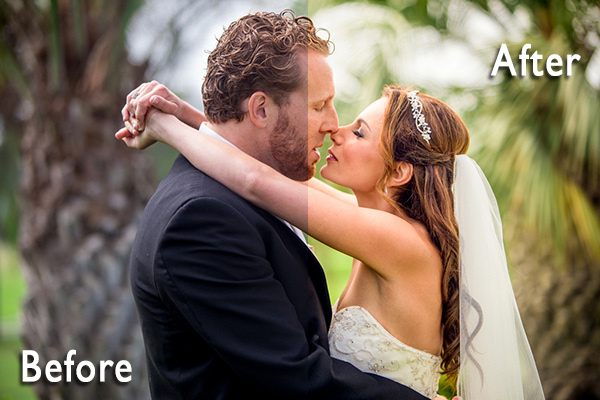
before-after-lightroom-presets

Photographers don’t have a lot of extra time to edit. As a full-time photographer myself, I rely heavily on any tools that save me time in the editing process. One of the tools I use is Lightroom presets.

What are Lightroom presets?

A preset is a pre-determined position all (or some) of the of sliders in Lightroom (they are pre-set, get it?) In other words, you can edit a photo to your liking, and then save that exactly combination of slider positions for future use on another image.

First things first: how do you create a Lightroom preset?

Very easily! Once you have a photo edited the way you want it you need to save those settings.

Step 1:  Click “Develop” then “New Preset”
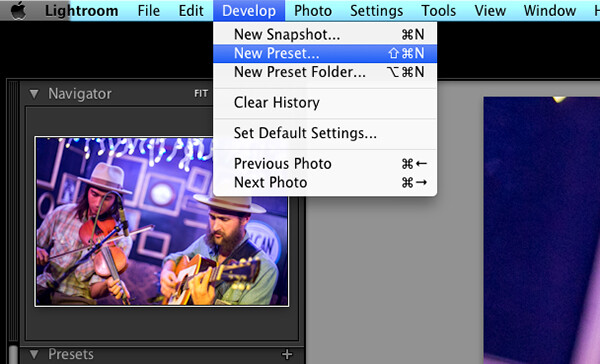
presets-step-0

Step 2: Give your preset a title

Lightroom Presets Tutorial

Name your new Preset

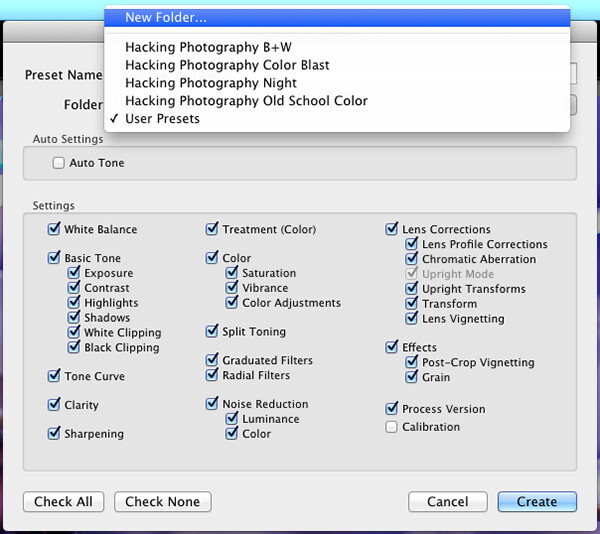
Step 3: Choose the folder you want the preset stored in, or create a new folder.

This is a good idea to separate your presets by type. You would be surprised how many random presets you end up with over a few years. Consider creating folders based on the type of edits they are.
Lightroom Presets Tutorial 3

Choose the folder to save it in

You can see I’ve named my presets by color blast (big colors), night, old school color, and black and white. Now I can quickly find the preset I’m looking for based on what type of edit I want to do.
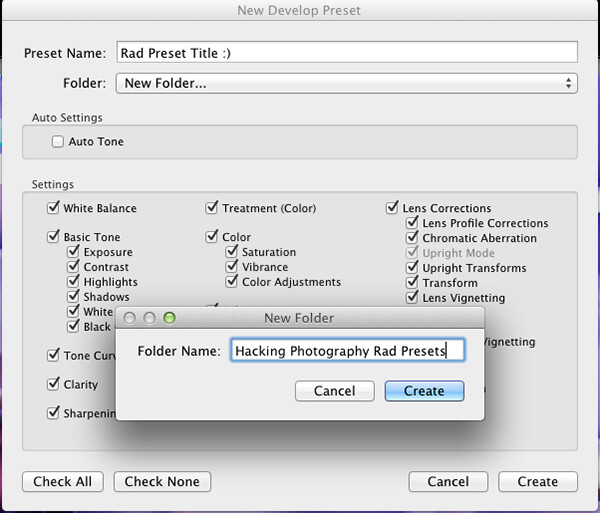
preset-step-3-web

Or make a new folder and give it a name

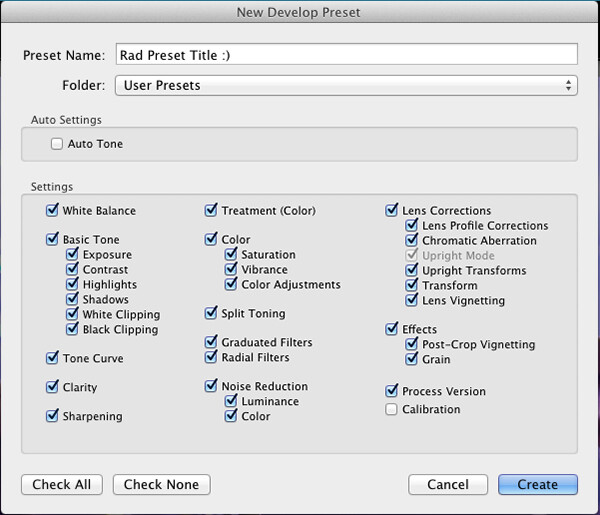
Step 4: Click the boxes you want applied to this preset and click “create” to create your preset

Sometimes you don’t want every box checked when you create a preset. Imagine you just edited an underexposed photo and had to increase the exposure two full stops (+2 on the exposure slider) to get it correct. This preset would look great on underexposed photos in that set, but would overexpose photos that had the correct exposure.

Another scenario is that you create a preset that only applies a slight vignette to your photos. Unchecking every box except the “vignetting” box would create a preset that would keep the ‘look’ of any photo you are editing and only apply that vignette to it. Pretty cool!

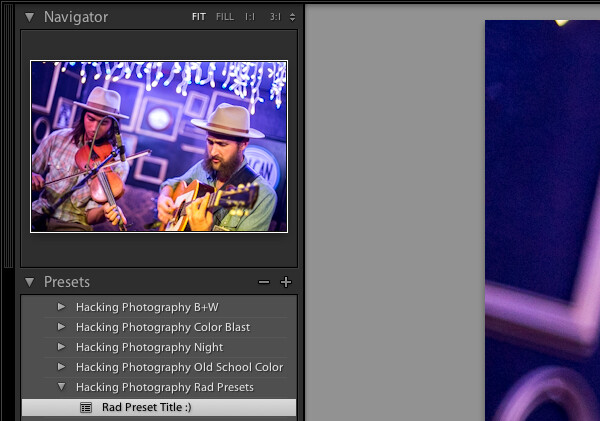
Step 5: You’re done, the preset is complete.
preset-step-4-web

There’s your new Preset

The preset is complete and waiting in the folder you just created. Just open the folder and click the preset title to apply it to future photos.

Lightroom presets save time by enabling batch editing

Imagine shooting 300 images in an area where the lighting isn’t changing and stays consistent. You edit the first image to your liking and save the settings as a preset. Instead of individually editing the remaining 299 images one by one, you can apply that preset and achieve the same ‘look’ as the previous photos. 

The next time you want that type of ‘look’ on a photo with a similar lighting setup you can just apply a preset in one click. It will move all the sliders to those exact positions so the edit style stays the same.

The best part about this is batch editing your photos all at once. You can edit a single image and then apply that preset directly to as many photos as you would like in just one click.

How do you batch edit photos?

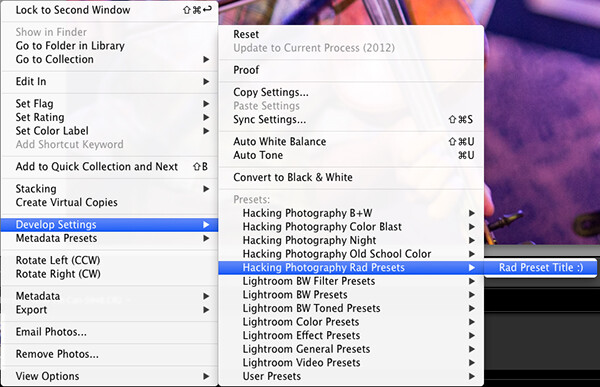
Select all the photos you want to apply the preset to, right-click the any of the photo thumbnails, and follow this path:
Lightroom Presets Tutorial 5

That will apply the preset automatically to all the images you selected in one click.

For a walk through on how to do this watch this video as I go through all the steps:

Lightroom presets also save time with the live preview feature

When you hover over the preset names the image thumbnail in the top left corner will give you a preview of what that image will look like with that preset. As you scan your mouse over the list you will be able to tell if a certain preset will look good or not. If it does, you can click once and be done with the image.

Lightroom presets give you a great starting point

Instead of manually editing a photo from scratch, you can apply a preset to make a big change and edit from there. It’s like getting a big head start.

Lightroom presets can do a one-click edit

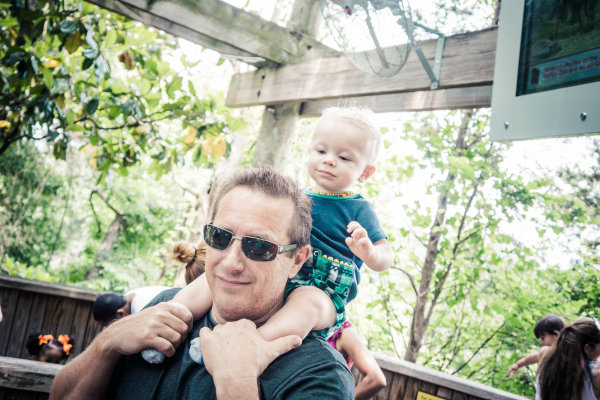
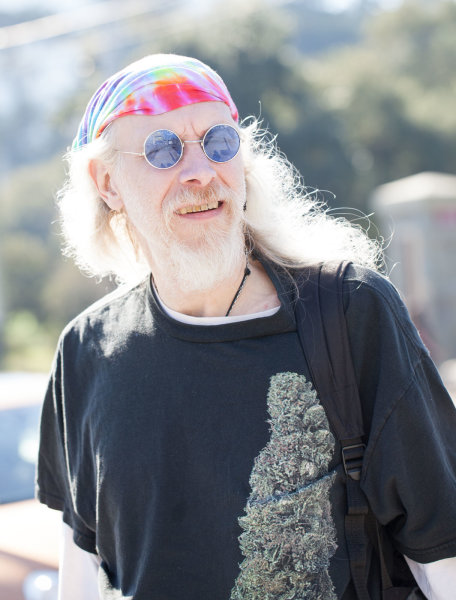
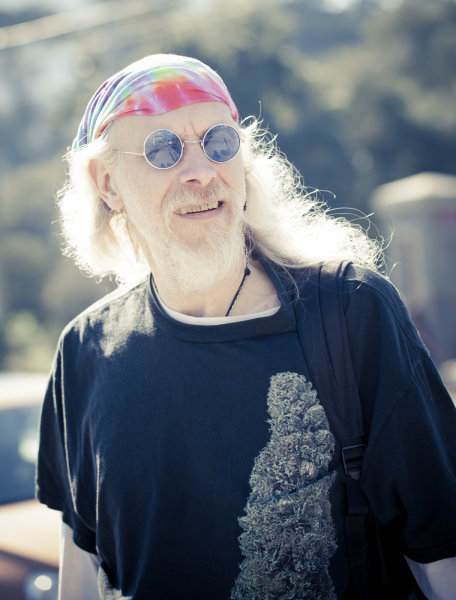
If I’m hitting a blank spot on where I want to take an image I will hover over my presets and see if I like any of the previews. Sometimes I love it and it’s a one-click edit.  Sometimes I like the look but know it needs a little tweaking. Either way it can save a lot of time. Check out a few one-click edits below from some of my presets.
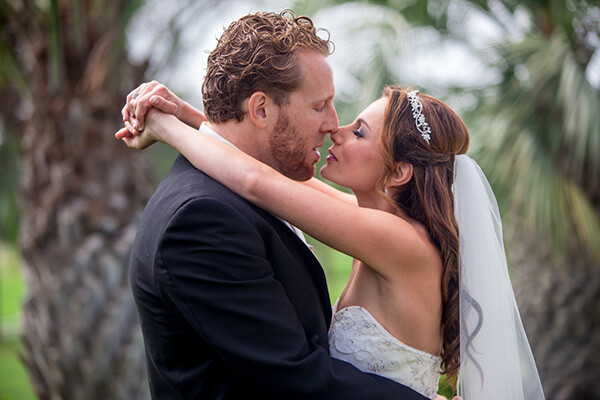
Straight out of camera
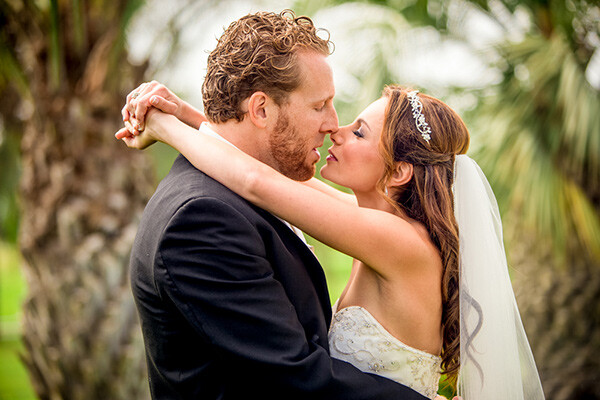
Straight out of camera

After one-click Preset

After one-click preset

before-5968

Straight out of camera

After one-click Preset

After one-click preset

Hacking-Photography-Color-Pop-Presets---Fill-Light-Smooth-Pre

Straight out of camera

After one-click Preset

After one-click preset

I hope you’ve seen how much Lightroom presets can help speed up your editing time and supply you with some very creative edits. I’d love to hear your thoughts in the comments below.

For more information on Lightroom presets check out these:

  • A Concise Guide to Lightroom Develop Presets
  • 4 Quick Tips For Getting The Most Out of Lightroom Presets
  • How to Add an Opacity Slider to Lightroom Develop Presets with The Fader Plug-In

Don’t want to make your own presets? On now at SnapnDeals you can get 100 of my custom Presets 50% off. Deal ends soon, don’t miss out so grab it here. 

The post Save Tons of Editing Time with Lightroom Presets by Mike Newton appeared first on Digital Photography School.

Digital Photography School

 
Comments Off on Save Tons of Editing Time with Lightroom Presets

Posted in Photography


Save 25% on my eBook and Star Trail Webinar Now Through January 2nd, 2014

01 Jan

New Years Sale

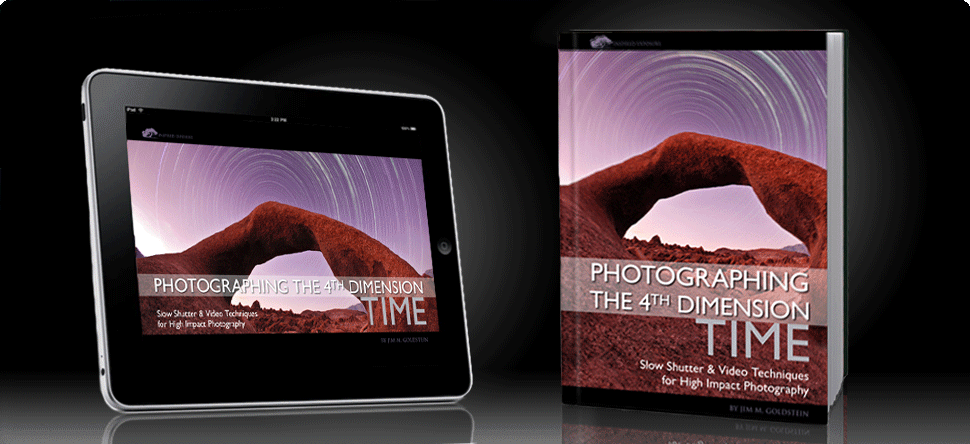
Now through January 2nd at midnight PST you can save 25% on my eBook Photographing the 4th Dimension – Time and my Star Trail Photography webinar. To save 25% instantly use the code SAVE25NY14 when you check out.

———

BEST DEAL: Mastering Star Trail Photography – Video Course – BUY THE VIDEO

This video course is for photographers of all skill levels interested in expanding their photography and post-production knowledge to make great astronomy landscapes. The course includes 6 hours of instruction and professional tips covering every aspect of star trail photography including gear selection, camera technique, post-processing and more.

Bonus: Receive a FREE copy of the eBookPhotographing the 4th Dimension — Time with your webinar recording purchase.

Learn More

———

GREAT SAVINGS: Photographing the 4th Dimension – Time eBook – BUY THE PDF

No matter your skill level Photographing the 4th Dimension – Time will help you improve your photography and heighten the impact of your photographs by introducing you to numerous slow shutter and video techniques.

  • Learn to create amazing photos using Light Painting & Star Trails techniques
  • Discover how to easily make Time-lapse Videos
  • Transform your photography with motion as Cinemagraphs
  • Avoid time-wasting mistakes and learn insider tips
  • Keep it all with you in the included Field Checklist

Learn More  and Read the Reviews

Copyright Jim M. Goldstein, All Rights Reserved

Save 25% on my eBook and Star Trail Webinar Now Through January 2nd, 2014

The post Save 25% on my eBook and Star Trail Webinar Now Through January 2nd, 2014 appeared first on JMG-Galleries – Landscape, Nature & Travel Photography.


Related Stories

  • Save 25% on my eBook and Star Trail Webinar Now Through January 2nd, 2014 – Enclosure
  • 7 Years of Data: How Social Media Has Impacted JMG-Galleries Web Traffic
  • 7 Years of Data: How Social Media Has Impacted JMG-Galleries Web Traffic – Enclosure


JMG-Galleries

 
Comments Off on Save 25% on my eBook and Star Trail Webinar Now Through January 2nd, 2014

Posted in Equipment


Save 25% on my eBook and Star Trail Webinar Now Through Dec. 2nd

27 Nov
Photographing the 4th Dimension - Time

Photographing the 4th Dimension – Time & Webinar

Black Friday – Cyber Monday Sale

Now through December 2nd at midnight PST you can save 25% on my eBook Photographing the 4th Dimension – Time and my Star Trail Photography webinar. To save 25% instantly use the code SAVE25 when you check out.

———

BEST DEAL: Mastering Star Trail Photography – Video Course – BUY THE VIDEO

This video course is for photographers of all skill levels interested in expanding their photography and post-production knowledge to make great astronomy landscapes. The course includes 6 hours of instruction and professional tips covering every aspect of star trail photography including gear selection, camera technique, post-processing and more. 

Bonus: Receive a FREE copy of the eBookPhotographing the 4th Dimension — Time with your webinar recording purchase.

Learn More

———

GREAT SAVINGS: Photographing the 4th Dimension – Time eBook – BUY THE PDF

No matter your skill level Photographing the 4th Dimension – Time will help you improve your photography and heighten the impact of your photographs by introducing you to numerous slow shutter and video techniques.

  • Learn to create amazing photos using Light Painting & Star Trails techniques
  • Discover how to easily make Time-lapse Videos
  • Transform your photography with motion as Cinemagraphs
  • Avoid time-wasting mistakes and learn insider tips
  • Keep it all with you in the included Field Checklist

Learn More  and Read the Reviews

Copyright Jim M. Goldstein, All Rights Reserved

Save 25% on my eBook and Star Trail Webinar Now Through Dec. 2nd

The post Save 25% on my eBook and Star Trail Webinar Now Through Dec. 2nd appeared first on JMG-Galleries – Landscape, Nature & Travel Photography.


Related Stories

  • Save 25% on my eBook and Star Trail Webinar Now Through Dec. 2nd – Enclosure
  • The Ancients – Bristlecone Pine Forest, California
  • News Flash Fellow Photographers You’ve Already Sold Your Soul To Facebook – Enclosure
Feed Ads by FeedBlitz
powered by ad choices


JMG-Galleries

 
Comments Off on Save 25% on my eBook and Star Trail Webinar Now Through Dec. 2nd

Posted in Equipment


How To Save An Underexposed Photo Using Lightroom

10 Nov

Before we even get started I should make clear that this is to be used as a last resort effort to save a photograph that can’t possibly be retaken any time soon, not something we should make a habit out of. We all know that the best way to save an underexposed photograph is to simply pay attention to the histogram while taking photos and if it’s pushed all the way to the left adjust our settings and reshoot.

Of course with that said, there are cases where it’s impossible to reshoot, or we just forgot to check our settings and get home to realize everything is underexposed and in that case we can do one of two things – toss the photo in the trash or try and save it.

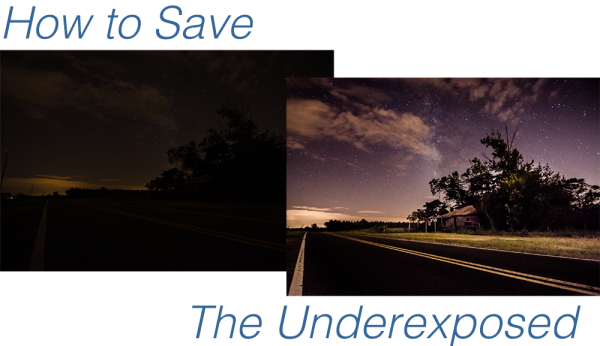
Today I’m going to show you…

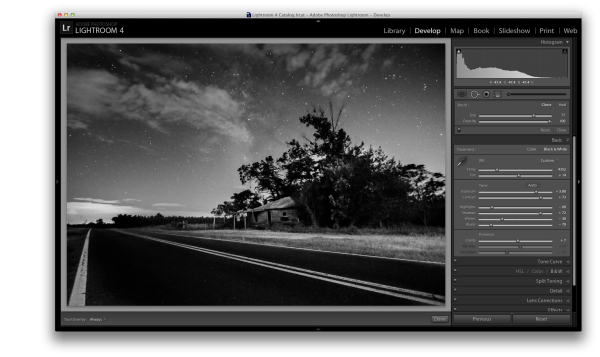
after underexposed

I’d like to mention upfront that to be able to achieve these kinds of results you really must be photographing in the RAW format – no ifs, ands or buts about it! If you need a bit of clarification as to why RAW is important you can read all about the RAW format here.

Let’s Save An Underexposed Photo

Underexposed histogram

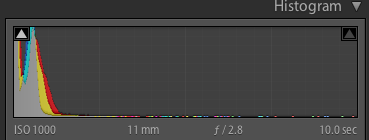
If you do get home and your histogram looks the one to the right than you’ve got an underexposed photograph in serious need of some help. It probably looks very similar to the before image above with just peaks of light in the very brightest parts of the photograph.

Before you give up hope and assume that your shoot is a complete failure there are a few things you can do to try and salvage the underexposed photographs that you’ve taken.

I’m going to be presenting you with three techniques that you can use to get the most out of what you have. However it is important to note that every photograph is different and will present its own unique set of challenges. These three ideas will give you something to try in the event that you do get home and find your photographs have taken a turn for the dark side, but they might not be able to bring them back, sometimes they truly are too far gone.

For this tutorial I’m using a fairly serious example, in most cases I would hope that you won’t have nearly as bad a situation as I have for you today, so let’s get started!

#1 – Save what you can get rid of what you can’t

This might not be the best way to go about things, but it certainly is the easiest way to get something out of nothing.

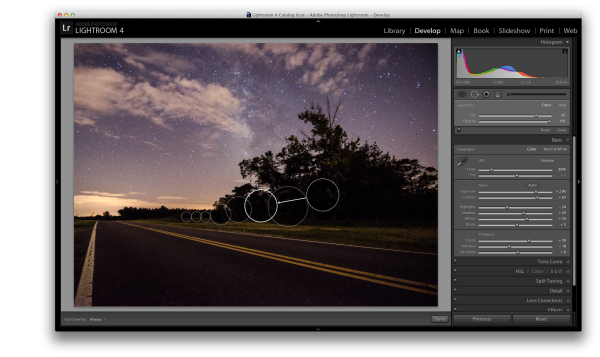
By simply adjusting the basic settings a bit to expose for the sky in the photograph I create a simple silhouette of the trees and leave it at that. The final step was to clone out the little bits of the run down shack that were peaking out asking for attention, but not adding to the photograph.

Definitely not the best option for this photo, but it is an option worth considering when you are processing your own photos – sometimes you really don’t have to save everything – it might not be what you had intended the shot to be, but that doesn’t mean it’s a complete loss.

Clone Screenshot

Expose for what you have clone out what you can’t save.

#2 – Use Graduated Filters and Adjustment Brushes Until You Can’t Use Them Anymore

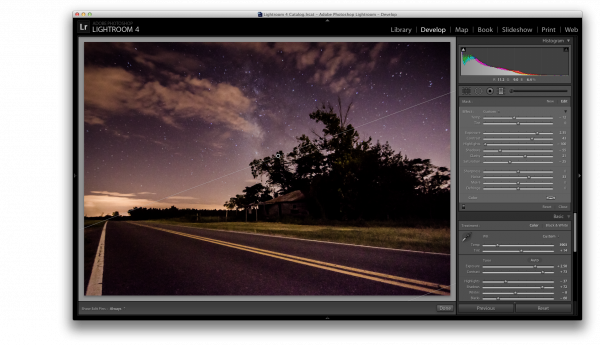
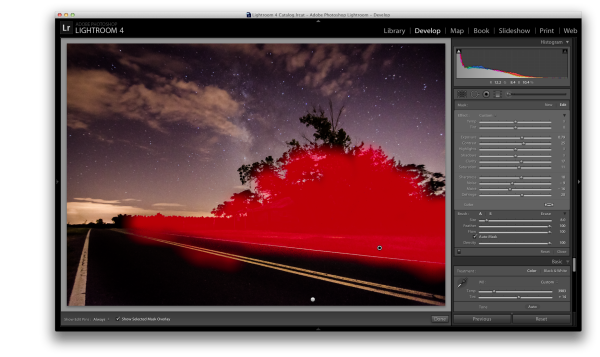
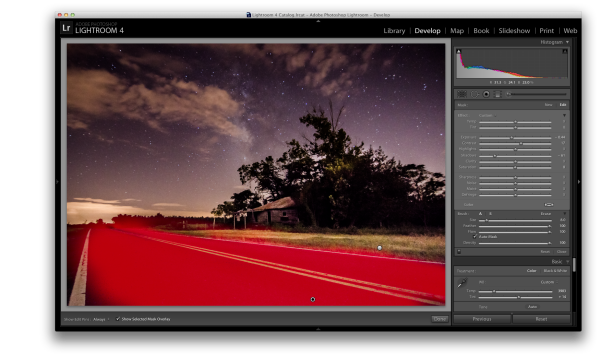
For this second attempt at saving this image I did a lot of the same processing as I did on the first one to get the sky the way I wanted it. Once I got to that point instead of simply giving up and cloning out the run down shack I decided to add a graduated filter and some adjustment brushes to try and save the foreground.

As you can see with just a few modifications I was able to really bring out the hut and add some light to the grass as well as some much needed contrast to the road. This became the after image scene above.

Graduated filter screen shot

Use a graduated filter to bring light back into the foreground.

Adjustment Brush Overlay One

Add light to the grass and hut with one adjustment brush

Adjustment Brush Overlay Two

Darken the road to add contrast and remove some noise with a second adjustment brush.

#3 – Convert to Black and White

If we have a really bad case of underexposure, as I do in this photograph, noise will become a problem. As you recover data from the darkest of the shadows you will find that there just isn’t any data there to recover and you’ll end up with pixelated noise in those regions. This is especially true if you were already shooting at a higher ISO.

In cases like this sometimes the only solution left to do is convert to black and white. By converting the image to black and white you essentially are able to hide the color noise leaving only the luminance noise in the photograph. While it’s still not ideal, it can be a useable alternative if you have no other options.

Reduce noise by converting to black and white

Convert the image to black and white to minimize the effect of noise

For those who enjoy videos this photograph’s edit was part of a weekly series I run on YouTube called Let’s Edit you can watch the video of that episode below.

Post originally from: Digital Photography Tips.

Check out our more Photography Tips at Photography Tips for Beginners, Portrait Photography Tips and Wedding Photography Tips.

How To Save An Underexposed Photo Using Lightroom

The post How To Save An Underexposed Photo Using Lightroom by John Davenport appeared first on Digital Photography School.


Digital Photography School

 
Comments Off on How To Save An Underexposed Photo Using Lightroom

Posted in Photography


Last Chance to Save 25% on our Portrait Lighting eBook [and Go into the Draw for a $1000 Prize]

02 Oct

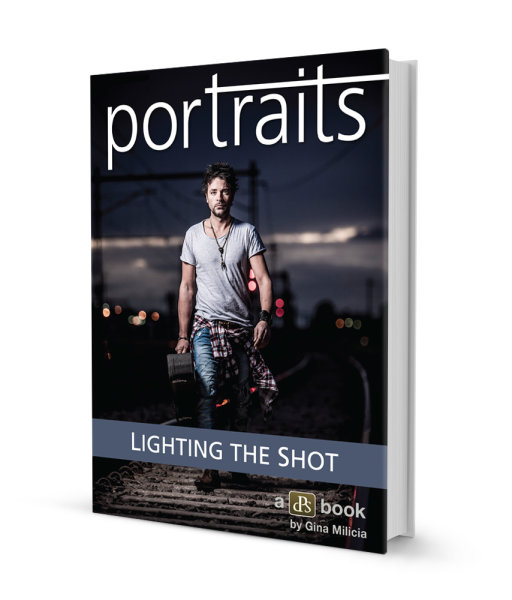
Portraits_lighting_cover

Just over a month ago we launched our brand new eBook – Portraits: Lighting the Shot – an eBook about Lighting Portraits (as the name suggests).

The 25% off Early Bird special and bonus competition end in just over 72 hours time.

When we launched this eBook we knew it was on a topic we get a lot of questions about but we didn’t realise just how much positive feedback we’d get about it.

What’s People Are Saying About This eBook

“If you want to limit yourself to only ever shooting natural light portraits, be my guest. If you want to level-up your portrait photography skills by learning how to light your subjects well, you can’t go past this book!” – Rowan Sims

“It is amazing!  If you are a portrait photographer this book is a must.  I read this for the first time on Friday, and was able to put what I learned into practice at a wedding I shot the following Sunday.  You don’t want to miss this one.” – photographytipshq.com

“My overall opinion of this book is that it is very worth it. If you already have some experience in portrait photography, and want to take it to the next level by introducing lighting. You will learn a lot from this very experienced professional.” – Pedro Mendes

That’s just scratching the surface of the lovely things we’ve heard about Portraits: Lighting the Shot.

Last Chance to Save and Go in the Draw to Win a $ 1000 Lighting/Lens/Bag prize pack

Order a copy of Portraits: Lighting The Shot before the 4th of October EST and you could win a Beautiful Retrospective 7 Bag and $ 1000 to spend on lighting and lenses!

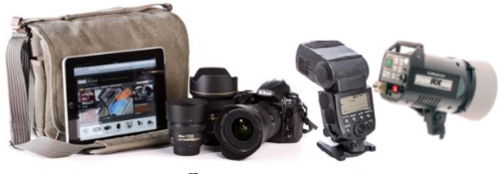
The winner will receive a Retrospective® 7 (Pinestone)  (worth $ 162) from ThinkTankPhoto.  Plus you can choose lighting or a combination of lenses or to suit your needs up to the value of $ 1000 USD (after reading the eBook you’ll have a good idea of what you need).

lightingtheshotprize

We’ll draw and notify the winner on the 5th of October and then publish their name here on the dPS blog. If the winner doesn’t respond within 7 days we’ll draw another winner and publish their name on the blog.

Grab Your Copy of Portraits: Lighting the Shot here.

Post originally from: Digital Photography Tips.

Check out our more Photography Tips at Photography Tips for Beginners, Portrait Photography Tips and Wedding Photography Tips.

Last Chance to Save 25% on our Portrait Lighting eBook [and Go into the Draw for a $ 1000 Prize]


Digital Photography School

 
Comments Off on Last Chance to Save 25% on our Portrait Lighting eBook [and Go into the Draw for a $1000 Prize]

Posted in Photography


DEAL: Save 30% off James Brandon’s Lightroom Presets Bundle (and get a FREE ebook)

14 Jul

LR_presets_adOver on our sister site – SnapnDeals – we have a great offer running right now – it gets you 30% off of an incredible collection of Lightroom presets by DPS contributor James Brandon. You’ll also receive a free copy of his newest ebook “10 Tips For Improving Your Photography Today.”
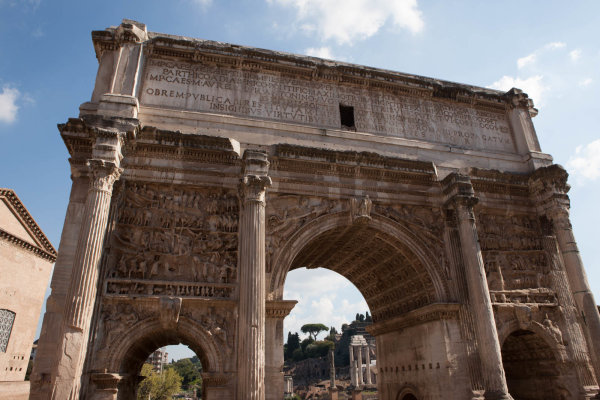
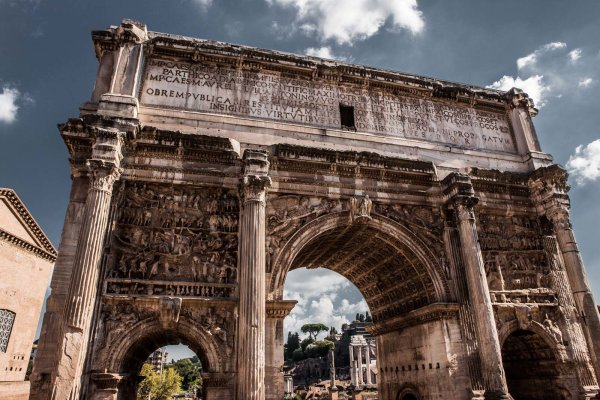
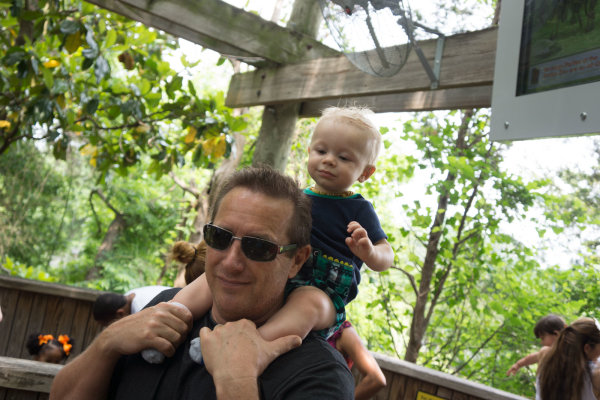
This collection includes 80 presets in 7 different groups and will take your images to a whole new level! Presets are a great way to speed up your workflow in Lightroom and discover new looks and effects for your photos.

James has been stockpiling and optimizing these presets for years, and narrowed them down to just the best. Each collection is targeted towards a specific genre of photography or a specific photo processing need. Highlights of this bundle include the JamesB Filter Pouch; a collection of presets that mimic the filters landscape and travel photographers use out in the field. The JamesB Travel Presets; a collection that will work great for those vacation and adventure images. And the brand new JamesB Family Lifestyle Presets; a collection that James has created specifically for pictures of his family and friends.

His ebook 10 Tips For Improving Your Photography Today is included free with this purchase and will be a great companion for any photographer looking for quick, useful tips that will give your creativity and photography a boost.

Check out full details of the deal here

Before and After Samples

Before

Before

After - Using 'Rome' in the JamesB Travel Preset collection

After – Using ‘Rome’ in the JamesB Travel Preset collection

Before

Before

After - Using 'Day at the Zoo' in the JamesB Family Lifestyle collection

After – Using ‘Day at the Zoo’ in the JamesB Family Lifestyle collection

Before

Before


After - Using 'Sweet Pea Vintage' in the JamesB Nostalgia Film collection

After – Using ‘Sweet Pea Vintage’ in the JamesB Nostalgia Film collection


Post originally from: Digital Photography Tips.

Check out our more Photography Tips at Photography Tips for Beginners, Portrait Photography Tips and Wedding Photography Tips.

DEAL: Save 30% off James Brandon’s Lightroom Presets Bundle (and get a FREE ebook)


Digital Photography School

 
Comments Off on DEAL: Save 30% off James Brandon’s Lightroom Presets Bundle (and get a FREE ebook)

Posted in Photography


24 Hours Left to Save 25% on our New Trick Photography eBook

12 Jun

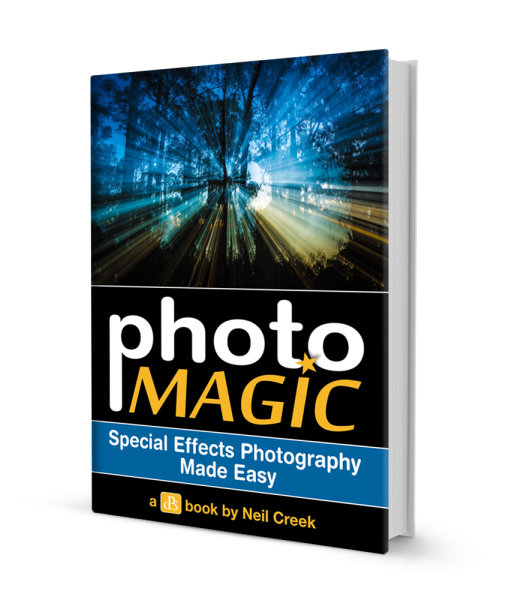
Photomagic_coverAJust on 3 weeks ago we announced our brand new eBook – Photo Magic – a guide to taking 11 special effects/trick photography techniques.
To celebrate the launch we offered dPS readers a 25% Early Bird saving and also put each person who picked up a copy an entry into a draw to win a new DSLR or lens to the value of $ 1500 USD.

As this post goes live there a bit over 24 hours to go to take advantage of this Early Bird Special and to get into the draw to win that gear – both of which offers will be closed off at midnight US Eastern time on 12th June.

Not only will you save some money and put yourself in the running to win the prize – this eBook will give you the ability to shoot 11 great special effects techniques including (click the photos to see larger versions):

zoomeffectZoom Effect

Add a dynamic zoom effect with a slow shutter speed, and learn a super charged variation using your flash.

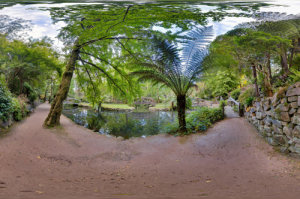
360panorama360 Panorama

A spherical 360 degree panorama puts you there by showing the whole world from a particular viewpoint.

aperture_masksAperture Masks

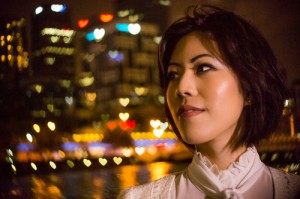
Create a romantic, magical or cool background for your night portraits with aperture masks.

flour_hairflickFlour Hair Flick

Half a cup of flour, add three lights and flick hair vigorously for this dramatic action shot.

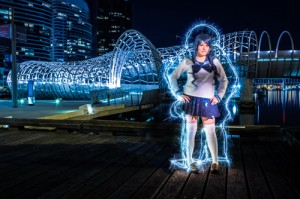
lightpainting_sparklersLight Painting Sparklers

Sparklers, a sci-fi schoolgirl and some really nifty colour and light tricks create this dynamic light painted photo.

lightpainting_steelwoolLight Painting Steel Wool

Stars twinkling above and fire sparking below lights up the beach in a dramatic combination shot.

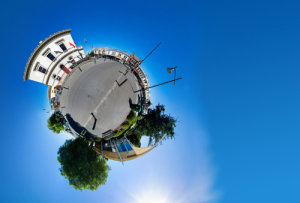
littleworldLittle World

Starting with a panorama, create whole planets with this super distorted, super fun effect.

mixing_ambient_flashMixing Ambient and Flash

Capture and freeze motion in the same shot for a striking effect by mixing flash and continuous light.

multiple_exposuresMultiple Exposures

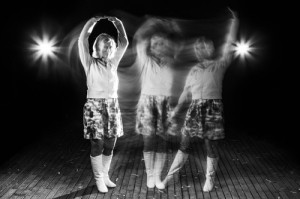
If two are twice the fun, eleven clones are a party! This multiple exposure technique is a unique way to tell a story.

startrailsStar Trails

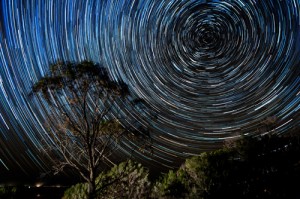
Capture the majesty of the night sky as it spins eternally overhead with this surprisingly accessible star trail technique.

waterdropletWater Droplets

Natures little lenses create many images with this technique to get you started using water refraction in your photography.

Get more information on this great new eBook here or pick up a copy by clicking the ‘Download it Now’ button below.

download_it_now_photomagic

// < ![CDATA[ // < ![CDATA[ // < ![CDATA[ // < ![CDATA[ // < ![CDATA[ // < ![CDATA[ // < ![CDATA[ // < ![CDATA[ // < ![CDATA[ // < ![CDATA[ // < ![CDATA[ // < ![CDATA[ // < ![CDATA[ // < ![CDATA[ // < ![CDATA[ // < ![CDATA[ // < ![CDATA[ // < ![CDATA[ // < ![CDATA[ // < ![CDATA[ // < ![CDATA[ // < ![CDATA[ // < ![CDATA[ // < ![CDATA[ // < ![CDATA[ // < ![CDATA[ // < ![CDATA[ function EJEJC_lc(th) { return false; } // ]]>PrThe // ]]>

Post originally from: Digital Photography Tips.

Check out our more Photography Tips at Photography Tips for Beginners, Portrait Photography Tips and Wedding Photography Tips.

24 Hours Left to Save 25% on our New Trick Photography eBook


Digital Photography School

 
Comments Off on 24 Hours Left to Save 25% on our New Trick Photography eBook

Posted in Photography


When disaster strikes, photo editors can help save memories

22 May

TS520x0~cms_posts_8882903403_Screen_Shot_2013-05-21_at_11.13.25_AM.png

When homes are damaged, often the most important items cannot be replaced. For victims of fire, floods and other natural disasters, family photos are among the worst things to lose. Operation Photo Rescue brings together victims with professional photo editors to turn damaged images back into clear memories. Learn more on connect.dpreview.com.


News: Digital Photography Review (dpreview.com)

 
Comments Off on When disaster strikes, photo editors can help save memories

Posted in Uncategorized


DEAL: Save 30% off Phil Steele’s Headshots and Portraits Course

10 May

1368020478609390876Over on our sister site – SnapnDeals – we have a great offer running right now – it gets you 30% off Phil Steele’s Headshots and Portraits course.
Many of your have taken Phil’s other courses and will be familiar with his helpful videos so will know that he always delivers great training for photographers.

This course will teach you how to take professional looking head shots and portraits on a budget – just using small flashes. Normally the course is $ 47 but with this Snapn Deal it is just $ 33.

Check out full details of what’s included here.

PS: if you’re interested in weekly promotions like this just add your email address to the field below and we’ll send you a weekly update of all new deals.

It’s free, we don’t share your details with anyone and you’re welcome to unsubscribe any time if you don’t find the deals to be for you.

Post originally from: Digital Photography Tips.

Check out our more Photography Tips at Photography Tips for Beginners, Portrait Photography Tips and Wedding Photography Tips.

DEAL: Save 30% off Phil Steele’s Headshots and Portraits Course


Digital Photography School

 
Comments Off on DEAL: Save 30% off Phil Steele’s Headshots and Portraits Course

Posted in Photography


Save Time with Batch Exposure Blending

10 May

A Guest Post by Nick Rains.

Do you ever shoot a bunch of exposure-bracketed shots and then never get around to blending them together?

Maybe you don’t shoot multiple exposures in the first place because you don’t want to spend hours in front of the computer blending together the individual images. If you are like me, the thought of individually exposure-blending a whole load of images is just not what photography is all about – I know I can produce better images with better tonal range this way but it seems like a lot of work in front of the computer.

What if I told you I do most of my exposure blends automatically?

Here’s how :

You need Lightroom and a Lightroom plug-in called LR/Enfuse.

This is free to download but is restricted to work only on low resolution images. The good news is that the full version is donationware and when you find out just how genuinely useful it is you’ll be happy to pay a modest amount. The guys who write these plugins do need support – I’d suggest $ 10 – $ 20 – but it’s up to you

So, here we go…

1. Shoot your exposure blend image sets as normal – I recommend using the two-second self-timer combined with auto-bracket so that you get all three shots with one press of the shutter button. I normally set the auto-bracket to plus and minus 2 stops which seems to cover most high contrast scenes.

2. Import the images into Lightroom as per usual.

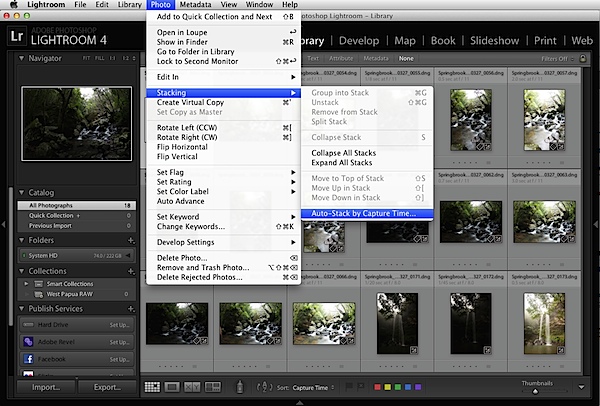
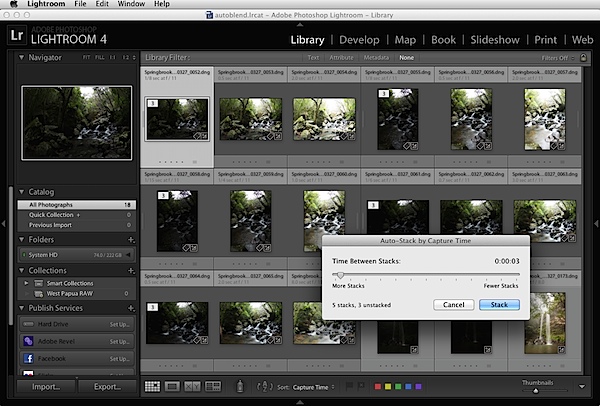
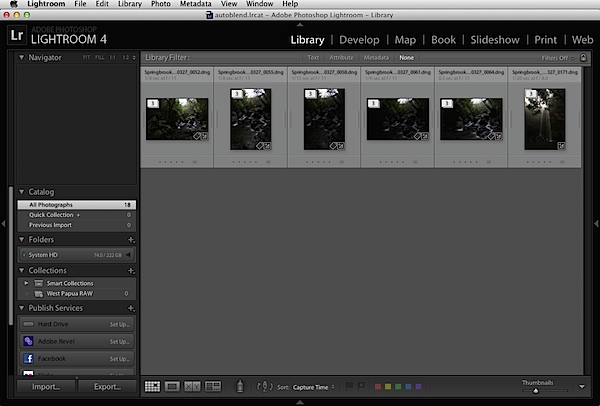
3. In the Library Module, view the folder of the images you just imported and choose Photo / Stacking / Auto-stack by Capture Time. Set this to about three seconds and Lightroom should collect all your sets of bracketed images into stacks because they will normally have been shot less than three seconds apart. Adjust the slider and you’ll see them stack and unstack in ‘real time’. Choose Photo / Collapse All Stacks and you should now see single stacks each containing the images which make up each exposure blend sequence.

Batch Exposure Blending 1.png

Batch Exposure Blending 2.png

Batch Exposure Blending 3.png

Auto-stacking is not foolproof, but you will soon get the hang of it – the trick is to make sure the folder only contains bracketed images that need stacking. If you mix them up with single captures it’s possible that you’ll get a few odd stacks.

4. Now select all the stacks that are made up of your three exposure brackets (command or control-click to multi-select).

5. Choose File / Plug-in Extras / Blend Exposures using LR Enfuse.

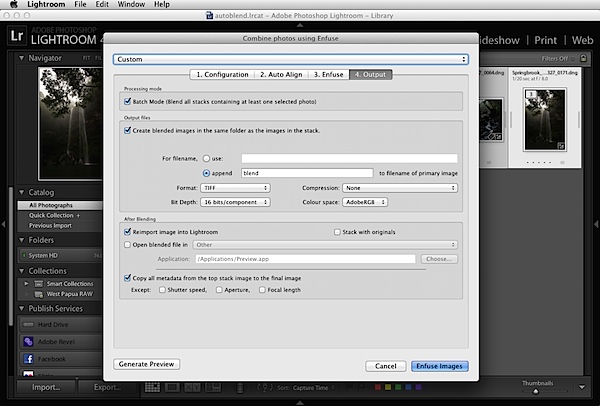
6. Use the default settings under the Enfuse tab but on the Ouput Tab check the box at the top called “Batch Mode”, check the box labelled “Create blended image in the same folder as the primary image in the set” and check the box labelled “Reimport image into Lightroom”.

Batch Exposure Blending 4.png

You can ignore ‘Auto-align’ if you used a tripod, otherwise, if you shot hand held, turn this one.

7. Hit the “Enfuse Images” button.

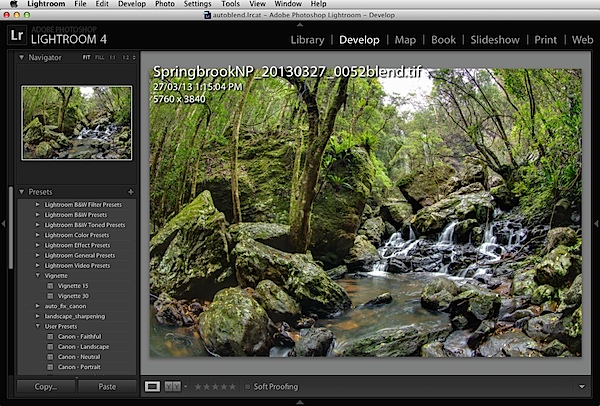
8. Go get a cuppa whilst LR/Enfuse works its way through each individual stack of images, converts them according to any raw settings in the Lightroom Develop Module, exposure blends them, saves the result into the same folder as the originals, and imports them back into the Lightroom catalogue. All on full automatic.

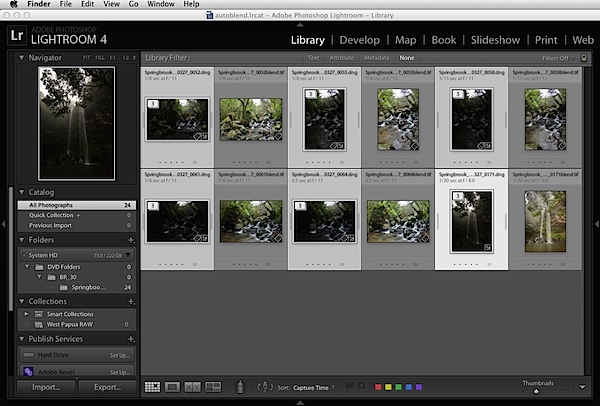
What you’ll see is one new file pop up next to each stack in the folder. These will be your exposure blended images.

Batch Exposure Blending 5.png

Batch Exposure Blending 6.png

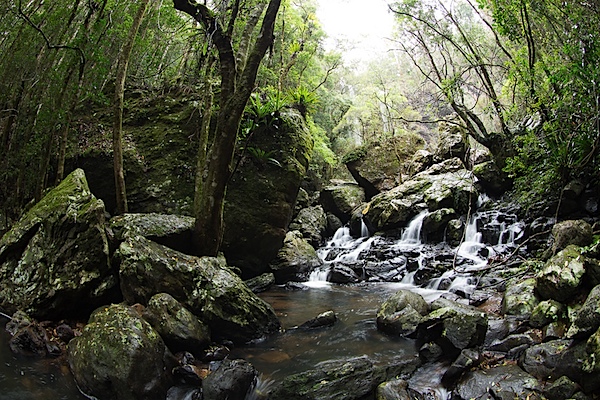
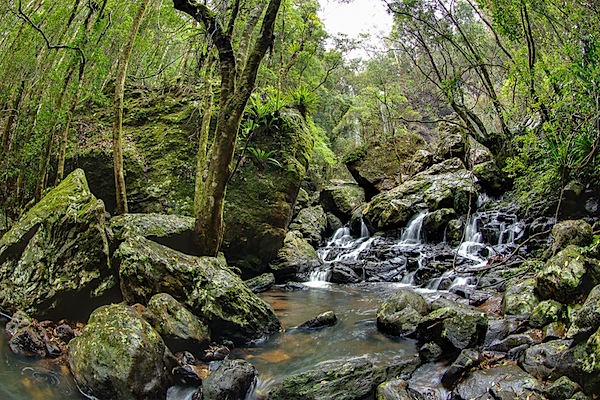
Pretty cool huh? Here’s the before (top) and after (bottom) of the image we processed (click to enlarge to full size).

Before.jpg

After.jpg

Images: Springbrook National Park, QLD – Twin Falls. Shot on a Canon EOS 5D Mk III – EF8-15F4L

This is only a quick run through the method, it’s not completely foolproof and occasionally you’ll have to go back and manually blend a difficult image using Photomatix or something similar, but, on the whole, LR Enfuse does a superb job.

One refinement would be not to do much adjustment in LR before blending, set LR/Enfuse to create 16bit TIFFs and then use LR’s extensive tone mapping tools to adjust the new output file to suit your tastes. I intend to go through this process in greater detail in a Lightroom eBook I am currently working on.

In the meantime, automating your workflow like this can save you a huge amount of time. Setting it up in the first place might take a bit of thought and effort but, believe me, it’s well worth it.

Nick Rains has been a professional photographer for almost thirty years, doing mostly editorial work for clients such as Australian Geographic and has made a point of keeping up to date with technology. His latest forays into the world of current technology have been shooting more and more video and creating an iPad app called Photique where he publishes articles and interactive eGuides as well as free image portfolios.

Post originally from: Digital Photography Tips.

Check out our more Photography Tips at Photography Tips for Beginners, Portrait Photography Tips and Wedding Photography Tips.

Save Time with Batch Exposure Blending


Digital Photography School

 
Comments Off on Save Time with Batch Exposure Blending

Posted in Photography