RSS
 

Posts Tagged ‘Rock’

Rock Solid: Canon 1D X Mark II Review

28 Jul

The EOS-1D X Mark II is Canon’s newest flagship DSLR aimed at pro-level photographers. A quick glance reveals the camera’s 1D-series heritage, but under the hood there are some exciting upgrades going on. The 1D X II is built around a new 20.2MP full-frame CMOS sensor, now with Canon’s Dual Pixel autofocus system, includes an expanded 61-point autofocus system with 24% more coverage and a 360,000-pixel RGB+IR metering sensor, and is one of the first Canon DSLRs (other than the somewhat niche 1D C) that captures 4K video. Predictably, it’s also built like a brick and performs like a Formula 1 race car.

Canon 1D X Mark II Key Specifications

  • New 20.2MP CMOS full-frame sensor with Dual Pixel autofocus
  • 14 fps continuous shooting (16 fps in live view)
  • 200+ shot buffer with Raw+JPEG (CFast 2.0)
  • 61-point AF system with 41 cross-type sensors and 24% more coverage
  • 360,000-pixel RGB+IR metering sensor
  • Native ISO from 100-51,200 (expandable to 50-409,600)
  • 4K/60p video in DCI format (4096 x 2160 pixels) using Motion JPEG
  • 1.62 million dot LCD touch screen
  • Flicker detection
  • CFast 2.0 card support
  • USB 3.0

The 1D X Mark II is a camera that anyone with previous 1D series experience can probably pick up, dial in their favorite settings, and start shooting right away — though as we’ll see on the following pages, in doing so one might overlook advancements that Canon has made in this newest edition. There are a few minor tweaks to the body – all for the better in our opinion – and it takes very little effort to adapt. This conservative approach to design is a testament to the fact that the basic form factor works well. It’s no surprise that the designs of both the Canon 1D and Nixon Dx series are quite similar and haven’t seen many changes to the basic design over the years.

Conservative changes to the body notwithstanding, the 1D X II is full of new and updated technology designed to make the camera one of the top performing models in the world. The new AF system, although still utilizing 61 AF points, now covers 24% more of the frame and is, predictably, extremely fast. There’s also a new 360,000-pixel RGB+IR sensor for face recognition and subject tracking, which Canon refers to as iTR (Intelligent Tracking and Recognition).

The jump to 20MP (vs. the 1D X’s 18MP) isn’t exactly Earth shattering, but this is a completely different sensor than any found in Canon’s previous flagship models. The 1D X II is the first full frame EOS DSLR to include Canon’s Dual Pixel autofocus system, a feature we’ve praised on other cameras. Additionally, Canon has moved to a design that uses on-chip analog to-digital-conversion, which should result in improved dynamic range of the sensor.

Compared to the Nikon D5

The obvious point of comparison to the 1D X II is the Nikon D5. A quick comparison reveals a lot of similarities and a few differences. On the surface it appears that Nikon takes the prize for high ISO and AF specs, while the 1D X II wins on continuous shooting speed and video. On the following pages we’ll try to give you a sense of how they stack up in the real world.

  Canon EOS-1D X II Canon EOS-1D X Nikon D5
MSRP $ 5999 $ 6800 $ 6499
Sensor 20.2MP 18.1 MP 20.8MP
ISO range
(expanded)
100 – 51,200
(50 – 409,600)
100 – 51,200
(50 – 204,800)
100 – 102,400
(50 – 3,280,000)
Viewfinder spec 0.76x mag
100% coverage
20mm eyepoint
0.76x mag
100% coverage
20mm eyepoint
0.72x mag
100% coverage
17mm eyepoint
AF points 61 (41 cross-type) 61 (41 cross-type) 153 (99 cross-type)
Live view/video AF ‘Dual Pixel’
phase detection
Contrast detection Contrast detection
AF working range -3 – 18 EV -2 – 18 EV -4 – 20 EV
RGB metering sensor resolution 360k pixels 100k pixels 180k pixels
LCD 3.2″ 1.62M-dot touch-enabled 3.0″ 1.04m dot 3.2″ 2.36M-dot touch-enabled
Burst rate 14 fps
(16 with mirror up)
12 fps 12 fps
(14 with mirror up)
Buffer
JPEG / Raw / Raw+JPEG
  • Unlimited
  • 170
  • 81
  • 180
  • 38
  • 17
  • Unlimited
  • 200
  • 200
Video DCI 4K/60p 1080/60p UHD 4K/30p
HDMI Out 1080 8-bit 4:2:2 1080 8-bit 4:2:2 4K/30 8-bit 4:2:2
Headphone socket? Yes No Yes
Card format 1x Compact Flash
1x CFast
2x Compact Flash 2x Compact Flash or 2x XQD variants
Battery life (CIPA) 1210 shots 1120 shots 3780 shots
Dimensions 158 x 168 x 83mm 158 x 164 x 83mm 160 x 159 x 92mm
Weight 1530 g 1530 g 1405 g (XQD)

We doubt that many people are going to seriously contemplate a switch between Canon and Nikon over a few specs on one model or the other unless it’s something absolutely mission critical. Most shooters utilizing this type of camera are likely heavily invested into a system, including lenses, strobes, and even institutional support. At the same time, it’s instructive to see just how advanced both flagship models are getting. We expect that most pros or advanced amateurs could produce great results with either one.


Articles: Digital Photography Review (dpreview.com)

 
Comments Off on Rock Solid: Canon 1D X Mark II Review

Posted in Uncategorized


Olympus ‘Pro’ wideangle lens Field Test: Rock n’ Roll and Skateboards

11 Aug

In our latest Field Test we put Olympus’s new M.Zuiko Digital ED 8mm F1.8 Fisheye Pro and M.Zuiko Digital ED 7-14mm F2.8 Pro in the hands of DPReview writer Dan Bracaglia. Dan put them to the test in some of his natural environments: a rock concert, skate park, and a beach landscape at sunset. See video

Articles: Digital Photography Review (dpreview.com)

 
Comments Off on Olympus ‘Pro’ wideangle lens Field Test: Rock n’ Roll and Skateboards

Posted in Uncategorized


7 Easy Ways to Rock Your Photo Collages

27 Jul

Sometimes one photo just isn’t enough—we know. Photo collages are gaining momentum in the social media universe, but there’s a lot of untapped potential in the art of collage making. With tons of photo collage apps out there, you can pretty much do anything you want with a smartphone and an Internet connection. With all of the different options available Continue Reading

The post 7 Easy Ways to Rock Your Photo Collages appeared first on Photodoto.


Photodoto

 
Comments Off on 7 Easy Ways to Rock Your Photo Collages

Posted in Photography


Are Your Photo Backups Rock Solid?

17 Jul

What would you do if your main computer was stolen, permanently lost, or just completely died?

Did you just get shivers up your spine? If not, you probably have some form of a backup system for your data and photos. That’s great!

Rust.bucket

By rust.bucket

If you got shivers, then you best start thinking about backing up your images, pronto. Let me suggest Backing Up and Saving Your Images: Part 1 as a place to get started.

Even if you are religiously backing up your photos, are you testing those backups? How often?

This article is intended to get you thinking about how precious your images are to you, and if you are doing what you can to ensure they don’t go POOF, and are gone forever.

A Moment to Give Pause

My iMac was recently stolen. I got lucky, real lucky. The thieves did not take my external Network Attached Storage (NAS), its backup disk, nor my iMac backup disk.

It’s because those items were left behind (which were valued at more than my old iMac) that I am not still crumpled into the fetal position, crying my life away in the corner of the basement.

One thing I learned from this experience is that Time Machine, Apple’s native backup facility, is not perfect. I was not able to use the graphical interface to restore my old profile to my new machine, and that’s not even talking abut the photos themselves. In the end I had to fall back on my days as a systems administrator and relearn Unix command line tools to find and copy the files from my backup, over to my main machine.

Keep More Than One Copy

First, if your images are highly valuable to you, you should be keeping more than one copy of all of them (and any associated catalogs like Lightroom). This means at least another disk, or group of disks, backing up your originals.

Think to the future when buying backup discs. If you currently have 500GB of images, I would buy at least a 2TB backup device, like an external harddrive. A four times multiplier should be used at least, depending on your rate of photo capture (and your ability to filter photos as they come in). If you are on a tight budget, go for two times your current size, and trust that harddrives get cheaper as time goes on.

Either way, do the best you can to capture all of your images on a single backup device.

Keep Them Separate

Second, if you can afford it, and if the level of protection you need warrants it, keep a third copy of your files off-site. I mentioned getting lucky that the thieves saw no value in my external storage devices and I intend to never have to be so lucky again.

347561757_200a98ca5c_b

Photo by: wonderferret/flickr

Some backup services, like Apple’s Time Machine feature, make it easy to plug in two backup drives and let the software automatically make backup copies of not only pictures, but all computer files to both discs. Once a full backup is built on both drives, you take one drive off-site. A relative’s house, a friend’s house, or even a safe deposit box. Then, on a regular schedule (mine is once a week), swap the drives.

This way, at worst, you lose a week’s worth of changes if both your main computer and your backup drive go missing, or are caught in a house fire, flood, or other disaster.

Consider Online Storage

Online. The Cloud. That jargon is shorthand for “someone else’s computer”. It can be helpful when considering where to keep a backup of your images.

There are now a plethora of services that, after you hand them some cash, will store your images for you. I suggest doing this as only a backup, but for casual users it might be handy for all your storage. Just remember, those images are on someone else’s computer.

PC magazine often does a decent job of reviewing products and they have a useful list of online backup solutions here. Also don’t forget other services like Amazon and Google’s Picasa which currently have unlimited photo storage (certain restrictions apply).

Understand What a Recovery Will Entail

Now that you have your photos backed up, do you know what it will take to bring them back to life if everything goes south?

Many of us are okay with storing our data on other people’s servers (the cloud), but fail to remember it will possibly take a couple of days to recover the images if things fail. What about a partial failure? Can your backup and recovery software detect a partial loss of data and fill in the gaps? Or will you be left to manually sift through the figurative ashes and fill the holes?

Get to know your backup software not “when I have a moment”, but today. Maybe tomorrow, but no later! You don’t have to obtain guru status, but you should know your way around recovering photos (and other data) while things are calm. I can tell you from experience that when the stuff hits the fan, and the panic of losing all your work sets in, that’s no time to be learning new software.

Screen Shot 2015-06-23 at 3.54.21 PM

Learn your backup and recovery software

Schedule Tests of Your System

There’s only one way to know if your backups work – test them!

The systems administrator in me says you should test your backups monthly. But the realist in me knows few of you will ever do that unless you have an intern, or are making $ 10,000 per month from your photography business, or both.

Be realistic, and again, it will depend on how important your photos are to you. Realistically I suggest one test every three months. Once a season. That keeps your recovery skills fresh enough (hint: write out the steps you take for recovery so you don’t have to learn it new each time) that an honest recovery won’t take too long.

So tell me, are your photo backups rock solid?

If photography is your livelihood, or even if you just take family pictures, it’s best to find out right now with a test rather than find holes in your system after things have gone wrong.

googletag.cmd.push(function() {
tablet_slots.push( googletag.defineSlot( “/1005424/_dPSv4_tab-all-article-bottom_(300×250)”, [300, 250], “pb-ad-78623” ).addService( googletag.pubads() ) ); } );

googletag.cmd.push(function() {
mobile_slots.push( googletag.defineSlot( “/1005424/_dPSv4_mob-all-article-bottom_(300×250)”, [300, 250], “pb-ad-78158” ).addService( googletag.pubads() ) ); } );

The post Are Your Photo Backups Rock Solid? by Peter West Carey appeared first on Digital Photography School.


Digital Photography School

 
Comments Off on Are Your Photo Backups Rock Solid?

Posted in Photography


5 Steps to Rock the Brenizer Method

07 Jun

Pier brenizer

What is the Brenizer Method?

The Brenizer Method is named after wedding photographer, Ryan Brenizer. He didn’t invent the method but instead made it popular by using it with his wedding clients, and teaching others how to do it as well. For those who have been around photography for a while, you will recognize the process. Photographers have been stitching images together to create panoramas for decades. However, Photoshop and similar software have now made this method extremely simple for you.

Advantages of using the Brenizer Method

Creating an image using the Brenizer method takes more time than just capturing a single image, but the results are well worth it. When using this method, you will create an image with:

  • Very high resolution
  • Very shallow depth of field (it equates to using a lens that has an f-stop less than 1)
  • Great bokeh
Mermaid brenizer

This image was created using 32 different shots and merged together in Photoshop to give it an extremely shallow depth of field.

PREPARING FOR THE SHOT

Once you’ve decided you want to try the Brenizer Method, you will need to decide where and what to photograph. Look for layers that will be interesting with a shallow depth of field. If you are shooting a subject, make sure the subject chooses a comfortable pose they can hold for up to 30 seconds.

Step 1 – Prepare Your Settings

Aperture – Shoot as wide as your aperture will allow. For some lenses that might be f/1.2 for others it may be f/3.5, and for the rest, it will probably be somewhere in between. The wider you can go, the more amazing effect you will achieve.

White Balance – You will want to choose any white balance other than auto. As you position your camera, auto white balance might change the color temperature as you move from shade to a brighter area or vice versa. Manually setting the Kelvin temperature is my preferred method. If you aren’t familiar with manipulating your white balance, here’s a great article to help you learn.

Focal Length – As you take these shots, you want your focal length to stay exactly the same. Shooting with a prime lens makes this easy, otherwise make sure to hold your lens carefully if it tends to zoom in and out easily.

Focus – Once you’ve set your focus on your subject, change it to manual and don’t touch it again until you’re done shooting your series.

SHOOTING YOUR SERIES OF IMAGES

Step 2 – Shoot Your Images Using an Organized Layout

Layout shooting

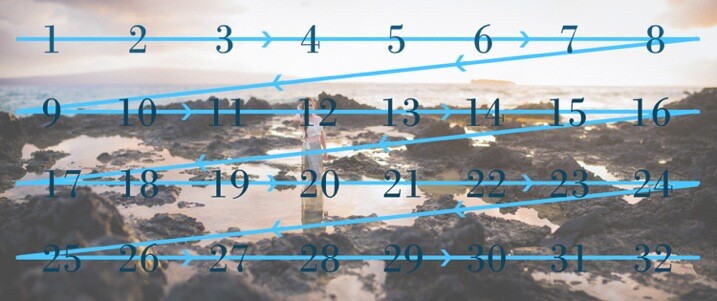
Capturing your images in rows from left to right (like reading a book) will give you greater chances of not having holes (gaps) in your images.

Shooting your series of images in an organized layout will help the images stitch together better in your editing software. When you first try this method, you might be tempted go out of order and continue adding as many images as you think you might need. When you do that, Photoshop might give you an image with some holes and extra pieces at the bottom of your picture.

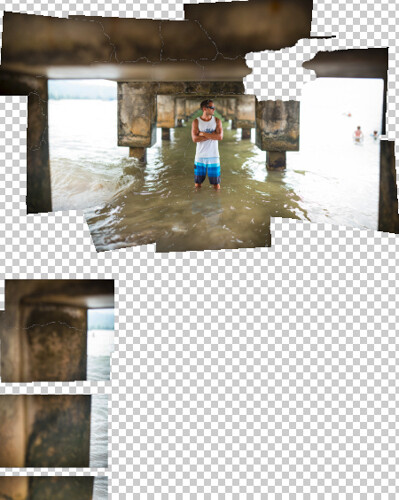
Image with holes

I shot this image in a circular motion, instead of the row method shown above. Photoshop had a hard time properly merging the image. There were many extra shots it didn’t know what to do with, so I had to go in and manually piece some of the images together. Save yourself time and learn from my mistake.

Before you start shooting, think about your final image. Will it look best as a vertical, horizontal, square, or a panorama? Make sure to shoot enough shots to be able to crop it in your preferred orientation.

Step 3 – Overlap Your Shots

While you are shooting your series of images, make sure to overlap each shot by at least 1/3. That will give the software enough information to see where each image belongs when it does the stitching. Most people take between 20-50 shots in their series that will be compiled into one final image. Take as many as you need and overlap by more than 1/3 if you feel more comfortable with that. As you gain experience with the Brenizer method, you will probably find a way to get the same result with less shots.

PROCESSING

Step 4 – Batch Edit All the Images

When you are ready to process the images, load them into a batch editing software, like Lightroom or Adobe Camera Raw. Edit the first image (exposure, contrast, saturation, etc.), then sync the entire batch of images so the exact same editing has been applied to each image in the series.

Next, you are ready to export your images. Since you’re going to be merging so many images together, there is no reason to export these as high resolution files. Doing so, would only slow down the process in Photoshop. Export your images as JPGs, with the long edge between 700-1000 pixels, depending on how many images you’re going to be merging.

Step 5 – Merge the Images

Photoshop steps

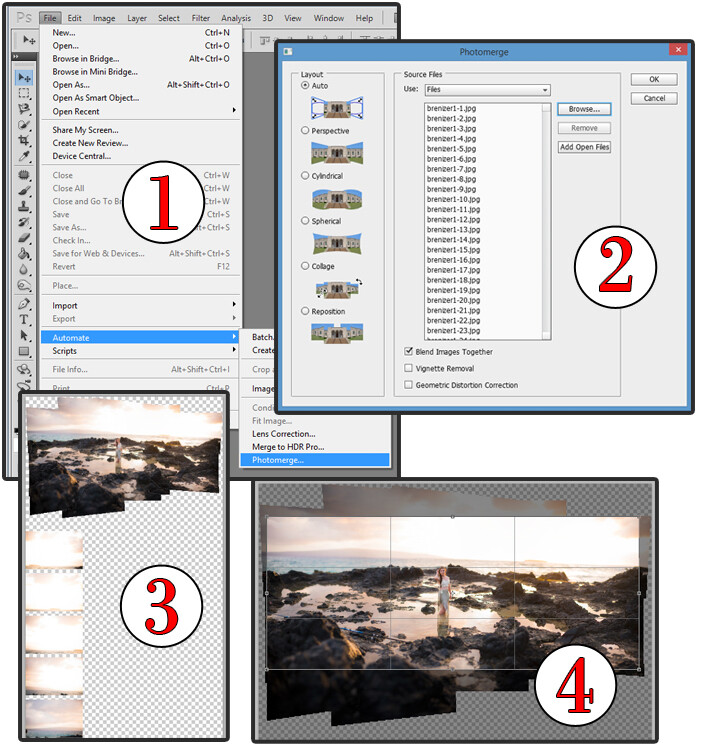
1 – In Photoshop, click on File, Automate, and Photomerge. 2 – Leave the default settings selected and browse for your series of images. 3 – After the image merges, there are often extra images below the merged image. Sometimes they are extra and not needed because of the amount of overlapping, or sometimes the software doesn’t know where they belong and you’ll have to manually put them in their place. 4 – I decided that my image was fine without the extra images, so next I cropped out the excess to create the final image.

Finally, open Photoshop. Go to File > Automate > Photomerge… When the window pops up, keep the default settings of “Layout: Auto and Blend Images Together” checked. Browse for your images and hit “OK”. Then it’s a waiting game. Depending on your file sizes, and the number of images your computer is processing, this could take 1-10 minutes.

Note: Similar results can be created using other software. To save time, I’m just mentioning the process I use with Photoshop.

If you shot your series in an organized layout, your software should have been able to piece your image together well. All that’s left to do is crop your image to the orientation you were hoping to use (vertical, horizontal, square, or panorama) and save it as a JPG. Voila!

It may seem like a lot of steps your first time through, but with more practice it becomes second nature.

Your Turn

Have you tried creating an image using the Brenizer Method? What was your experience? Do you have any additional tips that would help those getting started? Let us know in the comments. Also, feel free to share your Brenizer Method images as well. We’d love to see what you create!

googletag.cmd.push(function() {
tablet_slots.push( googletag.defineSlot( “/1005424/_dPSv4_tab-all-article-bottom_(300×250)”, [300, 250], “pb-ad-78623” ).addService( googletag.pubads() ) ); } );

googletag.cmd.push(function() {
mobile_slots.push( googletag.defineSlot( “/1005424/_dPSv4_mob-all-article-bottom_(300×250)”, [300, 250], “pb-ad-78158” ).addService( googletag.pubads() ) ); } );

The post 5 Steps to Rock the Brenizer Method by Danielle Ness appeared first on Digital Photography School.


Digital Photography School

 
Comments Off on 5 Steps to Rock the Brenizer Method

Posted in Photography


10 Tools to Make Your Photography Blog Rock

13 May

These days blogging is not only a tool to share your thoughts and tips with the public, but is also a tool through which to promote your products and services, attract new clients and increase conversions. It’s an easy and low cost method to get your brand noticed. Moreover, for photographers, it’s a great opportunity to get on the top Continue Reading

The post 10 Tools to Make Your Photography Blog Rock appeared first on Photodoto.


Photodoto

 
Comments Off on 10 Tools to Make Your Photography Blog Rock

Posted in Photography


Rock steady: Olympus OM-D E-M5 II reviewed

19 Mar

The Olympus OM-D E-M5 II follows-up on the groundbreaking original E-M5 and brings extra control points (a lot of them) a 40MP high-res mode, better video, improved image stabilization and a host of other refinements, large and small. We’ve been shooting a lot with the E-M5 II over the past few weeks, and that work has culminated in a full review, with our usual combination of studio and real-world tests. Click through to see what we think

Articles: Digital Photography Review (dpreview.com)

 
Comments Off on Rock steady: Olympus OM-D E-M5 II reviewed

Posted in Uncategorized


Event Photography: How To Take Electric Photos of Rock Bands

13 Aug

Do you remember the photographs that inspired you to want to take photography more seriously? If so, you must have a better memory than me. 😉 I don’t remember the specific photographs that made me want to keep me camera with me at all times. Maybe it was Henri-Cartier Bresson’s street photography, or maybe it was Andreas Gursky’s Rhine which Continue Reading

The post Event Photography: How To Take Electric Photos of Rock Bands appeared first on Photodoto.


Photodoto

 
Comments Off on Event Photography: How To Take Electric Photos of Rock Bands

Posted in Photography


Photography Courses: Which Ones Rock and Which Ones Don’t

25 Oct

As a photographer, you work hard for your money, so you don’t want to shell out cash for photography courses that are sub-par or a rip-off. We totally understand where you’re coming from because photographers frequently work as freelancers, which means that every penny you spend counts. So we’ve assembled some of the better photography courses for you…just in case Continue Reading

The post Photography Courses: Which Ones Rock and Which Ones Don’t appeared first on Photodoto.


Photodoto

 
Comments Off on Photography Courses: Which Ones Rock and Which Ones Don’t

Posted in Photography


Sky Rock Under the Stars

24 Oct

Ancient petroglyphs are amazing to see, but one question that always comes to mind is, “What were their significance?”

In the case of Sky Rock I’ve often wondered if they reflected an interest in the stars, represented every day things, told a story, or were the musings of someone who was just passing the time. It is this curiosity coupled with their distinct artistic and historical qualities that make them so special to me.  Seeing these ancient petroglyphs under billions and billions of stars that make up the Milky Way was an awe-inspiring experience given both the immensity and timelessness of the scene. It’s grounding to take in a view that very likely was the same 8000 years ago when someone created these rock drawings as it was on the night I stood here taking this photo.

Photo Details

Canon 5D Mark III and Zeiss Distagon T* 2.8/15 ZE via BorrowLenses.com

ISO 6400, 30 sec at f/2.8

16 image panoramic with foreground lit via light painting

~180 degree field of view capturing both the entire Milky Way and Sky Rock petroglyph

Copyright Jim M. Goldstein, All Rights Reserved

Sky Rock Under the Stars

The post Sky Rock Under the Stars appeared first on JMG-Galleries – Landscape, Nature & Travel Photography.


Comments

  • I love this! 4D seeing 5D coming.. the old/past, & the … by Peggy Jackson
  • Amazing work Jim! Worth all the time you spent working on the … by latoga
  • Thanks! Fish-eye lenses introduce a large amount of distortion … by jimgoldstein
  • Jim, it’s beautiful.. the canopy of Milky Way sheltering the … by bartek_narozny

Related Stories

  • Sky Rock Under the Stars – Enclosure
  • Hunter’s Moon Rising
  • Hunter’s Moon Rising – Enclosure


JMG-Galleries

 
Comments Off on Sky Rock Under the Stars

Posted in Equipment