RSS
 

Posts Tagged ‘Revisiting’

Ways to Use Lightroom to Find Photos Worth Revisiting

27 May

The post Ways to Use Lightroom to Find Photos Worth Revisiting appeared first on Digital Photography School. It was authored by Rick Ohnsman.

ways to easily use lightroom yo find photos worth revisiting

I don’t have to tell you these are abnormal times. Like many others in every profession, photographers are experiencing a huge decrease in business due to stay-at-home and social distancing restrictions. While we hobbyist photographers may not rely on photography for our income, we just aren’t getting out as much to take pictures. So, maybe this is the time to go “back to the mine” (your photo archives), to see if you’ve overlooked some diamonds in the rough worth revisiting. Let’s take a look at how to use Adobe Lightroom to find photos you might have passed over. Also, how to use it to do some cleanup you just never got around to before.

Use Lightroom to find photos you might have passed over.  You could discover you have some diamonds in the rough just needing polishing.
I’d passed this shot by after an edit session I did years ago following a trip to Trillium Lake in Oregon. Now, using Lightroom to find photos I’d passed over, I found it was a diamond in the rough, simply needing some polishing.

See if this describes you

You’re a photographer and make photos pretty routinely on trips, photoshoots, studio sessions, weddings, portrait work, or whatever genre of photography you do.

You make dozens, if not hundreds of images, during just a single shoot.

Then, you want to quickly edit and get the best shots to your client, perhaps print some, or post the best to social media. When done, you’ve cherry-picked the best shots, edited them, wrapped up and moved on.

Left behind on your drive are perhaps the other 95-percent of shots that didn’t jump out at the time. There are quite possibly some good images still there that might only take a little extra editing to polish up, diamonds in the rough as it were.

Perhaps the shots were taken years ago, maybe even with lesser cameras, but now with more editing experience, you have skills to bring them to life.

There are also photos you’ll never use. Trash that just never got taken out. Images just taking up room on your hard drive.

Let’s cover how to use Lightroom to find photos, flag them for a second look or clean them out.

Get a DAM

Lightroom is a very capable photo editor, but there’s little dispute that Photoshop is the more powerful program for really serious photo editing.

Other programs have also risen to the forefront; Skylum Luminar, Phase One Capture One Pro, Corel Paintshop Pro, DXO Photolab, and ACDSee Ultimate. The list is growing and joined by many free and quite capable photo editing programs.

Lightroom flagging, rating, and color-coding tools
Using the Flags, Star-Ratings, and Color Codes in Lightroom is a great way to better manage your photo library.

One of the greatest strengths of Adobe Lightroom, however, is as a Digital Asset Management (DAM) tool.

In layman’s terms, that means it does a great job of organizing your photos, helping you search for images using keywords, ratings, color-codes, flags, collections, filters, and other means of organizing, sorting, and searching. At its core, Lightroom is a database program.

Many photographers who have spent years learning Photoshop still use that tool for most of their editing but are now looking to Lightroom as a partner program for organizing their photo libraries. What they had previously done with Adobe Camera Raw and Bridge can be done with Lightroom, which if desired, can simply send images out to Photoshop for editing or be used as an editor and more.

A jealous secretary

A concept many new Lightroom users find hard to grasp is that the photos you work with while using it are not “in” Lightroom. Lightroom is strictly a note-taker, a “secretary” to use that term, that records everything about an image; where it is, the metadata, how you’ve rated, flagged, color-coded, keyworded, and otherwise tagged it.

When you edit a photo in Lightroom, each and every step of that edit, text data, is stored in what is called the “catalog.” Your images are never altered, Lightroom just appends “notes” to them.

I tell you that to tell you this – Lightroom is a “jealous secretary.” She will keep meticulous notes about everything you do with your images, so long as you use “her” to do the work.

If you work with your images outside of Lightroom, say using the File Explorer in Windows or the Finder on a Mac, you are essentially working “behind Lightroom’s back.” She will let you know it too, losing track of where your images are and what you’ve done to them.

Ever see a “?” mark on your Lightroom photo or folder? That’s your secretary scolding you. There are ways to recover from this, but my recommendation is if you are going to use Lightroom as your DAM program, keep your jealous secretary happy and do all your image management with her exclusively.

Lost folders or photos in Lightroom.
Question marks on folders of photos in Lightroom means the program can’t locate the item. This will happen when you use tools outside of Lightroom to move or change your image.

A culling session

If culling is not a term familiar to you, here’s a dictionary definition: “A selection of things you intend to reject.”

In Lightroom, one of the first things you need to do to work with images is to “import” them. This is sometimes where people become confused. An “import” in Lightroom is simply a means of telling the program where your images are.

Let’s use two examples of how this might work.

  1. Returning from a shoot, I have my images on my camera card. I pull the card from the camera, put it in a card reader, open Lightroom and using the Import process. Here, I copy the files from the card to a location on a computer hard drive, be it an internal or external drive. Lightroom copies the images to that location, builds thumbnails for them, and stores the information in its catalog.
  2. I already have the photos somewhere on one of my computer drives. I use the Import function of Lightroom to Add the photos to the LR catalog. Lightroom does not move or copy anything, it simply now has information about those images and where they are.
Using the Lightroom Copy method of Importing
If you are importing images from a camera card into Lightroom and want it to copy them to a location on your hard drive, the “Copy” method is what you want.

In both scenarios, the photo files are not “in” Lightroom, and not in a subfolder of that program. They are wherever you chose to store them. However, now your “LR secretary” is keeping track of them.

Using the Import Add method of bringing images into Lightroom
If your images are already on one of your computer drives and you simply want to be able to work with them in Lightroom use the Import “Add” function, not the “Copy” function.

Once visible in Lightroom, the temptation is to look through them and start editing the ones that jump out at you. I’ve done that many times, in a hurry to get to the obvious “nuggets” and start editing them.

Instead, I’d like to introduce you to a way to more formally, and with greater organization, go through a folder of images.

The proper way to do this is when you first start working with that new folder of images. But, if you are like me, you might not have known to, were lazy and impatient, or for whatever reason just didn’t do this. No worries, it’s not too late for a proper culling session.

Here are the steps:

  • Go to the folder where you have the images. You should be in the Library module of Lightroom and in the grid view (Hit “G” on your keyboard) so you can see all of your images.
  • Do some folder-level keywording. If all of the images in the folder were, for example, taken at the beach, you might want all of them to have that keyword to aid in searching later. Hit Ctrl (Cmd on Mac) A to select all of the images. Then click in the Keywords section at the right and type in the keywords you want. If you want more than one to apply to just certain selected images, pick those first and then use a comma between them. i.e., Fireworks, Still-Life, Sparklers.
Keywording an entire folder of images in Lightroom
This entire folder of images were shots of fireworks, so I selected all images in the folder and added the keyword “Fireworks.”
Multiple Keywords in Lightroom for Selected Images
Selecting several images within the folder, I added additional keywords – Still-Life, and Sparklers. You can have multiple keywords for an image if you separate them with a comma.
  • Time to quickly go through your images one-by-one. To move faster through the images, first, turn on Auto-Advance. You can either turn this on by going to Photo in the top pulldown menu and selecting Auto Advance or simply by holding down the Shift key while you work. Now bring up just the first image in Loupe View (Hit the Enter key).
  • For this first pass, you want to flag the images you want to keep and cull out the ones you know you’ll never use. Viewing each image, hit either the “P” key to flag the image as a Pick or “X” key to reject it.
  • If you just can’t decide, the right arrow key “>” to move on.
Flagging images as Picks or Rejects in Lightroom and using Auto Advance to move through them.
To quickly cull your images in Lightroom, turn on Auto Advance and then use the “P” key to flag an image as a Pick, the “X” key to mark it as a Reject, or just use the Right Arrow Key to move to the next image with no flagging. Note the white flags are picks, the black flags with an X are rejects.

Try to be selective here. This does not immediately throw out any images and you can change your mind later. However, your objective ought to be to do some serious housekeeping, X-ing out the images you are unlikely to ever use, and Picking the ones you will probably want to edit later.

Everyone is different. Some people are tidy and have no problem tossing things out they don’t expect to use. Then there are folks like me, packrats for whom this is a tougher task.

Time to be brave. You can check to see which images you flagged with an “X” as rejects if you like. Hit “G” to go back to the Grid view. Now using the Library Filter (top of the grid), click the word “Attribute” and then click the Black flag. This will show the images you flagged as Rejects with the “X.” You can take another look at these if you have to and if you decide it is not one you want to be rejected, hit the “P” key to change it back to a Pick.

Taking out the trash

So let’s get rid of the rejects. To see what you flagged with an “X” as a reject, hit Ctrl- Backspace (Cmd on Mac). You will see two options:

  • Delete from Disk – This will permanently delete the images from your hard drive. You might still find them in your recycle bin if you accidentally pick this, but consider this the trash for the most part.
  • Remove from Lightroom – The files will remain on your drive, but you will no longer see them in Lightroom. This is the safer option if you are unsure, but it’s also like just putting your garbage in the hall closet. If you plan to clean the house, do it and don’t look back.
The warning message will pop up when you are about to delete your rejected photos.
Decision time. After you’ve using the culling step to flag your Picks and Reject images, hit Ctrl-Backspace. This question will appear. You can delete your rejected images entirely or, simply remove them from showing up in Lightroom but retain them on your drive. Choose wisely.

Colors and flags and stars, oh my!

If you were disciplined, using the Pick and Reject options helped you separate the wheat from the chaff, getting rid of things you’ll never use and perhaps freeing up all kinds of space on your hard drives. So now let’s use some tools to go a little deeper, helping you to organize and find images warranting further work.

Lightroom lets you tag photos with several different things to add in organizing, sorting, filtering, and finding them. Let’s look at the options.

  • Sorting – There are many different ways to sort your images in the Library view of Lightroom. This doesn’t change anything but simply allows you to see them in whatever sort order you like. Some are obvious, like sorting by Capture time so you can see the images in the order you took them. Others, like sorting by aspect ratio, are less obvious but sometimes very useful. Say you need an image for a magazine cover and want a portrait-orientation image. Sorting by aspect ratio is the ticket. Explore what this very simple option can do for you.
Finding photos with Lightroom - sorting by aspect ratio
Using the Sort by Aspect Ratio option can be handy if you want to group your portrait and landscape orientation images together.
  • Color – You can flag your photos with any of five different colors (Red, Yellow, Green, Blue or Purple). What each color signifies is strictly up to you. Maybe you want to flag all of your very best images with Red, your Landscapes with Green, your images you want to edit with Yellow – whatever you like. To flag an image, click on the image(s) you want that color applied to, then click on the color patch you want to apply that color tag to. You can also use the keyboard shortcuts – 6-Red, 7-Yellow, 8-Green, 9-Blue. There is no number shortcut for Purple.
Finding photos with Lightroom - Sort by Color
If you’ve used color codes to identify different photo types, sorting by color can be useful.
  • Star Rating – How to apply a star rating is easy. When on an image, just click the number key for the rating you want to assign or use the star symbol on the toolbar at the bottom. What a certain rating means…that’s your call. Is a 5-star image your best ever? Is a 1-star image one that barely escaped deletion? What does a 3-Star rating mean? Whatever you come up with, be consistent and the rating system will be more useful.
Finding photos with Lightroom
Come up with your own scheme of using the star-rating in Lightroom and then sort by rating.
  • Flags – We already discussed flags earlier. Basically, they are a way to mark an image as a pick or a reject. Use several or none. You can use these tagging tools singularly or in combination, depending on how you choose to mark up your images. For example, a really great landscape photo might be a green, 4-star, flagged as a Pick image. The power comes in how once marked up, you can filter and sort your images.

Finding, filtering, and sorting

So you’ve cleaned up your folders, eliminated the rejects, and flagged your images with color codes, star ratings, and perhaps added some keywords. (We didn’t get into keywording much as that can be an art unto itself. I refer you to this article to learn more about the power of this tool).

Now we want to use this organization to help us find all our best lighthouse images taken in the past three years, for example. If we were good about marking up our images, we might have put the keyword “lighthouse” on them, flagged them with red (which we decided were our best photos), or maybe just made our top images 5-star.

How do we use the markups to find what we seek?

Use Lightroom to find photos with ratings, color codes, and keywords.
Creative use of the Library filter in Lightroom can bring up just the image you’re looking for if you’ve properly labeled your images with star ratings, pick flags, color codes and keywords. Here, I was looking for all my photos that had the keyword Lighthouse, were 4-star images, and color-coded red.

The better you are at marking-up your images, the greater the degree of precision you will have in finding that needle in a haystack when it comes time for that. I personally have over 100,000 images in my Lightroom catalog. (That’s a big haystack!) So, to use Lightroom to find photos requires some creativity with the Library filtering tool.

You will be able to search through basic things you may have added; keywords, file names, folder names or anyplace else where text might be. You can search your Attributes, the star ratings, color codes, flags.

Another very powerful Attribute is being able to search for unedited photos. Note the filter selection in the image below. Using that icon, I can have Lightroom show all photos for which Lightroom has no edit history.

If I bring up a folder with images that were edited elsewhere before coming into Lightroom, they will also show up as unedited. But, assuming this is a folder with images that have been brought in directly off your camera card and never been touched with anything other than Lightroom, this is a fantastic way to show those “passed over nuggets” we might want to revisit.

Use Lightroom to find photos.  Need to see all the images in your Library you've not edited?  Easy with the Lightroom Library filter.
Using the Library filter, I’m able to see all the images for a particular year shot with my Canon 6D that are unedited by Lightroom. Creative use of the Text, Attribute, and Metadata filter in the Library Filter function of Lightroom can tell you much about your images and help you find that missing needle in the haystack.

Searching through metadata can also be a powerful way to find photos. Without you even having to enter any information, your camera captures a wealth of data about each image it takes. (Have a look at my article on Irfanview which gets into metadata.)

So, say you’re still looking for those lighthouse photos, but you never put keywords on them. Searching for “lighthouse” isn’t going to help. But say you do know you took the photos on a trip in September of 2017 and shot them with your Canon 6D. Putting just that information into the search filter in the Library module should greatly reduce the size of the “haystack.”

The more precise you can be with your search parameters, the more precise your search will be. Explore all the search options in the Text, Attribute, and Metadata areas and how using them in combination can greatly help you find what you seek.

Become a Collector

Using the Library filter is a great way to search through your photos when you’re looking for something, particularly an ad hoc search for something you don’t need to find often. When you really want to tap the power of the database that is Lightroom, Smart Collections are really cool. First, let’s describe what a Lightroom collection is.

Say you like to take pictures of flowers. Even when you’re out on some other kind of shoot, when you see a nice flower, you take a shot. Thus, you have flower pictures scattered throughout your folders. Now, how would it be to see all of those in one place, without having to move, copy, or duplicate anything? That’s what a Lightroom collection can be, a “pointer” to images that groups them all into one “folder” without moving anything.

There are two kinds of collections in Lightroom.

The first is a regular collection. You can add the photos manually. You can drag them from their folder location to a collection you have set up. Alternatively, if you designate a collection as the “Target collection,” while viewing that image in the Library module, you can just hit the “B” key on your keyboard to add the image to the target collection. You can also select multiple images in the Library module, hit the “B” key to add them all to the target collection.

Remember that nothing really moves, no duplicates get made, no additional drive space is needed. Collections are virtual – only pointers to the original files.

Collections can be very handy. When I’m gathering photos for an article, I will often create a Lightroom collection with the title of the article, make it the target collection, and then as I prowl through my library looking for photos I might want to use, I hit the “B” key on the keyboard and they are added to the collection. Fantastic!

Be a Smarter Collector

Collections are a great tool, but we can go a step further.

Let’s go back to our flower photos example. If I took some flower shots every time I did a shoot, I want them to automatically show up in my Best Flowers collection without any additional work on my part? A smart collection uses filters and conditions like the Library filter but runs continuously in the background.

To set up a new Smart Collection, go to the Collections tab in the panel on the left side of Lightroom. Click the + symbol. Select Create a Smart Collection. Then use the controls in that menu to set up the parameters defining what will be selected.

So, if I set up a smart collection, name it “Best Flowers” and use the parameters where, for example, keywords contained “flowers” and the rating was 3-stars or above, any photo added meeting those conditions automatically appear in that smart collection without any additional work by me. Once built, your smart collections just work silently in the background of Lightroom. (I would just have to remember to be diligent about rating and keywording my flower photos each time I had some new ones brought in.)

Ways to Use Lightroom to Find Photos Worth Revisiting
Once you set up the parameters for a Smart Filter in Lightroom, it will watch for any images that meet those qualifications and add them to the collection. Here, I have a filter that looks for photos with the keyword “Flowers” that are rated 4-stars or higher. Now, if I’m good about rating and keywording my flowers photos as I take them and import them into Lightroom, they will automatically be added to this collection

Another great use for a smart collection – make one to show all your unedited photos, wherever they might be in your library.

Set your smart collection parameters to something like my example below. It has the Has edits set to False, the camera as the one I’m interested in, my Canon EOS 6D, the File Type Raw, and the Pick Flag is on.

Now, unedited images I’ve flagged as Picks will immediately show up here as soon as I imported them in Lightroom. As I edit them, they will fall off this list. Think of this kind of Smart collection as your “In Box” of photos for editing.

I can also use the other tools and filters we’ve discussed to determine if I will keep them at all. I can do additional culling here if I decide I won’t edit them and perhaps delete them.

Ways to Use Lightroom to Find Photos Worth Revisiting
Use a Lightroom Smart Collection to act as your “In Box” telling you which photos need editing. I’ve set this Smart filter to add photos that are not edited (Has Edits is False), where the file type is Raw, I’ve flagged the photo as a Pick, and the photos were taken with my Canon 6D. Smart Collections can be very powerful and the beauty is, as collections are strictly virtual, there’s no need for additional copies, folders, or duplicates that would take up more drive space.

Also, remember images in a collection are just pointers to the original files. So if you click on an image in a collection and open it in the Edit module to make changes, you are also editing the photo in the folder where it really lives.

Polishing up the diamonds

When you can’t be out taking more photos, a good use of your time might be to use Lightroom to find photos worth revisiting.

I’m betting that you’ve passed over many diamonds in the rough, and a trip back through the mine that is your photo library will yield some yet undiscovered treasures. Happy prospecting. For now, stay home, be well, and “Live long and prosper.”

The post Ways to Use Lightroom to Find Photos Worth Revisiting appeared first on Digital Photography School. It was authored by Rick Ohnsman.
Digital Photography School

 
Comments Off on Ways to Use Lightroom to Find Photos Worth Revisiting

Posted in Photography


Revisiting Film Photography After 10 Years: The Readjustment

28 Apr
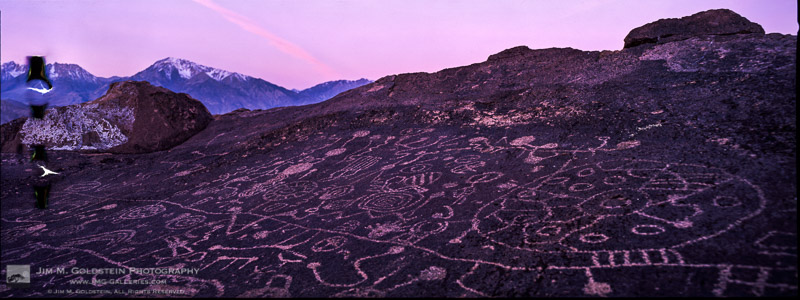
Early morning light illuminates Skyrock and the eastern Sierra Mountains

Early morning light illuminates Sky Rock and the eastern Sierra Mountains

This is the 1st of a 3 part series on my experience jumping back into film photography after a 10 year hiatus focusing purely on digital photography.

The Camera
10 years ago I vowed I’d never shoot film again. I enjoyed shooting film to a degree, but compared to digital it became unnecessarily onerous. Back in the day I was shooting 35mm and medium or large format photography was both imposing and expensive. As much as I said “never again” to film there was a 0.01% chance I might jump back in, but it would only happen if I ever landed a very special camera. In the late 90’s I always dreamed of owning Fuji 6×17 medium format film cameras. They were used by top landscape photographers and produced amazing panoramic photos. These cameras and their lenses are so good it’s one of the few film camera systems that have held their value the longest. Fast forward to 2013, I set up an eBay alert for GX617 cameras in the event the right camera at the right price surfaced. It only took a couple of years but earlier this year the right camera finally surfaced. I found someone selling a pristine Fuji GX617 with a 90mm lens (20mm equivalent for 35mm cameras) and 50 plus roles of 120 film. Even still it was a bit of a hit to my budget, but I finally took the plunge.


A photo posted by Jim Goldstein (@jimgoldstein) on

Fundamentals
This Fall when I decided to dedicate a trip to using my new 6×17 camera I started to wonder if I’d be able easily transition back to film photography. On one hand I didn’t want to waste any of the film I acquired (Fuji Velvia 50 & 100) and on the other I was concerned I’d take a hit to my pride feeling like a beginner again. As I dove in using the camera it became clear that my nerves were unwarranted in this area. A firm understanding of photography fundamentals will take you far no matter what system you use.

That said the Fuji Gx617 is very different than a modern DSLR and if there was anything that made me feel like a beginner again it was my lack of familiarity with how this camera functioned. The camera doesn’t have a mirrored viewfinder to preview your composition. Instead it has a dedicated viewfinder for each lens to approximate what will be exposed. The lenses are focused based on the approximate distance of your subject from the camera. Aperture is set manually with levers. A roll of 120 film produces 4 exposures and changing lenses mid-roll is not an option as it will expose the entire roll of film. Becoming reacquainted with manual photography versus relying on a variety of automatic systems we take for granted every day with 35mm DSLRs was quite eye opening.

Methodology
If any one thing tripped me up in my use of the Fuji GX617 it was establishing a routine to avoid basic mixups on selecting my camera settings. Even compared to my 35mm film SLR this was quit an adjustment. Film and digital SLRs enjoy a certain degree of automation where as a camera like the GX617 requires every setting to be made manually. After a couple slip ups I finally established a routine of composing my subject with the “external” viewfinder, check distance, set lens focus, using a light meter to determine exposure settings, set aperture, set shutter speed, and finally tripped the shutter via a cable release.

It all sounds logical, but being new to the camera it took some time to get this routine down. Distractions were plentiful so more than a few exposures were lost as a result of breaking from this routine. Sometimes the basic step of recomposing my next shot was enough for me to miss a basic setting adjustment. Complicating things further was retraining my brain to visualize how each focal length and aperture setting will translate to the medium format look versus 35mm. As an example 300mm on this system equates to 73.5mm on a 35mm system. Also depth of field is different for equivalent aperture settings.  The fun was in the discovery.

Intent & Purpose
One thing that I found incredibly refreshing while using the Fuji GX617 was how the manual settings helped me slow down and connect with my subject more. The manual operation of the camera granted me time to take in my surroundings, more thoroughly observer my subject and feel more connected with Nature.  I was far less prone to jump into a scene, rapidly setup & fire off shots and then bolt to the next location. The combination of camera adjustments taking time and only having 4 exposures to a roll put me in a mindset of wanting to get the most out of the location I was photographing. If I was going to use a precious frame of film and devote the time to set up I made sure that my image was going to not just expose correctly, but connect with viewers & myself. The end result was a much more thoughtful effort with less wasted time and film that produced higher quality results.

Continue on to Part 2 in this series – Revisiting Film Photography After 10 Years: Composing Through New Eyes

The post Revisiting Film Photography After 10 Years: The Readjustment appeared first on JMG-Galleries – Landscape, Nature & Travel Photography.


JMG-Galleries – Landscape, Nature & Travel Photography

 
Comments Off on Revisiting Film Photography After 10 Years: The Readjustment

Posted in Equipment


Revisiting Film Photography After 10 Years: Composing Through New Eyes

27 Apr
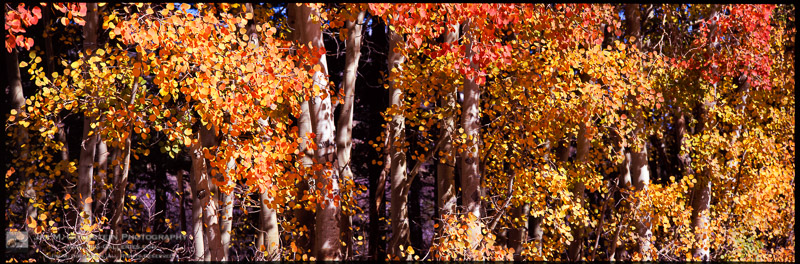
Aspen Tree Fall Color in the Eastern Sierras of California

Aspen Tree Fall Color in the Eastern Sierras of California

This is the 2nd of a 3 part series on my experience jumping back into film photography after a 10 year hiatus focusing purely on digital photography. You can start here at Revisiting Film Photography After 10 Years: The Readjustment if you missed it.

Mental Math & Visualization
As I’ve been shooting with the Fuji GX617 I’ve had to make a bit of a mind-shift in my approach. On one hand I have to account for slightly different mental calculations regarding how medium format focal distance, depth of field and vignetting might impact my composition. This is rooted with the fact that medium and 35mm formats follow the same mathematics, but the calculations for similar units (focal length, aperture, etc.) result in different visual aesthetics. 90mm focal distance on the GX617 equates to 20mm on a 35mm camera and a 300mm lens on the GX617 equates to ~70mm on a 35mm camera. f/8 on the GX617 is shallow for closer subjects while not so for most images on a 35mm camera. It’s an interesting adjustment, but frustrating if you forget or don’t fully make the right mental calculations as you’re taking photos. After all mistakes on film have a financial cost.

Volume versus Quality
Back in October when I took out the Fuji GX617 and the Canon 5DS R on a trip I found it notable how different my approach to shooting was with each camera. Unsurprisingly I shot less with the film camera and was much more generous in my shooting with my DSLR.  I spent a lot more time on my film shots to focus on correct exposure and composition. With 4 exposures to a roll I took greater care to work a scene by walking around, looking for different angles, check focus, check settings, double check settings and account for various lighting conditions before triggering the shutter. The net result was feeling more connected to the scene I was photographing.

My efforts with the DSLR were much quicker and as a result I took more photos. Shooting RAW affords you to work fast and loose. It was eye opening to see how fast and loose normal shooting has become for me. Jumping back to film made that all too clear. The digital format affords you the ability to:

  1. Salvage an image with +/- 2 stop latitude (potentially more if you use a newer digital camera)
  2. Have virtually no exposure (image count) limitation creating an “insurance” mentality where you take additional photos to account for lighting or weather variations or just to cover lazy technic
  3. Change ISO or lenses during a single composition on a DSLR in the event you realize your initial approach isn’t working


In the end the ratio of digital versus film photos taken on my trip was 1:20. For every film photo taken I took 20 digital photos, but that said I utilized my DSLR to experiment and photograph a much broader array of subjects. As for the photos I considered keepers and worth sharing the ratios broke down as follows:

  • 1 out of every 9 film photos taken was sharp enough and composed well enough to share and/or print.
  • 1 out of every 7 digital photos taken was sharp enough and composed well enough to share and/or print.


Seeing photos that didn’t work out on film were much more painful. Psychologically I felt more angst either because of lost opportunities or the cost associated with a blown roll of film. I’m not sure if my history of shooting film makes me more or less prone to take extra digital photos for insurance than the average photographer, but it certainly has an impact on my emotional state.

Emotive Photographs
Beyond concerns about technical proficiency and productivity I was most concerned about being able to capture images that deeply resonated with me. It’s one thing to say that I got 5 or 100 publishable photos and it’s another to state that they’re photos I think will resonate with others let alone me. Sharp photos, well composed photos, etc. don’t always equate to a great photo.  Images that resonate more deeply are not just about sharpness and composition, but atmosphere, artistic presentation and often “je ne sais quoi”. I’ve yet to compile stats for this as I’m still evaluating images from this trip, but if history is a guide the volume is always low.

The jump back into film has been interesting, fun and even anxiety provoking at times. Most of all it’s been eye opening in how I work, compose and think about photography in general.

Continue to Part 3 in this series – Revisiting Film Photography After 10 Years: Development & Post

The post Revisiting Film Photography After 10 Years: Composing Through New Eyes appeared first on JMG-Galleries – Landscape, Nature & Travel Photography.


JMG-Galleries – Landscape, Nature & Travel Photography

 
Comments Off on Revisiting Film Photography After 10 Years: Composing Through New Eyes

Posted in Equipment


Revisiting Film Photography After 10 Years: Development & Post

26 Apr
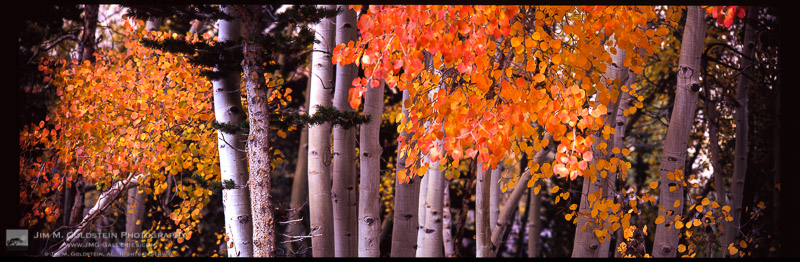
Brightly colored Aspen leaves cling to branches as Fall comes to an end in the Sierra Nevada mountains.

Brightly colored Aspen leaves cling to branches as Fall comes to an end in the Sierra Nevada mountains.

This is the 3rd of a 3 part series on my experience jumping back into film photography after a 10 year hiatus focusing purely on digital photography. You can start here at Revisiting Film Photography After 10 Years: The Readjustment if you missed it.

Withering Vine of Development vs Hipster Revival
These days you hear a lot about how film development has withered away to virtually nothing and I even wrote Film is Dead. No Really! back in 2009 . Depending where you are this may indeed be true. Long gone are the days of having easy access to development at a corner store. In that regard my post from 2009 still holds true. Luckily for me I live near San Francisco and the hipster revival of film has helped keep a few developers, like Light Waves Imaging, alive and kicking. Before finally going to Light Waves I did call around for other alternatives and the few mom and pop stores remaining ship their customers positive film to larger developers elsewhere in California. Rather than wait I opted to drive to Light Waves and pick up my film in 24-48 hours.

Pains of Review and Scanning
It took a while to get used to waiting to see the outcome of my Eastern Sierra shoot on film. It didn’t help that I had immediate access to images I took in parallel on a DSLR. This heightened my interest in seeing my film exposures because I wanted to see how the two formats compared. The last time I shot film side by side with a DSLR it was with an 8.5 megapixel sensor (1.3x crop) Canon 1D Mark II. On this trip I was shooting with a Canon 5DS R which utilizes a 50 megapixel sensor.

When the time came to pick up my film I brought my 5 year old son along and he had plenty of questions at the store counter as to what film was and why it was different than my digital camera. That in itself was a surreal experience as he has only seen digital photographs to this point. I had fun showing him how the images looked on the store light box, but it was still a fairly abstract concept for him to absorb. After spot checking a couple frames on each roll to see if there were any absolute failures (luckily there were not) we headed home. That evening I quickly learned that my old light box was missing a power cord and in a fit of impatience I started using my iPad as a light box. Considering this worked relatively well, but with a loop you see pixels behind your film and I found it distracting. I priced light boxes to buy, but opted to hold off and scanned each frame on my Epson V700 photo scanner.

Am I A Film Worthy Photographer?
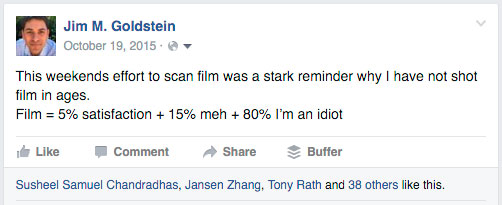
I have to admit I was nervous about jumping back into film after 10 years because I wasn’t sure how well I’d hold up to a very unforgiving format. You have a finite number of frames to expose, limited latitude in dynamic range, and a variety of ways to mess up an exposure. I wasn’t a bad film photographer back in the day, but I forgot how bad failed film images made me feel. It’s a miracle I stuck it out with photography. One of the nights I was scanning film I summed up my feelings about film photography on Facebook with the following update:

Film = 5% satisfaction + 15% meh + 80% I’m an idiot

Film = 5% satisfaction + 15% meh + 80% I’m an idiot

In the end I turned out to be a “worthy” film photographer. The stats turned out as follows:

  • 29% (13/45) are worthy of working further on (sharp, decent composition, etc.)
  • 11% (5/45) are likely worthy of sharing/printing from the 6×17.
  • 7% (3-4) are likely worthy of sharing from my pinhole camera.
    Note: Each roll of film was comprised of 4 exposures.

The numbers weren’t super impressive, but having >10% of my exposures being worthy of sharing and printing surpassed my expectations. Knowing that while using a new camera system for the first time I could get decently sharp exposures balanced the horrible dread I felt looking at each exposure where I didn’t advance the film properly, under/over exposed, mis-focused, and/or made poor composition choices.

Post-Production
One thing that remained universal 10 years on was how frustrating the results are from scanning film. Whether using a negative or flatbed scanner the resulting scan is soft and looks like a muted version of the film itself. One good thing about the downfall of film is that drum scans are much more reasonably priced. That said for my first time out, flatbed scans were good enough for sharing online.

Looking at my film to edit in Lightroom and Photoshop I felt as though I was transported back in my frustrated younger self 10 years earlier. Other than the interface of the software nothing had changed in the sense that I was color correcting, spotting and sharpening my scans. I found myself meticulously removing color casts with curves adjustments in Photoshop, spotting my image to remove dust spots created by dust on the scanner glass or film itself and trying to resurrect the sharpness of my image after being softened in the scanning process. It made me want to jump ship again to digital… until I saw how final 6×17 image came out.

One other thing that was surprisingly refreshing was once again enjoying the look of Fuji Velvia. In an age where presets are obsessed over as much if not more than cameras I liked seeing a defined look of a particular film. One could argue that the look of film is in itself a preset, but my point here is that it’s a distinct style I long missed seeing. No attempt at a recreated look via a digital preset compares.

Concluding Thoughts
Film photography is both an exhilarating and frustrating experience. Working with a film camera in the field was refreshing. Slowing down and taking in the scene while composing & setting up was incredibly refreshing. I instantly realized how much this had been missing from my digital shoots. On the other hand waiting for my film to be developed, taking a hit to my ego each time I viewed a failed exposure and dealing with the hassles of scanning & post-processing was enough to make me unconsciously start pulling out my hair. If I wasn’t so in love with the 6×17 format I’d likely revert back to shooting digital 35mm exclusively. Luckily for my remaining rolls of 120 film I’ll be taking them out again soon. I’ll keep plugging away with 6×17 film work over the next few years for select personal projects. Film lives after all.


The post Revisiting Film Photography After 10 Years: Development & Post appeared first on JMG-Galleries – Landscape, Nature & Travel Photography.


JMG-Galleries – Landscape, Nature & Travel Photography

 
Comments Off on Revisiting Film Photography After 10 Years: Development & Post

Posted in Equipment