RSS
 

Posts Tagged ‘REVIEW’

Review: Yongnuo 50mm f/1.8 lens for Canon – At just US$50 could this be the most affordable “nifty fifty”?

18 Mar

The post Review: Yongnuo 50mm f/1.8 lens for Canon – At just US$ 50 could this be the most affordable “nifty fifty”? appeared first on Digital Photography School. It was authored by Kunal Malhotra.

The 50mm f/1.8 lens, or as we call it, the ‘Nifty Fifty,’ is one of the most widely used lenses in the market. This is usually the first lens a modern digital camera owner desires to purchase after the kit lenses.

The reasons why this is the most popular lens are fairly simple – the first being affordability, and the second, the ability to produce pleasing bokeh.

In terms of affordability, the Yongnuo 50mm f/1.8 lens is ideally the cheapest Nifty Fifty. Priced at less than US$ 50, this is less than half of the Canon variant and works on APS-C as well as full-frame cameras.

However, the Yongnuo lens for Nikon costs around US$ 70 as it includes the focus motor. I recently bought one for my Canon 5D Mark iii, so I thought of sharing my views about this lens.

Build quality and ergonomics

The Yongnuo 50mm f/1.8 lens looks exactly like the Canon 50mm f/1.8 lens (discontinued version). The plastic used in the Yongnuo lens feels a bit cheaper though. Surprisingly, the rubber grip is smooth, and the ‘AF and MF’ switch is similar to Canon.

The construction of the lens consists of 6 elements in 5 groups and has 7 diaphragm blades – the same as the Canon variant. This Yongnuo lens is light to carry as it weighs only 120g – 40g lighter than its competitor. Overall the lens looks and feels good at this price point.

Focus speed and accuracy

I have been using this for almost a month now, during the day as well as night time. The focus speed is a bit slow as the lens hunts for focus, especially in low light conditions. If you are shooting stationary subjects, then it is fine, but if you want to nail the focus swiftly, then you might be disappointed.

Though the focus speed is not that fast, the accuracy is fairly good. It takes time to focus but when it does the focus is accurate. I would not recommend this lens for video shooters as it messes a lot with the focus. However, if you are a hobbyist and casually shoot portraits or still objects, this lens can do the job.

Sharpness and Image Quality

Before clicking photos using the Yongnuo 50mm f/1.8, I had much less expectation from this lens. To my surprise, this lens produced amazing sharpness and image quality. I did not compare it side by side with its competitor lens, but I am sure it is on par with it.

The few image samples that you see are all shot at an event during the sunset/evening time. The images are tad sharp, and the colors also look natural. I had done a test on vignetting performance, and at f/4 it was almost gone. This lens worked for me when I was shooting stationary subjects as well as when shooting performing artists at an event.

For me, the bokeh shape was a bit unpleasant at f/1.8, and I’m not sure exactly why. I used this lens at f/2.8 and achieved sharp and crisp images with minimum vignetting and shallow depth of field effect.

Conclusion

This lens by Yongnuo is for someone who has just started with photography or has a tight budget but still wants to achieve the f/1.8 look at 50mm. The focus speed is something that might irritate you, but once it focuses the image quality is quite impressive. I would suggest this lens to someone who shoots still subjects or portraits without much movement. If you are a wedding, event or a professional portrait photographer, you might be disappointed.

Have you used this lens? What are your thoughts?

The post Review: Yongnuo 50mm f/1.8 lens for Canon – At just US$ 50 could this be the most affordable “nifty fifty”? appeared first on Digital Photography School. It was authored by Kunal Malhotra.


Digital Photography School

 
Comments Off on Review: Yongnuo 50mm f/1.8 lens for Canon – At just US$50 could this be the most affordable “nifty fifty”?

Posted in Photography


Polarr Online Photo Editor Review

15 Mar

The post Polarr Online Photo Editor Review appeared first on Digital Photography School. It was authored by Glenn Harper.

It’s hard to evaluate photo-editing software without comparing it to Photoshop. You tend to have preconceptions about what it should be capable of and how it should behave – even how it should look. In terms of functionality, many programs will struggle to compete against Adobe. In this Polarr online photo editor review, you’ll find out what you can get for free. Or not much more than free.

Polarr image editor review

The colorful interface of Polarr. You can create specific effects under “Toning” by setting the hues of shadows and highlights.

Online photo editors work in your browser. They can be sophisticated, but the days of some of them (namely, flash-based programs) are numbered. Adobe will stop supporting flash in 2020, so anything that runs off it is likely to vanish or wither away.

Modern online editors are written in HTML5 code. They load quickly, but they also tend to be more basic than flash-based equivalents. Polarr is different. You can use Polarr online in a browser, or you can download it for offline use. There’s also an app for your phone.

Good first impressions

One of the best things about Polarr is its design. It doesn’t try to be Photoshop, and it’s intuitive to use. With filters on the left and most of the tonal and color tools on the right, there are shades of Lightroom about it, but it has a look of its own. You open Polarr, and you want to use it – or at least I did.
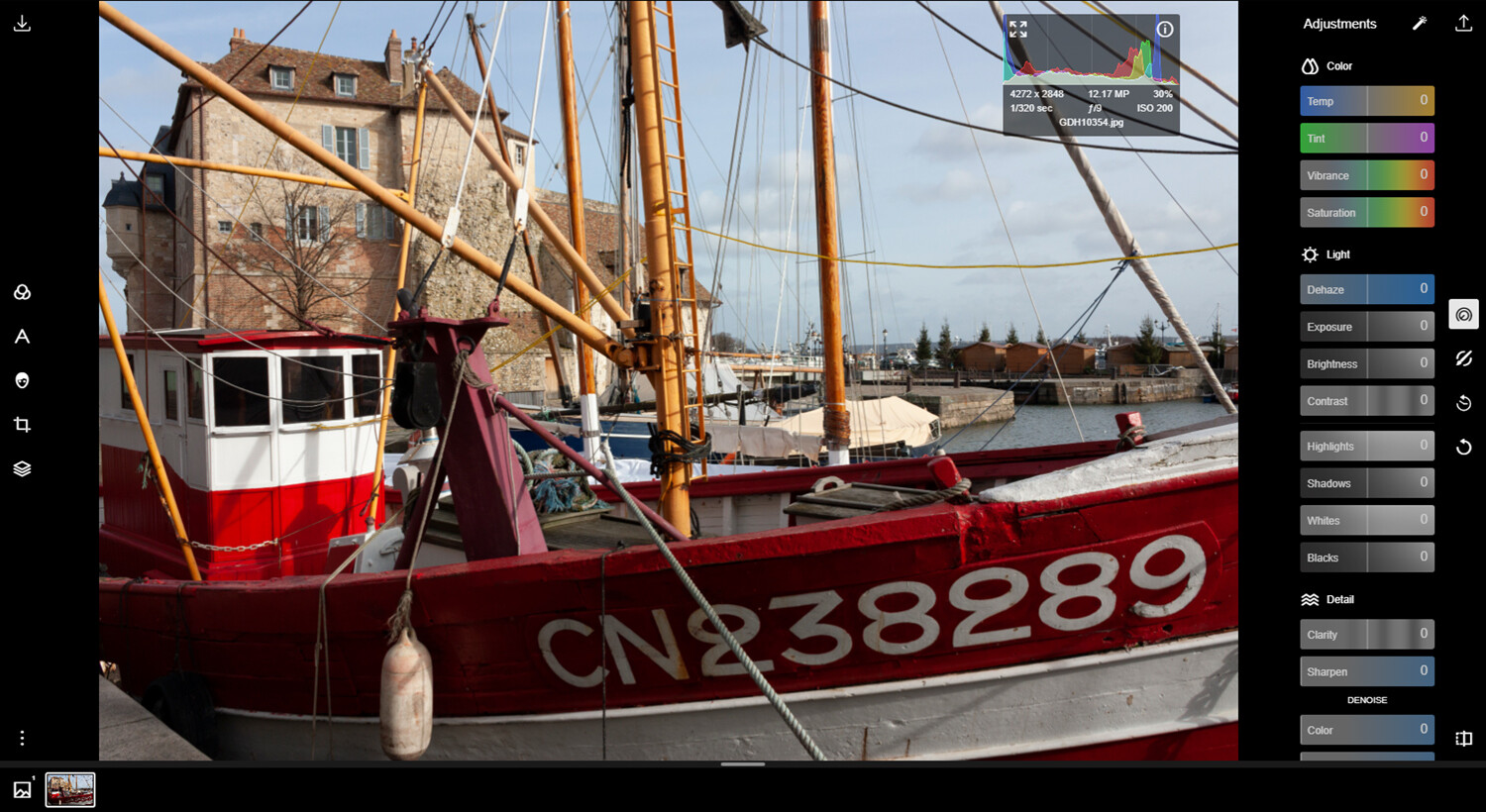
Polarr Image Editor review

A favorite Polarr feature of mine is its histogram. It’s neater than any other I’ve seen in online editors. It shows a colors histogram by default, which you can expand into separate RGB histograms. In the absence of a clipping display, it’s useful to see what your edits are doing to the image. You can drag the semi-opaque histogram wherever you want in the frame.

Not-so-good things about Polarr

Like most browser editors I know of, you can’t open hefty 16-bit files in Polarr. You’re limited to editing 8-bit JPEGs. This isn’t bad as long as the quality of the JPEG is high and it hasn’t been saved many times before. However, theoretically, you must submit to a lower-quality workflow.

A more limiting aspect of Polarr is that it exports everything in an sRGB color space. This might be a constraint of its coding, but it’s less than ideal if you want to print your files on an inkjet. For the web and online photo labs, it’s fine. In mitigation, it does embed a profile when saving, which some rival products neglect to do. You do know where you stand with it.

Who’s it for?

Polarr has one or two shortcomings, but it’s still a program with a lot of depth. Who would use it? Anyone looking for the following:

  • A free or cheap alternative to Photoshop and other costly pixel editors
  • Includes built-in special effects and retouching tools so you don’t have to learn complex editing methods or buy plug-ins
  • Auto image enhancer often a good quick fix for eye-catching web pictures
  • Intuitive to use, especially if you are familiar with sliders in other programs
  • No big downloads required and quick startup
  • Aesthetically pleasing user interface
  • Ideal for editing images for web or online labs
  • Backed up by an extensive library of online tutorials at Polarr Wiki
  • Option for more complex edits with the Pro version (subscription based, but low cost).
Polarr imaage editor review

The Polarr Wiki website has had a lot of work put into it and includes many written and video tutorials.

Editing with Polarr

Polarr is nice to look at – clean and colorful – but how is it in use? I set out to learn what it could do. If I couldn’t do things the same way I can in Photoshop, what workarounds could I find? Polarr is sophisticated, so I was confident I could perform the most basic processing tasks and more.

Auto Enhance

I never shy away from hitting “auto” or “auto enhance” buttons in editing programs, because sometimes they give you a better starting point. In Polarr, Auto Enhance is aggressive with the Dehaze slider, and that tends to block shadows. You can tweak the result, of course, with the shadows, blacks and contrast sliders for instance. Auto-enhance does work well with flat, hazy images and can create eye-catching results in a single click.

Ploarr image editor review

This was a flat-toned file that has been made quite dramatic by Polarr’s auto enhance feature. The shadows have started to clip, but not anywhere important in this case.

Color and Tone Adjustments in Polarr

Leaving the auto settings and moving onto manual adjustments, Polarr offers Lightroom-style color and tonal controls (the latter called “Light”). It has Temp and Tint sliders for white balance, but no auto-white-balance tool to outrank your eyesight. A Vibrance slider boosts color without clipping.

When adjusting tone, Polarr offers highlights, shadows, whites and blacks sliders, which you move to achieve a full tonal range while watching the histogram(s). This replace a levels adjustment. Whites and blacks adjust large areas on either side of mid-tones. Highlights and shadows adjust only the brightest or darkest parts of the image.

Polarr image editor review

Some basic editing in Polarr (original shown in inset – not part of software). Balancing the exposure a little, warming the color temp and adding some vibrance.

Again, the controls in Polarr are neatly laid out and colored according to their function. The controls haven’t been arbitrarily renamed, so you quickly know what things do if you’ve used other editors. Being mildly obsessive about detail, I miss the clipping display and being able to correct color by numbers (which is what auto-white-balance tools basically do). However, Polarr still has much to offer.

Polarr Curves

Polarr’s curves are modishly minimalistic, and they’re useful for some basic color correction. You have a composite RGB curve for adding contrast, and then there are the separate red, green, and blue (RGB) curves.

Polarr image editor review

Not the finished result, but you can see how the color neutralizes as the histograms align. The left-hand picture is typical of artificial lighting. A blue histogram leaning to the left indicates yellow.

Used in conjunction with the RGB histograms, you can use RGB curves to remove color casts. You do this by adjusting any necessary curves so that the histograms roughly align with each other.

You can place a point in the middle of the curve and pull it up or down, or for shadows and highlights, place a point in the bottom or top corner and pull it along the outer axis. Polarr gives you the input and output RGB values while you work.

Sharpening in Polarr

Sharpening always strikes me as a bit of a dark art in that; whatever method you use, there’ll always be experts out there espousing a better way. In Polarr, you get a clarity slider that sharpens mid-tones and generally adds punch to images (easy to overdo) and a very basic sharpening slider with no radius control. The sharpening might be smarter than I’m giving it credit for, but there aren’t numerous fancy ways to sharpen in Polarr. I’m doubtful that that matters.

Other features and effects

Other useful features I haven’t yet mentioned include an elegant crop tool, a spot-removal tool with heal and clone modes, and distortion correction. Spot removal was a bit frustrating at first with my laggy browser, but it works.

Polarr photo editor review

I made the inset darker so you can just about see the original dust spot, which has been cloned over by the right-hand circle.

Polarr also includes film filters, a text tool with various graphics, and a face retouch tool with skin smoothing for flattering portraits. Plus, you’ll find grain, diffuse, pixelate and fringing effects. You can also add frames to your pictures.

Polarr image editor review

One of Polarr’s film filters (M5) looks suspiciously like the teal-orange “movie” effect, which you either love or hate. Once I latched onto that, I started seeing it everywhere (Outlander, recently). Therapy is ongoing.

Pro Version

The Pro version of Polarr is subscription based, but it’s at a price you may not balk at. The Pro features are cleverly integrated into the free version, except you can’t save a photo that includes Pro edits. A pop-up appears asking if you want to upgrade or try the feature. What are the features?

Masks

The chief advantage of Polarr Pro is the inclusion of masks for localized adjustments. They include radial, gradient, color, brush, depth and luminance masking tools. These are all ways to select specific parts of the image for editing, and they work well.

Polarr image editor review

Masking a bronze equestrian statue for some localized editing. Overlapping edges can be tidied up later.

You can use the brush tool if you want to manually select an area for better control. This includes an optional “Edge Aware” aid that, if used carefully, helps avoid overlapping edges when you’re painting areas in for selection. Brush size, compare, hardness, flow, feathering, erase, view mask and invert options are also present with masks.

Polarr image editor review

In this picture, I’ve brought detail out in a near-silhouetted statue. Of course, I can alter shadows without masking, but other edits like clarity, contrast, exposure and saturation are usually universal.

Overlays

Whether with a mask or separately, you have the option of inserting an overlay effect. That might be your own added background or one of the many included ones (e.g., clouds, sky, weather, backdrops). This is all good stuff for people that like to experiment and create digital composites. A choice of blending modes helps you achieve the effect you’re after.

Polarr image editor review

The sky in this photo was a little washed out, so I’ve dropped one of the more subtle Polarr skies in as an overlay.

Noise reduction

In Polarr, you can’t mask off sharpening in large single-tone areas. So, if your images are noisy and you think the noise will show in the final result, the Pro version offers color and luminance Denoise sliders. These are universal edits that don’t currently combine with masks.

Polarr image editor review

The denoise tool is part of the Polarr Pro offering. Here you can see a before and after with quite a lot of luminance noise reduction applied to the right.

Summary

Aside from the sRGB constraint and occasional lag (perhaps my sluggish PC), I enjoyed Polarr. The sRGB thing may be universal among browser editors, and if you think of Polarr as a way of prepping photos for online labs or the web, it’d be hard to beat. Polarr is uncommonly pretty, which seems superficial, but the attention paid to aesthetics invites use. I’d love to know what you think!

The post Polarr Online Photo Editor Review appeared first on Digital Photography School. It was authored by Glenn Harper.


Digital Photography School

 
Comments Off on Polarr Online Photo Editor Review

Posted in Photography


Leica Q2 first impressions review

07 Mar

$ (document).ready(function() { SampleGalleryStripV2({“galleryId”:”3624563808″,”isMobile”:false}) })

Sample photoSample photoSample photoSample photoSample photo

The Leica Q2 is a fixed-lens, full-frame camera sporting a new 47.3MP sensor and a sharp, stabilized 28mm F1.7 Summilux lens. It’s styled like a traditional Leica M rangefinder and replaces the hugely popular original Leica Q (Typ 116), launched in 2015.

The Q2 looks essentially the same as its predecessor, but under the hood notable improvements have been made including the addition of weather-sealing, better battery life, a new processor and an improved electronic viewfinder. Sensor resolution has also nearly doubled.

Key Specifications:

  • 47.3MP full-frame sensor
  • 28mm F1.7 Summilux stabilized lens
  • 3.68MP OLED EVF with 0.76x magnification
  • 3″ fixed touchscreen LCD with 1.04 million dots
  • Fast autofocus and smoothly damped manual focus ring
  • Native ISO range of 50-50,000
  • 4K video capture
  • Leaf shutter up to 1/2000 sec
  • E-shutter up to 1/40,000 sec
  • IP52 rated dust and water resistant
  • Magnesium-alloy body
  • Wi-Fi and Bluetooth
  • Improved battery life

While the Q2 will replace the original Q in Leica’s lineup, the Leica Q-P – a stealthy version of the Leica Q – will remain available for some time, according to the brand. The Leica Q2 ships March 7th for $ 4995.

Raw photo processed to taste in Adobe Camera Raw.
ISO 250 | 1/80 sec | F2.8

What’s new and how it compares

The Q2 and original Q look pretty similar, but there are a lot of upgrades under the hood. Here’s the nitty gritty.

Read more

Body and controls

How’s it feel in hand? How’s the new electronic viewfinder? Find out here.

Read more

First impressions

We’ve been shooting around with the Leica Q2 – here are our initial thoughts based on that time.

Read more

Sample gallery

Puppies and landscapes and portraits, oh my! Check out our full sample image gallery for out-of-camera JPEGs and Raw conversions.

Read more

Specifications

You’re a gear nerd, we get it. Here’s where you’ll find all the juicy details about the Q2 listed out.

Read more

Articles: Digital Photography Review (dpreview.com)

 
Comments Off on Leica Q2 first impressions review

Posted in Uncategorized


Review: Seagate 14tb Ironwolf Disks for all of Your Photographs

06 Mar

The post Review: Seagate 14tb Ironwolf Disks for all of Your Photographs appeared first on Digital Photography School. It was authored by Sime.

Which Hard Disk For Photography

The Seagate 14TB Ironwolf hard disks

Recently I was offered the opportunity to try out a pair of the Seagate 14tb Ironwolf hard disks. If you have read any of my previous articles about storage, drives, and NAS (Network Attached Storage) for photographers, you’ll know one thing about me; I consider spinning media hard drives to be either “Dead or Dying from the moment they’re powered up.” This is mostly true.

These devices have what is called an MTBF (Mean Time Between Failures) meaning they can’t just spin forever. While reviewing disks is great, I wanted to find a good use for the pair of storage monsters aside from saying, “yes, they work just like a disk should!” (Which they do, but…)

So, after thinking about having to move house, and how much room I wouldn’t have, I found the PERFECT use! Physical down-sizing of my NAS.

Works well for small spaces

I primarily use a Synology DS1517+ as my main NAS, and a cute little DS216 as my backup. Well, I did until December!

I had to close my office for renovation and move everything into a nook that is only 106cm wide and about 137cm deep. This move meant I had to custom re-make the top of my stand-up desk (I’m getting old, it’s a necessity!), and the shelf for my working storage. My working storage includes my directly connected Promise R8 and my G-Technology 8TB main image drive, as well as my NAS that I use to deliver client images. It also includes backups of all of the computers and devices in the house, as well as for media that streams to the TV. The 1517+ simply wouldn’t fit along with everything else on the shelf.

So, I thought “I need to downsize, but maintain the storage space on my NAS!” Enter stage left, the behemoth Seagate Ironwolf 14tb disks.

I wasn’t joking about the super-small office space!

And my “Storage Shelf”

Spin rate

The Seagate units are a regular 3.5″ internal hard drive, like what you’d have inside your desktop computer. They spin at 7200RPM and have a 3-year warranty. That MTBF thing I was talking about earlier, the 14tb Ironwolf disk is rated at 1 Million hours (Yes, I said that in a Dr Evil voice!) Which is quite a while! (Before you whip out your calculator, that’s 114.155251 years)

So, if you turned the thing on and left it spinning in a controlled environment, not doing anything, it’d be rated to last that long.

Real world, this isn’t how it goes; we read and write to these disks over and over, and they can get jostled around and sometimes even unexpectedly powered off (Dad! What does this switch do?!)

Synolgy Seagate 14TB Ironwolf Review Photography

Setting up the Seagate Ironwolf 14tb disks

Moving swiftly on, out came the pair of Seagate Ironwolf 4tb disks and in went the 14tb disks. No mess, and no fuss. The Synology NAS is very well made and easy to work on.

I wanted to have some level of protection (fault tolerance) using the two disks, so they’re set up using SHR (Synology Hybrid Raid) which gives me 1-disk tolerance. It pretty much halves my space, but essentially means that if something goes wrong, it can go wrong twice before I cry to the sky and ask nobody in particular “WHY?”!

I worked in I.T. long enough to see grown men (and women) cry when disks failed. It isn’t pretty. So, backup! (You’ve been warned.)

I’m finding the disks nice and quiet, despite being only 15cm to my left. They have not skipped a beat (remember that bit I said about dead or dying disks) to date (They have about 100 years before that nasty MTBF rating even gets close!)

I happily leave the NAS on 24/7 as I’ve found another location for my other network attached storage box, which means the two can sit quietly at night talking to each other via the internet and sync my important client data! Great!

The new 14TB IronWolf drive also supports Seagate’s leading IronWolf Health Management (IHM) software. Designed to operate on enabled Synology DiskStation NAS, Asustor NAS, and QNAP NAS when populated with Seagate IronWolf or IronWolf Pro drives, IHM improves the overall system reliability by displaying actionable prevention, intervention or recovery options for the user.

These specific disks aren’t exactly inexpensive due to their size, but you can get them from 1tb to 14tb based on how much data you produce and need to store and share.

Conclusion

I can’t give a hard disk a rating out of 5 as I typically do, not for at least a year of spinning. However, based on my other Seagate disks, these new ones will do just fine! Also, the Synology DS units are five stars all the way!


The post Review: Seagate 14tb Ironwolf Disks for all of Your Photographs appeared first on Digital Photography School. It was authored by Sime.


Digital Photography School

 
Comments Off on Review: Seagate 14tb Ironwolf Disks for all of Your Photographs

Posted in Photography


Fujifilm GFX 50R Review

05 Mar

$ (document).ready(function() { SampleGalleryStripV2({“galleryId”:”8503167453″,”isMobile”:false}) })

Sample photoSample photoSample photoSample photoSample photo

The Fujifilm GFX 50R is a 50 megapixel rangefinder-styled medium format mirrorless camera. It shares most of its components with the existing GFX 50S, including both its sensor and processor, but re-arranges them into a slightly smaller and less expensive package. And though the GFX 50R provides essentially the same image quality as its elder sibling, the handling and controls make for a very different shooting experience.

Key Specifications

  • 51.4MP medium format CMOS sensor (43.8 × 32.9mm) with Bayer filter array
  • 3.69M-dot OLED EVF
  • 3.2″ 2.36M-dot touch LCD tilts up/down
  • AF-point-selection joystick
  • Weather-sealing
  • 1/125 sec flash sync speed
  • 3 fps continuous shooting
  • 1080/30p video capture
  • In-camera Raw processing
  • Dual SD card slots (UHS-II)
  • USB C socket
  • Wi-Fi with Bluetooth

The Fujifilm GFX 50R is available now with a recommended selling price of $ 4500.

Fujifilm has also announced a GF 50mm F3.5 ‘pancake’ lens, shown here in mockup form at Photokina 2018.

Alongside the announcement, Fujifilm also added a 40mm-equivalent ‘pancake’-style 50mm F3.5 lens to its lineup. This lens hasn’t arrived as of this writing, unfortunately, but should pair well with the (comparatively) compact 50R body.


What’s new and how it compares

The GFX 50R contains many familiar ingredients but what’s new?

Read more

Body and controls

The GFX 50R has a different body style, how does that impact the handling and operation?

Read more

Image quality

Check out how the GFX 50R performs in front of our standard studio test scene.

Read more

Image quality vs. full-frame

The GFX 50R’s sensor is excellent but so are those of its full-frame peers. Even in a high dynamic range scene there’s little real-world difference.

Read more

Autofocus and video

With a contrast-detection AF system and 1080P video, the GFX 50R isn’t a barnstormer in these areas. But then again, it’s really not meant to be.

Read more

Conclusion

The GFX 50R is capable of incredible detail, but there may be other better-rounded options out there better for you and your style of photography.

Read more

Sample gallery

Take a peek through our full production sample gallery from the GFX 50R.

Read more

Specifications

See the full list of the GFX 50R’s specifications.

Read more

Articles: Digital Photography Review (dpreview.com)

 
Comments Off on Fujifilm GFX 50R Review

Posted in Uncategorized


Review of the Sigma 28mm f1.4 Art DG HSM for Canon

03 Mar

The post Review of the Sigma 28mm f1.4 Art DG HSM for Canon appeared first on Digital Photography School. It was authored by Karthika Gupta.

A couple of weeks ago I got my hands on the Sigma 28mm f1.4 Art DG HSM for Canon (also  available for Nikon, and Sony) and got to play with it for a couple of weeks. Let me tell you; it was a tough one to give back. This lens is quite amazing in terms of build, weight, and, most importantly, performance.

Karthika Gupta Photography Sigma 28mm f1.4 review

Ergonomics and build

The Sigma 28mm f1.4 Art DG HSM is a very standard Sigma lens when it comes to the ergonomics. Many of their primes more or less follow the same formula when it comes to the exterior design. In this case, and with pretty much most cases, there is a large rubber ring that makes up the focusing ring. This rubber ring helps greatly when it comes to the grip and overall ergonomic feel of the lens. The front of the lens has a 77mm filter thread and comes with a lens hood. The side of the Sigma 28mm f1.4 Art DG HSM has a switch for autofocus control.

The Sigma 28mm f1.4 Art DG HSM has weather sealing built into the lens. I was able to test this when I took it out in the snow. We have had an unusual cold spell here in Chicago, and when I was walking around downtown with this lens, the temperatures dipped, and it started to snow. I was a bit apprehensive taking out my gear in the snow, but I am glad I did because this lens performed beautifully with my weather resistant Canon 5D MkIII. Photographers who regularly operate in the outdoors with rain and snow will find this beneficial.

When you hold the Sigma 28mm f1.4 Art DG HSM, you feel a solid lens. My primary everyday lens is a Canon 24-70mm f/2.8. This lens has been in my bag for the past 9 years, and I like the feel of the solid form and am comfortable with the weight. The Sigma 28mm is a bit smaller, and a little lighter than I am used to, so switching to it was a non-issue for me.

Karthika Gupta Photography Sigma 28mm f1.4 review

The canon 24-70mm f/2.8 is on the left and the Sigma 28mm f/1.4 is on the right.

Technical Specifications (from Sigma)

These specifications are from Sigma’s website.
Typical photography applications for this lens is listed as Creative, Travel, Landscape, Wedding & Events, Family. 
  • Best-in-class performance
  • Dust- and splash-proof structure
  • Designed to minimize flare and ghosting
  • Designed to meet all shooting conditions
  • Compatible with Canon Lens Aberration Correction
  • Nikon electromagnetic diaphragm mechanism included
  • Manual Override (MO) capable of switching two full-time manual modes
  • Lens angle is 75.4deg
  • Filter size is 77mm
  • Minimal aperture is f16
  • Minimal focusing distance is 28cm/11in

Performance

I gauged the performance of this lens in three different areas:

  • Low light performance
  • Color output
  • Wide angle

Low light performance

The Sigma 28mm features a very fast lens design at f/1.4. This makes it an ideal low light photography lens. Moreover, the mechanics of the lens also delivers incredible sharpness even at its widest aperture. I love photographing at wide apertures and am generally at f/2.8 or f/4.0. So the f/1.4 was attractive to me, especially in low light. I tested the low light performance at a couple of places in Chicago and was very happy with the results. The lens was also quite fast at focusing in these low light situations.

Karthika Gupta Photography - Memorable Jaunts Sigma 28mm lens review low light Chicago Atheletic Club Location

The Chicago Athletic Club Hotel is beautiful but so dark. The low light was an easy gig for the sigma lens

Karthika Gupta Photography - Memorable Jaunts Sigma 28mm lens review low light Chicago Athletic Club Location Portrait

Thank you to my friend Sandy Noto (www.sandynoto.com) for snapping this photo of me with the Sigma. The wide angle at closeup range did not distort the image at all.

Karthika Gupta Photography - Memorable Jaunts Sigma 28mm lens review Chicago Museum Of Science and Industry Interiors

The interiors of the museum of science and industry in Chicago are quite dark but I was at ISO 320 and f/1.4. The 28mm captured the entire shuttle in the frame.

Color output

Sigma’s Art series is known for its superb color rendition, and the 28mm Art lens did not disappoint in this area. I tested the lens in a variety of lighting conditions, both indoors and outdoors, as well as on bright sunny days and overcast days. In each scenario, the lens output was beautiful.

Karthika Gupta Photography - Memorable Jaunts Sigma 28mm lens review low light Chicago Downtown

Even at f/1.4 the image output and quality was exactly what I was hoping for. The lens is tack sharp even at f/1.4

Karthika Gupta Photography - Memorable Jaunts Sigma 28mm lens review Chicago The Bean wide angle photo Karthika Gupta Photography - Memorable Jaunts Sigma 28mm lens review Downtown Chicago Yellow Taxi Cab

Wide angle

The Sigma 28mm f/1.4 is a fixed zoom lens. Unlike my Canon 24-70mm zoom which gives me more flexibility and freedom in the range of focal lengths, the fixed zoom does take a little bit getting used to. But if you were to use this as a walking-around-everyday-travel lens, which is what I use my 24-70mm, the fixed zoom is not an issue. The wide angle does take a little getting used to, but all the other features like fast focusing, low light, and superb color output make up for the wide-angle fixed zoom.

Karthika Gupta Photography - Memorable Jaunts Sigma 28mm lens review Chicago The Bean Wide Angle Photo in winter

The 28mm focal length was just perfect to get the entire Chicago bean a.k.a as the cloud gate in the frame.

Karthika Gupta Photography - Memorable Jaunts Sigma 28mm lens review Chicago Downtown L train photo

Karthika Gupta Photography - Memorable Jaunts Sigma 28mm lens review Chicago Riverwalk in winter

Additionally, I found minimal to no chromatic aberration around the edges of the frame that is predominant in most wide-angle lenses.

Conclusion

Overall, I was very pleased with this lens. It is a good solid lens from the Sigma Art series and well worth the investment, making it an ideal lens for street photography and wide-angle photography.

The post Review of the Sigma 28mm f1.4 Art DG HSM for Canon appeared first on Digital Photography School. It was authored by Karthika Gupta.


Digital Photography School

 
Comments Off on Review of the Sigma 28mm f1.4 Art DG HSM for Canon

Posted in Photography


DPReview TV: Canon EOS RP review

02 Mar

The EOS RP is Canon’s second full frame mirrorless camera, built around the new RF mount, and comes with an aggressive launch price of $ 1300. While there are some inevitable compromises to be made at this cost, Chris and Jordan discovered that there’s a lot to like about this pint-sized full-framer.

Get new episodes of DPReview TV every week by subscribing to our YouTube channel!

  • Introduction
  • Body and handling
  • EVF
  • Battery
  • Sensor protection
  • Sensor
  • Dynamic range
  • Low light performance
  • Focus stacking
  • User interface
  • Autofocus
  • Video capabilities
  • Wrap-up

Articles: Digital Photography Review (dpreview.com)

 
Comments Off on DPReview TV: Canon EOS RP review

Posted in Uncategorized


Review: DJI Mavic Air

28 Feb

The DJI Mavic Air is a compact, foldable drone and is the smallest member of DJI’s Mavic family of products. It offers high image quality in a travel-friendly size, as well as a solid obstacle avoidance system and powerful automated flight modes. It can shoot 4K/30p video at 100 Mbps, but uses Wi-Fi for connectivity instead of DJI’s more robust Lightbridge or OcuSync signal transmission systems, both of which perform better over long distances.

The Mavic Air is a compelling offering, positioned between the consumer and professional-grade drones that DJI currently offers. When used correctly, it can produce content difficult to distinguish from its professional-grade cousins. If you’re in the market for a drone that delivers features close to the Phantom 4 Pro or Mavic 2 series while keeping size and cost factors in check, the Mavic Air is the perfect aerial companion for you.

Key Features:

  • 1/2.3″ 12 megapixel CMOS sensor
  • 3-axis stabilized gimbal
  • 85 degree FOV (24mm equiv)
  • Lightweight, 430 grams (15 ounces)
  • 21-minute flight time
  • Top speed of 68 km/h (42 mph) in sport mode
  • DNG Raw support
  • 100 Mbps 4K video up to 30 fps
  • Forward and rear-facing APAS obstacle avoidance
  • 8GB of internal storage
  • New intelligent flight modes

The DJI Mavic Air is in some ways an evolution of the DJI Spark, but also borrows liberally from DJI’s Mavic series of drones. The Mavic Air has a smaller footprint than the Spark when the legs are folded and the drone is in travel mode. On top of that, it also includes 4K video (the Spark maxes out at 1080p). The Air also offers DNG Raw stills, longer flight time, D-Cinelike color profile in video, and upgrades the gimbal from two to three axes of stabilization. The use of Wi-Fi for signal transmission matches the Spark, which keeps this small-but-mighty drone beneath the more robust transmission offering of the Mavic and Phantom series.

$ (document).ready(function() { SampleGalleryV2({“containerId”:”embeddedSampleGallery_8624567664″,”galleryId”:”8624567664″,”isEmbeddedWidget”:true,”selectedImageIndex”:0,”isMobile”:false}) });

The Mavic Air has an improved obstacle avoidance system, which protects it from objects in front, behind, and beneath its flight path. Additionally, DJI’s Active Pilot Assistance System, or APAS, also helps the drone avoid obstacles intelligently, by moving around them, instead of just stopping when it encounters them. It has many features that make it suitable for new and experienced drone pilots alike. It’s a near-perfect travel drone for hobbyists and creators of all levels.

The Mavic Air shoots high quality video at resolutions up to 4K/30p, but not without a few compromises. Read the video quality page to learn more. Video by Kjell Redal

How it compares

Learn about new features found on the Mavic Air, and find out how it compares to other DJI models, including the original Mavic Pro/Pro Platinum.

Read more

Aircraft, Camera and Controller

The Mavic Air’s incredible portability may be the best part if its design. We take a closer look at the hardware, and explain a few of the compromises that come with its small size.

Read more

Is it right for you?

We’ll help you figure out whether the Mavic Air is the right drone for you based on how you intend to use it.

Read more

Photography Features and Image Quality

The Mavic Air’s camera is capable of capturing some very high quality images – as long as you’re aware of its limitations.

Read more

Video Features and Quality

The Mavic Air boasts some impressive video capabilities, including high quality 4K/30p capture. Find out how it performs and whether the camera’s small sensor comes with any limitations.

Read more

Conclusion

Our overall impression of the Mavic Air, as well as some alternative models you may want to consider.

Read more


Review Publication History
February 28, 2019 Review published

Articles: Digital Photography Review (dpreview.com)

 
Comments Off on Review: DJI Mavic Air

Posted in Uncategorized


Fujifilm XF10 review

28 Feb

Introduction

$ (document).ready(function() { SampleGalleryStripV2({“galleryId”:”7397895250″,”isMobile”:false}) })

Sample photoSample photoSample photoSample photoSample photo
No Award

75%
Overall score

The Fujifilm XF10 is a stylish, compact, well-priced pocket camera that will take great photographs courtesy of its 24 megapixel sensor and 28mm-equivalent F2.8 lens. But while it looks good in pictures, and its pictures look good, the XF10’s overall performance may be a let-down, including for those users coming from smartphone cameras.

Key specifications

  • 24MP APS-C sensor with a traditional Bayer color filter array
  • Fixed 18.5mm (28mm equiv.) F2.8 lens
  • Fujifilm ‘film simulation’ modes including Classic Chrome, but missing Acros
  • 91-point hybrid autofocus system (phase and contrast detect)
  • New ‘snapshot’ snap focus modes
  • Up to 6fps burst shooting
  • 4K/15p or 1080/60p video capture
  • Fixed rear touchscreen, autofocus joystick
  • Wi-Fi + Bluetooth LE

The XF10 offers really solid image quality and is essentially a cut-down Fujifilm X70, which was itself Fujifilm’s take on the Ricoh GR series, though it shared some design philosophy with the company’s successful X100 series that uses a less-wide-angle 35mm-equivalent lens.

But compared to the X70, the XF10 brings simpler controls, an even more compact build, and unfortunately, a step backwards in both autofocus and general speed of operation that may be be off-putting to anyone used to the fluidity of a modern smartphone experience.

The XF10 serves up plenty of detail and tasty color without requiring any fancy setup.
ISO 2500 | 1/80 sec | F2.8
Photo by Wenmei Hill

And let’s not forget that even a reasonable price of $ 499 can be a lot to ask of people who may already have an expensive smartphone that, in many cases, will offer ‘good enough’ image quality to go along with more responsive performance. Crucially for this crowd, the XF10 is yet another item to carry in your pocket or purse.

We’ve now had the chance to put our champagne-colored XF10 to the test (it also comes in a stealthy black color) – follow along and see if the XF10 is the right fit for you.


What’s new and how it compares

With a new sensor, new focus modes and a handy square mode for Instagram enthusiasts, the XF10 has plenty of new features under the hood.

Read more

Body, handling and controls

With twin dials, a touchscreen and an AF joystick, the XF10 handles equally well for new users and those wanting to take more control over their photography.

Read more

Image and video quality

We never tire of Fujifilm’s gorgeous film simulations, most of which are present in the XF10. But how does it look in our studio scene?

Read more

Autofocus and performance

Though the XF10 has a hybrid autofocus system with phase detection, we weren’t blown away by autofocus accuracy. Or speed, for that matter.

Read more

Conclusion and sample gallery

The XF10 can take great images, but operational quirks significantly dull the experience of shooting with it.

Read more

Specifications

Check out our full spec list for the XF10.

Read more

Articles: Digital Photography Review (dpreview.com)

 
Comments Off on Fujifilm XF10 review

Posted in Uncategorized


Review: Filterbooth Preset Collection for Lightroom and Photoshop

26 Feb

The post Review: Filterbooth Preset Collection for Lightroom and Photoshop appeared first on Digital Photography School. It was authored by Stacey Hill.

When it comes to post-processing, I have to admit, I like to use presets as part of my workflow. So when I came across this collection of filters from Filterbooth, I was keen to test them out and see if they were a pack I would benefit from using in my day-to-day editing.

The Filterbooth Preset Collections

Filterbooth has 12 collections in total, and each collection holds between 11-15 individual presets. The preset packs are available for both Lightroom and Photoshop ACR. For the purpose of this review, I have used the Filterbooth Professional Package which consists of:

Amber – rich warm autumn tones with a vintage touch
Azure – shades of seaside blue
Clean/Standard – clean standard finish
Emerald Forest – give landscapes and foliage and other greens some pop
Faces – adding impact to portraits
Night Owl – inspired by starry skies and deep nights
Food – for food
Golden Hour – warm and inviting tones to enhance sunrise/sunsets
Moody Vibes – what it says on the tin
Monochrome – black and white filters for all subjects
Urban Vibes – street scapes, city scenes, architecture
Interior – for inside of buildings

Mostly, the names are relatively descriptive concerning the intended use.  The names of the individual presets are similar, in that they mostly describe what the effect they can do.  If you would like to see examples of the effects, there are some Before/After slider examples on the website, which is always helpful to get an idea of the outcomes.

The whole collection has some common styles; Clean, Classic, Lucent, Vintage, and Warm are some examples that pop up in several collections.  The style and result of the preset seem to be reasonably consistent for these as well, so if there is one style you particularly like, it may be repeated across different collections for some variations.

System Requirements – Filterbooth requires Lightroom™ CC, Classic CC, 6, 5, or 4 and for ACR requires Photoshop™ CC or CS6 to work properly.

Pricing

There is a free sample of 5 Presets to try out (which is a lucky dip of sorts as the website doesn’t tell you which ones they are).  However, this is a nice touch, as a lot of the expensive professional preset makers don’t always offer a free sample.

Next, there is a Starter Kit (US$ 45) which includes 5 samples from each of the 12 collections (again, it doesn’t tell you the specific ones).

Lastly, there is the Professional Kit (US$ 115) which gives you every preset.

Keep an eye out on their website for special offers too, because, at the time of writing this, some discounts were on offer.

Testing out the presets

Presets use all the settings within Lightroom to do their job.  Depending on their design, they may edit key things like exposure, white balance and so on.  Some do, some don’t. Any image you are using should already have had your basic edit applied to correct for White Balance, Exposure, Lens Correction, Horizon Angle, Crop, etc.  Therefore the preset affects the other editing tools.

As a result, some presets can be ‘stacked’ on top of each other to build up layers of effect.  This works if the presets alter different settings from the previous one, and only those elements are selected to be active in the preset.  I found it isn’t generally obvious until you try them out.  The image at the head of this article did have several presets applied for a stacked effect, and then some manual edits to finish it off.

In general, most of presets don’t adjust the exposure when you apply them – however, some do, and it varies by the amount.  So keep that in mind when you are applying them to your image.

Testing Technique

The example image I used for this review was edited in Lightroom from a RAW file so that the finished image was suitable for having presets applied.

After the preset was applied, I did NO FURTHER EDITS – all you see is the result of applying the preset.  Once the I exported and saved the file, I removed the current preset from the Lightroom image.  Therefore each time a new preset was applied, it was against a clean copy of the Base Image to maintain consistency.

I chose to use the flatlay food image because of it’s color range and texture. It also provided a good comparison on a close-up shot.

The second image I chose to use is a landscape with a bright blue sky, snow, grass, and rocks.  This offered a larger scale scene with a typical contrast range of a landscape on a bright sunny day — typical of many landscape images.

I have noted the Collection Name, and the Preset Name in the captions and examples are in Alphabetical order of Collection Type.

BASE IMAGE FOR TESTING


Amber -Classic


Azure- Blues

Azure- Blues


Emerald Forest – Rich


Faces – Clean


Food – Classy


Golden Hour – Soft


Interior – Dim


Monochrome – Ageless


Moody Vibes – Blog


Night Owl – Crimson


Standard – Moody


Urban Vibe – Chilly


Next we have a Landscape shot of the New Zealand high country, taken from the rocks at Castle Hill. It has a nice blue sky, highlights in the snow, quite a lot of mid tones and it lacks a little contrast making it interesting to see how the presets work with it.

BASE IMAGE FOR TESTING


Amber- Warm


Azure – Mystery


Emerald Forest – Air


Faces – Warm


Food – Pop


Golden Hour – Pink


Interior – December


Monochrome – Ageless


Moody Vibes – Blog


Night Owl – Colour


Standard – Moody


Urban Vibes – Film


Conclusion

As you can see, there is a lot of variation in effect here.  While crafted for specific uses, the collections can also be used outside of that as well.

In general, I found there was enough variety to make these useful, and enough similarity to feel comfortable in getting consistent outcomes by using Presets of the same name.  While the full collection gives you everything, it may be outside the budget for some. In that case, the Freebie pack, or Starter Collection may be a better option.

The presets themselves, felt crafted for a modern, slick styling similar to what you might see in high-end magazines, or portrait and wedding studios.  So if that is your thing, these are probably worth checking out.

For landscape, food or other photographers, I would recommend trying the free sample pack (what have you got to lose?) and then decide if you want to invest further.

As I mentioned, I use a lot of presets in my work and have many from a range of creators.  This offering from Filterbooth is probably the most modern and professional set I have used. While the preset styles don’t suit the styling I have used for my photographic brand, I did enjoy the Moody and Vintage options, as well as the ones with a bit of desaturation and matte finish.

If you are a general purpose photographer, and considering presets, the Filterbooth Preset Collection is a great, professionally produced, collection with a wide range of options to suit many styles.  So give the free sample pack a try and take it from there.

Review 4 and a half /5 stars  (the extra half for having a Free Sample Pack)

The post Review: Filterbooth Preset Collection for Lightroom and Photoshop appeared first on Digital Photography School. It was authored by Stacey Hill.


Digital Photography School

 
Comments Off on Review: Filterbooth Preset Collection for Lightroom and Photoshop

Posted in Photography