Sony is releasing a pair of firmware updates this month that will reduce startup times when FE lenses are attached to both full-frame and APS-C bodies. The first update, available now, will make your E-mount camera get ready to shoot in less time when using five currently available FE lenses. The second update, due later this month, will do the same for Sony’s a7 series, this time for the four new lenses announced today. Read more
Tag: reduce
-
Firmware updates to reduce Sony FE lens startup speeds on the way
Sony is releasing a pair of firmware updates this month that will reduce startup times when FE lenses are attached to both full-frame and APS-C bodies. The first update, available now, will make your E-mount camera get ready to shoot in less time when using five currently available FE lenses. The second update, due later this month, will do the same for Sony’s a7 series, this time for the four new lenses announced today. Read more
-
How to Avoid and Reduce Noise in Your Images
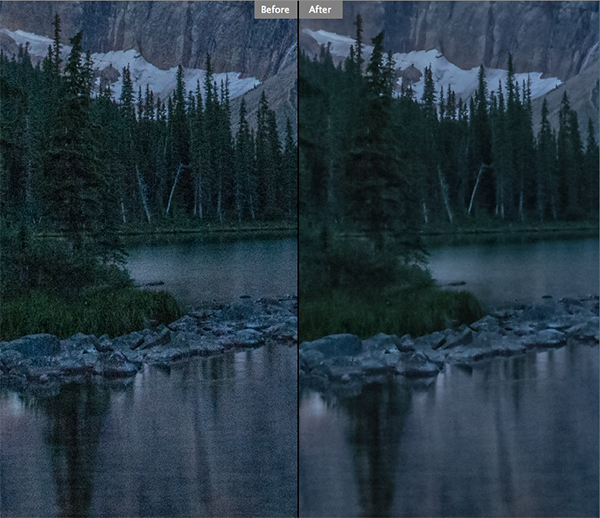
Reducing noise in your images can make a huge difference to their quality
We have all seen it in our images, that uneven grainy look that makes our images look a little unappealing. In the days of film, noise was called grain and it looked better (even the word grain sounded better) but the digital equivalent of noise can often make a good image look bad. The first question we need to answer is:
What is noise?
Generally speaking, noise is defined as aberrant pixels. That means pixels that are not representing the colour, or the exposure of the scene correctly. The next question is:
When does noise happen?
Noise is introduced into your images when you shoot a long exposure image or shoot at a high ISO setting. Does mean you should never go over ISO 100 or do long exposures? No, there are times that you may need, or even want, to shoot in those conditions. Landscape photographers shoot in low light all the time. The important things to know are; how to avoid getting too much noise in your image and, how to deal with it in your post-production.
Let’s deal with how you can get less noise in your images first.
1. Reduce noise in-camera:
Shoot at lower ISO settings
If your camera is three years old or newer, the ISO functionality will be great. You shouldn’t see too much noise creeping into your images, even up to ISO 1000. However, there might still be some noise at the higher ISO numbers, so be aware of your exposure. Shooting at a lower ISO means you will have less noise in your image. Higher ISO settings tell your camera’s sensor to group pixels together to capture more light. This grouping effect can make your image look gritty and noisy.
So, how do you avoid shooting at a high ISO? If possible, open your aperture to its widest setting i.e. f/2.8. If you are shooting in low light, use a tripod if possible, or you could use a flash. If none of these options give you the correct exposure, then you will need to push the ISO up higher. Also, do some test shots to find out at what level the ISO settings on your camera start to degrade image quality. For many years I shot on a Nikon D80 and I knew that anything above ISO 500 was really difficult to use afterwards. This was because the noise became difficult to remove, even in third party software, and if it was removed, the image looked like a watercolour painting as a result of over processing of the noise. So I got to know the limits of my camera and worked within those constraints.
Shoot in RAW format
I know you may feel daunted by shooting in RAW, but you don’t need to be. RAW is a great way to get the best out of your images, so be sure to use it. You don’t have to shoot RAW all the time, but when you notice that the light is becoming a little too dark, switch over to RAW. The reason is that JPEG images already have compression applied to them. This means that there is already some noise, and what is known as JPEG artefacts, in the image. If you are using a high ISO with JPEG files, the noise can become even worse. Also, in post-production, you have much more flexibility removing noise, and increasing exposure, with a RAW file than a JPEG.
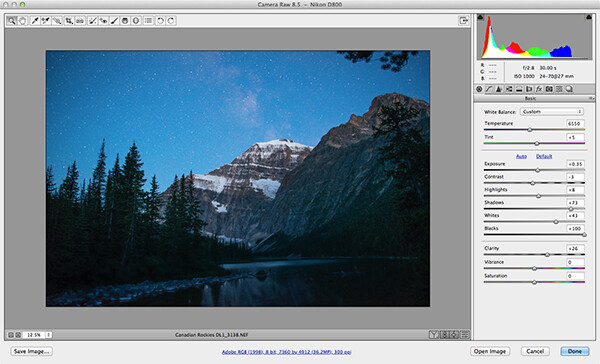
Adobe Photoshop Camera Raw has some powerful noise reduction tools
Check your exposure
When digital cameras first hit the market, they were really bad at rendering highlights correctly. Many photographers (myself included) would slightly underexpose the images in order to retain detail in the highlights. This meant that the shadow areas were really dark and when you tried to pull them up in Photoshop, the noise would become evident. This has been largely sorted out now and the new generation of digital sensors does a great job of handling highlights and shadows. As a result, you can expose correctly without fear of having noise in the shadows, or problems in the highlights. In fact, you can now overexpose slightly so that the shadows are a little brighter than normal and then you can pull the highlights down in Photoshop. I have been doing this for a while now and it is amazing how much detail the new sensors can capture in the highlights. Be careful not to overexpose too much, watch that you don’t clip the highlights as the details may then be lost for good.
Be careful when doing long exposures
Long exposures make some of the most dramatic images, but if the exposure is too long, the sensor of the camera can begin to heat up and the pixels will render incorrect colours and exposure. You can still do long exposures, but again, be aware of how you camera handles the long exposure time. Does the image look too grainy? Test it out and experiment to see where your camera begins to struggle. Then make sure that you don’t shoot a long exposure for longer than whatever works on your camera. The key point here is to know the limits of your gear and shoot within those limits. This will ensure great images and easy image editing.
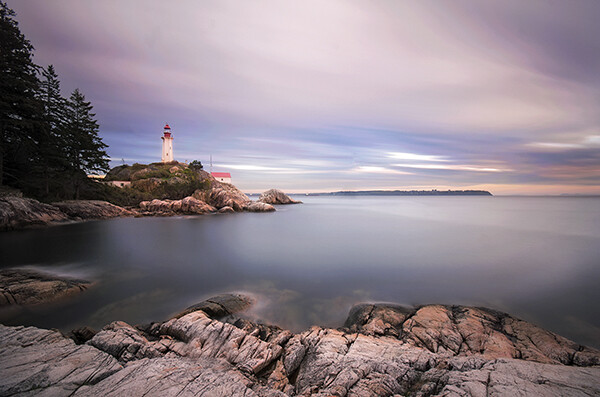
Long exposure images can accentuate noise in a scene
Use in-camera noise reduction
In most cameras there will be a function called High ISO Noise Reduction or Long Exposure Noise Reduction. It’s a good idea to turn this on if you are shooting at a high ISO or doing long exposures. The reason is that after the image has been shot, the camera will analyse the image and look for any pixels that are incorrectly rendered. It will then fix the pixels that are not properly rendered. This takes some time, usually as long as the exposure time. So if you shot an image that was 30 seconds long, the camera will do an analysis and correction that will take up to 30 seconds. This may become impractical if you are doing 10 minute exposures, but it is worth doing on shorter exposures. If you have the time, do it on the very long exposures too, as it can improve the image quality.
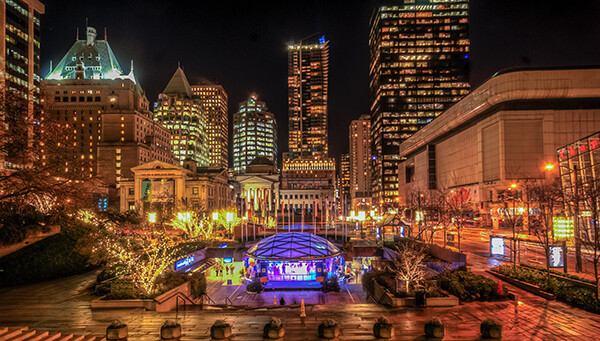
Use in camera noise reduction for long exposures and lowlight images
2. Fixing noise in Lightroom or Photoshop:
Once you have captured your image, you will want to open it up in Lightroom or Photoshop to see how it looks. It is a good idea to zoom your image to 100% to see the actual details of the noise in the image. When you make any adjustments, be sure to zoom in to 100% (1:1 in Lightroom), but also zoom out to see the full image to make sure that the whole thing looks good.
Noise reduction workflow in Lightroom and Photoshop Camera Raw
The controls in Lightroom and Photoshop Camera Raw are pretty much the same, so below is a quick overview of what each slider does and how to use them. In Lightroom you will find the Noise reduction tools in the Develop module and in Camera Raw you will find it as the third tab on right hand side of the screen, it is the Detail tab.
The sliders do the following:
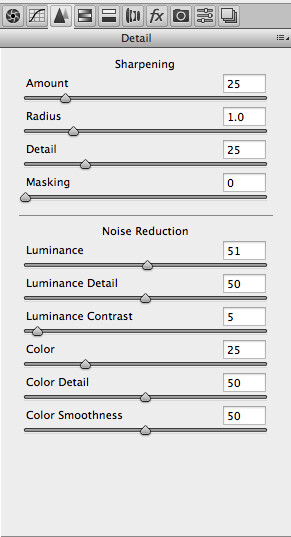
The noise reduction sliders in Photoshop Camera Raw, are identical in Lightroom
Luminance
Reduces luminance noise which is noise coming from over or underexposed pixels, this can be quite prevalent in long exposures.
Luminance Detail
Controls the luminance noise threshold. This is good for noisy photos. Higher values preserve more detail but can produce noisier results. Lower values produce cleaner results but also remove some detail.
Luminance Contrast
Controls the luminance contrast; useful for noisy photos. Higher values preserve contrast but can produce noisy blotches or mottling. Lower values produce smoother results but can also have less contrast.
Colour
Reduces color noise. This is often noticed in the underexposed shadow areas of an image.
Colour Detail
Controls the colour noise threshold. Higher values protect thin, detailed color edges but can result in color specking. Lower values remove color speckles but can result in colour bleeding.
Colour Smoothness
This slider controls the smoothness of the colours in the image. This is useful if you still have some unusual colour noise in your image after you have made all your adjustments above. Use this to finish off the noise reduction workflow.
Conclusion
There are no standard settings here that will work for every image. You will need to slide each adjustment around until you find the desired result and see how the changes interact with each other. I tend to slide Luminance and Colour to about 50 and then work from there, I slide each slider up and down, carefully watching how this is affecting the image. Once I am happy with the adjustment, I then move onto the next slider until I am done. I do this while I am zoomed into the image at 100% and after each change, I zoom out to see the effect it is having on the overall image. This may sound a little tedious, but if this is done properly, you will be able to eliminate most of the unsightly noise in just about any image. Practice is also important here, try this on as many images as you can and pretty soon you will be able to predict the effect of each changes.
Do you have any other experiences or tips for noise avoidance and removal? Please share in the comments below.
The post How to Avoid and Reduce Noise in Your Images by Barry J Brady appeared first on Digital Photography School.
-
Does the new Olympus PEN E-P5 firmware reduce image shake?

A year on from the camera’s announcement, Olympus has issued a significant firmware update for its PEN E-P5. The update not only adds a trigger-only ‘cable release’ mode to its Wi-Fi functions, it also provides a feature to combat the biggest problem with the camera. The new ‘0 sec Anti-Shock’ option provides a work-around for the image shake that held the E-P5 back in our original review. Is the new firmware enough to elevate the E-P5 to the select company of Gold award winners? Find out
-
How to Reduce Camera Shake – 6 Techniques
Pin It
In this classic DPS post (now updated) photographer Natalie explores 6 ways you can hand hold lenses at low apertures and low shutter speeds and still avoid blurry images caused by camera shake.
I’m a mover and a shaker in general, and this is particularly true when I’m on a shoot. I’m twistin’ and turnin’, climbin’ and jumpin’ and to top it all off, I DO NOT have a steady hand, plain and simple.
As often as possible I opt for lenses with VR (Vibration Reduction) or IS (Image Stabilization). You pay a pretty penny for this feature. For me, it’s worth the extra cost, and for the point I’m at in my photography it’s a reasonable expense. But that wasn’t always the case, and what about uber slow shutter speeds with no tripod. No IS or VR can hold up under pressure like that. . .no matter how magical they may be. . . and magical they are, trust you me.
6 Techniques to Reduce Camera Shake
Here are 6 options for avoiding camera shake and achieving crisp, delicious images no matter the length of the lens, no matter the shutter speed.
Shooting wide open? NO PROBLEM; I’ve got your back!! Enjoy!
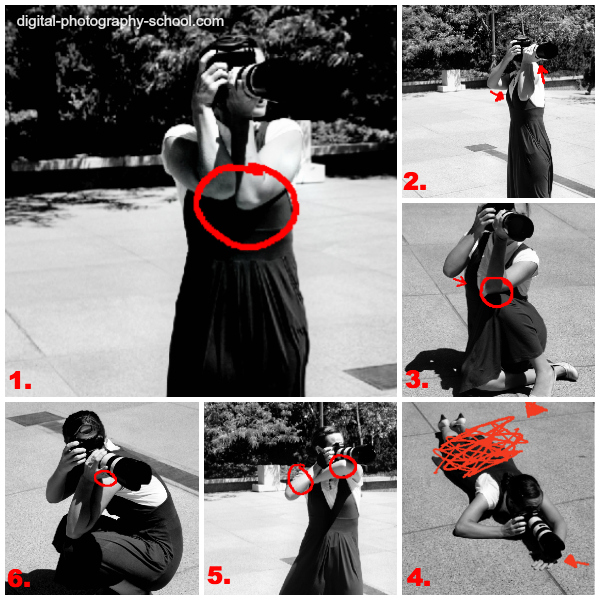
1. Elbows In
As often as possible pull your elbows in to your body and exhale completely before depressing the shutter. When you’re working with a wide aperture or low shutter speed (or both), even a breath can introduce shake. Pulling your elbows tight to your body can really help keep you steady. I also press my elbows firmly into my chest for even greater stability.
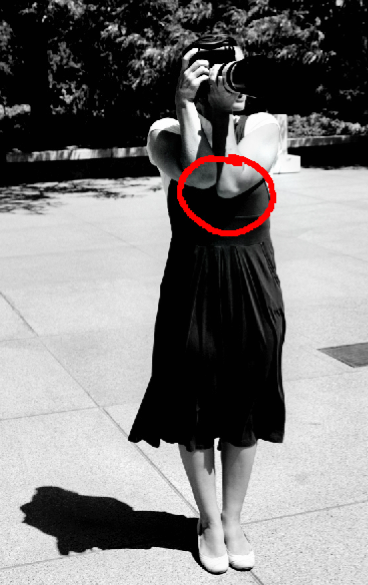
2. Raise Your Left Shoulder….
I am definitely a right eyed photographer, but this tip that I learned from “The Moment It Clicks” by Joe McNally, requires that I shift for a moment to my left eye. What I’m doing here is raising my left shoulder, and bracing my left elbow into my rib-cage (no arrow for this one). For further stability, you can pull your right elbow in to your chest. As always, exhale completely before depressing the shutter to avoid introducing shake.
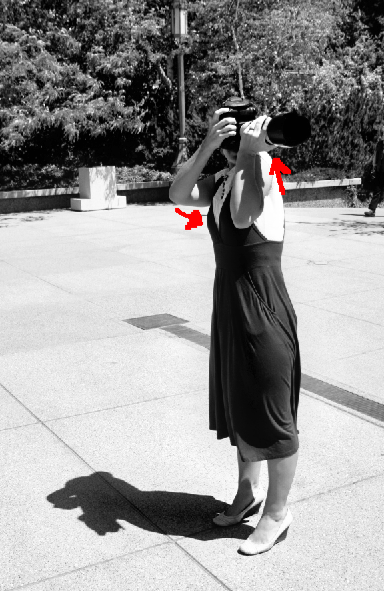
3. Create a Tripod With Your Knee
You can create your own tripod by resting your elbow on your knee while in a seated position. Again, bring that other elbow in for greater support.
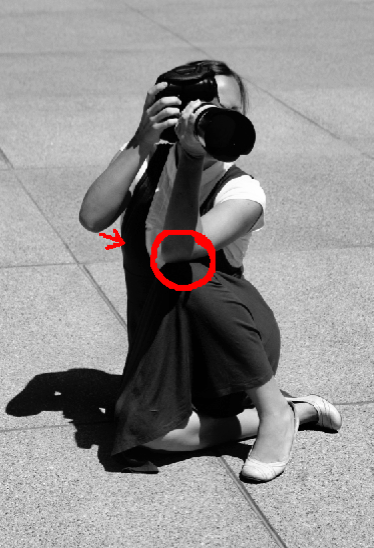
4. Lay Down
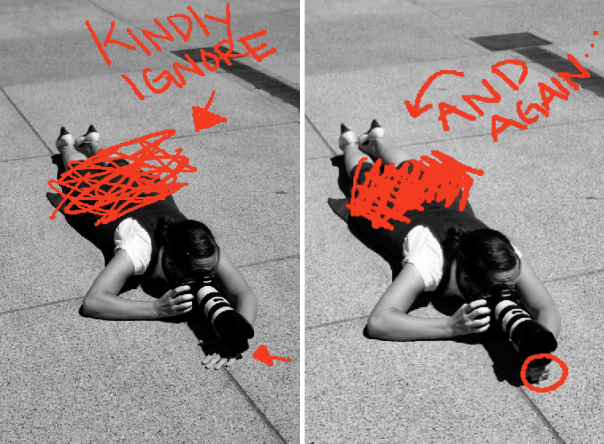
These two images illustrate perhaps the most obvious way to avoid shake without a tripod. Lie flat and let the lens sit directly on the ground. The problem with this is that you’re likely to have quite a downward tilt to the lens and unless you’re aiming to photograph the pavement, you probably won’t end up with the shot you’re hoping for. In the first image you’ll notice that I placed my hand flat against the cement and balanced the lens on top of it to give myself some height. In the second image you’ll see that I created a fist with my hand to give myself even greater height.
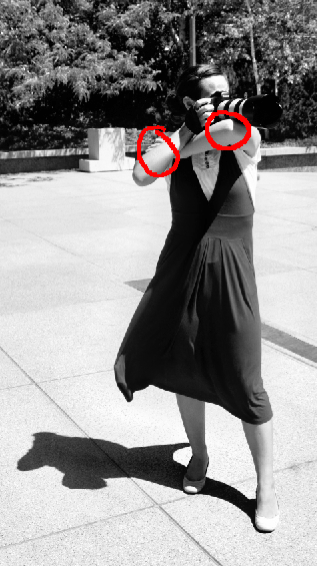
5. The Machine Gun Hold
This next technique is sometimes referred to as the machine gun hold. I rarely use this technique as I find it awkward and difficult to maintain for more than a second or two. Just because it doesn’t work for me, doesn’t mean it won’t for you. . . give it a try.
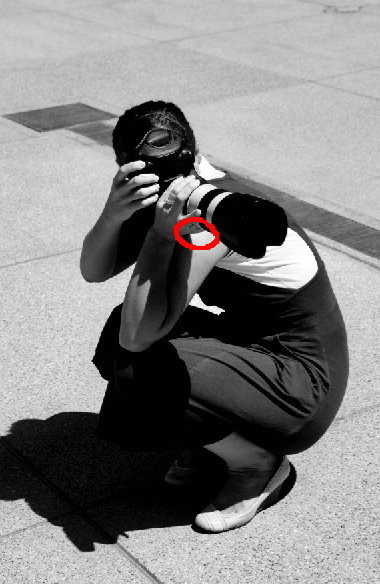
6. Cradle It
In this next image you’ll see that I created a sort of cradle for the lens between my shoulder and my wrist. I also stabilized the hold by balancing my elbow on my knee.
Well there you have it. That’s how I avoid “The Shake” (I’ve named him that because he’s like an evil monster who comes in and ruins my otherwise perfectly delicious images). Please share YOUR tricks and techniques in the comment section below, and as always. . .
Happy Shooting! – Get more daily tips like this one by subscribing to Digital Photography School
Further Reading on Camera Shake
- How to Tell the Difference Between Camera Shake and Poor Focussing?
- How to Hold a Digital Camera
Post originally from: Digital Photography Tips.
Check out our more Photography Tips at Photography Tips for Beginners, Portrait Photography Tips and Wedding Photography Tips.
How to Reduce Camera Shake – 6 Techniques
-
Photoshop CS4: Reduce Freckles
Ever wonder if there was any way to reduce freckles on someone’s face in a photograph? In this tutorial, I will show you one of the most easiest and most effective way to reduce freckles using Photoshop. All you have to do is open up your photo, duplicate the layer, add a “Gaussian Blur”, open the “History” pallet, click on the duplicate layer state to return your photo to what it looked like when you havent applied the gaussian blur, click in the first column next to gaussian blur state, select the “History Brush Tool”, change the mode to, “Lighten”, bring the opacity down to 50 or 60, and paint over all of your freckles. That’s It! If the face looks to clean, you can always bring the opacity down further. Created By: robertsproductions.net Request Tutorial robertsproducitons.net Twitter: twitter.com Hope this helped. Thanks for Watching!
-
[MODIFIED] Digital Night Photography – Reduce Camera Shake with Special Lens
A special lens may help you take better night photos by reducing ‘camera-shake’.
Obviously a tripod or other stabilizing device makes taking digital photographs at nighttime much easier. With a stabile digital camera you can take longer exposures that make up for the reduced lighting, and these photos should not suffer from the dreaded “camera shake”. The built-in or a shoe mount flash can also help in some situations.
However, there are times where your subject is too far away and too large to be affected by flash. Perhaps you are shooting panoramic photos on top of a skyscraper, and your flash unit is simply not going to illuminate buildings miles away. Or, you may be taking photos in an urban environment and tripods may be bulky or simply not allowed. …
Read more at MalekTips.
New Computer and Technology Help and Tips – MalekTips.Com -
Contributor Tutorials: How to reduce skin discoloration
This tutorial explains how to use Photoshop to reduce skin discolorations. I show you how to make a Soft-Light layer (filled with 50% gray), so the Dodge and Burn tools can be used to decrease or increase the density of our Soft-Light layer. This allows us to selectively lighten or darken areas of our photo. I demonstrate how to use layer opacity to make your retouch look more realistic and natural. (skill level=advanced)
Video Rating: 5 / 5Easy gradient map technique for creating those uber stylish two color effect pix!
Video Rating: 4 / 5