RSS
 

Posts Tagged ‘Real’

The Latest Tech Trends in Real Estate Photography

19 Apr

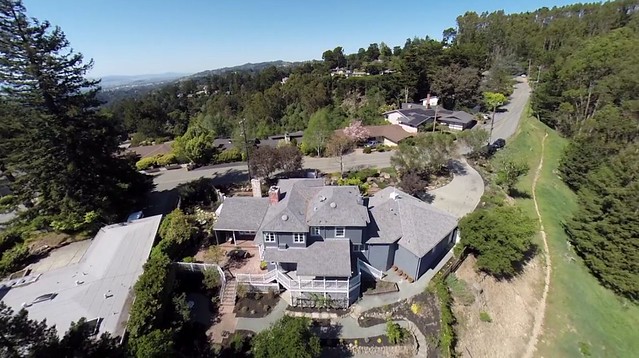
6324 Castle Drive, Oakland, CA

Earlier this week I was checking out a new listing that Kelly and Marvin Deal with Grubb Company here in Oakland, CA have up for a home for sale in the Oakland Hills. Kelly and Marvin helped mrsth and I buy our home in Piedmont a few years back and are excellent real estate agents if you are looking to buy or sell in the East Bay, especially near Piedmont or Oakland.

In looking at the listing, I was struck by how sophisticated real estate photography is getting. I’d seen interactive home tours online before, but with the convergence of things like 360 degree cameras and drone photography, real estate photography seems to be moving to a whole new level. In this case they used drone cameras to get unique views of the property including dramatic aerial views showcasing the parklands around the property.

They also used a company called Open Homes Photography who is using 360 cameras to build not just interactive walk through tours of properties, but can even convert these 360 degree views into custom floor plan and aerial type dollhouse views.

Anyways, if you are doing real estate photography, check it out — and if you’re thinking of moving to Oakland, give Kelly and Marvin a call as well.

With housing in San Francisco and the Peninsula going nuts with the recent tech boom, on a relative basis Oakland is much more affordable. We moved to the East Bay in 2001 and over the last decade I think Oakland especially has been growing into a wonderful place to live and work. Great new restaurants seem to be popping up daily, art and food and culture are thriving and BART makes it super easy to get to the City quickly.


Thomas Hawk Digital Connection

 
Comments Off on The Latest Tech Trends in Real Estate Photography

Posted in Photography


Panasonic Lumix DMC-GF7 real world samples gallery posted

14 Mar

After several iterations, Panasonic’s GF- series compact mirrorless camera line has settled into a comfortable position: providing mass market point-and-shoot appeal while giving photographers the option to fully control settings. The latest camera in the series, the Lumix DMC-GF7, continues this trend. Check out our sample gallery

Articles: Digital Photography Review (dpreview.com)

 
Comments Off on Panasonic Lumix DMC-GF7 real world samples gallery posted

Posted in Uncategorized


Fictional Bridges from Euro Banknotes Now Built in Real Life

31 Dec

[ By WebUrbanist in Architecture & Public & Institutional. ]

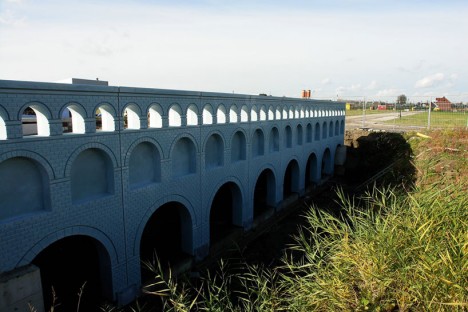
fictional bridge really built

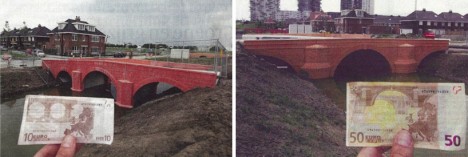
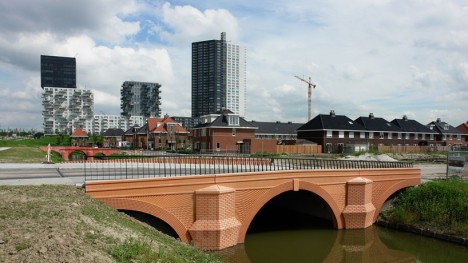
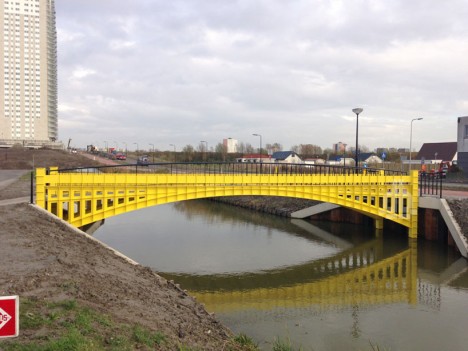
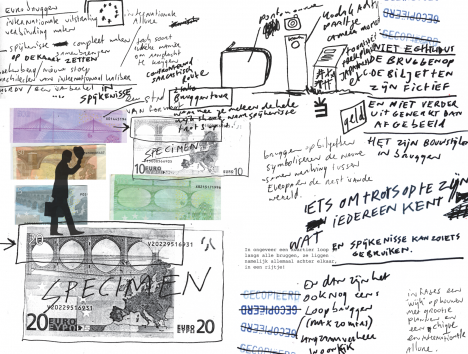
In a strange case of fact following fiction, a Dutch designer was inspired to create physical versions of faux-historical bridges first drawn on European currency in 2002.

fictional crossing aquaduct style

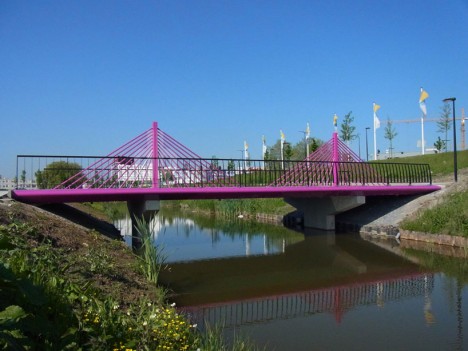
fictional bridge suspended structure

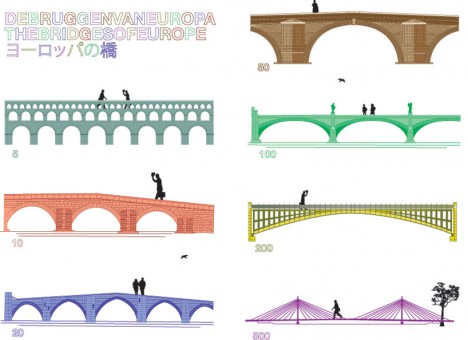
The original two-dimensional illustrations of Austrian Robert Kalin were intended to represent periods rather than built objects, spanning Baroque, Classical, Gothic, Romanesque, Rococo and Modern 20th-Century styles.

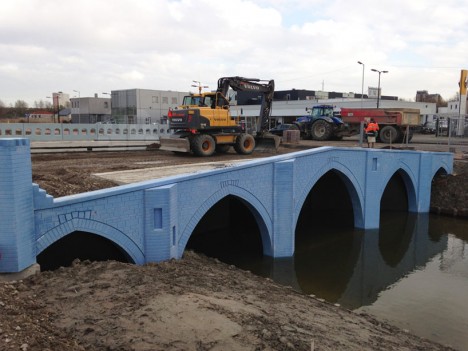
fictional bridges being built

fictional bridge euro notes

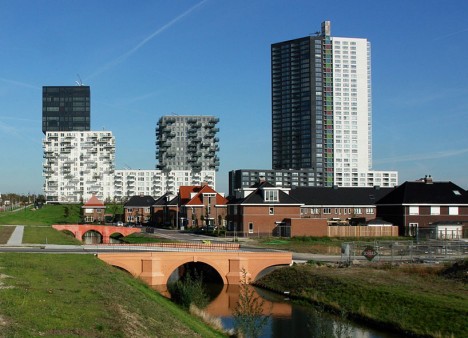
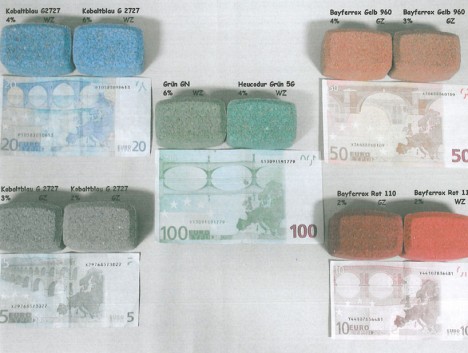
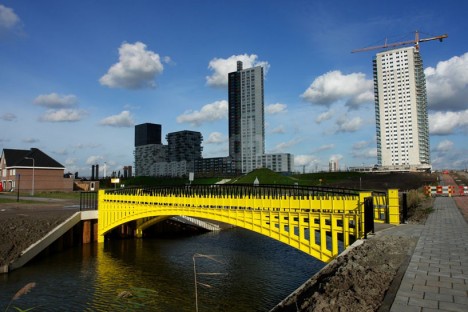
Their three-dimensional counterparts, meticulously designed by Robert Stam draw on every detail of the notes, right down to the colors used. His works were erected as part of a housing project in Spijkenisse, Holland (near Rotterdam).

fictional bridge color study

fictional bridges notes side by side

The European Bank wanted infrastructural art that would (so to speak) span cultures and nationalities, thus avoided mimicking existing structures in the semi-abstracted bridges on their new banknotes.

fictional bridges from banknotes

fictional bridge holland design

While they may look garish in color and strange in scale at first glance, pedestrians, cyclists and visitors reportedly appreciate them once they understand the unusual story behind their creation.

fictional bridge design diagram

fictional bridge illustration

More from their designer: “On the first of January 2002 new banknotes were introduced in Europe. In addition to windows and gateways, these seven banknotes also depict several bridges. Each bridge has an individual appearance, all of which can be recognized as having originated throughout certain periods in European cultural history: Classical Antiquity, the Roman period, the Gothic period, the Renaissance, Baroque and Rococo, Iron- and glass architecture and lastly contemporary, twentieth century architecture. Now wouldn’t it be amazing if these fictional bridges suddenly turn out to actually exist in real life?”

Share on Facebook


[ By WebUrbanist in Architecture & Public & Institutional. ]

[ WebUrbanist | Archives | Galleries | Privacy | TOS ]


WebUrbanist

 
Comments Off on Fictional Bridges from Euro Banknotes Now Built in Real Life

Posted in Creativity


Real Holodeck: 360-Degree Immersive Home Gaming Environment

08 Oct

[ By WebUrbanist in Gaming & Computing & Technology. ]

interactive gaming room design

Using a series of networked camera-and-projector units, this working demonstration turns an entire living room into and interactive gaming environment. Dubbed RoomAlive (a successor to IllumiRoom, featured previously), this augmented reality expansion from Microsoft could transform not just the way we game but ultimately the way to interact with everyday spaces both private and public.

Existing objects and furniture within the space are automatically mapped and integrated into a given game or experience. The constituent procam units are auto-calibrating and can self-localize so long as there is some overlap in their fields of view. The entire array is designed to be simple to install and use – it effectively sets itself up once you put the technology in place.

3d mapped room interior

generated virtual creatures holodeck

The system creates a depth-aware 3D model of the room, identifying vertical and horizontal surfaces, which is plugged into a Unity gaming engine. It then populates the space with whatever the user desires, from passive environments to active games. Virtual characters can navigate along the floor then up along the walls, for instance, but users can also dodge and shoot, interacting as characters themselves. Items in the room can also become props, toys or tools within a programmed scenario.

roomalive live demo illumiroom

virtual character gaming control

This particular demo integrates six Kinect cameras to show various scenes and scenarios – just the tip of the iceberg. These could, of course, also be deployed in other settings to turn public or institutional spaces into fully interactive environments. For now, this is just a demonstration, but as these technologies become less expensive and more accessible it is easy to imagine commercial applications of all kinds.

home living room design

immersive gaming experience design

From from the Microsoft development team: “RoomAlive is a proof-of-concept prototype that transforms any room into an immersive, augmented entertainment experience. Our system enables new interactive projection mapping experiences that dynamically adapts content to any room. Users can touch, shoot, stomp, dodge and steer projected content that seamlessly co-exists with their existing physical environment.”

interactive living room gaming

textured map room holodeck

“The basic building blocks of RoomAlive are projector-depth camera units, which can be combined through a scalable, distributed framework. The projector-depth camera units are individually auto-calibrating, self-localizing, and create a unified model of the room with no user intervention. We investigate the design space of gaming experiences that are possible with RoomAlive and explore methods for dynamically mapping content based on room layout and user position. Finally we showcase four experience prototypes that demonstrate the novel interactive experiences that are possible with RoomAlive and discuss the design challenges of adapting any game to any room.”

Share on Facebook


[ By WebUrbanist in Gaming & Computing & Technology. ]

[ WebUrbanist | Archives | Galleries | Privacy | TOS ]


WebUrbanist

 
Comments Off on Real Holodeck: 360-Degree Immersive Home Gaming Environment

Posted in Creativity


How To Apply Lighting In The Real World

08 Jul

Image from Alana Tyler Slutsky's Surrealia series featured on Fashion Photography Blog (FashionPhotographyBlog.com)

LIGHT: REAL WORLD APPLICATIONS


Hey FashionPhotographyBlog.com readers! So, you have sucked it up and battled your way through the past two days learning about the science behind lighting as well as the Inverse Square Law and color temperature.  You’re probably sitting there thinking “GREAT. HOW DOES ALL THIS MUMBO JUMBO HELP ME IN THE REAL WORLD?”  I’m glad you asked.

Additive Primaries (RGB)/Subtractive Primaries (CMY)

Knowledge of these actually become very helpful in post-production.  Is your image looking a little red?  Throw in a tiny bit of it’s compliment (cyan) in the areas that are too red and it will balance out the colors, making the image more neutral.

Qualities of Light


Direction & Contrast

Want a very contrasty image? Don’t place the light directly in front of your subject, it will create a “flat” image (low contrast lighting).  Want a more dramatic image?  Try placing the light more to the side, this will create a higher ratio between the light/shadow relationship – aka the image will have more contrast.

Shot With Dramatic Lighting High Contrast
Dramatic Lighting (High Contrast)

Source

Shot With Flat Lighting Low Contrast
Flat Lighting (Low Contrast)

Source

Diffused & Specular

How do you want to light your image? What is the image for? What is your subject? If you’re going to be taking head shots for an actor, you’re going to want to use a more diffused light source to compliment their features. Using a specular light source for a head shot wouldn’t end with a very pretty result. There would be ugly harsh shadows which would distract the viewer.

Inverse Square Law

I know this one is confusing. Know this: the Inverse Square Law has to deal with fall off of light. Need a black background but you only have a white wall? The farther you get from the wall, the more your light source will fall of, creating a darker and darker background as you move your light and your model farther from the wall. Granted, depending on how big/bright your light source is, you may have to move far away from the wall in order to get your background completely black.

Color Temperature

Want your image to have a blue color cast but you’re shooting in daylight? Set your white balance to “Tungsten.” Since tungsten light is orange in color, your camera knows to add more blue to the image to balance the colors. If you’re already shooting with a blue light source (Daylight/Daylight balanced Flash) and set your white balance to “Tungsten,” you camera is going to over compensate and the result will be a cooler, blue image.

Play around with white balances and color temperatures! You can get some cool results.

Shot With Daylight White Balance Setting
Originally shot with white balance set to “Daylight”

Shot With Tungsten White Balance Setting
White balance changed to “Tungsten” to give the image a blue color cast

Made it through? Good! I know it was a bit rough but it’s over now. I promise next post on light will be the information that everyone wants to know – how to shape and modify it! Thanks for sticking it through and hopefully you learned something.

As always, if you have any questions, feel free to shoot over an email! alana@alanatylerslutsky.com

– Alana

IMAGE SOURCE:

Feature image & image 1: photography by Alana Tyler Slutsky from her Surrealia series. To view the rest of the photos from this series visit her website.

Image 2: Adorama

Image 3: DPS

Image 4 & 5: Alana Tyler Slutsky


Fashion Photography Blog

 
Comments Off on How To Apply Lighting In The Real World

Posted in Uncategorized


Animating Architecture: Real Facades Remixed, Spun & Stacked

06 Jun

[ By WebUrbanist in Art & Photography & Video. ]

architecture animaiton herzog de meuron

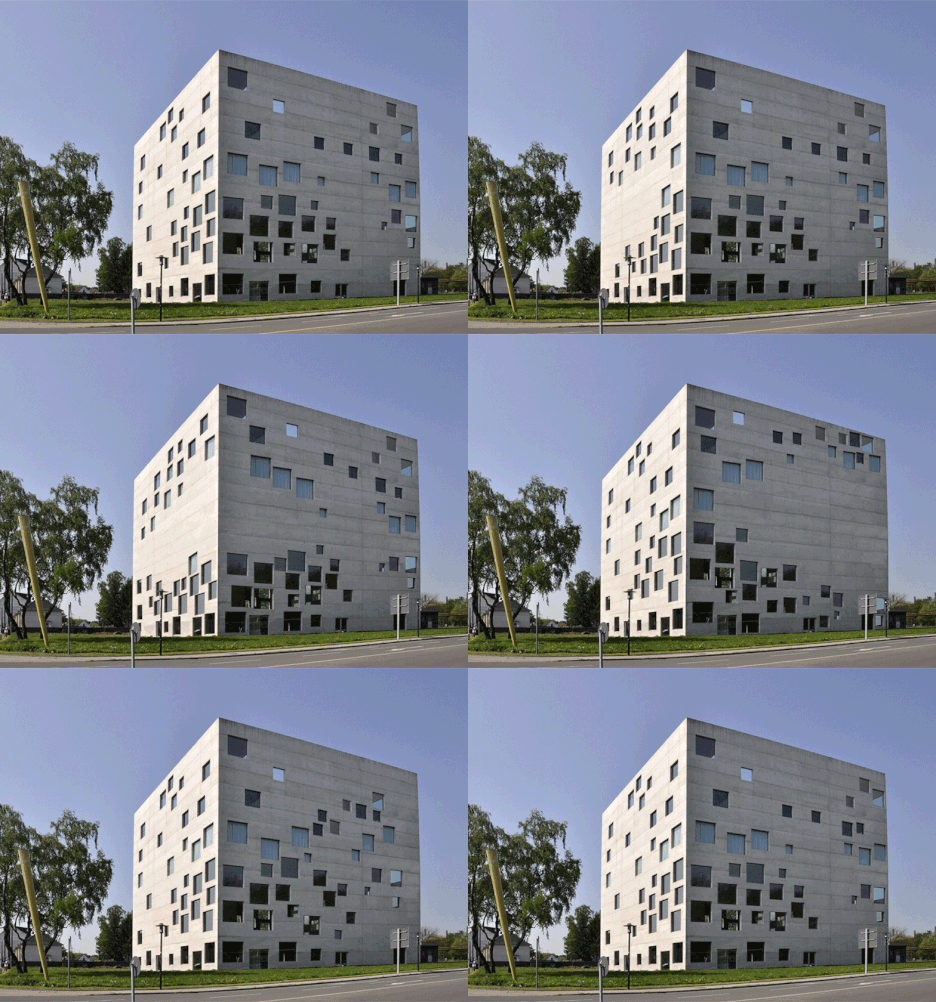
Taking building concepts to their illogical conclusions, this series of surreal animations provides a tour of impossible architectural structures and facades, each taken to a fresh visual extreme.

architecture facade shifting shapoe

architecture animation david chipperfield

Created by French architect Axel de Stampa, Architecture Animée inverts our expectation of solid structures (with people moving past and through them), instead creating a static backdrop and fixed surroundings against which iconic buildings come to life.

architecture animation estudio spinning

architecture animation tetris blocks

Each work ends up looking (abstractly) like an extension of the original architectural intent or some sort of motion implied within it, such as the above game of god-scaled Tetris that seems to play out in realtime.

architecture animation deconstructed facade

architecture animation la morphosis

This initial set shown here was created as part of 1Week1Project, organized by Ecole d’Architecture de Paris-Belleville graduate Sylvain Macaux to generate 52 spontaneous architecture projects over the space of a year (with over 25 completed to date).

architecture animated absolute towers mad

Structures subject to these whimsical deconstructions include the following: Vitrahaus by Herzog & de Meuron, Memory Museum by Estudio America, Theatre Agora by UNStudio, Emerson College Los Angeles by Morphosis, Mirador Building by MVRDV and Blanca Lleo, Americas Cup Building by David Chipperfield, New Museum by SANAA, Absolute Towers by MAD.

architecture animation building deconstruction

Spinning, twisting and deforming, the pieces play on something intrinsic to each subject – almost as much a natural extension as an artistic interpretation. Participating photographers include: Nicolas Saieh, Christian Richters, Iwan Baan, Luis Garcia, James Ewing and Tom Arban with more yet to come.

Share on Facebook


[ By WebUrbanist in Art & Photography & Video. ]

[ WebUrbanist | Archives | Galleries | Privacy | TOS ]


WebUrbanist

 
Comments Off on Animating Architecture: Real Facades Remixed, Spun & Stacked

Posted in Creativity


Sony Cybershot DSC-RX100 M3 : real world sample images

01 Jun

gallery_icon.jpg

As soon as it emerged from our studio we went straight out shooting with the RX100 III, to give an idea of the results it gives. We’ll be adding video and more samples over the coming days but this initial gallery aims to show a range of the camera’s capabilities. We set the camera’s ND filter to Auto, so we could shoot at wide aperture in good light, and include a real-world shot from the wide and long en of the lens, shot this way. Click through to see more.

News: Digital Photography Review (dpreview.com)

 
Comments Off on Sony Cybershot DSC-RX100 M3 : real world sample images

Posted in Uncategorized


Real Estate Photography – a Guide to Getting Started

20 May

real-estate-photography-home-front-lighting

Photography has never been more important to selling real estate than it is today. The markets are heating up again and demand for real estate creates demand for photography. This is good news to photographers, but like any business, there is plenty of competition. If you are new to real estate and architecture photography, here are some general guidelines to start you on the right path.

Camera Equipment

A camera, lens, and tripod, are all that is required to get started, but you might quickly learn that many competitors are very proficient at using supplemental lighting and Photoshop techniques.

Your camera should allow you to add a cable release, a flash, different lenses, and wireless triggers. Wide angle lenses are required. For cropped sensor cameras a lens around 10-22mm or 12-24mm is perfect, and for full frame sensor cameras, a lens around 16-35 mm will do the job.

Tilt-shift lenses help avoid converging vertical lines such as wall edges and door frames leaning in or out. There are several tilt-shift lenses available from Canon’s 17mm, the 24mm from Canon and Nikon, and others. While these lenses are wonderful to use, they are fixed focal length so if you need  a perspective that is for example; 19 mm or 27 mm or somewhere in between, a 16-35mm zoom lens is a great companion to a tilt-shift lens.
real-estate-photography-converging-lines

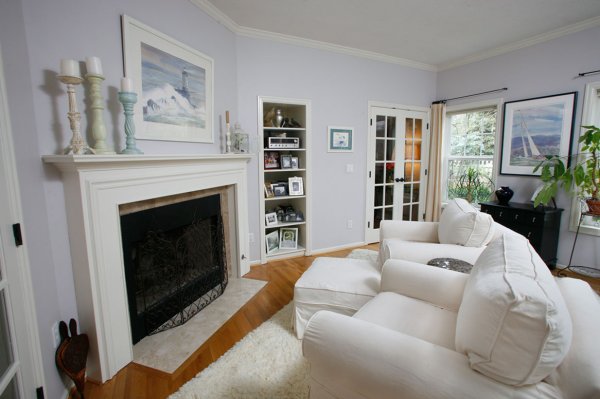
This image before processing shows diverging vertical lines, seen best by the edge of the fireplace, from using a 16-35mm lens tilted down to add foreground and minimize ceiling.

Shooting techniques vary from exposure blending, HDR, wireless flash, and light painting with multiple exposures. No matter your shooting style the camera should not be moved to guarantee image alignment of multiple exposures. The camera’s self-timer, a cable release, or wireless triggers insure no camera movement. The iOS App or Camranger also triggers the camera and provide a preview of the photo on a smart device.

Approaching the Property

The first image a potential buyer sees (usually) when reviewing properties online is an exterior photo. That photo is important so take the time to find the best angle and best light. Ask the realtor what are the important features to highlight. They usually want exterior photographs from front and rear, a deck or patio, landscaping and gardens, pool or hot tub, a barn, shop, or other outbuildings. Each feature should be emphasized in the composition by using the surroundings, like beautiful gardens leading to a cool garden shed.
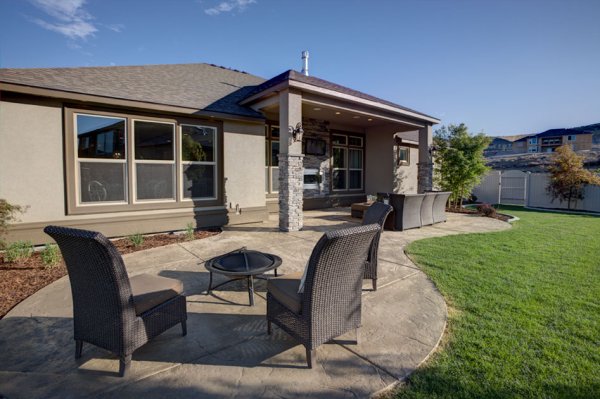
  The client was most interested in the outdoor theater under cover on the back porch, which I captured, but I also captured this image showing the patio furniture and giving a broader view of the backyard.

The client was most interested in the outdoor theater under cover on the back porch, which I captured, but I also captured this image showing the patio furniture and giving a broader view of the backyard.

Exterior Lighting

Most outdoor subjects benefit from early or late day lighting, including real estate. Using Google Maps and Google Earth can help you determine the best time of day prior to the photo shoot.  Searching only takes minutes and provides an idea whether a home faces the sunrise or sunset, or neither.

Light hitting the front of a home is perfect as seen here after sunrise. In winter, some homes facing south never have the sun hitting the front of the home To avoid shooting into the sun, photograph from the same end of the house as the sun.
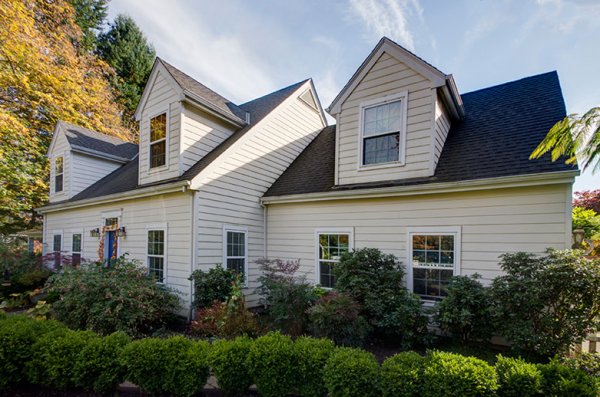
Light hitting the front of a home is perfect as seen here after sunrise.

In winter, some homes facing south never have the sun hitting the front of the home To avoid shooting into the sun, photograph from the same end of the house as the sun.

 This home has a huge yard and a street lined with cars. Photographing from the left put the sun right above the roof but moving to the right side was a better perspective and the sun was out of view.

This home has a huge hedge behind the camera and a street lined with cars. Photographing from the left put the sun right above the roof but moving to the right side was a better perspective and the sun was out of view.

Overcast skies can eliminate any problems with sun’s position, but shooting on poor days is a decision best discussed with the realtor.  The advantage is you can shoot any time of the day but the disadvantage is white skies can lessen the impact of an otherwise great exterior image.
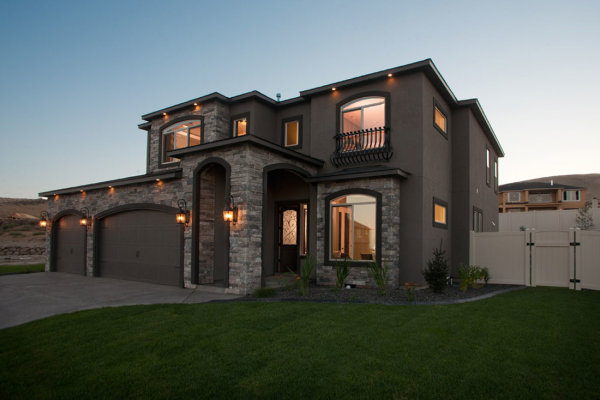
The dusk/dark technique

The dusk/dark technique

The dusk/dark technique is often requested by clients because it helps sell properties. The image is photographed outside and from the best angle to showcase the house. The technique is to turn on all the lights in a room and shoot at a certain time. After sunset the sky’s exposure will balance with the room lights’ exposure. A better approach is to add lights to the rooms creating even lighting, and working this way means not having to wait for that perfect balance between room lights and outdoor light.

Interior Photography

Homes come in all shapes, sizes, styles, and conditions. I always tell my clients that I am not in the house cleaning business, so I send them a task list with my suggestions on prepping the home prior to the photo session. Once inside, I set out to photograph the main rooms: the living room, kitchen, dining area, master bedroom, master bath, are all ‘must shoot’ rooms. There could also be a library, office, large walk-in closet, and more. The client can often tell you what they deem important. Next, seek the best perspective for each room.
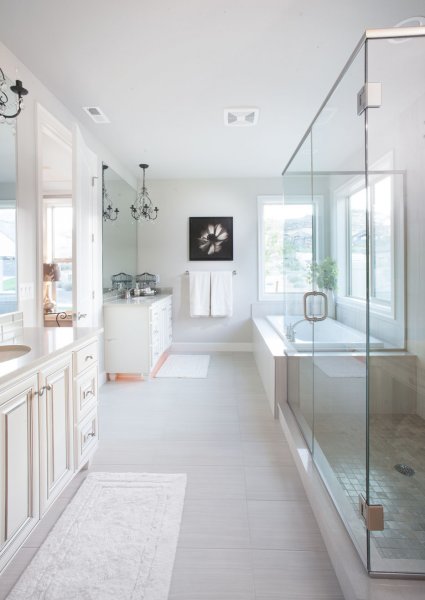
The master bathroom

The master bathroom

I describe my approach as using the inside elements: furniture, windows, and room layout, to create visual flow. I generally try to avoid composing something large in the foreground that prevents the eye from flowing through the room.
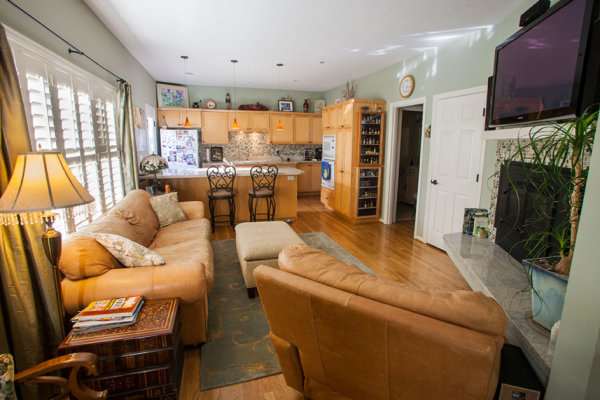
This is the first test shot I took of this room and the foreground chair blocked the flow through the room.
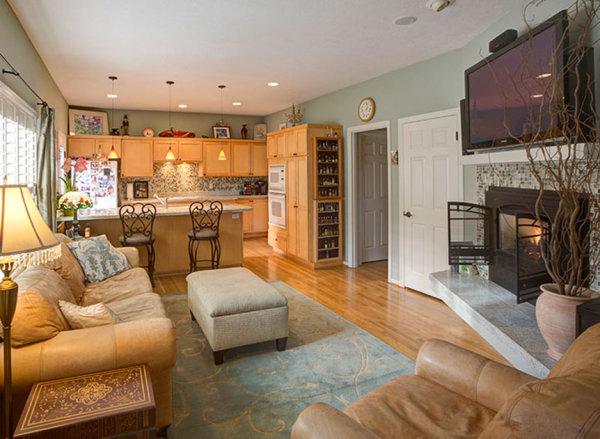
This is the first test shot I took of this room and the foreground chair blocked the flow through the room.

real-estate-photography-interior-after

By rotating the chair and lowering the camera height slightly, the eye can flow through the room easier. This image also has the vertical lines corrected.

Camera Height and Vertical Edges

There is broad agreement among clients and photographers, that if there is to be a rule it will state: verticals must be correct! In most interiors there are edges and corners of walls, door frames, and windows that have vertical sides and these edges need to truly be vertical. When you use a tilt-shift lens this problem is solved, but tilting the camera up or down with a non-TS wide angle lens makes vertical edges converge or diverge and they no longer appear straight.

One widely used approach is to level the camera using a hot shoe bubble level, making edges straight. While this is a simple solution, it is not always the best solution when using a non-TS lens. A level camera at chest height can result in foreground subjects, like furniture being cutoff at the bottom with too much ceiling at the top. Lowering the camera height will improve this problem but how low can you go and still have an effective photo?
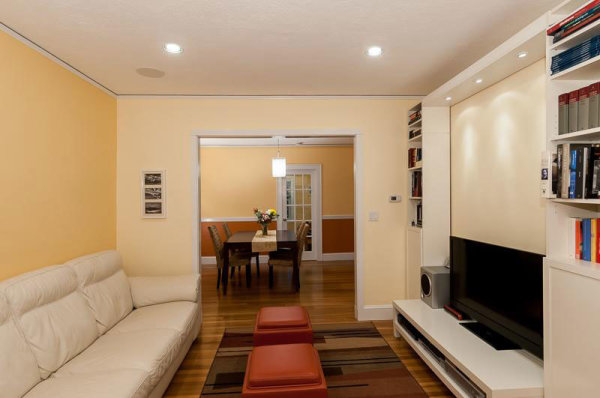
This image by one of my online course students; Simone Brogini, illustrates this point. His camera is chest high and his camera is leveled to avoid diverging lines. The problem as I mentioned to him was that the foreground furniture is cutoff and there is too much ceiling that lacks interest.

This image by one of my online course students; Simone Brogini, illustrates this point. His camera is chest high and is levelled to avoid diverging lines. The problem as I mentioned, is that the foreground furniture is cutoff and there is too much ceiling that lacks interest.
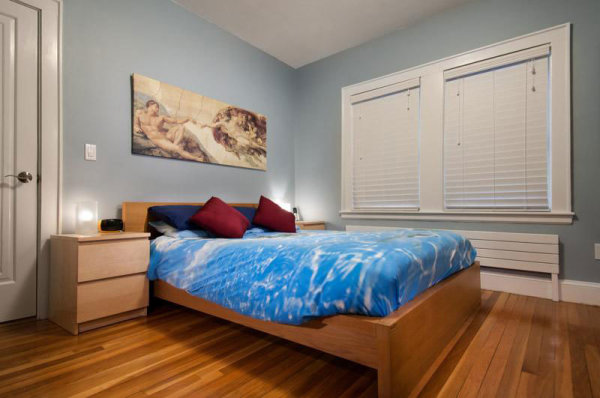
 Simone also shot this bedroom image the same way. It looks pretty good but I advised him again that in my that camera height might be just a little too low as the bed and furniture get only about 1/3 of the frame and the wall and windows uses 2/3 of the frame.

Simone also shot this bedroom image the same way. It looks pretty good but I advised him again that in my opinion the camera height might be just a little too low, as the bed and furniture get only about 1/3 of the frame and the wall and windows use 2/3 of the frame.

So what is the perfect camera height? There are many opinions. Some suggest chest height while others suggest door knob height or even lower, all to avoid diverging verticals lines. I prefer chest height or close and correcting vertical lines using other methods like a tilt-shift lens or the Lens Correction Tool in Photoshop (or Lightroom).
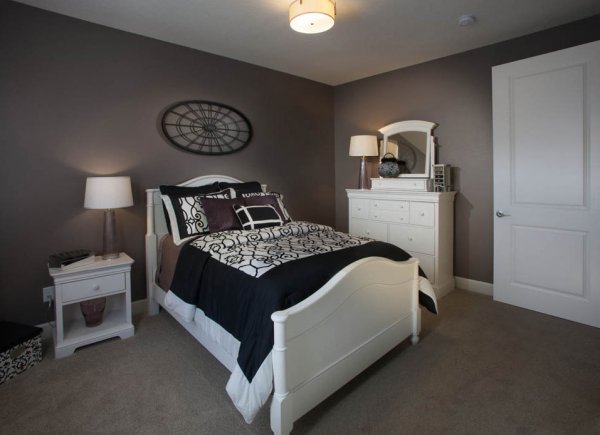
This image shows the use of the Lens Correction Tool. The bed and furniture consume 2/3 of the frame and provide a fuller view of the room.

This image shows the use of the Lens Correction Tool. The bed and furniture consume 2/3 of the frame and provide a fuller view of the room.

Getting Good Exposure

The perfect interior exposure is challenging when balancing bright window light, with darker interiors. You can deal with scene contrast many ways; one is to shoot when outdoor light levels are lower. Midday light will be much brighter outside than during or after sunset, or on a cloudy day. Turning on every light inside increases the interior brightness, and if the outdoor brightness is lower a RAW file can often capture the scene in one frame.
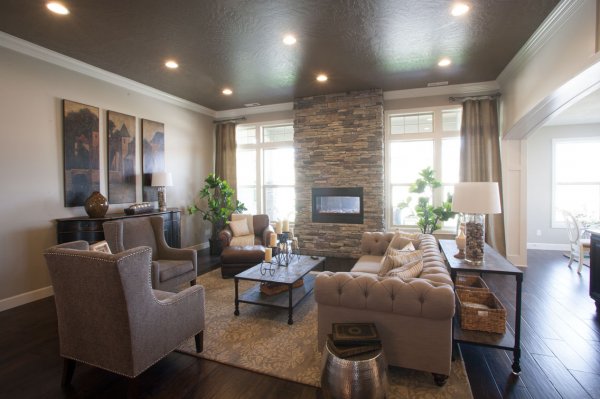
  This room has a dark ceiling, dark furniture, and window flare and hot spots. To much contrast for one capture.

This room has a dark ceiling, a dark floor, a window flare and hot spots with too much contrast for one capture. (see corrected version below)
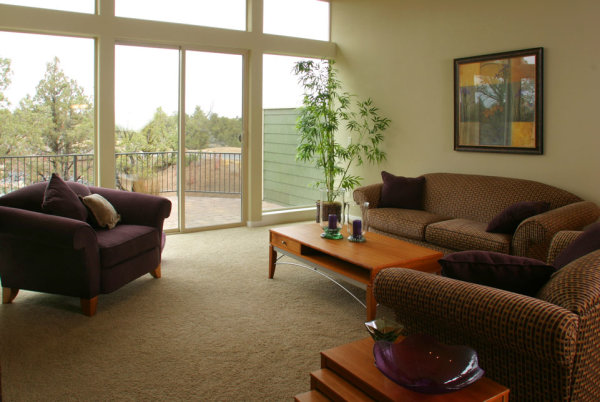
  On a overcast day, the interior exposure is quite good as well as the window exposure. A flash was bounced off the ceiling on the right.

On a overcast day, the interior exposure is quite good as well as the window exposure. A flash was bounced off the ceiling on the right.

To make sure I have all the exposures for a great image, I determine my ‘base exposure’, the image that has most of the data centred in the histogram. Then I bracket widely in +/- one stop increments of varied exposures so I have variety just in case I need them. Lightroom and Photoshop, and certainly other programs, allow selective lightening and darkening of shadows and highlights on a single image, but if the contrast is too much, I can blend those bracketed images into a great final image.
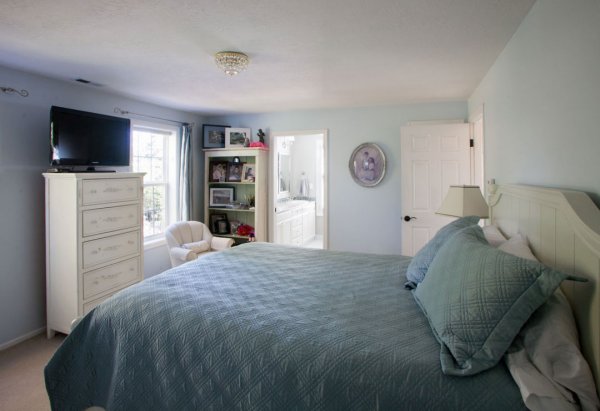
The Adjustment Brush was used to bring down the brightness of the left window. There is still a little flare around the window, but this worked for the real estate website.

The Adjustment Brush in Lightroom was used to bring down the brightness of the left window.

Interior Lighting

Just like a finely lit portrait, interiors can benefit greatly from nicely styled lighting. HDR can manage scene contrast but it does not create highlights and shadows in areas that have no directional light. If you have a dark cabinet against a dark wall, adding supplemental light can bring out that needed detail.

Most interiors have two light sources: window light and interior lights, both constant light sources. You can add constant lights or use strobe or flash. Constant lights, unlike flash, are like the lamp on the table or window light. Changing your exposure to darken window light also changes the exposure brightness of your constant lights. Flash is not a constant light! If you change your shutter speed to darken the window light exposure, flash exposure will not change and for this reason; flash or strobe provides flexibility when lighting interiors.

Photographers shooting for architects or magazines often have plenty of time to photograph a property with finely crafted lighting techniques, but a real estate photographer’s time is usually limited, making flash the perfect tool. Some photographers have mastered the balancing act of using direct on-camera flash to fill in a scene while others use on-camera flash in a bounce capacity.
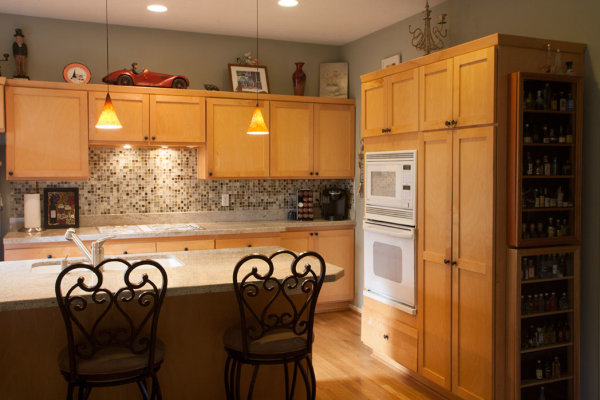
Here the only light is coming from a window on the left and the ceiling fixtures, leaving dark areas in front.
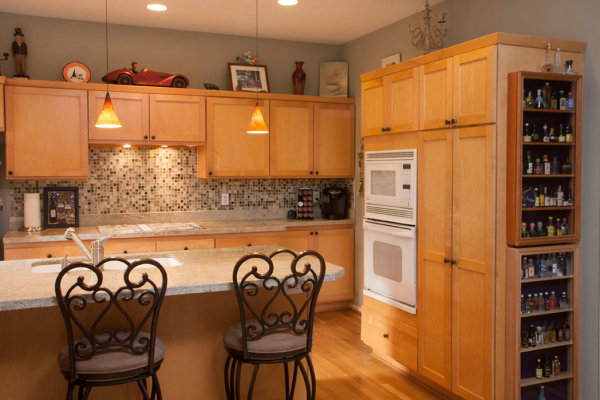
Here the only light is coming from a window on the left and the ceiling fixtures, leaving dark areas in front.

Adding bounce flash, hand held just to the right of the camera, filled in those darker areas effectively.

Adding bounce flash, handheld just to the right of the camera, filled in those darker areas effectively.

Also popular are multi-flash wireless set ups allowing the flash to be placed around a room for styled lighting. Also growing in popularity is the ‘light painting’ approach where areas are selectively lit and the exposures are blended.

This image utilizes the Light Painting approach to interior lighting.

This image utilizes the Light Painting approach to interior lighting.

One side effect with outdoor lighting mixing with interior lighting is ‘lighting color balance‘. This is different than camera White Balance settings. Camera White Balance is set to either specific areas of your scene or set to average all light sources together.

There is a blue color cast above and right side of the window as well as the floor on the left.

There is a blue color cast above and right side of the window as well as the floor on the left.

When you have mixed light, such as daylight colored window light mixing with tungsten colored ceiling lights, and then throw in a fluorescent kitchen light, you have a veritable palette of different colors mixing together. Walls closest to windows will be blue while the wall closest to a lamp will be amber and the ceiling in the kitchen will have a green tint.
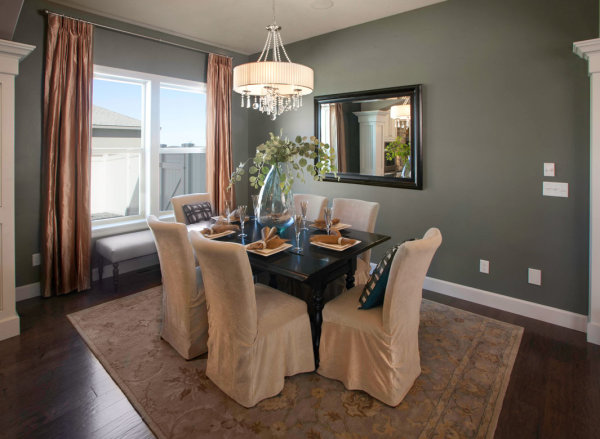
The final image shows color correction in those areas as well as verticals and window flare.

The final image shows color correction in those areas as well as corrected verticals and removal of window flare.

In some cases the effects of mixed light will be minimal and other times require attention. You can prevent mixed color in many cases by color matching the inside lights to the same color or use Photoshop color correction techniques to change color of specific areas.

The End Product

Once you have completed the assignment you will need to deliver the image files. Clients may have different preferences, but mine usually request low resolution for the web and high resolution for print publication.

Be sure to save your files in the proper file format and size for the intended use. Most Multiple Listing Service’s specify what is accepted format and acceptable sizes. I use Photoshop and the Save for Web option for the low resolution and TIFF format for high resolution.  Then final delivery of the files is made by Dropbox or a comparable online service.

Summary

Things to remember doing real estate photography:

  • You are not photographing for yourself; you are photographing for clients who will expect professional quality work.
  • Don’t get ALL the best gear, get only what is required to do the job well.
  • Master the creative side of photography such as angles, perspectives, and composition.
  • Master the technical side of exposure, HDR, supplemental lighting, color matching, and exposure blending.
  • Be careful when processing real estate images, like removing power lines, to avoid misrepresenting the property. 

There are many styles and techniques you can use to photograph architecture and real estate and you should master them all. Real estate photography is architecture photography and you can photograph a home for a real estate agent for $ 200 or photograph a model home for a home builder for $ 1000 or more.  Start small, plan big!

The post Real Estate Photography – a Guide to Getting Started by Charlie Borland appeared first on Digital Photography School.


Digital Photography School
 
Comments Off on Real Estate Photography – a Guide to Getting Started

Posted in Photography


Getting Real with HDR – a Step by Step Tutorial for Realistic Looking HDR

11 May
Try to make your HDR images look as realistic as possible

Try to make your HDR images look as realistic as possible

If you have been photographing for more than a year or two, you will have heard about HDR (which stands for High Dynamic Range). We have probably seen them, the “overcooked”, over processed HDR images that float around the photo websites. For some photographers, the process seems to force them to overdo their images and after a while that seems to be the only result they are trying to achieve. Do a Google search on “bad HDR” and you will see what I mean. The images have halos,  the colours are surreal and look metallic, the contrast is off and in short, the image is really messy.

When I first shot HDR, I fell into this trap too. These results caused many photographers to say that HDR is not a useful technique and is really gimmicky. That perception is partly true. HDR in the hands of someone who cannot use it effectively can result in some weird looking images, however, HDR done properly can produce some incredible results. To see some good examples of HDR done properly, visit the website HDR Spotting and take a look at the editors picks. There are some astounding images there. The colours are amazing, the contrast is perfect and the detail in the shadows and highlights, sublime. That is what HDR should be. It should be the best combination of the highlights and the shadows properly exposed, the image should look as real as it can. So, how do you get this right you might be asking, read on to find out.

What is HDR?

As I said earlier, HDR stands for High Dynamic Range. Your cameras sensor has the ability to capture light and colour. The extent to which your camera can do this is called the dynamic range. More specifically, if your camera can render lots of details in the shadows and the highlights in the same shot, then it has a high dynamic range. Over the past few years, digital sensors have become so much better at capturing more detail. This is a huge benefit for photographers and of course for HDR photography. This means that we can get more details out of every image and as a result, the HDR images will be that much more detailed.

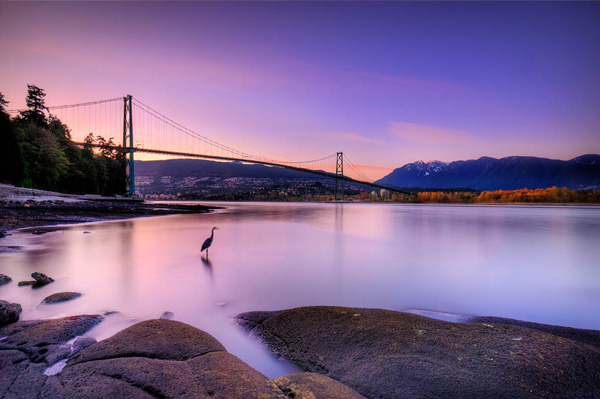
Lions Gate Bridge Vancouver - HDR image

Lions Gate Bridge Vancouver – HDR image

How do I shoot HDR?

Making an HDR image involves 3 distinct and separate processes. I will go into detail on each one, but at a high level, they are as follows:

  1. Image Capture
  2. HDR Processing
  3. Image editing in Photoshop

Lets start with image capture first. This is the photography part of this process. It’s pretty simple really. Set up for your shot as you normally would. Make sure you have your subject well composed and you are ready to go. The difference between HDR and normal photography, is that with HDR you will take either three to five bracketed images of the same scene. The reason for the number of images is that you will blend these images together in a dedicated HDR product.

My recommendation for HDR software is Photomatix Pro. It is a programme that has been around for many years now and has some really good editing functions. It’s probably the most widely used software when it comes to HDR. Photoshop also has an HDR function, but in my opinion, its not as refined as the Photomatix Pro yet. Don’t get me wrong, I am a huge Photoshop fan, it is an incredible tool, I am sure that Photoshop will have something within their functions that will be competitive in time, but for now, I still use Photomatix.

Step #1 –  Image capture

These are the steps I follow when I intend to do an HDR shot. They are not rules, nor are they inflexible, they just work for me. You need to find what works for you and gives you the best results, this method has helped me get my best results, so try it out. Tweak it and change it as you need.

  1. Use a tripod – it is a good idea to put your camera on a tripod for HDR, especially if you are shooting in low light. I have done some handheld HDR but only in bright conditions. The tripod will also help you get your composition right.
  2. Put your camera into Manual mode “M”
  3. ISO Settings – it is a good idea to keep your ISO settings at 100 or as low as your camera will go. That way you will avoid introducing unnecessary noise into your images. The process of HDR allows you to capture the dynamic range of light and colour in the scene. Using high ISO settings is great when you are trying to shoot a low light scene and capture it in one shot, but for HDR you will want to keep it as low as possible.
  4. Set your aperture to anywhere between F/8 and F/ 11 and don’t adjust your aperture between shots.
  5. Adjust your shutter speed so that you are exposing the scene perfectly according to your cameras light meter.
  6. Capture one image at this reading
  7. Underexpose by one or two stops (depending on the scene) and capture another image by adjusting your shutter speed.
  8. Do this twice on either side of the perfectly exposed image.

This will result in five images being captured.

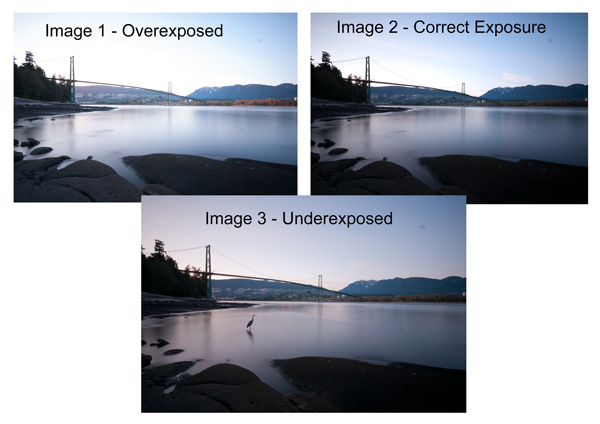
Below are the three images I used in making the HDR image you see above. Take a look at how the colours and exposure don’t look good at all.

3 Different exposures for the HDR image above

3 Different exposures for the HDR image above

Some photographers use five shots for their HDR shots, some use seven or up to nine. I have found that three to five shots seem to work best for most scenes. I have only used nice shots on a few occasions, but have not been happy with the results. The colours seem to be “muddy” and unclear once processed. If necessary, shoot seven images and see how that works.

Once you have completed the shoot, download the images to your computer. It is important NOT to edit the images before blending them into an HDR image. Some of the shots might look over exposed or under exposed, thats OK, in fact they must look like that. The software will deal with these issues, so don’t be concerned that the images look bad out of camera, they need to be processed and then the magic begins.

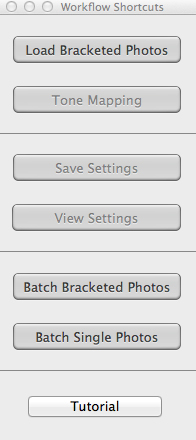
Click on - Load Bracketed Photos

Click “Load Bracketed Photos”

Step #2 – HDR processing

I will be explaining the Photomatix software in this article. I have tried HDR with each new version of Photoshop and I am still happier with the results I get from Photomatix Pro. You can download a trial version of Photomatix from their website. It is fully functional, the only thing is that the trial version puts a watermark on the image. This is OK for trying it out, you will see exactly what the software can do, if you think it is worth it, then you can buy it. Ok, so here is how you take your images into Photomatix Pro

  1. Open Photomatix Pro (or if you’ve set it up as a Lightroom plugin, select your bracketed images, right click and choose “edit in” and Phototix Pro)
  2. Click  ”Load Bracketed Photos” and then click on “Browse” and select the images you have taken (you can also drag and drop them into the box)
  3. Click OK once the images appear in the box
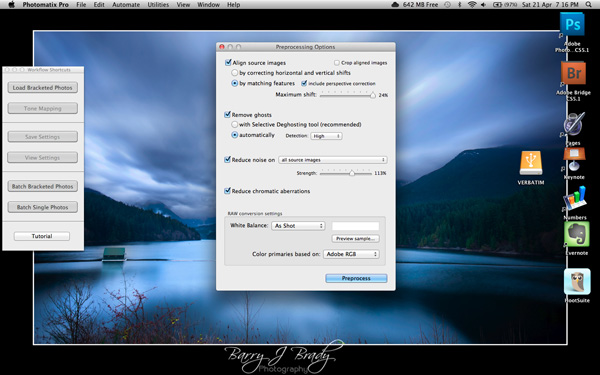
Select the options displayed on the screen above

Select the options displayed on the screen above

Preprocessing options are available.  Make selections on the box as shown in the screenshot above. Then click preprocess and Photomatix Pro will begin to tone map the images into a composite 32-bit image. This process is generally quite quick, between 30 seconds and a minute.  Once complete, click on the Tone Mapping button.

Use the “Remove ghosts” function if you have people or moving objects in your images. If you don’t have this, then you wont need to use this function.

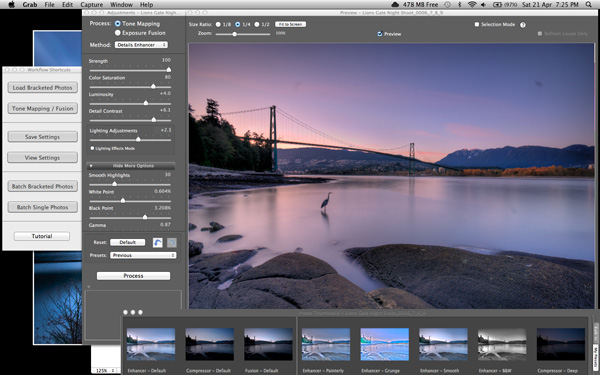
The HDR editing screen

On this screen, you are able to select a variety adjustments that will create an overall change to the image. There are no absolutes here. Each adjustment makes minor or major differences to the image and the combination of the adjustments provides diverse options.

HDR-Screen-600

At the bottom of the screen you will see different “treatments” (or presets) which you can use as a starting point to your image editing process. I would avoid using these as they are generally overdone. Try and use the functions on the left hand side to edit your image.

Below are the details about each function on the left hand side of the screen and what each does. One of the best ways to see what a function does is to slide it all the way over to the left and then to the right and see how it affects your image, but here are the details:

General Settings

  • Strength – affects the degree to which contrast and detail are enhanced in the image. A value of 100 gives the maximum amount of enhancement. To get a more natural effect, move the slider to the left. The default value is 70.
  • Color Saturation – controls the saturation of the RGB color channels. The greater the saturation, the more intense the color. Move the slider right or left to change the setting. A value of zero produces a grayscale image. The value affects each color channel equally. The default value is 46.
  • Luminosity – controls the compression of the tonal range, which has the effect of adjusting the global luminosity level. Move the slider to the right to boost shadow details and brighten the image. Move it to the left to give a more “natural” look to the resulting image. The default value is zero.
  • Detail Contrast – controls the amount of contrast applied to detail in the image. Move the slider to the right to increase the contrast of the details and give a sharper look to the image. Note that increasing the contrast also has a darkening effect. Move the slider to the left to decrease the contrast of details and brighten the image.
  • Lighting Adjustments – affects the overall ‘look’, controlling the extent to which the image looks natural or surreal. When the Lighting Effects Mode box is unchecked, move the slider to the right to make the image look more natural and to the left to make it look more ‘painterly’ or ‘surreal’. Use this carefully as it can have an unpredictable effect on your image.
  • Lighting Effects Mode – the checkbox lets you switch between two modes for the Lighting Adjustments setting,where each mode produces slightly different results. Checking the box tends to produce results with a type of ‘Magic Light’ effect.

More Options

  • Smooth Highlights – reduces the contrast enhancements in the highlights. The value of the slider sets how much of the highlights range is affected. This control is useful for preventing white highlights from turning grey or uniform light blue skies becoming dark blue-grey. It is also useful for reducing halos around objects placed against bright backgrounds. The default value is zero.
  • White Point and Black Point – these sliders control how the minimum and maximum values of the tone mapped image are set. Moving the sliders to the right increases global contrast. Moving them to the left reduces clipping at the extremes. The White Point slider sets the value for the maximum of the tone mapped. The Black Point slider sets the value for the minimum of the tone mapped image.
  • Gamma – adjusts the mid-tone of the tone mapped image, brightening or darkening the image globally. The default value is 1.0.
  • Temperature – adjusts the color temperature of the tone mapped image relative to the temperature of the HDR source image. Move the slider to the right to give a warmer, more yellow-orange colored look. Move the slider to the left for a colder, more bluish look. A value of zero (default) preserves the original color temperature of the HDR source image.

Advanced Options

  • Micro-smoothing – smoothes local detail enhancements. This has the effect of reducing noise in the sky, for instance, and tends to give a “cleaner” look to the resulting image. The default value is 2. Important note: The Loupe may not properly show the effect of the Micro-smoothing setting when the area magnified is uniform. If you want to see the effect of the Micro-smoothing setting at 100% resolution on a uniform area such as the sky, you will have to select an area that contains an object in the scene in addition to the sky.
  • Saturation Highlights – adjusts the color saturation of the highlights relative to the color saturation set with the Color Saturation slider. Values higher than zero increase the color saturation in the highlights. Values lower than zero decrease it. The default value is zero.
  • Saturation Shadows – adjusts the color saturation of the shadows relative to the color saturation set with the Color Saturation slider. Values higher than zero increase the color saturation in the shadows. Values lower than zero decrease it. The default value is zero.
  • Shadows Smoothness – reduces the contrast enhancements in the shadows. The value of the slider sets how much of the shadows range is affected. The default value is zero.
  • Shadows Clipping – the value of the slider sets how much of the shadows range is clipped. This control may be useful to cut out noise in the dark area of a photo taken in a low-light situation. The default value is zero.

Once this part of the process is finished, then it is time to take the image into Photoshop. Save the tone mapped image and then re-open it in Photoshop.

Step #3 Image Editing in Photoshop

This is a very basic workflow. It will enhance the lighting and tonality in your images. These techniques are discussed here at high level.

Shadows and Highlights

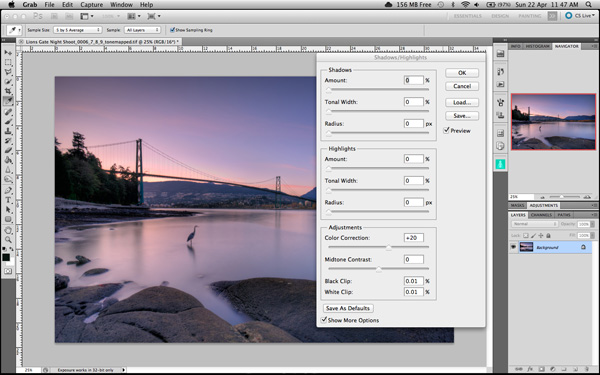
Photoshop has a function called Shadows and Highlights. Use this tool to bring out detail in the shadows of your image. Use it carefully, if you overdo the treatment on the shadows, there may be some unsightly image degradation or “noise”. This function is not great for adjusting highlights, so use it for the shadows only. This tool is found in Photoshop as follows: IMAGE > ADJUSTMENTS > SHADOWS AND HIGHLIGHTS. The adjustments of AMOUNT, TONAL WIDTH and RADIUS should all be kept aligned close to one another to ensure that the adjustment looks realistic.

Shadow and Highlights function in Photoshop

Shadow and Highlights function in Photoshop

Levels Function

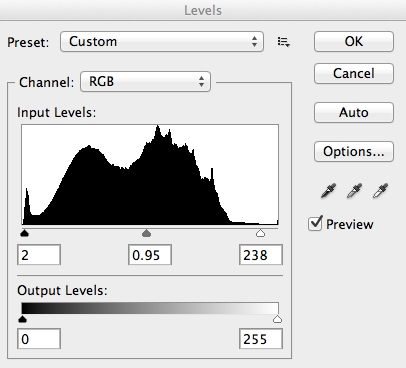
The levels function in Photoshop is for adjusting the lighting in an image. This means that if your image is a little dark you can push up the exposure slightly and see more details in the image. The levels function shows a representation of a histogram. Move the sliders in to touch the edge of the histogram as a general rule. This will ensure that your image has a good representation of highlights and shadows.

The Levels functioning Photoshop

The Levels functioning Photoshop

Hue and Saturation

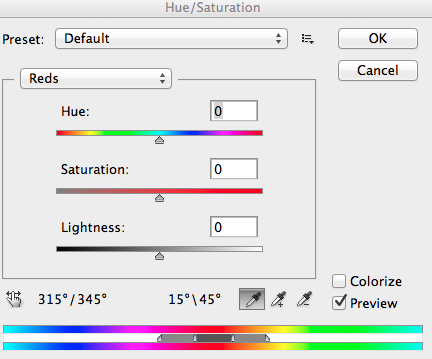
Once the exposure and lighting has been adjusted and looks correct, then you may begin adjusting the colour in the image. The tool to use will be the Hue and Saturation tool. The important tip here is not to adjust the master channel but rather to adjust by each channel independently. To do this, click on the top toggle button that says “default”. A drop down menu will appear and each colour channel will be available from there. Slide the Saturation Slider to the left to desaturate (remove colour) or to the right to saturate. That way you have the best control of the colour in your image.

Hue and Saturation Function in Photoshop

Hue and Saturation Function in Photoshop

Dodging and Burning

These functions are localized adjustments. By using a brush tool, you are able to make certain areas of the image darker and other areas of the image lighter. This is useful for adding the finishing touches to your image. There is also the sponge function which is a saturation tool which can saturate colours at a local level.

Sharpening

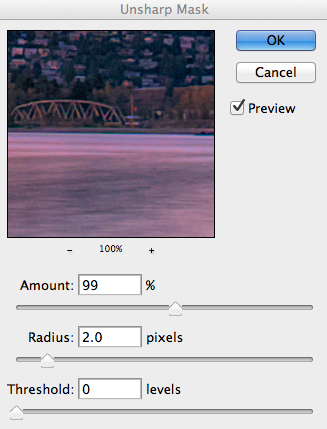
Almost every image that comes out of a digital camera requires sharpening of some sort. The easiest and quickest tool to use is the Unsharp Mask tool and it works effectively.

Unsharp Mask Tool in Photoshop

Unsharp Mask Tool in Photoshop

The Unsharp Mask has three separate sliders: Amount, Radius and Threshold. As a general rule you can keep the Amount anywhere between 80 and 120%, Radius can be set between 1.0 and 3.0 pixels and Threshold is generally at zero. Adjust the sharpness of the image according to each image requirement and beware of degrading the image by over sharpening. You will easily notice if an image is over sharpened by the appearance of a “halo” around certain edges in the image. The idea is to sharpen the image but not make it overly sharp and lose image quality.

Once you are done, save your image and thats it! Have a go, try different settings in different light, let me know what you think and how your images turn out. If you have any questions, drop them into the comments box below.

Please leave your comments and questions below. If you want more HDR tips, try some of these articles:

  • HDR Vertorama Photography – How to Create Mind-bending Images
  • Five Minutes to Realistic HDR using Lightroom and a 32-Bit Plugin
  • The 10 Steps Every HDR Photographer Goes Through
  • Exposure Blending Using Luminosity Masks Tutorial

The post Getting Real with HDR – a Step by Step Tutorial for Realistic Looking HDR by Barry J Brady appeared first on Digital Photography School.


Digital Photography School
 
Comments Off on Getting Real with HDR – a Step by Step Tutorial for Realistic Looking HDR

Posted in Photography


Real Life Photoshop: Giant Eraser Takes Out Urban Scenery

29 Mar

[ By Steph in Art & Street Art & Graffiti. ]

Real Life Photoshop Eraser 1

In another case of Photoshop invading the real world in three dimensions, giant erasers are appearing all over urban surfaces in London. Murals, street signs, billboards and trash bins are among the objects getting the Photoshop treatment with ‘Street Eraser,’ a joint project by artists Guus Ter Beek and Tayfun Sarier.

Real Life Photoshop Eraser 2

Real Life Photoshop Eraser 3

Real Life Photoshop Eraser 4

The installation consists of a series of handmade stickers plastered all over the city, featuring the gray and white checkered pattern that appears when you erase something in Adobe Photoshop.

Real Life Photoshop Eraser 5

Photoshop Eraser 2

Photoshop Tools 3

A similar project used cardboard props to recreate the look of a photoshopped image in progress, with the photographer using the eraser tool on himself. Another photographer takes Photoshop tools literally with humorous interpretations of commands like ‘convert to smart object’, ‘smudge’ and ‘puppet warp.’

Share on Facebook


[ By Steph in Art & Street Art & Graffiti. ]

[ WebUrbanist | Archives | Galleries | Privacy | TOS ]


WebUrbanist

 
Comments Off on Real Life Photoshop: Giant Eraser Takes Out Urban Scenery

Posted in Creativity