RSS
 

Posts Tagged ‘Range’

Fujifilm extends range to include FinePix S8500, S8300 and S8200 superzooms

08 Jan

fujifilm_s8200.png

Fujifilm has launched three mid-range superzoom cameras – the 46x S8500, the 42x S8300 and the 40x S8200, all based around otherwise similar specifications. The Europe-only S8500 offers a 24-1104mm equivalent range, while the North America-only S8300 has to make do with a 24-1008mm equivalent range. Meanwhile the S8200, available in all territories, gets a 24-960mm equiv zoom. All three models share a 16MP BSI-CMOS sensor and 460k dot rear screen.

News: Digital Photography Review (dpreview.com)

 
Comments Off on Fujifilm extends range to include FinePix S8500, S8300 and S8200 superzooms

Posted in Uncategorized


Correcting For Under Exposure and Boosting Dynamic Range with an Environmental Portrait in Lightroom 4

17 Dec

Introduction

This tutorial is a demonstration of the SLR Lounge Lightroom 4 Preset System. With over 200 presets, the LR4 Preset System has been critically acclaimed as the most powerful and intuitive preset system available for Lightroom 4. DPS users can get 10% off by using the DPS10 coupon code upon checkout. Click the link above to learn more/purchase.

Overview

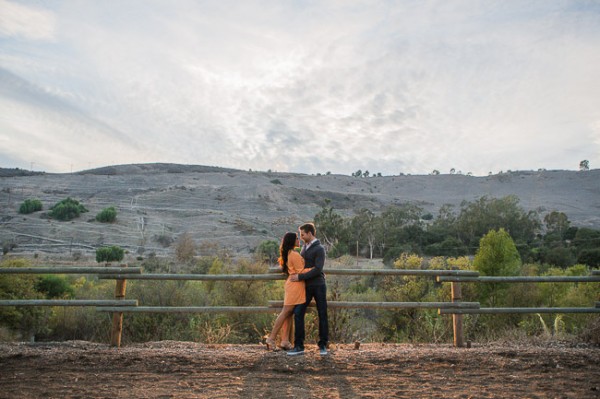
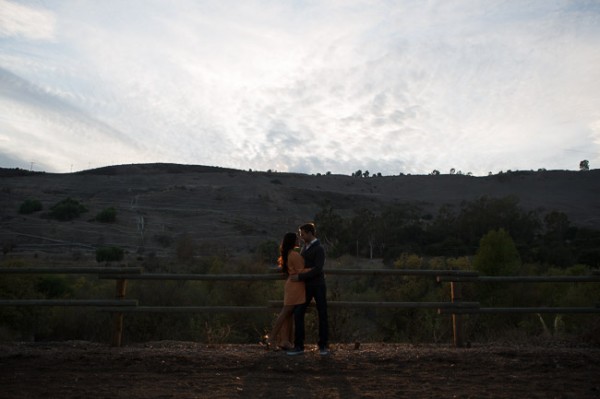
Often times when shooting environmental portraits we “expose to the right”, meaning we are pushing our highlights to the right of the histogram without blowing out too much of our highlights, or clipping too much of our shadows. Depending on the type of scene, this can lead to what looks like an underexposed image directly out of the camera since we are trying to preserve the majority of our highlight detail. However, since most of the range in the highlights and shadows are still retained, we can bring it out through post production. In this step-by-step tutorial, we will demonstrate how to not only correct the exposure in this type of portrait, but also how to increase its dynamic range.

Lightroom 4 Preset System Mixology

This effect can be achieved quickly in under a minute with the SLR Lounge Lightroom 4 Preset System, If you don’t own the preset system, please skip to Step 1 to learn how to do it manually.

1. MY MIXOLOGY > 25 HDR Strong
2. BASE ADJUSTMENTS > 23 Light Soften Skin (Detail)
3. BASE ADJUSTMENTS > 34 Medium Boost (Contrast)
4. BASE ADJUSTMENTS > 62 Light Noise Reduction (Noise Reduction)
5. Add +.30 Exposure
6. 13 Nature | Color Adjustment Brush
7. 12 Sky | Cloud | Ocean Adjustment Brush

The Original Image
Step 1. Applying our Basic Adjustments

What we usually recommend when working in Lightroom is to work your way down the Develop Module Panels starting from the Basic Adjustment Panel.

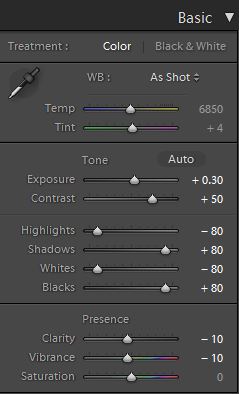
Because the image is underexposed, one of the first steps that we need to do is to correct the exposure by adding +0.30 stop to Exposure. In order to increase the dynamic range, we are also going to bring down the Highlights and Whites by -80 and lift up the Shadows and Blacks by +80. When applying this technique to your own photos, you may be better off dialing in your Highlights, Whites, Shadows and Blacks and then adjusting the Exposure as necessary.

At the same time, when we increase the dynamic range, the contrast flattens out, so we do need to add Contrast to compensate.

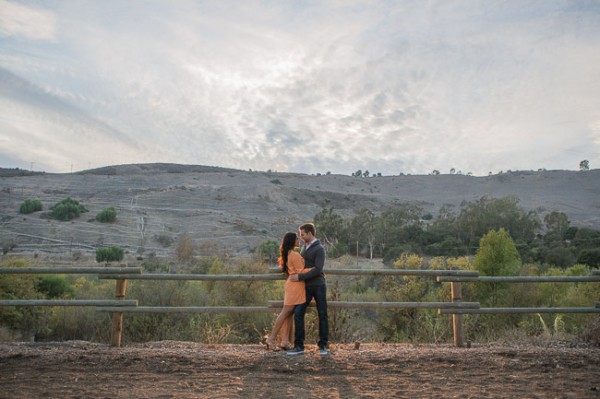
Because we are working with a portrait, we want to have nice, smooth skin tone that is not overly saturated, so let’s decrease Clarity and Vibrance by -10. Your Basic Panel adjustment and image should look like the following:
02 Basic Adjustments

Step 2. Adding Additional Contrast via Curves

The image can still use some more contrast, so let’s add a subtle contrast-boosting “S” curve.
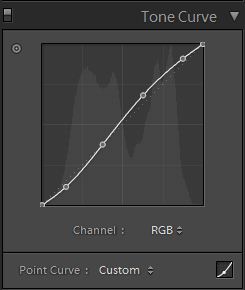
03 Tone Curve

Step 3. Sharpening and Noise Reduction

With the SLR Lounge Preset System, we typically apply the following Sharpening setting to our image:
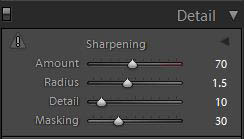
Detail

We are also going to add Noise Reduction because we to smooth out any noise that is introduced from the dynamic range boost. We use this setting for Noise Reduction:
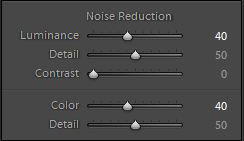
Noise-Reduction

Here is how your image should look like after applying all of these adjustments.
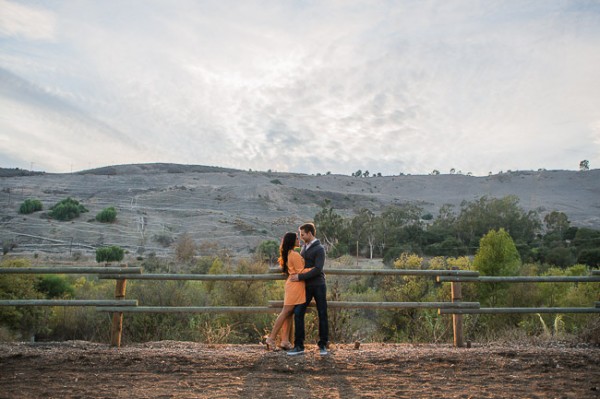
04 Detail

Step 4. Using Adjustment Brushes for Sky and Landscape

Even though we boosted the dynamic range of this image, the sky is still overblown. The LR4 Preset brush we use for the sky is called “Sky | Cloud | Ocean.” This brush lowers the exposure, highlights, and shadows, and increases contrast, clarity, and saturation in the sky. Here is our settings for this brush.
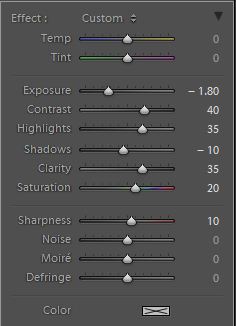
Sky Cloud Ocean Brush

Finally, we want to add more midtone contrast and saturation to the foliage in order to make them pop. Here is how the settings look like for the “Nature | Color” LR4 Preset Brush that we applied to the landscape. This also increases contrast, clarity, and saturation.
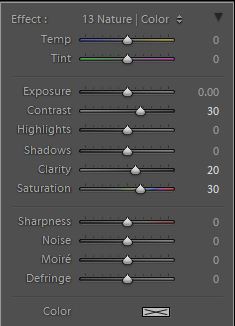
Nature Color Brush

Now that all our adjustments have been applied, let’s take a look at the before and after images to compare the original underexposed image against the final image.

ORIGINAL

HIGH DYNAMIC RANGE PORTRAIT
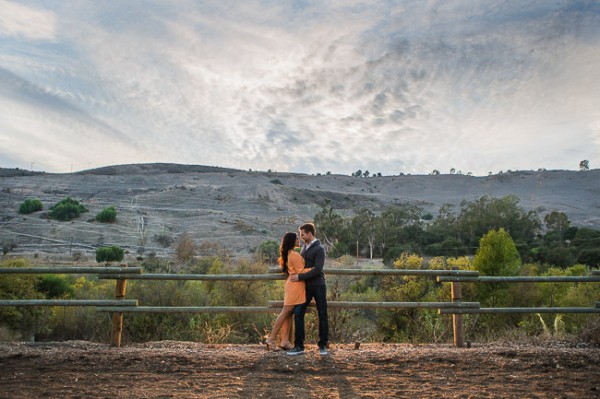
05 Finished

The Lightroom 4 Preset System

The SLR Lounge Lightroom 4 Preset System is designed to enable users to achieve virtually any look and effect within 3-5 simple clicks. From basic color correction, vintage fades, black & white effects, tilt-shift effects, faux HDR, retouching, detail enhancing, and so much more. The sky is the limit with what has been dubbed the most powerful and intuitive preset system available. Click the link above to learn more/purchase.

Post originally from: Digital Photography Tips.

Check out our more Photography Tips at Photography Tips for Beginners, Portrait Photography Tips and Wedding Photography Tips.

Correcting For Under Exposure and Boosting Dynamic Range with an Environmental Portrait in Lightroom 4


Digital Photography School

 
Comments Off on Correcting For Under Exposure and Boosting Dynamic Range with an Environmental Portrait in Lightroom 4

Posted in Photography


Canon best mid range camera T4i vs 60D vs 7D

19 Nov

Lots of people ask me, which is the better mid range camera, Well I hope this video helps….Sorry about the voice lagging, It was late and I was sleepy. The 60D has better photo capabilities over the T4i The T4i has touch screen 7D and the 60D has a top LCD screen for quick access to menu

 
Comments Off on Canon best mid range camera T4i vs 60D vs 7D

Posted in Nikon Videos


Nikon Canon lenses’ true focal range or length on a consumer grade crop sensor DSLR

17 Nov

razzi.me www.facebook.com www.PhotographersOnUTube.com https

 
Comments Off on Nikon Canon lenses’ true focal range or length on a consumer grade crop sensor DSLR

Posted in Nikon Videos


You Suck at Photoshop – Select Color Range

17 Oct

MORE: www.MyDamnChannel.com Follow us on Twitter: www.twitter.com Like us on Facebook: www.facebook.com Donnie’s self-discovery vacation heats up. By the megaton. 2008 Webby Award Winner Best How-to Series Best Comedy Series – People’s Voice Best How-to Series – People’s Voice
Video Rating: 4 / 5

This Photoshop Lightroom tutorial describes how to work with the Crop tool in and out of the Develop module. Watch more at www.lynda.com This specific tutorial is just a single movie from chapter seven of the Photoshop Lightroom 4 Essentials: Enhancing Photos with the Develop Module course presented by lynda.com author Chris Orwig. The complete Photoshop Lightroom 4 course has a total duration of 5 hours and 32 minutes, and guides photographers through the process of improving images with creative color, sharpening, and other effects in the Lightroom Develop module. Photoshop Lightroom 4 Essentials: Enhancing Photos with the Develop Module table of contents: Introduction 1. Getting Started with the Develop Module 2. Develop Module Workflow Tips 3. Working with Color Temperature and White Balance 4. Masking Basic Tonal Adjustments 5. Improving Vibrance, Saturation, and Clarity 6. Basic Panel Workflow Reflections 7. Cropping and Composing 8. Retouching Tools 9. Using the Graduated Filter 10. Making Localized Adjustments 11. Modifying the Tone Curve 12. Changing HSL and Color 13. Converting to Black and White 14. Creative Color with Split Toning 15. Noise Reduction and Sharpening 16. Making Lens Corrections 17. Adding Vignette and Grain Effects 18. Using the Camera Calibration Controls Conclusion

 
Comments Off on You Suck at Photoshop – Select Color Range

Posted in Retouching in Photoshop


Me shooting a wild seal at close range

10 Nov

Along the west coast especially near San Francisco, there are lot of wild seals and sea lions bumming around the beaches. I ignored the “Enter at your own risk – cuz you might get attack by dangerous wild sea lions” sign and got within 6 feet of one of these magnificent creatures. I was behind my Nikon D300 getting very good shots when suddenly it barks and plunges into the water. Out of instinct, I ran for my life…hahahha.


Chroma Keying: Color Range in Photoshop

30 Oct

Happy with our training? Donate! tinyurl.com For more tutorials, head to www.tutcast.com Thanks to Justine: www.tastyblogsnack.com www.youtube.com Using Color Ranger to remove a solid background Music: Kevin MacLeod
Video Rating: 4 / 5


How to do HDR Photography (High Dynamic Range) by Dom Bower

17 Aug

www.dombower.com In this video i will show you how to make HDR images from what you need, to how to set up and the settings on your camera to get the best results. I also show how raw makes better images and how the more images you take the better the final outcome is. Also tips like keeping the iso low, the aperture the same and the focus point stationary, all help in making hdr images photos taken with the fuji s5 pro, and tokina 11-16mm f2.8 lens, images then edited in Photomatix (to make the hdr image) kind regards Dom Bower www.dombower.com
Video Rating: 4 / 5


Extending Dynamic Range – HDR Merges

09 Aug

Extending Dynamic Range – HDR Always get the detail you want in shadows and highlights – always. Unlike yesterday, with today’s technology, you only need to make sacrifices if you want to. Learn simple image adjustment strategies that can extend the dynamic range of single exposures. Learn new HDR exposure and software techniques that can handle even the most challenging scenes. Choose from many HDR styles – classic or contemporary. Simulate HDR effects with LDR images. Did you know HDR software can dramatically enhance even single exposure low contrast images? Once you understand the possibilities, you’ll find yourself thinking about light, making exposures, and enhancing images in new ways.

Quick Photoshop Tutorial on adding catchlights to a models eyes.