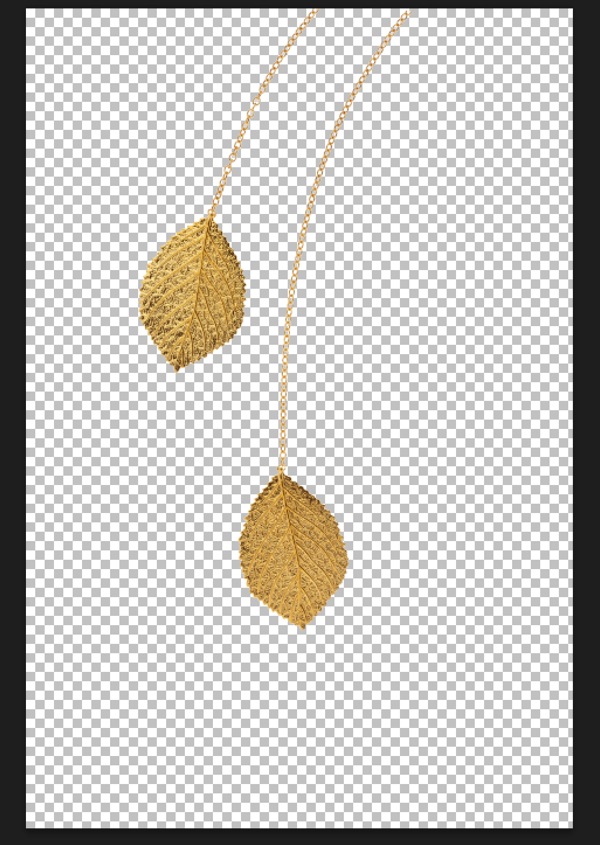
One of the most powerful distortion tools in Photoshop is the Puppet Warp command. First Introduced in Photoshop CS5, Puppet Warp is a handy command that allows you to easily bend and shape parts of your image as if it were a puppet. You can use this distortion tool on almost any photo, but in this tutorial, I am going to give you a crash-course on how to make the most out of Puppet Warp command when distorting people in your photos.
Puppet Warp provides a visual mesh that lets you drastically distort specific image areas while leaving other areas intact. Applications range from subtle adjustments to severe limb distortions. In most cases, you will keep your distortions subtle to keep them realistic.

However, in this tutorial, we will push the Puppet Warp Tool to the max and make drastic adjustments to completely reposition the arms and legs of the man in this composite.
Isolating Your Subject
The first step to using the Puppet Warp command is to isolate the person (or object) that you would like to distort. This often involves making a selection of the individual and masking-out the background.
In this example, the man jumping was extracted from his background via a Layer Mask and placed into a Smart Object. Smart Objects allow you to apply filters, commands, and distortions nondestructively; which means that you can always come back and adjust any changes that you’ve made.

Puppet Warp works even if you don’t extract the subject from the background, but the tool becomes less efficient and less intuitive.
Apply The Distortion Pins
The Puppet Warp command allows you to distort an image by clicking-and-dragging pins which distort the pixels to which they are attached.
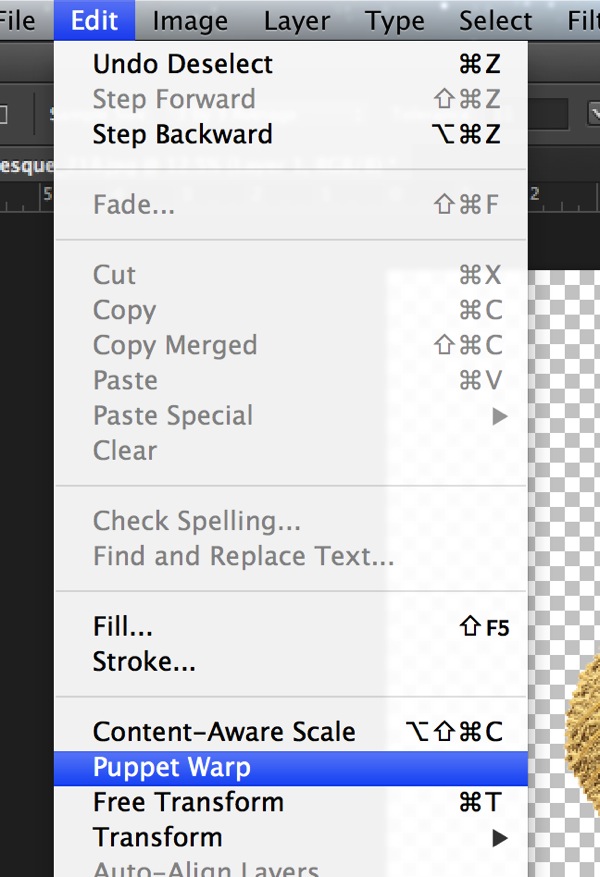
After you isolate the person in your scene, you will need to add the distortion pins so that you can start manipulating the pixel in your image. Start by selecting the layer that contains your foreground element, in this case, the layer of the man jumping, and Go to Edit > Puppet Warp.

By Default, you will see a mesh around your layer. This mesh can be distracting; I encourage you to disable it by unchecking the “Show Mesh” checkbox from the Options Bar.

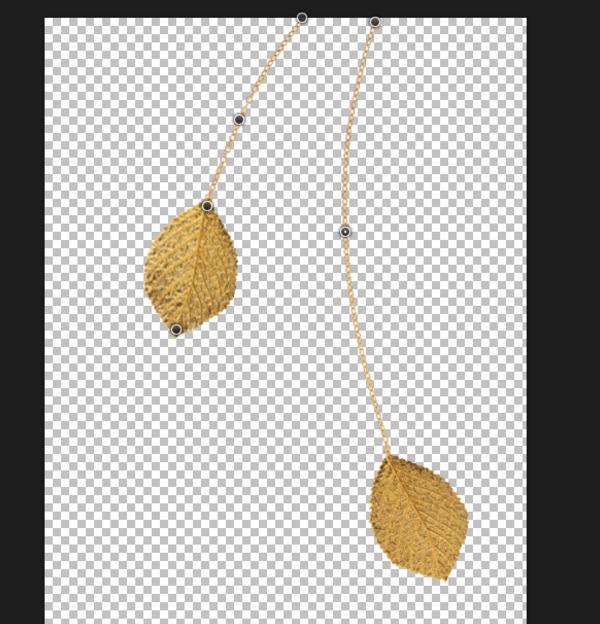
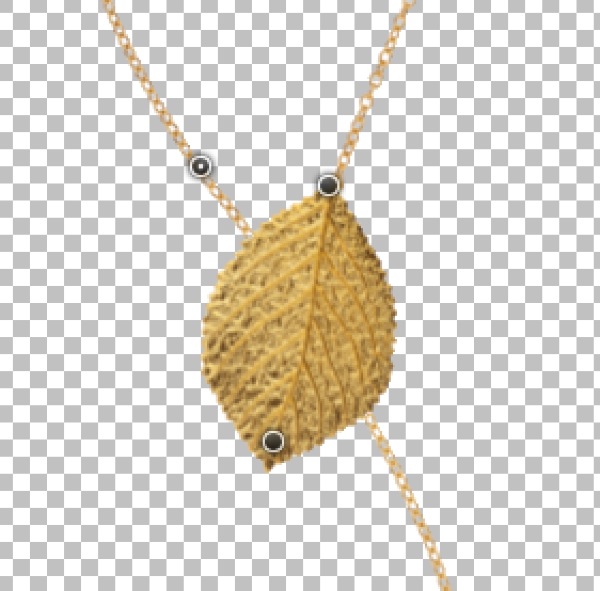
You can now click anywhere on your subject to create the pins that will allow you to move (or pin down) the pixels in the image. When working with people, create the pins near the joints such as the wrist, shoulders, knees, ankles, and in any other area where the body would normally bend. You can also create pins in areas that you want to keep pinned down.

Adjusting Pins and Distorting the Image
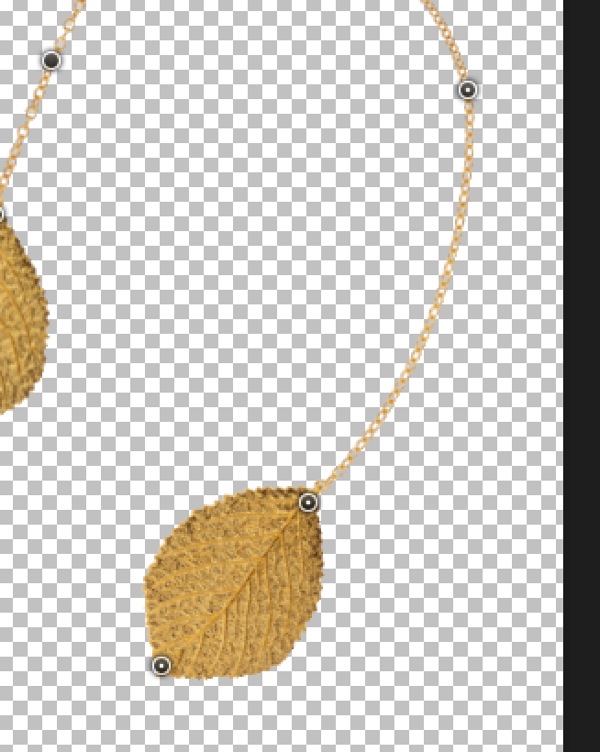
With your pins in place, click on a single pin to activate it, and drag it to a new location. You will see that the image will be distorted as you drag the pin. The distortions will become more extreme the further you drag it from its original location.

Rotating Pins
After making a distortion, you may find that the image does not look realistic because of how the pins bend the surrounding pixels. To help fix this issue, you can use the Rotate control in the Options Bar to rotate a single point and help correct some of the unrealistic distortions.

You can also select a pin and hover over it while holding Option/Alt to reveal a Rotate UI element that you can click-and-drag on to rotate the mesh.

This method is much more intuitive, and it allows you to rotate the pin much easier. But for more subtle and precise rotations, the Rotate control in the Options Bar will be the better option.
Pin Depth
In this example, you’ll notice that the model’s leg has been placed over his right leg. But if you would like for his right leg to be in front, then you can adjust the Pin Depth.
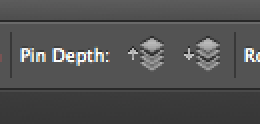
Select the pin that controls his right leg, and in the Options Bar, under Pin Depth, Click the Move Forward icon to push that pin forward.

After changing the Pin Depth, the model’s right leg will appear in front of his left leg.

You can do the same with any of the other pins in your image to change the depth of the corresponding body part.
Options Bar Settings
The Options bar also give you a few extra options that will determine how the mesh will behave and it will, of course, affect how the pixels are distorted.
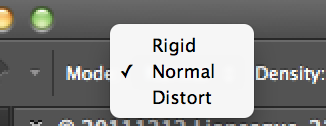
- The Mode option lets you decide how stretchable the mesh should be.
- Density controls the spacing of the mesh’s points. Adding more points makes your edits a lot more accurate, but the processing time takes longer to complete.
- Expansion allows you to expand or contract the outer edges of the mesh.
Conclusion
If you prefer to watch me do this and follow along by video, see below:
Remember that when using the Puppet Warp command, or any other distortion tool in Photoshop, you should do so with restraint. Small changes can have a significant impact and go unnoticed. However, extreme adjustments could quickly become unrealistic and distracting to the whole image.
The post How to Use Puppet Warp in Photoshop by Jesus Ramirez appeared first on Digital Photography School.