RSS
 

Posts Tagged ‘Presets’

How to use Lightroom Develop Presets to Learn Processing Tips

24 Jul

Learn Lightroom from Develop Presets

In my previous article you learned how to create a vintage effect using Lightroom. I started by showing you some Lightroom Develop Presets you can use as a shortcut, and finished by demonstrating some techniques you can use yourself. The hidden message in the article was that one way to learn how to use Lightroom is to buy some Develop Presets (or download some free ones) and analyze them to see how they work. You can then apply the same techniques to your own photos, and even create your own Develop Presets.

Today I’m going to give you some tips on analyzing other people’s Develop Presets. I’m going to do it using some presets I downloaded from onOne Software. These are free presets that anyone can download and use themselves (just follow the link), so it is easy for you to follow along.

Preset: onOne Instantastic – Daisy

The Daisy preset, part of the onOne Signature Collection Presets (Vol. 2), gives an Instagram filter effect. There is a slight matte effect and a blue colour cast.

Learn Lightroom from Develop Presets

A. Original photo B. Daisy preset

Vibrance and saturation adjustments

This preset uses two techniques to create the colours. The first is applied in the Basic panel. The preset increases Vibrance to +20, and reduces Saturation to -20.

Learn Lightroom from Develop Presets

To understand the effect of these tweaks you need to know the difference between Saturation and Vibrance. Saturation affects all colours in the photo evenly. Reducing Saturation to -20 has a uniform effect on all the colours within the frame.

Vibrance, on the other hand, affects the least saturated colours in the photo the most. The net effect of decreasing Saturation and increasing Vibrance is that the strongest colours in the frame are desaturated while other colours are not desaturated nearly so much.

Learn Lightroom from Develop Presets

A. Vibrance 0, Saturation 0 B. Vibrance +20, Saturation -20

Tone Curve adjustments

The rest of the colour adjustment is carried out in the Tone Curve panel, with two adjustments to the blue and red Tone Curves. Here’s what the adjustments look like.

Learn Lightroom from Develop Presets

Raising the blue curve on the left creates a matte effect and a blue colour cast. Pulling the right hand side of the curve down adds yellow (the opposite of blue) to the highlights. This comparison shows the difference.

Learn Lightroom from Develop Presets

A. Blue curve lifted on left. B. Blue curve lifted on left and pulled down on right.

The red curve adjustments are also a subtle colour and tonal adjustment. Moving the bottom left corner to the right adds cyan and makes the shadows a little darker.

Moving the top right corner to the left adds magenta and makes the highlights a little brighter.

This comparison shows the difference the red Tone Curve adjustment makes. The difference is subtle, so you may have to look closely.

Learn Lightroom from Develop Presets

A. Blue Tone Curve adjustment only. B. Blue and red Tone Curve adjustments combined.

Preset: Nicolesy Matte 3

The Matte 3 preset, part of the Nicolesy Matte Presets for Adobe Lightroom 5 set, creates a subtle matte effect and a red colour cast.

Learn Lightroom from Develop Presets

A. Original photo. B. Matte 3 preset.

The Develop Preset does its work in the Tone Curve and Split Toning panels. Let’s take a look at each.

Tone Curve adjustment

The Tone Curve adjustment combines two adjustments in one to the RGB curve (the colour curves haven’t been touched). First, the bottom left corner has been moved upwards to create a matte effect. Second, the center of the RGB curve has been pushed gently upwards, making the mid-tones brighter. The net effect of this Tone Curve adjustment is to add a matte effect and make the mid-tones brighter at the same time. This comparison shows the difference it makes.

Learn Lightroom from Develop Presets

A. Linear Tone Curve. B. Adjusted Tone Curve.

Split Toning

The colour has been added to the photo using the Split Toning panel. The preset adds hot pink to the Shadows, and a luminescent green to the Highlights, with the Balance slider pushed to the right to give prominence to the green tone. This comparison shows the difference the split tone makes:

Learn Lightroom from Develop Presets

A. No Split Tone. B. With Split Tone.

Putting it all together

In my last article I wrote that buying Lightroom Develop Presets made by other people (or downloading free ones) is a shortcut to creating effects like these. One benefit of using other people’s presets is that you can take advantage of their knowledge and hard work and use the presets for yourself.

But the main advantage is that other people’s presets can introduce you to new and creative ways of processing your photos, using techniques that you may never have thought of by yourself. The real benefit comes when you take a close look at the settings altered by the preset and take the time to understand how they work. Your understanding of Lightroom will become deeper as you do, so that you can use these techniques in your own photos.

For example, in this article you have learned how to use the Tone Curve panel to create a matte effect and change the colours in your photos. You have also learned how to use the Split Tone panel in combination with a Tone Curve adjustment to create another type of matte effect. The rest is up to you.

Can you come up with ways to use these techniques creatively on your own photos? What Tone Curve adjustments can you make? What Split Tone combinations can you apply? Have fun, experiment and good things will surely follow.


Mastering Lightroom: Book Four – The Photos ebookMastering Lightroom: Book Four – The Photos

My new ebook Mastering Lightroom: Book Four – The Photos takes you through ten beautiful examples of photography and shows you how I processed them step-by-step in Lightroom. It explores some of my favourite Develop Presets and plug-ins as well as the techniques I use in Lightroom itself. Click the link to learn more.

The post How to use Lightroom Develop Presets to Learn Processing Tips by Andrew S. Gibson appeared first on Digital Photography School.
Digital Photography School

 
Comments Off on How to use Lightroom Develop Presets to Learn Processing Tips

Posted in Photography


Save Tons of Editing Time with Lightroom Presets

21 May

On now at SnapnDeals you can get 100 of my custom Presets 50% off. Deal ends soon, don’t miss out so grab it here. 

before-after-lightroom-presets

Photographers don’t have a lot of extra time to edit. As a full-time photographer myself, I rely heavily on any tools that save me time in the editing process. One of the tools I use is Lightroom presets.

What are Lightroom presets?

A preset is a pre-determined position all (or some) of the of sliders in Lightroom (they are pre-set, get it?) In other words, you can edit a photo to your liking, and then save that exactly combination of slider positions for future use on another image.

First things first: how do you create a Lightroom preset?

Very easily! Once you have a photo edited the way you want it you need to save those settings.

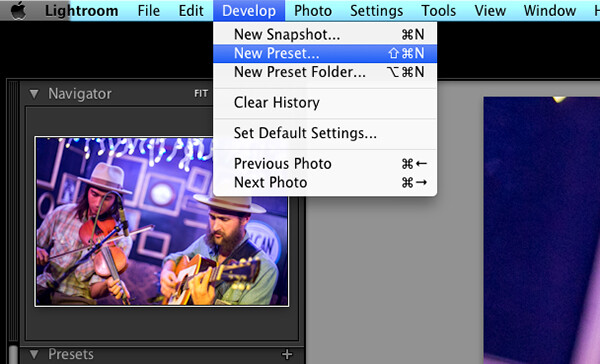
Step 1:  Click “Develop” then “New Preset”

presets-step-0

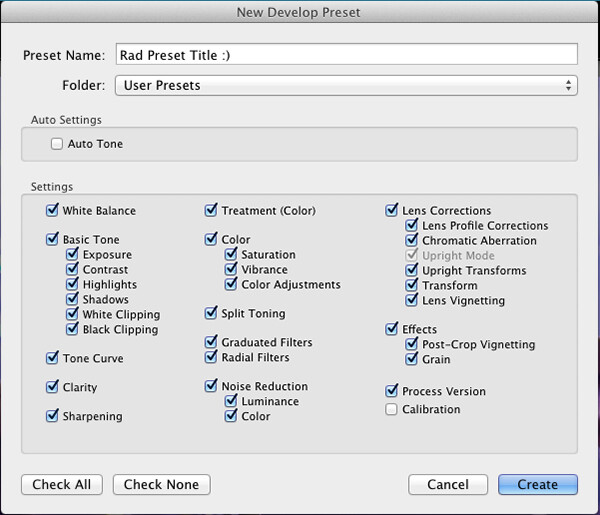
Step 2: Give your preset a title

Lightroom Presets Tutorial

Name your new Preset

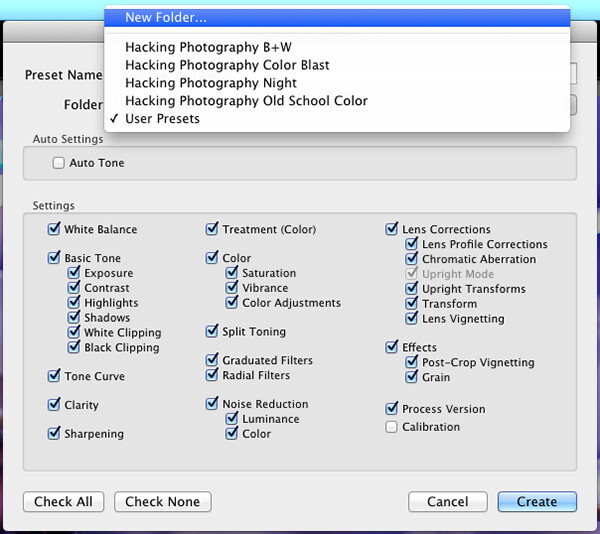
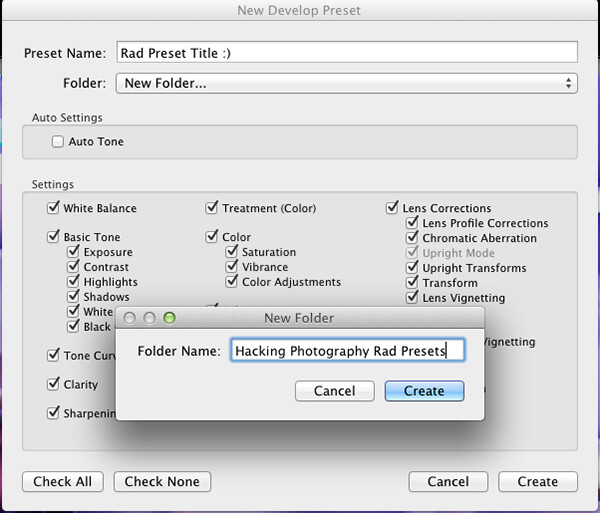
Step 3: Choose the folder you want the preset stored in, or create a new folder.

This is a good idea to separate your presets by type. You would be surprised how many random presets you end up with over a few years. Consider creating folders based on the type of edits they are.

Lightroom Presets Tutorial 3

Choose the folder to save it in

You can see I’ve named my presets by color blast (big colors), night, old school color, and black and white. Now I can quickly find the preset I’m looking for based on what type of edit I want to do.

preset-step-3-web

Or make a new folder and give it a name

Step 4: Click the boxes you want applied to this preset and click “create” to create your preset

Sometimes you don’t want every box checked when you create a preset. Imagine you just edited an underexposed photo and had to increase the exposure two full stops (+2 on the exposure slider) to get it correct. This preset would look great on underexposed photos in that set, but would overexpose photos that had the correct exposure.

Another scenario is that you create a preset that only applies a slight vignette to your photos. Unchecking every box except the “vignetting” box would create a preset that would keep the ‘look’ of any photo you are editing and only apply that vignette to it. Pretty cool!

Step 5: You’re done, the preset is complete.

preset-step-4-web

There’s your new Preset

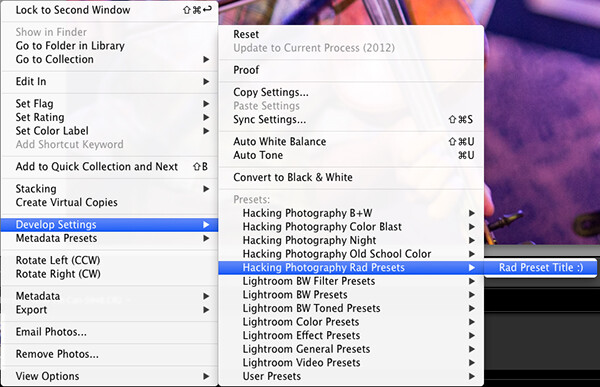
The preset is complete and waiting in the folder you just created. Just open the folder and click the preset title to apply it to future photos.

Lightroom presets save time by enabling batch editing

Imagine shooting 300 images in an area where the lighting isn’t changing and stays consistent. You edit the first image to your liking and save the settings as a preset. Instead of individually editing the remaining 299 images one by one, you can apply that preset and achieve the same ‘look’ as the previous photos. 

The next time you want that type of ‘look’ on a photo with a similar lighting setup you can just apply a preset in one click. It will move all the sliders to those exact positions so the edit style stays the same.

The best part about this is batch editing your photos all at once. You can edit a single image and then apply that preset directly to as many photos as you would like in just one click.

How do you batch edit photos?

Select all the photos you want to apply the preset to, right-click the any of the photo thumbnails, and follow this path:

Lightroom Presets Tutorial 5

That will apply the preset automatically to all the images you selected in one click.

For a walk through on how to do this watch this video as I go through all the steps:

Lightroom presets also save time with the live preview feature

When you hover over the preset names the image thumbnail in the top left corner will give you a preview of what that image will look like with that preset. As you scan your mouse over the list you will be able to tell if a certain preset will look good or not. If it does, you can click once and be done with the image.

Lightroom presets give you a great starting point

Instead of manually editing a photo from scratch, you can apply a preset to make a big change and edit from there. It’s like getting a big head start.

Lightroom presets can do a one-click edit

If I’m hitting a blank spot on where I want to take an image I will hover over my presets and see if I like any of the previews. Sometimes I love it and it’s a one-click edit.  Sometimes I like the look but know it needs a little tweaking. Either way it can save a lot of time. Check out a few one-click edits below from some of my presets.

Straight out of camera

Straight out of camera

After one-click Preset

After one-click preset

before-5968

Straight out of camera

After one-click Preset

After one-click preset

Hacking-Photography-Color-Pop-Presets---Fill-Light-Smooth-Pre

Straight out of camera

After one-click Preset

After one-click preset

I hope you’ve seen how much Lightroom presets can help speed up your editing time and supply you with some very creative edits. I’d love to hear your thoughts in the comments below.

For more information on Lightroom presets check out these:

  • A Concise Guide to Lightroom Develop Presets
  • 4 Quick Tips For Getting The Most Out of Lightroom Presets
  • How to Add an Opacity Slider to Lightroom Develop Presets with The Fader Plug-In

Don’t want to make your own presets? On now at SnapnDeals you can get 100 of my custom Presets 50% off. Deal ends soon, don’t miss out so grab it here. 

The post Save Tons of Editing Time with Lightroom Presets by Mike Newton appeared first on Digital Photography School.

Digital Photography School

 
Comments Off on Save Tons of Editing Time with Lightroom Presets

Posted in Photography


Lightroom Presets That You Have to Have at Any Cost

25 Apr

Photo editing has never been so easy as it is these days. The web offers you tons of Lightroom presets and Photoshop actions to add some cool effects to your images by pressing just one button! Lightroom presets are a fantastic tool that can help to automate your workflow and to add creativity to your photo library, no matter if Continue Reading

The post Lightroom Presets That You Have to Have at Any Cost appeared first on Photodoto.


Photodoto

 
Comments Off on Lightroom Presets That You Have to Have at Any Cost

Posted in Photography


Are Lightroom Develop Presets Worth the Money?

27 Mar

Delicious Presets review

I was recently approached by a representative of Delicious Presets to review their product. The review is below, but when I looked at the details on their website it occurred to me that there are other questions to answer:

  1. Are Lightroom Develop Presets (the sort you buy from someone) worth the money?
  2. And if they are, how do you know which ones to buy given that most websites won’t refund your money if you are unhappy with the product?

Let’s start with Delicious Presets, then dig into those later. The promise on the website is that their presets will increase the quality of your processing and save you time in Lightroom.

They seem to be aimed primarily at event and wedding photographers. On the surface, their presets seem expensive at $ 40 a set (you can save money by buying in bundles) but from a business perspective that is a relatively small investment for something that saves you time. An example:  I recently spent around $ 150 on a good quality polarizing filter for a new lens, and you can buy all the Delicious Presets in a bundle for less than that.

Here’s what you get in each set:

  • Between 11 and 13 Develop Presets
  • Delicious Controls, which gives you three sets of presets for taking control of sharpness, grain and tone
  • Plus 37 vignettes and frames

All the presets have been updated to work with Lightroom 5. You can go to the Delicious Presets website and view the details for yourselves.

If you want to learn more about Lightroom Develop presets in general, you should read my article A Concise Guide to Lightroom Develop Presets.

Delicious presets website

Delicious Controls:  Sharpness, Grain and Tone

The Sharpness and Grain presets really do nothing that you can’t do on your own, although it might be nice to use presets created by someone else if you don’t have the time or inclination to work out the sharpness and grain settings that suit your photos. Complete beginners to Lightroom may also find them useful as a way of learning by analyzing how the presets work.

The Tone Control presets are a little more useful and give you some colour grading options that you might not have come up with yourself. But again, they are fairly simple in nature and are really just a set of Split Toning presets that can be applied to either colour or black and white images. They do look nice in black and white and you can tweak the saturation if the tone is too strong for you.

Delicious Controls: Vignettes and Frames

While I can see the use of the sharpness, grain and tone controls as part of a workflow aiming to save you time, I don’t understand the point of the vignettes and frames. The vignettes are rendered useless by The Radial Filter tool in Lightroom 5, a tool that is easier to use and more versatile. The frames are just cheesy.

Delicious Presets Collections

Now let’s look at the preset collections themselves. Lightroom Develop Presets tend to fall into one of two broad categories. The first are one shot Presets – they tend to be presets that you use once. These ones are pretty binary, they either work or they don’t, and the effectiveness depends on your photo. If the preset matches your photo you’ll get a good result, and if it doesn’t, it won’t.

The second category are what I think of as genuinely useful presets. These are a bit better thought out and may be presets that the photographer who created them uses in his own workflow. They may work in modular fashion, so that you can build up the effects by layering them on top of each other. Each preset tends to adjust just one or two settings, so that you can pick which adjustments you want to make. The best ones combine flexibility with consistency, allowing you to create a variety of looks while retaining a consistent feel throughout your portfolio.

The Delicious Presets presets fall into the second category, if used with the Delicious Controls presets.

Delicious Colour Presets

This is a promising set of presets. The key to getting the best out of them is pick one you like and use it as a starting point, tweaking the sliders in the Basic panel until the tonal values are pleasing to the eye. Here’s an example with the Autumn preset:

Delicious Presets review

Another with the Blue Love preset:

Delicious Presets review

Yet another with the Vivid Tones preset. For this example I used the presets in a modular fashion, adding a vignette, grain, sharpening and the Brownie tone using the Delicious Controls presets:

Delicious Presets review

The verdict? I like these and think they have a lot of potential for portrait processing.

Delicious Black and White Pepper Presets

This is another promising set of presets that give you 12 instant black and white conversions. They need a bit of work to get the best out of them, but the potential is certainly there. This example uses the Black Pepper preset:

Delicious Presets review

Below is the Black Pepper preset with the Warm Tone from the Delicious Tone Control presets added:

Delicious Presets review

This is an interesting collection and they are certainly helpful for creating black and white conversions rapidly.

Delicious Analog Story Presets

These presets are aimed at photographers who like the look of photos produced with film cameras. There’s no doubt this is a trend in the world of event photography, and these presets aim to bring that look to you with a click of the button. There are some interesting presets here that complement the Delicious Colour presets nicely. This is the Blue Vintage preset:

Delicious Presets review

Distinct Analog Presets

Another set of analog presets, and I have to admit that these didn’t work well. Most of the presets just looked horrible with this particular photo, although you may of course get a better result with different subject matter. The Love Letter preset didn’t look too bad:

Delicious Presets review

The verdict

If you buy the bundle with all four singles collections you end up with 37 colour Develop Presets and 12 black and white ones. You also get the Delicious Controls which may provide a useful shortcut to some people. But essentially you can achieve the same effects by pushing sliders. The Tone Control part of the Delicious Controls gives some nice tones but the others are not really worth bothering with.

That leaves the Develop Presets themselves. Are they useful? The Delicious Colors, Delicious Black & White Pepper and Delicious Analog Story, yes. Especially if you are willing to use them as starting points and adjust them to suit your photos. The Delicious Distinct Analog is an exception – I didn’t like this one, but it may work well with other peoples’ photos.

Are they worth the money?

I don’t think so. They are too expensive for what you get and you will get better value elsewhere. I think the fair price is around $ 10 a set, although I’m sure many people will disagree. It’s hard to name a fair price for Develop Presets but there are plenty of people selling similar sets for around the $ 10 mark and I don’t see anything special about the Delicious Presets collections that sets them apart.

Don’t forget you can go to the Delicious Presets website and check them out for yourself.

A negative review?

Is this review too negative? I’m the sort of person who speaks his mind and I’m not going to tell you that a product is good value for money if I don’t think is. But, I understand that some of you may see things differently. If you have used any Delicious Preset products, then please let us know in the comments to balance out my point of view. Do you like them? Do you think they are good value for money?

You can also check out the Delicious Presets blog, where they give examples of photos processed with Delicious Presets. Take a look and make up your own mind.

Free Develop presets

There’s no question about value for money with free Develop Presets, but are they worth the time? My favourite free presets are the Signature Collections from OnOne Software. But what are your favourites? Let us know in the comments.

Other Develop Presets

There are lots of Develop Presets out there, and I haven’t tried them all. That’s where you come in. Have you purchased any other Develop Presets? Did you find them useful? Were they good value for money? What are your recommendations? Please let us know in the comments, and hopefully we can build a good list of useful Develop Presets.

Some that I have bought and found useful are the ones sold by Craft & Vision and the Black and White Workflow Collection from Pretty Presets.

Tips for buying Develop Presets

You don’t always have to pay full price for Develop Presets. You’ll often see presets offered for heavily discounted prices at websites like Snapndeals, Photo Deal Cafe and Photo Dough.

Another tip is to sign up for the newsletters of websites that sell Develop Presets. If they have a sale, they will let you know.

For more on Lightroom check out these:

  • Processing an Image in Lightroom 5 – a Video Tutorial
  • 6 of Lightroom’s Hidden Treasures
  • Organizing Images in Lightroom 5
  • Lightroom How To – One Tip and One Trick

Mastering Lightroom: Book Two
Mastering Lightroom Book Two Develop ModuleMy new ebook Mastering Lightroom: Book Two – The Develop Module teaches you how to process your Raw files in Lightroom for spectacular results. Written for Lightroom 4 & 5 it takes you through every panel in the Develop module and shows you how to creatively edit your photos.

The post Are Lightroom Develop Presets Worth the Money? by Andrew S. Gibson appeared first on Digital Photography School.

Digital Photography School

 
Comments Off on Are Lightroom Develop Presets Worth the Money?

Posted in Photography


How to Add an Opacity Slider to Lightroom Develop Presets with The Fader Plug-In

13 Jan

The Fader Lightroom plugin

For me, one of the biggest advantages of Lightroom over Photoshop is the ability to use Develop Presets on your images. Here are some of the benefits:

  • You can create several virtual copies of an image and use different Develop Presets to see how they come out. Doing so uses virtually no extra hard drive space as the changes are stored in the Lightroom Catalog in the form of text commands.
  • Develop Presets fit in neatly with your Lightroom workflow – there’s no need to export your images to Photoshop or other software.
  • It’s easy to see how Develop Presets work. If you download someone else’s Develop Presets it is easy to go to the Develop module and see which settings have been altered. You can tweak them to suit your photo, and (best of all) you get to see how the photographer achieved the effect. It’s a great way to learn how to use Lightroom.

Lightroom comes with some built-in presets, and there are plenty of websites that either give Develop Presets away for free or sell them. One of my favourites are the Signature Collections from OnOne Software. They are free (click the link for details) and give you a range of creative effects you can add to your images.

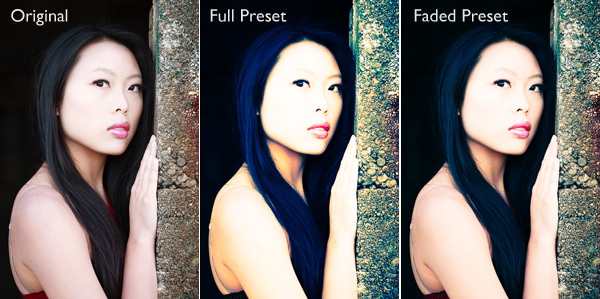
The only thing with downloaded Develop Presets is that most of them are not subtle. Here’s an example:

The Fader Lightroom plugin

If only there was a way of fading the effect – a kind of opacity slider in Lightroom. Maybe it will come in a future version. But at the moment there isn’t, so we have to find a way around that.

One method is to export two versions of your image, one with the preset applied and the other without. You place one on top of the other in Photoshop and use the Opacity slider to fade the effect. Easy enough – but it does take you out of Lightroom, something that’s good to avoid where possible. Those exported files take up valuable hard drive space. Plus, you may want to do something else to the image afterwards back in Lightroom.

As a smart Lightroom user you probably want to save time as well as hard drive space. That’s where a Lightroom plug-in called The Fader comes in.

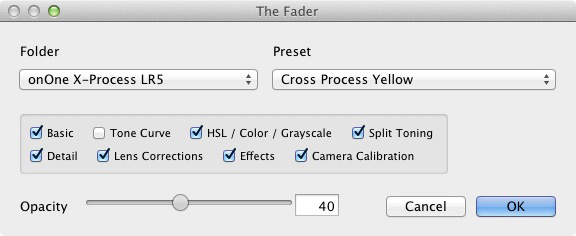
The Fader does exactly what its name suggests. Once installed, you can activate it, select the Develop preset you want to apply from the drop down menu, and use an Opacity slider to fade the effect. This clever plug-in calculates the changes the Develop preset made to the image, and fades them all at the same time.

It’s simple, and it works wonderfully well. It isn’t free, but it’s relatively inexpensive at $ 10 (plus 24% VAT if you live in the European Union). You can download it, and test it out, with Lightroom’s built-in Develop presets at no cost. Paying the registration fee lets you use it with all your Develop presets.

You can download The Fader plug-in from the Capture Monkey website.

Installing The Fader plug-in

1. Go to this page on the Capture Monkey website and download The Fader plug-in. Select a folder to store it in (creating a folder called “Lightroom Plug-ins” in your Documents folder seems logical). Double-click the zipped folder to extract the files.

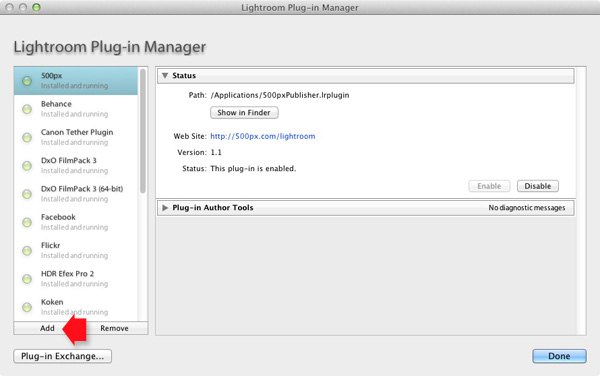
2. Open Lightroom and go to the Plug-In Manager (File > Plug-in Manager). Click the Add button in the bottom left-hand corner and navigate to the folder where you saved The Fader folder. Open the folder and double-click on the file called TheFader.lrplugin to complete the installation:

The Fader Lightroom plugin

Using The Fader

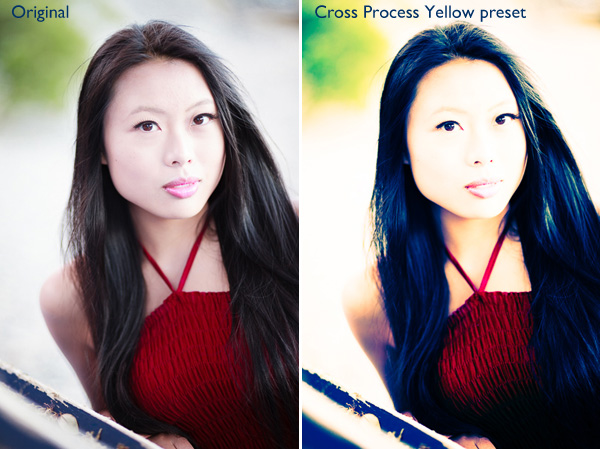
1. Open the photo you want to process in the Develop module. If you are using Develop Presets like the ones in OnOne Software’s Signature Collection, then you should process your file first in Lightroom and then apply the Develop Preset afterwards. Don’t expect the preset to do all the developing for you, it doesn’t work that way:

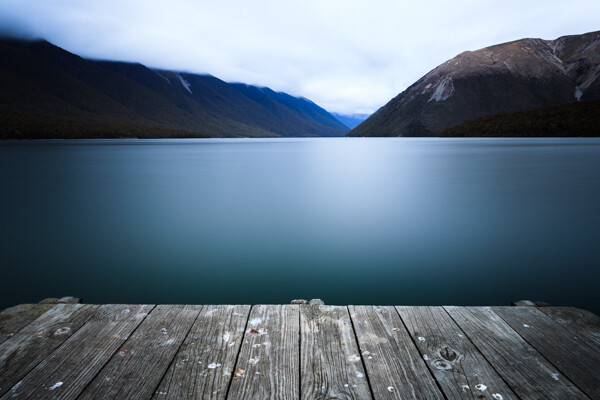
Original images before preset

Original images before preset

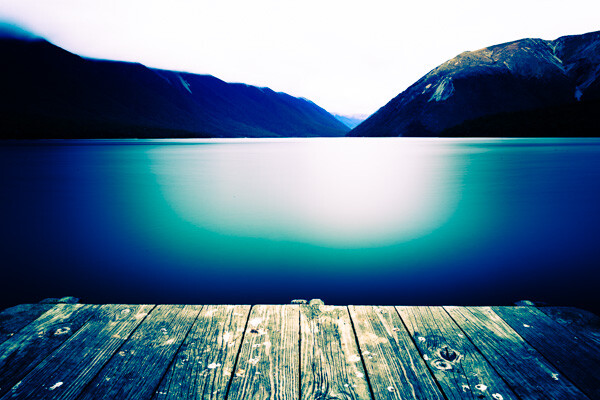
Then go to File > Plug-in Extras > The Fader and select the Develop Preset you want to apply. In this case I’ve chosen the Cross Process Yellow preset from OnOne Software. The effect is dramatic:

Preset applied

Preset applied

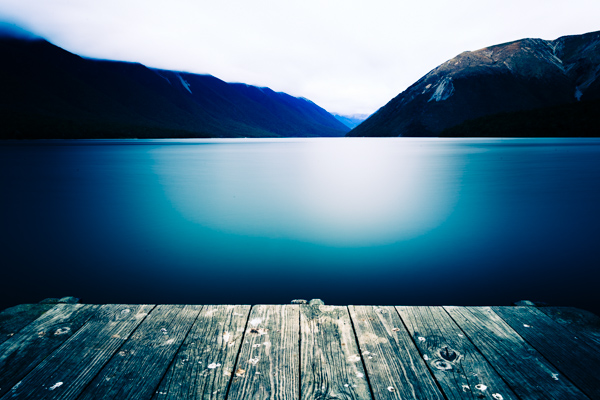
2. Now use the Opacity slider to reduce the intensity of the Develop Preset:

Fader applied

Fader applied at 40%

Here, I set Opacity to 40% for a more subtle effect:

The Fader Lightroom plugin

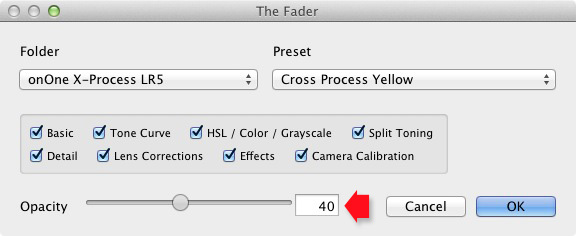
The Opacity slider has a range of -50 to 150. Values above 100 increase the intensity of the Develop Preset. The effect of minus values varies according to the preset used, but it is unlikely you will ever use them.

3. Finally, you can fine-tune the fade even further by selecting which parameters to apply to your photo. For example, if the Develop Preset you selected applies a Tone Curve to the photo, you can disable that part of the preset by unticking the Tone Curve box. Then you can use the Opacity slider to fade out the rest of the Develop Preset.

The Fader Lightroom plugin


Mastering Lightroom Book One: The Library Module

key-11My latest ebook Mastering Lightroom Book One: The Library Module is a complete guide to using Lightroom’s Library module to import, organize and search your photo files. You’ll learn how to tame your growing photo collection using Collections and Collection Sets, and how to save time so you can spend more time in the Develop module processing your photos.

The post How to Add an Opacity Slider to Lightroom Develop Presets with The Fader Plug-In by Andrew Gibson appeared first on Digital Photography School.

Digital Photography School

 
Comments Off on How to Add an Opacity Slider to Lightroom Develop Presets with The Fader Plug-In

Posted in Photography


A Concise Guide to Lightroom Develop Presets

05 Jan

 Lightroom develop presets

The Presets panel (found in the left-hand panels in the Develop module) is one of the most useful in Lightroom. The most obvious benefit of Develop Presets is that they can save you time, which is always a good thing. But they do more than that, including help you maintain a consistent approach to post-processing and using creative effects.

Develop Presets tend to fall into one of two categories. The first are what you might call one-shot presets, which seem to work well on one or two images but not many others. A good example is Develop Presets intended to create a vintage or cross-processed look. They tend to improve some photos, but look horrible on most others.

The second category is what you could call genuinely useful presets. They are a bit better thought out, and designed to make post-processing an easier and quicker task. Usually they are created by a photographer that has put them to use over a long period of time and tweaked them until they work well. I will give you some examples of these at the end of the article.

In this guide to Lightroom Develop Presets we’ll go over some your options.

Free Develop Presets

If you haven’t used Develop Presets before then you likely don’t have many to play with. There are some included already with Lightroom, but there are also plenty of websites where you can download good Develop Presets for free. The problem is, as with anything free, sorting out the rubbish, especially as most of these fall into the first category of Develop Presets. We can save you some time by making some recommendations:

OnOne Software Signature Collection

  • One of my favourites is made by OnOne Software. There are a lot of Develop Presets in their set. Some of them will be a bit over the top for most photographers, but there are some good ones, including a set that imitate the filters in the Instagram app. If you’ve ever wanted to use Instagram on photos taken with your digital camera, this is the easiest way to do it. By the way, the link takes you through to OnOne Software’s Lightroom Presets page, where you’ll find lots more free Lightroom Presets.
Lightroom-develop-presets-09

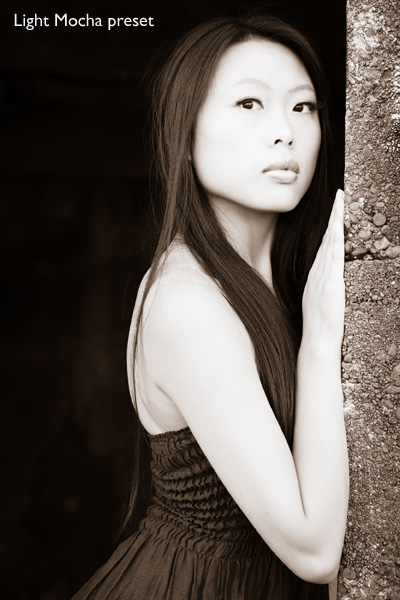
This photo was created with the Light Mocha Preset from OnOneSoftware

Presets Heaven Vintage Presets

  • A nice collection of seven vintage effects for Lightroom 4 and 5. The opening photo above was processed with one of these.

Delicious Freebies

  • A set of free Lightroom Presets from Delicious Presets.

Installing Lightroom Develop Presets

Develop presets are easy to install, follow these steps:

  • Start by downloading them to your computer (the folder you save them in isn’t important at this stage)
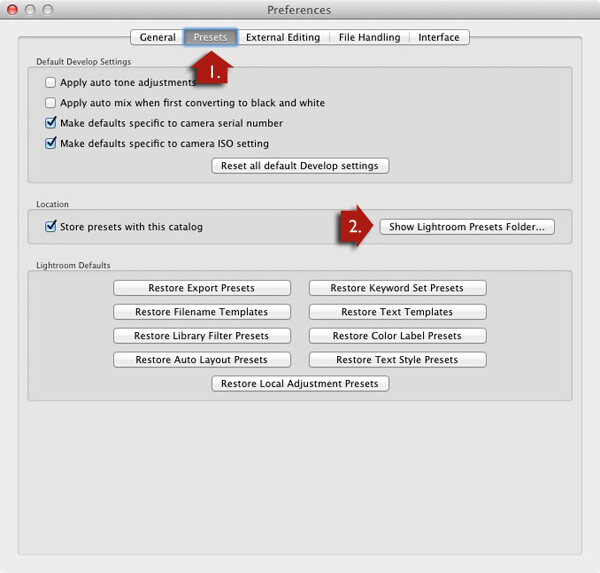
  • Open Preferences, go to the Presets tab (see red arrow #1 below) and click on the Show Lightroom Presets Folder button (see red arrow #2 below)
  • Inside this folder is another called Lightroom Settings, and inside that is one called Develop Presets. Drag the Develop Presets you downloaded earlier to this folder
  • You will need to restart Lightroom before they appear in the Presets panel

Lightroom develop presets

Using Develop Presets

Develop Presets are easy to use:

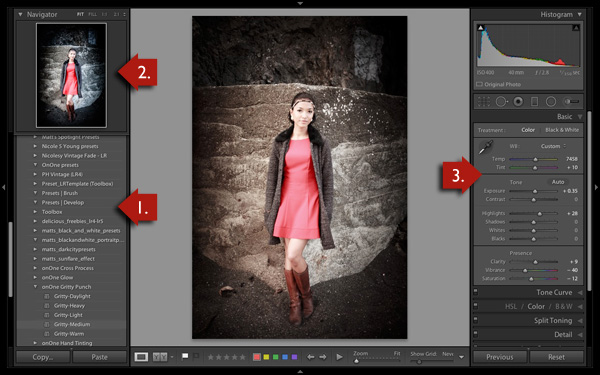
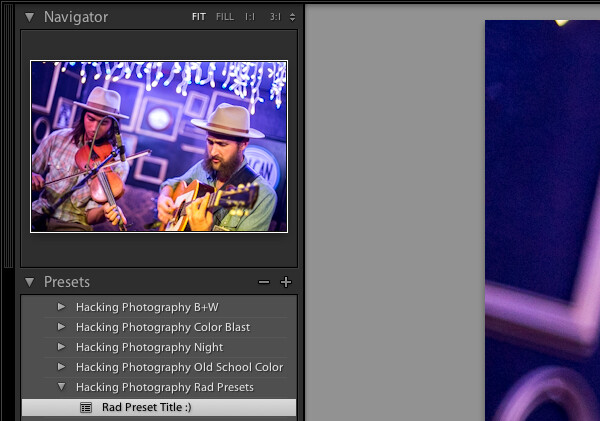
  • The Presets panel contains all Develop Presets that come with Lightroom, ones you have created yourself (listed under the heading User Presets) or downloaded from other sources (see red arrow #1 below).
  • If you hover over any of the presets, the thumbnail in the Navigator panel shows you what your photo will look like with that preset applied (see red arrow #2 below).
  • Click on the preset name to apply it to your photo. The Develop settings in the right-hand panel are updated when you do so (red arrow #3 below).

Lightroom develop presets

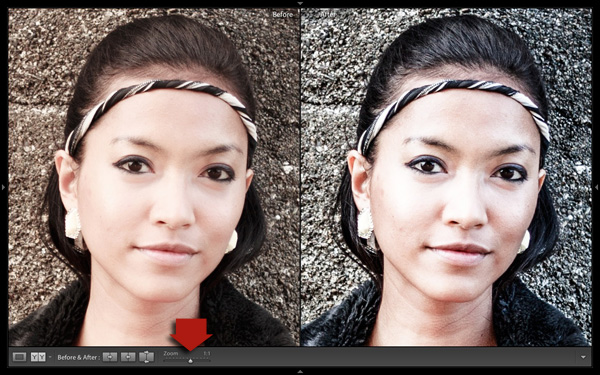
You can’t always tell much from the thumbnail in the Navigator panel as it’s so small. You’ll get a better view if you click on the Before/After View icon (#1 below) – the backslash key “\” is the keyboard shortcut, and will toggle before/after on the entire image by turning it off and on. Set the Zoom slider to Fit to show the entire image on the screen (see #2 below).

When you click on a Develop Preset to apply it to your image you will see the original photo and the new version displayed side by side. If you don’t like the result, Undo it using the Cmd+Z (Mac) or  Ctrl+Z (PC) keyboard shortcut.

Lightroom develop presets

For a close-up look at the effect the Develop Preset has had on your photo, set the Zoom slider to 1:1 (below). Make sure you check important parts of the photo, such as the model’s face in this portrait, to make sure that the newly applied preset hasn’t created any undesirable effects. Some presets do go a little over the top with settings such as Clarity, so it’s wise to double check. You can make adjustments to the appropriate sliders if required.

Lightroom develop presets

One of the interesting things about Develop Presets you download from other sources is that you can look at how the settings have changed after you have applied the new preset to see how the effect is achieved. It’s an easy way to learn new processing techniques.

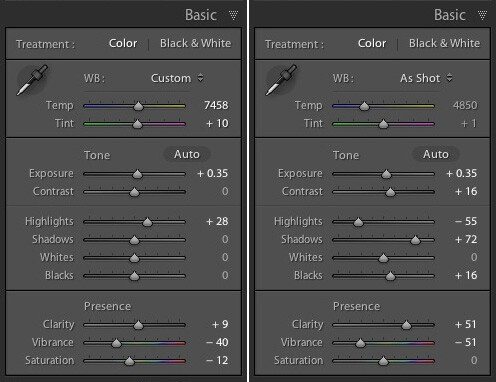
In the example above (the Gritty-Medium preset from OnOne Software), the Develop Preset made all the changes in the Basic Panel. It boosted the contrast by moving the Contrast and Clarity sliders to the right, then negated that effect somewhat in the mid-tones by moving the Highlights slider left and the Shadows slider right (see screenshot below). It also reduced Vibrance and Saturation. The end result is gritty and dramatic, but not so harsh that it’s unsuitable for portraits.

Lightroom develop presets

Settings before preset applied on the left, and after it was applied on the right

Create Your Own Develop Presets

It’s very easy to create your own Develop Presets:

  • Select a photo and make the required adjustments using the right-hand panels of the Develop Module.
  • Go to Develop > New Preset. Alternatively, click the Create New Preset icon in the Presets panel (below)

Lightroom develop presets

  • Give the Preset a name (#1 below) and select the settings that you want to include in the Develop Preset in the New Develop Preset window (#2 below). You don’t have to include every setting. If you did, the Develop Preset would probably only be useful for that specific photo.
  • Press the Create button (#3 below) when you are done. The new Develop Preset appears in the User Presets category in the Presets panel.

Lightroom develop presets

Other Develop Presets

Here is a list of other Develop Presets you may find useful. These are different from the ones listed above as they are not free. If you have any recommendations yourself, please leave them in the comments.

The first two are from the Craft & Vision website

  • David duChemin’s Lightroom Presets
  • Dave Delnea’s Lightroom Presets

The next one is from SLR Lounge

  • It’s a comprehensive system, and so costs more than the others. You can watch the video on the page to see how it works: Lightroom Preset System V5

key-11Mastering Lightroom Book One: The Library Module

My latest ebook Mastering Lightroom Book One: The Library Module is a complete guide to using Lightroom’s Library module to import, organise and search your photo files. You’ll learn how to tame your growing photo collection using Collections and Collection Sets, and how to save time so you can spend more time in the Develop module processing your photos.


The post A Concise Guide to Lightroom Develop Presets by Andrew Gibson appeared first on Digital Photography School.

Digital Photography School

 
Comments Off on A Concise Guide to Lightroom Develop Presets

Posted in Photography


4 Quick Tips For Getting The Most Out of Lightroom Presets

25 Jul
Image created with Daylight to Sunset preset

Image created with Daylight to Sunset preset

This post was written to coincide with my latest deal over at the DPS sister site – Snapndeals. Over the years I’ve created and stockpiled tons of presets in Lightroom, just for personal use. I finally made them available to the public earlier this year at the request of many of my blog readers and the feedback has been amazing! The collection on Snapndeals includes all of the presets I have released (80 total in 7 different groups) and they are all, of course, fully customizable. I put a ton of work into these and I really think you will love them!

So Lightroom presets are something I’ve become really obsessed with. I use them with pretty much 100% of my family photos and about 70-80% of my other images. Sometimes it’s just one click and I can take an image from it’s RAW state to a completely post processed and finished image. Other times I can apply a preset and be about 80-90% finished. From there it’s just a few minor adjustments to get the image looking great but the total time saved by adding the preset is still incredibly valuable. So here’s a few tips for using my new JamesB Lightroom Presets to help your workflow and create amazing images. Let’s go!

1) Spend Some Quality Time Familiarizing Yourself With The Presets

I’ve found that using presets becomes more efficient the more you use them. If you use them rarely, you aren’t very familiar with the presets you own. Therefore, when it comes time to use one you have to wade through them all to find the right one which can take a lot of time (especially with a collection of 80 presets like this one). When you use presets regularly you memorize where each one is, you know where your favorite presets are and how to get to them fast, you know which presets will work better for certain images. When you get into this mindset, your workflow in Lightroom really becomes optimized. And who among us doesn’t need more time on our hands?

I broke the presets into 7 different groups and each group has presets that were specifically designed for different genres/styles of photography. That doesn’t mean you can’t use a portrait preset on a landscape image, I’ve done that several times. But more often that not, I use travel presets for travel images. Portrait presets for portrait images.

2) Create A New Folder For Your Absolute Favorite Presets

Screen Shot 2013-06-21 at 10.10.11 AMOver time, you’ll discover that there are certain presets that you use quite often. Feel free to create a new folder in your presets catalog and the drag your favorites into that one. A few of my favorites are Day At The Zoo and Bright and Sunny from my “Family Lifestyle” set, B&W Film Grain and B&W High Contrast from my “Monochrome” set, Sweet Pea Vintage in my “Nostalgia Film” set and Rome in my “Travel” set.

Creating a new folder in the presets panel is easy, although not very intuitive if you haven’t done it before. Clicking the + mark at the top right won’t do it, that’s just for creating new presets. You have to hover over your presets and right click, choose New Folder and then give the folder a name. Then it’s as easy as dragging the presets from one folder to another.

3) Don’t Be Afraid To Fine Tune

The Develop module can be pretty intimidating to those who haven’t used it before. There are a LOT of options over there. A lot of ways to make a photo look great, and a lot of ways to make a photo look terrible! When you add a preset, you’ll be able to see the changes that it made over on the right side of Lightroom. If the photo doesn’t look just how you were hoping, go over and play around with the sliders a bit to get it just where you want it. The truth is, there’s no preset out there that will work perfectly for every photo, so most of the time you will have to make slight adjustments.

4) Create Your Own!

Once you’ve used presets for a while, you will start to get more and more comfortable tweaking and fine tuning them to your taste. The more comfortable you get, the more you will start using certain looks time and time again. Feel free to use some of my presets as a base or a starting point. Then add to it, change it up, tear it down and rebuild it, then create new preset that’s all your own. I do this quite often and not only is it a great learning experience, to see how much work goes in to creating a great preset, it’s also a lot of fun!

Be sure to grab a set of the presets for yourself, I promise you’ll love them!

A Few Samples Of Images Created Using My Presets

_MG_2302 1DS_3478 1DS_5603 1DS_6004 Death_Valley_Cactus-X3


Post originally from: Digital Photography Tips.

Check out our more Photography Tips at Photography Tips for Beginners, Portrait Photography Tips and Wedding Photography Tips.

4 Quick Tips For Getting The Most Out of Lightroom Presets


Digital Photography School

 
Comments Off on 4 Quick Tips For Getting The Most Out of Lightroom Presets

Posted in Photography


DEAL: Save 30% off James Brandon’s Lightroom Presets Bundle (and get a FREE ebook)

14 Jul

LR_presets_adOver on our sister site – SnapnDeals – we have a great offer running right now – it gets you 30% off of an incredible collection of Lightroom presets by DPS contributor James Brandon. You’ll also receive a free copy of his newest ebook “10 Tips For Improving Your Photography Today.”
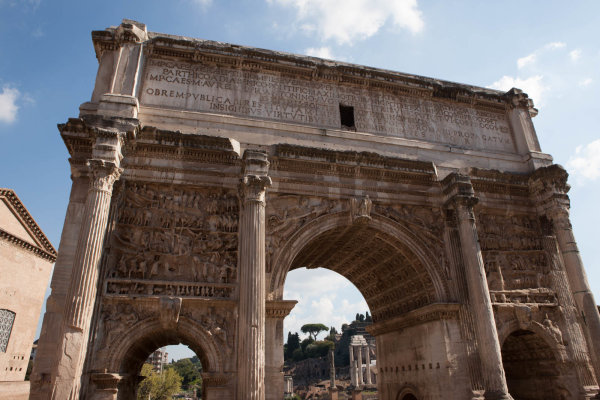
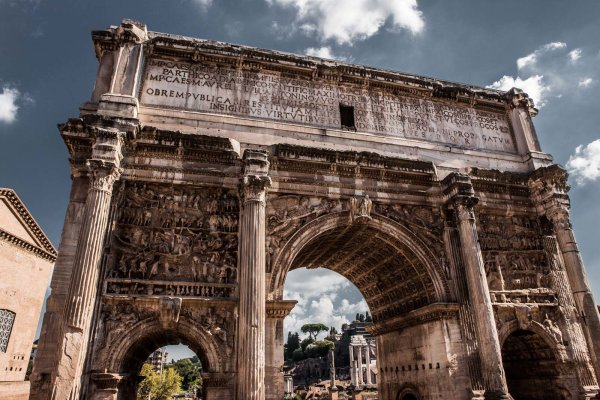

This collection includes 80 presets in 7 different groups and will take your images to a whole new level! Presets are a great way to speed up your workflow in Lightroom and discover new looks and effects for your photos.

James has been stockpiling and optimizing these presets for years, and narrowed them down to just the best. Each collection is targeted towards a specific genre of photography or a specific photo processing need. Highlights of this bundle include the JamesB Filter Pouch; a collection of presets that mimic the filters landscape and travel photographers use out in the field. The JamesB Travel Presets; a collection that will work great for those vacation and adventure images. And the brand new JamesB Family Lifestyle Presets; a collection that James has created specifically for pictures of his family and friends.

His ebook 10 Tips For Improving Your Photography Today is included free with this purchase and will be a great companion for any photographer looking for quick, useful tips that will give your creativity and photography a boost.

Check out full details of the deal here

Before and After Samples

Before

Before

After - Using 'Rome' in the JamesB Travel Preset collection

After – Using ‘Rome’ in the JamesB Travel Preset collection

Before

Before

After - Using 'Day at the Zoo' in the JamesB Family Lifestyle collection

After – Using ‘Day at the Zoo’ in the JamesB Family Lifestyle collection

Before

Before


After - Using 'Sweet Pea Vintage' in the JamesB Nostalgia Film collection

After – Using ‘Sweet Pea Vintage’ in the JamesB Nostalgia Film collection


Post originally from: Digital Photography Tips.

Check out our more Photography Tips at Photography Tips for Beginners, Portrait Photography Tips and Wedding Photography Tips.

DEAL: Save 30% off James Brandon’s Lightroom Presets Bundle (and get a FREE ebook)


Digital Photography School

 
Comments Off on DEAL: Save 30% off James Brandon’s Lightroom Presets Bundle (and get a FREE ebook)

Posted in Photography


How to Use Film Simulator Presets in Lightroom

26 Jun

20130620 dPS 000  tri x
processed using VSCO’s Kodak TRI-X film preset

Those of you who think Instagram and its ilk are pushing us towards the end of “real photography” can quit reading right now.  For everyone else, the following paragraphs will show you how to get that ever-so-trendy, faded, slightly desaturated, vintage, “look” that is so prevalent from both professionals and hobbyists.  I’m going to let you in on a secret that professionals have been utilizing for awhile (many use it secretly!) to give their photos that added edge. 

Specifically, I am going to cover the use of film simulation presets to develop your RAW files in Lightroom.  Why use film simulation at all?  As evidenced by the popularity of mobile apps like Instagram, emulating the look of traditional film stocks has become a rather trendy and prevalent practice in photography and can be a useful tool in your post-processing arsenal.  Your clients may not specifically request a certain film, but they may ask you to give them a specific look & feel that is a result of simulating film, i.e. “Can you give my engagement photos that faded, vintage-y feeling?”, or “Make my photos look like they were taken with Instagram”.  I’ve had several clients ask for that style of processing without realizing it was the result of emulating a 50-year old film stock.  Film simulators answer the question: “What would this digital image look like if I took it with Kodak TRI-X film?”.
 
In short, film simulation presets are designed to process your camera’s specific RAW files into images that emulate the look provided by some classic film types.  Before I discovered these plugins, I foolishly spent countless hours playing with various Lightroom sliders attempting (and failing) to get that look I wanted to emulate.  After trying a number of these, my favorite by far is VSCO Film, created by a company called Visual Supply Co (VSCO for short).  They create a number of plug-ins for Lightroom, Adobe Camera Raw, and Aperture, that all do the same thing; make your digital image look like it was taken with an old-school film camera. We’ll be covering how to use these in Lightroom though they should have the same effect in ACR or Aperture.  It should be mentioned that I do NOT work for VSCO and / or receive payment in any way from them.

VSCO Logo

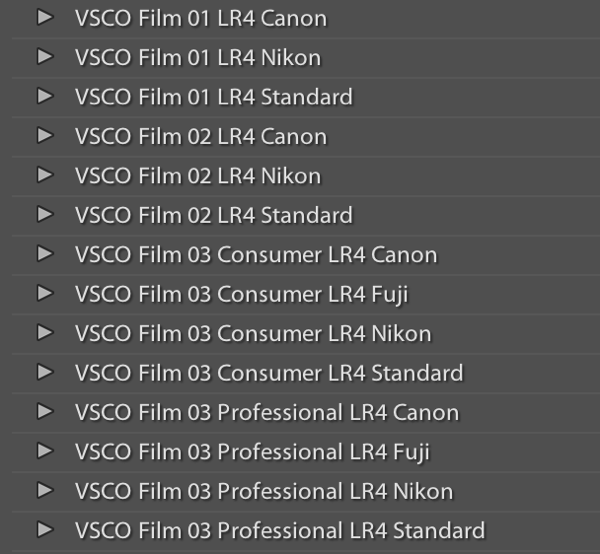
VSCO’s film packs come as downloads from their website and installation is as easy as running the downloaded installer and booting up Lightroom afterwards. You will then find several new groups of presets once you’re in Lightroom’s Develop module. 

VSCO Presets

Once you’ve installed the presets, applying them is as easy as selecting the image(s) you want to process, and clicking on the desired preset on the left.  If you mouse-over the list of presets, you’ll notice that the Develop module’s Navigator window will show you a preview of the preset’s effects on your image.  You’ll find that each different film type will give you varying effects on color, contrast, brightness, and will alter the tone curve of the image.  Some film presets will introduce subtle changes, while others do dramatic things, and covert your image to B&W, add grain, and reduce the dynamic range of the image by resetting the tone curve. 

Frankly, I am unsure if there is anything a VSCO filter can do that you can’t do manually, however, it is an incredible time saver if you don’t want to spend hours re-creating the look of specific film stocks.  VSCO’s team has already done the research into the settings to emulate popular film types, and all you need to do choose which ones you like.  You’ll also notice that each preset has  “-”, “+”, “++” versions of each film, representing the degree to which you’d like the particular film’s effects applied.  Film presets work like any other preset and the develop settings can be copied and pasted from image to image or applied to a large batch of images at once.

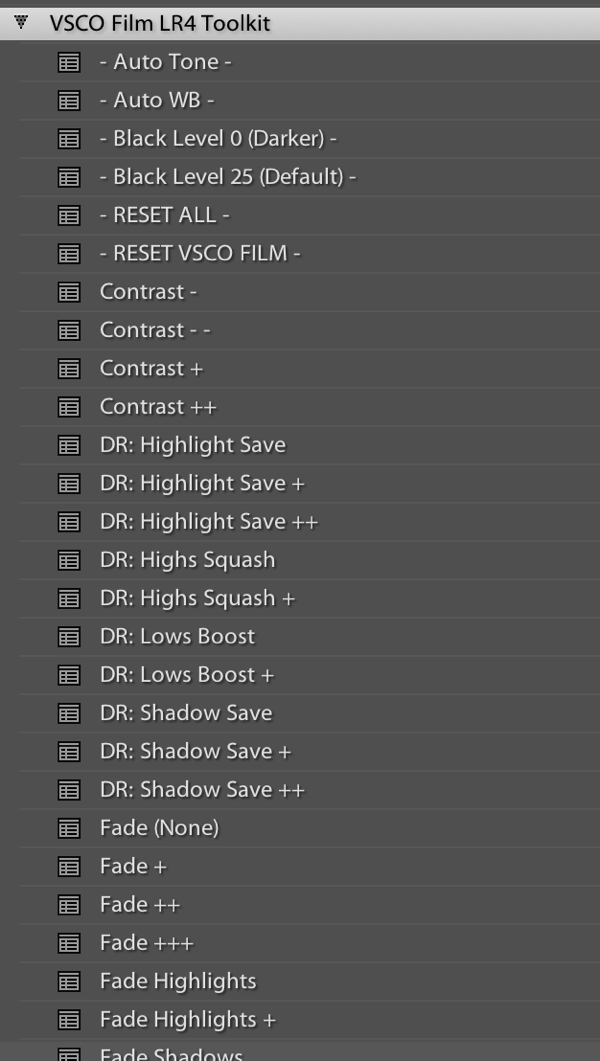
However, the beauty of VSCO (and similar presets), is that once you’ve selected a film stock that you like, you can then tweak it to your heart’s content.  For example, you can start off with a baseline Kodak Portra 400+, and decide that you’d want to bring up the shadows, add some grain, and saturate the blues.  Save those settings as a new preset, and boom, you’ve developed your own, unique look.  VSCO’s film pack also comes with “Toolkit” presets that will help you fine-tune your image.  With a click of a button you can add grain, bring up the shadows, save your highlights, or fix Chromatic Aberration.  Again, these are all things that you can do manually, but the presets will save you quite a bit of time.
VSCO Toolkit

VSCO has now released three different film packs, each with its own set of films, with the latest film pack focusing on a variety of instant (Polaroid!) films.  The film packs are not cheap, at $ 119 / pack, but existing customers will receive a discount on subsequent film pack purchases.  I’d suggest buying VSCO 01 and only adding the others if you really like the first pack.  Don’t feel like ponying up the dough or only use your iPhone to take pictures?  VSCO actually has an iOS app called VSCO Cam. 

So that’s all there is to it! I will leave you with some quick before & after examples that may help demonstrate how powerful these presets can be.  Each of these following images will be presented in two forms, the “before”, sans preset and without any major Lightroom modifications, and the “after”, with a specific preset applied. For the sake of this demonstration, I have picked films with a relatively dramatic effect on the original image.

Before:
20130620 dPS 001??After, with a “Polaroid 690 cold” preset applied:
20130620 dPS 001  polaroid 690 cold

Before:

20130620 dPS 002

After, with a Polaroid 669 preset applied:

20130620 dPS 002  polaroid 669

Before:

20130620 dPS 003

After, with a “Polaroid 690 cold” preset applied:
20130620 dPS 003  polaroid 690 cold

Before:

20130620 dPS 000

After, with a Kodak TRI-X filter applied:

20130620 dPS 000  tri x

Frank Wang is a NYC photographer specializing in portrait and architectural photography. You can find him online at www.frankwangphotography.com and www.framephotographics.com. Connect with him via witter / Instagram: @frankwangphoto

Post originally from: Digital Photography Tips.

Check out our more Photography Tips at Photography Tips for Beginners, Portrait Photography Tips and Wedding Photography Tips.

How to Use Film Simulator Presets in Lightroom


Digital Photography School

 
Comments Off on How to Use Film Simulator Presets in Lightroom

Posted in Photography


Litely’s Subtle & Sophisticated Photo Presets are What You’ve Been Waiting For

16 Mar

You tried running your DSLR photos through phone apps.

But the details got lost, and you were left with a tiny photo!

Cole Rise’s Litely might just have made the perfect preset actions for your digital photos. And it’s no wonder, have you seen Cole’s photos?

Each set comes with twelve presets that gracefully adjust the color and tone of your photos with a look reminiscent of film.

But what makes these so different from all the other presets out there?

They’re impressively subtle and keep the skin tones of your subjects looking natural, all without washing out the detail. Plus, they’re pretty as heck!

The best part is they were each made to work with nearly any kind of lighting. So you can use use them whether you shoot outside, in low light, or in a studio.

We might just call Cole Goldilocks ’cause these presets are just right.

You can check the presets out in action at Lite.ly’s blog. They’re available Photoshop, Lightroom, Aperture, or Adobe Camera Raw.

Litely, Simply Beautiful Photo Presets

No related posts.


© lisbeth for Photojojo, 2013. |
Permalink |
No comment |
Add to
del.icio.us

Post tags:


Photojojo

 
Comments Off on Litely’s Subtle & Sophisticated Photo Presets are What You’ve Been Waiting For

Posted in Equipment