RSS
 

Posts Tagged ‘Presets’

How to Make Creative Lightroom Develop Presets for Portraits

03 Aug

It’s natural for portrait photographers to take lots of photos during a shoot. Therefore, it’s also helpful to have a system in Lightroom that allows you to save time processing your portraits. The easiest way to do this is with Develop Presets.

Lightroom Develop Presets for portraits

A Develop Preset is a record of the processing work you have done on a photo in the Develop Module of Lightroom. The idea is to save the settings you used in a preset that you can then easily apply to other photos. The end result is that you save time and finish developing your portraits more quickly.

Let’s take a more detailed look at how it works.

1. Select a portrait to process

First, select a portrait and adjust it in Lightroom. Alternatively, use a portrait you have already developed.

Lightroom Develop Presets for portraits

2. Create a Develop Preset

Make a new Develop Preset by going to the Presets panel (on the left-hand side) in the Develop module and clicking the plus icon on the right (or, go to Develop > New Preset).

Lightroom Develop Presets for portraits

When you do this, the New Develop Preset window appears. There are three sections you need to pay attention to, see below.

Lightroom Develop Presets for portraits

A. Preset Name and Folder. Give your preset a name and select the folder you want to save it in. The default folder is User Presets but you can pick another or create a new one by going to the New Folder option at the top of the menu. It’s a good idea to create a new folder for your Preset as it helps you keep your Presets panel organized.

B. Auto Settings. Lightroom gives you the option to tick the Auto Tone box. I recommend you leave it unticked. Otherwise your preset may behave unpredictably when you apply it to other portraits.

C. Settings. This is where you tell Lightroom which Develop Module settings you want to include in the Preset.

Some settings may be unique to your photo. For example, you may have used a Graduated or Radial filter to make the background darker. These won’t work when applied to another portrait with a different background, so you should leave those out.

It’s also a good idea not to include Exposure or White Balance settings. These need to be adjusted individually for each portrait. For the same reason, you should leave the Sharpening, Noise Reduction, Lens Corrections and Transform boxes unticked.

You can tick all the other boxes, as shown in the above screenshot.

3. Apply the Develop Preset to other portraits

The next step is to apply the Develop Preset you just made to another portrait. Open the new portrait in the Develop module. Click on the Preset you just created, which you can see in the Presets panel.

In this case, I created a new Develop Preset, especially for this article.

Lightroom Develop Presets for portraits

You can also apply your new Develop Portrait to more than one portrait at a time. This is useful if you have several portraits that you would like to develop in the same style. Here’s an easy way to do it.

1. Go to the Library Module and select the portraits to which you want to apply the preset. It helps if you have already organized your portraits in a Collection.

Lightroom Develop Presets for portraits

2. Go to the Quick Develop panel. You can access all your Develop presets under Saved Preset. Select the preset you just created from the menu. Lightroom will apply it to all of your selected portraits.

Lightroom Develop Presets for portraits

3. Open the portraits one by one in the Develop module and tweak the settings or retouch them if needed.

The creative power of Develop Presets for portraits

Now we’ve explored the mechanics of creating Develop Presets for portraits, let’s look at some of the creative things you can do in the Develop Module. All of these can be included in presets. Eventually, you will build a personal library of your own presets for portraits.

There are four techniques that are useful for portraits.

1. Apply a vignette

There are two ways to apply a vignette in Lightroom.

The first option is to go to the Effects panel and use Post-Crop Vignetting. Move the Amount slider left to apply a vignette. Use the Midpoint slider to change the area covered.

Lightroom Develop Presets for portraits

Here’s a before and after example.

Lightroom Develop Presets for portraits

The only drawback of Post-Crop Vignetting is that the effect is centered. That leads us to the second way of creating a vignette which is using a Radial Filter. The advantage of Radial filters is that you can put them wherever you like.

Here you can see two screenshots of a Radial Filter I applied to a portrait. The first (left) shows the position of the Radial Filter. The second (right) shows the area affected by the Radial Filter in red.

Lightroom Develop Presets for portraits

I moved the Exposure slider left to make the area outside the Radial Filter darker.

Lightroom Develop Presets for portraits

This is the comparison so you can see the difference.

Lightroom Develop Presets for portraits

2. Adjust colors in the HSL / Color / B&W panel

Lightroom also gives you the option of adjusting the saturation and luminance (brightness) of individual colors. You do this in the HSL / Color / B&W panel.

In my portrait, there is some blue paint on the wall behind the model. You can adjust only that color by going to the Saturation tab and moving the Aqua and Blue sliders left.

Lightroom Develop Presets for portraits

These photos show you the effect.

Lightroom Develop Presets for portraits

3. Split Tone

Split toning isn’t just for black and white, it’s very effective for color portraits as well. The effect is similar to color grading used in TV shows and movies.

One option for split toning is to apply blue to the shadows and orange to the highlights. Another is to apply teal to the shadows and yellow to the highlights. Here are some settings you can try.

Lightroom Develop Presets for portraits

Here are the results.

Lightroom Develop Presets for portraits

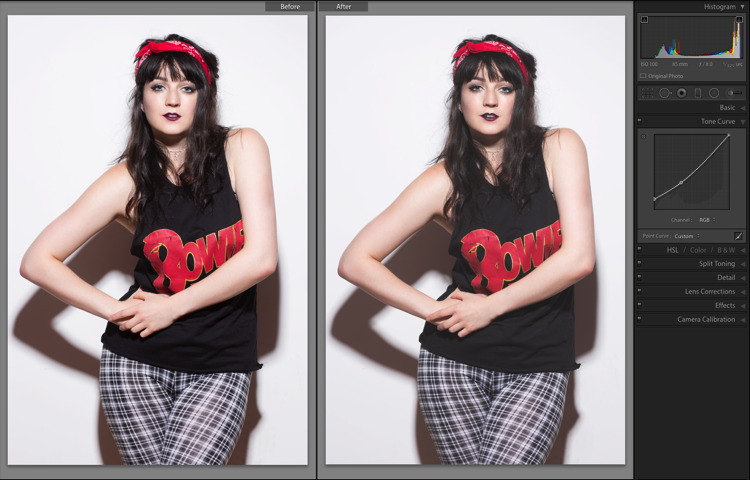
4. Adjust the Tone Curve

You can use the Tone Curve panel to create a matte look. That is where the blacks are dark gray rather than black as if the photo has been printed on matte paper.

Lift up the left-side of the RGB curve, as shown in the screenshot below. You can also do the same with the blue curve for a similar effect that also adds blue to the shadows.

Lightroom Develop Presets for portraits

These are the results.

Lightroom Develop Presets for portraits

Adjustment Brush presets

You can also create your own Adjustment Brush presets to make retouching portraits easier. A good example is Lightroom’s own Soften Skin preset, which sets Clarity to -100 and Sharpness to +25.

I like to make the model’s eyes more defined by creating an Adjustment Brush and setting Exposure to around +0.30 and Clarity to +70.

Lightroom Develop Presets for portraits

You can make an Adjustment Brush Preset from those settings by going to Save Current Settings as New Preset at the bottom of the Effect menu. Give the preset a name and Lightroom saves it in the Effect menu. You can also use this preset with the Gradient and Radial filters.

Conclusion

Develop Presets are powerful tools that help you leverage Lightroom’s advanced developing options. With the techniques in this article you can use presets to speed up the developing process and apply creative effects to your portraits.

Do you have any questions about using Lightroom Develop Presets? Please let us know in the comments below.


Are you a fan of the natural / vintage look in portraits? Then check out my Vintage Portrait Presets for Lightroom. There are over 30 presets to help you create beautiful portraits in Lightroom.

The post How to Make Creative Lightroom Develop Presets for Portraits by Andrew S. Gibson appeared first on Digital Photography School.


Digital Photography School

 
Comments Off on How to Make Creative Lightroom Develop Presets for Portraits

Posted in Photography


All Deals are Back – Photography eBooks, Presets and Courses at up to 88% Savings

08 Jul

It has been a big week with our dPS Mid Year Sale and we know thousands of our readers have picked up some great photography training at crazy low prices.

Today we have a special surprise for you – all our deals are back for one last time!

Dps mid year sale deals FB v1

Each of the deals this week have been enjoyed by many readers but whenever we do deals like these we get emails from people to miss out – particularly as we know many of you are celebrating holidays at this time of year.

So – we decided to bring ALL the deals back for a couple of days to give those who missed out the chance to enjoy one of these bargains.

A quick reminder of what’s on offer in our dPS resources store:

  • All of our eBooks are just $ 9 (normally $ 19-$ 49)
  • All of our Lightroom Presets are $ 19 (normally $ 49)
  • All of our Courses are $ 29 (normally $ 99)

And then there’s our 4 deals from our friends:

  • Mastering Shutter Speed Course (save 62%)
  • Phil Steele’s Photoshop Basics for Photographers (save 40%)
  • Cole Joseph’s Photo Collage Tool for Lightroom (save 88%)
  • Richard Scheider’s How to Photograph Fireworks eBook (save 55%)

All of our our dPS products and those from our partners come with no-risk money back satisfaction guarantees. Try them out and if you don’t love them simply let us know and we’ll arrange a full refund – no questions asked.

Whether you pick up just one or create a collection of training to last you the next 6 months – we hope you find something in what’s on offer this week that will help you take your photography to the next level.

But don’t wait too long – these deals will only last a couple more days and then they’ll be gone forever.

The post All Deals are Back – Photography eBooks, Presets and Courses at up to 88% Savings by Darren Rowse appeared first on Digital Photography School.

Digital Photography School

 
Comments Off on All Deals are Back – Photography eBooks, Presets and Courses at up to 88% Savings

Posted in Photography


DEAL: Save 62% on Our Lightroom Presets Today

03 Jul

$  19 Presets

This week as part of our Mid Year Sale we’re excited to offer you any of our Lightroom Preset packs at a massive 62% discount.

Yesterdays deal on our eBook range had an overwhelming response (we were a little worried our servers wouldn’t cope for a while there) but today we’re taking things up a notch with an offer that those of you who use Lightroom will love.

For the next 30 hours you can pick up any one of our 101 Presets collections for just $ 19 USD.

They normally retail for $ 49 so this deal is a steal – grab yours here.

These beautiful presets have been created by some of our favourite photographers, so that you can convert your photos from average to amazing with just one click, saving you a whole lot of processing time.

Here are the 3 presets packs you can choose from:

  • 101 Lightroom Presets by Cole Joseph (a great all round pack for all kinds of photography)
  • 101 Landscape Lightroom Presets by Todd and Sarah Sisson
  • 101 Lightroom Portrait Presets by Rachel Devine

Each pack contains 101 presets that we guarantee to make your pictures pop and save you enormous amounts of time post processing your images.

But don’t wait too long to get your presets – this deal ends in just on 30 hours from now!

Note: You’ll need a copy of Adobe Lightroom to be able to use these presets, and as always, we offer a 60 day satisfaction guarantee on these presets.

The post DEAL: Save 62% on Our Lightroom Presets Today by Darren Rowse appeared first on Digital Photography School.

Digital Photography School

 
Comments Off on DEAL: Save 62% on Our Lightroom Presets Today

Posted in Photography


PRIIME PRESETS FOR LIGHTROOM

19 Apr

Disclosure: I am an advisor to Priime.

A lot of people tell me that they know that they should shoot in RAW and edit their photos in Lightroom but that they just don’t have the time or desire to do the editing work. I’ve long been an advocate for photo editing, but also understand that time can be short sometimes and many people would rather spend more time behind a camera than behind a computer screen editing photos.

Here is where Adobe Lightroom presets can be super helpful. There are many different preset packages out there that you can purchase, but one I’d like to highlight today is a new preset package put out by the photo editing company Priime.

Lightroom presets are super easy to install with a few clicks and then when reviewing your photos in Lightroom you just hover over a preset to see which look makes your photos look the best. With a single click, instantly your photo is given the full editing process of that preset. Sometimes I’ll use a preset and just leave the photo exactly as edited in the preset and other times I’ll use the preset as a base doing 90% of the editing for me and make a few finishing tweaks from there. Either way good presets can save a ton of time and are a useful tool for photographers who want to edit their work quickly and professionally.

One of the the things I like about the new Priiime preset package is that the presets were developed by photographers for photographers. My friend Art Chang, Founder and CEO of Priime, is also an amazing and accomplished photographer who personally helped design this package himself.

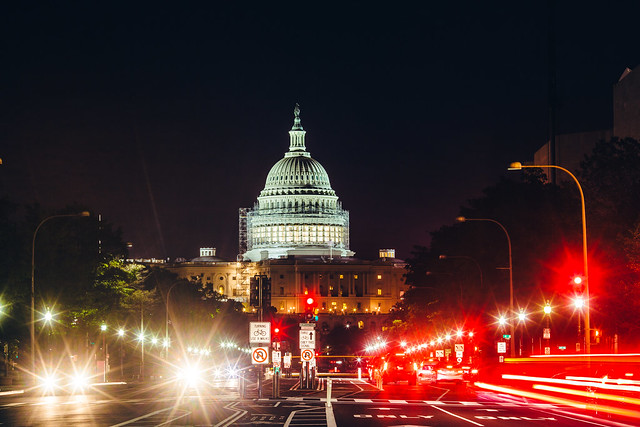
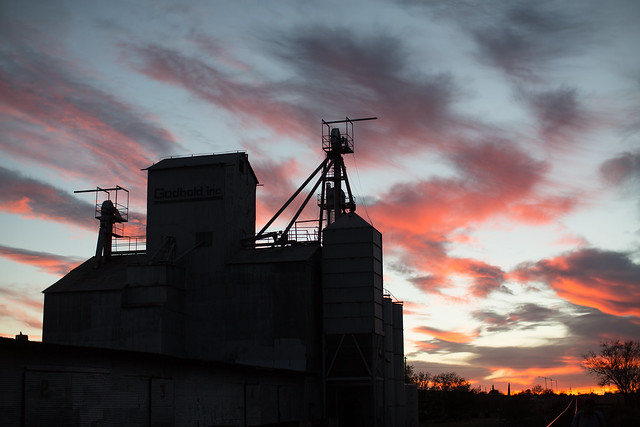
Below are some before/after photos that I edited today using some of the new Priime presets so you can get an idea of the impact a particular preset can have.

Priime’s preset package comes with 13 presets with 112 variants on the styles. Priime’s package sells for $ 49.99.

You can learn more about these presets and purchase them at Priime here.

Capitol Lights Pre Edit
Capitol Lights no editing

Capitol Lights
Capital Lights edited with Priime’s Atlantic preset

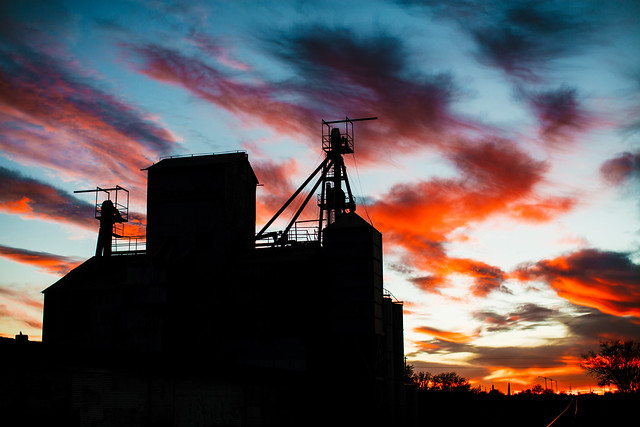
Texas Sunset Pre Edit
Texas Sunset no editing

Sunset, Marfa, Texas
Texas Sunset edited with Priime’s Montana + contrast preset

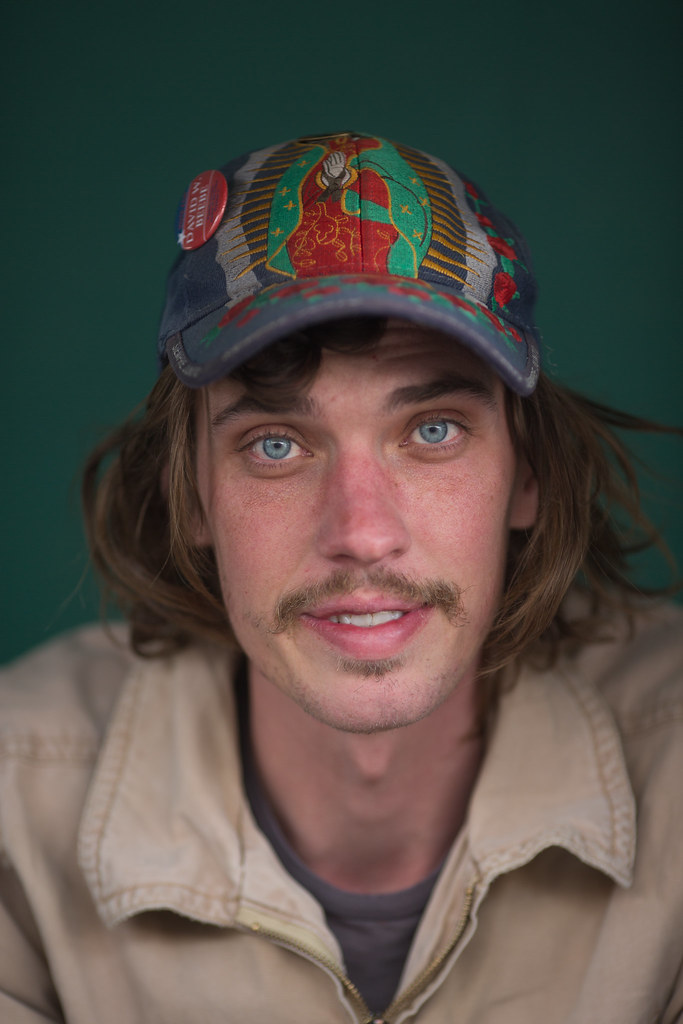
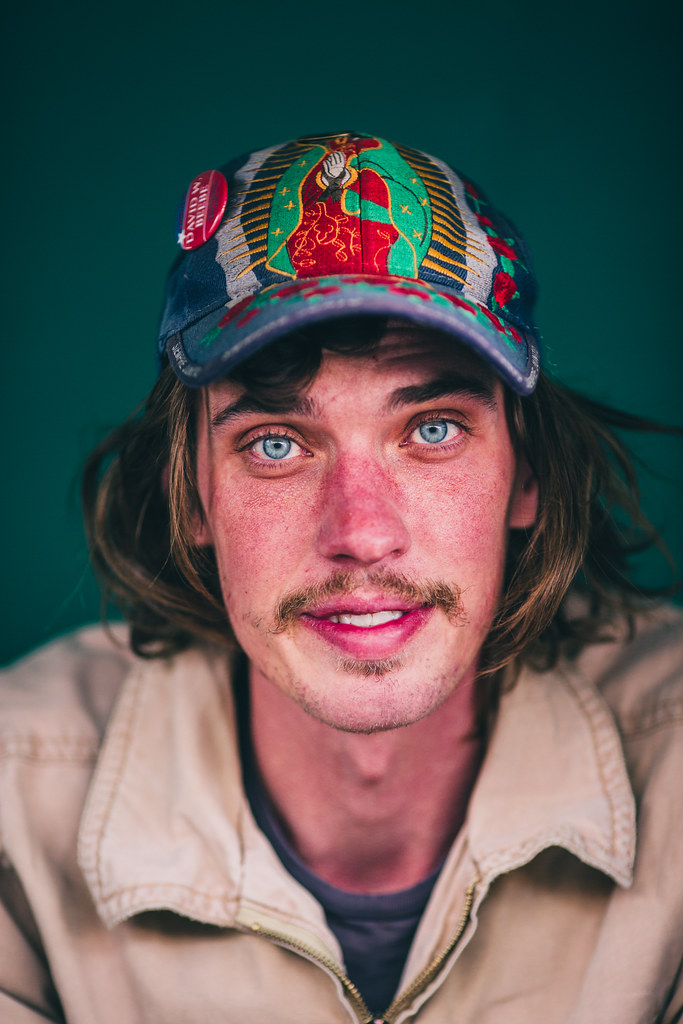
Marfa Portrait Pre Edit
Marfa Portrait no editing

Marfa, Texas
Marfa Portrait edited with Priime’s Utah preset

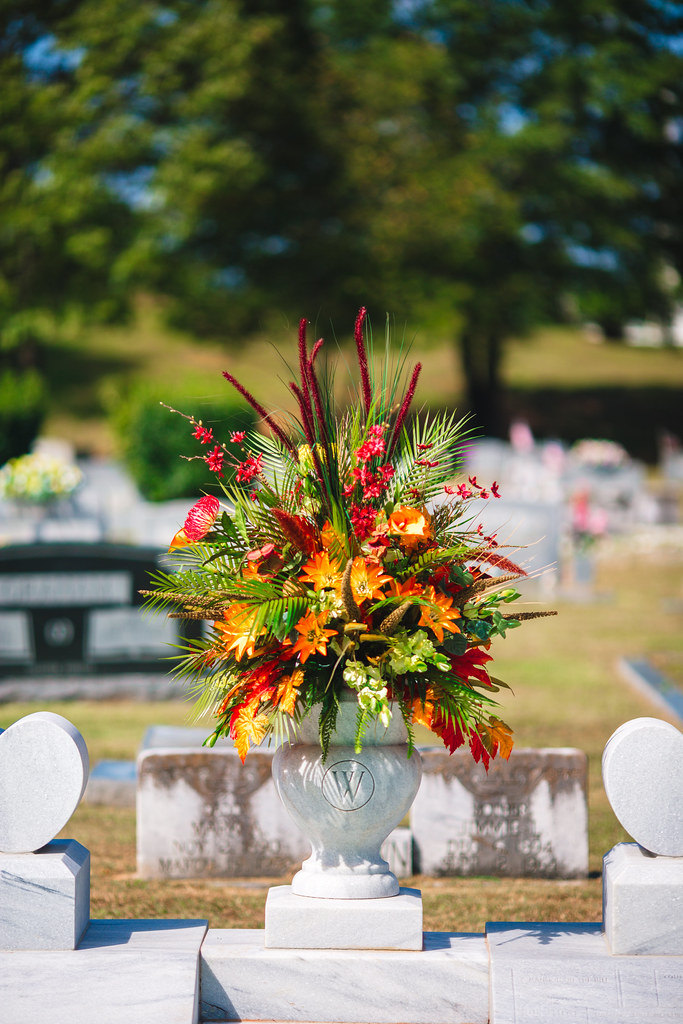
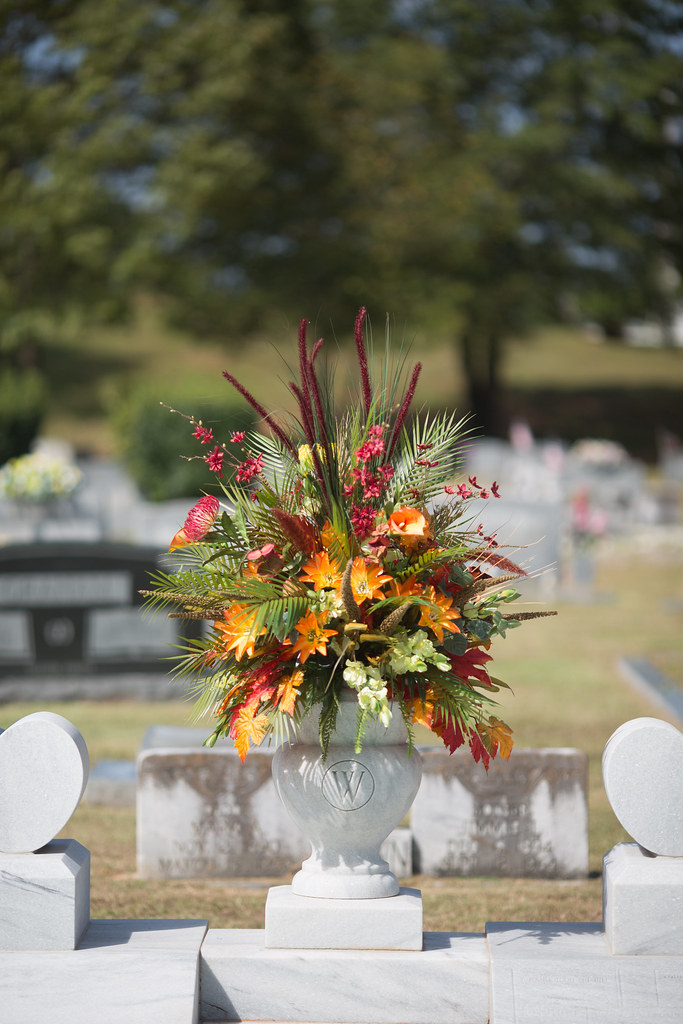
Hank Williams Grave Pre Edit
Hank William’s Grave, Montgomery Alabama, no editing

Hank William's Grave, Montgomery, Alabama
Hank William’s Grave, Montgomery Alabama, edited with Priime’s California vibrant preset

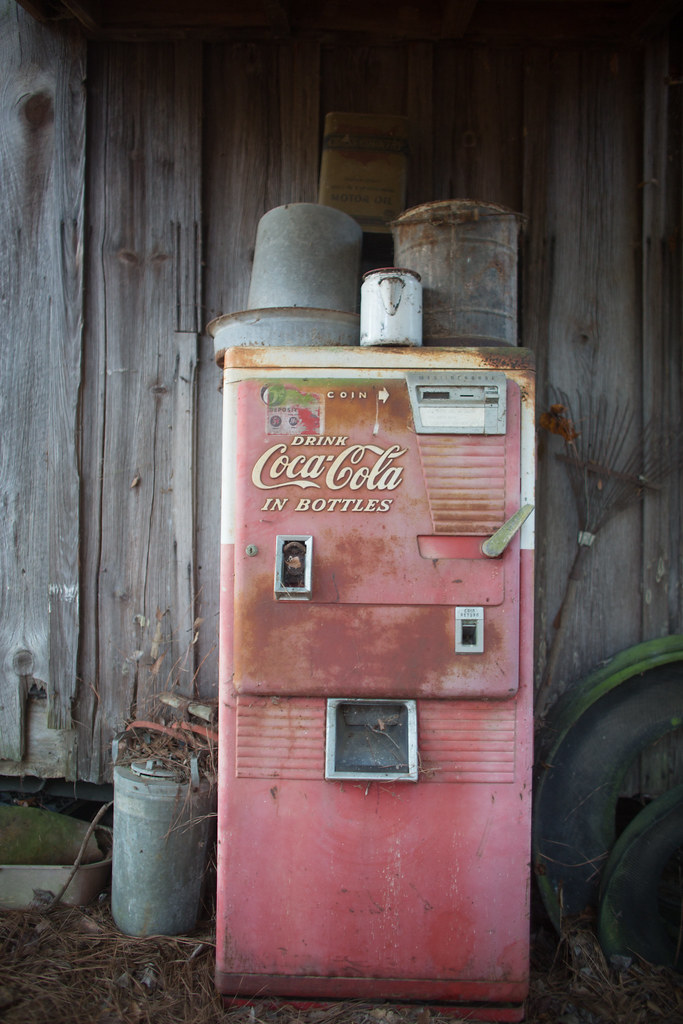
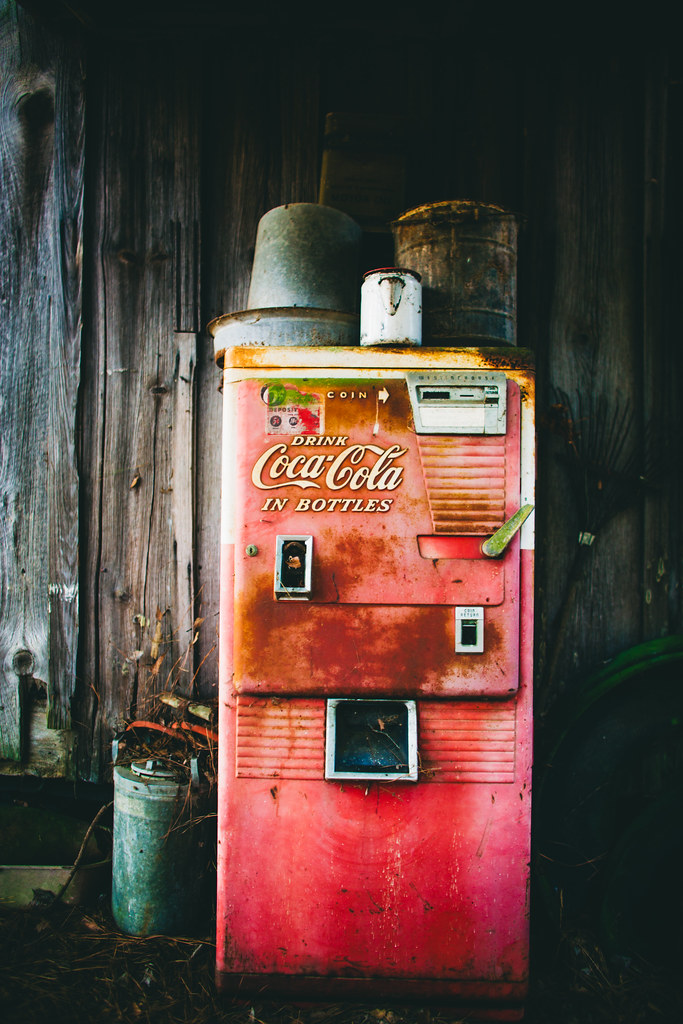
Coca Cola Pre Edit
Alabama Coca Cola, no editing

Montgomery Alabama
Alabama Coca Cola, edited with Priime’s California + green preset


Thomas Hawk Digital Connection

 
Comments Off on PRIIME PRESETS FOR LIGHTROOM

Posted in Photography


Save 60% off with these Professional Photoshop Actions & Lightroom Presets

21 Dec

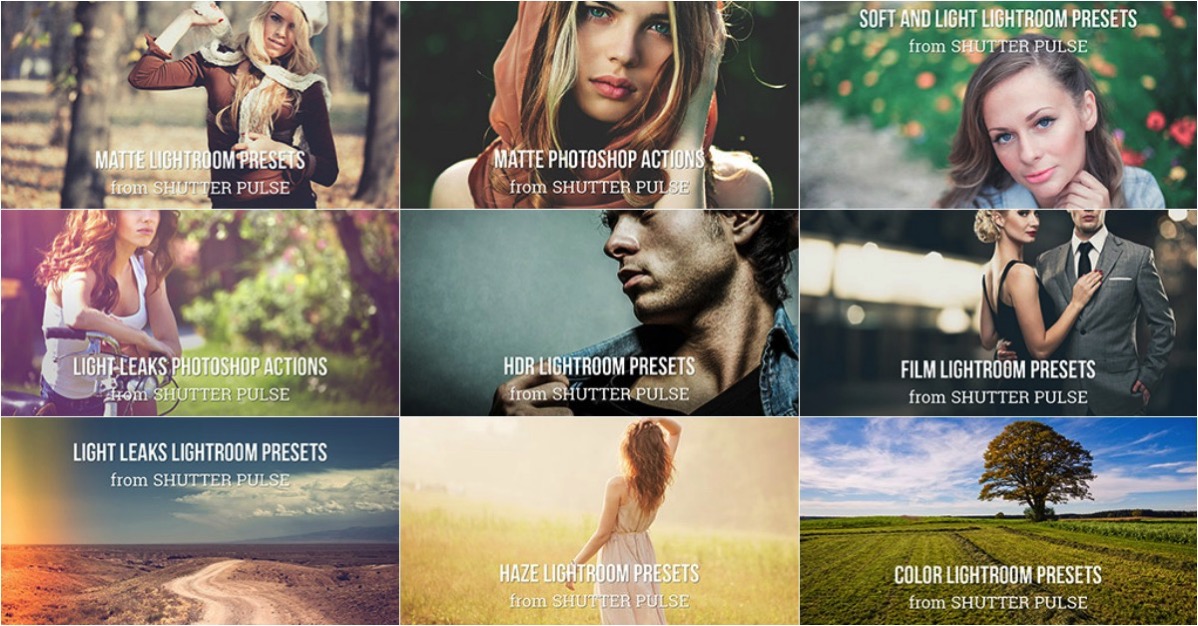
It’s Day 5 of our 12 Days of Christmas sale and today our friends over at Shutter PulseShutterPlus are offering an exclusive 60% off to dPS subscribers.

Shutter pulse

Today you can save 60% on their Professional Photoshop Actions and Lightroom Presets.

Quality Photoshop Actions and Lightroom Presets allow you to save a massive amount of time during post processing, and they can also help you to achieve impressive looks and effects with ease.

Today you have the option to pick up the following ShutterPlus Packs:

  • 300+ Photoshop Actions Bundle – Just $ 29, normally $ 39
  • 330+ Lightroom Presets Bundle – Just $ 29, normally $ 59
  • OR… get Both Bundles for an even bigger saving of just $ 39, normally $ 98!

These Bundles Include 100’s of effects including:

  • Stunning HDR Effects
  • Vintage Effects
  • Cinema-Inspired Effects
  • Film-Inspired Effects
  • Matte and Haze Effects

Pick up your bundle before it’s gone!

P.S. You’ll need a copy of Adobe Lightroom and/or Photoshop to use Presets or Actions.

P.P.S These presets are completely different to the dPS presets on sale yesterday, so here’s your chance to build up your preset collection so you have the right look for every occasion!

googletag.cmd.push(function() {
tablet_slots.push( googletag.defineSlot( “/1005424/_dPSv4_tab-all-article-bottom_(300×250)”, [300, 250], “pb-ad-78623” ).addService( googletag.pubads() ) ); } );

googletag.cmd.push(function() {
mobile_slots.push( googletag.defineSlot( “/1005424/_dPSv4_mob-all-article-bottom_(300×250)”, [300, 250], “pb-ad-78158” ).addService( googletag.pubads() ) ); } );

The post Save 60% off with these Professional Photoshop Actions & Lightroom Presets by Darren Rowse appeared first on Digital Photography School.

Digital Photography School

 
Comments Off on Save 60% off with these Professional Photoshop Actions & Lightroom Presets

Posted in Photography


Filmborn for iOS offers 9 film presets and educational content

09 Nov

Mastin Labs, which is probably best known for its Lightroom and Photoshop presets, has applied its film emulation know-how to the mobile sector and launched the Filmborn app for iOS. The app is advertised as a full-blown replacement for Apple’s stock camera app, with features such as gesture-based white balance and exposure, advanced editing mode, batch processing and image library functions.

Image by Kirstin Mckee, iOS FILM: Fuji 160NS

However, the app’s real selling point are the 9 film emulations users can choose from, including Ilford Pan F, Fuji 400H or Fuji 800Z. Each ‘digital emulsion’ is customizable, allowing you to adjust it to your personal style. The app also provides some educational content that explains what capture situation or what skin tones a simulation mode is best suited for. There is also a ‘Camera Manual’ where Filmborn users can learn more about analog film processing and how it translates into the controls and features offered by the app. So, Filmborn is also an interesting tool for those who like the idea of developing film but prefer to ‘practice’ digitally first.

If this sounds interesting to you you can find more information and sample images on the Filmborn website or download the app for free from the Apple App Store. Some advanced tools are available as in-app purchases.

Articles: Digital Photography Review (dpreview.com)

 
Comments Off on Filmborn for iOS offers 9 film presets and educational content

Posted in Uncategorized


How to Save and Use Stackable Lightroom Presets

02 Oct

Lightroom presets are basically post-processing shortcuts that can save you tons of time and really speed up your editing workflow. They allow you to save a particular set of edits and apply them later with a single click. Presets can either be a final solution or a great starting point from where you can further tweak and perfect your images.

Processed Image featured

Making development presets is incredibly easy and effective working in Adobe Lightroom CC. It even gives you the option to import presets made by others into your own library. Chances are, if you’re a seasoned photographer, you have used presets at some point.

But are you really getting the most from the huge range of editing control that presets can give you? In this article, you will learn just how versatile your Lightroom preset options can be and how you can essentially stack multiple presets to achieve the exact result you want.

The Basics

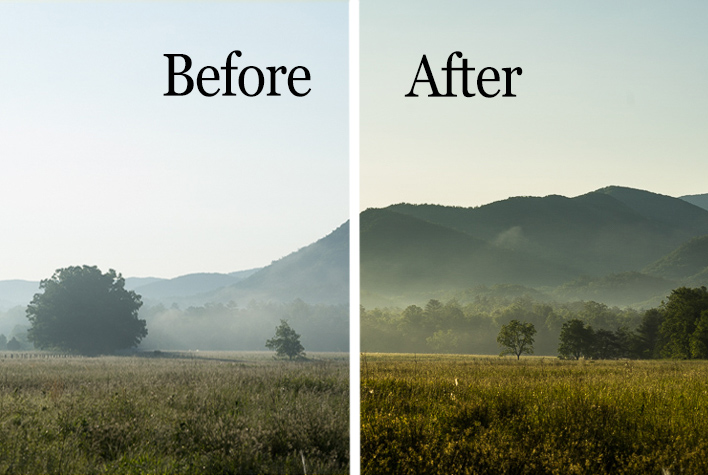
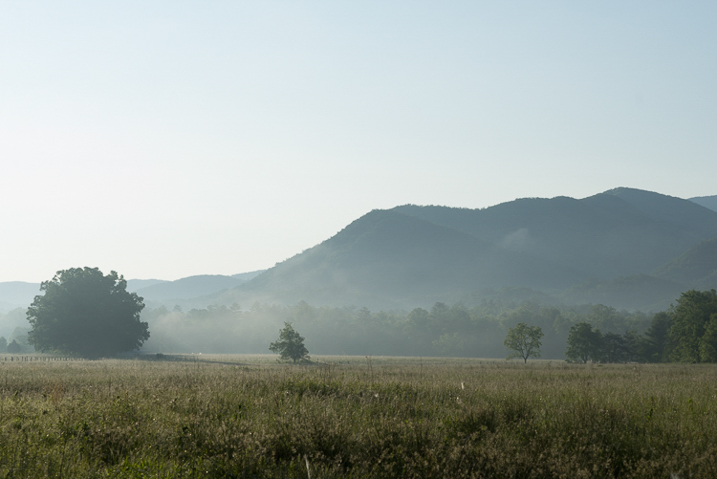
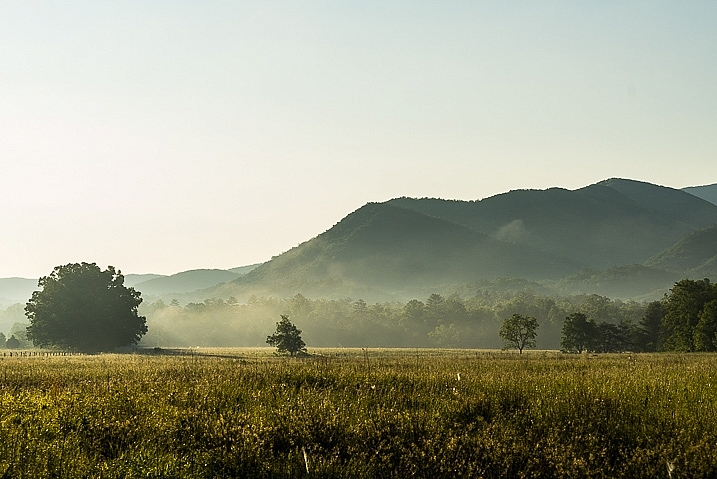
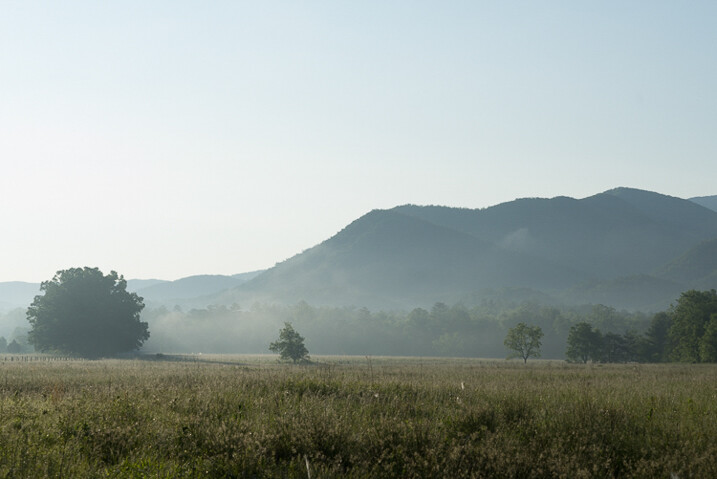
Just as a refresher, let’s go over the steps for creating and saving presets in Lightroom. Here is a original RAW file of a mountain meadow in the early morning mist.

RAW Image

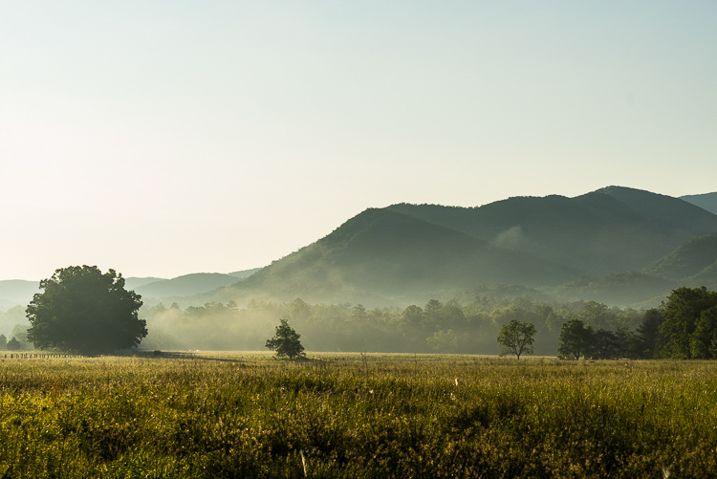
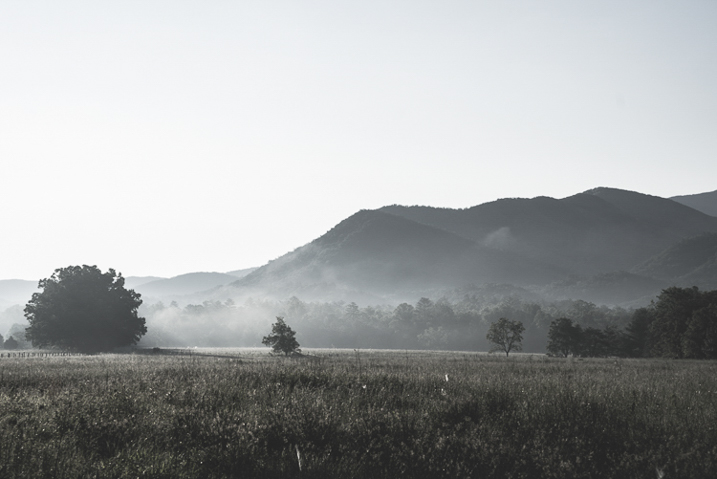
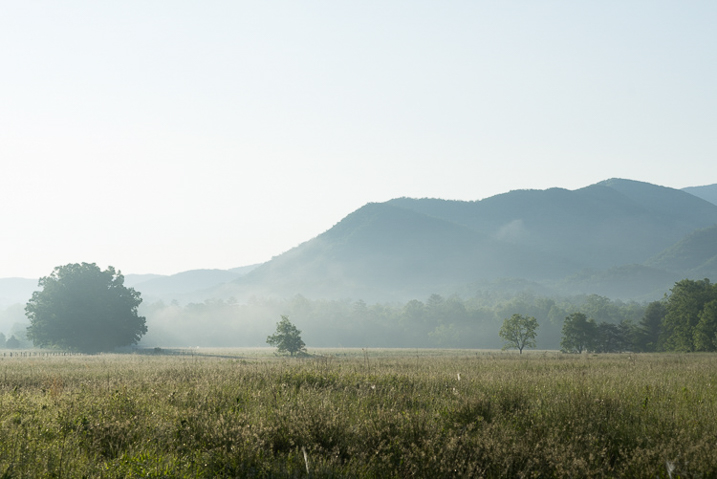
I applied some basic edits to the RAW file which consist of contrast, clarity, whites and shadows, warming, and then finally sharpening to get the following result:

Processed Image

How to save a Preset

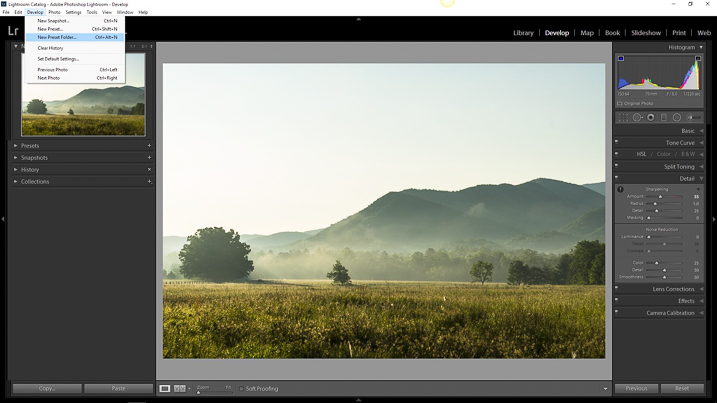
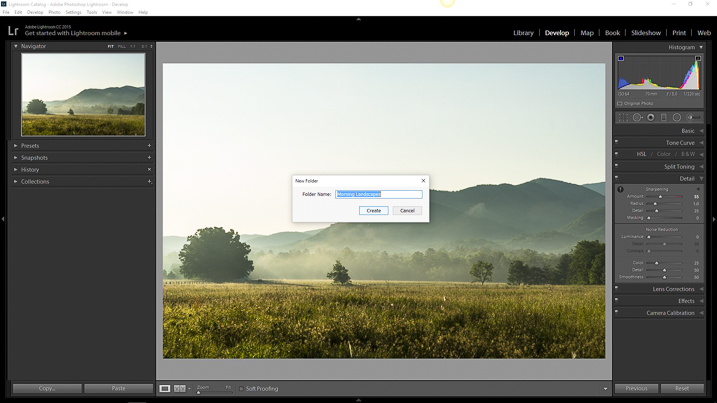
It’s looking decent. Hmmm, if you feel these edits might work for some similar images later, why not make a preset to save some clicking next time? To do this, you must first create a folder to house your presets. Click the Develop dropdown at top left or use the keyboard shortcut Ctrl+Alt+N (Command+Option+N for Mac).

Preset Folder

Then name your freshly minted folder so you can easily locate it later.

Preset Folder Naming

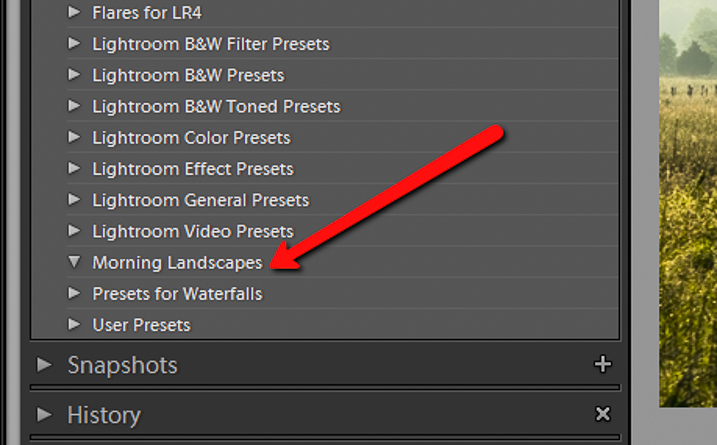
Now you will see your brand new folder appear under the Presets drop down menu.

Preset Folder Location

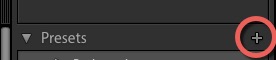
Since you now have a destination for your preset you can go about actually saving the preset itself. To do this, simply go back to the Develop drop down and select New Preset. You can also use the keyboard shortcut Ctrl+Shift+N (Command+Option+N for Mac) or just click the + symbol next to the Presets menu on the left panel (see below). A fairly large dialog box will appear bring along with it a host of options for saving your preset. First things first, come up with a name for your preset and then select the folder you made earlier as the destination.

Save preset

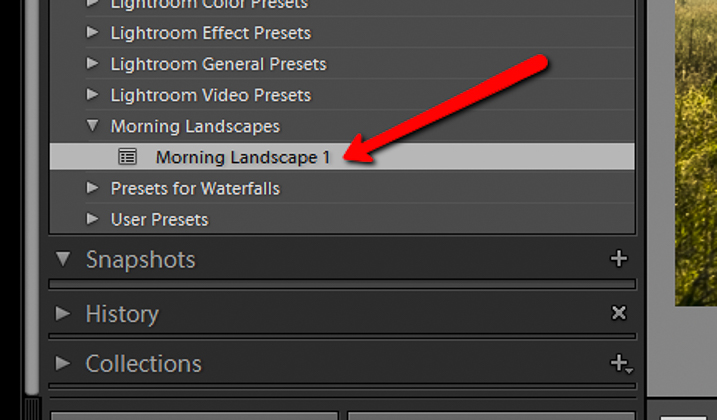
If you leave the Check All option selected, all the edits you made with any of the sliders and filter tools will be saved. Click on Create at the bottom right of the dialog box and viola! You will see your newly created preset appear in the folder to the left.

Preset Location

Preset conflicts

In most Lightroom preset tutorials that would be all you would do. But this isn’t most tutorials. In order to have full control over your presets you have to go a little deeper and that hinges on just how far you are willing to venture down the post-processing rabbit hole.

Here is the final image from which I saved the Morning Landscape 1 preset with the Check All settings applied.

morning_landscape_preset


If I attempt to apply another preset, all of the current settings will be changed to whatever values the new preset dictates. Here is the same image after clicking another preset from my preset library.

Preset Conflict

The problem that arises when you try to combine multiple presets is that you can’t do it without the processing values conflicting and overriding one another. Or can you? Well, yes and no.

Remember, that dialog box asking which edits you wanted to save that appeared earlier while you were making the preset? That dialog box is the key to being able to stack multiple editing presets so you can apply different adjustments without them overriding one another. Let me show you how.

Stacking Lightroom Presets

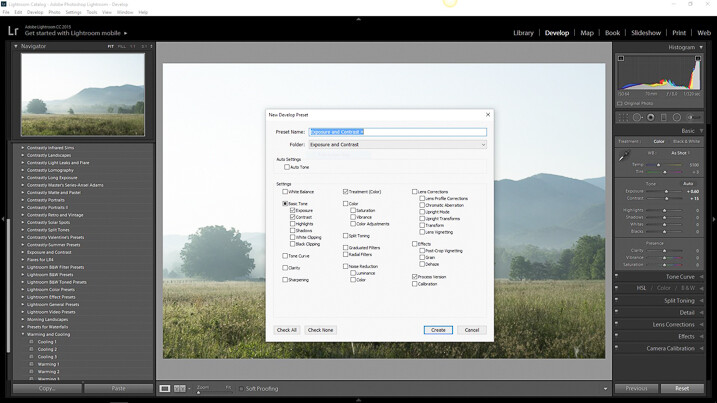
It comes down to which edits you choose to save when creating your preset. Instead of selecting to save each and every adjustment, you can select only the ones you want. This way, you can avoid conflicting edits when you apply multiple presets. That means you can have a preset folder for various Clarity edits, a folder for Contrast and Exposure, a folder for Vignettes, or virtually any combination of any adjustment in Lightroom. Here’s how it’s done.

How to do it

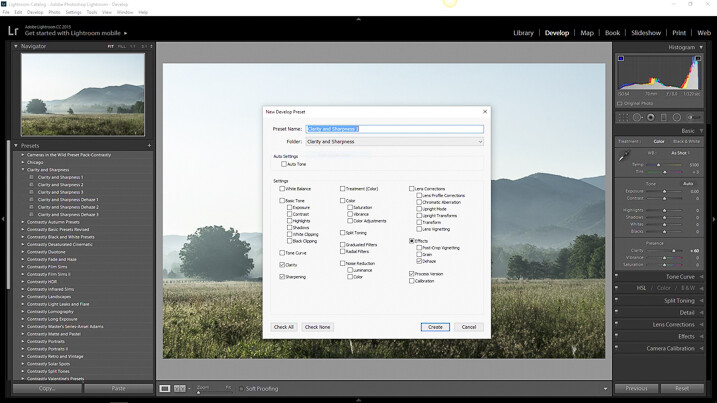
I’ve created a folder called Clarity and Sharpness. This will be where I keep the Sharpness and Clarity (and even Dehaze) adjustments. I then created a folder for Exposure and Contrast and another for warming and cooling effects aptly titled Warming and Cooling.

Each one of these folders contains presets related to their respective edits to varying degrees of intensity. When saving for the Clarity and Sharpness folder click the uncheck all box and then select ONLY the Clarity, Sharpness, and Dehaze boxes. This way, any other edits will be left as they are and only these settings will change once you apply your presets.

Do this with the presets you save for the Exposure and Contrast and Warming and Cooling folders except only check the respective edit boxes to save for each.

Exposure and Contrast Selection

For Exposure and Contrast, select only the relevant boxes as seen here.

Calrity and Sharpness Selection

Do the same for the Clarity and Sharpness folder.

Saving separate presets which only affect certain aspects of your processing will allow a huge range of preset adjustments to be applied without affecting all the other unrelated edits from another preset. Essentially letting you stack one preset on top of another.

Applying the new presets

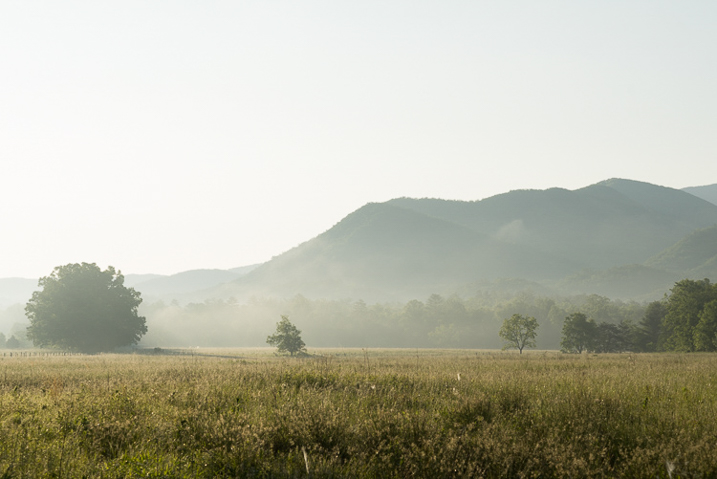
Let’s look at an example. Here is the RAW image again to which we will now apply our selective presets one by one.

RAW Image

RAW image.

First I will apply the Exposure and Contrast + preset.

Exposure and Contrast +

Next, I will add the Warming 2 preset.

Warming 2

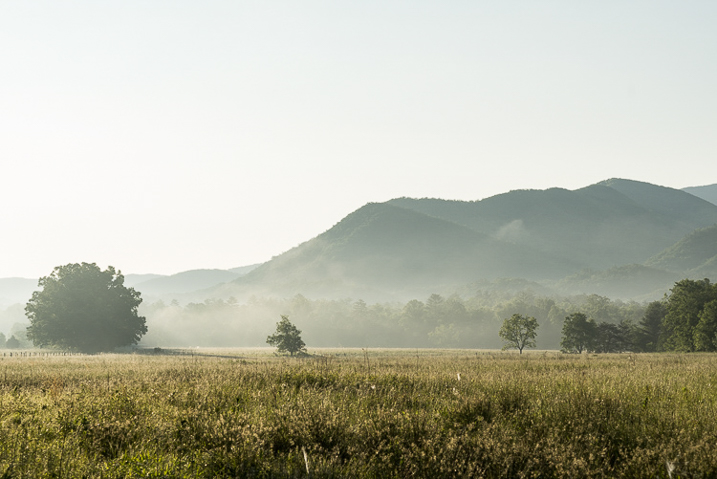
And lastly, I will Sharpen and Clarify the photo with my Clarity and Sharpness Dehaze ++ preset.

Clarity and Sharpness Dehaze 2

Conclusion

By saving your presets in a way which targets only specific edits, you essentially enable yourself to allow the presets to work together. This way, quickly editing your photos becomes much more controllable and streamlined because you can apply different presets in tandem without disrupting the edits applied by each.

This advanced knowledge of creating, saving, and applying Lightroom presets can remove a lot of the headache from your post-processing conundrums. It can give you, for lack of a better word, limitless combinations of adjustment possibilities. What might have taken you an hour’s worth of post-processing can now be reduced to only three or four clicks of your mouse.

While presets might not be a one and done method for editing your photos they can still give you a wonderful starting point to base your more in-depth editing. By being able to apply multiple presets to one image you will have even more of a head start in your processing workflow. Work smarter – not harder.

How do you use Lightroom presets? Please share in the comments below.

googletag.cmd.push(function() {
tablet_slots.push( googletag.defineSlot( “/1005424/_dPSv4_tab-all-article-bottom_(300×250)”, [300, 250], “pb-ad-78623” ).addService( googletag.pubads() ) ); } );

googletag.cmd.push(function() {
mobile_slots.push( googletag.defineSlot( “/1005424/_dPSv4_mob-all-article-bottom_(300×250)”, [300, 250], “pb-ad-78158” ).addService( googletag.pubads() ) ); } );

The post How to Save and Use Stackable Lightroom Presets by Adam Welch appeared first on Digital Photography School.

Digital Photography School

 
Comments Off on How to Save and Use Stackable Lightroom Presets

Posted in Photography


Hands On: RNI All Films 4.0, analog presets for Lightroom and ACR

06 Jul

$ (document).ready(function() { SampleGalleryV2({“containerId”:”embeddedSampleGallery_9248880534″,”galleryId”:”9248880534″,”isEmbeddedWidget”:true,”standalone”:false,”selectedImageIndex”:0,”startInCommentsView”:false,”isMobile”:false}) });

All images in the gallery above were processed using presets from RNI All Films 4.0 – Pro (the duplicate is the un-edited version for comparison). Click through for larger previews and more info on which presets were used.

Really Nice Images has announced RNI All Films 4.0, the latest version of its film simulation presets for Lightroom and Adobe Camera Raw. It will be sold in two versions, Pro and Lite. 

In the full ‘Pro’ version, 58 film stocks are organized into 5 categories including Negative, Slide, Instant, Black & White, and Vintage. And because most film stocks have several versions, in total RNI 4.0 offers more than 300 presets, 170 of which are brand new from the previous release.

Processed using the new ‘Fuji Natura 1600 – 01’ preset.

RNI specifically highlights Fuji Natura 1600, Fuji Velvia 2.0 and Fuji Pro 400H among its new film stocks, but many more have also been added. Furthermore, according to RNI, the vast majority of presets included from previous releases have been fine-tuned or completely reworked for more accurate skin tones and more realistic grain.

RNI’s film simulations are created from analyzing actual film stocks, so if you are an analog purist, this may be the easiest way to dial in the look of some of your favorite films. RNI 4.0 also now features customized camera profiles, with support for most modern digital cameras.

The software also includes RNI 4 Toolkit, a set of presets that allows users to quickly adjust parameters like grain and softness. They’re useful if you are going for a ‘very analog’ look. Though I personally found the Toolkit presets made my images look over-processed. And when working with film presets, there is a fine line between good processing and over-processing.

Once installed, RNI presets will show up in the left-most Lightroom panel. Hovering over a preset will show a quick display in the thumbnail (upper left) of what it will look like once applied.

Of course, there are quite a few companies marketing realistic film emulations and presets. Two of the most popular are VSCO Film and DxO Filmpack. VSCO Film, like RNI All FIlm, is a set of analog-like presets for Lightroom and ACR. However, unlike RNI All Film, VSCO Film is packaged into 8 different packs of presets, sold separately. Each pack goes for $ 59 and includes around 20 film stocks (each film stock has multiple variations, some have up to 10). 

DxO Filmpack 5 on the other hand is both a plugin for LR and ACR and a stand-alone program. It is sold in two editions: the Elite edition is $ 99, the Essential Edition is $ 49. The former includes 120 different ‘styles,’ 80 of which are based off of film. 

RNI All Film 4.0 also comes in two flavors, Pro and Lite. Pro will run you $ 122. The Lite version, which is stripped down and includes a curated selection of presets from the Pro version will cost you $ 59, the same as one VSCO pack. Of course, if you’re upgrading from a previous RNI Pro version, the price is cut in half, same goes if you’re upgrading from a previous RNI Lite version to RNI Lite 4.0.

Processed using the ‘Fuji Fortia SP’ preset. 

I’ve long been a user of VSCO’s film presets, but in just briefly trying out RNI 4.0, I’m eager to keep using it in the future for processing. Most of the actual film stocks (not Toolkit presets) are well-judged and there are plenty to experiment with. Not to mention, RNI 4.0 offers quite a few film stocks not available from the competition.

 You can download All Films 4.0 directly from RNI here.

Articles: Digital Photography Review (dpreview.com)

 
Comments Off on Hands On: RNI All Films 4.0, analog presets for Lightroom and ACR

Posted in Uncategorized


The Beginners Guide to Lightroom Presets

20 Jun

Presets this and Presets that. It’s like the world has gone Lightroom Preset mad of late. Some people hate them, others rave about them! So where do you start? Well, the beginning is best really.

When Lightroom was only a beta program (and for Mac only), one of the big features was that you could make changes to an image in the Develop Module, and save those settings to apply them to another image directly! They didn’t even have to be in the same shoot. (Lightroom organized by shoots then, not folders). Unlike Actions in Photoshop, the setting changes were immediate, and easy to undo. These were the first Presets. While they worked pretty much like Presets today, they weren’t as versatile as they are now.

What are Lightroom Presets

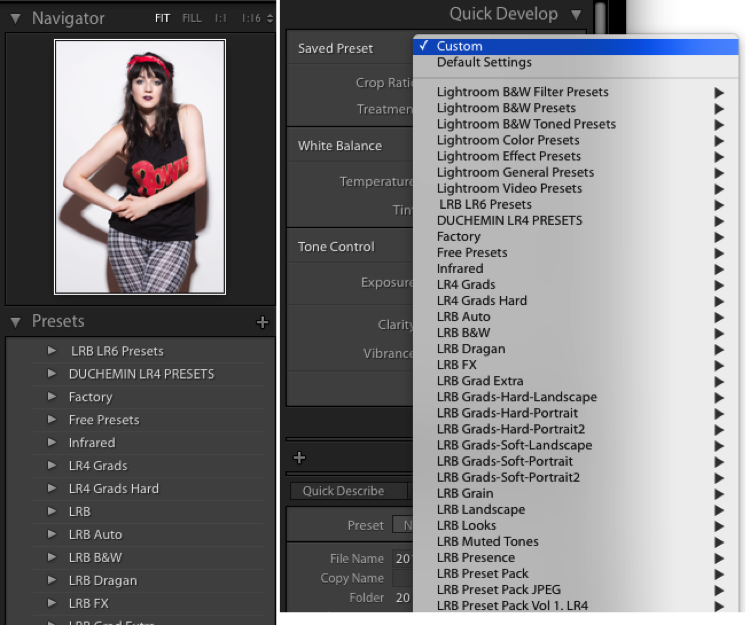
Presets are files that allow Lightroom to apply particular Develop settings to an image. They appear in the Left Panel of the Develop Module in the Presets Panel. They’re also available in a drop down menu in the Quick Develop panel in Library.

Presets1

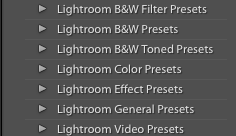
Lightroom ships with a range of Presets, which are stored in folders based on the type of Preset within. This organization suggests a great way to store Presets: organize by what the preset does.

Presets2

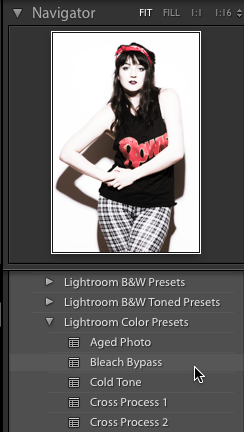
With the Preset and Navigator panels open, hover over one of the default Presets (you may need to click on the folder triangle to open it). You should see the Navigator preview change to show what the preset would do to the image if you click and apply it. Now if only you could make the preview bigger!

Presets3

A preview of the preset will appear in the Navigator window top of the left side panel.

Making your own Presets

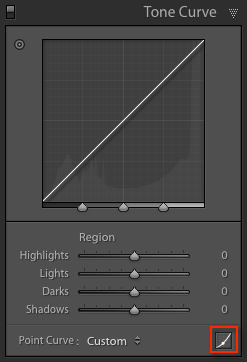
You can get a handle on Presets by making them, exporting them, sharing them, and even importing Presets from other people. First you need to make changes to your image to be able to save a preset. You could start with a Tone Curve adjustment. First, go to the Tone Curve panel, and click on the Point Curve icon (indicated with the red box).

Presets4

Next, click about one third of the way from the bottom. Finally, click the square point on the bottom right of the box, then drag it up while holding the Shift key. The blacks in your image will fade to give a nice retro, matte-finish look. You can see the difference by pressing the Y key to see a before and after view.

Presets5

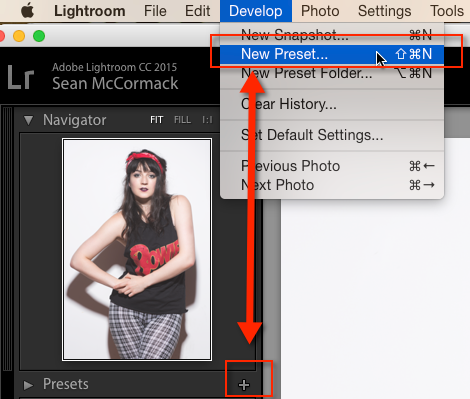
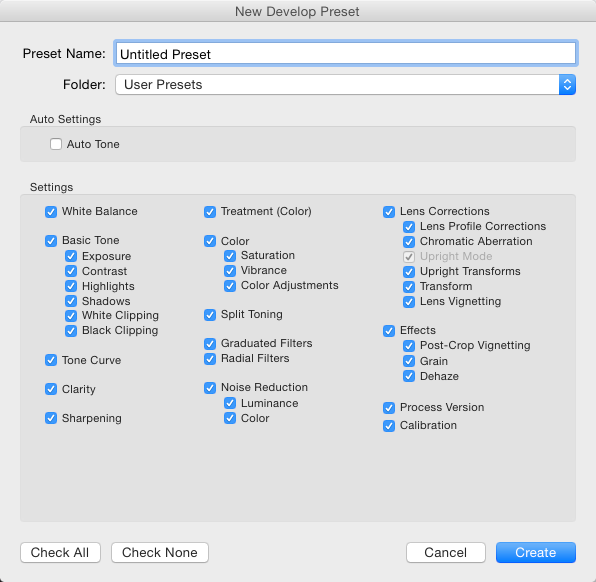
To save this look to use again, go over to the Presets panel and click the plus (+) in the panel header. You can also choose New Preset in the Develop menu or use the keyboard shortcut: Shift + Control + N on PC, or Shift + Command + N on Mac. This opens the New Develop Preset dialog box, where you save your settings.

Presets6

This is a good time to talk about what to include when you save your Presets. You can just save everything into the Preset (which is the default). There’s no harm in that, but generally it means the preset will only work on images that look similar to the one you started with. It also means that preset will overwrite all develop settings in the image, so any other work you’ve done to the image will be lost.

Presets7

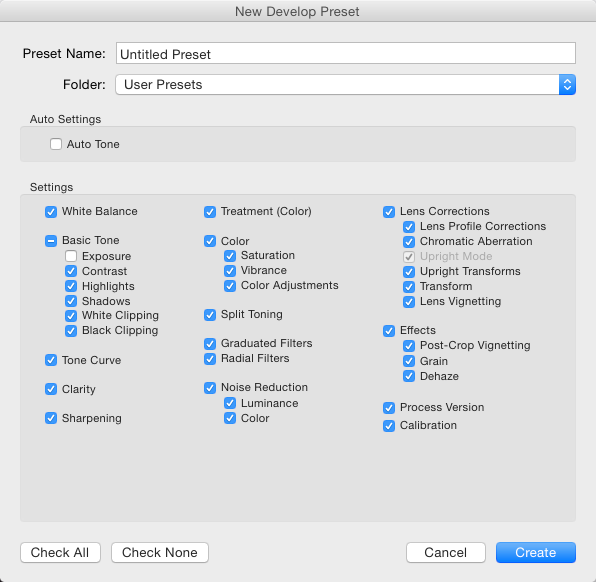
But, there is a better way. The second option (besides saving all settings) is you exclude Exposure from your preset. This means any changes to the apparent brightness of the image you made remain intact. That’s a win straight away.

Beginners Lightroom Presets8

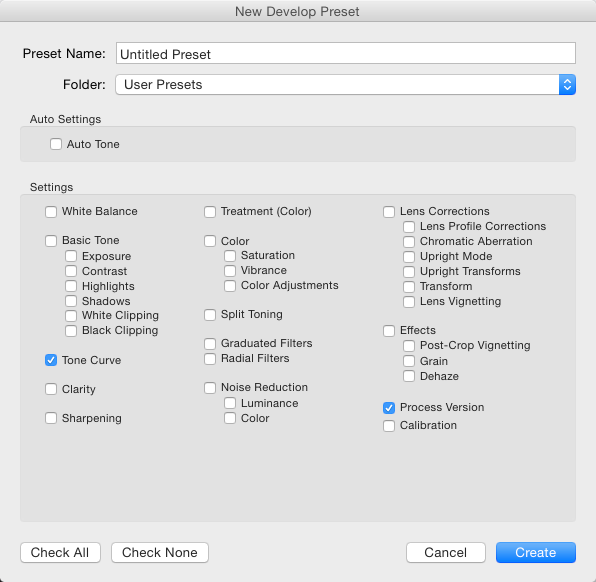
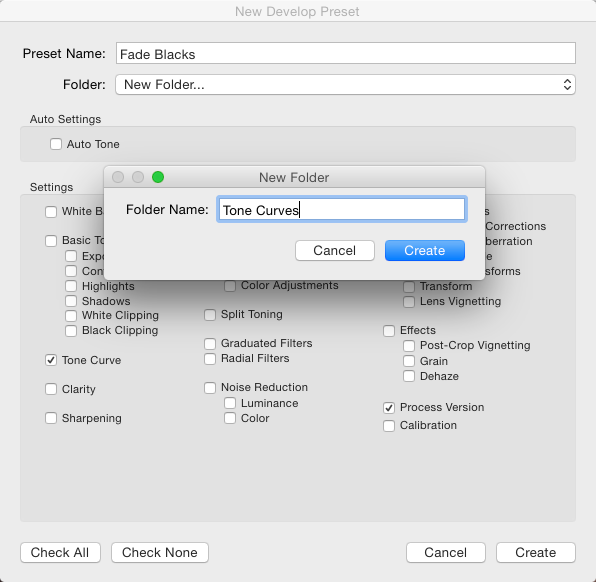
The third option you have, is to save only the settings that are making the change to the images. You’ve just used the Tone Curve here, so you could press the Check None button, and then tick Tone Curve, followed by Process Version – it’s best to always include that last one so that all the other settings apply correctly.

Beginners Lightroom Presets 9

For organization, you could also create create a new Folder for these Presets. To do that, click the Folder menu and choose New Folder at the top of the menu. Name the Folder Tone Curves. Finally, you can give the Preset a useable name. While flowery names might work for selling your Presets as artsy product, in reality, you’re better off using a name that reminds you what the Presets does. You could use Fade Blacks, or Lighten Blacks, for this one.

Beginners Lightroom Presets 10

Applying the preset to other images

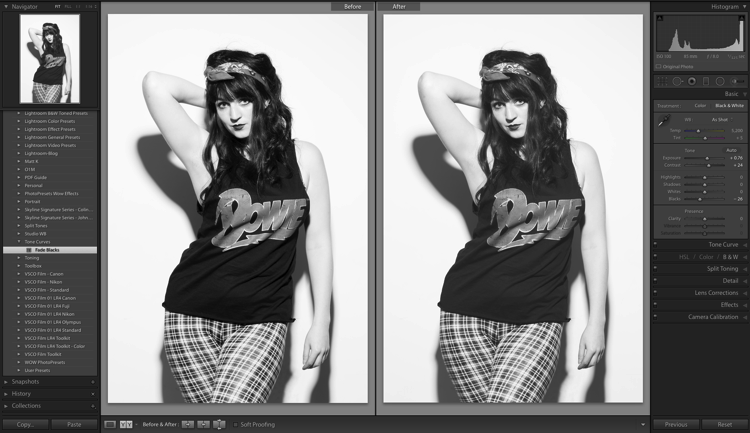
This Preset can now be applied to any other image. You could test with an image that has other settings already applied, like a black and white photo for example. Notice how the image remains black and whie after applying the Preset? If you’d saved everything into the preset, the image would’ve turned back into color, because one of the options selected was the B&W Treatment.

Beginners Lightroom Presets 11

Sharing the preset with others

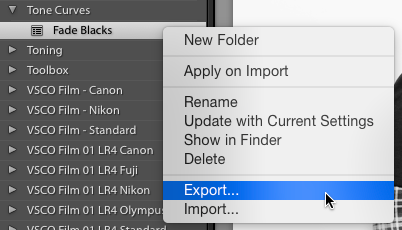
You can also share this Preset by right clicking on it, and choosing Export. Notice that you can also choose Import from here (as well as Apply on Import) which is how you also get shared, or purchased Presets, into Lightroom. Apply on Import is different, and refers to when images are being Imported into Lightroom, selecting that will change the settings on each photo brought into Lightroom automatically. Also in this menu is, Update with Current Settings. This allows you to make changes to your settings, then save them to an existing preset instead of making a new one.

Beginners Lightroom Presets 12

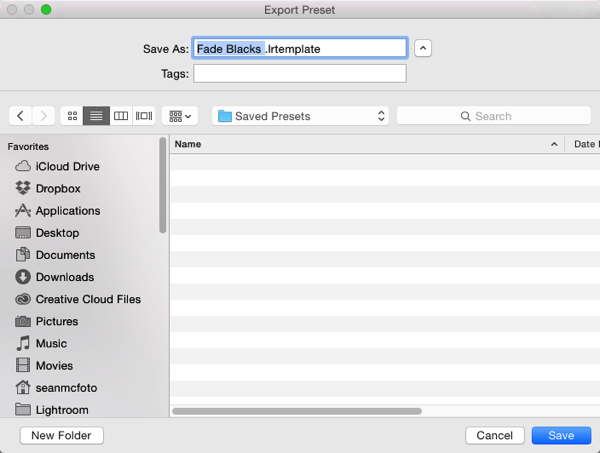
Back to Export: When you click Export, you get an OS Save window. The suggested filename will be the name you gave the preset, followed by ‘.lrtemplate’, which is the required file extension for Presets. Save them somewhere useful, like a folder called Saved Presets.

Beginners Lightroom Presets 13

Where are your Presets stored?

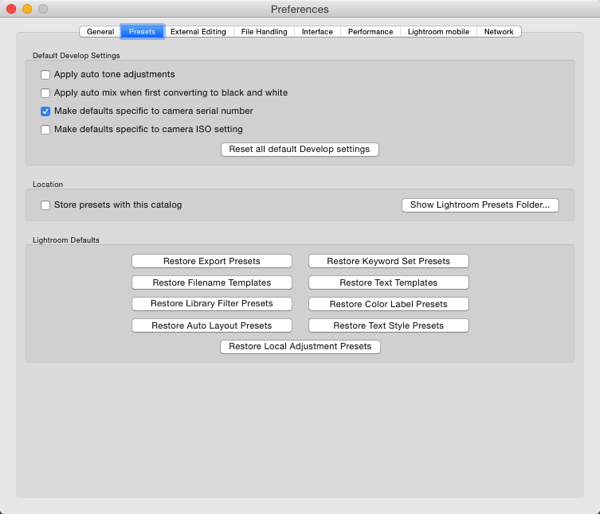
You might be wondering where the Presets you haven’t exported are stored. Fortunately Lightroom does allow you access to them. You can get to them by opening Lightroom Preferences (which you’ll find in the Edit menu on PC, and the Lightroom menu on Mac). Click the Presets tab (in blue below) when the Preferences box opens. In the middle is a button that says Show Lightroom Presets Folder. If you click that a folder will open, with a subfolder called Lightroom selected. Open that folder to see all of Lightroom’s Presets and Templates folders for Develop, Slideshow, etc. The one you want is called Develop Presets.

If you have a lot of downloaded or purchased Presets to add to Lightroom, it is quicker to open this folder, drag the new Presets into it (preferably in their own folder for organization) and then restart Lightroom to load them. Another way to get to a Preset is to use the Show in Finder/Explorer option from that right click menu earlier.

Beginners Lightroom Presets 14

The last thing worth a mention in this article is the Store presets with this catalog checkbox. This does what is says, but the practical reality is that it means if you then use another catalog, you don’t have access to your Presets. So in general I recommend not using that option.

Hopefully now you know a lot more about Lightroom Presets than when you started. If you have any questions or comments please share them below.

googletag.cmd.push(function() {
tablet_slots.push( googletag.defineSlot( “/1005424/_dPSv4_tab-all-article-bottom_(300×250)”, [300, 250], “pb-ad-78623” ).addService( googletag.pubads() ) ); } );

googletag.cmd.push(function() {
mobile_slots.push( googletag.defineSlot( “/1005424/_dPSv4_mob-all-article-bottom_(300×250)”, [300, 250], “pb-ad-78158” ).addService( googletag.pubads() ) ); } );

The post The Beginners Guide to Lightroom Presets by Sean McCormack appeared first on Digital Photography School.

Digital Photography School

 
Comments Off on The Beginners Guide to Lightroom Presets

Posted in Photography


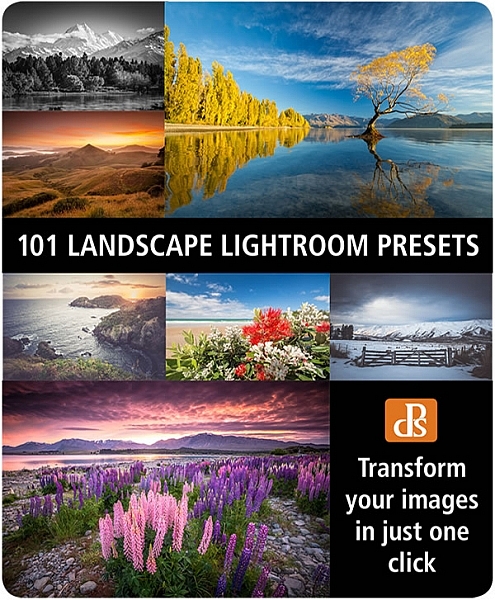
The Winner of $1000 from our 101 Landscape Lightroom Presets Competition is….

19 Jun

Recently we launched 101 Landscape Lightroom Presets product. As part of the launch we put everyone who purchased a copy into the draw to win $ 1000 in camera gear. Those who purchased the bundle (101 Lightroom Presets and 101 Landscape Lightroom Presets) received 2 entries.

The winner of this competition is Terrence Jones

Congratulations – we’ve just emailed you with details of how we’ll get you your prize and can’t wait to see what you buy!

landscape-lightroom-presets

Thanks everyone else for picking up a copy of the the presets packs – we’ve received some amazing feedback and appreciate you supporting dPS with your purchase.

googletag.cmd.push(function() {
tablet_slots.push( googletag.defineSlot( “/1005424/_dPSv4_tab-all-article-bottom_(300×250)”, [300, 250], “pb-ad-78623” ).addService( googletag.pubads() ) ); } );

googletag.cmd.push(function() {
mobile_slots.push( googletag.defineSlot( “/1005424/_dPSv4_mob-all-article-bottom_(300×250)”, [300, 250], “pb-ad-78158” ).addService( googletag.pubads() ) ); } );

The post The Winner of $ 1000 from our 101 Landscape Lightroom Presets Competition is…. by Darlene Hildebrandt appeared first on Digital Photography School.

Digital Photography School

 
Comments Off on The Winner of $1000 from our 101 Landscape Lightroom Presets Competition is….
Posted in Photography