RSS
 

Posts Tagged ‘Photoshop’

You Won’t Believe It’s Not Photoshop: 36 Fake-Looking Photos

18 Aug

[ By SA Rogers in Art & Photography & Video. ]

not shopped main

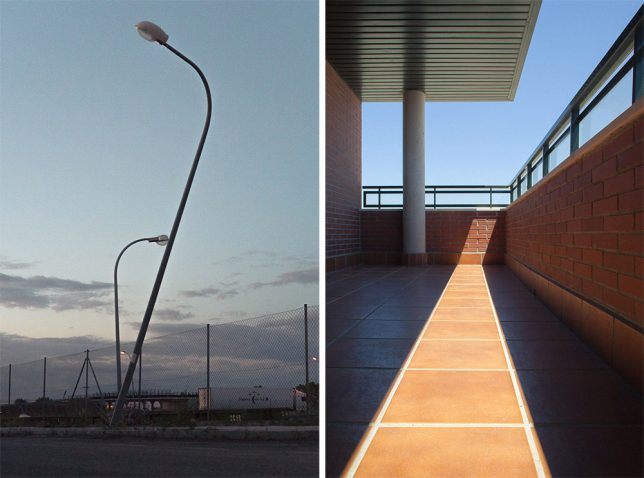
The very existence of Photoshop has made it easy to immediately dismiss impossible-looking images as digitally altered, but some bizarre scenes are more real than they appear. Anything from a particularly alien-like landscape to a rare cloud formation can provoke cries of ‘Photoshop!,’ but it’s particularly impressive when these illusions are created through art, with the help of mirrors, acrobatic models, trick perspective and serendipitous timing.

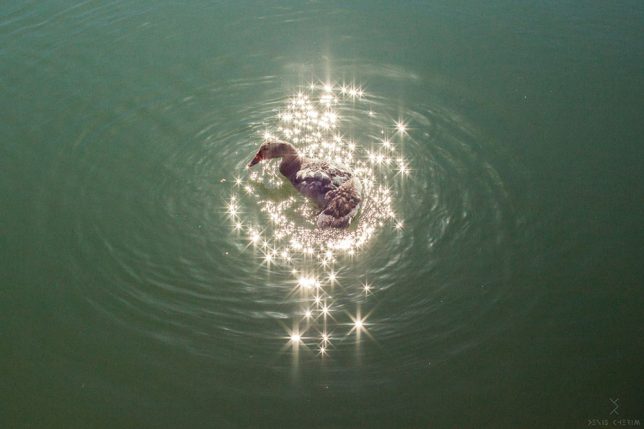
Coincidence Project by Denis Cherim

not shopped cherim 8

not shopped cherim 9

not shopped cherim 10

not shopped cherim 11

not shopped cherim 12

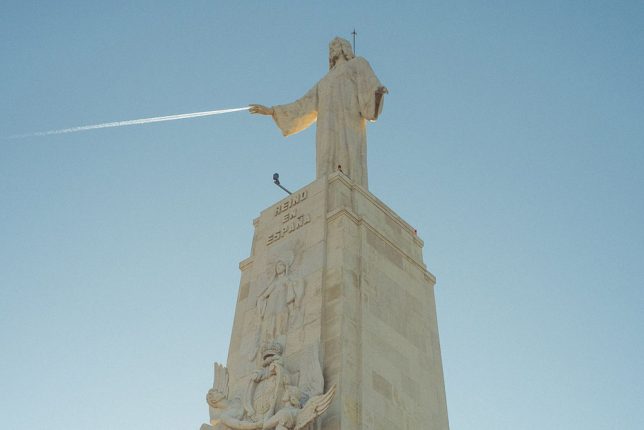
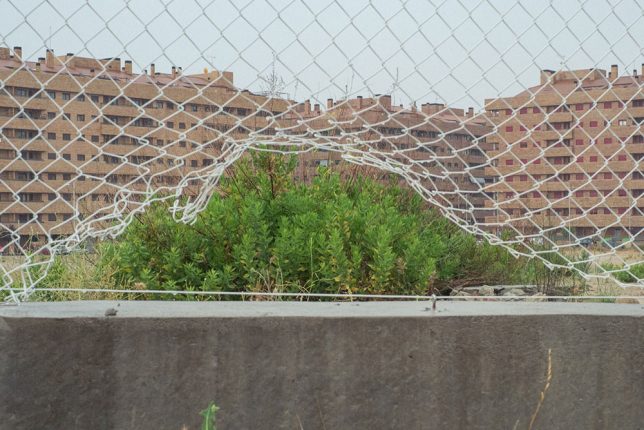
The almost too-coincidental-to-be-real photography of Denis Cherim relies on the patience to wait for exactly the right moment, when various elements of a scene come together in just the right way. His series ‘The Coincidence Project’ sees ordinary scenes from new perspectives, moving to particular vantage points to encourage serendipitous alignments.

Gravity-Defying Performances by Li Wei
not shopped li wei 20

not shopped li wei 21

not shopped li wei 22

not shopped li wei 23

not shopped li wei 24
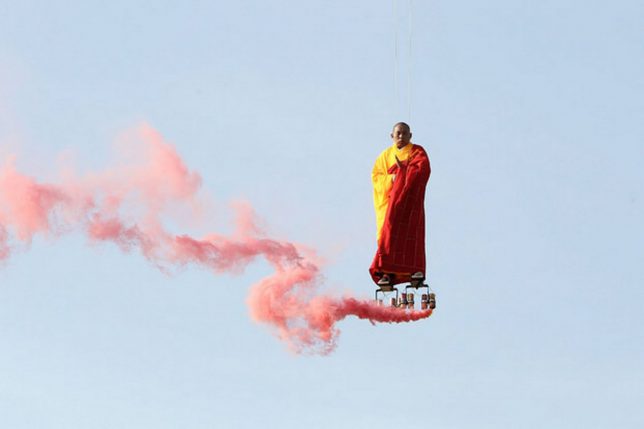
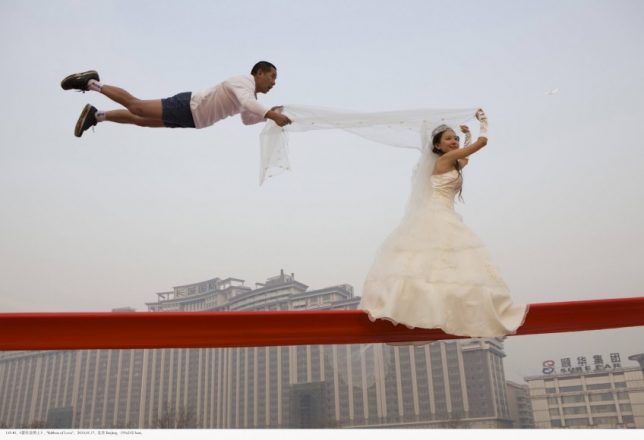
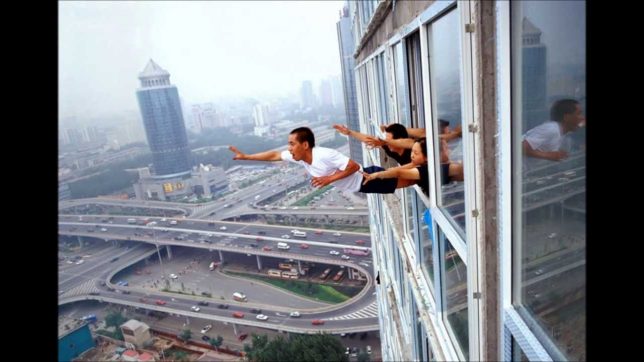
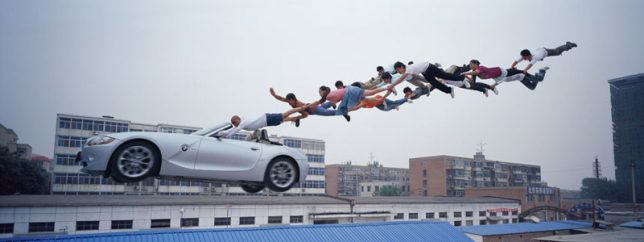
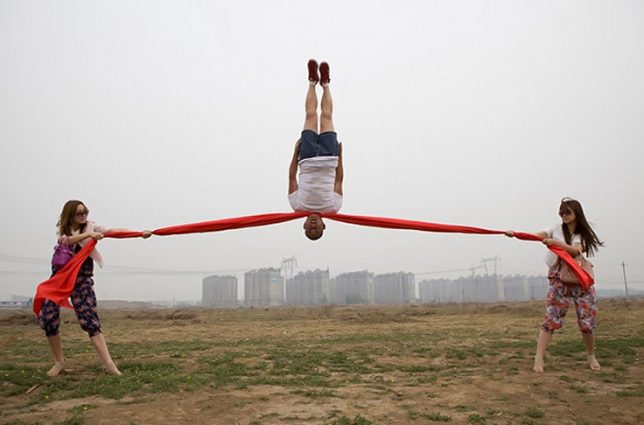
How can there possibly not be any photo manipulation going on in images where people are floating in mid-air? Li Wei’s particular blend of photography and performance art uses the strength of his subjects – including no small amount of acrobatics – along with invisible props and mirrors to create scenes that aren’t exactly as they appear.

Surreal Scenes by Sandy Skoglund

not shopped skoglund 1

not shopped skoglund 2

not shopped skoglund 3

not shopped skoglund 4

not shopped skoglund 5

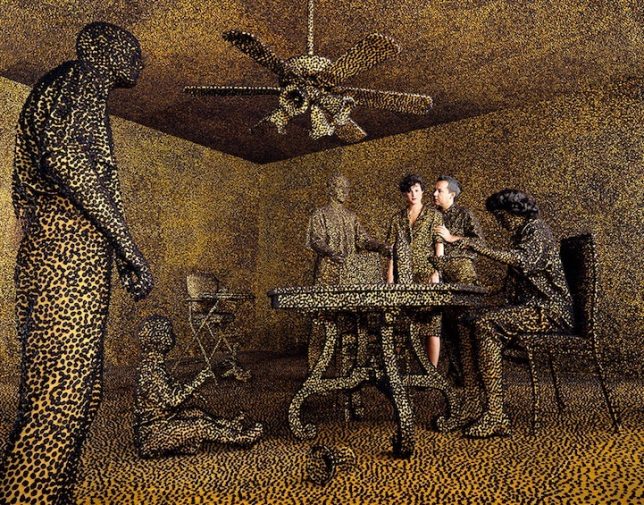
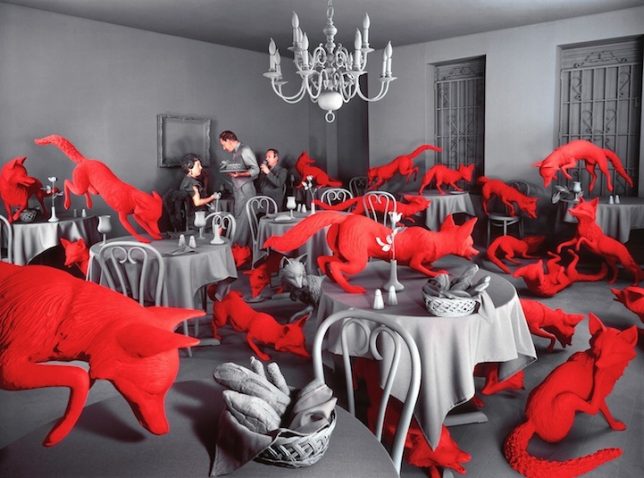
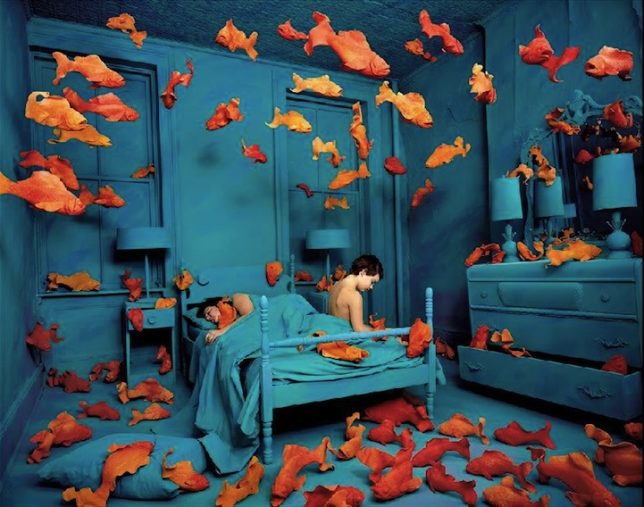
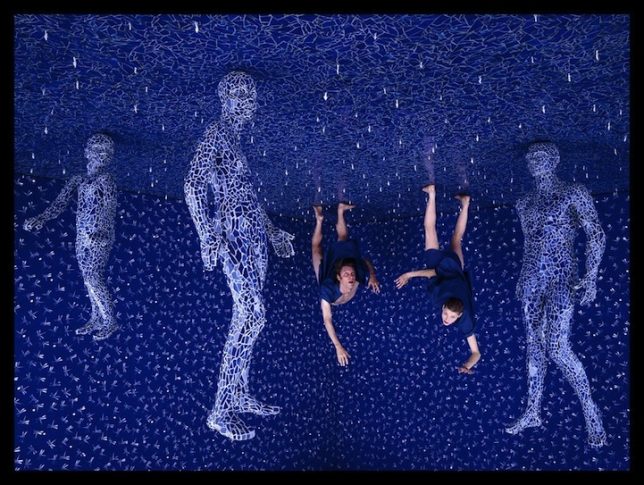
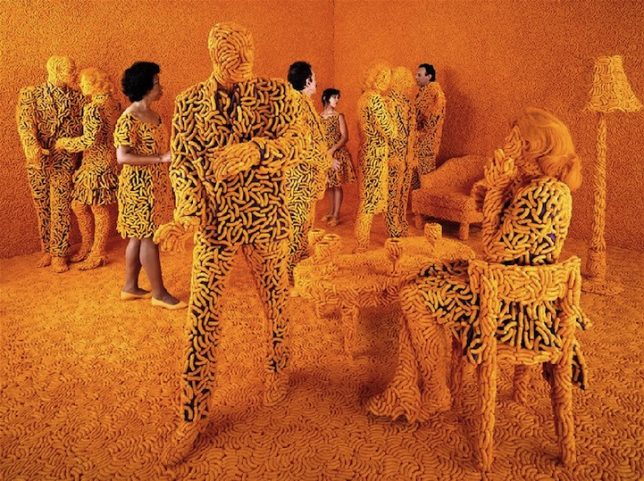
Fish fly through blue-toned bedrooms, foxes take over dining rooms and people hang from ceilings in dreamlike scenes by artist Sandy Skoglund, who spends months building each elaborate set. Favoring vivid color schemes, Skoglund mixes her hand-made sets and inanimate figures with live human models and takes photographs of the resulting contrasts.

Toy Dinosaur Travel Shots by Jorge Saenz

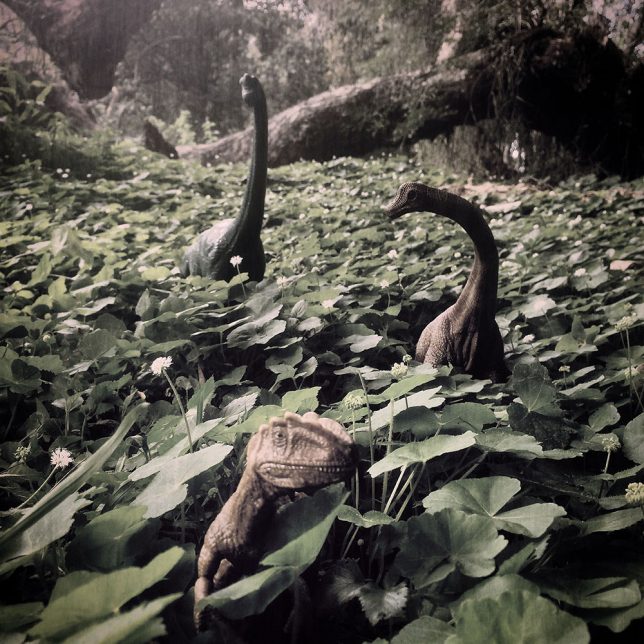
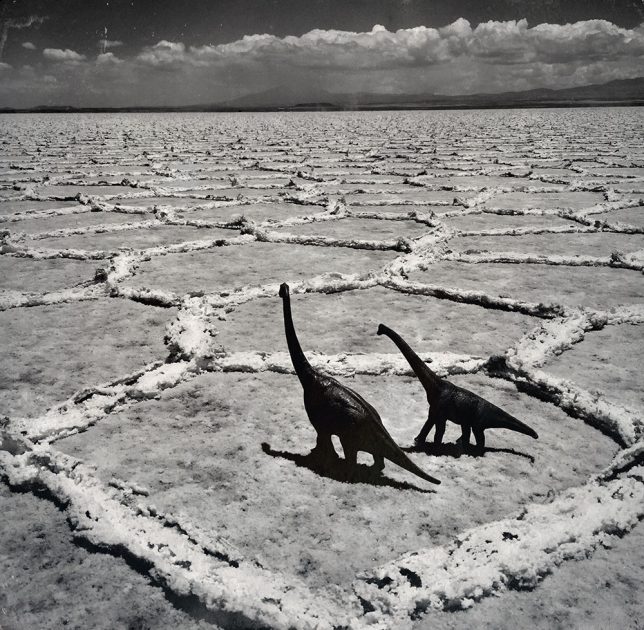
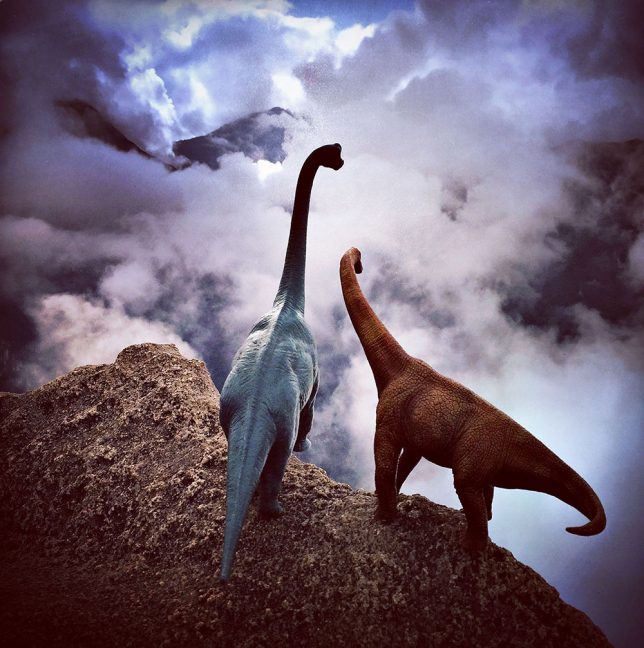
What look like screenshots from an old stop-motion animation dinosaur movie are actually just toy dinosaurs artfully placed within landscapes by photographer Jorge Saenz. His ‘#dinodinaseries’ project makes the figurines appear larger than life, sometimes looking surprisingly real in their incongruous modern-day settings.

Mirror Landscapes by Guillame Amat

not shopped amat 13

not shopped amat 14

not shopped amat 16

not shopped amat 18

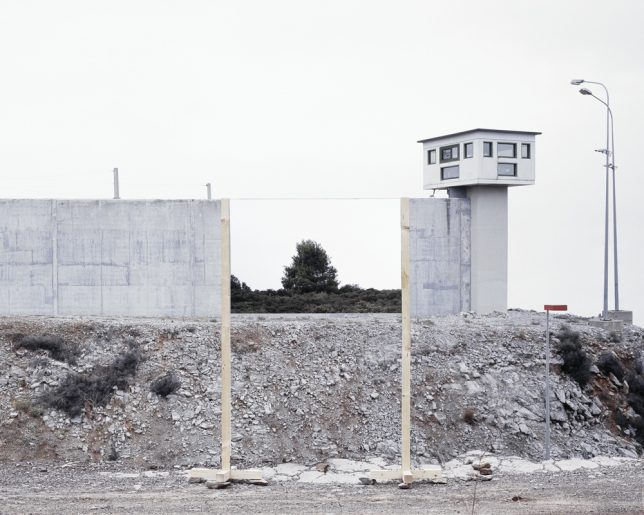
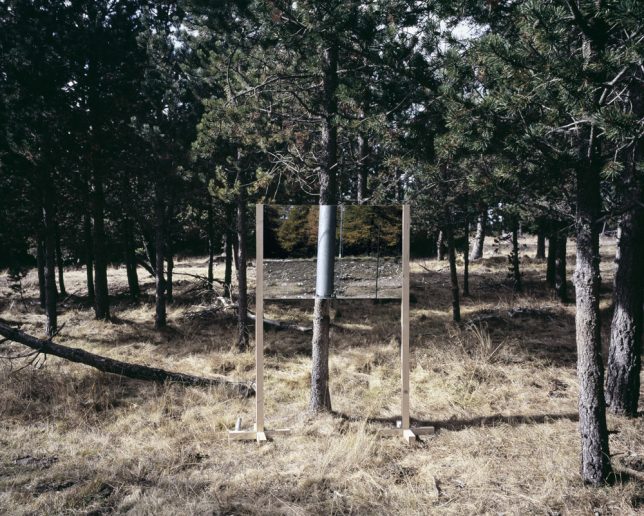
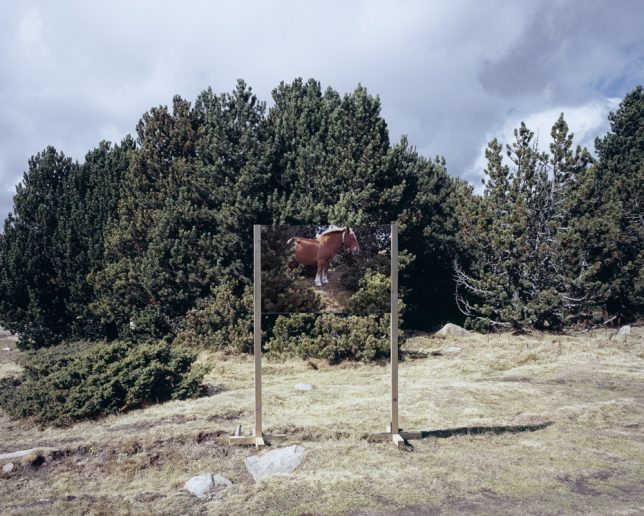
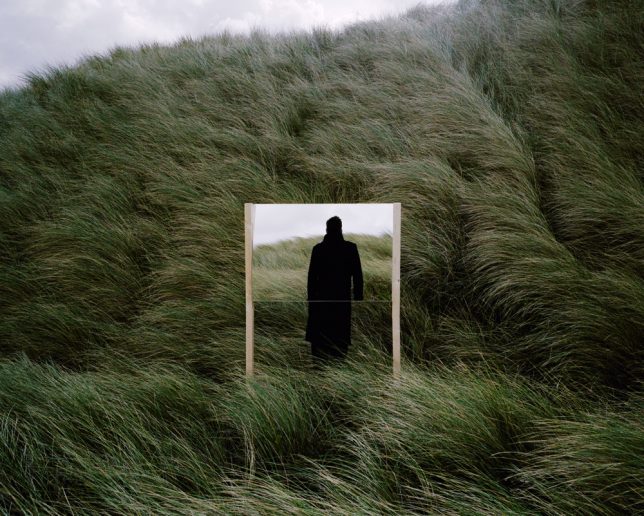
Mirrors seem to offer portals into a slightly different reality in Guillaume Amat’s ‘Open Fields’ project, which carefully places a reflective stand in various landscapes. The reflections almost blend into the scene, but not quite – leading to images that are inaccurate renderings of the setting, but in such a subtle way it can take a moment to realize what’s wrong with the picture.

Next Page – Click Below to Read More:
You Wont Believe Its Not Photoshop 36 Fake Looking Photos

Share on Facebook


[ By SA Rogers in Art & Photography & Video. ]

[ WebUrbanist | Archives | Galleries | Privacy | TOS ]


WebUrbanist

 
Comments Off on You Won’t Believe It’s Not Photoshop: 36 Fake-Looking Photos

Posted in Creativity


How to Use Smart Objects in Photoshop

17 Aug

We have all felt the frustration of editing an image either in Lightroom or Adobe Camera Raw (ACR), only to remember that we forgot to adjust the white balance, or tweak the sharpening after we’ve spent hours of editing the image in Photoshop. If this has happened to you, let me introduce to you to something called a Smart Object.

Smart Objects give you greater flexibility in your editing workflow inside Photoshop. You can create a Smart Object when opening your image from Lightroom or ACR into Photoshop, and you can also create Smart Objects later on in your editing process, which can be very helpful – especially when you are applying a sharpening (or other) filter.

Smart Object

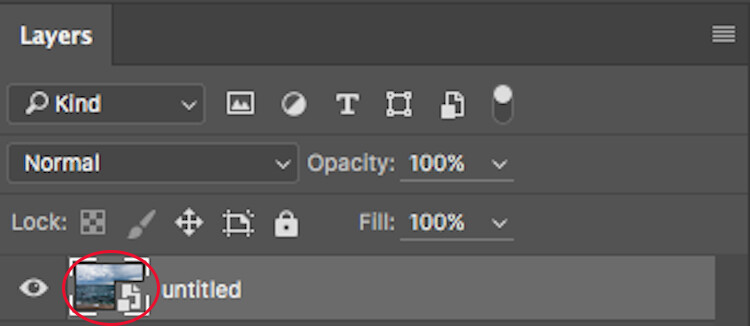
The icon over the preview of the layer indicates that this is a Smart Object.

So, what does a Smart Object do?

Smart Objects preserve an image’s source content with all its original characteristics, enabling you to perform nondestructive editing to the layer. When opening an image in Photoshop as a Smart Object, you have the ability to double-click the background layer (the base layer) which will open the image in ACR with all the adjustments you previously made, and enable you to make any alterations to the image. These alterations will then be pushed through to the image open in Photoshop.

So for example, say you adjusted an image in ACR and then opened it in Photoshop. After editing the image, you decide that the colour temperature is a little off. If you opened the image in Photoshop without it being a Smart Object, you would have to re-edit the image in Lightroom or ACR, then re-open the image in Photoshop, and finally, move any of the adjustments layers across to the new image. But if it were opened as a Smart Object, all you would need to do is double-click the background layer, make any of the desired adjustments in ACR and you’re done. The Smart Object will update in Photoshop and you can carry on.

Another way Smart Objects can help you is when applying a filter, such as Unsharp Masks or High Pass filters. By creating a Smart Object to apply these filters you will be able to double-click and adjust whichever filter has been applied.

How to Create a Smart Object

In Lightroom:

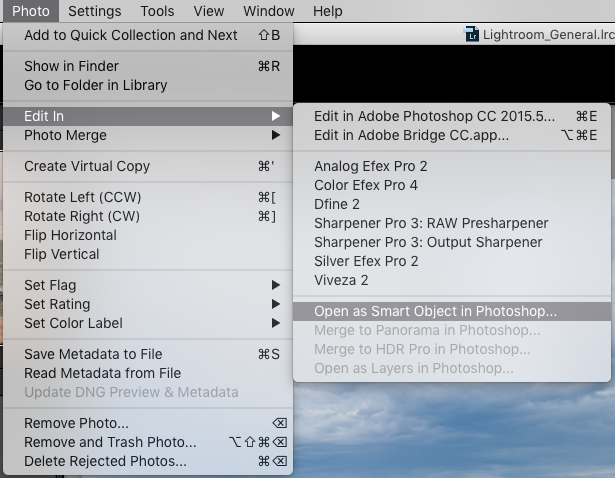
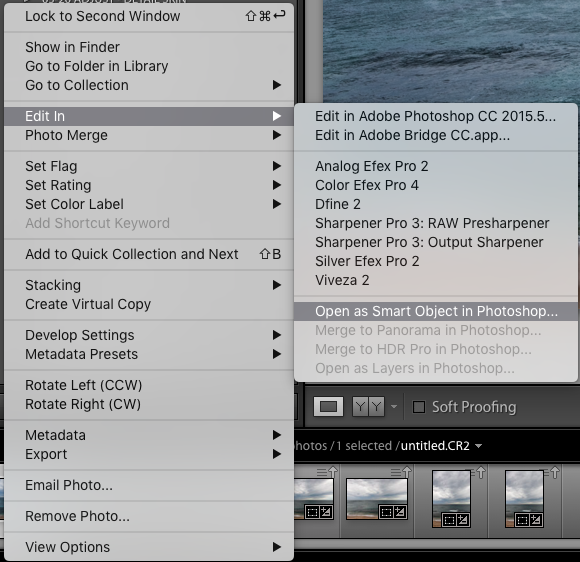
Inside Lightroom (with your image selected) go to the top menu and click: Photo > Edit In > Open as Smart Object in Photoshop… (see below)

Lightroom-Create 1

OR Right click on the image you want to open in Photoshop. Then select Edit In > Open as Smart Object in Photoshop…

Lightroom-Create 2

Through Adobe Camera Raw:

At the bottom of the ACR window you will see something like this:

ACR Create-1

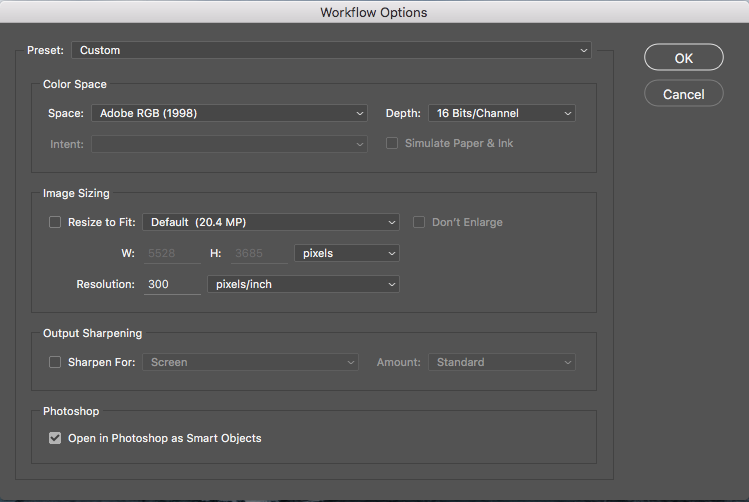
Clicking on this will open this dialog box. Make sure you have the Open in Photoshop as Smart Objects box checked. If you do not wish to do this (it is set as a default), you can also hold down the Shift key and the Open Image button will change to Open Object at the bottom right of the screen.

ACR Create

These are the two methods for creating a Smart Object before being opened in Photoshop. But what if you want to create one after you have already made adjustments? To do this, follow these steps:

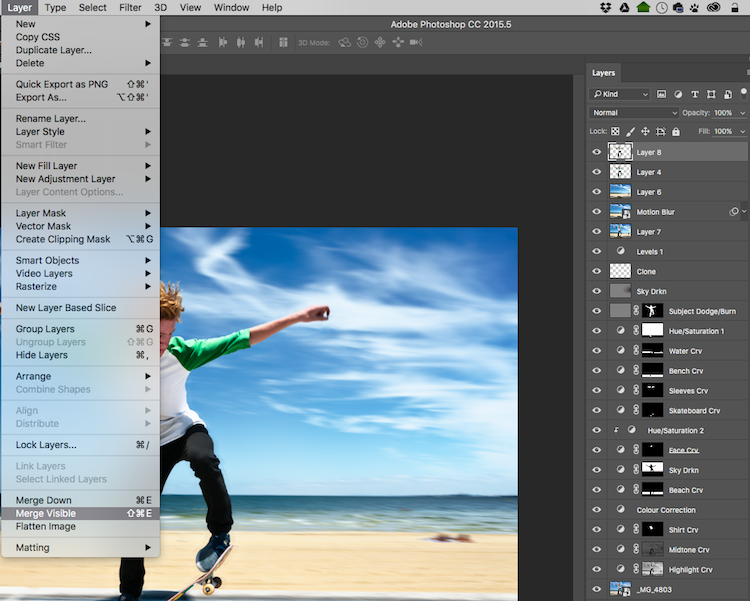
Step 1: You need to create a new layer with all the adjustment layers combined (stamped) into that one layer – but you don’t want to flatten the image. To do this, select the top visible layer (visible layers are denoted by the eye icon directly next to them), hold down the Option/Alt key, and select Layer > Merge Visible. Or you can use the keyboard shortcut: Then do one of the following: Press Shift+Ctrl+Alt+E (Windows) or Shift+Command+Option+E (Mac).

Photoshop will create a new layer containing the merged layers. So you will now have a layer at the top of your Layers panel which has all the visible adjustments made below, stamped into it (the rest will remain untouched).

With the top visible layer selected, go Layer > Merge Visible.

With the top visible layer selected, hold the Alt/Option key down, and select Layer > Merge Visible.

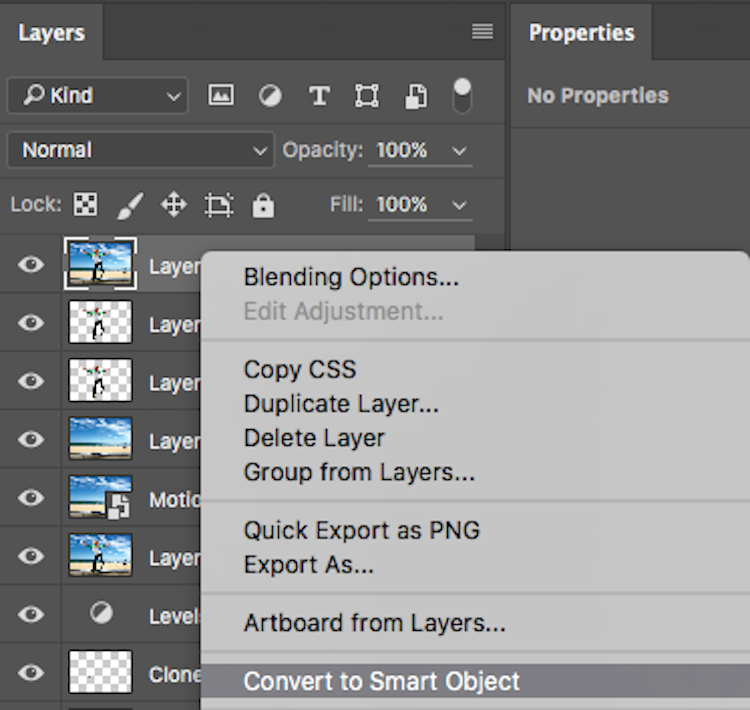
Step 2: With this new top layer selected, right-click and choose Convert to Smart Object. Now any adjustments you apply to this layer such as; motion blur, gaussian blur, any sharpening, etc., you will be able to alter again later by double-clicking on the Smart Object.

Convert to Smart Object

Creating Smart Objects is that simple, and the flexibility they give you is tremendous!

A couple of things to know about Smart Objects:

If you do not open the image in Photoshop as a Smart Object, creating a Smart Object in Photoshop will not give you the same editing abilities. If you want these editing abilities on your background layer, you must open it as a Smart Object.

Next, if you have made adjustment layers with masks applied to them, I would highly suggest that you do not crop the image through the Smart Object. This will crop the background image (your base image) and any masks that you have will not adjust to the new crop so you will have to go do your masking again. I would recommend doing any cropping before opening in Photoshop, or after you are finished in Photoshop.

Don’t be scared of Smart Objects. They are dead easy to make, and offer a massive amount of flexibility. Do you use Smart Objects? Have they helped you in your editing workflow? Let us know in the comments below.

googletag.cmd.push(function() {
tablet_slots.push( googletag.defineSlot( “/1005424/_dPSv4_tab-all-article-bottom_(300×250)”, [300, 250], “pb-ad-78623” ).addService( googletag.pubads() ) ); } );

googletag.cmd.push(function() {
mobile_slots.push( googletag.defineSlot( “/1005424/_dPSv4_mob-all-article-bottom_(300×250)”, [300, 250], “pb-ad-78158” ).addService( googletag.pubads() ) ); } );

The post How to Use Smart Objects in Photoshop by Daniel Smith appeared first on Digital Photography School.


Digital Photography School

 
Comments Off on How to Use Smart Objects in Photoshop

Posted in Photography


Photoshop CC 2015.5.1 available

09 Aug
Photoshop CC 2015.5 introduced tools like content-aware crop, seen here.

Adobe released Photoshop CC 2015.5 in June, introducing features like content-aware crop and aiming to enhance the program’s performance. Now the company has released 2015.5.1, resolving a number of customer-reported bugs. Photoshop CC customers can download the update as of now by opening the program and navigating to Help > Updates.

Customer reported issues resolved

  • Fixed customer submitted crashing issues
  • Subtool reverts to primary tool after using keyboard shortcut
  • Unable to Export individual layers that are nested in Artboard > Group
  • “Rasterize EPS Format” dialogue box doesn’t remember Mode setting
  • Embed color profile result reflects whatever it was set last time
  • Text accidentally commits when try to transform Paragraph text using bounding box transform handles
  • Cursor doesn’t correctly change to Commit cursor to differentiate from Rotate and Move cursor
  • Print color is off when using App Manage Color (Mac only)
  • Error: “Could not apply the workspace because the file was not found” when opening a file

Several fixes and improvements for Select and Mask:

  • Select and Mask: Command not available on non-pixel layer masks
  • Select and Mask: Refine Edge Brush Tool creating artifacts along the brush stroke in mask
  • Select and Mask: Redraw corruption (RGB 16bit/32 bit) with Show Original in certain zoom levels (preview mode “black and white”)
  • Select and Mask: Using the Refine edge brush on one area of a pre-existing selection may cause certain hard edges in another area to change a few pixel values, especially when the image is in very high resolution
  • Select and Mask: Using brush tool with feather 8 or more and zoom level 50 or lower get redraw issue
  • Select and Mask: With a selection, the output defaults to selection, even if the previous output setting was a mask
  • Select and Mask: Inverting a selection outputs the original selection
  • Select and Mask: Crash when double-clicking adjustment mask
  • Select and Mask: Program error when image is multi-channel

Articles: Digital Photography Review (dpreview.com)

 
Comments Off on Photoshop CC 2015.5.1 available

Posted in Uncategorized


How to Use Adobe Camera Raw and Photoshop to Make Your Landscape Images Pop

02 Aug

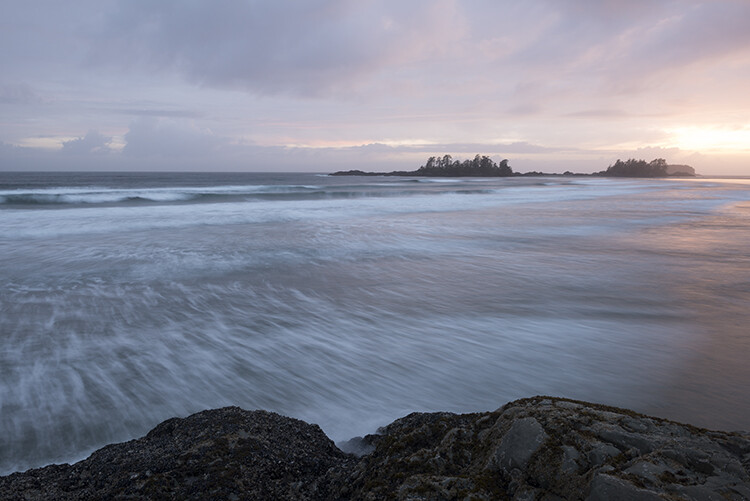
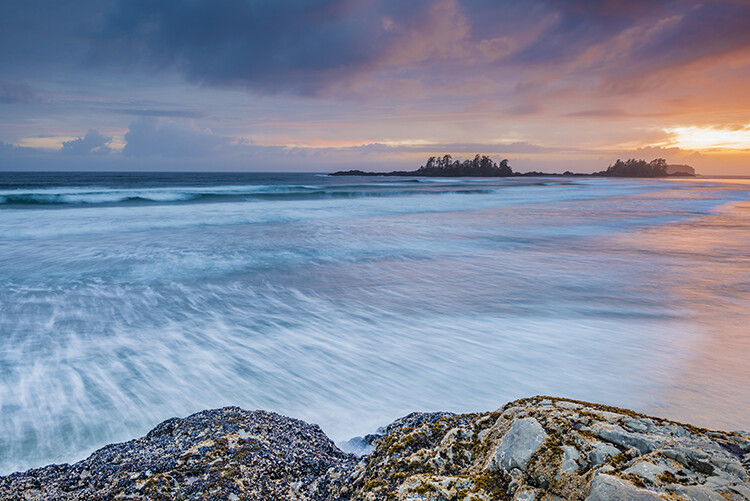
Photoshop is a wonderful tool if it is used correctly. Yes, there is a way to use it right. The basic idea is that if someone can see the adjustments you have made to your image, that’s not so good.

Think of Photoshop as your own personal darkroom. During the film era, some photographers had black and white darkrooms in their homes. That way, they could control the complete process of making the image. Very few had colour darkrooms, as that was far more complicated and costly. Nowadays, we have a fully functional colour darkroom loaded onto our computers (even our iPads), it’s called Photoshop or Lightroom (which is not named that by mistake, it is the opposite of darkroom). If you have Photoshop or Lightroom, you have a very powerful tool with which to edit your images.
Before
Before

After

After

Making your images POP!

What does it mean to make your images pop? It can mean a number of things, but mostly it means to have more colour, contrast, and look more dramatic. As always, it implies that you have a good image to start with. Trying to make an average image pop, is not what this is about. Make sure you start off with a good image out of camera, then go through these steps in order.

Shoot in RAW

Shooting in RAW is a good start. I know, you may not want to shoot in RAW because the file sizes are so big, or you don’t really see the benefits, but RAW really does make a difference. Firstly, you are working with a full uncompressed file of data. A JPEG image has already had adjustments make in camera to compress it to that file size. Some information has already been discarded, which means you are working with less image information, which in turn means you have less flexibility in the editing process. Of course, RAW is only useful if you are going to spend time editing your images in Photoshop or Lightroom.

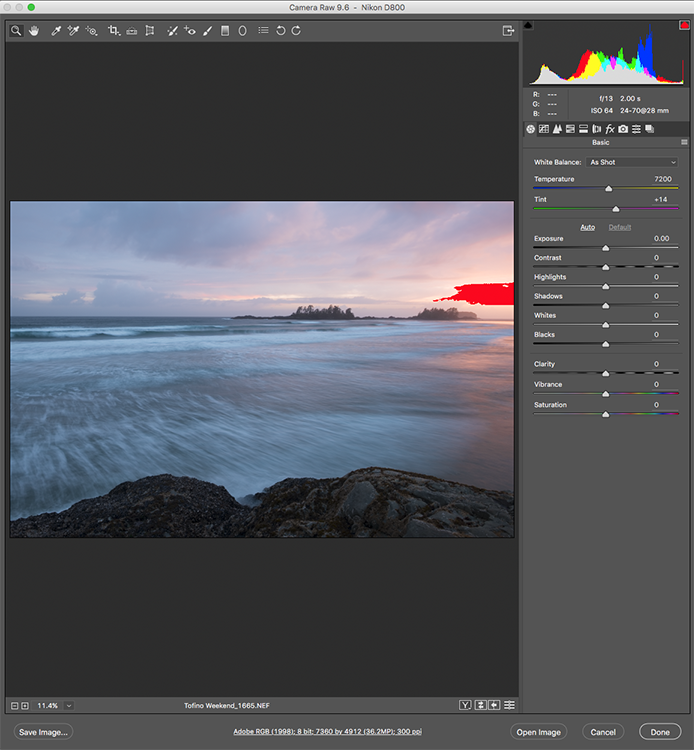
Let’s assume that you are going to edit and you have shot in RAW, open your image up in Photoshop and you will see the Adobe Camera Raw (ACR) Editor open. The ACR editor is a really powerful tool. The latest updates have made the ACR editor in Photoshop almost a separate image editing tool, it’s that powerful. As it opens, you will see a selection of tools on the right hand side, mostly sliders such as: White Balance, Tint, Exposure, Contrast, Highlights, Shadows, Whites, Blacks, Clarity, Vibrance and Saturation.

Camera Raw Editor in Photoshop CC

The camera raw editor has some very powerful adjustment tools. The next few steps will be done mostly in the RAW editor, then the image will be opened in Photoshop, and edited further. Many of these edits are very similar in the Lightroom Develop module, so you can make these same adjustments there as well.
The Camera Raw Editor in Adobe Photoshop CC
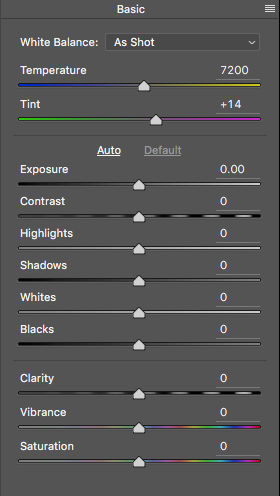
Close up of the basic RAW editor sliders

Making adjustments in the RAW editor

  • Temperature – Start off by taking a look at the colour in your scene. You can adjust the temperature to make the colour of the scene warmer (slide towards yellow) or cooler (slide towards blue). This can be used to correct a colour cast, or to add some drama to your image. In this scene, I chose to move toward the warmer side.
  • Exposure – Take a look at your exposure, the image might be a little dark, or maybe a little bright. Slide the exposure slider to adjust this.
  • Contrast – Adjust the contrast to make sure that the dark areas of the image are dark enough, but don’t lose details here.
  • Highlights – In this image, the red indicator in the highlights shows me where there is very little detail. To compensate for this, slide the highlights slider to the left. If your highlights are underexposed, slide this slider to the right, but be sure not to overexpose your highlights.
  • Shadows – The shadows slider can help you bring back details in the shadows or darken them a little. Be careful not to overdo this slider as your shadows may look noisy (or your image can take on an “HDR” look) if you push this too hard.
  • Whites – This slider adjusts any pixels in the image that are white or partially highlighted.
  • Blacks – This slider will adjust any pixels that are black.
  • Clarity – The clarity slider adjusts contrasts in the midtones. This can really add some structure to your image, but be careful not to overdo it.
  • Vibrance – This slider will adjust any pixels that are not saturated. This is a good place to start to add some subtle pop to your scene.
  • Saturation – This slider will adjust all pixels by saturating or desaturating them.
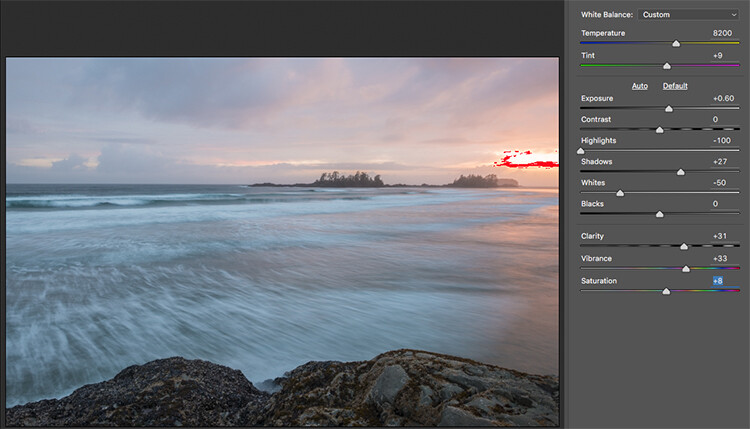
Basic adjustments in Camera RAW

HSL adjustments tab

This tab has three different tools under it, namely: Hue, Saturation, and Luminance (HSL). These adjustments will make changes based on the colour channels in your image. For example, if you click on the saturation tab, you can make the reds in your image more or less saturated, the same is true for the oranges and all the way through the colour channels. You can also make certain colours brighter, by using the luminance tab. In this image, I wanted to saturate the reds, yellows, and oranges, as well as some of the blues.
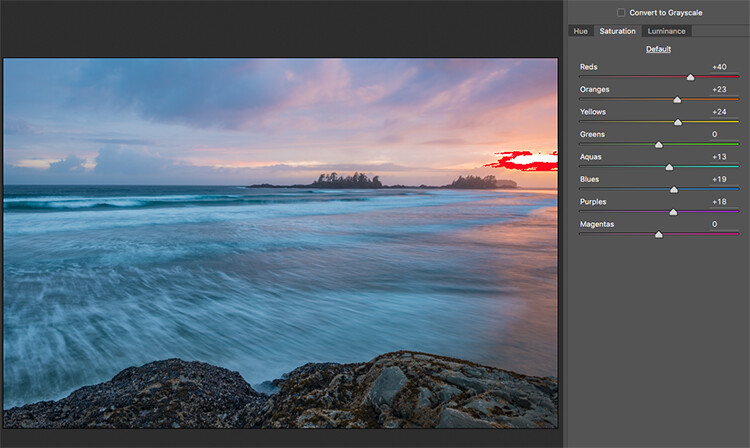
HSL tab adjustments

Graduated Filter in Camera Raw

Much like using one on your camera in the field, you can add a graduated filter in Camera Raw. The beauty about doing this in Photoshop is that you can make some very fine tuned adjustments to your image, depending on how you position the Graduated Filter tool.

Click on the Graduated Filter icon at the top of the screen, and the you will see a whole new dialogue box with very similar functions to the basic Camera Raw Module. The difference here is that you will click and drag the filter down on your image to select the sky. You can also click and drag up from the bottom to select the foreground. I will do both (theGraduated Filter applies to the image from the edge inward).

Starting at the top, I click and drag the filter to just over midway through my image. That limits the effect to the top half. This filter is graduated, so the effect will be properly blended, and you won’t see a hard line where the filter ends (the more you drag it the wider the blend area, you can also adjust that after). I make some adjustments and you can see the difference they made to the sky. Once you are finished with one filter, click on New (at the top of the adjustment box) and repeat the process, but drag up from the bottom this time to make adjustments to the foreground. Once you have made the final adjustments, you can click open image at the bottom of the Camera Raw box to open your image into Photoshop.

Graduated Filter icon highlighted

One key adjustment that needs to mentioned here is the Dehaze tool. The Dehaze tool does exactly what it says, it removes haze and creates better contrast. Use it carefully, it is easy to go too far with it, and your image may suffer as a result. It is a really useful tool for landscapes and seascapes, as there is often some haze in the images, as there was in mine. Using it lightly has removed the haze and made the image better overall.

You will notice it is part of the Graduated Filter tool, and there is also a Dehaze function in the effects tab of the Camera Raw Editor. It is up to you when you use it, but be aware that if you use it without a selection, it will apply the effect universally to your entire image. Using it here in the Graduated Filter tool means you can have better control over how it affects your image.
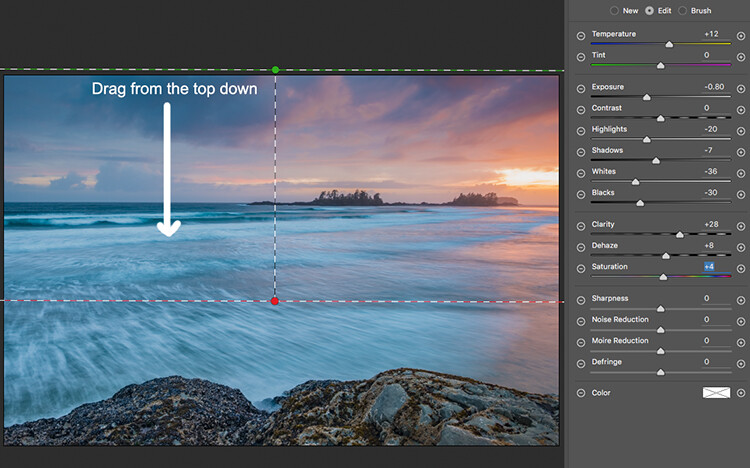
Click and drag the Graduated Filter from the top down to select the sky. Then select with adjustments you want to apply.
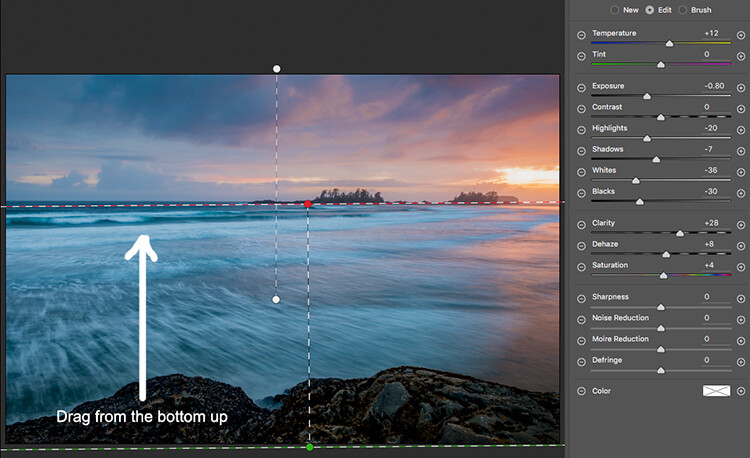
Selecting the foreground by dragging from the bottom up.

Open your image in Photoshop

After you have made your adjustments in Camera Raw, the final touches can be applied in Adobe Photoshop. Once again, the sky and the foreground in this image are going to look different, and will need different adjustments.

To make a softer selection of the sky, click on the quick mask tool at the bottom of the left hand side toolbar in Photoshop. You can then use a soft brush to paint in a selection of the sky as a mask. Once you are happy with the selection (see red mask) click on the quick mask tool again to activate that selection. There is one tricky thing to note about the quick mask tool, the mask means that you are selecting everything that is NOT red. So, when you click on the quick mask tool, you will see the marching ants around the bottom portion of the image and not the red area. This is good, because you can toggle between the two areas very easily and make adjustments to each selection.

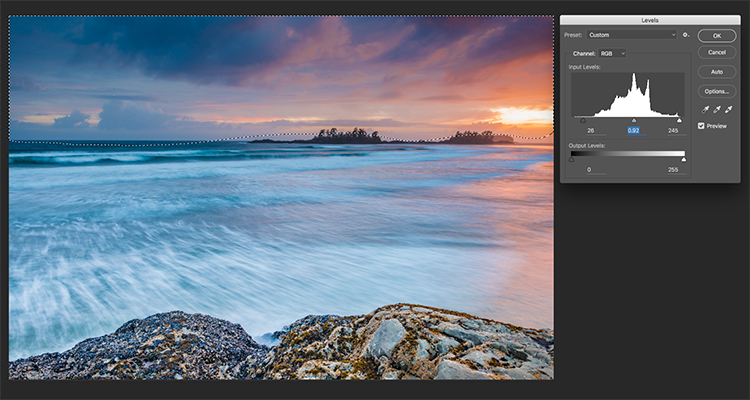
First of all, make the necessary adjustments to the foreground using Levels. In this image, I wanted to make the foreground a bit brighter, so I popped up the highlights a little. From there I selected the inverse (i.e. the sky). You can do this by holding down CMD>SHIFT>I together. This will toggle your selection from the foreground to the background.
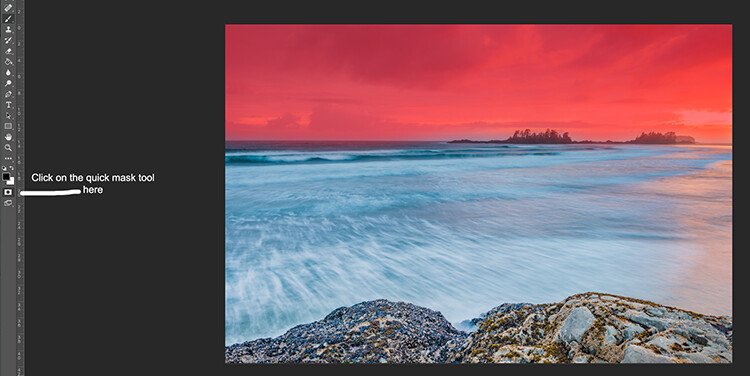
Red indicates the area that will be masked
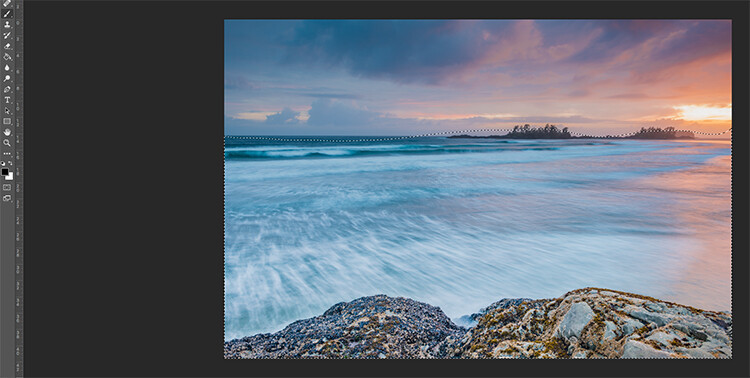
Screen Shot 2016-07-05 at 3.28.52 PM

The marching ants show where the current selection is in the foreground.
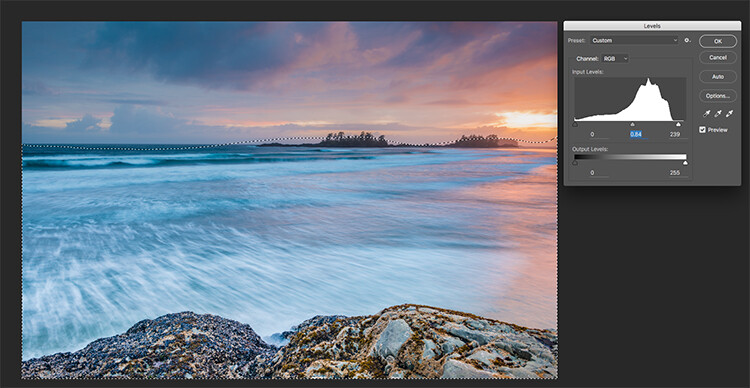
Screen Shot 2016-07-05 at 3.29.56 PM

Making levels adjustments to the foreground
Screen Shot 2016-07-05 at 3.30.24 PM

CMD>SHIFT>I will toggle the selection, here the sky is being selected and levels is being used to adjust the sky

Use Hue and Saturation to make final colour adjustments

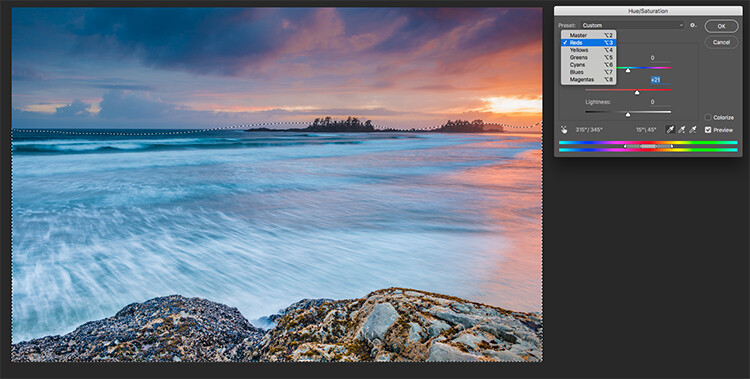
You can use the toggle function (CMD>SHIFT>I) to select the sky and foreground interchangeably. Once you have your selection, choose a tool to make adjustments, and the changes will only be made to the area that is selected. In this example I have used the Hue and Saturation function to make further enhancements to the image. I am again making adjustments by each channel. This gives me great control over what colour ranges need to be saturated, and perhaps desaturate others that are a little over done. Go through each channel and make the necessary adjustments.
Screen Shot 2016-07-05 at 3.30.53 PM

Use Hue and Saturation to make final colour adjustments

Once you are done, you can then sharpen your image as you see fit and save it to be printed. The steps outlined above will help you make any image look better. If done correctly, your images will have the pop and drama that you are looking for.

Give it a try, once you know the process, these adjustments can be done really quickly.

After

Final image

Please share your images and thoughts on the comments section below.

googletag.cmd.push(function() {
tablet_slots.push( googletag.defineSlot( “/1005424/_dPSv4_tab-all-article-bottom_(300×250)”, [300, 250], “pb-ad-78623” ).addService( googletag.pubads() ) ); } );

googletag.cmd.push(function() {
mobile_slots.push( googletag.defineSlot( “/1005424/_dPSv4_mob-all-article-bottom_(300×250)”, [300, 250], “pb-ad-78158” ).addService( googletag.pubads() ) ); } );

The post How to Use Adobe Camera Raw and Photoshop to Make Your Landscape Images Pop by Barry J Brady appeared first on Digital Photography School.


Digital Photography School
 
Comments Off on How to Use Adobe Camera Raw and Photoshop to Make Your Landscape Images Pop

Posted in Photography


How to Use Photoshop to Enhance Details in Your Photos

24 Jul

Do you think that your images lack details? Here is the way to extract the extra details that are already present in your photos, but are not visible, using Photoshop. Some methods like high pass sharpening will either give you a way too crunchy look or create halos around the edges of the different elements in your image. However, this Continue Reading

The post How to Use Photoshop to Enhance Details in Your Photos appeared first on Photodoto.


Photodoto

 
Comments Off on How to Use Photoshop to Enhance Details in Your Photos

Posted in Photography


How to Enhance Portraits Using Gray Layers to Dodge and Burn in Photoshop

24 Jul

What is dodging and burning?

The techniques of dodging and burning are hand-me-downs from the days of the darkroom. The idea was to manipulate parts of an image while the paper was being exposed to light from the enlarger, where the negative was fitted. In order to decrease the exposure (lighten) on parts of an image, the paper had to be exposed for less time, which was dodging. To increase exposure (darken) it needed to be exposed for more time, which was burning.

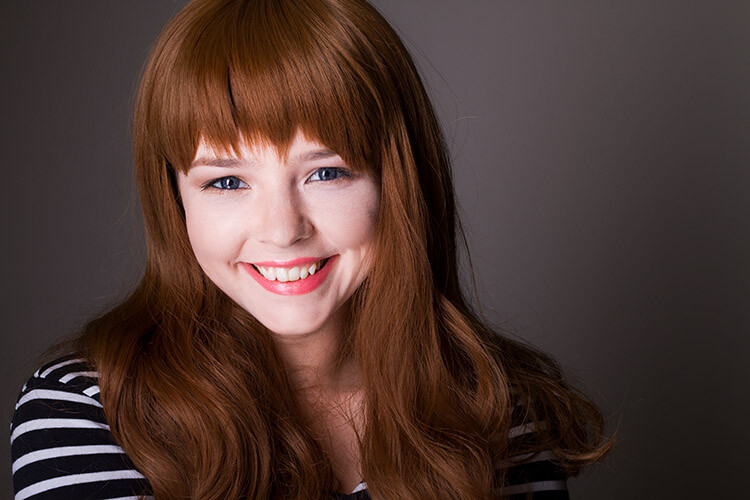
Before dodging and burning

Before dodging and burning

After dodging and burning (it’s subtle, look at her hair and cheeks – don’t overdo it with this technique)

One way of doing this, was by holding bits of paper or card over the parts of the image that didn’t require manipulation. Because these adjustments only applied to certain parts of an image, it required a certain amount of dexterity (as well as a lot of paper) to get right. Because of this complexity and precariousness, dodging was used primarily to lighten dark areas. Burning was then used to darken highlight areas.

The Photoshop version of the technique; however, is far more forgiving. Photoshop allows very fine control over an image and even allows pixel by pixel retouching. The versatility this provides turns the traditional darkroom method on its head. It allows you to use small brush strokes to brighten and exaggerate small areas of highlights, or darken shadows, instead of applying to only broad areas.

This technique is very easy to learn, but it does require some practice to get down, as it’s very easy to go overboard with it, and overcook your images.

Why dodge and burn?

Tools like curves and levels give you control over the tonality and contrast of an entire image (excluding the use of layer masks). This is called a global adjustment, but they aren’t always effective for most images.

Dodging and burning allows you fine control over the tonality of your images in small, concentrated areas. These are called local adjustments. This allows you to pick out small parts of an image to work on, while leaving areas that need no work untouched.

While useful in all genres of photography, the use of local adjustments comes into its own in portraiture. If you think in terms of contrast alone; hair, eyes, skin, and clothes all require very different treatments in order to look their best. For example, if you pump up the contrast in an image to make a pair of jeans look punchy, that will wind up destroying the skin tones in your portrait. One of the easiest ways to overcome this is using a local adjustment technique like dodging and burning.

This tutorial will get you started with a two layer dodging and burning technique, that will give you far more control over your images than you would have with global adjustment tools alone. This is an intermediate technique and you need to have a basic understanding of how to use layers in Photoshop.

For this demonstration, I am going to go beyond what I would normally consider acceptable and overcook the image, to ensure that it is visibly clear what is happening at various stages of the process.

Setting up the layers

Before you start this technique, I suggest that you first finish any blemish removal in your image.

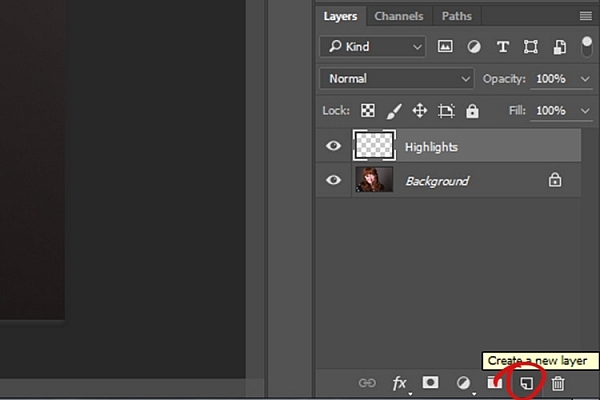
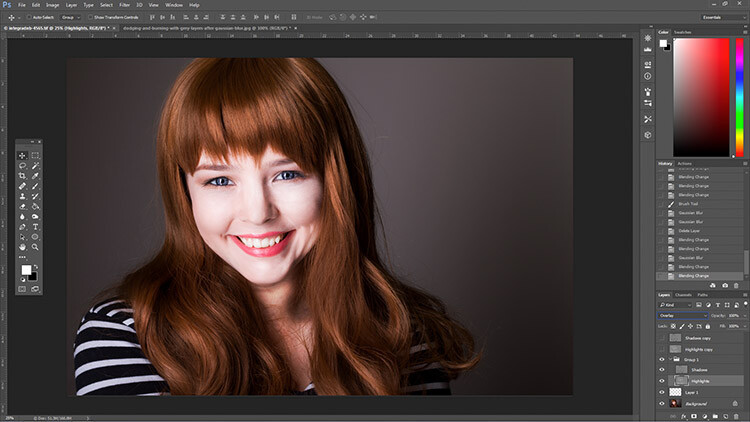
That said, the first step in Photoshop is to create a new layer by going to Layer>New Layer or by pressing ctrl+shift-n. Rename this layer, “Highlights”.

dodging-and-burning-with-grey-layers-newlayer

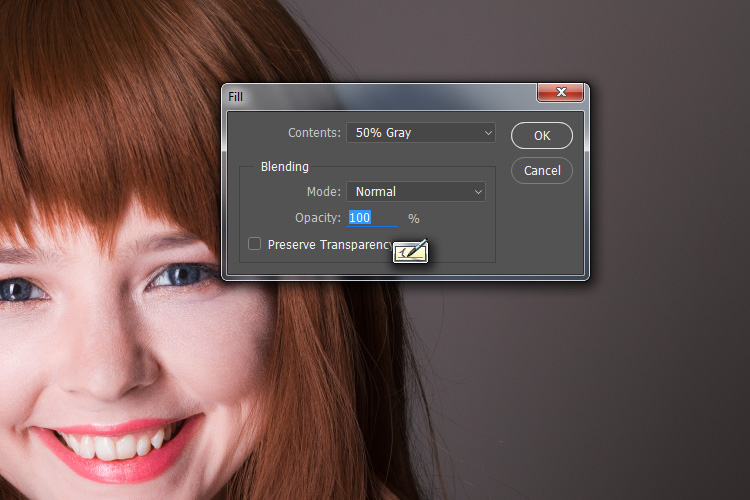
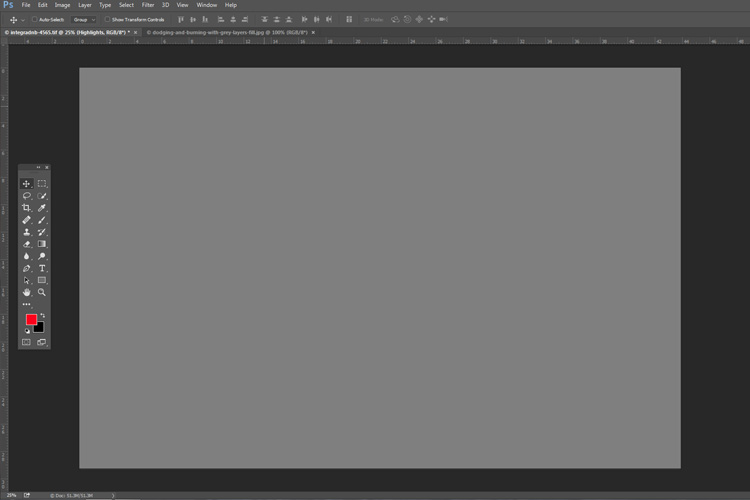
With this new layer selected, go to Edit>Fill or shift+f5 and choose 50% gray from the menu. Press OK. Your image should now be entirely gray.

dodging-and-burning-with-grey-layers-fill

dodging-and-burning-with-grey-layers

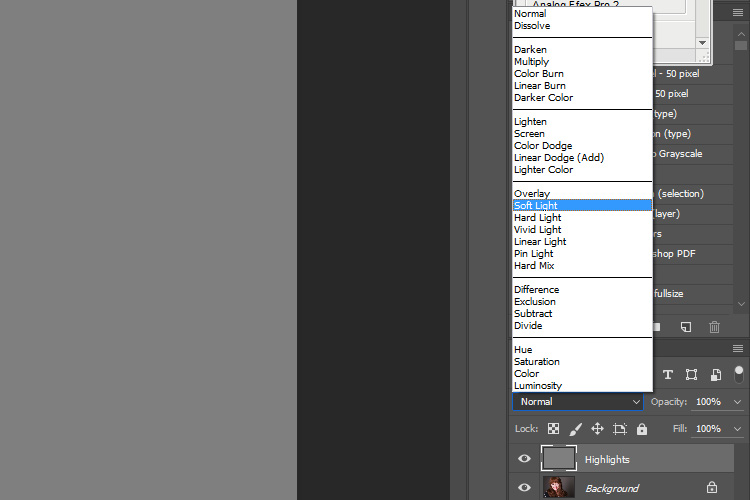
The next step is to change the blending mode of your gray layer. From the drop down menu in the layers palette, choose Overlay or Soft Light. Either choice is fine, but using Overlay will result in a far more pronounced effect than Soft Light. Experiment with both, see how it works for you, and which you prefer. Once the blending mode is changed, you should be able to see your image again.

dodging-and-burning-with-grey-layers-softlight

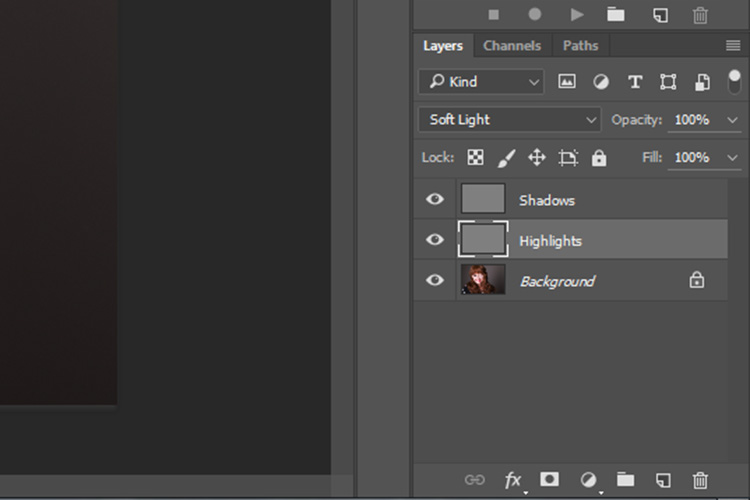
Next, create another new layer. Layer>New Layer or ctrl+shift+n and rename it to “Shadows”. Again, fill it with 50% gray. Edit>Fill>50% Gray or shift+f5

dodging-and-burning-with-grey-layers-layers

Set this layer’s blending mode to the same as the one you chose for your Highlight layer.

That’s the preparation work done. Once you’re used to it, this whole process only takes a few seconds. It’s also possible to set it up as an action, so Photoshop will do it for you at the press of a button.

Dodging

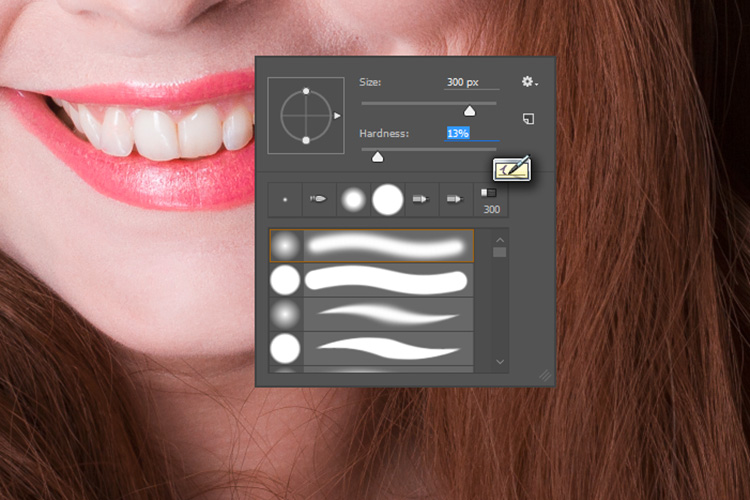
To start, select your Highlight layer and choose the brush tool. Pick a large, soft brush (Hardness number is low and edges are fuzzy). You can change the brush settings by right clicking within your image.

dodging-and-burning-with-grey-layers-brush

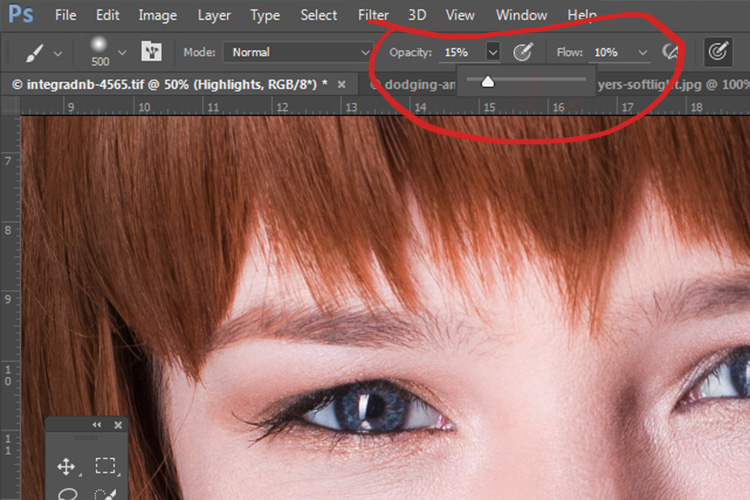
With the brush selected, look for the tool settings at the top of your screen. You’re looking for a pair of sliders labeled opacity and flow. Set your brush’s opacity to 15% and the flow to 10% (see below circled in red). You can change them later, but this is a good starting point.

dodging-and-burning-with-grey-layers-brushopacity

Make sure that your brush colors are set to white and black. You can press D (default) on your keyboard to do this. Also, you can press X to swap between them. Knowing these shortcuts will save you an incredible amount of time.

Now you’re ready to dodge.

Assuming you’re working on a portrait, find a highlight area on your subject’s skin that you would like to emphasize. With white set as your foreground color, paint into that area (make sure you are on the Highlight layer not your image). Because the brush’s opacity is so low, you may not notice a difference at first. Just keep brushing into it, and build up strokes until you have the desired effect. Do this for all of your highlight areas.

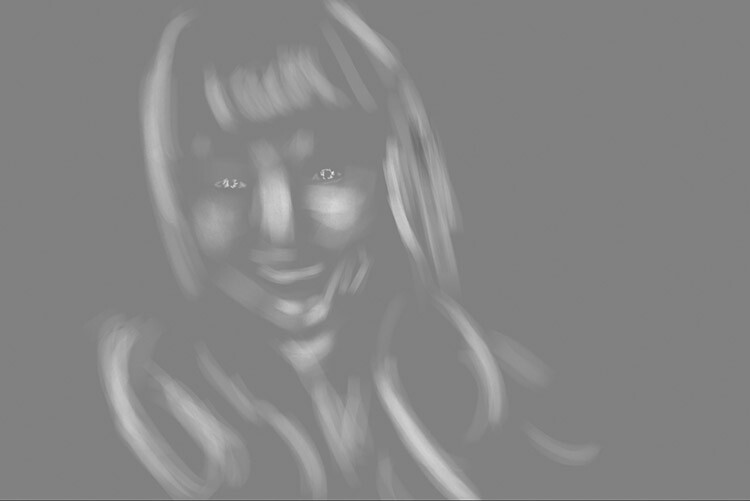
With the blending mode set to normal, your highlight layer may look something like this.

Note: If you decide that you’ve gone too far, just fill the layer with 50% gray again and start over.

Burning

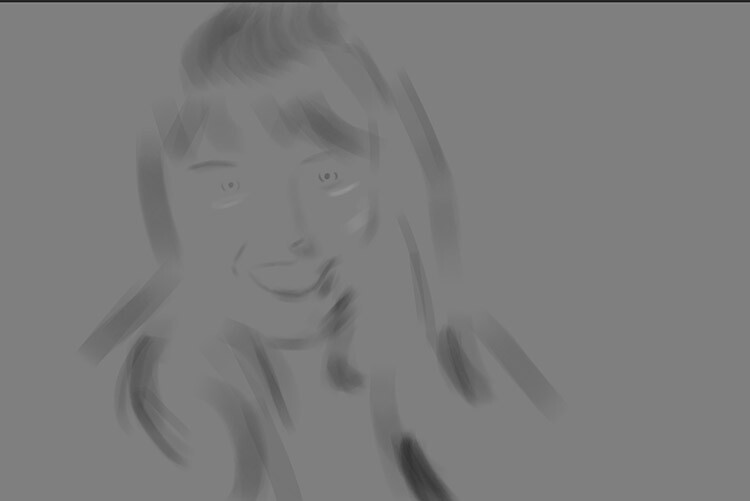
With your highlights done, select your Shadow layer by clicking on it in the layer palette. Select black as your foreground color and paint into the shadows in the same manner you did for your highlights (make sure you are painting on the Shadow layer not your image).

With the blending mode set to normal, your shadow layer may look something like this.

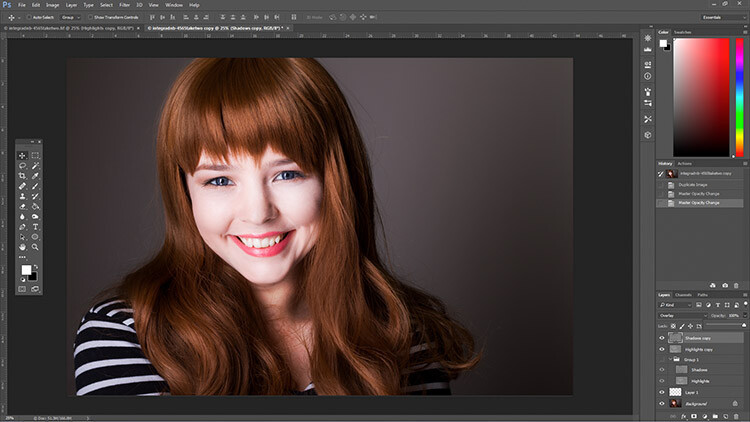
After dodging and burning is complete, you may have something that looks like this.

Add Gaussian Blur

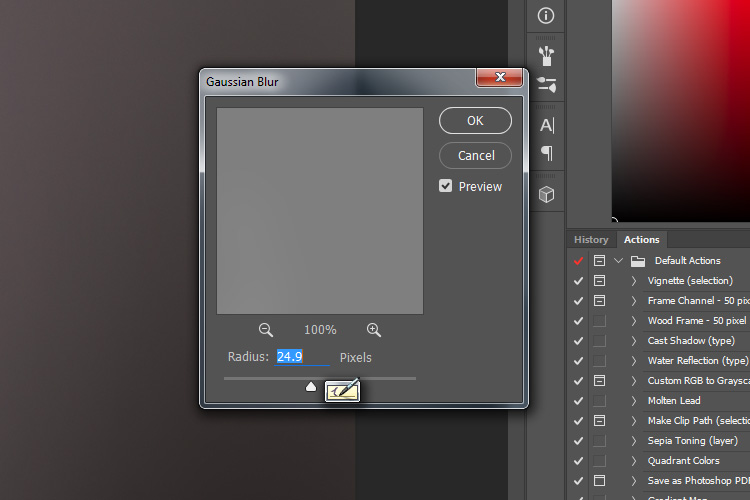
The next step is to smooth out your brush strokes. Select your Highlight layer and select Filter>Blur>Gaussian Blur. Choose an amount between 20 and 40 pixels, and press okay.

dodging-and-burning-with-grey-layers-gaussian

After the Gaussian Blur filter is applied.

Do the same for your shadow layer.

Final Steps

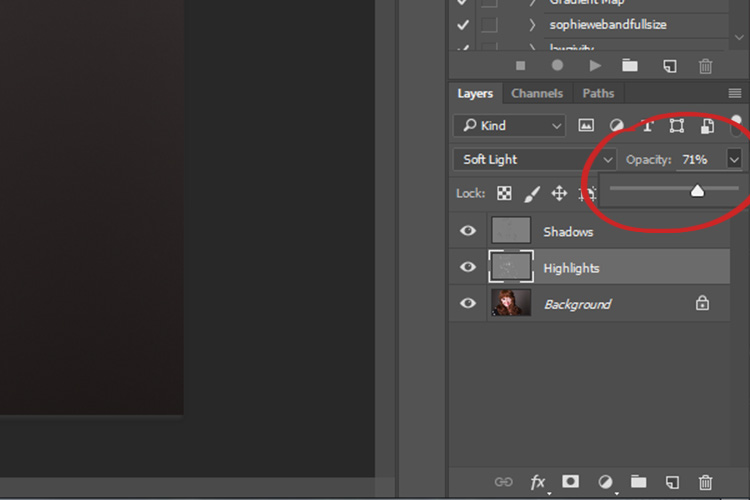
The last thing to do is is change the opacity of your layers. It may not seem like it, but at this point the effect is probably way too strong.

Select one of your painted layers. Find the opacity slider in the layer palette, and drag it to the left. Watch your image as you move the slider and stop once you’ve reached the desired effect.

dodging-and-burning-with-grey-layers-layeropacity

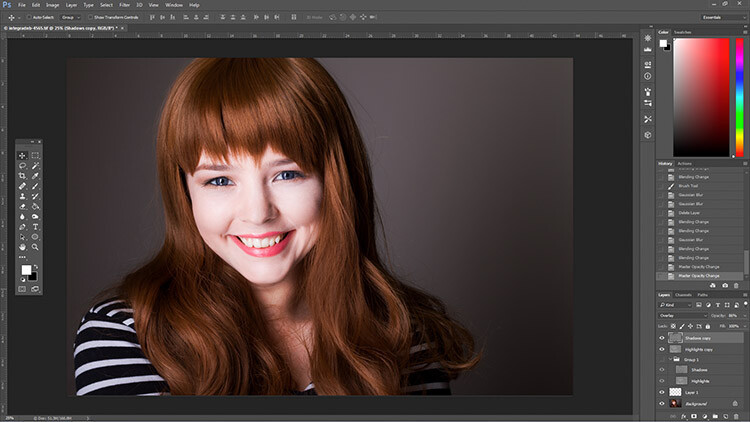
Do this for the second layer, and that’s it! You have dodged and burned.

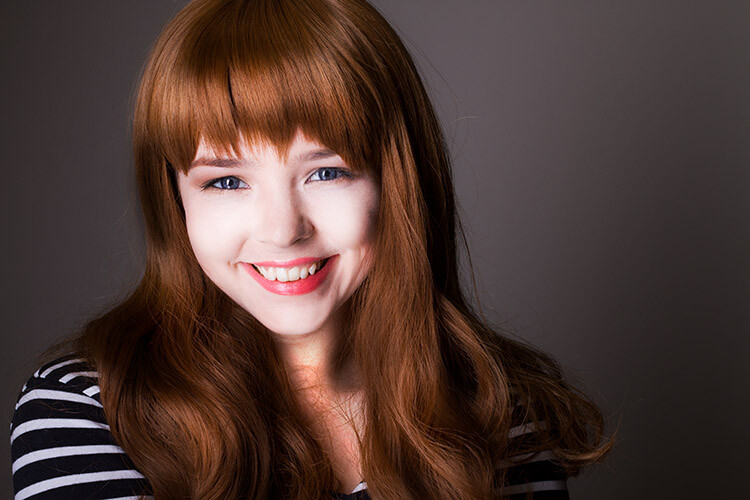
The final image after the opacity of the dodge and burn layers has been reduced.

It's really easy to overcook an image with this technique. Use low opacity brush strokes and take your time to avoid having your images look like this one.

It’s really easy to overcook an image with this technique. Use low opacity brush strokes and take your time to avoid having your images look like this one.

From Left to right: 1) Before 2) Dodge and burn with no blur. 3) Gaussian Blur filter applied. 4) Opacity of dodge and burn layers reduced.

Tips and Notes

  • Like most retouching techniques, subtlety is key. At first, overcooking your images with this technique is inevitable. Keep practicing and you’ll figure it out in no time.
  • Always zoom in to 100% or closer when working on small areas like eyes.
  • A graphics tablet will help with smooth, natural brush strokes. If you can only use a mouse or trackpad, experiment with more liberal use of Gaussian Blur to mask the brush strokes.
  • When painting shadows or highlights, try to match the light in the image. You can paint white (dodge) into your shadows, but this will probably look very strange in the end.
  • Change the brush size often, and appropriately, to the area you are working on. Keyboard shortcuts make this a breeze (use [ and ] to increase and decrease brush size).
  • Experiment with different brushes until you find one that suits your taste.
Before dodging and burning

Before dodging and burning

After dodging and burning

More Tips and Notes

  • It’s all too easy to concentrate on the face, but try not to forget other parts of the image like your subject’s hair, clothes, and the rest of their body.
  • Both dodging and burning can be done on a single gray layer. Feel free to do this, but the two layer technique grants you even more control, without much extra effort.
  • Consider setting up a keyboard shortcut for Gaussian Blur. This saves a lot of time.
  • You can create as many sets of gray layers as you want. For example, if you want to use very small brushes to dodge and burn the eyes, you might choose to do this on a separate set of layers in order to use less blur at the end. If you use a lot of layers sets like this, consider using layer groups to keep them organized and don’t forget to name your layers.
  • If the shadows and highlights you are working with have very hard edges, try using a harder brush and a lower amount of Gaussian Blur.
  • Consider watching and trying some digital painting and sketching tutorials for Photoshop. These can really help to increase your brush control and lend to more natural results.

googletag.cmd.push(function() {
tablet_slots.push( googletag.defineSlot( “/1005424/_dPSv4_tab-all-article-bottom_(300×250)”, [300, 250], “pb-ad-78623” ).addService( googletag.pubads() ) ); } );

googletag.cmd.push(function() {
mobile_slots.push( googletag.defineSlot( “/1005424/_dPSv4_mob-all-article-bottom_(300×250)”, [300, 250], “pb-ad-78158” ).addService( googletag.pubads() ) ); } );

The post How to Enhance Portraits Using Gray Layers to Dodge and Burn in Photoshop by John McIntire appeared first on Digital Photography School.


Digital Photography School
 
Comments Off on How to Enhance Portraits Using Gray Layers to Dodge and Burn in Photoshop

Posted in Photography


How to Use the Text Tool in Photoshop

14 Jul

As photographers, we often swear by the mantra that a picture speaks a thousand words. Yet there are some instances when we just wish we could add a word or two to help facilitate the understanding of the image, or carry the thought process forward even beyond viewing the image. The good news is that this is fairly easy to do using most editing software on the market today.

In this article we’ll go over the basics of how to add text to an image using Photoshop.

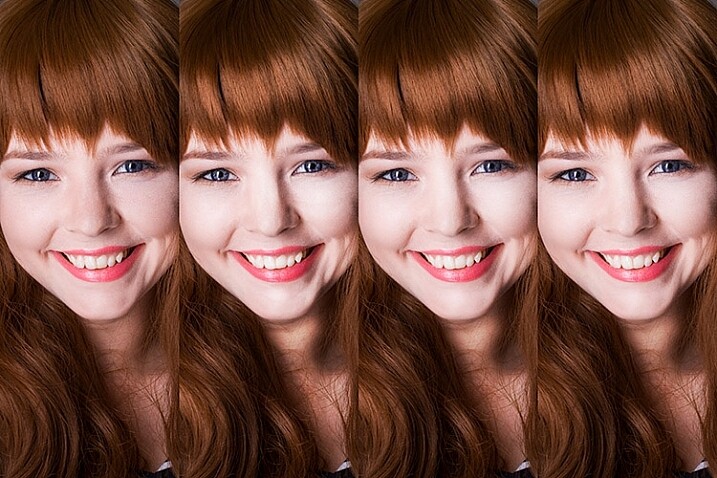
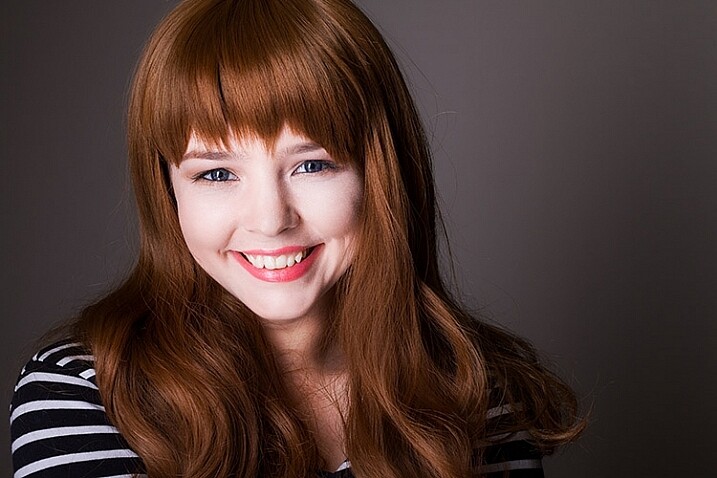
transparent-text

The Type Tool

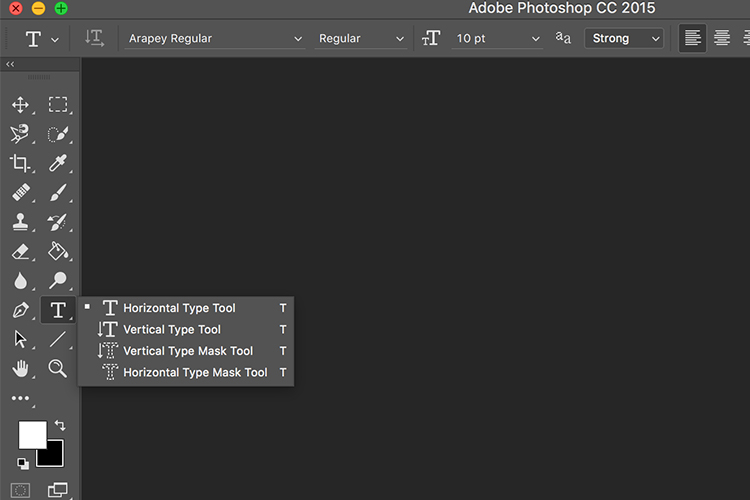
Photoshop’s Type Tool is an easy to use yet powerful mechanism with which you can add text to an image. The Type Tool is found in the Tools panel, normally located along the left side of the screen. It’s the icon that is the capital letter T. You can also select the Type Tool by pressing the letter T on your keyboard. The default chosen is the Horizontal type tool, but you also have the option of selecting the Vertical type tool (where text entered is displayed in vertical orientation, going down instead of to the right – just click and hold your mouse on the Type tool on the panel to access the other options).

Memorable Jaunts Article for DPS Text tool in Photoshop basics 02

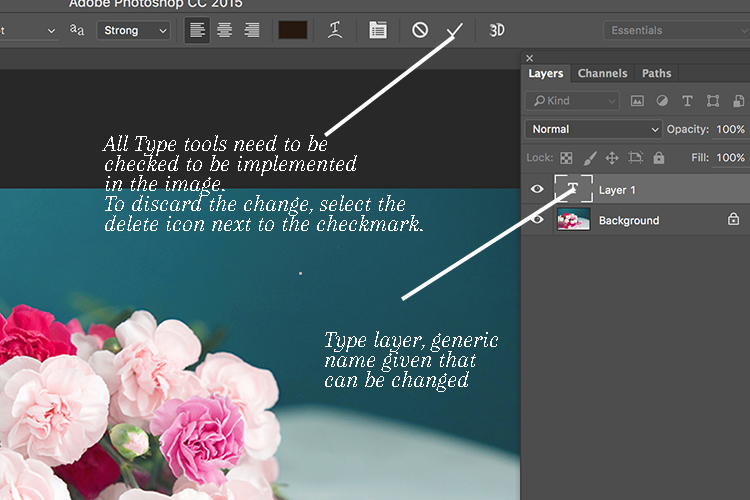
When you choose the Type Tool, Photoshop automatically creates a new layer (called Type Layer) over the original background image. This is very helpful should you make a mistake and want to delete the layer to start over, or if you want to make edits after the fact. Initially the layer has a generic name “Layer 1” but once you start entering the text, the layer name changes to the text you have entered. However, this can be confusing, especially if you are entering in a lot of text in the type layer. I recommend changing the name of the Layer to something more appropriate and meaningful like Title Text or Quote Text, etc.

Memorable Jaunts Article for DPS Text tool in Photoshop basics 04

Choosing a Font

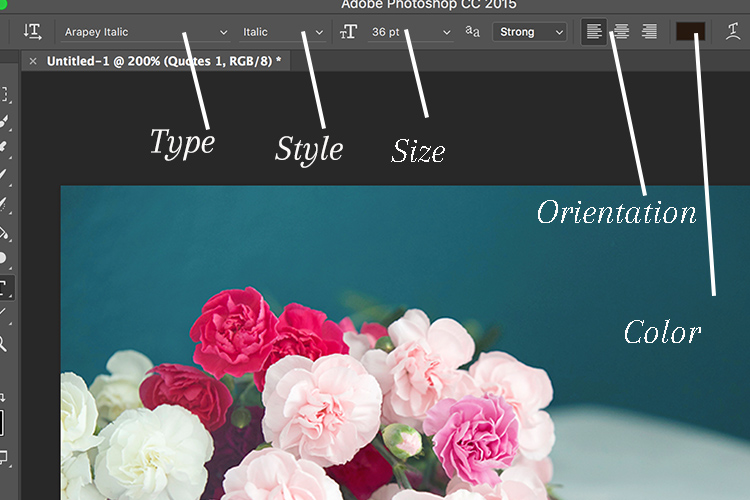
As soon as you select the Type Tool, the Options Bar along the top of the screen updates to show the options related to it, including options for choosing a font, a font style and the size among others. Front left to right (as shown in the image below) you can choose font type, font style, font size, alignment, and color. The type indicates the font you want to use. Clicking on the dropdown arrow shows a list of all the possible fonts available for use. The exact fonts you’ll see in your list will depend on which fonts are currently installed on your computer. Next up is the style. In this example, I have used italic style for the image below. Following that is the size, alignment, and color. Selecting the color opens up the color picker tool where you can either choose the color from the pallet, or enter in the HEX value of the color you want for the text.

Memorable Jaunts Article for DPS Text tool in Photoshop basics 03

Adding Type to the Image

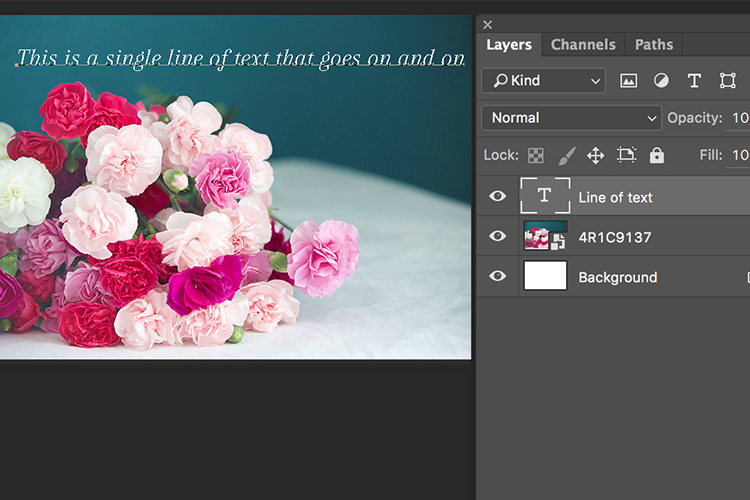
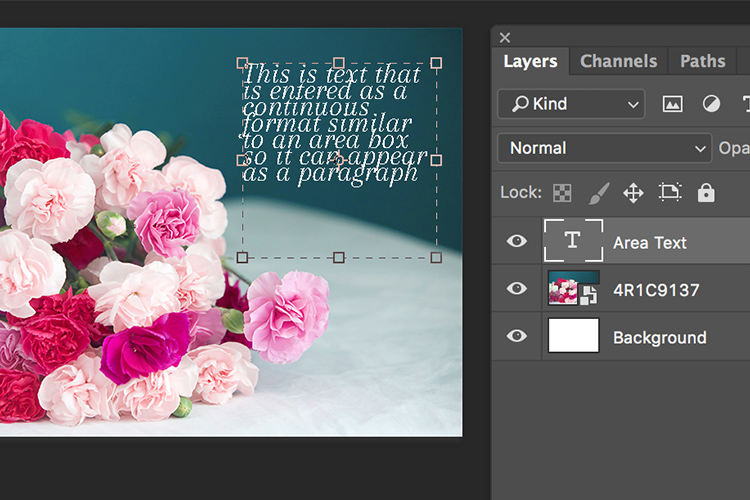
The power of the type tool in Photoshop lies in the ability to add different types of text to a document. The first option is Point type (also known as character type), and the second is Area type (also known as paragraph type). The difference is that point type is mainly used for adding small amounts of text to a document (a few words, a title, etc.) while area type is used for adding larger amounts of text (think a quote or paragraph) inside a selected area. The Point type is the basic type tool. When the type tool is selected the default is a line of text that will keep extending as long as you keep writing text in the type box (that is Point type).

Memorable Jaunts Article for DPS Text tool in Photoshop basics 07

To add text using the Point type, simply click on your image with the Type Tool, in the spot where you want your text to begin. A blinking insertion marker will appear letting you know that Photoshop is ready for you to start typing.

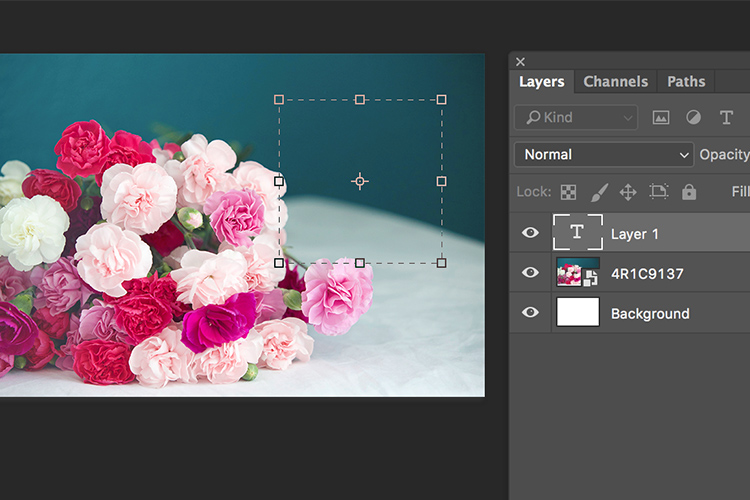
By holding down the Shift key, and dragging the ends of the type box (the blinking insertion marker), and an Area type will be created. This is the area where larger blocks of text, like paragraphs, can be entered. You can also simply click and drag to make a rectangle (similar to make a marquee selection) which will be the Area type.

Memorable Jaunts Article for DPS Text tool in Photoshop basics 05

Memorable Jaunts Article for DPS Text tool in Photoshop basics 06

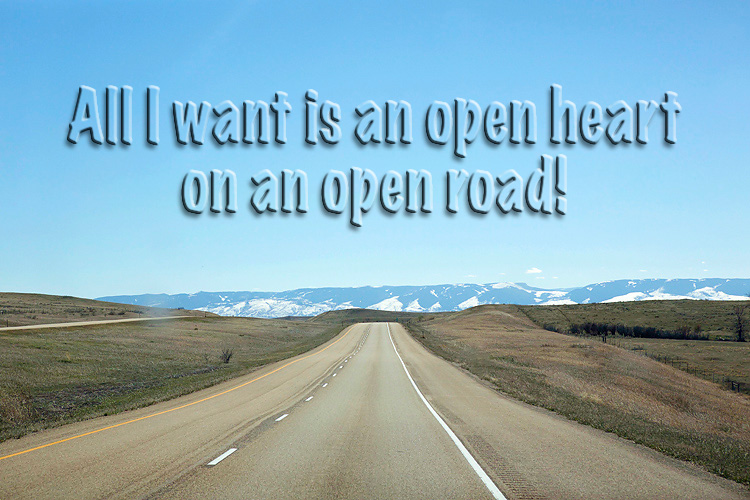
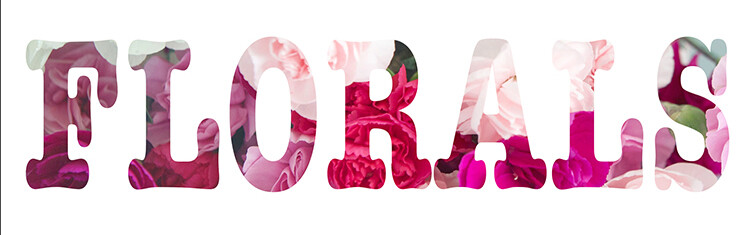
As you can see, the Type tool is a simple yet powerful tool to add text to your images in a creative way. It can be used to enhance the messaging on an image, as well as for other uses like creating announcements, marketing materials, etc., based on your needs. Once you have the basics of the text tool mastered, you can take it up a notch to add effects like drop shadow and an image see-through the text effect as shown in the images below. It is not complicated but you need to follow the steps carefully.

Special text effects

Memorable-Jaunts-Text-Tool-Text-See-through-effect-for-DPS-article-01b

Text tool effect with image see through

Memorable-Jaunts-Text-Tool-Text-See-through-effect-for-DPS-article-02b

Text tool with image see-through effect and a drop shadow for added impact.

To add a drop-shadow to text, follow the steps listed below:

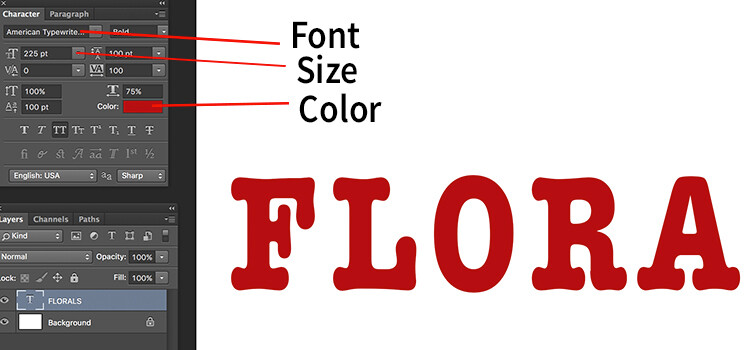
  1. Create a new text layer and select the font, size and color you want. To see the true effect of image through text, make sure you select an appropriate font and size (something bold and wide).
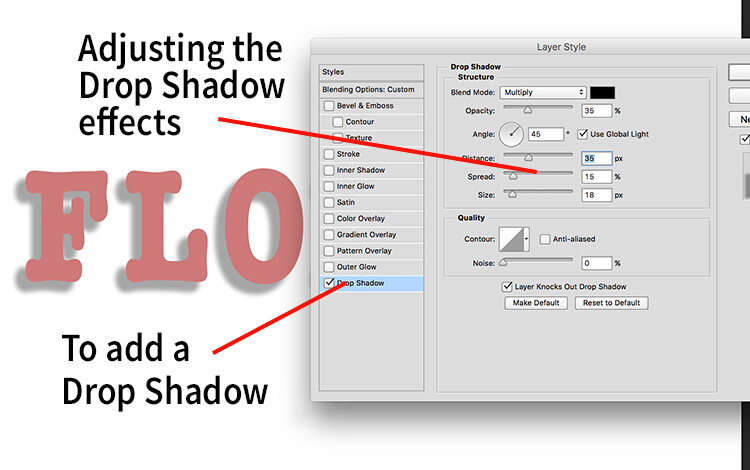
  2. Double clicking on the text layer will open up the layer style panel. To add a drop shadow effect, select the drop shadow option (last option) and adjust the size, position and color of the drop shadow.
text-tool-01

Create a new text layer on a new image and adjust the font, size and color of the text layer to taste. For text see-through effect, a bold large font is preferred.

text-tool-02

Using the layer style option, you can add a drop shadow effect and adjust the size, distance and orientation/angle of the drop shadow.

Creating see-through text

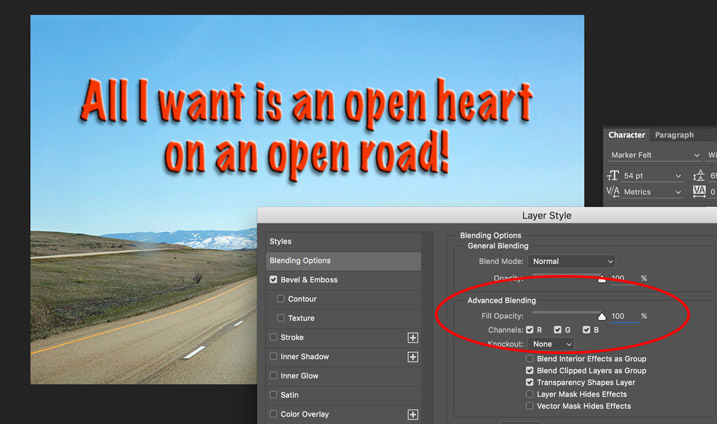
To create an effect of transparent text (you can see through it) open up the Layer Style panel and click on Blending Options from the left-hand side. Look for Advanced Blending (circled below).

text-unfaded

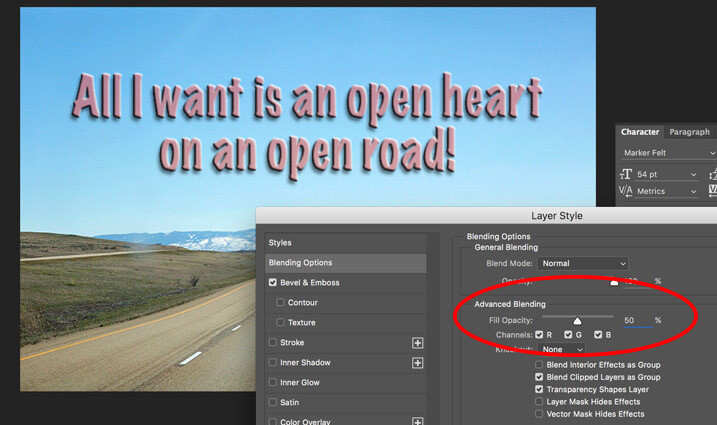
Lower the Fill Opacity by moving the slider to the left. This is what 50% faded looks like:

text-50-faded

Text layer with the opacity lowered.

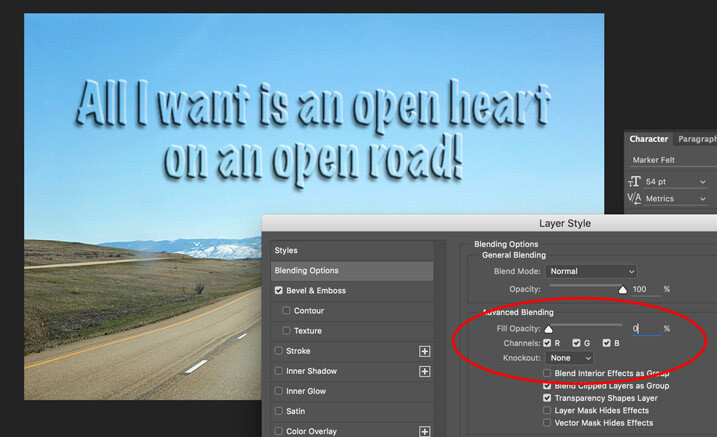
Notice that is does not lower the opacity of any of the other layer styles you have applied such as the Drop Shadow. It only fades out the inside of the text. This is a handy trick for making watermarks of your name or logo over your images so it is subtle.

Faded out to 0%

Faded out to 0%

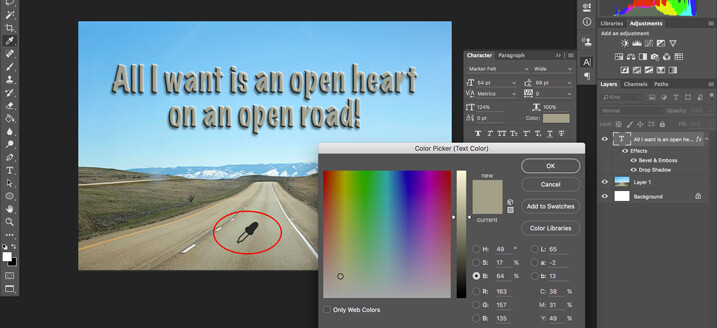
Note: if you want to make a custom color for your text, one that complements well with the tones of your image – you can use the color picker to select a shade right from your image. Just click on the color in the top menu panel or the Character panel if you have it opened – that will bring up the Color Picker popup box. Just hover over your image and you will see a small eyedropper (I have enlarged it below so you can see it easier). Whatever color you click on will be selected and pulled right from your image.

text-tool-custom-color

Use the color picker to select a tone from your image to use for your text.

Creating and image inside text

To add an image see-through effect to the text you created, follow the steps listed below:

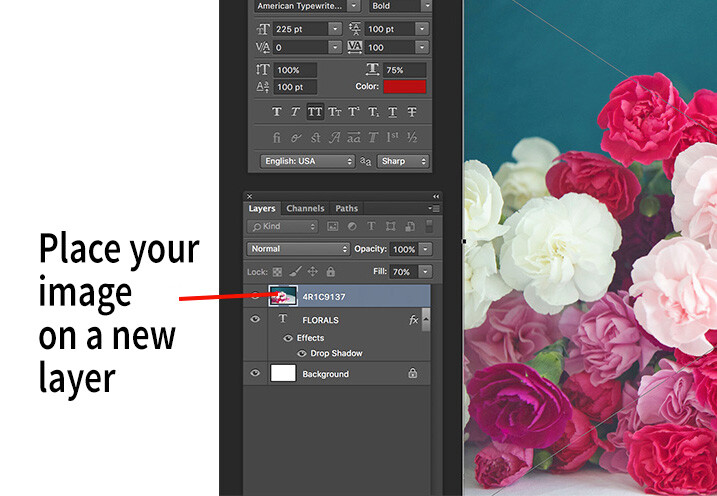
  1. Once you have the text you want, place an image (Select File, Place image). A new layer will be created and the image will be placed on top of the text layer. You will notice that the text layer you just created will be hidden behind the image.
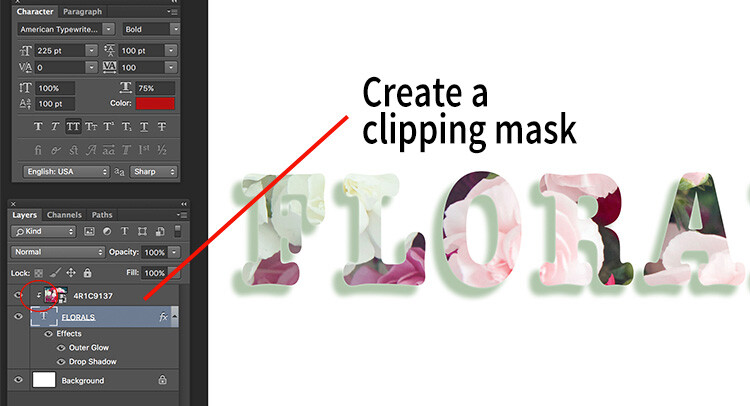
  2. To create the see through effect, you need to add a clipping mask to the image layer. This causes the image to be clipped to the text.
  3. To add a clipping mask, select Layer -> Create clipping mask from the menu options.
  4. You can move the image using the transform tool, to change the position of certain elements in the image to line up to the text if needed. For example I moved the image up to show more of the red and pink flowers through the text.
text-tool-03

Select the image you want to use for the text see-through effect and use the Place function to put it on the text layer. It is automatically selected in the transform mode. Adjust the size of the image to taste.

Add a clipping mask to the image layer (Menu option - layer -> create clipping mask). The image will automatically appear behind the text and the effect will be seen through the text.

Add a clipping mask to the image layer (Menu option – layer -> create clipping mask). The image will automatically appear behind the text and the effect will be seen through the text. When you see the little down arrow (circled) you know the clipping mask is applied between those two layers.

Memorable-Jaunts-Text-Tool-Text-See-through-effect-for-DPS-article-02b

Text with see-through image effect and pink drop shadow.

Be sure to play around with various images to see what images work for you. What are some way you use the Type tool for your images? Feel free to share in the comments below.

googletag.cmd.push(function() {
tablet_slots.push( googletag.defineSlot( “/1005424/_dPSv4_tab-all-article-bottom_(300×250)”, [300, 250], “pb-ad-78623” ).addService( googletag.pubads() ) ); } );

googletag.cmd.push(function() {
mobile_slots.push( googletag.defineSlot( “/1005424/_dPSv4_mob-all-article-bottom_(300×250)”, [300, 250], “pb-ad-78158” ).addService( googletag.pubads() ) ); } );

The post How to Use the Text Tool in Photoshop by Karthika Gupta appeared first on Digital Photography School.


Digital Photography School
 
Comments Off on How to Use the Text Tool in Photoshop

Posted in Photography


3 Quick Photoshop Edits You Need to Know

08 Jul

For many photographers, spending time behind a computer editing images, can be annoying. I personally enjoy the editing process, but I often hear photographers saying that they wish they didn’t have to spend time editing images. Of course, the image editing process has become the photographer’s responsibility since the advent of digital photography. In the past, the editing process was the domain of the lab that developed and printed your roll of film.

If you are one of the photographers that does not like the idea of spending hours editing your images, then this article might help you get out of the editing blues.

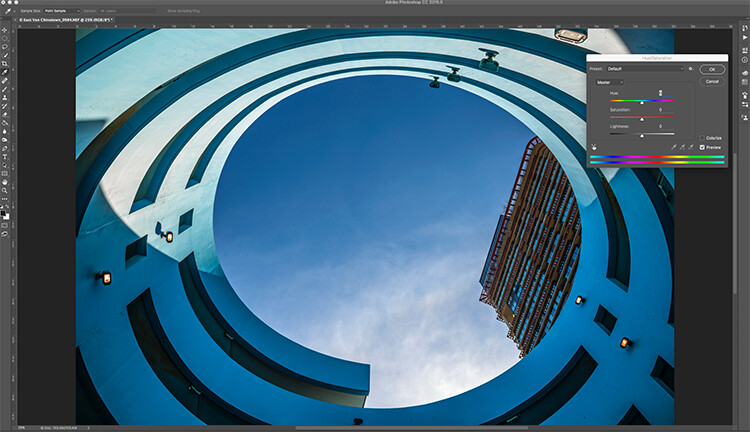
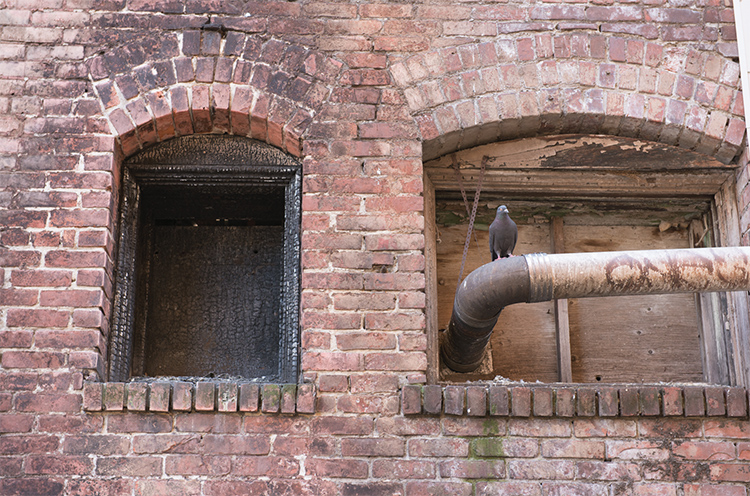
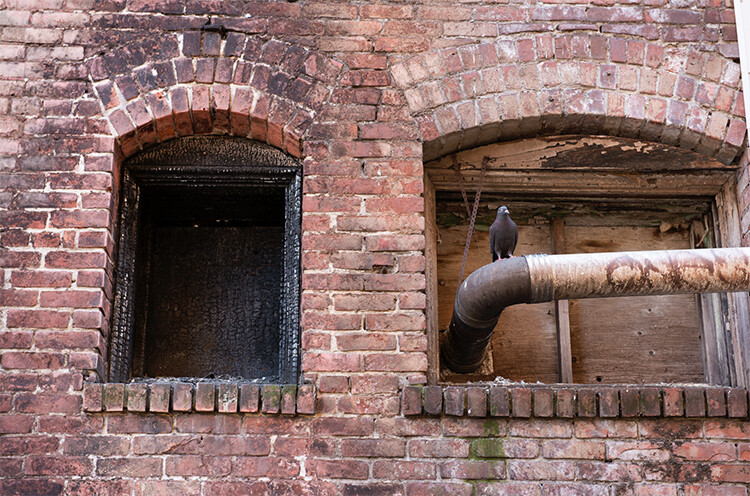
Image open in Photoshop with the Hue and Saturation tool open

Image open in Photoshop with the Hue and Saturation tool open

Of course, you will always need to spend some time editing, but you don’t want to be spend hours trying to make an image  look good. There is a quick way to get some good results from your images in Photoshop. But, before we talk about that, first there are some things that you need to do in-camera, which will save you time in post-production.

  1. Make sure your lenses are clean, you don’t want to spend time cleaning up dust spots on your images.
  2. Make sure your sensor is clean, get your sensor cleaned when you start to notice sensor spots on your images.
  3. Use a tripod, straightening images in Photoshop or Lightroom wastes your time.
  4. Make sure your image is in focus and sharp. Zoom in on your LCD screen to be sure, if not, retake the shot.

From there, you can be sure that your images are coming out of your camera in an edit-ready state. You don’t want to spend your time fixing photography mistakes made in-camera. The main goal with image editing is to take your good images, and make them look spectacular. So, here are some very quick edits you can do to your images (assuming the image is in good shape) in Photoshop, and in turn, spend more time behind the camera.

Quick Edit #1 – Levels or Curves?

This is something of an ongoing debate among photographers. Some have a preference for one or the other, the reality is that they are very different tools, and you can (and should) use both.

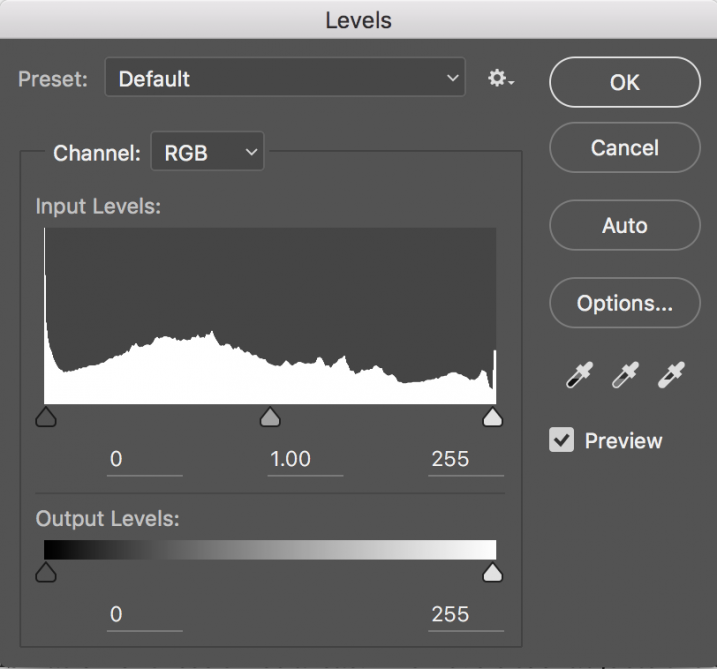
Screen Shot 2016-06-30 at 3.52.50 PMLevels is a great tool to quickly make exposure adjustments to your image. Curves gives you the same ability, but in much more detail. It also has some very powerful abilities in terms of specific adjustments. For a quick edit though, Levels is your tool of choice: IMAGE > ADJUSTMENTS > LEVELS, the keyboard shortcut is CMD>L on a Mac and CTRL>L on a PC, OR add it as an adjustment layer for non-destructive editing.

Levels can really make a difference to your image. Take a look at this article to help you with levels: 5 Photoshop Tools to Take Your Images from Good to Great, as well as some of the other tools available. The levels tool looks deceptively simple, but it has some really powerful functionality. It is best to adjust your image using Levels first, as this tool affects exposure on three areas of your image: the highlights, shadows and midtones.

All images are made up of a combination of these three areas. The Levels tool adjusts the exposure in each of them separately. The reason why this is important, is because exposure affects colour. For example, if you make your exposure in a scene darker, your colours will become more saturated, if you brighten the exposure, your colours will desaturate. So, making levels adjustments first, will also help your image’s colour.

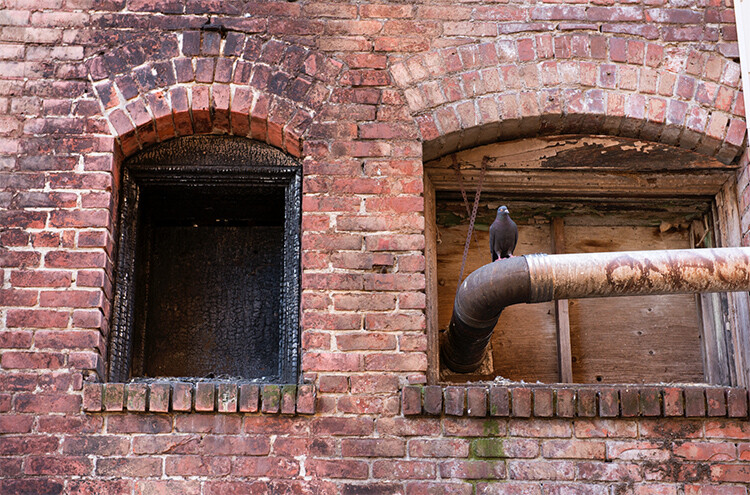
Image straight out of camera, no adjustments

Image straight out of camera, no adjustments.

The same image after adjustments in Levels

The same image after Levels adjustments

Quick Edit #2 – Hue and Saturation

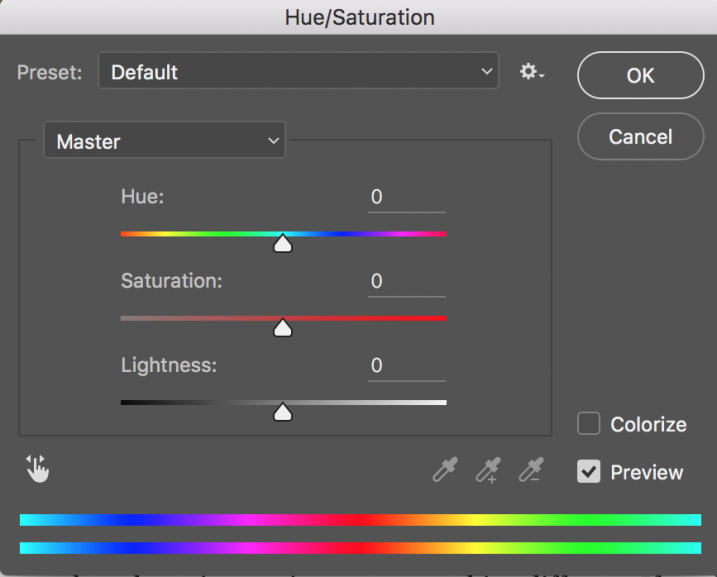
Screen Shot 2016-06-30 at 3.54.30 PMThis tool is the next one in order. Start off with Levels and then move onto Hue and Saturation  (IMAGE > ADJUSTMENTS > HUE AND SATURATION or the keyboard shortcut is CMD>U on a Mac or CTRL>U ON A pc). This also looks like a simple tool on the surface, but there is a lot more depth to it.

First of all, you will see three sliders, the top one is Hue, the middle one is Saturation, and the bottom one Lightness. You will also notice a pull-down box above the three sliders, it is set to Master as the default.

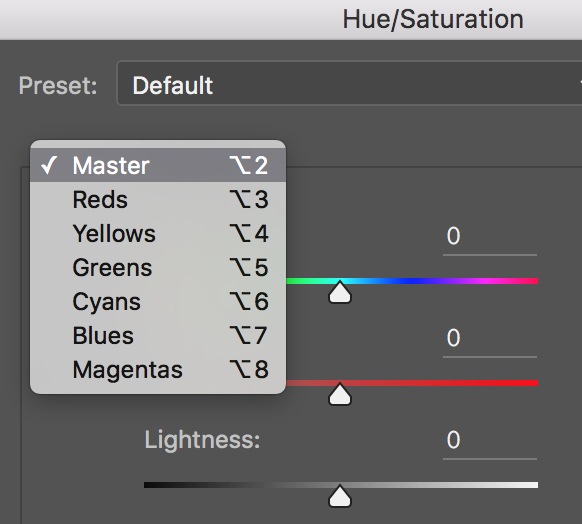
Screen Shot 2016-06-30 at 4.02.56 PMThe Hue slider is used if you want to change the colours in your image to something different. If you leave the box at the top on Master and adjust the Hue slider, all the colours in the image will change, making your image look a little funky and weird, but this could be fun too! The real power of the Hue slide comes into play when you select a colour channel from the drop down box. If you click on the arrow next to Master, all the colour channels will drop down (see screenshot left). This is really useful if you want all the reds to look a little more orange in your scene. Bear in mind, this is a universal adjustment, it will select all the reds in your image and make an adjustment to them all.

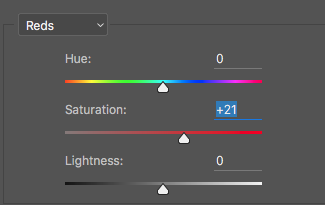
Screen Shot 2016-06-30 at 4.06.31 PMThe second slider is Saturation which affects how rich your colours are in your image. If the reds in your image seem to be light or weak, you can select Reds from the list, and simply move the Saturation slider up (see screenshot right). Also, if some of your colours seem too bold, you can select the appropriate colour channel and move the Saturation slider to the left. You can select each colour individually and make the necessary adjustments.

The last slider is Lightness. I have almost never used this one. If you have done a good job on your levels adjustment, there is really no reason to use the Lightness slider, so I would recommend not using it.

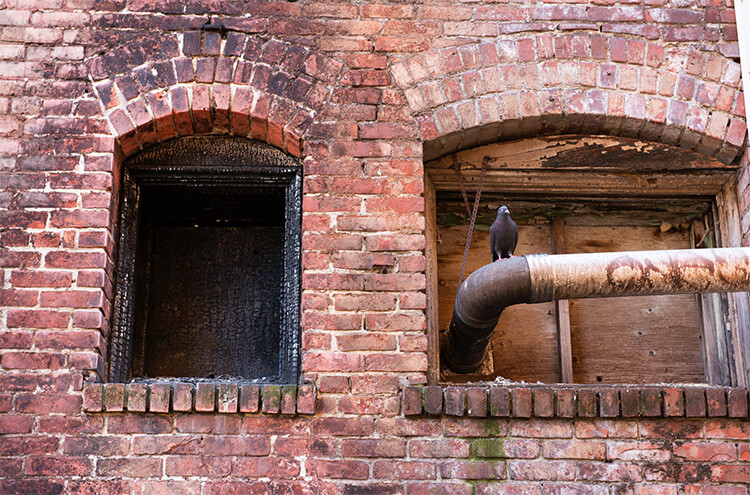
Image after Hue and Saturation adjustments have been made

Image after Hue and Saturation adjustments have been made

Quick Edit #3 – Brightness and Contrast

Once you have made your colour adjustments using Hue and Saturation, you might need to boost the brightness a little. The Brightness and Contrast tool (IMAGE > ADJUSTMENTS > BRIGHTNESS AND CONTRAST, there is no keyboard shortcut to this one) should be used sparingly, do not make big adjustments using it.

You can simply nudge the Brightness slider to the right and give some pop to the image, then do the same for the Contrast slider. If you don’t feel that you need to use this tool, then don’t, it is only necessary if your image looks a little dark after your colour adjustments.

Note: if you’ve done each of these as an adjustment layer you can go back and tweak your levels again, after doing the others.

Final quick edits made in Brightness and Contrast

Final quick edits made in Brightness and Contrast

That’s it, you are done, in a manner of speaking. These quick edits may be good enough for you to get your image to a satisfactory point. If you are happy with your image, then great – you have not spent too much time editing it.

You can do these three quick Photoshop edits on images that you think might be printed. Then if you see that the edits give them the boost you want, you can then spend more time on each image. This cannot replace a good workflow and a good understanding of what is possible in Photoshop, but these three tools will give you the ability to quickly edit your images and get them into a print-ready state really quickly.

If you need to do some further edits, then take a look at this article about more detailed post production techniques or check out all the articles dPS has on image editing in Photoshop. 

googletag.cmd.push(function() {
tablet_slots.push( googletag.defineSlot( “/1005424/_dPSv4_tab-all-article-bottom_(300×250)”, [300, 250], “pb-ad-78623” ).addService( googletag.pubads() ) ); } );

googletag.cmd.push(function() {
mobile_slots.push( googletag.defineSlot( “/1005424/_dPSv4_mob-all-article-bottom_(300×250)”, [300, 250], “pb-ad-78158” ).addService( googletag.pubads() ) ); } );

The post 3 Quick Photoshop Edits You Need to Know by Barry J Brady appeared first on Digital Photography School.


Digital Photography School
 
Comments Off on 3 Quick Photoshop Edits You Need to Know

Posted in Photography


How to Create a Dramatic Cinematic Style Portrait Using Photoshop Color Grading

30 Jun

Cinematic style portraits are personally one of my favourites. What I like the most about them are the desaturated colours and the dramatic ambience.

Before we start the tutorial on colour grading, I will give you some of my best tips to achieve this cinematic look:

  • Use a large aperture, something between f/1.4 and f/2.0. If you have a long lens then you can also use that. The idea is to have a nice background bokeh (when things in the background are blurred). You also want to have nice separation between the model and the background.

IMAGE 1

  • If you’re shooting indoors with strobes, then try to add ambience by adding shadows to the model’s face. You do not want flat lighting, it is boring.
  • If somehow you can’t get the dramatic lighting, don’t hesitate to enhance the contrast with some dodging and burning in Photoshop.

IMAGE 2

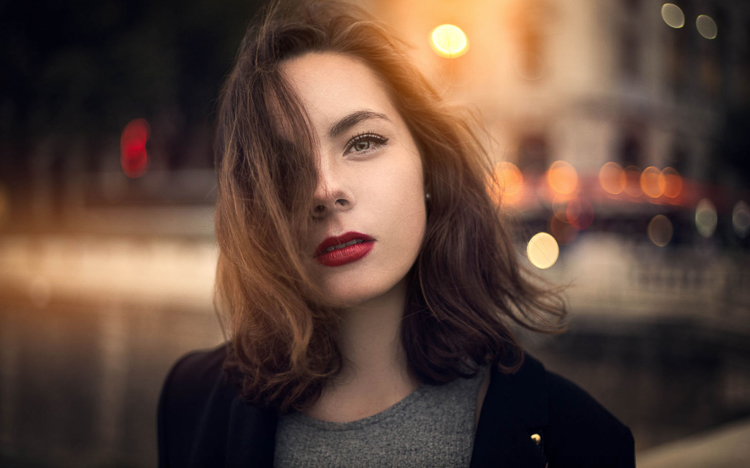
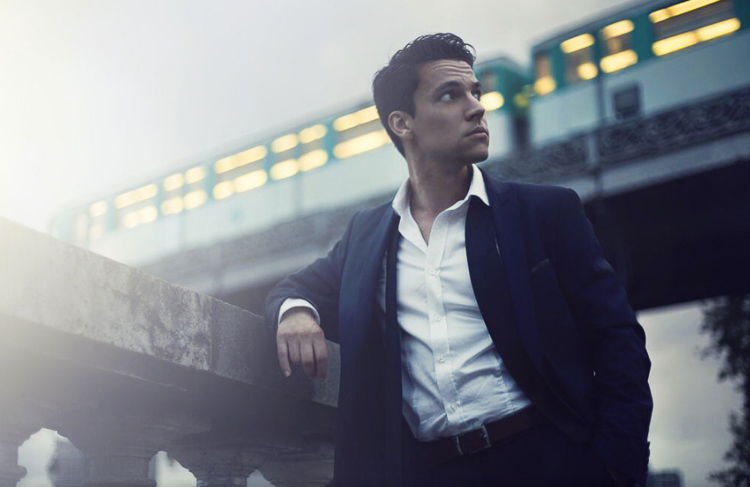
  • If you’re shooting outside, the I recommend shooting right after sunset. You will get nice soft light on the model’s face, and you will also have city lights behind them, to really get a cinematic feel. This only works with a large aperture, and it adds another point of interest.

IMAGE 3

  • Your model should have a strong expression on their face, especially if it’s a male. Cute smiling images do not really work that well with this style.
  • Leave some space in the frame. You do not want your model to take up the whole frame, so leave some space around them, to add context to your image. You can get better results if the viewer is able to locate the spatiotemporal context of your image.

IMAGE 4

  • Your model should not wear something too flashy (something like pink or yellow), limit their clothes to sombre, subdued colours.
  • Try to use complementary colours as much as possible, it creates nice depth to your images. Usually in movies, the actor is either in blue and the background in yellow/orange, or vice versa. Try to keep your actor in a range of cold colours and your background in warm colours, it works the best. The opposite also gives you good results.

IMAGE 5

  • The most important thing is that your model should look like a character. Try to add accessories, clothes, or poses that make the character look credible. You can discuss with the model or stylist before the session, the look you want to give to your images, and have a look together at the wardrobe.
    IMAGE 6

Color Grading in Photoshop

For the colour grading tutorial I am going to work on this image:

IMAGE 7

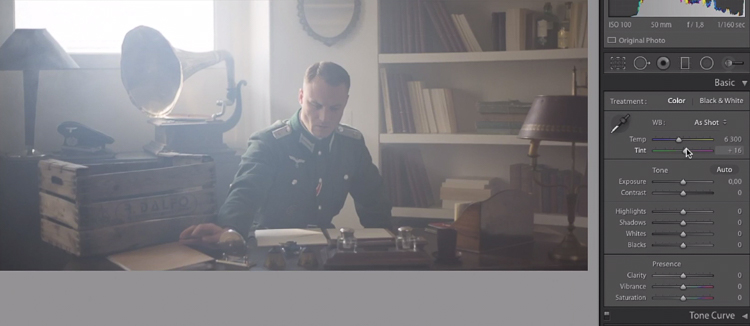
This image was taken on a Canon 6D, with an aperture of f/1.8, on a 50mm lens. This was taken during a short film where I was the photographer. There was a lighting behind the window aiming at the model, we added some fog to create this 1945 look.

What we’re going to do with this image is bring it back to life, by enhancing the contrast between the yellows in the highlights, and the greens in the shadows. We’re going to have a colour scheme based on analogous colours, going from green to yellow.

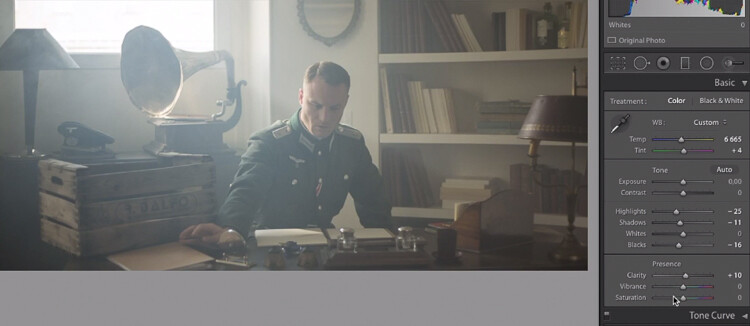
Let’s start with some basic exposure correction on Lightroom, this will depend on your image, so adjust accordingly.

IMAGE 8

Do basic adjustments in Lightroom, or your program of choice, first.

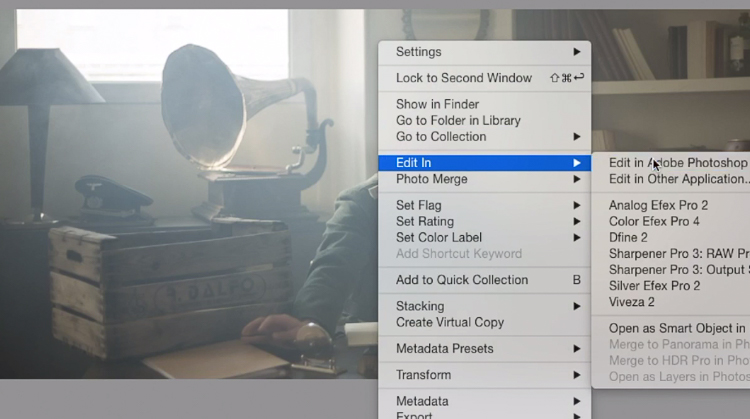
After the basics are done let’s move the image over to Photoshop to start our colour grading. If you are using Lightroom just right click and choose Edit in Photoshop.

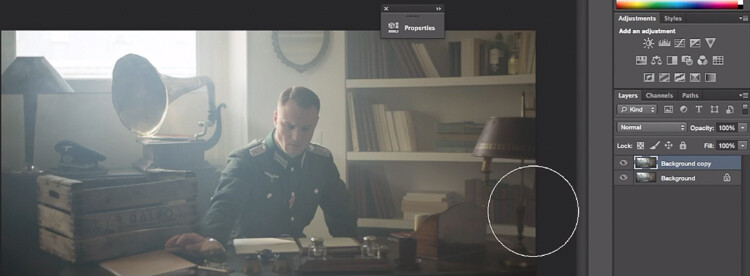
First, duplicate the layer in Photoshop so that you won’t do any destructive editing. You can always go back to the original layer if you don’t like the results.

IMAGE 9

IMAGE 10

Make a duplicate layer.

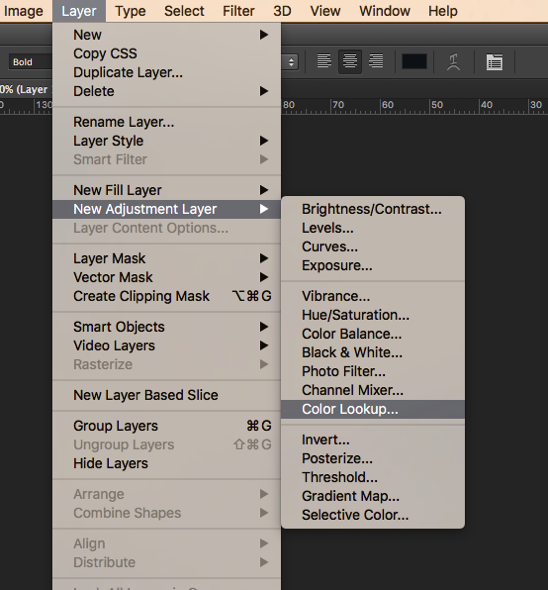
The first thing we’re going to do is to create a new layer adjustment, go to: Layer > New Adjustment Layer > Color Lookup…

Screen Shot 2016 06 23 at 2 08 13 PM

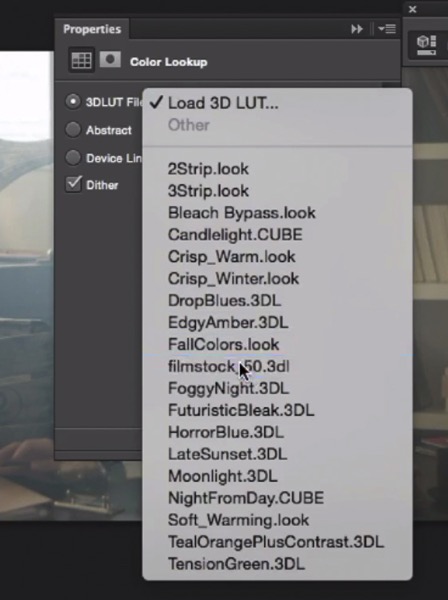
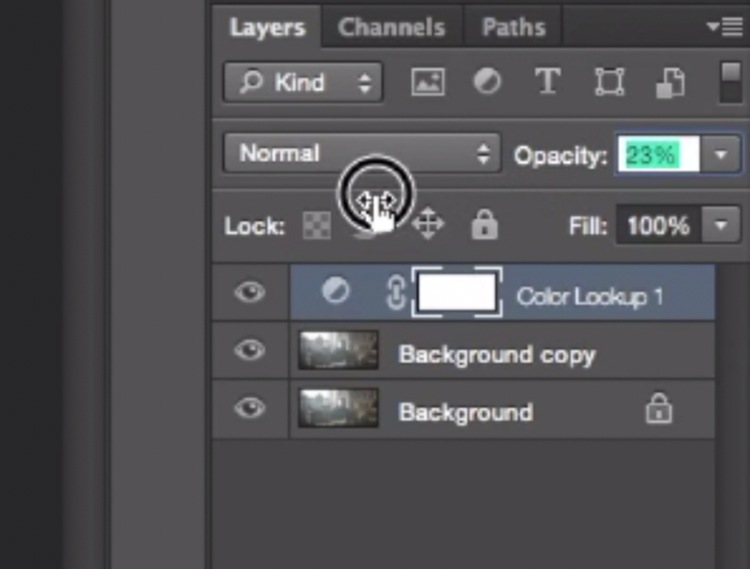
Pick filmstock_50.3dl and reduce the opacity of the layer to around 20%. You need to reduce the opacity otherwise the effect is going to be too strong.

IMAGE 12

IMAGE 13

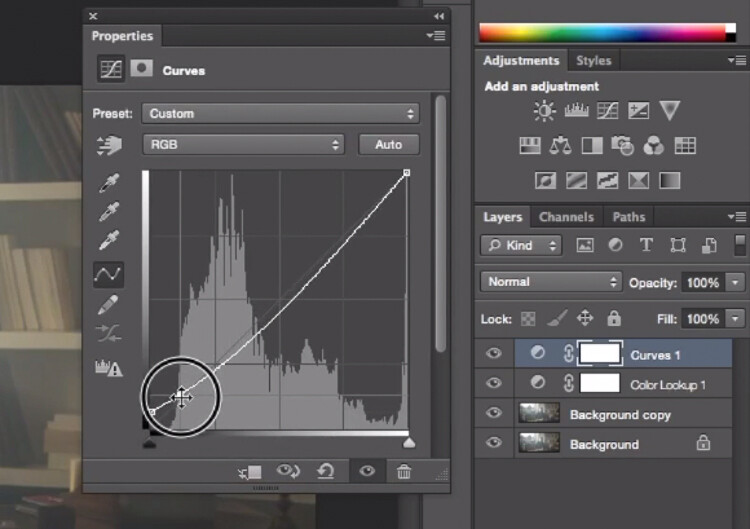
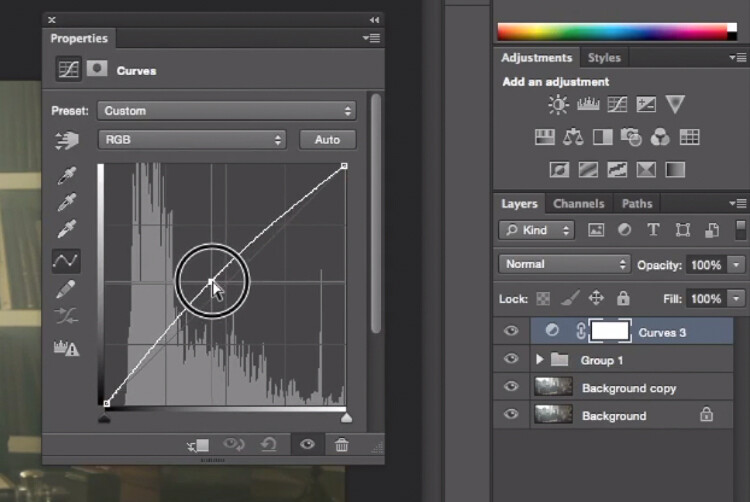
Next thing we’re going to do is create a curves layer and redo the contrast. This will really depend on your image, so adjust according to your taste.

IMAGE 14

Adjustment layer Curves to add contrast.

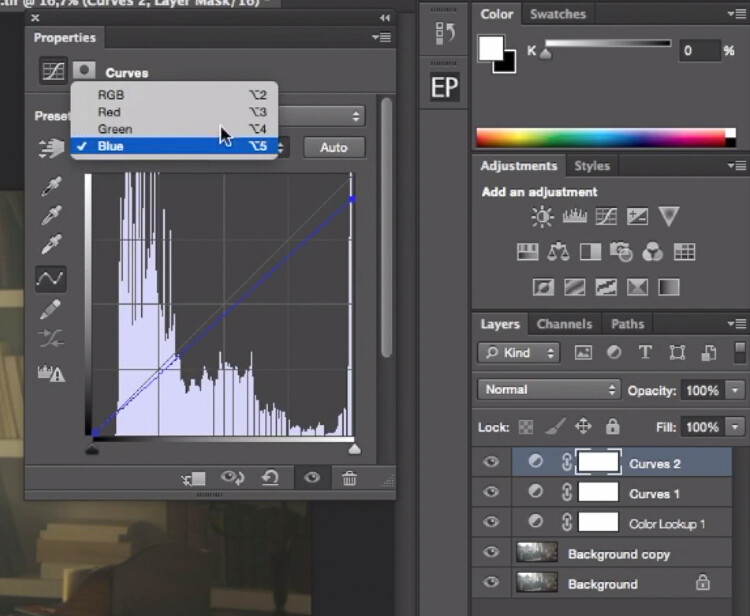
Then create another curves layer, go to the blue curve and lower the top right extreme of the layer. This will add yellow to your shadows.

IMAGE 15

Add yellow to the shadow areas using this curve adjustment

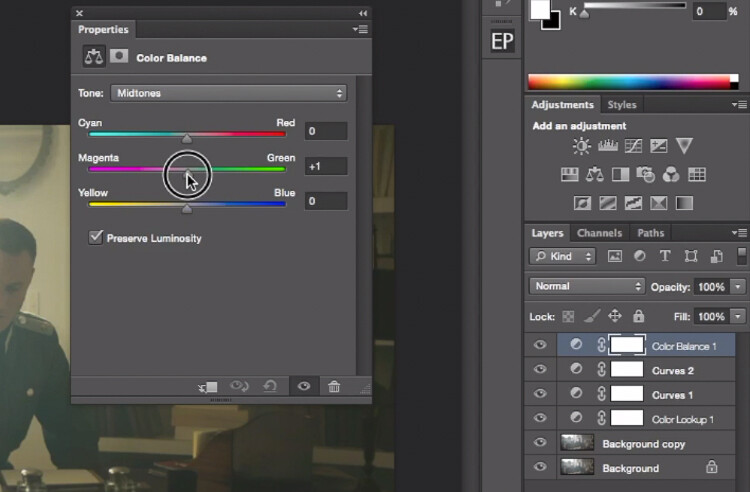
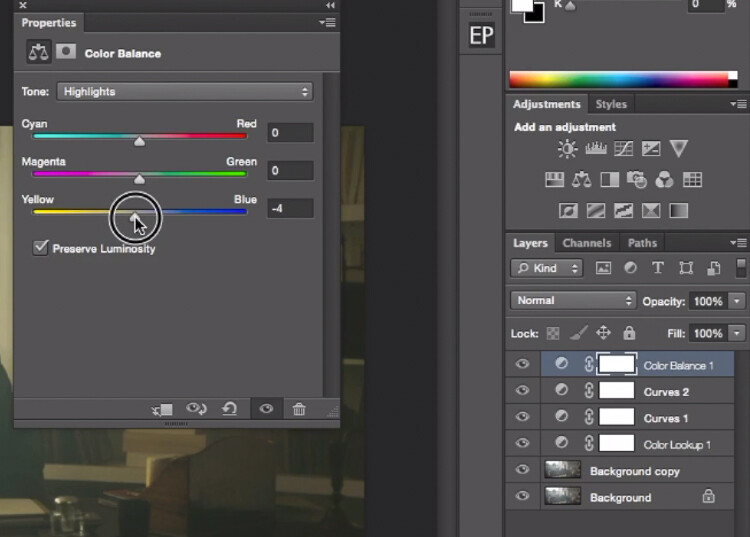
Next step is to play around with the colour balance (make another new adjustment layer) to enhance to greens in the midtones and the yellows in the highlights. Once again just the sliders to add green and yellow to both the highlights and the midtowns.

IMAGE 16

Select Midtones from the pull-down menu and add green and yellow.

IMAGE 17

Select Highlights from the pull-down menu and add green and yellow.

Right now, we are basically done with colour grading. Lastly is to quickly dodge and burn, to enhance the light coming from the window, and to darken the image and the background. We are basically doing a manual vignette.

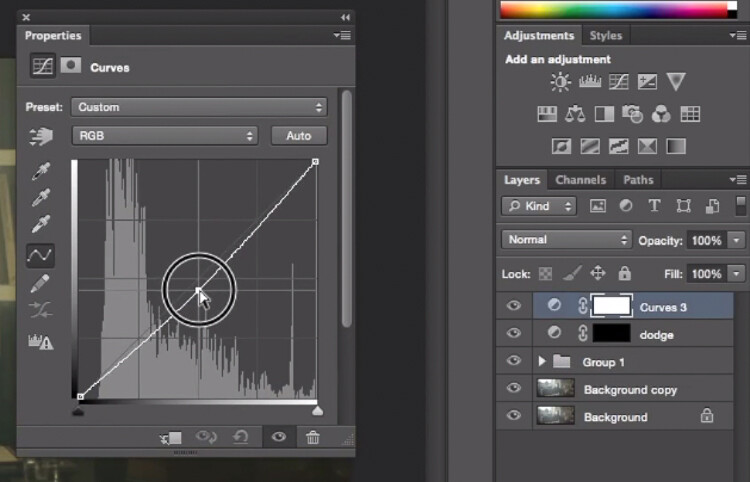
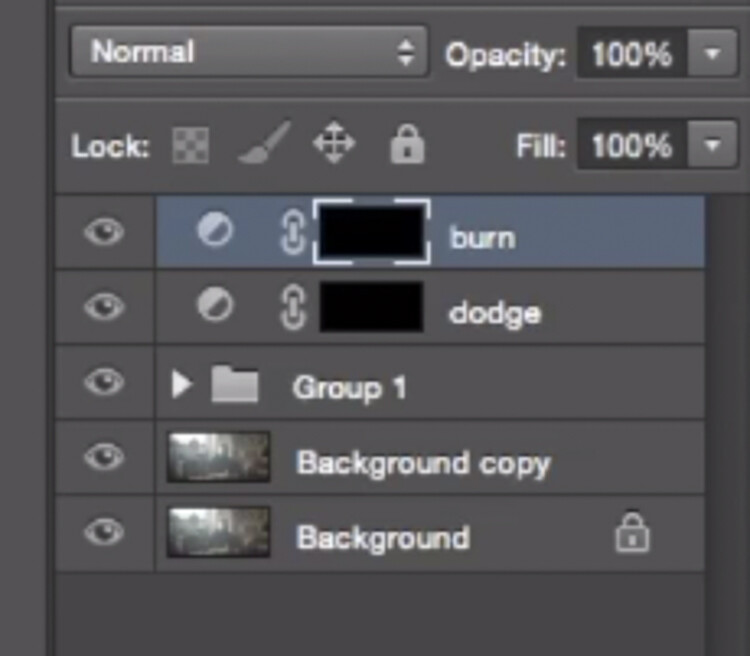
To lighten up the image, create a curves layer, make it brighter, and add a black layer mask (CMD/CNTRL+I to invert the layer mask). Call the layer Dodge, and paint with a white brush (because the mask is black) in the spots where you want to brighten up the image. Pick a brush with an opacity around 40% with and edge hardest of 0%

To create a dark layer, we will basically do the same thing but darken up the curves layer and paint over the spots in the image we want darker.

IMAGE 18

This Curves adjustment layer is for dodging or lightening areas of the image.

IMAGE 19

This Curves adjustment layer is for burning or darkening areas of the image.

IMAGE 20

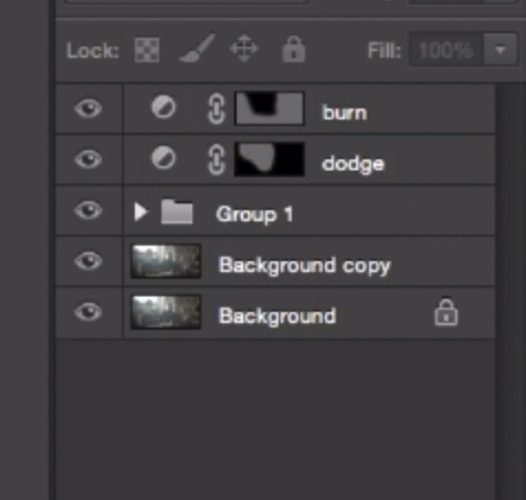
Rename your layers to identify them easier.

IMAGE 22

This is the final result:

IMAGE 23

Conclusion

Cinematic portraits rely heavily on great colour grading – but the lighting, model, camera settings and ambience should not be neglected. It all starts with a great image and ends with Photoshop to enhance your vision.

Enjoy the art !

googletag.cmd.push(function() {
tablet_slots.push( googletag.defineSlot( “/1005424/_dPSv4_tab-all-article-bottom_(300×250)”, [300, 250], “pb-ad-78623” ).addService( googletag.pubads() ) ); } );

googletag.cmd.push(function() {
mobile_slots.push( googletag.defineSlot( “/1005424/_dPSv4_mob-all-article-bottom_(300×250)”, [300, 250], “pb-ad-78158” ).addService( googletag.pubads() ) ); } );

The post How to Create a Dramatic Cinematic Style Portrait Using Photoshop Color Grading by Yacine Bessekhouad appeared first on Digital Photography School.


Digital Photography School
 
Comments Off on How to Create a Dramatic Cinematic Style Portrait Using Photoshop Color Grading

Posted in Photography


How to Use Photoshop to Enhance Details in Your Photos

29 Jun

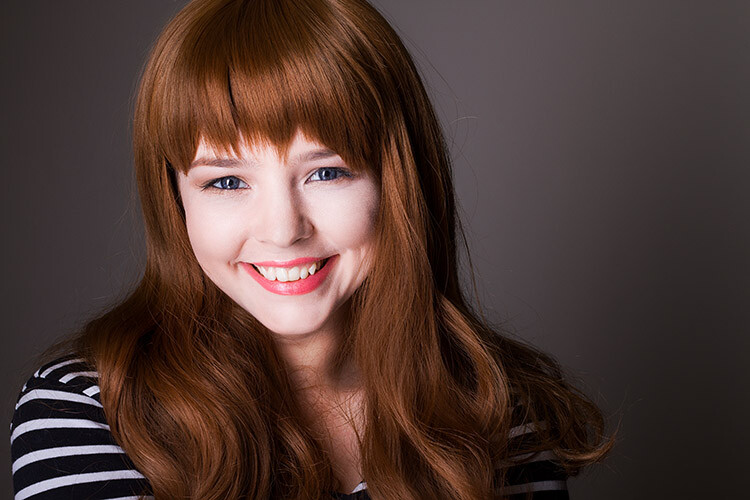
Do you think that your images lack details? Here is the way to extract the extra details that are already present in your photos, but are not visible, using Photoshop. Some methods like high pass sharpening will either give you a way too crunchy look or create halos around the edges of the different elements in your image. However, this Continue Reading
The post How to Use Photoshop to Enhance Details in Your Photos appeared first on Photodoto.


Photodoto

 
Comments Off on How to Use Photoshop to Enhance Details in Your Photos

Posted in Photography