RSS
 

Posts Tagged ‘Photoshop’

Video: 15 actually useful Photoshop shortcuts to help speed up your workflow

16 Mar

Photoshop Training Channel on YouTube has published a video detailing 15 useful, relatively unknown Photoshop keyboard shortcuts for power users. Unlike many similar videos, this channel’s video digs into actually useful shortcuts that many users are unlikely to know, including how to resize and rotate cloned content using keyboard keys, improving Puppet Warp tool control, and more.

The video is applicable to North American keyboards and includes both Windows and macOS shortcuts. Most tips build upon commonly known tools and shortcuts, offering ways for professionals to reduce the amount of time they spend clicking and sliding. Adobe maintains a large list of Photoshop shortcuts for Windows and Mac users here.

Articles: Digital Photography Review (dpreview.com)

 
Comments Off on Video: 15 actually useful Photoshop shortcuts to help speed up your workflow

Posted in Uncategorized


How to Correct Perspective Distortion in Photoshop

02 Mar

The post How to Correct Perspective Distortion in Photoshop appeared first on Digital Photography School. It was authored by Ana Mireles.

When talking about perspective, you step into a deep and somewhat complicated subject. It has to do with geometry, history of art, viewpoint and so on. However, solving that big issue won’t be the point of this tutorial. Instead, it focuses on solving perspective issues in your photography using photoshop. So keep reading to learn which Photoshop tools can help you out.

Because perspective can be a broad term, in this article, I’m going to narrow it down to one aspect, and that is the way straight lines seem to converge as they get further away. This can be used as a creative element of the picture, or it can help convey a sense of depth and tridimensionality as per this example:

You may be familiar with this effect, such as when you’re walking on the street, and you tilt your camera up to photograph a building. Now, this might be your intention, but sometimes you don’t want or need this distortion. Of course, you can correct this issue by using tilt and shift lenses, or with a large format camera. However, many of us don’t have access to that equipment. This is where Photoshop is handy to fix perspective in post-production.

As usual, Photoshop has different ways of dealing with the same problem. One may work better than others in different cases. However, I find that more often than not, you need to combine them to get the job done. So here’s an introduction to some different approaches:

Lens correction and transformation

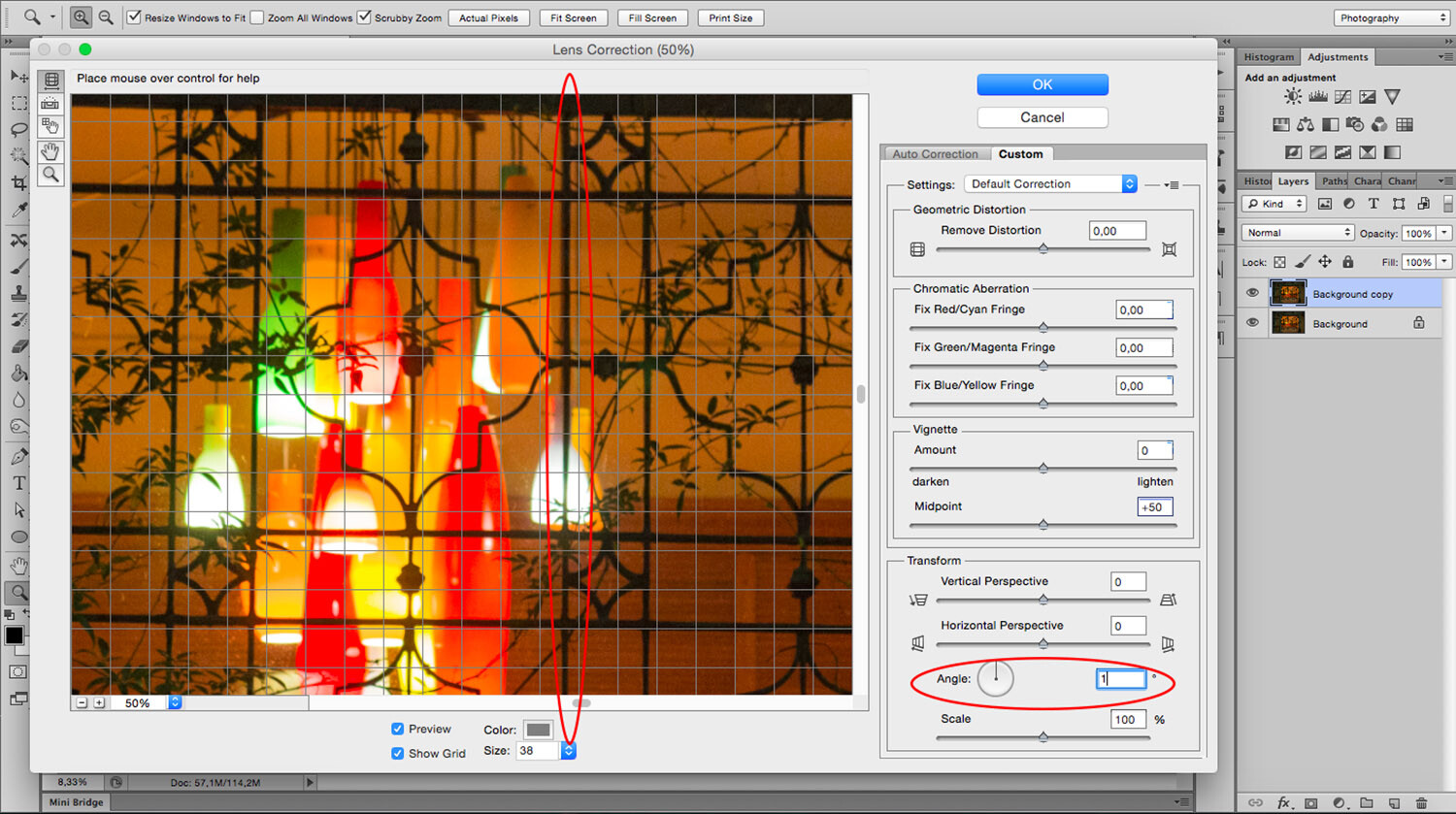
One way to correct perspective distortion is by using the Lens Correction Filter. You can find it under the Filter Menu. When you choose this, a new window pops up. To start working on it, ensure you’re in the Custom tab to access the settings and set your grid with the bottom slider so that you can have it as a reference.

For this exercise, you’re only going to need the Transform part of the panel that you’ll find in the bottom right. I find that starting with the center point saves time as the changes you make after happen on both sides simultaneously. So I zoomed in to the center and rotated the angle so that the central line aligned with the grid. Remember, you can make the grill tighter if you need to.

Now you can start fixing the vertical and horizontal lines with the sliders. On the sides of each slider, you can see an icon showing the way the image gets affected. If you pull the vertical slider to the left, the top part gets wider or sliding to the right the bottom part is the one that becomes wider and so on.

As you move the lines around, you may be losing part of the image towards the edges. To bring everything back in, use the scale slider. After you’re done, you’ll have to crop out the blank pixels.

As you can see the Lens Correction Tool can be handy, but sometimes you still have to make some adjustments here and there. For this step, you can use the different Transform tools found under the Edit menu.

In this case, I’m using the Skew tool which allows me to move all the corners and middle points independently. Whenever you’re using any of these tools, you can pull out Guide Lines by clicking on the ruler and dragging. That way you can work more precisely without leaving the transform mode.

For this image that’s all I needed to do. However, remember that all the transformation tools can help to correct perspective, so experiment with them to find the one that works best for you and your image. Here, you can see on the left how I started, and on the right, is the new corrected version.

Perspective Tool Crop

Another way of fixing the problem is with the Perspective Tool Crop. This feature corrects the lines almost automatically. However, I wanted to give you the option of doing it manually first so that you have more control over the perspective. If you want to try it out, draw a rectangle around the image with the Perspective Tool Crop active and then drag the corners to match the grid with the distorted lines.

It usually does a good job, but you might still need to tweak it a little bit with the transform tools. Be aware that the Perspective Tool Crop, as the name says, crops your image. You might lose some information from the borders. In any case, you can give it a try and decide which method is best for you.

If you have any other tips to correct perspective distortion, share them with us in the comment section.

The post How to Correct Perspective Distortion in Photoshop appeared first on Digital Photography School. It was authored by Ana Mireles.


Digital Photography School

 
Comments Off on How to Correct Perspective Distortion in Photoshop

Posted in Photography


How to Use Photoshop to Resize and Sharpen Images for the Web

28 Feb

The post How to Use Photoshop to Resize and Sharpen Images for the Web appeared first on Digital Photography School. It was authored by Peter Dam.

Do you struggle with getting your images to look super sharp when you use them online? Do they even look blurry? No matter if you share your images on social media platforms or photo sharing sites like Flicker and 500px, you want your images to look as sharp as possible.

Most photographers come across web sharpening issues at some point. But did you know that most of the web sharpening issues you experience come from the resizing process? Resizing your image can make your image look blurry and a lot less sharp than the full sized image. You might have spent a long time processing your image so it would be a shame that it should end up as a less sharp online version.

In this article, you will learn the common pitfalls to sharpening your images for web use, and more importantly, how to sharpen in a way that gives you both full control and the best results.

However, let’s take a look at how not to resize images for online use before we dig into the best way to resize and sharpen in Photoshop.

Milford Sound Mitre Peak © Peter Dam

How NOT to resize and sharpen your images for online use

To get sharp and great looking images online, avoid uploading a full-sized image and relying on the website to handle resizing for you. You don’t have any control over the amount of sharpening (if any) that a website’s upload function add to your image.

You should also avoid just using the export dialogue in Photoshop. Even though it is good, it is not great. You can still end up with blurry images, especially if there is a dramatic size change. Like if you want to resize a 6000px wide image to being only 1200px.

Also, avoid just resizing in Photoshop and then let the export tool do the rest if you want the best results. Even though you resize the image, you have little control of the sharpening process when you only use the export tool.

How to sharpen your images in Photoshop for the best results

To follow along, open a copy of an image that you have already processed in Photoshop, as we go through the best method for resizing and sharpening your photos for online use.

Note: Make sure you use a copy of the image and not the original because you are going to resize your image to a much smaller version. If you accidentally save the image without renaming and close Photoshop, you can’t recover the image back to its full size.

The Chute © Peter Dam

It would be logical to go straight ahead and resize your image to the output size you want. However, this won’t lead to the best results as it may be difficult for Photoshop to properly sharpen an image that suffers from a quality loss when you resize a lot.

Instead, resize in two steps and sharpen in between the steps.

Let’s go through the process step-by-step using the dimensions from above as an example, resizing from a 6000px wide image down to 1200px wide.

The first step is to resize your image down to approx. 1.6 of the final output size that you want to use online. In this case, this would be 1.6 X 1200px = 1920px.

To resize your image in Photoshop, you should go to Image->Image Size and enter the width.

This gives you an image that hasn’t degraded too much from being resized but is still relatively close to the final image size.

Before resizing to the final output size, you should add sharpening. You do this by going to Filter->Sharpen->Sharpen.

If you like to keep track of what each layer does, I suggest renaming the layer to “Sharpened.”

After applying this first layer of sharpening, duplicate the layer. You can do this by pressing CMD+J (on Mac) or CTRL+J (on Windows).

Then apply another round of sharpening by using the menu Filter->Sharpen->Sharpen. Rename this layer to “Extra sharpening.”

Now you are ready to resize to the final image size. You do this by going to Image->Image Size and enter 1200px as the width.

Now that you have resized the image to the final output size, you should see that the image looks very sharp when you view it at its actual size.

If you think that it looks somewhat over-sharpened, you can easily adjust it by just changing the opacity of the of the topmost layer (the one called “Extra sharpening”). Pull down the opacity to around 60-70%.

Now you are done with the sharpening process. However, you should know that there are additional issues that occur when resizing images.

Sharpening an image also tends to make it a tiny bit brighter. If you want to address this, you should add a Levels adjustment layer and pull the midtone point slightly to the right. Usually changing the midtone point to 0.97 brings back the original brightness level. You can also use an Exposure adjustment layer if you prefer to use that instead of a Levels adjustment layer.

The colors in your image also suffer a bit when resizing and sharpening; however, it is not always visible. If you find that your image looks a bit less colorful now that it is resized, you should add a Hue/Saturation adjustment layer and add a bit of saturation back into the image. About +5 to +9 usually brings your image back to the level it was before resizing and sharpening.

That is the end of the web resizing and sharpening method used by many professional photographers using Photoshop.

If you are familiar with creating Photoshop actions, you can record the process of resizing and sharpening images to the dimensions you most often use online. This allows you to speed up the process significantly.

Exporting your image

The final step is to export your image. You can do this by going to File -> Export -> Export As…

The setting you choose when exporting your image depends on where you want to upload your image. For some sites, like image galleries or your portfolio website, image quality is more important than the file size. Whereas, blogs prefer to have smaller file sizes, but with a bit lower image quality.

One of the most important things, as discussed in this article, is that the result is a sharp looking image. You already took care of this by following the sharpening and resizing workflow above, where you resized the image to the output size you need. This means that you don’t have to worry about resizing the image or what resample method to use during export.

The only thing to worry about when following this sharpening and resize workflow is choosing the file format you want and the quality to use. The file format is most likely going to be JPG for web use. The image quality settings depend on whether you prefer a really small file size (so the image loads lightning fast online), or whether you prefer to maintain the best image quality possible. Usually, you can lower the image quality to 80% without a visible drop in image quality. This is my preferred personal setting for image quality. You can optimize the file size even more by using a lower image quality. However, I would never recommend going lower than 50% to get smaller file sizes. There are also some image optimizing sites you can use, such as TinyJpeg, that lower your file size without compromising your image quality too much.

Conclusion

Admittedly, it is a lot more complicated method for resizing your images than using the inbuilt Export feature in Photoshop. However, it also leads to much better results. What use is it to put much effort into capturing and processing an image, if it doesn’t look as great as it could when you show it online?

What method do you use for sharpening your images before using them online? Feel free to share your thoughts in the comments below.

The post How to Use Photoshop to Resize and Sharpen Images for the Web appeared first on Digital Photography School. It was authored by Peter Dam.


Digital Photography School

 
Comments Off on How to Use Photoshop to Resize and Sharpen Images for the Web

Posted in Photography


Review: Filterbooth Preset Collection for Lightroom and Photoshop

26 Feb

The post Review: Filterbooth Preset Collection for Lightroom and Photoshop appeared first on Digital Photography School. It was authored by Stacey Hill.

When it comes to post-processing, I have to admit, I like to use presets as part of my workflow. So when I came across this collection of filters from Filterbooth, I was keen to test them out and see if they were a pack I would benefit from using in my day-to-day editing.

The Filterbooth Preset Collections

Filterbooth has 12 collections in total, and each collection holds between 11-15 individual presets. The preset packs are available for both Lightroom and Photoshop ACR. For the purpose of this review, I have used the Filterbooth Professional Package which consists of:

Amber – rich warm autumn tones with a vintage touch
Azure – shades of seaside blue
Clean/Standard – clean standard finish
Emerald Forest – give landscapes and foliage and other greens some pop
Faces – adding impact to portraits
Night Owl – inspired by starry skies and deep nights
Food – for food
Golden Hour – warm and inviting tones to enhance sunrise/sunsets
Moody Vibes – what it says on the tin
Monochrome – black and white filters for all subjects
Urban Vibes – street scapes, city scenes, architecture
Interior – for inside of buildings

Mostly, the names are relatively descriptive concerning the intended use.  The names of the individual presets are similar, in that they mostly describe what the effect they can do.  If you would like to see examples of the effects, there are some Before/After slider examples on the website, which is always helpful to get an idea of the outcomes.

The whole collection has some common styles; Clean, Classic, Lucent, Vintage, and Warm are some examples that pop up in several collections.  The style and result of the preset seem to be reasonably consistent for these as well, so if there is one style you particularly like, it may be repeated across different collections for some variations.

System Requirements – Filterbooth requires Lightroom™ CC, Classic CC, 6, 5, or 4 and for ACR requires Photoshop™ CC or CS6 to work properly.

Pricing

There is a free sample of 5 Presets to try out (which is a lucky dip of sorts as the website doesn’t tell you which ones they are).  However, this is a nice touch, as a lot of the expensive professional preset makers don’t always offer a free sample.

Next, there is a Starter Kit (US$ 45) which includes 5 samples from each of the 12 collections (again, it doesn’t tell you the specific ones).

Lastly, there is the Professional Kit (US$ 115) which gives you every preset.

Keep an eye out on their website for special offers too, because, at the time of writing this, some discounts were on offer.

Testing out the presets

Presets use all the settings within Lightroom to do their job.  Depending on their design, they may edit key things like exposure, white balance and so on.  Some do, some don’t. Any image you are using should already have had your basic edit applied to correct for White Balance, Exposure, Lens Correction, Horizon Angle, Crop, etc.  Therefore the preset affects the other editing tools.

As a result, some presets can be ‘stacked’ on top of each other to build up layers of effect.  This works if the presets alter different settings from the previous one, and only those elements are selected to be active in the preset.  I found it isn’t generally obvious until you try them out.  The image at the head of this article did have several presets applied for a stacked effect, and then some manual edits to finish it off.

In general, most of presets don’t adjust the exposure when you apply them – however, some do, and it varies by the amount.  So keep that in mind when you are applying them to your image.

Testing Technique

The example image I used for this review was edited in Lightroom from a RAW file so that the finished image was suitable for having presets applied.

After the preset was applied, I did NO FURTHER EDITS – all you see is the result of applying the preset.  Once the I exported and saved the file, I removed the current preset from the Lightroom image.  Therefore each time a new preset was applied, it was against a clean copy of the Base Image to maintain consistency.

I chose to use the flatlay food image because of it’s color range and texture. It also provided a good comparison on a close-up shot.

The second image I chose to use is a landscape with a bright blue sky, snow, grass, and rocks.  This offered a larger scale scene with a typical contrast range of a landscape on a bright sunny day — typical of many landscape images.

I have noted the Collection Name, and the Preset Name in the captions and examples are in Alphabetical order of Collection Type.

BASE IMAGE FOR TESTING


Amber -Classic


Azure- Blues

Azure- Blues


Emerald Forest – Rich


Faces – Clean


Food – Classy


Golden Hour – Soft


Interior – Dim


Monochrome – Ageless


Moody Vibes – Blog


Night Owl – Crimson


Standard – Moody


Urban Vibe – Chilly


Next we have a Landscape shot of the New Zealand high country, taken from the rocks at Castle Hill. It has a nice blue sky, highlights in the snow, quite a lot of mid tones and it lacks a little contrast making it interesting to see how the presets work with it.

BASE IMAGE FOR TESTING


Amber- Warm


Azure – Mystery


Emerald Forest – Air


Faces – Warm


Food – Pop


Golden Hour – Pink


Interior – December


Monochrome – Ageless


Moody Vibes – Blog


Night Owl – Colour


Standard – Moody


Urban Vibes – Film


Conclusion

As you can see, there is a lot of variation in effect here.  While crafted for specific uses, the collections can also be used outside of that as well.

In general, I found there was enough variety to make these useful, and enough similarity to feel comfortable in getting consistent outcomes by using Presets of the same name.  While the full collection gives you everything, it may be outside the budget for some. In that case, the Freebie pack, or Starter Collection may be a better option.

The presets themselves, felt crafted for a modern, slick styling similar to what you might see in high-end magazines, or portrait and wedding studios.  So if that is your thing, these are probably worth checking out.

For landscape, food or other photographers, I would recommend trying the free sample pack (what have you got to lose?) and then decide if you want to invest further.

As I mentioned, I use a lot of presets in my work and have many from a range of creators.  This offering from Filterbooth is probably the most modern and professional set I have used. While the preset styles don’t suit the styling I have used for my photographic brand, I did enjoy the Moody and Vintage options, as well as the ones with a bit of desaturation and matte finish.

If you are a general purpose photographer, and considering presets, the Filterbooth Preset Collection is a great, professionally produced, collection with a wide range of options to suit many styles.  So give the free sample pack a try and take it from there.

Review 4 and a half /5 stars  (the extra half for having a Free Sample Pack)

The post Review: Filterbooth Preset Collection for Lightroom and Photoshop appeared first on Digital Photography School. It was authored by Stacey Hill.


Digital Photography School

 
Comments Off on Review: Filterbooth Preset Collection for Lightroom and Photoshop

Posted in Photography


How to Make Great Photo Invitations in Photoshop

22 Feb

The post How to Make Great Photo Invitations in Photoshop appeared first on Digital Photography School. It was authored by Ana Mireles.

Do you have an event coming up? Let’s make it a success!

It doesn’t matter if you’re throwing a birthday party for your kid or organizing a fancy dinner for your clients and coworkers, every event needs an invitation. You want people to know about it, but you also want to get them excited so they want to come. Here are a couple of ideas to do photo invitations to start you off on the right foot.

1 - How to Make Great Photo Invitations in Photoshop

In this day and age, we are used to expressing ourselves with photos and a party is no exception to that. If you make a Facebook event it asks you to add a cover photo; if you want to do printed invitations, a photo works well too. The idea behind a photo invitation is to communicate more than just when and where. It also sets the tone for the party, so choose your image wisely and incorporate the text creatively.

2- How to Make Great Photo Invitations in Photoshop

Text box photo invitations

One idea for your photo invitations is to create a text box within your photo, like the example above. I suggest this idea if you’re going with postcard format, or folding card, where you can put all the practical information on the back or inside. This is because too much text on top of the photo can look messy. However, it can work if you’re using a minimalistic photo.

In any case, you can achieve this effect in just a few steps:

Step 1:

Once you’ve chosen your photo, open it in Photoshop. Then duplicate the layer by going to Menu -> Layer -> Duplicate Layer. You can also do this with the New Layer button at the bottom of the Layers panel if you prefer.

3- How to Make Great Photo Invitations in Photoshop

Step 2:

You want the two layers to have different brightness, so depending on the exposure of your image you can either darken the original layer or lighten the new top one. You can do this by adjusting the levels. Go to Menu -> Image -> Adjustments -> Levels, making sure the right layer is selected.

4- How to Make Great Photo Invitations in Photoshop

Step 3:

Now go to the top layer. Using the Rectangular Marquee Tool, select the area of the Text Box to the size you require. Once you have it, create a layer mask by clicking on the button at the bottom of the Layers panel. You can also delete the excess image by inverting the selection with Menu -> Select -> Invert and click the backspace key, however with this choice, you can’t adjust it later so I don’t recommend it.

5- How to Make Great Photo Invitations in Photoshop

Step 4:

Give the text box a special effect so that it’s clearly separated from the background image. Click on the fx button at the bottom of the Layers panel and choose the one you like, usually an Outer Glow or Drop Shadow should work well.

6- How to Make Great Photo Invitations in Photoshop

Step 5:

Finally, click on the Text tool and add your text. Remember that you can personalize the font, size, color, and much more on the top Options Bar. One trick I like to use is to type it twice in different colors, then move one of them a click or two to give it some depth.

7- How to Make Great Photo Invitations in Photoshop

There you go. Using the same technique, you can do the invitations to any event from a casual rooftop party with friends to a homey, intimate holiday party and much more. What sets the tone is the photo.

8- How to Make Great Photo Invitations in Photoshop

Faded background photo invitations

If you need all the information to be in one place together with the image, you can use a fade effect:

Step 1:

With your image open in Photoshop, create a new layer by clicking the new layer button at the bottom of the Layers panel. Then go to Menu -> Edit -> Fill. Choose the color you want keeping in mind that this becomes the background of the text. However, it also interacts with the image you chose.

9- How to Make Great Photo Invitations in Photoshop

Step 2:

Click on the Gradient Tool (if you don’t see it, check under the Fill Tool) and drag across your image to fade in the color layer into the image layer. This process is trial and error, so do it as many times as you need until you’re satisfied. If you need more information on how the Gradient Tool works I recommend you check out my tutorial “How to Customize and Use the Photoshop Gradient Tool.”

10- How to Make Great Photo Invitations in Photoshop

Step 3:

Now you just have to include all the information using the text tool as shown in the first example and you’re good to go.

Have fun and feel free to share your invitations with us in the comments section below.

11- How to Make Great Photo Invitations in Photoshop


The post How to Make Great Photo Invitations in Photoshop appeared first on Digital Photography School. It was authored by Ana Mireles.


Digital Photography School

 
Comments Off on How to Make Great Photo Invitations in Photoshop

Posted in Photography


How to Add a Toy Camera Effect to Your Digital Images Using Photoshop

29 Jan

The post How to Add a Toy Camera Effect to Your Digital Images Using Photoshop appeared first on Digital Photography School. It was authored by Megan Kennedy.


They may look cute, but toy cameras aren’t actually toys at all. The name refers to inexpensive film cameras made predominantly of plastic and paired with a simplistic lens.

From around the 1990s, toy cameras garnered popularity for their distinctive aesthetic. Cameras like the Diana and Holga are embraced, light leaks and all, for their wonderfully unpredictable results.

With their vignetting, blurry focus and lens distortion, photographers armed with toy cameras relinquish control over the definitive outcome of the image, adding a palpable sense of serendipity to the photographic process.

Applying a toy camera effect to a digital photograph isn’t the same as using a toy camera itself, I know. But it’s a fun way to add a unique retro feel to a photograph while making use of the control that a digital camera affords.

Here’s how to add a toy camera effect to a digital photograph using Photoshop.

1. Cropping your image

Open up your image in Photoshop. Here’s my starting image.

The original image

Toy cameras work within a square format, so you’ll need to crop your photograph accordingly. Select the Crop Tool from the left toolbar. In the top toolbar, click on the dropdown menu that regulates the crop ratio. Select 1×1 (Square).

A square demonstrating the crop parameters will appear over your image. Adjust the parameters until you are happy and press enter.

2. Applying a vignette

With your layer selected in the Layers palette, go to Layer -> Duplicate Layer. A dialogue box will pop up. In the input field next to “As:” type “Layer 1” and click OK. This duplicates your current layer so you can work non-destructively.

Next, right click on Layer 1 and select Convert to Smart Object.

Select Filter -> Lens Correction and a dialog box will open. Click on the Custom tab. In the Vignette section of the Custom tab, adjust the Amount slider and the Midpoint slider until you have a nice, dark vignette (for this image I set the amount to -100 and the midpoint to +10). Repeat this step if you want a darker vignette.

Use the Lens Correction function to apply a vignette to your image

3. Adding blur

As I mentioned before, a lot of photographs taken with a toy camera are unfocused or blurry. To emulate this, make sure Layer 1 is selected and go to Filter->Blur->Gaussian Blur. In the Gaussian Blur window set the Radius from 5 to 10 pixels depending on your image and click OK.

In the Gaussian Blur window set the Radius from 5 to 10 pixels depending on your image and click OK

4. Adjusting colors

Toy cameras often lend a distinctive color-cast to photographs. In the layers panel, click on the Create a new fill or adjustment layer button and select Curves. In the Curves adjustment palette click on the RGB menu, select the red channel and create a shallow ‘S’ bend. Select the green channel and apply the same shallow ‘S’ shape. Now select the blue channel and create an inverted ‘S’.

Use the curves function to emulate the distinctive color-cast often encountered in photos taken with a toy camera

5. Creating light leaks

One fun characteristic of toy cameras are light leaks. A light leak is caused by a hole or gap in the body of the camera, allowing light to “leak” into the film chamber. This exposes the film to excess light. The result is whimsical fields of color that add character to a photograph and illustrate the photographic process.

To emulate light leaks you first need to create a new layer. Click on the Create a new layer button at the bottom of the layers panel and rename the layer “Light leaks”.

Select your brush tool and set the brush size to around 2000 and your hardness to 0%. Set the foreground color to your preferred color – usually red, yellow or blue. With the “Light leaks” layer selected, dot or streak one or two patches of color over your image.

Once you are done painting the light leaks, change the Blending Mode of the layer by clicking on the Blending Modes dropdown menu and selecting Color. You can change the opacity of the light leaks by toggling the Opacity slider on the layers panel too.

Conclusion

And there you have it. Now that you know how to add a toy camera aesthetic to your photograph, the possibilities are endless. This is a great opportunity to make use of unfocused, spotty or noisy digital images. It’s the next best thing to using a real toy camera yourself!

Here are a couple of my own creations below, post yours in the comments!


The post How to Add a Toy Camera Effect to Your Digital Images Using Photoshop appeared first on Digital Photography School. It was authored by Megan Kennedy.


Digital Photography School

 
Comments Off on How to Add a Toy Camera Effect to Your Digital Images Using Photoshop

Posted in Photography


How to Replace Colors in Your Images Using Photoshop

15 Jan

The post How to Replace Colors in Your Images Using Photoshop appeared first on Digital Photography School. It was authored by Megan Kennedy.

Have you ever taken a photograph and wondered what it would look like in a different color? Or perhaps you find a particular color distracting and want to swap it for a more subtle tone? Maybe you want to ramp up the impact, using more vibrant colors to make your image pop?

With the help of Photoshop, swapping the colors of different elements in a photograph is quick and easy. Here are two ways to switch the colors in your image to make them more dynamic.

Method one – Using the Replace Color Panel

The Replace Color panel is a simple tool designed to tweak color selections. When you select a specific color in the image, the Replace Color function grabs similar colors, allowing you to change them within the same action.

Step 1 – Preparing your image

First, open your image in Photoshop. To edit non-destructively we need to duplicate the layer. That way, we can go back to the original image at any time. Select your image in the Layers Pallet, then go to Layer -> Duplicate Layer. Alternatively, you can right-click on your image in the layers panel and click Duplicate Layer or drag your layer onto the New Layer icon.

Step 2 – Selecting a Color to Replace

With your duplicate layer selected in the Layers Pallet go to Image -> Adjustments -> Replace Color and the Replace Color panel will pop up. Check the Localized Color Clusters and Preview options. The cursor will automatically be converted to an eyedropper icon, so click on the color in the image that you want to replace. This highlights the color in white in the preview thumbnail, so you can see how much of the color is selected.

Go to Image -> Adjustments -> Replace Color to open the Replace Color panel


Click on the color in the image that you want to replace. This highlights the selection in white in the preview thumbnail

Step 3 – Adjusting the range

The next step is to add further shades of your chosen color to the selection so it looks more natural. With the Replace Color panel still open, hold down the shift key and click on more shades of your selected color in the image. This adds new shades of your selected color to the preview thumbnail.

If you accidentally select an area, hold down the alt key and click the area again to deselect the selection. You can adjust the edges of the selection with the Fuzziness slider, this dictates the sharpness of the edges in the selection.

Step 4 – Swapping the color

In the Replace Color panel, use the Replacement Hue slider to adjust the color of your selection. Once you’re happy with the color, use the Saturation slider to increase or decrease the intensity of the replacement color. You can also adjust the Lightness slider which tweaks the shade of the replacement color.

Use the Replacement Hue slider to adjust the color of your selection

To make sure the edges of the selection have adequate coverage, you may need to readjust the Fuzziness slider.

Once you’re happy with your results, click OK. Your adjustments will be applied to your image and you’re good to go!

Method two – Using the Color Replacement Tool

The Color Replacement Tool is an alternative to using the Replace Color panel. With the Color Replacement Tool, you can apply a replacement color to a more targeted area in the image.

Step 1- Preparing Your Image

Just like in the first method, we need to duplicate the original layer so we can return to the original image if required. Select your image in the Layers Palette then go to Layer -> Duplicate Layer or right click on the layer in the Layers Pallet and click Duplicate Layer.

Step 2 – Selecting the Color Replacement Tool

Accessing the Color Replacement Tool is a little tricky. Click and hold the cursor over the Brush Tool on the left toolbar and several brush options will appear. Select the Color Replacement Tool.

Step 3 – Setting your foreground color

With the Color Replacement Tool selected, set your foreground color to the color you want to replace your current color with. So if you want to change a red subject to blue, select blue as your foreground color.

Set your foreground color to the color you want to replace your current color with

Step 4 – Applying color with the Color Replacement Tool

With the Color Replacement Tool selected, brush over the area of color you want to replace. You can adjust the settings of the brush (size, shape, tolerance) in the top menu bar.

With the Color Replacement Tool selected, brush over the area of color you want to replace

Conclusion

Color is a wonderful and versatile element of composition. But sometimes the right color scheme is elusive. That’s where the Color Replacement tools come in handy. Now you’ve read the guide, why not give it a go? Post your results in the comments below!

The post How to Replace Colors in Your Images Using Photoshop appeared first on Digital Photography School. It was authored by Megan Kennedy.


Digital Photography School

 
Comments Off on How to Replace Colors in Your Images Using Photoshop

Posted in Photography


Create Powerful Black and White Photos with the Photoshop Gradient Map

12 Jan

The post Create Powerful Black and White Photos with the Photoshop Gradient Map appeared first on Digital Photography School. It was authored by Adam Welch.

In this article, you will learn how to use the Photoshop Gradient Map tool to transform your “meh” color images into incredible black and whites that go “WOW.”

When you think about it, a black and white photograph doesn’t make sense. No, really. At it’s most basic level, black and white photography presents us with a version of our world that we know is not accurate. The colors we normally see get shown to us in values of white, black and gray. We know a black and white photo isn’t true-to-life and yet a strong black and white photograph can transcend the sum of its parts. It can transport us to visual spaces which provoke emotions that even the brightest color photograph cannot achieve.

Even though a black and white picture is called “black and white” seldom are they merely tones of gray. A strong black and white image often present subtle color tones in the shadows, highlights, mid-tones or sometimes all three. Moreover, when it comes to concocting a black and white photo from a digital color image file, the way in which you approach your conversions can make or break the entire photograph.

However, not all methods are created equal. I’m about to show you one of the best ways I know to effectively convert and tone a photo to black and white. We’ll do this using a quiet little tool in Photoshop called the Gradient Map. When it comes to taking a digital black and white photograph from “meh” to “WOW” the Photoshop Gradient Map will be your best friend.

What is the Gradient Map?

The Photoshop Gradient Map is essentially just what it sounds like; a way for you to map out and control the color tones of different luminance values within your photo.

Toning with the gradient map can be shockingly simple (as with this lesson) or as delightfully complex as you choose to make your adjustments. Ok, enough talk, let’s get started. Let’s take a RAW color photo and begin the process of converting it to black and white, followed by toning it with the gradient map in Photoshop.

Begin with basics

To begin, I highly recommend you use a RAW image file. Doing so offers you the greatest amount of wiggle room to adjust the values within the photo after you convert it to black and white.

I’ve started with a photo opened in Lightroom to complete some basic edits. However, you can complete the entire process right inside of Photoshop. Preferably, converting the image to black and white and toning with the gradient map should be one of the last steps in the process. Of course, editing can take on a life of its own, so don’t hesitate to dynamically adjust your photo at any stage. Here we have the RAW file after some core edits in Lightroom.

You may be asking “why not just convert to black and white right now?” I don’t recommend converting the photograph to black and white before opening it in Photoshop. The reason for this is because it completely robs you of the vital color information that allows adjustments of the individual color luminance values.

Next, I’ll kick the image over to Photoshop….

Now the real fun begins! Come on…it really is fun.

Conversion and Toning with the Gradient Map

After you open your image in Photoshop, convert it to black and white. To achieve this, add a black and white adjustment layer.

Although it’s not necessary to do so, feel free to name this layer something specific. At this point, you can adjust the individual color luminance values to your liking. See, I told you there was a reason to hold off on converting until this step.

Now that you have a nicely converted black and white photograph you can jump into the toning process by adding a Gradient Map adjustment layer. Click on the Gradient Map icon just as we did with the black and white adjustment layer.

Doesn’t that look magical!

Kidding.

There are a couple of things we need to do after we select the Gradient Map. Depending on your default Photoshop settings, your view could appear slightly different than mine. Don’t worry, though, the steps are the same.

To select your gradient, click on the gradient drop down:

Then click the Settings Wheel to open up your toning options and make sure that Photographic Toning is selected.

You’ll be prompted to confirm you want to change to a new gradient. Click OK because you absolutely do.

Each of those little boxes represents a color gradient scheme you can select to tone your image. Think of these as gradient presets. For this photo, I’m going with an old favorite of mine, Platinum.

Don’t be afraid to experiment and find the flavor that you like for your photo. Remember, everything here is non-destructive so simply click the “undo” button at the bottom of the gradient map window to start over.

At this point, we are nearly finished with the bulk of our toning using the gradient map! Yes, it is that easy. However, before we go, I want to show you how to customize the gradient should you choose to do so. A gradient map adds color across the tonal values of your image. You can control just how it applies this by clicking the gradient (and even create new ones). Doing so opens up the gradient adjustment panel.

From this panel, we can adjust the individual values of the gradient to change color density and contrast. There are limitless combinations and color schemes available. So again, allow yourself to tinker, tweak, test and otherwise go completely wild with your gradients to see how they affect your photo. I’m not joking; the possibilities are endless. Didn’t I tell you this was fun?

Last but not least, you can also adjust the layer blend mode and opacity of the gradient layer in the Layers Panel. Play with the percentage levels until you get the effect right.

Now you can further adjust your photo right here in Photoshop, or back in Lightroom. Or, if you are finished, you can save and export.

Final thoughts on Gradient Maps and Black and White

With just a few simple layers in Photoshop, we went from this…

to this…

to finally this…

Black and white photos are more than…well, just black and white. Think of some of your favorite black and white images. Are they merely two colors or are they something more? Whether it be film or digital, most “black and white” images that move us possess color tones that create a sense of mode or aesthetic comfort that touches us on a creative and emotional level. Using the Photoshop Gradient Map to tone your black and white photos is one of the easiest and most effective ways to create advanced black and white’s that stand out. Once you begin making use of the Photoshop Gradient Map, you may wonder how you ever managed without it in the first place!

Do you use the Photoshop Gradient Map? Share with us some of your images below.


The post Create Powerful Black and White Photos with the Photoshop Gradient Map appeared first on Digital Photography School. It was authored by Adam Welch.


Digital Photography School

 
Comments Off on Create Powerful Black and White Photos with the Photoshop Gradient Map

Posted in Photography


The Neimeo e-ink keyboard can be customized for Photoshop, Lightroom and other apps

09 Jan

Nemeio is a portable keyboard that uses e-ink technology to allow for complete customization for any app you want to use it with, including Adobe Photoshop, Lightroom and other image or video editing apps.

The keyboard features mini-displays in each of the 81 keys, so users can create specific key-layouts for any app they are working with and switch between them using the Nemeio companion software. Icons can be dragged and dropped in the latter’s virtual keyboard and then immediately show up on the real one.

The Nemeio can also be set to change its layout automatically with the app you are using. For example, you could use a standard keyboard layout while typing emails or writing a letter. Once you open Photoshop the keyboard would then automatically change to a different layout with editing shortcut icons.

The Nemeio comes with a brushed-metal body and measures only 12x7x0.43-inch (30.5×17.8×1.1cm), making it easily portable. It can connect to any device with Bluetooth keyboard support.

The Nemeio is not quite available yet but shipping is expected some time this year. Pricing could be an issue, though. Engadget reports the keyboard could cost somewhere between $ 300 and $ 500.

Articles: Digital Photography Review (dpreview.com)

 
Comments Off on The Neimeo e-ink keyboard can be customized for Photoshop, Lightroom and other apps

Posted in Uncategorized


Sigma releases X3F Raw conversion plugin for Photoshop

25 Dec

Sigma has released ‘Sigma X3F Plug-in for Photoshop’, a Raw conversion plugin for processing files from its Foveon Merrill and Quattro cameras.

The plugin allows users of the DP Merrill and dp Quattro large sensor compacts, along with Quattro mirrorless camera shooters to bring X3F files into Photoshop without having to use Sigma Photo Pro. The SD1 and SD1 Merrill cameras are also supported.

Both Mac and PC versions of the plugin are available.

As the name suggests, Sigma X3F Plug-in for Photoshop only supports X3F files: X3I files generated by the multi-shot ‘Super-fine detail’ mode will still need to be process with Sigma Photo Pro.

Users of older Foveon camera are advised to use Adobe Camera Raw or SPP.

On Twitter, CEO Kazuto Yamaki described the software as ‘a small Christmas present to our camera users’, adding ‘Ho, ho, ho!’

The download page can be found here

Articles: Digital Photography Review (dpreview.com)

 
Comments Off on Sigma releases X3F Raw conversion plugin for Photoshop

Posted in Uncategorized