RSS
 

Posts Tagged ‘Photos’

DIY Photography: How to Make Your Own DIY Lightstick for Cool Photos!

21 Jan

The post DIY Photography: How to Make Your Own DIY Lightstick for Cool Photos! appeared first on Digital Photography School. It was authored by Simon Bond.

diy-lightstick

In this article, you’ll learn how to make your own DIY lightstick.

You’ll be able to use this to create fascinating light paintings, and the best thing is, you can do it on a budget!

The simple DIY lightstick is made with easily available household objects and a set of fairy lights. Once it’s made, you’ll be able to create beautiful light patterns during long exposure photos.

DIY-Lightstick

Using a light stick for light painting can transform a scene.

What is light painting

Light painting is a long exposure technique.

To achieve this kind of photo, you’ll need a camera on a tripod, and usually, the photo will be taken at night. The exception to this would be a studio that is completely dark – this too can be used for light painting.

Most people will know light painting as simply spelling something in the sky with a torch.

There are two main forms of light painting, kinetic light painting, and regular light painting. In this article, you’ll learn about using a light stick to create regular light paintings.

Image: There are light sticks out there you can buy. This photo was taken using a pixelstick.

There are light sticks out there you can buy. This photo was taken using a pixelstick.

Lightsticks you can buy

You can buy a ready-made lightstick.

Indeed, some of these are already quite cheap and will give you the chance to practice some of the ideas presented in this article. There are also those sticks that are more expensive.

It’s worth keeping the more expensive sticks in mind, as they will give you more options when compared to a stick like the one you’ll be shown how to make in this article.

  • LED light sticks – The creme of the crop are the LED light sticks made by pixelstick and magilight.
  • Glow sticks – The glow sticks often seen at parties and festivals. They’re cheap, and can be used for light painting.
  • Toy light stick – Head down to your local toy shop and pick up a light saber. Indulge your inner child, and it also makes some great photos!
  • Light painting swords – These are similar to kids’ toys, but are made specifically with photographers’ needs in mind. They are available through this site.
DIY-Lightstick

You’ll use tie straps to attach the wire to the tube.

How to make a DIY light stick

There are some very good cheap options when it comes to light sticks, and you might decide to pursue one of those instead of making a DIY lightstick. If you want a little challenge, then read on and see what you can make.

The supplies you’ll need

First of all, let’s gather the supplies you’ll need. You can find most at home, however, you may need to visit your local DIY store or look online for some too.

  • Battery operated fairy lights.
  • A piece of plumbing pipe. Around one meter long, and 2cm in diameter.
  • A plumbing pipe connection piece. A t-shape variety is best, and also 2cm in diameter.
  • A set of tie straps.
  • A copper piping half-circle bracket.
  • Wire cutters.
  • A saw.
  • Solder and soldering iron.
  • Electrical tape.
  • Glue gun.
  • Bungee cord.
Image: The battery pack needs to be glued onto the stick as well.

The battery pack needs to be glued onto the stick as well.

Putting the whole thing together

Now you have everything you need, take the following steps to put it all together.

The task is fairly simple. It’s really just attaching some fairy lights to a stick. Why the plumbing tube? That’s so you can break it down to a stick that’s half of its size in an easy way.

Attaching the fairy lights

  1. Take your length of plumbing tube and use the saw to cut it in half. The length of the 2 halves is optional. In my case, I went with 50cm.
  2. Attach the two pieces together using the connection piece.
  3. Now Attach the end of the fairy light wire to the end of your tube use a tie strap.
  4. Pull out the fairy lights to the length of the tube. Then give a little slack to allow the tube to be detached at the connection point.
  5. Use another tie strap to attach the fairy light wire to the other end of the tube.
  6. Run the wire back down the length of tubing again, and then attach the wire to the tube using another tie strap.
  7. You’ll now have excess wire and fairy lights left over. You could repeat steps 4,5 and 6 if you wish, or continue to the next part.
DIY-Lightstick

This stick divides into two. This makes it easier to carry around and gives you the option of using the stick at half its full length.

Putting the battery pack on, and finishing the stick.

  1. Use the wire cutters to cut away the excess wire, leaving around 20cm to the battery pack.
  2. Strip away some of the plastic coatings on the wire on the side with the battery pack, and the side attached to the piping.
  3. Solder the two pieces of wire back together again. Make sure the correct wire is soldered together or the lights won’t work. When you cut the wire, two wires will be revealed on each side of the wiring. You need to solder this back together to re-complete the circuit.
  4. Use the electrical tape to cover up the soldered wire, or if you have it, plastic that shrinks when heated to cover the join.
  5. Test the lights, they should now work, and you should now have a light stick!
  6. Take the copper bracket and hoop it around the pipe, and touch it to the battery pack to ensure it connects.
  7. Use the glue gun and add glue to the joining section on the battery pack, the pipe, and the copper bracket.
  8. Hold everything in place until the glue has dried hard.
  9. Finally, run the length of the bungee cord through the piping, and knot it at both ends. The cord should be tight enough to hold the pipe together, but loose enough that you can easily detach the two halves of the stick.
DIY-Lightstick

The stick is now ready, it just needs the bungee cord put through the middle.

Light painting with a lightstick

Now you have a DIY lightstick you can use to create interesting light paintings.

Lightsticks work because of the repetition factor – lots of lights moving altogether in a uniform pattern. It’s best to keep your light paintings relatively simple. Use defined movements, like spinning around, to create light cones. Spin the stick around to create circles, or simply walking along with the stick to create light ribbons.

What you do creatively with the stick is now up to you, but enjoy experimenting!

Image: It’s usually a good idea to keep light paintings simple, with a defined message.

It’s usually a good idea to keep light paintings simple, with a defined message.

Conclusion

It’s always fun to make something for your photography. Have you ever tried to make an accessory yourself? Maybe it was for flash photography, something like a snoot?

Here at digital photography school, we love to hear from you, so please share your experiences. If you have any light painting photos taken with a light stick that you would like to share, that would also be great!

You may also like:

  • DIY Photography Backdrops for Still Life and Product Photography
  • 5 DIY Macro Photography Hacks for Stunning Macro Photos (on a Budget)
  • How to Make a DIY Photography Softbox
  • Try this DIY Neutral Density Filter for Long Exposure Photos
  • DIY Food Photography Props on a Budget
  • DIY Photography Backlighting for Beginners
  • How to Make a DIY Lens Hood to Eliminate Lens Flare
  • How to Make Easy and Affordable DIY Food Photography Backdrops


The post DIY Photography: How to Make Your Own DIY Lightstick for Cool Photos! appeared first on Digital Photography School. It was authored by Simon Bond.

Digital Photography School

 
Comments Off on DIY Photography: How to Make Your Own DIY Lightstick for Cool Photos!

Posted in Photography


Best Photos of 2019 by JMG-Galleries Blog Readers

16 Jan
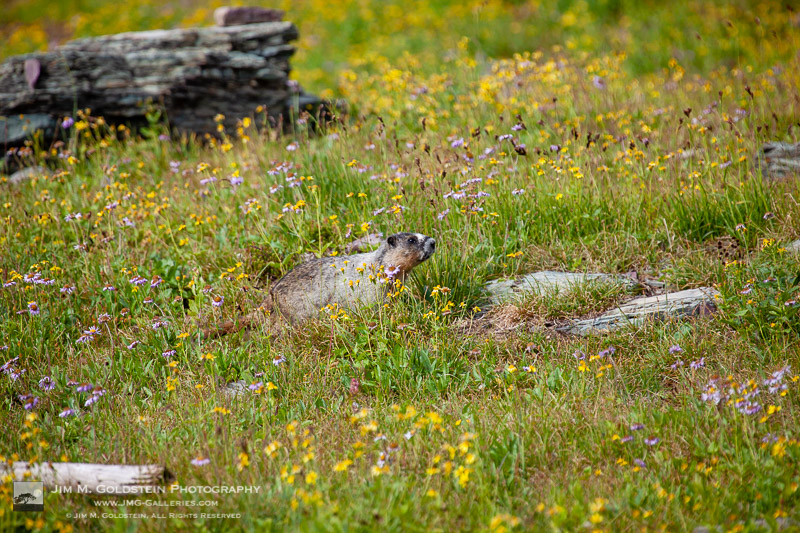
Hoary marmot – Glacier National Park, Montana

A hoary marmot (Marmota caligata) in wildflowers at Logan Pass, Glacier National Park in Montana.

I’m excited to share the results of my 13th annual Best of Photos project.  112 photographers from around the world (amateur and professional alike) have shared their best photos of 2019.  I’m always amazed at the quality of work shared and I hope it’s a source inspiration to you for the coming year.

For those who are new to my blog project, photographers taking part span the gamut of photo enthusiasts to professionals. The great thing about photography is that no matter what your skill level we all can relate equally in our love for the art of photography and visually exploring. With that in mind I encourage you to reach out to photographers whose work you enjoy to keep sharing & growing as an artist.  I am incredibly thankful that this tradition has been embraced and enjoy seeing how familiar faces have evolved their work & grown over the years.  I hope reviewing your best photos of the year and comparing them to years pasts keeps you inspired and aware of your progress as a photographer.

If you’d like to take part next year and be informed when submissions open for the “Best Photos of 2020” blog project add your name to my mail list. You won’t be spammed. I send out newsletters quite infrequently.

Thank to everyone who took part!  I invite you to visit each link below as I have and introduce yourself to many of the participating photographers.

Best Photos of 2019

  1. Best Photos of 2019 – JMG-Galleries – Jim M. Goldstein
  2. My Top 10 Photographs Of 2019 – Michael Russell
  3. My Ten Favorite Photos of 2019 – ADVENTR – Randy Langstraat
  4. Favorite Photos of 2019 – T.M. Schultze
  5. My Favorite Photos from 2019 – Alexander S. Kunz
  6. Best of 2019 – Dave Wilson
  7. Harold Davis—Best of 2019 – Harold Davis
  8. 2019: A Photographic Retrospective – Johann A. Briffa
  9. Top 10 Favorites of 2019 – Stefan Baeurle
  10. My Best Natural History Photos of 2019 – Phil Colla
  11. My Best Photos From 2019 – Daniel Brinneman
  12. Best Photos of 2019 – Peter Tellone
  13. Rétrospective des meilleures photos de l’année 2019 – Francis Gagnon
  14. Best of 2019 by Rachel Cohen – Rachel Cohen
  15. Photo Highlights 2019 – Alan Majchrowicz
  16. My Top 10 Nature Photos of 2019 – Greg Vaughn
  17. 2019 – The Year in Pictures | Russ Bishop Photography – Russ Bishop
  18. 2019 Favorites – A Split Year – Joseph Smith
  19. My 12 Favorite Photos of 2019 – Chuq Von Rospach
  20. Wild Drake Photography – Drake Dyck
  21. Matt Payne Photography – Matt Payne
  22. My Favorite Images Of 2019 – Werner Priller
  23. Favourites from 2019 – Bryn Tassell
  24. My Favorite Photos of 2019 – A Year-End Retrospective – Gary Crabbe / Enlightened Images
  25. 2019 Favorite Photographs – Pat Ulrich
  26. Without reflection we go blindly on our way – Bjorn Kleemann
  27. 2019 – Ten moments – Ramen Saha
  28. top photos :: 2019 – Denise Goldberg
  29. Changing Perspectives – Best of 2019 – Jenni Brehm
  30. Island in the Net – Khürt Williams
  31. Best Photos of 2019: My Favorites of the Year – Todd Henson
  32. My Ten Best of Images of 2019 – Mike Chowla
  33. 2019 Favorite Photos – Alan Dahl
  34. Tech Photo Guy – Best Photos 2019 – Aaron Hockley
  35. 2019 Favorites – Martin Quinn
  36. Best of TheDarkSlides 2019 – TheDarkSlides
  37. 2019 Jim Goldstein Project – J.J. RAIA
  38. My Favorites of 2019 – Rich Greene
  39. My Favorite Images of 2019 (aka ‘Best of 2019’) – Pete Miller
  40. 2019 Year in Review, Decade in Review – Robin Black Photography
  41. Under Pressure Photography – Scott McGee
  42. My favorite Slovenia photos of 2019 – Luka Esenko
  43. 5 Moments in Time – 2019 – Gavin Crook
  44. My favorite photos of the decade – Matt Payne
  45. My Ten Favourite Images of 2019 – Jens Preshaw
  46. 2019 in Pictures – Milan Hutera
  47. Twelve from 2019 – Tom Whelan
  48. My Favorite Photos of 2019 – Jeff Hubbard
  49. 2019 Favorites – Rick Holliday
  50. Best of the Best 2019 – Richard Valenti
  51. Best Landscape and Nature Photos of 2019 – Clint Losee
  52. Best of 2019 – My Favorite Images of the Year – Rob Tilley
  53. 2019 Year in Review – Greg Russell | Alpenglow Images
  54. Best of The Decade Including 2019 – Adrian Klein
  55. Best of 2019 – Brian Knott
  56. Natural History Photography – Highlights from 2019 – Gabor Ruff
  57. Best of 2019 – Jeff Dupuie
  58. Top 2019 – Eric Chan
  59. Best of 2019 – Greg Clure
  60. Twenty Nineteen: In retrospect – Charlotte Gibb
  61. Favorite Blog Photos of 2019 – Jim Coda
  62. My Favorites 2019 – Beth Young
  63. Living Wilderness: Best of 2019 – Kevin Ebi
  64. 2019 Favorites – Mike Cleron
  65. Best of 2019 – Romain Guy
  66. 2019 Favorite Images – Sam Folsom
  67. Michael Katz Photography – Michael Katz
  68. Twenty Nineteen – Mark Graf
  69. 2019 in Review – and Happy New Year”
  70. Photography & Travel – brent huntley
  71. Top 10 Favorite Images from 2019 – Derrald Farnsworth-Livingston
  72. My Photo Highlights of 2019 – Caleb Weston
  73. Lagemaat Photography – Best images of 2019 – Jao van de Lagemaat
  74. Favorites from 2019 – Kyle Jones
  75. A Baker’s Dozen – Mike Christoferson
  76. 10 Favorites of 2019: An Amazing Year – Kurt Lawson
  77. Top 20 Photographs of 2019 – Year-End-Retrospective – Landscape Photography Reader/David Leland Hyde
  78. Favorite Photos of 2019 – Deb Snelson
  79. Favorites – 2019 – Daniel Leu
  80. Best of 2019 – Steve Cozad
  81. Fog from Above in 2019 – Andrew Thomas
  82. Favorites of 2019 – Mick McMurray
  83. Some Favorites from 2019 – Josh Meier
  84. Top 10 Images of 2019 – Stephen L. Kapp
  85. Top Ten of 2019 – Holly Davison
  86. Best 2019 – Barbara Michalowska
  87. The Creative Photographer – Andrew S. Gibson
  88. My Favorite Photos of 2019 – Patricia Davidson
  89. A Thousand Words – Lucy Autrey Wilson
  90. 2019 Top Twelve Photographs – David J Grenier
  91. Urban Dinosaurs – Steven M. Bellovin
  92. Best of 2019 – Thomas Yackley
  93. Carol’s Little World – Best of 2019 – Carol Schiraldi
  94. My favourite shots of 2019 – Catalin Marin
  95. Top 2019 Photos – Matt Conti
  96. Top Ten 2019 – Phyllis Whitman Hunter
  97. Favorites from 2019 – Tim Aston
  98. Robb Hirsch- Best of 2019 – Robb Hirsch
  99. 2019 Top 25 Images – Yesitis – Harold Klein
  100. Environment Alyssa – Alyssa Bueno
  101. Jeff Sullivan Photography – Jeff Sullivan
  102. My Top Favorites of 2019 – Sara M. Photos
  103. 2019 Year in Review & Favorite Black & White Photos – Sarah Marino
  104. 2019 Year in Review & Favorite Photos – Ron Coscorrosa
  105. Favorite 8 Photos from 2019 – Maria Struss
  106. Top Photos Of 2019 – Bryan William Jones
  107. Favorite Photos 2019 by Lori Hibbett – Lori Hibbett
  108. Bob’s Best of the Best 2019 – Bob Blakley
  109. Best Overall 2019 on Flickr – Sue Shuey
  110. 2019 A Year in Review – Jim Patterson
  111. Photo Blog – Ron Niebrugge – Ron Niebrugge
  112. Expeditions Alaska 2019 Tour Ramblings – Expeditions Alaska

Have a great 2020!


JMG-Galleries – Landscape, Nature & Travel Photography

 
Comments Off on Best Photos of 2019 by JMG-Galleries Blog Readers

Posted in Equipment


Lucid’s new LucidPix AI app turns ordinary images into 3D photos

10 Jan

AI vision startup Lucid has introduced an upcoming app called LucidPix that transforms ordinary images into 3D photos. The app is currently in development but has been made available to some users as part of a private beta. LucidPix is made possible using a contextual artificial intelligence that replaces the need for depth of field sensors or multiple cameras.

Generally speaking, special high-end camera hardware including select expensive flagship smartphones are required to capture 3D images. Unlike old school red-cyan stereoscopic 3D images, this newer type of 3D image doesn’t require special glasses to view. Instead, the effect is generated in the image based on depth-of-field data. Users can perceive the depth of different elements in the images by tilting their phones while viewing them, giving the images a 3D effect.

The LucidPix app will make it possible for anyone to create 3D photos, including ones generated from existing 2D images, using any iPhone or Android smartphone model. The transformation happens entirely through software. The LucidPix app includes 3D effect frames and will be offered in both standard and for-pay Premium versions.

3D photos generated with LucidPix can be shared within the photo app, as well as on social media platforms that support 3D images, including Facebook. According to Lucid, more than 250,000 people are using the LucidPix beta app through the Google Play Store’s early access program. Lucid recently demonstrated the app at CES 2020; the product will officially launch in the second quarter of the year.

Additional examples of 3D photos generated with LucidPix can be found on the app’s official Facebook Page.

Articles: Digital Photography Review (dpreview.com)

 
Comments Off on Lucid’s new LucidPix AI app turns ordinary images into 3D photos

Posted in Uncategorized


RAW Photo Editing in Lightroom: How to Make Your Photos Look Real to Life

05 Jan

The post RAW Photo Editing in Lightroom: How to Make Your Photos Look Real to Life appeared first on Digital Photography School. It was authored by Kevin Landwer-Johan.

dps-raw-photo-editing-in-lightroom

RAW photo editing in Lightroom is necessary to make your photos look realistic. Saving your photos as RAW files, they will not look like what you see with your eyes. Photos your camera captures look different than how we see. This is especially so in high-contrast lighting.

We can see more detail in highlights and shadows. This will change as camera technology advances.

RAW files are always flat and dull-looking before post-processing. RAW photo editing is necessary to balance the light and color to get your photos looking lifelike.

RAW Photo Editing Edited Beetle

Edited image made to look more vibrant and lifelike from the original RAW file. © Kevin Landwer-Johan

Don’t believe what you see

Chimping will rarely give you a true picture of the detail in your RAW images. What you see on your camera screen is a JPG photo that contains less information than the RAW file. This is different for each make and model of camera. You need to use your imagination and fill in where there appears to be no detail. You must also consult your histogram to keep your imagination in check.

You can extract more detail during RAW photo editing than is displayed on your camera’s monitor. Know your camera well and how the RAW files respond when you post-process them. Then you can have a better idea when you chimp your pictures.

What shows on your camera monitor after you take a photo may show loss of detail in the highlights or shadows. High contrast lighting exaggerates this. Learn to recognize the difference between what you are looking at and the way the pictures of it look. This will help you make better exposure choices.

Having presets active when you import photos to Lightroom will alter the images. Otherwise, images import as the camera recorded them. I prefer to have all my Lightroom settings at zero when I import. This means that when I start my RAW photo editing, I know precisely what I am dealing with.

RAW Photo Editing Zeroed Beetle

Original, unedited image showing all the Lightroom sliders zeroed. © Kevin Landwer-Johan

RAW photo editing from scratch

Lightroom has many presets. Some of them come with the software, others you can download and install. Many of them, when applied, will give your photos a somewhat surreal look. You can create:

  • Monotone images
  • Add a sepia look
  • Saturate or Desaturate
  • Colorize, Posterize and Solarize

Gimmicks abound. Sometimes applying a creative preset can enhance a photo. The ways you can transform your photos are endless.

RAW Photo Editing Cool Light Beetle

RAW image wit a ‘Cool Light’ preset applied. © Kevin Landwer-Johan

You can edit to make photos look however you want them to. It’s up to your creative ideas. But often you will want to edit your RAW photos to make them look realistic.

When you edit RAW photos for a natural-looking result, keep in mind how you saw what you photographed. How was the lighting? Was it high or low contrast? Did it have a warm or cold cast? Was it more neutral? What did the colors look like? If you consider the reality of a scene then you can recreate this during RAW photo editing.

Thinking about what you saw when you were taking your photos will help you edit them more realistically. It’s not always possible to remember clearly. This is when you need to think objectively and aim to find a balance in lighting, contrast, and color when you working on RAW photo editing.

Find a balance – what looks right?

Editing your photos so they look real to life means you must find the right balance. In Lightroom, the sliders I use most often to achieve this are (in no particular order):

  • White Balance Temp
  • Exposure
  • Highlights
  • Shadows
  • Blacks
RAW Photo Editing Edited Flower

Use the sliders on the Develop Module to make photos look life like. © Kevin Landwer-Johan

The other sliders in the Basic panel I will use less often. Their use depends on the lighting condition from when I took the photo. At times I will make alterations to individual colors using the Saturation and Luminance sliders. You can find these in the HSL/Color panel.

There are many ways to achieve similar results in Lightroom. The ones I mention here are the ones I find to give me the best results. If you prefer an alternative way of doing the same thing, please share it in the comments below.

Photos taken at different times of the day and night require editing to suit the lighting. Whether the light is high or low contrast will also make a difference. Photos taken on a sunny day require different editing to photos you take when it’s cloudy, or you’re indoors.

Don’t overdo any of the changes you make. Avoid pushing sliders to their extremes. This will help you keep a more realistic look to your photos. Once you start having to max out the sliders, you will find that image quality begins to deteriorate. Pixelation, banding, and other imperfections will begin to appear.

RAW Photo Editing Zeroed Farmer

Zeroed Settings

RAW Photo Editing Edited Farmer

Sliders adjusted to make the photo more realistic-looking. © Kevin Landwer-Johan

Contrast and exposure challenges

How well-exposed your photos are will affect the amount of effective RAW photo editing you can carry out. When you have to push sliders to their extremes, it’s usually a sign your photo was not well exposed. It can mean the contrast range in your composition is too broad for your sensor to capture detail in both the shadow areas and highlights.

RAW photo editing has its limits. You will not always be able to make a photo look like what you saw. This is most often true when contrast is high because camera sensors are still more limited than how we see.

Generally, aiming to bring down the highlights and draw up the detail in shadows will make a photo look more real to life. If an image was poorly exposed, in part or whole, it is more challenging to make it look how you remembered seeing it.

RAW Photo Editing Edited Orchid

Hard light with overexposed highlights. © Kevin Landwer-Johan

To avoid this, compose your photos so that the contrast range you capture is within the dynamic range of your camera. If there are very bright and dark areas in your composition, recompose. Aim to have the tone range narrower. This often means taking photos where there’s no bright lights or deep shadows in your frame.

If you can not do this, don’t be overly concerned about losing detail in the highlights, as this is not such a problem. In bright lighting conditions, our eyes will often not be able to see detail on light-colored or very reflective surfaces. We will still be able to see detail in the shadows.

Setting your exposure so you can capture shadow detail will make it easier to edit the RAW photos in Lightroom. This will help you get them looking realistic.

RAW Photo Editing Edited House

Edit each photo individually to get them looking most realistic. © Kevin Landwer-Johan

Think about Lightroom RAW photo editing when you take photos

When you take photos, consider the changes you can make to your RAW images later. The more photos you take and edit, the more naturally this will occur.

Thinking about what you can do in post-production might seem like cheating to some. I don’t see it that way. It’s a matter of working with the tools we have available to us. Modern digital technology gives us opportunities to make photos look more realistic.

When RAW photo editing well-exposed images, you can make them look real to life when this is your intention. Having well-exposed RAW files means you can balance light, contrast, and color.

Have a look back over some photos you have post-processed recently. Do they look how you remember seeing what you photographed? How could you alter them to make them look more real to life?

The post RAW Photo Editing in Lightroom: How to Make Your Photos Look Real to Life appeared first on Digital Photography School. It was authored by Kevin Landwer-Johan.


Digital Photography School

 
Comments Off on RAW Photo Editing in Lightroom: How to Make Your Photos Look Real to Life

Posted in Photography


Best Photos of 2019 by Jim M. Goldstein

04 Jan

Thanks for checking in to see my best photos of 2019. This year for a variety of reasons I didn’t have many opportunities to get out and pursue photography to the degree I’d have preferred. Some of the reasons why were good (new house, settling in, kid activities with both boys being in elementary school for the first time, etc.) and some were downright bummers (passing of my grandfather, getting used to this aging thing, etc.). Through it all though I got the kids out on some bigger trips this year beyond our regular trips to Yosemite. We drove from California to Yellowstone National Park in Wyoming and Glacier National Park in Montana. With my focus on the boys having a great experience my normal serious photographic endeavors were kept on the sideline. As always I felt good with that decision after hearing how much they loved Glacier National Park, especially given Glacier it is a personal favorite of mine. In 2020 I’m looking forward to exploring more of my favorite locations with them and seeing it all a new through their eyes.  All that being said enjoy my best of the year…


Landscapes & Wildlife

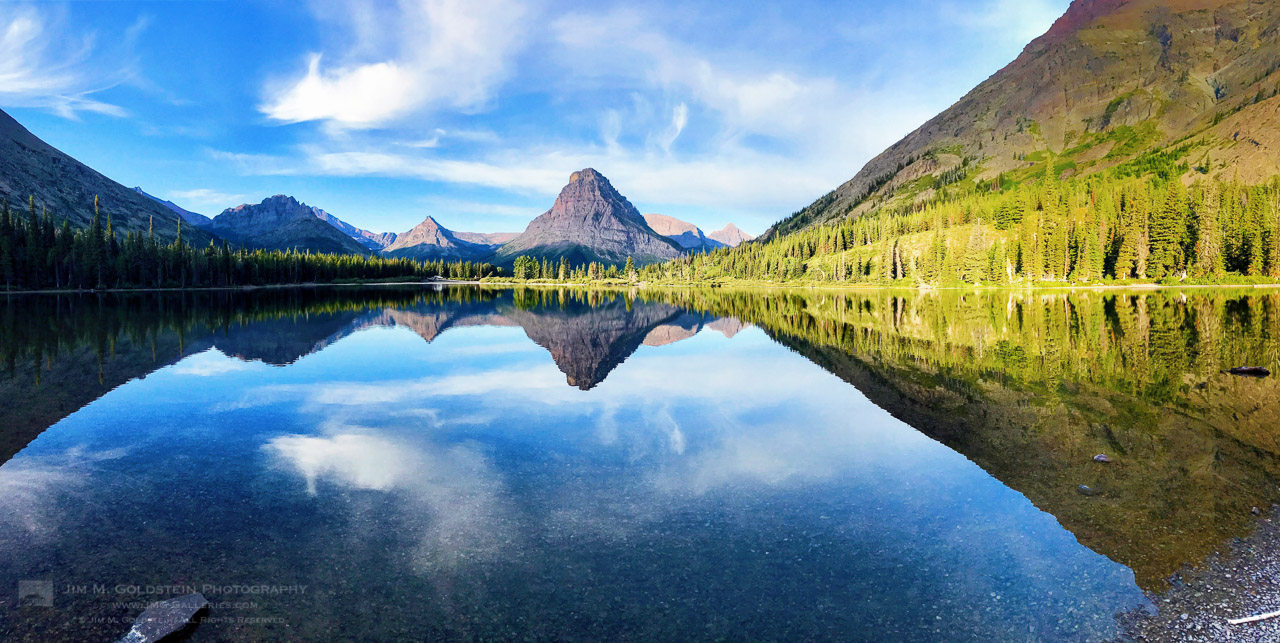
Much of my time outdoors this year was spent showing the boys more of my favorite locations and experiencing the great outdoors while indulging them with great views and of course many evenings of campfires and s’mores. The following view at Two Medicine lake in Glacier National Park was incredibly memorable as we explored the shore and skipped rocks.

Two Medicine Lake

A serene moment at Two Medicine Lake in Glacier National Park


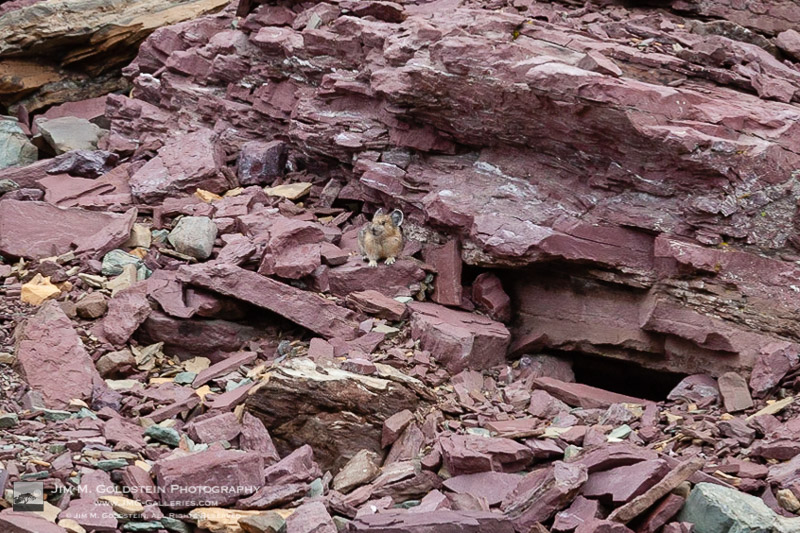
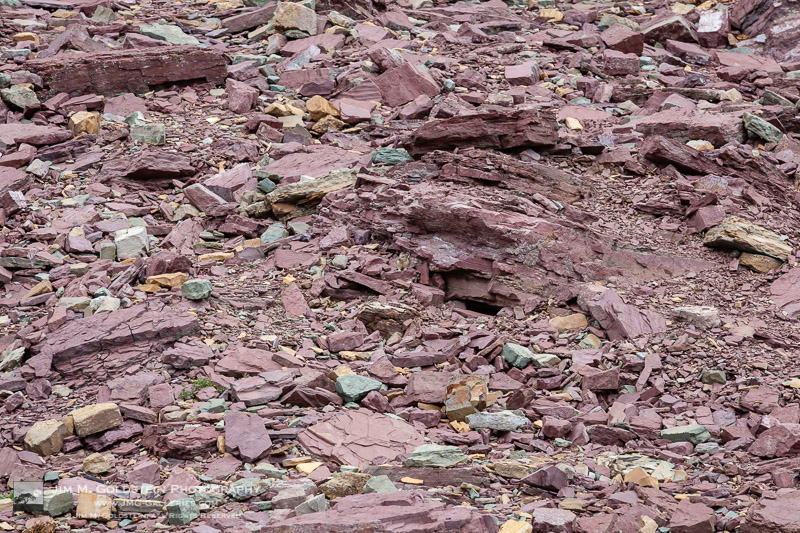
Of all my time at Glacier National Park I’ve never once seen a Pika… until this year. Not only are they well camouflaged and hard to see, but they’re incredibly fast. Being small even photographing them with a 400mm lens isn’t nearly enough magnification. The first photo below is a severely cropped photo taken at 400mm. The uncropped photos, 2 down, is included to give you an idea of how hard it is to find them in a rock pile. Add in their constant state of running, to forage food for the winter, you have an even tougher subject to photograph. That said I do have a good number of Pika butt photos now.

North American pika (Ochotona princeps)

North American pika (Ochotona princeps) at Logan Pass, Glacier National Park

North American pika (Ochotona princeps)

North American pika (Ochotona princeps) at Logan Pass, Glacier National Park


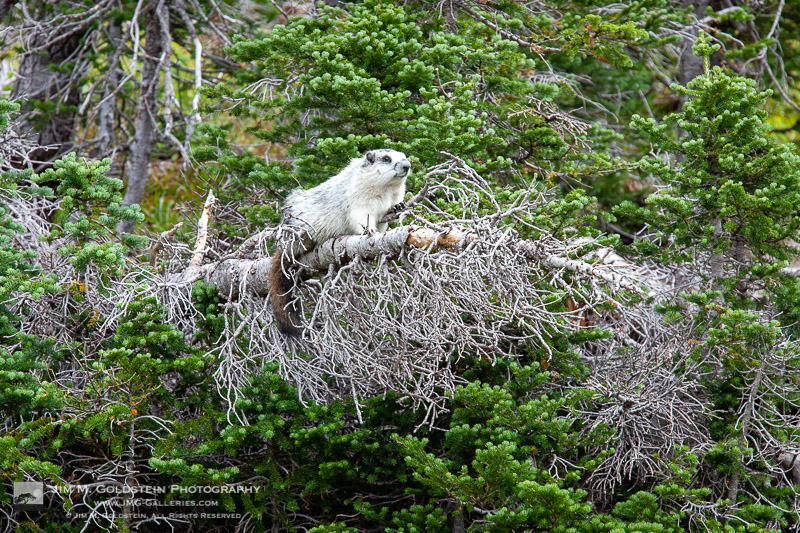
While in Glacier National Park it’s always fun to see marmots scurrying about. On a hike at Logan Pass my boys and I saw several. One of the more interesting was perched in a tree surveying his territory.

Hoary marmot – Glacier National Park, Montana

A hoary marmot (Marmota caligata) in wildflowers at Logan Pass, Glacier National Park in Montana.

Hoary marmot in a tree – Glacier National Park, Montana

A hoary marmot (Marmota caligata) resting on a fallen tree – Glacier National Park


Adventures with the Kids

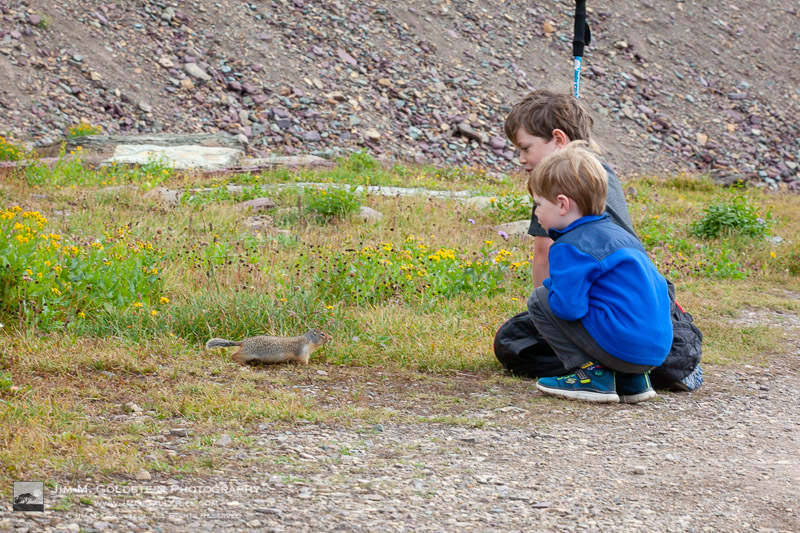
My boys enjoying a brief encounter with a curious ground squirrel was amusing. Even more amusing was the play structure my youngest son built for him with rocks near his den.

Kids meeting a ground squirrel

My kids meeting a ground squirrel while on a hike at Logan Pass, Glacier National Park in Montana


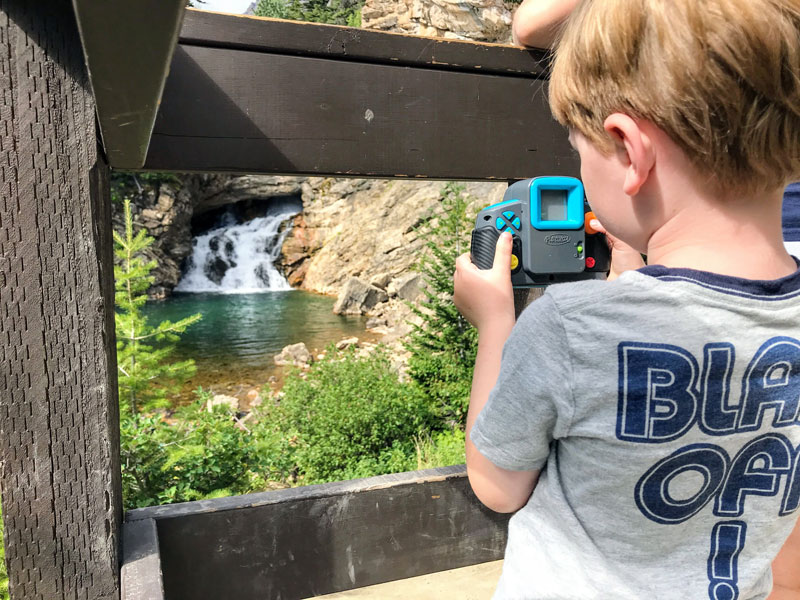
My youngest still has not shaken his interest in photography. While he wasn’t as steadfast about using a tripod this year he still seemed to enjoy taking some ‘serious’ photos.

Young Photographer

My son photographing a waterfall in Glacier National Park


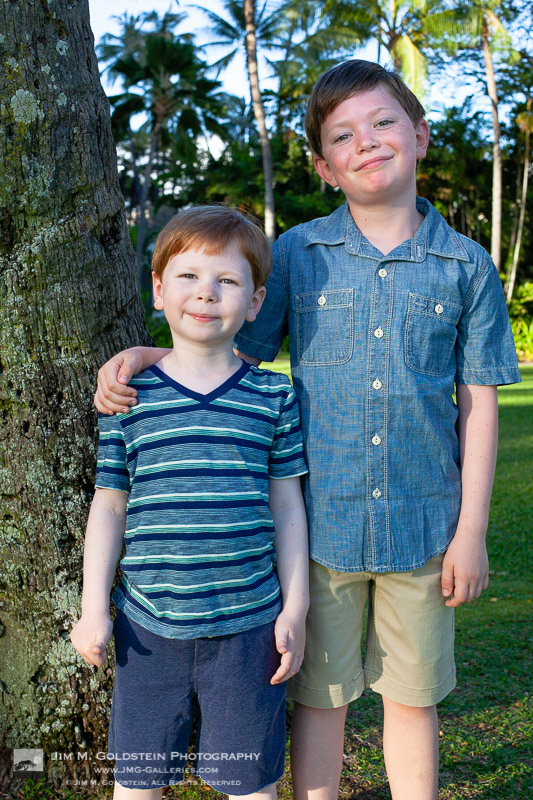
A brief moment my kids weren’t a blur from running around, tackling each other, and/or tackling me.The Dudes


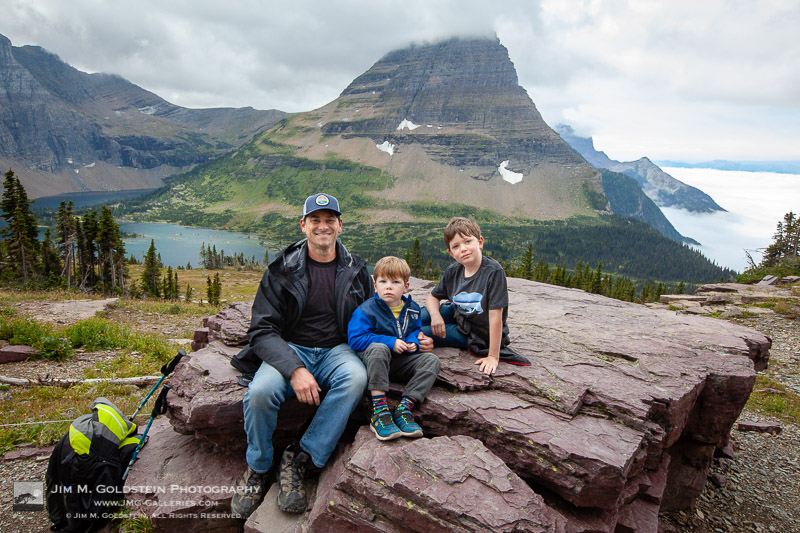
A personal favorite of mine taken by a passing hiker. Thanks unknown hiker, I salute you and your ability to capture a well framed photo while maintaining focus. You’d be surprised how hard it is to get that even with an iPhone.The Dudes and I

Thanks for checking in and Happy New Year!


JMG-Galleries – Landscape, Nature & Travel Photography

 
Comments Off on Best Photos of 2019 by Jim M. Goldstein

Posted in Equipment


The year in photos: Jordan Drake and the art of crying

26 Dec

Preface*

Crying is a highly evolved human trait. Tears can be an indicator of fear or stress. They can simply be a mechanism to flush out the eyes. Or they can convey joy and pain, heartache and elation. Distilled to their very core, tears are the truth. Tears are a most sincere way of reaching out for human connection, and so I would ask the reader to hold this concept tightly as they bear witness to Jordan and his experience. I would ask of the reader a willingness to reach out to Jordan and internalize that sincerity through the medium of the photograph.

Before we start this journey for connection I feel it necessary to reveal that these photos were not taken once per month as this slide show suggests. The human spirit does not follow a schedule and these powerful moments were captured as they birthed themselves upon the stage, if you will, that is DPReview TV. They will be shown in an order that does not harness itself to chronological accuracy, but rather is akin to a musical composition intended to stir the soul in its entirety. Let us begin.


* In case you’re not familiar with DPReview TV, here’s the backstory: In many of their weekly video episodes, our hosts Chris and Jordan feature a photo of Jordan curled up in the fetal position. It’s a bit of a running gag, Jordan’s soul isn’t really tortured by demons (or so we’ve been told). If you have’t discovered DPReview TV yet, you can find episodes here.

January

The photo before you was taken in Wayne, Alberta. All around us the harsh, weather-worn canyons stood silent sentinel to Jordan’s struggle. The roadway symbolizes not only a means of transition but also a vector of impending danger. The bridge a final gateway to salvation from that state of being. Yet Jordan has collapsed short of his goals and instead must simply cry out as the valley bears witness. It is the Panasonic S1 which allows that moment to be appreciated by all.

February

This is a local city green space in Calgary named Shepherd’s Park. The brutal metal grating causes Jordan discomfort as he hesitantly lies down upon it. Our hero clings tightly to his Panasonic GH5, monopod, and headphones, the tools of his expression. They are also like a prison to him, a concept further sustained by the rigid framing of the metal gantry. He is trapped, but perhaps he has also chosen his prison. Is the Canon EOS 90D not also a prison to his struggle?

March

Ah Seattle! Your charming hills, and quiet neighborhoods set the stage for this next humanistic landscape. The monochromatic nature of this image serves a dual purpose. It simplifies the intent capturing the banality of the environment. It also requests the viewer to bring their own experiences to the artwork. Have you not found yourself clinging to sanity in a car port? Have you not also smelled the stench that lingers in such places? Jordan is experiencing this very thing, here on the pavement, and in doing so brings about a deep connection with you the viewer. You are both crying in a driveway now. The Nikon Z50 sees you both.

April

Not all tears represent sadness, or misery. They can be uplifting and joyful too. Their power lies in the expression of both the heights, and abysses, of human emotion. Jordan is a self proclaimed cinephile with a passion for movie-making, and a deep appreciation for the craft. The mural sang to him a moment of pure elation, straight from the celluloid. He was overcome and found himself compelled to dance, drowning in a symphony of joy. I was humbled to have captured it with the Nikon Z7. It did not falter.

May

A quiet stillness falls over an autumnal lake. Jordan falls over a picnic table. An Olympus EM5-3 clicks once. A singular truth is revealed. It occurs only in this unique image. Jordan lies now left to right. Left to right. Profundity.

June

Wait! Hey Jordan, run up the highway and lie down in the middle. Do I have to? Yes! It’ll look great, do it. What about traffic? Do it! – Friendship – GFX100

July

This image is a personal favorite of mine. Notice the strong leading line drawing the eyes to our reluctant hero. The organic shapes, the smooth curves, the magenta hues, all speak to a sense of the living body. We witness a childhood. We witness a birthing. Is it a skatepark, or is it a womb? The Fuji GFX 50R reveals the truth, but only you can interpret it.

August

Leitz Park. Wetzlar, Germany. One would be forgiven for assuming the common stereotype that Leica is only style, engineering, and precision. On the most superficial level they create cameras as works of art. However, when one digs deeper one finds a company defined by its people. Its people are defined universally by their kindness and their willingness to give. Here they have given him an opportunity to create with the pinnacle of their lens technology. Jordan is a person of deep emotion, and once again he is overcome. His face speaks only truth, his elation is clear, his gratitude is given. The Leica SL2 brings this sincerity to the forefront. It simply whispers ‘Thank You.’

September

The smartphone has arrived, a harbinger of change in an industry that never wants to. Its message is a whisper that will grow into a cacophonous roar. Many of us hear only a gentle song on a winter’s breeze. Jordan however is not one of us. His senses are astute and his understanding is omniscient. He hears the roar and it is deafening. The shrill call brings him to his knees, and he must curl up in the fetal position or risk madness. I produced the Pixel 4 from my pocket and so I am the one to blame. This picture is my guilty confession.

October

Why is Jordan sitting up? He always lies down in the filth and the muck. He is mine to create with. Never questioning, and always accommodating. And yet we see him spared from the veritable ocean of grime which surrounds his small island of respite. Is the pursuit of pure art less important than his comfort? Should we not all sacrifice for our craft? Does the Sony a7R III not also deserve this tribute? Is pain and suffering not the fertilizer of the sublime? However, he is safe and warm. He cries because I am furious with him, and yet he remains dry. That is why this photo sucks.

November

I call this photo ‘Goldilocks’. The one on the left is too proud. The one on the right is too demure. But the one in the middle is just right! Also the astro-turf and garish display of cheap plastics communicate my personal statement about rampant and wasteful consumerism. How it effects workers, environmental factors, and our social consciousness, et cetera, et cetera. Taken with the Fuji XT3.

December

Our last photo is a palate cleanser of sorts. It is not a statement about the inherent duality of our existence. Nor is it a dissertation about Jordan’s emotional state. It is not a symphony or a poem. It has no higher purpose as art, nor does it ascend to the realms of the sublime. It simply is our Christmas card picture to all of you for supporting us during 2019! We appreciate the opportunity you give us all to entertain firstly, and educate secondly. Thank you so much to all of our friends and compatriots at DPReview for all your hard work in making our show possible. Here’s to an excellent 2020 and all the promise the New Year will bring. Oh, I almost forgot, this was taken with the Canon 5DmkIV.

Articles: Digital Photography Review (dpreview.com)

 
Comments Off on The year in photos: Jordan Drake and the art of crying

Posted in Uncategorized


Finally, a Road Map to Taking Better Photos of People!

22 Dec

The post Finally, a Road Map to Taking Better Photos of People! appeared first on Digital Photography School. It was authored by Darren Rowse.

Finally, a Road Map to Taking Better Photos of People!

Day 11 of dPS Holiday Deals brings you this fundamental portrait photography course like no other – and it’s from our previous long-time Editor Darlene Hildebrand of Digital Photo Mentor.

Save $ 100 now

If you’re feeling lost when it comes to taking photos of people then you need Portrait Fundamentals: a road-map to portrait photography skills and confidence for beginners. 

Especially if you are disappointed by how your portrait shots turn out, or don’t even take photos of other people for fear of messing it up!

  • Unsure what camera settings to use for portraits?
  • Can’t get sharp, well-exposed images consistently?
  • So overwhelmed by all the technical stuff you struggle to focus on your subject and enjoy the portrait process?

Then, let Darlene and her team from Digital Photo Mentor guide you. They’ll give you a plan to follow so you can start improving your portraits immediately. 

Portrait Fundamentals Product

This is no ordinary course, it includes over 6 hours of video lessons, a 245-page PDF notebook, 21 practice exercises, quizzes at each stage, and a private Facebook group for students to interact with each other.

Learn to take great portraits even if you are a beginner!

Save $ 100 and get the course now for only $ 97 USD (usually $ 197)

Check it out before the next deal arrives in less than 24 hours.

PS – Did you miss yesterday’s deal? You can save 50% on Andrew Gibson’s Art of Black and White in Lightroom and Beyond course. Check it out here.
We receive an affiliate commission when you purchase from our trusted partners.

The post Finally, a Road Map to Taking Better Photos of People! appeared first on Digital Photography School. It was authored by Darren Rowse.


Digital Photography School

 
Comments Off on Finally, a Road Map to Taking Better Photos of People!

Posted in Photography


Blog Project: Your Best Photos From 2019

18 Dec

It is time to kick off the 13th annual best photos of the year blog project! I’m proud to say over the years that hundreds of photographers have taken part (see Best Photos of 2018, 2017, 2016, 2015, 2014, 2013, 2012, 2011, 2010, 2009, 2008 and 2007).  It’s great to see the community of photographers that have developed around this blog project. As always I hope the exercise of picking your best photos helps improve your photography (10 Ways to Top Your Best 20xx Photographs).

So without any further delay here is how you take part to submit your best photos of 2019.

How to Participate (Read Carefully)

  1. Review & select your best photos from 2019.
    Note: Photo edit carefully narrowing down your results to your best 10 or 5 photos. Reference Pro Tips: Photo Editing with Gary Crabbe for pointers.
  2. Create a blog post on your website or a Flickr set containing your best photos from 2019.
  3. Complete the form below by Sunday JANUARY 5th at 11:59PM PST to take part. The following Tuesday, or thereabout, I’ll post a link to all submitted sites and photos on my blog. Throughout the week I’ll also share the results across all my social media accounts.

Spread the Word!
Feel free to spread the word of this project on Twitter, Facebook, Instagram, photo forums you frequent and/or your blogs. All who are interested in taking part are invited.


Loading…


JMG-Galleries – Landscape, Nature & Travel Photography

 
Comments Off on Blog Project: Your Best Photos From 2019

Posted in Equipment


How to Make Your Photos Pop in Lightroom (With Just 4 Quick Edits!)

15 Dec

The post How to Make Your Photos Pop in Lightroom (With Just 4 Quick Edits!) appeared first on Digital Photography School. It was authored by Jaymes Dempsey.

make-your-photos-pop-lightroom

Are you looking to spice up your photos in Lightroom? Do you want a few quick edits that will really make your photos pop?

How to Make Your Photos Pop in Lightroom (With Just 4 Quick Edits!)

That’s what this article is all about.

I’m going to give you four key edits that will absolutely revolutionize your Lightroom post-processing. You’ll come away knowing exactly how to make your photos stand out…

…just by moving a few sliders.

Sound good?

Let’s get started.

1. Boost the overall contrast with the basic panel

If you want to make your photos pop, then you should start with contrast.

Because contrast is the lifeblood of punchy, impactful photography.

Contrast can take a photo looking dull, boring, flat, and lifeless, like this:

How to Make Your Photos Pop in Lightroom (With Just 4 Quick Edits!)

And singlehandedly turn it into something worth looking at, like this:

How to Make Your Photos Pop in Lightroom (With Just 4 Quick Edits!)

Now, there is such a thing as too much contrast. But most photos need more contrast, not less! So I give you my permission to really crank up that contrast in Lightroom. Even if it feels like your photos already have enough contrast, I recommend you add some and see how it looks. Boosting the contrast can be an eye-opening experience. You may realize that you’ve been depriving your images for years.

There are a few ways you can boost the contrast, and they all start by heading over to the Lightroom Develop module:

How to Make Your Photos Pop in Lightroom (With Just 4 Quick Edits!)

Take a look at the Basic panel on the righthand side:

How to Make Your Photos Pop in Lightroom (With Just 4 Quick Edits!)

Then, if you want a quick and dirty way to see how your photo looks with more contrast, just crank up the Contrast slider.

How to Make Your Photos Pop in Lightroom (With Just 4 Quick Edits!)

And for a lot of images, this is enough.

But if you want to take things further, you can work with the Tone sliders. In particular, raising the Whites and dropping the Blacks can combine contrast with some much-needed tonal range. In other words, this will make your photo span the entire spectrum of tones, from black to white (which often looks great!).

How to Make Your Photos Pop in Lightroom (With Just 4 Quick Edits!)

Bottom line:

A bit (or more than a bit!) of contrast can go a long way.

2. Add Clarity or Texture to give the details some punch

Once you’ve finished working on the overall contrast, it’s time to consider amplifying the details.

And that’s what the Clarity and Texture sliders do really, really well.

Both of these tools sit in the Basic panel, just like the contrast sliders:

How to Make Your Photos Pop in Lightroom (With Just 4 Quick Edits!)

Now, Clarity offers a powerful, punchy effect. The slider adds contrast to the mid-tones of your photos, and the result is to make details and edges really stand out. Check out the before (left) and after (right):

make-your-photos-pop-clarity-before-after

Texture, on the other hand, is a bit more refined. This slider basically sharpens the detail in your images, (but leaves the fine details alone). So Texture is a great option for dealing with images that have, well, texture. Rocks, walls, and peeling paint all look good with the Texture adjustment applied.

Here’s the same photo, without Texture (left) and with Texture (right):

make-your-photos-pop-texture-before-after

Because Lightroom is non-destructive, there’s no harm in trying out both adjustments and seeing which you prefer. Personally, I use Clarity more often than I use Texture, but they both have their place, and they can both make your details stand out.

A word of caution, however:

Clarity and Texture are both pretty easy to overdo. If your photos start to look crunchy, then it’s time to back off. Making details stand out is all well and good, but you don’t want to take things too far!

3. Boost the Vibrance or Saturation for rich colors

Up until now, I’ve talked about the value of contrast to make your photos pop.

But what about making the colors pop?

Deep, rich colors can add a lot to your images. Look at the difference between the colors in this photo:

How to Make Your Photos Pop in Lightroom (With Just 4 Quick Edits!)

Versus this one (where I’ve applied some basic color edits):

How to Make Your Photos Pop in Lightroom (With Just 4 Quick Edits!)

Neat, right? And it doesn’t take much effort at all to pull this off. I regularly punch up my colors using either the Vibrance or Saturation slider in Lightroom. Just push the relevant slider to the right, and you’re done.

How to Make Your Photos Pop in Lightroom (With Just 4 Quick Edits!)

But how do you know whether to boost the Vibrance slider or the Saturation slider?

Well, as with Texture and Clarity, there’s no harm in testing out both options. But it’s worth knowing the difference between the two:

The Saturation slider boosts the intensity of your colors all throughout the image, whereas the Vibrance slider is more refined (kind of like a Smart Saturation tool). Vibrance will boost the intensity of colors, but only those colors that are less saturated, as well as skin tones.

So Vibrance is often a better choice when you’re dealing with variations in saturation levels, or when people are featured. Vibrance will keep colors from becoming oversaturated and will keep skin tones looking natural.

4. Add a subtle vignette to focus on your main subject

Here’s the last way you can make your photos pop and stand out:

Vignetting.

A vignette is a darkening effect that is generally placed at the edges of your photos, to keep the viewer focused on the main subject.

Here’s a (too strong) vignette for the sake of demonstration:

How to Make Your Photos Pop in Lightroom (With Just 4 Quick Edits!)

In fact, the best vignettes are barely perceptible. Too much vignetting, and your photos will look muddy and unprofessional.

You want a vignette like this, instead:

How to Make Your Photos Pop in Lightroom (With Just 4 Quick Edits!)

Do you see what I mean?

Now, here’s how to create a beautiful (but still subtle!) vignette in Lightroom:

Open your photo in the Develop module. Scroll down the panels on the right side until you find Effects:

How to Make Your Photos Pop in Lightroom (With Just 4 Quick Edits!)

Then, under Post-Crop Vignetting, drag the Amount slider to all the way to the left. You should notice an immediate vignetting effect on your photo.

How to Make Your Photos Pop in Lightroom (With Just 4 Quick Edits!)

Next, if your subject takes up much of the frame, you may want to boost the Midpoint slider a bit, to make sure that your main point of interest stays out of the vignette’s path.

And you’re also free to change the shape of the vignette (with the Roundness slider), as well as the transition strength (with the Feather slider). You can even preserve the highlights by boosting the Highlights slider if you so choose.

Finally, dial your vignette back by boosting the Amount slider…

…until you end up with a vignette that’s so slight that you can hardly even tell it’s there.

And that’s it! Now you’ll have a vignette that will focus your viewers, and they’ll hardly even know it.

How to make your photos pop in Lightroom: Next steps

As it turns out, it’s not difficult to make your photos pop and be much more eye-catching. All it takes is a few quick edits with the Lightroom sliders.

I recommend you go back to photos of yours that you’ve edited previously. Give them a bit of a contrast boost, and punch up the colors with some saturation. See how that makes them look.

You’ll be surprised to find that these simple changes can go a really long way!

Do you have any favorite Lightroom edits that instantly make your photos stand out? Share them in the comments!

How to Make Your Photos Pop in Lightroom (With Just 4 Quick Edits!)

The post How to Make Your Photos Pop in Lightroom (With Just 4 Quick Edits!) appeared first on Digital Photography School. It was authored by Jaymes Dempsey.


Digital Photography School

 
Comments Off on How to Make Your Photos Pop in Lightroom (With Just 4 Quick Edits!)

Posted in Photography


12 Days of Belvedere: A look back at puppyhood through sample photos

15 Dec

12 days of Belvedere

ISO 1400 | 1/250 sec | F1.8 | Nikon Z6 + Nikon Z 50mm F1.8 S


Belvedere officially joined the DPReview team last fall as a fourth-month-old pup and quickly became one of our favorite subjects to photograph. By the turn of 2019, he was a common sight in many-a sample gallery. Twelve months later and we have a complete and glorious timeline of his transformation from tiny puppy, to slightly larger puppy!

As Belvedere’s human and Photo Editor at DPReview, I tasked myself with going back through each month of 2019 to select the top pup photo to share with you, my dear reader, along with the gallery it’s from. We feel this is a nice way to not only look back at all the lovely gear we’ve tested, but also to fill the Internet with additional dog photos, because dogs are good and we love dogs.

We intend this slideshow to be enjoyed Advent calendar-style, meaning after today you are allowed to view one additional photo up until the 25th, when all can be enjoyed in consecutive order. Think of it as our holiday gift to you. We’re counting on you to not peek ahead!

And for those curious, Belvedere, a rescue pup, is a mix of Chihuahua, Miniature Pinscher and Miniature Short-haired Dachshund. He likes dehydrated squirrel carcasses, licking bald heads, sitting in laps for hours, turning squeaky toys inside-out and whenever anyone puts on a pair of socks. He weighs 18.4lbs and is a very good boy.

*All images by Dan Bracaglia except where noted

January 2019 – Belvedere at 7 months

ISO 2800 | 1/125 sec | F2.8 | Nikon Z6 + Nikon Z 50mm F1.8 S


We started off the year busy, publishing 11 sets of sample images in January 2019, including galleries for heavy hitting products like the Sony a6400, Sigma 28mm F1.4 Art and the Olympus E-M1X. But our top Belvedere pick in January comes from our Nikon Z 50mm F.8 S gallery. This one was a tough choice between two tempting pup picks, both from the same gallery. We opted for Belvedere enjoying a cheese stick, but Belvedere on the couch was a close second (we used it as the lead for the story).

January was also the month we tested the versatile, yet chunky Canon RF 28-70mm F2L as well as the beastly Nikon 500mm F5.6. We also got our hands on a Canon APS-C mirrorless favorite in the Canon EF-M 32mm F1.4 STM.

See our Nikon Z 50mm F1.8 S gallery

February 2019 – Belvedere at 8 months

ISO 12800 | 1/125 sec | F5.6 | Fujifilm GFX 50R + GF 45mm F2.8
Photo: Carey Rose


February was a busy months for new gear. We got our hands on pre-production models of the Panasonic S1R and Panasonic S1 (in Barcelona). We also took a pre-production Fujifilm X-T30 for a spin (in Seattle), and freelance contributor Damien Demolder put together a pre-production gallery with the Ricoh GR III (from London).

Additionally we published final production galleries from the Canon EOS RP, the Fujifilm XF 16mm F2.8 and the oh-so-sharp Sony FE 135mm F1.8 GM. And yet somehow with all the launches and all the galleries shot, we didn’t publish a single Belvedere photo in February. Shame on us. Fortunately DPR’s Carey Rose captured the above image of our dear pup from a, well, not-terribly flattering angle for a Fujifilm GFX 50R gallery published March 1st. It was technically taken in February so we’ll count it.

See our GFX 50R sample gallery

March 2019 – Belvedere at 9 months

ISO 100 | 1/200 sec | F2.8 | Leica Q2


Things quieted down a little in March. We got our hands on final production versions of both the Panasonic S1 and Panasonic S1R and filled out those galleries with plenty of samples. We also got our hands on Sigma’s outstanding bang-for-the-buck 70-200mm F2.8 Sport as well as their latest long zoom in the 60-600mm F4.5-6.3 Sport.

Belvedere popped up in several of those galleries, but our favorite photos of him came from the Leica Q2, shot during a sunny afternoon walk. The weather was just starting to warm up in March and Belvedere’s fur was just beginning to go through a rapid and often comical shed and regrowth phase.

See our Leica Q2 sample gallery

April 2019 – Belvedere at 10 months

ISO 64 | 1/320 sec | F2.8 | Nikon Z7 + Z 24-70mm F2.8 @ 70mm


April was also a somewhat quiet month. We got a final production version of the Fujifilm X-T30 in for testing as well as a final version of the Ricoh GR III. We also shot with Pentax’s new 11-18mm F2.8 ultra-wide zoom and the slightly-less wide Nikon Z 14-30mm F4 S. But it was a different Nikon Z lens behind our favorite April Belvedere shot: the outstandingly sharp Z 24-70mm F2.8. Belvedere’s not even the only handsome pup in said gallery!

Also important: At 10 months Belvedere wasn’t quite fully grown. He no longer fits under the tight space he’s peeking out from in the image above, though he does try from time to time.

See our Nikon Z 24-70mm F2.8 S sample gallery

May 2019 – Belvedere at 11 months

ISO 125 | 1/200 sec | F4.4 | Ricoh WG-60


We shot with a wide array of products in May ranging from the image quality king, Fujifilm GFX 100 (pre-production), to the beginner-friendly Canon SL3, to the Panasonic FZ1000 II premium compact. We also called in and tested a number of rugged cameras for our Best Waterproof Camera Guide, including the Olympus TG-6.

But our favorite Belvedere photo comes from the comparably underpowered Ricoh WG-60, a rugged compact. Which just goes to show, it’s not the quality of the camera that makes the photo, it’s the cuteness of the dog. Here he is soaking up the sunlight from Seattle’s oh-so-long May days.

See our waterproof camera buying guide

June 2019 – Belvedere on his birthday

ISO 200 | 1/40 sec | F2.4 | Samsung Galaxy S10+
Photo: Jeff Keller


Belvedere officially turned one year old in June (June 10th if you want to send a gift, he likes bones) and we had ample opportunity to photograph the birthday boy. June was a month in which we shot with a ton of high-end full-frame lenses including the Panasonic S 24-105mm F4, the Panasonic S Pro 50mm F1.4, the Sony FE 600mm F4 GM and the Rokinon SP 35mm F1.2. We also added a nice selection of images to our Fujifilm GFX 100 gallery (still not final firmware, womp).

But it was the Samsung Galaxy S10+ in the hands of DPR’s Jeff Keller that captured our favorite shot of the young man. A shot that shows him starting to come of age: He’s still got the doofy ‘I’m a puppy’ face, but his coat and body are filling out like a real dog. Nice work, Belvedere.

See our Samsung Galaxy S10+ sample gallery

July 2019 – Belvedere at 13 months

ISO 100 | 1/500 sec | F1.2 | Canon EOS R + RF 85mm F1.2L


July was a busy month for sample gallery shooting. With the Seattle rain finally dissipating for the season, we took full advantage of the long sunny days. The Sony a7R IV launched and we got ample shooting time with it in New York City. DPR’s Carey Rose also got his hands on several freshly-launched Sigma lenses in Japan, including the Sigma 45mm F2.8 Contemporary, the Sigma 14-24 F2.8 Art and Sigma 35mm F1.2 Art. We also spent time with Tamron’s wide, sharp 17-28mm F2.8 and took Sony’s excellent do-everything pocket camera, the RX100 VII for a spin.

Other notable galleries include the Canon EOS M100 (in Mexico), the Panasonic Leica 10-25mm F1.7, the Sony 35mm F1.8, the Fujfilm GF 50mm F3.5 and the Rokinon AF 85mm F1.4. Gosh that’s a lot of galleries. But our hands-down favorite Belvedere photo was shot with one of our favorite portrait lenses of the year, the Canon RF 85mm F1.2L. Just look at that happy boy! He knows the bokeh is creamy.

See our Canon RF 85mm F1.2L
sample gallery

August 2019 – Belvedere at 14 months

ISO 125 | 1/30 sec | F2.8 | Canon G5 X mark II


August saw major launches from two brands, Canon with its enthusiast APS-C siblings in the Canon EOS 90D and Canon EOS M6 Mark II and Sony with its APS-C siblings in the Sony a6100 and the Sony a6600. We also finally got our hands on a final production Fujifilm GFX 100 as well as a final production Panasonic G95.

Additionally we shot with the very sharp Nikon Z 35mm F1.8 S, the Canon RF 24-240mm F4-6.3 and the Tamron 35-150mm F2.8-4. Finally Canon’s two latest compacts, the Canon G7 X III and the Canon G5 X II also showed up at our office for sample shooting and testing. Our favorite Belvedere photo from the month was taken on the latter. Note: If Belvedere looks extra fluffy in this image it’s because he had just received a bath after his very first puppy swim.

See our Canon PowerShot G5 X II gallery

September 2019 – Belvedere at 15 months

ISO 64 | 1/2500 sec | F1.8 | Nikon Z7 + Z 85mm F1.8


September was a somewhat quiet month for sample galleries, yet Belvedere managed to sneak his charming face into two of them. These included the all around-excellent Tamron 35mm F1.4 gallery and the also-impressive Nikon 85mm F1.8 S gallery. We also shot with the iPhone 11, Sony 16-55mm F2.8 and Phase One IQ4.

Now I’ll be honest, my dear humble readers, I truly struggled with which Belvedere photos to pick as the winner for this month (OK, I shot them all). My decision ultimately came down to which image had the most likes in our gallery (10). Either way, September was a very good-looking month for our dear staff pup.

See our Nikon Z 85mm F1.8 S
sample gallery

October 2019 – Belvedere at 16 months

ISO 1000 | 1/100 sec | F2.8 | Canon M200 + EF-M 32mm F1.4
Photo: Carey Rose


October saw the launch of the Olympus OM-D E-M5 III, the Fujifilm X-Pro3 and the Nikon Z50 – cameras we were able to shoot galleries for, prior to announcement. We also got our hands on Canon’s impressive RF 24-70mm F2.8L lens and shot our very first test samples on the Nikon Z 58mm S Noct (under very controlled settings). Additionally, we were thoroughly impressed with the real world output of the Google Pixel 4.

But our favorite Belvedere sample of the month came from Carey Rose with the Canon EOS M200. I’m not sure if Carey set out to capture Belvedere working hard on the job, but he sure did. Warming laps takes a lot of practice and dedication!

See our Canon EOS M200 sample gallery

November 2019 – Belvedere at 17 months

ISO 100 | 1/800 sec | F2.8 | Leica SL2 + Sigma 45mm F2.8


We had the chance to shoot with some really nice telephoto glass in November, including with the Fujifilm XF 200mm F2 as well as the jaw-dropping Canon RF 70-200mm F2.8L. We also took Sony’s 70-350 F4.5-6.3 for a spin and explored around the city with the super-compact Sigma fp full-framer.

But it was the beastly Leica SL2 behind November’s top Belvedere pic. And if you zoom into 100% you can even seem some dreamy bokeh from the Sigma 45mm F2.8 on my dear dog’s nose.

See our Leica SL2 sample gallery

December 2019 – Belvedere at 18… no wait, 6 months

ISO 1000 | 1/200 sec | F1.4 | Sony a6500 + Sigma 56mm F1.4
Photo: Carey Rose


December has been a busy (and dark month) and it’s not over yet! As such, we’ve only published a handful of galleries so far. These include our Panasonic S Pro 24-70 F2.8 gallery, our Canon RF 15-35mm F2.8L gallery and our full-production Nikon Z50 gallery. But sadly, none of those galleries contain images of our fuzzy pal (what fools we are!).

But not to worry! DPR’s Richard Butler reminded me of a classic Belvedere photo shot by our very own Carey Rose with the delightful Sigma 56mm F1.4, this time last December (no, Belvedere isn’t Benjamin Button).

See our Sigma 56mm F1.4 sample gallery

12 days of Belvedere – The wrap

ISO 64 | 1/320 sec | F1.4 | Nikon Z7 + Tamron 35mm F1.4


And that’s a wrap on the year. There you have it, 12 months of Belvedere in 12 days. Thank you kind reader, for following along on this fun and important journey through puppyhood and gear reminiscing. Hopefully you’ve enjoyed each slide, one at a time and didn’t jump ahead. But even if you did, Belvedere forgives you. He’s just that kind of dog.

Until next year. Woof!

See our Tamron 35mm F1.4 sample gallery

Articles: Digital Photography Review (dpreview.com)

 
Comments Off on 12 Days of Belvedere: A look back at puppyhood through sample photos

Posted in Uncategorized