RSS
 

Posts Tagged ‘Photos’

5 Ways to Capture More Diverse Landscape Photos

11 Mar

The post 5 Ways to Capture More Diverse Landscape Photos appeared first on Digital Photography School. It was authored by Jeremy Flint.

5 Ways to Capture More Diverse Landscape Photos

One of the most challenging things with landscape photography is to capture images that stand out. Planning to get to a destination at the right time is the easy part, and usually requires minimal effort. So when you have arrived at your location, how do you go about capturing more diverse landscape photos?

Well, there are several ways to represent greater diversity in your landscape images. Read on to discover how to make your landscape photos more interesting.

1. Minimalist scene

diverse landscape photos 01
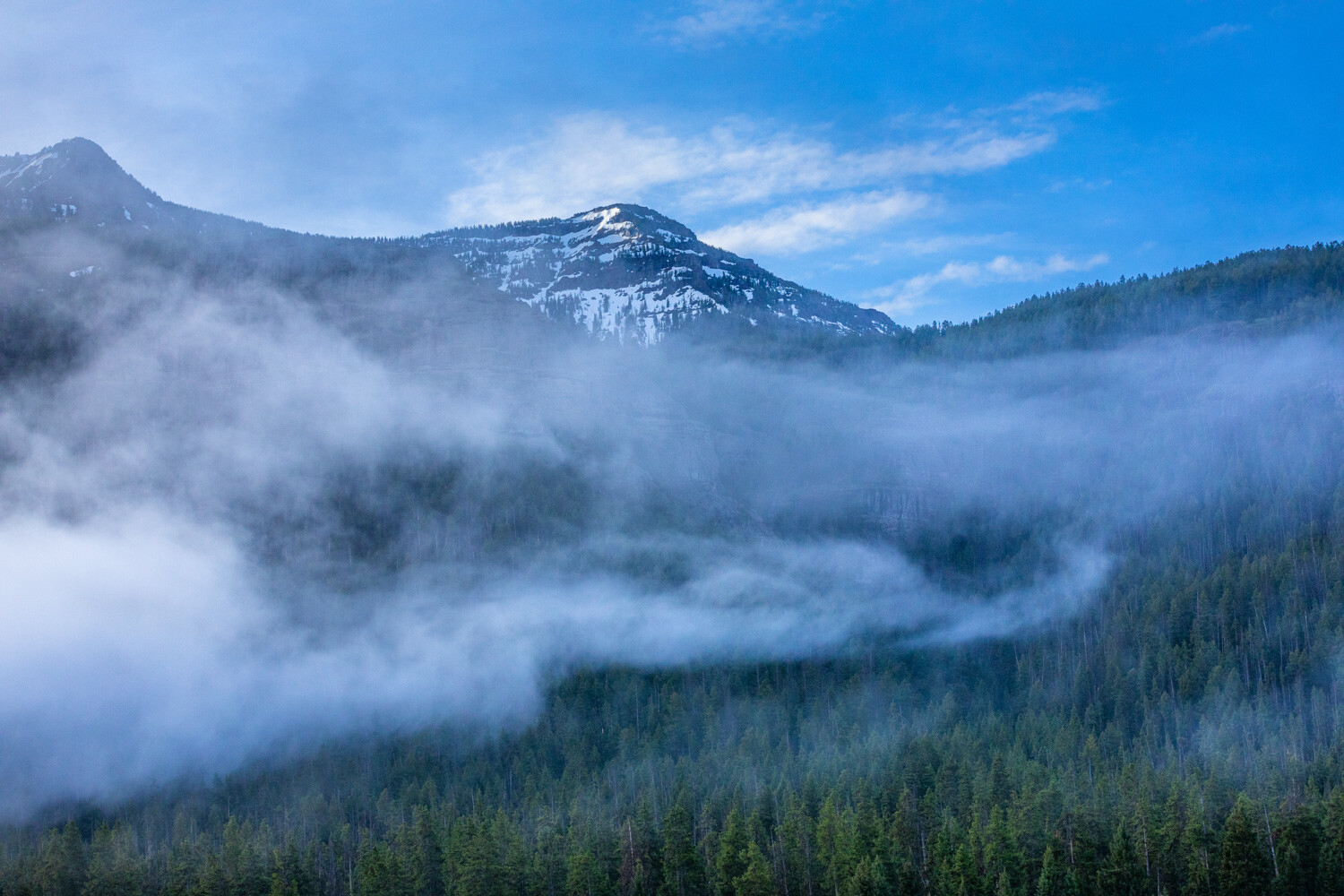
1/400 sec at f/11, Canon 5D Mark IV, 70-200mm f/2.8 lens

The first thing to consider when you are out in nature doing landscape photography is to decide what you are going to capture.

You may decide to photograph the entire view of the beautiful scenery in front of you. However, while executing a wide-angle shot of everything in the scene is a great way to start, why not try simplifying a scene to make it stand out.

Take a moment to think about what is actually appealing about the landscape. Are there any interesting features on show? What elements help to make the landscape look stunning? Is there an attractive outbuilding or a tree, for example?

I find limiting the number of components in a scene helps to convey the spirit of a place more fluently. Try adopting a “less is more approach” and bring certain elements together, such as a visually enticing cloud formation or evocative mist floating over an alluring landscape. The natural light and components within a scene can play an important part in the overall composition and look of your final image.

2. Extract patterns

diverse landscape photos 02
1/100 sec at f/11, Canon 5D Mark IV, 70-200mm f/2.8 lens

Have you ever felt your landscape images are overly complicated or lack impact?

Another great technique to capture more diverse landscape photos that depict a location in a better way is to draw out patterns or details within the environment.

One method to do this is to shoot with a long lens from afar and compress the perspective to reduce the sense of space. A long lens helps to focus on capturing a certain part of the landscape, bringing near and far objects closer together and emphasizing shapes and patterns more effectively. An example of this may be to capture an attractive building with a field.

3. Aerial views

When looking to capture diverse landscape photos, a great way to alter the perspective of your shots is to vary your viewpoint. Shooting from a high viewpoint provides a great way to capture scenes from an angle that people may not normally see. This can be a good strategy to photograph something new and develop some creative landscape photography.

Elevated views can help to flatten the perspective of your image as it eliminates distance indicators. You can reduce the amount of sky in your photos and concentrate on creating images with interesting shapes. You can achieve aerial views by walking up to a higher vantage point, or shooting from a plane or hot-air balloon, for example.

diverse landscape photos
1/180 sec at f/11, Canon 5D SR, 24-70mm f/2.8 lens

4. Shoot in overcast conditions

Don’t limit your landscape photography to sunny days or only wait for perfect light to appear, you can achieve diverse landscape photos in all weathers.

Capturing a scene in overcast conditions can lead to particularly striking results. The flat lighting will remove shadows and help to simplify a scene. Also, the reduced contrast will help to provide a simpler and more minimalist composition.

Overcast skies provide beautiful diffused light that can be really appealing for landscape photography.

5. Shoot fleeting light

Working with light can be a great way to capture remarkable images. With the right amount of light and cloud, you can convert a dull scene into a special scene, taking your photos to the next level.

For example, after a storm has passed, interesting light can transform a photo of the landscape into something incredible. This is especially so where the sun paints the land with magical pockets of light.

The precise combination of light, sky, and atmosphere can be blended to create an incomparable beauty within a frame.

diverse landscape photos
1/320 sec at f/8, Canon 5D Mark IV, 24-70mm f/2.8 lens

Following a rain shower, keep a lookout for rainbows, as they provide an extraordinary addition to your pictures and help them to stand out. Remember to ensure your gear is kept dry during any rain too. That way, your camera will work well when capturing these great lighting moments after the rain has stopped.

Conclusion

In summary, you can capture more diverse landscape photos by applying a few important techniques. Go for a minimalist look by focussing on attractive elements within the landscape, and extract patterns by using a long lens to compress the perspective.

Shoot from above, shoot in overcast conditions, and capture momentary light and rainbows for more varied landscape images.

Apply these techniques next time you are out with your camera photographing the landscape and share your pictures with us below.

Do you have any other tips for capturing more diverse landscape photos? Share them with us also.

The post 5 Ways to Capture More Diverse Landscape Photos appeared first on Digital Photography School. It was authored by Jeremy Flint.


Digital Photography School

 
Comments Off on 5 Ways to Capture More Diverse Landscape Photos

Posted in Photography


8 Important Composition Tips for Better Photos (video)

07 Mar

The post 8 Important Composition Tips for Better Photos (video) appeared first on Digital Photography School. It was authored by Caz Nowaczyk.

In this video from Jamie Windsor, he explores composition tips for better photos.

As Jamie states in his video, sometimes a new photographer can be overwhelmed by all the so-called “rules” of photography. Those, such as the rule of thirds, Fibonacci spiral, and the phi grid. Jamie breaks it down for you, using some classic images by renowned photographers, such as Annie Leibovitz, Sally Mann, Steve McCurry, and Bruce Gilden as examples. While this helps to visualize the points that he is making, it is also great to see many of these fantastic images.

  1. Get your position right
  2. Use your phone to practice composition
  3. Beware the Rule of Thirds
  4. Squint or blur your eyes
  5. Think conceptually as well as aesthetically
  6. Keep it simple
  7. Keep the edges clean
  8. Work in post-processing

You may also like:

  • How to Use Radial Composition in Photography to Create Awesome Images!
  • Four Rules of Photographic Composition
  • Composition Checklist for Beginners
  • 4 of the Most Common Composition Mistakes In Photography
  • How to Make Brilliant Black and White Photos with Dramatic Composition
  • The S-Curve: A Landscape Photography Composition Technique
  • How to Break the Rules with a Central Composition

The post 8 Important Composition Tips for Better Photos (video) appeared first on Digital Photography School. It was authored by Caz Nowaczyk.


Digital Photography School

 
Comments Off on 8 Important Composition Tips for Better Photos (video)

Posted in Photography


Video: Olympus shows off incredible photos from its 150-400mm F4.5 lens, hint at further lens developments

06 Mar

CP+ might’ve been cancelled due to COVID-19 concerns, but Olympus has improvised and shared its presentation on YouTube instead. The 44-minute video covers a variety of topics, but two specific moments stand out.

The first is a demonstration Olympus shared showing just how much zoom you can get out of the Olympus 150–400mm F4.5 lens. One demonstration, seen in the above screenshot from the video, shows a photograph captured with the sun setting over Mount Fuji, captured a ridiculous 67km (42 miles) away, at Olympus’ Ishikawa facility. To capture the shot, Olympus used the 1.25x converter inside the lens as well as the MC-20 2x converter to achieve a 2000mm (35mm equivalent) focal length.

A screenshot from the presentation contextualizing just how far away the photograph and timelapse images were captured from.

The next demonstration with the lens was a hand-held shot of the moon, seen in the below screenshot from the video, captured with the exact same camera setup.

In addition to both images, Olympus also shows a short timelapse video of the sunset over Mount Fuji (the section on the 150–400mm F4.5 lens starts at roughly 36:00).

The above captions in the image are auto-translated via YouTube.

Olympus representatives also note later on in the video that more lenses are in development. However, no further information was given.

Articles: Digital Photography Review (dpreview.com)

 
Comments Off on Video: Olympus shows off incredible photos from its 150-400mm F4.5 lens, hint at further lens developments

Posted in Uncategorized


Free Tools to Easily Remove a Background in Photos

04 Mar

The post Free Tools to Easily Remove a Background in Photos appeared first on Digital Photography School. It was authored by Ana Mireles.

remove-a-background-in-photos

Whether you’re replacing a dull sky, cutting-out a product or creating a collage, sooner or later you’ll need to remove a background in photos. Professionals and amateurs alike need an efficient tool for this task. Fortunately, there are some free alternatives in the market for all levels of expertise. Here, I’ll show you some of them.

remove a background in photos

Removing the background is usually very meticulous and tedious work. It is, however, one of the most needed edits. Because of this, developers have come up with different solutions. I’ll show you some of the free tools available, so you can choose what’s best for you.

Source Image

It’s easier to remove a background when your image is well exposed and when the subject has defined edges and a contrasting background. To better test the tools, I’ll use an image with these characteristics, but also one that doesn’t.

The second image will be a simple snapshot with a slightly underexposed subject, some hot points, and a busier background. Let’s see how each tool behaves in both situations.

images to remove the background

Image 1 (left): 1/1000; f8; ISO 200.  Image 2 (right): Snapshot in auto mode.

Edit Photos for Free

Edit Photos For Free is a website where you can remove the background. It’s free, without having to register for an account and without previous training or knowledge. You just draw the border, then indicate what is the foreground and the background; the program will do the rest.

remove a background in photos

Pros

  • It really is free, you won’t be asked to register or upgrade during the process, nor at the end of your work. No tricks as far as I can see.
  • You can download the final version without losing resolution.
  • You don’t need to have previous knowledge or skills – it is very user-friendly.
  • When the source image is well-exposed and has a contrasting background, it will do a very good job drawing the border automatically. Just by adjusting the tolerance value, I didn’t need to do any further adjustments for image number one.

remove a background with edit photos for free

Cons

  • It wouldn’t allow me to rotate image number two.
  • You can’t replace the background, you either leave the transparency or color it.
  • If the image foreground is not super clear, you will have to draw the edges yourself. I had to do this for image number two and refining the selection was not very intuitive.
  • The shadow and feather options didn’t do any noticeable changes.

review to remove a background in photos

Background Burner

Background Burner is free to use, however, you do need to register. As soon as you upload the image, it automatically runs the first selection.

remove a background in photos with background burner

Cons

  • I start with the cons because it’s the first impression I got. It’s free if you register, which means you are paying with your data. It’s not super invasive as it only asks for email and country. But still, it’s not ideal.
  • You can’t replace the background or color it. You’ll need to use another program if you want to do that. If you save it as JPG, though, it will automatically fill the background with white.
  • The automatic selection is not very intuitive. Here you can see how it did in both of my images. In this case, image number two was better, and it even gave me some choices to pick from.

remove a background in photos with background burner

Pros

  • The tools for fine-tuning the first selection are better than the previous website. It has the basic tools for refining easier things and pixel tools to go into details.
  • You can download the final version without losing resolution. You can even choose between JPG or PNG. Remember that to keep the transparency you need the PNG.
  • You don’t need to have previous knowledge or skills – it is very user-friendly.
  • It has the option to upgrade into a paid service if you need more accuracy and tools.

Background burner selection tools


Photoscissors

Photoscissors is one of the most popular and known choices out there to remove a background in photos.

It’s one of the most complete tools. They even tell you that on the first page: “Remove a background and replace it with a transparency, solid color, or background image.” So, it already gives you more options than the past two websites.

photoscissors

Pros

  • The auto-selection didn’t do an amazing job, but the touch up is easier because of the slider that gives you more control over the brush size. It also has a good feathering system.
  • It allows you to easily replace the background with another image or color.
  • You can also create a shadow and control opacity and blur.


remove a background in photos

Cons

  • It’s free to use even without registering, but you can only download a low-resolution version. This is not very evident when you start working on your image, so you might end up losing your work or be forced to pay the upgrade. Unless a low-resolution is enough for your needs.

Photoscissors down side

Extra

  • It has a hair selector that is very accurate. If you do many portraits, it may be worth considering a subscription.

GIMP

Gimp is a free and open-source editing program.

remove a background in photos using GIMP

Pros

  • It has many selection tools that you can use and combine for selecting your background in a controlled and precise manner.
GIMP selection tools

For Image 1 (left), I used the Fozzy selection tool and the Rectangle tool for details. For image 2 (right), I used the Scissors selection tool and the Free select for the details.

  • You can keep your background, shadow, and foreground in different layers to work independently and non-destructively.
  • You can do your entire project in it.  Adjustments, collages, etc. without the need to use any other website or software.

remove background from images for collages


Cons

  • You need to download the program onto your computer – you can’t work online.
  • It does require a learning curve, and it’s not the friendliest of interfaces.

Conclusion

To remove a background in photos has become easier and more accessible with technology, but there are no magic tricks. You do need patience, skills and good software, which often costs.

If you’re going to let the algorithm do most of the work, try different ones to see which one ‘reads’ your image better and saves you more time. If you’re ready to dive in and take charge, go with GIMP. The time you spend learning it becomes a skill that will save you time in a future project.

Do you have any other websites or tools to remove a background in photos? Let me know in the comments section.

The post Free Tools to Easily Remove a Background in Photos appeared first on Digital Photography School. It was authored by Ana Mireles.


Digital Photography School

 
Comments Off on Free Tools to Easily Remove a Background in Photos

Posted in Photography


How to Take Vibrant, Razor-Sharp Macro Photos of Flowers

29 Feb

The post How to Take Vibrant, Razor-Sharp Macro Photos of Flowers appeared first on Digital Photography School. It was authored by Ramakant Sharda.

razor-sharp-macro-photos-of-flowers

Macro photography is a very interesting subject for photographers. People love to shoot small objects like insects, flowers, waterdrops, etc. With macro photography, a photographer can show the tiniest details about the subject – details that are not possible to see with the naked eye. Today, let’s find out how to amaze viewers by taking colorful and razor-sharp macro photos of flowers.

razor-sharp-macro-photos-of-flowers

What you’ll need to capture razor-sharp macro photos of flowers

Camera body

You’ll be taking photographs, which means you will obviously need a camera body. But which camera body is good for macro photography – a full-frame or a crop-sensor camera?

Different photographers have different answers to this question. Each body has advantages over the other. With a crop-sensor camera, you can get a larger focal length with the same lens so that you don’t have to get very close to the subject. A crop sensor also gives you a deeper depth of field as compared to a full-frame body, which means you can keep more of the subject in focus.

On the other hand, a full-frame body reveals more details because of the larger sensor size. It also performs better in low-light conditions. So, ultimately, all bodies are good for macro photography, whether you have a crop-sensor camera or a full-frame camera, or whether it’s a DSLR or mirrorless.

razor-sharp-macro-photos-of-flowers

Lens

Lens choice is important in macro photography.

A true macro lens gives you 1:1 magnification, which means the size of your subject can be the same as your sensor size. In other words, if you have a full-frame body that has a 36mm x 24mm sensor size, you can fill the entire frame with a subject that is 36mm x 24mm in size. This gives you the opportunity to get really close to the subject and capture all the details.

However, don’t worry if you don’t have a dedicated macro lens. You can use extension tubes or a reverse ring with two lenses. Alternatively, you can use a cheaper option called macro close-up filters.

Flash and diffuser

A flash is a very important piece of equipment in macro photography. It helps you take razor-sharp pictures and capture bright colors. It also helps you avoid blurry images resulting from the shake of the camera.

A flash diffuser is equally as important as the flash. It softens the light and brings out the details and colors. You can use a mini softbox or domes or MagSphere, or you can simply put a diffuser cloth in front of the flash or bounce it with a white card.

You can use the flash on the camera hot-shoe or, if you have wireless flash triggers, you can use the off-camera flash. This will give you better results, but you will need someone to hold it.

How to Take Vibrant, Razor-Sharp Macro Photos of Flowers

Things to remember:

1. Depth of field

The first thing to remember when it comes to getting razor-sharp macro photos of flowers is depth of field (DOF). DOF is very important in macro photography. If you are shooting with a true macro lens with 1:1 magnification and your aperture is f/4, you’ll get only 1-2mm of total DOF. So, chances are, you won’t get everything you want in focus.

The solution is a smaller aperture. With an f/16 aperture, you can easily get 5-6mm total DOF and have everything you want in focus.

However, with such a small aperture, you’ll need lots of light. That’s why a flash is necessary for macro photography.

How to Take Vibrant, Razor-Sharp Macro Photos of Flowers

2. Focusing

Many photographers suggest that manual focus is better for macro photography, but I disagree with them.

I always use autofocus when taking macro pictures.

Why?

Because it’s easy, it’s fast, and you have fewer chances of taking out-of-focus pictures because both hands are free to hold the camera.

Just make sure that your hands and camera don’t move between focus lock and taking the picture.

3. Background

To achieve razor-sharp macro photos of flowers, you should always consider the background. In most cases, the background will be blurred, but, still, it should be clean and have contrasting colors.

4. Look from different angles

When we take photos of flowers, we usually take them from the top or the side. However, sometimes a flower can be very beautiful from the back, too.

When you are searching for a subject to shoot, always look it from different angles so that you can see and click something extraordinary – something that others can’t.

razor-sharp-macro-photos-of-flowers

5. Dead flowers can be great subjects, too

We always try to take photos of fresh flowers, but sometimes dead flowers can be great subjects, as in the following image. When a flower is dead, and all the petals have fallen, it starts preparing seeds.

Sometimes those seeds look very beautiful and can be good subjects to shoot macro.

razor-sharp-macro-photos-of-flowers

6. Shoot in RAW

To achieve razor-sharp macro photos of flowers, always shoot in RAW format because RAW files contain more details. Therefore, when you sharpen the image and enhance the colors in post-processing, you’ll get better results.

When you open a RAW image in post-processing software, it’ll look dull and lack sharpness, colors, and contrast. Don’t lose heart after seeing this. After a little bit of post-processing, it can often be better than a JPG image from the camera.

How to Take Vibrant, Razor-Sharp Macro Photos of Flowers

7. Keep your hands steady

A tripod is not a useful tool in macro photography because you’ll need to click at unusual angles.

If you have a moving subject, like insects, chances are, they’ll go away before you set up your tripod. So, it’s better to take photos with a handheld camera. Keep your elbows inside, which will give you support and lower your chances of camera shake.

8. Practice and be patient

If, after doing everything you have read in this article, you take photos that aren’t coming out sharp, don’t be disheartened. Have patience, and keep practicing. Eventually, you’ll get razor-sharp macro photos of flowers.

razor-sharp-macro-photos-of-flowers

Keep clicking and share your pictures here. If you need help, just ask me. I am always here to assist.


You may also like:

  • 5 Quick Tips for Outdoor Macro Photography
  • 7 Different Ways to Approach Macro Photography
  • Just Dew It – Fun with Macro Dewdrop Photography
  • How to take Great Flower Photos without a Macro Lens
  • 5 DIY Macro Photography Hacks for Stunning Macro Photos (on a Budget)
  • Reverse Lens Macro – How to Make Macro Photos with “Backward Thinking”
  • How to do Extreme Close-Up Photography with a Macro Bellows
  • 5 Camera Settings That All Macro Photographers Should Know


The post How to Take Vibrant, Razor-Sharp Macro Photos of Flowers appeared first on Digital Photography School. It was authored by Ramakant Sharda.


Digital Photography School

 
Comments Off on How to Take Vibrant, Razor-Sharp Macro Photos of Flowers

Posted in Photography


Video: How Lewis Hine’s photos helped shed light on child labor in the US

24 Feb

As part of its ongoing series ‘Darkroom,’ Vox has published a video showing how the work of photographer Lewis Hine helped bring to light the injustice of child labor across the United States.

The roughly seven-minute video not only shows the meticulous work of Hine, but also contextualizes the significance of his photography, which was captured at a time when 1.75 million children aged 10–15 were at work in factories, mines, plantations and other dangerous work environments. In total, more than 5,000 photographs were captured, each of which is accompanied by a detailed caption of its subject(s).

It’s a brilliant breakdown and well worth a watch. You can find more videos from Vox’s ‘Darkroom’ series on Vox’s YouTube channel.

Articles: Digital Photography Review (dpreview.com)

 
Comments Off on Video: How Lewis Hine’s photos helped shed light on child labor in the US

Posted in Uncategorized


Vital Tips to Capture Fast-Action Photos

23 Feb

The post Vital Tips to Capture Fast-Action Photos appeared first on Digital Photography School. It was authored by Simon Ringsmuth.

capture-fast-action-photos-tips

Whether you’re photographing cars racing down the track, athletes running across a field, or your kids playing in the yard, it can seem impossible to get tack-sharp photos of fast action. If you have ever struggled to capture fast-action photos, you’re not alone. Lots of people deal with the same issue!

Fortunately, it’s not as difficult as it seems. With a few simple tweaks to your photography process, you can get great action photos in no time at all.

girls-running-forest

Nikon D750, 112mm, f/4, 1/350 second, ISO 500

A major element of action photography involves knowing where to position yourself and what to look for.

In addition to that, there are some critical camera functions you need to understand and know how to control if you want to get the kinds of shots you see in sports magazines. Mastering a few shooting techniques will help you get the kind of fast-action photos you’ve always wanted.

Taking a picture is pretty simple. You press the shutter button, your camera initiates autofocus, and then it takes the picture. A quick beep-beep might sound once focus is acquired, or you might see a dot or square light up in the viewfinder of your camera. That works great for still subjects, but if you want to capture fast-action photos, you’re going to need to adjust your settings.

capture-fast-action-photos-soccer

Nikon D750, 140mm, f/2.8, 1/1500 second, ISO 100

Use the right autofocus mode

Understanding how to use autofocus to capture fast-action photos is one of the first and most important steps you can take.

Autofocus first came to prominence in 1985 on the Minolta Maxxum 7000 camera. Ever since then, it has continued to evolve. Now, modern cameras have a host of ways to configure and control this basic feature.

Every camera has a variety of autofocus modes. They go by different names depending on the manufacturer, but, in general, you can expect the following on any given camera.

  • Focus-and-lock: Once focus is acquired, it will not change until you take a picture or re-focus.
  • Continuous focus: Your camera will constantly adjust focus as your subject moves.
  • Manual. Not recommended for most fast action. It can be good if you know exactly where your subject will be at a specific point in time, but in general, it’s best to use autofocus.

Your camera will also have a few settings for how it computes autofocus. Names will vary but they will be something like the following.

  • Full auto: Your camera decides what to focus on without any input from you.
  • Expanded AF or Group: You use multiple focus points to keep the subject in focus instead of just a single dot or square.
  • Tracking: You set a focus point and your camera will maintain focus continuously until you take a picture. You will see the focus point move around as your camera adjusts to keep the subject in focus.
tubing-lake

Nikon D7100, 200mm, f/3.3, 1/1500 second, ISO 100

To capture fast-action photos, you will need to use one of the final two modes and make sure you set your camera to continuous autofocus. There is so much unpredictability with action shots that you want to use all the smarts and capabilities of your camera to help you out.

Tracking modes are particularly useful on newer cameras since the algorithms used to lock on subjects and track them are very advanced.

If your camera has a tracking option, I recommend using that, but Expanded or Group modes work well too. They give you a little more freedom and wiggle room compared to relying on one single autofocus point.

Back Button Focus

Back button focus is more of a technique than a camera setting. While it’s going to feel really weird at first, it will make your life a lot easier when capturing action photos.

Instead of using the shutter button to focus your camera, you use a button on the back of your camera.

Back button focus might seem counterintuitive since it feels like autofocus would go hand-in-hand with clicking the shutter button. There are some good reasons to use back button focus, though, especially when it comes to capturing fast-action photos.

When you set your camera to continuous autofocus and use the shutter button to engage autofocus, it can be difficult to keep the button half-pressed while following your subject around. Back button focus lets you track your subject continuously with a firm press of your thumb.

Then whenever the decisive moment hits, you press the shutter button to get the perfect shot. Or you can start snapping pictures well before the moment arrives and continuing to maintain focus with your thumb.

capture-fast-action-photos-tubing

Nikon D7100, 200mm, f/2.8, 1/1500 second, ISO 100

Almost every camera can do back button focus, but you will need to change a few menu settings to enable it. Do an online search for your exact camera along with the words “back button focus,” and you should find the information you need.

It took me about a week to train my mind to use back button focus, but now I use it all the time, even on casual everyday photos.

It works so well once you get used to it!

Embrace Auto-ISO

When shooting action photos, the most important thing is to get images that are tack sharp. A well-composed shot won’t mean anything if your subject is blurry (unless, of course, you are trying to capture motion blur), so that means you need to use a fast shutter. And that often means embracing higher ISO values, especially when shooting indoors where there isn’t nearly as much light as outside.

Fortunately, Auto-ISO can take the guesswork out of your action shots.

You can set a minimum shutter speed and a maximum ISO value and let your camera take care of the rest. Most modern cameras look great up to ISO 6400, and many can go well beyond that while still maintaining enough color and detail to be usable.

Image: Nikon D750, 80mm, f/4, 1/500 second, ISO 2000. A fast shutter speed might be overkill for peo...

Nikon D750, 80mm, f/4, 1/500 second, ISO 2000. A fast shutter speed might be overkill for people just walking, but I wanted to be absolutely sure they were tack sharp. Auto-ISO chose a value of 2000 which was perfectly acceptable.

My Auto-ISO settings for action are minimum shutter speed of 1/500 second (or 1/1000 second if my subjects are moving really fast) and maximum ISO value of 6400. You will need to experiment to find out what your comfort level is and what settings you prefer.

Shoot in Aperture Priority

This tip piggybacks on the last one, though just like back button focus, it might seem counterintuitive.

If you need a fast shutter speed to capture fast-action photos, why not shoot in Shutter Priority? Because Aperture Priority and Auto-ISO let you get the best of both worlds.

Using this technique, you can worry a lot less about getting a properly exposed shutter, free of motion blur. That way, you can concentrate on composing your shot while your camera does the rest.

tubing-snow

Nikon D750, 35mm, f/4, 1/1000 second, ISO 100

When you shoot in Aperture Priority with Auto-ISO, you can set the aperture that gives you the right depth of field. That means you don’t have to think about other elements of exposure because your camera is going to stay within the shutter and ISO parameters you set.

If you know you are in a low-light situation, you can increase the aperture size or dial in a higher ISO value for Auto-ISO.

I shoot in Aperture Priority so I can control the depth of field while making sure I always get a tack-sharp photo. That’s because I know my shutter speed will never go below 1/500 second.

If you have never tried this when shooting action photos, you might be surprised at how well it works!

capture-fast-action-photos-soccer-multiple-kids

Nikon D750, 200mm, f/2.8, 1/1000 second, ISO 100. I used a large aperture to make the kids in the background blurry and focus the viewer on the child in the middle. My camera figured out the ISO and shutter speed based on my Auto-ISO parameters.

Adjust your viewpoint

When shooting any style of photos, you need to make sure you compose the scene in your camera from the proper point of view. That might mean kneeling, sitting, or even lying on the ground.

Sometimes you might find yourself sitting on top of a ladder or in the bed of a truck to get a higher vantage point. The goal, especially with action shots, is to take your pictures in such a way that they are dynamic, interesting, and help put your viewers in the middle of the scene.

capture-fast-action-photos-frisbee

Nikon D7100, 200mm, f/2.8, 1/350 second, ISO 100. I shot this so it looks like the disc is coming right towards the viewer.

When shooting fast-action photos, you can’t always control your surroundings, and in that case, you might need to move around.

There might be physical barriers like guardrails, fences, or other people in your way. One solution is to sit there and settle for whatever happens. However, a good action shooter will move around until they find the vantage point that works best for the shot. (Within reason, of course. Be polite about it, and certainly don’t do anything illegal!)

Image: Nikon D750, 105mm, f/4, 1/1000 second, ISO 200. I should have scooted over to get that table...

Nikon D750, 105mm, f/4, 1/1000 second, ISO 200. I should have scooted over to get that table out of the foreground. A simple adjustment on my part would have made for a better image.

One factor you can’t control when taking fast-action photos outdoors is light and weather.

It might be cloudy or sunny, windy or calm, rainy or clear, and there’s nothing you can do to change it.

What you can do is adjust your viewpoint accordingly to get the best shots. Position yourself such that your subjects aren’t backlit, and make sure to have protective gear for your camera if the weather is bad.

Take a lot of photos!

What’s the best-kept secret for capturing fast-action photos? Take a ton of pictures! 

When you see a perfectly-composed shot of your favorite athlete on the cover of a magazine, there are a thousand similar images sitting unused on a hard drive that weren’t good enough. 

If you want one great photo, you need to be willing to take a lot of mediocre photos and sort through to find the keepers.

All cameras can shoot in high-speed bursts. This is critical for action photos since you never know which picture will be just the right one. 

Often the only limitation is the size of your camera’s internal buffer or the rate at which your camera transfers images can to a memory card.

capture-fast-action-photos-scooter

Nikon D500, 200mm, f/2.8, 1/1500 second, ISO 100. The 10fps burst rate on my camera made this image possible. I shot about 30 images but this was the best one.

You will need to check your camera manual or do some online searching to find out how to enable burst mode on your camera. Just don’t think you can take a few pictures and get the perfect shot.

Professional action photographers will take thousands of pictures of a single game or event, and only a handful will be published.

The same holds true for you: if you want to get great action photos, you need to take a lot of photos.

What are some of your tips and techniques to capture fast-action photos?

Are there things that have worked for you that you would like to share with others?

Leave your thoughts in the comments below. And if you have some examples of action shots you would like to share, make sure to include them too!

The post Vital Tips to Capture Fast-Action Photos appeared first on Digital Photography School. It was authored by Simon Ringsmuth.


Digital Photography School

 
Comments Off on Vital Tips to Capture Fast-Action Photos

Posted in Photography


A recent survey reveals wedding photographers spend only 4% of their time taking photos

22 Feb
A recent survey revealed wedding photographers spend roughly 4% of their time actually taking photos.

UK-based company Your Perfect Wedding Photographer recently conducted its fourth annual industry survey. Although more than 300 full-time wedding photographers participated in the survey, it’s important to remember that the findings reflect a small segment of local wedding photographers and the results may be more typical for a specific region rather than the industry as a whole. That said, there are a few interesting tidbits from the data.

Here are some key takeaways:

  • The average number of weddings captured a year is 28, down by 1 from 29 in 2018.
  • The average cost of a full day starting package is £1,590 ($ 2,063 USD), up by £30 from £1,560 ($ 2,023 USD) in 2018.
  • The average yearly marketing cost is £1,253 ($ 1,625 USD), down by £21 from £1,274 ($ 1,652 USD) in 2018.
  • 40% of Photographers use a Canon Camera, 31% Nikon, 22% Sony, 7% Fuji.
  • The average age of those surveyed is 39 years old, up 1 year from 38 in 2018.
  • 44% of respondents were women and 56% are men.
According to the survey, Instagram has become the leading social source for bookings – surpassing Facebook from last year.

Note that the above info only represents a fraction of the information revealed in the survey. Statistics on important items such as biggest expenses, average editing time, and percentage of wedding photographers that partake in online awards is also included.

Participants also shared their thoughts on this industry. ‘It’s getting more competitive with more people charging less. I would love for photographers to charge properly so the average moves from £1500. It has been this for so many years and hasn’t moved with inflation or other external costs increasing. My rate reflects my experience and the level of service but at a glance, it can be harder when someone is comparing primarily on price,’ laments one commenter.

On a more positive note, others elaborated on what they love about being a wedding photographer. ‘The wedding photography industry is more exciting than ever at the moment with amazing new talents shining through all the time. There is also a growing movement away from the staged, fake “traditional” wedding photography towards the documentary style, real and genuine moments that weddings are really all about. Artistic storytelling is becoming more mainstream and expected at last and not just a slogan on photographers’ websites,’ exclaimed another participant.

You can find the entire survey here.

Articles: Digital Photography Review (dpreview.com)

 
Comments Off on A recent survey reveals wedding photographers spend only 4% of their time taking photos

Posted in Uncategorized


5 Things to Do to Every Photo In Lightroom to Improve Your photos

19 Feb

The post 5 Things to Do to Every Photo In Lightroom to Improve Your photos appeared first on Digital Photography School. It was authored by John McIntire.

things-to-do-to-every-photo-in-lightroom

Lightroom, as we all should know by now, is a powerful tool that allows you to get the absolute most out of your raw files. For many photographers, it’s an all-in-one solution for their post-processing workflow. For others, it’s just a stepping stone before moving the file across to Photoshop. While there are no hard-and-fast rules as to what you do to your images at this stage, there are a few things to do to every photo in Lightroom that will make your workflow easier and can help to polish your images just a little bit more.

Five things to do to every photo in Lightroom.

Lightroom is an invaluable tool for both organizing and processing your images. There is no one-size-fits-all workflow, but there are a few things that you can do to every photo.

1. Color Profile

The first of the things to do to every photo in Lightroom is to set up the color profile of your image.

Under this tab at the top of the Basic module, you will find several presets (such as Landscape, Portrait, and Neutral) that try to emulate these settings within your camera.

Using these presets can help you to get a good start on your image. They will adjust the colors and contrast in your image to a half-decent starting point for the type of image you have. From there you can fine-tune in any way you want.

Things to do to every photo in Lightroom - Color Profiles

Using color profiles is a powerful way to manage the colors in your images. Whether you use a preset or a custom profile, this is a good tool to get familiar with.


Image: As you can see, using the Landscape preset on a portrait is something you don’t want to...

As you can see, using the Landscape preset on a portrait is something you don’t want to do very often, but the available options can be a powerful start to adjusting your images.

Where Color Profile really comes into its own is when you use an external tool to create custom color profiles. Tools such as the ColorChecker Passport from X-Rite allow you to create a custom color profile for any individual scene and lighting set-up. This enables you to attain accurate colors for each individual situation.

To use this feature, you will have to create your custom profile with the external software for the tool you are using. Then you import it into Lightroom, where you will find it under the Color Profile tab’s subsection labeled Profiles.

In the case of the ColorChecker Passport, this task is as easy as creating the profile and restarting Lightroom, where it will be waiting for you.

things to do to every photo in Lightroom - custom color profile

Creating a custom color profile (via the ColorChecker Passport) has ensured that the starting point for the image is an accurate representation of the colors as they were in real life.

2. White Balance

With your color profile set up, you can now turn your attention to the White Balance. I like to start each image off with as neutral a white balance as I can attain. You may drastically alter it later, but I feel the whole process is easier with a neutral white balance from the start.

If you are doing this by eye, you can use the Temp and Tint sliders in the Basic module to adjust as you will.

Pay close attention to any whites and grays in your images and try to get them looking as neutral as possible. When doing it this way, I like to zoom in as far as I can on blocks of tone and color (such as skin and backgrounds) to see what effect my adjustments are having.

Things to do to every photo in Lightroom - White Balance

The White Balance tool is basic, but it is still very powerful. I find starting with a neutral white balance works well (though this is not a rule).

If you’re using an external tool (such as a grey card) to set your white balance, you can do that instead with your preferred method.

Image: Using a grey card or other tool to get an accurate white balance can help save time and ensur...

Using a grey card or other tool to get an accurate white balance can help save time and ensure complete accuracy.

3. Sharpness

Another of the things to do to every photo in Lightroom is to turn the sharpness setting (under Details) to “0.” The reason for this is that using this feature in Lightroom treats sharpening as a global adjustment that affects the entire image. It also does it at the beginning of your workflow, whereas I prefer to do sharpening at the very end of the post-processing stage.

Things to do to every photo in Lightroom - Sharpness

The Sharpening slider in Lightroom doesn’t offer a great deal of control. Instead, use another method that allows you to fine-tune the effects at the end of your workflow.

By turning off the sharpening at this point, you grant yourself far more control over the process. Once you’re in Photoshop, you will be able to sharpen with far more precision than the slider in Lightroom provides you thanks to the various sharpening tools and other features such as Layer Masks.

Image: An example of a Layer Mask for a sharpening layer in Photoshop. This amount of control would...

An example of a Layer Mask for a sharpening layer in Photoshop. This amount of control would be very difficult to achieve in Lightroom.

Also, because the amount of sharpening you use will depend on the output (a large file for print will be sharpened more than a small file for web usage), using the sharpening in Lightroom at the beginning of your workflow may actually set you back.

If you don’t use Photoshop, you can always still set the Sharpness to “0” and when it comes time to export your images for whatever output you require, you can create a virtual copy of your finished image and sharpen that copy accordingly.

4. Noise

Unless the noise in your images is quite bad, the noise reduction tool in Lightroom is rather good.

Under the Details section, these sliders will allow you to reduce the impact of any noise in your images.

As with the other things to do to every photo in Lightroom mentioned in this article, it’s important to do this at the beginning stage of your image as the effect may dramatically alter the way your image looks as well as the approach you have towards it in further post-processing.

Things to do to every photo in Lightroom - Noise

Lightroom’s built-in noise reduction usually performs well. If there is noise present in your image, use it well. If there is no noise, leave it at 0 as you will risk losing some detail.

5. Lens Corrections

The last of the things that I suggest you do to every photo in Lightroom is to use the tool in the Lens Corrections section.

Checking the Chromatic Aberration box will go a long way to dealing with all but the worst instances of Chromatic Aberration. Lightroom does a very good job of this, and in most cases, you won’t have to do any more than to click this box.

If you do have to go further, the sliders under the Manual section will help you make short work of any Chromatic Aberration present in your images.

Things to do to every photo in Lightroom - Lens Corrections

The Lens Corrections tool allows you to fix Chromatic Aberrations and correct for the lens you used.

Checking the Enable Profile Corrections box is one of the most useful things you can do to do your images from the very start. As long as you are using a lens that has a Lens Profile in Lightroom (you can make one manually if it doesn’t), using this tool will make adjustments to your images that compensate for that individual Lens.

Distortion and vignetting are two of the most prominent things that this tool corrects for, and this can have a dramatic effect on how your images appear.

Image: Left: No corrections. Right: With lens corrections. The difference is subtle, but it is very...

Left: No corrections. Right: With lens corrections. The difference is subtle, but it is very much there. Applying the profile corrected both distortion and vignetting.

The end

While this is a simple list, it’s often very easy to overlook some of these steps once you are in Lightroom. The excitement of looking at your images and getting started with the adjustments once you’ve imported them is a hard thing to override.

However, taking the few moments that it takes to implement these steps can help you to achieve more natural and polished results with very little effort at the beginning of your post-processing stage.

In the end, I hope you find these things to do to every photo in Lightroom helpful with your photo editing journey.

If there is a step that you think that I should have included here, please feel free to add it to the comments.

The post 5 Things to Do to Every Photo In Lightroom to Improve Your photos appeared first on Digital Photography School. It was authored by John McIntire.


Digital Photography School

 
Comments Off on 5 Things to Do to Every Photo In Lightroom to Improve Your photos

Posted in Photography


5 Tips For Mastering Contrast In Your Landscape Photos (video)

15 Feb

The post 5 Tips For Mastering Contrast In Your Landscape Photos (video) appeared first on Digital Photography School. It was authored by Caz Nowaczyk.

Okay. So you’ve taken your landscape photos and you are back at the computer with your RAW files, ready to start editing in Lightroom. Before you do, you may want to watch this video by Mark Denney, so you can learn 5 handy tips for mastering contrast in your landscape photos.

?

You can achieve varying levels of contrast in a number of ways. See which sliders make the most impact and how they work to boost and drop contrast levels to different degrees. In some scenarios, you may want to enhance contrast, when light is flat, for example. At other times, such as when there are already severe contrasting light levels, where you may need to pare it back.

So check out the video, see how you can use the various sliders in Lightroom and try them out on your images. Then, feel free to share your results with us in the comments section.

You may also find the following interesting:

  • The dPS Top Landscape Photography Tips of 2019
  • 11 Surefire Landscape Photography Tips
  • How to Plan the Perfect Landscape Photo
  • How to Embrace MINIMALISM for IMPROVED Landscape Photos (video)
  • 6 Important Compositional Elements to Consider When Shooting Landscapes
  • Which Landscape Photography Camera Should You Buy?(video)
  • 6 Ways to Easily Improve Your Landscape Photography
  • Living Landscapes
  • Loving Landscapes

The post 5 Tips For Mastering Contrast In Your Landscape Photos (video) appeared first on Digital Photography School. It was authored by Caz Nowaczyk.


Digital Photography School

 
Comments Off on 5 Tips For Mastering Contrast In Your Landscape Photos (video)

Posted in Photography