RSS
 

Posts Tagged ‘Photo’

The Ultimate Photographer’s Guide to Photo Contests That Are Worth Your Time

14 May

The Internet has brought an influx of photo contests. It seems like every blogger, photographer and “momtog” is putting up a photo contest. As a serious photographer, how can you know which ones to submit to, and if you do choose to submit to one, how to maximize your chances of winning? Here is everything you need to know about Continue Reading

The post The Ultimate Photographer’s Guide to Photo Contests That Are Worth Your Time appeared first on Photodoto.


Photodoto

 
Comments Off on The Ultimate Photographer’s Guide to Photo Contests That Are Worth Your Time

Posted in Photography


How to build a photo brand: Tips from photographer Art Wolfe

13 May

Screen_Shot_2014-05-12_at_10.34.35_AM.png

Branding is critical for a successful photography business regardless of the genre, and photographer Art Wolfe has built perhaps one of the strongest brands in his field. Wolfe has been shooting nature and wildlife images professionally for more than 30 years all over the world. This story on Photoshelter’s blog gives some insight on how he built his photography business. Learn more

News: Digital Photography Review (dpreview.com)

 
Comments Off on How to build a photo brand: Tips from photographer Art Wolfe

Posted in Uncategorized


Empty Spaces: Photo Book Documents Eerie Urban Ruins

13 May

[ By Steph in Abandoned Places & Architecture. ]

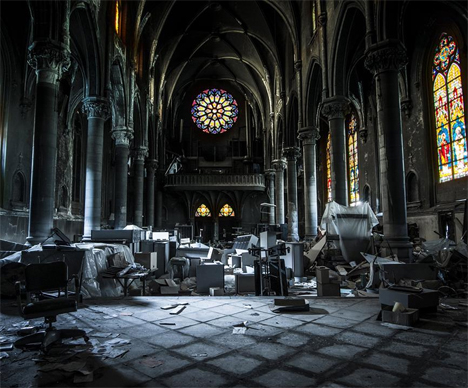
Johnny Joo Abandoned Places Photography 1

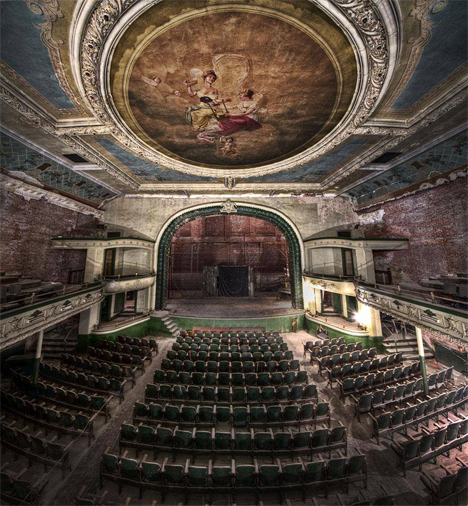
Crumbling cathedrals, decaying theaters and half-destroyed camping cabins: urban explorer Johnny Joo has seen it all, and he doesn’t just document these abandoned places, he does so with an eye for spine-tingling drama. The 23-year-old photographer is releasing his collection of stunning images in book form with ‘Empty Spaces,’ available for pre-order for just a couple more days.

Johnny Joo Abandoned Places Photography 2

Johnny Joo Abandoned Places Photography 5

The 116-page, hard-cover photo book ‘Empty Spaces’ includes the photographer’s favorites from years of urban exploration. Pre-orders come hand-signed with a free gift; the book is also available in E-book form. Order it at Architectural Afterlife. 

Johnny Joo Abandoned Places Photography 3

Johnny Joo Abandoned Places Photography 4

Johnny Joo Abandoned Places Photography 6

The photographs take us on a visual tour of the abandoned Rust Belt. Some structures are so covered in moss and ivy, their former use is a mystery. Others, like bowling alleys and theaters, seem frozen in time, as if they’re just waiting for patrons to start filing back in.

Johnny Joo Abandoned Places Photography 7

Johnny Joo Abandoned Places Photography 8

Johnny Joo Abandoned Places Photography 9

Why were these places vacated? And why are they left to sit, uncared for? The remains of a person’s bedroom, bed still intact, covered in a layer of mold and dust. Walls surrounding with cracked complexions and vivid, yet transparent voices telling a story of time. Living through the history of abandonments as you explore what once was an entirely different scene; now transformed into a desolate, yet incredible, stimulating image of complex patterns and great detail. Through this book, we will take a journey through the rust belt to see the unseen and find the forgotten.”

Share on Facebook


[ By Steph in Abandoned Places & Architecture. ]

[ WebUrbanist | Archives | Galleries | Privacy | TOS ]


WebUrbanist

 
Comments Off on Empty Spaces: Photo Book Documents Eerie Urban Ruins

Posted in Creativity


Seene 3D photo app makers preview 360-degree scanning

12 May

seene.jpg

Seene is a free app for iOS that lets you capture and share interactive and three dimensional images, just like Instagram and Vine do for 2D-images and videos respectively. The makers of the app, Obvious Engineering, are now showing off a preview of a forthcoming feature. Soon Seene will be capable of capturing a full 360-degree model of an object and export it for printing on a 3D-printer. Learn more

News: Digital Photography Review (dpreview.com)

 
Comments Off on Seene 3D photo app makers preview 360-degree scanning

Posted in Uncategorized


A Step By Step Guide to Making Your First Panorama Photo

08 May

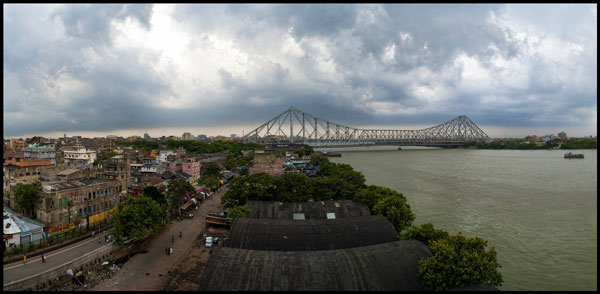
Image 4

While visiting an art gallery or a photography exhibition, at times you may have noticed certain landscape photographs have extremely elongated fields of view. They seem quite impossible to have been photographed with a standard camera. If you wonder how such elongated photographs are made, you are not alone. I had my first encounter with a panoramic image of the Himalayan mountain range being displayed at Das Studios in Darjeeling, a Himalayan resort town in West Bengal, India. That photograph had a huge impact on me and it led me to searching for ways and means to photograph panoramic images.

During my initial search I figured panoramas were probably made with highly specialized cameras and lenses. But, to my surprise I found that panoramic photographs can be made with any kind of camera at your disposal. All you need is a camera, preferably one capable of shooting in Manual mode. Yes, with certain cameras and Smartphones you can get Apps for recording a panorama in a sweep but I never found the results quite satisfactory. Shooting your own panorama gives you the creative freedom and a sense of satisfaction.

How to shoot a panorama

A panorama is a combined set of individual photographs, in which two adjacent photographs have at least 20% overlapping areas. These two, or more, overlapping photographs are “stitched” with the help of software to produce extremely elongated fields of view. The overlapping is required as the software is able to understand the common areas in two adjacent photographs and hence can eliminate duplication of a scene by stitching the same into a single photograph.
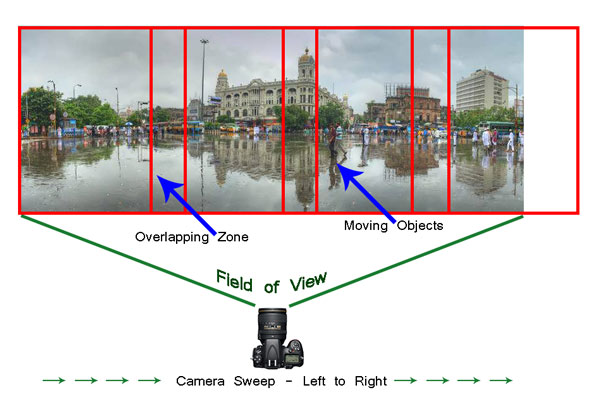
Image 1

Before shooting a panorama, you need to plan out well. Here is a list of guiding factors for creating your own panorama.

#1 Shoot in Manual Mode

Since a panorama is shot over a large field of view where lighting conditions can be different, it is imperative to shoot in Manual mode with Manual Focus. This will ensure all the photographs shot have an exact exposure value and focus throughout all the images. Shooting in Automatic, Program or Semi-Automatic modes (like Shutter priority or Aperture priority) will result in different exposure values for each photograph, which in turn may cause the final merged photograph to have varied exposure and color casts in different parts of the photograph.

#2 RAW or JPEG

While you generally want to shoot in RAW, it is preferable to switch to JPEG for panoramas. Shooting in RAW is absolutely fine, but since the photographs will not be edited individually (we will see this at a later stage) and to reduce shutter lag, shooting in JPEG is preferred. A word of caution – as we will be shooting in JPEG make sure the exposure values are correctly adjusted.

#3 Tripod or handheld?

If the weight of your tripod is not a factor, carrying it is always preferable. However on a bright day you can very well rely on your own hands. A steady posture, or using your camera bag or any sturdy object available to rest the camera on, will save you the weight of carrying a tripod.

#4 Horizontal or vertical

We are generally accustomed to shoot in Landscape (horizontal) mode. Shooting in Landscape is fine but the resulting panorama will be short in height, since Landscape photographs will be stitched together. Additionally, during the stitching process there will be a lot of redundant or blank areas (you will see later during the post-processing) which need to be cropped out. This will further reduce the height of the panorama. To overcome this issue you may choose to shoot the panorama in Portrait (Vertical) mode. This will help in achieving a greater image height which can be cropped out as per requirement, say for printing or aesthetics.

#5 Be fast

Be very quick in shooting since light conditions change fast. Additionally if you are shooting a cityscape, a populated beach or a scenario where there is movement, be cautious. If you are not shooting fast enough, you will find moving objects (e.g., people, cars, bikes) will be duplicated across the frames. You would not want to see the same object twice across the panorama.

# 6 Plan it out well

Stand at the selected spot and plan the number of shots in advance. This will help you in keeping a control of the number of shots rather than shooting randomly. Be sure to do a mock round without actually shooting.

When you are ready, start shooting from left to right. Make sure you have at least 20% overlapping areas in two consecutive photographs. An visual estimate will suffice. Look through your viewfinder and shoot. Do not look at the individual photographs on your LCD screen until you finish shooting. Before leaving the scene turn on the LCD screen and review the photograph series. If you are not happy, shoot again.
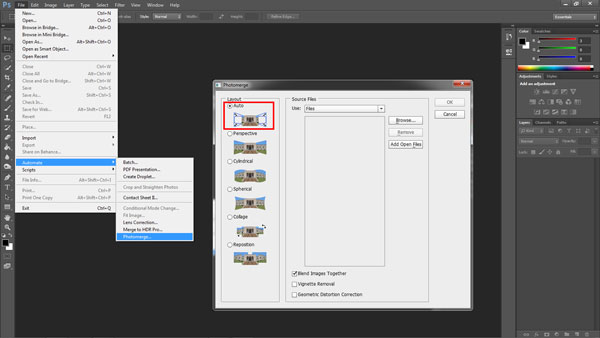
Image 2

Stitching your panorama

The sext step is stitching your panorama. There are plenty of panoramic stitching software available on the internet. I will put a list of links to some of the best software at the end of this article. The stitching process is similar across software but as of now we will use the standard photo editing tool – Adobe Photoshop. The stitching process in Adobe Photoshop is fully automated.

Since you may have shot more than one panorama series, for the purpose of identification it would be easier to store each series in a separate folder. You may have shot in JPEG or RAW but make sure you do not edit individual photographs.

Steps to stitch a panorama:

  1. Open Photoshop
  2. Click File > Automate > Photomerge
  3. “Auto” is the default Layout option. Photoshop analyzes the source images and applies either a Perspective, Cylindrical, and Spherical layout, depending on which produces a better Photomerge. Choose “Auto” if it is not selected by default.
  4. Check “Blend Images Together”
  5. Next Click “Browse” and locate the separate Folder where you have put in your panorama series. Select the series and click “Ok”
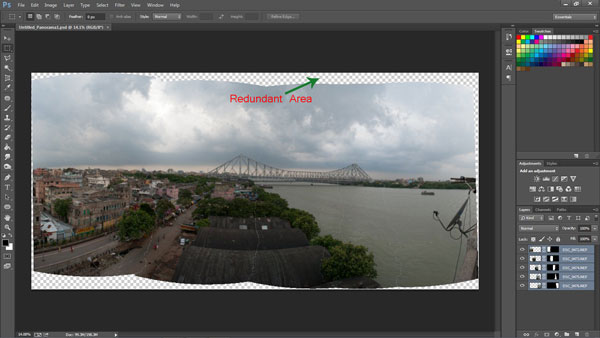
Image 3

  1. Depending on the number and size of the photographs, it may take a while for Adobe Photoshop to stitch together the images.
  2. After the stitching process is completed you will find a roughly shaped panorama (with a few redundant spaces). Refer to the image above
  3. Right click on a Layer in the Layers panel and click Merge Layers
  4. The next step is to use the Crop Tool to trim out the redundant portions of the panorama
  5. After the final touches you are done with your very own first panorama
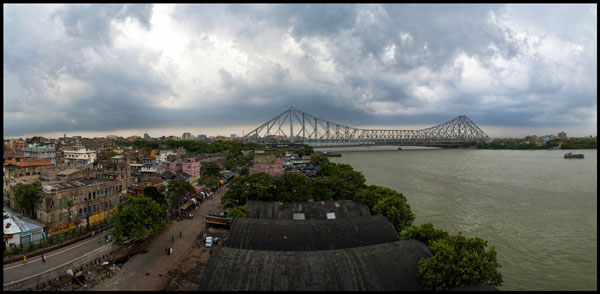
Image 4

Links to panorama stitching software:

  • AutoStitch
  • pTGui
  • Hugin
  • Autopano
  • Microsoft Image Composite Editor

If this is the first time you are creating your panorama, I would love to receive your feedback or to share your panorama in the comments below.

The post A Step By Step Guide to Making Your First Panorama Photo by Soumya Shankar Ghosal appeared first on Digital Photography School.


Digital Photography School

 
Comments Off on A Step By Step Guide to Making Your First Panorama Photo

Posted in Photography


Win an Alaskan photo safari with Datacolor

07 May

Screen_Shot_2014-05-06_at_2.36.22_PM.png

Datacolor has announced its Great Alaskan Photo Expedition Sweepstakes, an online contest that offers an all-expense-paid trip to Cook Inlet, Alaska. Winners will get to spend a week photographing wildlife in Lake Clark National Park with nature photographer David Cardinal. The grand prize has a $ 10,000 value and includes round-trip airfare to and from Anchorage as well as all meals, lodging and charter flights to the wildlife preserve. Learn more

News: Digital Photography Review (dpreview.com)

 
Comments Off on Win an Alaskan photo safari with Datacolor

Posted in Uncategorized


American Museum of Natural History photo archive now online

05 May

f08cfd833923561f6ee5271a56aae948.jpg

The American Museum of Natural History Research Library announced it has digitized and made available online its entire collection of more than 7,000 historical photographs. This massive archive was previously difficult to access, especially for those not in proximity to New York City. According to the Museum, its goal was to create digital representatives of the original photographs that maintained their integrity. They scanned the negatives whenever possible and scanned prints only when there were no negatives. Learn more

News: Digital Photography Review (dpreview.com)

 
Comments Off on American Museum of Natural History photo archive now online

Posted in Uncategorized


Massive 3,000 square foot pinhole photo on display

03 May

6581p.jpg

The Smithsonian National Air and Space Museum’s Steven F. Udvar-Hazy Center is already home to some of the most impressive aviation and astronomical technology in the modern wold, but it has also become the home of one of the most impressive photographs ever taken as well. On display now is a 107 feet wide ‘camera-obscura’ image of a decommissioned Marine Corps air station. Learn more

News: Digital Photography Review (dpreview.com)

 
Comments Off on Massive 3,000 square foot pinhole photo on display

Posted in Uncategorized


MIT algorithm predicts photo popularity

29 Apr

Screen_Shot_2014-04-25_at_2.58.49_PM.png

Ask the average social media user what makes a photo popular online and they’ll probably answer ‘cats’ or ‘pretty women’. That gut feeling has now been confirmed by MIT PhD candidate Aditya Khosla who has analyzed more than 2.3 million images hosted on Flickr to answer the question ‘what makes an image popular’? Learn more 

News: Digital Photography Review (dpreview.com)

 
Comments Off on MIT algorithm predicts photo popularity

Posted in Uncategorized


Take a Hike!With Camping-Friendly Photo Gear

28 Apr

We love camping. The scenery is beautiful, the wildlife photogenic, the tent mishaps hilarious and the burnt marshmallows the best ones.

Don’t let Mother Nature with her water, dirt & total-lack-of-outlets stop you from photoing it all. Pack along these camping-friendly gadgets.

We field tested each one on a recent camping weekend in Big Sur. Check out this photo story of our trip, or scroll on down to see our favorite gear of the weekend.

Power Pot Stovetop Charger

The Power Pot turns heat from your campfire or stove into power to charge your phone, camera or any USB cable charged device!

Cook up your dinner and the power to snap a few more photos at the same time.

Learn More or Buy

DryZone Duffle

Like the little yellow rain slicker of your childhood, this waterproof bag will keep your camera bone dry. Plus, it’s super padded to keep your gear safe.

Pack the DryZone Duffle full of camera equipment (and dry socks) when you’re on the water.

Learn More or Buy

iPhone Super Suit

With the iPhone Super Suit your phone will have the ultimate protection from the elements … like water, sand and gravity.

This sleek case protects and leaves the buttons, screen, camera and headphones totally usable (even while underwater)!

Learn More or Buy

Spring Break Camera Strap

Take your camera on a hike with the Spring Break Strap.

It not only provides a comfy way to carry your most precious cargo, but it makes you look pretty good too.

Learn More or Buy

Gorillapod Mobile

The Gorillapod will hold onto your phone in any terrain. Its bendy legs will stand atop a mountain or hang onto a tree branch for great pics at just the right angle.

Use it as a tripod for self-timer selfies, group pics and shake-free videos.

Learn More or Buy

Now, check out the photos we snapped on our weekend camping trip to Big Sur RIGHT HERE!


© laurel for Photojojo, 2014. |
Permalink |
No comment |
Add to
With Camping-Friendly Photo Gear”>del.icio.us

Post tags:


Photojojo

 
Comments Off on Take a Hike!With Camping-Friendly Photo Gear

Posted in Equipment