RSS
 

Posts Tagged ‘Photo’

DIY No Frame Photo Display Ideas

16 Oct
Extra photos for bloggers: 1, 2, 3

No money? No frame? No worries.

Display your photos by using cheap everyday supplies from around the house.

Your photos will look a million bucks and you’ll save dough, yo.

Come with us and you’ll never look at a box or a jar the same way again!

Frame Your Photos Without Frames

(…)
Read the rest of DIY No Frame Photo Display Ideas (216 words)


© Erika for Photojojo, 2014. |
Permalink |
No comment |
Add to
del.icio.us

Post tags:


Photojojo

 
Comments Off on DIY No Frame Photo Display Ideas

Posted in Equipment


Never Run Out of Photo Space on Your Phone Again

09 Oct
Extra photos for bloggers: 1, 2, 3

At the very moment your dog FINALLY is balancing a banana on its nose, your phone camera roll is full. The banana falls, the moment is gone. Boo.

It stinks to lose these special moments when you don’t have enough room on your phone. So, we set out to find the best way for you to have (almost) infinite space.

Eureka! Carousel is a gallery app that connects to Dropbox (which saves your photos on the cloud, so they don’t take up space on your phone). You can delete photos from your camera roll, but still have access to them whenever you want. Sounds almost as magical as a real carousel, right?

It’s easy to set up, then you’re worry free FOREVER!

Never Run Out of Camera Space on Your Phone

(…)
Read the rest of Never Run Out of Photo Space on Your Phone Again (466 words)


© Lauren for Photojojo, 2014. |
Permalink |
No comment |
Add to
del.icio.us

Post tags:


Photojojo

 
Comments Off on Never Run Out of Photo Space on Your Phone Again

Posted in Equipment


DIY Boho Photo Mobile

03 Oct
Extra photos for bloggers: 1, 2, 3

Remember that time you went to the beach and took a zillion polaroids and picked up some sea glass and coral?

Go grab those things and throw together this awesome boho photo mobile!

It’s completely personalised art made from your photos and trinkets.

Those rocks? Hang it up! That stack of photos? You know what to do. That bunny? Umm, put him down and follow us!

Learn How To Make Your Own Boho Photo Mobile

(…)
Read the rest of DIY Boho Photo Mobile (239 words)


© Erika for Photojojo, 2014. |
Permalink |
No comment |
Add to
del.icio.us

Post tags:


Photojojo

 
Comments Off on DIY Boho Photo Mobile

Posted in Equipment


Camera51 for Android guides your photo composition

03 Oct

Since the launch of iOS 8, manual camera apps for iPhone photographers have been in the news. Now it seems the makers of Camera51, a new camera app for Google’s Android OS, are going the opposite way. The new app not only sets exposure and white balance automatically, but also aims to optimize how your shot is framed. Read more

Articles: Digital Photography Review (dpreview.com)

 
Comments Off on Camera51 for Android guides your photo composition

Posted in Uncategorized


Canon Digital Photo Professional software update boosts camera support

01 Oct

Canon’s Digital Photo Professional software, commonly referred to as DPP, has just received updates to versions 4.0.2 and 3.14.41. Both of these were joined by updates to a roster of the company’s other photography-centric software, including the EOS Utility, EOS MOVIE Utility, and Picture Style Editor. Read more

Articles: Digital Photography Review (dpreview.com)

 
Comments Off on Canon Digital Photo Professional software update boosts camera support

Posted in Uncategorized


Ultimate Photo Playlist: Songs That Really Click

25 Sep

Photos aren’t just a treat for the eyes. They can also be music to your ears!

We’ve put together the Ultimate Photo Playlist, over 70 songs about photos and all of the emotions they stir up– ranging from happy feet to heartbroken.

Whether you’re a photographer or simply an admirer of the art, somewhere on this list is a song (or two or three or many more!) for you.

Now get ready because these songs are guaranteed to get you in the mood…for photography!

Turn Up the Volume (…)
Read the rest of Ultimate Photo Playlist: Songs That Really Click (1,043 words)


© Taylor for Photojojo, 2014. |
Permalink |
No comment |
Add to
del.icio.us

Post tags:


Photojojo

 
Comments Off on Ultimate Photo Playlist: Songs That Really Click

Posted in Equipment


Nikon offers 1.5 million Yen in kit and cash as top prize in annual photo contest

24 Sep

Nikon has opened the doors to entries for the company’s annual photo contest, and is offering a top prize of 1m Yen (approx. $ 9200/£5600/€7100) in equipment with 500,000 Yen cash for the overall top prize. Running since 1969 the competition this year will feature 7 categories including a new ‘Home’ theme and a ‘Generation N’ section for 10 entrants aged 19 and under. Learn more

Articles: Digital Photography Review (dpreview.com)

 
Comments Off on Nikon offers 1.5 million Yen in kit and cash as top prize in annual photo contest

Posted in Uncategorized


Before and After: How This Photo was Processed in Lightroom

16 Sep

Andrew’s ebook Mastering Lightroom: Book Four – The Photos is available now at a special price of 40% off for a limited time from Snapndeals. It’s an advanced guide to processing photos in Lightroom’s Develop module, explaining how to use Lightroom’s powerful processing engine plus Develop Presets and plug-ins to create beautiful images.
Post-processing in Lightroom

The Story

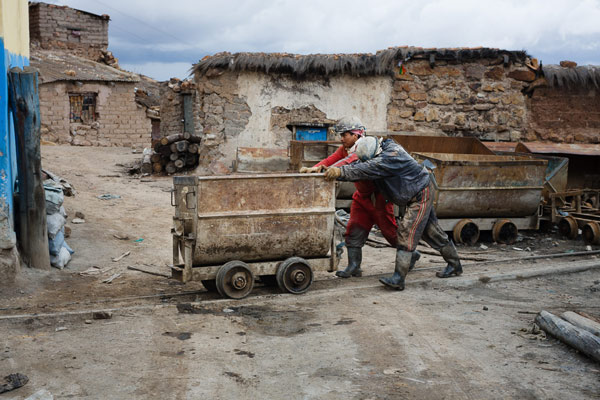
A few years ago I passed through Bolivia, South America’s poorest and, in some ways, least developed country. I spent a few days in Potosí, a small, largely forgotten city whose history had a central role in shaping the modern world. Built at the foot of the Cerro Rico (Rich Hill), the silver mined in Potosí flowed across the continent, through the cities of Cartagena and Havana, and across the ocean to Sevilla and Madrid in Spain, where it powered the rise of European nations as the wealthiest and most developed of the era.
lightroom-post-processing-example-10

The silver no longer flows from Potosí, although the mines are still open. The city seems to exist on a mixture of mining output and tourism. It’s one of the world’s highest cities, sitting a little over 4,000 metres above sea level in the Bolivian Andes. It’s a cold place, even in the summer. Sleet or snow can strike at any time of the year.

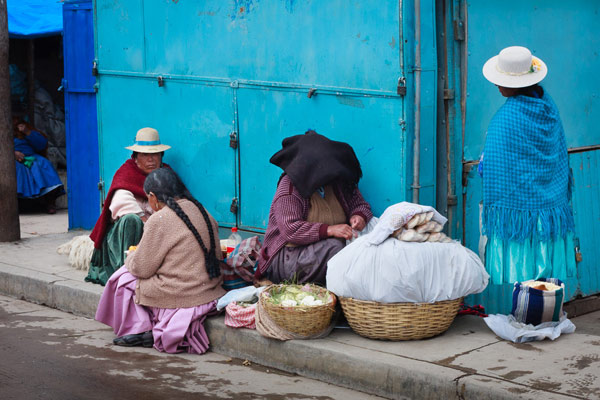
I liked wandering the streets as dusk fell, watching the local people as they went about their daily activities. It was a busy time, with kids out of school, shops closing and people leaving work. Potosí is a city of contrasts: the poverty of some of the local inhabitants against the relative affluence of foreign travellers; the fading grandeur of the magnificent old colonial architecture against the newer mud brick houses at the edges of the city; the tragedy and scope of the city’s history against the snippets of modern daily life. The feeling that, even after hundreds of years, this is still a place where the traditions of the people who lived here before the Spanish came intersect with the ways of modern, European descended South Americans.
lightroom-post-processing-example-11

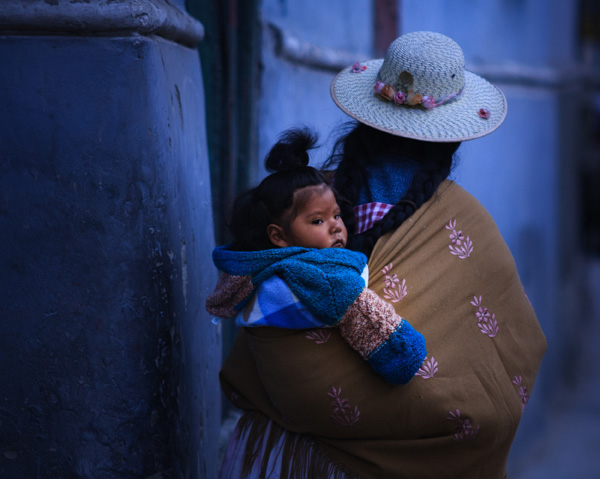
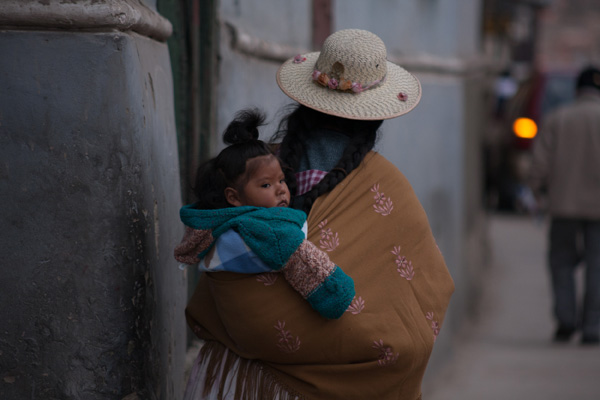
As I wandered around the streets, dusk falling, a Bolivian lady walked around the corner. She had tied her hair in two long plaits, and wore a Bolivian style sun hat on her head. There was a blanket slung around her shoulders, inside which sat a baby, hair styled in a topknot, looking behind it as his mother walked onwards. I had time to raise the camera and take a single photo before a second child walked around the corner and blocked my view.

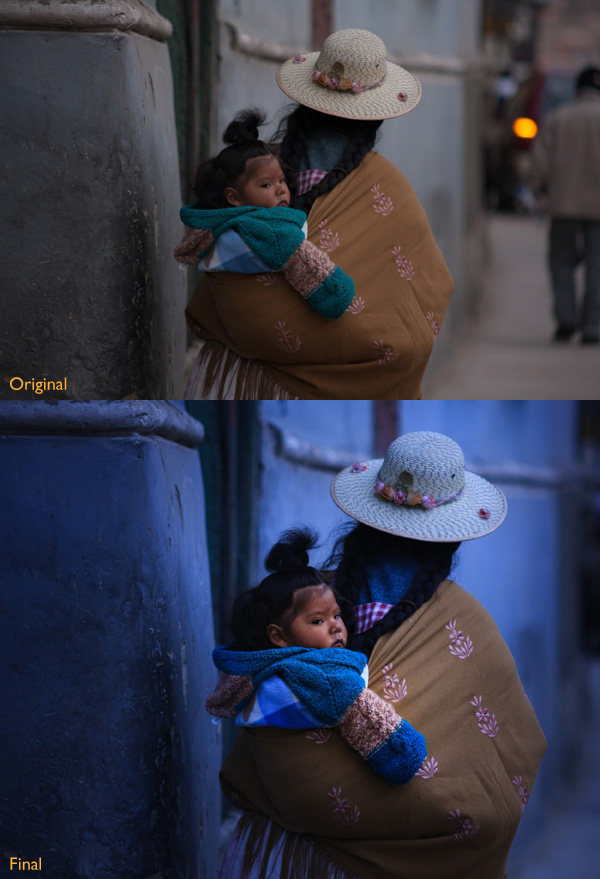
This photo isn’t perfect. The baby’s face is slightly out of focus. The photo was underexposed (the moment happened so fast I didn’t have time to dial in exposure compensation). The rear light of a car and the out of focus man in the background are distractions (see the original version below). Yet that’s not important. Photography is about evoking emotion, and sometimes things happen too fast for technical perfection.

What matters is the moment. In this photo it’s the juxtaposition between the mother walking one way and her baby looking another. The atmosphere created by the fading light of another cold night in Potosí. The age of the building she is walking past. The intersection of ancient ways with the present day.

This is a photo I come back to again and again, reprocessing as my skills improve. Each time my approach is driven by my memory of that moment and how it felt. Ask yourself the same question when processing images. How did the moment feel? And how can you express that feeling with colour, light and shadow?

First steps

There are plenty of things wrong with the original photo (below). It’s underexposed, and needs brightening (although not too much as I want to retain the atmosphere created by the fading light). The background is distracting. The colours are muddy.
Post-processing in Lightroom

Step 1 Basic corrections

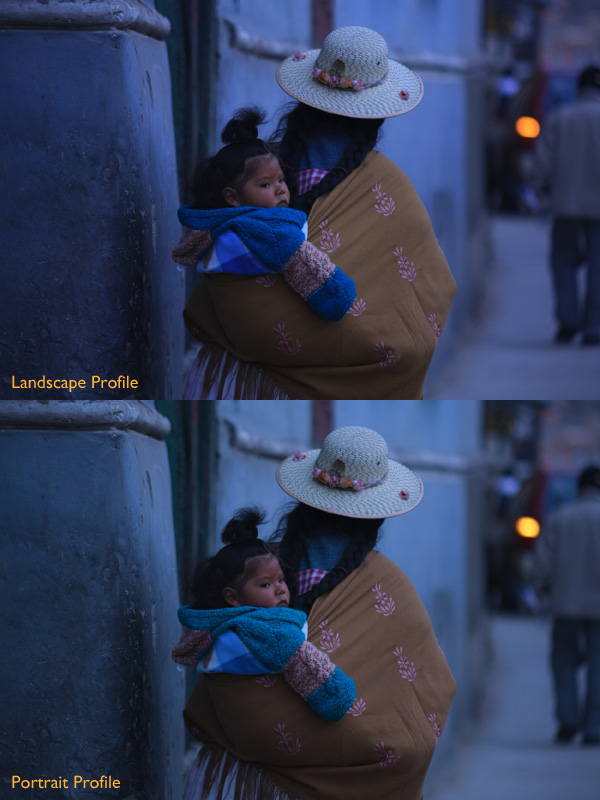
The baby is the natural focal point of the photo, and I wanted to emphasize it. I also wanted a lot of blue, the natural colour of light during dusk, in the photo. To start, I set Profile in the Camera Calibration panel to Camera Landscape. This setting is intended for use with landscape photos, but you can use it whenever you want to emphasize the colours blue or green. I also went to the Lens Corrections panel and enabled both Profile Corrections (with Vignetting set to zero) and Chromatic Aberration removal.

I went to the Basic panel and kept Exposure where it was, even though the photo was underexposed, because I liked the gloomy atmosphere. I set White Balance to auto, which gave a neutral colour, then reduced it (to 3639 Kelvin) to create a blue colour cast. This gave me a good starting point.
Post-processing in Lightroom

Two versions of the photo after the completion of step one. One has the Camera Landscape profile and the other the Camera Portrait profile. Even though it may seem logical to use the Camera Portrait profile on a photo containing people, Camera Landscape is the better option given my intention, as it gives the most appropriate colours.

Isolating the subject

My aim now is to continue the processing in a way that minimises distractions and places the emphasis on the baby.

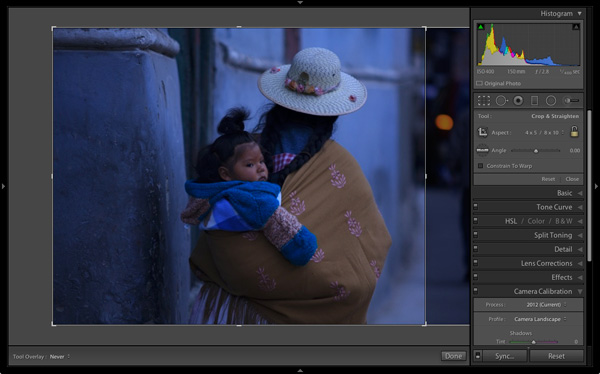
Step 2 Crop

I used the Crop tool to cut the right-hand side of the photo, eliminating the distracting background. This makes a big difference as the eye is no longer being pulled away from the people by the blurred light.
Post-processing in Lightroom

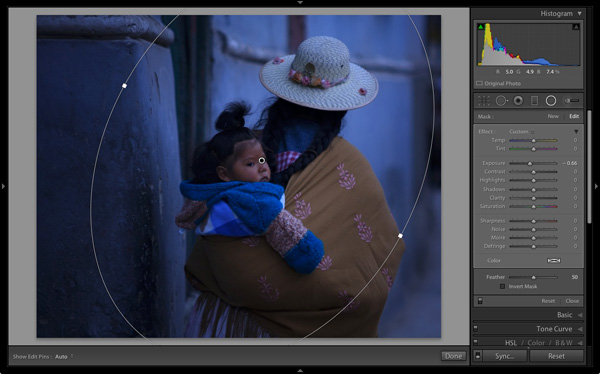
Step 3 Local adjustments

I added a Radial Filter and moved the Exposure slider left to make the background darker. The Radial Filter is new to Lightroom 5, but if you have an earlier version of Lightroom, you can do something similar with the Adjustment Brush (by painting in the area you want to darken).
Post-processing in Lightroom

Step 4 Add some punch

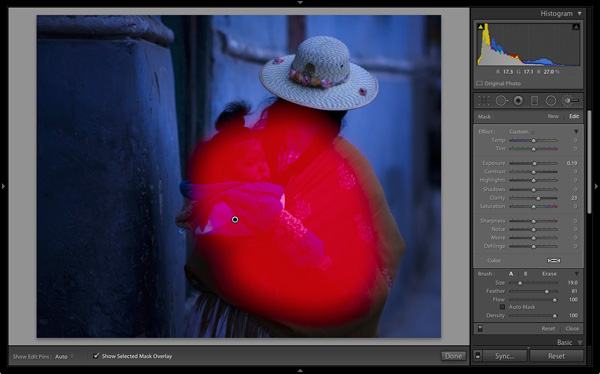
The photo was quite flat so I returned to the Basic panel and increased Contrast. Then I used the Adjustment Brush to make a selection over the woman’s back and the child, and increased Clarity and Exposure. The aim was to make the baby sharper, and a little brighter, than the rest of the image, encouraging the eye to go to that part of the photo.

This screen shot shows the mask created by the Adjustment Brush.
Post-processing in Lightroom

Step 5 Make color work

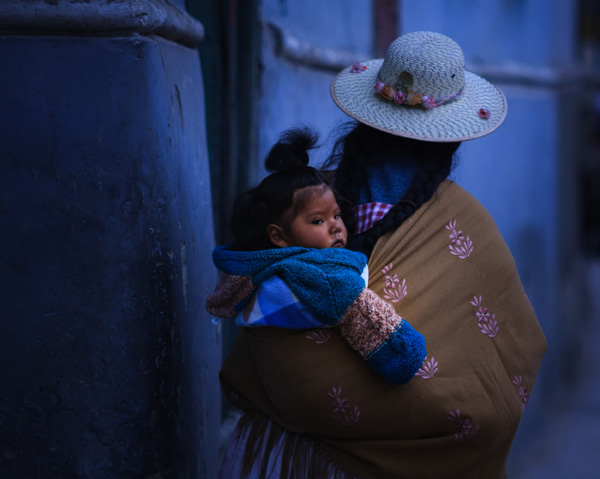
Next I used the Adjustment Brush again to select a smaller area and moved the Temp slider right, making that area warmer. The idea here is to work on the natural colour contrast between the colours of orange and blue.

This image below shows the result of these adjustments. The key was to make them subtle so the image looked natural and not over-processed.
Post-processing in Lightroom

Throughout the processing I imagined that I had taken the photo on slide film and that the scene really did look like that. The fact that the scene would have come out differently than my version is incidental. The idea was just a guide to the approach I should take.

Step 6 Darken edges of the image

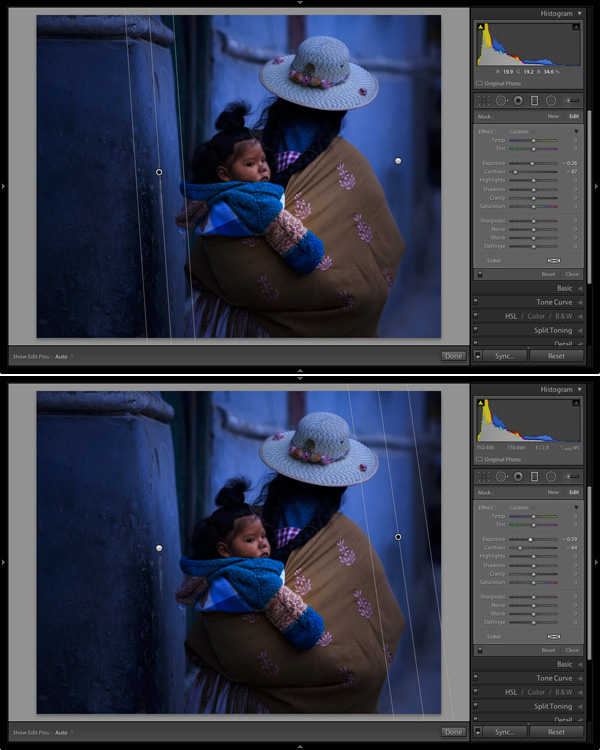
Next I created two Graduated Filters, one on either side of the frame. I reduced the Contrast in each one. A side effect of reducing Contrast is that the area affected also becomes lighter, so I adjusted Exposure to make them darker again.

These are subtle adjustments that reduce contrast at the edges to emphasise the area around the baby in the centre of the image, where I increased Clarity earlier.
Post-processing in Lightroom

Finally I decided the image was too dark and increased Exposure to compensate. Here’s the original and final versions together so you can compare them.
Post-processing in Lightroom

What do you think of these processing techniques and the style in which the photo was processed? Do you have any suggestions for an alternative interpretation of the original Raw file?  Please let us know in the comments.

Mastering Lightroom: Book Four – The PhotosAndrew’s ebook Mastering Lightroom: Book Four – The Photos is available now at a special price of 40% off for a limited time from Snapndeals. It’s an advanced guide to processing photos in Lightroom’s Develop module, explaining how to use Lightroom’s powerful processing engine plus Develop Presets and plug-ins to create beautiful images.

The post Before and After: How This Photo was Processed in Lightroom by Andrew S. Gibson appeared first on Digital Photography School.


Digital Photography School

 
Comments Off on Before and After: How This Photo was Processed in Lightroom

Posted in Photography


Product Review: Macphun Tonality Black and White Photo Editor

10 Sep

Macphun Software announces new program

Macphun Software, a photography app developer with over 20 million users worldwide just recently released their latest photo editing software program, called Tonality. This is a program dedicated entirely to editing your photos in black and white, and it is so much fun to use!

You may already be using a Macphun program – they have produced a whole suite of useful consumer photography editing tools, such as Intensify Pro, Snapheal Pro, and Focus Pro. This latest addition to their software collection is really a powerful one, for professionals and hobbyists alike.

I played around with the software a bit and there are quite a few things I liked about it, and just a couple of things that I found non-intuitive. Read on to discover more about this program.

Macphun Tonality

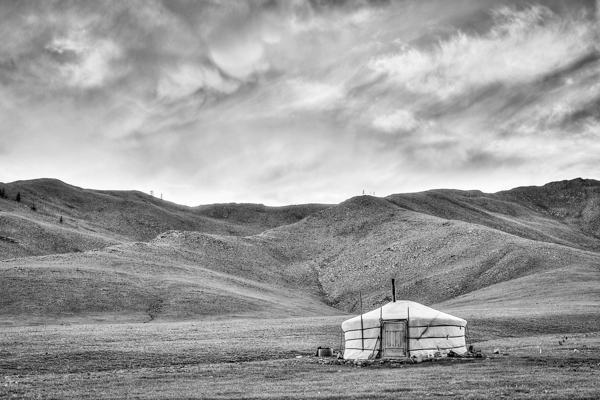
From my recent trip to Mongolia

Overview of Macphun Tonality

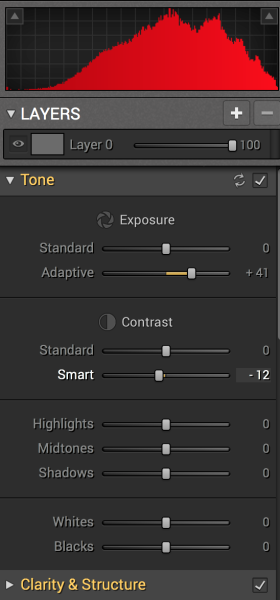
Macphun TonalityTonality is easy to pick up right away if you are familiar with Lightroom or Photoshop RAW editing tools. The designers intentionally created an editing panel on the right hand side of your viewing window that looks almost exactly like Lightroom’s editing panel. It includes familiar tools like Exposure, Tone Curve, Split Toning, and Vignetting.
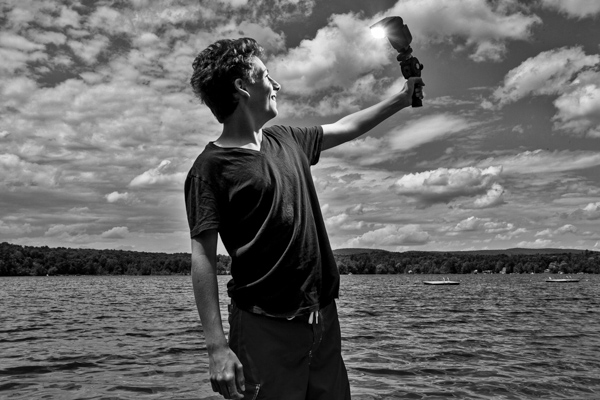
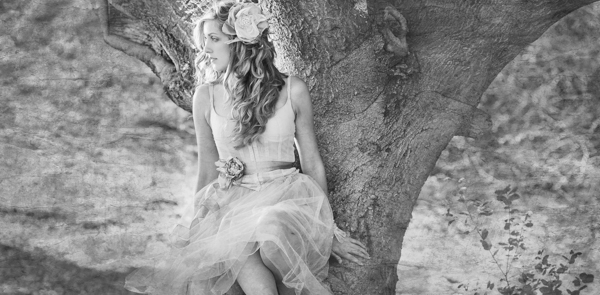

There are some other effects here that are not so familiar, and do interesting things when you play with the sliders. Clarity & Structure is a section unto itself that provides the user with highly controlled clarity effects. In the Exposure section there is an ingenious slider titled Adaptive which allows you to adjust the exposure while preserving the highlights, something Lightroom should have had in place a long time ago. There is a section called Glow which does exactly what you think it would do; add glow to your images, like a balloon lit from the inside casting a nice glow over everything. You can add Grain, adjust the overall Opacity of the changes you are creating, and there are options for Texture Overlay and Frames, which are pretty fun with black and white images.

Macphun Tonality

Layers

One thing that is really fantastic is that ability to edit with layers. This is something that I found (and still find), rather non-intuitive, but allows for huge possibilities in editing, especially with textured layers.  When you add on a new layer and insert a texture via the Texture Overlay panel, you can brush through via masking and only texturize parts of the image, like the background in this image:

Macphun Tonality

Editing with the Textures Overlay panel. I added a metal texture in one layer and a paper texture in another layer, and painted through on the girl’s face using the layer mask so the texture didn’t affect the smoothness of her skin.

Here I added a metal texture in one layer and a paper texture in another layer and painted through on the face using the layer mask so the texture didn’t affect the smoothness of the girl’s skin.

The non-intuitive part for me is in actually using the layers and brushes to mask out parts of the image. If you have grown up on Adobe Photoshop then you might not find this familiar at all. It’s not impossible, it just requires a different way of thinking about how layers work and how the masking works. It will simply slow down your workflow slightly, but as with anything new, there is always a learning curve.

Some thoughts

When I first saw the software I thought to myself; “I can edit in black and white just fine with Lightroom. Why would I need another program to do such a simple thing?”. But just as Photomatix is brilliantly designed to do just one thing (tone-map HDR images), Tonality is designed to do just one thing perfectly: create black and white images like you could never do in Lightroom or Photoshop. I took a couple of black and white images from Lightroom that I was satisfied with, and tried them out in Tonality. Just using the presets alone as a jumping board for editing in Tonality shows an astounding difference in quality, sharpness, and texture.

See these two images side-by-side and notice what Tonality can do to really make a photo pop:

Digital Photography School Review

Edited in Lightroom for a simple black and white look

Macphun Tonality

Edited in Tonality for some movie poster “pop”

Perhaps some won’t like that HDR look, but I happen to love it. It makes an otherwise bland black and white photo cause me to pause and take a second look. Which is what we are always trying to accomplish with our photos, aren’t we?

Macphun Tonality Pro features:

  • Professional image quality with proprietary 16-bit RAW processing engine
  • Advanced algorithms and a streamlined user experience for superior results
  • Scores of inspiring professional presets provide a wide range of one-click image styles
  • Built-in organic-style overlay textures, plus user-loadable textures, for incredible creativity
  • Unique adaptive exposure and smart contrast tools for advanced tone control
  • Multiple effect layers, each with separate opacity controls, blending modes and preservation of color data offer true advancements in creative toolsetsTonalityPro
  • Adjustable, pressure-sensitive brushes and masking tools for precise selective edits
  • Advanced clarity and structure detail controls yield dramatic results
  • Proprietary grain engine with over 20 emulated film types
  • Selective color using color channel sliders for unique stylistic expressions
  • Glow, lens blur, vignette, photo frame and opacity controls for finishing touches
  • Easy image sharing to popular social networks, and via email, instant messaging, AirDrop and SmugMug
  • Macphun Print Lab services, powered by MILK
  • Runs as either a standalone app or, in the Pro version, as a plug-in to popular image editing software like Adobe® Photoshop®, Adobe Photoshop Lightroom®, Adobe Photoshop Elements® or Apple® Aperture®.

Find Tonality Pro and Tonality here on the Macphun website, starting at $ 19.99, and for dPS readers they’ve given us 20% off so use this link to get that special price.

Summary:

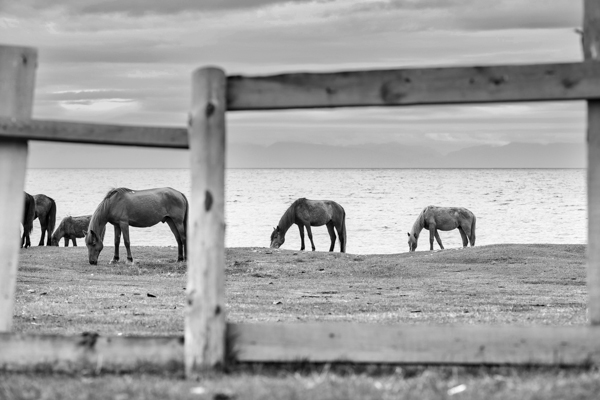
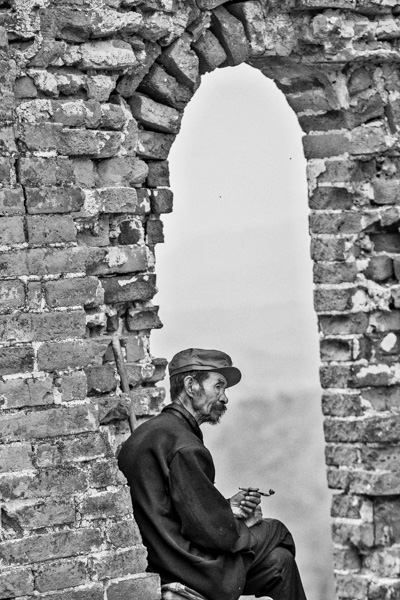
In summary, I give this software product 5 stars. I can actually see myself using this in the future, and I think it will be a welcome addition to my limited number of tools that I use for editing photos. It’s fun, super easy, and I can use it to edit a lot of my future travel photos. Like these:

Macphun TonalityPro

Macphun TonalityPro

Macphun TonalityPro

You can also add in some coloring for sepia tints or different metallic effects

The post Product Review: Macphun Tonality Black and White Photo Editor by Phillip VanNostrand appeared first on Digital Photography School.


Digital Photography School

 
Comments Off on Product Review: Macphun Tonality Black and White Photo Editor

Posted in Photography


Hit the Road! Must Have Photo Accessories

03 Sep

On a cross country road trip, selfies just won’t cut it. Is that the Lincoln Memorial or Lady Liberty behind you?

So, we’ve packed our shop with camccessories to take on your next trip: a comfy strap, our favorite tripod ever and a bright ring light.

Three Essentials for Travel Photography

(…)
Read the rest of Hit the Road! Must Have Photo Accessories (124 words)


© Britta for Photojojo, 2014. |
Permalink |
No comment |
Add to
del.icio.us

Post tags:


Photojojo

 
Comments Off on Hit the Road! Must Have Photo Accessories

Posted in Equipment