RSS
 

Posts Tagged ‘Photo’

China shares the first photo captured on far side of the Moon

04 Jan
Photo captured and shared by the China National Space Administration (CNSA).

The China National Space Administration (CNSA) has landed its Chang’e 4 spacecraft on the far side of the moon and sent back a photo captured from the surface. This marks the first time any spacecraft has landed on the far side of the moon.

After touching down at 9:26 p.m. US eastern time, the spacecraft sent back a color photograph of its home inside the Von Kármán lunar crater, a formation on the southern pole of the moon that measures approximately 180 km in diameter.

Lunar Orbiter 5 image of the Von Kármán lunar crater.

Photographs of Von Kármán and the far side of the moon have been captured before, as seen in the above image captured bye Lunar Orbiter 5, but never from the surface of the moon.

One of the major hurdles of landing a spacecraft on the far side of the moon is communications. Normally, with the moon in the way, there’s no way for direct communication for the spacecraft. To get around this limitation, the CNSA is using the Queqiao satellite as a relay point about 65,000 km above the surface of the moon.

With the spacecraft now safely on the far side of the moon, it can begin its mission to take measurements in an effort to better determine the age and makeup of the Von Kármán lunar crater and southern pole of the moon.

Articles: Digital Photography Review (dpreview.com)

 
Comments Off on China shares the first photo captured on far side of the Moon

Posted in Uncategorized


ON1 Photo RAW 2019 gets its first free update with tool enhancements and more

22 Dec

Photo software company ON1 has released its first free update for ON1 Photo RAW 2019. The new 2019.1 version features enhanced Focus Stacking, masking and portrait features, as well as improvements to the Lightroom plug-in and enhancements suggested by users.

The enhanced Focus Stacking feature offers more accurate image alignment and less speckling. Users now have the option output as layers with layer masks, as well, for additional manual adjustments. The Focus Stacking dialog and HDR window previews now include panning and zooming.

Other enhancements include better masking results when copying, pasting, and inverting, plus increased face auto-detection accuracy for portraits. The update adds the option to delete face selections, the Crop tool now remembers its preset across images, there’s the ability to import/export the keyword list, and other minor enhancements.

In addition to feature changes, Photo RAW 2019.1 adds support for the following cameras:

  • Nikon z6
  • Nikon D3500
  • Sony XH99
  • Pentax K-1 II
  • Fujifilm GFX 50R
  • Leica C-Lux

According to ON1, it is wrapping up work on its upcoming AI Quick Mask Tool, which will replace the original Quick Mask Tool. The feature wasn’t included with this update due to ‘some fine tuning’ that is still needed, but it will likely be released in a late January free update.

Articles: Digital Photography Review (dpreview.com)

 
Comments Off on ON1 Photo RAW 2019 gets its first free update with tool enhancements and more

Posted in Uncategorized


ON1 Photo RAW 2019 Review

18 Dec

The post ON1 Photo RAW 2019 Review appeared first on Digital Photography School. It was authored by Leanne Cole.

This November, ON1 released the latest version of their standalone-editing platform, Photo RAW 2019. It is a sophisticated program aimed toward all levels of photographers from the absolute beginner to the professional. The program is there to help photographers edit their photos to achieve the best possible images.

Many features in the previous version still exist. However, some obvious changes are in the user interface — specifically, the removal of the different modes you had to switch to as you processed your images. They are now much easier to use, and access to each is all done in the same window.

leannecole-on1-photoRAW-2019-001

When you open ON1 Photo RAW 2019

Some of the significant aspects of Photo RAW are still available but have been improved to make them more efficient to use. ON1 have always listened to their users. They find out what their users want the most from the software and use that feedback to make product improvements, via the ON1 Photo RAW Project.

User Interface

One of the biggest changes with Photo RAW 2019 is the basic layout. The Browse section is much the same, except for a few minor changes. However, some of the most significant changes are when you proceed to the photo editing section.

In the past, you have had to go to different modules to make particular changes. In the latest release, you the Develop, Effects and Layers features are all integrated in the same place. You can now move between each of them easily, and more importantly, quickly.

leannecole-on1-photoRAW-2019-002

The User Interface has been updated as well.

You no longer have to wait for changes to get saved when moving from one module to another. In previous versions, when you moved to the Layers module, you lost all of the non-destructive settings used to create your image. However, now you have access to them all the way through the editing process of your image.

When you open your image in Edit Mode, you can see on the right side that it still looks similar to the previous version with Tone & Color windows opened first. However, above it, are now tabs for Develop, Effects, Portrait, and Local. When you want to use aspects that are in a specific tab, you click on it and you are taken to it straight away. You can move around them very quickly.

Above those tabs, is a larger one that has Layers written on it. You can now add layers at any stage of your editing and go back and forth between the other tabs as well.

leannecole-on1-photoRAW-2019-005

Now layers is in the same place as the other tabs.

The new Layers tab is a bonus because you don’t lose any of the previous edits you have done. As you go back to the other tabs everything you have done previously is still there. You can change adjustments and filters at any stage of the process too. This ability is new to Photo RAW and was not available in previous versions.

Effects and Filters

Nearly all the adjustments are now under the Effects Tab. When you click on Add Filter, a new window pops up with a range of filters available for use. While this isn’t new, in the previous version they were split between the Develop and Effects Modules, and you had to keep swapping between them, depending on how you used them.

In the 2019 release, the filters are all in one place under the Effects tab. Along with the existing filters, ON1 have also included some new ones.

leannecole-on1-photoRAW-2019-004

All the filters are now under the Effects tab.

These filters include Curves, Color Adjustments, and Film Grains. Curves is a very welcome addition as it is something that many people use in other editing programs. This filter is addictive. Once you start using it, you want to use it on everything.

Some people enjoy the Film Grain option. It is excellent for imitating the effects of analog film. If you had a favorite film type, you could make your digital images have a similar feel to them.

Color Adjustments give you more options for individual colors in your image. You can saturate or desaturate them. You can also change the hue tones or change the color entirely. If you like that sort of control in your editing, then this filter is perfect for you.

Tool changes

One of the things I have noticed is the tools are now in the left sidebar. In the previous version there were many of them, and as you moved through the modes more appeared.

At first glance with Photo RAW 2019, it appears that there are not as many tools. There aren’t many sitting in the sidebar, but when you click on one, you should also look at the top of the window. There, you can find the settings for each one, and you find other similar tools. You can click on them to use the ones that you like.

leannecole-on1-photoRAW-2019-014

Some of the tools are now located in a different section.

If you have used previous versions and can’t find tools that you previously used, go through each one along the top to see what is available. It looks as though all the original tools are still available. They are merely in a new location.

Text Tool

One of the really exciting additions to the latest release is the Text Tool. You can now add text to images. You can make memes or other designs.

This new feature is excellent for watermarking your image too. Love them or hate them, many people want to put watermarks on their work. It allows them to prove they own the copyright if their image is stolen or used without their permission.

The Text Tool also features a range of font options, and you can choose the size and placement. Like most adjustments, you can change the opacity as well, which is perfect for watermarking.

The Text Tool is a welcome addition to Photo RAW and something that many people are going to like.

leannecole-on1-photoRAW-2019-011

The new Text Tool is a very welcome addition.

Processing RAW images

Some programs are not capable of processing your RAW files; however, ON1 can process these files with Photo RAW. It can process them quickly, and the file sizes are not an issue.

Many of the modern cameras produce images with enormous file sizes. I use a Nikon D850, and the RAW images are often over 50MB. Each image I have processed in Photo RAW 2019 has handled with no problems.

Lightroom Catalogues

Many people who have used Lightroom for years have cataloged all their photos using the platform. Lightroom users may be hesitant to switch to Photo RAW 2019 for fear of losing access to all of these catalogs. However, there are now some new AI algorithms that power Photo RAW giving the user access to all their photos from Lightroom catalogs using the Lightroom Migration Assistant. The Migration Assistant adds the top-level folders in the Folders panel in Lightroom to Cataloged Folders in Photo RAW. All of the photos inside of these folders are cataloged automatically. Your collections and Metadata changes made in Lightroom are migrated and include keywords, descriptions, ratings, labels, orientation, etc.

Lastly, RAW processing and editing settings from Lightroom’s Develop module including crop, retouching, and local adjustments are migrated non-destructively so they can be re-edited in ON1 Photo RAW 2019.

You can also see the photos you have edited in the other program as well. This feature was an essential development for ON1 because it offers users an alternative to paid monthly subscriptions such as Lightroom.

leannecole-on1-photoRAW-2019-013

Now you can access all your photos and catalogs from Lightroom.

Creating HDR images

While HDR Images editing is not new to Photo RAW, the 2019 release has seen some significant improvements to the programs ability to edit them faster. The workflow has improved significantly too.

The process starts the same way – select your images and click on the HDR icon. However, once the images are merged, the changes made to the overall image are not set in stone. Once the HDR is created and opened in the Develop tab, you can continue making other re-adjustments. This feature allows you to alter any mistakes you may have made the first time.

leannecole-on1-photoRAW-2019-006

Creating HDR Images is now easier.

The most significant and best change is how fast your HDR images get processed. It is fantastic and makes them so much easier to do. While other programs make you wait (you can make coffee while it is doing the merging), Photo RAW completes the process before you know it. This feature is an excellent addition for time-poor photographers.

Many of the other features remain, and you can choose various options for how you want your HDR images to appear when the merging is complete. If you are familiar with how ON1 does HDR photos, the previous features remain, with the added bonus of new ones that are sure to impress.

leannecole-on1-photoRAW-2019-008

Make changes anytime.

Focus stacking

If you love macro photography or are keen to get everything in your images in focus, the Focus Stacking feature is a great new feature for you. Photo RAW 2019 allows you to highlight all the images you want to Focus Stack via the Browse section, and you simply click on the Focus icon. The icon is located on the right side of the window.

leannecole-on1-photoRAW-2019-009

Use Photo RAW 2019 to merge images for Focus Stacking.

Photo RAW aligns all your images together and displays a preview of your stacked image. It then blends all the selected images to make a final focus-stacked image. There is a reference panel to ensure you get the image you want.

leannecole-on1-photoRAW-2019-010

All the images are aligned and everything that you want in focus is.

Who is ON1 Photo RAW 2019 for?

The latest version has been designed to appeal to a wide range of photographers who want to edit their photos. Professional photographers can find everything they need to process their photos in Photo RAW 2019. If you have many photos to process, all the tools and adjustments that you used in Lightroom are available. Accessing all those images that you have previously processed with Lightroom is simple.

Hobbyist photographers who want more say on how their final images look may find Photo RAW 2019 brilliant. You can make all those basic adjustments, and more. It is an excellent program for learning layers too.

However, the best part is that many new photographers don’t want to sign up for monthly subscriptions set out by Adobe. The monthly expense can be expensive. With Photo RAW, you can purchase it outright and not have ongoing monthly costs. On top of that, with monthly subscriptions, you aren’t paying for many extras that you may not need.

Support

ON1 have many tutorial videos on YouTube to help you learn how to use the Photo RAW 2019 software if you are new to it. There are also tutorials for the latest release.

If you want more from the program and the company, consider signing up for ON1 Plus. ON1 Plus provides in-depth monthly courses on using ON1 Photo RAW and courses from top photographers. It is something that I would highly recommend.

leannecole-on1-photoRAW-2019-015

ON1 Plus gives you so much more support.

In Conclusion

The latest addition of ON1 Photo RAW 2019 was thoughtfully developed with the use of current user feedback. One of the great things about ON1 is how much they care about their users and try to make sure their software delivers for their needs. This latest release is sure to impress their users.

If you are looking for an alternative to mainstream editing programs, you should consider ON1. It does everything you need and is a program you can continue to learn. No matter what level of photographer you are, Photo RAW 2019 can cater to your editing needs.


Disclaimer: ACDSee is a paid partner of dPS

The post ON1 Photo RAW 2019 Review appeared first on Digital Photography School. It was authored by Leanne Cole.


Digital Photography School

 
Comments Off on ON1 Photo RAW 2019 Review

Posted in Photography


Replica Surfaces are rigid, lightweight photo backdrops that imitate popular surfaces

13 Dec

A pair of crowdfunding campaigns are raising funds for Replica Surfaces, a series of photography backdrops that imitate various surfaces, including wood, concrete and marble. Unlike the real materials, Replica Surfaces backdrops are lightweight at 907g (2lbs), highly portable with a 3mm (0.12in) thickness, and can be assembled upright using small plastic stands.

Replica Surfaces are described as “hyper-realistic” backdrops featuring glare-free, stain-proof surfaces made with three-layer construction. Each backdrop measures 58cm x 58cm (23in x 23in) and is designed to slot into small 3D-printed plastic stands in an L-configuration. The end result is a flat surface and upright backdrop for product photography.

The product’s crowdfunding campaigns are offering six initial designs: white marble, ship-lap, concrete, rose marble, weathered wood, and cement. Replica Surfaces was funded on Kickstarter and Indiegogo; interested buyers can pre-order the boards and stands in various bundles from CrowdOx starting at $ 20.


Disclaimer: Remember to do your research with any crowdfunding project. DPReview does its best to share only the projects that look legitimate and come from reliable creators, but as with any crowdfunded campaign, there’s always the risk of the product or service never coming to fruition.

Articles: Digital Photography Review (dpreview.com)

 
Comments Off on Replica Surfaces are rigid, lightweight photo backdrops that imitate popular surfaces

Posted in Uncategorized


Using Face Detection and Recognition in ACDSee Photo Studio Ultimate 2019

11 Dec

The post Using Face Detection and Recognition in ACDSee Photo Studio Ultimate 2019 appeared first on Digital Photography School. It was authored by Stacey Hill.

Are you a person who takes lots of photos of people? Perhaps you shoot weddings or events? Family portraits? Maybe you like to capture images of family and friends? Eventually, you end up with many images. Some are easy to sort through when they have only one person in them.

However, what about group photos? How do you tag/catalog/sort through those? Do you have to list out everyone’s name in the meta tags manually?

What if you don’t know all the names immediately? What if you find out later that Heather is actually Helen and you have to go back and change it?

Finally, how can you find all the images with a specific person quickly and easily?

Luckily, ACDSee Photo Studio Ultimate 2019 makes this task easy with the new Face Detection and Recognition capabilities.

How to set up Face Detection and Recognition

1.  Open the program and in ‘Manage’ mode, navigate to the desired folder where you have stored your images.

2.  Click on an image of the person you want to name and click on ‘View’ to open in View mode.

3.  Face Detection identifies the person by outlining their face.

4. If this outline box is not present, click on the ‘Show Face Outlines’ button (or Shift + B).

5. Once the face is selected, we need to apply the name. Click on the ‘Face’ Tool (or Shift + F) and a dark grey text bar pops up under the outline.

6. Click in the text bar and type the name of the person and press ‘Enter.’

7. If you select any other image with that person and open it in ‘View mode,’ it should automatically select their face and apply the name.

A key point regarding the naming structure you use is to put some thought into what naming convention you use and then keep it consistent. For example, something along the lines of: first name (space) last name or first name_last name. Doing so makes a difference later if you are using search parameters to find people.

What happens if you have more than one Joe Smith? What if you start off using only first names and then you have 3 x David, 4 x Michael, 2 x Louise all in the same wedding party? Being as specific as possible when naming addresses this issue.

How it becomes useful

Once the software has recognized the face and you have assigned a name to it, it detects that face amongst all your other photos. While it works across any images currently stored on your computer, the data is saved and applied to any new images you import onto your computer.

Therefore, you should only have to tag the person once. ACDSee remembers their name and applies it to any future image with their face in it.

Now you might want to search for all the images with Heather.

1. In ‘Manage’ mode, select ‘Catalog’ on the left-hand panel. The panel is broken up into different sections. At the top is ‘Categories.’

2. The second panel down is ‘People.’ All the names you have applied to your images are listed. Click on any name, and it goes through the database to pull out all the images with that face present in them.

3. In ‘Manage’ mode, you can ‘Quick Search’ by typing the name in the Quick Search box.

Searching for multiple people

1. Search for two or more people by holding down CTRL while selecting a second name in the People section of the Catalog panel. The software finds the images for those people. You can also utilize the ‘Easy Select’ arrows next to the names to select multiple people.

2. Find an image with two specific people in it together by typing both of their names in the ‘Quick Search’ bar as Person 1 + Person 2 to run a Boolean AND search. It is during this process that it’s essential to understand the naming convention you used originally.

In ‘Manage’ mode, select the folder you want to search in and click F3 to search (or right mouse click and select Search). Make sure you put ‘People’ in the ‘Categories’ section or it will search the entire database and potentially pull up other images.

3. You can also run a search from the ‘Catalog’ pane. In the ‘People’ section, select all the people you want to search for by using the ‘Easy-Select’ arrows or CTRL/SHIFT clicking. Click the gear icon on the People section header, and change the search type to ‘Match All.’

Managing name data

You can edit/change/remove the name data you have stored, which comes in handy if you have to update the spelling on one. Maybe you forgot you already had a ‘Sebastian’ in there, and you need to change one of them.

1. In ‘Manage’ mode, select ‘Tools’ from the top menu option.

2. From the drop-down menu, select ‘Manage People.’

3. A ‘People Manager’ box opens up with all the names you have saved. You can edit each one as needed by selecting them and using the bottom buttons.

Things to note:

1. The naming convention you use is important, so plan that out in advance.

2. If the face is not automatically detected, and you have to create it manually, the software will not further recognize it in Face Recognition. Also, note that if you use the Remove Faces or Redetect Faces command on an image, manual faces aren’t retained. The Rerun Face Detection option remembers them if you edit images.

3. Currently, there is no facility to import face recognition tags from other software (Picasa as an example). However, a search through the support forums has this listed on the ‘Potential Ideas for Future Updates’ list. It also appears to apply to the exporting of images from ACDSee as well, with the intention of retaining the face recognition tags.

4. There is no easy way to establish if there are currently any unnamed faces.

5. If the software has assigned the wrong name to someone, you can remove it with the Remove Faces function. This removes all face data from the selected image, not just the one wrong one.

6. To ensure a better success rate, you may need to manually select several images of one person so that the software can ‘learn’ that face with accuracy. You achieve better accuracy by naming as many faces in the (first) image as possible.

7. You can manually remove the names from incorrect selections and can rescan in ‘Manage’ mode via Tools | Redetect Faces. You need to correct the wrong name, rather than remove it, otherwise rescanning continues to return the wrong name over and over.

Conclusion

Face detection and recognition is a tool that can make life easier for a photographer with many images of people in their portfolio. The ability to assign a name to a person and have the computer run an algorithm to find all the other images is significantly faster than doing it manually.

To be able to search for images with a specific person (or range of people) becomes faster and more efficient as well.

Is it perfect?  If I am honest, not 100% all of the time. However, it is easy to use, easy to manage and does a pretty good job for most requirements. It could be useful for many other things that they may implement into the next version.

Right now, it is an effective time saver for the home photographer with photos of family and friends, through to commercial photographers with wedding/event shoots filling up the portfolio.

The previous 2018 generation of ACDSee was the first version that bought a range of features all together in one space. Thus, giving you the capability to manage and view files, edit Raw files, do creative editing with layers, all in one piece of software.

Leading with this Face Detection and Recognition, the 2019 iteration builds on that initial foundation by bringing specific functionality to boost capabilities even further. Thus, making for a compelling consideration for anyone looking to purchase editing software, especially when it is available via one-off perpetual license purchase.


The post Using Face Detection and Recognition in ACDSee Photo Studio Ultimate 2019 appeared first on Digital Photography School. It was authored by Stacey Hill.


Digital Photography School

 
Comments Off on Using Face Detection and Recognition in ACDSee Photo Studio Ultimate 2019

Posted in Photography


First look: Skylum Luminar 3 adds support for photo libraries, Digital Asset Manager to follow

07 Dec
Skylum Luminar 3’s layout.

Luminar’s library is set to open soon, but expect construction to continue through at least next year.

The long-awaited update to Skylum Software’s photo editor adds in-app photo library management, which the company says is the first step toward building out a complete Digital Asset Manager (DAM). Called ‘Luminar with Libraries’, this version more directly competes with applications that organize your photos, such as Adobe Lightroom Classic CC and Lightroom CC. Luminar 3 arrives December 18, runs on macOS and Windows, and is a free update for owners of Luminar 2018.

This version more directly competes with applications that organize your photos, such as Adobe Lightroom

That’s mixed news for photographers contemplating a switch from Adobe’s applications, especially since Skylum has been teasing a Luminar DAM for well over a year (and just barely hitting their promise to ship it in 2018). Acknowledging the situation, Skylum is making further updates to Luminar free throughout 2019.

Luminar 3 is a free update for current owners of Luminar 2018. Owners of Aurora HDR, Photolemur, and legacy products can upgrade for $ 49 until December 18. New preorders cost $ 59 until that date, and $ 69 thereafter. There’s no subscription pricing model.

Library vs Digital Asset Manager

Here’s what Luminar with Libraries offers:

  • The Library component is integrated into the application, not existing as a separate app. It keeps track of all the images you throw at it in a browsable image gallery. Photos can be imported from cameras or memory cards, or you can point Luminar at existing folders on your hard disk. Unlike apps such as Apple Photos or Lightroom CC, Luminar doesn’t squirrel the images away to its own folder or container. It creates a central catalog file to track file locations and edits, but the originals remain wherever you put them in the first place.
  • In the Library, you can rate photos from zero to five stars, mark them as flagged or rejected, or apply any of five color labels.
  • You can create albums and populate them with photos.
  • A few shortcuts act like smart albums, revealing photos based on their capture dates, import dates, and recently edited dates.
  • In the Info panel, a limited set of EXIF data is shown, such as the camera, lens, focal length, ISO, aperture, shutter speed, and exposure compensation.
  • You can filter the library based on any of those attributes.
Filter images based on the criteria the Library offers.

Luminar with Libraries covers the basics of wrangling files and making them easily available for editing, but a full DAM provides a deeper level of interacting with one’s photos. Not included in this release is the ability to apply keywords or IPTC metadata, any kind of text-based search, a way to expose and take advantage of location data, or synchronization of images between computers or devices. The interface for importing photos relies on traditional Open dialogs instead of a way to preview the shots.

Editing Changes

Luminar 3 is still the same editor as it was before, with a few enhancements. Presets are now ‘Luminar Looks,’ which sounds like just a rebranding attempt, but actually rolls presets, LUTs, and some AI-enhanced operations into one-click actions.

“Luminar Looks” isn’t simply advantageous alliteration, but a merging of presets, LUTs, and some AI processing.

More significantly, the inclusion of the library into Luminar makes it possible to apply edits to one image and sync them among many other similar photos.

Sync edits from one image to several similar shots.

The Windows version includes improvements to Luminar’s color management to get consistent color among displays and devices, plus a host of bug fixes and performance boosts.

What’s Next

Skylum plans to release frequent updates throughout 2019 to add features and expand the library’s features. In its Luminar Roadmap, the company lists targets for the first half of the year that include:

  • Improved handling of Raw + JPEG image pairs (instead of treating each part separately).
  • The ability to create virtual copies of photos.
  • A Smart Search feature for locating shots “using keywords, EXIF information, and file names” (suggesting keyword support will be forthcoming).
  • IPTC core data editing and syncing among images.
  • Features that use AI technology “when editing skin on portraits, architecture, removing objects or simply applying masks on your images.”
  • A Lightroom migration tool.

Although Luminar 3 won’t arrive with a fully-formed DAM, as many photographers were hoping, incorporating the photo library into the application is still a big deal. Melding the library and the editing tools in the same environment streamlines the overall workflow. It allows you to work on a range of images quickly, without the hassle of opening and saving individual images (and deciding where the edited versions live). It’s a big reason why people stick with Lightroom or use alternatives such as Capture One, Alien Skin Exposure, or ON1 Photo Raw.

Articles: Digital Photography Review (dpreview.com)

 
Comments Off on First look: Skylum Luminar 3 adds support for photo libraries, Digital Asset Manager to follow

Posted in Uncategorized


Photography Equipment Tips for an Africa Photo Safari

06 Dec

The post Photography Equipment Tips for an Africa Photo Safari appeared first on Digital Photography School. It was authored by Andrew Sproule.

There’s no doubt that booking and planning for an Africa photo safari is an exciting time, especially if it’s your very first venture. As a photo safari tour leader, I’m used to the process. Nevertheless, I still behave very much like a child in anticipation of what Christmas brings. As your departure date draws nearer, your thoughts move to packing for your trip. Although the appropriate clothing is essential, these trips are really about amazing wildlife encounters, shared experiences and capturing memories. It’s time to think about your photography equipment, – your gear.

It’s time to pack your camera bag!

Author’s Note

Before I dive in, I would like to state that this article represents my tips for maximizing your experience while on an Africa photo safari. It’s a guide with a mix of opinion and facts based on my on-location, in-the-field experience. It’s a summary, an introduction and not a laboratory review and therefore should be treated as such.

Secondly, I always recommend photography enthusiasts choose a safari designed explicitly with photographers in mind. General ‘tourist’ safaris have their place, but they’re much more likely to be governed by a species timetable. Lion, check. Move on. Buffalo, check. Move on. You get the picture. On a dedicated Africa photo safari trip, not only will you share a vehicle (often customized for photographers) with liked minded people, you’ll also benefit from being able to spend much more time with an individual animal or group of animals. You’ll be able to witness unusual behaviors and explore different angles and lighting situations. Explicit and invaluable guidance and advice are also on tap.

Thirdly, you’ll notice that I’ve included my camera settings below a number of the images. These settings worked for me in those particular situations, under certain conditions to produce the type of image I was after. I suggest you use these posted settings as a guide only. Instead, think about how these images might look if you were to adjust the shutter speed, aperture or ISO. Then, take that information into the field with you. The relationship between these elements can create widely different outcomes and also help you to define your style.

Leopard, Botswana. Canon 1DX, Canon 70-200mm(at 105mm), f/2.8, ISO 400, 1/125th sec handheld. Image © Andrew Sproule

Cameras for an Africa Photo Safari

Notice I have stated ‘cameras’ in the title and not ‘camera.’ I recommend you take at least two camera bodies with you. On the surface, this may seem like overkill or even a touch extravagant, but there are valid reasons why.

Firstly, it’s peace of mind. Imagine the heart-sinking moment if your camera fails. That emotion is tenfold if it happens on day one of a two-week photo safari! Whether you take two DSLRs, two mirrorless cameras, a combination of both, or an alternative solution, possessing a backup prevents any unnecessary anxiety. Before I purchased a second camera body, I used to hire one for my Africa trips. I still do this on occasion. It’s a great way of testing and trialing gear in the field beforehand and working out what works best for you.

Secondly, Africa is an extraordinarily harsh and dusty environment. Sand and dust particles are the enemies of sensitive camera sensors. Consequently, eliminating the need to swap lenses while on location can be a huge plus.

Furthermore, having two cameras armed with different lenses (for example a telephoto lens and a mid-range zoom), you’ll find it easy to switch between them. Switching between them is useful when wildlife comes too close, or if you are pulling away for a wide shot of wildlife in context of its habitat. Being able to adapt to shifting conditions can mean the difference between capturing, or not capturing the shot.

Not everyone is in a position to take two cameras. It also doesn’t matter whether your camera is full-frame, crop-sensor or another type, as there are pros and cons to all. What is fundamental is that you know your camera intimately. Practice on your dog, your cat or deer in a local park. Whatever you can. The more familiar you are with your camera’s features, the quicker you’ll be able to adjust to conditions that unfold in front of you with confidence.

Lenses for an Africa Photo Safari

Super-telephoto lenses with a focal length of 300mm plus are the staple for most Africa photo safaris. For crop-sensor cameras, 300mm should be ideal. If you intend to photograph birds as well as large game, the longer the focal length, the better. Full-frame cameras usually need lenses of 400m+.

Wild dog, Botswana. Canon 1DX, Canon 500mm, f/5.6, ISO 200, +2/3 EV, 1/160th sec, monopod. Image © Andrew Sproule

Although my go-to lens is a 500mm, I believe the versatility of zoom lenses make them ideal for African safaris. There’s such a wide variety of birds and mammals of a degree of varying sizes and distances that a good lens option would be something like the 100-400mm.

A short-zoom lens in the range of 24-70mm is also a great option as it provides the flexibility to pull away to present wildlife within its environment, adding real context to an image. Because I’m also a landscape photographer, I also favor super-wide lenses in the range of 16-35mm or 14-24mm.

Much of Africa’s wildlife is active in the early mornings and late evenings meaning you’ll be battling low levels of light. Lenses with larger apertures, such as f/2.8, allow more available light into the camera, so you’ll be able to use a reasonably high shutter speed for much longer. These lenses are a luxury item though, so an alternative solution is to increase the ISO. Doing so most certainly increases noise, but most photographers would rather have a sharp shot with an acceptable amount of noise than an out of focus shot with no noise. In many cases, you can eradicate most noise in post-production.

Filters for an Africa Photo Safari

I often use filters when composing landscape images, and on an Africa photo safari there are most certainly circumstances when the use of a filter is advantageous. For filters that reduce glare, saturate colors and darken skies, I recommend using a polariser filter.
If you need help to correctly expose bright skies, while preserving exposure detail in the foreground, then I recommend an ND filter.

Camera Support on an Africa Photo Safari

Burchell’s Zebra, Kenya. Canon 1DX, Canon 500mm, f/4, ISO 200, 1/50th sec, bean bag. Image © Andrew Sproule

Bean Bags

Bean bags are my go-to support, especially in East Africa. They are a simple, yet extremely effective support for your camera. Bean bags can be used to rest your lens on a vehicle’s doorsills, window frames, roof rails and the actual roof itself. Also, wildlife is often on the move, so you’re not limited to one position within the vehicle. Many reputable Africa photo safari tour operators provide beanbags. However, that said, it is always worthwhile double-checking beforehand. Bean bags can pack light and get filled with rice or beans on arrival. Some photographers prefer to fill their beanbags with lightweight polystyrene balls before they leave. It’s bulkier but a lightweight alternative. I’ve been using a couple of Kinesis SafariSacks 4.2™ for a while. As well as being a great support, the quick release straps secure the bags in place, so you never lose them in the bush.

A typical East Africa safari vehicle. Image courtesy of Governors Camp, Maasai Mara, Kenya

Unfortunately, bean bags are not a universal solution, contrary to what you may have read in certain books or magazine articles. Although they’re a fantastic solution in East Africa, they’re not as useful in Southern Africa (including South Africa, Botswana, Zambia, and Zimbabwe). The reason is that the vehicles there are radically different. Safaris in Southern Africa use open Land Rovers and Land Cruisers with no sides at all – often there isn’t even a windshield! So, there is nothing on which to rest the beanbag. In Namibia, both open Land Rovers and closed vehicles are in common use.

A typical Southern Africa safari vehicle. Image courtesy of Motswari Private Game Reserve, South Africa

Monopod

If a bean bag is not an option, a monopod offers a lightweight and more practical alternative to use within the confines of a safari vehicle. Especially in Southern Africa. You don’t need to extend it entirely, and it takes the strain from your arms and shoulders while seated. It’s surprising how effective it can be. I have tested many monopods over the years and have found that Gitzo Monopods™ best suit my needs. I also use a Really Right Stuff™ lever-style, quick release that makes the process of taking lenses on and off the monopod very fast.

Tripod

A tripod is useful or even an essential piece of kit for evening photography, longer exposures or for around the camp. Although, the wide-spread tripod legs make them impractical and ill-advised for most safari vehicles. However, if you’re in an open vehicle on your own, or perhaps with one other, a tripod can be rigged to provide an excellent platform for larger lenses. To avoid badly damaging your camera from vehicle shake, always remove your camera from the tripod while on the move.

Some airlines take a dim view of tripods, and you may find it difficult to persuade them to let you take it in the cabin as part of your hand luggage. If it’s going in the hold, it can take up more of your baggage weight allowance.

Clamp

I often use a ball head or gimbal head on a Manfrotto® Superclamp that can be bolted almost anywhere, including a vehicle’s roof bars. If I’m on my own, or part of a tiny group, I may even have several of these clamps placed in strategic points around the vehicle making it extremely easy to switch from side to side and back to front.

Manfrotto 035 Superclamp. Image courtesy of Manfrotto®

Storing Images while on an Africa Photo Safari

Laptop

You could easily take 300-500 images a day. Trigger-happy photographers may even have over 1,000, so a small laptop with external hard drives are useful for securely backing up your photographs. If weight restrictions allow, two hard drives that mirror each other is a great solution. Remember to pack essential items such as connecting cables, chargers and memory card readers.

Memory Cards

An alternative solution to external hard drives is to bring extra memory cards. You can file these away at the end of each day. That way, you are safe in the knowledge that your data remains untouched until you arrive home. If you don’t like the idea of swapping out memory cards too often, go for larger capacity ones such as 32GB. That said, I don’t like to put all my eggs in one basket, and therefore I opt for 2 or 3 smaller cards in favor of one larger one.

Accessories for an Africa Photo Safari

Batteries

Get to know what you can expect out of your camera with regards to battery life and take enough spares to get you through each day. Cold is a battery’s nemesis, so make sure they’re not getting too cold overnight. I have two spare batteries for each camera body, and that’s always been more than adequate for my purposes.

Lens Cleaning Cloth

Remember lens cleaning cloths. I would also recommend a camera and lens cover that helps protect your camera in the event of a rain shower and for protecting your gear against the dust mentioned above.

Others

Don’t forget your smartphone, binoculars, head torch, notepad and pen, personal medication, malaria medication, toiletries, money, your passport, and visa.

For detailed, up-to-date information on vaccinations and more, you are best to consult an official website.

Packing for an Africa Photo Safari

I recommend packing high-value items like cameras, lenses, and laptops in your hand luggage. Some airline safety requirements require you to pack batteries in your hand luggage, so ensure you charge your items, as airport security often requires you to demonstrate that laptops and cameras are all in full working order. A simple rule of thumb is to pack items essential to your photography, travel, and health in your hand luggage.

Pack your gear very carefully with disruption in mind. Some Africa photo tours can consist of two or three successive flights to get to various destinations in Africa. There may be two or even three layers of airport security on each of these flights. You may be required to unpack large cameras, lenses, and laptops. If you can, avoid placing smaller accessories on top of larger items that you may need to take out repeatedly and re-pack. Pack cables and batteries together in small pouches rather than loose in your bag.

Your camera bag should be large enough for your gear but small and light enough for all cabin limits. When packed you should be able to safely lift your bag in and out of the overhead lockers without assistance. Check the maximum sizes and weights for all the airlines and be aware that different flights often have different rules.

For small internal charter flights within Africa, total baggage allowance (hand luggage plus hold luggage) can be as little as 20kg and bags must be soft and pliable.
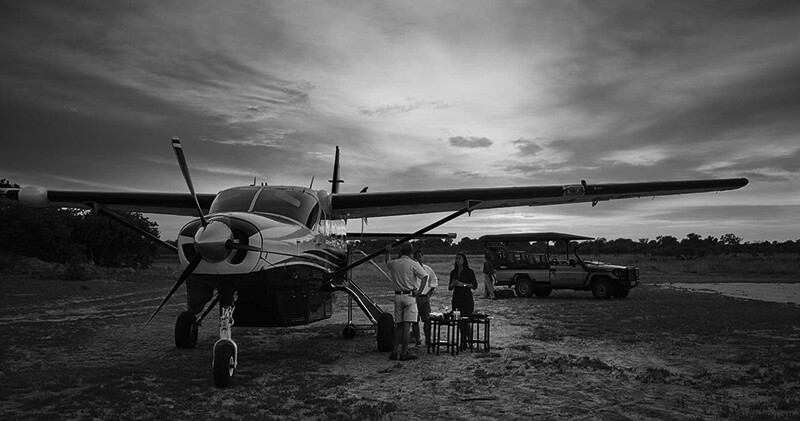
Typical Southern Africa internal charter flight. Image courtesy of Moremi Game Reserve, Botswana

Final Thoughts on an Africa Photo Safari

An Africa Photo Safari is an incredible experience. For many, it is a-once-in-a-lifetime opportunity both to experience incredible scenery and wildlife and to take amazing photographs.

There’s no doubt that it can be a daunting experience packing expensive and essential photography equipment for a safari. Even for seasoned photographers. Just remember to seek out advice. If you are booked on a photographer-specific tour, you can request support from your guides and or Africa safari tour facilitator. They have the experience and knowledge to help you make it the through this process with as little stress as possible.

The post Photography Equipment Tips for an Africa Photo Safari appeared first on Digital Photography School. It was authored by Andrew Sproule.


Digital Photography School

 
Comments Off on Photography Equipment Tips for an Africa Photo Safari

Posted in Photography


COOPH photo vest features smartphone-controlled heating system

29 Nov

If you appreciate the practicality of a photo vest but aren’t really into the beige or khaki safari design of most traditional models, the new COOPH photo vest might be worth a closer look.

The vest features a more modern reversible padded design and comes in several color options. There are plenty of storage options for gear, accessories and smaller lenses. COOPH also says the vest is easy to fold and carry when not worn. The outer material is a rip-stop fabric and sheep wool is used for insulation.

Despite the attractive design touches, the vest’s real highlight feature is smartphone controlled built-in heating. The optional THERM-IC Heating System warms the hand pockets and heats kidney, back and stomach regions.

$ (document).ready(function() { SampleGalleryV2({“containerId”:”embeddedSampleGallery_8723612023″,”galleryId”:”8723612023″,”isEmbeddedWidget”:true,”selectedImageIndex”:0,”isMobile”:false}) });

It is compatible with any 5V USB power bank and can be used as a simple “dumb” heating system. However, if you add the THERM-IC bluetooth dongle into the mix, it becomes smartphone-controllable. A dedicated app lets you control the temperature and a motion control mode provides more heat when you are static and reduces power while you are moving. An eco mode delivers a constant level of heat for best energy efficiency.

COOPH claims an approximate five hours runtime with its own THERM-IC 5200 mAh battery. Vest and heating system (including battery and dongle) are available as a bundle for approximately $ 440 (389 Euros). More information can be found on the COOPH website.

Articles: Digital Photography Review (dpreview.com)

 
Comments Off on COOPH photo vest features smartphone-controlled heating system

Posted in Uncategorized


Essential Family Photo Session Preflight Checklist

26 Nov

Essential Family Photo Session Preflight Checklist 1

When preparing for a family photo session, there are plenty of things to keep in mind. Such as: making sure you know what time to meet, where you are going to do the shoot, and having all your gear handy. However, even the most seasoned family photographer can overlook some items from time to time though.

For people who are new to this type of work, it can be a headache trying to keep track of all the little things that can make or break a portrait session. A simple solution is to borrow a technique from the aviation industry known as a Preflight Checklist. Creating a checklist makes all the difference between happy clients and photographic disaster.

2 Essential Family Photo Session Preflight Checklist

A Preflight Checklist is a list with various items on it that you can physically check off. Pilots use them to make sure everything is in order before taxiing down the runway, and photographers can use them before they start snapping photos.

You could create one on your phone with any note-taking app, but I recommend a physical Preflight Checklist. Since you can keep it in your pocket, you don’t have to worry about accessing apps or unlocking your phone. You can also hand it to someone else if you need another pair of eyes to check it over.

Some of the items on a photographer’s Preflight Checklist might sound relatively obvious, but it’s a good idea to keep one handy to make sure you have everything in order. Simple mistakes can make or break a photo shoot, and it doesn’t hurt to double-check that you have every little thing set – especially when dealing with families and children.

Following are the items I advise you to put on your checklist. You may want to customize it to suit your needs and possibly even create your own from scratch using a word processing program. I have included explanations for each item on this list. You could remove them to save space and focus just on the items and not the rationale for including them.

3 Essential Family Photo Session Preflight Checklist

Checklist items

1. Format Your Memory Cards

Each photo session should use fresh memory cards. The best way to do that is to format them using your camera. Doing a complete reformat, using the instructions provided in your camera’s manual, is preferred over merely deleting the pictures one-by-one. Doing a complete reformat resets your memory card to a fresh state. Deleting pictures can leave certain bits of data intact that, over time, could cause problems and make it more difficult to recover images in the case of a card failure.

2. Charge All Batteries

Charging your batteries may seem painfully obvious, but most photographers have been in at least one situation where they forgot to bring fully-charged batteries to a session. Having this on a checklist ensures that this doesn’t happen to you.

4 Essential Family Photo Session Preflight Checklist

This engagement session lasted quite a while, but luckily I remembered to have plenty of fully-charged batteries. I almost forgot though, which would have spelled disaster for the entire shoot.

3. List the Camera Gear You Need

You probably don’t need to bring all your camera gear to every photo shoot. Having a checklist for family photo sessions (or other types of sessions, such as sports or weddings) is an excellent way to ensure nothing gets overlooked. This list should include camera bodies, specific lenses, flashes, filters, even specific equipment like camera straps and lens cleaners. Don’t just assume you will remember to bring these! Having them on a checklist can save you from a big disaster during the photo session.

4. List the Accessories You Need

Accessories can include something to write with, something to write on (such as a clipboard), blankets for people to sit on, benches, footstools, and even stepladders (depending on the location and situation). Be as detailed as you like with this. It may help to have different accessories listed for different types of sessions such as pictures involving young children, or elderly grandparents.

5 Essential Family Photo Session Preflight Checklist

I was so focused on getting the gear I needed for this shot that I nearly forgot to bring a blanket for this baby to lay on.

5. Edible Items

It never hurts to have food or snacks on hand. As well as pacifying fussy kids or calming nervous parents, it sends a message to your clients that you know what you are doing and have their needs in mind. Chewy granola bars, single-serve packs of fruit snacks, and bottles of water all come in handy at photo sessions. The clients appreciated it too. Just be sure to avoid food that leaves crumbs or stain clothes!

6. Specific Types of Shots

Wedding photographers know this well, but some family photographers can easily make the mistake of forgetting specific shots in the hustle and bustle of a session. Write out the shots you want (i.e., Mom and Dad, Mom and kids, Dad and kids). Consult with the family beforehand to see if they want anything unique to their shoot. Even if they don’t have something in mind, they may appreciate that you asked for their input.

6 Essential Family Photo Session Preflight Checklist

The family specifically requested this type of shot, so I made sure to include it on my checklist.

7. Specific Poses

It’s easy to get lost in the shuffle and chaos of a family photo shoot only to realize afterward that there were certain poses you wanted to get. Or worse, certain poses your clients requested that slipped your mind. Once, I looked through my photos in Lightroom after a session. I banged my head against my keyboard because I forgot to get a shot of the parents holding their daughter or all the brothers in one group.

If you take more of a freeform approach to your sessions, you might not be too concerned about certain poses. However, if you want to cover your bases, putting your poses in your checklist is a great way to get the ones you want.

8. Clear the Pockets

If I had a dollar for every time I looked through pictures from a photo session only to realize that someone had keys, a giant cell phone, a glasses case, or other sundry items sticking out of their pockets, I’d be a rich man. These types of imperfections can land an otherwise frame-worthy photo in the rejection bin. Alternatively, it requires hours of postprocessing to fix.

The easiest solution is to have clients empty their pockets before you start taking pictures. Family sessions can be so hectic that it’s easy to overlook. Put this item on your checklist, and you’ll be all set.

7 Essential Family Photo Session Preflight Checklist

I forgot to use a checklist on this photo shoot. As a result, I didn’t think to have everyone empty their pockets. Even though the family was very pleased with their pictures, the phone and handkerchief are glaring mistakes that could have been easily avoided.

9. Clothing Check

Similarly to pocket-clearing, this one is an easy fix but can cause you to pull your hair out in post-processing if you forget. Make a note on your checklist to see that shirts are tucked in, collars are down, and ties aren’t sticking into belts.

10. Names

Names are last, but it’s one of the most important things to remember. It can make the difference between a one-time client and years of repeat business. Leave space on your checklist to write all the names of your clients and take a bit to rehearse them before your clients show up. This helps to avoid an awkward scene when directing a person to stand somewhere or put a hand on another’s shoulder, but you can’t remember their name. Nothing says unprofessional like barking out, “Hey you over there, move your hand!” Write your clients names down and use them during the photo session as much as possible. It helps the entire event to run smoother.

8 Essential Family Photo Session Preflight Checklist

There were a lot of names to keep track of during this session, but writing them down on a checklist was an easy way to help me remember.

Every photographer is going to need different items on his or her checklist. Hopefully, these give you a good idea of where to start. Creating the list is as simple as opening up a word processor and starting a bulleted list. Once you have a basic one created, you can fine-tune it to meet your needs on each shoot. It might seem like much work to create a checklist, but in the end, it saves you far more time than you might realize. You create better results for your clients too.

If you’d like to use my checklist as a template, you can download it here. I strongly recommend using this as a starting point and adding, removing, or changing the items to suit your needs.

Do you already use a Preflight Checklist or other such devices to help you with your photo sessions? If so, what do you put on it? I would love to hear your thoughts in the comments below, and I’m sure other photographers would as well.

The post Essential Family Photo Session Preflight Checklist appeared first on Digital Photography School.


Digital Photography School

 
Comments Off on Essential Family Photo Session Preflight Checklist

Posted in Photography


A Behind-The-Scenes Look at a Family Photo Session

19 Nov

You’re probably used to seeing perfect family photos on Pinterest. After all, photographers love showing their best work. But you’ll learn a lot more from seeing an entire family photo session rather than just one perfect photo.

So today I’m giving you a glimpse into one of my traditional family photo sessions. I’ll tell you what gear I used, my thought processes during the shoot, how many photos it took to get a keeper, and how your mistakes can help you develop as a photographer.

I’ll show you the good, the bad, and the photos I didn’t even let the family see.

Family photo tips - golden sunlight

I love photos like this with golden back light in idyllic scenes. But the reality is for every ‘perfect’ photo like this there are dozens (if not hundreds) that don’t look so nice.

Gear

For this family photo session, I used a Nikon D7100. For most of the photos, my lens was an 18-70mm f/3.5-4.5, although a few were taken with a 70-300mm f/4.0-5.6 lens. I decided to shoot in RAW and JPEG but only processed the RAW files using Lightroom.

Family photo tips - lightrrom

Lightroom is my favorite post-processing program. I had 982 photos from this session. To narrow them down I flag the photos that stand out to me and then highlight the final keepers in yellow.

The Session

This session is from my earlier days as a family photographer. I  chose it because there was a lot I hadn’t learned yet, and I’d rather show you a tough session because it will help you a lot more.

There was an infant and most of the kids were under five. Thankfully, I had a lot of experience photographing young kids after being a school photographer for a couple of years.

The aim was to get a variety of photos of the family, siblings and individual kids.

Family photo tips - sooc

This photo is straight out of the camera (SOOC) and is typical of the photos I ended up with. It can be really challenging to get a family of six to all look at the camera and smile at the same time. One or two kids are always looking away or not smiling. Inevitably, the mom and dad end up looking at the kids instead of the camera. You’ll need to learn to capture their attention.


Family photo tips - sunflower field

This is what the photos look like after editing with Lightroom. It took 70 photos to get this one. I was discouraged, but it taught me that I needed to get better at interacting with groups.


Family photo tips - siblings

This photo is SOOC. It can be really tough to get four siblings (one of them an infant) to look at the camera and smile at the same time. It helps to have a parent or assistant standing directly behind you to get their attention. That person should be playful and silly to engage the kids. This is far better than having adults off to the side yelling at the kids to “look here!”


Family photo tips - siblings

This is a nice photo after editing with Lightroom. It took 33 bad photos to get this good one.


Family photo tips - siblings

Sometimes you’ve got to let little kids get the silliness out of them. Why shouldn’t a photo session be fun for them? But be careful. Sometimes letting them be silly unleashes too much craziness. Honestly, I think they were much happier by this point.


Family photo tips - siblings

By now, you can see that most of my photos were underexposed. I had to brighten them a lot in Lightroom. Now I use a combination of aperture priority and exposure compensation. I aim for the brightest exposure I can without overexposing it. Them I can make final adjustments in Lightroom.


Family photo tips - siblings

This final photo (edited in Lightroom) has a pretty relaxed feeling to it. I’m not always looking for stillness and perfect posture in a photo.


Family photo tips - children

I found it much easier working with each child individually. I could connect with each of them and provoke nice expressions. As a group, it’s difficult to engage them all at once.


Family photo tips - infant

SOOC. Typically, infants don’t sit up very well on their own, especially while sitting on bales of hay. I always have a parent sitting nearby to steady them. They pull their arm away for a few seconds while I’m snapping photos.


Family photo tips - infants

When they’re in a good mood it’s so much fun to make an infant smile.


Family photo tips - infants

Infants and toddlers can be really tough to photograph when they’re in a bad mood. They need lots of snacks (but not bribes) and time to be themselves between photos.

This photo session should teach you the value of paying attention to your exposure in the moment. Watch your histogram and use exposure compensation to make adjustments.

Practice engaging kids and small groups of people so you can do it effortlessly at photo sessions.

Don’t worry that it might take you 10–20 photos to get one worth keeping. That’s pretty normal for many photographers.

One thing I hadn’t learned at this stage was the creative power of angles. Angles and candid moments are now the most important part of my approach to family photo sessions. The creative use of angles in combination with candid moments help make each photo more unique and personal.

Candid Moments

While I had a fair bit of photography experience at this point (yearbook, several weddings, school photos, and some families),  I certainly hadn’t developed my own vision or style. But this session was part of that development.

I share these candid photos with you because it was photos such as these that helped me develop as a photographer and made me who I am today.

Family photo tips - candid

This photo was taken right at the beginning on the way out to the sunflower field. You can take candid photos at the beginning of the session as a way to warm up and get everyone used to the camera.


Family photo tips - candid

This was a quiet moment before the session began. I love the soft light on the mom’s face.


Family photo session - candid

This is a pretty good example of letting infants and toddlers explore during the session. They’re curious about the world around them. So let them explore and you’ll likely make some great candid photos.


The last place we took a family photo was outside a big barn. The girls played with the barn cats and I couldn’t resist a few photos (even though I felt like my job was to focus on posed photos). My camera misfocused, so this picture is blurry. But there’s something so priceless about the moment that I consider this photo worth keeping anyway. I actually find something nostalgic about the misfocus. It doesn’t look so bad as a small print or on a small screen. But I wouldn’t give this to the family or put it in my portfolio.


Family photo tips - walking

This photo of the family walking together was captured as we moved from one location to the other. These days I plan a circuit for sessions and capture candid photos between locations.


Family photo tips - infant

This candid moment came after a few posed photos with the mom and her little one.

Final Thoughts

If you’re in the early stages of being a family photographer, don’t feel bad if you haven’t settled in yet. Keep persevering through the tough moments and you’ll grow. Those rare photos that make your heart skip a beat are clues to who you will become as a photographer. Pursue more of those, but understand that you also need to pursue lots of other things because you never know what will make your heart skip a beat.

Family photo tips - dancing

I saved this photo for last because it was one of the moments that changed me forever as a photographer. While I was photographing the mom and little sister I looked over and saw the big sister dancing on the path. To me, it was the essence of childhood. It didn’t take me 70 tries to get this shot. In fact, right after I took this photo she stopped dancing and posed. To this day, dancing is part of many photo sessions.

What else do you need to know?

I’m happy to share anything about this family photo session with you. Let me know in the comments what else would be helpful to you.

The post A Behind-The-Scenes Look at a Family Photo Session appeared first on Digital Photography School.


Digital Photography School

 
Comments Off on A Behind-The-Scenes Look at a Family Photo Session

Posted in Photography