RSS
 

Posts Tagged ‘Photo’

DPReview TV: Photo lingo 101 – a guide to common photographic terms

15 Jun

It’s back to basics in this week’s episode as Chris and Jordan break down some common photographic terms that might not be familiar to newer photographers. Learn all about IBIS, BSI and CIPA, as well as a, shall we say, ‘creative’ origin story for the word ‘bokeh.’

Get new episodes of DPReview TV every week by subscribing to our YouTube channel!

  • Introduction
  • Eye Relief/Eye Point
  • EVF vs. OVF
  • CIPA Rating
  • Shutter life
  • BSI
  • IBIS vs. OIS
  • Bokeh
  • Diffraction
  • Sunstars
  • Dynamic range
  • Wrap-up

Articles: Digital Photography Review (dpreview.com)

 
Comments Off on DPReview TV: Photo lingo 101 – a guide to common photographic terms

Posted in Uncategorized


Why You Need a Digital Photo Frame

12 Jun

The post Why You Need a Digital Photo Frame appeared first on Digital Photography School. It was authored by Simon Ringsmuth.

One of the unsung heroes of modern photography is the tried-and-true digital photo frame. These simple devices have been around for years, and yet they are rarely discussed in photography circles. With huge televisions adorning our walls, and smartphones stuffed into our pockets, one might wonder why there is any reason to own a digital photo frame. In the past few years, I have grown to greatly appreciate these devices, and I have realized how valuable, useful, and downright practical they are. If you or someone you know needs a good solution to viewing photos, a digital frame might be just what you’re looking for.

When digital frames first came on the market back in the mid-2000s, they were a great idea severely hampered by bad technology. Bezels were huge, the screens were small, and the images were dim and blurry. Setting up frames required toiling through a myriad of menus with nonsensical buttons and on-screen context clues.

Adding images to a digital frame was an exercise in frustration and required many steps on the part of the user. Plus, transitions between pictures were garish and often unbecoming of the memories on display.

It’s no wonder most people have stopped thinking about digital frames!

If this sounds like you, you’re not alone.

I was in the same boat until recently. However, the more I investigated what modern technology offers, the more impressed I became. In contrast to their counterparts from a decade ago, today’s digital frames have bright displays, show large high-resolution photos, are thin and sleek, and cost less than you might think. They often have cloud-based interfaces, offer companion smartphone apps, and can even show video clips.

The Nixplay Seed Wave has a large screen and wi-fi connectivity.

One-Trick Pony

One of the best reasons to get a digital frame isn’t because of what they can do, but what they can’t do. It seems silly to have yet another device in a world where screens already surround us, but the digital frames eschew the traditional idea of a computer screen by turning it on its head. They follow the adage of doing one thing and doing it well.

Most digital frames don’t let you do anything but view pictures. And this is precisely what makes them so great. They don’t run thousands of apps, let you surf social networks, or make video calls. They don’t play games, won’t let you binge-watch Netflix or YouTube, and don’t bombard you with notifications.

Digital frames sit there, passively doing only one thing: showing your pictures.

The Aura Digital Photo Frame has facial-recognition built into its companion app and a touchscreen for navigating options.

In an era where every device and gadget continually begs for our attention, digital frames are like an oasis in the middle of the desert. It’s downright refreshing to see a bright digital frame sitting on a shelf, knowing you can’t do anything with it other than look at pictures.

You don’t have to worry about software updates, and your viewing experience isn’t cluttered with dozens of icons and bubbles vying for your attention. In a media-saturated world, digital frames are a great way to slow down and enjoy, appreciate, and reflect on your pictures without distraction.

Some smart appliances like the Amazon Echo Show and Google Nest Hub act as photo frames, but I prefer the simplicity and focus of a dedicated frame. Other devices like that are nice, but the features they offer can often distract you from just enjoying your photos.

Advanced frames like the Google Nest Hub Max do lots of things, but I prefer simpler frames that don’t have built-in cameras, digital assistants, or alert bubbles begging for your attention.

To print or not to print

Like many people, my wife and I have struggled for years with the question of what to do about getting prints made of our pictures. We’ve made yearbooks that adorn our end tables, mounted framed snapshots on dressers, and festooned our walls with large prints and canvases. These are great, and we enjoy them a great deal, but every one of them eventually grows old over time.

When that inevitably happens, we have to consider what to do next. Do we keep the old prints around? Do we put up new images in place of what was once there? There are also practical concerns, like where to get prints made, what size to make them, and what happens when our favorite photo book publisher goes out of business?

We enjoy seeing prints as much as anyone, but the logistical hassles have added layers of stress and indecision onto what should be an enjoyable process.

The Pix-Star 15-inch frame lets you see your photos without printing them.

A digital frame solves almost all of these problems. Our 8×10″ Nixplay Seed sits in our living room showing a massive assortment of images without any effort from us. In the course of a single day, we see photos of family vacations, our kids when they were infants, and old slides that we scanned from negatives. We don’t have to think about switching photos out, spend entire evenings trying to decide which images are worth printing, or wonder whether a particular photo is worthy of being displayed for all to see.

Of course, there are still plenty of reasons to get pictures printed. But if you want a simple way to enjoy your pictures without the hassle of making physical copies, a digital frame might be right for you.

As is the case with most digital gadgets these days, storage space is not the same constraint as it used to be. Many frames have internal storage of at least 8GB, which is enough for almost 10,000 images. If that’s not enough, you can look for one with a removable memory card slot to add even more space.

Modern digital frames have more than enough storage space for your pictures. Unlike your walls and bookshelves, which can quickly fill up with physical prints.

Image quality

If you think that displaying your images on a digital frame means sacrificing overall quality, think again. This might have been true in 2005, but now, frames are leaps and bounds beyond where they used to be. As recently as a few years ago, many frames had resolutions of about 72 or 96dpi – similar to that of older computers.

This resolution is fine if you’re viewing your images from a distance, as often is the case when using frames in a household setting. However, frames today often have much higher pixel densities or anywhere between 150-300dpi that put them on par with most laptop screens and even that of some mobile phones.

This means that your images, even when viewed up close, are as crisp and sharp as you would see if you got them printed and you’ll be able to make out every detail from wisps of hair to blades of grass.

Aura makes a 9.7-inch frame with 2048×1536 resolution, which shows your memories in crisp, clear detail.

Most modern digital frames use bright screens that are now viewable from any angle, unlike older versions which required you to stand in the right spot to see your images. Your pictures appear bright and colorful, and some digital frames even let you show video clips alongside your images.

Worry-free sharing

With all the recent problems regarding data privacy on social network sites like Instagram and Facebook, it’s no wonder so many people are deleting their accounts! If you, or your friends and family, are limiting your social media usage but still want to see pictures of the important things in your life, a digital frame is just the answer. To illustrate this, I’m going to use my in-laws as an example.

My wife’s parents aren’t on any social media at all, and they prefer to spend their time reading, gardening, walking the dogs, and going out with friends. This means they don’t get to see any pictures of their grandchildren unless we send them physical prints, which they have to find a spot to display. A few months ago, my wife and I bought them a digital photo frame and have since populated it with well over a thousand images of us and our kids.

Do you have friends or family members who aren’t on social media? Get them a digital frame and fill it with photos for them to enjoy.

We shared their frame information with other family members who have also sent pictures to the frame. My wife’s parents love it! The frame sits in their living room, showing photos of the people they love without any effort on their part. And, they didn’t have to join a social network or share any personal data.

If you have people in your life who are concerned about data-mining and privacy, consider a digital frame as a happy medium. It allows you to share pictures on a more limited and intentional basis than sites like Instagram or Flickr. But the tradeoff is, you are in full control of the images, and none of your personal information is sold to third-parties for advertising.

This simple Tenker 7-inch frame, and others like it, won’t send your photos off to be analyzed for advertising.

Tips

Here’s a few more tips that might help you with digital frames.

  • Set your display to change pictures less often. Every hour or less is much better than every 30 seconds. It will seem slow at first, but you’ll get a lot more enjoyment in the long term. You won’t feel like you’re seeing the same images over and over.
  • Export your photos to the resolution of your frame to save on storage space. Sending a 24-megapixel image to a 3-megapixel frame won’t do you any good at all.
  • Set your friends and family up with sharing permissions so they can send you photos. Then make sure to return the favor and send photos to their frames too.
  • You can build your own photo frame with a cheap Android tablet and some software, but I recommend getting an off-the-shelf model. It’s just easier and will probably make your life a lot simpler in the long run.
  • Most modern frames have built-in memory but also sync with cloud storage options like Dropbox and Google Drive. You might have to configure a few settings, but it can make the already-easy process of sending pictures even simpler.

Do you use a digital photo frame? Or, are there reasons why you don’t? Feel free to share with us in the comments below.


why you need a digital photo frame


The post Why You Need a Digital Photo Frame appeared first on Digital Photography School. It was authored by Simon Ringsmuth.


Digital Photography School

 
Comments Off on Why You Need a Digital Photo Frame

Posted in Photography


Catalog Photos Like a Pro: ACDSee Photo Studio Standard 2019 Review

11 Jun

The post Catalog Photos Like a Pro: ACDSee Photo Studio Standard 2019 Review appeared first on Digital Photography School. It was authored by Glenn Harper.

ACDSee software has been around since the earliest days of digital photography. For 20 years, it’s been competing with Adobe Photoshop. Today, with Adobe offering its top image-editing programs by subscription only, there’s more room than ever for alternatives. ACDSee offers a compelling subscription model of its own, but it also maintains a full suite of standalone products. Photo Studio Standard 2019 is among them, and I’ll review it here.

ACDSee Photo Studio Standard 2019 - default layout

The default layout in Manage mode of ACDSee Photo Studio Standard 2019. You can move things around as you wish and close any panes you don’t need.

Aimed at keen photographers with growing photo collections, ACDSee Photo Studio Standard 2019 is ideal for sorting, finding, and viewing photos. It also has a set of editing tools that will quickly make your pictures look good for the web or printing. We’ll look at all this in detail. To avoid wasting anyone’s time, this program recognizes and opens raw files but it’s not a raw editor or metadata editor – it’s a pixel editor. You have no control over how raw files are processed and can only save 8-bit files.

Embedding ACDSee metadata into DNG files

Preview of a DNG file. You can embed ACDSee metadata into DNG files, unlike other raw formats.

This review of ACDSee Photo Studio Standard 2019 will include the following:

  • Starting up
  • Manage mode
  • Photos mode
  • View mode
  • Edit mode
  • Other features
  • Conclusion

Starting up

One thing that struck me immediately about ACDSee software was how quickly it opened. Sometimes I wait 2-3 minutes for Photoshop CC to start. There are technical reasons for that, like the plug-ins I have loaded into it and its sheer girth. Perhaps it connects to my Adobe account, too. Whatever. Photo Studio Standard 2019 opens in around 15-20 seconds every time.

Manage mode

Digital asset management (DAM) is the great strength of ACDSee Photo Studio Standard 2019. In Manage mode, the software offers all you need for sorting and locating your images. Like many people, you may already have your folders arranged chronologically. This is handy for sifting through them using the folder pane of ACDSee, but the software gives you lots of other ways to find pictures.

ACDSee Photo Studio Standard 2019 - folder pane

Here, I’m using the folder pane in Manage mode to browse photos. I’m not the best organizer, but I do have most folders labeled chronologically.

Calendar pane

I latched onto the Calendar pane within minutes of opening ACDSee. Even if you have your folders arranged by date, it’s so quick to rifle through your photos month by month using the calendar. You can widen the search by choosing multiple months or use single days to narrow it. I used this feature straight away to dig out a few files I might’ve overlooked as potential stock photos.

Catalog pane

The ACDSee Catalog pane gives you several ways to find what you’re looking for: color labels, keywords, ratings, saved searches, categories, and auto categories. Of course, you have to add most of this info yourself to the images, but that’s easy using the software. Auto categories come from EXIF data, so you can filter results by the lens or aperture used, for instance.

cataloging photos with ACDSee software

There are various ways to filter photos in the Catalog pane, some of which rely on you having rated, keyworded, labeled, tagged, or categorized your photos already. In this screenshot, I’m looking at photos taken with a particular lens.[/

Map pane

ACDSee includes a Map pane. Drag your photo(s) onto the place where they were taken, hit Save, and the GPS coordinates are automatically embedded into the EXIF data. Cool! That wasn’t a feature I expected at this price point (Lightroom has it), but it does show how thorough this software is in what it does.

Embedding GPS coordinates into photos

Dragging a photo or several photos onto a spot on the map and hitting “Save” embeds GPS coordinates into the metadata.

Shortcuts pane

The Shortcuts pane offers a way of bookmarking files you know you’ll often need. It makes it that little bit quicker to find any special photos – perhaps a collection of your best-ever shots.

Image Basket

Another neat feature of Photo Studio Standard 2019 is the Image Basket. Normally, when I’m preparing a gallery for the web, I create a new folder on my desktop to work from. The Image Basket is a way of gathering original files together without having to copy them elsewhere.

Keywording in ACDSee

Keywords are an invaluable way of quickly finding what you’re looking for, but they can be time-consuming to add. ACDSee is ahead of Adobe in this respect. It’ll import any keywords you’ve added elsewhere to the IPTC data, but it has excellent keywording capability of its own.

Adding keywords to images

The ability to create large keyword sets of up to 250 is enough to satisfy any lexicologist. I wouldn’t normally need that many, but 40 or 50 isn’t uncommon. Adobe software is restrictive in this respect.

A welcome feature of the new ACDSee ‘Quick Keyword’ tool is the ability to use 25 rows by 10 columns of words (i.e., up to 250 keywords). In Lightroom, you can only have 9 keywords max per set – a source of frustration for many users. ACDSee has its own metadata field that is stored in the database rather than embedded in the file, but you can embed it into suitable file formats.

Photos mode

In Photos mode, ACDSee catalogs all images from the location(s) of your choice and puts them on display so you can scroll through them. Like the Calendar pane, it’s an easy way for you to search visually and find pictures. Hovering the cursor over a thumbnail brings up a larger preview with vital info such as image dimensions, file size, and folder location.

ACDSee Photo Studio Standard 2019 - Photos mode

Photos mode on the daily setting. You can scroll through your whole database, but it’s still divided by daily, monthly or yearly headings.

View mode

Double-click on a photo in Manage or Photos mode and you’ll bring up a large view of the image in ACDSee’s View mode. Various viewing options are available as well as useful editing tools like Auto Light EQ™ and Auto Lens. You can rapidly scroll through files in this mode and tag images or add ratings, labels, keywords, and categories. It’s an extension of Manage mode if you want it to be. Clicking on Edit mode from here takes the open picture into editing.

ACDSee Photo Studio Standard 2019 - View mode

View mode is the place to be if you want to browse large previews of your pictures. Double-clicking on any picture in Manage or Photos mode brings you here, too. You can also perform a few basic edits in this space or categorize photos.

Edit Mode

ACDSee Photo Studio Standard 2019 has plenty to offer in terms of editing but something has to be sacrificed at this price point, and that’s parametric (non-destructive) editing. Photo Studio Standard is a pixel editor only, so you make physical changes to rendered images. You can still leave the original file untouched, but as soon as you finish editing and save a file, there’s no going back and tweaking your adjustments. This is more important if you’re in the habit of reworking pictures or if you edit extensively and want your work to be reversible.

Repair

There are a couple of tools under the “Repair” heading. The red-eye reduction tool is something I’d probably never have a need for, but I tested this with a public domain image. Works well – easy to use.

Correcting redeye in photos

With this close-up view, I found myself wishing the size of the adjustment would go slightly larger, as it barely covered the dilated pupil. But still, the red-eye has gone. Most portraits won’t be as near to the subject. Photo: Wikimedia Commons.

One of the few glitches I encountered in ACDSee Photo Studio Standard 2019 was a malfunction among the repair tools. I can get the Heal tool to work, and it does a nice job of blending the sampled pixels into a new area. But the Clone tool hasn’t worked for me even after a reinstall. I just get a blacked-out image. This appears to be a bug in the program, as it works flawlessly in other ACDSee software I have on my PC.

Add

Under the “Add” heading you can insert text into your photos or a watermark (the Watermark feature is new in 2019). The default watermark is the ACDSee camera logo, but you can use your own graphic if you want. There are also borders, vignetting, special effects and tilt-shift choices here.

tilt-shift photo effect

The Tilt-Shift tool makes Manhattan look miniaturized.

Personally, I’d be most likely to use vignetting out of these, as it helps direct the viewer’s eye and is a useful photographic tool. It can be fun to add borders to your photos, too, which you can customize in this case with a wide selection of textures or any color you choose.

I counted 54 special effects in ACDSee’s collection, and each is modifiable in some way. Even the ones that don’t instantly appeal might work for you with some adjustment, so there’s a lot to go at. Among my favorites are Collage, Lomo, and Orton. The latter is great for creating a dreamy look.

ACDSee Photo Studio Standard 2019 - Orton special effect

This is the Orton special effect, making a peaceful scene even dreamier.

Geometry

Under “Geometry”, ACDSee provides rotate, flip, crop, and resize tools. There are some thoughtful touches among these tools, like the ability to control darkness outside the crop area. The Rotate tool also has a cropping feature, so you can level the picture up if necessary and correct wonky horizons.

When resizing, the default algorithm is Lanczos, but it’s worth experimenting, depending on what you do with your photos. Lanczos gives a sharp result when downsizing, for instance, but if you want to back off that a little and achieve smoother edges, try Bicubic.

Exposure/Lighting

ACDSee offers some powerful tools under “Exposure/Lighting,” not least its excellent Light EQ™ technology alongside traditional tools like levels and curves. Light EQ™ is similar to curves, only better in some respects since it treats highlights, mid-tones, and shadows separately. That’s only possible to a degree using curves without layers.

ACDSee Light EQ technology

Here, I’m using ACDSee Light EQ™ to adjust the tone of the image. By having the Exposure Warning switched on, I can ensure a good tonal range without losing detail in the shadows or highlights. As soon as pixels appear in red or green, I back off the adjustment slightly. I have the histogram showing the blue channel, as that’s the nearest to clipping at both ends.

The auto buttons in these exposure/lighting controls are also worth a hit every now and again. Personally, I find the auto setting in Light EQ™ tends to make things too bright, but it might provide a better starting point.

You can set your black and white points using eyedroppers in levels and also define the clipping limits under “tolerance.” (Don’t worry if this means nothing to you – it’s only one of several options.

I should mention, too, that ACDSee provides an Edit Brush and gradients with many of these controls, so you can apply edits to selected parts of the image.

Color

Under “Color,” you’ll find White Balance, Color Balance, Convert to Black and White, and Color LUTs. The White Balance tool is excellent, though, like all white balance tools, it relies on neutral tones in the image to use as reference points.

You could also correct color using the Color Balance tool, especially in conjunction with the floating histogram. A good thing about the ACDSee histogram is you can stretch it out as far as you like for a detailed look at tonal distribution. There’s a hue/saturation tool alongside color balance.

Using the histogram - ACDSee software

You can make the floating histogram as compact or elongated as you wish.

“Convert to Black and White” is new to ACDSee Photo Studio Standard 2019. Based on the colors you know are in the image (e.g. blue sky), you can adjust their brightness to alter the contrast of the final result. This also lets you emphasize different areas of the photo. Good stuff! Contrast is also affected by the RGB percentages, which must always add up to 100. A high proportion of red usually creates more contrast in cloudy blue skies, for instance. Colorized monochrome images are possible, too, under Convert to Black and White.

ACDSee Convert to Black and White

Using the new “Convert to Black and white” feature, I’ve increased the brightness of cyan a fair bit to make the fire-escape steps stand out more. Then I’ve colorized the picture with sepia-like brown tones.

One of the best things in ACDSee Photo Studio Standard 2019 Edit mode has to be Color LUTs. These let you alter the look of your photos (often drastically) via numerical color shifts. They’re like photo filters on steroids. ACDSee LUTs are good, but you can also download LUTs from the web and load them into the program.

Using color LUTs in photos

The lower half of this picture has the ACDSee “Turin” Color LUT applied to it. Look closely and you’ll see it’s darker with deeper blue windows and yet has a more cyan sky. You can use the Edit Brush or gradients on many edits.

Detail

Sharpen, blur, noise, and clarity all lie under the “Detail” heading. These are all pretty standard. The sharpen tool is like unsharp mask with amount, radius and threshold settings. Typically, you use a low radius for high-frequency photos with a lot of fine detail or a higher radius to bring out coarse detail across a wide area. A sharpening mask slider would be a nice bonus here if I were compiling a wants list. That would be quicker than selective sharpening with a brush.

Other Features

In case all the above isn’t enough, there’s more. For instance, the external editor feature in Manage mode lets you swiftly open images in other programs. Perhaps that will be Photoshop or it could be ACDSee Photo Editor 10, which would complement Photo Studio Standard well.

ACDSee also has a dashboard that gives you stats on equipment used, database size, and photo counts that show you how prolific you’ve been at various times.

ACDSee Photo Studio Standard 2019 dashboard

The ACDSee Dashboard, indicating prolific use of a Sony RX100 in my case. There are numerous other stats available.

You can create PDFs, PowerPoint files, slideshow files, zip archives, contact sheets, and HTML albums straight out of ACDSee Photo Studio Standard 2019, too. There really isn’t a lot you can’t do.

More new stuff

ACDSee also introduced AutoSave and Auto Advance features in 2019. AutoSave does away with the “do you want to save changes?” dialog when you move onto another image. Auto Advance is good for rating, labeling, or categorizing photos, as it moves onto the next image automatically once you’ve clicked.

Also new in 2019 are customizable keyboard shortcuts, support for HEIF files (used on later iPhones), and print improvements that let you adjust for differences between what you see on screen and what your printer produces.

Conclusion

As much as I understand the benefits of SaaS and subscription software models, I think there will always be a market for standalone products that consumers can update when they want.

ACDSee Photo Studio Standard 2019 is, first and foremost, a great photo organizer. I’ve never seen better. It’s quick as a browser – doesn’t hold you up – and it gives you workflow choices. There are lots of nice touches to make tasks easier. It’s not especially advanced as a photo editor, but you can achieve a lot without layers, 3rd-party plugins, and even Adobe’s unassailable repair tools.

If like me, you prefer taking photos to organizing them, ACDSee Photo Studio Standard 2019 is the ideal way to get your collection under control. It drills into your database from several directions and helps you find any picture. Many people will want to supplement the editing capabilities with other programs, but you won’t find much better than this for photo management.

Disclaimer: ACDSee is a paid partner of dPS

The post Catalog Photos Like a Pro: ACDSee Photo Studio Standard 2019 Review appeared first on Digital Photography School. It was authored by Glenn Harper.


Digital Photography School

 
Comments Off on Catalog Photos Like a Pro: ACDSee Photo Studio Standard 2019 Review

Posted in Photography


Teaching at Porto Photo Fest this October

09 Jun

Just a quick heads-up for anyone based in Europe that I’ll be teaching several classes at the Porto Photo Fest on October 12-13 this fall. This is the only time I’ll be teaching in a public event this year.

The folks at PFF gave us a lot of control in structuring the classes (which they may live to regret!) But we think we have come up with some really cool stuff.

PLEASE NOTE: There is currently early bird pricing in effect. So if you might be interested, it’s worth acting in a timely manner.

Co-Teaching with Sara Lando

I’m stoked to once be again collaborating with Sara Lando, one of the most creative people (and brilliant photographers) that I know. We will be co-teaching a class, something we last did together in Ireland in 2017.

This Sunday, October 13 class will be on photographing people. It will be taught from two different perspectives. Sara and I will essentially be representing the right and left sides of your brain respectively.

We’ll be flipping back and forth from between the lighting/technical side and the interpersonal/creative side. This is a class designed both to enhance your strengths and, more important, to really go after your weaknesses. At some point Sara and I will probably get into an argument. (Not to worry, she’s Italian, so this is perfectly normal.)

This setup is probably my very favorite approach to teaching lighting, because it interweaves some more organic/human/creative layers with f/stops and lighting techniques.

The course description is not very detailed, so here is what you should know. We’ll be a class of (max) 20 people, usually split into two groups of ten. We’ll work all day progressively hitting both the interpersonal stuff (with Sara) and the technical stuff (with me.)

We will further separate into smaller groups of 3-4 people, and you’ll be shooting all day. Lighting equipment will be provided. If time permits, we may bust out a little Iron Chef-style competition at the end of the day. We’ll have to see. No matter what, this class will be both fast-paced and fun.

Portrait Class details and signup

In the Fish Bowl

Later Sunday evening, Sara and I will transition from our co-class to an onstage event where we’ll be putting some of these yin-yang principles to the test in front of an audience, real-time, mistakes and all. Think of it as a tag-team portrait session between two brains that think nothing alike.

If you are in the day class, you are automatically included in the evening event. But you can also attend separately.

(Way) Outside the Box

On Saturday morning (October 12) I’ll be doing a 3-hour talk on some of the things we usually don’t think about as photographers. But these are things that, in retrospect, probably should have been obvious. This is an evolution of a talk I have given in Seattle, Berlin and London.

This class is designed to help you to integrate your photography with the rest of your non-photo life skills and expertises; to learn to think of photography not as an end-all but as a catalyst for creating more powerful and unique other things.

We’ll look at how other photographers have quietly applied this approach to great ends, and I’ll help you to roadmap how you can learn to adapt this thought process to your own situation.

In short, the key to being able to compete effectively with the bajillion other image makers out there is to create, and then own, a very un-level playing field. Because if life is not going to be fair anyway, it should at least be unfair in your favor.

Class details and signup


Strobist

 
Comments Off on Teaching at Porto Photo Fest this October

Posted in Photography


Facebook will reconsider nudity policies following large nude photo shoot near NYC HQ

08 Jun

The National Coalition Against Censorship (NCAC) has announced that Facebook will ‘reconsider’ its policies related to ‘artistic nudity’ following a large nude photo shoot that took place in front of the company’s NYC headquarters. In April, the NCAC launched the #WeTheNipple campaign that called out Facebook and Instagram over its nudity policies.

‘Social media has dramatically increased artists’ ability to reach–and build–their audiences,’ the NCAC said as part of its campaign. ‘Unless their medium is photography and their subject is the body.’

On its current policy page detailing the subject matter, Facebook states, ‘Our nudity policies have become more nuanced over time.’ In providing an example of this ‘more nuanced’ approach, the company explains:

For example, while we restrict some images of female breasts that include the nipple, we allow other images, including those depicting acts of protest, women actively engaged in breast-feeding, and photos of post-mastectomy scarring. We also allow photographs of paintings, sculptures, and other art that depicts nude figures.

At this time, Facebook explicitly bans images that feature ‘real nude adults’ across a variety of categories. An exception is made for images that feature nude figures in ‘paintings, sculptures, and other art,’ but critics point out that the social network has repeatedly removed artistic images depicting nudity in the past.

On June 2, American photographer Spencer Tunick, who has a long history of organizing large nude photo shoots, captured artistic images of 125 people posed nude in front of Facebook’s New York City headquarters. The images, which have been shared on Instagram (probably NSFW), feature nude participants using ‘male nipple stickers’ and prints to cover the parts of their bodies prohibited from display by Facebook’s nudity policy.

According to NCAC, Facebook’s policy team will convene a group of its employees and stakeholders, among them being artists, museum curators, and activists, and explore ‘how to better serve’ the artists on its platform. The NCAC says it will be collaborating with Facebook on convening this group in order to make sure its policy ‘is well-formed by external experts and perspectives.’

Articles: Digital Photography Review (dpreview.com)

 
Comments Off on Facebook will reconsider nudity policies following large nude photo shoot near NYC HQ

Posted in Uncategorized


Affinity Photo 1.7 brings hardware acceleration, HDR support and more

07 Jun

Software company Serif has released version 1.7 of its Affinity Photo editing application and the update brings a performance boost, HDR support and a range of new tools.

On Mac computers end-to-end Metal compute acceleration takes advantage of Apple’s discrete GPU, resulting in a 10x speed increase for all raster layer and brush operations. In addition the software now also supports multiple GPUs, both internal and external variants, allowing for even better performance.

Serif says hardware acceleration will soon be available for PC users as well but the Windows version already benefits from the app’s rewritten memory management system, which provides 3x or 4x speed improvements for many tasks on Windows computers. Dial and Pen support for Microsoft Surface devices has also been upgraded, offering new ways to interact with the apps.

Support for HDR / EDR displays is another important update in version 1.7, allowing photographers to see more detail in raw files.

There are also an improved iPad UI, a rewritten brush engine with new multi-brushes, a faster raw processing engine with better noise reduction, a new demosaicing algorithm and an updated batch processing system.

If you want to try the software yourself Affinity Photo can be downloaded for $ 39.99 for the desktop version and $ 15.99 for the iPad version. Existing users can install the update free of charge.

Articles: Digital Photography Review (dpreview.com)

 
Comments Off on Affinity Photo 1.7 brings hardware acceleration, HDR support and more

Posted in Uncategorized


California will debate a bill amendment changing how photo shoot employees are paid

06 Jun

Last month, the California Senate unanimously passed Senate Bill 671, which proposes an amendment to the state’s labor law related to ‘print shoot employees.’ Under the change, California would fix a ‘discrepancy in payment timelines’ between crew hired for short-term photo shoot work and employees working on a TV or movie production.

The bill was sponsored by California State Senator Robert Hertzberg, whose office was alerted to the payment timeline discrepancy, according to his press secretary Katie Hanzlik speaking to PDN.

The proposed amendment revolves around existing California labor law, which requires the majority of short-term workers be classified as employees and receive their full wages on the last day of the job. There’s an exception for employees working on a movie or TV production, however, who receive the wages for their work on the next regularly scheduled payday.

Under the proposal, the definition of ‘print shoot employee’ is changed from a short-term worker involved with a print shoot to a short-term worker involved with a ‘still image shoot, including film or digital photography, for use in print, digital, or Internet media.’

The proposed amendment would allow photographers, directors, and other to pay ‘print shoot employees’ their wages on that same timeline, meaning photo shoot crew members will receive their checks on the next regularly scheduled payday like everyone else.

Under the proposal, the definition of ‘print shoot employee’ is changed from a short-term worker involved with a print shoot to a short-term worker involved with a ‘still image shoot, including film or digital photography, for use in print, digital, or Internet media.’ Photo assistants, stylists, and other crew members involved in a photo shoot would be covered by the change.

Now that it has passed the California Senate, the bill will be debated by the State Assembly’s Committee on Labor and Employment on June 12. The bill may then be passed on to the Assembly for a vote, potentially being passed into law.

Articles: Digital Photography Review (dpreview.com)

 
Comments Off on California will debate a bill amendment changing how photo shoot employees are paid

Posted in Uncategorized


Apple announces new photo features and tools in iOS 13, macOS and iPadOS updates

04 Jun

Today, at its World Wide Developer Conference (WWDC) 2019, Apple unveiled a collection of new photo-oriented features and tools inside its upcoming iOS 13 and macOS operating systems, as well as its new iPadOS, a spin-off of iOS designed specifically to utilize the larger, more powerful tablets from Apple.

Below we’ve rounded up and summarized the best photo-related features from each of the three operating systems. Additional details will be added over time as we gather more information and details.

iOS 13

The main feature changes in iOS 13 are new and improved features inside the Camera and Photos applications.

On the Camera app front, Apple has added a new Portrait Mode setting it calls High Key Mono. As its name suggests, the new AI-powered filter will create a high key black and white image when captured with Portrait Mode in the Camera app.

A collection of Portrait Mode images showing the five different lighting filters available.

Also new to Portrait Mode is the ability to adjust the intensity of the lighting. Apple says its new feature is designed to simulate the light source moving closer to or further away from the subject and even accounts for the higher intensity light being softer, as would be the case with a physical light source. And like before, each adjustment is made individually to images using AI to achieve the most accurate results.

Screenshots provided by Apple showing the ‘Years,’ ‘Months’ and ‘Days’ tabs, respectively.

Moving onto the Photos app on iOS, Apple has switched up the interface a little to add a new tab at the bottom that will automatically sort images into ‘Years,’ ‘Months,’ ‘Days’ and ‘All Photos.’ In addition to the new ‘Pinch’ gesture that can be used to zoom in and out of large numbers of photos, these tabs make it easier to chronological sort through images and the tabs are even contextual, so if, say, it’s your child’s birthday and their information is in your phone, the ‘Year’ tab will show photos of your child on the thumbnails of each year.

Another UI change in the Photos app is in the photo editing section. The interface now uses buttons, akin to what you see in Instagram and other third-party photo editing applications. Apple has also added the ability to edit video directly in the Photos app, just as you would photos. Now, videos can be rotated, adjusted and have filters added to them just as you would with a still image.

You can read more about iOS 13 on Apple’s dedicated preview page.

iPadOS

You might’ve noticed the lack of any mention of the iPad. That’s because Apple has finally given the iPad an operating system of its own, iPadOS. Unsurprisingly, the operating system is effectively a more powerful version of iOS, complete with a number of features photographers around the world have been asking for.

First up is support for external drives. Now, the Files app supports browsing, editing, sorting and transferring content from hard drives, solid state drives, USB drives, SD cards and even direct import from cameras. We haven’t found any additional details, but Apple CEO Tim Cook specifically mentioned the ability to import images directly into Lightroom CC from an SD card or connected camera, bypassing the need to first import images into your Camera Roll.

The first iteration of iPadOS also brings the aforementioned changes found in the iOS 13 version of the Camera and Photos apps.

Apple has also managed to further decrease the response time when using the Apple Pencil with an iPad. Apple already leads the industry with a 20ms response time, but in iPadOS that’s been further reduced to 9ms, thanks to improved algorithms.

You can read more about iPadOS on Apple’s dedicated preview page.

macOS Catalina

The newest version of Apple’s desktop operating system, macOS, has strayed from the desert theme and has officially been deemed macOS Catalina. Of all the changes, one change, in particular, stands out for photographers—Sidecar.

Until now, it’s required third-party hardware and software to use your iPad as a secondary display for your macOS computer. Now, the functionality is baked directly into macOS Catalina via Sidecar.

Sidecar works both wired and wirelessly, and supports the Apple Pencil, effectively turning your iPad into a dedicated drawing tablet that’s connected directly to your macOS computer. Sidecar will support gesture inputs and will display various Touch Bar functions on the bottom of the iPad display, even if you don’t have the Touch Bar MacBook Pro.

Apple has shared a list of supported apps, which include Affinity Photo, Adobe After Effects, Adobe Premiere Pro, Cinema 4D, Final Cut Pro, Maya and others. However, Adobe Photoshop, Adobe Lightroom, Capture One and other photo-related apps are noticeably absent from the list for the time being.

A list of apps Apple has specifically mentioned as supported by Sidecar for the time being.

By adding this functionality, Apple has more or less pulled the rug out from underneath third-party software and hardware options including Astropad and Duet Display. However, until iPadOS and macOS Catalina are available for public use, third-party options are the only means of using your iPad as a secondary display.

You can read more about macOS Catalina on Apple’s dedicated preview page.

Articles: Digital Photography Review (dpreview.com)

 
Comments Off on Apple announces new photo features and tools in iOS 13, macOS and iPadOS updates

Posted in Uncategorized


SLC-1L-08: Senior Photo

28 May

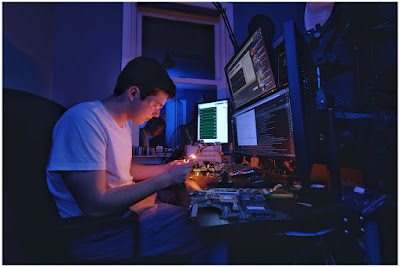
This week, Ben, my youngest, graduates from high school. Which for any photographer dad also means senior photos. We obliged mom with a standard version, shot in the back yard with a soft box and underexposed foliage as a backdrop.

But we also wanted to do something a little cooler, of the real Ben: at his desk, late at night, appropriately doing some kind of science/engineering.

So this is what we came up with. Lit simply, the fill light was an on-camera flash. The key light was, well, a pencil.Read more »
Strobist

 
Comments Off on SLC-1L-08: Senior Photo

Posted in Photography


Advising Clients What to Wear for a Photo Shoot

21 May

The post Advising Clients What to Wear for a Photo Shoot appeared first on Digital Photography School. It was authored by Lily Sawyer.

Outfits can make or break a photo shoot. No matter how beautiful your photos are, if the outfits aren’t right it can affect the look and feel of the photographs.

I wouldn’t have said this before, but now I know from experience.

1 - Advising Clients What to Wear for a Photo Shoot

Before each photo shoot, I send my client an article and encourage them to read it. I then ask them to send me some of their outfit ideas so we can discuss their choices. The client plays the most important role in the photo shoot, and so while I offer advice on what to wear, I  also like to tailor their photo shoot to match their preferences and personalities.

Here are some factors that help my client and I come to a decision on the right outfits for a successful photo shoot. Naturally, the outfits need to be right for the client. But they also need to be right for you as the photographer.

2 - Advising Clients What to Wear for a Photo Shoot

Type of photoshoot

Chances are you already know this from the booking and/or your niche (if you have one). But in case you don’t, here are some photo shoots you may be asked to do:

  • Family (immediate family, perhaps with a couple of grandparents added)
  • Children (just the kids, sometimes with cousins included)
  • Siblings (brothers and sisters or multiples e.g. twins)
  • Three generations (e.g. grandmother, mother, daughter)
  • Engagement, love shoot or couple shoot
  • Newborn or babies
  • Valentine, anniversary
  • Activity-based (sports, event, themed)
  • Clan (bigger family shoots to include extended family, several families together)
  • Birthday, cake smash
  • Lifestyle (usually more informal)
  • Portrait (usually more formal)
  • Corporate

3 - Advising Clients What to Wear for a Photo Shoot

Type of client

From my experience, clients generally fall into one of two types: styled or casual.

Styled clients think about every detail of their shoot including:

  • the look and feel they want
  • the color scheme, location, and any props they want to use
  • makeup and accessories
  • the final outcome of their shoot in terms of products and what they do with them.

Casual clients just want some memories captured, usually showcasing their usual attires and what they do as a family. They’re not too fussed about location or outfits, they just want lovely photos of their family or themselves and have the digital files stored safely so they can print them whenever they want.

In both cases, I still try to get together with them to discuss their outfits and plan the photo shoot.

Theme or no theme

When it comes to themes, the possibilities are limitless. But I always advise my clients to narrow it down to a handful of choices and keep things simple within their chosen theme. For me, a theme just provides context. The focus is still the client looking good in their photographs, looking natural in the context, and loving the way they look in them.

Keeping it simple is best.

4 - Advising Clients What to Wear for a Photo Shoot

Location of the shoot

Rather than talk about differences between studio and outdoor locations (which are pretty obvious), I want to focus on what’s important when choosing outdoor locations to fit a client’s outfits and vice versa.

If they’ve put a lot of work into choosing outfits (and perhaps props), a location that provides a simple but effective background will work best. So having outfits that suit the location is crucial.

If you’re shooting in a busy location (e.g. city, market, funfair) where you can’t avoid being surrounded by people, I’d suggest plain, non-printed outfits. This will help you isolate your clients so they’re still the focus amidst the busy setting. When I shoot in these locations, I sometimes blur the background or drag the shutter to blur everything but the client.

5 - Advising Clients What to Wear for a Photo Shoot

If the location is a park where you can find a quiet spot and use trees, foliage or sky as the background, then they can wear florals and busy patterns. You can isolate them by blurring the background when shooting so you get creamy bokeh in a very shallow depth of field.

You can also do silhouettes. This works well if they’re wearing outfits that are similar to each other (e.g. simple jackets or trench coats).

Here are some other locations you could choose:

  • a brick wall (or any textured surface) large enough to be the background
  • large murals
  • alcoves
  • corners
  • an old building
  • a row of pillars that would work for background.

While I try to minimize stark contrast within the outfits themselves, I try to maximize the contrast between the outfits and the location. In other words, plain outfits in busy locations and busy outfits in plain locations.

6 - Advising Clients What to Wear for a Photo Shoot

Time of the year

This is pretty self-explanatory, except I want to add one word: options. I encourage my clients to have a change of outfits in case they want a different look. Some take up the offer, while others don’t. The weather in the UK can change quite dramatically. In autumn and spring, we can have all four seasons in one day.

So during this time, I encourage my clients to dress in layers. If the sun comes out they can take a layer off. If it rains we can do some shots with an umbrella. If we’re suddenly plunged into winter, we can add a couple of layers for a cozy look in a cafe, complete with hot chocolate topped with marshmallows.

But make sure you factor the weather, outfits and any activities (boating, cycling, etc.) into your shoot so you don’t run over time.

Your style/niche

You may have been told you should have a niche, and shoot only within that niche. That’s a nice ideal, but it isn’t true (or easy) for everyone. Sure, some people may not be your ideal client. But if they like your pictures, want you to photograph them and will pay you for it, would you turn them down?

And while you may not showcase their photos on your blog because of the niche and brand you’re trying to build, if they don’t mind then why not do it? Yes, the photos in your portfolio, on your website and in your social media messages will help you attract those ideal clients. But here I’m talking about those who want you to photograph them regardless.

7 - Advising Clients What to Wear for a Photo Shoot

General outfit advice

Bearing all of this in mind, here’s my general advice regarding outfits.

Classic: Timeless style, chinos, khakis, beige and blues, nature-hues, pastels, shirts, and simple dresses.

Florals and prints: Just florals, or an eclectic mix of prints and patterns. Pairing them with stripes can also work sometimes.

Colors: Keep them complementary as opposed to completely matching (e.g. all white shirts and blue jeans). Avoid stark contrasts such as green and orange/red together, and yellows and purples juxtaposed. Complementary colors are more like warm tones (yellows, oranges, pinks, warm red and even warm greens) together and cool tones (blues, purples, greens) together. But an explosion of bright colors could also work, although I’d shoot it on a plain background or setting.

Consistency: Avoid extreme differences (e.g. one person is wearing a casual knitted chunky sweater and the other is wearing a nice silky dress). It can be quite jarring. Black and white is another combination that’s too stark a contrast unless it’s done intentionally.

Dark, light and bright: Darks for adults, and lights or brights for small children. Do it the other way and the adults will dominate the scene and draw the viewer’s attention, while the smaller people will disappear.

dps-what-to-advise-clients-photoshoot-outfits

We all have our own personal preferences and styles. These are mine, but if you have other ideas for your photo shoots that’s okay.

If you have any other helpful advice, please share it with us in the comments.


The post Advising Clients What to Wear for a Photo Shoot appeared first on Digital Photography School. It was authored by Lily Sawyer.


Digital Photography School

 
Comments Off on Advising Clients What to Wear for a Photo Shoot

Posted in Photography