RSS
 

Posts Tagged ‘Photo’

Tips for Cyber-Scouting Photo Locations So You Can Get the Best Shots

14 Feb

The post Tips for Cyber-Scouting Photo Locations So You Can Get the Best Shots appeared first on Digital Photography School. It was authored by Rick Ohnsman.

tips-for-cyber-scouting-photo-locations

You’ve saved money to go to that great photo spot, marked your calendar, put in for vacation time, and are already thinking about the photos you want to make. The trouble is, you’ve never been there. Your time will be limited. You want to be able to use it to make pictures, not scouting to find where to go and when to be there for best locations and light. How can you “know before you go?” Welcome to the “Twenty-Twenties,” a time when cyber-scouting photo locations can be the next best thing to being there.

GPS City of Rocks - Idaho

Where is this? You tell me. Cyber-scouting photo locations will teach you how to see before you go, log GPS coordinates, and then get to the specific spot once you’re near. 1/100 – f/11 – ISO 200. Now, plug these coordinates into your browser and tell me where this is – 42°4’55.464″N 113°43’31.974″W

Cyber-scouting?

I thought I’d coined a new term, but a quick Google search proved otherwise.

Many people who are planning trips now “cyber-scout” the internet to pre-plan their journey. Hunters, backpackers, vacation travelers – all kinds of folks have discovered the usefulness of these online tools.

It only makes sense that we, as photographers, tap into the ability to see photos and survey sites we’re planning to visit before we even get there.

My photo buddy Dan and I made a dream-trip a few years ago, photographing New England in the autumn. Living 2,600 miles away in Idaho, it wasn’t like we had much familiarity with the area. As we’d only be there less than a week, scouting once we had “boots on the ground” wasn’t going to be possible.

Wasting time getting lost wasn’t an option either.

Avalanche Falls, Flume Gorge, New Hampshire

Had I not done some cyber-scouting for photo locations before my New England Trip, I’d never have known about Avalanche Falls in the Flume Gorge of New Hampshire. Moreover, I would have never been able to make this shot. 5 seconds, f/20, ISO 200

Dan prefers not to see too many photos of a spot before he goes, concerned it will overly influence what he shoots. He’d rather see it with “new eyes” and create unique compositions.

I can appreciate that viewpoint, but I’m different.

Planning a trip, pre-visualizing the locations, seeing the spots, and anticipating being there is like getting two trips in one. It’s a virtual-reality vacation, plus a real-reality trip where, once I’m there, I already have some familiarity. Different strokes, I guess.

It worked though – I became the planner/navigator, and he just made great shots on the trip. (He’s a much better photographer than I, but that’s another story for another day.)

Pre-Planning a photo trip with Google MyMaps

Once I located locations we might want to go, I plotted everything out using my GPS coordinates and Google MyMaps.

Where to be and when to be there

When asked the secret to his great photos, a famous New York spot-news photographer is thought to have originated this photography quote –

“f/8 and be there.” – Arthur “Weegee” Fellig

The idea is that being at the right location at the right time is more important to make a great photo than all the technical equipment and technique combined. So, when you are planning to photograph somewhere you’ve never been, how do you know what are good locations, and what are good times to be there?

That is precisely the reason for cyber-scouting photo locations.

A GPS primer

Locations can be referred to in many ways. The simplest is the place name. Photographer friends we told about going to New England said a not-to-miss spot was Acadia National Park. Good general information, but how about specific spots?

Okay, “be sure to get to the Bass Harbor Lighthouse,” they said. Traditionally, we might have found the spot with a paper map, written directions, and perhaps some coaching from the locals.

Bass Harbor Head Lighthouse in Google Earth

A search for the Bass Harbor Lighthouse on Google Earth and there you are.

These days we have GPS (Global Positioning Satellite) navigation equipment, in our cars, on our phones, and in many other devices. Any spot on Earth with an unobstructed line-of-sight view to four or more GPS satellites can be precisely defined.

The Bass Harbor Lighthouse is at 44°13’19.27N, 68°20’14.79W.

The first set of numbers is how far north of the equator the place is, the second how far west of the Prime Meridian – unless you’re in the Southern Hemisphere.

Places south of the equator and east of the Prime Meridian have GPS coordinates like this: 33°51’23.68S, 151°12’53.49E. These are coordinates for the Sydney Opera House in Australia.

Copy and paste those coordinates into your web browser, and you’ll bring up a map of those precise spots.

Sydney Opera House GPS coordinates in Google Earth

In the southern hemisphere, the GPS coordinates are slightly different. The Sydney Opera House in Australia is “down under” with coordinates south and east of the Prime Meridian.

We’ll come back to why you want to know this in a bit. In the meantime, stick a pin in that spot while we explore other ways to develop a list of locations you want to visit on your photo trip.

Books

You remember books, right? Those paper things we read before we had computers, tablets, phones, and other devices?

If the spot for your trip is well-known, the chances are good that someone will have written a book about it. For our trip, we picked up “Photographing Acadia National Park,” by Colleen Minuk-Sperry. It turned out to be a great resource.

We later took a workshop with Dave Long of Blue Hour Photo Ventures. Dave has written numerous e-books on great New England photo locations and has included the GPS coordinates of each spot, making cyber-scouting them online and later getting there a breeze.

Find out if there are good books written about your intended photo location.

Location Websites

Do you think there’s a spot no one has written about on a website? 

Guess again. 

Say your boss decides to send you on a business trip to Ittoqqortoormiit, Greenland. (If he does, he might be telling you something). Should you take your camera? 

Where is it, and what’s there? 

Google “Top Photo Spots in Ittoqqortoormiit” and yup, you’ll find photos. You’ll find companies giving photo tours. You’ll find photos on 500px by others who have been there. 

Even though it is one of the most remote places in the world, you can still cyber-scout it and know what you’ll see before you go. (Or I can view the photos a friend of mine in our photo club took when he visited Greenland with noted landscape photographer Art Wolfe. Unbelievable!)

Ittoqqortoormiit, Greenland with Google Earth

Ittoqqortoormiit, Greenland is listed as one of the most remote populated places on earth, yet cyber-scouting photo locations with Google Earth makes it easy to take a “virtual tour.”

My point is, it’s unlikely you’ll find a place anywhere in the world not discussed and pictured on the web. Plugin the GPS coordinates (70.4849752,-21.9729592) for Ittoqqortoormiit (don’t worry if you can’t pronounce it), and off you go, no sled dogs required.

Photo websites

I couldn’t even begin to name all the online sites where photographers post their photos. Cyber-scouting photo locations on such sites can be a virtual tour of the area you plan to visit.

See a spot you like? Make a note of the place name and then search for it. 500px is a favorite place of mine. For our Acadia National Park trip, I found over 7,000 photos. Heck, even for Ittoqqortoormiit, there were 81 photos the night I checked.

Bass Harbor Lighthouse, Flickr

Flickr alone had over 6,000 posted photos of the Bass Harbor Lighthouse when I checked. I think there might have been half of those photographers there the day we visited! Iconic spots have become even more known since the internet.

Another good photo location to check is Flickr. (They had over 1,500 photos of Ittoqqortoomiit when I looked.)

Many of the photos posted there have the GPS coordinates recorded, and with a few clicks, you’re off on your virtual tour.

Come fly with me

What if you could send your “virtual drone” off on a mission cyber-scouting photo locations? That’s pretty much what you have with Google Earth.

“Fly” to a location, see it from different angles, zoom in, look for place names, see photos others have taken there, and get the GPS coordinates.

It’s a great way to scout a spot before going.

Bass Harbor Lighthouse Summer Sunset - Google Earth

Use the emulation mode of Google Earth to enter the date and time, turn on the sun, move the slider and see when and where the sunset will be. On 8/18/20 it will be straight up the shoreline from the lighthouse and set at 7:31 p.m. EDT.

Let’s fly over the Bass Harbor Lighthouse. Which would be the better angle – shoot toward the east or west? What if I want to get the sunset?

If I’m there on a particular date, where will the sun set, and at what time? How will it all line-up? Google Earth can emulate all of that.

Fly to the spot, activate the sunlight slider, enter the time and date you plan to be there, and move the slider to watch how the light moves across the landscape. Cool huh?

The wildcard is what the weather will be when you’re there.

You can anticipate the weather a couple of days out with weather apps. You can decide if you should go or maybe seek an alternate spot.

Another reason for cyber-scouting photo locations is to have a “Plan-B” should the weather not cooperate.

There are also a bunch of good weather apps useful for photographers. Even with all my best scouting, the evening we went to the Bass Harbor Lighthouse, the sunset was a bust with heavy cloud cover. Some things still can’t be totally planned. Still, I thought I made a decent shot, regardless.

Cyber-Scouting Photo Locations - Bass Harbor Lighthouse on a cloudy day

It’s hard to make a unique shot of this location, especially with a few dozen other photographers all standing a few feet apart hoping for a nice sunset. All my cyber-scouting still couldn’t conjure better light. You do what you can.  6 seconds – f/11 – ISO 200

Make your shot different

One problem with going to an iconic photo location is that so many other photographers have probably been there already (you’re likely to find a pack there when you go), and made thousands of shots.

Take advantage of the ability of Google Earth’s fly-over capabilities to look for different compositions. Check the landforms, angles, the way the light falls at certain times of the day, and how you can create different and interesting images.

When you find a spot, “drop a pin.” Note the GPS coordinates, and then you’ll be able to find that unique spot once you’re onsite.

Golden Gate Bridge from Vista Point

If you ride a tour bus and get off at Vista Point, you can make this shot. It’s not bad, but it’s sure not unique. Thousands of tourists get essentially the same shot every day.

Let’s use an example.

If you go to San Francisco, you’re probably going to want to photograph the Golden Gate Bridge. If you ride a tourist bus and do what a jillion other people have done, they’ll stop at Vista Point on the north side of the bridge. Line up with a thousand other photographers (and even more “happy snappers”), and take the same basic shot everyone gets.

Yawn.

Instead, use Google Earth for cyber-scouting the location.

You might learn if you went to Marshall’s Beach over the southwest side of the bridge, you could get a much less-photographed vantage point. With some creativity, good light, and a dose of photographer’s luck, your shot won’t be like the one the folks on the tourist bus will take thousands of times each day.

Cyber-scouting for photo locations - Golden Gate Bridge from Marshalls Beach - Google Earth

Send up your “virtual drone” with Google Earth, “fly” around and you might spot this much more interesting and less photographed vantage point of the Golden Gate Bridge from Marshall’s Beach.

Back on the ground with the Peg Man

Another way for cyber-scouting photo locations is to make friends with the Google Maps “Peg Man.” That’s what some call the little character you can move to a spot and get a virtual POV (Point-of-View) look at the area, much as if you were really there.

Let’s head back to Ittoqqortoormiit, Greenland.

Open Google Maps and search for the place (if you can spell it). If not, perhaps you saved the GPS coordinates – 70.4844397,-21.9701898?

Click on the map that appears in your browser to open Google Maps. Now look for the Peg Man, he’s that little guy at the bottom right of the screen.

Click on him.

If the streets on your map turn blue, you can then click, hold, drag, and drop him on a spot. You will be whisked away to a POV street view of the spot.

You can now “walk” the streets by clicking in the direction you want to go. Have a look around by clicking, holding, and dragging your mouse left and right. Roll the center mouse wheel to zoom in and out.

It’s almost like being there without having to wear a parka.

A virtual walk on the streets of Ittoqqortoormiit with Google Maps

Take a virtual walk on the streets of Ittoqqortoormiit, Greenland by dropping the “Peg Man” in Google Maps. It seems kinda quiet, but then there are only about 450 people who live here in one of the most remote places on earth.

Maybe a more picturesque spot? Let’s go to the Eiffel Tower in Paris, France.

Type that into Google Maps. It’s bit more populated there, right?

Click the Peg Man over this map, and you will not only see the blue-colored streets, but you will also see blue “Photo Spheres.” Click on one of these, and you’ll have a 360-degree panorama where you can really get a look around.

Yeah, it’s a little more crowded than Ittoqqortoormiit, but as you can “tour” the entire city this way, maybe you can find a unique vantage point for a photo not currently done a million times.

Eiffel Tower in Google Maps

Paris is a bit more populated than Ittoqqortoormiit. Enter Eiffel Tower in Google Maps and get this map. From here, drop the Peg Man to roam the streets or click a “Photo Sphere” to see a 360-degree panorama from that spot.

Cyber-scouting photo locations - A Pigeon in my panorama

There’s a pigeon in my panorama! Cyber-scouting photo locations could help you discover when and where to be for this shot. With a long exposure or some skill with the cloning tool, you could also vanish the people. Just watch out for pigeons.

When to be there

I mentioned the two essentials in planning for a great photo:

  1. Knowing where to go, and
  2. Knowing when to be there. 

I’ve covered a few of the tools and techniques for cyber-scouting photo locations – the “where” part of that equation. 

There are other tools that will help you know “when.” 

Photographers know that great light and the specific spot are keys to making an image that goes above and beyond average. Some online tools and apps can help with that too. 

Rather than get into all of those here, let me direct you to another DPS article by author Pete DeMarco, “6 of the Best Smartphone Apps for Travel and Landscape Photography.” In it he discusses:

  1. PhotoPills
  2. The Photographer’s Ephemeris (TPE)
  3. Sun Surveyor
  4. Tide Charts Near Me
  5. Maps.me
  6. Wunderground

About those GPS coordinates

You remember I said to note GPS coordinates? This is a great way to keep track of, map, and use GPS devices to get you to those spots once you are on location.

GPS coordinates into Garmin Nuvi

You may be able to import a .kmz file or can at least manually input your list of location GPS data into your portable dashtop GPS device. Bring it with you on your trip, and you’ll be set to navigate to all your spots.

These articles were written a few years ago, just before my epic New England trip. What proved most useful was transferring my GPS data into my Garmin Navigator dashtop GPS device.

I used transferred the .kmz file, but also learned that it was easy enough to type the GPS coordinates into the device and save them as locations.

I took the Garmin in my suitcase, set it up in the rental car once in Boston, clicked the location we wanted to go to, and bingo…off we went.

The beauty of the Garmin is it worked completely off the satellite, no internet connection required.

I was surprised how often we didn’t have internet availability, even in what seemed only “hills” by a westerners’ perspective.

The lesson learned – don’t count on your phone, tablet, or other internet-required devices for navigation. A stand-alone GPS navigation device (Garmin, Magellan, Tom Tom, etc.), which requires only a satellite connection, is a much more reliable option.

Analog backup

Cyber-scouting photo locations before your trip is a fun way to “see” and know-before-you-go the spots you’d like to photograph.

Electronic GPS devices can be a great way to get to the spots you’ve planned on visiting. But should it all go south, the connections don’t connect, and the power fails, an old-fashioned paper map and a compass is a good “Plan B” to have in your pack.

Just sayin’.

Of course, don’t overlook talking to the locals, or even better, local photographers who know the great spots. Also, hiring a guide can be well worth it, especially if you are in a foreign place.

For now, though, do some cyber-scouting, and get excited about your upcoming photo trip.

When you get back with some awesome images, post a few in the comments section below and tell us about your adventure.

Happy trails.

The post Tips for Cyber-Scouting Photo Locations So You Can Get the Best Shots appeared first on Digital Photography School. It was authored by Rick Ohnsman.


Digital Photography School

 
Comments Off on Tips for Cyber-Scouting Photo Locations So You Can Get the Best Shots

Posted in Photography


Canon launches its latest pocket-sized photo printer, the Selphy Square QX10

14 Feb

Although not nearly as exciting as its impending R5 mirrorless camera, the T8i or the 24–105mm F4–7.1, Canon has also announced the release of the Selphy Square QX10, its latest ultra-compact photo printer.

The Selphy Square has a built-in rechargeable battery and uses thermal transfer dye-sublimation to print images up to 68mm x 68mm (2.7in x 2.7in) with 287dpi resolution. The printer is rated for up to 20 prints on each charge, with each print taking roughly 43 seconds from start to finish.

$ (document).ready(function() { SampleGalleryV2({“containerId”:”embeddedSampleGallery_1111272077″,”galleryId”:”1111272077″,”isEmbeddedWidget”:true,”selectedImageIndex”:0,”isMobile”:false}) });

The printer uses a new square-format ‘sticker-type paper’ Canon is calling XS-20L that has a specialized coating that ‘protects against splashes, spills, and fading for up to 100 years when stored in an album,’ according to Canon.

The Canon Selphy Square QX10 printer is available in black, green, pink and white for $ 150, while 20-pack of paper and ink will set you back $ 15. You can find out more information about the Selphy Square on Canon’s product page.

Articles: Digital Photography Review (dpreview.com)

 
Comments Off on Canon launches its latest pocket-sized photo printer, the Selphy Square QX10

Posted in Uncategorized


DPReview TV: Video tripods vs photo tripods

01 Feb

Video tripods with fluid heads provide distinct advantages over standard photo tripods when shooting video, but are they always better? Chris and Jordan compare both types of tripods and demonstrate the pros and cons of each.

Subscribe to our YouTube channel to get new episodes of DPReview TV every week.

  • Introduction
  • Photo tripods
  • Photo tripod limitations
  • Compact video tripods
  • Mid-range video tripods
  • Professional video tripods
  • Can any tripod do both jobs?

Want to learn more about video tripods? Read our article Introduction to video tripods for an in-depth overview of what to look for in a video tripod.

An introduction to video tripods

Articles: Digital Photography Review (dpreview.com)

 
Comments Off on DPReview TV: Video tripods vs photo tripods

Posted in Uncategorized


DNP Photo launches new dye sublimation printer with mobile support and more

28 Jan

DNP Photo has released its new QW410 compact dye-sublimation photo printer featuring a 4.5in print head, 5.9kg (13lbs) weight and relatively small dimensions at 20 x 19.6 x 24cm (8 x 7.75 x 9.5in). When compared to the maker’s DS-RX1HS and DS620A models, the QW410 has 28% and 35% lower power consumption, respectively.

The model offers a number of key features, including a lay-flat printing function that reduces print curl, support for glossy and matte photo paper, an optional wireless accessory that add supports for directly printing from Android, iOS, Windows and macOS, as well as print speeds as fast as 19 seconds for 4 x 6in prints.

The QW410 features a 300 x 300 dpi resolution and support for the following print sizes:

  • 4 X 6in
  • 4 X 4in
  • 4.5 X 8in
  • 4.5 X 4.5in

Photographers who need to print photos while away from the office can pair the QW410 with an optional portable battery for use without an outlet. DNP Photo also offers an optional carrying bag. The photo printer is available to purchase from several retailers like B&H Photo in the USA, Canada, and Latin America for $ 469.

Articles: Digital Photography Review (dpreview.com)

 
Comments Off on DNP Photo launches new dye sublimation printer with mobile support and more

Posted in Uncategorized


Photography Gear You Will Need for Different Types of Photo Shoots

28 Jan

The post Photography Gear You Will Need for Different Types of Photo Shoots appeared first on Digital Photography School. It was authored by Lily Sawyer.

photography-gear-you-will-need

Have you ever wondered if there is specific photography gear that you will need for different types of photoshoots?

dps-photography-gear-you-will-need-for-different-photoshoots

It has now been over a decade since I started shooting professionally. Over the course of that time, I have often been asked for advice on what camera to buy to take professional images. Now, if you’re into photography, I think you’d agree with me that this is the wrong question to ask. There are far more important factors to consider when taking an amazing image rather than the latest shiny camera.

My answer to the above question is always the same: it’s not the camera (given that camera manufacturers churn out new models year in year out). But instead, it’s two other things – the lens and the photographer.

dps-what-gear-to-bring-for-different-photoshoots

A camera is no good if the photographer doesn’t know how to use it properly to achieve the image they have in mind. Equally, what good is a new latest-tech camera if the lens used for the purpose is not the correct lens? An example being, using an ultra-wide lens to capture a portrait.

Therefore, the better question to ask is, “which is the appropriate lens to use for a particular photoshoot?”

dps-photography-gear-you-will-need-for-different-photoshoots

In other words, it is crucial that you, as the photographer, match your gear to the needs of the photoshoot. This will enable you to achieve the image you have in mind.

This article discusses the photography gear you will need for different types of photoshoots.

However, I know that we each have our own ways of doing things and our own preferences, so bearing this in mind, what I have written below are suggestions and based on what I do as a photographer.

What’s in my gear bag depends on what I’m shooting. I have a variety of photography bags for this reason. As a side note, it is worth investing in proper photography bags to protect your gear.

The Staples

photography-gear-you-will-need

But first, the staples. If you are (or want to be) a professional photographer, this is my recommended minimum photography gear you will need.

For photoshoots, always carry at least 2 camera bodies, ensuring you have one for back-up in case something happens to the other one.

Make sure you sync the times for both cameras, and that the settings are the same.

Also, fully-charge your batteries in both cameras. My cameras are all full-frame. If you have a camera with a crop sensor, this changes the way you capture your images. Here is a helpful article on the difference between full-frame and crop-sensor cameras.

On top of the camera and lenses, I always bring at least 2 flashguns with me and make sure I have spare batteries (or fully charged if they are rechargeables). I use a diffuser cap with my flashguns and generally use these to bounce light both indoors and outdoors rather than directly at the subjects unless I’m shooting backlit.

1. Family photoshoot

dps-photography-gear-you-will-need-for-different-photoshoots

In general terms, the ideal set of lenses for a family photoshoot includes a wide, medium, and a long range of lenses.

My preference is for prime lenses, as they are usually small and handy, and give me sharper and cleaner images.

Good prime lenses can be heavy and also a little expensive. I carry the 35mm f/1.4G, 85mm f/1.8G (also available in 1.4G) and the 105mm f/2.8G. Because these are used on a full-frame camera, the lenses capture their expected focal range accordingly, that is, that a 35mm lens has a 35mm effective field of view. If your camera has a crop sensor with a crop factor of 1.3x for example, then the 35mm will have an effective field of view of a 46mm, the 50mm will have the 65mm and the 105mm will be 135mm. Therefore, you would then need to consider more wiggle room when shooting.

These are important to bear in mind, especially when shooting in small spaces indoors.

The 105mm gives not only a long-range but also macro capability. I like having a macro lens with me, which works wonderfully to capture details.

You can also have zoom lenses in your bag instead of primes. Zoom lenses can be very versatile. For example, the 24-70mm lens will allow you to capture wide and medium-range images with just one lens.

However, they are a little bulky in comparison to primes, especially if the lens is professional and has a fixed aperture. That would also mean better optics, and it would be heavier too.

If you just want to use one lens that covers this range, then there is the 24-105mm Canon lens option.

2. Event Photography

dps-photography-gear-you-will-need-for-different-photoshoots

For events such as birthday parties, product launches, conferences, and suchlike, my preference is to go for zoom lenses rather than primes. Events are usually fast-moving, and I don’t have the time to keep changing lenses.

Often I will have both cameras on me with a double rapid strap. One camera will have the 24-70mm, and the other has the 70-200mm. These are usually sufficient.

I always carry a macro with me, though, just in case. However, with both bulky zooms that cover wide to long-range, I use my nifty 60mm micro lens for extreme close-up and macro shots.

In addition to the above, I also carry with me wireless transceivers that enable me to shoot with off-camera flashes.  Transceivers are wireless transmitters and receivers that enable you to control your flash remotely. This also means you need stands for the flashes. So, carrying a monopod and a gorilla pod, or a tripod if you need more stands.

3. Weddings

dps-photography-gear-you-will-need-for-different-photoshoots

If I’m shooting a wedding alone, I pack all the above minus the 35mm and the 50mm as the zooms already cover these focal ranges. 

Needless to say, I pack my entire arsenal and the kitchen sink when shooting weddings with a second photographer, as with two of us, more gear and back-ups are needed. That means at least four camera bodies, at least six lenses, a minimum of four flashes (sometimes six), and all the transceivers and stands required. 

I have written an article on wedding photography gear you will need when starting out on here.

4. Portraits

dps-photography-gear-you-will-need-for-different-photoshoots

Portrait photography is a specialty that requires a different set of lenses.

For flattering images of a person, I would always use the 85mm for headshots, the 50mm for medium shots, and the 35mm for full-body shots.

You may not need to use all three, so plan ahead of what you might be shooting, so you don’t bring unnecessary gear.

Again if you want the zooms as opposed to the primes, you could always use the 24-70, 24-105, and the 70-200. Just make sure that you shoot within the range mentioned above as a guide.

Longer focal ranges compress the background resulting in a more flattering look compared to using a wide lens. For example, if you use the 24mm, you are shooting so close to the person, you will end up with image distortions.

Depending on the portrait session, I may or may not use off-camera flashes which would require the transceivers. A small reflector is also really handy for portraits, especially when controlling shadows. I have written an article on gear essentials for portrait photography when starting out here.

5. Landscape

dps-photography-gear-you-will-need-for-different-photoshoots

Landscape photography is the opposite of portrait photography, and the lenses and accessories required are different.

You would need wide lenses, such as a 16-35mm or a 24mm to capture wide, expansive shots. You may also want to invest in a telephoto to capture long landscapes with great background compression if you are shooting mountains, for example.

If you plan on doing long exposure photography to achieve soft, blurred waterfalls and waves, you will also want to invest in a tripod and some filters, such as ND and graduated filters. This will enable you to reduced the amount of daylight coming into your lens so that you can slow your shutter speed down without completely over-exposing your image. You would also need a cable or remote shutter release so that you don’t introduce camera shake by pressing the shutter button.

To find out more about landscape photography, read these helpful articles here.

6. Travel

dps-photography-gear-you-will-need-for-different-photoshoots

When speaking of travel, my only experience in this type of photography is family holidays. For professional travel photography, read these articles.

If you are just after good holiday photos that capture memories of your family, then I can help with that. I have tried various holidays with only one lens. One time I just took the 85mm. Another time, I took just the 35mm, the 50mm on another holiday, and, more recently, the 60mm. Following on from these experiences, my personal travel lens is now the 60mm.

The 50mm is also a favorite.

7. Product

dps-photography-gear-you-will-need-for-different-photoshoots

Occasionally, I do some product photography. My go-to lenses for these are the 24-70 and the 60mm micro.

I use off-camera flashes and transceivers and some flags. When shooting small items in a white seamless background, using a white lightbox will help you achieve this easily.

For more tips on product photography, read this article.

8. Interiors

dps-photography-gear-you-will-need-for-different-photoshoots

For interior photography, my go-to lenses are the 24-70mm and the 50mm. You can read more in-depth as to why I use the 50mm here and how I use the 24-70mm especially for shots of an entire room scene.

dps-what-gear-to-bring-for-different-photoshoots

I hope this article and the further links provided have helped you think through what photography gear you will need for different types of photoshoots. If you have any suggestions to add, write them on the comments below.

The post Photography Gear You Will Need for Different Types of Photo Shoots appeared first on Digital Photography School. It was authored by Lily Sawyer.


Digital Photography School

 
Comments Off on Photography Gear You Will Need for Different Types of Photo Shoots

Posted in Photography


Photo Gallery: Winners of the 2019 Travel Photographer of the Year Awards

25 Jan

Winners of 2019’s Travel Photographer of the Year Awards

During an awards evening at the Fujifilm House of Photography in Covent Garden, London, the winners and runners up were announced for Travel Photography of the Year’s (TPOTY) 2019 competition. Over 20,000 images were submitted from 144 countries. Amateur photographer Katy Gomez Catalina is the first-ever Spanish overall winner and the second-ever female overall winner in the 17-year history of the awards.

TPOTY co-founder Chris Coe said: “Judging these awards, whilst arduous with so many excellent images to choose from, is always a joy and it is both exhilarating and stimulating to see the wealth of creativity evident from around the world. This year’s winning entries are outstanding in all categories, elegant and sometimes thought-provoking and gritty. The portfolio from the overall winner Katy Gomez Catalina is beautiful, sensitive and diverse. Only the second-ever female overall winner of Travel Photographer of the Year, Katy is an amateur photographer and a very, very worthy winner.”

The TPOTY awards were judged by an international panel of photography experts including Panamanian double Pulitzer Prize-winner Essdras M Suarez and Lawrence Jackson, a former official White House photographer under the Obama Administration. Winning images can be viewed at Coal Drops Yard, King’s Cross, London from April 7th to May 12th. The exhibition will also appear at the South Transept of Chester Cathedral, in June, and at the Xposure International Photography Festival in Sharjah from September 17th – 20th.

It was incredibly difficult to select 15 images to display on this slideshow. All of the portfolios and individual winning images are nothing short of breathtaking, in this author’s opinion. I highly encourage you to visit TPOTY’s Winner’s Gallery and view them all.

Overall winner, Travel Photographer of the Year 2019: Katy Gomez Catalina, Spain

Credit: Katy Gomez/www.tpoty.com

Photo location: Lake Mutanda, Uganda

Winner’s biography: Born in Ubeda, Spain Katy is an amateur photographer with a doctorate in veterinary medicine. Her job is related to official control in public health, with focus on the interaction between human and animal health. A passionate travel photographer, Katy has visited more than 60 countries, and her images have been exhibited throughout Spain and also in France, UK, Germany, India, Iran and Colombia.

“I look at the world, not only to testify what I see, but mainly, to express a personal perspective, a point of view, an interpretation and not just a representation. My subjects are very varied being travel photography a common link in all my work. The camera has become an inseparable companion, I cannot see the world if it is not through the eyes of a camera, with these images I compose my travel story as a writer with his diary. I do not take pictures for others, but for me, for the pure pleasure of photographing. But, if I can also evoke an emotion in those who view them, my satisfaction is multiplied.”

About this photo: In 1991 the Batwa pygmies were expelled from their ancestral forest territories and now live under the yoke of misery, lost in an environment they do not understand and find it difficult to adapt to.

Gear and specs: Canon EOS 5D Mark II, 24- 105mm lens, f5.6, 1/160s, ISO 200

Winner, Young Travel Photographer of the Year 2019 aged 15-18: Ankit Kumar – India, age 16

Credit: Ankit Kumar/www.tpoty.com

Photo location: Danum Valley in Borneo, Malaysia

Winner’s biography: Ankit Kumar began his journey in photography when he got his DSLR in 2015. Over the last four years, he has had the opportunity to travel to interesting locations in Africa and Europe, where he has taken wildlife and landscape pictures. Winning the Young Travel Photographer of the Year award in 2016 was a turning point in his passion for photography. It ignited in him a thirst for recording wildlife and the changing environment, with an eye towards conservation especially of hunted species and their disappearing world.

Since then, Ankit has won the Asian Geographic Youth Photographer of the Year 2017, was twice Highly Honoured by Nature’s Best Photography Asia in 2017, and Highly Honoured by Nature’s Best Photography in 2018. He is inspired by photographers such as Paul Nicken, Brain Skerry, Beverly Joubert and Keith Ladzinski, who care about the protection of animals and habitats. He also puts his photographic skills to use by supporting charities through an initiative that he, along with his sister have founded, called www.wayto.help.

About this photo: The clouds wrap around the trees in Danum Valley, Borneo.

Gear and specs: Sony A9, 100-400mm lens, f/8, 1/640s, ISO 2000

Winner, Art of Travel portfolio: Paul Sansome, UK

Credit: Paul Sansome/www.tpoty.com

Photo location: Reykjavik, Iceland

Winner’s biography: Paul Sansome is a professional fine art and travel photographer based in the south of England and in Vietnam. His artistic photography is produced to the highest standards and his work, which is released in strictly limited editions, is intended to provide that special focal point. Paul is also an experienced photography tutor and has been leading photography holidays for over 15 years. Destinations have included Italy, Morocco, Kerala and Rajasthan in India, Iceland, Vietnam and Myanmar.

Paul started out as a landscape photographer but says “One of the compelling facets of photography is the diverse range of genres that we are able to give our attention to. I have always enjoyed the challenge of wildlife photography, particularly attempting to photograph birds in flight. More recently, much of my photography has been travel based and here the challenge is to portray the emotion of the subject or to tell a story. One common thread through these genres is that the timing of the shot is critical – a fleeting moment of light in the landscape, a moment of animal behaviour or the flash of emotion on a person’s face.”

About this photo: The mesmerizing modern architecture of the Harpa Concert Hall in Reykjavik, Iceland. This building provides endless photography opportunities both from inside and outside.

Gear and specs: Canon EOS 6D MkII, 15mm F2.8 fisheye lens, f10, 1/60s, ISO 800

Highly Commended, Art of Travel: Ted Lau, Hong Kong

Credit: Ted Lau/www.tpoty.com

Photo location: Pyongyang, North Korea

About this photo: Since the Mass Games resumed in 2018, all the school kids get involved. After months of training, most all of them are near- professional gymnasts.

Gear and specs: Nikon D850, 70-200mm lens, f8, 1/320s, ISO 2000

Special Mention, Art of Travel: Trâ?n Tuâ?n Vi??t, Vietnam

Credit: Trâ?n Tuâ?n Vi??t/www.tpoty.com

Photo location: Ung Hoa, Hanoi, Vietnam

About this photo: A female worker collects bundles of incense in Hanoi, Vietnam.

Gear and specs: Canon 1Dx, 24-70mm lens, f/2.8, 1/1250s, ISO 200

Winner, Endangered Planet portfolio: Alain Schroeder, Belgium

Credit: Alain Schroeder/www.tpoty.com

Photo location: Sibolangit, SOCP Quarantine Centre – Northern Sumatra, Indonesia

Winner’s biography: Alain Schroeder is a Belgian photojournalist. In 1989 he founded Reporters, a well-known photo agency in Belgium. He has illustrated over thirty books dedicated to China, Iran, the Renaissance, Ancient Rome, the Gardens of Europe, Thailand, Tuscany, Crete, Vietnam, Budapest, Venice, the Abbeys of Europe, Natural Sites of Europe, etc. Belgian book titles include Le Carnaval de Binche vu par 30 Photographes, and Processions de Foi, Les Marches de l’Entre-Sambre-et-Meuse.

Publications include National Geographic, Geo, and Paris Match. He has won many international awards including a Nikon Japan award for the Who Will Save the Rohingya series, Travel Photographer of the Year 2017 and a World Press Photo 1st Prize Sport Stories, and participated in numerous exhibitions worldwide.

About this photo: Fahzren the orangutan is undergoing a routine medical check. Fahzren is 30 years old and comes from a zoo in Malaysia where he has lived since he was a baby. His medical condition is fine but he does not have the skills to survive in the wild.

Gear and specs: Fujifilm X-Pro2, 14mm lens, f3.2, 1/140s, ISO 1600

Winner, People & Cultures portfolio: Trevor Cole, Ireland

Credit: Trevor Cole/www.tpoty.com

Photo location: Mundari, Terekeka county, South Sudan

Winner’s biography: Trevor Cole was born in the city of Derry, Ireland, but has lived most of his life outside the bounds of Ireland; in England, Singapore, Togo, Italy, Ethiopia, and Brazil. He returned to Ireland (Donegal) in 2012.

“My photography, together with travel, have become two of my life’s passions. My photography focuses predominantly on culture and landscapes; images which reflect a spatial and temporal journey through life and which try to convey a need to live in a more sustainable world. I seek the moment and the light in whatever context I find myself and endeavour to use my photographic acumen to turn the ordinary into the extraordinary. Capturing inimitable moments today to reflect upon tomorrow. My own ‘take’ as a geographer photographer!”

About this photo: Mundari Camaraderie. The bond between the tribesmen and their animals is reflected in the tribal bond itself. The smoke, fires and dust create a scene which is almost biblical. The symbiotic bond between man and the cattle is a scene to behold.

Gear and specs: Nikon D850, 70-200mm lens, f3.5, 1/125s, ISO 3200

Winner, Best Single Image in a People & Cultures portfolio: Debdatta Chakraborty, India

Credit: Debdatta Chakraborty/www.tpoty.com

Photo location: Kolkata, India

About this photo: On the day of Chhath festival in India, Hindus, mainly the women, perform Dondi, a kind of penance to appease the divinity and thereby praying for a happier future.

Gear and specs: Nikon D750, 24-120mm lens, f5.6, 1/500s, ISO 800

Winner, Thrills & Adventures portfolio: Brian Clopp, USA

Credit: Brian Clopp/www.tpoty.com

Photo location: Dugway Proving Ground – Utah, USA

Winner’s biography: Brian Clopp spent his birthday week in 2019 living amongst the Onaqui wild horses in harsh desert conditions, capturing these stunning images. On recent travels, his hard drive containing a year’s worth of photography was stolen when thieves hacked his rental car, but becoming a TPOTY finalist encouraged him to continue his art.

His portraiture photography subjects include President Jimmy Carter, Ted Turner, Jessie Jackson, James Earl Jones, and more. His work has often been featured as CNN’s Travel Photo of the Day. He is a ‘purist’ photographer who doesn’t edit his shots, striving to capture every setting perfectly.

Brian co-produced the Golden Globe nominated film ‘First They Killed My Father’ directed by Angelina Jolie. He recently completed his directorial debut on a short film about Penelope Stout, the first surviving settler of New Jersey, and the Lenape natives who save her life during a time of war. An Eagle Scout, Brian’s project instilled a collection drive in his small farm town of Cranbury NJ that continues to this day, collecting tens of thousands of winter clothes, hygiene items, and art supplies for the Trenton Area Soup Kitchen. Now, Brian is co-launching The Giving Herb, a wellness CBD company that gives half to charity.

About this photo: To get this shot, I lived amongst the wild Onaqui herd for a week, camping out in a dusty desert environment. Here wild stallions battle dramatically for hierarchy, sending young foals scattering from the melee.

Gear and specs: Nikon D850, 600mm lens, f8, 1/3200s, ISO 640

Winner, Best Single Image in a Thrills & Adventures portfolio: Quanhou Lu, China

Credit: Quanhou Lu/www.tpoty.com

Photo location: Xingjiang, China

About this photo: Transferring animals between pastures can take them on an adventurous route.

Gear and specs: Canon EOS-1DX Mk IIO, 24-70mm lens, f4, 1/320s, ISO 100

Winner, Dusk to Dawn: Sumit Dua, USA/UK

Credit: Sumit Dua/www.tpoty.com

Photo location: Havana, Cuba

Winner’s biography: Sumit Dua is an amateur photographer based in Los Angeles, CA. By profession he is a doctor, and started photography during medical school. Initially his photography was done on a primitive digital camera borrowed from his uncle. “Photography helps me observe the world and find moments that I would otherwise miss. My passion for photography started with an impromptu trip through many regions of India and it still remains my favorite destination to photograph with its vibrant colors and old textures. My other hobby includes magic.”

About this photo: Walking around the streets of Havana after sunset I came across this ordinary scene where two neighbours were chatting. The. Lighting and colours reminded me of the ‘old master’ paintings.

Gear and specs: Canon EOS 5D Mk III, 70-200mm lens, f2.8, 1/100s, ISO 3200

Commended, Dusk to Dawn: Lance McMillan, Canada

Credit: Lance McMillan/www.tpoty.com

Photo location: Blue Pond, Biei – Hokkaido, Japan

About this photo: The larch and silver birch trees within the pond were once living, but are no more – the pond itself was artificially formed years ago as a result of the creation of a dam to protect from the effects of the nearby volcano at Mt. Tokachi. The site is illuminated at night, and the quietness on this chilly evening allowed me time to take in, and photograph, the beauty of the pond.

Gear and specs: Canon EOS 5D Mark III, 35mm lens, 2.8, 2.5 sec, ISO 800

Winner, Oceans, Seas, Rivers, Lakes: Ignacio Palacios, Australia/Spain

Credit: Ignacio Palacios/www.tpoty.com

Photo location: Parque Nacional dos Lenc?o?is Maranhenses, Brazil

Winner’s biography: When it comes to photography and travel, few can rival Ignacio Palacios’ experience, skill, and passion. A third-generation photographer, Ignacio has been honoured with over 100 prestigious photography prizes and awards from around the world and has travelled to over 90 countries in his 22 years career. Born in Spain, Ignacio now calls Sydney Australia home – through his unmistakable Spanish spirit continues to influence his work and define his signature style.

Combining his love of travel and photography has proved a powerful combination, and today Ignacio leads photography tours to incredible destinations around the world. As an AIPP double Master of Photography, Ignacio shares his insight, experience, and technique with his clients to help them find their own success and joy on their photographic journey. Ignacio’s distinct, award-winning style can be defined by his mastery of composition, colour, and light. With his minimalistic style and unique ability to connect with his audience through storytelling. Through his images, Ignacio invites his audience to experience the subject not as how he captured, but how he experienced it, evoking an emotional connection between the viewer, subject and artist. Photography and travel will always be Ignacio’s passion, and he is dedicated to helping others ignite their passion too.

About this photo: A lonely tree survives the elements among the sand dunes. This image was shot from a light plane with the doors off.

Gear and specs: D850, Nikon 70-200mm, f8, 1/1250, 400

People’s Choice award and Winner, Street Life: Robin Young, Malaysia

Credit: Robin Young/www.tpoty.com

Photo location: Old Havana, Cuba

Winner’s biography: Robin Yong is a multi-award-winning travel and commercial photographer, trained by the famous American photographer Jim Zuckerman, the world famous Venetian Masks Florine Houee and Danielle Massart, and legendary Hollywood photographer Greg Gorman. He enjoys traveling to exotic destinations to befriend and photograph the locals. He is best known for his work on the Omo Valley tribes in Ethiopia, the Venetian Masked models in Venice, the Bokator boxers of Cambodia and the Maikos of Kyoto. He calls these works his Travel Portraits, his Art of Travel Medicine. For most of his works, he does not use flash, reflectors or artificial lighting, depending solely on natural lighting alone. The photos are often dramatic, colourful and extremely beautiful. For Robin, every photo must look like a movie poster.

Over the past few years, Robin has quickly become one of the most popular and influential photographers at the Venice Carnevale and within the past few months, Flowers of Ethiopia alone has gathered numerous awards, finalist status and honourable mentions in many International photography competitions, including Alfred Fried Awards, Antu Sente Cup, Australia’s Top Emerging Photographers, International Photography Awards, Hamdan Bin Mohammed Bin Rashid Al Maktoum International Photography Award (HIPA), Istanbul Photo Awards, Moscow International Foto Awards, One Eyeland Awards. The Prix de la Photographie Paris, Sienna International Photo Awards, Tokyo International Foto Awards, Travel Photographer of the Year (TPOTY) Awards, Xposure Awards etc. In just slightly more than two years, Robin’s travel photos have gathered more than 700 awards worldwide.

About this photo: A street scene in Old Havana, Cuba…the contrast of the young and the old, the rebellious and the wise…

Gear and specs: Canon 5DM3, 50mm lens, f/3.2, 1/80s, ISO 100

Winner, TAPSA: Kiran Ridley, UK

Credit: Kiran Ridley/www.tpoty.com

Photo location: Admiralty, Hong Kong

Winner’s biography: Kiran Ridley is an award-winning photographer based in Paris and working throughout Europe and Asia. Most of his work concentrates on news, social political topics and the human experience. Fascinated by people and naturally curious by the human condition, Kiran, is passionate in documenting ongoing situations throughout the world, capturing the human dynamic, seizing the unique moments that humans create, whether in our hopes and dreams, fears or our anger.

After picking up a camera for the first time at the age of 16, he was enthralled at the ability to capture and bear witness to history in the making and to tell the stories of the people within it. There started a journey of learning and discovery, embracing cultures and environments wherever he is, allowing him to blend in and become accepted, capturing distinct and intimate moments of those around him.

Now, his work is published throughout the world including The Sunday Times Magazine, The Times and The Financial Times, The LA Times, The Washington Post, The New York Times, Wall Street Journal, Le Figaro, Le Point, Die Welt, El Pais, Forbes, Observer and Guardian newspapers, Time, Spiegel, Economist Magazine, GQ and Conde Nast amongst many others.

About this photo: A pro-democracy protestor throws a molotov cocktail towards police, setting fire to other protestors during anti-government demonstrations.

Gear and specs: Canon EOS1DX Mark II, 24-70mm lens, f7.1, 1/640s, ISO 1600

Articles: Digital Photography Review (dpreview.com)

 
Comments Off on Photo Gallery: Winners of the 2019 Travel Photographer of the Year Awards

Posted in Uncategorized


The Canadian Internet Registration Authority has created a free and funny stock photo library

20 Jan
A lumberjack checking out a hockey player is a Canadian take on the ‘distracted boyfriend’ meme. Photo courtesy of CIRA/.CA.

The Canadian Internet Registration Authority (CIRA), the organization in charge of Canada’s ‘.ca’ top-level domain, has published a series of stock photos that poke fun at Canadien stereotypes. In a bid to get more people to add something ‘uniquely Canadian’ to their projects, they’re offering up their library of stock images for free.

Photo courtesy of CIRA/.CA

Anyone can use small, medium, large or extra-large sized images from the library, though they ask for an email address to access the extra-large 4K files. All CIRA asks, in return, is that a credit along the lines of ‘photo by CIRA/.CA,’ along with a link back to their website, is included.

Photo courtesy of CIRA/.CA. Also, no, this is not long-lost relative of Jordan—so far as we’re aware.

CIRA has their own version of the popular ‘distracted boyfriend’ meme, featuring a hockey player, and other distinct nods to Canadian culture including a moose interacting with backpackers and a lumberjack taking a swig of maple syrup. Anyone with the desire to add to this collection of images is encouraged to contact CIRA.

Articles: Digital Photography Review (dpreview.com)

 
Comments Off on The Canadian Internet Registration Authority has created a free and funny stock photo library

Posted in Uncategorized


Irfanview – The Free Program You Need in Your Photo Editing Toolbox

19 Jan

The post Irfanview – The Free Program You Need in Your Photo Editing Toolbox appeared first on Digital Photography School. It was authored by Rick Ohnsman.

irfanview-software

You would typically expect an article on a photo editing/utility program to be about the new latest-greatest thing to come out.  Instead, this article will tell you why Irfanview, a program that has been around since almost the dawn of digital photography, is still as useful as ever and, as a photographer, it’s something you’ll want in your toolbox.

This is the main screen that will greet you on the Irfanview.com site.

This is the main screen that will greet you on the Irfanview.com site.

The “Swiss Army Knife” of digital photography

You no doubt have heard of Swiss Army knives, those pocket multi-tools that have all manner of flip-out gadgets to perform whatever task you might require. Need a knife, a corkscrew, scissors, screwdriver, bottle opener, saw, tweezers, you-name-it? You can get all those things in one pocketable tool.

The largest such knife made by the company Wegner is the model 16999, and it has 87 tools that can perform over 141 functions. It’s hardly pocketable, but probably more of a demo of what is achievable. More typical Swiss Army knives have about 15-30 functions and are very pocketable.

Sure, a dedicated screwdriver or saw might do a better job, but the idea of having an entire toolkit in your pocket is the attraction.

The Victorinox SwissChamp knife

Irfanview is like a Swiss Army Knife – Lots of tools in one compact package.

Such is the case with the utility program Irfanview.

This little do-all program is the brainchild of student Irfan Škiljan, from Jajce, Bosnia/Herzegovina, who first introduced the program in 1996. To put that into perspective, the first commercially successful consumer digital camera, the Apple Quicktake 100, was introduced in 1994. I would venture that some of the readers of this article weren’t yet born.

Not only has Irfanview been around for 23 years, like the Swiss Army knife, but it also is small, compact, can fit on, and even be run from a thumb drive and performs more functions than I’ll even be able to cover here.

If you could only have one digital photography tool to work with, I daresay this might be the one you’d want. (Providing you work on a PC, sorry Mac users, this one’s not available for you unless perhaps you use a Windows emulator).

If you have been involved in digital photography for a long time, you may already be familiar with Irfanview. (Especially considering that since 2003 it’s been downloaded over a million times each month.)

It could be that you’ve used it in the past, but have forgotten about it. If so, you might learn some new tricks it can do now that you didn’t know about.

If you’ve never heard of it, it’s time you did. Either way, the list of Irfanview tools, features, functions, and tricks is impressive.

And did I mention it’s all free?

Yes, Irfanview has always been free, though Irfan Škiljan does accept donations and sells the product when used for commercial use. He has pretty much been able to live off the program.

The Apple Quicktake, released in 1995 was the first consumer digital camera.

The Kodak-made Apple Quicktake, released in 1995 was the first consumer digital camera.

What can’t it do?

I bought my first personal digital camera in 1999, a Nikon Coolpix 950. One of the first tools I used to work with my photos was, yup, Irfanview.

Over the years, new features and functions have been added, many of those created by other contributors who’ve created “plugins.” Adding to the already impressive list of functions the native program can perform, there are now over 70 plugins for Irfanview, expanding its capabilities even further.

It might be easier to list what the program can’t do rather than what it can do, but I will attempt to give you an overview of its basic functions. This will not be a “how-to-use” Irfanview article. One of the great things is the program is very easy to learn, and there’s no end of support available.

Pick the 32 or 64-bit version of Irfanview for your particular computer.

32 or 64-bit versions of Irfanview are available. Pick the version (and the plug-ins) for your particular computer.

Acquiring, downloading and installing

The official site for Irfanview is what you’d expect, Irfanview.com. Once there, you will see there are now two main versions, one for 64-bit and the other for 32-bit versions of Microsoft Windows. It will run on Windows XP, 7,8, and 10. If for some reason, you need older versions, those are available too.

Pick the version suitable for your computer. I suggest downloading the versions with the installers build in (these will be .EXE files).

Once downloaded, just double-click the file, tell it where you want it installed, and let it do its thing. (I also mentioned if you want a “portable” program, you can download and install it to a flash drive. It can be handy to have the program with you when you may want to use it on someone else’s computer and not have to install it to their machine.)

The Installation menu for Irfanview

The installation menu for Irfanview.

The Plug-ins

You don’t have to install the plug-ins, but I don’t know why you wouldn’t, as they greatly expand the list of what Irfanview can do. 

The easiest way to do this is to download and install the All Plug-Ins Installer. Be sure to pick the one that matches the version of the main program you downloaded and installed, 32 or 64-bit

Run the .EXE file just as you did the main program. It will find Irfanview on your machine (install that first) and then put the plugin-ins where they need to go. The whole process is very easy and straightforward.

You can configure Irfanview as the default view for whatever filetypes you choose.

You can configure Irfanview as the default view for whatever filetypes you choose.

Exploring the functions

With so much capability, I think the easiest way to give you an overview of the features is to look at the kinds of tasks you might want to accomplish and how Irfanview can handle those. I’ll briefly describe common tasks, though this will not be an in-depth instruction on how to perform the functions.

You might find this website a good resource for that purpose. The beauty of Irfanview is it’s very easy to learn and quite intuitive.

Open, view, save and convert files

As a photographer, you will likely be working with image file types like JPG, TIF, PNG, GIF, or possibly raw files like Canon CR2 or Nikon NEF.  What’s great is Irfanview opens dozens of different file types, even things you probably haven’t even heard of.  Here’s a link to a full list.

Open a file and view information in Irfanview.

You can learn lots about your image when you open it and use the Information option in Irfanview.

Open and View

To open a file/image, go to the File dropdown, pick Open and use the next menu to browse to where your file is located.

Click it once and, with the Preview Active box checked, you will see a thumbnail below.  There will also be information on the width and height of the image in pixels, the color depth, the size in RAM, and the file size.

Click Open or double-click the image and it will open in Irfanview.  If you want to go to the next image in the same folder, just click the spacebar on the keyboard or use the arrows on the top menu bar.

File conversion is a real strength of Irfanview.

Open one image type and convert it to something else. Irfanview excels at this. Here a .tif is converted to a ,jpg.

Convert

A powerful feature of Irfanview is the ability to convert one file type to another. For example, open a TIF file and save it as a PDF file or maybe a JPG. It’s as easy as opening the file and then saving it as whatever else you like.

If you like keyboard shortcuts, Irfanview has many. For example, an open image, click the “S” key to Save and then use the menu to tell Irfanview the file name, type, and location you wish to save it.

Irfanview can run video files too, like this mp4 video file.

Irfanview can run video files too, like this MP4 video file.

Not just for image files, Irfanview can play mp3 and other audio files.

Not just for image files, Irfanview can play MP3 and other audio files.

Not just photos

Irfanview goes beyond just opening photos.  It can also load and play audio and video files.  Want to play an MP3 music file or maybe an AVI video file?   Irfanview can do!

Send Irfanview images to an external editor of your choice.

Setting up external editors allows you to send an image from Irfanview to another editor, Photoshop in this example.

Open with an external editor

If Irfanview can’t do what you need, you can have it send the image to an external editor of your choosing.  You can specify up to three different editors in the Properties/Setting Menu.

The Thumbnails menu is Irfanview gives you many ways to look at your image files in a folder.

The Thumbnails menu is Irfanview gives you many ways to look at your image files in a folder.

View Thumbnails

This is a useful option.  (The “T” key is the shortcut).  Pick this, a submenu will open, and you can then browse all the folders on your drives.  Find the image you want, double-click it, and it will open in Irfanview.  The Thumbnails feature is very robust, offering many ways to view your files and see information about them.

Irfanview is a great program for making slideshows.

Irfanview is a great program for making slideshows.

Make a slideshow

This is one of my favorite features of Irfanview.

You can create an impromptu slideshow from images on any drive – even a plugged-in flashdrive. You can have the images automatically or manually advance, set timings, add music, show text such as file name, or even complete EXIF data.

If you want to save and take your finished slideshow elsewhere, you can save it to a self-contained EXE file, burn it to a CD or DVD, or even create a Screensaver file (SCR). With your computer connected to a projector, Irfanview makes a great presentation program, even allowing you to do things on the fly.

The batch conversion-rename tool in Irfanview is very powerful.

A top feature of Irfanview is its powerful batch conversion-rename utility. I’ve found none better.

Batch conversion/rename

I have not found a better program for this kind of work than Irfanview. Say I need to convert 200 TIF images to JPG, resize them to 1200 on the long side, sharpen them slightly, and rename them all to the same name but with sequential numbering. Irfanview has many of these options. You can tell it exactly what to do, how to do it, and where to save the results.

Once set up, it can work with as many files as necessary and, when set in motion (Start Batch), will quite quickly perform the assigned task.

Yes, the menus are quite extensive in this portion of the program, and taking the time to prepare your batch command carefully is important. What’s great, however, is the extensive options giving you very precise control of what you want.

There’s only one caution I’d give (and the default settings will usually protect you from doing this); if you convert or rename your files, be sure to set Irfanview to make a copy of those instead of overwriting the originals. You don’t want an “oh no!” moment if you discover you made a mistake and overwritten your originals.

Irfanview is a reasonablly capable image editor.

It’s not Photoshop, but Irfanview is a reasonably capable image editor.

Editing images

I won’t suggest that Irfanview will replace your dedicated photo editors like Lightroom, Photoshop, or whatever editing tool you use. That would be like saying the saw on a Swiss Army knife is a fine substitute for a chainsaw when felling trees.

However, in a variation of the saying about the “best camera,” let me say that the best editor is… the one you have with you.

Since Irfanview can work from a thumb drive, if necessary, without even installing it to the host computer, it’s easy to have it with you.

It’s installed on my desktop and notebook computers, and I carry a copy on a thumb drive on my keychain. Don’t leave home without it!

So what can you do with Irfanview as an editor?  Here’s a quick list:

  • Adjust color, brightness, contrast, saturation, gamma,
  • Resize image, canvas size
  • Crop
  • Add text
  • Paint – adjust brush size, color, shape, type
  • Fill
  • Sample color
  • Replace colors
  • Flip, rotate, mirror vertically or horizontally, straighten
  • Draw lines, arrows, shapes
  • Add borders, frames
  • Convert to grayscale, adjust color depth, invert to negative
  • Show histogram
  • Fix Red-Eye
  • Sharpen
  • Clone Stamp
  • Plus more!
Create multi-image montages with Irfanview.

Use Irfanview to create multi-image montages.

Other editing/compositing functions

Irfan has other great tricks it can perform. Need to create a contact sheet? Make a montage image? Yes, Irfanview can do these things.

While it also has a “Panorama” creation function, this is not a stitching program that can detect and seamlessly merge multiple images. It works better for making horizontal montages with multiple images where the edges need not match.

For stitching panoramas, I would instead suggest another free program, Microsoft ICE, on which I wrote this previous article.

Irfanview can control your scanner, bringing the scanned image into the program for further work.

Irfanview can control your scanner, bringing the scanned image into the program for further work.

Scanning, copying, and printing

Irfanview can connect to scanners and other TWAIN devices to bring images directly into the program. Point Irfanview to the device, and it will allow you to scan single or multiple images.

If you need to make a quick copy of something and have both a scanner and printer connected to your computer, Irfanview has a Copy Shop feature that scans the image and immediately sends it to the printer.

Still more tricks

You will want to explore Irfanview on your own as there are more possibilities than I can possibly write about here. As with many things, the best way to learn is to experiment and get some hands-on experience.

Here a few other things you may wish to try:

Screen captures

Need a screenshot to save or send someone?  Use the Print Screen function on your keyboard to capture the screen.  Then open Irfanview and Edit->Paste the captured image.  Crop it as desired and save the image for attachment to your email, further editing, or printing.

Add your exposure data to your photo with Irfanview.

Want to have your exposure data show on your photo? Irfanview can do! Display any Exif or IPTC data you like.

Put exposure data (or other text) on photo

There could be times you might want to display Exposure data or other text on your photo.  Here’s a simple way to do it in Irfanview:

  • Open the photo of interest
  • Drag a box on the portion of the image where you want to display the text
  • Click Edit->Insert Text
  • Use the menu that appears to fill in the information you want to be displayed.
  • You can use the Exif data codes to pull data from the file (if you haven’t overwritten it with a previous edit to the file).  A list of all codes is available in the Irfanview Help menu. Click the Help button in the menu to see them.  See an example in the image above.
  • If you want to be able to save the “recipe” you created, you can save it as a Profile which you can then use later.  This same technique can be used within the Batch conversion tool to do multiple images.
Plug-ins offer many more options in Irfanview like this Effects option.

Plug-ins offer many more options in Irfanview like this Effects option.

Plug-ins and filters

When you really want to dig deep into what Irfanview can do, you can explore the plug-ins and filters option. Here you can do such things as OCR (Optical Character Recognition), which will allow you to scan in a page of text and then convert it to editable text.

There is Facial Recognition (which I’m still deciphering), and there are the Image Effects (with an image open in Irfanview, click Image->Effects->Effects Browser, to get an overview of the various looks you can achieve.

Want even more? There are plug-ins under the Effects Menu like Filter Sandbox or Filter Factory. Irfanview can also use any Adobe-compatible 8BF filters.

Conclusion

The Swiss Army Knife analogy is a perfect description of the way I use Irfanview. It may not be the tool I use routinely, and certainly isn’t my primary photo editor, but, like carrying a utility tool in my pocket, it is oh, so handy when I need it. It’s also easy to always have around.

For a few tasks, it even does things commercial programs can’t or does them in a simpler, better way.

I have used the program for over 20 years, and I can say even as I prepared this article, I learned some new things I’d not yet discovered. If you try it, you, too, will find a place in your photo-editing-toolkit for Irfanview.

Let me know in the comments how you found it useful in your work.

The post Irfanview – The Free Program You Need in Your Photo Editing Toolbox appeared first on Digital Photography School. It was authored by Rick Ohnsman.


Digital Photography School

 
Comments Off on Irfanview – The Free Program You Need in Your Photo Editing Toolbox

Posted in Photography


How to Remove a Fence From Your Photo in Just 3 Steps in Photoshop (video)

18 Jan

The post How to Remove a Fence From Your Photo in Just 3 Steps in Photoshop (video) appeared first on Digital Photography School. It was authored by Caz Nowaczyk.

In this Photoshop video tutorial from Piximperfect, you’ll learn how you can remove a fence from your photo in Photoshop – you know, those annoying fences in front of your subject.

?

How to remove a fence from your photo in just 3 steps in Photoshop

Use the following steps to remove your fence:

Step one: Painting out the fence on a layer mask

  1. Make a layer mask.
  2. Zoom in close to your fence, then choose a hard-edged brush that is just slightly larger than the edge of your fence (be sure your paintbrush color is black).
  3. To paint the fence, simply click at the beginning of the fence, then hold the shift key, move the brush to the next section of fence and click. This will create a straight line.
  4. Continue this process over every section of the fence. While this can take some time, duplicating the pattern generally won’t work as no two sections will be the same).
  5. While zoomed in, to move around the image, press the space bar to bring up the Hand and then move the image to where you need it. Then continue painting in the fence lines.
  6. Be sure to paint over all the discrepancies in the fence. If some sections of the fence aren’t straight, simply paint in two or three points.
  7. Once you have painted in all the fence lines, you can move onto the next step.

Step two: Apply the Content-Aware fill

  1. Select the background layer and turn off the fence mask layer using the eye icon next to the layer.
  2. Now hold Ctrl (PC) or Cmd (Mac) and click on the thumbnail of the fence mask layer. This will select the fence layer.
  3. Go to Edit->Content-Aware Fill (If you are using an older version of Photoshop, for to Edit->Fill and then choose Content-Aware from the dropdown section).
  4. This will open up the Content-Aware Fill settings. Leave them at the default settings. Just change the Output To: setting to New Layer. Click OK.
  5. Press Ctrl+D (PC) or Cmd+D (Mac) to deselect the fence.
  6. To see how the Content-Aware Fill tool has worked, turn off your background layer momentarily. Then turn it back on.

Step three: Making minor adjustments

  1. The image may look great while zoomed out on the full image, but when zoomed in close, some areas may not look right. This is where the minor adjustments come into play.
  2. Create a new layer.
  3. You can use the Spot Healing Brush Tool. Paint over areas that need fixing with a soft brush. Be sure that the “Sample All Layers” box is checked too. That way, it samples all the layers below the layer you are working on.
  4. For trickier sections, like eyes, select the Clone Stamp Tool.
  5. Take a sample of a similar section by clicking the Alt Key and selecting. If you need to rotate your clone (for example, around an eye). Hold down Shift+Alt+Right or Left Arrows or > (Win) and Shift+Opt+Right or Left Arrows (Mac)
  6. You can also do that by going to Window->Clone Source and then manually entering in the angle of rotation.
  7. Then use the regular Healing Brush Tool. Click the Alt (Win) or Option Key (Mac) to take your sample then paint in the areas that need fixing.
  8. If you are having difficulty fixing areas such as the eyes, consider duplicating the other eye.
  9. To do this, make a new layer. Then use the Clone Tool and make your selection from the same eye. Then repaint it onto the new layer.
  10. Then press Ctrl or Cmd+D to select it and right-click and select Flip Vertical. This then brings up the corner anchors, and you can rotate the eye as you please.
  11. Next, move the rotated eye section over the top of the original eye.
  12. Click on the Mask icon on the Layers panel to create a mask. Select your brush tool. Remember, a black fill will hide your layer (paint it out).
  13. Start painting out the sections you don’t want. You can lower the opacity of your layer so that you can get it’s positioning just right too.
  14. Next, merge your clone layers (not the background or Content-Aware Fill layers). To do this, select the first layer, then press Ctrl or Cmd and click on the next layer. Then press Ctrl or Cmd+E to merge them.
  15. Continue to look for discrepancies and fix those using the same process.

Step Four: Further adjustments

  1. Now, you can make further adjustments to your image, including selective focus.
  2. Next, create a stamp visible layer.
  3. To do this, first, create a new layer and call it “Selective Focus.” Then select Ctl+Alt+Shift+E (win) or Cmd+Opt+Shift+E (Mac). This will bring your image into the layer.
  4. Then convert the layer to a smart object. Go to Filter->Convert for Smart Filters. Click OK.
  5. Then go to Filters->Blur Gallery and choose Tilt Blur. Next, rotate it. Keep in mind that the areas in the middles are focused – they have zero blur.
  6. Adjust the blur level to whatever you like. You can also adjust the width of the blur area by pulling the lines outward.
  7. Always have your eyes in focus.
  8. You can also add other blur types if you like.
  9. You can also add some sharpness to the eyes. Create another Stamp layer as above. Then desaturate it by clicking Ctrl+Shift+U (Win) or Cmd+Shift+U (Mac). Then go to Filter->Convert for Smart Filter. Click OK.
  10. Next, go to Filter->Other->High Pass. Zoom in so you can see the detail. Decrease the radius slowly and gradually increase it. Just when you begin to see the halos, stop.
  11. Change your layer blend mode to Overlay.
  12. You will see the sharpness on the overall image, but you really only want it on the face. So, hold down the Alt Key (win) or Opt Key (Mac) and then click on the mask. This will create a negative (black) Mask.
  13. First, name it “Sharpen.” Then click the mask, select your Brush Tool, then choose a soft brush and paint on the areas you want to sharpen (Be sure your white paint palette is selected).

And that’s it!

Share your before and after results with us in the comments section!


The post How to Remove a Fence From Your Photo in Just 3 Steps in Photoshop (video) appeared first on Digital Photography School. It was authored by Caz Nowaczyk.


Digital Photography School

 
Comments Off on How to Remove a Fence From Your Photo in Just 3 Steps in Photoshop (video)

Posted in Photography


Slideshow: Agora’s #Urban2020 photo contest winner and finalists

15 Jan

Agora’s #Urban2020 photo contest winner and finalists

Agora, a free-to-use mobile app, hosts weekly competitions with cash prizes based on different themes. They just announced the winner of their #Urban2020 photo contest. 50 of the top entries were judged by Roc Isern, a Barcelona-based architectural photographer. Darren Reichel (@dlr on Agora), from Australia, was selected as the winner for his image of Brisbane’s Inner City Bypass freeway interchange. It was taken with a DJI Mavic 2 Pro at dusk in March 2019.

“I chose @drl’s photo in first place for its futuristic look with his incredible road junction in the foreground and the downtown in the background. The light, colors and contrast are just gorgeous,” said Isern about his selection. Read more about Reichel’s inspiration behind capturing this image, here. He’ll use the $ 1,000 prize to take his wife on a much-needed vacation from the stresses of raising their two-year-old daughter.

Agora is currently running photography contests based on the themes of Love, Celebration, Winter, Change the World, and Friends. It is available for iOS and Android. The title of the photo followed by the Agora username of the photographer and their home country. Captions are the photographers own words about their inspiration behind the image.

#Urban2020 Winner: ‘Myriad’ by @dlr (Australia)

About this photo: With his photo, @dlr shows how Australia’s third-largest city is adopting a very futuristic and forward-looking feel: “My wife, daughter and I were driving through this area late one evening, and we both commented on how complex this freeway interchange seemed. I thought to myself that this would look particularly amazing from the air, so I decided to go back the following weekend with my DJI Mavic 2 Pro drone, to capture the scene from above.

This freeway interchange runs over the top of a local waterway known as Breakfast Creek, which is renowned for its mosquito population. Needless to say, I came home covered head to toe in mosquito bites. My body was itchy for a week! I was super impressed with how well this image turned out though, so I think that the pain of the mosquito bites was more than worth it. I’m hoping that Brisbane residents see this photo and feel a sense of pride, and realise just how quickly this amazing city and its urban infrastructure is growing.”

#Urban2020 Top 50 Finalist: ’Untitled’ by @banudiker (Turkey)

About this photo: @banudiker snapped this picture while sailing on the Nile River, Egypt: “We were sailing away from Cairo’s noisy neighbourhoods. There is a lot of monotonous, colorless tall buildings along the Nile River in downtown. When I saw this building that is totally different from the others, I started to imagine the life of people living there.”

#Urban2020 Top 50 Finalist: ‘Organised Chaos’ by @leemumford8 (UK)

About this photo: British photographer @leemumford8 snapped the incredible architecture of Hong Kong view from above: “Sometimes you don’t get the same sense of scale until you look at something from above. As the day turns too dark, I captured the hustle and bustle of the city streets.

As the street lights turned on, the roads lit up in this bright yellow-orange which I like to call the city’s veins. As the light was fading, a longer shutter was needed as I wanted to keep the ISO fairly low to help reduce noise. As this was an aerial shot, it was a fine balance before camera shake was an issue. The visibility on this particular was so clear, conditions I’ve been unable to replicate since.”

#Urban2020 Top 50 Finalist: ’Mind The Gap’ by @_kennyc_ (UK)

About this photo: @_kennyc_ entered the competition with an iconic shot from the London Tube: “Heading out later at night in London was something I loved to do – it’s a stark difference to the hustle and bustle of the day, giving photographers with completely different scenes to work with. The underground in particular, is eerily peaceful compared to the mayhem of rush hour.

At the time I had recently been inspired by a number of street/urban photographers who had captured some stunning scenes from various subways around the world – so one evening I picked up my camera and ventured below ground. This particular shot is an idea I’d had in my head ever since I watched the fantastic short film ‘Mind The Gap’ directed by Luke Flanagan.

This iconic message/recording is played out throughout the Underground network and heard by millions of Londoners every day. It’s a message instantly recognisable to anyone that has lived in this incredible city, and something I wanted to capture in a picture. I knew the message wasn’t just played out through speakers, but painted in bright yellow paint on the floor of many tube stations. I thought getting a close-up shot of this while capturing the speed of a moving train would make for a pretty cool shot – I wasn’t wrong! While the Tube is iconic to many people around the world, ‘MIND THE GAP’ is iconic to Londoners.”

#Urban2020 Top 50 Finalist: ‘Trapped’ by @laboussole.seon (France)

About this photo: French expat @laboussole.seon took this photo of the legendary Yick Fat building in October 2017: “Hong Kong is the most exciting and most contrasted urban environment I know. With this photo, I wanted to transmit the feeling to be trapped in a city, in the middle of tall buildings with a high density of apartments, and the sky seems so far away. I took the photo at sunset so that the colours of the sky are an invitation to peace and warmth, to contrast with the main subject.

It is challenging to take a photo in this place, as it is a famous spot, mostly for Instagramers. I went a couple of hours before sunset secure a good spot. Shortly after this shooting session, the management of the building has added a sign forbidding photo taking as it became too disturbing for the people actually living in the building. unfortunately for them, it doesn’t seem to have stopped tourists.”

#Urban2020 Top 50 Finalist: ’Untitled’ by @anhtrungqng (Vietnam)

About this photo: Every day, thousands of motorcycles and cars crowd the streets of Ho Chi Minh City also known as Saigon, the largest city in Vietnam where @anhtrungqng snapped this shot during the evening rush hour.

#Urban2020 Top 50 Finalist: ‘Eyeshape’ by @marcelvanbalken (Netherlands)

About this photo: Dutch photographer @marcelvanbalken said: “It was very bad weather, a lot of rain. So I had to take this picture with my camera in one hand and an umbrella in the other. The urban space in a play of light and shadow form shows an almost surrealistic decor. Pure black-and-white, in which the photography of architecture begins to take on abstract forms, reinforced by the apparently disproportionate addition of the man. If I win, I want to purchase a drone to be able to photograph urban spaces from a height.”
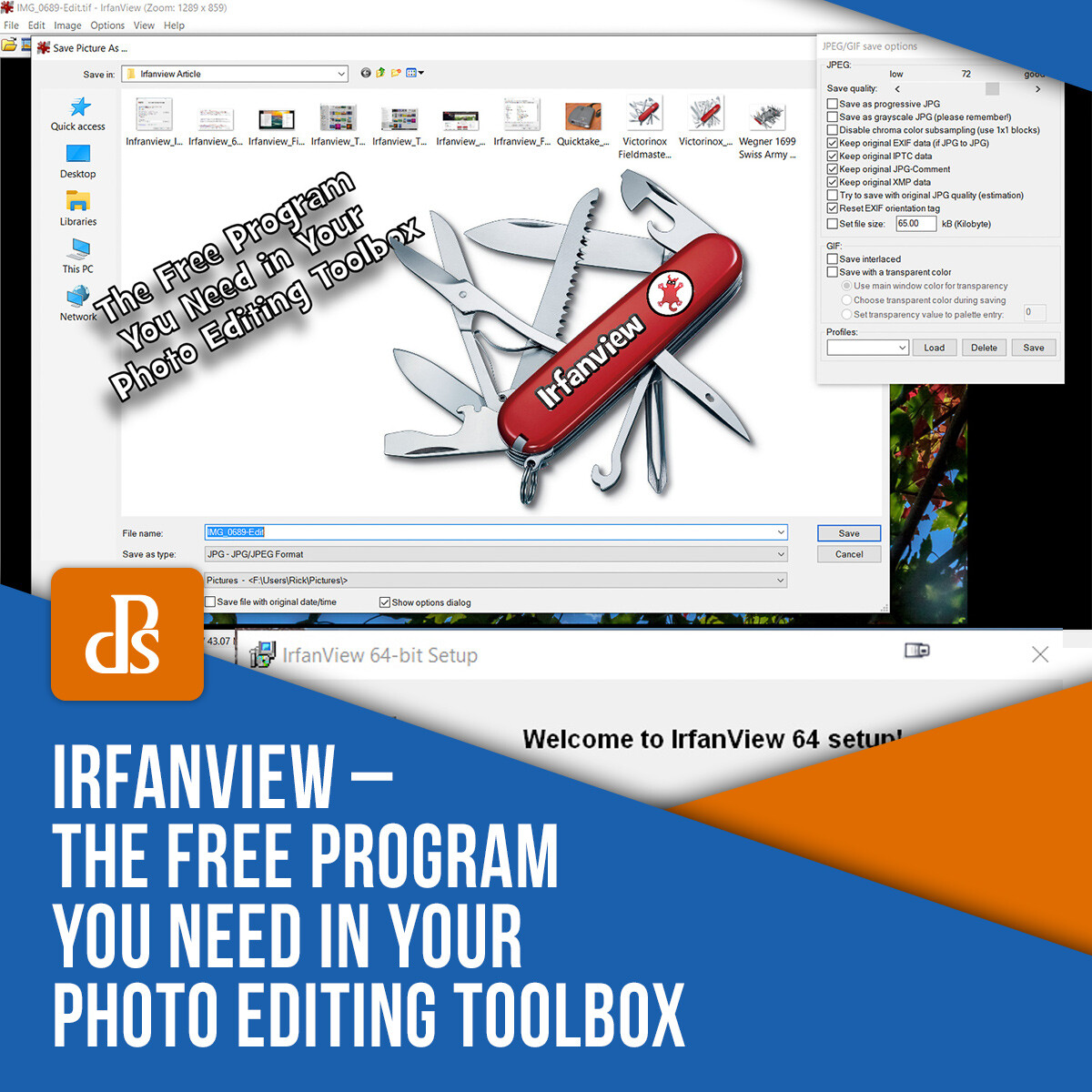
#Urban2020 Top 50 Finalist: ‘Ship city’ by @azimronnie (Bangladesh)

About this photo: @azimronnie (no longer on the app) shares some facts about this picture taken in his hometown, Dhaka: “The 500 enormous vessels used to transport bricks, sand and other goods, are either being built or are docked for maintenance work in Dhaka, Bangladesh. Shipbuilders in Bangladesh began exporting their ships to other countries in 2009, and it has since become a growing trade in the area.”

#Urban2020 Top 50 Finalist: ‘Saigon-Vietnam’ by @nguyenvuphuoc (Vietnam)

About this photo: @nguyenvuphuoc spotted these two female workers on Saigon’s under-construction new metro line: “When they saw me taking pictures, they asked me: Why? We are not beautiful, you should go and photograph beautiful girls instead.”

#Urban2020 Top 50 Finalist: ‘Nightscape in Rome’ by @henrydo (USA)

About this photo: The majesty of Rome’s iconic symbol was perfectly captured by @henrydo: “Rome has been completely urbanized but they still kept many historic sites to preserve the history. I think it fits quite well with the hashtag. This shot was a composite of 2 separate images taken at different times in the same location. Many people thought a drone is capable of capturing the lit-up night sky but the technology isn’t that advance, yet. If I. win, I will donate part of my prize to a charity to fight plastic pollution in the ocean and save the marine wildlife.”

#Urban2020 Top 50 Finalist: ‘Radioactive ??‘ by @notanothermica (Belgium)

About this photo: @notanothermica snapped this impressive shot while exploring the urban area of Charleroi, Belgium: “This is one of the most famous spots in Belgium for urban exploration. The door to enter this power plant is sometimes closed, which makes it not easy to get in. On that day, I was lucky because the door was open and there was some good light, which caused the cool glow on the metal of the powerplant. I wanted to place a person inside the power plant to had a reason for the viewer to relate to the photo.”

#Urban2020 Top 50 Finalist: ‘/–\’ by @wunderbilder (Germany)

About this photo: @wunderbilder captured this photo on a trip to Rome: “During our visit, we stayed in a flat in this building and I found the staircase geometrically very interesting. There was no elevator in the building.”

#Urban2020 Top 50 Finalist: ‘Sinking in the fog’ by @borsch (Russia)

About this photo: Russian photographer @borsch entered the competition with a foggy aerial view of his hometown, Moscow.

#Urban2020 Top 50 Finalist: @paulaaranoa (Argentina)

About this photo: Argentine photographer @paulaaranoa loved to explore the mysterious streets of Barcelona’s gothic neighbourhood: “The story behind the photo shows a character who is walking through a dark path, however the light is wrapping itself around him. On this day, the light was perfect. I watched how the people walking by were wrapped by the light, I spent at least an hour in the same place until the light changed… it was a unique spectacle and I consider myself privileged to have witnessed it.”

#Urban2020 Top 50 Finalist: ‘Can’t stop won’t stop’ by @theliamman (UK)

About this photo: @theliamman shot this photo nearby the telephone box outside St Paul’s Cathedral, London: “I wanted to transmit a sense of adventure. Cities come alive at night and I wanted to capture that bustling energy as the day turns to night. The top of this phone box was filthy, if you want to do the same photo I recommend wearing clothes that you don’t wear often.”

Articles: Digital Photography Review (dpreview.com)

 
Comments Off on Slideshow: Agora’s #Urban2020 photo contest winner and finalists

Posted in Uncategorized