RSS
 

Posts Tagged ‘Phone’

ExoLens Case for iPhone 7 supports Zeiss lenses while protecting phone

30 Mar

ExoLens has announced the launch of its new ExoLens Case for iPhone 7, a case designed to protect the phone while also supporting the company’s ExoLens PRO with Optics by Zeiss accessory lenses. The case is made from clear impact-resistant materials that, says the company, offer ‘high-end aesthetics’ while keeping a low profile. The case can be used with and without the Zeiss PRO lenses.

ExoLens PRO owners are able to switch between the line’s various lenses without removing the case, the latter of which is described as ‘ultra durable’ with soft Black TPU material along the outer edges. ExoLens has launched the case for the iPhone 7 ($ 49.95 USD) on its website and through select global retailers, and will launch a version for the iPhone 7 Plus model later on in 2017.

Via: ExoLens

Articles: Digital Photography Review (dpreview.com)

 
Comments Off on ExoLens Case for iPhone 7 supports Zeiss lenses while protecting phone

Posted in Uncategorized


Tips and Resources for Doing Android Phone Photography

20 Dec

Everywhere you go in the world today you will find someone, or many people, with their phones in the air capturing what they see. They all have a camera with them because they have their phones and can photograph everything they see. Phones have had cameras in them for quite a few years now, but slowly over the years they have improved and today many phones are amazing.

However, when you look around at phone photography there does seem to be an emphasis on iPhones and their cameras. While this article isn’t about which is better, it is important to remember that when it comes to phones Android has a much larger market share and therefore more people are using Android phones and their cameras.
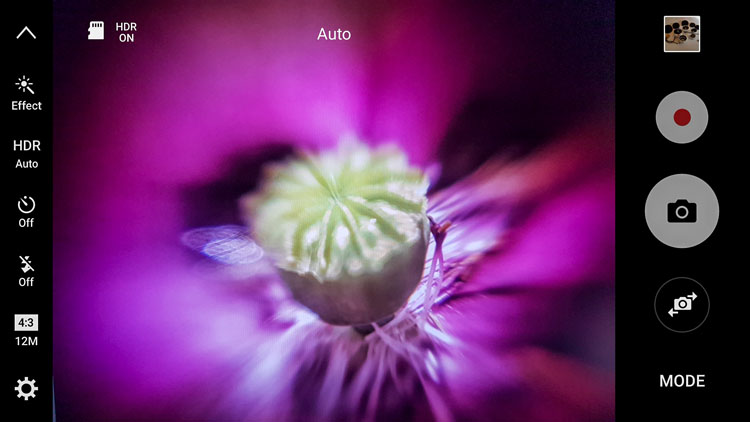
Android phone photography tips

The camera user-interface for the Samsung Galaxy S7 Edge.

For this reason, this article is going to concentrate on Android photography, as there are many who seem to think that everything is made for the iPhone and if they don’t have one they are missing out. That really isn’t the case and since beginning research for this article so many things have come to light.

Phone

Not all phones are the same, nor are the cameras in them. If you are serious about using it for photography, then it would be good to do your research and get one that has a good camera.

While Samsung has had some bad press lately over the debacle with the release of the Note 7, it has to be remembered they are still good phones and the camera in the Galaxy S7 Edge is said to be the best still camera (inside a mobile phone) on the market. It is very clear and the photos have an amazing quality. This is the one I use.

Get one that matches your needs

The camera, as with most, has lots of different settings and modes so you can find one that will be suitable for the type of photography that you are shooting.

If your intention is to use your phone a lot for photography then be sure to select on that has what you need. Also, make sure that it is easy to get the photos from the phone to your computer. In today’s phone market, though, that is easier than ever.

Android phone photography tips

Some food photography with the Samsung Galaxy S7 camera.

Apps for photography

We live in a world of apps. There seem to be apps for everything. Whether they are good or not is another story.

If you go to the Google Play Store and search for cameras you will be given an overwhelming choice. You can get apps for image sharing, doing effects, making selfies, collages, and so on. The list seems endless. Just the popular results give you over 200 choices.

Android phone photography tips

Photos taken with the Instant Camera App.

Most of them are free, so if you are unsure which ones to use you can install them, try them out, and if you don’t like one then just uninstall it. The reviews and number of stars can be a good indicator, especially for ones that you have to pay for. If you have to spend money, then you want to make sure it is a good purchase. Having said, though, many of them don’t cost a lot.

I purchased Instant, which imitates the type of image you would get with a Polaroid camera. After playing around with it for a bit I discovered that there are lots of filters in the app to create many different effects. It is set up for you to shake or blow the image for it to be revealed, like the original Polaroids. Even though you know you don’t need to do it, it almost seems irresistible to not shake or blow on it.
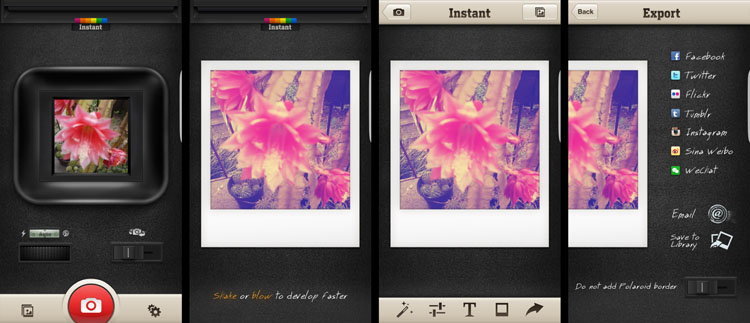
Android phone photography tips Instant app Polaroid.

Taking photos with the Instant Camera App.

Retro camera app

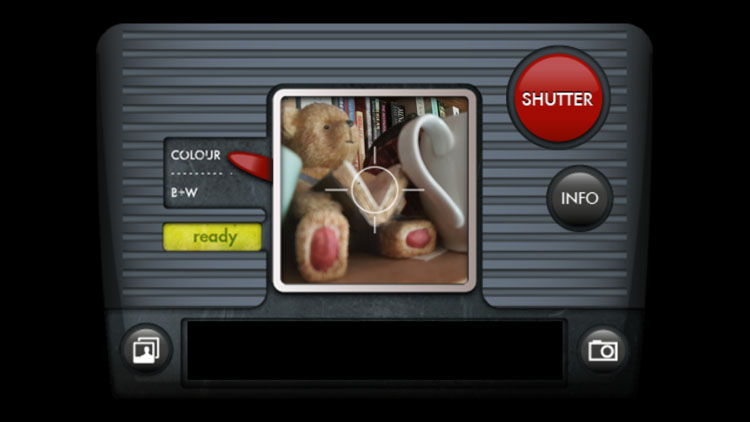
Another one that you can try out is the Retro camera. It’s free and comes with several different cameras. If you press the camera icon in the app you can scroll through and find different ones. I quite like the Xoloroid one and the Fudgecan.  This app does not seem to have the filters, but you can choose to either take colour or black and white images with it.
Android phone photography tips retro camera

The Retro Camera app as it is taking an image.

They are great fun to play around with and I do suggest you try many apps. You might even fall in love with one.

Android phone photography tips retro app

Using the cameras within the Retro Camera app you can get a variety of results with each of the different options.

Lenses to attach to your phone

Lenses for mobile phones have been around for a while, but there does seem to be the impression that they are only for iPhones. I thought the same thing too. But, there are many lenses available for you to attach to your Android phone.

Lensbaby has lenses for the iPhone. When asked why didn’t they do them for Android the answer was simple. They did, but people didn’t seem interested and they didn’t sell. Perhaps the reason they didn’t sell well, was because people didn’t know about them. Well, now you do.

It is unknown how many lenses there are for Android, but apparently, a lot of the ones for iPhones can also be used on Androids. They use a magnetic ring that sticks over the top of the camera on the back of your phone. Some rings are better than others, and some don’t work very well.

Lensbaby

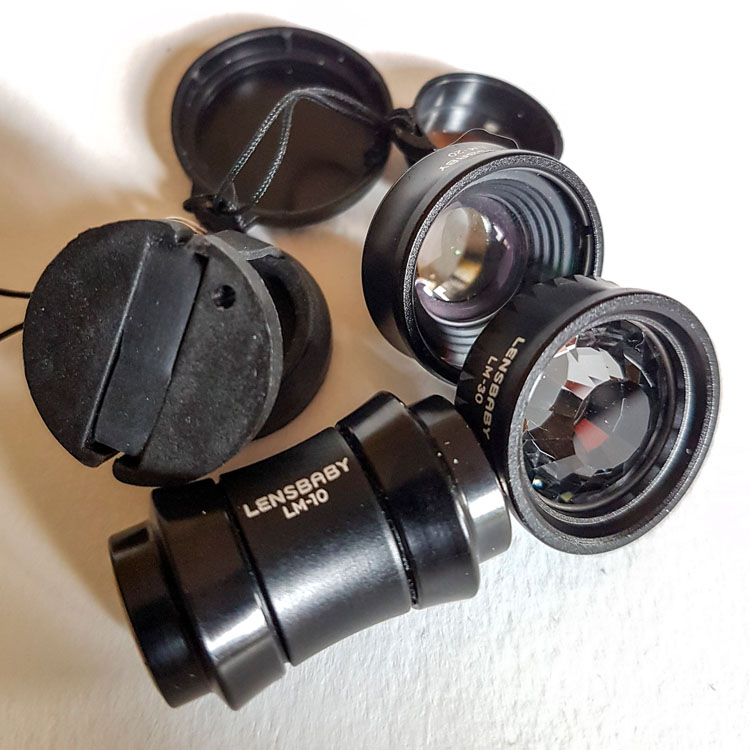
There are three phone lenses from Lensbaby and they all do different things. Along with them is an app for your phone that helps you take photos.

  • The Lensbaby LM-10 is a two-way lens, meaning you can turn it around and use the opposite end as well. The sweet spot is in the center for both ends, but one end will let you get closer than the other. It is a bit like reversing the lens on your camera.
  • LM-20 has a bigger sweet center spot and lets you take more normal images.
  • LM-30m this is very sharp in the middle and gives a crazy effect around it. Some say the photos are mind-bending, and can too strange. You do have to think about where you would use this lens. It isn’t suitable for everything.
Android phone photography tips Lensbaby LM-10

Lensbaby Lenses

The magnetic ring that sticks to the camera is great and doesn’t come off when you take the lenses off. However, it can be hard to focus using it and if you leave it on, the camera can move so it may need readjusting next time.

One thing that is quite good is that you can take it on and off a bit. I’ve done it up to four times and often leave it stuck to the back of the phone until I need it, and then move it over the camera when I’m ready to shoot.

Android phone photography tips lenses

Macro photo taken using the Lensbaby LM-10

Lensbaby app

As previously stated, Lensbaby also has a free app that you can download that lets you have a lot more control over the images. You can move the sweet spot around, or lock it to one position. Be aware that the LM-10 does reverse the image when you are taking it, so you need the app so you can reverse the view so it appears right way around.

Overall the lenses are great and are small enough to carry around in your pocket or bag when you’re out. I use them a lot for macro photography.

Android phone photography tips Lensbaby

Three images, the first taken with the Lensbaby LM-20, the second two taken using the LM-30 lens.

Photojojo

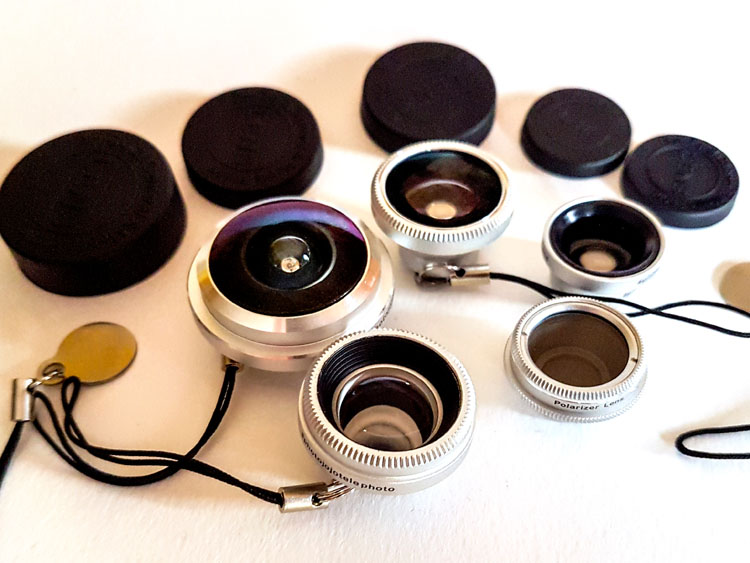
Another company that has produced lenses is Photojojo. You can buy all five or just a couple of them. They have standard lenses, but they also have some special effects ones as well. They are the only company that I saw with a polarizer, which could be very handy for some situations.

Here is a list of what they have:

  • Fisheye
  • Superfisheye
  • Polarizer
  • Wide/macro
  • Telephoto lens
Android phone photography tips Photojojo

Photojojo lenses

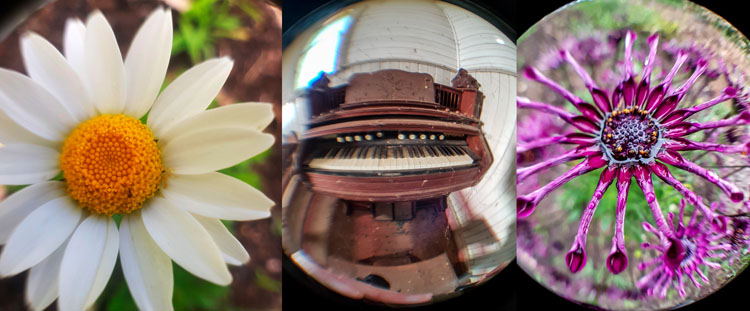
They are all good but the super fisheye is probably the one I’ve played with the most. It is very wide and distorted. You will get your hand holding the camera in the shots you take with this lens. The other lenses are much what you would expect.

The Photojojo lenses come with the magnetic rings to attach to your camera, but they don’t stick very well and when you remove the lens, the ring often comes off as well. If the lens is a bit heavy, like the super fisheye, when you angle the phone down it will just come off, along with the ring.
Android phone photography tips Photojojo lenses

Photos taken with the Photojojo lenses, the super fisheye.

I’ve been using the Lensbaby rings with the Photojojo lenses. Sometimes you have to move the lens or the ring around, but you can get them to work together if you are patient.

Photo editing apps

When you start taking photos with your phone the next progression is to start sharing them with the world on social media places like Facebook or Instagram. You could just post them straight up, use the filters that come with Instagram, or you can do some fine tuning of the images photo editor apps.

If you do a search for photo editors in the Play Store you will be given many choices. As it was for the cameras, you need to go through and see which ones you think will work for you and your purposes. We are going to look at two here.

Snapseed

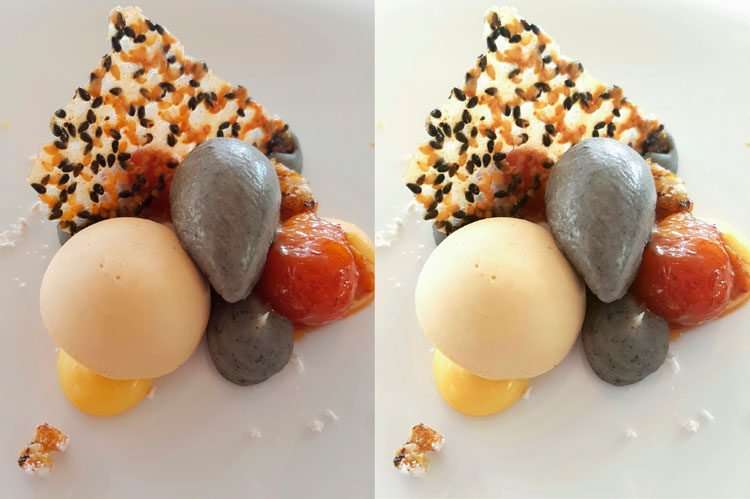
Snapseed is a photo editor app that has been around for a while. It is free and fairly easy to use. While it does have some filters that you can just add to your image, it also has quite a few adjustments as well. Often, that is all you need to do, just do a few tweaks and the photo is ready to be saved.

As with any software that allows you to make changes to your images you always have to save it. On your phone, Snapseed will make a new gallery for your new saved edited images. You will end up with two of every image, the original and the edited version. When you are sharing, make sure to choose the one from the Snapseed gallery.
leannecole-androidphone-snapseed

The photo on the left was taken with my phone and then processed in Snapseed on the right.

Lightroom Mobile

To get Lightroom Mobile for your phone you have to be a subscriber to Adobe for Photoshop CC and Lightroom CC. It comes as part of the package. Once you are a subscriber you can download the app and sign in.

Get a 20% discount on Photography Plan using this link for dPS readers only! 

It doesn’t work like Lightroom CC on your computer, rather is very similar to other photo editing apps like Snapseed. It is easy to navigate around and figure out. Again, save everything you do and it will export it into a Lightroom gallery for you on your phone.

If you don’t subscribe, then don’t do it just to get this app. Snapseed is probably just as good, and if you don’t like it there are lots of other editing apps. Ask around and I am sure you will get a list for a lot of them. One thing that is great is the ability to install them, and if you don’t like, just uninstall.

Android photography round-up

Taking photos with your phone can very enjoyable and just because you have an Android that doesn’t mean you can’t take photos just as well as those with iPhones. Don’t let Apple users tell you your phone isn’t as good. Now you know that you can take good photos just as good, maybe even better.

In the end, it comes down to the person holding the camera (you) and how good you are. Have faith and share your photos. I would love to see them in the comments section below.

googletag.cmd.push(function() {
tablet_slots.push( googletag.defineSlot( “/1005424/_dPSv4_tab-all-article-bottom_(300×250)”, [300, 250], “pb-ad-78623” ).addService( googletag.pubads() ) ); } );

googletag.cmd.push(function() {
mobile_slots.push( googletag.defineSlot( “/1005424/_dPSv4_mob-all-article-bottom_(300×250)”, [300, 250], “pb-ad-78158” ).addService( googletag.pubads() ) ); } );

The post Tips and Resources for Doing Android Phone Photography by Leanne Cole appeared first on Digital Photography School.


Digital Photography School

 
Comments Off on Tips and Resources for Doing Android Phone Photography

Posted in Photography


How to Get Stunning Macro Photos with Your Mobile Phone

01 Nov

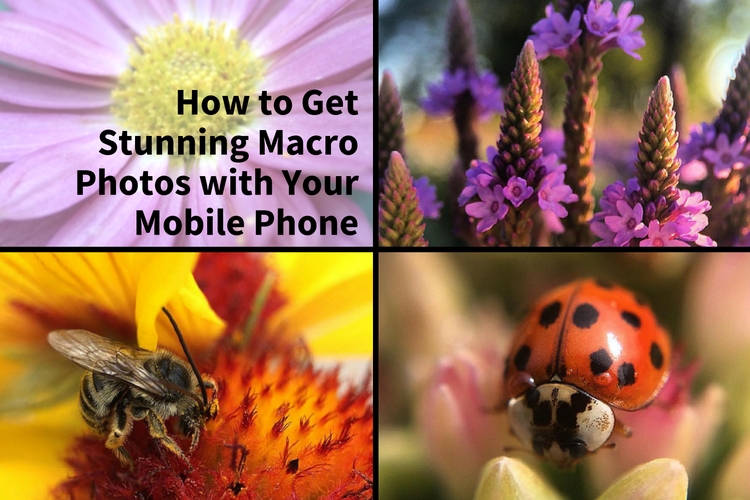
If you’ve ever scrolled through Instagram or Flickr and seen an incredible close-up photograph of a flower, insect, or even jewelry, you may have wondered how you can get similar photos, especially if you don’t have a camera. Thankfully, you don’t have to buy a DSLR or expensive macro lens to get these kinds of shots. All you need is a mobile phone, a simple accessory, and a bit of curiosity. In this article, I’ll go through some tips to help you get stunning macro photos using your mobile phone.

how-to-get-stunning-macro-photos-with-your-mobile-phone

Busy

Lenses

While some phones have a macro mode, the best way to get amazing macro photos with your phone is to invest in an inexpensive lens (or set of lenses) that work specifically with your device. I have an iPhone 5s and initially purchased the Olloclip 4-in-1 set that includes lenses for wide-angle, fisheye, macro 10x, and macro 15x.

I quickly discovered the 10x was my personal favorite since it best suited most of my subjects. So I also got the Olloclip Macro 3-in-1 that has lenses for 7x, 14x, and 21x, as well as a couple special hoods that diffuse the lighting and make getting a good shot a bit easier. Over time, I’ve discovered that the 7x lens is my go-to for nearly all of my macro photos since it can capture a large enough area while still getting lots of detail. You can experiment and use any of these magnifications to get the types of shots you are not able to take with your phone camera alone.

Prairie

Options

There are definitely other brands and magnifications available, but make sure that the lens you buy fits with your phone and won’t get in the way of taking photos. Note that most lenses slip over your phone so you cannot typically use them with a phone case. Olloclip has special cases with openings at the camera area for easy access, or you can go without a case.

You never know when you might come across something that will make for a good macro photo. Initially, I suggest taking your lenses with you (they fit in a pocket), especially when you go outside so that you can experiment with different subjects. A garden or another area with flowers or insects is a great place to try out your new lens. Or if it’s winter, use your lens as an excuse to buy a bouquet of flowers.

Garden

Lighting

As with all photography, lighting is critically important for taking good macro pictures. Daylight is probably the best and easiest to work with, but bright sunlight can make for tricky shadows. With macro photography, sometimes you can simply move your subject to decrease shadows by gently bending a flower stem or turning a leaf toward you.

Fullsun

You can also use your body to block bright sunlight or put a hand over your subject to reduce glare. You can play around with sunrise and sunset, and catch lighting in the background of your images. With macro lenses, the light will often turn into a lovely addition to your photos in the form of bokeh, or out-of-focus areas that make your pictures appear to glow.

Bokeh

Note: you can also add light. Read: How to Create Gorgeous Flower Images using a Flashlight and a Reflector

Focus and framing

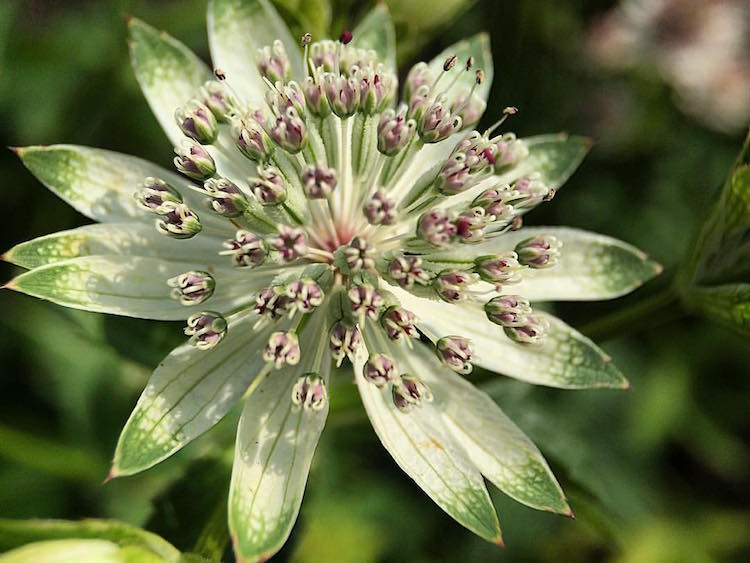
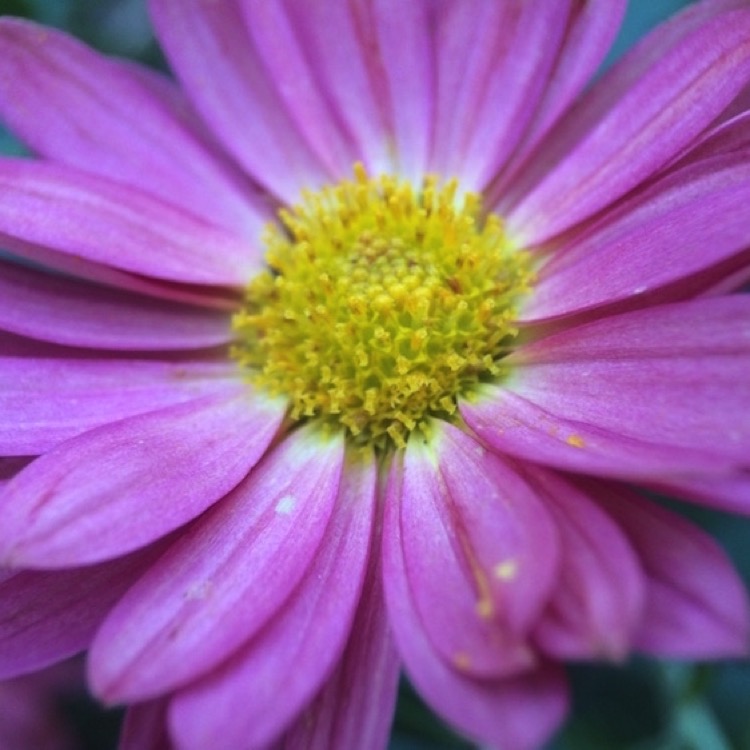
With macro photos, there are endless ways to frame your subject, but you will be limited in the depth of field or the area of the photo that will remain in focus. You want the subject to remain (mostly) in focus, depending on your magnification. The larger the magnification, the smaller the area of exact focus in your pictures. This can lead to surprisingly beautiful photos which you might not expect to get from just your mobile phone.

Sunset

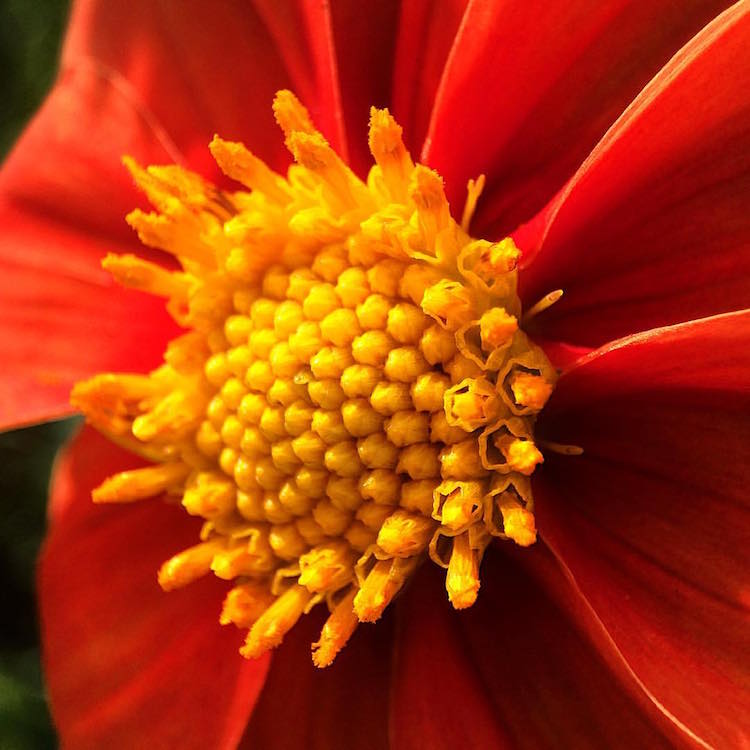
Sometimes your intended subject will be too large to fully capture, even with the smaller magnification (like the 7x lens), so you may have to focus on only a part of the subject like the center of the flower, or a few petals. This is the fun part of macro photography! You can shoot the subject from directly above, from the side, or even from below. Experiment with different angles for the same subject.

Center

Other notes

When taking macro photos, any movement is your enemy. Even slight movement while shooting will result in blurriness. You will need to remain very still, and do everything you can to keep your subject from moving. A tripod for your phone can help but isn’t necessary. Just find a position that’s comfortable, stay as still as possible, and steady your phone with two hands.

Sometimes, like on a breezy day, it’s impossible to keep your subject in one place. You can sometimes hold your subject still (as with a flower), but other times you can’t, as with shooting insect photos. One helpful tip for these situations is to use the burst mode on your phone’s camera which takes many shots in rapid succession. On an iPhone, you can hold down the camera button on the side of the phone or on-screen to shoot multiple photos very quickly. Android phones usually have a way to do this, too. If you don’t have built-in burst most, just take many photos while staying as still as possible. This is how I get most of my insect photos, patience and taking many shots. It’s easy to weed out the blurry photos later.

Beebalm

Editing – especially for Instagram users

Since many people who use their mobile phones for photography also use Instagram to share them, here are a couple extra tips for Instagram users.

1. You don’t need to use Instagram’s filters to make great photos.

Adjusting color or warmth slightly can make your photos look more like real life. In the image below, the only adjustment has been to crop the image.

Original

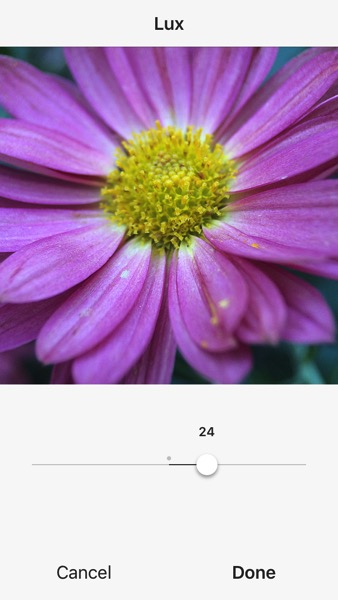
2. Turn up the Lux

This is the little light/dark option at the top of the screen when you are on the Filter or Edit pages in the Instagram app. Using this editing trick (try moving it to the right to 50 or even 100), you increase the intensity of your images. This makes the photo a little less washed out, which can help if you’re taking photos on a very bright day. In the image below, this is turned up slightly and adds more depth to the petals.

Lux

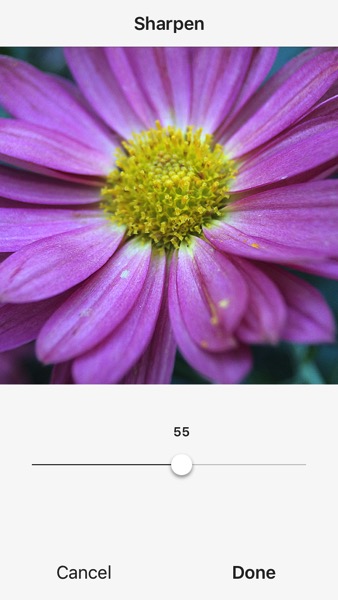
3. Sharpen your macro photos

Using Instagram’s own built-in sharpen edit, you can bring a bit more detail out of your macro photos. In the image below, this has been adjusted and brings out the detail in the center of the photo.

Sharpen

Conclusion – your turn

Do you have any tips for getting good macro shots with a mobile phone, or with other gear that doesn’t cost a lot of money? Leave your thoughts in the comments below, and feel free to share your own macro shots, too. I’d love to see your photos.

Ladybug

googletag.cmd.push(function() {
tablet_slots.push( googletag.defineSlot( “/1005424/_dPSv4_tab-all-article-bottom_(300×250)”, [300, 250], “pb-ad-78623” ).addService( googletag.pubads() ) ); } );

googletag.cmd.push(function() {
mobile_slots.push( googletag.defineSlot( “/1005424/_dPSv4_mob-all-article-bottom_(300×250)”, [300, 250], “pb-ad-78158” ).addService( googletag.pubads() ) ); } );

The post How to Get Stunning Macro Photos with Your Mobile Phone by Beth Ringsmuth Stolpman appeared first on Digital Photography School.


Digital Photography School
 
Comments Off on How to Get Stunning Macro Photos with Your Mobile Phone

Posted in Photography


Wireless tethering on a budget: control your camera from your phone or tablet for $40

13 Jul

Wireless tethering is nothing new, but it’s not exactly a cheap proposition. Well, that’s changed, as Seattle-based photographer Alan Lawrence shows on his blog. For around $ 40, you can wirelessly control and transfer images from your camera to your phone or tablet.

In short, this DIY wireless tethering requires a TP-Link MR3040 Battery Powered 3G Wireless Router, some software, a USB cable, and some time. Lawrence says the router is similar-looking to the CamRanger, a device that offers tethering functionality out-of-the-box, but the router retails for under $ 30 compared to the CamRanger’s $ 299 MSRP.

Once you’ve got your hands on the router (and he does say you need a specific version, which is the one linked above), you’ll need a $ 9 app called DSLR Dashboard for Android, or QDSLR Dashboard for iOS. The last thing you’ll need is a compatible USB cable, and you’re almost in business.

The DSLR Dashboard website has a link to download new firmware for the router, and once you’ve updated that, all you have to do is connect to the wireless network you’ve set up and launch the app. You can control your camera from your device and download files instantly after you’ve taken them.

You can read all the nitty gritty details over on Alan Lawrence’s blog.

Articles: Digital Photography Review (dpreview.com)

 
Comments Off on Wireless tethering on a budget: control your camera from your phone or tablet for $40

Posted in Uncategorized


Lenovo Phab2 Pro is the first Project Tango phone

10 Jun

At its TechWorld conference Lenovo has not only announced the modular Moto Z and Moto Z Force smartphones but also the first Google Project Tango enabled device, the Lenovo Phab 2 Pro. The phone provides an Augmented Reality (AR) experience, thanks to its ability to sense 3D-motion and geometry. It can capture 3D-scans of its surroundings and use the data to create 3D-maps, recognize places or track objects. The technology can project virtual effects in real-world spaces, help navigate indoor areas or provide information about objects it has recognized. 

To achieve this the Phab2 Pro has a total of four cameras. In addition to the 8MP front module and the 16MP rear camera there are a depth and a motion tracking camera, both also located on the back. Underneath the 6.4″ Quad-HD IPS display there is a Qualcomm’s Snapdragon 652 chipset running Android 6.0. 4GB RAM and 64GB of microSD-expandable storage are on board as well, along with a fingerprint reader and Dolby Atmos surround sound technology. Energy is provided by a 4,050 mAh battery. All the high-end technology is nicely wrapped up in metal unibody that is available in gold or silver. 

The Lenovo Phab2 Pro will be available to purchase online in August and one month later in stores globally. In the US it will cost $ 499. Lenovo promises that by the time of shipping a special Tango App Store will contain around 25 apps and is planning to expand this number to 100 by the end of the year. The new technology certainly looks promising, and it will be interesting to see how it catches on with consumers and developers. Additional information on how Tango works on the Phab2 Pro can be found in the Lenovo promotional video below.

Articles: Digital Photography Review (dpreview.com)

 
Comments Off on Lenovo Phab2 Pro is the first Project Tango phone

Posted in Uncategorized


Shazam for Art: Phone App Identifies, Prices & Compares Artwork

27 Apr

[ By WebUrbanist in Art & Drawing & Digital. ]

art identification app

Whether at a gallery without wall plaques, visiting a business establishment or hanging out at a friend’s home, having Magnus on your smartphone will let you see what the wall art around you is all about.

art comparison app

Pointing your device and clicking a picture brings up all kinds of details about a given work, including the name of the artist, medium of the work and its dimensions … as well as its price (either current, if available, or most recent if sold and off the market).

art gallery app

One of its more fascinating features, however, is  its comparative software that brings up what the app considers to be related works of art, by type, style and price. It does this by tapping into a crowd-sourced database of 8,000,000 works of art (and growing).

One risk here, of course, it that it reinforces the commodification of art. It is also sort of a strange function in that it boils art down to tastes and preferences … just because another piece looks similar or is priced in the same range does not mean a user should go out and buy it.

artist coder

Magnus was 31-year-old German art entrepreneur Magnus Resch, known for his work on best Larry’s List, an active database of contemporary art collectors. His response to this kind of criticism: “Why is it ethically wrong to show users prices of an artwork they are interested in?

“If you are willing to spend $ 10,000 on an artwork,” he continues, “you should know that another gallery put the work on auction a year ago for $ 7,000 and it didn’t sell. Knowing this will allow the collector to make a more conscious decision.” Of course, for most of us, spending $ 10,000 on a piece of art is a bit unrealistic, so perhaps the general public is not really the target audience for the app.

Share on Facebook


[ By WebUrbanist in Art & Drawing & Digital. ]

[ WebUrbanist | Archives | Galleries | Privacy | TOS ]


WebUrbanist

 
Comments Off on Shazam for Art: Phone App Identifies, Prices & Compares Artwork

Posted in Creativity


Panasonic to launch Lumix DMC-CM10 without phone functionality

20 Jan

Panasonic has announced that the next version of its Lumix DMC-CM1 smartphone will dispense with its phone functionality to concentrate on being a camera. The Lumix DMC-CM10 will initially only be available in Japan, and is very much the same as the original DMC-CM1, but while it will run on the Android 5.0 operating system it will not be equipped to make phone calls. It will, however, be equipped with LTE communication facilities, and will be able to send text messages and send and receive data via telephone networks with an appropriate SIM card in place. Panasonic will provide its own network access for users as part of its Wonderlink service, where CM1 and CM10 owners can get 3GB a month with 150Mbps download speeds for 1480 yen/£9/$ 12.50. 

The camera appears to have the same lens and sensor as the DMC-CM1, and exactly the same body and features. It will be available from 25 February in silver and only 500 will be made per month. While the price isn’t clear yet it appears from the Panasonic store in Japan that it will be around 100,000 yen/£600/$ 850. 

For more information see the Panasonic Japan website. 

Articles: Digital Photography Review (dpreview.com)

 
Comments Off on Panasonic to launch Lumix DMC-CM10 without phone functionality

Posted in Uncategorized


Make the Most of Your Phone Vids

20 Jul

You know your phone is often your best bet for photos, but don’t forget videos too!

Some of the best vloggers are using their phone these days, but how? What are they doing to get smooth shots, clear sound and incredible depth of field?

Well, we’ve figured it out. Check out our best tips and tools for making high quality vids with your phone! Everything you need to hit record.

(…)
Read the rest of Make the Most of Your Phone Vids (166 words)


© Erin for Photojojo, 2015. |
Permalink |
No comment |
Add to
del.icio.us

Post tags:


Photojojo

 
Comments Off on Make the Most of Your Phone Vids

Posted in Equipment


Moment phone case brings two-stage shutter button to iPhone 6

30 Jan

Moment, a Seattle-based company that is known for its high-quality smartphone accessory lenses has launched a Kickstarter campaign for its latest product idea, the Moment case. The Moment case is a case for the Apple iPhone 6 that offers a two-stage shutter button, allowing you to half-press to lock focus and exposure. The connection to the phone is electronic without any mechanical components. The grip links to the iPhone via a low-energy bluetooth connection. Read more at connect.dpreview.com

Articles: Digital Photography Review (dpreview.com)

 
Comments Off on Moment phone case brings two-stage shutter button to iPhone 6

Posted in Uncategorized


Finally, a Ring Light for Your Phone!

05 Jan

Extra photos for bloggers: 1, 2, 3

You like your phone enough to put a ring on it, right? ‘Course you do.

The Smartphone Ring Light takes your relationship with your phone and your lighting game to the next level.

Use the Ring Light on the case or pop it off for handheld spot lighting. This beauty has variable brightness and temps, so you can get the exact light you need for any situation.

Your phone’s no single lady now, with a ring light to prove it!

Snag a Ring Light Today or Learn More
$ 85 at the Photojojo Shop


© laurel for Photojojo, 2015. |
Permalink |
No comment |
Add to
del.icio.us

Post tags:


Photojojo

 
Comments Off on Finally, a Ring Light for Your Phone!

Posted in Equipment