RSS
 

Posts Tagged ‘Painterly’

How to Turn Your Photos into Painterly Style Watercolor Art

02 Mar

It’s fun to be creative with your photos, elevating them beyond a digital image and into painterly style art instead. Perhaps you have a great shot of your dog but the neighbor’s bright red car is distracting in the background. Maybe your kid was cute at the park but the swings are poking into one side of the shot. It might be nice to make a festive or birthday card for a relative with the personal touch.

Or maybe you have seen other people doing cool creative stuff on Instagram and you would like to have a go too?

How to Turn Your Photos into Painterly Style Watercolor Art

Image of my cat Cognac created in Waterlili.

There are many ways to edit your images with a painterly style, for this article we are going to focus on the possibilities on offer to make your images look like watercolor art. Whether you use a PC, Laptop, tablet or phone, there is something available. You don’t need Photoshop nor do you always need to spend heaps of money on software either.

Note: This isn’t a How To article, this is us dipping our toe into the water to see what the options are – some are quite complicated and probably need Photoshop (or similar).

Watercolor Programs and Apps

There are many different ways to achieve a watercolor effect. Some are surprisingly easy and yet effective, and some are a lot more complicated. Let’s start with the easy options and go from there.

1. Dedicated Mobile Apps

I have an iPad for doing creative work and there are a couple of specific Watercolor Apps that I like. They have a realistic effect and enough capability to allow you to tweak them and get some variety with your final efforts.

Waterlili

Waterlili turns your image into a watercolor and allows you to tweak color, contrast and saturation. It also has an built-in mask effect for adding some uniqueness to your image.

Waterlili is available for IOS.

How to Turn Your Photos into Painterly Style Watercolor Art - lilacs

Original photo before editing.

How to Turn Your Photos into Painterly Style Watercolor Art - lilacs

Lilac flowers done in Waterlili.


How to Turn Your Photos into Painterly Style Watercolor Art - lilacs

Same image as above, but have applied a watercolor mask effect in Waterlili for a different outcome.

Waterlogue

Waterlogue has several preset options to choose from, and some contrast options to apply. You can save your image in a variety of image file sizes (small files can be used in social media, large files could be printed).

Available for IOS, Android and Win10.

How to Turn Your Photos into Painterly Style Watercolor Art - cat photo

Original image before editing in Waterlogue.

How to Turn Your Photos into Painterly Style Watercolor Art - cat image painterly style

2. Creative Mobile Apps

A creative app is one that allows you more scope with your editing, and offers a variety of different creative and editing options. It isn’t a “one hit wonder” like the first options above. My weapon of choice here is called iColorama.

iColorama has several different ways of adding a painterly effect using its settings. But its real strength is the capability to layer and mask images (like in Photoshop) so you can blend elements of images together for a very creative and completely unique piece of art. It is a program with an impressive depth of capabilities.

It’s IOS only, but Android users could consider Snapseed.

How to Turn Your Photos into Painterly Style Watercolor Art

Original image before creative editing.

How to Turn Your Photos into Painterly Style Watercolor Art

After painterly effects applied in iColorama.

How to Turn Your Photos into Painterly Style Watercolor Art

In this third image, I took the second image with painterly effect into Waterlili, and then blended the two in iColorama for this final image.

3. Options using Photoshop

Actually most photo editing programs that support layers and masks will work here (Elements, Paint Shop Pro etc.). But you need to have Photoshop or similar installed to use these options.

Watercolor Brush and Mask

This is a fairly simple option, but you do need to know how to use layers and how to apply a mask. Also required are some watercolor brushes (these can be found free online or good quality ones can be purchased).

Load up your image, add a new white layer on top of the image. Working on the white layer, tap with your water color brush to reveal the image below. It can take a few goes to get it looking really watercolor, and tweaking the brush opacity up and down helps.

How to Turn Your Photos into Painterly Style Watercolor Art - birds

Photoshop Actions

Actions are where someone has recorded all the steps necessary to make the desired outcome in Photoshop for you. A bit of manual intervention at the beginning sets it up, click Play on the Action and it runs and does its thing.

The best Photoshop Action artist I know is sevenstyles, and he has an amazing library of effects available, including a Watercolor option. Once created you can tweak and edit many components to add your personal flourish if you want. An action can be used over and over again and does provide some variety in the results.

How to Turn Your Photos into Painterly Style Watercolor Art - cherries

Plugin Software

Plugins are separate programs that work within Photoshop to fulfill an additional requirement. Some will work as standalone programs, but many are only accessible from within Photoshop. My favorite painting plugin is Impression by Topaz Studio.

It has a huge range of different painting presets already loaded and you can tweak EVERYTHING – brush size and shape, direction, color, light contrast, add a vignette, and so on. It’s a very powerful tool and capable of beautiful painted effects. It does need a fairly powerful computer with a decent graphics card to run it, so check that your hardware will support it first.

How to Turn Your Photos into Painterly Style Watercolor Art - train

This image had the background replaced with a painted image and then it was run through Topaz Impression.

4. Dedicated Painting Software

For PC/Mac there are some options for software that is specifically designed to mimic painting effects. The most commonly known one is called Corel Painter. It’s expensive, complicated, and difficult to learn which is fine if you are an artist and that’s your thing. If you are someone who wants to dabble a bit for a really genuine watercolor effect then there is another option available called Rebelle.

Rebelle is a fraction of the price of Painter, much easier to use, and it has the most incredible realistic watercolor effect as well as other painting and drawing options. It’s also available for a free trial. I have no artistic background, so the realism of Rebelle was initially a bit of a hurdle for me, so I signed up to do an online watercolor course and work with real paints, which really helped.

You don’t need to do that, but I can tell you quite genuinely, there is little difference between dipping your brush into some real paint and doing it with Rebelle (except the digital version makes no mess!)

How to Turn Your Photos into Painterly Style Watercolor Art - lighthouse

Original photo.

How to Turn Your Photos into Painterly Style Watercolor Art - lighthouse

Painted image – the lighthouse, rocks, and sea painted in Rebelle, the sky done in Photoshop with watercolor brushes and the sketch effect done with Akvis Sketch.

Summary

This article barely dips its toe into the range of options available for doing painterly watercolor conversions of your images. Hopefully, these examples show you that there are many choices to suit all skill levels and budgets.

It can be as simple or as complicated as you want to make it. I am constantly surprised at how much mobile apps are capable of these days, seems like you don’t need Photoshop at all!

If you have other apps you use and would recommend for creating painterly style images, please put them in the comments below. Otherwise, go forth and be artistic!

The post How to Turn Your Photos into Painterly Style Watercolor Art by Stacey Hill appeared first on Digital Photography School.


Digital Photography School

 
Comments Off on How to Turn Your Photos into Painterly Style Watercolor Art

Posted in Photography


Fine Art Painterly Images From Your Photos

01 Jul

A Guest Post by Alex Morrison

So, you’re thinking about unleashing your inner artist? Good for you! Old school photography can seem a bit limiting sometimes, with all those pesky rules – the rule of thirds, the rules of thumb, sunny 16 rule. Who needs rules! Your creative after all and we creatives are born to break the rules!

Fine art photography is one of those photographic genres that defies rules, bends and breaks them and in the process of doing so the photographer creates art. A bad out of focus image of a flower could become your masterpiece; a mediocre landscape can hang in a gallery! With a little know how, and a creative eye, fine art images are pretty easy to create.

In this article we’ll discover what fine art photographs are, how to develop your own artistic style, and a simple way to process your photos into art images.

But Is It Art?

So what’s the difference exactly, between a fine art image and any other kind of photography? Well, this is where a clear definition gets a little murky.

Here are some general parameters, so we can talk about fine art photography from a common perspective (excuse the pun). Art photography is printed, and hung. (Hopefully in a prominent place!). It can be used in decor, in homes and offices; or “art for art sake” in galleries and exhibitions. Fine art photos are usually presented and sold as limited editions.

Here’s a pretty clear definition I really like, from the Professional Photographers of Canada that covers most of the generally accepted requirements of a fine art image:

Fine art images may consist of unusual images, individual images or a series of images. The range of styles and treatments varies greatly, from the classic black and white scenes to more non-conventional images. In fact, conventional beauty, formal design and familiar subjects are often not components of fine art images and can include painterly effects, soft-focus, journalistic, snapshot type images, bizarre and erotic images and other unconventional approaches.

Fine art images are usually sold to individual collectors, museums and business clients. Photo Decor is usually the term used to designate a print hung to decorate a room, whether in a private home, an institution, a corporate boardroom, a gallery, etc.

All right, now that we know what we are talking about let’s find out about how to create these wondrous and unconventional images. For this discussion we’ll be devoting our exploration to painterly styles and effects – the coolest and easiest techniques to learn! Other fine art photography techniques will be discussed in future articles. So hang tough if your favourite style isn’t included here yet :-) And if you don’t like photographs that look like paintings don’t despair – this is only one way of so many ways you can create fine art photographs.

Finding Your Artistic Style

First, let’s look at classic fine art. I know this seems counter intuitive – how can we break the rules if we’re studying classics – didn’t they define the rules?! Well, yes, but…these historical styles and techniques give us powerful insight into the range of artistic expression that you can build on when considering painterly looks.

449px Flowers in a Crystal Vase Edouard Manet c1882Since I’m a big fan of Sir Isaac Newton’s “..on the shoulders of giants…1″ school of greatness, I believe you achieve success in anything by building on and learning from the achievements of others.
A great place to begin absorbing a fine art point of view is with the old classic paintings, from Goya to the Post-Impressionists, and all schools in between!

I adore works by Claude Monet, and much of my art photography style is of his influence (his picture to the right).

Not to be confused with Claude is Édouard Manet, whose use of colour in his still lifes also moves me deeply.

The great thing is you don’t even have to “study” these works, just look at them and notice the colours, the brush strokes, the compositions, the subject matter.

Are you inspired yet? Ok, here’s another artist for you to investigate, in case you want more examples than just flowers in vases! Look for works JMW Turner an 18th century water colour artist who changed landscape art forever.

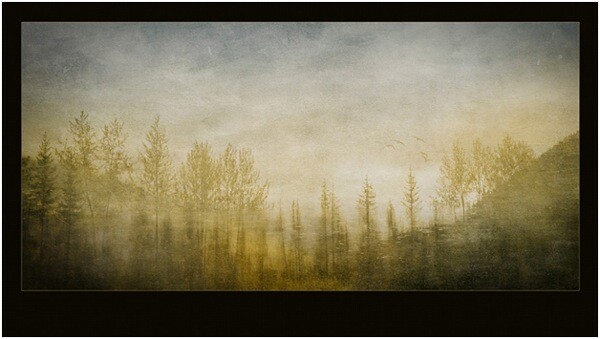
He inspired this image of a reflection in a lake.

Rainforesttapestry

The Subject of Your Desires

If your aim is to sell your fine art images as decor, be sure that your subject matter is something most people would want in their homes or offices. Think about the context. Ugly doesn’t sell – no matter how artistically it is portrayed. But beauty generally does. Artistic treatments of flowers, landscapes, still lifes, abstracts and impressionistic figure studies are safe bets as subject matter. They seem to be almost universally accepted.

One of my most acclaimed art images – won several major awards – and one that everyone absolutely loves is “the Devils’ in the Details.” Someone loved it so much they bought it, but returned it to the gallery a week later because once they got it on the wall – it was just too freaky and disturbing!

Devilsinthedetails
?
If you plan on selling to collectors then usually any subject is fair game – some lesser known van Gogh paintings were of old shoes. Who knew!

But it’s YOUR creative interpretation and treatment of these subjects, whatever they may be, that creates the WOW factor. And it is here in your treatment and interpretation that you can break all the rules!

Viewing the works of artists who have gone before will expand your imagination and get your creative consciousness flowing for styles, subjects and different and unique ways to portray them. Once you have your image captured, you can then create a wild assortment of artistic and painterly effects in your post production processing…which is coming right up!

Creating Painterly Techniques in Post Production

One of the most flexible and fun ways to give your images a painterly fine art quality is to use overlays, underlays and textures, which you add in post production. As long as your favourite image editor supports layers and blending modes you’re good to go. If you get really expert you may even want to make your own textures and under/overlays to take full control of your final image. You’ll be rocking epic fine art photography.

Back in 2006 I was playing with a program called Corel Painter – it is a painting program where you can create all sorts of paint effects in a digital way. I had created an image in Painter using an oil paint “brush” and the texture and some subtle colours. Just our of curiosity I layered this image on top of a landscape and wow! the brush strokes came through in a most enchanting way – and so my own form of painterly fine art overlays were born! I use these a lot and make new ones as needed. But you don’t have to go to all that work – often using random images you have in your folders can be just as useful, as we will soon see.

Achieving a painterly affect in a photograph requires two main components in post production, usually a texture to emulate canvas, cloth, or some other base media; and at least one other texture or overlay to give it the image the look of something other than a straight-up photo – something like a painting! Depending on your initial image you may not have to use both these types of textures. In fact because there are no rules here you can stack multiple layers in a variety of combinations to achieve stunning images.

“Winter Garden” started out as this. A fine mess of dead and withered grasses in my garden in January!
?
Wintergardenbefore

And it was transformed to this, and went on to win several national and provincial awards for Fine Art photography:

Wintergardenafter
?

And now finally – How do I do this?

First, take a stroll around the Internet and look for free textures. Not textures of wooden boards and bricks though – look for cloth and fabric textures. Also look for textures of brush strokes or that have a very fine pattern like rust, old concrete. Other photos that are out of focus, or that have primarily one colour or pattern such as frost or rain drops on a window also work particularly well.

If you’re not inclined to go on a treasure hunt right now, I’ve created source files for you! Here are the files I used for Winter Garden, to get you started!

(downloads) (warning: this is an 18MB download and will give you a zip file with a PSD file and some JPGs).

The idea is to underlay and overlay these textures and images with your base image using blending modes and opacity to alter the way the textures interact with the base image. Ready to get started?

The Process of Post Processing

In Photoshop or your image editor, open your main photograph – your base image – in this case if you’re using my source files, Image 0852. Double click on the Background layer in the layers panel to make your Background layer editable. It will be called Layer 0. Set its blending mode to Soft light.

Then go to File>Place and select the image 0853.jpg. Stretch it to fit if needed. This will become Layer 1 Change the blending mode to Hard Light.

Duplicate this layer, and set the blending mode to Luminosity, and change the opacity to 20%. Flip the layer horizontally by going to Edit>Transform> Flip horizontal.

Almost there! Now place Image 0775, this is a photo of frost that I am using as a texture and colour overlay – stretch to fit if needed, and then set the blending mode to color, and opacity to 49%.

Now we’re going to create the UNDERLAYS! These are layers that we will add UNDER Layer 0. How exciting!

So… place image 0870, and drag the layer to be immediately under Layer 0. Set Layer 0 to Soft Light.

Set your underlay layer to 53% opacity.

And finally we will add our last underlay layer by placing the texture, Image 0809. Well add this in 2 places, but first place it as we have done with the others, and move it to be the bottom-most layer in your stack. It will be Normal and 100%.

Now duplicate this layer (CTRL J) and drag the copy to be the top-most layer in your stack. Set it to soft light and 42%.

At this point you should save your file as a layered image. What do you think? Quite painterly, no?

Want to adjust some more? Awesome! You can now play with these layers, the order, the opacities, the blending modes and even adjusting hue and saturation of individual layers to suit your own style and your interpretation of withered grasses in the winter. You can add other textures you may have on hand or that you’ve found online.

With a few simple images, some inspiration from the Masters, and your own imagination, free from rules and constraints, you’ll be making fine art images in no time!

Screenshot

Alex is a professional fine art and nature photographer, accredited by The Professional Photographers of Canada, and was Canadian Photographic Artist of the Year in 2009. In 2012 and 2011 she was selected Manitoba Photographic Artist of the Year. She teaches photography, runs workshops and online classes on fine art and nature photography, infrared photography and iphone photography. Her educational website with photography tips and tricks is at www.nature-photography-central.com. Her art photography portfolio is www.alexandra-morrison.com. Connect with Alex on Facebook, Pinterest and Google+.

Post originally from: Digital Photography Tips.

Check out our more Photography Tips at Photography Tips for Beginners, Portrait Photography Tips and Wedding Photography Tips.

Fine Art Painterly Images From Your Photos


Digital Photography School

 
Comments Off on Fine Art Painterly Images From Your Photos

Posted in Photography