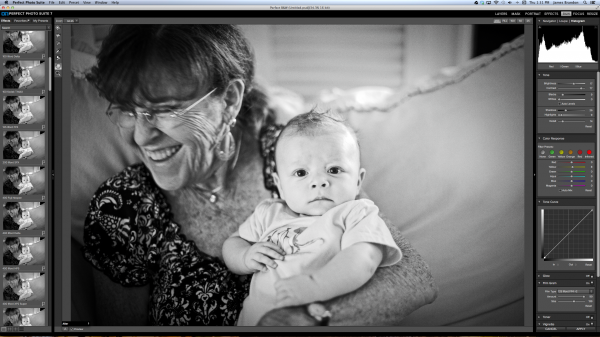
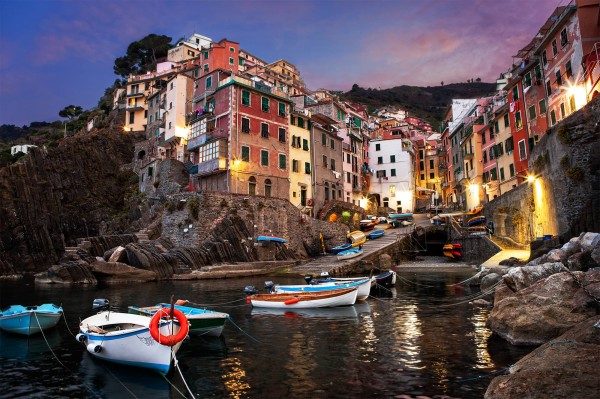
Black and white photography is classy and powerful. When properly done, it can be enticing and dramatic. In fact, a great portion of fine art photography hanging in galleries is monochromatic. In the age of film, all it took was to load black and white film into your camera, but nowadays most digital camera sensors are recording images in color and with that, if you want to explore the black and white world, you’ll have to convert your images in the post-processing stage.
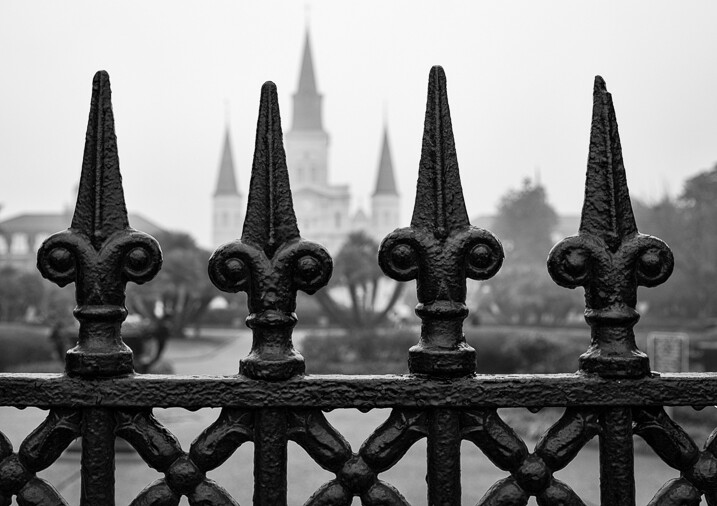
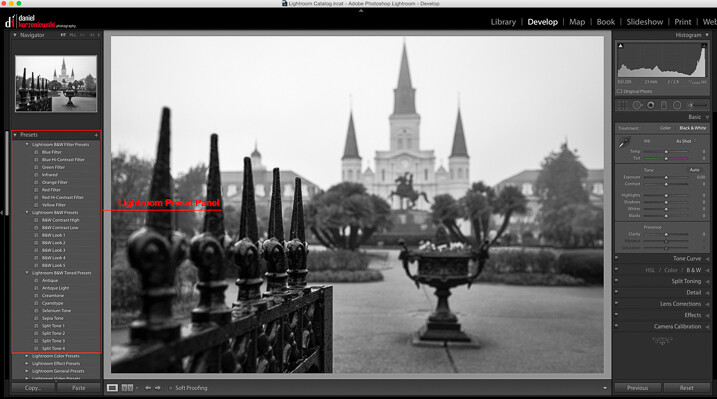
When it comes to converting and processing photos to black and white, there are a number of options. If you are a Lightroom user, there is a black and white option within the Basic Develop panel as well as some presets that come preloaded. All you need to do is click on them, and tweak the sliders until you get the desired effect.
There are also, of course, more sophisticated alternatives that could help make your work easier. Among those, Perfect B&W from OnOne Software is one of my favorite options. This application can be used as a plug-in with Adobe Photoshop, Lightroom, Photoshop Elements, Apple Aperture, or as a standalone app. OnOne offers a full set of applications called Perfect Photo Suite, Perfect B&W is included in it, but it can be also purchased separately as a standalone application.
The idea behind this product is to help you to easily enhance your photos. There are controls to adjust tone, curves, color response via filters, and borders – and of course, it also comes with different types of presets. You’ll also be able to create your own presets and save them as well.
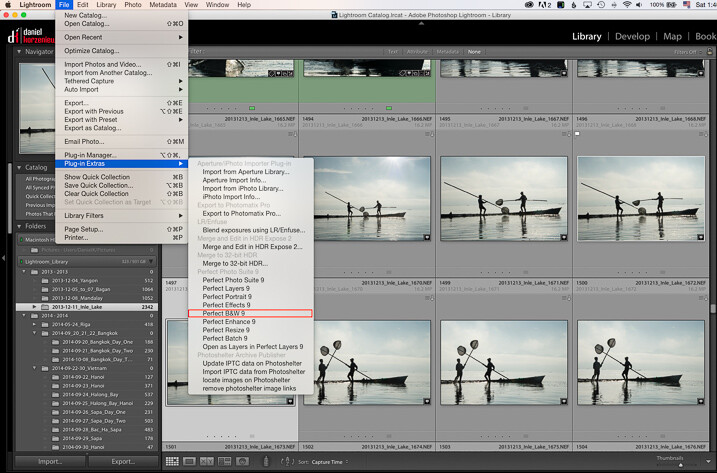
As I am an Adobe Lightroom user, I’ll demonstrate some of the features of the product by opening it from there. To launch the application, you need to select an image from the Library or Develop Module and go to the File Menu, then select Plug-In Extras and navigate to Perfect B&W 9.
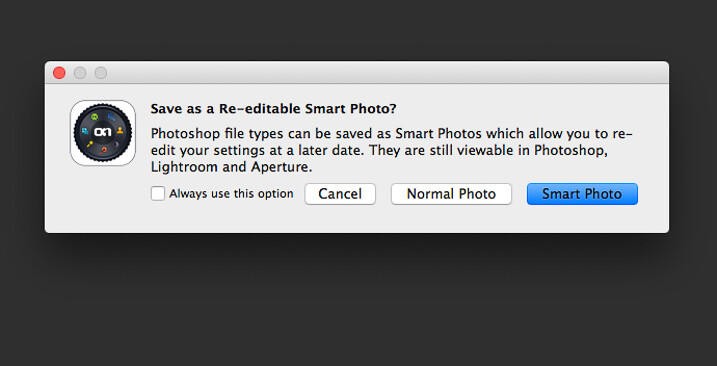
One of features that you’ll probably like is the possibility to save all your changes as a Smart Photo. It means that even after your edits are done, you’ll be able to come later and redo your settings. This way, you are working in a nondestructive way. The application will pop up a dialog box when you launch it, asking if you want to edit in this work mode.
Once the applications opens, the layout is similar to what you find inside Lightroom. The preset panel is on the left and the develop options are on the right. There is also a set of tools that let you selectively add more contrast, brightness, or even mask entire areas in case you want to do a selective color treatment.
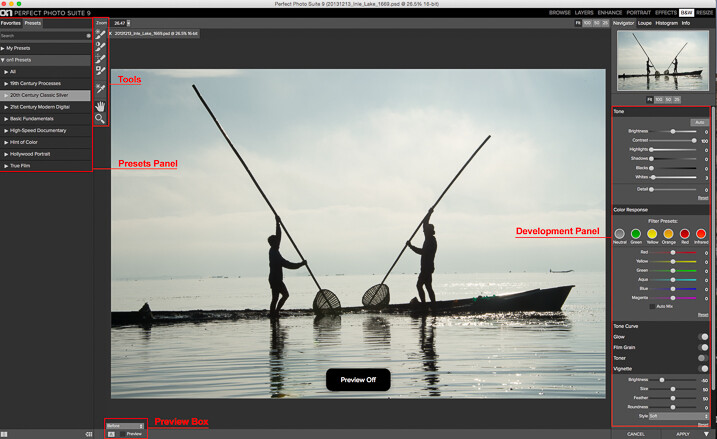
Once you are ready to work, you have the option to start by selecting the different presets, or just working with the sliders in the development panel. You need to be sure that you have selected the preview option at the bottom to see the effect on the image; you can toggle back and forth to show the before and after.
My preferred way of working is to use one of the presets as a base or staring point, then modify it to my liking with the sliders. The presets are divided into eight categories, as follows:
- 19th Century Processes
- 20th Century Classic Silver
- 21st Century Modern Digital
- Basic Fundamentals
- High Speed Documentary
- Hint of Color
- Hollywood Portrait
- True Film
The names are pretty much self-descriptive, and if you click on them, you’ll see all the presets within that category with previews on the side panel itself.
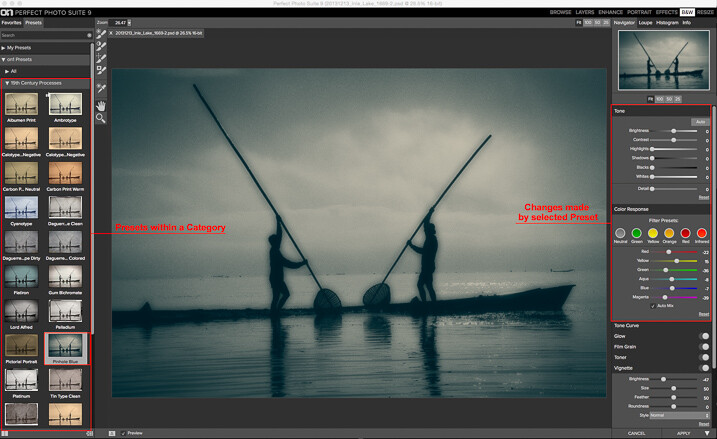
As you can see in the image above, the application also allows for duotone images by combining the use of color filters, so you are totally flexible on the type of look you can create. For example, if I click the Pinhole Blue preset from the 19th Century Process, the software will create that effect, and you’ll see how some the sliders from the Develop Panel changed to create it.
From there you can pretty much tweak the image any way you want, and there is also an option where you can select the blending mode, exactly the same way layers work in Photoshop. You can also drop the opacity for a more subtle effect. In the example below I reduced the opacity to 34 percent.
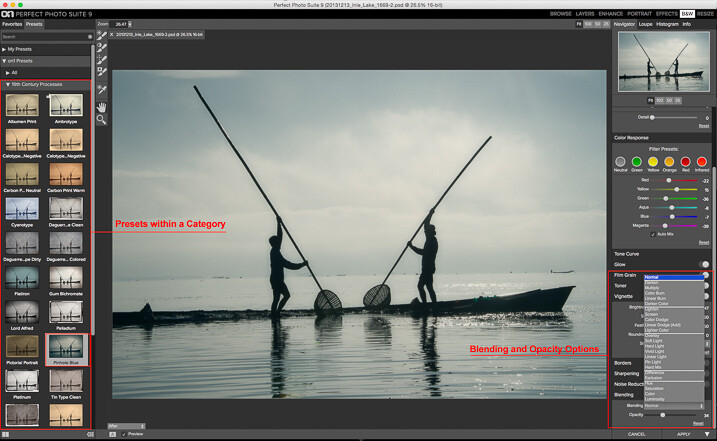
The different old century presets are great to create all the vintage looks that are so popular today, with just a few clicks and without the need to know more complicated software.
For my final image, I selected Automatic from the Basic Fundamentals, then added contrast by adjusting the Tone Curve. I also moved the Detail slider to 15 so the ripple effect on the water was more noticeable; it also helped to add some drama to the sky.
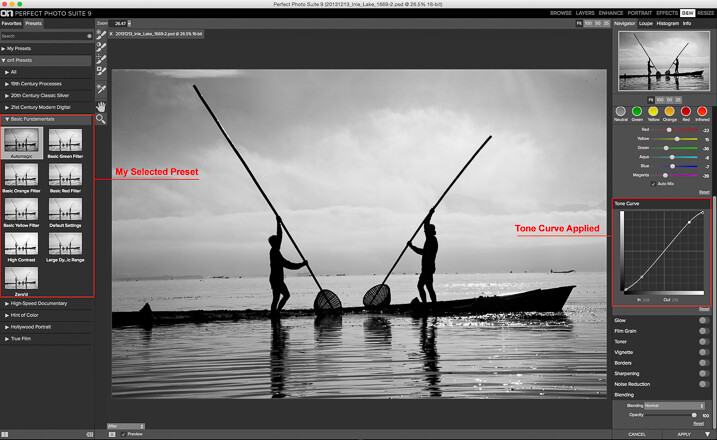
As I knew I wanted to re-crop the image, I didn’t add any other effect here, so I went back to Lightroom cropped the image, then added a vignette.

OnOne Perfect B&W is a well-rounded application and a powerful tool for black and white conversions. I believe the best way to judge it is to give it a try. The good thing is that the company is offering a thirty-day trial, so it won’t cost you to play with it; moreover, you can download and test the full suite if you want. The regular price for the standalone application is $ 59.95 and the complete suite is $ 149.95. They can be downloaded straight from the OnOne website.
Editor’s Note: This is second last of a series of articles this week featuring black and white photography tips. Look for earlier ones below and the last one later today.
- 5 Simple Ways to Create Expressive Photos in Black and White
- Tips for Black and White Wildlife Photography
- 7 Tips for Black and White Portrait Photography
- 28 Images with Strong Black and White Compositions
- Weekly Photography Challenge – Black and White Techniques
- Tips for Black and White Wildlife Photography
- How to Convert Images to Black and White and Add a Color Tint in Photoshop
- Shooting all Black and White for a Day to Improve Your Photographic Eye
- Split Toning Black and White Images in Lightroom
googletag.cmd.push(function() {
tablet_slots.push( googletag.defineSlot( “/1005424/_dPSv4_tab-all-article-bottom_(300×250)”, [300, 250], “pb-ad-78623” ).addService( googletag.pubads() ) ); } );
googletag.cmd.push(function() {
mobile_slots.push( googletag.defineSlot( “/1005424/_dPSv4_mob-all-article-bottom_(300×250)”, [300, 250], “pb-ad-78158” ).addService( googletag.pubads() ) ); } );
The post Processing Black and White Photos with OnOne Perfect B&W by Daniel Korzeniewski appeared first on Digital Photography School.

 Well, it’s here! Version 7 of onOne’s Perfect Photo Suite has got to be the most anticipated release from onOne in this review we’ll see if it lives up to the hype. One rule I have for reviews is that I won’t review stuff that I don’t use on a regular basis. Well, I’ve been using onOne Software since I got my first copy of Photoshop (CS3 I believe) so I’d say I use it pretty regularly! I should note that I don’t get paid for doing these reviews, I do them purely because I want to review things that I use and and want to pass that on to you the reader if you’re trying to make a choice to buy something to advance your photography. So with all that said, let’s get to the review. And at the end we will do a giveaway. Yeehoo!
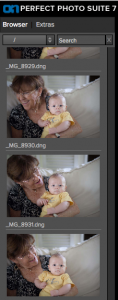 I wasn’t a huge fan of the interface in PPS6. It wasn’t terrible by any means, it just wasn’t as sleek as it could have been. I think they really improved things in PPS7 both in looks and functionality. Where PPS6 was clunky and bulky, PPS7 is smooth and versatile. Instead of having to import every single photo into the suite, you now have access to all your computers files on the left side. You can scroll through any folder or use the search bar to type in a specific file. This feature alone should save a LOT of time and makes the program that much more of a standalone solution.