RSS
 

Posts Tagged ‘need’

9 More Great Apps You Need for Your Smartphone

17 Jan

What are the next great apps you need for your Android and your iPhone?

There are many apps out there that are fun to use. In part two we bring you 10 more great apps for your smartphone (read part one here). Some of the ones listed below are for shooting, some are for creativity, and others are great tools for the landscape photographer. Most are available for both Android and iOS, some just available for iOS.

Shooting apps

#1 – ProCamera 10 – iOS – $ 4.99 9 More Great Apps You Need for Your Smartphone

ProCamera gives you a lot of control over your settings while shooting with your iPhone. It is easy to use and offers advanced features such as RAW capture, a live histogram, and an anti-shake feature. In the new iPhones with multiple camera lenses, it has the ability to access either lens.

The images come out sharp with accurate exposures. The reason is that
you can separate the focus and exposure points to really create a sharp balanced composition.

You can also shoot in either Manual, Semi-Automatic or Automatic mode with on-screen display modes of standard, medium or light to hide non-critical display elements. It also has a low light mode called Low Light Plus which captures up to 64 photos and combines them into one photo with reduced noise.

9 More Great Apps You Need for Your Smartphone - ProCamera

ProCamera 10 screenshots.

9 More Great Apps You Need for Your Smartphone - VSCO#2 – VSCO Cam – for iOS and Android – Free with in-app purchases

VSCO Cam is one of my favorite apps. This free app has a powerful built-in camera with very clear image resolution and the ability to separate exposure and focus points which is vital in creating optimal imagery with a smartphone. This app also has built-in presets as well as ones you can purchase. It has a very active community that shares photo “recipes” to gain inspiration and create similar photographic styles in post-processing.

When taking photos in VSCO, you can have manual control of focus, exposure, white balance, and even ISO and shutter speed. Depending on the model of your phone, you can even shoot in RAW mode.

A big part of this app is the VSCO community and the navigation can be a bit confusing, but the results are consistently great.

Light Effects Apps

10 More Great Apps You Need for Your Smartphone - Lens Distortions#3 – Lens Distortions – iOS only – Free

Lens Distortions is a unique app that will change the way you see iPhone photo filters. The app’s editing platform allows you to combine subtle blur effects, light leaks, textures, sun flares, and sunbursts to help you enhance your images with light.

Lens Distortions is a great app for any iPhone photographer who is looking for unique filter effects that are easy to control and can be used to highlight a specific subject rather than apply it to the entire image. When used properly, the effect can look like it was taken on a much more advanced camera. Since smartphones don’t have an aperture which allows you to create a sunburst or sun flare effect like you can on a DSLR, this app will let you apply a sunburst, and give a realistic effect of the sun’s rays.

9 More Great Apps You Need for Your Smartphone

 10 More Great Apps You Need for Your Smartphone - Rays#4 – Rays App – iOS only – $ 0.99

The Rays app is great for creating realistic light ray effects quickly and easily. The rays are only added to the bright highlight areas and have the effect of passing through objects while adding a three-dimensional quality to your image. You can add shafts of light streaming through trees, rays filtering through clouds, beams of light coming through the fog, or even rays coming out of some text. You can customize the color of the rays using a color picker and specify where the rays will be visible.

9 More Great Apps You Need for Your Smartphone - Rays

Blend Mode Apps

Creating Your Own Textures

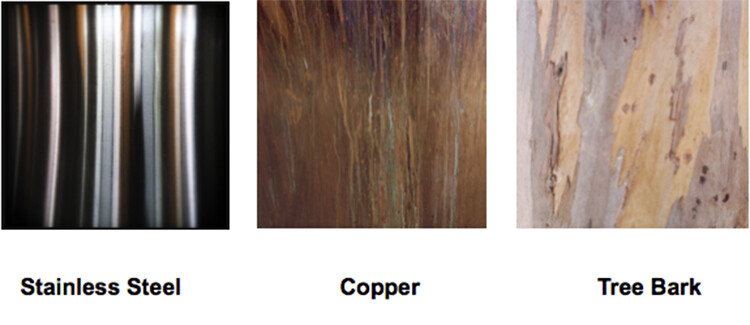
Before introducing some blending mode apps, I want to introduce you to creating your own textures. You can create your own palettes by taking pictures of interesting tree bark, floors, walls, or anything that catches your eye and combine it in a blending program.

Here are a few textures that I’ve used to create an interesting appearance in the background of an image.
9 More Great Apps You Need for Your Smartphone

There are several apps available that give you stock textures to add to your compositions, but why not create your own? It’s just another way to see creatively and use your smartphone to make something unusual.

9 More Great Apps You Need for Your Smartphone - superimpose#6 – Superimpose – iOS / Android

($ 1.99 for IOS, $ 0.99 for Android)

If you want a powerful app to combine images and textures, look at Superimpose. You can create professional level layered images on your Smartphone and easily blend one photo on top of another with this app.

You can also use this tool to blend textures, overlay borders, or create double exposures while adjusting transparency with 18 different blend modes.

To use this app, first load a background image. Then load a foreground image, masking out any unwanted elements in the foreground image. You can then move, scale, resize or flip the foreground and adjust colors and exposure. Then you can save the blended image to the photo library at full resolution.

Use the textures you created in the exercise above to give your images a unique and creative twist.

9 More Great Apps You Need for Your Smartphone - superimpose

The rich brown hues of the copper background layer and the blend modes give a warmth to this image that it didn’t have before. You can move your background layer around to work with the foreground. Notice you don’t see the copper texture in the sky in this sample image. That was because it was rotated to work in that space with minimum texture.

9 More Great Apps You Need for Your Smartphone - mextures app#7 – Mextures – iOS / $ 1.99

Mextures app lets you create grunge patterns, textures, and light leaks quickly and easily. With Mextures, you bring in an image from your camera roll and decide what texture from their menu you would like to use as a background layer. Once you apply that texture to the first layer, you can add another layer of texture, pattern, or light.

Layers are used in more advanced photography programs like Photoshop and are useful for making color and texture adjustments that won’t affect the whole picture. In this app, you can add texture in layer one, and then add gradient color in layer two. If you decide that you don’t like the gradient color, you can just delete that layer and redo it without affecting the texture layer.

Layers in both Photoshop and apps like this work the same way. Imagine having a stack of tissue paper, and each tissue has an element that you can add to your image. One tissue layer could have color, one could have texture, and one could have light leaks. It’s easy to take them in and out or change them without affecting the layers above or below.

This app gives you formulas that are saved presets which may be a combination of textures, colors, and gradients. You can even scroll through “Guest” formulas, and use them for your own images.

9 More Great Apps You Need for Your Smartphone - mextures app

Plumeria Flower created with Mextures App

For Landscape Photographers

9 More Great Apps You Need for Your Smartphone - Aurora app#7 – My Aurora Forecast and Alerts – For Android / iOS – Free

Many photographers have shooting the Northern lights on their bucket list. This app will help you track the sometimes elusive Aurora Borealis and give you a forecast based on the Aurora activity. You can track the Aurora from your present location or at another location in the world. It will also give you alerts as to when the Aurora is active and in what location.

An interesting way to use this app is to follow Aurora cams around the world and then set your alerts as to when these areas are active. Then you can tune in and watch the show!

Get the app for Android here – and iOS here.

9 More Great Apps You Need for Your Smartphone#8 – Geotag Photos Pro – For Android / iOS – Free

Geotagging is the process of adding geographical identification metadata to your photographs or videos. This data usually consists of filename, folder location, city, GPS coordinates, date, and time captured.

The Geotag Photos Pro app is meant to be used while you are shooting with your DSLR. It will record your position while you are taking photos and create a GPX file that you can export to your desktop app or to other apps and services like Lightroom, Flickr, and Apple Photos.

This is a particularly good tool for landscape photographers or anyone who wants to know exactly their route or the specific location they shot a group of images. The images below show how you can set your interval time for the track log as well as watch the track log as it is being created.

9 More Great Apps You Need for Your Smartphone

Don’t worry, we weren’t walking in the ocean! The app did not recognize the pier in the route.

It is a quick, easy, and cheap way to keep track of your locations and log a shoot. There is no need for any expensive bulky additions to the hot shoe of your camera. It’s all tracked by synchronizing the clock on the app with the clock on your camera. It will create a track log with custom interval settings that you set up.

The best part is you can bring it into the Lightroom mapping module or connect with the Geotag Photo Pros online site and it will create a map of your shoot with thumbnail images along the route.

9 More Great Apps You Need for Your Smartphone

Mapped route after it was imported into Lightroom.

9 More Great Apps You Need for Your Smartphone - sun seeker#9 – Sun Seeker – iOS / Android

$ 9.99 for IOS – $ 7.49 for Android

Sun Seeker is a great app for landscape photographers as it shows the angle of the sun and where it will be setting and rising in several different views. It provides a flat compass view as well as a real time image with an overlay of the sun’s projected solar path. You can choose any date and location in the world to plan for optimal light conditions. It helps you to find the right time and location to set up for your landscape photography.

9 More Great Apps You Need for Your Smartphone

Views showing the projected trajectory of the sun in the Sun Seeker App.

Conclusion

Whether or not you are using your smartphone as your primary camera, or you’re using it as a tool to help you get the shot with your DSLR, these apps can add fun and functionality to any shoot. Give them a try and let me know what you think!

If there are others that we’ve missed (check part one also) please give us the info in the comments below. What apps are your favorite?

The post 9 More Great Apps You Need for Your Smartphone by Holly Higbee-Jansen appeared first on Digital Photography School.


Digital Photography School

 
Comments Off on 9 More Great Apps You Need for Your Smartphone

Posted in Photography


So you got a brand new camera? Here’s what you need next

26 Dec

If you’re the proud owner of your first camera, congratulations! Now the fun starts. We’ve got some ideas to help you get started and get the most out of your new gift.

Articles: Digital Photography Review (dpreview.com)

 
Comments Off on So you got a brand new camera? Here’s what you need next

Posted in Uncategorized


What is Flash High-Speed Sync and Why Do You Need it?

24 Nov

Using flash is already complicated enough, but adding in a fast shutter speed makes it even harder. In these two videos, you will learn about your camera’s flash sync speed and why it’s limited. Then you’ll see what you can do to solve it and use faster shutter speeds using something called high-speed sync.

Flash sync speed and high-speed sync explained

In this first video, Matt Granger explains the mechanics of what is going on inside your camera and why it has a maximum flash sync speed. With the use of some great slow-mo clips, you will see inside the camera to learn exactly what happens when you press the button.

High-speed sync in action on location

In this next video, J.P. Morgan from The Slanted Lens will walk you through exactly what high-speed sync is and why it’s needed. You’ll learn how your camera shutter works and why your camera sync-speed won’t let you use fast shutter speeds with flash without high-speed sync (often referred to as, HSS).

He is using the some of following gear:

  • Dynalite Baja B4 battery powered strobe
  • SpiderPro camera holster
  • A medium-sized softbox 
  • Tamron’s 15-30mm lens

Conclusion and more learning

If you need more help using your flash check out these dPS articles:

  • How to Understand the Difference Between TTL Versus Manual Flash Modes
  • 4 Beginner Tips for Creating Dramatic Portraits with One Flash
  • Why Off-Camera Flash Isn’t as Scary as You Think
  • Flash Shopping Guide – Things to Consider When Buying a Speedlight
  • How to Use Your On-Camera Speedlight to do Bounce Flash Effectively
  • 9 Steps to Get Over Your Fear of Off-Camera Flash

The post What is Flash High-Speed Sync and Why Do You Need it? by Darlene Hildebrandt appeared first on Digital Photography School.


Digital Photography School

 
Comments Off on What is Flash High-Speed Sync and Why Do You Need it?

Posted in Photography


10 Reasons Why You Need to Learn to Love Your Tripod

22 Nov

When I first purchased my tripod it sat unused for several months. In some ways, I was a bit afraid of it, all the effort of having to carry it around and set it up, etc. Would people look at me funny? Was it heavy to carry around? Setting it up properly looked complicated and seemed to take ages. Did I really need one?

How to Learn to Love Your Tripod

After a trip in what turned out to be a low light environment where I wasted a day of travel by coming back with no sharp shots, I bit the bullet and dusted off that tripod. Now it pretty much goes wherever my camera goes and is my go-to accessory in many situations.

Eventually I learned to love my tripod, hopefully, you will too. Some people think having a tripod limits your capabilities. Yes, you do have to carry it, which may limit where you go, or how far you can carry it. But it is my opinion that even with those limitations, the benefits of using a tripod far outway the issues.

Reasons to Love your Tripod

#1 – Slowing Down is a Good Thing

Having to position your tripod, take the time to set up the camera, get the angle and framing right all take time. This means you often need to think about where you will position your gear before you actually do so. Then it means you need to think quite specifically about your composition so you can put your gear in the right place to achieve that.

All this careful consideration gives you time to look at your subject, to really take time and properly see it, to see the possibilities beyond the first initial obvious frame you might take. Taking the time to think about your composition also offers opportunities to be creative and experiment.

10 Reasons Why You Need to Learn to Love Your Tripod - food shot

An overhead flat still life shot takes a lot of fiddling to get set up correctly.

10 Reasons Why You Need to Learn to Love Your Tripod

Camera set up in an overhead position, pointing straight down. Not all tripods allow this movement with the center pole, so check before you purchase.

10 Reasons Why You Need to Learn to Love Your Tripod

An L Plate tripod mount makes it much easier to change between portrait and landscape orientation, but they are an extra cost. Provided your tripod head has drop notches, this is easy to achieve.

10 Reasons Why You Need to Learn to Love Your Tripod

A quick release lever tripod mount is my preferred option. Other choices include screw mounted closures instead. Note the included spirit level.

2 – The Tripod Carries the Weight

If you have a large or heavy lens (and camera body) it can be very tiring to lift and hold and shoot with for extended periods. Bird and wildlife photographers often use long lenses that can be very heavy. A tripod will take the weight for you, allowing you to shoot for longer without fatigue. If you need more flexibility in capturing birds in flight, or animals on the move, a gimbal head allows freedom of movement and support at the same time.

10 Reasons Why You Need to Learn to Love Your Tripod

This is the wrong way to be using the center column, it adds the opportunity for vibration and is not very stable.

3 – Video

I am not a videographer myself, but there is nothing worse than watching a wobbly handheld video. Keeping it steady on a tripod with a fluid head is a good way to start.

4 – Sharpness and Stability

Of course, the whole point of using a tripod is to ensure you get sharp shots by removing any camera movement or vibration. Additionally, you can use a remote or self-timer to limit further physical contact when taking the shot and maximize sharpness. My camera has a custom setting for landscapes that flips up the mirror and pauses for 2 seconds for the vibrations to flatten before the shutter clicks.

10 Reasons Why You Need to Learn to Love Your Tripod

Using an L plate makes it easier to mount the camera in either landscape or portrait orientation.

10 Reasons Why You Need to Learn to Love Your Tripod

L Plate with the camera set up in Portrait.

5 – Macro

When dealing with a small subject and a very limited depth of field, getting focus on the right spot can be hard. It is even harder when you are hand holding to keep the focus steady. Just breathing is enough movement to throw the line off and end up with blurry shots. Using a tripod combined with manual focus is often a good way to improve your keeper ratings with macro photography.

Additionally, if your camera supports it, using live view and zooming in to fix the focus more accurately could improve your keeper rate a huge amount (it did for me). My final tip is to use a wireless remote as well.

10 Reasons Why You Need to Learn to Love Your Tripod

10 Reasons Why You Need to Learn to Love Your Tripod

6 – Landscape and Panorama

Lugging a tripod on a hike for a day seems like a huge effort, but being able to set up your camera and take sharp shots is worth it in my opinion. Should you want to experiment with hyperfocal distances a tripod is recommended. Using filters to tone down a bright sky? Need a tripod.

Landscapes often lend themselves to a panorama, where you take several shots and blend them into one big (usually long) one. It is important to get your horizontal or vertical lines straight so the frames match up when you are stitching them together in software. You also need to make sure the camera is oriented flat on the rotation as well. Some people even work out the parallax point and may shoot using a nodal rail.

All these elements require a tripod to ensure they happen correctly.

10 Reasons Why You Need to Learn to Love Your Tripod

This 7-minute long exposure absolutely required the use of a tripod.

7 – Low Light

All cameras struggle when the light situation is low – astrophotography, light painting, timelapse, light trails or just generally limited lighting circumstances. To counter the limited light, the camera will be required to hold the shutter open for longer. It is very difficult to hold a camera perfectly steady in your hands for even one second, let alone 20 seconds, or even several minutes.

The only way to guarantee sharp shots is to hold the camera still, in other words, use a tripod.

10 Reasons Why You Need to Learn to Love Your Tripod

A long exposure shot of around 20 seconds to try and remove the crowds of people attending the event, instead I have blurry ghosts.

10 Reasons Why You Need to Learn to Love Your Tripod

Night shot of a fire dancer – the tripod allowed me to take a longer exposure time and capture the trails of fire.

8 – Special Effects

Focus stacking, HDR (High Dynamic Range) and exposure blending are reasonably commonly used special effects these days. The common factor is several frames are taken but the camera itself stays perfectly still (or may only move in tiny increments). The multiple images are then blended together later using post-processing techniques. Therefore in order to keep the camera perfectly still from frame to frame, you must use a tripod.

10 Reasons Why You Need to Learn to Love Your Tripod

Two frames are blended for this shot, the berries in one and the falling icing sugar in another.

9 – Long Exposures

Those lovely foamy waterfalls and swirls of whitewater in streams or smoke like waves around rocks and shorelines require exposures of that are much longer than usual. They could be tenths of a second, a few seconds or several minutes, depending on the lighting conditions. To keep your camera that still for that long, demands a tripod must be used.

Often, to simulate the limited lighting conditions required to give the very soft flowing effect, filters will also be used, which are mounted on the front of the lens. It is very difficult to load and mount the filters if the camera is not sitting on a tripod, leaving your hands free to add the extra equipment.

10 Reasons Why You Need to Learn to Love Your Tripod

Shot at 1/15th of a second, too long to handhold steady, but long enough to capture the colored lights on the trees.

10 – Self-Portraits

Not the quick snap up the nostrils at arm’s length which is the best you can hope for with a cell phone usually. Instead, using a tripod allows you to be very creative with your self-portraits. Adding in a wireless remote, and shooting fine art self-portraits becomes easy and fun.

10 Reasons Why You Need to Learn to Love Your Tripod

Top view of a camera with a wireless remote trigger mounted on the hot shoe and plugged into the camera.

10 Reasons Why You Need to Learn to Love Your Tripod

Back view of a camera with a wireless remote trigger mounted on the hot shoe and plugged into the camera.

10 Reasons Why You Need to Learn to Love Your Tripod

Wireless remote and a camera trigger ready to be plugged into the camera.

This self-portrait was taken with the camera in an overhead position pointing straight down. The remote was in my hand.

Summary

Tripods require some effort to use. They must be taken with you, whether that be in the studio, a wander in the gardens or several hours long hike in the mountains. It is extra weight and an awkward shape to carry. For many people, they prefer to go without and successfully manage to do so.

Personally, I believe the benefits a tripod offers are invaluable. By forcing me to slow down and think more about my photography, my composition skills improved a great deal with my landscape work.

Being prepared to use and experiment with a tripod allowed me to move into macro photography. Adding in manual focus and a wireless remote improved my sharpness and accuracy with very limited depth of field.

Having the capability to set the camera up at unusual angles and heights, and keeping my hands free for other things gave me the freedom to try out food photography, still life shots and creative self-portraits.

Anytime you need the camera to hold still for just a bit longer than you can (or want to) hold it is when you need a tripod. There are lots of fun things you can shoot but they might be difficult if your hands aren’t very steady or your gear is heavy.

So learn to love your tripod, soon it will be your best friend.

The post 10 Reasons Why You Need to Learn to Love Your Tripod by Stacey Hill appeared first on Digital Photography School.


Digital Photography School

 
Comments Off on 10 Reasons Why You Need to Learn to Love Your Tripod

Posted in Photography


Panasonic Lumix G9: What you need to know

08 Nov

Panasonic Lumix G9: What you need to know

The new Panasonic Lumix DC-G9 is a flagship interchangeable lens camera aimed primarily at stills photographers. Sitting alongside the video-centric GH5 in Panasonic’s high-end Micro Four Thirds lineup, the G9 is designed for speed, durability, and versatility. Between using one for a few days and digging into its lengthy spec sheet, here’s what we think you need to know about it.

Same 20.3MP sensor as GH5

The G9 features the same 20.3MP CMOS sensor as the GH5, capable of a maximum output of 5184 x 3888 pixels. As such, baseline performance in stills mode should be very good indeed. Panasonic did a lot of work with the GH5 to improve JPEG image quality over earlier generations and despite being a video-oriented camera, the GH5 compared well with competitive models from the likes of Olympus and Fujifilm.

Revamped JPEG engine

The really good news is that Panasonic’s engineers didn’t stop with the improvements they made in the GH5. As a stills-focused flagship, the G9 has been further tweaked, with improved color and noise reduction in JPEG mode. We were pretty happy with JPEGs from the GH5, but the improvements in the G9 are obvious. Organic textures are rendered more naturally, and images taken at medium / high ISO sensitivities look better, thanks to more intelligent noise reduction.

Large, high-resolution EVF

The G9’s OLED viewfinder is really something. A resolution of 3.86 million dots (equiv) and 120 fps refresh rate means that it’s detailed and contrasty, and with an equivalent maximum magnification of 0.83X (in full-frame camera terms) it’s enormous, too – and very immersive. Looking through the G9’s finder, it’s easy to forget that it uses a Micro Four Thirds sensor. If the viewfinder image is too big for you (for instance if you wear reading / sunglasses) the magnification can be dialed back to 0.77X or 0.7X if/when required.

Obviously, being a mirrorless camera, a full range of shooting information and various shooting aids (like focus peaking, an electronic level etc.) are available in the G9’s viewfinder, just as they are on the rear LCD.

20fps burst shooting with AF-C

The G9’s conventional mechanical shutter tops out at 9 fps with AF-C, but shifting to a fully electronic shutter ups that to an impressive 20 frames per second. If this still isn’t fast enough for you, the G9 can also shoot at a maximum rate of 60 fps using its electronic shutter with focus locked.

For best performance, you’ll want to install a UHS-II Class 3 (U3) SD card. The G9 offers two card slots, both of which support the UHS-II standard.

4k/60p video

The G9 isn’t meant to replace the GH5 and cannot match that model’s professional video features, but despite the focus on still imaging, its video feature set is still pretty solid. The headline feature is 4K/60p video at a maximum bitrate of 150Mbps but other features, like focusing peaking, zebra stripes and flicker reduction are good to see, and should make the G9 useful for multimedia professionals as well as casual or occasional video shooters.

Encouragingly, the G9’s autofocus in video mode seems much improved over previous models and less prone to ‘hunting’. In the words of our very own technical editor Rishi Sanyal, this makes autofocus in video mode ‘usable’. High praise indeed, as anyone who knows him will tell you.

4K / 6K photo

The G9 also offers 4K and 6K photo modes, which essentially capture high-resolution stills images as video frames, at up to 30fps (6K) and 60fps (4K). Effective resolution is 18MP for 6K photo files and 8MP in 4K photo mode. Panasonic claims that the Venus Engine 10 processor enables more effective ‘Post Recording Refinement’ to improve image quality in 4K/6K photo modes, by reducing noise and rolling shutter effect.

80mp high-res shot mode

Among the most interesting features to emerge into the consumer and professional stills camera market in the past few years have been the various sensor-shift modes, offered by the likes of Olympus and Pentax, aimed at increasing resolution (in one way or another). The G9 joins the club with an 80MP high-resolution shot mode (with JPEG and Raw output) which works by shifting the 20MP sensor by half-pixel increments, eight times – and then combining the exposures into a single, high-resolution image.

We haven’t been able to give this feature a proper try-out yet, but we’d expect it to offer the same benefits as the similar mode built into Olympus’s high-end Micro Four Thirds cameras. At the very least, it should offer a very useful resolution boost for still life and product photography. We’re hopeful that capture is fast enough to also make it useful for landscape work, assuming minimal or no movement within the scene.

6.5 stops of image stabilization

No – that’s not a typo. The G9’s 5-axis system is rated to offer image stabilization to the tune of 6.5 stops of correction, with short lenses and/or longer lenses, in combination with optical stabilization. We’ve been very impressed with improvements made to image stabilization in recent Panasonic and Olympus M43 cameras, and the G9 continues this trend.

To put this in perspective, 6.5 stops of correction means that you should be able to hand-hold a 100mm (equiv) lens at shutter speeds of slightly longer than a quarter of a second. Watch this space for some real-world test results.

Improved DFD autofocus

Panasonic’s clever Depth-from-Defocus (DFD) technology delivers impressively fast and accurate autofocus – including tracking – considering that it’s a pure contrast-detection AF system. In the G9, Panasonic claims that this 225-point system has been further improved compared to the GH5. In addition to various automatic AF area modes, an AF joystick is nicely positioned for use by the right thumb, and the G9’s 1.04 million-dot rear LCD can be used as a touch panel for AF point positioning with your eye to the viewfinder, if required.

Professional build quality

The G9 is built to be a flagship stills camera and as such it offers excellent build quality, with dust and moisture-sealing and a cold weather performance rating down to -10°C (14°F). Designed for use outdoors and in tough conditions, the quality of the G9’s die-cast magnesium alloy construction is obvious as soon as you pick it up. Less tangible, but a time-honored shorthand for durability is the G9’s shutter rating, which like many professional DSLRs should withstand (at least) 200,000 cycles.

USB 3.0 and Bluetooth LE / WiFi

Like the GH5, the G9 features a USB 3.0 interface, but via a conventional Micro-B-type connector, rather than USB C. Not quite as versatile, but probably more practical for the stills photographers at whom the G9 is being aimed. The G9 can be charged via USB and powered from it, too – increasing the camera’s versatility when tethered or used remotely. Bluetooth LE 4.2 and Wi-Fi (5GH) is also built-in, for connection to smart devices.

Articles: Digital Photography Review (dpreview.com)

 
Comments Off on Panasonic Lumix G9: What you need to know

Posted in Uncategorized


What you need to know about Sony’s a7R III

26 Oct

Introduction

The a7R III is Sony’s latest high resolution camera, which carries over many of the improvements found on the company’s flagship a9. The 42.4MP sensor itself hasn’t changed from the Mark II, but virtually everything else wired into it has. This allows for faster burst shooting, improved autofocus and higher quality 4K video. Some important user interface and ergonomic changes, inspired by the a9, have also made the transition.

Same sensor, better performance

The a7R III uses the same full-frame 42.MP BSI CMOS sensor as its predecessor, though improved readout circuitry lowers the already low read noise, improving dynamic range.

Sony promises a slight improvement in rolling shutter, but not to the level as the a9, so the a7R III didn’t earn the ‘Anti-distortion shutter’ designation.

While the hybrid autofocus continues to offer 399 phase-detect points, there are now 425 contrast-detect points, up from 25 on the a7R II.

From a9 (hardware)

Several items found on the body a9 have thankfully migrated to the a7R III. They include its brilliant 3.69M-dot OLED EVF with incredible contrast and resolution, a joystick for selecting an AF point, an AF-On button and a flash sync port. (The a7R III flash sync speed is 1/250 sec.). Also added is the a9’s ‘C3’ button to the left of the ‘Menu’ button on the camera’s back, and the ability to assign a button to ‘Protect/Rate’ in Playback. This should make it much easier to quickly select images from bursts in camera. Bursts can even be grouped during playback for faster image viewing and selection.

The rear thumb dial on the back plate of the camera has been updated as well from the Mark II to be heftier, with better haptic feedback and less accidental input – just like the one on the a9.

On the memory card front, the Mark III now has two SDHC card slots instead of one on the Mark II. One of the slots supports UHS-II media while the other sticks to UHS-I.

From a9 (firmware)

There are some nice improvements on the software side, as well. Sony says that autofocus is up to two times faster than the Mark II. Low light performance is now rated down to -3 EV with a F2 lens, meaning the a7R III should offer similar low light AF performance to the a9 – a stop better than the Mark II. AF algorithms have been refined, with more ‘tenacious’ subject tracking and improved Eye AF. We’re hoping this means that Eye AF is more prone to stick to your original subject (per the a9), rather than randomly jump between detected faces as with the a7R II. Eye AF is still laggy when shooting bursts though, much like the original a7R II.

Also new is the helpful Touchpad AF feature, which lets you use the LCD to move the focus point while your eye is to the viewfinder. Movement can be absolute (you’re picking a point on the frame) or relative (to the current focus point). You can also restrict the active area to certain parts of the screen. Our first impression is that Touchpad AF seems rather over-sensitive, jumping almost uncontrollably around the screen.

While Sony didn’t make a big deal about it, the a7R III should also inherit the a9’s Improved JPEG color and noise reduction. Today, Sony’s JPEG engine renders some of the finest detail we’ve seen amongst cameras, even at high ISO. But JPEG color still remains a point of contention.

From a9: Battery!

For both stills and video shooters, perhaps the biggest news is that Sony has found room for the larger NP-FZ100 battery used in the a9. This required a complete redesign of the body, including a slightly modified grip, but it means a huge boost in battery life. If you’re using the LCD, expect 650 shots per charge (which is the ‘official’ CIPA number), and 530 shots with the EVF. Compare that to the 290 shot CIPA rating the Mark II received. Color us impressed.

An optional battery grip, the same VG-C3EM model as the a9 uses, doubles battery life, so you’ll get up to 1300 shots.

Entirely new

There are a couple of things that are a7R III ‘originals’. The first is a redesigned low vibration shutter mechanism, which allows 10 fps bursts without the risk of ‘shutter shock.’ It also allows for the 1/250 sec flash sync mentioned earlier. With the proper strobes, you can even get up to 10 fps shots with flash – something even an a9 won’t do (it’s capped at 5 fps with flash, since that’s its maximum mechanical shutter rate).

The camera has two USB ports. The first is USB 3.1 with Type C connector (found on modern smartphones and newer Apple laptops), which allows tethering and battery charging. A more traditional micro USB jack is available which supports existing remotes and external battery packs.

Responding to user feedback, Sony has added the ability to enter the menus while the camera is writing to a memory card. YES!

Video

Better processing means improved detail and lower noise in both full-frame and Super 35 crop mode 4K. The real standout footage, as before, should be the Super 35 4K, since it’s oversampled.

The AF algorithms in video have also been improved and are more resistant to refocusing off to the background. That’s a huge improvement over the Mark II, and means many casual users can leave the camera in complete auto AF area mode (‘Wide’) with Face Detection on and expect precisely focused 4K footage.

If you’re looking for a simple ‘tap-to-track-subject’ mode a la most other manufacturers, you’re still out of luck. The camera unfortunately still has the old outdated ‘Center Lock-On AF’ mode, which you’ll have to turn on to enable ‘tap-to-track’ functionality. Once it’s on, you can tap anywhere on the screen and it’ll put a box around your subject and track it. It doesn’t work as well as Lock-on AF modes in stills in our experience, and it’s still unfortunate that you have to engage this mode to get ‘tap-to-track’ – a functionality you’d just expect out of the box by default. Furthermore, you’ll have to remember to turn ‘Center Lock-on’ off when you switch back to stills mode, since it’s not a mode you’ll ever want to be used and can be accidentally triggered by a touch of the touchscreen.

New video functionality

This one is kind of huge: there are now separate function button configurations for stills and movie modes. By default the movie mode functions are set to ‘As in Stills mode’ but this can be edited, per button, to ensure you have access to the settings you need for both situations. We’ve been asking for this for a long time, as video needs often differ drastically from stills needs, so this is a welcome change. We’d still like to see totally separate settings banks for video vs. stills – where each mode remembers your last used settings – but this is a start in the right direction.

The a7R III now supports S-Log 3 / S-Gamut 3, which offer even flatter profiles to make use of camera’s full dynamic range. Also new is support for Hybrid Log Gamma (HLG), which allows you to view wide dynamic capture on HDR displays, without any post-processing required. Newer displays allow HDR capture to appear less ‘flat’, since HDR displays have a wide range of tones they can reproduce. The ‘flat’ log capture is automatically expanded to the full capability of the display so your high contrast capture look high contrast on-screen, without blown highlights or blocked shadows.

HDR display of HDR capture will become increasingly important in the stills world, as it is already in the video world, so we’re glad to see Sony taking this new movement seriously in even their prosumer cameras.

Multi-shot mode

This mode, similar to that on Olympus and Pentax cameras, shoots four uncompressed Raws, which must be later processed in Sony’s Imaging Edge software to combine them into a .ARQ file, which can then be adjusted. Both Olympus and Pentax do this in-camera.

The benefits of Multi-shot mode are an increase in color resolution (since each pixel has its own red, green and blue value) and a reduction in noise and softness, since there’s no demosaicing needed and since you’ve taken 4 images in place of one. The latter you can do by stacking images from any camera for a nearly ~2 EV noise or dynamic range benefit, but the benefits of not needing to demosaicing are specific to these sorts of multi-shot modes that can use sensor shift to shift the sensor in the precise movements needed to remove the effects of the Bayer color filter. You won’t realize these gains unless you post-process, though.

There’s at least a 1 second delay between shots while the camera waits for the sensor to settle. This delay means that this feature will not work well with moving subjects. You can change the delay to anywhere between 1 and 30s.

What’s missing

There are a couple of things that we would’ve liked to have seen on the a7R III. They include lossless compressed Raw, more use of the touch panel (for adjusting settings, as an example), in-camera Raw conversion and support for downloadable PlayMemories apps.

The lack of PlayMemories apps may be of particular concern to landscape photographers using such apps for timelapse or gradient filters, and for those that use apps like ‘Sync to Smartphone’ to automatically download all JPEGs from camera to their phones and online photo storage services. This is a trend, starting with the a9, we’d really like to see Sony reverse.

Overall, though, the a7R III is an impressive package, and one that we’re eager to spend more time with.

Articles: Digital Photography Review (dpreview.com)

 
Comments Off on What you need to know about Sony’s a7R III

Posted in Uncategorized


What you need to know: Canon G1 X Mark III

16 Oct

Canon PowerShot G1 X Mark III

Canon’s G1 X Mark III is, as the name implies, the third iteration in the company’s range-topping large-sensor enthusiast compact series. However, what the name doesn’t make clear is that it’s a significant departure from its predecessors, in terms of both size and capability.

Rather than mimicking one of the older G series modes, as the original G1 X did, the Mark III most closely resembles the 1″-sensored G5 X: a small, thin body with lots of direct control and a centrally mounted electronic viewfinder. Unlike that model, it’s sealed, to be weather resistant.

Sensor size difference

Unlike the G5 X, though, the G1 X III does not use a 1″-type sensor. Despite being packaged in a smaller body than its immediate predecessor, Canon has managed to fit a larger sensor into the camera. It’s a full APS-C-sized sensor or, at least, the Canon 1.6x crop version of that format. This makes it 27% larger than the chip in the G1 X I and 36% larger than the region of its sensor the Mark II could use.

This means, in equivalent terms, the new camera will receive over 1/3EV more total light, when shot at the same f-number and shutter speed. However, equivalence only tells us about the potential for one system to out-perform another. The actual difference depends on the specific technology used…

Sensor performance

And, from our experience with Canon’s 24MP Dual Pixel sensor, we know it’ll perform pretty well: better at high ISO sensitivities than the chip in the older G1 X models and with less noise at low ISO, giving more flexible files with greater usable dynamic range.

And that’s before we consider the additional utility of its Dual Pixel design: the ability to provide depth-aware phase detection autofocus across most of the frame. So long as the camera can drive its focus fast enough, this should provide the ability to track subjects pretty convincingly, compared to the older G1 X models and most competitors.

Video spec

The other thing that Dual Pixel’s depth awareness brings is decisive autofocus while shooting video. This means that getting the camera to track a subject, or ‘rack’ focus smoothly between two points is as simple as tapping on the screen.

The G1 X Mark III gets a slight tweak over its predecessor, in that it can now shoot 60p video footage, rather than topping out at 30p. This either allows smoother capture of fast motion or the ability to shoot slow-motion (by filming at 60p and outputting via video editing software at 24p).

The G1 X III also has a built-in 3EV ND filter, meaning that you can shoot video at its wider apertures, even in bright light.

Sadly, every Canon we’ve seen using this chip produces slightly blurry video with a little less detail than the nominal resolution would imply. Even if the G1 X Mark III somehow manages to improve on previous models, the increasingly pressing question remains: ‘whither 4K, Canon?’

Lens range

The main means by which Canon has managed to make the G1 X III smaller than its predecessor is the inclusion of a shorter and slower zoom lens. Whereas the Mark II was able to include a 24-120mm equivalent zoom, the Mark III offers a more modest 24-72mm equivalent. It means doing without the classic 85-100ish millimeter equivalent focal lengths that are especially well suited to portraiture, but the 24-70mm range is a widely used and well-respected range.

However, while the F2.8-5.6 maximum aperture range of the Mark III might sound like a big step down from the more impressive sounding F2.0-3.9 of its precursor, the practical differences is smaller than this would seem to imply. The larger sensor (and hence lower crop factor) of the G1 X III means its F4.5-9.0 equivalent range isn’t as different from the F3.8-7.5 equivalent of the Mark II as the actual F-numbers make it appear.

Compared to the G1 X Mark II

The G1 X Mark I was one of the first large sensor enthusiast zoom compacts, meaning that it defined expectations of what could be achieved. Indeed, we were impressed – back in early 2012 – that Canon had fitted such a large sensor and flexible lens range into a camera so close in size to its small-sensor forebears, such as the G12.

The G1 X III may have a shorter, slower zoom than its predecessor, but it’s a much smaller camera and one that should have continuous focus performance to do justice to its 7 frame per second shooting. And, with an in-lens leaf shutter, it can flash sync at up to 1/2000th of a second, which its Rebel siblings can’t come close to.

Compared to the competition

However, just six months later, ‘what’s possible’ got redefined again. In July 2012, Sony unveiled the DSC-RX100, a 1″ sensor camera with a 28-100mm equivalent zoom in a truly minuscule body.

So, whereas the G1 X had no peers when it was launched, the Mark III, with its 24-72mm F4.5-9.0 equivalent zoom will have to compete with the cheaper, 24 frame per second capable RX100 V with its 24-70mm F4.9-7.6 equiv. lens and highly capable AF.

In addition to this potential for slightly better image quality, the RX100 V can also shoot impressive 4K video and, despite its much smaller form factor, promises slightly better battery life (a CIPA rating of 220 shots per charge, rather than 200). As always in reality you’re likely to get more than this number from both cameras, but these are pretty modest figures.

Impressively small, steeply priced

The Canon PowerShot G1 X Mark III is an interesting-looking camera. It’s an impressively small camera with a useful zoom and all the benefits that the company’s Dual Pixel sensor should bring.

However, against the likes of Sony’s RX100 series, Panasonic’s LX10/15 and Canon’s own G5 X and G7 X II models, it will inevitably struggle to set a new bar for enthusiast zoom compacts, in the way its progenitor did.

It’s also an expensive camera: $ 1299 makes the G1 X Mark III one of the priciest compacts on the market. But the prospect of a compact camera with Canon JPEG color, Dual Pixel focus and extensive control is something we look forward to testing.

Articles: Digital Photography Review (dpreview.com)

 
Comments Off on What you need to know: Canon G1 X Mark III

Posted in Uncategorized


The Minimalist Landscape Photographer: What do you really need?

04 Oct

Landscape photography is arguably the first form of photography, literally. At some point around 1826, Joseph Nicéphore Niépce made an exposure on a bitumen covered pewter plate from his upstairs work room. The resulting image would be the first known photograph which displayed his view from the window at his estate in Le Gras, in the Burgundy region of France.

Since then, the gear and techniques used in landscape photography have grown exponentially. So much in fact, that some photographers possibly feel the only way to make strong landscape photographs is by investing hundreds if not thousands of dollars into specialized camera equipment. But, nothing could be further from the truth!

The Minimalist Landscape Photographer: What do you really need?

In reality, landscape photography can be made as complicated or as simple as you would like it to be. Granted, there are a few pieces of gear that will enable you to shoot with more versatility, but at its core, outstanding landscape photography can be accomplished with only a few pieces of basic photography gear. In this article, we’ll share a few suggestions for “minimalist” landscape photography gear. You might be surprised to learn that you probably already have everything you need to get started right now.

The Landscape Photographer’s Mindset

I learned a long time ago that capturing a strong landscape photograph has more to do with having a concrete understanding of what you’re trying to accomplish more so than the tools you have at your disposal. In those days, I had only one camera and one lens. Not even a tripod. The lens was a Canon 28-135mm and I only used it because it was the one that came with my camera. Oh, and my camera at the time, it was my first digital camera…ever.

The Minimalist Landscape Photographer: What do you really need?

One of my first landscape photos with my new digital camera. Circa 2010.

Since then, I’ve evolved and so has my gear, my attitude, and my photography. Still, the realization remains that it was never the gear that defined what I was doing even back then. Rather, it was my desire to learn and practice; the idea that I didn’t have the “correct” outfit to shoot landscapes never entered my mind.

I was just happy to have a camera, the open air, and a place to make photographs. I knew that I needed to photograph the landscapes I saw and from there, everything else was just a matter of making do with what I had at the time. So with that mindset now hopefully at the forefront, here are a few items I consider to be must-have gear for the minimalist landscape photographer. It’s an extremely short list. Consisting of only three things.

#1 – A Camera

Yes, it goes without saying that if you’re going to make landscape photos or any other photo for that matter, you need some kind of camera. Today, there are dozens (at least) of digital camera models to choose from ranging from the relatively cheap to the astronomically priced. My advice to you, if you want a serviceable camera body suitable for landscape work, is to dismiss any idea that you need the latest and great camera in order to make solid landscape photos.

That first digital camera I mentioned earlier was a Canon 7D, which I still use to this day. It’s a great camera, hefty, rugged, and I’ve taken it everywhere. That being said, if I had it to do all over again, I would have gone with a much less expensive camera body. Why? While having blazing fast autofocus capability is nice, it’s not wholly necessary if you’re shooting mainly stationary objects. If you plan on shooting a wide range of subject matter like weddings, sports, etc., other considerations might come into play.

The Minimalist Landscape Photographer: What do you really need?

But as a general guideline for landscape shooting, find yourself the highest megapixel camera you can afford (preferably weather sealed) and forget everything else. Save your money for something that I know understand is a much more important piece of the landscape photography pie. And that is…

#2 – Lens

The lens is the eye of the camera. Photographs are just physical manifestations of light and that light must travel through your lens before it ever reaches the camera. I’ve shot landscapes with lenses that range from very good to the budget variety. As well as having used lenses that ranged in focal length from 10mm all the way to 600mm (yeah really).

Some of those were 30-year-old fully manual lenses that cost $ 10 at a pawn shop and others that priced in the $ 3,500 range. What did they all have in common? They let light into my camera to make a photograph.

The Minimalist Landscape Photographer: What do you really need?

While it’s true that certain focal lengths render various effects in landscape photography, there is no set rule that you have to use a wide angle or any other focal length lens to shoot landscapes. Virtually any lens you have has the capability to shoot a good landscape photo. Wide angle lenses, say 14mm to 35mm, do capture more of the environment and add a sense of openness to your photos but they are not a requirement.

The Minimalist Landscape Photographer: What do you really need?

Shot at 24mm

If you’re looking for a lens to use for landscape photography without breaking the bank or having to buy multiple lenses, simply search for the fastest (smallest f-number) lens you can find that falls in the medium wide angle range. I say medium wide angle because even though landscapes can be captured using virtually any focal length, it’s the wider lenses that tend to be more versatile in more situations. Something in the 14mm to 50mm range will suffice. There are plenty of options today to find excellent quality fast prime (fixed focal length) lenses for under $ 100.

#3 – Tripod

These days, nobody wants to carry around a tripod. And it’s true, there are ways to work around needing a tripod for some types of photography. This isn’t the case when it comes to landscape work. So often the lighting in a scene requires a shutter speed of such length that hand-holding the camera isn’t a possibility.

While there will always be that person who says, “I can hold the camera still for ten seconds!” the fact of the matter is if you want ultimate sharpness in your landscape photos you will need a tripod. End of story.

The Minimalist Landscape Photographer: What do you really need?

That being said, this doesn’t mean you will have to sell your car in order to obtain a usable tripod. My first tripod cost me $ 35 from Wal-Mart. Was it the latest in lightweight carbon fiber with a graphite ball head and a cup holder? Of course not. Did it provide a solid platform for my camera? Absolutely.

When you’re searching for a tripod, one of the things that you need to look out for is the weight rating. Be sure to get a tripod that can support your camera and lens combo with about another third of that weight added on as a cushion. Just like with the camera, the emphasis on tripod importance is somewhat paradoxical in that it serves an integral function in your work but at the same time being nothing more than something to hold your camera still.

The Minimalist Landscape Photographer: What do you really need?

Find a tripod that gives you the height versus the portability you need and can support the weight of your camera rig. Everything else is just icing.

Final Thoughts on Landscape Photography and Minimalism

These days, I find myself fortunate to have much more refined and varied equipment than I had 15 or even 10 years ago. Generally, though, 90% of my landscape work is shot using only two lenses which range from 14mm to 24mm. There are times when I venture out to the 50mm range and beyond but not often.

So really, if I had to, I could do virtually all my work with one camera and one 24mm lens if the need should arise. Being a minimalist landscapist is often brought about by necessity and coupled with the need to make photographs. Remember, you really only need three things:

  1. Camera – Get the highest resolution camera you can afford. Weather sealing is a plus.
  2. Lens – It’s possible to get great results with only one lens. If you can, find a lens that is a medium wide angle with a fast speed (low f-number).The key is to learn to use whatever lens that might be to its fullest potential.
  3. Tripod – Even a minimalist needs a tripod. They can be found extremely cheap if you have realistic expectations. Be sure to use a tripod that can support your heaviest camera and lens combo plus one-third.

Conclusion

Yes, that’s truly all you need to make landscape photographs. The gear you use can extend into the realm of high-end GND filters, multi-thousand dollar cameras, space-age tripods, and lenses that would make NASA proud. But when you peel back all the layers, only three things are needed: a camera, a lens, and a tripod.

Once you have those, everything else is up to you. Becoming a successful landscape shooter has more to do with how you see light, the scene, and how adept you can become to tailoring the image based on the gear you have on hand. Being a minimalist landscapist does not necessarily translate into being a second rate one.

The post The Minimalist Landscape Photographer: What do you really need? by Adam Welch appeared first on Digital Photography School.


Digital Photography School

 
Comments Off on The Minimalist Landscape Photographer: What do you really need?

Posted in Photography


Six Important Aspects of Monitor Calibration You Need to Know

27 Sep

Monitor calibration might seem complex. Perhaps it is, but you’ll soon be comfy with it if you can grasp some of the basic principles. It’s just a question of breaking the subject down. In this article, we’ll look at six aspects of a seemingly dark art, and how to calibrate your monitor.

Six Aspects of Monitor Calibration You Need to Know

1) Luminance / Brightness Level

One thing to know about monitor luminance (or brightness, in simple terms) is that it’s typically the only genuine hardware adjustment you can make to an LCD monitor. You are basically altering the backlighting with a dimmer switch.

The above is only untrue if you select a luminance setting that is lower than your monitor can naturally reach, in which case a software adjustment comes into play. Ideally, you don’t want this, since it eats into the monitor’s gamut (the range of colors it produces) and leaves it open to problems such as banding.

Always use software that tells you how bright the monitor is and lets you adjust it interactively.

Software versus hardware

Software adjustments are the ones that go through the graphics processor, while hardware adjustments are those that bypass the GPU and address the monitor directly. The former may cause problems in some cases, which is useful to bear in mind. Expensive monitors tend to allow more in the way of hardware calibration, enabling a higher image quality.

What setting to use?

Monitor luminance is measured in candelas per square meter (cd/m2), sometimes referred to as “nits”. A new LCD monitor is usually far too bright (e.g. over 200 cd/m2). Aside from making screen-to-print matching hard, this reduces the monitor lifespan.

You need a calibration device to measure the luminance of your monitor and always return it to the same level, as the backlighting slowly degrades. The trouble with using onscreen monitor settings to do this (e.g. 50% brightness) is that their meaning changes over time.

Six Aspects of Monitor Calibration You Need to Know

X-rite i1Display Pro

The arbitrary setting

Although arbitrary, the 120 cd/m2 setting that most software defaults to is a fair place to start. Most monitors can reach that level using the OSD brightness control alone, without resorting to reducing RGB levels and gamut. The setting you use is not critical unless you are explicitly trying to match the screen to a print or print-viewing area.

Dictated by ambient light

Ideally, you should control the ambient lighting in your editing area so you’re free to set the luminance you want. The monitor should be the brightest object in your line of vision. If you’re forced to edit in a bright setting, luminance must be raised so that your eyes are able to see shadow detail in your images. Some calibrators will read ambient light and set parameters accordingly. In controlled situations, this feature is needless and even unhelpful.

The paper-matching method

Many printers set their monitor luminance very low. By this, I mean between 80-100 cd/m2. The idea is to hold a blank piece of printing paper up next to your screen and lower the luminance until it matches the paper, or just set a low level so that this is more likely.

Potential downsides include a degraded monitor image since not all monitors can achieve this low luminance level without ill effect. Still, you could try it. This is about finding what works for you and your gear.

Matching the print-viewing area

Another way printers set monitor luminance is to match it to the lighting of a dedicated print-viewing booth or area. Although the light in this area may differ to that of the final print destination, it’s useful to note that monitor calibration is never quite an exact science. As well, print display lighting is always adjustable in its intensity. Using this method, the monitor luminance might be as high as 140-150 cd/m2. This setting should be natively achievable by any monitor.

2) Color Temperature / White Point

Most calibration programs will default to a 6500K white point setting, which is a cool “daylight” white light. This is usually close to the native white point of the monitor, so it’s not a bad setting, but you needn’t accept the software defaults.

By Bhutajata (Own work) [CC BY-SA 4.0], via Wikimedia Commons

Gentle calibration – native white point

If you own a cheap consumer-level monitor or a laptop with low-bit color (that’s most laptops), it’s a good idea to choose a “native white point” setting. This is only typically available with more advanced calibration programs, including the open source program DisplayCAL.

When you choose a native white point or anything “native” in calibration, you are leaving the monitor untouched. Because this means there are no software adjustments being made, the display is less likely to suffer from issues such as banding.

Correlated color temperature

In Physics, a Kelvin color temperature is an exact color of light that is determined by the physical temperature of the black body light source. As you probably know, the greater the heat, the cooler or bluer the light becomes.

Monitors don’t work like this since their light source—LED or fluorescent—doesn’t come from heat. They use a “correlated color temperature” (CCT). One thing to know about correlated color temperature is that it’s not an exact color. It’s a range of colors. This ambiguity is not ideal when trying to match two or more screens.

Six Aspects of Monitor Calibration You Need to Know - color temperature Planckian locus

By en:User:PAR (en:User:PAR) [Public domain], via Wikimedia Commons

This illustration, above, of the CIE 1931 color space plots Kelvin color temperatures along a curved path known as the “Planckian locus”. Correlated color temperatures are shown as the lines that cross the locus, so for instance, a 6000K CCT may sit anywhere along a green to a magenta axis. A genuine 6000K color temperature would rest directly on the Planckian locus at the point where the line crosses, so its color is always the same.

Though color temperatures might not mean the same thing from one monitor to the next, calibration software should be more precise. It’ll use x and y chromaticity coordinates (seen in the graph above) to precisely plot any color temperature. Thus, theoretically, you should be able to match the white point of two different monitors during calibration.

Even if you manage that, gamut differences are still likely to complicate things. It’s often easier to forget about matching screens and just use the better of them for editing.

Matching print output

Your chosen white point won’t always match the light under which you display or judge prints. For that reason, you might want to experiment with settings. Remember you’ll harm image quality if you bend the white point far from its native setting. In calibration, you’re often seeking a compromise and/or testing the boundaries of your monitor’s performance. Once you know these changes may cause problems, you can reverse them easily.

3) Gamma / Tonal Response Curve (TRC)

Digital images are always gamma-encoded after capture. In other words, they’re encoded in a way that corresponds to human eyesight and its non-linear perception of light. Our vision is sensitive to changes in dark tones and less so with bright tones. Although digital images are stored thus, they are too bright at this point to represent what we saw. They must be decoded or “corrected” by the monitor.

Six Aspects of Monitor Calibration You Need to Know

By I, the copyright holder of this work, hereby publish it under the following license: (Own work) [Public domain], via Wikimedia Commons

A digital camera has a linear perception of light, whereby twice as much light is twice as bright. Gamma encoding and correction alters the tonal range in line with the human vision, which is more sensitive to changes in shaded light than in highlights. By the way, the gradients in the above image are smooth. Any color or banding you see is caused by your monitor, and harsh calibration will make it worse.

This is where the monitor’s gamma setting (or tonal response curve) comes in. It corrects the gamma-encoded image so that it looks normal. The gamma setting needed to achieve this is 2.2, which is also the default gamma setting in calibration programs. However, this is another setting that you may stray from if your software allows it.

Gentle calibration – native gamma setting

Like the white point setting, the gamma setting is a software adjustment that might degrade the monitor image. If you calibrate with a native gamma setting, you are less likely to harm monitor performance. The only trade-off is that images outside of color-managed programs might look lighter or darker. However, inside color-managed programs, images will display normally.

4) The Look-Up Table (LUT)

Once you’ve dialed your settings into the calibration software, what happens to them next? They’re attached to the ICC profile (created after calibration) in the form of a “vcgt tag”. This then loads into the video card LUT (look-up table) on startup, at which point the screen changes in appearance.

Having said the above, if you’ve chosen only native calibration settings, you’ll see no change to your screen at startup. The Windows desktop may look different under a native gamma setting since it is not color aware. A Mac desktop will remain unchanged.

With expensive monitors, the LUT is often stored in the monitor itself (known as a hardware LUT), bypassing the GPU. One benefit of this is that you can create many calibration profiles and switch easily between them. This is not possible with most lower-end monitors.

5) Third-party calibration programs

High-end monitors come with software that allows all sorts of tricks, but most monitors and programs are less flexible. It’s worth noting, though, that some calibrators work with third-party programs, no matter what software they came with. Conversely, some tie you down to proprietary software, so this is worth checking when you buy a calibrator.

Ironically, one of the things more advanced programs let you do is nothing. In other words, they let you choose “native” calibration settings. Look at DisplayCAL or basICColor programs if you want more flexibility, but check for compatibility with your device first.

Six Aspects of Monitor Calibration You Need to Know

6) Calibration versus Profiling

The word “calibration” is an umbrella term that often refers to the process of calibrating and profiling a monitor. However, it’s useful to note that these are two separate actions. You calibrate a monitor to return it to a known state. Once it’s in that state, you then create a profile for the monitor that describes its current output. This allows it to communicate with other programs and devices and enables a color-managed workflow.

Six Aspects of Monitor Calibration You Need to Know

DisplayCAL info at the end of calibration and profiling. Gamut coverage is the proportion of a color space the monitor covers. Gamut volume includes coverage beyond that color space.

If you can’t afford a calibration device, it’s better to calibrate it using online tools than to do nothing at all. You’ll still need to get the luminance down from its factory level. Check things like black and white level on a website such as this.

You can’t create a proper profile for your monitor using software alone. Any software that claims to do this is using either a generic profile or the sRGB color space.

Finally

I hope this article has helped your understanding of monitor calibration. Ask any questions you like in the comments below and I’ll try to answer them.

The post Six Important Aspects of Monitor Calibration You Need to Know by Glenn Harper appeared first on Digital Photography School.


Digital Photography School

 
Comments Off on Six Important Aspects of Monitor Calibration You Need to Know

Posted in Photography


The Nikon D850 could be the only DSLR you’ll ever need

26 Sep

Introduction

Out-of-camera JPEG.
Nikon 70-200mm F2.8E @ 70mm | ISO 125 | 1/2500 sec | F4

Perched on a rock jutting out over Class IV+ rapids on the Deschutes River, I become fully aware that were I to slip and fall, the frothy white waves would toss me around like a cork, I’d probably hit my head on a submerged volcanic rock, fall unconscious and die.

One of the best things about photography (or one of the worst, I suppose, depending on your perspective) is access. Even if you’re not covering the industry, knowing your way around a camera and having a decent portfolio will often afford you opportunities to get up-close and personal with people you’ve never met before, who are doing things you’ve never seen before, in a place you’ve never been before.

The D850 might just be the most well-rounded camera Nikon’s ever made.

In this particular instance, the access came courtesy of Nikon USA. They wanted us to use the D850 so much that they flew me down to Bend, Oregon with a collection of other photographers and journalists, and stuck us all in a variety of disparate scenarios to get a feel for the camera.

From sports to portraits, the D850 seems almost universally capable. Out-of-camera JPEG, cropped slightly to taste.
Nikon 24-120mm F4 @ 50mm | ISO 2200 | F4 | 1/125 sec

And, not being one to back down from a challenge (or maybe I’m just terrible at scheduling), I was booked to photograph a friend’s wedding immediately upon returning to Seattle. I was eager to use the camera outside of the realm of a press trip, especially since its specs seem to indicate that the D850 might just be the most well-rounded camera Nikon’s ever made.

Actually, it might be the most well-rounded stills camera that anyone has ever made.

This thing is way too fast to be shooting 46 megapixels

This kayaker didn’t seem particularly worried about the Class IV+ rapids, which I was later told verged on Class V. Out-of-camera JPEG.
Nikon 70-200mm F2.8E @ 70mm | ISO 64 | 1/800 sec | F2.8

Perhaps the highest praise I can offer for the D850 is that, in more ways than one, it reminds me of Nikon’s flagship D5 with one of the grips lopped off.

The camera feels incredibly solid. The AF joystick is fantastic. Shutter lag is nonexistent. Autofocus is instant. As with the D5, I repeatedly got the sense that the camera was waiting for me, not the other way around. It offers a ‘transparent’ experience by just getting out of the way and letting me focus on what’s happening in front of me so I don’t miss a photo.

In more ways than one, the D850 reminds me of the flagship D5.

And that’s exactly what I needed as the first kayaker came around the bend. I initiated autofocus and let the camera’s 3D Tracking do its thing as I constantly zoomed and adjusted my composition, with the kayaker moving unpredictably through the scene in front of me and the camera motoring away at seven frames per second.

Want to know what brand the kayak is? Just zoom in to 100%. Out-of-camera JPEG.
Nikon 70-200mm F2.8E @ 70mm | ISO 125 | 1/2500 sec | F4

The fact that the D850 behaves this way, in that it is capable of churning out accurately focused 46MP files of fast-moving subjects, makes it unique. It’s true that Sony’s a99 Mark II shoots 42MP files at a speedier 12fps, but that camera wasn’t our best autofocus performer, and the user interface and SD-only recording media make it a slower camera than the D850 in most other respects.

So in the D850, you basically have a sports camera that you could turn around and make wall-sized gallery prints with in a heartbeat. If that doesn’t meet your definition of ‘well-rounded,’ I don’t know what will.

This man seems comfortable with his life choices. Out-of-camera JPEG.
Nikon 70-200mm F2.8E @ 70mm | ISO 125 | 1/2500 sec | F4

Good at every ISO

As I was heading to the airport outside of Bend, I was looking forward to my evening. I had a short flight back to Seattle, and enough time to get from Seatac Airport to a friend’s wedding ceremony on the shores of Puget Sound. Then I checked in, and saw my flight was delayed by 45 minutes.

Heavy sigh. Heavy stress.

By the time I hopped out of my cab in West Seattle minutes before the ceremony was set to start, the sun had already dropped low in the sky. I hastily introduced myself to the family members I hadn’t yet met, apologized profusely for my tardiness and gave the happy couple a couple of hugs. Time to start taking pictures.

Image processed to taste in Adobe Camera Raw, exposed for the highlights with shadows lifted. With a Nikon D5, Canon EOS-1D X Mark II or Sony a9, this processing would result in a much noisier image.
Nikon 24-120mm F4 @ 24mm | ISO 64 | 1/160 sec | F8

In many ways, peak action and wedding photography place similar demands on both photographer and camera. You’re constantly on the lookout for fleeting moments, and the camera has to be able to respond when you do.

But dedicated sports cameras often come with compromises, such as lower resolution and lower dynamic range. It’s not uncommon to see wedding shooters with one ‘speed’ body and one ‘resolution’ body. With the D850, I’m not sure that’s going to be necessary anymore.

Out-of-camera JPEG.
Nikon 24-120mm F4 @ 46mm | ISO 900 | 1/200 sec | F4

Even without a boost from the battery grip, the burst rate is more than sufficient. As when shooting white water kayaking, I never once found myself waiting for the camera during the ceremony. I knew that images at lower ISO values would have lots of editing latitude, but I was also pleasantly surprised at the quality of higher ISO shots when the sun set behind the clouds.

You can dramatically change an image’s composition while still maintaining a good amount of resolution.

The biggest downside for using the D850 for weddings, so far as I can see it, is just that the average client might not need 46MP for every single image. It burdens the photographer in terms of storage space, and honestly burdens the clients if they’re not going to be printing anything bigger than an 11×14. (Even high-quality JPEG files out of the camera weigh in at 20-30MB).

The camera’s smaller Raw file options might help this somewhat, but we’re still testing to see if there will be any dynamic range or other image quality penalty involved. But on the flip side, there’s no avoiding the freedom you’ll feel when cropping tightly on such a high-res image. You can dramatically change an image’s composition while still maintaining a good amount of amount of resolution, which is pretty powerful.

In the wild. Out-of-camera JPEG.
Nikon 24-120mm F4 @ 110mm | ISO 1400 | 1/500 sec | F4

Should I buy it?

No camera is perfect.

I’m not a big video shooter for freelance work, but I love a tilting screen to get some unique angles for stills, and while Nikon’s live view autofocus is accurate, it certainly isn’t fast. Forget about shooting moving subjects if you’re not in a position to have your eye to the finder.

Commitment.
Nikon 35mm F1.8G | ISO 400 | 1/160 sec | F4

Beyond that, Snapbridge (Nikon’s term for a suite of features including Wi-Fi and Bluetooth connectivity for downloading images) has improved, but still isn’t exactly refined. The initial connection process was quick and easy, but I couldn’t reconnect again until after I had both my phone and the camera ‘forget’ each other, and start all over again.

For the last year or so, I’ve been wrestling with the issue of whether or not to upgrade. For what I shoot, which is mostly weddings and events, the D850 certainly has a lot to offer. The files are awfully big, but downsizing them will just make for very sharp lower megapixel options.

Nikon seems to have thrown just about everything they’ve got into the D850, and it sits at a very reasonable price point for all that it is capable of. At first glance, it may not be the most exciting camera for the average consumer; it certainly isn’t flashy, nor is it petite.

Out-of-camera JPEG.
Nikon 35mm F1.8G | ISO 3200 | 1/320 sec | F1.8

But for seasoned photographers shooting a variety of subjects, the D850 is a formidable option.

For landscape shooters, you have the current low ISO benchmark at ISO 64, meaning the D850 should be able to match some medium format digital cameras in terms of dynamic range. For wedding and event shooters, you have all the speed you need, but with tons more resolution than may be used to – this could be a blessing or a curse, depending on your style. For those that love manual focus lenses, you get Nikon’s biggest-ever viewfinder on a DSLR. And for wildlife enthusiasts, you get the benefits of the latest sensor tech with plenty of resolution for cropping, as well as excellent autofocus tracking and coverage, even with low light levels.

In all, the D850 offers excellent autofocus performance, incredible resolution, expansive dynamic range and a capable burst speed. Unless you find yourself shooting run-and-gun video on the regular, the D850 is worth a look.

Sample gallery

$ (document).ready(function() { SampleGalleryV2({“containerId”:”embeddedSampleGallery_5682971467″,”galleryId”:”5682971467″,”isEmbeddedWidget”:true,”standalone”:false,”selectedImageIndex”:0,”startInCommentsView”:false,”isMobile”:false}) });
Articles: Digital Photography Review (dpreview.com)

 
Comments Off on The Nikon D850 could be the only DSLR you’ll ever need

Posted in Uncategorized