RSS
 

Posts Tagged ‘Monitor’

How to Choose the Right Monitor for Photo Editing

03 May

Photographers rarely think twice when it comes to buying expensive camera bodies or high-end lenses, but often seem willing to skimp on a monitor. Why is that? In many cases, it’s because one monitor appears very much like another, especially when purchased over the internet, which is how many of us shop for such things.

This article will help you know what you should look for in a monitor, and show you how to interpret many of the tech specs you’ll see when shopping online. Not so long ago, buying a monitor for photography was an expensive business, but today there is more choice available at every price point.

By Senado Federal

Panel Technology

One of the things you must think about when choosing a monitor is panel technology. The “panel” is the main part of the monitor — the screen. It includes polarizing layers, glass substrates, a liquid crystal (LCD) layer, and a color filter. It’s a high-tech sandwich.

The main difference between monitor technologies lies in the way the liquid crystals are oriented, which fundamentally affects the way your monitor behaves. Here are the main three panel types:

TN (Twisted Nematic) Panels

These type of panels are often favored by gamers for their fast response times, which reduces unwanted ghosting and blurring effects in moving pictures. The biggest downside of TN panels is that their viewing angles are greatly inferior to other panel types. If you move in front of the screen, the color and contrast are liable to shift in appearance. This flaw varies in severity between monitors.

Be aware that, in monitor specs, viewing angle numbers are highly misleading. They’re based on a lenient contrast test, so you should ignore the common claim that a TN panel has 170/160° horizontal and vertical viewing angles. Those figures bear little relevance to what you’ll experience when editing a photo.

Laptops are almost always made with TN panels, which makes them sub-optimal for photo editing in a perfect world. They’re more usable if you can fix your position in front of the screen and maintain a consistent viewing angle.

Macbook Air Notebook

Image from Maxpixel CC license.

IPS (In Plane Switching) Panels

Plane Switching panels are consistent in appearance from almost all probable viewing angles. In this respect, they are far superior to most TN panels and better than VA panels. IPS panels are also favored for their innately high-quality color reproduction. In most regards, a monitor with an IPS panel is better for photo-editing than one with a TN panel.

A drawback of IPS technology is a phenomenon known as “IPS glow”, which is a glowing effect that appears across much of the panel when viewing dark screens in subdued light. The more money you spend on an IPS monitor, the less likely you are to encounter this, but it’s probably fair to say that it’s more problematic for gamers. IPS glow is different to backlight bleeding, where light appears to seep out from the edges of the screen. That, too, is more likely in budget or mid-priced monitors.

There are various sub-categories of IPS panel, including S-IPS, e-IPS, H-IPS, and P-IPS. The basic benefits of an IPS panel apply to all of them, though the different types may vary in areas like color depth or response time. An e-IPS panel, for instance, is usually cheaper because it typically runs a lower color depth (i.e. 6-bit) than other IPS types. We’ll look at color depth anon.

Proprietary technologies that are similar in behaviour to IPS panels are Super PLS (Samsung) and AHVA (AUO).

VA (Vertical Alignment) Panels

These type are not considered as good as IPS in terms of their viewing angles or color reproduction, but better than TN panels in both respects. They are a kind of a happy medium. The technology is relatively rare, but still used by some of the leading manufacturers in a minority of displays (the proper word for monitors).

A VA panel typically has a bigger contrast ratio than an IPS panel, with an ability to display dark tones and blacks very effectively. Big contrast ratios are not always as desirable to photographers as they are to gamers, however, because they make it harder to imitate the dynamic range of a print when soft-proofing.

Standard or wide gamut?

Comparison between wide and standard gamut monitor color

Image courtesy Wiki-Media Commons.

There is no right or wrong answer when deciding whether you should buy a standard or wide-gamut monitor, but there are pros and cons attached to either choice. Let’s look at some of them:

Standard gamut monitor

Pros

  • Cheaper.
  • Wide variety of models available at all price points.
  • Doesn’t need immediate calibration and profiling (an OS monitor profile will truncate the color of a wide-gamut monitor).
  • Won’t display garish colors in non-color-managed programs.
  • Less prone to banding (usually offset by more color depth in wide-gamut).
  • Syncs okay with the output of most photo labs.
  • Smaller gamut might suit wedding or events photographers, for whom a large color gamut is less of a draw.

Cons

  • Not so good for color-managed inkjet printing, since the monitor gamut won’t encompass the color output of the printer
  • Less attractive, especially for landscape fans, who lose significant color particularly in cyans and greens

Wide gamut monitor

Pros

  • Just looks better, especially skies, sea, grass, foliage, etc. More colorful and more nuanced detail in cyans and greens – good choice for landscape shooters.
  • Much better for anyone wanting to soft-proof (preview) the color of an inkjet print, since the monitor gamut will cover the output of most inkjet printers.

Cons

  • More expensive.
  • Ideally requires immediate profiling, otherwise the OS monitor color will severely prune the monitor’s gamut.
  • Colors in non-color-managed environments will appear garish (e.g. Windows desktop).
  • More prone to banding, though this is usually countered by increased color depth.

Rather oddly, I run standard gamut and wide-gamut monitors side-by-side, and the difference in colors is marked. However, with monitors as with many other things, ignorance is bliss, you don’t miss what you never had.

Twin monitors

Image from unsplash CC license.

Aspect ratio, resolution, and screen size

Aspect ratio

You’ll find the cheapest monitors typically have a 16:9 aspect ratio, which is fine for watching movies, but a 16:10 aspect ratio is worth aiming for if you can afford it. The latter allows a little more vertical working space and, as Wiki observes, is a closer fit for the classic 3:2 ratio used in many photos.

Resolution

For many years, a myth circulated that said your photos should have a 72ppi resolution for the web. In fact, as most of us now know, a monitor screen is oblivious to image resolution. This is proven, if proof is still needed, by the fact that Photoshop’s “Save for Web” feature does not attach resolution to images, even though they appear as 72ppi when reopened.

Dot pitch

Image courtesy of Wiki-media Commons.

Although several factors may affect the sharpness of an image on your screen (e.g. contrast, anti-glare filters, viewer-to-screen distance), the central thing that dictates sharpness is the monitor’s pixel density, or dot pitch. A greater pixel density or a finer dot pitch is indicative of a sharper onscreen image, all other things being equal. If you google “dot pitch calculator” or “PPI calculator”, you’ll find an easy means of calculating the pixel density of any screen.

As an example, an average desktop monitor might have a pixel density of around 90-100 ppi, while the 27” 5K iMac with Retina display has a pixel density of 217 ppi. That’s impressive in a big screen.

An extremely dense pixel pitch tends to have a flattering effect on photos, just like every photo looks sharp on a smartphone, but isn’t a necessity for efficient photo editing.

Smartphone photo

Photo from Pixabay, CC0 public domain license.

Screen Size

These days, “bigger is better” seems to be the mantra when it comes to choosing a monitor. Of course, it is pleasant to view your photos on a big screen, but my advice is to buy what you can afford and don’t give precedence to screen size over other important attributes. Also remember that big screens need big resolutions to look as sharp as smaller screens from the same distance, so don’t be deceived by pixel dimensions alone. Scrutinize the pixel density, as outlined above.

Anti-glare Filters

Apart from Apple iMacs, nearly all desktop monitors are equipped with anti-glare filters for the obvious purpose of cutting out distracting reflections. This creates a matte finish to the surface of the screen. The degree to which this affects the sharpness of the screen image varies a lot, ranging from imperceptible to adding a noticeable grainy effect. You might make an analogy with glossy versus matte prints; the glossy print typically looks a little sharper.

An anti-glare filter is not something to be avoided in a monitor (almost impossible, anyway), but it is worth researching how much it affects the image in your desired screen before buying. Ideally, of course, it’s a good idea to get a look at a monitor before investing. Always check negative reviews when buying online.

Screen to print

Photo by Rawpixel CC license.

Color Depth

On to a slightly complicated subject, which we’ll attempt to keep simple. Color depth relates to how many distinct colors a monitor can display.

Theoretically, the more colors a monitor can display, the more smoothly it can reproduce gradual changes in tone and the less prone it is to frustrating “banding” or posterization effects (characterized by ugly pixelated blocks of color).

Most monitors on the market have one of the following two specs:

  1. 8-bit color (native)
  2. 6-bit color + FRC (2 bits)

The second of these uses dithering to create colors that aren’t there, which is theoretically inferior to a monitor that can natively display 8-bit color. A monitor with 6-bit color is more prone to banding problems, as previously described.

Note that calibrating a monitor increases the likelihood of banding, so more color depth offsets this and effectively makes a monitor more adjustable. Laptop screens nearly always use 6-bit color, so should ideally be calibrated conservatively.

You may see 10-bit color in more expensive monitors. This, again, could be genuine 10-bit color depth or 8-bit + FRC. Bear in mind that a 10-bit monitor can only display its 1.07 billion colors if 10-bit is supported by your graphics processor, software and video connection.

Hardware LUT calibration

Hardware LUT calibration is a fancy feature you’ll find in some high-end monitors from Eizo and NEC as well as a few consumer brands.

Monitor Eizo CG277 BK 27 inches

Image courtesy of Wiki-media Commons.

What is an LUT?

An LUT is a lookup table, which maps the input signals from your PC into, typically, 8-bit RGB color output from your LCD monitor.

In a monitor, greater color depth allows for smoother, more nuanced tonal transitions without banding. Like a monitor, an LUT may also vary in its color depth; the more colors it can process, the better the monitor will be at displaying smooth tones and precise color.

The above is true even if the final output is an 8-bit monitor, so a 10, 12, 14, or 16-bit LUT produces better color in an 8-bit monitor than an 8-bit LUT. The difference between a 10-bit and 16-bit LUT may be less appreciable.

Hardware Calibration

The type of hardware calibration under discussion here doesn’t refer to use of a hardware device like a Spyder. Instead of storing an 8-bit LUT in your video card, like most monitors do, expensive graphics monitors usually have a high-bit LUT built-in to their own hardware for more refined calibration. You’ll still use a calibration device to measure your monitor’s color, but the final color reproduction should be superior.

Expensive graphics monitors often allow you to store and switch between calibration profiles, so you can alter calibration settings with the click of a mouse using proprietary software. This is impossible in normal monitors, where calibration data is loaded into the video card LUT on startup and not changeable without recalibrating your monitor.

A Final Word

When choosing a monitor for photography, panel type is king. If you buy the best IPS (or equivalent) monitor you can afford, the other features are frosting on the cake. Good luck!

The post How to Choose the Right Monitor for Photo Editing by Glenn Harper appeared first on Digital Photography School.


Digital Photography School

 
Comments Off on How to Choose the Right Monitor for Photo Editing

Posted in Photography


Dell announces 4K HDR10 monitor

25 Apr

At NAB Dell announced its new UP2718Q UltraSharp 27 4K monitor, which is the company’s first HDR10 display. This 27″ monitor, which has earned UHD Alliance Premium Certification, has a peak brightness of 1000 nits (a unit for luminance). It covers 100% of the sRGB, Adobe RGB and REC 709 color spaces, plus 97.7% of DCI-P3 and 76.9% of REC2020.

Dell says that each monitor is individually calibrated at the factory and, naturally, users can create their own color lookup tables using included software and an optical colorimeter.

The UP2718Q will be available on May 23rd for a price of $ 1999.99.

Press Release:

Dell Reinforces End-to-End Technology for Creative Professionals with New HDR10 Monitor with UHD Premium Alliance Certification

Date : 4/20/2017

Las Vegas, Nevada

  • World’s No. 1 monitor brand¹ introduces additional UltraSharp displays at the National Association for Broadcasters 2017 conference
  • Dell uses NAB 2017 to showcase a spectrum of technology for media and entertainment from devices to storage
  • Dell Precision 5720 All-in-One gives creators UltraSharp 4K touch display, 100% Adobe color and full workstation power with VR capabilities

To celebrate its first appearance at the National Association of Broadcasters conference as part of a combined company, Dell announces new solutions to improve its powerful ecosystem for media and entertainment professionals. The company proudly unveils the latest additions to its innovative, industry-leading monitor portfolio, including the company’s first HDR monitor that meets HDR10 standard and two new premium UltraSharp monitors with InfinityEdge displays. Joining these new monitors will be the new Dell Precision all-in-one workstation, virtual reality (VR) creation powerhouse towers and notebooks, and the innovative Dell Canvas smart workspace. The new monitors and workstation PCs are among the broad lineup of solutions designed for creative professionals in visual effects and filmmaking, post-production, broadcast and photography.

The Dell UltraSharp 27 4K HDR Monitor (UP2718Q), the company’s first HDR10 display with UHD Alliance Premium Certification, boasts an Ultra HD 4K display, with four times more detail than full HD and the depth of 1.07 billion colors. This monitor allows creative professionals to view and edit HDR10 content to create incredibly realistic images. With a peak brightness of 1,000 nits, the UP2718Q produces the deepest blacks and brightest whites and the REC2020 color coverage makes it an ideal choice for video editors working on color-critical post production. The UP2718Q also offers a broad, brilliant color spectrum with Dell PremierColor – 100 percent Adobe RGB, 100 percent sRGB, 100 percent REC 709, 97.7 percent DCI-P3 and 76.9 percent REC2020. For exceptional color reproduction, each monitor is individually factory-calibrated and users can customize the color parameters using the custom color mode, or make adjustments by storing the preferred color parameters onto the internal Look-Up Table using Dell UltraSharp Calibration software with an optional colorimeter.

“As the No. 1 monitor brand¹ in the world, we deliver the latest, most innovative display technology to our customers to meet and exceed their expectations, whether that’s at work or at home,” said Bert Park, senior vice president and general manager, Dell Software & Peripherals. “At NAB 2017, we’re proud to continue Dell’s tradition of world-class innovation – our first HDR monitor that meets HDR10 standard – by providing creators with the most strikingly accurate images and lifelike, unparalleled color performance.”

To provide a full spectrum of displays to meet the needs of customers in media and entertainment, finance, and oil and gas, Dell also is excited to announce the Dell UltraSharp 27 4K Monitor (U2718Q) and Dell UltraSharp 25 Monitor (U2518D), two new monitors from its premium UltraSharp line that feature Dell’s innovative InfinityEdge display. With Dell HDR², visuals are true-to-life with stunning color, terrific contrast and great detail. Both monitors allow industry professionals to push the limits of productivity with an edge-to-edge viewing experience and optimized eye comfort with a flicker-free screen featuring ComfortView. Announced to much acclaim earlier this year, the Dell UltraSharp 32 8K Monitor is now available, raising the visual bar even higher for creative professionals.

At NAB, Dell is celebrating the recent availability of the Dell Precision 5720 All-in-One workstation for digital content creators, like video editors, animators, designers and sound engineers. The 5720 features Dell’s innovative InfinityEdge display around a beautiful 27-inch 4K 100 percent Adobe color screen. The addition of Jack Joseph Puig Signature Series Audio powered by Waves MaxxAudio® Pro delivers studio-quality production, editing, and play back in one sleek and powerful workstation device. This sets an all new standard of built-in audio visual quality unlike any other all-in-one workstation in the market today.

The Precision 5720 delivers ISV certifications to optimize the hardware for major creative applications and the latest gen, responsive AMD Radeon™ Pro graphics allow it to keep pace with even the most demanding rendering and graphics-intensive tasks. The Xeon® or 7th Gen Intel® Core™ processors, Thunderbolt™ 3 technology and the exclusive Dell Precision Optimizer automatically tunes the workstation to run specific programs at the fastest speeds possible. The Precision 5720 All-in-One joins the Dell’s leading lineup of VR-ready solutions and is the first all-in-one workstation to boast VR performance.

Dell will be also be showcasing the Dell Canvas, an all-new smart workspace with touch, totem and pen capabilities that expands creative productivity for content developers and designers. Since its introduction earlier this year, leading partners and customers have been testing and delivering new application support for Canvas. Most recently, Adobe has developed totem functionality for intuitive timeline scrubbing in Premiere Pro for a Canvas environment. Dell is now expanding this early evaluation program to work with more partners and customers in preparation for global availability this summer.

“With the emergence of industry-shifting technology, we’re at an inflection point for building innovative products that empower creators to do what they do best – create!,” said Rahul Tikoo, vice president and general manager, Dell Precision. “At Dell, we’re working hard with our partners to provide the right solutions that will help revolutionize industries and we’re committed to delivering innovative solutions that will allow creators to do their best work yet.” 

Pricing and Availability

  • Dell UltraSharp 32 8K Monitor (UP3218K) is available on Dell.com in the U.S. for $ 4,999.99.
  • Dell UltraSharp 27 4K HDR Monitor (UP2718Q) will be available May 23 on Dell.com in the U.S. for $ 1,999.99.
  • Dell UltraSharp 27 4K Monitor (U2718Q) will be available mid-July on Dell.com in the U.S. for $ 699.99.
  • Dell UltraSharp 25 Monitor (U2518D) will be available mid-July on Dell.com in the U.S. for $ 499.99.
  • Dell Precision 5720 All-in-One is available on Dell.com starting at $ 1699.
  • Dell Canvas will be available in early July on Dell.com in the U.S. for $ 1799.

Articles: Digital Photography Review (dpreview.com)

 
Comments Off on Dell announces 4K HDR10 monitor

Posted in Uncategorized


Dell’s 8K monitor goes on sale in March for $5000

06 Jan

Ready for 8K? Dell’s UltraSharp 32″ 8K monitor will be the first of its kind to reach the masses when it goes on sale in March. It packs in 33.2MP of resolution (280 ppi) and provides 100% Adobe RGB and sRGB color gamut. If that sounds enticing, you might want to start saving: it’ll start at $ 4999 when it goes on sale March 23rd. 

A thin 9.7mm bezel keeps it looking sleek, and the monitor offers two Displayport 3.1 connections and four USB 3.0 ports. Dell’s product information claims the monitor displays 1.07 billion colors, and lists an X-Rite color checker as ‘optional hardware,’ but we’re pretty sure you’d want to throw one of those in too.

PCWorld points out that just because you can buy an 8K monitor doesn’t mean you should pull the trigger just yet. They suggest waiting until GPUs can keep up, which will likely be later this year.

So are you ready to shell out $ 5000 for 8K, or will you wait a while? Let us know in the comments.

Articles: Digital Photography Review (dpreview.com)

 
Comments Off on Dell’s 8K monitor goes on sale in March for $5000

Posted in Uncategorized


BenQ announces 32″ 4K high dynamic range monitor

12 Oct

BenQ America will be showing its new 32″ 4K UHD high dynamic range monitor at PhotoPlus Expo later this month. The wide gamut SW320 offers 99% Adobe RGB and 100% sRGB/Rec. 709 color space coverage, and 10-bit panels should ensure smooth gradients. The display has built-in tools that integrate with color calibrators, allowing them to access the 14-bit internal LUT for more accurate calibration (compared to adjusting the – typically – 8-bit video card output.) These are some very high-end features that discerning photographers are sure to appreciate.

What separates the SW320 from the SW2700PT (aside from size) is its support for high dynamic range input. We’ve reached out to BenQ for further comment on what the capabilities of this monitor are with respect to HDR, but our hopes are that the HDR certification means a higher static contrast ratio than the SW2700PT (which sports 1000:1 contrast, typical of IPS panels), and perhaps greater brightness as well. This will be important to content creators generating photos/videos for HDR displays, and also makes content consumption far more pleasing than one may be used to on IPS displays.

For video pros, BenQ will also be displaying its PV270, a 27″ Technicolor Color Certified 4K UHD monitor, which offers 10-bit panels with 100% Rec. 709 and sRGB color space coverage, albeit considerably less coverage of Adobe RGB than the SW320 or SW2700PT (the PV270 is technically not a ‘wide gamut’ monitor).

The SW and PV lines of monitors from BenQ are excellent for color critical work, as they are capable of reproducing color tones with Delta-E values ? 2, and have addressable 14-bit internal 3D LUTs for accurate color calibration.

Both monitors will be available in January. Pricing has not been disclosed.

Press Release:

BenQ Fuels the Creative Process With New Professional Monitors at PhotoPlus Expo 2016

Company Unveils Full Line of Professional Displays Designed to Maximize Workflow Efficiency

COSTA MESA, Calif. — Oct. 10, 2016 — BenQ America Corp., a leading innovator of professional displays, today announced it will showcase its Creative Series monitors for the first time at PhotoPlus Expo 2016, Oct. 20-22 at the Javits Convention Center in New York. The new lineup will be on display for photographers, video post-production pros, graphic designers, CAD/CAM specialists and other creative professionals at BenQ’s booth 1169.

“Our Creative Series monitors provide professionals with the color accuracy and efficiency that’s essential to their creative process,” said J.Y. Hu, vice president, business line management at BenQ America Corp. “At PhotoPlus, attendees will get a sneak peek of our new monitors and learn how they improve image visualization. They will also have an opportunity to participate in daily giveaways and hear a special session from polar wildlife photographer Joshua Holko.”

For photography professionals, BenQ will showcase its 32-inch SW320 4K UHD high dynamic range (HDR) monitor along with the award-winning 27-inch SW2700PT QHD display, TiPA’s Best Photo Monitor of 2016. Both the SW320 and SW2700PT offer 99-percent Adobe RGB, 100-percent sRGB and Rec. 709 spaces to deliver the most accurate color reproduction with the aid of easy-to-use tools for hardware calibration. The SW Series photography monitors offer unparalleled technology and have been built to reproduce images with the same precise detail in which they are captured, delivering true-to-life image quality.

Video post-production professionals will have a chance to experience the new Technicolor® Color Certified 27-inch QHD PV270 and the 32-inch PV3200PT 4K UHD monitors. With 10-bit 100-percent Rec. 709/sRGB color spaces, the PV Series video post-production monitors allow professionals to enjoy over 1 billion accurately displayed colors in accordance with the highest industry standards. All SW and PV Series color management monitors offer maximum color precision and reproduce color tones with a Delta-E value of less than or equal to two. A 14-bit 3D LUT achieves the most accurate color mixture for improved RGB color blending, resulting in impeccable color and gray tone reproduction.

For graphic design creatives, the Technicolor Color-Certified PD3200U and PD2700Q are packed with robust features to maximize workflow efficiency. Showing for the first time, the 32-inch PD3200U offers exceptional 4K ultra-high-definition resolution, while the now available 27-inch PD2700Q displays rich graphics at 2K QHD resolution. A 32-inch QHD version (PD3200Q) is also planned for release in Jan. 2017. Each of the creative canvases features 10-bit depths of color, 100-percent sRGB and Rec. 709 to represent a wider range of more than 1 billion colors. These panels expand the working space and offer a wider viewing angle (178 degrees in both horizontal and vertical planes) with crystal-clear clarity at all angles. Three premium display modes are tailor-made for designers to easily configure settings to best fit their preferences, including a Dark Room mode for dimmed environments, a CAD/CAM mode for superior image contrast and an Animation mode providing 10 levels of display brightness to enhance details in dark shadows. Furthering workflow optimization, each monitor offers DualView capabilities that allow users to divide the monitor for side-by-side window viewing. Designers can also take application window multitasking to the next level with BenQ’s optional Display Pilot software, which provides enhanced desktop partition for multi-application viewing.

In addition, attendees who stop by the BenQ booth 1169 can participate in daily giveaways and hear a special session from polar wildlife photographer Joshua Holko. He will be speaking about his remarkable expeditions and wildlife work on Oct. 21 and Oct. 22 at 2 p.m. Giveaways include a chance to win the new SW320 photography monitor and an opportunity to learn photo shoot techniques directly from expert wedding photographer Art Suwansang in California.

Centered on BenQ’s commitment to offer purpose-built monitors for creative professionals, each of these displays adds incredible value with features that speed up the creative process and increase visual comfort through BenQ’s leading Eye-Care technology. The SW2700PT, PV3200PT and PD2700Q monitors will be available for purchase during PhotoPlus Expo 2016, while the new PD3200U, PD3200Q PV270 and SW320 will release in Jan. 2017.

More information on the robust BenQ Creative Series monitor lineup is available at www.BenQ.us.

Articles: Digital Photography Review (dpreview.com)

 
Comments Off on BenQ announces 32″ 4K high dynamic range monitor

Posted in Uncategorized


Pigeons on Patrol: Birds with Backpacks Monitor London Air Pollution

10 May

[ By Steph in Gadgets & Geekery & Technology. ]

Screen Shot 2016-05-09 at 5.31.38 PM

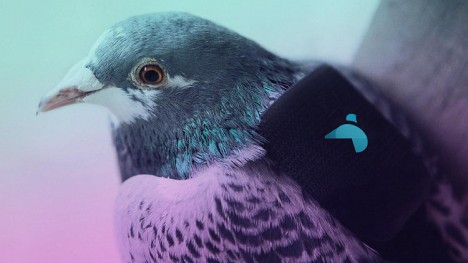
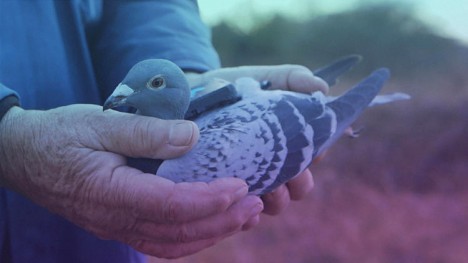
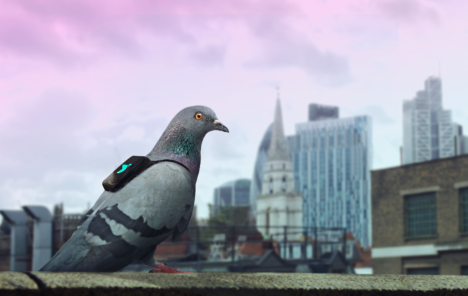
Not all pigeons are rats with wings. Some of them actually strap on tiny backpacks and go to their jobs every day, just like the rest of us. In fact, a flock of pigeons in London play a central role in monitoring the air pollution in the city, their little black fashion accessories equipped with lightweight sensors that test the levels of nitrogen dioxide and ozone gases, reporting the results on Twitter. Londoners who tweet their locations to @PigeonAir get an instant response from one of the pigeons with the level of air pollution in their area.

pigeon patrol 2

pigeon patrol 4

Paris-based tech company Plume Labs developed an app that gives residents access to information and advice about pollution in the city, and an interactive live map on the project’s website provides more neighborhood-specific details. A well-known pigeon expert named Brian Woodhouse provided a flock of racing pigeons, which are healthier and hardier than street pigeons, for the mission.

pigeon patrol 3

pigeon patrol 5

The project was only in action for three days during March, and the pigeons are now taking a break, but the novelty of the miniature backpacks got thousands of city residents talking about air pollution, which kills nearly 9,500 Londoners each year. Now, Plume Labs has turned to human Londoners for assistance, asking them to wear their own sensors to crowdsource detailed readings of air pollution in virtually every corner of the city.

Screen Shot 2016-05-09 at 5.34.45 PM

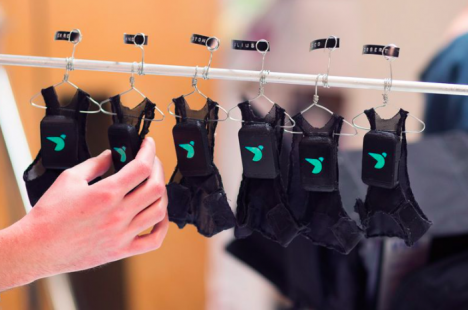
You have to admit, no matter what you think of the pesky birds, the sight of those tiny mesh suits on tiny hangers labeled with each pigeon’s name are ridiculously cute.

Share on Facebook


[ By Steph in Gadgets & Geekery & Technology. ]

[ WebUrbanist | Archives | Galleries | Privacy | TOS ]


WebUrbanist

 
Comments Off on Pigeons on Patrol: Birds with Backpacks Monitor London Air Pollution

Posted in Creativity


DxO ONE update enables framing assist via the camera’s OLED monitor

11 Mar

A recent update for the DxO ONE has introduced framing assistance via the camera’s built-in OLED when the device is used in standalone shooting mode. A monochrome live image preview is displayed on the camera’s small, rear screen to improve the experience of using the camera without connection to an iPhone. The camera is also offered at a lower $ 499 price point, without software bundled. 

Firmware 1.3 also introduces a motion blur alert feature, as well as a modified interface for selecting white balance, metering and focus mode. When sharing photos, you’ll now see a visual confirmation of a successful upload, and JPEG compression level can be specified. 

The app update is available now for free through the App Store, and camera firmware can be updated through the camera itself. The DxO ONE is available now for $ 499.


Press release:

DxO ONE now features a dramatically enhanced stand-alone experience

DxO unbundles desktop software to make the camera available at a new low price of just $ 499

Press release:

PARIS, March 2, 2016 /PRNewswire/ — DxO announced today the immediate availability of yet another ground-breaking update to the award-winning DxO ONE professional quality connected camera for iPhone® and iPad®. The version 1.3 update, available for free via the iTunes App Store, introduces several new features that further extend the use of the DxO ONE, including the ability to use the OLED display as a novel framing assistant to help quickly compose while operating the camera with one hand. Additionally, DxO has unbundled their desktop software from the package (DxO FilmPack and DxO OpticsPro now sold separately), enabling even more photographers to get their hands on the revolutionary DxO ONE camera at a new low price of just $ 499.

“That is one trippy amazing viewfinder — love it!” said award-winning photographer, John Stanmeyer. “Even more wonderful, in very low light, the ONE handled all the complexities of ISO, focus, etc., instantly. Amazing. Perfectly fine for those rapid moments when you want to make an image, a RAW high res file, in any lighting conditions we’re placed in.”

Version 1.3, the second major upgrade to date, enables the DxO ONE to be used as a miniaturized pro-quality camera that is smaller, easier, and faster to shoot than any other camera on the market. To quickly capture life’s fleeting moments, simply pull the DxO ONE out of your pocket or purse, and in one movement, slide the lens cover open, compose the scene using the OLED display as a framing assistant, then depress the two-stage physical shutter button to lock focus and grab the shot. In stand-alone mode, the DxO ONE provides a fun, retro-style of photographing without “chimping,” and makes browsing newly captured images a surprising and delightful experience.

Best of all, when using the DxO ONE in stand-alone mode, all of your preferred camera settings for aperture, shutter speed, ISO, metering, white balance, etc. are preserved, exactly as you set them in the iOS app. For example, if you prefer to capture portraits at f/1.8, the camera will always be ready at f/1.8 when you pull it out of your pocket. And because the DxO ONE has a physical shutter button, it works even if you’re wearing gloves. So when you’re on the slopes, set the camera to 1/4000s (or higher), then when you pull the camera out of your ski jacket the DxO ONE is immediately ready to freeze fast action.

“During an assignment for Rolls-Royce Motor Cars I had the misfortune of seriously injuring myself during a biking accident,” said Robert Leslie, professional photographer and amateur cyclist. “Much to my client’s surprise I was able to complete the studio session and capture some incredible images while using the DxO ONE in the new stand-alone mode. Now what other camera in the world lets you do a professional shoot whilst your arm is in a sling with a broken collar bone?”

Version 1.3 also introduces a host of other features including motion blur alert, and an elegant new way to dial in white balance, metering and focus modes, which can also be viewed as overlays in the viewfinder along with your iPhone battery level. Browsing photos is faster than ever, with the gallery now sorted in the same order as in iOS Photos. You can be sure your images were successfully shared thanks to a new visual confirmation message, and you can set a preferred JPEG compression level for photos, and bitrate for videos. Of note, an innovative Message Center now provides a direct connection to DxO, with in-app access to current information designed to help you get the most out of your DxO ONE.

DxO ONE owners are invited to download and install version 1.3, which is available as a free update via the iTunes App Store. New firmware, also immediately available, can be downloaded to the iPhone and installed on the DxO ONE with a simple tap.

Pricing & Availability

The DxO ONE Miniaturized Pro Quality Camera™ for iPhone® and iPad® is available for purchase at dxo.com, Amazon, Apple online and select Apple stores in the US, B&H and other respected photo retailers for the new low price of $ 499.

The DxO ONE iOS app and companion Apple Watch app are both available for free via the iTunes App Store. Every purchase of a DxO ONE camera also includes free access to simple, but powerful desktop processing software — DxO Connect for Mac and PC, and the new DxO OpticsPro for OS X Photos. DxO FilmPack and DxO OpticsPro are available for purchase separately.

Articles: Digital Photography Review (dpreview.com)

 
Comments Off on DxO ONE update enables framing assist via the camera’s OLED monitor

Posted in Uncategorized


Why is Monitor Calibration Important and How to do it

14 Feb

Why you need to calibrate your monitor

If there one thing that’s certain about photos on the internet, it’s that nobody is seeing exactly the same thing as you. In general, most screens are too bright, and have whatever default color the monitor happens to ship with. Some are great, others not so much. As the monitor gets older, these colors change too. It’s more of an issue with older bulb light monitors, and less so with LED, but still these colors change over time.

There’s also the matter of print matching. If you’ve ever printed (you’re missing out if you haven’t), and been dissatisfied with the print, it could be that your screen is fooling you when you’re editing.

There is a way to get your screen to a known standard, and doing this means that you know you have good representative color and brightness on your screen, and that you’ve made a step toward better prints. This is screen or monitor calibration.

Calibrating your screen 01

What is monitor calibration?

To calibrate your screen, you need a puck-like device that sits on your screen, and measures the color being displayed. This is called a spectrophotometer. It’s just a name for what it does: photo = light, spectro = from spectrum meaning a range of colors, and meter = to measure. So it measures the light color. Don’t worry, you don’t need to buy one of these specifically, and match software to it, they come as kits, with the required software bundled with it.

What do you need to do it?

Some examples of the screen calibration kits include the X-Rite i1 Display Pro (which is what I have), the Spyder Pro, and the Color Munki. The process for each is similar and pretty straightforward. First you install the software, and run it. Next you attach the device. Initially you have to decide the settings, but the correct ones are usually suggested. Usually these are 120cd/m2 or less in brightness, D65 or Native for Illuminant and 2.2 for Gamma. At the start you may need to set the monitor brightness and contrast via the monitors own menu. Finally you just let the software run and it will create a profile automatically at the end. One thing that’s critical is that you need to have your monitor on for a while before starting the calibration. It takes up to 30 minutes for the monitor to settle.

How do you do monitor calibration?

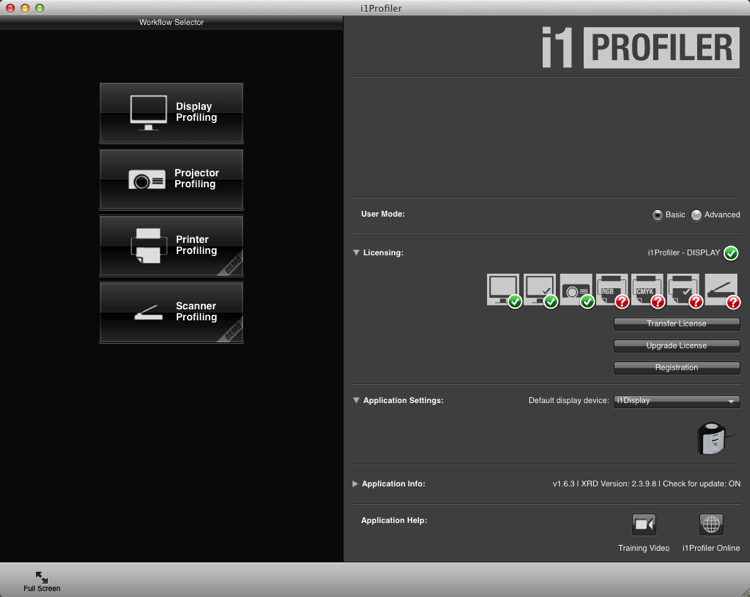
Let’s look at this using the software supplied with the i1DisplayPro, i1 Profiler. Here’s the screen you see at the start (after registering the product).

Calibrating your screen 02

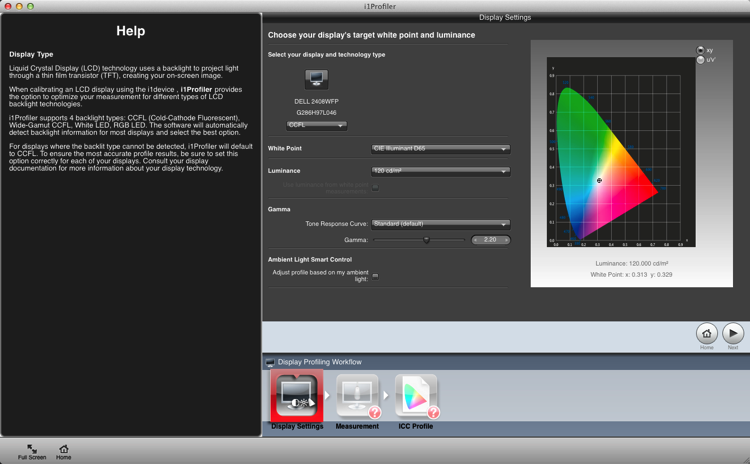
Click on Display Profiling to begin. The software detects your screen type automatically and applies recommended defaults for the screen. Press Next (below).

Calibrating your screen 03

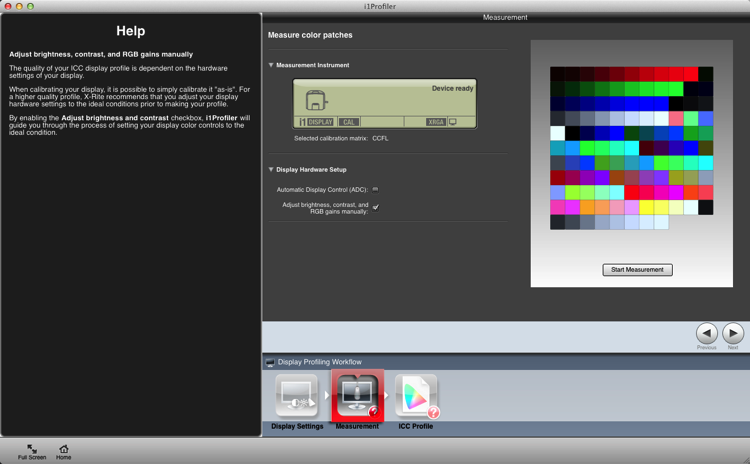
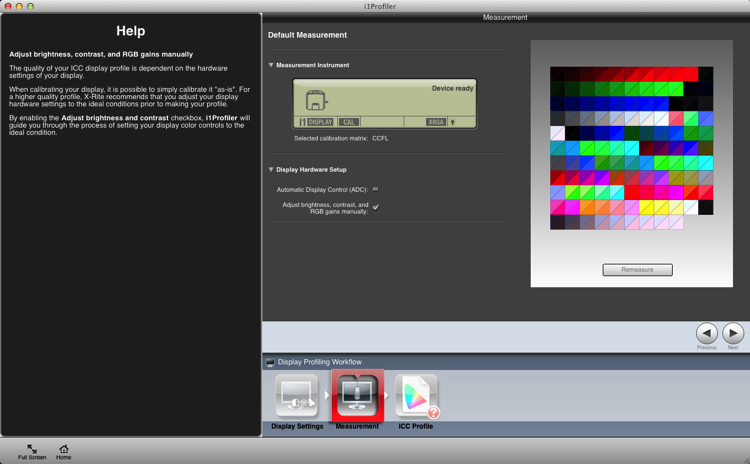
You’re on to the Measurement screen now (below). Choose the manual option for the screen brightness and contrast. The color tiles you see on the right are the colors that will flash on the screen as the calibration runs. Click the Next button to begin.

Calibrating your screen 04

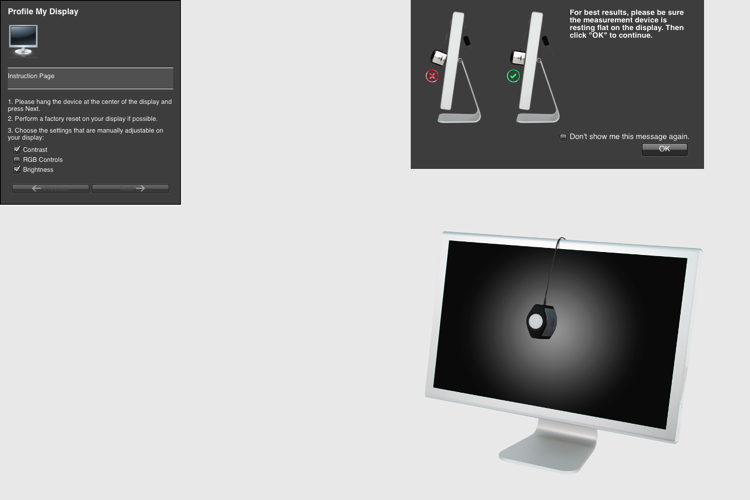
The next figure below, is a cropped version of the screen you will see. Place the device on the screen as instructed. Press ‘Ok’ to continue.

Calibrating your screen puck position

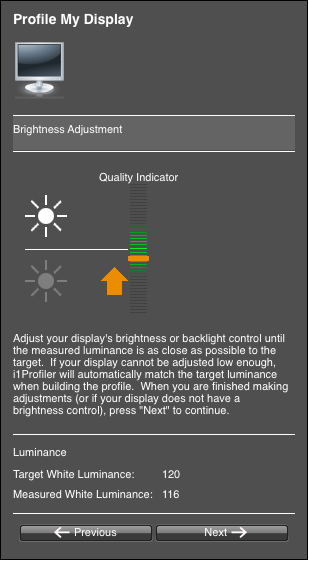
Use the controls on you monitor to get the correct brightness settings (see below) for the profile. Click Next when it’s correct. The screen will cycle through the series of colors seen as tiles back further. As each tile displays, the entire screen changes to that color. This takes about two minutes.

Calibrating your screen 06

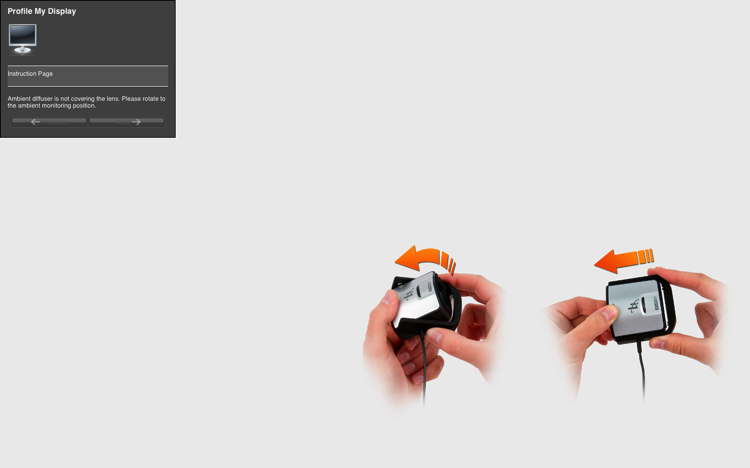
Take the device off and set it for ambient light, even if you don’t use this function.

Calibrating your screen 07

The tiles now show a before and after view of the color changes from the profile. Click next.

Calibrating your screen 08

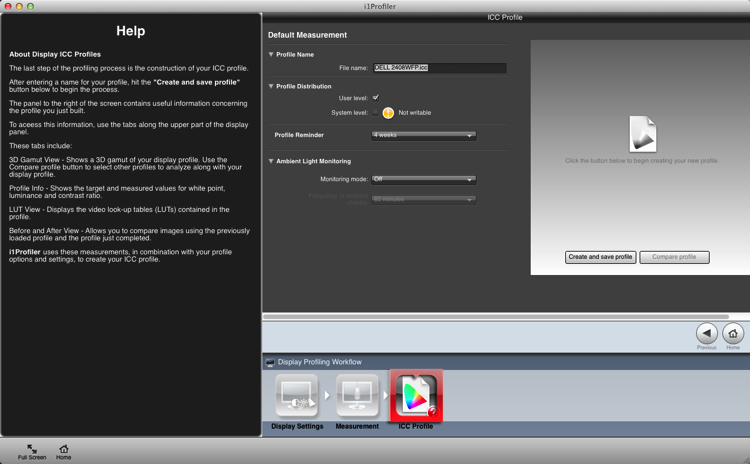
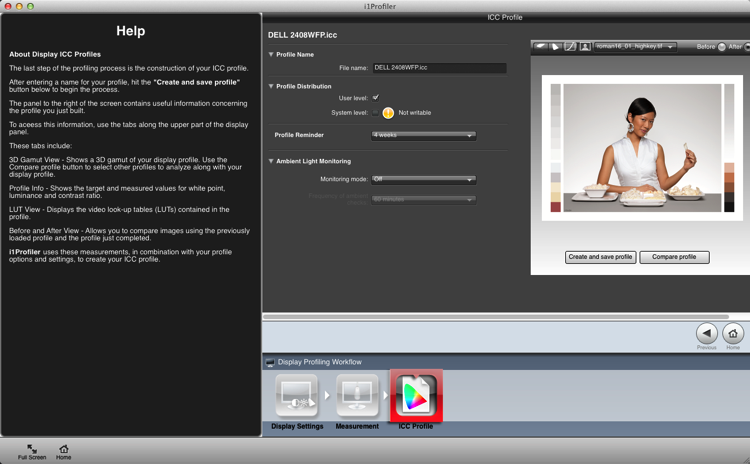
Click Create and Save Profile to make a new monitor profile.

Calibrating your screen 09

Once the profile is made, you can do a comparison using the test charts in the screen.

Calibrating your screen 10

Summary and questions

That’s it. You’re done. Lightroom, Photoshop and color managed browsers like Safari will use this profile when you view images, allowing you to edit and process images with the best color rendition. Ideally you should do this calibration no less than once a month for best color. You’ve also taken your first steps into color management without knowing it; probably the most important.

Do you have any questions about this process? Have you tried it? Had any difficulties? If you use a similar device which one, and have you had good success with it? Please share in the comments below.

googletag.cmd.push(function() {
tablet_slots.push( googletag.defineSlot( “/1005424/_dPSv4_tab-all-article-bottom_(300×250)”, [300, 250], “pb-ad-78623” ).addService( googletag.pubads() ) ); } );

googletag.cmd.push(function() {
mobile_slots.push( googletag.defineSlot( “/1005424/_dPSv4_mob-all-article-bottom_(300×250)”, [300, 250], “pb-ad-78158” ).addService( googletag.pubads() ) ); } );

The post Why is Monitor Calibration Important and How to do it by Sean McCormack appeared first on Digital Photography School.


Digital Photography School

 
Comments Off on Why is Monitor Calibration Important and How to do it

Posted in Photography


Was für die Augen: Monitor EIZO CS270

27 Nov

Titelbild EIZO CS270 Artikel

Als selbstständiger Fotograf macht man sich in der Anfangszeit der eigenen Karriere viele Gedanken um alles Mögliche. Welche Kamera ist robust genug für meine Tätigkeit? Welche Objektive brauche ich? Wie gestalte ich meinen Workflow?
kwerfeldein – Fotografie Magazin | Fotocommunity

 
Comments Off on Was für die Augen: Monitor EIZO CS270

Posted in Equipment


Casio develops Exilim EX-FR10 two-part action cam with wireless monitor

29 Aug

Casio is set to launch a new action cam in September, featuring a wireless camera unit that is detatchable from the main body. The Casio Exilim EX-FR10, which will initially be only available in the Japanese market, uses a Bluetooth connection with a range of up to 10m between the body and the camera so images can be recorded remotely and monitored on the 2-inch 230,400-dot touch screen. Read more

Articles: Digital Photography Review (dpreview.com)

 
Comments Off on Casio develops Exilim EX-FR10 two-part action cam with wireless monitor

Posted in Uncategorized


How to Calibrate your Monitor with the Spyder 4 Express

16 Aug

Monitor calibration with Spyder 4 Express

If you want to obtain accurate colours in your photos in Lightroom (or indeed any other software), no matter what you may read elsewhere, you need to calibrate your computer monitor. If you don’t, the colours in your photos won’t be accurate, and you will never produce a print (or any other form of output, such as a Blurb book) that matches the colours on your screen. If you undertake client work, or sell your photos through stock libraries, it is essential to calibrate your monitor so that you know the colours of your photo are as intended.

The reason for this is simple. When monitors are manufactured, the colour is set incorrectly. Most monitors have a strong blue colour cast. The only exception seems to be Apple Mac computers. They still have a colour cast, but it’s not as strong.

I have no idea why this is. Whenever I’ve searched for the answer all I find is vague references to blue computer screens looking better in the shops, or that the blue colour cast suits graphic designers. Neither of these ideas seems credible to me.

Regardless, even if monitors were calibrated prior to shipping, you would still need to calibrate your monitor yourself at regular intervals because the colour of monitors drifts over time.

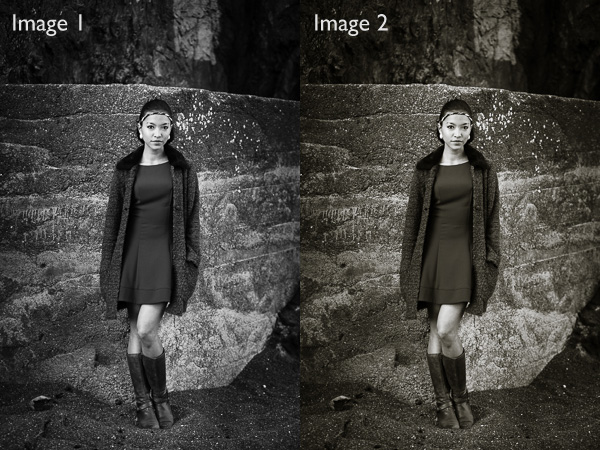
Take a look at these two black and white images. One is completely neutral in tone, the other isn’t. Can you tell which is which?

Monitor calibration with Spyder 4 Express

If you answered that Image 1 is neutral, you are correct. But it’s very difficult to tell on an uncalibrated monitor. If your monitor is uncalibrated (making everything look bluer than what it is) you probably picked Image 2 as the neutrally coloured one.

Using monitor calibration devices

The only way to calibrate your monitor accurately is to buy (or borrow) a device that measures the colours emitted by your monitor. They are called colorimetric devices and connect to your computer via the USB port.

If you research the topic online you will find articles that tell you how to calibrate your monitor without a colorimetric device. Pay no attention to them, their techniques don’t work. The only way to do it properly is with the correct device.

Colorimetric devices are easy to use, and come with software that guides you through the calibration process. It shows you where to place your device on the screen, then displays a series of colour patches for the device to measure.

It then compares the colour values recorded by the device, against the true colour values of the colour patches and creates a profile that compensates for the inaccuracies of the monitor. The profile is saved on your hard drive and used by your computer’s operating system to control the way colours are displayed on your monitor.

Computers and colour profiles

Once you have calibrated your monitor you can relax, knowing that the colours you see on your screen are as accurate as your monitor can render them. At least, that’s the idea. In real life, it’s a little more complex.

Mac owners will be fine. The Mac operating system (OS X) works very well with colour. Every program you use works with the monitor profile and displays accurate colour. It’s one of the reasons that many professional photographers use Apple computers.

If you have a Windows PC however the story is different. The operating system knows the monitor profile is there, but not all programs use it. It’s possible to have the same photo open in two programs, and for the colours in one to appear different to the other. One program is using the monitor profile, and the other isn’t.

All the professional level programs you use, such as Lightroom and Photoshop, utilize the monitor profile and display colours accurately. But not all software does. An example is ACDSee. It doesn’t use the monitor profile and won’t display colours accurately. If you’re unsure whether your software uses the monitor profile, a Google search should reveal the answer.

Just to make things even more complex, some PCs won’t load the monitor profile you created in the first place. It seems to be a problem with Windows Vista and Windows 7. This excellent article describes the problem in more detail and gives you a work around.

Another thing to watch out for is that the colours on your monitor drift over time. For that reason it’s a good idea to calibrate your monitor at monthly intervals, or before you carry out any critical work. The software that comes with your device can be set up to give you a reminder.

How to choose a monitor calibration device

Colorimetric devices are made by several manufacturers. The main players seem to be Datacolor (who make the Spyder models) and X-Rite (which makes Colormunki).

For many photographers, the least expensive model in each manufacturer’s range is probably sufficient. That’s good news because it means that you don’t have to spend a lot of money in order to calibrate your monitor.

But before you rush out and buy the cheapest device you can find, ask yourself these questions. Some photographers will require the features found in more expensive models.

  • Do you use a dual monitor set up? Some colorimetric devices only profile a single monitor.
  • Do you have a printer to profile as well? Some devices can calibrate printers as well as monitors, although they are a lot more expensive.
  • Do you want to adjust the gamma or white point of your monitor? Not all monitors let you do this, but if you have a monitor which allows it you will need a more advanced device to enable this feature.

The Spyder 4 Express

I use a Spyder 4 Express to calibrate my monitor. Here’s how the process works. If you have a different device, the process will be similar.

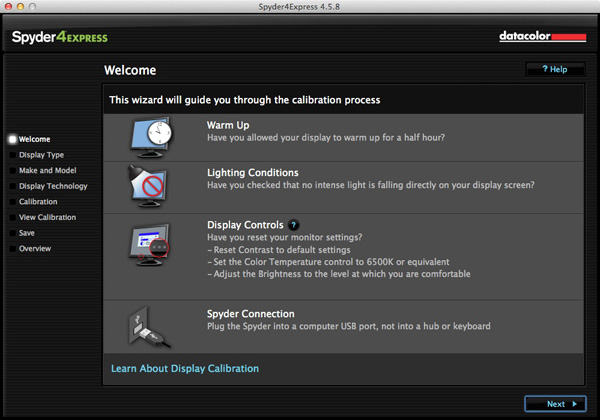
1. Run the Spyder4Express software that comes with the device

The first screen gives directions. The important points are that you should let your monitor warm up for half an hour before calibration and that there should be no intense light falling on the screen.

It also asks you to reset the contrast setting and set white balance to 6500K. This isn’t possible on all computers, especially laptops, so don’t worry about these settings if you can’t adjust them. The device will still work.

Monitor calibration with Spyder 4 Express

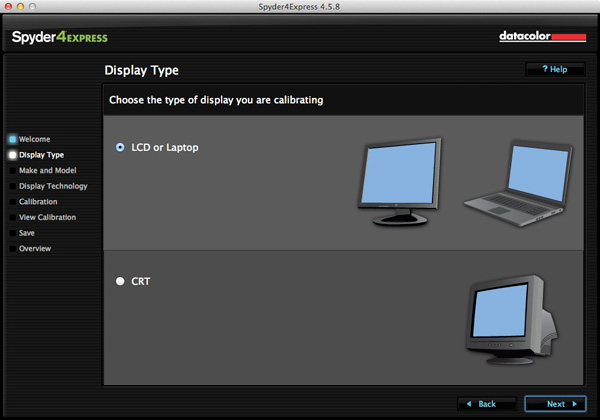
2. Then it asks you which type of display you have

Monitor calibration with Spyder 4 Express

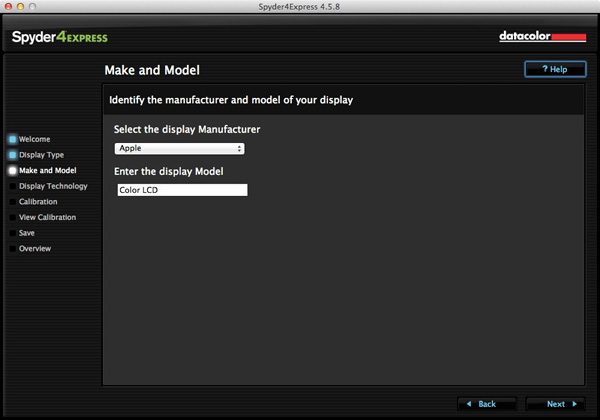
3. Next enter the manufacturer and model of your display

I selected Apple and the display model was filled in automatically. The Color LCD setting seems to be sufficient (confirmed by checking the monitor specs in System Information).

Monitor calibration with Spyder 4 Express

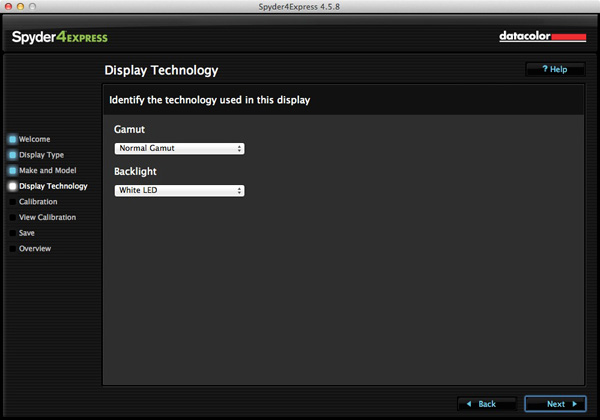
4. Set the Gamut

This next step is very important. Gamut is fairly easy. You’ll know if you have a wide gamut monitor because it will say so in the specs (that’s probably why you bought it). In fact, I tried setting wide gamut here to see what would happen and the software recognised that I didn’t have a wide gamut monitor and sent me back to change it.

The backlight setting is crucial. The instructions recommend that if you’re not sure what type of backlighting you have that you should set it to Unknown. I tried that and even I could see with my naked eye that the colour was wrong (the screen had a magenta cast).

If your monitor has the model number printed on it, simply Google the model number. You should find the spec sheet for the monitor which will tell you exactly what type of backlighting it has.

If you have a laptop it’s harder to verify. I found these instructions for my Macbook Pro. I’ve been unable to find any for Windows laptops, so if you how to do this I’d be grateful if you could let us know in the comments. Once you have the model, you can Google it for the spec sheet. That’s how I confirmed my laptop has a White LED backlight.

Monitor calibration with Spyder 4 Express

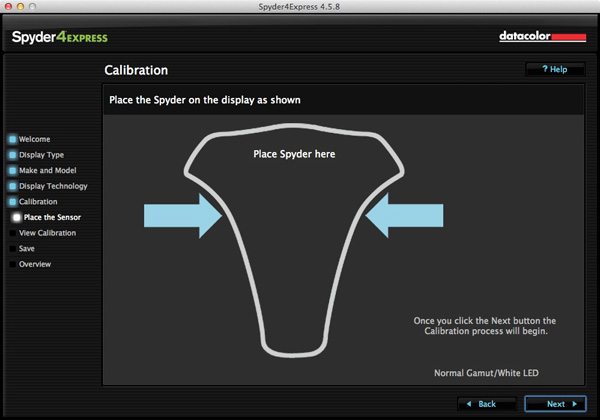
5. Placement of the device

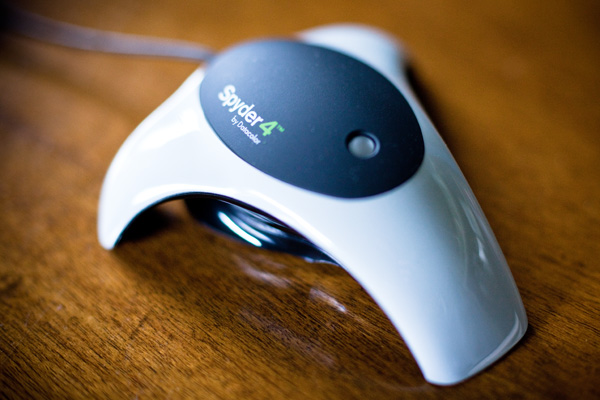
The next screen shows where to place the Spyder 4 Express unit. It has a counterweight to hold it in position.

Monitor calibration with Spyder 4 Express

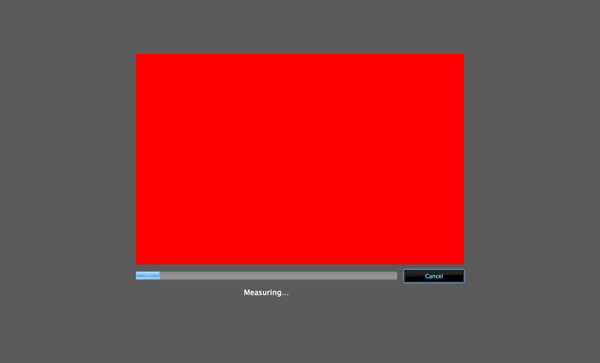
6. The software then displays a series of colour patches for the device to measure

Monitor calibration with Spyder 4 Express

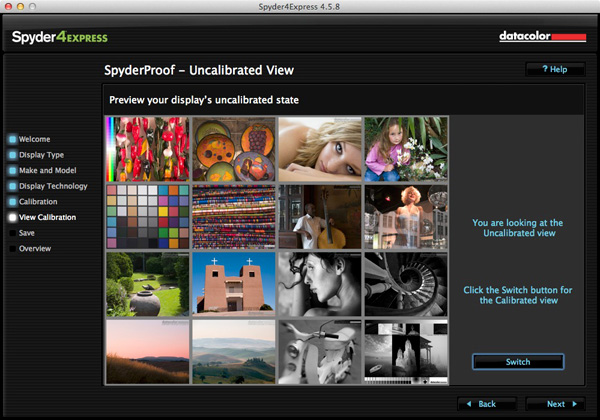
7. A new profile is created

When it’s finished, the program creates a new monitor profile that’s used by the computer from that point on. It also lets you switch between calibrated and uncalibrated versions to see the difference.

Monitor calibration with Spyder 4 Express

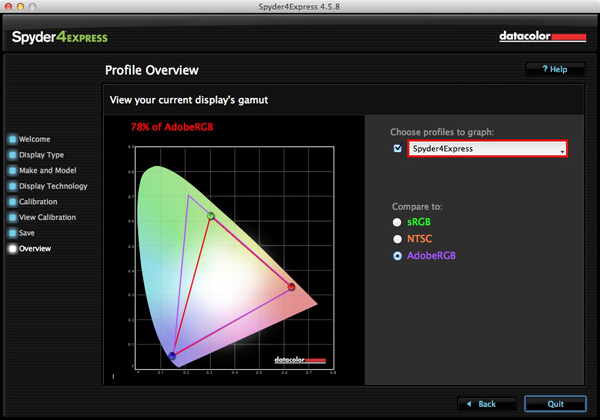
8. Gamut comparison

Finally, the program shows a graph comparing the colour gamut of the monitor compared to sRGB, NTSC and AdobeRGB colour spaces.

Monitor calibration with Spyder 4 Express

Conclusion

Monitor calibration is an essential part of your workflow as a photographer. Indeed, it’s an essential part of all post-processing. There’s no way around it, but luckily the process doesn’t have to be difficult or overly expensive.

I use the Spyder 4 Express, and it’s a great little unit. It’s easy to use and relatively inexpensive. The only potential sticking point seems to be working out what type of backlighting your LCD monitor has. It’s crucial to get that right or the calibration won’t be accurate. Also, if you need more advanced features, such as the ability to profile more than one monitor or set the colour temperature or white point, then you need a more advanced model of device.

Have you used a different model to calibrate your monitor? How did the device perform and how did you get on? Let us know in the comments.


Mastering Lightroom: Book Four – The Photos ebookMastering Lightroom: Book Four – The Photos

My new ebook Mastering Lightroom: Book Four – The Photos takes you through ten beautiful examples of photography and shows you how I processed them step-by-step in Lightroom. It explores some of my favourite Develop Presets and plug-ins as well as the techniques I use in Lightroom itself. Click the link to learn more.

The post How to Calibrate your Monitor with the Spyder 4 Express by Andrew S. Gibson appeared first on Digital Photography School.

Digital Photography School

 
Comments Off on How to Calibrate your Monitor with the Spyder 4 Express

Posted in Photography