RSS
 

Posts Tagged ‘masks’

Adobe teases new ‘Focus masks’ feature

12 Jun

creativecloud.jpg

Adobe has released a video sneak-peek of a new feature due to be introduced into Creative Cloud which the company is calling ‘Focus masks’. In the video, Zorana Gee, senior Photoshop product manager explains that with focus masks, Adobe is ‘adding a new way to make an automatic selection based [on] pixels that are in focus versus out of focus’. Click through to watch the video and learn more. 

News: Digital Photography Review (dpreview.com)

 
Comments Off on Adobe teases new ‘Focus masks’ feature

Posted in Uncategorized


Exposure Blending Using Luminosity Masks Tutorial

18 Apr

There will be a time when the wizards behind your camera technology conjure up a sensor so powerful they will swallow up any scene and spit it out just as it was – no over, or underexposed areas. Until then, in order to produce an image with a high dynamic range of light, you have to work with the sensors available to you and create your own post-processing magic.
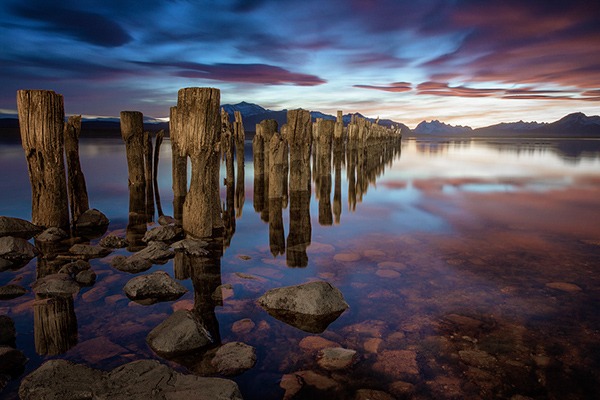
Pink sunset

Image created by blending two exposure with luminosity masks, one for the sky and one for the foreground.

While you, and many photographers, may have relied heavily on HDR programs in your exposure blending quest, many more are now beginning to turn to luminosity masks as a cleaner alternative. Through the use of luminosity masks you can create stunning, balanced images that encapsulate a vast dynamic range of light. They give you incredibly fine control over your imagery in almost every area.

While some HDR programs nowadays produce very natural, clean HDR images, luminosity masks do not affect the original files at all, so there is literally zero image degradation during the blending process. That is why so many digital photographers are beginning to make luminosity masks a staple in their workflow.

What are Luminosity Masks?

Luminosity masks break an image down into various channels of luminosity. In other words, they allow you to make very specific selections in Photoshop based on how bright or dark an area is. Let’s say you were looking at a beautiful nighttime cityscape shot. Everything is exposed correctly apart from the street lights, which are completely blown out. You also have a darker exposure in which the street lights are ideally exposed.

Through luminosity masks you can make an accurate selection of the street lights because you can hone in on their brightness, or luminosity values. With this selection you can simply replace the overexposed streets lights with the correctly exposed ones in the darker image.

What You Need to do Luminosity Masking

Firstly, creating your own luminosity masks is a complex and cumbersome process. However, I have a free Photoshop Luminosity Mask Action Set that will do all of the work for you. You can download it here: Free Luminosity Mask Action Set.

Secondly, it is imperative that you have a good understanding of Masking in Photoshop. If you’re a little bit unsure of the process, you can visit Adobe’s site which has a useful video tutorial for you to follow: Masking in Photoshop.

Which exposures to blend?

Ideally, the exposures you choose to blend should cover the full range of light in a given scene. Your brightest exposure should contain information in the darker areas, while your darkest exposure should contain information in the brightest areas. You are not limited to the number of exposures you can blend. Sometimes, in scenes of extremely high contrast, you may need to use as many as five to ensure a smooth transition between exposures and to cover the full range of light in the scene.

The order you choose to layer the exposures in Photoshop is dependent on your personal preference and the exposures you’re working with. Usually working with your normally exposed image as the base layer will derive the best results, but sometimes you may need to work with a darker or brighter exposure as your base layer.

Once you’ve decided on your exposures and have layered them in Photoshop, you now must decide which exposure you will run the actions on. Generally this will be done on your normally exposed image because it will offer the widest range of usable masks. For example, if you ran the luminosity mask actions on a darker exposure, you would gain a full range of dark and mid-tone luminosity masks, but very few, if any, workable bright masks, because the darker exposure is lacking in highlights. The converse is true for a strongly overexposed image.

Blending Exposures Using Luminosity Masks Tutorial

Today you’ll work with two exposures. One is ideally exposed for the sky and sea (download the underexposed image here), while the other is exposed for the foreground elements (download the overexposed image here).
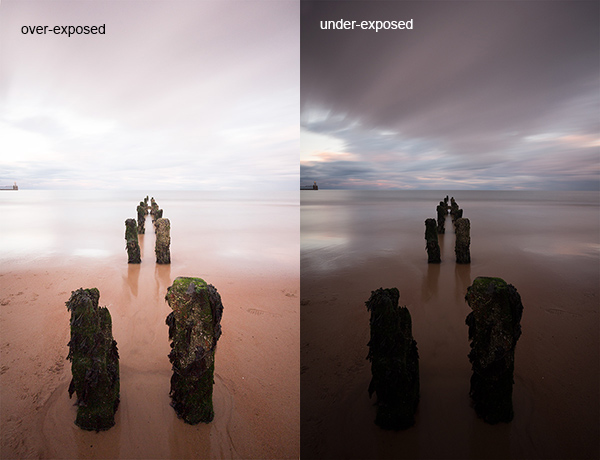
Original files

You want to combine the sky and the sea in the underexposed image with much of the foreground in the overexposed image. To do this, you need to find a way of selecting the sky and the sea (i.e., the blown out areas) in the overexposed shot. Once you’ve done that you just need to replace it with the sky and sea of the darker exposure.

Steps in Photoshop For Blending Exposures

1. Install the Photoshop Action set

Instructions on how to install actions can be found here: Get Creative With Photoshop Actions

2. Import your two images into Photoshop

Bring both images into Photoshop as layers, placing the underexposed image on top. Align the images by selecting both of them on the layers panel, and going to Edit > Auto-Align Layers.

3. Turn off the top layer

Uncheck the eye on the layers panel next to the underexposed layer. This will make it invisible and ensure that the luminosity mask actions will run on the overexposed layer only.

4. Run the Masking Action

Go to your Actions panel, which looks like a Play button on the toolbar. Open it up and go to the set called JM Luminance Masks. Click on the arrow to the left of that. You will now see an option called Generate Luminance Masks. Select it and press the Play button at the bottom of the Actions panel to begin the process.
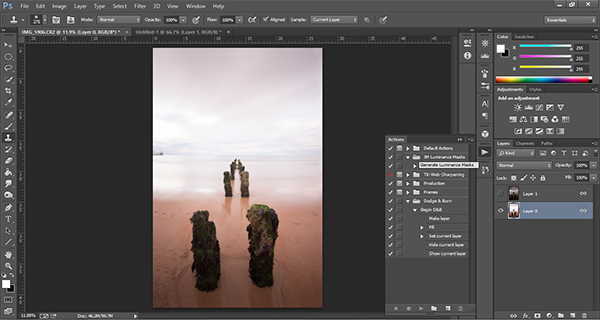
Luminosity mask actions

5. Add a Layer Mask to the Dark Underexposed Layer

Now, check the eye next to the underexposed layer, so that it is visible again. Make sure that layer is selected, then go down to the bottom of the Layers panel and, while holding Alt (Option on a Mac), left click the Add a Mask icon. This will create a black layer mask on the underexposed layer, making it invisible again.

6. View Luminosity Masks

To see the Luminosity Masks that you’ve generated, go to your Channels palette, next to the Layers panel (if it is not showing go to: Window > Channels and it will appear). You’ll see 18 monochromatic channels, ranging from Brights 1-6, Darks 1-6, Midtones 1-6. Every one of these channels is a potential mask.
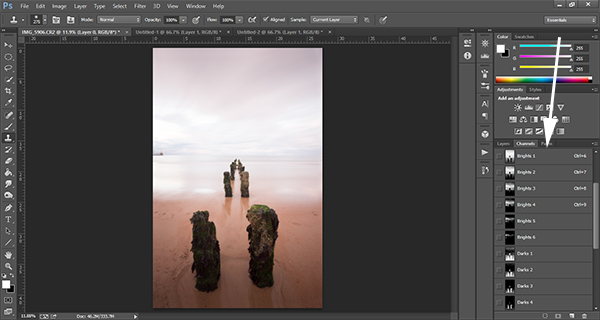
Luminosity mask channels

7. Comparing and Selecting a Luminosity Mask

For this set of images, you only need to use one mask in order to blend the sky from the darker exposure into the overexposed image. In this instance, you’ll need to select Brights 3.
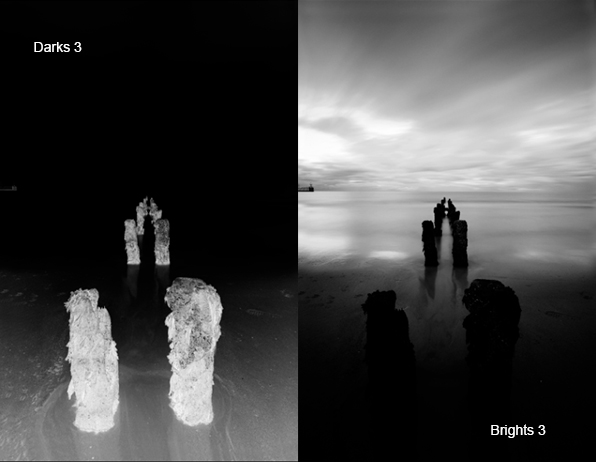
Comparing Masks

Just as with normal masking, the brighter the pixel the stronger the selection. In other words, in the image above, if you used Brights 3 you are selecting much of the sky and sea, but none of the foreground which is completely black. Conversely, if you selected Darks 3, for example, you would only be making a selection of the foreground sand and the poles that lead out to sea.

When choosing the appropriate mask, you are looking to isolate different areas. Therefore, it’s important that the mask you choose has the greatest contrast between the areas you wish to select and the areas you wish to ignore.

For example, if you were working on an image of a nice green field on sunny day, but the sky was blown out and you wished to exchange it with the sky from a darker exposure. You would run the luminosity mask actions and choose the mask where the field was black and the sky was white. This would ensure you would only select the sky and not the field in the foreground.

To turn Brights 3 into an actual selection, you just need to hold Control (Command on a Mac) and click the left mouse button on the thumbnail of the Brights 3 channel. Marching ants will appear to indicate your selection. Press “Control + H” to hide the marching ants.

8. Get Ready to Paint on the Mask

Now switch back to your Layers panel and select the underexposed layer. Make sure you select the mask, and not the actual layer itself.

9. Set up the Paint Brush Tool

Choose the Paint Brush tool on the toolbar and make sure the foreground colour is set to white. Choose the correct brush size. This will depend entirely on the area you’re working with in a given image, but usually, a larger brush is better. A brush size of 2,000 pixels was used here. Set the opacity depending on the strength of the masking you wish to use. For example, with this image, you will mask the sky with an opacity of 100%, but the overexposed areas in the water and foreground will only be masked at 40% opacity. This is because you don’t want to darken the sea too much.

10. Painting or Applying the Mask

Now you’re ready to begin masking. Freely move your paint brush around the areas you wish to affect. Since you are masking with a luminosity mask selection you don’t have to worry about going over the edges. Try varying opacities in different places. Even if your brush opacity is set to 100%, you can still run your brush through certain areas a few times to strengthen the effect.

By holding Alt (Option on a Mac) and clicking on the layer mask you’re working on, you can see exactly what the mask now looks like. The image below is the final layer mask after you’ve finished painting. Remember that white equals visible and black equals invisible. So the sky in this layer is completely visible, the sea is grey so it is partially visible. Since the foreground is black, which means invisible, you will be left with a foreground that is 100% from the overexposed layer below.
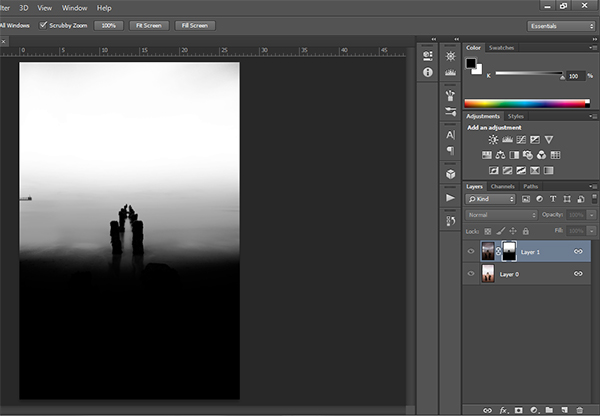
Final Mask

After a small contrast adjustment and a selective vignette added, here’s the final image along side the original overexposed image you were working with.
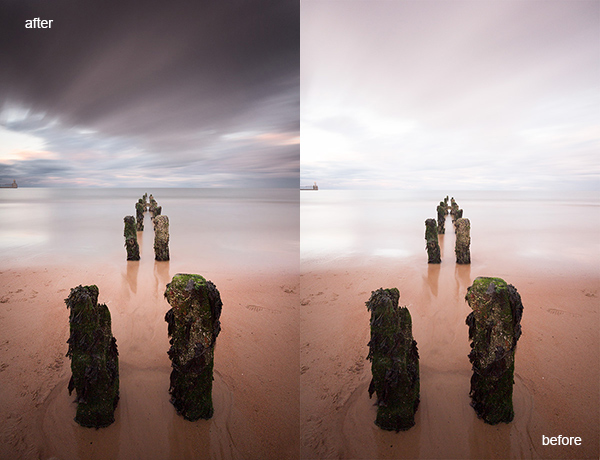
Final images

You now have a nicely balanced image with a good range of dynamic light and tones.

Deleting the Luminosity Masks

While working in Photoshop, the more layers you work on, the larger the demand on Photoshop and your system. Large workflows can seriously slow down your operating system. To ease the load, you should delete the luminosity masks once you’ve finished working with them.

To do this, go back into your Channels palette and select Brights 1. Then hold down Shift and press your left mouse button on Brights 2 to select this too. Do the same with each luminosity mask below. Once all are selected, click your right mouse button on any of the selected masks and choose the Delete Channels option. This will remove the selected channels.

Summary

At first, luminosity masks seem complex and sometimes daunting, but in truth, this whole workflow took less than 5 minutes. After a little bit of practice you begin to get an intuitive sense of how to use these powerful tools, and once you do, you gain extensive control over your images that can change your photography forever.

Have you tried this method of blending images, if so share your thoughts or images in the comments below. Or do you prefer the HDR tone-mapping process? Do you think HDR is dead or maybe it should be? Or perhaps you are somewhere in the middle in the 10 steps every HDR photographer goes through? What are your thoughts?

Check out the newest dPS ebook – Loving Landscapes A guide to landscape photography workflow and post-production – a brand new dPS ebook by the authors of Living Landscapes

The post Exposure Blending Using Luminosity Masks Tutorial by Jimmy McIntyre appeared first on Digital Photography School.


Digital Photography School

 
Comments Off on Exposure Blending Using Luminosity Masks Tutorial

Posted in Photography


Weak Yen masks hard times as Mirrorless and DSLR sales decline

26 Feb

X-E2.png

Manufacturers are putting on brave faces as compact sales continue their decline and interchangeable lens camera sales fail to shine. Canon, Fujifilm, Nikon and Olympus have all put out their financial results covering the Christmas period, and there’s little to be positive about, with falling sales of interchangeable lens cameras being reported by the industry’s biggest players.

News: Digital Photography Review (dpreview.com)

 
Comments Off on Weak Yen masks hard times as Mirrorless and DSLR sales decline

Posted in Uncategorized


Fixing Images with Contrast Masks in Photoshop

05 Dec

contrast_masking.opener.jpg

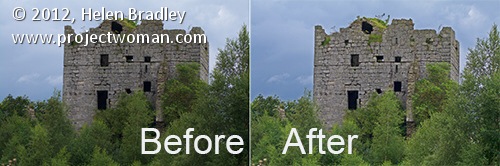
Many of the fixes we commonly apply to images come from darkroom processes. Contrast masking is one of those fixes and it can be used to fix an image which is under or over exposed.

Contrast masking is a relatively simple process and it can work wonders with your images. I like it because it generally doesn’t require you to make selections and there is a lot to like about fixes that don’t involve selections.

Here’s how to use Contrast Masking to fix an under exposed image:

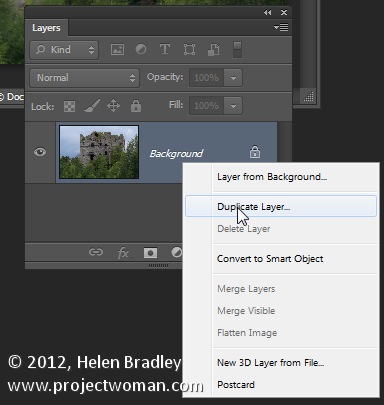
Open your image and duplicate the background layer. Target this duplicate layer in the Layers palette.

contrast_masking_1.jpg

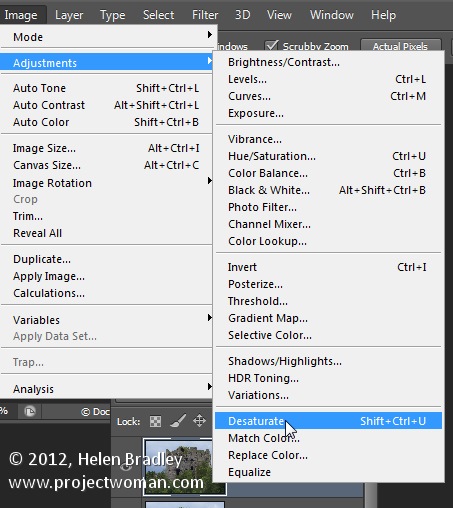
Desaturate this layer by choosing Image > Adjustments > Desaturate. Right now the default convert to black and white is just fine.

contrast_masking_2.jpg

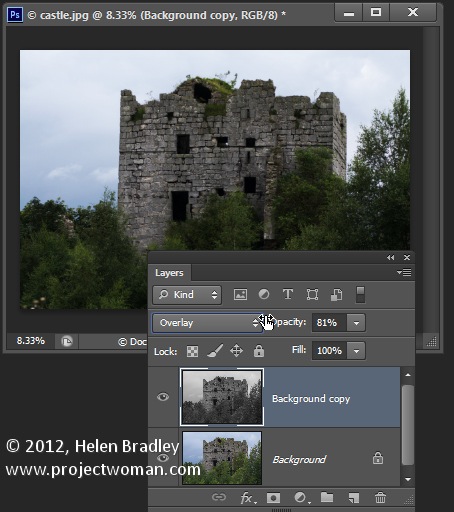
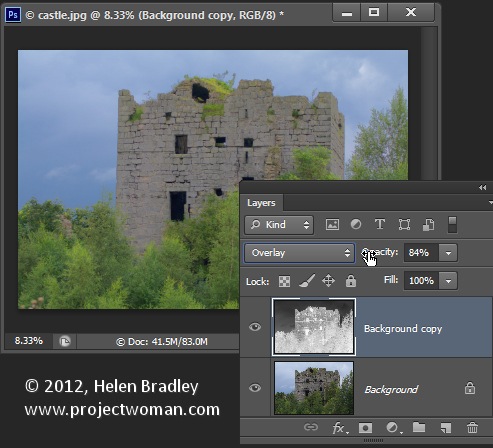
Alter the blend mode of this layer to Overlay.

contrast_masking_3.jpg

To invert this black and white layer choose Image > Adjustments > Invert – this gives a negative of the image.

Adjust the layer opacity to suit.

contrast_masking_4.jpg

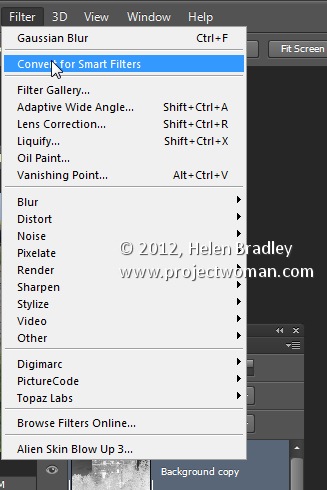
Convert the top layer to a Smart Object by choosing Filter > Convert for Smart Filters.

contrast_masking_5.jpg

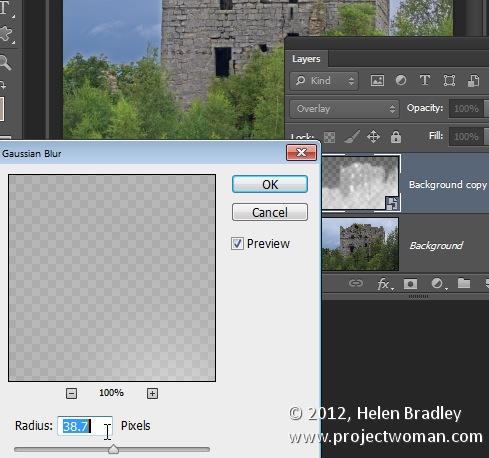
Now blur this layer by choosing Filter > Blur > Gaussian Blur. Adjust the Radius to adds some sharpening back to the image. Check the preview to get the best result for the image.

contrast_masking_6.jpg

Post originally from: Digital Photography Tips.

Check out our more Photography Tips at Photography Tips for Beginners, Portrait Photography Tips and Wedding Photography Tips.

Fixing Images with Contrast Masks in Photoshop


Digital Photography School

 
Comments Off on Fixing Images with Contrast Masks in Photoshop

Posted in Photography


Photoshop Masks 101

16 Nov

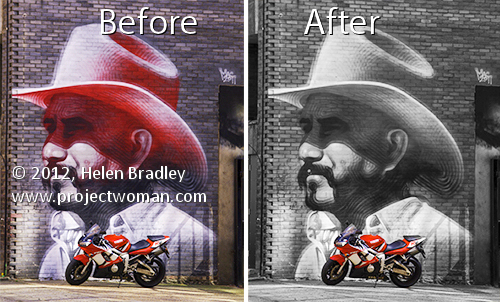
Photoshop masks 101 before after

When it comes to fixing images in Photoshop or Photoshop Elements the ability to use masks to do your edits is invaluable. By using a mask instead of, for example, the Eraser you get an edit which can be changed or even removed any time in the future.

However masks aren’t easy to use or even understand when you first get started. In fact they can be downright scary. To help you get started here is a quick and easy technique that can be achieved using masks. Doing it will show you a situation in which a mask is a good editing choice. You will see how to add a mask to a layer and how to use it to edit the image. By the end of the process you will be on your way to understanding how to use masks in your photo editing workflow.

The effect that I’ll be creating is one that you see in a lot of wedding albums and advertisements. It is an element of color in an otherwise black and white image. It can be achieved using masks and that’s what we’ll do here.

Start by opening an image that has some colorful element of interest that you can show in color while you turn the remainder of the image into black and white. Here I’ll turn this graffiti image black and white and leave the bike in color.

Photoshop masks 101 step1

Make sure your Layers palette is visible. If not, choose Window > Layers to display it.

Photoshop masks 101 step2

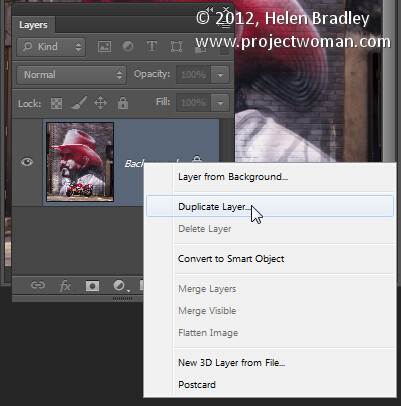
Right click the Background layer in the Layers palette and choose Duplicate Layer and click Ok. This makes a duplicate of the image layer.

Photoshop masks 101 step3

With this layer selected, choose Image > Adjustments > Desaturate to turn the image into black and white.

Photoshop masks 101 step4

Notice that the Layer palette contains a black and white layer and a color layer. The black and white layer is at the top of the stack which is why you are seeing a black and white image.

At this point we’ll add the mask so we can use it to bring back the color in a specific are of the image. To do this with the Background Copy layer still selected choose Layer > Layer Mask > Reveal All.

Photoshop masks 101 step5

This adds a white filled layer mask to the layer – notice the white box which appears in the layer palette next to the image thumbnail – that’s the mask.

Photoshop masks 101 step6

A word about masks

Right now all you need to know about masks is that you can paint on them with black, white or shades of gray.

When you paint with white on a mask you reveal any content on the current layer – in our case that is the black and white layer.

If you paint with black you’ll reveal the content on the layer below the current layer – in this case the color layer. You might like to think of it as poking a hole in the top layer so that you can see part of the layer below.

If you paint with a shade of gray you’ll be seeing part of the layer below and part of the current layer. The hole that you’re punching through the top layer will be semitransparent.

Bring back the color

To work on this image, select the brush tool and select a small brush with a hardness of around 75%. Make sure black is set as the foreground color and click on the white mask thumbnail in the Layers palette to target the mask. It should have a border around it as in this image:

Photoshop masks 101 step7

Now paint on the photo over the areas that you want to bring back color in. Instead of seeing black paint on your image as you might expect to see, you will see the color coming back.

Photoshop masks 101 step8

Look at the mask thumbnail in the Layers palette and notice it has some black markings in it where you painted on the image.

If you make a mistake and paint back too much color, switch the paint color so that you are painting with white and paint out the areas that you want to return to black and white.

Oops!

If you are working with a mask and find that the brush is painting black or white paint on your image it is because the image thumbnail is selected in the Layers palette and not the mask thumbnail. When you select the mask thumbnail it will have a small white border around it so you can tell it is active and selected.

The benefit of using a mask for this type of effect is that you can paint the effect on or off the image as desired. This gives you a lot more flexibility in editing your image. While this is a very simple example it does give you a starting point for learning to use masks in your photo editing.

When you save this photo, save it as a psd format file if you want to be able to come back later and adjust the mask – the psd format saves layers and layer masks.

If you are familiar with using Adjustment Layers in Photoshop you could apply this effect using an adjustment layer to desaturate the image and paint on the Adjustment Layer’s mask to bring the detail back. If you are not familiar with using Adjustment Layers then the process that I have outlined will give you the same results but just a different way of achieving it.

Post originally from: Digital Photography Tips.

Check out our more Photography Tips at Photography Tips for Beginners, Portrait Photography Tips and Wedding Photography Tips.

Photoshop Masks 101


Digital Photography School
 
Comments Off on Photoshop Masks 101

Posted in Photography


Photoshop CS6: Working with masks | lynda.com tutorial

03 Aug

This Photoshop tutorial discusses how to use masking techniques to improve your work, including working with layers and the Brush tool. Watch more at www.lynda.com This specific tutorial is just a single movie from chapter ten of the Photoshop CS6 for Photographers course presented by lynda.com author Chris Orwig. The complete Photoshop CS6 for Photographers course has a total duration of 12 hours and 20 minutes, and discusses enhancing and retouching photos, including how to prepare them for print and online publishing. Photoshop CS6 for Photographers table of contents: Introduction 1. Strategies for Learning 2. Getting Started with Bridge and Mini Bridge 3. Color Settings and Preferences 4. Foundations of Color Management 5. Getting Started with Photoshop 6. Understanding Digital Images 7. Working in Camera Raw 8. Utilizing Layers 9. Making Selection 10. Using the Masking Panel 11. Adding Custom Borders 12. Improving Your Images with Adjustments 13. Using Levels to Correct and Enhance 14. Making Color and Tone Adjustments with Curves 15. The Art of Blending Modes 16. Correcting Color 17. Enhancing Colors 18. Burning and Dodging 19. Converting to Black and White 20. Working with Filters 21. Removing Noise 22. Basic Image Cleanup 23. Correcting Distortion and Perspective 24. Combining Multiple Images 25. Sharpening Your Images 26. Getting Your Images Online 27. Desktop Printing 28. Working with Video Conclusion


introduction to Photoshop Layers and Masks -Part-1

08 May

Photoshop Layers and Masks explained. After watching this video you will learn how to use layers/masks to enhance your creativity and your photographs. Visit www.retouchcreative.com for more videos
Video Rating: 4 / 5


Layer Masks Part 2 – Photoshop Elements

04 Sep

As promised, here is the second part of the video tutorial on layer masks. Photoshop Elements does not include the layer mask functionality, in its native form at least. However, it does include adjustment layers, and these little beauties have their own layer masks. In this video I show you a rather clever trick whereby you can hijack this mask and use it as you would a normal layer mask. Best of all its really easy to use.
Video Rating: 5 / 5


Layer Masks – Part 1

30 Aug

As I mentioned in my last video, I see layers as being about the most powerful tool there is in Photoshop, Elements, and all the good photo editing packages. Within the topic of layers there are two specific areas that I would define as being the most powerful aspects of layers. These are layer masks and Adjustment layers. In this video, and the next, I will address the former of these, the wonderful layer mask.


Cindy Sherman: Mannequins & Masks | Art21 “Exclusive”

24 Jul

Episode #087: Surveying some of the props shes used over the years, including masks and mannequin parts, artist Cindy Sherman demonstrates how she uses stand-ins to gauge the focus and composition of her images. In self-reflexive photographs and films, Cindy Sherman invents myriad guises, metamorphosing from Hollywood starlet to clown to society matron. Often with the simplest of means—a camera, a wig, makeup, an outfit—Sherman fashions ambiguous but memorable characters that suggest complex lives lived out of frame. Shermans investigations have a compelling relationship to public images, from kitsch (film stills and centerfolds) to art history (Old Masters and Surrealism) to green-screen technology and the latest advances in digital photography. Learn more about Cindy Sherman: www.art21.org VIDEO | Producer: Wesley Miller & Nick Ravich. Interview: Susan Sollins. Camera: Joel Shapiro. Sound: Roger Phenix. Editor: Lizzie Donahue & Paulo Padilha. Artwork Courtesy: Cindy Sherman.