RSS
 

Posts Tagged ‘LOOK’

How to Make Food Photos Look Tastier with Luminar

05 Dec

When it comes to food photography, photo editing is at least half of the battle. Sure, there’s an art to styling and shooting food so that it looks yummy right out of the camera. But more often than not, it pays to spend a little time sprucing up that photo in post-production. There are lots of popular photo editing tools out there, but lately, I’ve been preferring Luminar by Macphun, soon to be Skylum.

Simple and straightforward to use, you can enhance any food photo in Luminar right out of the box. Here’s how to get started. I should be clear that this is my personal food photography editing workflow. Feel free to make adjustments and edits to your own taste (pun intended) and preferences.

How to Make Food Photos Look Tastier with Luminar

The final image, edited in Luminar.

Get Started

First, open a photo in Luminar. You can open an image three ways; by clicking the blue Open Image button on the welcome screen, by going to File > Open, or by dragging and dropping an image on the welcome screen.After your image is open, take a look around at the software’s interface.

The top bar contains a variety of useful tools such as crop, transform, and undo, plus unique features like clone and stamp, erase, and a handy history menu which lets you scroll back through every edit you’ve made to an image. There’s also a button to give a quick preview of changes made to your image, and even a compare slider showing the image before and after editing.

1. Apply a Luminar Preset

On the bottom row of Luminar, you’ll find a menu of presets, which are essentially filters, with predetermined settings. (Note: if the presets are not showing click the icon third from the right in the top toolbar.) There are dozens of presets to choose from and they’re sorted by category. In the default version of the software, there’s not a specific category for food photos, but the Basic presets will do just fine (and as you go, you can create your own custom presets).

Selecting a preset automatically applies the edits intended by the designer of the preset. In the sandwich image below, the Fix Dark Photos preset has been applied. Directly over the preset is a slider that allows you to adjust the intensity of that preset. On the right side, a panel opens up showing what aspects of the photo have been edited. You can go in and fine-tune the adjustments to taste using the sliders.

Luminar Apply Preset - How to Make Food Photos Look Tastier with Luminar

2. Open up the Filters Catalog

Applying a preset will get your photo off to a great start, but you’ll often need to make a few micro adjustments to your image.

To do this, click on the Add Filters button in the right-hand corner. This will open up the Filters Catalog, offering you tons more editing tools. Hovering your mouse over a filter will result in a pop-up window that explains the filter’s effect and shows an example thumbnail image (as seen below).

Luminar Add Filters - How to Make Food Photos Look Tastier with Luminar

Here I’m adding the Dodge & Burn Filter.

Finding and Sorting Filters

There several tools in the catalog that will help you find the filters you need. First is the search bar where you can type in a filter name. Below that is a drop-down menu that lets you see filters according to their usage, such as Issue Fixers, Essential, and Creative. Finally, you can star or favorite your most-used filters to make them easier to find. For food photos, I stick to pretty basic filters that add minor adjustments.

Below, I’ve applied a Dodge and Burn filter to darken (burn) some of the sandwich bread. I also added a Denoise filter to reduce some of the grain in the black background.

Luminar Dodge and Burn - How to Make Food Photos Look Tastier with Luminar

3. Crop the Image

After applying a preset and fine-tuning with filters, I’m feeling pretty good about the color and lighting of my image. All that remains is cropping the image. To do this, click on the Tools menu in the top bar and select Crop. This will reveal a cropping interface with guidelines, a collection of crop preset,s and the ability to rotate the image if you like.

In this case, I cropped in just a bit to put more emphasis on the sandwich and remove the bit of food on the right.

Luminar Crop - How to Make Food Photos Look Tastier with Luminar

The Crop tool in Luminar.

4. Clone and Stamp

Almost there! Now that I’ve cropped the image to my liking, there are a few messy spots that I want to erase. Time to clone and stamp! This feature is also in the Tools drop-down menu where you found Crop.

In this workspace, Clone & Stamp works very similarly to other image editors such as Photoshop and Lightroom. Simply hold down the Option key and click on an area you want to copy pixels from. Then click (paint) over the object you want to remove or replace. In the photo below, a few messy spots on the bread have been clone stamped, as well as part of the black shirt background.

Luminar Clone Stamp food editing - How to Make Food Photos Look Tastier with Luminar

Clone tool for fixing a few messy bits.

5. Save, Export, Share, or Open Image in another platform

When you’re done editing your food photos in Luminar, you have several options for saving and sharing images.

One option is to go to File –> Save As. Just note that this will save your image in a Luminar 2018 native format (.lmnr) so that you can continue to fully edit and adjust the same image later. If you choose you can save all the layers and the history for this image in the .lmnr file.

Luminar Save As - How to Make Food Photos Look Tastier with Luminar

Saving as a .lmnr file.

If you want to save in another file format such as a JPG, you’ll have to Export. This brings up a dialogue box where you can specify file size, format, quality, and the location of the saved image.

Luminar Save - How to Make Food Photos Look Tastier with Luminar

Your final option for saving images is to share them directly to online platforms such as Facebook or 500px. It’s necessary to sign into your individual accounts to connect them to Luminar, but once you do so, sharing them directly to other websites is a snap.

You can also open the image in another image editing platform such as one of Macphun’s many other programs (i.e. Aurora HDR).

Luminar Social Media - How to Make Food Photos Look Tastier with Luminar

In Conclusion

Whether you’re trying to fix or spruce up a food photo, Luminar by Macphun, soon to be Skylum, is a great photo editing platform. Not only does it have a wide range of adjustable presets, but it also has basic and advanced tools that both amateur and pro photographers will appreciate.

Download a free trial of Luminar and give it a go! Post your food photo results in the comments below.

Luminar Food Photo Editing - edited

Final, edited photo.

Disclaimer: Macphun, soon to be Skylum, is a dPS advertising partner.

The post How to Make Food Photos Look Tastier with Luminar by Suzi Pratt appeared first on Digital Photography School.

Digital Photography School

 
Comments Off on How to Make Food Photos Look Tastier with Luminar

Posted in Photography


Video: first look at the Leica CL

22 Nov

Meet the Leica CL, an interchangeable lens mirrorless camera with a 24 megapixel APS-C sensor. It uses Leica L mount and sits alongside the Leica TL2. The CL differs from the TL2 by offering an electronic viewfinder and a traditional control layout. Find out what else it’s got going for it in our 90 second ‘First look’ video.

Articles: Digital Photography Review (dpreview.com)

 
Comments Off on Video: first look at the Leica CL

Posted in Uncategorized


Leica Q in Silver brings a new look to the compact camera

01 Nov

$ (document).ready(function() { SampleGalleryV2({“containerId”:”embeddedSampleGallery_5886797949″,”galleryId”:”5886797949″,”isEmbeddedWidget”:true,”standalone”:false,”selectedImageIndex”:0,”startInCommentsView”:false,”isMobile”:false}) });

Leica has announced a new silver version of the Leica Q camera, giving customers the option of buying a model featuring a silver top plate, baseplate, and silver lens. The back of the new Leica Q Silver model is black, giving the camera what Leica describes as a ‘modern take’ on the two-tone color arrangement.

This rendition of the Leica Q features control elements that have been given the silver touch, while the lens sports red engraved focal length numbers and distance scale. All of this is rounded out by the same high-grip pattern found on the regular model’s black leather trim. The Leica Q in Silver is otherwise identical to the standard model, including its 24MP full-frame sensor.

Leica stores, boutiques and dealers will begin offering the Leica Q in Silver late next month for $ 4,495 (the all-black Leica Q retails for $ 4,250).

Press Release

Leica Camera Announces the Leica Q in Silver

A new look for the ground-breaking compact camera complements its innovation and classically elegant style

Leica Camera reimagined the photographer’s everyday camera with the Leica Q, featuring a trailblazing design, full-frame sensor, the fastest lens in its class, and an interface for easy and intuitive handling. Today, Leica Camera announces a new style for the same innovative technology that many photographers now call their favorite Leica camera yet – the Leica Q (Typ 116) Silver Anodized.

DESIGN

A silver top plate, silver baseplate and silver lens create a striking appearance for this new version of the Leica Q, while the rear of the camera is a sleek and refined black – achieving a modern take on the classic silver and black two-tone look. The characteristic, high-grip pattern of the standard Leica Q black leather trim has been maintained, while the control elements are redesigned with a silver finish. Red engravings of the distance (feet) scale and the focal length numbers on the lens add a colorful accent to the classic look of the camera.

Functional elements within the Leica Q are designed clearly and logistically, for optimum efficiency. For example, the Leica Q control menu provides rapid access to all essential controls and enables users to program personalized settings.

TECHNICAL SPECIFICATIONS

The technical specifications of the silver Leica Q are identical to those of the standard black model. Its incredibly fast lens (the Leica Summilux 28 mm f/1.7 ASPH.) and full-frame sensor (24 megapixels) make the Leica Q a perfect tool for street photography and low light, as well as architecture and landscape shots. An integrated high resolution electronic viewfinder (3.68 megapixels) offers photographers reliable control of their composition. These features, full HD video capabilities, Wi-Fi integration and more ensure that even the finest details of every subject are captured in a snap, and easily accessible at all times.

The Leica Q in Silver will be available at Leica boutiques, stores, and dealers at the end of November 2017.

Articles: Digital Photography Review (dpreview.com)

 
Comments Off on Leica Q in Silver brings a new look to the compact camera

Posted in Uncategorized


First Look: Phottix Juno

31 Oct

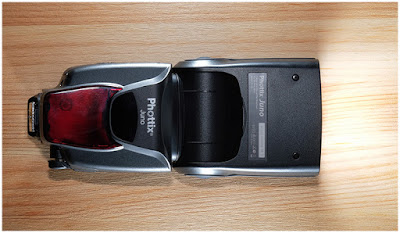
A value-priced, all-manual flash with a built-in radio and a real warranty? Yeah, I'm interested.

Today, a first look at the new Phottix Juno. Read more »
Strobist

 
Comments Off on First Look: Phottix Juno

Posted in Photography


First look at upcoming Pentax ‘star series’ lenses and silver edition K-1

27 Oct

First look at upcoming Pentax 50mm F1.4 and 11-18mm F2.8 lenses

Ricoh is showing off two upcoming lenses at the Photo Plus Expo show in New York this week. The HD Pentax-D FA* 50mm F1.4 SDM AW is designed for full-frame cameras, while the HD Pentax-DA* 11-18mm F2.8 is intended to be paired with the company’s APS-C DSLRs.

We weren’t able to get our hands on the new lenses, sadly – they’re still under glass – but we’re told that they’re cosmetically near-final. Click through for a closer look.

First look at upcoming Pentax 50mm F1.4 and 11-18mm F2.8 lenses

We’ve known about the HD Pentax-D FA* 50mm F1.4 SDM AW for a while, but the last time we saw it (also under glass) it was little more than a lens-shaped lump of plastic. Things have advanced since then, and the copy on show here appears to be a working prototype.

The upcoming 50mm is one of a new generation of ‘star series’ lenses that Ricoh intends for high-resolution imaging with its flagship K-1 and (presumably) follow-up full-frame models.

First look at upcoming Pentax 50mm F1.4 and 11-18mm F2.8 lenses

The 50mm F1.4 will come with a generously proportioned lens hood. The ‘AW’ in the designation stands for ‘All Weather’ and denotes environmental sealing, which should mean that like the K-1, it will stand up to use in harsh conditions.

A new ring-type SDM autofocus drive promises fast, quiet focusing. Pricing has yet to be announced, but the new 50mm should be available in spring of next year.

First look at upcoming Pentax 50mm F1.4 and 11-18mm F2.8 lenses

Meanwhile, the HD Pentax-DA* 11-18mm F2.8 is intended to be paired with the company’s APS-C DSLRs, and covers an effective focal length range of ~17-28mm. The fast maximum aperture of F2.8 is fixed across the zoom range, and while it hasn’t been spelled out anywhere, the sample on show appears to feature a switch for optical image stabilization, covered in black tape.

This would be a bit odd, given that Pentax’s DSLRs are stabilized in-body but could point towards hybrid stabilization. The alternative explanation (and probably more likely) is that it’s either a zoom lock or simply a vestigial bump which will be removed in shipping lenses.

First look at upcoming Pentax 50mm F1.4 and 11-18mm F2.8 lenses

Beyond the usual hyperbole (photographers should be able to ‘effortlessly capture breathtaking landscapes’ with this lens, apparently) details of the exact specification are sparse. Along with the mystery switch, the focus scale has also been obscured.

First look at upcoming Pentax 50mm F1.4 and 11-18mm F2.8 lenses

No pricing information has been shared, but we’re told that the 11-18mm will be available next summer.

First look at upcoming Pentax 50mm F1.4 and 11-18mm F2.8 lenses

Here’s the new K-1 ‘Silver Edition’, announced in August. This special edition of Ricoh’s flagship full-frame DSLR features a special silver coating, to match the silver versions of Pentax Limited lenses.

First look at upcoming Pentax 50mm F1.4 and 11-18mm F2.8 lenses

This is the kind of thing that often looks great in manufacturer-supplied renderings, but a bit tacky in real life. We’re pleased to see that in person, the silver K-1 looks pretty classy.

First look at upcoming Pentax 50mm F1.4 and 11-18mm F2.8 lenses

A special silver hotshoe cover is an especially nice touch. The K-1 silver edition is limited to 2000 copies worldwide.

First look at upcoming Pentax 50mm F1.4 and 11-18mm F2.8 lenses

Alongside its conventional cameras and lenses, Ricoh is also showing off its new Theta V 360-degree camera, which improves on the original model with much better resolution and advanced video features. Learn more about the Ricoh Theta V

Articles: Digital Photography Review (dpreview.com)

 
Comments Off on First look at upcoming Pentax ‘star series’ lenses and silver edition K-1

Posted in Uncategorized


Video: Sony a7R III first look

26 Oct

Sony took the wraps off its a7R III this morning, and we’ve been able to spend a little time checking out its standout features. Dan and Richard are on the ground in New York at Sony’s launch event, and have put together a quick video showing what’s new and cool.

Read all about the a7R III and keep an eye out for sample photos and more in the near future!

Articles: Digital Photography Review (dpreview.com)

 
Comments Off on Video: Sony a7R III first look

Posted in Uncategorized


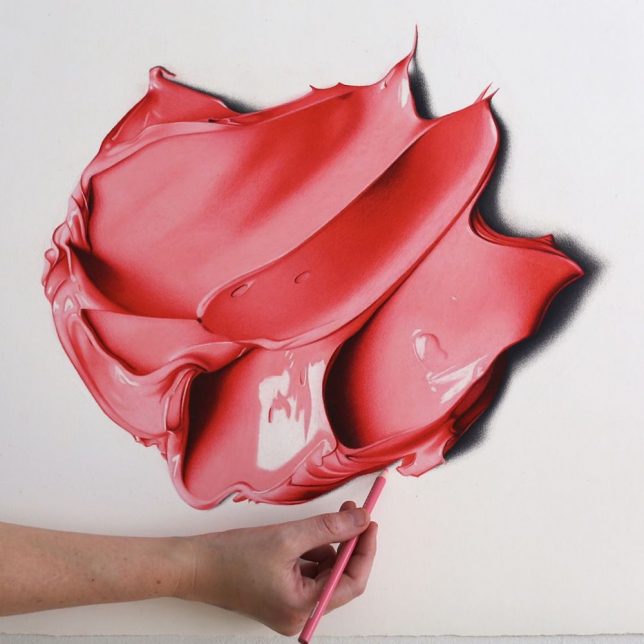
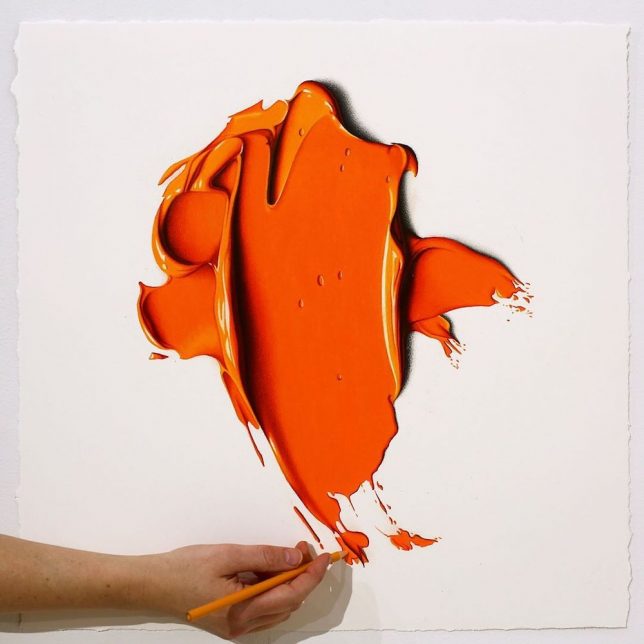
Art of Deception: Pencil Drawings Look Like Colorful 3D Splashes of Paint

01 Oct

[ By WebUrbanist in Art & Drawing & Digital. ]

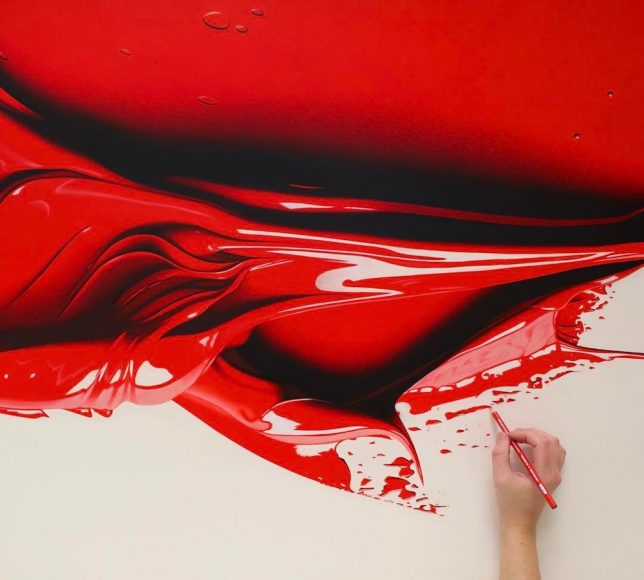
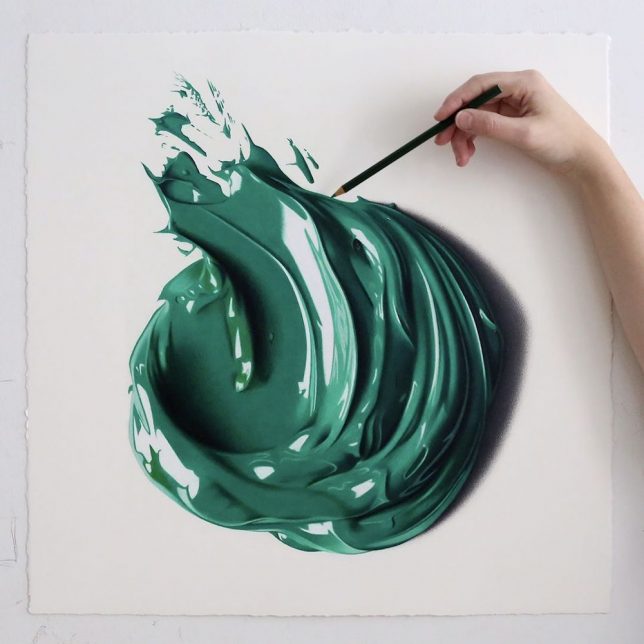
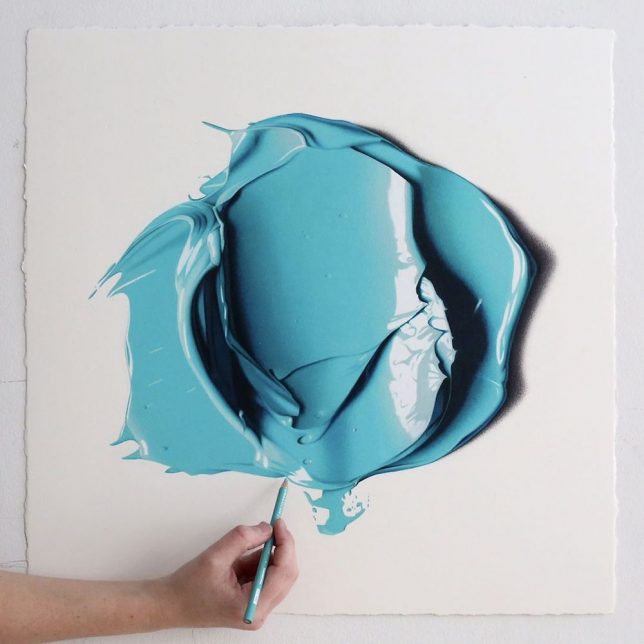
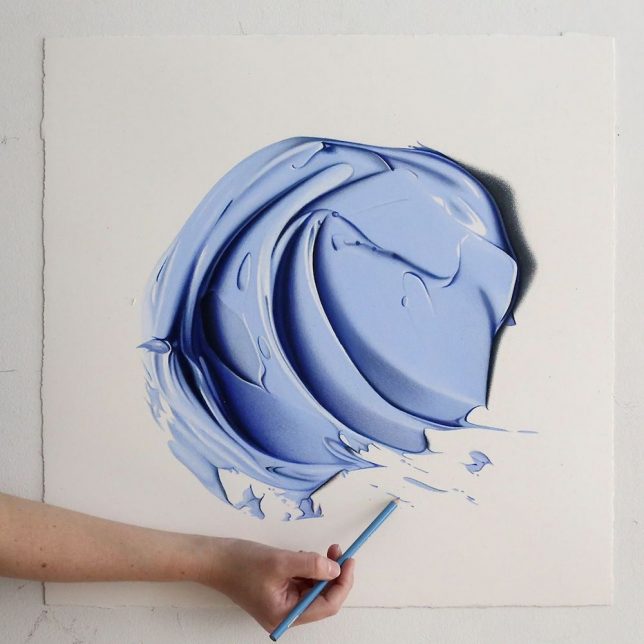
Seeming to rise up off the canvass, a viewer would be impressed to discover these swaths of paint to be two-dimensional in nature, but then further shocked to realize the material isn’t paint at all but pencil.

Australian artist Cj Hendry has an eye for hyper-realism, but in this series: instead of using it to draft convincing landscapes or portraits has turned to emulating oil paint.

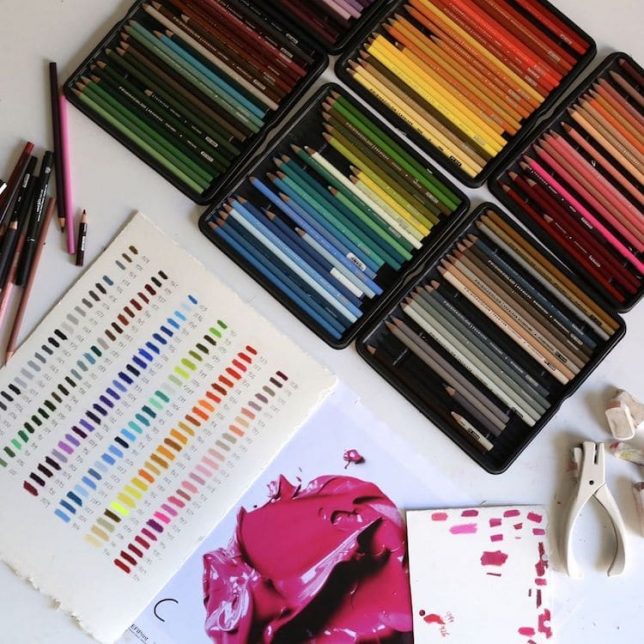
Layers of carefully applied pencil slowly add depth and dimension to the flat surface, capturing the lush appearance of semi-liquid paints. The effect is so convincing the artist often includes a hand and pencil in photographs of the work to highlight the fact that what is being seen is both two-dimensional and drawn with pencils.

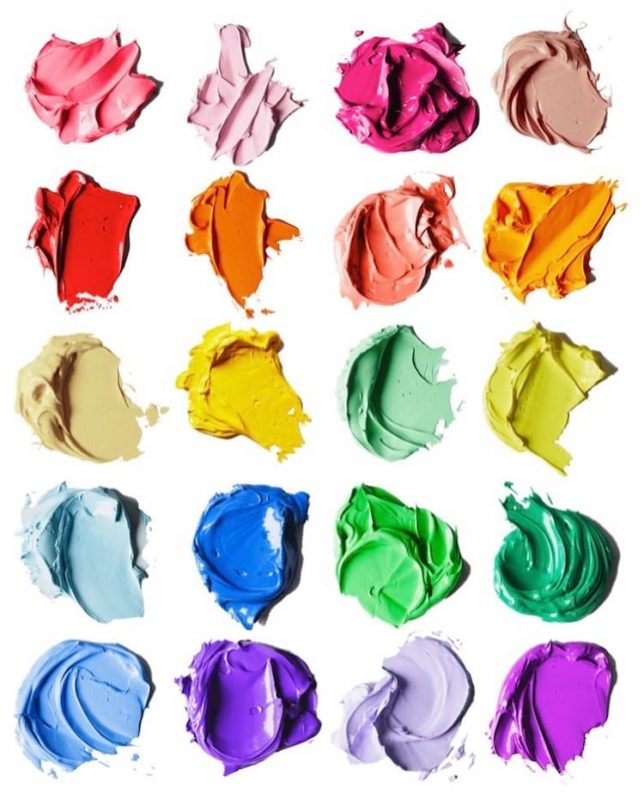
It is a dramatic shift from previous work by Hendry done in black and white. And going to color didn’t mean just picking one per piece, either — each of these colorful works employs a number of different colors, which is not at all obvious at a glance.

Share on Facebook


[ By WebUrbanist in Art & Drawing & Digital. ]

[ WebUrbanist | Archives | Galleries | Privacy | TOS ]


WebUrbanist

 
Comments Off on Art of Deception: Pencil Drawings Look Like Colorful 3D Splashes of Paint

Posted in Creativity


Getty Images bans Photoshopping models to look thinner thanks to French law

27 Sep

In 2015, France passed a law that will require some commercial images with a digitally retouched model to have a label notifying viewers about the alterations. That requirement will be effective starting October 1st, 2017, and Getty Images is preparing for that day with a policy change of its own.

Announced in an email that DPReview has acquired from a reader, Getty has updated its Creative Stills Submission Requirements to specify that it will no longer accept images of models whose bodies have been edited to look either thinner or larger.

The law doesn’t extend to minor digital edits, such as fixing skin blemishes, altering hair color, or altering nose shape; however, edits that change a model’s body shape require a disclosure. In response, Getty Images says that starting October 1st, photographers may not “submit to us any creative content depicting models whose body shapes have been retouched to make them look thinner or larger.”

Submitting this type of altered image will result in the photographer breaching both submission guidelines and their agreement with the company, Getty warns. The same change applies to iStock submissions, as well.

Magazines and other entities in France that use these altered photos without proper disclosure face a fine of up to €37,500 (~$ 45,000 USD).


DPReview has reached out to Getty Images for comment on the policy change, as well as clarification about how broad this change is, and what the company intends to do about the altered images already in its catalog. We will update the post if and when we hear back.

Articles: Digital Photography Review (dpreview.com)

 
Comments Off on Getty Images bans Photoshopping models to look thinner thanks to French law

Posted in Uncategorized


Nikon D850: a look at dynamic range

11 Sep

The D810 offered excellent DR combined with a low base ISO that allowed it to tolerate lots of light. A look at the D850 suggests it’s been able to repeat this trick, while also seeing an improvement at high ISO settings.

Articles: Digital Photography Review (dpreview.com)

 
Comments Off on Nikon D850: a look at dynamic range

Posted in Uncategorized


Video: Fujifilm X-E3 First Look

09 Sep

Fujifilm’x X-E3 comes with a whole host of refinements and upgrades both inside and out. A new touchscreen drives the user experience, and with an updated sensor and processor comes 4K video capture. Take a peek at what these upgrades look like in action.

Read our Fujifilm X-E3 First Impressions Review

Articles: Digital Photography Review (dpreview.com)

 
Comments Off on Video: Fujifilm X-E3 First Look

Posted in Uncategorized