RSS
 

Posts Tagged ‘Long’

How To Freeze Moving Subjects in a Long Exposure Photo

20 Nov

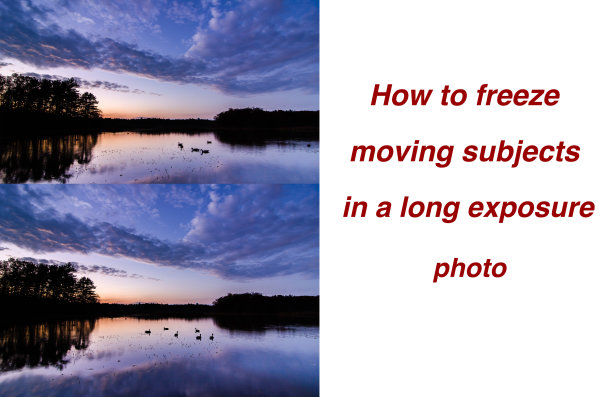
So you have this idea for a photograph where you’ve smoothed out the water on a lake using a long exposure, but want to capture the wildlife swimming on said lake frozen in place – or something similar?  I had that same vision and I’m going to show you how I accomplished it below, so you can follow along.
freeze subjects in long exposure photo

When trying to capture this kind of photograph in a single frame you’re pretty much out of luck. You can either capture a long exposure shot to smooth out the water, OR increase your ISO and capture a shot using a faster shutter speed to freeze your subject. No matter what you do in camera though, one piece of this puzzle will be out of line with the other.

So how do you freeze your subjects in a long exposure scene? Simple – with a little bit of post production.

Part One – Photograph Two Different Images

You will need two frames to work with in post production; one with a fast shutter speed to freeze the moving subjects, and one with a long exposure to smooth out the water in the scene. You don’t want to change the Depth of Field between the two frames, and need to make sure that the overall exposure remains the same, so you are left with changing the ISO setting to achieve the results you want.

The long exposure shot will be taken at ISO 100 and whatever settings will be required to get the optimal exposure for the scene in front of you and the faster shutter speed shot will be taken with a higher ISO setting allowing you to achieve a fast enough shutter speed to freeze the motion of the subject you want stationary.

In the example photograph the long exposure was taken at 1.3 seconds, and the high ISO photograph was shot at ISO 4000. This allowed me to get an exposure of 1/30th of a second (still fairly slow, but workable for the desired result).

Part Two – Combining the Images in Photoshop

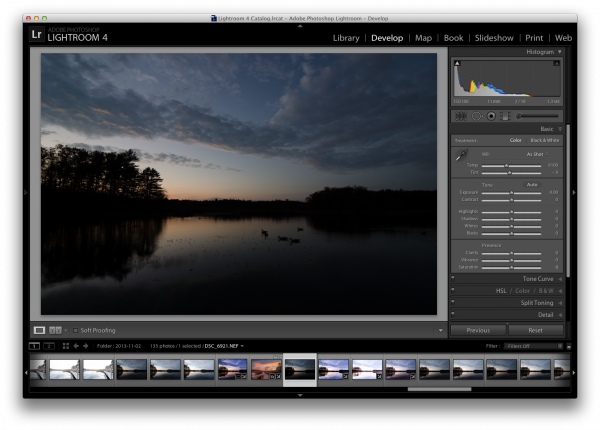
Here’s the first, unprocessed image, straight out of camera. Before you get to freezing the moving subjects you need process the original photo. I will be working in Lightroom 4 to demonstrate.
Original Long Exposure

Original long exposure photo in Lightroom

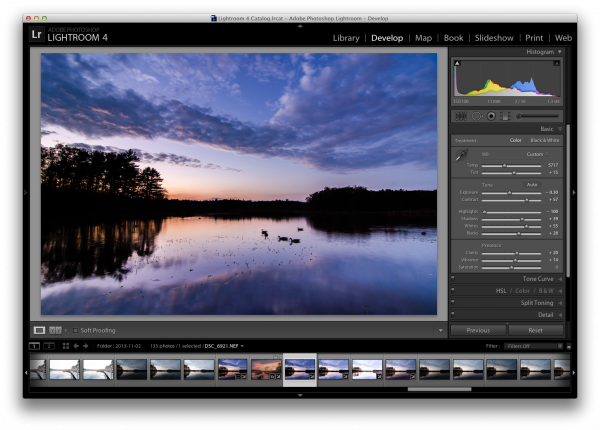
After applying a few graduated filters, some adjustment brushes, and playing with the basic sliders I was able to achieve a result that is pleasing. If you’d like to see exactly how I created this – you can watch the entire process here.

Now that you’ve got the photograph properly exposed you’ll notice that the problem is very evident in the photograph – the moving subjects just wouldn’t sit still for the long exposure. So it’s up to post production magic to solve this issue.
Processed Photo

Process the long exposure image to your liking

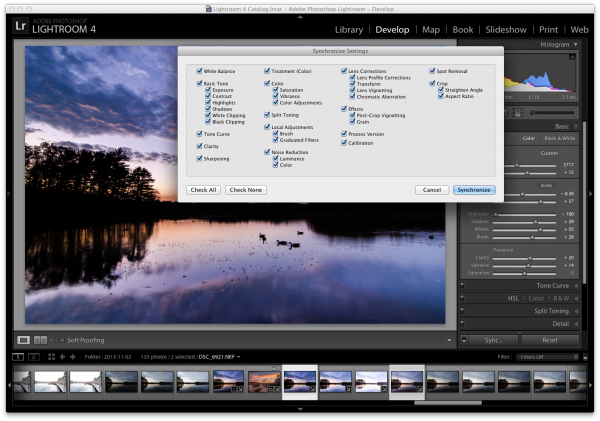
Use Lightroom’s “sync” feature in the Develop Module to bring the settings from the photo above over to the high ISO photo that you will be using . This will allow you to make sure everything stays the same (color, contrast, tone, etc.) between the two images when you get to creating the composite later.
sync

Sync settings from the processed long exposure shot with the high ISO shot used to freeze the subject

I suggest applying some minor adjustments to the high ISO image to get the subjects to stand out more (as they are going to be the only piece of the high ISO used in the final version).

One of the main areas of focus for this example image was to create lines that are as hard as possible for the subjects, so that they stand out very nicely in the composite. To do this, go into Lightroom’s detail section and push up the sharpening quite a bit. You may also want to do some noise reduction to try and compensate for the high ISO exposure with increased noise.
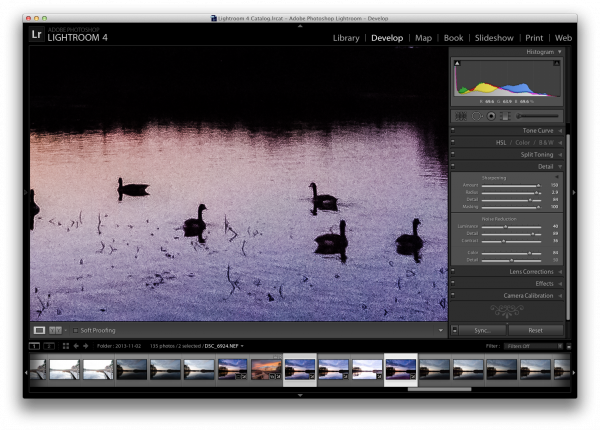
High ISO Exposure

Make some minor adjustments to the high ISO shot and export both images for further processing in Photoshop

While Lightroom is great for processing photos, it is limited in that you can not create composites or work with layers, which is exactly what is needed to finish this project.

Therefore it’s time to bring out the big guns and jump on over to Photoshop. Below, I’ve loaded the two files as layers, (select the two thumbnails in LR, right click on them, and choose “edit in>Open as layers in PS) with the long exposure layer on top and the high ISO layer on the bottom.
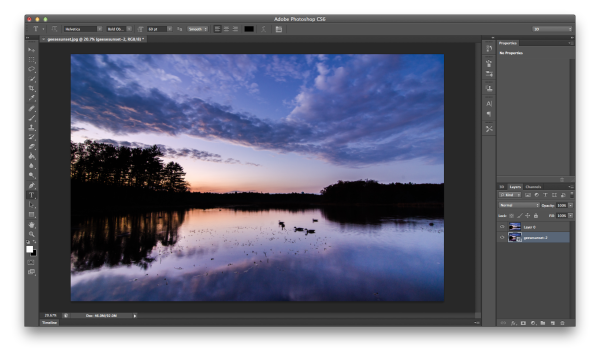
Jump into Photoshop

Open both photos as layers in Photoshop – I typically put the high ISO image on the bottom as we will be using less of that image in most cases.

I like to clean up the long exposure shot as well as I can first, so I went ahead and got rid of the blurry geese by performing a simple clone job. Go ahead and do that on your image as well if suitable.
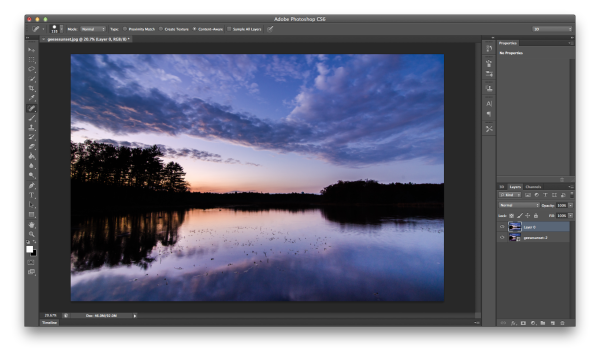
Clone

Clone the blurred subject from the long exposure shot

Next reduce the opacity of the long exposure layer (which I’ve arranged as the top layer). This will allow you to see the high ISO layer as a reference point, while still being able to see most of the long exposure shot as well.
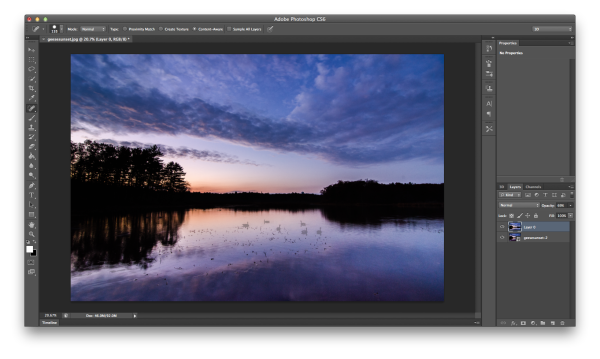
Reduce Opacity

Reduce the opacity of the long exposure layer allowing you to see the high ISO layer below

With the high ISO layer selected, use Photoshop’s selection tool to make a rough selection of the subjects in the frame. Next add a layer mask to the long exposure layer, which you will be using in the next step.
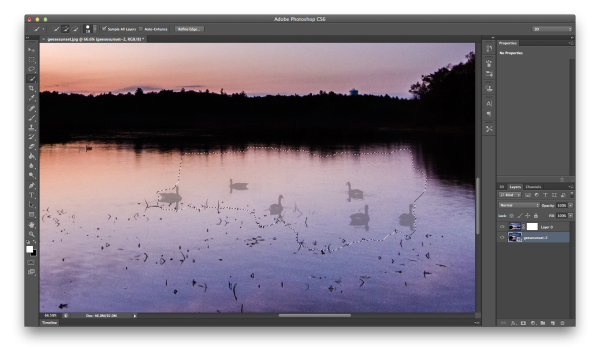
Select high iso subject and add layer mask

With high ISO layer selected, select your ‘frozen’ subject and add a layer mask to the long exposure layer

Once the subjects have been roughly selected, fine tune the edges of the selection to make sure you’ve got everything you need. Then select the layer mask you added to the long exposure layer and fill in the selection with a black paint bucket fill (make sure your swatches are set to default black/white and use the tool at 100%). This is a very crude way of getting the geese into the long exposure shot, but does the job quickly and it works.
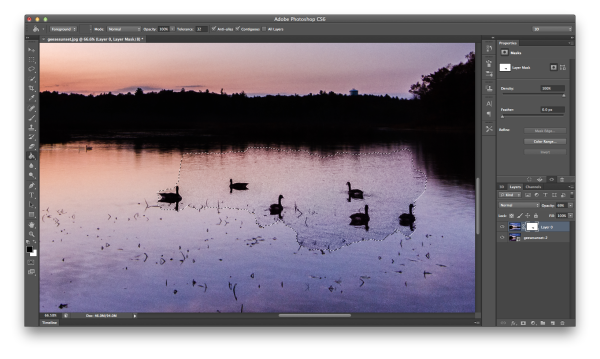
Bring Frozen Subject Forward

With the layer mask selected for the long exposure layer, use the paint bucket to fill in the selected region

Now that you have your subjects visible within your frame, bring the opacity of the long exposure layer back to 100% and start the clean up. I recommend you work in broad strokes first using a wide brush with the color white selected. This will allow you to get most of the areas between the subjects from long exposure frame back, instead of the noisy high ISO frame.
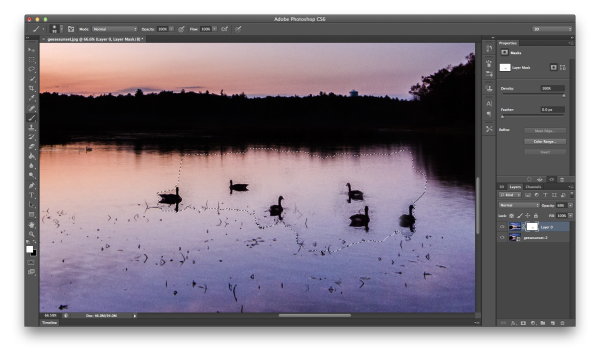
Clean Up part one

Using a white paint brush clean up the areas in between and around the subject in broad strokes first

Once you have a basic rough clean up done, it’s time to zoom closer and use a finer point brush to do the detail work. It’s a time consuming process. But, this must be done, or the final image will end up looking like two images put on top of one another, and not one cohesive, final image.
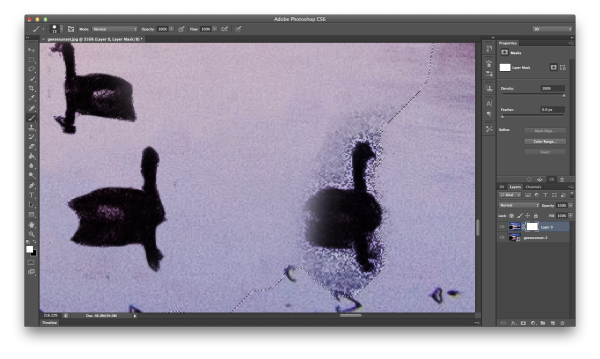
Detail Work

Once you’ve roughed out the clean up – zoom in with a small brush and continue the clean up on a more detailed level

You’re on the home stretch now!

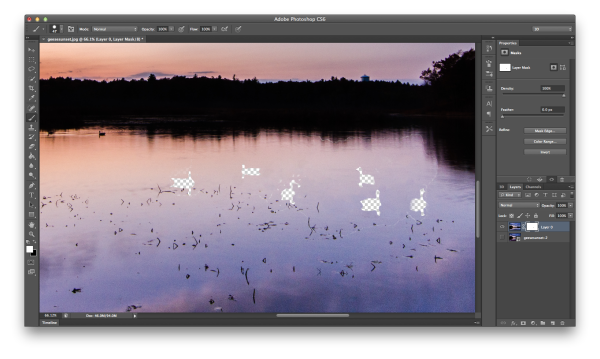
Do one final check of the image by hiding the high ISO image (click the little eyeball next to the layer). By doing this, places the mask has been applied will now be transparent, and you’ll easily be able to tell if there were small areas that need fixing.
Final Clean Up

As a final clean up – hide the subject layer and see if there were any spots that need a final adjustment

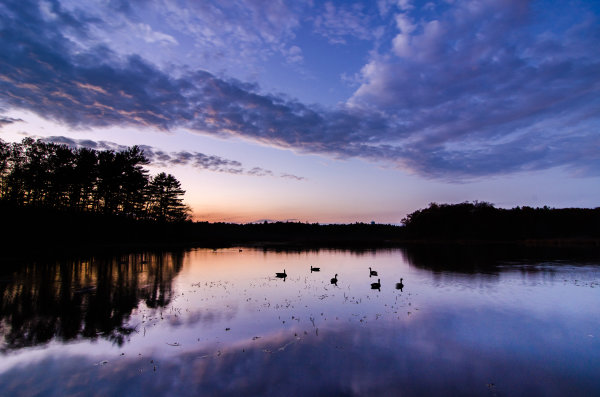
After the final touch up and a few other minor tweaks in photoshop you’re ready to merge layers, save the image and show your friends. (you can also save a layered version if you think you might want to edit it more later)
geesesunsefinal

Save and share your final shot

Summary and more reading

I hope you got something out of this step by step walkthrough – for more information on how to mask in Photoshop, which is really what this entire process boils down to, check Photoshop Masks 101. If you’ve ever created a long exposure, high ISO composite, I’d love to see it in the comments!

Post originally from: Digital Photography Tips.

Check out our more Photography Tips at Photography Tips for Beginners, Portrait Photography Tips and Wedding Photography Tips.

How To Freeze Moving Subjects in a Long Exposure Photo

The post How To Freeze Moving Subjects in a Long Exposure Photo by John Davenport appeared first on Digital Photography School.
Digital Photography School

 
Comments Off on How To Freeze Moving Subjects in a Long Exposure Photo

Posted in Photography


Removing Noise from Non-Dark Framed Long Exposures

05 Nov

One of the big disadvantages of taking long exposures with DSLR cameras is the introduction of noise especially when higher ISO settings are used. Camera manufacturers have addressed this by using Dark-Frame Subtraction, but taking advantage of Dark-Frame Subtraction (DFS) isn’t always possible.  If you’re shooting a sequence of images either for a night time-lapse or startrail photo DFS will introduce unwanted gaps or breaks. If you’re shooting extremely long exposures then your camera battery might not last long enough to complete your exposure, the dark-frame exposure and record the exposure to your memory card.   In regard to my pursuit of low-light or night photography for extreme long-exposures, star trails and time-lapses I’ve resorted to shooting without Dark-Frame Subtraction / Long Exposure Noise Reduction and addressing the noise in post-production.

The Technique

Here’s the technique I employ to manage the digital noise and hot pixels in my extreme long exposure photographs:

  1. Import & Edit in Lightroom

    After each shoot my photos are imported into Adobe Lightroom where I post-process my image to my personal taste adjusting exposure, black/white levels, vibrance, clarity, curves, etc.  Note: if you’re curious about the file formats I work with read DNG, RAW and JPEG: What I Use & Why 

  2. Lightroom Noise Reduction

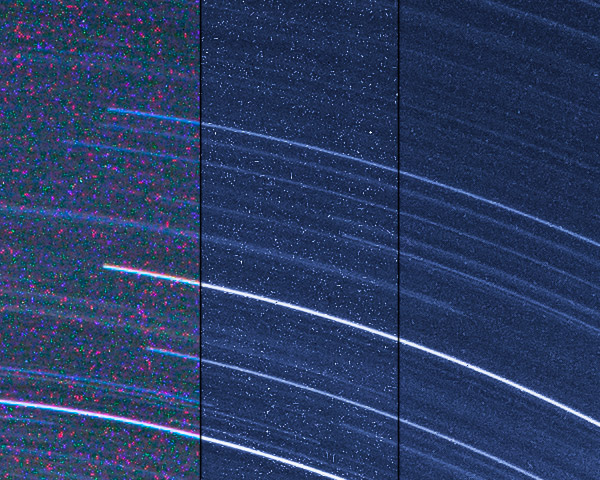
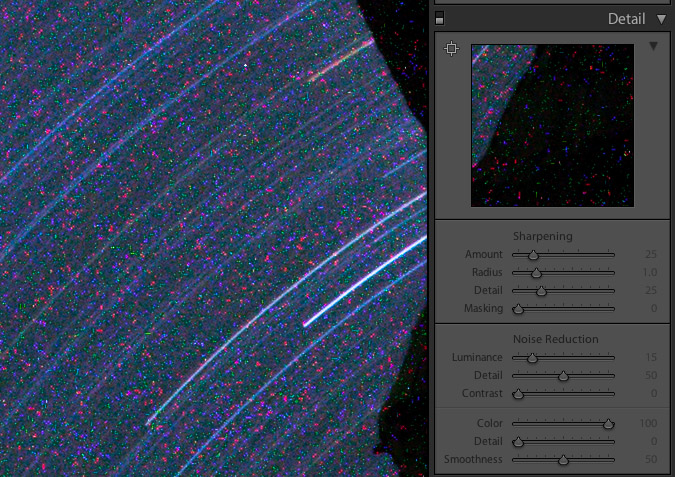
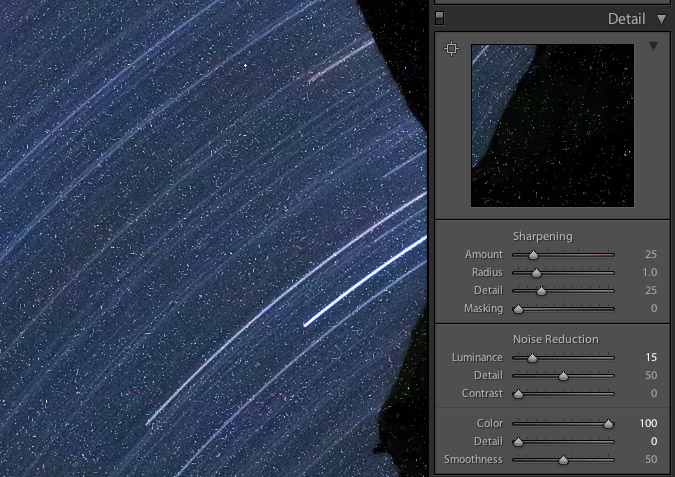
    Toward the end of my post-processing I remove chromatic and luminance noise in Lightroom “Develop > Detail” module. To remove chromatic (color) noise it’s not uncommon that I crank the “Color” adjustment all the way to 100 leaving only dust or grain like noise that is white. (see images below)

  3. Open Image in Photoshop

    In Lightroom I right click on my image and “Edit In > Photoshop”. This opens my file with all my Lightroom edits applied in Photoshop.

  4. Duplicate the “Background” Layer

    When my photo is opened in Photoshop a single layer appears titled “Background”. I duplicate this layer which by default is named “Background copy”.

  5. Dust & Scratches

    To the “Background copy” layer (the top layer) I apply “Filters > Noise > Dust & Scratches”. A dialogue box will open allowing you to specify how drastically or minimally you want to apply the filter. This filter will remove noise by blurring the photo. Ideally you want to keep the Radius as low as possible and the Threshold as high as possible. Once doing this your image will look quite blurry and seemingly useless.

  6. Employing the Blending Mode “Darken”

    To the “Background copy” layer, that has had the “Dust & Scratches” filter applied, I change the blending mode to “Darken”. Magically this will allow the sharper lighter elements of the layer below to show through while keeping the noise free darker elements of the top layer. Once done the last signs of digital noise are removed.

Here’s How It Looks

To show an extreme example below are 1 to 1 crops of The Ancients a 91 minute single exposure taken on my Canon 5D Mark II.

1:1 crop in Lightroom straight out of the camera

Note the seemingly horrific amount of chromatic noise appearing as splotchy colors.

1:1 Crop in Lightroom after color noise reduction

With the Color slider at 100% all that is left are millions of white specks


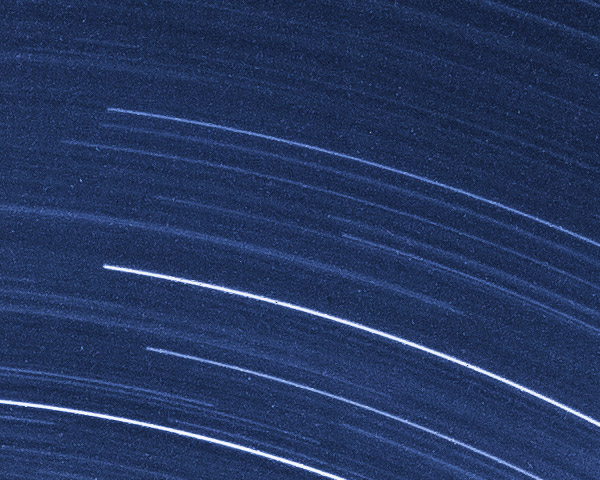
1:1 crop with noise  

Even with chromatic noise removed it would seem there are too many white specks to make this a useable image

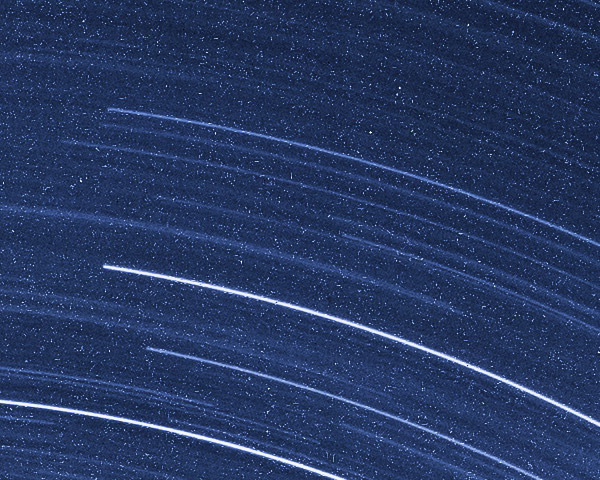
1:1 crop without noise

Applying Dust & Scratches and Blending it with the original image magically removes the white specks.

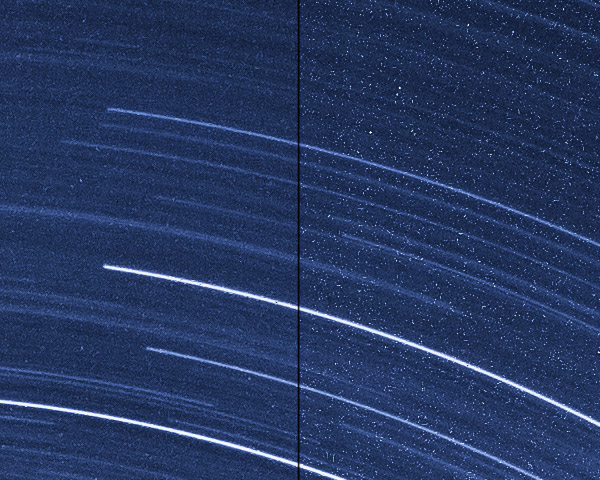
1:1 crop with comparing final vs noise

The same image showing the before and after to highlight the stark difference

1:1 crop from RAW import to Final


What does the end result look like on a web sized image?

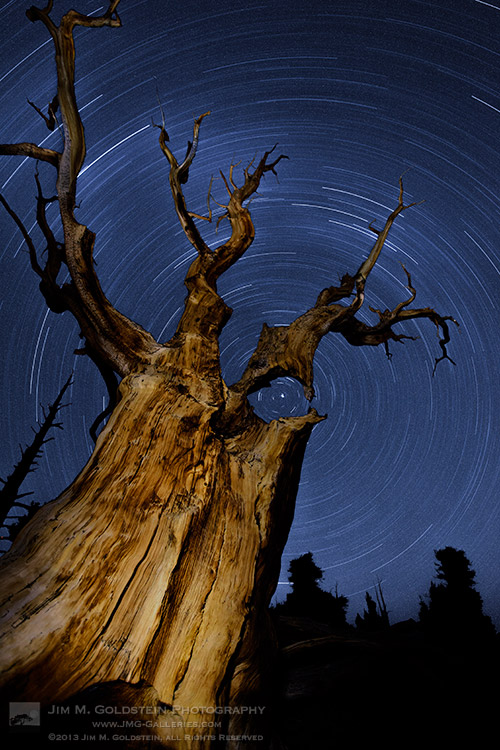
  Web version with noise

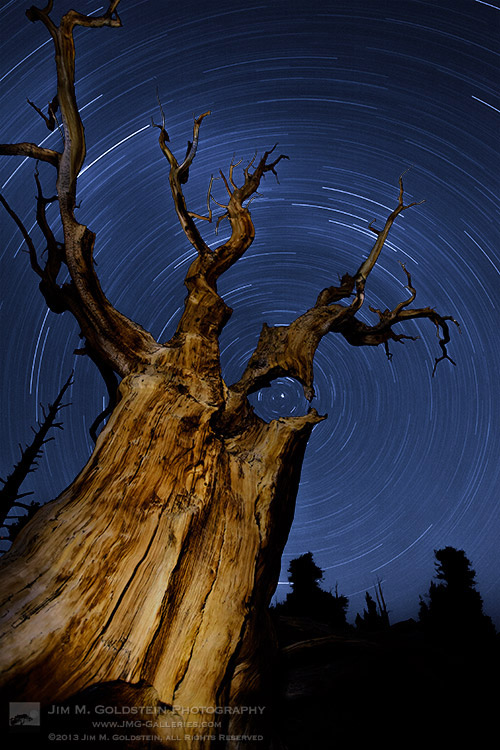
Web version without noise

For web display the improvement may be marginal, but for prints this technique will make a notable improvement. My lone disclaimer is that your mileage may vary with this technique depending how much noise your camera produces, how long your exposures are and what ISO setting you use.

For more on long exposures check out my ebook Photographing the 4th Dimension – Time

Copyright Jim M. Goldstein, All Rights Reserved

Removing Noise from Non-Dark Framed Long Exposures

The post Removing Noise from Non-Dark Framed Long Exposures appeared first on JMG-Galleries – Landscape, Nature & Travel Photography.


Related Stories

  • Removing Noise from Non-Dark Framed Long Exposures – Enclosure
  • Photo Term Series #21: Dark-Frame Subtraction
  • Photo Term Series #21: Dark-Frame Subtraction – Enclosure
Feed Ads by FeedBlitz
powered by ad choices


JMG-Galleries

 
Comments Off on Removing Noise from Non-Dark Framed Long Exposures

Posted in Equipment


The Surreal Landscape: Long Exposure Photography

09 Oct

Long exposure photography

It seems to me that we live in a world orientated to a digital generation demanding instant gratification. This extends to photography, encouraged by the prevalence of camera phones and Instagram type apps. How many photographers, when they come across a beautiful scene, just stop and snap a photo with a camera phone and then move on?

Long exposure photography is different. It demands patience, an appreciation of beautiful light and a deep understanding of composition. It is as much about the mind-set of the photographer as it is about the subject. It’s not brash or flashy – you rarely see long exposure photographers use techniques such as high dynamic range (HDR) photography or adding texture layers.

What is long exposure photography? There is no precise definition. I think of it as involving shutter speeds of ten seconds or longer, but I’m sure some photographers will be thinking in terms of shutter speeds of a minute or more. But the aim is the same – to create beautiful and surreal images by leaving the shutter open long enough to record anything that moves within the landscape, such as water, as a blur.

That’s why most long exposure photography tends to take place along the coast. The sea creates an interesting subject, helped by natural features such as rocks and islands, and man-made ones like piers and jetties.

Painting with light is also a form of long exposure photography.

Long exposure photography

Contemplation and the landscape

You may be wondering what one does while waiting for the camera to take a photo when the shutter speed is longer than a minute.

The answer is that long exposure photography is a naturally contemplative pastime. While waiting, take some time to enjoy the beautiful location you are in. Breathe and enjoy the smell of the air. Listen to the sounds. Watch the light as it fades away. This meditative approach will help you notice things an instant gratification seeker will miss.

Getting started

Interested? How then, do you get started? One of the nice things about long exposure photography is that the basic requirements are not extensive:

  • A camera that lets you take control of the exposure settings and has a Bulb setting so that you can use shutter speeds longer than 30 seconds.
  • A tripod and a good ball-and-socket head. Beware of inexpensive models – they may be too flimsy to support your camera properly during long exposures. A good aluminium or carbon-fibre tripod is required.
  • A cable release or remote release so that you can activate the shutter without touching the camera.

Filters

A polarising filter is useful for eliminating reflections from shiny surfaces, such as a concrete jetty made wet by sea water. It also blocks between one and two stops of light, helping you obtain longer shutter speeds.

Some photographers use neutral density (ND) filters, but they are not essential. You can get started without them by turning up late in the day and taking photos as the sun sets. During twilight you can obtain shutter speeds of thirty seconds or later by setting a low ISO and a narrow aperture.

The benefit of neutral density filters is that they extend the period of time during which you can use long exposures. They come in various strengths; three, four, nine and ten stop ND filters are the most common. Nine and ten stop ND filters are designed to enable long exposure photography during the middle of the day – you won’t need them if you are shooting at dusk.

Learn more about neutral density filters.

Long exposure photography

Noise reduction

Shoot in Raw and turn off the long exposure noise reduction setting. The software you use to process your Raw files will take care of noise reduction for you.

Resources

Here are some more resources that will help:

BW Vision

Slices of Silence

Interviews with long exposure photographers

Long Exposure Photography: 15 Stunning Examples

Eight Tips for Long Exposure Photography

Photo Tutorial – Long Exposure Photography

Final thoughts

That’s a lot to take in, so don’t forget the most important thing of all – to go out and take some photos. It takes a while to get the hang of long exposure photography, so don’t be discouraged if your first attempts aren’t as polished as you would like. It takes time to master the techniques and develop the eye for graphical composition required for successful long exposure photography.

Mastering Photography

My ebook Mastering Photography: A Beginner’s Guide to Using Digital Cameras introduces you to photography and helps you make the most out of your digital cameras. It covers concepts such as lighting and composition as well as the camera settings you need to master long exposure photography and take photos like the ones in this article.

Long exposure photography

Post originally from: Digital Photography Tips.

Check out our more Photography Tips at Photography Tips for Beginners, Portrait Photography Tips and Wedding Photography Tips.

The Surreal Landscape: Long Exposure Photography

The post The Surreal Landscape: Long Exposure Photography by Andrew Gibson appeared first on Digital Photography School.

Digital Photography School

 
Comments Off on The Surreal Landscape: Long Exposure Photography

Posted in Photography


Long Exposure Photography and the Square Format

04 Aug

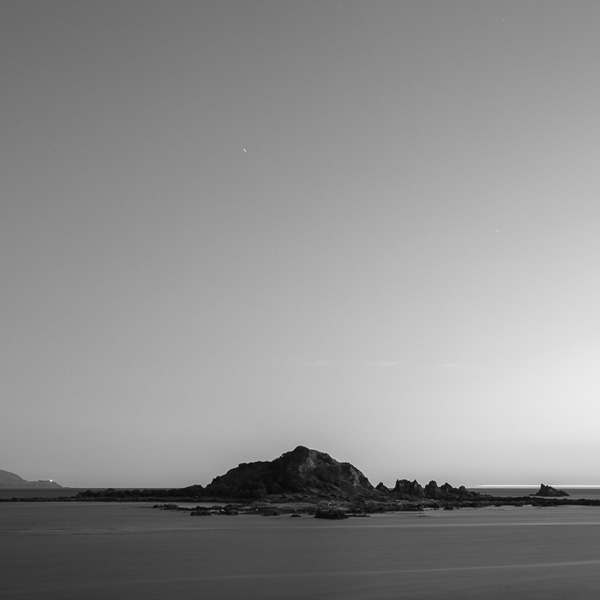
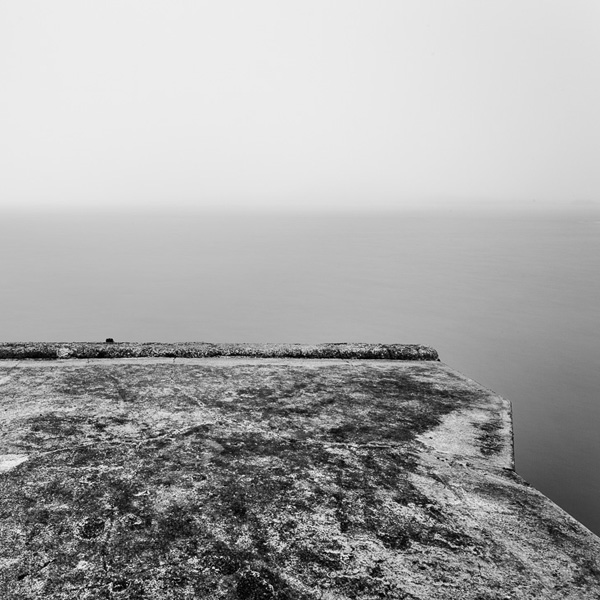
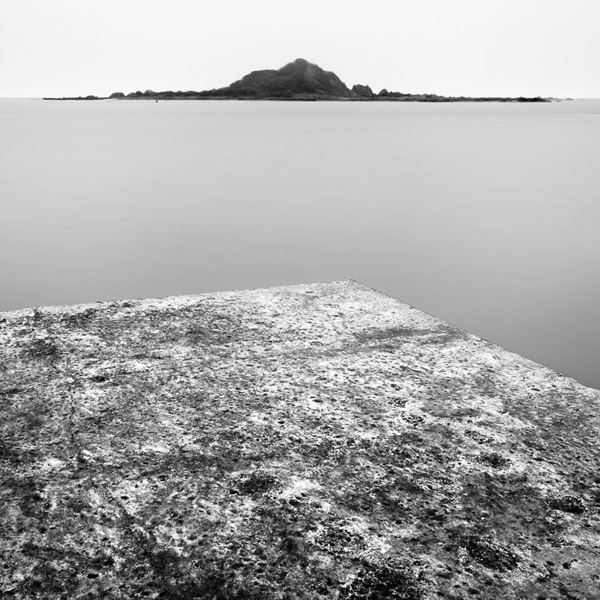
Square format black and white photograph

The rise in popularity of digital cameras over the past decade has coincided with the emergence of a new genre of photography – long exposure photography. Long exposure photography involves using shutter speeds of anything from one second to five minutes or more while using a tripod to keep the camera still. The result is a landscape or architectural study characterised by still elements, such as rocks or a building, contrasting with moving elements, such as water or clouds in the sky. Most long exposure photographers use neutral density filters to obtain long shutter speeds and would probably aim to use a shutter speed of at least thirty seconds to obtain their effects.

Digital cameras greatly assist with long exposure photography because there is no reciprocity failure with digital and the instant feedback provided by the LCD screen lets photographers see right away how effective the composition is.

Square format black and white photograph

If you are familiar with the work of some of the more well-known long exposure photographers then you would no doubt have noticed that many of them choose to work in both black and white and the square format. Why is this?

Let’s start with black and white. Monochrome is the medium of choice for many fine art photographers. It’s moody, timeless, evocative and expressive. Removing colour from the composition concentrates attention on texture, contrast, line and light – the visual building blocks of powerful imagery.

The square format is different from other aspect ratios because of its balanced shape. The four sides of a square are equal in length and encourage the viewer’s eye to move around the frame in a circle, rather than side-to-side or up and down. The square frame lends itself to compositions that contain strong shapes, lines or other graphic elements. The strong shape of the square frame seems to emphasise other shapes that appear within it.

Not all long exposure photographers work exclusively in black and white or the square format, but many of them do. The heavy emphasis on simplicity led composition in the long exposure photography genre marries well with the compositional strengths of the square format.

Square format black and white photograph

Long exposure photographers

Looking at the work of other photographers is an excellent way to learn more about the creative side of photography. The following is a list of some of my favourite long exposure photographers. Each photographer in this list works predominantly in black and white and the square format. You will learn a lot from their work.

I have interviewed many of these photographers on my website. You can work your way through the interviews here.

Photographer Nathan Wirth has also interviewed some of these photographers on his blog Slices of Silence.

  • Joel Tjintjelaar
  • Moises Levy
  • Keith Aggett
  • Julia-Anna Gospodarou
  • Hengki Koentjoro
  • Spencer Brown
  • Didier Demaret
  • Thomas Leong
  • Andy Brown
  • Will Le
  • Maria Strömvik
  • Nathan Wirth
  • Steve Landeros
  • Paul Wheeler
  • Gavin Dunbar
  • Håkan Strand
  • Josef Hoflehner
  • Michael Kenna
  • Jeff Gaydash
  • Michael Diblicek
  • Xavi Fuentes

Conclusion

I hope you enjoyed looking through the work of the photographers listed above. If you’d like to find out more about long exposure photography, then Joel Tjintjelaar’s website BWVision is an excellent place to start. The tutorials page has plenty of information to get you started.

Post originally from: Digital Photography Tips.

Check out our more Photography Tips at Photography Tips for Beginners, Portrait Photography Tips and Wedding Photography Tips.

Long Exposure Photography and the Square Format


Digital Photography School

 
Comments Off on Long Exposure Photography and the Square Format

Posted in Photography


100 Fantastic Examples of Long Exposure Photography to Take Your Breath Away

01 Jun

Today I’m gonna bring you an exciting showcase of long exposure photography that will take your breath away! Long exposure is used when you want to blur moving objects in the frame and you want to leave still objects sharp. To do that, you should place your camera on a tripod to avoid any camera shake for a long time. Continue Reading

The post 100 Fantastic Examples of Long Exposure Photography to Take Your Breath Away appeared first on Photodoto.


Photodoto

 
Comments Off on 100 Fantastic Examples of Long Exposure Photography to Take Your Breath Away

Posted in Photography


Canon 60D Open Shutter / Long Exposure

08 Feb

Here, I take different shots using my Canon 60D with the open shutter/ long exposure techique. I try different aperture settings at this time of night (21:00 – 21:30). My first shoot is at a place called Arthers Seat on the Mornington Peninsula. My second shoot was from a overpass walkway looking down on a freeway a few clicks from my first shoot. I hope this video helps some Canon 60D owners.
Video Rating: 4 / 5


Formula Drift Long Beach 2011 Compilation

06 Feb

April 9, 2011 Formula Drift X Slammed Society Showcase First round of Formula Drift in 2011 Congrats to Justin Pawlak, Matt Powers, Dai Yoshihara ENJOY! Video – iPhone 4 Images – Nikon D80 Produced with Apple iMovie 2010 Song Credits Nujabes ft. Cise Starr and Akin – Feather Wiz Khalifa – The Thrill Special Thanks – Nikki Chan
Video Rating: 4 / 5


Urban Long Exposures by Marc Koegel

20 Jan

This video features new photography work by black and white photographer Marc Koegel. Using long exposures of over an hour, Marc’s photographs cityscapes in black and white, using large format film cameras and full frame digital capture. Marc teaches his techniques in a workshop called the “Fine Art B+W Long Exposure Workshop. It is hosted by his company, Vancouver Photo Workshops. More of Marc’s work can be seen at www.MarcKoegel.com and also www.bulbexposures.com. More information about the workshop can be found by visiting www.VancouverPhotoWorkshops.com.

Bambi Cantrell describes her approach to real life photography in the wedding and family portrait space. She gives some insight into her shooting style and how her equipment helps her achieve her vision
Video Rating: 4 / 5


Google+ Long Exposure Photowalk! Thanks to Chris MacAskill and SmugMug!

11 Jan

We had a great Google+ long exposure photowalk this past weekend.

Chris MacAskill and his team from SmugMug came out on Sunday morning and put together a wonderful behind the scenes sunrise photo shoot at the Golden Gate Bridge. Check it out!


Thomas Hawk Digital Connection

 
Comments Off on Google+ Long Exposure Photowalk! Thanks to Chris MacAskill and SmugMug!

Posted in Photography


Berger Brothers School of Digital Photography on Long Island – Testimonial

02 Jan

www.berger-bros.com – (516) 762-3056 Great for beginners! We help you every step of the way. You will achieve the ability to take great photos. Lightroom Shoot Wildlife Preserve Seminar Lighting Techniques Beginner’s Shooting White Balance Color management and more… Berger-Bros is excited to provide our customers with a large selection of Exclusive Classes, Vendor Seminars, and Field Trips. And many are FREE with a camera purchase from Berger-Bros. These events are designed to help our customers get the most out of their digital cameras and software, as well as explore our beautiful local surroundings with a camera and guide. Plus, with our “take it again”* guarantee, if you ever feel you’d like to take a class over as a refresher, call us and we’ll sign you up for the next available class on us. Please be sure to reserve your seat by paying BEFORE the desired class, as registration is more the day of the class.
Video Rating: 5 / 5