RSS
 

Posts Tagged ‘lightroom’

6 Tips for a Faster Lightroom Workflow So You Can Get Back to Taking Photos!

20 Nov

The post 6 Tips for a Faster Lightroom Workflow So You Can Get Back to Taking Photos! appeared first on Digital Photography School. It was authored by Simon Ringsmuth.

faster-lightroom-workflow-tips

Many photographers rely on Lightroom to organize, edit and share their photos. While this software has a vast array of tools to help people in several key areas, it has not always been known for speed. Recent updates and GPU acceleration have helped, but if you really want to have a faster Lightroom workflow, there are some simple things you can do to supercharge your post-processing. These aren’t hacks or plugins, but simple tweaks to Lightroom that can make your life a lot easier.

6 Tips for a Faster Lightroom Workflow So You Can Get Back to Taking Photos!

1. Apply a preset when importing images

The first thing you can do for a faster Lightroom workflow is to apply a preset when importing images.

Lightroom has a mind-boggling number of options and sliders to adjust when editing images. If you find yourself using the same types of edits on most of your pictures, you can use Presets to shave hours off your editing. Most people already know this, but you might not be aware that you can apply Presets when initially importing your files.

On the right side of the Import screen, there is an option for “Apply During Import.” Use this to select one of the many presets built into Lightroom (or select one of your own that you may have saved) and have it automatically applied to your pictures as you import them.

faster Lightroom workflow

In the screenshot above, you can also see an option called Nikon RAW import. That’s a custom preset I made that contains specific adjustments I like to apply to my Nikon RAW files, which gets me to a good starting point when editing. That alone has helped me with a faster Lightroom workflow, but applying it to a batch of photos on import is even more of a speed boost.

Don’t worry about messing anything up if you apply presets on import. Like everything else in Lightroom, they are non-destructive, meaning you can always go back and change things later.

2. Sync settings across multiple images

If you have spent any time editing multiple similar images in Lightroom, particularly from an event or photo session with clients, you have no doubt found the Copy/Paste Settings to be useful. Right-click on any image in the Develop module and choose “Develop Settings->Copy Settings…” Then check the boxes next to any (or all!) the settings you want to copy.

Finally, go to another photo, right-click, and choose “Develop Settings->Paste Settings.” Or better yet, use Ctrl+C (cmd+C on mac) and Ctrl+V (cmd+V on mac) like you would on any word processor.

faster Lightroom workflow

I shot dozens of pictures of this wasp. The Sync Settings option let me instantly edit a single image and then apply those edits to all my other images in an instant.

This process works great, but what if you want to paste your settings on to five, ten, or a hundred images? Even the fast method of using Ctrl+V starts to feel like a chore.

Fortunately, there’s a better way.

faster Lightroom workflow

Image 21 is selected, and Images 17-20 are also highlighted. After clicking the Sync… button, all the edits from 21 will be applied to 17-20.

In the Develop module, select a single picture in the filmstrip at the bottom of the screen. Then hold down the [shift] key and select more images. Finally, click the “Sync…” button to synchronize any (or all) of your edits on the original image to the rest that are selected.

When I discovered this trick, I almost fell out of my chair! I didn’t just speed up my Lightroom editing. It supercharged my editing.

3. Straighten your pictures with the Auto button

I’m always a little leery of anything that says Auto when I’m editing pictures. I don’t need my computer to do what it thinks is best – I want my computer to do what I think is best! At best, I use some Auto options, like when setting white balance on RAW files, as a rough draft that I go and refine.

However, there is one Auto setting that I have learned to use over and over again. Learning to embrace Auto for straightening my photos has saved me a lot of time and really led to an overall faster Lightroom workflow.

Image: The Auto button in the Crop & Straighten panel can really help make things go faster when...

The Auto button in the Crop & Straighten panel can really help make things go faster when you need to straighten your photos.

The reason Auto works so well for straightening images is that it doesn’t try to make a guess which affects the artistic goals of the photographer. It simply looks for straight lines such as light poles, buildings, or horizons, and then adjusts images accordingly. It works far more than I initially thought. Plus, it can really speed things up when editing in Lightroom.

faster Lightroom workflow

My tripod was askew when I shot this, but Lightroom fixed it with a simple click of the Auto button.

4. Automatically organize with smart collections

Collections in Lightroom are an easy way to organize your images. You can create as many collections as you want, and one photo can exist in multiple collections. What you may not realize is that Lightroom lets you create Smart Collections, which are populated dynamically according to rules you specify.

To create a Smart Collection, choose the + button at the top-left of the Collections panel. Then select “Create Smart Collection…” and specify your parameters for the Smart Collection.

faster Lightroom workflow

As an example of how this can lead to a faster Lightroom workflow, I create Smart Collections to sort my photos by month for an entire year. I do this each January, and for the rest of the year my photos are automatically sorted month-by-month without me having to do anything.

Image: I create Smart Collections for my personal images at the beginning of each year. My images ar...

I create Smart Collections for my personal images at the beginning of each year. My images are then sorted automatically.

These Smart Collections also do not include any photos with the keyword “PhotoSession” which I apply to all images that I take for clients. Photos with that keyword go in another set of Smart Collections that I use to keep client images separate from personal photos.

Smart Collections can contain dozens of parameters including Rating, Pick Flag, Color Label, Keyword, even metadata such as camera model or focal length. They are an incredibly powerful but very simple way to make your day-to-day Lightroom editing significantly faster.

5. Multi-Batch Export

Lightroom has long offered customizable export presets. These allow you to export photos with certain parameters specified such as file type, image size, quality setting, and even specifying custom names.

faster Lightroom workflow

New in the November 2019 update to Lightroom Classic is the option to perform a single export operation that utilizes multiple Presets. This means you no longer have to do an export operation for full-size JPGs at 100% quality, another export for low-resolution proofs at 80% quality, and so on.

Just check any boxes in the Export dialog box for the presets you want, and Lightroom will take care of the rest!

Image: The November 2019 update to Lightroom Classic lets you select multiple presets for a single e...

The November 2019 update to Lightroom Classic lets you select multiple presets for a single export operation.

This is a great way to save time when you are ready to export your images. It’s not the kind of workflow addition that will change your life, but it’s another simple but highly effective process you can utilize to shave precious minutes from your editing. And as someone who exports a lot of photos regularly, those minutes add up.

6. Cull on Lightroom Mobile

One of my favorite aspects of the Adobe Creative Cloud Photography plan is the synchronization between Lightroom Classic and Lightroom Mobile. While the mobile version of Lightroom isn’t as full-featured as its desktop-based big brother, it does one thing incredibly well that has made a huge difference for me when editing photos for clients.

Click the checkbox next to any Collection to sync those photos with Lightroom CC. This means you can access low-resolution previews of all those images on the web, your phone, or tablet. (Note that this does not work with Smart Collections, only regular Collections.)

6 Tips for a Faster Lightroom Workflow So You Can Get Back to Taking Photos!

I don’t find Lightroom Mobile particularly useful for detailed editing, but it absolutely runs circles around the desktop version when it comes to culling operations. If you have an iPad, this could honestly change your entire approach to culling your images. It also works pretty well on other mobile devices too.

Load a picture in any collection that you have synced to Lightroom CC and then click the Star icon in the lower-right corner. This switches to a mode where you can quickly assign star ratings or flags to any picture. Tap one of the Flag or Star icons at the bottom of the screen to change the status of the image. A quick swipe of your finger will load the next image.

faster Lightroom workflow

Tap the star icon in the lower-right corner of Lightroom Mobile to quickly assign Flags and Star Ratings with a swipe of your finger.

This is all well and good, but there’s one trick here that will send your culling into overdrive.

Slide a finger up or down on the right side of the photo to change the Flag status. Slide a finger up or down on the left side to assign a Star rating. Then swipe to the next image and repeat.

All your edits on Lightroom Mobile, including Star ratings and Flag statuses, are instantly synced back to Lightroom Classic on your computer.

I’m not kidding about the speed of this operation, either.

I used to dread the culling process, but now it takes a fraction of the time it used to. A few weeks ago, I returned from a photo session with over 1,100 images. In about an hour, I was able to cull them to a fraction of that amount, thanks to Lightroom Mobile.

Image: There were hundreds of images from this session that I had to sort through. Lightroom Desktop...

There were hundreds of images from this session that I had to sort through. Lightroom Desktop makes this a burden, but Lightroom Mobile makes it a breeze.

All six of these tips have saved me a huge amount of time over the years. I hope they are useful to you as well.

If you have any other tricks or suggestions for a faster Lightroom workflow, leave them in the comments below!

The post 6 Tips for a Faster Lightroom Workflow So You Can Get Back to Taking Photos! appeared first on Digital Photography School. It was authored by Simon Ringsmuth.


Digital Photography School

 
Comments Off on 6 Tips for a Faster Lightroom Workflow So You Can Get Back to Taking Photos!

Posted in Photography


You will soon be able to import into Lightroom on iOS directly from external storage

14 Nov

Adobe has given the public a new sneak peek at a future update for Lightroom on iOS that will simplify the process of importing images into the app. As demonstrated in the above video, Adobe will enable users to directly import images from card readers into Lightroom on iOS, after which point the content is uploaded to the cloud and added to the app’s photo library.

The ‘seamless importing experience’ will arrive in a future Lightroom update starting with iOS 13.2, according to Adobe’s Tom Hogarty. The company doesn’t provide an exact release date for this update, but says that it will arrive ‘soon.’

Articles: Digital Photography Review (dpreview.com)

 
Comments Off on You will soon be able to import into Lightroom on iOS directly from external storage

Posted in Uncategorized


How to Achieve the Perfect White Balance in Lightroom

06 Nov

The post How to Achieve the Perfect White Balance in Lightroom appeared first on Digital Photography School. It was authored by Simon Ringsmuth.

perfect-white-balance-in-lightroom

Achieving the perfect white balance in your pictures can seem like a futile gesture. Don Quixote tilting at windmills is as nothing compared to finding the harmony that exists somewhere between 2,000 and 10,000 Kelvin! Photographers have wasted away before it, entranced by what they have seen, or been driven mad by their desire to get their pictures looking pixel-perfect with the ideal white balance that seems ever just out of reach. Fret not! With a few tips on adjusting white balance in Lightroom, you’ll be turning out beautiful photos in no time.

perfect-white-balance-in-lightroom

Understanding white balance can be a little tricky, but basically, what you are doing is giving your camera or computer a reference point to calculate all the colors in an image. It’s similar to explaining the size of something like a box or a bowl. Unless you have precise measurements, you need to compare it to a common object, so people have a frame of reference.

Image: White balance is like a banana: it’s a reference point.

White balance is like a banana: it’s a reference point.

Digital cameras use white balance as a way of knowing how all the colors in an image should appear. It’s true north on the color compass, so to speak, and helps inform the values for every other color in the image. By using white balance as the foundation for color calculation, your camera will then adjust what everything else is supposed to look like.

Since colors change under different lighting conditions, white balance is often the key to getting your pictures to look just how you want them.

Image: Temp: 5250K, +39 Tint

Temp: 5250K, +39 Tint

The image above has a crisp, bright appearance that seems fitting after a midsummer rain shower. This is mostly due to setting the white balance to mimic the tones of natural daylight.

Image: Temp: 7274K, Tint +26

Temp: 7274K, Tint +26

A change in the Temperature and Tint resulted in an image that seems as though it was shot in the early morning, or perhaps in a warmer climate. This one feels more comforting, while the top photo might be more true-to-life.

All cameras have an Auto white balance setting, which tries to interpret color based on an analysis of the perceived lighting conditions at the time a shot is taken. However, that doesn’t mean it’s the correct white balance. It’s just one particular value that your camera thinks might be appropriate given the algorithms it has been programmed with by the manufacturer.

The nice thing about white balance is that, like almost everything artistic, it’s entirely subjective. You can make your white balance be whatever you want! It’s a tool to make your pictures look not how someone else thinks they are supposed to look, but how you want them to look. Realizing this helped me immensely over the years, and refocused my editing process altogether. No longer do I look for the correct white balance, but instead, I try to find an accurate white balance given how I want my pictures to appear.

How to Achieve the Perfect White Balance in Lightroom

Shoot in RAW

You can use myriad tools to set your white balance at the time you shoot your pictures. Most cameras have presets like Sunny, Cloudy, Fluorescent, etc., to make sure your white balance is properly calibrated for your given shooting conditions.

However, the option that gives you the most creative freedom isn’t any of these at all. It’s the Photo Quality setting, and the first step to achieving white balance nirvana is to shoot in RAW. This lets you fine-tune the white balance ex post facto so you can edit and tweak in Lightroom rather than worrying about getting it right when you click the shutter.

perfect-white-balance-in-lightroom

Adjust the sliders in Lightroom left or right to change the color temperature and tint. Click the eyedropper to select a neutral color for setting the white balance. Use the Select Menu in the top-right to access various white balance presets.

Post-processing is where the real fun begins because when you shoot in RAW, you can edit your picture however you want. If you want your pictures to look warmer, you can adjust the white balance sliders accordingly. If you prefer a cooler look, you can do that too. The point is there is no correct value for white balance on any given picture – the end result is what matters. What that looks like can be entirely up to you.

Setting white balance in Lightroom

Changing white balance in Lightroom is fairly simple, but there are various options you can use to make the process easier and more customizable.

I like to start with the Eyedropper Tool, which lets you specify white balance by clicking on an area of your photo that is almost white. You’ll get the best results if you click on a slightly gray area. As you hover the eyedropper around your picture, you will see a preview of the results in the top-left corner.

Image: When selecting a target neutral color, look for a portion of your image that is slightly gray...

When selecting a target neutral color, look for a portion of your image that is slightly gray and not pure white. This is just a starting point though and should not be thought of as the final word on white balance.

Finally, you can specify your own white balance just by dragging the Temperature and Tint sliders left and right. You can streamline your editing process by copying and pasting the values into other pictures or use the sync feature to instantly apply them to an entire batch.

Finally, the way to set white balance is by using the preset options in the drop-down menu. These options are just preset values for the Temperature and Tint sliders similar to the white balance in any digital camera.

perfect-white-balance-in-lightroom

Creative customization

The mechanics of changing white balance are one thing, but the effect of changing white balance is another matter entirely. Say it with me: there is no such thing as correct white balance. Instead, your goal should be to create an accurate white balance – one that reflects your artistic intentions in terms of color, mood, and emotion.

Consider the following picture as an example. I shot this file in RAW and this is the result using Auto White Balance.

perfect-white-balance-in-lightroom

Temp: 4650K, Tint: +30

It looks fine, and there’s nothing wrong with the picture, but look what happens with a few clicks of the Temp and Tint sliders. I raised the Temperature and lowered the Tint, and the result is an entirely different image.

Image: Temp: 6758K, Tint: -9

Temp: 6758K, Tint: -9

This version feels much warmer and more intimate than the original, almost like rain has fallen on a parched plant. To change the image again, we can adjust the sliders for different values.

perfect-white-balance-in-lightroom

Temp: 3448K, Tint: +38

In the final version, the viewer is left wondering if those are drops of water or ice. The picture feels cold and distant and evokes an entirely different emotion than the second version.

Which image is the right one?

They all are, and for different reasons.

The point is to know what effect white balance has on your pictures and understand how to change it to get your images to look how you want them to look.

I use this technique all the time when shooting portraits. I used to fret and worry about finding the best white balance for each of my pictures when, in truth, I was putting the white balance cart before the emotional horse. Instead, I now ask myself what I want my clients to feel when they look at their pictures and then adjust white balance (along with other settings) accordingly.

The image below has been processed using Auto white balance.

Image: Temp: 6000K, Tint: +1

Temp: 6000K, Tint: +1

Much like the previous example with water drops on leaves, the results here aren’t bad. It’s a perfectly serviceable image that the client would probably be happy to have in their home. However, a few clicks on the white balance sliders can have a dramatic impact.

Image: Temp: 8285, Tint: +5

Temp: 8285, Tint: +5

This picture has a warmer tone and feels more comfortable. One might argue that the top picture is more true-to-life, while another person could prefer the saturated tones of the lower. The options for adjusting white balance, as with anything in photography, are endless. However, the point is to create an image that is pleasing to you.

Take a break

You might look at any of the examples in this article and immediately prefer one particular white balance setting over another. This happens to me during much of my editing sessions, as well. I find myself drawn to one version of a picture while entirely disregarding another. I find, walking away from my computer to reset my eyes is the best option.

After a brief respite from editing, I often find my initial editing preferences dashed to pieces. It helps me see my photos with a set of fresh eyes, especially after removing myself from technology even for just a few minutes. I often find that photos take on an entirely different appearance when coming back to them from a break. I will usually try new things with white balance that I didn’t think of initially.

Image: Temp: 5500K, Tint: +11

Temp: 5500K, Tint: +11

In the photo above, I went back and forth from warm to cool and back again before settling on a middle-ground approach that I preferred. If I had gone with my original instinct, I don’t think I would have liked the final result. Shooting in RAW, as well as trying different white balance options and finally taking a break from editing altogether, helped me arrive at what I felt was the best result.

How to Achieve the Perfect White Balance in Lightroom: Conclusion

Ultimately, the subjective nature of something as fundamental as white balance can seem a little scary. If there is no correct value, how can you even know where to start? There’s nothing wrong with using Auto, but I encourage you to experiment and try new settings you might not have thought of.

Just because your phone or your computer tells you that your picture should have a certain white balance doesn’t mean that’s the correct value. There is no correct value with creative editing! Tweaking and customizing the white balance is a great way to have creative control over your images to make them look the way you want.

Do you experiment with your white balance in Lightroom? Share with us your thoughts in the comments!

The post How to Achieve the Perfect White Balance in Lightroom appeared first on Digital Photography School. It was authored by Simon Ringsmuth.


Digital Photography School

 
Comments Off on How to Achieve the Perfect White Balance in Lightroom

Posted in Photography


Adobe updates Lightroom Classic, Mobile and its ChromeOS app at MAX 2019

05 Nov

As part of its MAX 2019 conference, Adobe has announced updates for all of its photography products, including Lightroom on desktop and mobile platforms, Lightroom Classic, and Adobe Camera Raw. A number of changes arrive as part of these updates, including the addition of interactive edits and guided tutorials in Lightroom on Mac and Windows, advanced exporting in Lightroom for Android and ChromeOS and more.

A screenshot from Adobe showing off the new tutorial interface inside Adobe Lightroom.

The majority of the newly announced updates are for Lightroom on desktop. In addition to the aforementioned guided tutorials and interactive edits, this software is being updated with more advanced exporting options including TIF support, GPU acceleration, a new Fill Edges feature for panoramas that is powered by Content-Aware Fill tech, a new migrator tool for moving to Lightroom from Photoshop Elements and support for directly ordering prints from White House Custom Color.

A screenshot from Adobe showing off the interface for the White House Custom Colour inside Adobe Lightroom Classic.

In addition to the desktop software, Adobe is updating Lightroom for ChromeOS, as well as Android and iOS. As mentioned, both Android and ChromeOS have received advanced export control that includes more options and support for batch exporting images in original, JPEG, and TIF formats. These features will arrive on iOS ‘soon,’ according to Adobe.

As well, all three platforms are getting contextual help, which was first added to Lightroom on Mac and Windows earlier this year. The new help menu is accessible by selecting the ‘?’ icon within the Lightroom app on iOS, Android, and ChromeOS.

Lightroom for iOS is finally receiving the Batch Editing feature that launched on desktop last year and on Android and ChromeOS back in August. With this, users can apply changes to multiple image selections simultaneously, cutting down on editing time when using an iPhone or iPad.

Finally, Adobe Camera Raw and Lightroom Classic are both getting the Fill Edges feature for panoramas that is detailed above. Lightroom Classic is also receiving support for multi-batch export and the ability to easily export and share presets and preset groups with others.

Articles: Digital Photography Review (dpreview.com)

 
Comments Off on Adobe updates Lightroom Classic, Mobile and its ChromeOS app at MAX 2019

Posted in Uncategorized


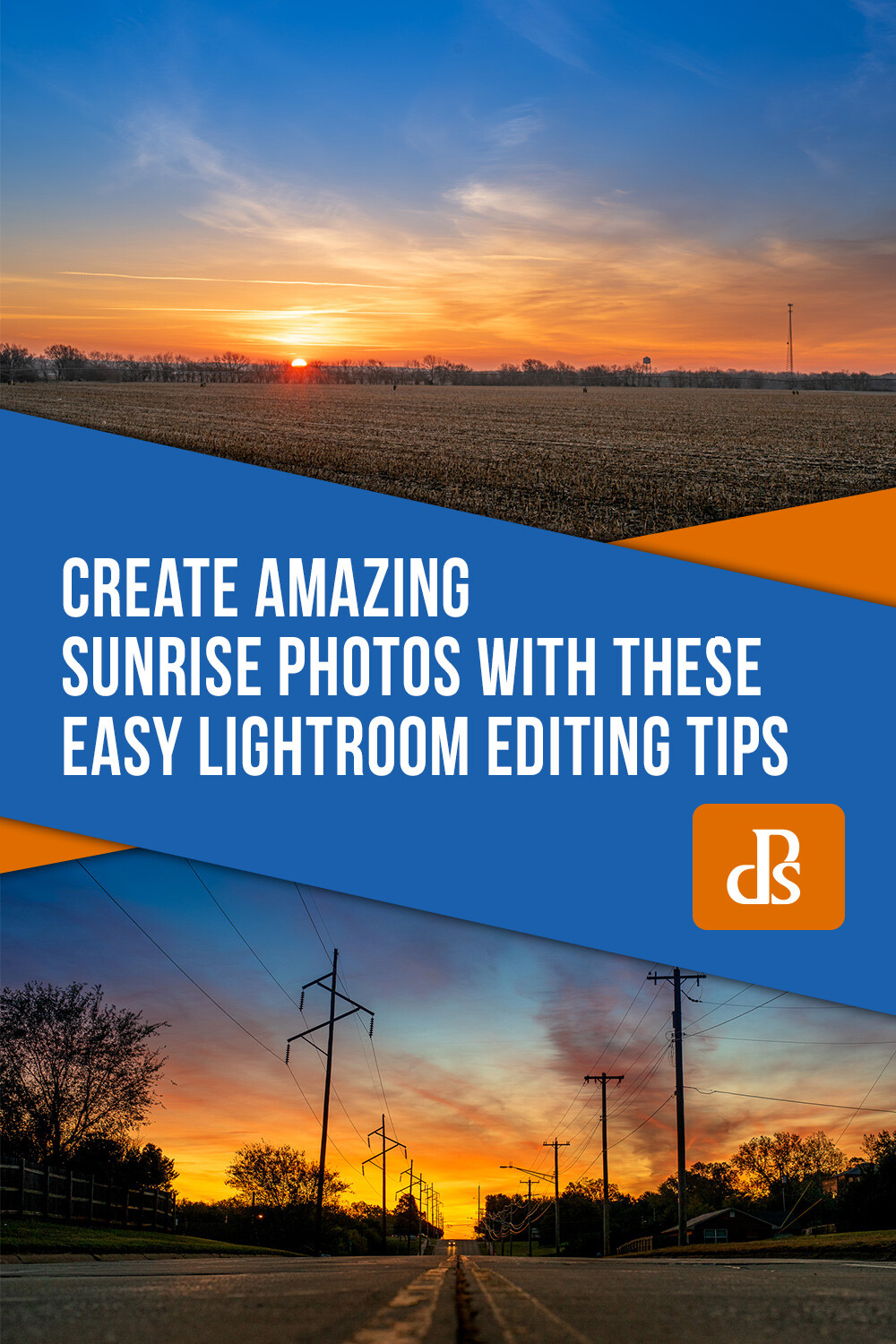
Create Amazing Sunrise Photos with these Easy Lightroom Editing Tips

09 Oct

The post Create Amazing Sunrise Photos with these Easy Lightroom Editing Tips appeared first on Digital Photography School. It was authored by Simon Ringsmuth.

Sunrise pictures can be tricky. Even the most dedicated photographer can get frustrated with sub-par results, often with foregrounds that are too dark or a nice round sun that appears white and washed-out. While things like timing and technique are critical for taking good sunrise pictures, another element is the editing. With a few Lightroom sunrise photo editing tips, you can take a boring, bland sunrise and turn it into a work of art.

Create Amazing Sunrise Photos with these Easy Lightroom Editing Tips

To get a good finished photo you need a solid starting point. That means your initial sunrise photo needs to meet a few basic parameters:

  • It must be shot in RAW.
  • The sky should be properly exposed, which means the foreground will be dark.
  • It’s helpful to shoot with low ISO values to give you as much headroom as possible when editing.

If you start with a sunrise photo that meets these parameters, you can use a few sliders and options in Lightroom to bring out the colors and brilliance that you saw with your eyes when you shot it.

To illustrate this process, I’m going to walk through an example of sunrise photo editing. The picture below is a RAW file straight out of my camera.

sunrise-photo-editing-tips

Original RAW file straight from my camera. Nikon D750, 50mm, f/4, 1/180 second, ISO 320.

This picture might not look very impressive, but that’s the point. If I had exposed for the foreground, the dark areas would be bright and natural. The trade-off is that parts of the sky would be so bright they would be unrecoverable in Lightroom.

Everything needed for a beautiful sunrise photo is fully intact in this dark, underexposed image. I just need to coax out the colors with a little sunrise photo editing.

Step 1: Shadows

The first thing to do is brighten the foreground by adjusting the shadows. Locate the Basic Panel in the Lightroom Develop module and push the Shadows slider all the way to the right.

Image: Boosting the shadows will make the dark foreground a lot more usable.

Boosting the shadows will make the dark foreground a lot more usable.

This makes the foreground much brighter. It is very close to how the scene looked when I shot the picture. I was on my bike, and there’s no way I would have ridden to work that morning in the complete pitch black!

sunrise-photo-editing-tips

With the shadows lifted, the foreground is brighter. You can also see that there is plenty of image data captured in the RAW file to work with.

Step 2: White balance and graduated filters

After bringing up the shadows, the next step is to tweak the colors of the sky and foreground. The graduated filter is perfect for this since your edits are applied gradually, as the name implies.

Image: Graduated Filters are ideal for sunrise photos.

Graduated Filters are ideal for sunrise photos.

The values you use for this will depend greatly on the look you want in your picture. For a good starting point, I recommend lowering the Temperature, raising the Whites, and increasing the Saturation. Feel free to tweak the other settings to your liking, but I recommend being a little conservative at this point. You can always go back and change things later. If you have objects protruding into your sky like trees, buildings, or mountains, you can use the Range Mask option. Then your edits are only applied to the sky and nothing else.

Image: When using a Graduated Filter on the sky, I like to lower the color temperature and increase...

When using a Graduated Filter on the sky, I like to lower the color temperature and increase saturation. You might find other tweaks to be helpful as well.

After adjusting the sky, use a second Graduated Filter to perform a similar operation on the foreground. Click the New button at the top of the Graduated Filter panel, and click-and-drag on the picture to apply your filter.

Move the Temperature slider to the right so the foreground is a little warmer. Then adjust other options like Exposure, Texture, and Sharpness as needed.

Image: A second Graduated Filter in the opposite direction can be useful for giving the foreground a...

A second Graduated Filter in the opposite direction can be useful for giving the foreground a warmer white balance.

There’s no correct way to do this next step because everyone has unique taste and preferences. I used the following values on the image above, but your results will vary depending on your picture.

Image: When applying a second Graduated Filter to the foreground, it can be useful to edit some othe...

When applying a second Graduated Filter to the foreground, it can be useful to edit some other parameters as well, especially Exposure and Shadows.

Step 3: Crop the picture

Some will debate the exact stage in the process where you need to crop your picture. Others will say that a good photographer should use what comes out of the camera and never crop anything! I say it’s your picture and if you want to crop, go right ahead. I recommend cropping after your basic adjustments are in place. Those operations can bring out things formerly hidden and give you a better sense of how you really want to crop the image.

In the image I’m working with for this example, I don’t like the “Speed Limit 35” sign on the right side. If I crop that out, then I need also to re-frame the picture, so the sun is in the middle.

sunrise-photo-editing-tips

You can use cropping to get the dimensions and proportions of your picture just right.

Step 4: General Color Adjustments

After making your initial set of adjustments, and cropping the picture to your liking, it’s time to head to the HSL/Color panel to tweak the individual colors of the sunrise. Bring up the Saturation level of orange, blue, and red while also adjusting the Hue and Luminance to get just the right look. As before, be careful not to go overboard since too much tweaking makes your picture look unnatural.

For the picture below, I adjusted the Hue and Saturation of Blue by +20 each, and the Saturation of Orange by 14.

Image: Adjusting the blues and oranges can really bring out some of the vivid colors of a sunrise pi...

Adjusting the blues and oranges can really bring out some of the vivid colors of a sunrise picture.

Image: Don’t overdo your adjustments or your image will look fake and over-saturated.

Don’t overdo your adjustments or your image will look fake and over-saturated.

Step 5: Detailed enhancements

As with cropping, some photographers have varying opinions on when to do this step while others skip it entirely. I like to do it near the end of the editing process after I have made my other adjustments. However, you might find it better utilized at an earlier phase. Head back to the Basic panel where everything began and fine-tune a couple of other sliders like Highlights, Whites, Texture, and even Exposure if you need to.

sunrise-photo-editing-tips

Final tweaks help put the finishing touches on your sunrise.

At this point, you’re really just putting the finishing touches on, almost like adding a pinch of salt or garlic powder to a pot of soup that’s ready to eat. I sometimes get lost down an image-editing rabbit hole at this step. I find myself endlessly tweaking the sliders in a vain attempt to chase perfection. If that happens to you, walk away from your computer for an hour. When you return, you may be pleasantly surprised at how good your picture looks, with no additional tweaking required.

Create Amazing Sunrise Photos with these Easy Lightroom Editing Tips

You can also use the Spot Removal tool to clean up dust or dirt on the lens as well as fix other imperfections. There are also several Sharpening options to make your sunrise a little more clear and crisp.

From good to great

As with most photo editing situations, your results will vary greatly depending on a variety of factors. I have found that this same process, with different degrees of adjustments to the sliders, works quite well for me. It would probably work as a good starting point for you too. Still, I encourage you to experiment and develop your own editing style over time.

For one more example of how this process can yield good results, I started with the following RAW file. I shot this picture just as the sun was coming up in rural Nebraska.

sunrise-photo-editing-tips

RAW file straight out of my camera. 50mm, f/8, 1/180 second, ISO 100. As with the other image at the top of this article, the original is severely underexposed but contains all the data needed when editing in Lightroom.

I used the exact same process described in this article to vastly improve the picture in less than two minutes.

sunrise-photo-editing-tips

Two minutes later and it’s been transformed into a frame-worthy midwestern sunrise.

I hope these sunrise photo editing tips help you achieve some epic photos!

I’d love to see some of your sunrise shots and hear about the editing process you use as well. Leave your thoughts, as well as any pictures you’d like to share, in the comments below.


sunrise-photo-editing-tips

The post Create Amazing Sunrise Photos with these Easy Lightroom Editing Tips appeared first on Digital Photography School. It was authored by Simon Ringsmuth.


Digital Photography School

 
Comments Off on Create Amazing Sunrise Photos with these Easy Lightroom Editing Tips

Posted in Photography


How to Make Your Photos Awesome in Lightroom or Photoshop Camera RAW

05 Oct

The post How to Make Your Photos Awesome in Lightroom or Photoshop Camera RAW appeared first on Digital Photography School. It was authored by Caz Nowaczyk.

In this video tutorial, Nemanja Sekulic will show you how to make some dramatic editing changes to your RAW photos using Lightroom or Photoshop Camera RAW.

?

During the process, you will learn the following in Lightroom (which you can also translate to Photoshop Camera RAW):

  • How to use the Basic Panel including the Exposure Slider, Highlight Slider, Shadow Slider, Color Temperature Slider,
  • The shortcut for viewing before/after (\)
  • How to use the Radial Filter tool – how to make multiple radial filter selections, reposition, and make adjustments to the selection.
  • How to use the Adjustment Brush Tool – including changing your brush size, flow, and feather amounts.
  • How to use it to make selective adjustments in your image, including color, temperature, exposure, highlights, shadows, clarity, etc. to fine-tune your image.
  • How to use selective color with your Adjustment Brush.
  • How to make new Adjustment Brushes to fine-tune the details in the eyes.
  • How to use Hue and Saturation Panels as well as the Split Toning Panel.
  • How to add a vignette.
  • How to go back and readjust any of your Radial Filter, and Adjustment Brush settings.

You can apply these techniques across any image you choose, or you can download Nemanja’s image file here.

You may also find the following helpful:

  • Photoshop vs Lightroom – the Power of Photoshop
  • Four Lightroom Tips to Enhance Your Landscape Photos
  • Lightroom Texture Slider vs. Skin Smoothing
  • Lightroom Shortcuts Every Photographer Needs to Know
  • 10 Tips to Make Lightroom Classic CC Run Faster


The post How to Make Your Photos Awesome in Lightroom or Photoshop Camera RAW appeared first on Digital Photography School. It was authored by Caz Nowaczyk.


Digital Photography School

 
Comments Off on How to Make Your Photos Awesome in Lightroom or Photoshop Camera RAW

Posted in Photography


How to Make a Manual Lens Correction in Lightroom

04 Oct

The post How to Make a Manual Lens Correction in Lightroom appeared first on Digital Photography School. It was authored by Simon Ringsmuth.

The job of a camera lens is straightforward: it bends and focuses light, and it does so through the use of several curved pieces of glass that move back and forth. It sounds simple but is actually a lot more difficult than it might seem. Byproducts of all that glass are anomalies such as chromatic aberration and barrel distortion which can mar an otherwise beautiful image. Lightroom can fix these on its own to a degree, but to really take control of your pictures you can use the Manual Lens Correction panel to fine-tune your image until it’s pixel-perfect.

How to Make a Manual Lens Correction in Lightroom

Understanding Chromatic Aberration

Before wading too deep into manual lens corrections, it’s important to understand what causes issues such as chromatic aberration in the first place. Different colors of light travel at different wavelengths. As a result, when the glass elements of a lens bend the incoming light, it can be quite tricky to make everything line up properly on the camera’s image sensor. This is especially prominent when shooting at the widest possible aperture since it gets really difficult to get the light to behave properly when you let so much in at once.

The result is purple and green fringes when you see hard edges in a picture. It can also produce distorted images that look either squished or puffed out in the middle. Cheaper lenses, or lenses with very wide apertures, don’t have as many glass elements to correct for these issues. It’s also why lenses like the Nikon 105 f/1.4 or Canon 85mm f/1.4 cost (and weigh) so much! They have a lot of special glass inside to correct for the problems that often happens with their less expensive counterparts.

How to Make a Manual Lens Correction in Lightroom

If you don’t have a few thousand dollars to spend on ultra-sharp lenses, you can fix these image issues in Lightroom.

When you shoot in RAW, you can use the Automatic option. This does a fine job of removing purple and green fringes and fixing barrel distortion based on what it knows about the characteristics of your lens.

Image: Click these boxes to have Lightroom automatically attempt to fix lens-related picture problem...

Click these boxes to have Lightroom automatically attempt to fix lens-related picture problems.

Nine times out of ten it does the job quite well. However, sometimes you will want to tweak things for yourself or just do the entire operation on your own. This is where the Manual option really comes in handy.

Manual Lens Correction

The Manual Lens Correction panel contains three options, each of which you can control separately.

  • Distortion lets you re-shape your picture so it’s less puffed-out in the middle.
  • Defringe deals with purple and green fringes at areas of high contrast, particularly with a lot of backlighting.
  • Vignetting is for lightening or darkening the corners of a picture.
Manual-Lens-Correction-in-Lightroom

The Manual Lens Correction option gives you full control over lens corrections.

Distortion

This is a common issue with many lenses that isn’t always very obvious. However, once you notice it, you’ll start seeing this phenomenon all the time. Fortunately, the fix is simple. It’s usually just a matter of dragging the Distortion slider to the left or right.

Image: Something’s not quite right here. The composition is fine but the middle is bulging out...

Something’s not quite right here. The composition is fine but the middle is bulging out like a balloon.

As you drag the slider, you will see a grid appear over the picture which can help you get just the right value. Look for straight horizontal or vertical lines in your picture, and drag the slider until they line up with the grid.

Manual-Lens-Correction-in-Lightroom

The roof of the building gives a nice guide when correcting for distortion. It’s not quite lined up with the grid yet, but pushing the distortion slider a bit more will fix the problem.

The Constrain Crop option makes sure the final image stays within a square or rectangular boundary. If you adjust the slider too far to the right, the image can get a little too warped. However, checking this option will fix this by essentially zooming in on the picture as it’s being adjusted to avoid an extreme pincushion effect.

Manual-Lens-Correction-in-Lightroom


Final image:

How to Make a Manual Lens Correction in Lightroom

Defringe

This is where you can easily correct purple and green fringes that can show up on your pictures. You can adjust the sliders manually, but my preferred way is to use the eyedropper tool to select specific areas of purple and green fringing that you want to remove.

The picture below is straight out of the camera with no lens correction applied. Notice how the edges of the bench have what appears to be slight purple and green outlines. These are caused by the light being bent and shaped by the camera lens. Once you know to look for these sorts of issues, you start seeing them all over the place!

How to Make a Manual Lens Correction in Lightroom

Here’s a close-up view of the same picture. Notice the purple curve at the base of the seat and the green edges at the knurled edge that goes horizontally across the frame.

Manual-Lens-Correction-in-Lightroom

To manually correct these instances of chromatic aberration, Lightroom needs to know what range of colors you want to remove. Use the eyedropper tool to select either a purple fringe, a green fringe, or both, and then fine-tune by adjusting the sliders for Amount and Hue.

Manual-Lens-Correction-in-Lightroom

After selecting your purple and greens with the eyedropper tool, Lightroom will do its best to remove those specific colors around any high-contrast edges. You can fine-tune the defringing by adjusting the Amount and Hue sliders, but I usually find that Lightroom does a fine job just with a few clicks of the eyedropper.

How to Make a Manual Lens Correction in Lightroom

When viewing the full image, you can see these instances of chromatic aberration are now gone, and the picture is much more pleasing as a result.

How to Make a Manual Lens Correction in Lightroom

This operation can be extremely useful with portraits, which are often shot using larger apertures. Even if you don’t shoot close-ups for a living it’s nice to know that this simple, fast fix is available to you.

Vignetting

This option works much like the regular Vignette tool in Lightroom. You can use it to make the corners of your picture lighter or darker, depending on whether you drag the slider to the right or left.

Nearly all lenses exhibit some degree of vignetting, especially when using their widest aperture, but you can easily correct them using this tool.

Manual-Lens-Correction-in-Lightroom

Original image, straight out of the camera.

Sliding the Amount all the way to the left darkens the corners of the picture. It’s subtle but effective at drawing the viewer’s attention to the subject in the middle.

Image: Vignette amount -100

Vignette amount -100

Conversely, sliding the Amount all the way to the right makes the corners lighter. This is often useful to correct for the vignette that is inherent in many lenses at wider apertures.

Image: Vignette amount +100

Vignette amount +100

Conclusion

While you can use Lightroom’s automatic lens corrections, it’s nice to know how to correct for things like chromatic aberration, distortion, and vignetting on your own using manual lens correction. The best part is that none of these edits are permanent and you can undo your changes any time due to the non-destructive nature of Lightroom. So if you just want to try these out and see what happens, go right ahead!


manual-lens-correction-in-lightroom

The post How to Make a Manual Lens Correction in Lightroom appeared first on Digital Photography School. It was authored by Simon Ringsmuth.


Digital Photography School

 
Comments Off on How to Make a Manual Lens Correction in Lightroom

Posted in Photography


Loupedeck+ Review – the Perfect Editing Companion for Lightroom and Premiere?

02 Oct

The post Loupedeck+ Review – the Perfect Editing Companion for Lightroom and Premiere? appeared first on Digital Photography School. It was authored by Carl Spring.

Loupedeck+ Review - the Perfect Editing Companion for Lightroom and Premiere?

There is something undeniably cool about Hollywood editing studios. I remember seeing one in a magazine as a child and wanting to play with it. Thinking how cool it would be to figure out what all the dials did and edit Hollywood Blockbusters. I never made it in Hollywood, but I can remember my first editing console. Purchased from the high street, it allowed me to link 2 VCR players and have a fade and wipe slider for video. It even had an audio fader that allowed me to (surprisingly) fade audio. At the time it was amazing! I made a lot of skateboard videos using that console.

Obviously we’ve moved to digital everything, but there is something about using knobs and dials to edit that I have always liked. So, when I was given the opportunity to try the Loupedeck+, I jumped at the chance to get hands-on with it. 

What is it?

Simply put, Loupedeck+ is a keyboard-sized photo editing console. The main editing functions are controlled via a series of knobs and buttons.

Loupedeck started life on Indiegogo. The initial Loupedeck was marketed as a photo editing console just for Lightroom. With the Loupedeck+, however, it has become much more than that. The new version has support for several different software platforms too.

This device is still aimed primarily at Adobe users, with support for most of the Creative Suite. There is also support for Apple’s Final Cut and Aurora HDR and is also currently in Beta testing with Capture One Pro, which is my preferred choice of photo editor.

Out of the box

In terms of looks, it is beautifully packaged. However, that doesn’t mean anything if the product itself is not up to scratch. The Loupedeck however, definitely is. Although fully plastic, everything is solid and feels like it will survive long term usage. The only exception to this is the control dial, which does feel a little flimsy compared to the rest of the device.

In terms of the buttons, when making notes, I put down that they are squishy but solid. I still think that’s the best way to describe them. There is also a nice little detail for the cable to connect the Loupedeck. There are grooves that allow you to place it to work with how your computer is setup. It’s not a deal-breaker, but attention to detail like this tends to show the makers care about the end-user. 

dpsloupedeck+-review

The Loupedeck+ is well built apart from the control dial. It just feels a little flimsy. However, in use, it has been flawless so far.

Getting set up 

Once you have unpackaged your Loupedeck, the next stage is setting it up. To do this, you need to install the Loupedeck software. This is a simple download from the Loupedeck website, which then allows you to customize the Loupedeck to your specific editing preferences.

I have left it is standard for now, but I can definitely see me looking into this again to fine-tune it to how I edit.

Once you have the software installed, it is as simple as choosing which software you want to use the Loupedeck with and off you go. Loupedeck has a series of guides for each piece of software that it is compatible with. I recommend having these on hand, especially when using software other than Lightroom. Even with Lightroom though, it is worth having nearby to see what extras you may find yourself reaching for.

The fact that the user guide for Lightroom alone is 31 pages tells you what level of customization is possible.

Image: To get started with Loupedeck+ you need to download the software from the Loupedeck website....

To get started with Loupedeck+ you need to download the software from the Loupedeck website. Once installed, choose your software and away you go.

The learning curve

The learning curve is in two parts; getting used to the Loupedeck from your usual editing routine, and how Loupedeck reduces the learning curve of the software.

To test this, I got my wife to use Loupedeck to work on a wedding we had recently shot. She normally helps make picks, but she has very limited editing experience. She can just about manage to tweak exposure a little, but that’s it.

I put her at the Loupedeck and asked her to try and edit images she thought needed work. After about 2 minutes of me explaining the device, she started. Two more minutes passed before she explained how brilliant it was.

By removing the need to search through the menus (of Capture One in our case), she was able to edit photos easily and without needing constant reminders of the locations of buttons or sliders. It made her experiment more, and within an hour, she felt completely confident using the Loupedeck.

For beginners, this will make the process of learning to edit (especially in Lightroom) so much easier. Everything is at hand, and the layout makes it simpler for beginners to experiment. They can use more of the features of the program without the need to remember the locations in the menus.

For me, as a power user of Capture One, the learning curve was a little steeper. I’ve put this down to Capture One currently being in Beta testing. There are some quirks I needed to get used to when editing, such as using the color balance tool.

There is also the fact that when you use the software every day, you acquire muscle memory from the keyboard shortcuts you use most often. Moving to dials does take a while to get used to.

I do feel that even for Lightroom users (whom this deck was designed for), the change to Loupedeck will mean your editing is slower until you get up to speed. However, I am talking only hours here, not days.

Loupedeck+ and Lightroom

Obviously I wanted to start this test with Lightroom as this is really the program the device is designed for. Now I am not a Lightroom user, so having me use this is more like an inexperienced Lightroom editor versus someone who uses it every day.

I loaded up a selection of images into a catalog and began editing. Using the Loupedeck was completely intuitive. I simply started to edit images without the need to try and remember control locations. It was as easy as twisting the dials with the required name on them. In my experience, the Loupdeck+ and Lightroom work flawlessly together. There is no lag, and the degree of control with each twist feels perfect. Everything is at hand, and if you do find yourself needing something that is not here, you can customize the software until your heart’s content.

It made the process of editing in Lightroom a pleasure and, as a hardcore Capture One user, that is the highest praise I can give it.

dps-loupedeck+-review

It is easy to see that the Loupedeck+ is designed with Lightroom users in mind.

Loupedeck+ and Capture One Pro

Because I’m not a Lightroom user, I went down the road that is Beta testing to put the Loupedeck in my day-to-day editing software. 

Now compared to Lightroom, I found editing in Capture One Pro to be a more clunky affair. The problem is that in its current Beta state, the Loupedeck doesn’t offer the same level of functionality. This is something that Loupedeck are working on and are currently looking for feedback from any Capture One users to help improve the experience.

The basic adjustments work perfectly well in Capture One. To adjust white balance and exposure is just as good as Lightroom. However, there are elements, such as resetting adjustments, that are not there.

The issue here is that the Loupedeck was designed with Lightroom in mind and Capture One works differently. The most obvious example of this is the P1-P8 buttons. In Lightroom, these assign to presets; however, in Capture One, they are simply not set up.

Shooting Fuji, I would love to map this to my film curves, where it would be great to choose the look of my image. However, at present, this is not possible. For more advanced editing, it can be frustrating, and I find myself reaching for the mouse and keyboard more often than I would like.

It’s not perfect by any means, and it does sound a little doom and gloom, but in terms of basic edits, it really did speed up my workflow. I have now edited two weddings with the Loupedeck, and it has definitely saved me some time. Also being super simple for basic adjustments, it really has allowed my wife to do basic edits for things such as exposure.
When editing a wedding, I reach for it straight away. It really is something that after using it, I wouldn’t be without.

The best thing about using Loupedeck+ with Capture One is that I know it can only get better from here. Once there are some more options added, and a few things ironed out from the beta testing, I feel this will be a powerful editing tool.

Loupedeck+ and Photoshop

This is where things start to feel like I was using the Loupedeck for the sake of it. When editing a RAW file, it was great, but after that, I really felt no benefit from using it. When editing in Photoshop, you tend to use your mouse or tablet much more.

You can use it for working with curves, but you need to work with the mouse too, and I found it just too clunky. Other things like zoom in and out, which are mapped to knobs, simply do not work as well as using the middle mouse button.

Unlike using it in Lightroom and Capture One, when working in Photoshop, I found myself using it for the sake of it, rather than reaping any real benefit. I do feel that the Loupedeck+ working with more software is good. However, I feel that, in some cases, it just feels like it is added for marketing over actual functionality. 

Loupedeck+ and Premiere

The ability for Loupedeck to work with Premiere was something that I found myself excited to try. I am by no means a power user, but I know my way around Premiere and edit with it enough to consider myself proficient.

Using Loupedeck with Premiere, though, is where things go a little too far for me. When using it to edit a video, it was just too hard for me to remember what all the functions did. It could be due to my lack of time spent in Premiere, but I think it’s more than that. When photo editing, things like exposure, and contrast are the same no matter which program you use. Video editing, however, uses a completely different language.

It is not that you can’t learn how to use Loupedeck with Premiere. I think once you got used to what each button and dial was mapped to, it would really speed things up. However, as someone who uses the software occasionally, I would find it hard to remember the settings for Premiere.

I think the best way to sum it up is that if you are buying a Loupdeck+ solely for Premiere use, you may face a steep learning curve. For me, to have it as a bonus is nice, even though I can’t really see myself using it.

loupedeck+-review

As you can see from the layout above, Loupedeck is not as intuitive in Premiere.

Conclusion

It’s hard to sum up the Loupedeck+.

Some may see this as a gimmick you will buy, only to put it in the cupboard after a few months to gather dust. But that really isn’t how it is. It’s a well-made, high-quality device that really is a time-saver, especially in basic edits.

I use the Loupedeck+ on every edit now. That must say something. It has sped up my editing (it needs to, I am currently behind on editing a wedding and am writing this article rather than doing that). However, I do still find myself reaching for the keyboard or mouse quite often. I think the best way is to give three different outcomes, depending on what software you use.

If you’re a Capture One user like me, you may find it frustrating. It is almost there, close to being great, but then there are silly little things that are really annoying! However, this is in beta testing, which means things are still ironing out. I am sure this is going to improve moving forward. It’s just a question of whether you are willing to pay for something that doesn’t quite work as you would like it to.

If you’re using this on Premiere or Final Cut, you will need to spend some serious time with the manual. It really is not intuitive in the same way it is for photo editing. If you are willing to put in the time, I am sure it will speed up your workflow. I do question how long it would take to get to this point though.

Lastly, Lightroom. This is still what they designed the Loupedeck for. If you are a Lightroom user, I would definitely suggest getting your hands on a Loupedeck+ – It really does make editing much faster. It worked incredibly well in use, and I enjoyed editing in Lightroom. This really is the highest praise I can give it.

However, where this console really shines is for new users. If you are new to editing, I cannot recommend this enough. I wish something like this had existed when I started editing. It makes the process of understanding how tools work so much more organic. Beginners will get a lot out of using a device like this – It just makes editing more intuitive. My wife managed to edit much better than ever before in minutes.

Moving forward, I will continue to use a Loupedeck+ to edit. Maybe it’s just my old ways. Maybe it means I get to pretend I am in a film studio editing suite. Or maybe, it’s something that I never really thought I would want, but now don’t want to stop using.

In all honesty, I think it’s all three.


loupedeck+-review

The post Loupedeck+ Review – the Perfect Editing Companion for Lightroom and Premiere? appeared first on Digital Photography School. It was authored by Carl Spring.


Digital Photography School

 
Comments Off on Loupedeck+ Review – the Perfect Editing Companion for Lightroom and Premiere?

Posted in Photography


Adobe Camera Raw, Lightroom add support for newer Sony, Panasonic and Fujifilm cameras

24 Sep

Adobe recently released the September update for its Camera Raw plugin, the software that enables users to import and edit Raw images in the company’s creative software applications like Photoshop and Bridge.

Camera Raw version 11.4.1 adds support for four additional camera models: Fujifilm X-A7, Sony A7R IV (ILCE-7RM4), Panasonic Lumix DC-S1H, and the Sony RX100 VII (DSC-RX100M7). The new camera support is also available in Lightroom and Lightroom Classic starting with versions 2.4.1 and 8.4.1, respectively.

With the updated support, users can edit RAF images from the Fujifilm X-A7, as well as RW2 files from the Lumix DC-S1H and ARW files from the two newly added Sony cameras. Adobe Camera Raw 11.4.1 is available to download for Windows and macOS for free from Adobe’s website. The Lightroom and Lightroom Classic updates should be available through Adobe’s Creative Cloud desktop app.

Articles: Digital Photography Review (dpreview.com)

 
Comments Off on Adobe Camera Raw, Lightroom add support for newer Sony, Panasonic and Fujifilm cameras

Posted in Uncategorized


Photoshop vs Lightroom – the Power of Photoshop

14 Sep

The post Photoshop vs Lightroom – the Power of Photoshop appeared first on Digital Photography School. It was authored by Caz Nowaczyk.

In this video from Nick Page, he Looks at Photoshop vs Lightroom and shows some things that Photoshop can do that Lightroom cannot.

In this tutorial, Nick covers the following using landscape photos as examples:

  • How to use the Quick Selection Tool to select skies against difficult backgrounds so that you can change things like exposure, and contrast more selectively.
  • How to use the Select and Mask tool to refine selections.
  • Applying the selection as a new layer mask.
  • How to fade your opacity levels of your selection.
  • Using the Hue/Saturation adjustment.
  • How to focus stack using layers, and Auto Align and Auto Blend Layers features.
  • Using Exposure Blend and feathered brushes for realism in your photograph.
  • A handy shortcut to create a white layer mask rather that a black one.
  • How to use Levels Adjustment to alter your image contrast.


Do you use Lightroom, or Photoshop? Or both in conjunction with one another? Let us know in the comments.


You may also find the following helpful:

  • How to Make a Cool Double Exposure Effect Using Photoshop
  • How to Make an Awesome Pop-Up Card with your Photos
  • How to Change a Background in Photoshop for Still Life or Food Photography
  • How to Make an Animated GIF in Photoshop
  • How to Create Custom Brushes in Photoshop
  • Photo Editing: When Does it Get to be too Much?

The post Photoshop vs Lightroom – the Power of Photoshop appeared first on Digital Photography School. It was authored by Caz Nowaczyk.


Digital Photography School

 
Comments Off on Photoshop vs Lightroom – the Power of Photoshop

Posted in Photography